
Klass
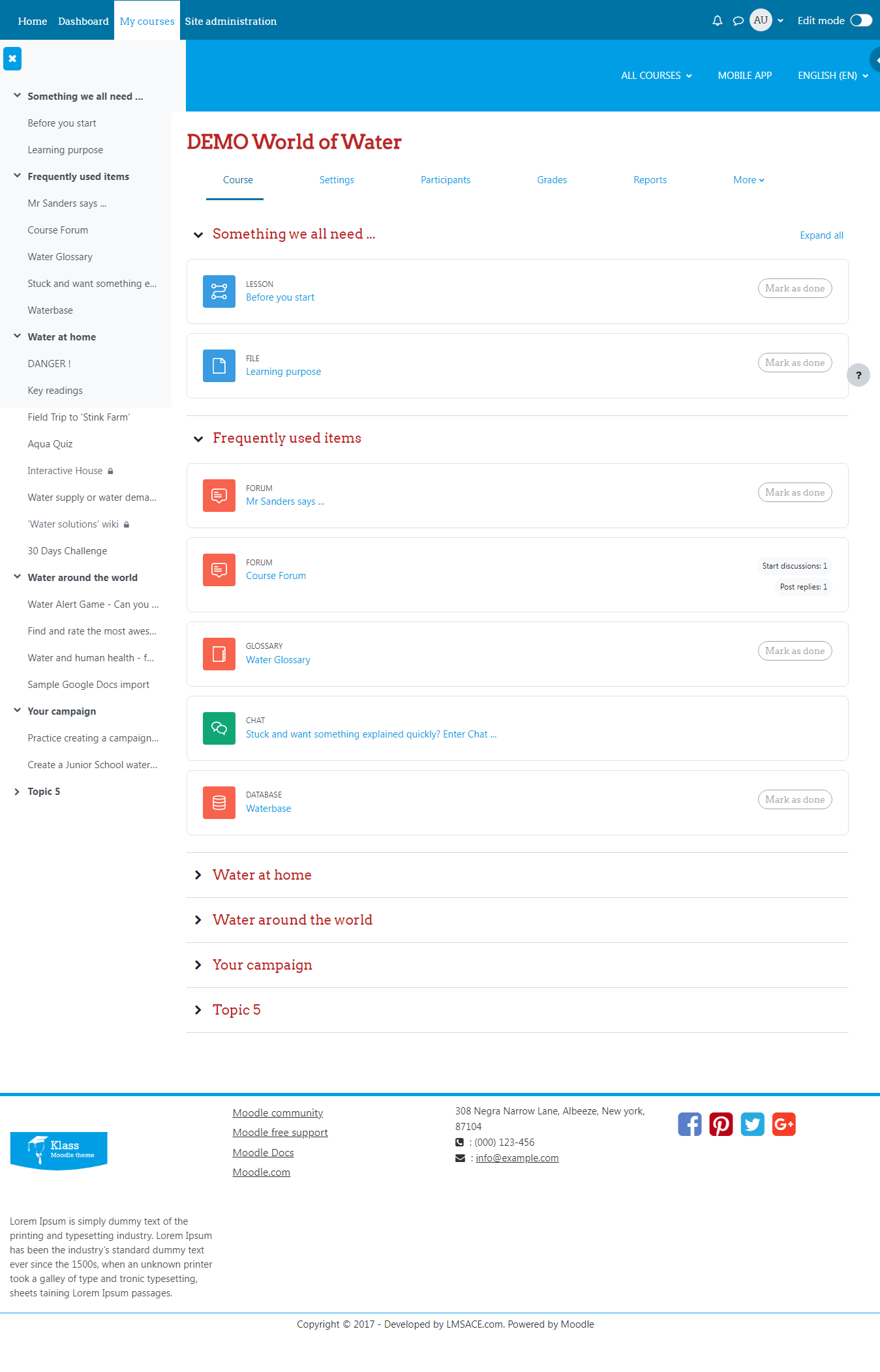
Versions
Current version
v4.1.1 (2023012501)
v4.1.1
Plugin type: Themes
Frankenstyle component name: theme_klass
Version build number: 2023012501
Version release name: v4.1.1
Maturity: Stable
Supported Moodle versions: 4.1
Repository URL (Git): https://github.com/lmsace/klass
Repository branch:
Repository tag:
Issue/bug tracker URL: https://github.com/lmsace/klass/issues
Klass
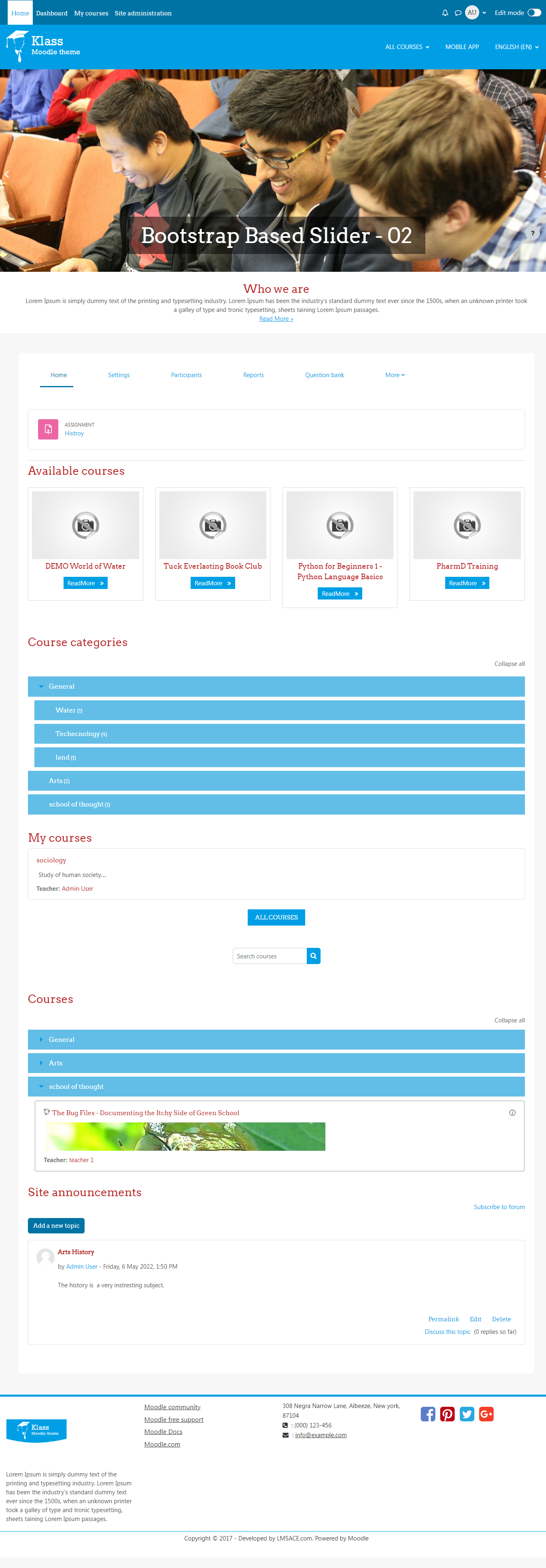
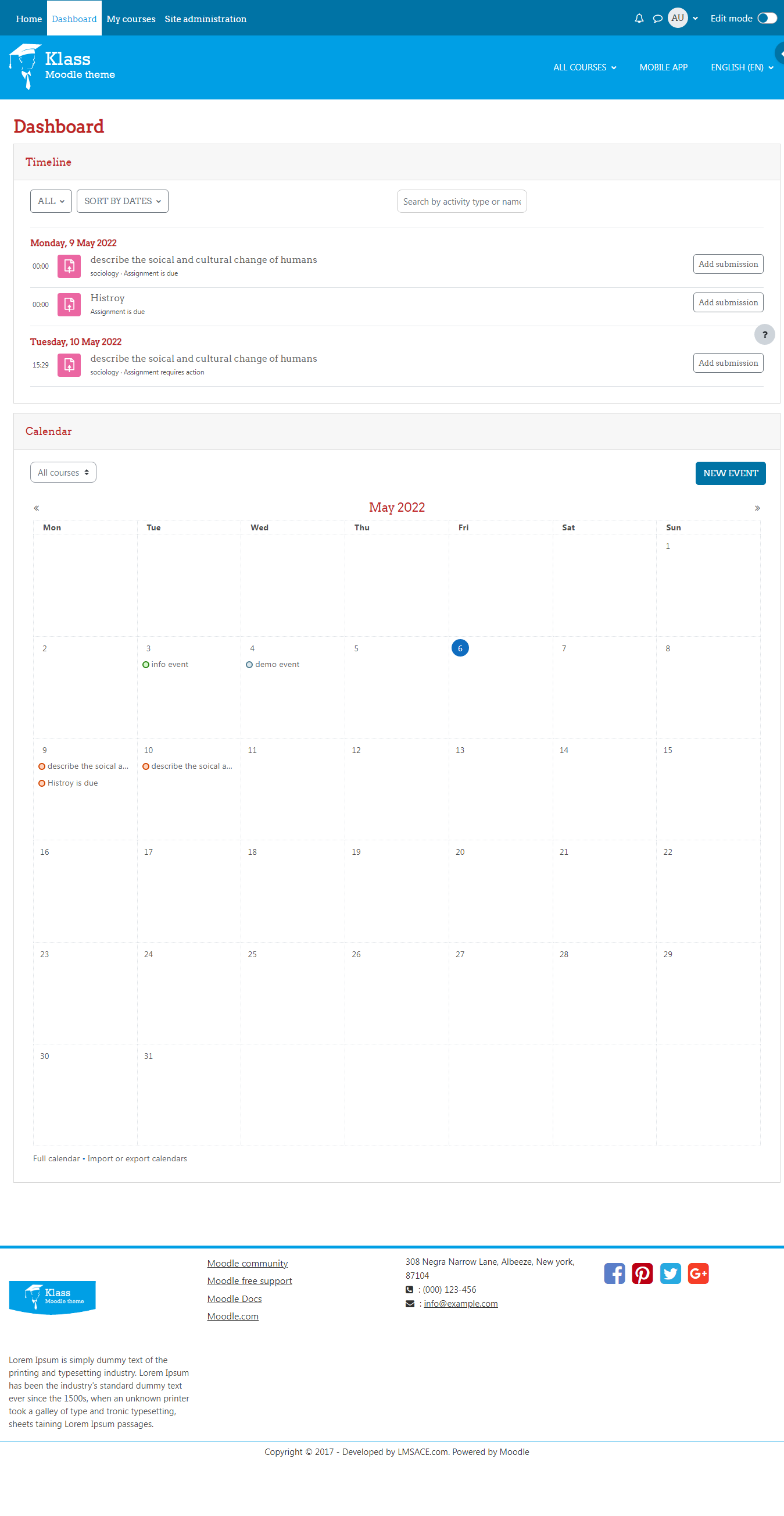
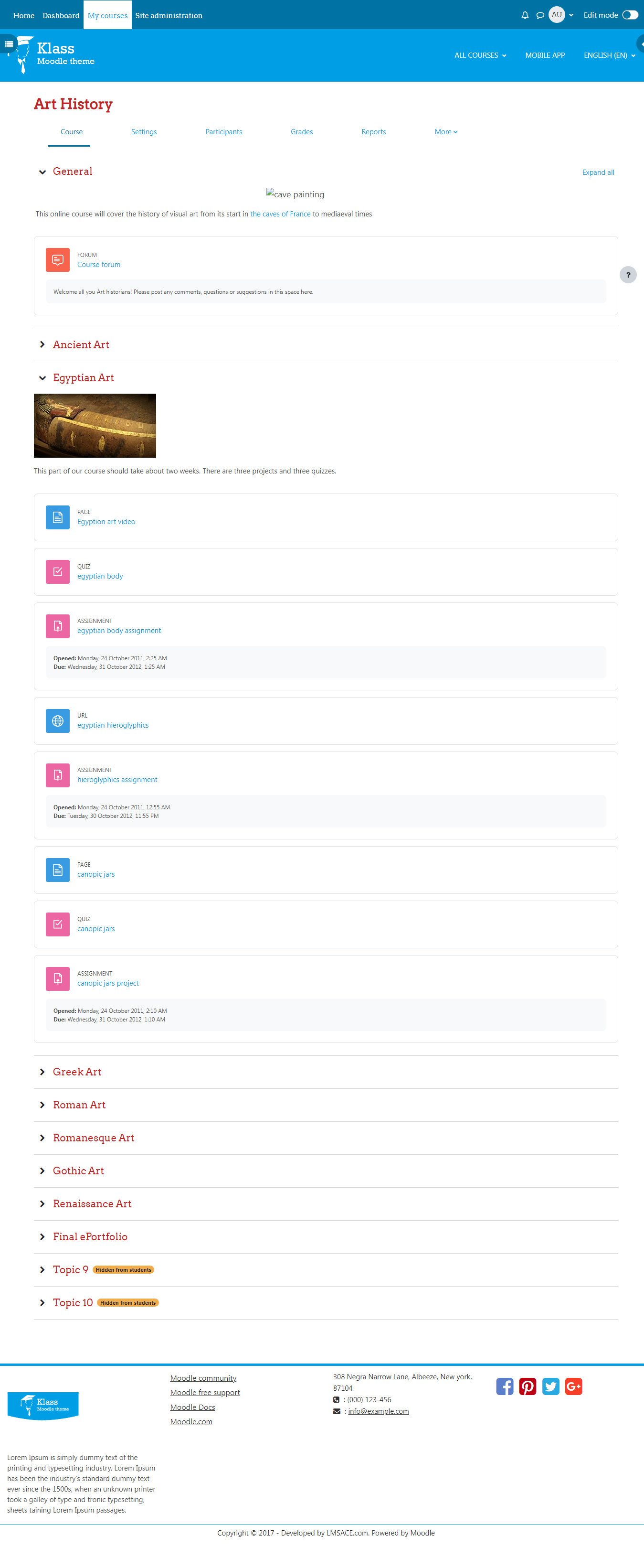
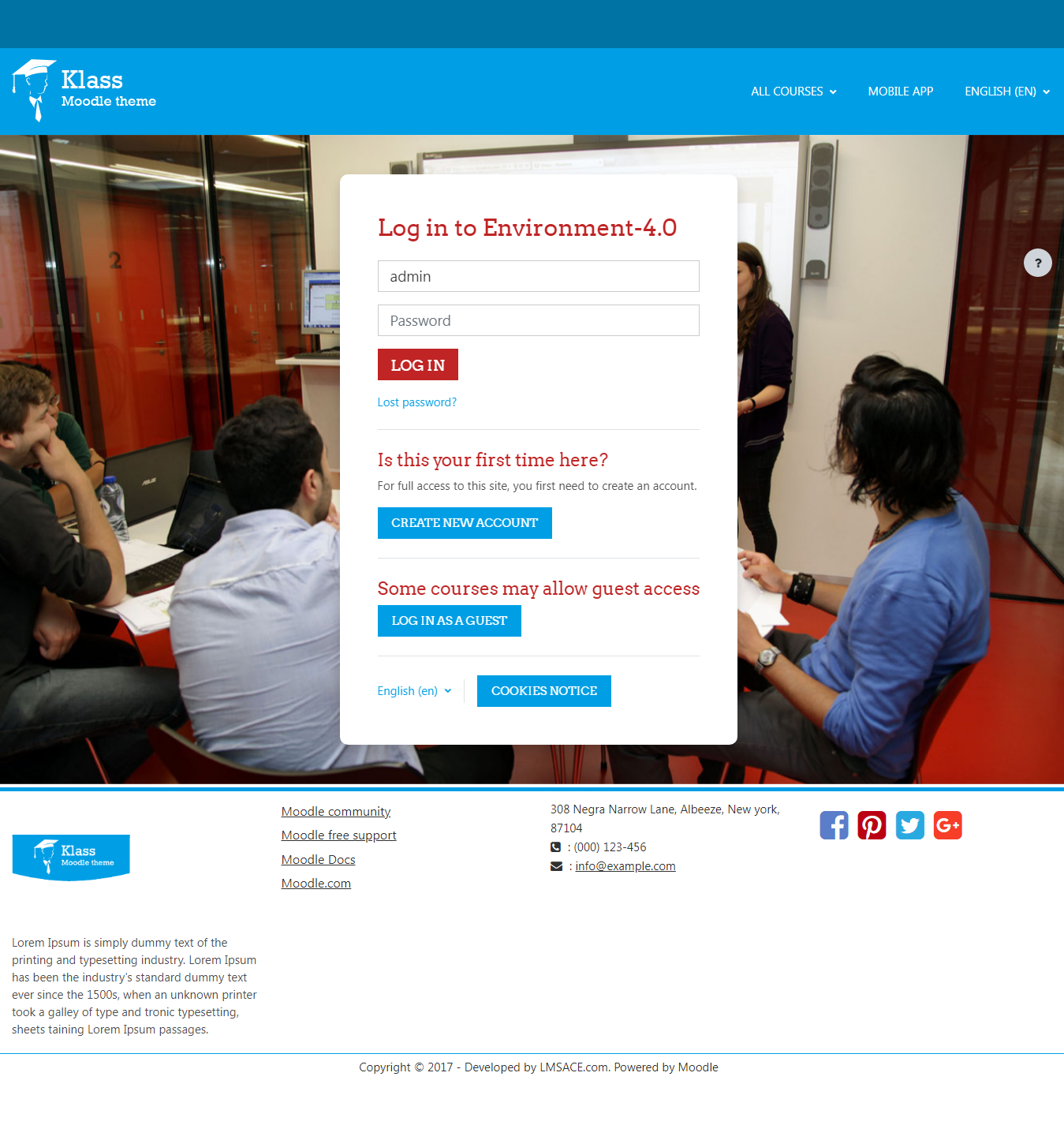
About Klass Moodle theme
This is Responsive Boost Based Moodle Theme
- Package : Moodle Klass Theme
- Theme Version : 4.1
- Relesed on : 25 January 2023
- Authors : LMSACE Dev Team
- Copyright © 2015 onwards www.lmsace.com
Supported moodle versions
Compatible with Moodle 4.0
Supported browsers
IE9+
Recent versions of all modern browsers
Klass theme - Installation steps
- Please unzip the downloaded theme zip file, you will get folder 'klass'
- Copy folder 'klass' and put into theme folder of your moodle system
- Next login as Site administrator
- Go to 'Site administration' -> 'Notifications' , here on 'Plugins check' page you will find both the items.
- Click the "Upgrade Moodle database now" button displayed on bottom of the page
- You will get success message once the plugins installed successfully.
- By clicking "Continue" button on success page , you will get options to change the klass theme settings.
- You can modify the settings later too :-)
Steps to set klass theme as default theme for your moodle system
- Login as site administrator
- Go to Site administration -> Appearance -> Themes -> Theme selector
- Click the "Change theme" button for device type as "Default"
- It will list all the available themes for "Default device"
- Then click "Use theme" button on "Klass theme"
- Next click the "Continue" button ,thats it.
- Cheers,you have done it !!!
- If you need any support related to this theme , kindly send a mail to info@lmsace.com
v4.2 (2023080100)
v4.2
Plugin type: Themes
Frankenstyle component name: theme_klass
Version build number: 2023080100
Version release name: v4.2
Maturity: Stable
Supported Moodle versions: 4.2
Repository URL (Git): https://github.com/lmsace/klass
Repository branch:
Repository tag:
Issue/bug tracker URL: https://github.com/lmsace/klass/issues
Klass
About Klass Moodle theme
This is Responsive Boost Based Moodle Theme
- Theme Demo URL : Moodle Klass Theme
- Theme Version : 4.2
- Relesed on : 01 August 2023
- Authors : LMSACE Dev Team
- Copyright © 2015 onwards www.lmsace.com
Supported moodle versions
Compatible with Moodle 4.2
Supported browsers
IE9+
Recent versions of all modern browsers
Klass theme - Installation steps
- Please unzip the downloaded theme zip file, you will get folder 'klass'
- Copy folder 'klass' and put into theme folder of your moodle system
- Next login as Site administrator
- Go to 'Site administration' -> 'Notifications' , here on 'Plugins check' page you will find both the items.
- Click the "Upgrade Moodle database now" button displayed on bottom of the page
- You will get success message once the plugins installed successfully.
- By clicking "Continue" button on success page , you will get options to change the klass theme settings.
- You can modify the settings later too :-)
Steps to set klass theme as default theme for your moodle system
- Login as site administrator
- Go to Site administration -> Appearance -> Themes -> Theme selector
- Click the "Change theme" button for device type as "Default"
- It will list all the available themes for "Default device"
- Then click "Use theme" button on "Klass theme"
- Next click the "Continue" button ,thats it.
- Cheers,you have done it !!!
- If you need any support related to this theme , kindly send a mail to info@lmsace.com
v4.1 (2023012500)
v4.1
Plugin type: Themes
Frankenstyle component name: theme_klass
Version build number: 2023012500
Version release name: v4.1
Maturity: Stable
Supported Moodle versions: 4.1
Repository URL (Git): https://github.com/lmsace/klass
Repository branch: https://github.com/lmsace/klass/tree/v4.1
Repository tag: https://github.com/lmsace/klass/tree/V4.1
Issue/bug tracker URL: https://github.com/lmsace/klass/issues
Read Me
<div class="logo">

     <h2><span>Klass</span></h2>

</div>
About Klass Moodle theme
This is Responsive Boost Based Moodle Theme
- Package : Moodle Klass Theme
- Theme Version : 4.1
- Relesed on : 25 Jabuary 2023
- Authors : LMSACE Dev Team
- Copyright © 2015 onwards www.lmsace.com
Supported moodle versions
Compatible with Moodle 4.0
Supported browsers
IE9+
Recent versions of all modern browsers
Klass theme - Installation steps
- Please unzip the downloaded theme zip file, you will get folder 'klass'
- Copy folder 'klass' and put into theme folder of your moodle system
- Next login as Site administrator
- Go to 'Site administration' -> 'Notifications' , here on 'Plugins check' page you will find both the items.
- Click the "Upgrade Moodle database now" button displayed on bottom of the page
- You will get success message once the plugins installed successfully.
- By clicking "Continue" button on success page , you will get options to change the klass theme settings.
- You can modify the settings later too :-)
Steps to set klass theme as default theme for your moodle system
- Login as site administrator
- Go to Site administration -> Appearance -> Themes -> Theme selector
- Click the "Change theme" button for device type as "Default"
- It will list all the available themes for "Default device"
- Then click "Use theme" button on "Klass theme"
- Next click the "Continue" button ,thats it.
- Cheers,you have done it !!!
- If you need any support related to this theme , kindly send a mail to info@lmsace.com
<div class="social-links">

    <ul>

        <li><a href="#"><i class="fa fa-facebook"></i></a></li>

        <li><a href="#"><i class="fa fa-twitter"></i></a></li>

        <li><a href="#"><i class="fa fa-google-plus"></i></a></li>

        <li><a href="#"><i class="fa fa-linkedin"></i></a></li>

    </ul>

</div>
v4.0.1 (2022051701)
v4.0.1
Plugin type: Themes
Frankenstyle component name: theme_klass
Version build number: 2022051701
Version release name: v4.0.1
Maturity: Stable
Supported Moodle versions: 4.0
Repository URL (Git): https://github.com/lmsace/klass
Repository branch:
Repository tag:
Issue/bug tracker URL: https://github.com/lmsace/klass/issues
Klass
About Klass Moodle theme
This is Responsive Boost Based Moodle Theme
- Package : Moodle Klass Theme
- Theme Version : 4.0.1
- Relesed on : 17 May 2022
- Authors : LMSACE Dev Team
- Copyright © 2015 onwards www.lmsace.com
Supported moodle versions
Compatible with Moodle 4.0
Supported browsers
IE9+
Recent versions of all modern browsers
Klass theme - Installation steps
- Please unzip the downloaded theme zip file, you will get folder 'klass'
- Copy folder 'klass' and put into theme folder of your moodle system
- Next login as Site administrator
- Go to 'Site administration' -> 'Notifications' , here on 'Plugins check' page you will find both the items.
- Click the "Upgrade Moodle database now" button displayed on bottom of the page
- You will get success message once the plugins installed successfully.
- By clicking "Continue" button on success page , you will get options to change the klass theme settings.
- You can modify the settings later too :-)
Steps to set klass theme as default theme for your moodle system
- Login as site administrator
- Go to Site administration -> Appearance -> Themes -> Theme selector
- Click the "Change theme" button for device type as "Default"
- It will list all the available themes for "Default device"
- Then click "Use theme" button on "Klass theme"
- Next click the "Continue" button ,thats it.
- Cheers,you have done it !!!
- If you need any support related to this theme , kindly send a mail to info@lmsace.com
v4.0 (2022051700)
v4.0
Plugin type: Themes
Frankenstyle component name: theme_klass
Version build number: 2022051700
Version release name: v4.0
Maturity: Stable
Supported Moodle versions: 4.0
Repository URL (Git): https://github.com/lmsace/klass
Repository branch:
Repository tag:
Issue/bug tracker URL: https://github.com/lmsace/klass/issues
Klass
About Klass Moodle theme
This is Responsive Boost Based Moodle Theme
- Package : Moodle Klass Theme
- Theme Version : 4.0
- Relesed on : 17 May 2022
- Authors : LMSACE Dev Team
- Copyright © 2015 onwards www.lmsace.com
Supported moodle versions
Compatible with Moodle 4.0
Supported browsers
IE9+
Recent versions of all modern browsers
Klass theme - Installation steps
- Please unzip the downloaded theme zip file, you will get folder 'klass'
- Copy folder 'klass' and put into theme folder of your moodle system
- Next login as Site administrator
- Go to 'Site administration' -> 'Notifications' , here on 'Plugins check' page you will find both the items.
- Click the "Upgrade Moodle database now" button displayed on bottom of the page
- You will get success message once the plugins installed successfully.
- By clicking "Continue" button on success page , you will get options to change the klass theme settings.
- You can modify the settings later too :-)
Steps to set klass theme as default theme for your moodle system
- Login as site administrator
- Go to Site administration -> Appearance -> Themes -> Theme selector
- Click the "Change theme" button for device type as "Default"
- It will list all the available themes for "Default device"
- Then click "Use theme" button on "Klass theme"
- Next click the "Continue" button ,thats it.
- Cheers,you have done it !!!
- If you need any support related to this theme , kindly send a mail to info@lmsace.com
v4.0 (2022051600)
v4.0
Plugin type: Themes
Frankenstyle component name: theme_klass
Version build number: 2022051600
Version release name: v4.0
Maturity: Stable
Supported Moodle versions: 4.0
Repository URL (Git): https://github.com/lmsace/klass
Repository branch:
Repository tag:
Issue/bug tracker URL: https://github.com/lmsace/klass/issues
Klass
About Klass Moodle theme
This is Responsive Boost Based Moodle Theme
- Package : Moodle Klass Theme
- Theme Version : 4.0
- Relesed on : 16 May 2022
- Authors : LMSACE Dev Team
- Copyright © 2015 onwards www.lmsace.com
Supported moodle versions
Compatible with Moodle 4.0
Supported browsers
IE9+
Recent versions of all modern browsers
Klass theme - Installation steps
- Please unzip the downloaded theme zip file, you will get folder 'klass'
- Copy folder 'klass' and put into theme folder of your moodle system
- Next login as Site administrator
- Go to 'Site administration' -> 'Notifications' , here on 'Plugins check' page you will find both the items.
- Click the "Upgrade Moodle database now" button displayed on bottom of the page
- You will get success message once the plugins installed successfully.
- By clicking "Continue" button on success page , you will get options to change the klass theme settings.
- You can modify the settings later too :-)
Steps to set klass theme as default theme for your moodle system
- Login as site administrator
- Go to Site administration -> Appearance -> Themes -> Theme selector
- Click the "Change theme" button for device type as "Default"
- It will list all the available themes for "Default device"
- Then click "Use theme" button on "Klass theme"
- Next click the "Continue" button ,thats it.
- Cheers,you have done it !!!
- If you need any support related to this theme , kindly send a mail to info@lmsace.com
v4.0 (2022050700)
v4.0
Plugin type: Themes
Frankenstyle component name: theme_klass
Version build number: 2022050700
Version release name: v4.0
Maturity: Stable
Supported Moodle versions: 4.0
Repository URL (Git): https://github.com/lmsace/klass
Repository branch:
Repository tag:
Issue/bug tracker URL: https://github.com/lmsace/klass/issues
Klass
About Klass Moodle theme
This is Responsive Boost Based Moodle Theme
- Package : Moodle Klass Theme
- Theme Version : 4.0
- Relesed on : 07 May 2022
- Authors : LMSACE Dev Team
- Copyright © 2015 onwards www.lmsace.com
Supported moodle versions
Compatible with Moodle 4.0
Supported browsers
IE9+
Recent versions of all modern browsers
Klass theme - Installation steps
- Please unzip the downloaded theme zip file, you will get folder 'klass'
- Copy folder 'klass' and put into theme folder of your moodle system
- Next login as Site administrator
- Go to 'Site administration' -> 'Notifications' , here on 'Plugins check' page you will find both the items.
- Click the "Upgrade Moodle database now" button displayed on bottom of the page
- You will get success message once the plugins installed successfully.
- By clicking "Continue" button on success page , you will get options to change the klass theme settings.
- You can modify the settings later too :-)
Steps to set klass theme as default theme for your moodle system
- Login as site administrator
- Go to Site administration -> Appearance -> Themes -> Theme selector
- Click the "Change theme" button for device type as "Default"
- It will list all the available themes for "Default device"
- Then click "Use theme" button on "Klass theme"
- Next click the "Continue" button ,thats it.
- Cheers,you have done it !!!
- If you need any support related to this theme , kindly send a mail to info@lmsace.com
v4.0 (2022050500)
v4.0
Plugin type: Themes
Frankenstyle component name: theme_klass
Version build number: 2022050500
Version release name: v4.0
Maturity: Stable
Supported Moodle versions: 4.0
Repository URL (Git): https://github.com/lmsace/klass
Repository branch:
Repository tag:
Issue/bug tracker URL: https://github.com/lmsace/klass/issues
Klass
About Klass Moodle theme
This is Responsive Boost Based Moodle Theme
- Package : Moodle Klass Theme
- Theme Version : 4.0
- Relesed on : 05 May 2022
- Authors : LMSACE Dev Team
- Copyright © 2015 onwards www.lmsace.com
Supported moodle versions
Compatible with Moodle 4.0
Supported browsers
IE9+
Recent versions of all modern browsers
Klass theme - Installation steps
- Please unzip the downloaded theme zip file, you will get folder 'klass'
- Copy folder 'klass' and put into theme folder of your moodle system
- Next login as Site administrator
- Go to 'Site administration' -> 'Notifications' , here on 'Plugins check' page you will find both the items.
- Click the "Upgrade Moodle database now" button displayed on bottom of the page
- You will get success message once the plugins installed successfully.
- By clicking "Continue" button on success page , you will get options to change the klass theme settings.
- You can modify the settings later too :-)
Steps to set klass theme as default theme for your moodle system
- Login as site administrator
- Go to Site administration -> Appearance -> Themes -> Theme selector
- Click the "Change theme" button for device type as "Default"
- It will list all the available themes for "Default device"
- Then click "Use theme" button on "Klass theme"
- Next click the "Continue" button ,thats it.
- Cheers,you have done it !!!
- If you need any support related to this theme , kindly send a mail to info@lmsace.com
v3.11 (2021052100)
v3.11
Plugin type: Themes
Frankenstyle component name: theme_klass
Version build number: 2021052100
Version release name: v3.11
Maturity: Stable
Supported Moodle versions: 3.11
Repository URL (Git): https://github.com/lmsace/klass
Repository branch:
Repository tag:
Issue/bug tracker URL: https://github.com/lmsace/klass/issues
Klass
About Klass Moodle theme
This is Responsive Boost Based Moodle Theme
- Package : Moodle Klass Theme
- Theme Version : 3.11
- Relesed on : 21 May 2021
- Authors : LMSACE Dev Team
- Copyright © 2015 onwards www.lmsace.com
Supported moodle versions
Compatible with Moodle 3.11
Supported browsers
IE9+
Recent versions of all modern browsers
Klass theme - Installation steps
- Please unzip the downloaded theme zip file, you will get folder 'klass'
- Copy folder 'klass' and put into theme folder of your moodle system
- Next login as Site administrator
- Go to 'Site administration' -> 'Notifications' , here on 'Plugins check' page you will find both the items.
- Click the "Upgrade Moodle database now" button displayed on bottom of the page
- You will get success message once the plugins installed successfully.
- By clicking "Continue" button on success page , you will get options to change the klass theme settings.
- You can modify the settings later too :-)
Steps to set klass theme as default theme for your moodle system
- Login as site administrator
- Go to Site administration -> Appearance -> Themes -> Theme selector
- Click the "Change theme" button for device type as "Default"
- It will list all the available themes for "Default device"
- Then click "Use theme" button on "Klass theme"
- Next click the "Continue" button ,thats it.
- Cheers,you have done it !!!
- If you need any support related to this theme , kindly send a mail to info@lmsace.com
v3.10 (2020113000)
v3.10
Plugin type: Themes
Frankenstyle component name: theme_klass
Version build number: 2020113000
Version release name: v3.10
Maturity: Stable
Supported Moodle versions: 3.10
Repository URL (Git): https://github.com/lmsace/klass
Repository branch:
Repository tag:
Issue/bug tracker URL: https://github.com/lmsace/klass/issues
Klass
About Klass Moodle theme
This is Responsive Boost Based Moodle Theme
- Package : Moodle Klass Theme
- Theme Version : 3.10
- Relesed on : 30 November 2020
- Authors : LMSACE Dev Team
- Copyright © 2015 onwards www.lmsace.com
Supported moodle versions
Compatible with Moodle 3.10
Supported browsers
IE9+
Recent versions of all modern browsers
Klass theme - Installation steps
- Please unzip the downloaded theme zip file, you will get folder 'klass'
- Copy folder 'klass' and put into theme folder of your moodle system
- Next login as Site administrator
- Go to 'Site administration' -> 'Notifications' , here on 'Plugins check' page you will find both the items.
- Click the "Upgrade Moodle database now" button displayed on bottom of the page
- You will get success message once the plugins installed successfully.
- By clicking "Continue" button on success page , you will get options to change the klass theme settings.
- You can modify the settings later too :-)
Steps to set klass theme as default theme for your moodle system
- Login as site administrator
- Go to Site administration -> Appearance -> Themes -> Theme selector
- Click the "Change theme" button for device type as "Default"
- It will list all the available themes for "Default device"
- Then click "Use theme" button on "Klass theme"
- Next click the "Continue" button ,thats it.
- Cheers,you have done it !!!
- If you need any support related to this theme , kindly send a mail to info@lmsace.com
v3.9 (2020062200)
v3.9
Plugin type: Themes
Frankenstyle component name: theme_klass
Version build number: 2020062200
Version release name: v3.9
Maturity: Stable
Supported Moodle versions: 3.9
Repository URL (Git): https://github.com/lmsace/klass
Repository branch:
Repository tag:
Issue/bug tracker URL: https://github.com/lmsace/klass/issues
Klass
About Klass Moodle theme
This is Responsive Boost Based Moodle Theme
- Package : Moodle Klass Theme
- Theme Version : 3.9
- Relesed on : 22 June 2020
- Authors : LMSACE Dev Team
- Copyright © 2015 onwards www.lmsace.com
Supported moodle versions
Compatible with Moodle 3.9
Supported browsers
IE9+
Recent versions of all modern browsers
Klass theme - Installation steps
- Please unzip the downloaded theme zip file, you will get folder 'klass'
- Copy folder 'klass' and put into theme folder of your moodle system
- Next login as Site administrator
- Go to 'Site administration' -> 'Notifications' , here on 'Plugins check' page you will find both the items.
- Click the "Upgrade Moodle database now" button displayed on bottom of the page
- You will get success message once the plugins installed successfully.
- By clicking "Continue" button on success page , you will get options to change the klass theme settings.
- You can modify the settings later too :-)
Steps to set klass theme as default theme for your moodle system
- Login as site administrator
- Go to Site administration -> Appearance -> Themes -> Theme selector
- Click the "Change theme" button for device type as "Default"
- It will list all the available themes for "Default device"
- Then click "Use theme" button on "Klass theme"
- Next click the "Continue" button ,thats it.
- Cheers,you have done it !!!
- If you need any support related to this theme , kindly send a mail to info@lmsace.com
v3.8.0.1 (2019112201)
v3.8.0.1
Plugin type: Themes
Frankenstyle component name: theme_klass
Version build number: 2019112201
Version release name: v3.8.0.1
Maturity: Stable
Supported Moodle versions: 3.8
Repository URL (Git): https://github.com/lmsace/klass
Repository branch:
Repository tag:
Issue/bug tracker URL: https://github.com/lmsace/klass/issues
Klass
About Klass Moodle theme
This is Responsive Boost Based Moodle Theme
- Package : Moodle Klass Theme
- Theme Version : 3.8.0.1
- Relesed on : 22 Novermber 2019
- Authors : LMSACE Dev Team
- Copyright © 2015 onwards www.lmsace.com
Supported moodle versions
Compatible with Moodle 3.8
Supported browsers
IE9+
Recent versions of all modern browsers
Klass theme - Installation steps
- Please unzip the downloaded theme zip file, you will get folder 'klass'
- Copy folder 'klass' and put into theme folder of your moodle system
- Next login as Site administrator
- Go to 'Site administration' -> 'Notifications' , here on 'Plugins check' page you will find both the items.
- Click the "Upgrade Moodle database now" button displayed on bottom of the page
- You will get success message once the plugins installed successfully.
- By clicking "Continue" button on success page , you will get options to change the klass theme settings.
- You can modify the settings later too :-)
Steps to set klass theme as default theme for your moodle system
- Login as site administrator
- Go to Site administration -> Appearance -> Themes -> Theme selector
- Click the "Change theme" button for device type as "Default"
- It will list all the available themes for "Default device"
- Then click "Use theme" button on "Klass theme"
- Next click the "Continue" button ,thats it.
- Cheers,you have done it !!!
- If you need any support related to this theme , kindly send a mail to info@lmsace.com
v3.8 (2019112000)
v3.8
Plugin type: Themes
Frankenstyle component name: theme_klass
Version build number: 2019112000
Version release name: v3.8
Maturity: Stable
Supported Moodle versions: 3.8
Repository URL (Git): https://github.com/lmsace/klass
Repository branch:
Repository tag:
Issue/bug tracker URL: https://github.com/lmsace/klass/issues
Read Me
<div class="logo">

     <h2><span>Klass</span></h2>

</div>
About Klass Moodle theme
This is Responsive Boost Based Moodle Theme
- Package : Moodle Klass Theme
- Theme Version : 3.8
- Relesed on : 20 Novermber 2019
- Authors : LMSACE Dev Team
- Copyright © 2015 onwards www.lmsace.com
Supported moodle versions
Compatible with Moodle 3.8
Supported browsers
IE9+
Recent versions of all modern browsers
Klass theme - Installation steps
- Please unzip the downloaded theme zip file, you will get folder 'klass'
- Copy folder 'klass' and put into theme folder of your moodle system
- Next login as Site administrator
- Go to 'Site administration' -> 'Notifications' , here on 'Plugins check' page you will find both the items.
- Click the "Upgrade Moodle database now" button displayed on bottom of the page
- You will get success message once the plugins installed successfully.
- By clicking "Continue" button on success page , you will get options to change the klass theme settings.
- You can modify the settings later too :-)
Steps to set klass theme as default theme for your moodle system
- Login as site administrator
- Go to Site administration -> Appearance -> Themes -> Theme selector
- Click the "Change theme" button for device type as "Default"
- It will list all the available themes for "Default device"
- Then click "Use theme" button on "Klass theme"
- Next click the "Continue" button ,thats it.
- Cheers,you have done it !!!
- If you need any support related to this theme , kindly send a mail to info@lmsace.com
v3.7 (2019052000)
v3.7
Plugin type: Themes
Frankenstyle component name: theme_klass
Version build number: 2019052000
Version release name: v3.7
Maturity: Stable
Supported Moodle versions: 3.7
Repository URL (Git): https://github.com/lmsace/klass
Repository branch:
Repository tag:
Issue/bug tracker URL: https://github.com/lmsace/klass/issues
Klass
About Klass Moodle theme
This is Responsive Boost Based Moodle Theme
- Package : Moodle Klass Theme
- Theme Version : 3.7
- Relesed on : 20 May 2019
- Authors : LMSACE Dev Team
- Copyright © 2015 onwards www.lmsace.com
Supported moodle versions
Compatible with Moodle 3.7
Supported browsers
IE9+
Recent versions of all modern browsers
Klass theme - Installation steps
- Please unzip the downloaded theme zip file, you will get folder 'klass'
- Copy folder 'klass' and put into theme folder of your moodle system
- Next login as Site administrator
- Go to 'Site administration' -> 'Notifications' , here on 'Plugins check' page you will find both the items.
- Click the "Upgrade Moodle database now" button displayed on bottom of the page
- You will get success message once the plugins installed successfully.
- By clicking "Continue" button on success page , you will get options to change the klass theme settings.
- You can modify the settings later too :-)
Steps to set klass theme as default theme for your moodle system
- Login as site administrator
- Go to Site administration -> Appearance -> Themes -> Theme selector
- Click the "Change theme" button for device type as "Default"
- It will list all the available themes for "Default device"
- Then click "Use theme" button on "Klass theme"
- Next click the "Continue" button ,thats it.
- Cheers,you have done it !!!
- If you need any support related to this theme , kindly send a mail to info@lmsace.com
v3.6.2 (2019012601)
v3.6.2
Plugin type: Themes
Frankenstyle component name: theme_klass
Version build number: 2019012601
Version release name: v3.6.2
Maturity: Stable
Supported Moodle versions: 3.6
Repository URL (Git): https://github.com/lmsace/klass
Repository branch:
Repository tag:
Issue/bug tracker URL: https://github.com/lmsace/klass/issues
Read Me
<div class="logo">

     <h2><span>Klass</span></h2>

</div>
About Klass Moodle theme
This is Responsive Boost Based Moodle Theme
- Package : Moodle Klass Theme
- Theme Version : 3.6.2
- Relesed on : 26 January 2019
- Authors : LMSACE Dev Team
- Copyright © 2015 onwards www.lmsace.com
Supported moodle versions
Compatible with Moodle 3.6.2
Supported browsers
IE9+
Recent versions of all modern browsers
Klass theme - Installation steps
- Please unzip the downloaded theme zip file, you will get folder 'klass'
- Copy folder 'klass' and put into theme folder of your moodle system
- Next login as Site administrator
- Go to 'Site administration' -> 'Notifications' , here on 'Plugins check' page you will find both the items.
- Click the "Upgrade Moodle database now" button displayed on bottom of the page
- You will get success message once the plugins installed successfully.
- By clicking "Continue" button on success page , you will get options to change the klass theme settings.
- You can modify the settings later too :-)
Steps to set klass theme as default theme for your moodle system
- Login as site administrator
- Go to Site administration -> Appearance -> Themes -> Theme selector
- Click the "Change theme" button for device type as "Default"
- It will list all the available themes for "Default device"
- Then click "Use theme" button on "Klass theme"
- Next click the "Continue" button ,thats it.
- Cheers,you have done it !!!
- If you need any support related to this theme , kindly send a mail to info@lmsace.com
v3.6.2 (2019012600)
v3.6.2
Plugin type: Themes
Frankenstyle component name: theme_klass
Version build number: 2019012600
Version release name: v3.6.2
Maturity: Stable
Supported Moodle versions: 3.6
Repository URL (Git): https://github.com/lmsace/klass
Repository branch:
Repository tag:
Issue/bug tracker URL: https://github.com/lmsace/klass/issues
Klass
<h3>About Klass Moodle theme</h3>
<p>This is Responsive Boost Based Moodle Theme</p>
<ul>
<li>Package : <a href="http://moodle.lmsace.com">Moodle Klass Theme</a></li>
<li>Theme Version : 3.6.2</li>
<li>Relesed on : 26 January 2019</li>
<li>Authors : LMSACE Dev Team</li>
<li>Copyright © 2015 onwards <a href="#">www.lmsace.com</a></li>
</ul>
<h3>Supported moodle versions</h3>
<p>Compatible with Moodle 3.6.2</p>
<h3>Supported browsers</h3>
<p>IE9+ <br><br>Recent versions of all modern browsers</p>
<h3>Klass theme - Installation steps</h3>
<ul>
<li>Please unzip the downloaded theme zip file, you will get folder 'klass'</li>
<li>Copy folder 'klass' and put into theme folder of your moodle system</li>
<li>Next login as Site administrator</li>
<li>Go to 'Site administration' -> 'Notifications' , here on 'Plugins check' page you will find both the items.</li>
<li>Click the "Upgrade Moodle database now" button displayed on bottom of the page</li>
<li>You will get success message once the plugins installed successfully.</li>
<li>By clicking "Continue" button on success page , you will get options to change the klass theme settings.</li>
<li>You can modify the settings later too :-)</li>
</ul>
<h3>Steps to set klass theme as default theme for your moodle system</h3>
<ul>
<li>Login as site administrator</li>
<li>Go to Site administration -> Appearance -> Themes -> Theme selector</li>
<li>Click the "Change theme" button for device type as "Default"</li>
<li>It will list all the available themes for "Default device"</li>
<li>Then click "Use theme" button on "Klass theme"</li>
<li>Next click the "Continue" button ,thats it.</li>
<li>Cheers,you have done it !!!</li>
<li>If you need any support related to this theme , kindly send a mail to <a href="#">info@lmsace.com</a></li>
</ul>
</div>
v3.6.1 (2018122900)
v3.6.1
Plugin type: Themes
Frankenstyle component name: theme_klass
Version build number: 2018122900
Version release name: v3.6.1
Maturity: Stable
Supported Moodle versions: 3.6
Repository URL (Git): https://github.com/lmsace/klass
Repository branch:
Repository tag:
Issue/bug tracker URL: https://github.com/lmsace/klass/issues
Read Me
<div class="logo">

     <h2><span>Klass</span></h2>

</div>
About Klass Moodle theme
This is Responsive Boost Based Moodle Theme
- Package : Moodle Klass Theme
- Theme Version : 3.6.1
- Relesed on : 29 December 2018
- Authors : LMSACE Dev Team
- Copyright © 2015 onwards www.lmsace.com
Supported moodle versions
Compatible with Moodle 3.6.1
Supported browsers
IE9+
Recent versions of all modern browsers
Klass theme - Installation steps
- Please unzip the downloaded theme zip file, you will get folder 'klass'
- Copy folder 'klass' and put into theme folder of your moodle system
- Next login as Site administrator
- Go to 'Site administration' -> 'Notifications' , here on 'Plugins check' page you will find both the items.
- Click the "Upgrade Moodle database now" button displayed on bottom of the page
- You will get success message once the plugins installed successfully.
- By clicking "Continue" button on success page , you will get options to change the klass theme settings.
- You can modify the settings later too :-)
Steps to set klass theme as default theme for your moodle system
- Login as site administrator
- Go to Site administration -> Appearance -> Themes -> Theme selector
- Click the "Change theme" button for device type as "Default"
- It will list all the available themes for "Default device"
- Then click "Use theme" button on "Klass theme"
- Next click the "Continue" button ,thats it.
- Cheers,you have done it !!!
- If you need any support related to this theme , kindly send a mail to info@lmsace.com
v3.6.1 (2018121000)
v3.6.1
Plugin type: Themes
Frankenstyle component name: theme_klass
Version build number: 2018121000
Version release name: v3.6.1
Maturity: Stable
Supported Moodle versions: 3.6
Repository URL (Git): https://github.com/lmsace/klass
Repository branch:
Repository tag:
Issue/bug tracker URL: https://github.com/lmsace/klass/issues
Read Me
<div class="logo">

     <h2><span>Klass</span></h2>

</div>
About Klass Moodle theme
This is Responsive Boost Based Moodle Theme
- Package : Moodle Klass Theme
- Theme Version : 3.6.1
- Relesed on : 10 December 2018
- Authors : LMSACE Dev Team
- Copyright © 2015 onwards www.lmsace.com
Supported moodle versions
Compatible with Moodle 3.6.1
Supported browsers
IE9+
Recent versions of all modern browsers
Klass theme - Installation steps
- Please unzip the downloaded theme zip file, you will get folder 'klass'
- Copy folder 'klass' and put into theme folder of your moodle system
- Next login as Site administrator
- Go to 'Site administration' -> 'Notifications' , here on 'Plugins check' page you will find both the items.
- Click the "Upgrade Moodle database now" button displayed on bottom of the page
- You will get success message once the plugins installed successfully.
- By clicking "Continue" button on success page , you will get options to change the klass theme settings.
- You can modify the settings later too :-)
Steps to set klass theme as default theme for your moodle system
- Login as site administrator
- Go to Site administration -> Appearance -> Themes -> Theme selector
- Click the "Change theme" button for device type as "Default"
- It will list all the available themes for "Default device"
- Then click "Use theme" button on "Klass theme"
- Next click the "Continue" button ,thats it.
- Cheers,you have done it !!!
- If you need any support related to this theme , kindly send a mail to info@lmsace.com
v3.5.3 (2018111500)
v3.5.3
Plugin type: Themes
Frankenstyle component name: theme_klass
Version build number: 2018111500
Version release name: v3.5.3
Maturity: Stable
Supported Moodle versions: 3.5
Repository URL (Git): https://github.com/lmsace/klass
Repository branch:
Repository tag:
Issue/bug tracker URL: https://github.com/lmsace/klass/issues
Klass
About Klass Moodle theme
This is Responsive Boost Based Moodle Theme
- Package : Moodle Klass Theme
- Theme Version : 3.5.3
- Relesed on : 15 November 2018
- Authors : LMSACE Dev Team
- Copyright © 2015 onwards www.lmsace.com
Supported moodle versions
Compatible with Moodle 3.5.3+
Supported browsers
IE9+
Recent versions of all modern browsers
Klass theme - Installation steps
- Please unzip the downloaded theme zip file, you will get folder 'klass'
- Copy folder 'klass' and put into theme folder of your moodle system
- Next login as Site administrator
- Go to 'Site administration' -> 'Notifications' , here on 'Plugins check' page you will find both the items.
- Click the "Upgrade Moodle database now" button displayed on bottom of the page
- You will get success message once the plugins installed successfully.
- By clicking "Continue" button on success page , you will get options to change the klass theme settings.
- You can modify the settings later too :-)
Steps to set klass theme as default theme for your moodle system
- Login as site administrator
- Go to Site administration -> Appearance -> Themes -> Theme selector
- Click the "Change theme" button for device type as "Default"
- It will list all the available themes for "Default device"
- Then click "Use theme" button on "Klass theme"
- Next click the "Continue" button ,thats it.
- Cheers,you have done it !!!
- If you need any support related to this theme , kindly send a mail to info@lmsace.com
v3.5.2 (2018101701)
v3.5.2
Plugin type: Themes
Frankenstyle component name: theme_klass
Version build number: 2018101701
Version release name: v3.5.2
Maturity: Stable
Supported Moodle versions: 3.5
Repository URL (Git): https://github.com/lmsace/klass
Repository branch:
Repository tag:
Issue/bug tracker URL: https://github.com/lmsace/klass/issues
Read Me
<div class="logo">

     <h2><span>Klass</span></h2>

</div>
About Klass Moodle theme
This is Responsive Boost Based Moodle Theme
- Package : Moodle Klass Theme
- Theme Version : 3.5.2
- Relesed on : 17 October 2018
- Authors : LMSACE Dev Team
- Copyright © 2015 onwards www.lmsace.com
Supported moodle versions
Compatible with Moodle 3.5.2
Supported browsers
IE9+
Recent versions of all modern browsers
Klass theme - Installation steps
- Please unzip the downloaded theme zip file, you will get folder 'klass'
- Copy folder 'klass' and put into theme folder of your moodle system
- Next login as Site administrator
- Go to 'Site administration' -> 'Notifications' , here on 'Plugins check' page you will find both the items.
- Click the "Upgrade Moodle database now" button displayed on bottom of the page
- You will get success message once the plugins installed successfully.
- By clicking "Continue" button on success page , you will get options to change the klass theme settings.
- You can modify the settings later too :-)
Steps to set klass theme as default theme for your moodle system
- Login as site administrator
- Go to Site administration -> Appearance -> Themes -> Theme selector
- Click the "Change theme" button for device type as "Default"
- It will list all the available themes for "Default device"
- Then click "Use theme" button on "Klass theme"
- Next click the "Continue" button ,thats it.
- Cheers,you have done it !!!
- If you need any support related to this theme , kindly send a mail to info@lmsace.com
v3.4.0.6 (2018052800)
v3.4.0.6
Plugin type: Themes
Frankenstyle component name: theme_klass
Version build number: 2018052800
Version release name: v3.4.0.6
Maturity: Stable
Supported Moodle versions: 3.4
Repository URL (Git): https://github.com/lmsace/klass
Repository branch:
Repository tag:
Issue/bug tracker URL: https://github.com/lmsace/klass/issues
Klass
About Klass Moodle theme
This is Responsive Boost Based Moodle Theme
- Package : Moodle Klass Theme
- Theme Version : 3.4.0.6
- Relesed on : 28 May 2018
- Authors : LMSACE Dev Team
- Copyright © 2015 onwards www.lmsace.com
Supported moodle versions
Compatible with Moodle 3.4
Supported browsers
IE9+
Recent versions of all modern browsers
Klass theme - Installation steps
- Please unzip the downloaded theme zip file, you will get folder 'klass'
- Copy folder 'klass' and put into theme folder of your moodle system
- Next login as Site administrator
- Go to 'Site administration' -> 'Notifications' , here on 'Plugins check' page you will find both the items.
- Click the "Upgrade Moodle database now" button displayed on bottom of the page
- You will get success message once the plugins installed successfully.
- By clicking "Continue" button on success page , you will get options to change the klass theme settings.
- You can modify the settings later too :-)
Steps to set klass theme as default theme for your moodle system
- Login as site administrator
- Go to Site administration -> Appearance -> Themes -> Theme selector
- Click the "Change theme" button for device type as "Default"
- It will list all the available themes for "Default device"
- Then click "Use theme" button on "Klass theme"
- Next click the "Continue" button ,thats it.
- Cheers,you have done it !!!
- If you need any support related to this theme , kindly send a mail to info@lmsace.com
v3.5.0.1 (2018051900)
v3.5.0.1
Plugin type: Themes
Frankenstyle component name: theme_klass
Version build number: 2018051900
Version release name: v3.5.0.1
Maturity: Stable
Supported Moodle versions: 3.5
Repository URL (Git): https://github.com/lmsace/klass
Repository branch:
Repository tag:
Issue/bug tracker URL: https://github.com/lmsace/klass/issues
Klass
About Klass Moodle theme
This is Responsive Boost Based Moodle Theme
- Package : Moodle Klass Theme
- Theme Version : 3.5.0.1
- Relesed on : 19 May 2018
- Authors : LMSACE Dev Team
- Copyright © 2015 onwards www.lmsace.com
Supported moodle versions
Compatible with Moodle 3.5
Supported browsers
IE9+
Recent versions of all modern browsers
Klass theme - Installation steps
- Please unzip the downloaded theme zip file, you will get folder 'klass'
- Copy folder 'klass' and put into theme folder of your moodle system
- Next login as Site administrator
- Go to 'Site administration' -> 'Notifications' , here on 'Plugins check' page you will find both the items.
- Click the "Upgrade Moodle database now" button displayed on bottom of the page
- You will get success message once the plugins installed successfully.
- By clicking "Continue" button on success page , you will get options to change the klass theme settings.
- You can modify the settings later too :-)
Steps to set klass theme as default theme for your moodle system
- Login as site administrator
- Go to Site administration -> Appearance -> Themes -> Theme selector
- Click the "Change theme" button for device type as "Default"
- It will list all the available themes for "Default device"
- Then click "Use theme" button on "Klass theme"
- Next click the "Continue" button ,thats it.
- Cheers,you have done it !!!
- If you need any support related to this theme , kindly send a mail to info@lmsace.com
v3.4.0.5 (2017122900)
v3.4.0.5
Plugin type: Themes
Frankenstyle component name: theme_klass
Version build number: 2017122900
Version release name: v3.4.0.5
Maturity: Stable
Supported Moodle versions: 3.4
Repository URL (Git): https://github.com/lmsace/klass
Repository branch:
Repository tag:
Issue/bug tracker URL: https://github.com/lmsace/klass/issues
<div class="logo">

     <h2><span>Klass</span></h2>

</div>
About Klass Moodle theme
This is Responsive Boost Based Moodle Theme
- Package : Moodle Klass Theme
- Theme Version : 3.4.0.5
- Relesed on : 29 December 2017
- Authors : LMSACE Dev Team
- Copyright © 2015 onwards www.lmsace.com
Supported moodle versions
Compatible with Moodle 3.4
Supported browsers
IE9+
Recent versions of all modern browsers
Klass theme - Installation steps
- Please unzip the downloaded theme zip file, you will get folder 'klass'
- Copy folder 'klass' and put into theme folder of your moodle system
- Next login as Site administrator
- Go to 'Site administration' -> 'Notifications' , here on 'Plugins check' page you will find both the items.
- Click the "Upgrade Moodle database now" button displayed on bottom of the page
- You will get success message once the plugins installed successfully.
- By clicking "Continue" button on success page , you will get options to change the klass theme settings.
- You can modify the settings later too :-)
Steps to set klass theme as default theme for your moodle system
- Login as site administrator
- Go to Site administration -> Appearance -> Themes -> Theme selector
- Click the "Change theme" button for device type as "Default"
- It will list all the available themes for "Default device"
- Then click "Use theme" button on "Klass theme"
- Next click the "Continue" button ,thats it.
- Cheers,you have done it !!!
- If you need any support related to this theme , kindly send a mail to info@lmsace.com
v3.4.0.4 (2017112000)
v3.4.0.4
Plugin type: Themes
Frankenstyle component name: theme_klass
Version build number: 2017112000
Version release name: v3.4.0.4
Maturity: Stable
Supported Moodle versions: 3.4
Repository URL (Git): https://bitbucket.org/lmsace/klass
Repository branch:
Repository tag:
Issue/bug tracker URL: https://github.com/lmsace/klass/issues
<div class="logo">

     <h2><span>Klass</span></h2>

</div>
About Klass Moodle theme
This is Responsive Boost Based Moodle Theme
- Package : Moodle Klass Theme
- Theme Version : 3.4.0.4
- Relesed on : 20 November 2017
- Authors : LMSACE Dev Team
- Copyright © 2015 onwards www.lmsace.com
Supported moodle versions
Compatible with Moodle 3.4
Supported browsers
IE9+
Recent versions of all modern browsers
Klass theme - Installation steps
- Please unzip the downloaded theme zip file, you will get folder 'klass'
- Copy folder 'klass' and put into theme folder of your moodle system
- Next login as Site administrator
- Go to 'Site administration' -> 'Notifications' , here on 'Plugins check' page you will find both the items.
- Click the "Upgrade Moodle database now" button displayed on bottom of the page
- You will get success message once the plugins installed successfully.
- By clicking "Continue" button on success page , you will get options to change the klass theme settings.
- You can modify the settings later too :-)
Steps to set klass theme as default theme for your moodle system
- Login as site administrator
- Go to Site administration -> Appearance -> Themes -> Theme selector
- Click the "Change theme" button for device type as "Default"
- It will list all the available themes for "Default device"
- Then click "Use theme" button on "Klass theme"
- Next click the "Continue" button ,thats it.
- Cheers,you have done it !!!
- If you need any support related to this theme , kindly send a mail to info@lmsace.com
v3.4.0.3 (2017111400)
v3.4.0.3
Plugin type: Themes
Frankenstyle component name: theme_klass
Version build number: 2017111400
Version release name: v3.4.0.3
Maturity: Stable
Supported Moodle versions: 3.4
Repository URL (Git): https://bitbucket.org/lmsace/klass
Repository branch:
Repository tag:
Issue/bug tracker URL: https://github.com/lmsace/klass/issues
<div class="logo">

     <h2><span>Klass</span></h2>

</div>
About Klass Moodle theme
This is Responsive Boost Based Moodle Theme
- Package : Moodle Klass Theme
- Theme Version : 3.4.0.3
- Relesed on : 14 November 2017
- Authors : LMSACE Dev Team
- Copyright © 2015 onwards www.lmsace.com
Supported moodle versions
Compatible with Moodle 3.4
Supported browsers
IE9+
Recent versions of all modern browsers
Klass theme - Installation steps
- Please unzip the downloaded theme zip file, you will get folder 'klass'
- Copy folder 'klass' and put into theme folder of your moodle system
- Next login as Site administrator
- Go to 'Site administration' -> 'Notifications' , here on 'Plugins check' page you will find both the items.
- Click the "Upgrade Moodle database now" button displayed on bottom of the page
- You will get success message once the plugins installed successfully.
- By clicking "Continue" button on success page , you will get options to change the klass theme settings.
- You can modify the settings later too :-)
Steps to set klass theme as default theme for your moodle system
- Login as site administrator
- Go to Site administration -> Appearance -> Themes -> Theme selector
- Click the "Change theme" button for device type as "Default"
- It will list all the available themes for "Default device"
- Then click "Use theme" button on "Klass theme"
- Next click the "Continue" button ,thats it.
- Cheers,you have done it !!!
- If you need any support related to this theme , kindly send a mail to info@lmsace.com
v3.4.0.2 (2017111300)
v3.4.0.2
Plugin type: Themes
Frankenstyle component name: theme_klass
Version build number: 2017111300
Version release name: v3.4.0.2
Maturity: Stable
Supported Moodle versions: 3.4
Repository URL (Git): https://bitbucket.org/lmsace/klass
Repository branch:
Repository tag:
Issue/bug tracker URL: https://github.com/lmsace/klass/issues
<div class="logo">

     <h2><span>Klass</span></h2>

</div>
About Klass Moodle theme
This is Responsive Boost Based Moodle Theme
- Package : Moodle Klass Theme
- Theme Version : 3.4.0.2
- Relesed on : 13 November 2017
- Authors : LMSACE Dev Team
- Copyright © 2015 onwards www.lmsace.com
Supported moodle versions
Compatible with Moodle 3.4
Supported browsers
IE9+
Recent versions of all modern browsers
Klass theme - Installation steps
- Please unzip the downloaded theme zip file, you will get folder 'klass'
- Copy folder 'klass' and put into theme folder of your moodle system
- Next login as Site administrator
- Go to 'Site administration' -> 'Notifications' , here on 'Plugins check' page you will find both the items.
- Click the "Upgrade Moodle database now" button displayed on bottom of the page
- You will get success message once the plugins installed successfully.
- By clicking "Continue" button on success page , you will get options to change the klass theme settings.
- You can modify the settings later too :-)
Steps to set klass theme as default theme for your moodle system
- Login as site administrator
- Go to Site administration -> Appearance -> Themes -> Theme selector
- Click the "Change theme" button for device type as "Default"
- It will list all the available themes for "Default device"
- Then click "Use theme" button on "Klass theme"
- Next click the "Continue" button ,thats it.
- Cheers,you have done it !!!
- If you need any support related to this theme , kindly send a mail to info@lmsace.com
v3.4.0.1 (2017111000)
v3.4.0.1
Plugin type: Themes
Frankenstyle component name: theme_klass
Version build number: 2017111000
Version release name: v3.4.0.1
Maturity: Stable
Supported Moodle versions: 3.4
Repository URL (Git): https://bitbucket.org/lmsace/klass
Repository branch:
Repository tag:
Issue/bug tracker URL: https://github.com/lmsace/klass/issues
<div class="logo">

     <h2><span>Klass</span></h2>

</div>
About Klass Moodle theme
This is Responsive Boost Based Moodle Theme
- Package : Moodle Klass Theme
- Theme Version : 3.4.0.1
- Relesed on : 10 November 2017
- Authors : LMSACE Dev Team
- Copyright © 2015 onwards www.lmsace.com
Supported moodle versions
Compatible with Moodle 3.4
Supported browsers
IE9+
Recent versions of all modern browsers
Klass theme - Installation steps
- Please unzip the downloaded theme zip file, you will get folder 'klass'
- Copy folder 'klass' and put into theme folder of your moodle system
- Next login as Site administrator
- Go to 'Site administration' -> 'Notifications' , here on 'Plugins check' page you will find both the items.
- Click the "Upgrade Moodle database now" button displayed on bottom of the page
- You will get success message once the plugins installed successfully.
- By clicking "Continue" button on success page , you will get options to change the klass theme settings.
- You can modify the settings later too :-)
Steps to set klass theme as default theme for your moodle system
- Login as site administrator
- Go to Site administration -> Appearance -> Themes -> Theme selector
- Click the "Change theme" button for device type as "Default"
- It will list all the available themes for "Default device"
- Then click "Use theme" button on "Klass theme"
- Next click the "Continue" button ,thats it.
- Cheers,you have done it !!!
- If you need any support related to this theme , kindly send a mail to info@lmsace.com
v1.5.1 (2017051700)
v1.5.1
Plugin type: Themes
Frankenstyle component name: theme_klass
Version build number: 2017051700
Version release name: v1.5.1
Maturity: Stable
Supported Moodle versions: 3.3
Repository URL (Git): https://bitbucket.org/lmsace/klass
Repository branch:
Repository tag:
Issue/bug tracker URL: https://github.com/lmsace/klass/issues
This is Responsive Boost Based Moodle Theme
- Package : Moodle Klass Theme
- Theme Version : 1.5.1
- Released on : 17 May 2017
- Author : lmsace Dev Team
- Copyright © 2015 onwards www.lmsace.com
Supported moodle versions
Compatible with Moodle 3.3
Supported browsers
IE9+
Recent versions of all modern browsers
Klass theme - Installation steps
- Please unzip the downloaded theme zip file, you will get folder 'klass'
- Copy folder 'klass' and put into theme folder of your moodle system
- Next login as Site administrator
- Go to 'Site administration' -> 'Notifications' , here on 'Plugins check' page you will find both the items.
- Click the "Upgrade Moodle database now" button displayed on bottom of the page
- You will get success message once the plugins installed successfully.
- By clicking "Continue" button on success page , you will get options to change the klass theme settings.
- You can modify the settings later too :-)
Steps to set klass theme as default theme for your moodle system
- Login as site administrator
- Go to Site administration -> Appearance -> Themes -> Theme selector
- Click the "Change theme" button for device type as "Default"
- It will list all the available themes for "Default device"
- Then click "Use theme" button on "Klass theme"
- Next click the "Continue" button ,thats it.
- Cheers,you have done it !!!
- If you need any support related to this theme , kindly send a mail to info@lmsace.com
v1.5 (2017051600)
v1.5
Plugin type: Themes
Frankenstyle component name: theme_klass
Version build number: 2017051600
Version release name: v1.5
Maturity: Stable
Supported Moodle versions: 3.3
Repository URL (Git): https://bitbucket.org/lmsace/klass
Repository branch:
Repository tag:
Issue/bug tracker URL: https://github.com/lmsace/klass/issues
This is Responsive Boost Based Moodle Theme
- Package : Moodle Klass Theme
- Theme Version : 1.5
- Released on : 15 May 2017
- Authors : lmsace Dev Team
- Copyright © 2015 onwards www.lmsace.com
Supported moodle versions
Compatible with Moodle 3.3
Supported browsers
IE9+
Recent versions of all modern browsers
Klass theme - Installation steps
- Please unzip the downloaded theme zip file, you will get folder 'klass'
- Copy folder 'klass' and put into theme folder of your moodle system
- Next login as Site administrator
- Go to 'Site administration' -> 'Notifications' , here on 'Plugins check' page you will find both the items.
- Click the "Upgrade Moodle database now" button displayed on bottom of the page
- You will get success message once the plugins installed successfully.
- By clicking "Continue" button on success page , you will get options to change the klass theme settings.
- You can modify the settings later too :-)
Steps to set klass theme as default theme for your moodle system
- Login as site administrator
- Go to Site administration -> Appearance -> Themes -> Theme selector
- Click the "Change theme" button for device type as "Default"
- It will list all the available themes for "Default device"
- Then click "Use theme" button on "Klass theme"
- Next click the "Continue" button ,thats it.
- Cheers,you have done it !!!
- If you need any support related to this theme , kindly send a mail to info@lmsace.com
v1.4 (2017042400)
v1.4
Plugin type: Themes
Frankenstyle component name: theme_klass
Version build number: 2017042400
Version release name: v1.4
Maturity: Stable
Supported Moodle versions: 3.2
Repository URL (Git): https://bitbucket.org/lmsace/klass
Repository branch:
Repository tag:
Issue/bug tracker URL: https://github.com/lmsace/klass/issues
About Klass Moodle theme
This is Responsive Boost Based Moodle Theme
- Package : Moodle Klass Theme
- Theme Version : 1.4
- Relesed on : 24 April 2017
- Authors : lmsace Dev Team
- Copyright © 2015 onwards www.lmsace.com
Supported moodle versions
Compatible with Moodle 3.2 - 3.2.2+
Supported browsers
IE9+
Recent versions of all modern browsers
Klass theme - Installation steps
- Please unzip the downloaded theme zip file, you will get folder 'klass'
- Copy folder 'klass' and put into theme folder of your moodle system
- Next login as Site administrator
- Go to 'Site administration' -> 'Notifications' , here on 'Plugins check' page you will find both the items.
- Click the "Upgrade Moodle database now" button displayed on bottom of the page
- You will get success message once the plugins installed successfully.
- By clicking "Continue" button on success page , you will get options to change the klass theme settings.
- You can modify the settings later too :-)
Steps to set klass theme as default theme for your moodle system
- Login as site administrator
- Go to Site administration -> Appearance -> Themes -> Theme selector
- Click the "Change theme" button for device type as "Default"
- It will list all the available themes for "Default device"
- Then click "Use theme" button on "Klass theme"
- Next click the "Continue" button ,thats it.
- Cheers,you have done it !!!
- If you need any support related to this theme , kindly send a mail to info@lmsace.com
v1.3 (2016110400)
v1.3
Plugin type: Themes
Frankenstyle component name: theme_klass
Version build number: 2016110400
Version release name: v1.3
Maturity: Stable
Supported Moodle versions: 2.6, 2.7, 2.8, 2.9, 3.0, 3.1
Repository URL (Git): https://bitbucket.org/lmsace/klass
Repository branch:
Repository tag:
Issue/bug tracker URL: https://github.com/lmsace/klass/issues
About Klass Moodle theme
This is Responsive Bootstrapbase Moodle Theme
package Moodle Klass Theme
copyright 2015 onwards www.lmsace.com
authors LMSACE Dev Team
Supported moodle versions
Compatible with Moodle 2.6, 2.7, 2.8, 2.9, 3.0 and 3.1
Klass theme - Installation
- Login as an administrator and put Moodle in 'Maintenance Mode' so that there are no users using it bar you as the
administrator. - Copy the extracted 'klass' folder to the '/theme/' folder on your Moodle system.
- Go to 'Site administration' -> 'Notifications' and follow standard the 'plugin' update notification.
- Select 'klass' as the theme for the site.
- Put Moodle out of Maintenance Mode.
Klass theme - Upgrading
- Login as an administrator and put Moodle in 'Maintenance Mode' so that there are no users using it bar you as the
administrator. - Make a backup of your old 'klass' folder in '/theme/' and then delete the folder.
- Copy the replacement extracted 'klass' folder to the '/theme/' folder.
- Go to 'Site administration' -> 'Notifications' and follow standard the 'plugin' update notification.
- If automatic 'Purge all caches' appears not to work by lack of display etc. then perform a manual 'Purge all caches'
under 'Home -> Site administration -> Development -> Purge all caches'. - Put Moodle out of Maintenance Mode.
Customisation
If you like this theme and would like us to customise it, transpose functionality to another theme, build a new theme from scratch
or create a child theme then we offer competitive rates. Please contact us via 'www.lmsace.com/' or
'senthilgurue at gmail dot com' to discuss your requirements.
Moodle 3.0.1 (Build: 20151221) (2015122500)
Moodle 3.0.1 (Build: 20151221)
Plugin type: Themes
Frankenstyle component name: theme_klass
Version build number: 2015122500
Version release name: Moodle 3.0.1 (Build: 20151221)
Maturity: Stable
Supported Moodle versions: 3.0
Repository URL (Git): https://bitbucket.org/nephzatofficial/moodle-theme_klass
Repository branch:
Repository tag:
Issue/bug tracker URL: https://github.com/lmsace/klass/issues
About Klass Moodle theme
This is Responsive Bootstrapbase Moodle Theme
package Moodle Klass Theme
copyright 2015 onwards www.nephzat.com
authors Nephzat Dev Team
Supported moodle versions
Compatible with Moodle 2.6,2.7,2.8,2.9 and 3.0.1
Supported browsers
IE9+
Recent versions of all modern browsers
Klass theme - Installation steps
On your download pacakge, you will find theme_klass.zip
Unzip - theme_klass.zip, you will get folder 'klass'
Copy folder 'klass' and put into theme folder of your moodle system
Next login as Site administrator
Go to 'Site administration' -> 'Notifications' , here on 'Plugins check' page you will find both the items.
Click the "Upgrade Moodle database now" button displayed on bottom of the page
You will get success message once the plugins installed successfully.
By clicking "Continue" button on success page , you will get options to change the klass theme settings.
You can modify the settings later too :-)
Steps to set klass theme as default theme for your moodle system
Login as site administrator
Go to Site administration -> Appearance -> Themes ->
Theme selector
Click the "Change theme" button for device type as "Default"
It will list all the available themes for "Default device"
Then click "Use theme" button on "Klass theme"
Next click the "Continue" button ,thats it.
Cheers,you have done it !!!
If you need any support related to this theme , kindly send a mail to info@nephzat.com
Klass v1.1 for moodle 2.9.1 (2015070600)
Klass v1.1 for moodle 2.9.1
Plugin type: Themes
Frankenstyle component name: theme_klass
Version build number: 2015070600
Version release name: Klass v1.1 for moodle 2.9.1
Maturity: Stable
Supported Moodle versions: 2.6, 2.7, 2.8, 2.9
Repository URL (Git): https://bitbucket.org/nephzatofficial/moodle-theme_klass
Repository branch:
Repository tag:
Issue/bug tracker URL: https://github.com/lmsace/klass/issues
Release notes for Klass v1.1
Changed with a new logo
Frontpage Who we are section dynamic listing with admin theme settings option
Dyamic Footer sections with admin theme footer settings
About Klass Moodle theme
This is Responsive Bootstrapbase Moodle Theme
package Moodle Klass Theme
copyright 2015 onwards www.lmsthemes.com
authors Nephzat Dev Team
Supported moodle versions
Compatible with Moodle 2.6,2.7,2.8 and 2.9
Supported browsers
IE9+
Recent versions of all modern browsers
Klass theme - Installation steps
On your download pacakge, you will find theme_klass.zip
Unzip - theme_klass.zip, you will get folder 'klass'
Copy folder 'klass' and put into theme folder of your moodle system
Next login as Site administrator
Go to 'Site administration' -> 'Notifications' , here on 'Plugins check' page you will find both the items.
Click the "Upgrade Moodle database now" button displayed on bottom of the page
You will get success message once the plugins installed successfully.
By clicking "Continue" button on success page , you will get options to change the klass theme settings.
You can modify the settings later too :-)
Steps to set klass theme as default theme for your moodle system
Login as site administrator
Go to Site administration -> Appearance -> Themes ->
Theme selector
Click the "Change theme" button for device type as "Default"
It will list all the available themes for "Default device"
Then click "Use theme" button on "Klass theme"
Next click the "Continue" button ,thats it.
Cheers,you have done it !!!
If you need any support related to this theme , kindly send a mail to info@nephzat.com
2.9+ (Build: 20150514) (2015061900)
2.9+ (Build: 20150514)
Plugin type: Themes
Frankenstyle component name: theme_klass
Version build number: 2015061900
Version release name: 2.9+ (Build: 20150514)
Maturity: Stable
Supported Moodle versions: 2.6, 2.7, 2.8, 2.9
Repository URL (Git): https://bitbucket.org/nephzatofficial/moodle-theme_klass
Repository branch:
Repository tag:
Issue/bug tracker URL: https://github.com/lmsace/klass/issues
About Klass Moodle theme
This is Responsive Bootstrapbase Moodle Theme
package Moodle Klass Theme
copyright 2015 onwards www.buymoodlethemes.com
authors Nephzat Dev Team
Supported moodle versions
Compatible with Moodle 2.6,2.7,2.8 and 2.9
Supported browsers
IE9+
Recent versions of all modern browsers
Klass theme - Installation steps
On your download pacakge, you will find theme_klass.zip
Unzip - theme_klass.zip, you will get folder 'klass'
Copy folder 'klass' and put into theme folder of your moodle system
Next login as Site administrator
Go to 'Site administration' -> 'Notifications' , here on 'Plugins check' page you will find both the items.
Click the "Upgrade Moodle database now" button displayed on bottom of the page
You will get success message once the plugins installed successfully.
By clicking "Continue" button on success page , you will get options to change the klass theme settings.
You can modify the settings later too :-)
Steps to set klass theme as default theme for your moodle system
Login as site administrator
Go to Site administration -> Appearance -> Themes ->
Theme selector
Click the "Change theme" button for device type as "Default"
It will list all the available themes for "Default device"
Then click "Use theme" button on "Klass theme"
Next click the "Continue" button ,thats it.
Cheers,you have done it !!!
If you need any support related to this theme , kindly send a mail to info@nephzat.com