Progress Bar
Versions
Current version
Version for Moodle 2.0 to 3.1 (final) (2016081800)
Version for Moodle 2.0 to 3.1 (final)
Plugin type: Blocks
Frankenstyle component name: block_progress
Version build number: 2016081800
Version release name: Version for Moodle 2.0 to 3.1 (final)
Maturity: Stable
Supported Moodle versions: 2.0, 2.1, 2.2, 2.3, 2.4, 2.5, 2.6, 2.7, 2.8, 2.9, 3.0, 3.1
Repository URL (Git): https://github.com/deraadt/moodle-block_progress
Repository branch:
Repository tag: 2016081800
Issue/bug tracker URL: https://tracker.moodle.org/issues/?jql=project+%3D+CONTRIB+AND+component+%3D+%22Block%3A+Progress%22
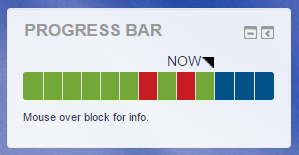
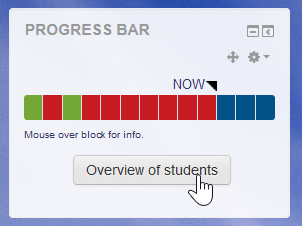
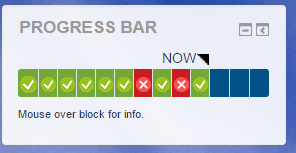
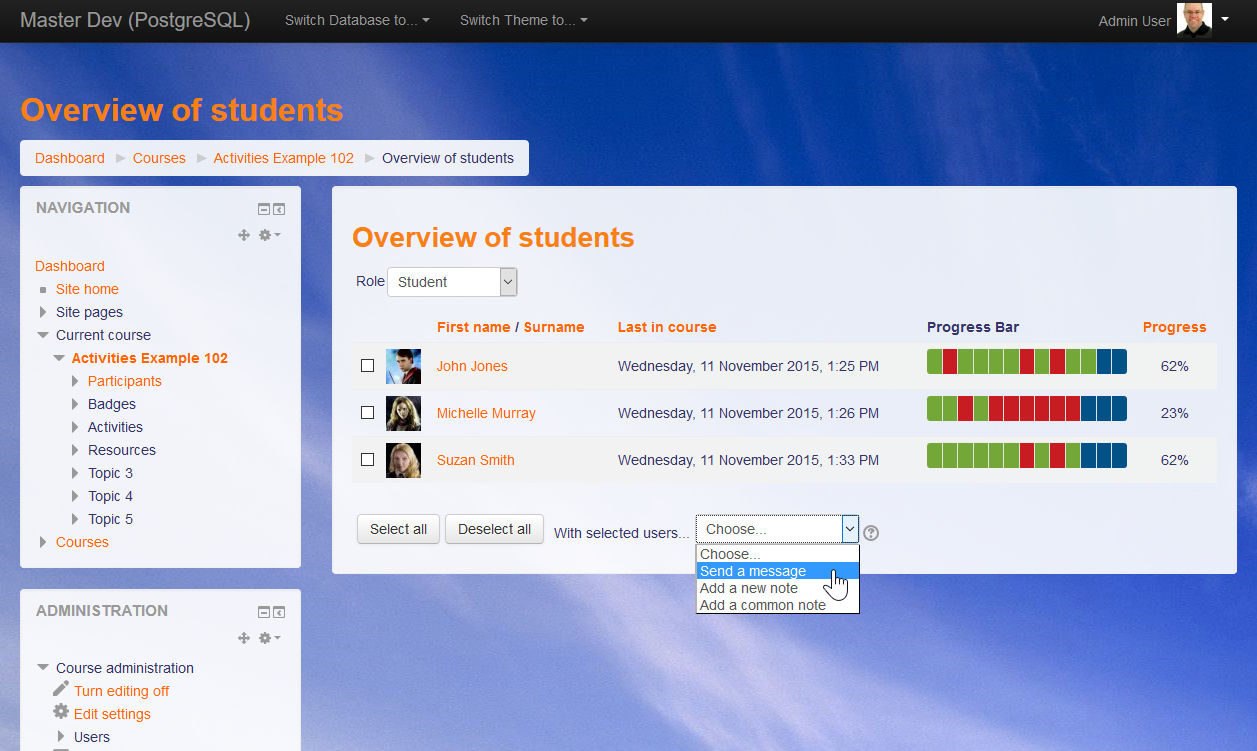
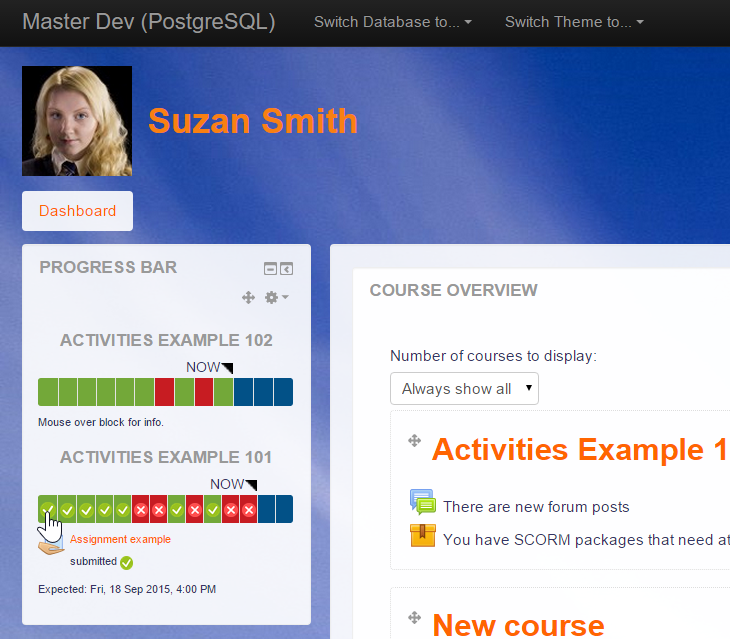
The Progress Bar is a time-management tool for students.
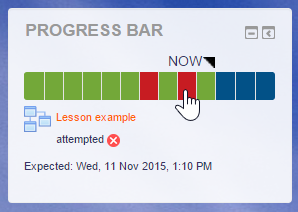
It visually shows what activities/resources a student is supposed to interact with in a course.
It is colour coded so students can quickly see what they have and have not completed/viewed.
The teacher selects which pre-existing activities/resources are to be included in the Progress
Bar and when they should be completed/viewed.
To Install
- Copy the progress directory to the blocks directory of your Moodle instance
- Visit the notifications page
For more information, visit...
http://docs.moodle.org/en/Installing_contributed_modules_or_plugins
Once the Progress Bar is installed, you can use it in a course as follows.
- Turn editing on
- Create your activities/resources as normal
- Add the Progress Bar block to your page (http://docs.moodle.org/en/Blocks)
- Move your Progress Bar block into a prominent position, eg. top-left
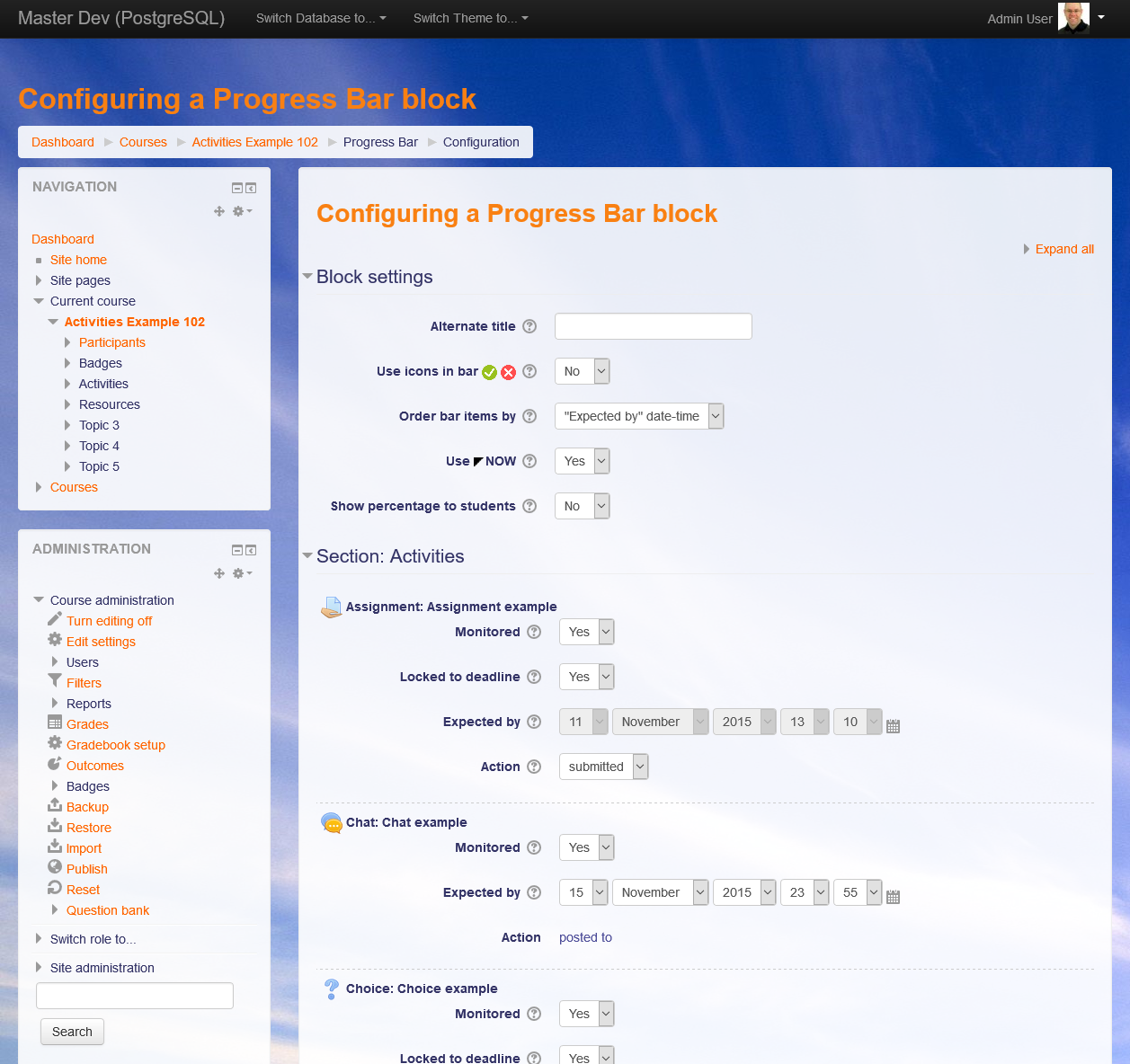
- Click the Configuration icon on the block below the title
- Set the activities/resources you want shown in the block (choose "Yes")
- Set the date and time when the activity/resource is expected to be completed/viewed by (some
activities have deadlines set, if so, that deadline can be used or another can be set in the
Progress Bar block configuration) - Save changes
Hidden items will not appear in the Progress Bar until they are unhidden. This is useful for a
scheduled release of activities.
Version for Moodle 2.0 onwards (2016061801)
Version for Moodle 2.0 onwards
Plugin type: Blocks
Frankenstyle component name: block_progress
Version build number: 2016061801
Version release name: Version for Moodle 2.0 onwards
Maturity: Stable
Supported Moodle versions: 2.0, 2.1, 2.2, 2.3, 2.4, 2.5, 2.6, 2.7, 2.8, 2.9, 3.0, 3.1
Repository URL (Git): https://github.com/deraadt/moodle-block_progress
Repository branch:
Repository tag: 2016061801
Issue/bug tracker URL: https://tracker.moodle.org/issues/?jql=project+%3D+CONTRIB+AND+component+%3D+%22Block%3A+Progress%22
The Progress Bar is a time-management tool for students.
It visually shows what activities/resources a student is supposed to interact with in a course.
It is colour coded so students can quickly see what they have and have not completed/viewed.
The teacher selects which pre-existing activities/resources are to be included in the Progress
Bar and when they should be completed/viewed.
To Install
- Copy the progress directory to the blocks directory of your Moodle instance
- Visit the notifications page
For more information, visit...
http://docs.moodle.org/en/Installing_contributed_modules_or_plugins
Once the Progress Bar is installed, you can use it in a course as follows.
- Turn editing on
- Create your activities/resources as normal
- Add the Progress Bar block to your page (http://docs.moodle.org/en/Blocks)
- Move your Progress Bar block into a prominent position, eg. top-left
- Click the Configuration icon on the block below the title
- Set the activities/resources you want shown in the block (choose "Yes")
- Set the date and time when the activity/resource is expected to be completed/viewed by (some
activities have deadlines set, if so, that deadline can be used or another can be set in the
Progress Bar block configuration) - Save changes
Hidden items will not appear in the Progress Bar until they are unhidden. This is useful for a
scheduled release of activities.
Version for Moodle 2.0 onwards (2016060500)
Version for Moodle 2.0 onwards
Plugin type: Blocks
Frankenstyle component name: block_progress
Version build number: 2016060500
Version release name: Version for Moodle 2.0 onwards
Maturity: Stable
Supported Moodle versions: 2.0, 2.1, 2.2, 2.3, 2.4, 2.5, 2.6, 2.7, 2.8, 2.9, 3.0, 3.1
Repository URL (Git): https://github.com/deraadt/moodle-block_progress
Repository branch:
Repository tag: 2016060500
Issue/bug tracker URL: https://tracker.moodle.org/issues/?jql=project+%3D+CONTRIB+AND+component+%3D+%22Block%3A+Progress%22
The Progress Bar is a time-management tool for students.
It visually shows what activities/resources a student is supposed to interact with in a course.
It is colour coded so students can quickly see what they have and have not completed/viewed.
The teacher selects which pre-existing activities/resources are to be included in the Progress
Bar and when they should be completed/viewed.
To Install
- Copy the progress directory to the blocks directory of your Moodle instance
- Visit the notifications page
For more information, visit...
http://docs.moodle.org/en/Installing_contributed_modules_or_plugins
Once the Progress Bar is installed, you can use it in a course as follows.
- Turn editing on
- Create your activities/resources as normal
- Add the Progress Bar block to your page (http://docs.moodle.org/en/Blocks)
- Move your Progress Bar block into a prominent position, eg. top-left
- Click the Configuration icon on the block below the title
- Set the activities/resources you want shown in the block (choose "Yes")
- Set the date and time when the activity/resource is expected to be completed/viewed by (some
activities have deadlines set, if so, that deadline can be used or another can be set in the
Progress Bar block configuration) - Save changes
Hidden items will not appear in the Progress Bar until they are unhidden. This is useful for a
scheduled release of activities.
Version for Moodle 2.0 onwards (2016051400)
Version for Moodle 2.0 onwards
Plugin type: Blocks
Frankenstyle component name: block_progress
Version build number: 2016051400
Version release name: Version for Moodle 2.0 onwards
Maturity: Stable
Supported Moodle versions: 2.0, 2.1, 2.2, 2.3, 2.4, 2.5, 2.6, 2.7, 2.8, 2.9, 3.0, 3.1
Repository URL (Git): https://github.com/deraadt/moodle-block_progress
Repository branch:
Repository tag: 2016051400
Issue/bug tracker URL: https://tracker.moodle.org/issues/?jql=project+%3D+CONTRIB+AND+component+%3D+%22Block%3A+Progress%22
The Progress Bar is a time-management tool for students.
It visually shows what activities/resources a student is supposed to interact with in a course.
It is colour coded so students can quickly see what they have and have not completed/viewed.
The teacher selects which pre-existing activities/resources are to be included in the Progress
Bar and when they should be completed/viewed.
To Install
- Copy the progress directory to the blocks directory of your Moodle instance
- Visit the notifications page
For more information, visit...
http://docs.moodle.org/en/Installing_contributed_modules_or_plugins
Once the Progress Bar is installed, you can use it in a course as follows.
- Turn editing on
- Create your activities/resources as normal
- Add the Progress Bar block to your page (http://docs.moodle.org/en/Blocks)
- Move your Progress Bar block into a prominent position, eg. top-left
- Click the Configuration icon on the block below the title
- Set the activities/resources you want shown in the block (choose "Yes")
- Set the date and time when the activity/resource is expected to be completed/viewed by (some
activities have deadlines set, if so, that deadline can be used or another can be set in the
Progress Bar block configuration) - Save changes
Hidden items will not appear in the Progress Bar until they are unhidden. This is useful for a
scheduled release of activities.
Version for Moodle 2.0 onwards (2016050100)
Version for Moodle 2.0 onwards
Plugin type: Blocks
Frankenstyle component name: block_progress
Version build number: 2016050100
Version release name: Version for Moodle 2.0 onwards
Maturity: Stable
Supported Moodle versions: 2.0, 2.1, 2.2, 2.3, 2.4, 2.5, 2.6, 2.7, 2.8, 2.9, 3.0
Repository URL (Git): https://github.com/deraadt/moodle-block_progress
Repository branch:
Repository tag: 2016050100
Issue/bug tracker URL: https://tracker.moodle.org/issues/?jql=project+%3D+CONTRIB+AND+component+%3D+%22Block%3A+Progress%22
The Progress Bar is a time-management tool for students.
It visually shows what activities/resources a student is supposed to interact with in a course.
It is colour coded so students can quickly see what they have and have not completed/viewed.
The teacher selects which pre-existing activities/resources are to be included in the Progress
Bar and when they should be completed/viewed.
To Install
- Copy the progress directory to the blocks directory of your Moodle instance
- Visit the notifications page
For more information, visit...
http://docs.moodle.org/en/Installing_contributed_modules_or_plugins
Once the Progress Bar is installed, you can use it in a course as follows.
- Turn editing on
- Create your activities/resources as normal
- Add the Progress Bar block to your page (http://docs.moodle.org/en/Blocks)
- Move your Progress Bar block into a prominent position, eg. top-left
- Click the Configuration icon on the block below the title
- Set the activities/resources you want shown in the block (choose "Yes")
- Set the date and time when the activity/resource is expected to be completed/viewed by (some
activities have deadlines set, if so, that deadline can be used or another can be set in the
Progress Bar block configuration) - Save changes
Hidden items will not appear in the Progress Bar until they are unhidden. This is useful for a
scheduled release of activities.
Version for Moodle 2.0 onwards (2016041900)
Version for Moodle 2.0 onwards
Plugin type: Blocks
Frankenstyle component name: block_progress
Version build number: 2016041900
Version release name: Version for Moodle 2.0 onwards
Maturity: Stable
Supported Moodle versions: 2.0, 2.1, 2.2, 2.3, 2.4, 2.5, 2.6, 2.7, 2.8, 2.9, 3.0
Repository URL (Git): https://github.com/deraadt/moodle-block_progress
Repository branch:
Repository tag: 2016041900
Issue/bug tracker URL: https://tracker.moodle.org/issues/?jql=project+%3D+CONTRIB+AND+component+%3D+%22Block%3A+Progress%22
The Progress Bar is a time-management tool for students.
It visually shows what activities/resources a student is supposed to interact with in a course.
It is colour coded so students can quickly see what they have and have not completed/viewed.
The teacher selects which pre-existing activities/resources are to be included in the Progress
Bar and when they should be completed/viewed.
To Install
- Copy the progress directory to the blocks directory of your Moodle instance
- Visit the notifications page
For more information, visit...
http://docs.moodle.org/en/Installing_contributed_modules_or_plugins
Once the Progress Bar is installed, you can use it in a course as follows.
- Turn editing on
- Create your activities/resources as normal
- Add the Progress Bar block to your page (http://docs.moodle.org/en/Blocks)
- Move your Progress Bar block into a prominent position, eg. top-left
- Click the Configuration icon on the block below the title
- Set the activities/resources you want shown in the block (choose "Yes")
- Set the date and time when the activity/resource is expected to be completed/viewed by (some
activities have deadlines set, if so, that deadline can be used or another can be set in the
Progress Bar block configuration) - Save changes
Hidden items will not appear in the Progress Bar until they are unhidden. This is useful for a
scheduled release of activities.
Version for Moodle 2.0 onwards (2016041500)
Version for Moodle 2.0 onwards
Plugin type: Blocks
Frankenstyle component name: block_progress
Version build number: 2016041500
Version release name: Version for Moodle 2.0 onwards
Maturity: Stable
Supported Moodle versions: 2.0, 2.1, 2.2, 2.3, 2.4, 2.5, 2.6, 2.7, 2.8, 2.9, 3.0
Repository URL (Git): https://github.com/deraadt/moodle-block_progress
Repository branch:
Repository tag: 2016041500
Issue/bug tracker URL: https://tracker.moodle.org/issues/?jql=project+%3D+CONTRIB+AND+component+%3D+%22Block%3A+Progress%22
The Progress Bar is a time-management tool for students.
It visually shows what activities/resources a student is supposed to interact with in a course.
It is colour coded so students can quickly see what they have and have not completed/viewed.
The teacher selects which pre-existing activities/resources are to be included in the Progress
Bar and when they should be completed/viewed.
To Install
- Copy the progress directory to the blocks directory of your Moodle instance
- Visit the notifications page
For more information, visit...
http://docs.moodle.org/en/Installing_contributed_modules_or_plugins
Once the Progress Bar is installed, you can use it in a course as follows.
- Turn editing on
- Create your activities/resources as normal
- Add the Progress Bar block to your page (http://docs.moodle.org/en/Blocks)
- Move your Progress Bar block into a prominent position, eg. top-left
- Click the Configuration icon on the block below the title
- Set the activities/resources you want shown in the block (choose "Yes")
- Set the date and time when the activity/resource is expected to be completed/viewed by (some
activities have deadlines set, if so, that deadline can be used or another can be set in the
Progress Bar block configuration) - Save changes
Hidden items will not appear in the Progress Bar until they are unhidden. This is useful for a
scheduled release of activities.
Version for Moodle 2.0 onwards (2016041300)
Version for Moodle 2.0 onwards
Plugin type: Blocks
Frankenstyle component name: block_progress
Version build number: 2016041300
Version release name: Version for Moodle 2.0 onwards
Maturity: Stable
Supported Moodle versions: 2.0, 2.1, 2.2, 2.3, 2.4, 2.5, 2.6, 2.7, 2.8, 2.9, 3.0
Repository URL (Git): https://github.com/deraadt/moodle-block_progress
Repository branch:
Repository tag: 2016041300
Issue/bug tracker URL: https://tracker.moodle.org/issues/?jql=project+%3D+CONTRIB+AND+component+%3D+%22Block%3A+Progress%22
The Progress Bar is a time-management tool for students.
It visually shows what activities/resources a student is supposed to interact with in a course.
It is colour coded so students can quickly see what they have and have not completed/viewed.
The teacher selects which pre-existing activities/resources are to be included in the Progress
Bar and when they should be completed/viewed.
To Install
- Copy the progress directory to the blocks directory of your Moodle instance
- Visit the notifications page
For more information, visit...
http://docs.moodle.org/en/Installing_contributed_modules_or_plugins
Once the Progress Bar is installed, you can use it in a course as follows.
- Turn editing on
- Create your activities/resources as normal
- Add the Progress Bar block to your page (http://docs.moodle.org/en/Blocks)
- Move your Progress Bar block into a prominent position, eg. top-left
- Click the Configuration icon on the block below the title
- Set the activities/resources you want shown in the block (choose "Yes")
- Set the date and time when the activity/resource is expected to be completed/viewed by (some
activities have deadlines set, if so, that deadline can be used or another can be set in the
Progress Bar block configuration) - Save changes
Hidden items will not appear in the Progress Bar until they are unhidden. This is useful for a
scheduled release of activities.
Version for Moodle 2.0 onwards (2016041200)
Version for Moodle 2.0 onwards
Plugin type: Blocks
Frankenstyle component name: block_progress
Version build number: 2016041200
Version release name: Version for Moodle 2.0 onwards
Maturity: Stable
Supported Moodle versions: 2.0, 2.1, 2.2, 2.3, 2.4, 2.5, 2.6, 2.7, 2.8, 2.9, 3.0
Repository URL (Git): https://github.com/deraadt/moodle-block_progress
Repository branch:
Repository tag: 2016041200
Issue/bug tracker URL: https://tracker.moodle.org/issues/?jql=project+%3D+CONTRIB+AND+component+%3D+%22Block%3A+Progress%22
The Progress Bar is a time-management tool for students.
It visually shows what activities/resources a student is supposed to interact with in a course.
It is colour coded so students can quickly see what they have and have not completed/viewed.
The teacher selects which pre-existing activities/resources are to be included in the Progress
Bar and when they should be completed/viewed.
To Install
- Copy the progress directory to the blocks directory of your Moodle instance
- Visit the notifications page
For more information, visit...
http://docs.moodle.org/en/Installing_contributed_modules_or_plugins
Once the Progress Bar is installed, you can use it in a course as follows.
- Turn editing on
- Create your activities/resources as normal
- Add the Progress Bar block to your page (http://docs.moodle.org/en/Blocks)
- Move your Progress Bar block into a prominent position, eg. top-left
- Click the Configuration icon on the block below the title
- Set the activities/resources you want shown in the block (choose "Yes")
- Set the date and time when the activity/resource is expected to be completed/viewed by (some
activities have deadlines set, if so, that deadline can be used or another can be set in the
Progress Bar block configuration) - Save changes
Hidden items will not appear in the Progress Bar until they are unhidden. This is useful for a
scheduled release of activities.
Version for Moodle 2.0 onwards (2016031101)
Version for Moodle 2.0 onwards
Plugin type: Blocks
Frankenstyle component name: block_progress
Version build number: 2016031101
Version release name: Version for Moodle 2.0 onwards
Maturity: Stable
Supported Moodle versions: 2.0, 2.1, 2.2, 2.3, 2.4, 2.5, 2.6, 2.7, 2.8, 2.9, 3.0
Repository URL (Git): https://github.com/deraadt/moodle-block_progress
Repository branch:
Repository tag: 2016031101
Issue/bug tracker URL: https://tracker.moodle.org/issues/?jql=project+%3D+CONTRIB+AND+component+%3D+%22Block%3A+Progress%22
The Progress Bar is a time-management tool for students.
It visually shows what activities/resources a student is supposed to interact with in a course.
It is colour coded so students can quickly see what they have and have not completed/viewed.
The teacher selects which pre-existing activities/resources are to be included in the Progress
Bar and when they should be completed/viewed.
To Install
- Copy the progress directory to the blocks directory of your Moodle instance
- Visit the notifications page
For more information, visit...
http://docs.moodle.org/en/Installing_contributed_modules_or_plugins
Once the Progress Bar is installed, you can use it in a course as follows.
- Turn editing on
- Create your activities/resources as normal
- Add the Progress Bar block to your page (http://docs.moodle.org/en/Blocks)
- Move your Progress Bar block into a prominent position, eg. top-left
- Click the Configuration icon on the block below the title
- Set the activities/resources you want shown in the block (choose "Yes")
- Set the date and time when the activity/resource is expected to be completed/viewed by (some
activities have deadlines set, if so, that deadline can be used or another can be set in the
Progress Bar block configuration) - Save changes
Hidden items will not appear in the Progress Bar until they are unhidden. This is useful for a
scheduled release of activities.
Version for Moodle 2.0 onwards (2016030900)
Version for Moodle 2.0 onwards
Plugin type: Blocks
Frankenstyle component name: block_progress
Version build number: 2016030900
Version release name: Version for Moodle 2.0 onwards
Maturity: Stable
Supported Moodle versions: 2.0, 2.1, 2.2, 2.3, 2.4, 2.5, 2.6, 2.7, 2.8, 2.9, 3.0
Repository URL (Git): https://github.com/deraadt/moodle-block_progress
Repository branch:
Repository tag: 2016030900
Issue/bug tracker URL: https://tracker.moodle.org/issues/?jql=project+%3D+CONTRIB+AND+component+%3D+%22Block%3A+Progress%22
The Progress Bar is a time-management tool for students.
It visually shows what activities/resources a student is supposed to interact with in a course.
It is colour coded so students can quickly see what they have and have not completed/viewed.
The teacher selects which pre-existing activities/resources are to be included in the Progress
Bar and when they should be completed/viewed.
To Install
- Copy the progress directory to the blocks directory of your Moodle instance
- Visit the notifications page
For more information, visit...
http://docs.moodle.org/en/Installing_contributed_modules_or_plugins
Once the Progress Bar is installed, you can use it in a course as follows.
- Turn editing on
- Create your activities/resources as normal
- Add the Progress Bar block to your page (http://docs.moodle.org/en/Blocks)
- Move your Progress Bar block into a prominent position, eg. top-left
- Click the Configuration icon on the block below the title
- Set the activities/resources you want shown in the block (choose "Yes")
- Set the date and time when the activity/resource is expected to be completed/viewed by (some
activities have deadlines set, if so, that deadline can be used or another can be set in the
Progress Bar block configuration) - Save changes
Hidden items will not appear in the Progress Bar until they are unhidden. This is useful for a
scheduled release of activities.
Version for Moodle 2.0 onwards (2016030200)
Version for Moodle 2.0 onwards
Plugin type: Blocks
Frankenstyle component name: block_progress
Version build number: 2016030200
Version release name: Version for Moodle 2.0 onwards
Maturity: Stable
Supported Moodle versions: 2.0, 2.1, 2.2, 2.3, 2.4, 2.5, 2.6, 2.7, 2.8, 2.9, 3.0
Repository URL (Git): https://github.com/deraadt/moodle-block_progress
Repository branch:
Repository tag: 2016030200
Issue/bug tracker URL: https://tracker.moodle.org/issues/?jql=project+%3D+CONTRIB+AND+component+%3D+%22Block%3A+Progress%22
The Progress Bar is a time-management tool for students.
It visually shows what activities/resources a student is supposed to interact with in a course.
It is colour coded so students can quickly see what they have and have not completed/viewed.
The teacher selects which pre-existing activities/resources are to be included in the Progress
Bar and when they should be completed/viewed.
To Install
- Copy the progress directory to the blocks directory of your Moodle instance
- Visit the notifications page
For more information, visit...
http://docs.moodle.org/en/Installing_contributed_modules_or_plugins
Once the Progress Bar is installed, you can use it in a course as follows.
- Turn editing on
- Create your activities/resources as normal
- Add the Progress Bar block to your page (http://docs.moodle.org/en/Blocks)
- Move your Progress Bar block into a prominent position, eg. top-left
- Click the Configuration icon on the block below the title
- Set the activities/resources you want shown in the block (choose "Yes")
- Set the date and time when the activity/resource is expected to be completed/viewed by (some
activities have deadlines set, if so, that deadline can be used or another can be set in the
Progress Bar block configuration) - Save changes
Hidden items will not appear in the Progress Bar until they are unhidden. This is useful for a
scheduled release of activities.
Version for Moodle 2.0 onwards (2016022300)
Version for Moodle 2.0 onwards
Plugin type: Blocks
Frankenstyle component name: block_progress
Version build number: 2016022300
Version release name: Version for Moodle 2.0 onwards
Maturity: Stable
Supported Moodle versions: 2.0, 2.1, 2.2, 2.3, 2.4, 2.5, 2.6, 2.7, 2.8, 2.9, 3.0
Repository URL (Git): https://github.com/deraadt/moodle-block_progress
Repository branch:
Repository tag: 2016022300
Issue/bug tracker URL: https://tracker.moodle.org/issues/?jql=project+%3D+CONTRIB+AND+component+%3D+%22Block%3A+Progress%22
The Progress Bar is a time-management tool for students.
It visually shows what activities/resources a student is supposed to interact with in a course.
It is colour coded so students can quickly see what they have and have not completed/viewed.
The teacher selects which pre-existing activities/resources are to be included in the Progress
Bar and when they should be completed/viewed.
To Install
- Copy the progress directory to the blocks directory of your Moodle instance
- Visit the notifications page
For more information, visit...
http://docs.moodle.org/en/Installing_contributed_modules_or_plugins
Once the Progress Bar is installed, you can use it in a course as follows.
- Turn editing on
- Create your activities/resources as normal
- Add the Progress Bar block to your page (http://docs.moodle.org/en/Blocks)
- Move your Progress Bar block into a prominent position, eg. top-left
- Click the Configuration icon on the block below the title
- Set the activities/resources you want shown in the block (choose "Yes")
- Set the date and time when the activity/resource is expected to be completed/viewed by (some
activities have deadlines set, if so, that deadline can be used or another can be set in the
Progress Bar block configuration) - Save changes
Hidden items will not appear in the Progress Bar until they are unhidden. This is useful for a
scheduled release of activities.
Version for Moodle 2.0 onwards (2016021201)
Version for Moodle 2.0 onwards
Plugin type: Blocks
Frankenstyle component name: block_progress
Version build number: 2016021201
Version release name: Version for Moodle 2.0 onwards
Maturity: Stable
Supported Moodle versions: 2.0, 2.1, 2.2, 2.3, 2.4, 2.5, 2.6, 2.7, 2.8, 2.9, 3.0
Repository URL (Git): https://github.com/deraadt/moodle-block_progress
Repository branch:
Repository tag: 2016021201
Issue/bug tracker URL: https://tracker.moodle.org/issues/?jql=project+%3D+CONTRIB+AND+component+%3D+%22Block%3A+Progress%22
The Progress Bar is a time-management tool for students.
It visually shows what activities/resources a student is supposed to interact with in a course.
It is colour coded so students can quickly see what they have and have not completed/viewed.
The teacher selects which pre-existing activities/resources are to be included in the Progress
Bar and when they should be completed/viewed.
To Install
- Copy the progress directory to the blocks directory of your Moodle instance
- Visit the notifications page
For more information, visit...
http://docs.moodle.org/en/Installing_contributed_modules_or_plugins
Once the Progress Bar is installed, you can use it in a course as follows.
- Turn editing on
- Create your activities/resources as normal
- Add the Progress Bar block to your page (http://docs.moodle.org/en/Blocks)
- Move your Progress Bar block into a prominent position, eg. top-left
- Click the Configuration icon on the block below the title
- Set the activities/resources you want shown in the block (choose "Yes")
- Set the date and time when the activity/resource is expected to be completed/viewed by (some
activities have deadlines set, if so, that deadline can be used or another can be set in the
Progress Bar block configuration) - Save changes
Hidden items will not appear in the Progress Bar until they are unhidden. This is useful for a
scheduled release of activities.
Version for Moodle 2.0 onwards (2016021200)
Version for Moodle 2.0 onwards
Plugin type: Blocks
Frankenstyle component name: block_progress
Version build number: 2016021200
Version release name: Version for Moodle 2.0 onwards
Maturity: Stable
Supported Moodle versions: 2.0, 2.1, 2.2, 2.3, 2.4, 2.5, 2.6, 2.7, 2.8, 2.9, 3.0
Repository URL (Git): https://github.com/deraadt/moodle-block_progress
Repository branch:
Repository tag: 2016021200
Issue/bug tracker URL: https://tracker.moodle.org/issues/?jql=project+%3D+CONTRIB+AND+component+%3D+%22Block%3A+Progress%22
The Progress Bar is a time-management tool for students.
It visually shows what activities/resources a student is supposed to interact with in a course.
It is colour coded so students can quickly see what they have and have not completed/viewed.
The teacher selects which pre-existing activities/resources are to be included in the Progress
Bar and when they should be completed/viewed.
To Install
- Copy the progress directory to the blocks directory of your Moodle instance
- Visit the notifications page
For more information, visit...
http://docs.moodle.org/en/Installing_contributed_modules_or_plugins
Once the Progress Bar is installed, you can use it in a course as follows.
- Turn editing on
- Create your activities/resources as normal
- Add the Progress Bar block to your page (http://docs.moodle.org/en/Blocks)
- Move your Progress Bar block into a prominent position, eg. top-left
- Click the Configuration icon on the block below the title
- Set the activities/resources you want shown in the block (choose "Yes")
- Set the date and time when the activity/resource is expected to be completed/viewed by (some
activities have deadlines set, if so, that deadline can be used or another can be set in the
Progress Bar block configuration) - Save changes
Hidden items will not appear in the Progress Bar until they are unhidden. This is useful for a
scheduled release of activities.
Version for Moodle 2.0 onwards (2016011300)
Version for Moodle 2.0 onwards
Plugin type: Blocks
Frankenstyle component name: block_progress
Version build number: 2016011300
Version release name: Version for Moodle 2.0 onwards
Maturity: Stable
Supported Moodle versions: 2.0, 2.1, 2.2, 2.3, 2.4, 2.5, 2.6, 2.7, 2.8, 2.9, 3.0
Repository URL (Git): https://github.com/deraadt/moodle-block_progress
Repository branch:
Repository tag: 2016011300
Issue/bug tracker URL: https://tracker.moodle.org/issues/?jql=project+%3D+CONTRIB+AND+component+%3D+%22Block%3A+Progress%22
The Progress Bar is a time-management tool for students.
It visually shows what activities/resources a student is supposed to interact with in a course.
It is colour coded so students can quickly see what they have and have not completed/viewed.
The teacher selects which pre-existing activities/resources are to be included in the Progress
Bar and when they should be completed/viewed.
To Install
- Copy the progress directory to the blocks directory of your Moodle instance
- Visit the notifications page
For more information, visit...
http://docs.moodle.org/en/Installing_contributed_modules_or_plugins
Once the Progress Bar is installed, you can use it in a course as follows.
- Turn editing on
- Create your activities/resources as normal
- Add the Progress Bar block to your page (http://docs.moodle.org/en/Blocks)
- Move your Progress Bar block into a prominent position, eg. top-left
- Click the Configuration icon on the block below the title
- Set the activities/resources you want shown in the block (choose "Yes")
- Set the date and time when the activity/resource is expected to be completed/viewed by (some
activities have deadlines set, if so, that deadline can be used or another can be set in the
Progress Bar block configuration) - Save changes
Hidden items will not appear in the Progress Bar until they are unhidden. This is useful for a
scheduled release of activities.
Version for Moodle 2.0 onwards (2015121100)
Version for Moodle 2.0 onwards
Plugin type: Blocks
Frankenstyle component name: block_progress
Version build number: 2015121100
Version release name: Version for Moodle 2.0 onwards
Maturity: Stable
Supported Moodle versions: 2.0, 2.1, 2.2, 2.3, 2.4, 2.5, 2.6, 2.7, 2.8, 2.9, 3.0
Repository URL (Git): https://github.com/deraadt/moodle-block_progress
Repository branch:
Repository tag: 2015121100
Issue/bug tracker URL: https://tracker.moodle.org/issues/?jql=project+%3D+CONTRIB+AND+component+%3D+%22Block%3A+Progress%22
The Progress Bar is a time-management tool for students.
It visually shows what activities/resources a student is supposed to interact with in a course.
It is colour coded so students can quickly see what they have and have not completed/viewed.
The teacher selects which pre-existing activities/resources are to be included in the Progress
Bar and when they should be completed/viewed.
To Install
- Copy the progress directory to the blocks directory of your Moodle instance
- Visit the notifications page
For more information, visit...
http://docs.moodle.org/en/Installing_contributed_modules_or_plugins
Once the Progress Bar is installed, you can use it in a course as follows.
- Turn editing on
- Create your activities/resources as normal
- Add the Progress Bar block to your page (http://docs.moodle.org/en/Blocks)
- Move your Progress Bar block into a prominent position, eg. top-left
- Click the Configuration icon on the block below the title
- Set the activities/resources you want shown in the block (choose "Yes")
- Set the date and time when the activity/resource is expected to be completed/viewed by (some
activities have deadlines set, if so, that deadline can be used or another can be set in the
Progress Bar block configuration) - Save changes
Hidden items will not appear in the Progress Bar until they are unhidden. This is useful for a
scheduled release of activities.
Version for Moodle 2.0 onwards (2015120900)
Version for Moodle 2.0 onwards
Plugin type: Blocks
Frankenstyle component name: block_progress
Version build number: 2015120900
Version release name: Version for Moodle 2.0 onwards
Maturity: Stable
Supported Moodle versions: 2.0, 2.1, 2.2, 2.3, 2.4, 2.5, 2.6, 2.7, 2.8, 2.9, 3.0
Repository URL (Git): https://github.com/deraadt/moodle-block_progress
Repository branch:
Repository tag: 2015120900
Issue/bug tracker URL: https://tracker.moodle.org/issues/?jql=project+%3D+CONTRIB+AND+component+%3D+%22Block%3A+Progress%22
The Progress Bar is a time-management tool for students.
It visually shows what activities/resources a student is supposed to interact with in a course.
It is colour coded so students can quickly see what they have and have not completed/viewed.
The teacher selects which pre-existing activities/resources are to be included in the Progress
Bar and when they should be completed/viewed.
To Install
- Copy the progress directory to the blocks directory of your Moodle instance
- Visit the notifications page
For more information, visit...
http://docs.moodle.org/en/Installing_contributed_modules_or_plugins
Once the Progress Bar is installed, you can use it in a course as follows.
- Turn editing on
- Create your activities/resources as normal
- Add the Progress Bar block to your page (http://docs.moodle.org/en/Blocks)
- Move your Progress Bar block into a prominent position, eg. top-left
- Click the Configuration icon on the block below the title
- Set the activities/resources you want shown in the block (choose "Yes")
- Set the date and time when the activity/resource is expected to be completed/viewed by (some
activities have deadlines set, if so, that deadline can be used or another can be set in the
Progress Bar block configuration) - Save changes
Hidden items will not appear in the Progress Bar until they are unhidden. This is useful for a
scheduled release of activities.
Version for Moodle 2.0 onwards (2015120200)
Version for Moodle 2.0 onwards
Plugin type: Blocks
Frankenstyle component name: block_progress
Version build number: 2015120200
Version release name: Version for Moodle 2.0 onwards
Maturity: Stable
Supported Moodle versions: 2.0, 2.1, 2.2, 2.3, 2.4, 2.5, 2.6, 2.7, 2.8, 2.9, 3.0
Repository URL (Git): https://github.com/deraadt/moodle-block_progress
Repository branch:
Repository tag: 2015120200
Issue/bug tracker URL: https://tracker.moodle.org/issues/?jql=project+%3D+CONTRIB+AND+component+%3D+%22Block%3A+Progress%22
The Progress Bar is a time-management tool for students.
It visually shows what activities/resources a student is supposed to interact with in a course.
It is colour coded so students can quickly see what they have and have not completed/viewed.
The teacher selects which pre-existing activities/resources are to be included in the Progress
Bar and when they should be completed/viewed.
To Install
- Copy the progress directory to the blocks directory of your Moodle instance
- Visit the notifications page
For more information, visit...
http://docs.moodle.org/en/Installing_contributed_modules_or_plugins
Once the Progress Bar is installed, you can use it in a course as follows.
- Turn editing on
- Create your activities/resources as normal
- Add the Progress Bar block to your page (http://docs.moodle.org/en/Blocks)
- Move your Progress Bar block into a prominent position, eg. top-left
- Click the Configuration icon on the block below the title
- Set the activities/resources you want shown in the block (choose "Yes")
- Set the date and time when the activity/resource is expected to be completed/viewed by (some
activities have deadlines set, if so, that deadline can be used or another can be set in the
Progress Bar block configuration) - Save changes
Hidden items will not appear in the Progress Bar until they are unhidden. This is useful for a
scheduled release of activities.
Version for Moodle 2.0 onwards (2015120101)
Version for Moodle 2.0 onwards
Plugin type: Blocks
Frankenstyle component name: block_progress
Version build number: 2015120101
Version release name: Version for Moodle 2.0 onwards
Maturity: Stable
Supported Moodle versions: 2.0, 2.1, 2.2, 2.3, 2.4, 2.5, 2.6, 2.7, 2.8, 2.9, 3.0
Repository URL (Git): https://github.com/deraadt/moodle-block_progress
Repository branch:
Repository tag: 2015120101
Issue/bug tracker URL: https://tracker.moodle.org/issues/?jql=project+%3D+CONTRIB+AND+component+%3D+%22Block%3A+Progress%22
The Progress Bar is a time-management tool for students.
It visually shows what activities/resources a student is supposed to interact with in a course.
It is colour coded so students can quickly see what they have and have not completed/viewed.
The teacher selects which pre-existing activities/resources are to be included in the Progress
Bar and when they should be completed/viewed.
To Install
- Copy the progress directory to the blocks directory of your Moodle instance
- Visit the notifications page
For more information, visit...
http://docs.moodle.org/en/Installing_contributed_modules_or_plugins
Once the Progress Bar is installed, you can use it in a course as follows.
- Turn editing on
- Create your activities/resources as normal
- Add the Progress Bar block to your page (http://docs.moodle.org/en/Blocks)
- Move your Progress Bar block into a prominent position, eg. top-left
- Click the Configuration icon on the block below the title
- Set the activities/resources you want shown in the block (choose "Yes")
- Set the date and time when the activity/resource is expected to be completed/viewed by (some
activities have deadlines set, if so, that deadline can be used or another can be set in the
Progress Bar block configuration) - Save changes
Hidden items will not appear in the Progress Bar until they are unhidden. This is useful for a
scheduled release of activities.
Version for Moodle 2.0 onwards (2015120100)
Version for Moodle 2.0 onwards
Plugin type: Blocks
Frankenstyle component name: block_progress
Version build number: 2015120100
Version release name: Version for Moodle 2.0 onwards
Maturity: Stable
Supported Moodle versions: 2.0, 2.1, 2.2, 2.3, 2.4, 2.5, 2.6, 2.7, 2.8, 2.9, 3.0
Repository URL (Git): https://github.com/deraadt/moodle-block_progress
Repository branch:
Repository tag: 2015120100
Issue/bug tracker URL: https://tracker.moodle.org/issues/?jql=project+%3D+CONTRIB+AND+component+%3D+%22Block%3A+Progress%22
The Progress Bar is a time-management tool for students.
It visually shows what activities/resources a student is supposed to interact with in a course.
It is colour coded so students can quickly see what they have and have not completed/viewed.
The teacher selects which pre-existing activities/resources are to be included in the Progress
Bar and when they should be completed/viewed.
To Install
- Copy the progress directory to the blocks directory of your Moodle instance
- Visit the notifications page
For more information, visit...
http://docs.moodle.org/en/Installing_contributed_modules_or_plugins
Once the Progress Bar is installed, you can use it in a course as follows.
- Turn editing on
- Create your activities/resources as normal
- Add the Progress Bar block to your page (http://docs.moodle.org/en/Blocks)
- Move your Progress Bar block into a prominent position, eg. top-left
- Click the Configuration icon on the block below the title
- Set the activities/resources you want shown in the block (choose "Yes")
- Set the date and time when the activity/resource is expected to be completed/viewed by (some
activities have deadlines set, if so, that deadline can be used or another can be set in the
Progress Bar block configuration) - Save changes
Hidden items will not appear in the Progress Bar until they are unhidden. This is useful for a
scheduled release of activities.
Version for Moodle 2.0 onwards (2015113000)
Version for Moodle 2.0 onwards
Plugin type: Blocks
Frankenstyle component name: block_progress
Version build number: 2015113000
Version release name: Version for Moodle 2.0 onwards
Maturity: Stable
Supported Moodle versions: 2.0, 2.1, 2.2, 2.3, 2.4, 2.5, 2.6, 2.7, 2.8, 2.9, 3.0
Repository URL (Git): https://github.com/deraadt/moodle-block_progress
Repository branch:
Repository tag: 2015113000
Issue/bug tracker URL: https://tracker.moodle.org/issues/?jql=project+%3D+CONTRIB+AND+component+%3D+%22Block%3A+Progress%22
The Progress Bar is a time-management tool for students.
It visually shows what activities/resources a student is supposed to interact with in a course.
It is colour coded so students can quickly see what they have and have not completed/viewed.
The teacher selects which pre-existing activities/resources are to be included in the Progress
Bar and when they should be completed/viewed.
To Install
- Copy the progress directory to the blocks directory of your Moodle instance
- Visit the notifications page
For more information, visit...
http://docs.moodle.org/en/Installing_contributed_modules_or_plugins
Once the Progress Bar is installed, you can use it in a course as follows.
- Turn editing on
- Create your activities/resources as normal
- Add the Progress Bar block to your page (http://docs.moodle.org/en/Blocks)
- Move your Progress Bar block into a prominent position, eg. top-left
- Click the Configuration icon on the block below the title
- Set the activities/resources you want shown in the block (choose "Yes")
- Set the date and time when the activity/resource is expected to be completed/viewed by (some
activities have deadlines set, if so, that deadline can be used or another can be set in the
Progress Bar block configuration) - Save changes
Hidden items will not appear in the Progress Bar until they are unhidden. This is useful for a
scheduled release of activities.
Version for Moodle 2.0 onwards (2015112601)
Version for Moodle 2.0 onwards
Plugin type: Blocks
Frankenstyle component name: block_progress
Version build number: 2015112601
Version release name: Version for Moodle 2.0 onwards
Maturity: Stable
Supported Moodle versions: 2.0, 2.1, 2.2, 2.3, 2.4, 2.5, 2.6, 2.7, 2.8, 2.9, 3.0
Repository URL (Git): https://github.com/deraadt/moodle-block_progress
Repository branch:
Repository tag: 2015112601
Issue/bug tracker URL: https://tracker.moodle.org/issues/?jql=project+%3D+CONTRIB+AND+component+%3D+%22Block%3A+Progress%22
The Progress Bar is a time-management tool for students.
It visually shows what activities/resources a student is supposed to interact with in a course.
It is colour coded so students can quickly see what they have and have not completed/viewed.
The teacher selects which pre-existing activities/resources are to be included in the Progress
Bar and when they should be completed/viewed.
To Install
- Copy the progress directory to the blocks directory of your Moodle instance
- Visit the notifications page
For more information, visit...
http://docs.moodle.org/en/Installing_contributed_modules_or_plugins
Once the Progress Bar is installed, you can use it in a course as follows.
- Turn editing on
- Create your activities/resources as normal
- Add the Progress Bar block to your page (http://docs.moodle.org/en/Blocks)
- Move your Progress Bar block into a prominent position, eg. top-left
- Click the Configuration icon on the block below the title
- Set the activities/resources you want shown in the block (choose "Yes")
- Set the date and time when the activity/resource is expected to be completed/viewed by (some
activities have deadlines set, if so, that deadline can be used or another can be set in the
Progress Bar block configuration) - Save changes
Hidden items will not appear in the Progress Bar until they are unhidden. This is useful for a
scheduled release of activities.
Version for Moodle 2.0 onwards (2015112600)
Version for Moodle 2.0 onwards
Plugin type: Blocks
Frankenstyle component name: block_progress
Version build number: 2015112600
Version release name: Version for Moodle 2.0 onwards
Maturity: Stable
Supported Moodle versions: 2.0, 2.1, 2.2, 2.3, 2.4, 2.5, 2.6, 2.7, 2.8, 2.9, 3.0
Repository URL (Git): https://github.com/deraadt/moodle-block_progress
Repository branch:
Repository tag: 2015112600
Issue/bug tracker URL: https://tracker.moodle.org/issues/?jql=project+%3D+CONTRIB+AND+component+%3D+%22Block%3A+Progress%22
The Progress Bar is a time-management tool for students.
It visually shows what activities/resources a student is supposed to interact with in a course.
It is colour coded so students can quickly see what they have and have not completed/viewed.
The teacher selects which pre-existing activities/resources are to be included in the Progress
Bar and when they should be completed/viewed.
To Install
- Copy the progress directory to the blocks directory of your Moodle instance
- Visit the notifications page
For more information, visit...
http://docs.moodle.org/en/Installing_contributed_modules_or_plugins
Once the Progress Bar is installed, you can use it in a course as follows.
- Turn editing on
- Create your activities/resources as normal
- Add the Progress Bar block to your page (http://docs.moodle.org/en/Blocks)
- Move your Progress Bar block into a prominent position, eg. top-left
- Click the Configuration icon on the block below the title
- Set the activities/resources you want shown in the block (choose "Yes")
- Set the date and time when the activity/resource is expected to be completed/viewed by (some
activities have deadlines set, if so, that deadline can be used or another can be set in the
Progress Bar block configuration) - Save changes
Hidden items will not appear in the Progress Bar until they are unhidden. This is useful for a
scheduled release of activities.
Version for Moodle 2.0 onwards (2015111600)
Version for Moodle 2.0 onwards
Plugin type: Blocks
Frankenstyle component name: block_progress
Version build number: 2015111600
Version release name: Version for Moodle 2.0 onwards
Maturity: Stable
Supported Moodle versions: 2.0, 2.1, 2.2, 2.3, 2.4, 2.5, 2.6, 2.7, 2.8, 2.9, 3.0
Repository URL (Git): https://github.com/deraadt/moodle-block_progress
Repository branch:
Repository tag: 2015111600
Issue/bug tracker URL: https://tracker.moodle.org/issues/?jql=project+%3D+CONTRIB+AND+component+%3D+%22Block%3A+Progress%22
The Progress Bar is a time-management tool for students.
It visually shows what activities/resources a student is supposed to interact with in a course.
It is colour coded so students can quickly see what they have and have not completed/viewed.
The teacher selects which pre-existing activities/resources are to be included in the Progress
Bar and when they should be completed/viewed.
To Install
- Copy the progress directory to the blocks directory of your Moodle instance
- Visit the notifications page
For more information, visit...
http://docs.moodle.org/en/Installing_contributed_modules_or_plugins
Once the Progress Bar is installed, you can use it in a course as follows.
- Turn editing on
- Create your activities/resources as normal
- Add the Progress Bar block to your page (http://docs.moodle.org/en/Blocks)
- Move your Progress Bar block into a prominent position, eg. top-left
- Click the Configuration icon on the block below the title
- Set the activities/resources you want shown in the block (choose "Yes")
- Set the date and time when the activity/resource is expected to be completed/viewed by (some
activities have deadlines set, if so, that deadline can be used or another can be set in the
Progress Bar block configuration) - Save changes
Hidden items will not appear in the Progress Bar until they are unhidden. This is useful for a
scheduled release of activities.
Version for Moodle 2.0 onwards (2015111200)
Version for Moodle 2.0 onwards
Plugin type: Blocks
Frankenstyle component name: block_progress
Version build number: 2015111200
Version release name: Version for Moodle 2.0 onwards
Maturity: Stable
Supported Moodle versions: 2.0, 2.1, 2.2, 2.3, 2.4, 2.5, 2.6, 2.7, 2.8, 2.9, 3.0
Repository URL (Git): https://github.com/deraadt/moodle-block_progress
Repository branch:
Repository tag: 2015111200
Issue/bug tracker URL: https://tracker.moodle.org/issues/?jql=project+%3D+CONTRIB+AND+component+%3D+%22Block%3A+Progress%22
The Progress Bar is a time-management tool for students.
It visually shows what activities/resources a student is supposed to interact with in a course.
It is colour coded so students can quickly see what they have and have not completed/viewed.
The teacher selects which pre-existing activities/resources are to be included in the Progress
Bar and when they should be completed/viewed.
To Install
- Copy the progress directory to the blocks directory of your Moodle instance
- Visit the notifications page
For more information, visit...
http://docs.moodle.org/en/Installing_contributed_modules_or_plugins
Once the Progress Bar is installed, you can use it in a course as follows.
- Turn editing on
- Create your activities/resources as normal
- Add the Progress Bar block to your page (http://docs.moodle.org/en/Blocks)
- Move your Progress Bar block into a prominent position, eg. top-left
- Click the Configuration icon on the block below the title
- Set the activities/resources you want shown in the block (choose "Yes")
- Set the date and time when the activity/resource is expected to be completed/viewed by (some
activities have deadlines set, if so, that deadline can be used or another can be set in the
Progress Bar block configuration) - Save changes
Hidden items will not appear in the Progress Bar until they are unhidden. This is useful for a
scheduled release of activities.
Version for Moodle 2.0 onwards (2015111100)
Version for Moodle 2.0 onwards
Plugin type: Blocks
Frankenstyle component name: block_progress
Version build number: 2015111100
Version release name: Version for Moodle 2.0 onwards
Maturity: Stable
Supported Moodle versions: 2.0, 2.1, 2.2, 2.3, 2.4, 2.5, 2.6, 2.7, 2.8, 2.9, 3.0
Repository URL (Git): https://github.com/deraadt/moodle-block_progress
Repository branch:
Repository tag: 2015111100
Issue/bug tracker URL: https://tracker.moodle.org/issues/?jql=project+%3D+CONTRIB+AND+component+%3D+%22Block%3A+Progress%22
The Progress Bar is a time-management tool for students.
It visually shows what activities/resources a student is supposed to interact with in a course.
It is colour coded so students can quickly see what they have and have not completed/viewed.
The teacher selects which pre-existing activities/resources are to be included in the Progress
Bar and when they should be completed/viewed.
To Install
- Copy the progress directory to the blocks directory of your Moodle instance
- Visit the notifications page
For more information, visit...
http://docs.moodle.org/en/Installing_contributed_modules_or_plugins
Once the Progress Bar is installed, you can use it in a course as follows.
- Turn editing on
- Create your activities/resources as normal
- Add the Progress Bar block to your page (http://docs.moodle.org/en/Blocks)
- Move your Progress Bar block into a prominent position, eg. top-left
- Click the Configuration icon on the block below the title
- Set the activities/resources you want shown in the block (choose "Yes")
- Set the date and time when the activity/resource is expected to be completed/viewed by (some
activities have deadlines set, if so, that deadline can be used or another can be set in the
Progress Bar block configuration) - Save changes
Hidden items will not appear in the Progress Bar until they are unhidden. This is useful for a
scheduled release of activities.
Version for Moodle 2.0 onwards (2015111000)
Version for Moodle 2.0 onwards
Plugin type: Blocks
Frankenstyle component name: block_progress
Version build number: 2015111000
Version release name: Version for Moodle 2.0 onwards
Maturity: Stable
Supported Moodle versions: 2.0, 2.1, 2.2, 2.3, 2.4, 2.5, 2.6, 2.7, 2.8, 2.9, 3.0
Repository URL (Git): https://github.com/deraadt/moodle-block_progress
Repository branch:
Repository tag: 2015111000
Issue/bug tracker URL: https://tracker.moodle.org/issues/?jql=project+%3D+CONTRIB+AND+component+%3D+%22Block%3A+Progress%22
The Progress Bar is a time-management tool for students.
It visually shows what activities/resources a student is supposed to interact with in a course.
It is colour coded so students can quickly see what they have and have not completed/viewed.
The teacher selects which pre-existing activities/resources are to be included in the Progress
Bar and when they should be completed/viewed.
To Install
- Copy the progress directory to the blocks directory of your Moodle instance
- Visit the notifications page
For more information, visit...
http://docs.moodle.org/en/Installing_contributed_modules_or_plugins
Once the Progress Bar is installed, you can use it in a course as follows.
- Turn editing on
- Create your activities/resources as normal
- Add the Progress Bar block to your page (http://docs.moodle.org/en/Blocks)
- Move your Progress Bar block into a prominent position, eg. top-left
- Click the Configuration icon on the block below the title
- Set the activities/resources you want shown in the block (choose "Yes")
- Set the date and time when the activity/resource is expected to be completed/viewed by (some
activities have deadlines set, if so, that deadline can be used or another can be set in the
Progress Bar block configuration) - Save changes
Hidden items will not appear in the Progress Bar until they are unhidden. This is useful for a
scheduled release of activities.
Version for Moodle 2.0 onwards (2015101900)
Version for Moodle 2.0 onwards
Plugin type: Blocks
Frankenstyle component name: block_progress
Version build number: 2015101900
Version release name: Version for Moodle 2.0 onwards
Maturity: Stable
Supported Moodle versions: 2.0, 2.1, 2.2, 2.3, 2.4, 2.5, 2.6, 2.7, 2.8, 2.9
Repository URL (Git): https://github.com/deraadt/moodle-block_progress
Repository branch:
Repository tag: 2015101900
Issue/bug tracker URL: https://tracker.moodle.org/issues/?jql=project+%3D+CONTRIB+AND+component+%3D+%22Block%3A+Progress%22
The Progress Bar is a time-management tool for students.
It visually shows what activities/resources a student is supposed to interact with in a course.
It is colour coded so students can quickly see what they have and have not completed/viewed.
The teacher selects which pre-existing activities/resources are to be included in the Progress
Bar and when they should be completed/viewed.
To Install
- Copy the progress directory to the blocks directory of your Moodle instance
- Visit the notifications page
For more information, visit...
http://docs.moodle.org/en/Installing_contributed_modules_or_plugins
Once the Progress Bar is installed, you can use it in a course as follows.
- Turn editing on
- Create your activities/resources as normal
- Add the Progress Bar block to your page (http://docs.moodle.org/en/Blocks)
- Move your Progress Bar block into a prominent position, eg. top-left
- Click the Configuration icon on the block below the title
- Set the activities/resources you want shown in the block (choose "Yes")
- Set the date and time when the activity/resource is expected to be completed/viewed by (some
activities have deadlines set, if so, that deadline can be used or another can be set in the
Progress Bar block configuration) - Save changes
Hidden items will not appear in the Progress Bar until they are unhidden. This is useful for a
scheduled release of activities.
Version for Moodle 2.0 onwards (2015101500)
Version for Moodle 2.0 onwards
Plugin type: Blocks
Frankenstyle component name: block_progress
Version build number: 2015101500
Version release name: Version for Moodle 2.0 onwards
Maturity: Stable
Supported Moodle versions: 2.0, 2.1, 2.2, 2.3, 2.4, 2.5, 2.6, 2.7, 2.8, 2.9
Repository URL (Git): https://github.com/deraadt/moodle-block_progress
Repository branch:
Repository tag: 2015101500
Issue/bug tracker URL: https://tracker.moodle.org/issues/?jql=project+%3D+CONTRIB+AND+component+%3D+%22Block%3A+Progress%22
The Progress Bar is a time-management tool for students.
It visually shows what activities/resources a student is supposed to interact with in a course.
It is colour coded so students can quickly see what they have and have not completed/viewed.
The teacher selects which pre-existing activities/resources are to be included in the Progress
Bar and when they should be completed/viewed.
To Install
- Copy the progress directory to the blocks directory of your Moodle instance
- Visit the notifications page
For more information, visit...
http://docs.moodle.org/en/Installing_contributed_modules_or_plugins
Once the Progress Bar is installed, you can use it in a course as follows.
- Turn editing on
- Create your activities/resources as normal
- Add the Progress Bar block to your page (http://docs.moodle.org/en/Blocks)
- Move your Progress Bar block into a prominent position, eg. top-left
- Click the Configuration icon on the block below the title
- Set the activities/resources you want shown in the block (choose "Yes")
- Set the date and time when the activity/resource is expected to be completed/viewed by (some
activities have deadlines set, if so, that deadline can be used or another can be set in the
Progress Bar block configuration) - Save changes
Hidden items will not appear in the Progress Bar until they are unhidden. This is useful for a
scheduled release of activities.
Version for Moodle 2.0 onwards (2015091800)
Version for Moodle 2.0 onwards
Plugin type: Blocks
Frankenstyle component name: block_progress
Version build number: 2015091800
Version release name: Version for Moodle 2.0 onwards
Maturity: Stable
Supported Moodle versions: 2.0, 2.1, 2.2, 2.3, 2.4, 2.5, 2.6, 2.7, 2.8, 2.9
Repository URL (Git): https://github.com/deraadt/moodle-block_progress
Repository branch:
Repository tag: 2015091800
Issue/bug tracker URL: https://tracker.moodle.org/issues/?jql=project+%3D+CONTRIB+AND+component+%3D+%22Block%3A+Progress%22
The Progress Bar is a time-management tool for students.
It visually shows what activities/resources a student is supposed to interact with in a course.
It is colour coded so students can quickly see what they have and have not completed/viewed.
The teacher selects which pre-existing activities/resources are to be included in the Progress
Bar and when they should be completed/viewed.
To Install
- Copy the progress directory to the blocks directory of your Moodle instance
- Visit the notifications page
For more information, visit...
http://docs.moodle.org/en/Installing_contributed_modules_or_plugins
Once the Progress Bar is installed, you can use it in a course as follows.
- Turn editing on
- Create your activities/resources as normal
- Add the Progress Bar block to your page (http://docs.moodle.org/en/Blocks)
- Move your Progress Bar block into a prominent position, eg. top-left
- Click the Configuration icon on the block below the title
- Set the activities/resources you want shown in the block (choose "Yes")
- Set the date and time when the activity/resource is expected to be completed/viewed by (some
activities have deadlines set, if so, that deadline can be used or another can be set in the
Progress Bar block configuration) - Save changes
Hidden items will not appear in the Progress Bar until they are unhidden. This is useful for a
scheduled release of activities.
Version for Moodle 2.0 onwards (2015091700)
Version for Moodle 2.0 onwards
Plugin type: Blocks
Frankenstyle component name: block_progress
Version build number: 2015091700
Version release name: Version for Moodle 2.0 onwards
Maturity: Stable
Supported Moodle versions: 2.0, 2.1, 2.2, 2.3, 2.4, 2.5, 2.6, 2.7, 2.8, 2.9
Repository URL (Git): https://github.com/deraadt/moodle-block_progress
Repository branch:
Repository tag: 2015091700
Issue/bug tracker URL: https://tracker.moodle.org/issues/?jql=project+%3D+CONTRIB+AND+component+%3D+%22Block%3A+Progress%22
The Progress Bar is a time-management tool for students.
It visually shows what activities/resources a student is supposed to interact with in a course.
It is colour coded so students can quickly see what they have and have not completed/viewed.
The teacher selects which pre-existing activities/resources are to be included in the Progress
Bar and when they should be completed/viewed.
To Install
- Copy the progress directory to the blocks directory of your Moodle instance
- Visit the notifications page
For more information, visit...
http://docs.moodle.org/en/Installing_contributed_modules_or_plugins
Once the Progress Bar is installed, you can use it in a course as follows.
- Turn editing on
- Create your activities/resources as normal
- Add the Progress Bar block to your page (http://docs.moodle.org/en/Blocks)
- Move your Progress Bar block into a prominent position, eg. top-left
- Click the Configuration icon on the block below the title
- Set the activities/resources you want shown in the block (choose "Yes")
- Set the date and time when the activity/resource is expected to be completed/viewed by (some
activities have deadlines set, if so, that deadline can be used or another can be set in the
Progress Bar block configuration) - Save changes
Hidden items will not appear in the Progress Bar until they are unhidden. This is useful for a
scheduled release of activities.
Version for Moodle 2.0 onwards (2015091500)
Version for Moodle 2.0 onwards
Plugin type: Blocks
Frankenstyle component name: block_progress
Version build number: 2015091500
Version release name: Version for Moodle 2.0 onwards
Maturity: Stable
Supported Moodle versions: 2.0, 2.1, 2.2, 2.3, 2.4, 2.5, 2.6, 2.7, 2.8, 2.9
Repository URL (Git): https://github.com/deraadt/moodle-block_progress
Repository branch:
Repository tag: 2015091500
Issue/bug tracker URL: https://tracker.moodle.org/issues/?jql=project+%3D+CONTRIB+AND+component+%3D+%22Block%3A+Progress%22
The Progress Bar is a time-management tool for students.
It visually shows what activities/resources a student is supposed to interact with in a course.
It is colour coded so students can quickly see what they have and have not completed/viewed.
The teacher selects which pre-existing activities/resources are to be included in the Progress
Bar and when they should be completed/viewed.
To Install
- Copy the progress directory to the blocks directory of your Moodle instance
- Visit the notifications page
For more information, visit...
http://docs.moodle.org/en/Installing_contributed_modules_or_plugins
Once the Progress Bar is installed, you can use it in a course as follows.
- Turn editing on
- Create your activities/resources as normal
- Add the Progress Bar block to your page (http://docs.moodle.org/en/Blocks)
- Move your Progress Bar block into a prominent position, eg. top-left
- Click the Configuration icon on the block below the title
- Set the activities/resources you want shown in the block (choose "Yes")
- Set the date and time when the activity/resource is expected to be completed/viewed by (some
activities have deadlines set, if so, that deadline can be used or another can be set in the
Progress Bar block configuration) - Save changes
Hidden items will not appear in the Progress Bar until they are unhidden. This is useful for a
scheduled release of activities.
Version for Moodle 2.0 onwards (2015051500)
Version for Moodle 2.0 onwards
Plugin type: Blocks
Frankenstyle component name: block_progress
Version build number: 2015051500
Version release name: Version for Moodle 2.0 onwards
Maturity: Stable
Supported Moodle versions: 2.0, 2.1, 2.2, 2.3, 2.4, 2.5, 2.6, 2.7, 2.8, 2.9
Repository URL (Git): https://github.com/deraadt/moodle-block_progress
Repository branch:
Repository tag: 2015051500
Issue/bug tracker URL: https://tracker.moodle.org/issues/?jql=project+%3D+CONTRIB+AND+component+%3D+%22Block%3A+Progress%22
The Progress Bar is a time-management tool for students.
It visually shows what activities/resources a student is supposed to interact with in a course.
It is colour coded so students can quickly see what they have and have not completed/viewed.
The teacher selects which pre-existing activities/resources are to be included in the Progress
Bar and when they should be completed/viewed.
To Install
- Copy the progress directory to the blocks directory of your Moodle instance
- Visit the notifications page
For more information, visit...
http://docs.moodle.org/en/Installing_contributed_modules_or_plugins
Once the Progress Bar is installed, you can use it in a course as follows.
- Turn editing on
- Create your activities/resources as normal
- Add the Progress Bar block to your page (http://docs.moodle.org/en/Blocks)
- Move your Progress Bar block into a prominent position, eg. top-left
- Click the Configuration icon on the block below the title
- Set the activities/resources you want shown in the block (choose "Yes")
- Set the date and time when the activity/resource is expected to be completed/viewed by (some
activities have deadlines set, if so, that deadline can be used or another can be set in the
Progress Bar block configuration) - Save changes
Hidden items will not appear in the Progress Bar until they are unhidden. This is useful for a
scheduled release of activities.
Version for Moodle 2.0 onwards (2015051200)
Version for Moodle 2.0 onwards
Plugin type: Blocks
Frankenstyle component name: block_progress
Version build number: 2015051200
Version release name: Version for Moodle 2.0 onwards
Maturity: Stable
Supported Moodle versions: 2.0, 2.1, 2.2, 2.3, 2.4, 2.5, 2.6, 2.7, 2.8, 2.9
Repository URL (Git): https://github.com/deraadt/moodle-block_progress
Repository branch:
Repository tag: 2015051200
Issue/bug tracker URL: https://tracker.moodle.org/issues/?jql=project+%3D+CONTRIB+AND+component+%3D+%22Block%3A+Progress%22
The Progress Bar is a time-management tool for students.
It visually shows what activities/resources a student is supposed to interact with in a course.
It is colour coded so students can quickly see what they have and have not completed/viewed.
The teacher selects which pre-existing activities/resources are to be included in the Progress
Bar and when they should be completed/viewed.
To Install
- Copy the progress directory to the blocks directory of your Moodle instance
- Visit the notifications page
For more information, visit...
http://docs.moodle.org/en/Installing_contributed_modules_or_plugins
Once the Progress Bar is installed, you can use it in a course as follows.
- Turn editing on
- Create your activities/resources as normal
- Add the Progress Bar block to your page (http://docs.moodle.org/en/Blocks)
- Move your Progress Bar block into a prominent position, eg. top-left
- Click the Configuration icon on the block below the title
- Set the activities/resources you want shown in the block (choose "Yes")
- Set the date and time when the activity/resource is expected to be completed/viewed by (some
activities have deadlines set, if so, that deadline can be used or another can be set in the
Progress Bar block configuration) - Save changes
Hidden items will not appear in the Progress Bar until they are unhidden. This is useful for a
scheduled release of activities.
Version for Moodle 2.0 onwards (2015032500)
Version for Moodle 2.0 onwards
Plugin type: Blocks
Frankenstyle component name: block_progress
Version build number: 2015032500
Version release name: Version for Moodle 2.0 onwards
Maturity: Stable
Supported Moodle versions: 2.0, 2.1, 2.2, 2.3, 2.4, 2.5, 2.6, 2.7, 2.8
Repository URL (Git): https://github.com/deraadt/moodle-block_progress
Repository branch:
Repository tag: 2015032500
Issue/bug tracker URL: https://tracker.moodle.org/issues/?jql=project+%3D+CONTRIB+AND+component+%3D+%22Block%3A+Progress%22
The Progress Bar is a time-management tool for students.
It visually shows what activities/resources a student is supposed to interact with in a course.
It is colour coded so students can quickly see what they have and have not completed/viewed.
The teacher selects which pre-existing activities/resources are to be included in the Progress
Bar and when they should be completed/viewed.
To Install
- Copy the progress directory to the blocks directory of your Moodle instance
- Visit the notifications page
For more information, visit...
http://docs.moodle.org/en/Installing_contributed_modules_or_plugins
Once the Progress Bar is installed, you can use it in a course as follows.
- Turn editing on
- Create your activities/resources as normal
- Add the Progress Bar block to your page (http://docs.moodle.org/en/Blocks)
- Move your Progress Bar block into a prominent position, eg. top-left
- Click the Configuration icon on the block below the title
- Set the activities/resources you want shown in the block (choose "Yes")
- Set the date and time when the activity/resource is expected to be completed/viewed by (some
activities have deadlines set, if so, that deadline can be used or another can be set in the
Progress Bar block configuration) - Save changes
Hidden items will not appear in the Progress Bar until they are unhidden. This is useful for a
scheduled release of activities.
Version for Moodle 2.0 onwards (2015030900)
Version for Moodle 2.0 onwards
Plugin type: Blocks
Frankenstyle component name: block_progress
Version build number: 2015030900
Version release name: Version for Moodle 2.0 onwards
Maturity: Stable
Supported Moodle versions: 2.0, 2.1, 2.2, 2.3, 2.4, 2.5, 2.6, 2.7, 2.8
Repository URL (Git): https://github.com/deraadt/moodle-block_progress
Repository branch:
Repository tag:
Issue/bug tracker URL: https://tracker.moodle.org/issues/?jql=project+%3D+CONTRIB+AND+component+%3D+%22Block%3A+Progress%22
The Progress Bar is a time-management tool for students.
It visually shows what activities/resources a student is supposed to interact with in a course.
It is colour coded so students can quickly see what they have and have not completed/viewed.
The teacher selects which pre-existing activities/resources are to be included in the Progress
Bar and when they should be completed/viewed.
To Install
- Copy the progress directory to the blocks directory of your Moodle instance
- Visit the notifications page
For more information, visit...
http://docs.moodle.org/en/Installing_contributed_modules_or_plugins
Once the Progress Bar is installed, you can use it in a course as follows.
- Turn editing on
- Create your activities/resources as normal
- Add the Progress Bar block to your page (http://docs.moodle.org/en/Blocks)
- Move your Progress Bar block into a prominent position, eg. top-left
- Click the Configuration icon on the block below the title
- Set the activities/resources you want shown in the block (choose "Yes")
- Set the date and time when the activity/resource is expected to be completed/viewed by (some
activities have deadlines set, if so, that deadline can be used or another can be set in the
Progress Bar block configuration) - Save changes
Hidden items will not appear in the Progress Bar until they are unhidden. This is useful for a
scheduled release of activities.
Version for Moodle 2.0 onwards (2015021100)
Version for Moodle 2.0 onwards
Plugin type: Blocks
Frankenstyle component name: block_progress
Version build number: 2015021100
Version release name: Version for Moodle 2.0 onwards
Maturity: Stable
Supported Moodle versions: 2.0, 2.1, 2.2, 2.3, 2.4, 2.5, 2.6, 2.7, 2.8
Repository URL (Git): https://github.com/deraadt/moodle-block_progress
Repository branch:
Repository tag:
Issue/bug tracker URL: https://tracker.moodle.org/issues/?jql=project+%3D+CONTRIB+AND+component+%3D+%22Block%3A+Progress%22
The Progress Bar is a time-management tool for students.
It visually shows what activities/resources a student is supposed to interact with in a course.
It is colour coded so students can quickly see what they have and have not completed/viewed.
The teacher selects which pre-existing activities/resources are to be included in the Progress
Bar and when they should be completed/viewed.
To Install
- Copy the progress directory to the blocks directory of your Moodle instance
- Visit the notifications page
For more information, visit...
http://docs.moodle.org/en/Installing_contributed_modules_or_plugins
Once the Progress Bar is installed, you can use it in a course as follows.
- Turn editing on
- Create your activities/resources as normal
- Add the Progress Bar block to your page (http://docs.moodle.org/en/Blocks)
- Move your Progress Bar block into a prominent position, eg. top-left
- Click the Configuration icon on the block below the title
- Set the activities/resources you want shown in the block (choose "Yes")
- Set the date and time when the activity/resource is expected to be completed/viewed by (some
activities have deadlines set, if so, that deadline can be used or another can be set in the
Progress Bar block configuration) - Save changes
Hidden items will not appear in the Progress Bar until they are unhidden. This is useful for a
scheduled release of activities.
Version for Moodle 2.0 onwards (2015012700)
Version for Moodle 2.0 onwards
Plugin type: Blocks
Frankenstyle component name: block_progress
Version build number: 2015012700
Version release name: Version for Moodle 2.0 onwards
Maturity: Stable
Supported Moodle versions: 2.0, 2.1, 2.2, 2.3, 2.4, 2.5, 2.6, 2.7, 2.8
Repository URL (Git): https://github.com/deraadt/moodle-block_progress
Repository branch:
Repository tag:
Issue/bug tracker URL: https://tracker.moodle.org/issues/?jql=project+%3D+CONTRIB+AND+component+%3D+%22Block%3A+Progress%22
The Progress Bar is a time-management tool for students.
It visually shows what activities/resources a student is supposed to interact with in a course.
It is colour coded so students can quickly see what they have and have not completed/viewed.
The teacher selects which pre-existing activities/resources are to be included in the Progress
Bar and when they should be completed/viewed.
To Install
- Copy the progress directory to the blocks directory of your Moodle instance
- Visit the notifications page
For more information, visit...
http://docs.moodle.org/en/Installing_contributed_modules_or_plugins
Once the Progress Bar is installed, you can use it in a course as follows.
- Turn editing on
- Create your activities/resources as normal
- Add the Progress Bar block to your page (http://docs.moodle.org/en/Blocks)
- Move your Progress Bar block into a prominent position, eg. top-left
- Click the Configuration icon on the block below the title
- Set the activities/resources you want shown in the block (choose "Yes")
- Set the date and time when the activity/resource is expected to be completed/viewed by (some
activities have deadlines set, if so, that deadline can be used or another can be set in the
Progress Bar block configuration) - Save changes
Hidden items will not appear in the Progress Bar until they are unhidden. This is useful for a
scheduled release of activities.
Version for Moodle 2.0 onwards (2015011400)
Version for Moodle 2.0 onwards
Plugin type: Blocks
Frankenstyle component name: block_progress
Version build number: 2015011400
Version release name: Version for Moodle 2.0 onwards
Maturity: Stable
Supported Moodle versions: 2.0, 2.1, 2.2, 2.3, 2.4, 2.5, 2.6, 2.7, 2.8
Repository URL (Git): https://github.com/deraadt/moodle-block_progress
Repository branch:
Repository tag:
Issue/bug tracker URL: https://tracker.moodle.org/issues/?jql=project+%3D+CONTRIB+AND+component+%3D+%22Block%3A+Progress%22
The Progress Bar is a time-management tool for students.
It visually shows what activities/resources a student is supposed to interact with in a course.
It is colour coded so students can quickly see what they have and have not completed/viewed.
The teacher selects which pre-existing activities/resources are to be included in the Progress
Bar and when they should be completed/viewed.
To Install
- Copy the progress directory to the blocks directory of your Moodle instance
- Visit the notifications page
For more information, visit...
http://docs.moodle.org/en/Installing_contributed_modules_or_plugins
Once the Progress Bar is installed, you can use it in a course as follows.
- Turn editing on
- Create your activities/resources as normal
- Add the Progress Bar block to your page (http://docs.moodle.org/en/Blocks)
- Move your Progress Bar block into a prominent position, eg. top-left
- Click the Configuration icon on the block below the title
- Set the activities/resources you want shown in the block (choose "Yes")
- Set the date and time when the activity/resource is expected to be completed/viewed by (some
activities have deadlines set, if so, that deadline can be used or another can be set in the
Progress Bar block configuration) - Save changes
Hidden items will not appear in the Progress Bar until they are unhidden. This is useful for a
scheduled release of activities.
Version for Moodle 2.0 onwards (2014121900)
Version for Moodle 2.0 onwards
Plugin type: Blocks
Frankenstyle component name: block_progress
Version build number: 2014121900
Version release name: Version for Moodle 2.0 onwards
Maturity: Stable
Supported Moodle versions: 2.0, 2.1, 2.2, 2.3, 2.4, 2.5, 2.6, 2.7, 2.8
Repository URL (Git): https://github.com/deraadt/moodle-block_progress
Repository branch:
Repository tag:
Issue/bug tracker URL: https://tracker.moodle.org/issues/?jql=project+%3D+CONTRIB+AND+component+%3D+%22Block%3A+Progress%22
The Progress Bar is a time-management tool for students.
It visually shows what activities/resources a student is supposed to interact with in a course.
It is colour coded so students can quickly see what they have and have not completed/viewed.
The teacher selects which pre-existing activities/resources are to be included in the Progress
Bar and when they should be completed/viewed.
To Install
- Copy the progress directory to the blocks directory of your Moodle instance
- Visit the notifications page
For more information, visit...
http://docs.moodle.org/en/Installing_contributed_modules_or_plugins
Once the Progress Bar is installed, you can use it in a course as follows.
- Turn editing on
- Create your activities/resources as normal
- Add the Progress Bar block to your page (http://docs.moodle.org/en/Blocks)
- Move your Progress Bar block into a prominent position, eg. top-left
- Click the Configuration icon on the block below the title
- Set the activities/resources you want shown in the block (choose "Yes")
- Set the date and time when the activity/resource is expected to be completed/viewed by (some
activities have deadlines set, if so, that deadline can be used or another can be set in the
Progress Bar block configuration) - Save changes
Hidden items will not appear in the Progress Bar until they are unhidden. This is useful for a
scheduled release of activities.
Version for Moodle 2.0 onwards (2014121800)
Version for Moodle 2.0 onwards
Plugin type: Blocks
Frankenstyle component name: block_progress
Version build number: 2014121800
Version release name: Version for Moodle 2.0 onwards
Maturity: Stable
Supported Moodle versions: 2.0, 2.1, 2.2, 2.3, 2.4, 2.5, 2.6, 2.7, 2.8
Repository URL (Git): https://github.com/deraadt/moodle-block_progress
Repository branch:
Repository tag:
Issue/bug tracker URL: https://tracker.moodle.org/issues/?jql=project+%3D+CONTRIB+AND+component+%3D+%22Block%3A+Progress%22
The Progress Bar is a time-management tool for students.
It visually shows what activities/resources a student is supposed to interact with in a course.
It is colour coded so students can quickly see what they have and have not completed/viewed.
The teacher selects which pre-existing activities/resources are to be included in the Progress
Bar and when they should be completed/viewed.
To Install
- Copy the progress directory to the blocks directory of your Moodle instance
- Visit the notifications page
For more information, visit...
http://docs.moodle.org/en/Installing_contributed_modules_or_plugins
Once the Progress Bar is installed, you can use it in a course as follows.
- Turn editing on
- Create your activities/resources as normal
- Add the Progress Bar block to your page (http://docs.moodle.org/en/Blocks)
- Move your Progress Bar block into a prominent position, eg. top-left
- Click the Configuration icon on the block below the title
- Set the activities/resources you want shown in the block (choose "Yes")
- Set the date and time when the activity/resource is expected to be completed/viewed by (some
activities have deadlines set, if so, that deadline can be used or another can be set in the
Progress Bar block configuration) - Save changes
Hidden items will not appear in the Progress Bar until they are unhidden. This is useful for a
scheduled release of activities.
Version for Moodle 2.0 onwards (2014112700)
Version for Moodle 2.0 onwards
Plugin type: Blocks
Frankenstyle component name: block_progress
Version build number: 2014112700
Version release name: Version for Moodle 2.0 onwards
Maturity: Stable
Supported Moodle versions: 2.0, 2.1, 2.2, 2.3, 2.4, 2.5, 2.6, 2.7, 2.8
Repository URL (Git): https://github.com/deraadt/moodle-block_progress
Repository branch:
Repository tag:
Issue/bug tracker URL: https://tracker.moodle.org/issues/?jql=project+%3D+CONTRIB+AND+component+%3D+%22Block%3A+Progress%22
The Progress Bar is a time-management tool for students.
It visually shows what activities/resources a student is supposed to interact with in a course.
It is colour coded so students can quickly see what they have and have not completed/viewed.
The teacher selects which pre-existing activities/resources are to be included in the Progress
Bar and when they should be completed/viewed.
To Install
- Copy the progress directory to the blocks directory of your Moodle instance
- Visit the notifications page
For more information, visit...
http://docs.moodle.org/en/Installing_contributed_modules_or_plugins
Once the Progress Bar is installed, you can use it in a course as follows.
- Turn editing on
- Create your activities/resources as normal
- Add the Progress Bar block to your page (http://docs.moodle.org/en/Blocks)
- Move your Progress Bar block into a prominent position, eg. top-left
- Click the Configuration icon on the block below the title
- Set the activities/resources you want shown in the block (choose "Yes")
- Set the date and time when the activity/resource is expected to be completed/viewed by (some
activities have deadlines set, if so, that deadline can be used or another can be set in the
Progress Bar block configuration) - Save changes
Hidden items will not appear in the Progress Bar until they are unhidden. This is useful for a
scheduled release of activities.
Version for Moodle 2.0 onwards (2014112400)
Version for Moodle 2.0 onwards
Plugin type: Blocks
Frankenstyle component name: block_progress
Version build number: 2014112400
Version release name: Version for Moodle 2.0 onwards
Maturity: Stable
Supported Moodle versions: 2.0, 2.1, 2.2, 2.3, 2.4, 2.5, 2.6, 2.7, 2.8
Repository URL (Git): https://github.com/deraadt/moodle-block_progress
Repository branch:
Repository tag:
Issue/bug tracker URL: https://tracker.moodle.org/issues/?jql=project+%3D+CONTRIB+AND+component+%3D+%22Block%3A+Progress%22
The Progress Bar is a time-management tool for students.
It visually shows what activities/resources a student is supposed to interact with in a course.
It is colour coded so students can quickly see what they have and have not completed/viewed.
The teacher selects which pre-existing activities/resources are to be included in the Progress
Bar and when they should be completed/viewed.
To Install
- Copy the progress directory to the blocks directory of your Moodle instance
- Visit the notifications page
For more information, visit...
http://docs.moodle.org/en/Installing_contributed_modules_or_plugins
Once the Progress Bar is installed, you can use it in a course as follows.
- Turn editing on
- Create your activities/resources as normal
- Add the Progress Bar block to your page (http://docs.moodle.org/en/Blocks)
- Move your Progress Bar block into a prominent position, eg. top-left
- Click the Configuration icon on the block below the title
- Set the activities/resources you want shown in the block (choose "Yes")
- Set the date and time when the activity/resource is expected to be completed/viewed by (some
activities have deadlines set, if so, that deadline can be used or another can be set in the
Progress Bar block configuration) - Save changes
Hidden items will not appear in the Progress Bar until they are unhidden. This is useful for a
scheduled release of activities.
Version for Moodle 2.0 onwards (2014101501)
Version for Moodle 2.0 onwards
Plugin type: Blocks
Frankenstyle component name: block_progress
Version build number: 2014101501
Version release name: Version for Moodle 2.0 onwards
Maturity: Stable
Supported Moodle versions: 2.0, 2.1, 2.2, 2.3, 2.4, 2.5, 2.6, 2.7, 2.8
Repository URL (Git): https://github.com/deraadt/moodle-block_progress
Repository branch:
Repository tag:
Issue/bug tracker URL: https://tracker.moodle.org/issues/?jql=project+%3D+CONTRIB+AND+component+%3D+%22Block%3A+Progress%22
The Progress Bar is a time-management tool for students.
It visually shows what activities/resources a student is supposed to interact with in a course.
It is colour coded so students can quickly see what they have and have not completed/viewed.
The teacher selects which pre-existing activities/resources are to be included in the Progress
Bar and when they should be completed/viewed.
To Install
- Copy the progress directory to the blocks directory of your Moodle instance
- Visit the notifications page
For more information, visit...
http://docs.moodle.org/en/Installing_contributed_modules_or_plugins
Once the Progress Bar is installed, you can use it in a course as follows.
- Turn editing on
- Create your activities/resources as normal
- Add the Progress Bar block to your page (http://docs.moodle.org/en/Blocks)
- Move your Progress Bar block into a prominent position, eg. top-left
- Click the Configuration icon on the block below the title
- Set the activities/resources you want shown in the block (choose "Yes")
- Set the date and time when the activity/resource is expected to be completed/viewed by (some
activities have deadlines set, if so, that deadline can be used or another can be set in the
Progress Bar block configuration) - Save changes
Hidden items will not appear in the Progress Bar until they are unhidden. This is useful for a
scheduled release of activities.
Version for Moodle 2.0 onwards (2014101500)
Version for Moodle 2.0 onwards
Plugin type: Blocks
Frankenstyle component name: block_progress
Version build number: 2014101500
Version release name: Version for Moodle 2.0 onwards
Maturity: Stable
Supported Moodle versions: 2.0, 2.1, 2.2, 2.3, 2.4, 2.5, 2.6, 2.7, 2.8
Repository URL (Git): https://github.com/deraadt/moodle-block_progress
Repository branch:
Repository tag:
Issue/bug tracker URL: https://tracker.moodle.org/issues/?jql=project+%3D+CONTRIB+AND+component+%3D+%22Block%3A+Progress%22
The Progress Bar is a time-management tool for students.
It visually shows what activities/resources a student is supposed to interact with in a course.
It is colour coded so students can quickly see what they have and have not completed/viewed.
The teacher selects which pre-existing activities/resources are to be included in the Progress
Bar and when they should be completed/viewed.
To Install
- Copy the progress directory to the blocks directory of your Moodle instance
- Visit the notifications page
For more information, visit...
http://docs.moodle.org/en/Installing_contributed_modules_or_plugins
Once the Progress Bar is installed, you can use it in a course as follows.
- Turn editing on
- Create your activities/resources as normal
- Add the Progress Bar block to your page (http://docs.moodle.org/en/Blocks)
- Move your Progress Bar block into a prominent position, eg. top-left
- Click the Configuration icon on the block below the title
- Set the activities/resources you want shown in the block (choose "Yes")
- Set the date and time when the activity/resource is expected to be completed/viewed by (some
activities have deadlines set, if so, that deadline can be used or another can be set in the
Progress Bar block configuration) - Save changes
Hidden items will not appear in the Progress Bar until they are unhidden. This is useful for a
scheduled release of activities.
Version for Moodle 2.0 onwards (2014092400)
Version for Moodle 2.0 onwards
Plugin type: Blocks
Frankenstyle component name: block_progress
Version build number: 2014092400
Version release name: Version for Moodle 2.0 onwards
Maturity: Stable
Supported Moodle versions: 2.0, 2.1, 2.2, 2.3, 2.4, 2.5, 2.6, 2.7
Repository URL (Git): https://github.com/deraadt/moodle-block_progress
Repository branch:
Repository tag:
Issue/bug tracker URL: https://tracker.moodle.org/issues/?jql=project+%3D+CONTRIB+AND+component+%3D+%22Block%3A+Progress%22
The Progress Bar is a time-management tool for students.
It visually shows what activities/resources a student is supposed to interact with in a course.
It is colour coded so students can quickly see what they have and have not completed/viewed.
The teacher selects which pre-existing activities/resources are to be included in the Progress
Bar and when they should be completed/viewed.
To Install
- Copy the progress directory to the blocks directory of your Moodle instance
- Visit the notifications page
For more information, visit...
http://docs.moodle.org/en/Installing_contributed_modules_or_plugins
Once the Progress Bar is installed, you can use it in a course as follows.
- Turn editing on
- Create your activities/resources as normal
- Add the Progress Bar block to your page (http://docs.moodle.org/en/Blocks)
- Move your Progress Bar block into a prominent position, eg. top-left
- Click the Configuration icon on the block below the title
- Set the activities/resources you want shown in the block (choose "Yes")
- Set the date and time when the activity/resource is expected to be completed/viewed by (some
activities have deadlines set, if so, that deadline can be used or another can be set in the
Progress Bar block configuration) - Save changes
Hidden items will not appear in the Progress Bar until they are unhidden. This is useful for a
scheduled release of activities.
Version for Moodle 2.0 onwards (2014072900)
Version for Moodle 2.0 onwards
Plugin type: Blocks
Frankenstyle component name: block_progress
Version build number: 2014072900
Version release name: Version for Moodle 2.0 onwards
Maturity: Stable
Supported Moodle versions: 2.0, 2.1, 2.2, 2.3, 2.4, 2.5, 2.6, 2.7
Repository URL (Git): https://github.com/deraadt/moodle-block_progress
Repository branch:
Repository tag:
Issue/bug tracker URL: https://tracker.moodle.org/issues/?jql=project+%3D+CONTRIB+AND+component+%3D+%22Block%3A+Progress%22
The Progress Bar is a time-management tool for students.
It visually shows what activities/resources a student is supposed to interact with in a course.
It is colour coded so students can quickly see what they have and have not completed/viewed.
The teacher selects which pre-existing activities/resources are to be included in the Progress
Bar and when they should be completed/viewed.
To Install
- Copy the progress directory to the blocks directory of your Moodle instance
- Visit the notifications page
For more information, visit...
http://docs.moodle.org/en/Installing_contributed_modules_or_plugins
Once the Progress Bar is installed, you can use it in a course as follows.
- Turn editing on
- Create your activities/resources as normal
- Add the Progress Bar block to your page (http://docs.moodle.org/en/Blocks)
- Move your Progress Bar block into a prominent position, eg. top-left
- Click the Configuration icon on the block below the title
- Set the activities/resources you want shown in the block (choose "Yes")
- Set the date and time when the activity/resource is expected to be completed/viewed by (some
activities have deadlines set, if so, that deadline can be used or another can be set in the
Progress Bar block configuration) - Save changes
Hidden items will not appear in the Progress Bar until they are unhidden. This is useful for a
scheduled release of activities.
Version for Moodle 2.0 onwards (2014071800)
Version for Moodle 2.0 onwards
Plugin type: Blocks
Frankenstyle component name: block_progress
Version build number: 2014071800
Version release name: Version for Moodle 2.0 onwards
Maturity: Stable
Supported Moodle versions: 2.0, 2.1, 2.2, 2.3, 2.4, 2.5, 2.6, 2.7
Repository URL (Git): https://github.com/deraadt/moodle-block_progress
Repository branch:
Repository tag:
Issue/bug tracker URL: https://tracker.moodle.org/issues/?jql=project+%3D+CONTRIB+AND+component+%3D+%22Block%3A+Progress%22
The Progress Bar is a time-management tool for students.
It visually shows what activities/resources a student is supposed to interact with in a course.
It is colour coded so students can quickly see what they have and have not completed/viewed.
The teacher selects which pre-existing activities/resources are to be included in the Progress
Bar and when they should be completed/viewed.
To Install
- Copy the progress directory to the blocks directory of your Moodle instance
- Visit the notifications page
For more information, visit...
http://docs.moodle.org/en/Installing_contributed_modules_or_plugins
Once the Progress Bar is installed, you can use it in a course as follows.
- Turn editing on
- Create your activities/resources as normal
- Add the Progress Bar block to your page (http://docs.moodle.org/en/Blocks)
- Move your Progress Bar block into a prominent position, eg. top-left
- Click the Configuration icon on the block below the title
- Set the activities/resources you want shown in the block (choose "Yes")
- Set the date and time when the activity/resource is expected to be completed/viewed by (some
activities have deadlines set, if so, that deadline can be used or another can be set in the
Progress Bar block configuration) - Save changes
Hidden items will not appear in the Progress Bar until they are unhidden. This is useful for a
scheduled release of activities.
Version for Moodle 2.0 onwards (2014071100)
Version for Moodle 2.0 onwards
Plugin type: Blocks
Frankenstyle component name: block_progress
Version build number: 2014071100
Version release name: Version for Moodle 2.0 onwards
Maturity: Stable
Supported Moodle versions: 2.0, 2.1, 2.2, 2.3, 2.4, 2.5, 2.6, 2.7
Repository URL (Git): https://github.com/deraadt/moodle-block_progress
Repository branch:
Repository tag:
Issue/bug tracker URL: https://tracker.moodle.org/issues/?jql=project+%3D+CONTRIB+AND+component+%3D+%22Block%3A+Progress%22
The Progress Bar is a time-management tool for students.
It visually shows what activities/resources a student is supposed to interact with in a course.
It is colour coded so students can quickly see what they have and have not completed/viewed.
The teacher selects which pre-existing activities/resources are to be included in the Progress
Bar and when they should be completed/viewed.
To Install
- Copy the progress directory to the blocks directory of your Moodle instance
- Visit the notifications page
For more information, visit...
http://docs.moodle.org/en/Installing_contributed_modules_or_plugins
Once the Progress Bar is installed, you can use it in a course as follows.
- Turn editing on
- Create your activities/resources as normal
- Add the Progress Bar block to your page (http://docs.moodle.org/en/Blocks)
- Move your Progress Bar block into a prominent position, eg. top-left
- Click the Configuration icon on the block below the title
- Set the activities/resources you want shown in the block (choose "Yes")
- Set the date and time when the activity/resource is expected to be completed/viewed by (some
activities have deadlines set, if so, that deadline can be used or another can be set in the
Progress Bar block configuration) - Save changes
Hidden items will not appear in the Progress Bar until they are unhidden. This is useful for a
scheduled release of activities.
Version for Moodle 2.0 onwards (2014050900)
Version for Moodle 2.0 onwards
Plugin type: Blocks
Frankenstyle component name: block_progress
Version build number: 2014050900
Version release name: Version for Moodle 2.0 onwards
Maturity: Stable
Supported Moodle versions: 2.0, 2.1, 2.2, 2.3, 2.4, 2.5, 2.6, 2.7
Repository URL (Git): https://github.com/deraadt/Moodle-block_progress
Repository branch:
Repository tag:
Issue/bug tracker URL: https://tracker.moodle.org/issues/?jql=project+%3D+CONTRIB+AND+component+%3D+%22Block%3A+Progress%22
The Progress Bar is a time-management tool for students.
It visually shows what activities/resources a student is supposed to interact with in a course.
It is colour coded so students can quickly see what they have and have not completed/viewed.
The teacher selects which pre-existing activities/resources are to be included in the Progress
Bar and when they should be completed/viewed.
To Install
- Copy the progress directory to the blocks directory of your Moodle instance
- Visit the notifications page
For more information, visit...
http://docs.moodle.org/en/Installing_contributed_modules_or_plugins
Once the Progress Bar is installed, you can use it in a course as follows.
- Turn editing on
- Create your activities/resources as normal
- Add the Progress Bar block to your page (http://docs.moodle.org/en/Blocks)
- Move your Progress Bar block into a prominent position, eg. top-left
- Click the Configuration icon on the block below the title
- Set the activities/resources you want shown in the block (choose "Yes")
- Set the date and time when the activity/resource is expected to be completed/viewed by (some
activities have deadlines set, if so, that deadline can be used or another can be set in the
Progress Bar block configuration) - Save changes
Hidden items will not appear in the Progress Bar until they are unhidden. This is useful for a
scheduled release of activities.
Version for Moodle 2.0 onwards (2014050700)
Version for Moodle 2.0 onwards
Plugin type: Blocks
Frankenstyle component name: block_progress
Version build number: 2014050700
Version release name: Version for Moodle 2.0 onwards
Maturity: Stable
Supported Moodle versions: 2.0, 2.1, 2.2, 2.3, 2.4, 2.5, 2.6, 2.7
Repository URL (Git): https://github.com/deraadt/Moodle-block_progress
Repository branch:
Repository tag:
Issue/bug tracker URL: https://tracker.moodle.org/issues/?jql=project+%3D+CONTRIB+AND+component+%3D+%22Block%3A+Progress%22
The Progress Bar is a time-management tool for students.
It visually shows what activities/resources a student is supposed to interact with in a course.
It is colour coded so students can quickly see what they have and have not completed/viewed.
The teacher selects which pre-existing activities/resources are to be included in the Progress
Bar and when they should be completed/viewed.
To Install
- Copy the progress directory to the blocks directory of your Moodle instance
- Visit the notifications page
For more information, visit...
http://docs.moodle.org/en/Installing_contributed_modules_or_plugins
Once the Progress Bar is installed, you can use it in a course as follows.
- Turn editing on
- Create your activities/resources as normal
- Add the Progress Bar block to your page (http://docs.moodle.org/en/Blocks)
- Move your Progress Bar block into a prominent position, eg. top-left
- Click the Configuration icon on the block below the title
- Set the activities/resources you want shown in the block (choose "Yes")
- Set the date and time when the activity/resource is expected to be completed/viewed by (some
activities have deadlines set, if so, that deadline can be used or another can be set in the
Progress Bar block configuration) - Save changes
Hidden items will not appear in the Progress Bar until they are unhidden. This is useful for a
scheduled release of activities.
Version for Moodle 2.0 onwards (2014041100)
Version for Moodle 2.0 onwards
Plugin type: Blocks
Frankenstyle component name: block_progress
Version build number: 2014041100
Version release name: Version for Moodle 2.0 onwards
Maturity: Stable
Supported Moodle versions: 2.0, 2.1, 2.2, 2.3, 2.4, 2.5, 2.6
Repository URL (Git): https://github.com/deraadt/Moodle-block_progress
Repository branch:
Repository tag:
Issue/bug tracker URL: https://tracker.moodle.org/issues/?jql=project+%3D+CONTRIB+AND+component+%3D+%22Block%3A+Progress%22
The Progress Bar is a time-management tool for students.
It visually shows what activities/resources a student is supposed to interact with in a course.
It is colour coded so students can quickly see what they have and have not completed/viewed.
The teacher selects which pre-existing activities/resources are to be included in the Progress
Bar and when they should be completed/viewed.
To Install
- Copy the progress directory to the blocks directory of your Moodle instance
- Visit the notifications page
For more information, visit...
http://docs.moodle.org/en/Installing_contributed_modules_or_plugins
Once the Progress Bar is installed, you can use it in a course as follows.
- Turn editing on
- Create your activities/resources as normal
- Add the Progress Bar block to your page (http://docs.moodle.org/en/Blocks)
- Move your Progress Bar block into a prominent position, eg. top-left
- Click the Configuration icon on the block below the title
- Set the activities/resources you want shown in the block (choose "Yes")
- Set the date and time when the activity/resource is expected to be completed/viewed by (some
activities have deadlines set, if so, that deadline can be used or another can be set in the
Progress Bar block configuration) - Save changes
Hidden items will not appear in the Progress Bar until they are unhidden. This is useful for a
scheduled release of activities.
Version for Moodle 2.0 onwards (2014031000)
Version for Moodle 2.0 onwards
Plugin type: Blocks
Frankenstyle component name: block_progress
Version build number: 2014031000
Version release name: Version for Moodle 2.0 onwards
Maturity: Stable
Supported Moodle versions: 2.0, 2.1, 2.2, 2.3, 2.4, 2.5, 2.6
Repository URL (Git): https://github.com/deraadt/Moodle-block_progress
Repository branch:
Repository tag:
Issue/bug tracker URL: https://tracker.moodle.org/issues/?jql=project+%3D+CONTRIB+AND+component+%3D+%22Block%3A+Progress%22
The Progress Bar is a time-management tool for students.
It visually shows what activities/resources a student is supposed to interact with in a course.
It is colour coded so students can quickly see what they have and have not completed/viewed.
The teacher selects which pre-existing activities/resources are to be included in the Progress
Bar and when they should be completed/viewed.
To Install
- Copy the progress directory to the blocks directory of your Moodle instance
- Visit the notifications page
For more information, visit...
http://docs.moodle.org/en/Installing_contributed_modules_or_plugins
Once the Progress Bar is installed, you can use it in a course as follows.
- Turn editing on
- Create your activities/resources as normal
- Add the Progress Bar block to your page (http://docs.moodle.org/en/Blocks)
- Move your Progress Bar block into a prominent position, eg. top-left
- Click the Configuration icon on the block below the title
- Set the activities/resources you want shown in the block (choose "Yes")
- Set the date and time when the activity/resource is expected to be completed/viewed by (some
activities have deadlines set, if so, that deadline can be used or another can be set in the
Progress Bar block configuration) - Save changes
Hidden items will not appear in the Progress Bar until they are unhidden. This is useful for a
scheduled release of activities.
Version for Moodle 2.0 onwards (2013121800)
Version for Moodle 2.0 onwards
Plugin type: Blocks
Frankenstyle component name: block_progress
Version build number: 2013121800
Version release name: Version for Moodle 2.0 onwards
Maturity: Stable
Supported Moodle versions: 2.0, 2.1, 2.2, 2.3, 2.4, 2.5, 2.6
Repository URL (Git): https://github.com/deraadt/Moodle-block_progress
Repository branch:
Repository tag:
Issue/bug tracker URL: https://tracker.moodle.org/issues/?jql=project+%3D+CONTRIB+AND+component+%3D+%22Block%3A+Progress%22
The Progress Bar is a time-management tool for students.
It visually shows what activities/resources a student is supposed to interact with in a course.
It is colour coded so students can quickly see what they have and have not completed/viewed.
The teacher selects which pre-existing activities/resources are to be included in the Progress
Bar and when they should be completed/viewed.
To Install
- Copy the progress directory to the blocks directory of your Moodle instance
- Visit the notifications page
For more information, visit...
http://docs.moodle.org/en/Installing_contributed_modules_or_plugins
Once the Progress Bar is installed, you can use it in a course as follows.
- Turn editing on
- Create your activities/resources as normal
- Add the Progress Bar block to your page (http://docs.moodle.org/en/Blocks)
- Move your Progress Bar block into a prominent position, eg. top-left
- Click the Configuration icon on the block below the title
- Set the activities/resources you want shown in the block (choose "Yes")
- Set the date and time when the activity/resource is expected to be completed/viewed by (some
activities have deadlines set, if so, that deadline can be used or another can be set in the
Progress Bar block configuration) - Save changes
Hidden items will not appear in the Progress Bar until they are unhidden. This is useful for a
scheduled release of activities.
Version for Moodle 2.0 onwards (2013112800)
Version for Moodle 2.0 onwards
Plugin type: Blocks
Frankenstyle component name: block_progress
Version build number: 2013112800
Version release name: Version for Moodle 2.0 onwards
Maturity: Stable
Supported Moodle versions: 2.0, 2.1, 2.2, 2.3, 2.4, 2.5, 2.6
Repository URL (Git): https://github.com/deraadt/Moodle-block_progress
Repository branch:
Repository tag:
Issue/bug tracker URL: https://tracker.moodle.org/issues/?jql=project+%3D+CONTRIB+AND+component+%3D+%22Block%3A+Progress%22
The Progress Bar is a time-management tool for students.
It visually shows what activities/resources a student is supposed to interact with in a course.
It is colour coded so students can quickly see what they have and have not completed/viewed.
The teacher selects which pre-existing activities/resources are to be included in the Progress
Bar and when they should be completed/viewed.
To Install
- Copy the progress directory to the blocks directory of your Moodle instance
- Visit the notifications page
For more information, visit...
http://docs.moodle.org/en/Installing_contributed_modules_or_plugins
Once the Progress Bar is installed, you can use it in a course as follows.
- Turn editing on
- Create your activities/resources as normal
- Add the Progress Bar block to your page (http://docs.moodle.org/en/Blocks)
- Move your Progress Bar block into a prominent position, eg. top-left
- Click the Configuration icon on the block below the title
- Set the activities/resources you want shown in the block (choose "Yes")
- Set the date and time when the activity/resource is expected to be completed/viewed by (some
activities have deadlines set, if so, that deadline can be used or another can be set in the
Progress Bar block configuration) - Save changes
Hidden items will not appear in the Progress Bar until they are unhidden. This is useful for a
scheduled release of activities.
Version for Moodle 2.0 onwards (2013111500)
Version for Moodle 2.0 onwards
Plugin type: Blocks
Frankenstyle component name: block_progress
Version build number: 2013111500
Version release name: Version for Moodle 2.0 onwards
Maturity: Stable
Supported Moodle versions: 2.0, 2.1, 2.2, 2.3, 2.4, 2.5, 2.6
Repository URL (Git): https://github.com/deraadt/Moodle-block_progress
Repository branch:
Repository tag:
Issue/bug tracker URL: https://tracker.moodle.org/issues/?jql=project+%3D+CONTRIB+AND+component+%3D+%22Block%3A+Progress%22
The Progress Bar is a time-management tool for students.
It visually shows what activities/resources a student is supposed to interact with in a course.
It is colour coded so students can quickly see what they have and have not completed/viewed.
The teacher selects which pre-existing activities/resources are to be included in the Progress
Bar and when they should be completed/viewed.
To Install
- Copy the progress directory to the blocks directory of your Moodle instance
- Visit the notifications page
For more information, visit...
http://docs.moodle.org/en/Installing_contributed_modules_or_plugins
Once the Progress Bar is installed, you can use it in a course as follows.
- Turn editing on
- Create your activities/resources as normal
- Add the Progress Bar block to your page (http://docs.moodle.org/en/Blocks)
- Move your Progress Bar block into a prominent position, eg. top-left
- Click the Configuration icon on the block below the title
- Set the activities/resources you want shown in the block (choose "Yes")
- Set the date and time when the activity/resource is expected to be completed/viewed by (some
activities have deadlines set, if so, that deadline can be used or another can be set in the
Progress Bar block configuration) - Save changes
Hidden items will not appear in the Progress Bar until they are unhidden. This is useful for a
scheduled release of activities.
Version for Moodle 2.0 onwards (2013091300)
Version for Moodle 2.0 onwards
Plugin type: Blocks
Frankenstyle component name: block_progress
Version build number: 2013091300
Version release name: Version for Moodle 2.0 onwards
Maturity: Stable
Supported Moodle versions: 2.0, 2.1, 2.2, 2.3, 2.4, 2.5
Repository URL (Git): https://github.com/deraadt/Moodle-block_progress
Repository branch:
Repository tag:
Issue/bug tracker URL: https://tracker.moodle.org/issues/?jql=project+%3D+CONTRIB+AND+component+%3D+%22Block%3A+Progress%22
The Progress Bar is a time-management tool for students.
It visually shows what activities/resources a student is supposed to interact with in a course.
It is colour coded so students can quickly see what they have and have not completed/viewed.
The teacher selects which pre-existing activities/resources are to be included in the Progress
Bar and when they should be completed/viewed.
To Install
- Copy the progress directory to the blocks directory of your Moodle instance
- Visit the notifications page
For more information, visit...
http://docs.moodle.org/en/Installing_contributed_modules_or_plugins
Once the Progress Bar is installed, you can use it in a course as follows.
- Turn editing on
- Create your activities/resources as normal
- Add the Progress Bar block to your page (http://docs.moodle.org/en/Blocks)
- Move your Progress Bar block into a prominent position, eg. top-left
- Click the Configuration icon on the block below the title
- Set the activities/resources you want shown in the block (choose "Yes")
- Set the date and time when the activity/resource is expected to be completed/viewed by (some
activities have deadlines set, if so, that deadline can be used or another can be set in the
Progress Bar block configuration) - Save changes
Hidden items will not appear in the Progress Bar until they are unhidden. This is useful for a
scheduled release of activities.
Version for Moodle 2.0 onwards (2013090600)
Version for Moodle 2.0 onwards
Plugin type: Blocks
Frankenstyle component name: block_progress
Version build number: 2013090600
Version release name: Version for Moodle 2.0 onwards
Maturity: Stable
Supported Moodle versions: 2.0, 2.1, 2.2, 2.3, 2.4, 2.5
Repository URL (Git): https://github.com/deraadt/Moodle-block_progress
Repository branch:
Repository tag:
Issue/bug tracker URL: https://tracker.moodle.org/issues/?jql=project+%3D+CONTRIB+AND+component+%3D+%22Block%3A+Progress%22
The Progress Bar is a time-management tool for students.
It visually shows what activities/resources a student is supposed to interact with in a course.
It is colour coded so students can quickly see what they have and have not completed/viewed.
The teacher selects which pre-existing activities/resources are to be included in the Progress
Bar and when they should be completed/viewed.
To Install
- Copy the progress directory to the blocks directory of your Moodle instance
- Visit the notifications page
For more information, visit...
http://docs.moodle.org/en/Installing_contributed_modules_or_plugins
Once the Progress Bar is installed, you can use it in a course as follows.
- Turn editing on
- Create your activities/resources as normal
- Add the Progress Bar block to your page (http://docs.moodle.org/en/Blocks)
- Move your Progress Bar block into a prominent position, eg. top-left
- Click the Configuration icon on the block below the title
- Set the activities/resources you want shown in the block (choose "Yes")
- Set the date and time when the activity/resource is expected to be completed/viewed by (some
activities have deadlines set, if so, that deadline can be used or another can be set in the
Progress Bar block configuration) - Save changes
Hidden items will not appear in the Progress Bar until they are unhidden. This is useful for a
scheduled release of activities.
Version for Moodle 2.0 onwards (2013080600)
Version for Moodle 2.0 onwards
Plugin type: Blocks
Frankenstyle component name: block_progress
Version build number: 2013080600
Version release name: Version for Moodle 2.0 onwards
Maturity: Stable
Supported Moodle versions: 2.0, 2.1, 2.2, 2.3, 2.4, 2.5
Repository URL (Git): https://github.com/deraadt/Moodle-block_progress
Repository branch:
Repository tag:
Issue/bug tracker URL: https://tracker.moodle.org/issues/?jql=project+%3D+CONTRIB+AND+component+%3D+%22Block%3A+Progress%22
The Progress Bar is a time-management tool for students.
It visually shows what activities/resources a student is supposed to interact with in a course.
It is colour coded so students can quickly see what they have and have not completed/viewed.
The teacher selects which pre-existing activities/resources are to be included in the Progress
Bar and when they should be completed/viewed.
To Install
- Copy the progress directory to the blocks directory of your Moodle instance
- Visit the notifications page
For more information, visit...
http://docs.moodle.org/en/Installing_contributed_modules_or_plugins
Once the Progress Bar is installed, you can use it in a course as follows.
- Turn editing on
- Create your activities/resources as normal
- Add the Progress Bar block to your page (http://docs.moodle.org/en/Blocks)
- Move your Progress Bar block into a prominent position, eg. top-left
- Click the Configuration icon on the block below the title
- Set the activities/resources you want shown in the block (choose "Yes")
- Set the date and time when the activity/resource is expected to be completed/viewed by (some
activities have deadlines set, if so, that deadline can be used or another can be set in the
Progress Bar block configuration) - Save changes
Hidden items will not appear in the Progress Bar until they are unhidden. This is useful for a
scheduled release of activities.
Version for Moodle 2.0 onwards (2013080500)
Version for Moodle 2.0 onwards
Plugin type: Blocks
Frankenstyle component name: block_progress
Version build number: 2013080500
Version release name: Version for Moodle 2.0 onwards
Maturity: Stable
Supported Moodle versions: 2.0, 2.1, 2.2, 2.3, 2.4, 2.5
Repository URL (Git): https://github.com/deraadt/Moodle-block_progress
Repository branch:
Repository tag:
Issue/bug tracker URL: https://tracker.moodle.org/issues/?jql=project+%3D+CONTRIB+AND+component+%3D+%22Block%3A+Progress%22
The Progress Bar is a time-management tool for students.
It visually shows what activities/resources a student is supposed to interact with in a course.
It is colour coded so students can quickly see what they have and have not completed/viewed.
The teacher selects which pre-existing activities/resources are to be included in the Progress
Bar and when they should be completed/viewed.
To Install
- Copy the progress directory to the blocks directory of your Moodle instance
- Visit the notifications page
For more information, visit...
http://docs.moodle.org/en/Installing_contributed_modules_or_plugins
Once the Progress Bar is installed, you can use it in a course as follows.
- Turn editing on
- Create your activities/resources as normal
- Add the Progress Bar block to your page (http://docs.moodle.org/en/Blocks)
- Move your Progress Bar block into a prominent position, eg. top-left
- Click the Configuration icon on the block below the title
- Set the activities/resources you want shown in the block (choose "Yes")
- Set the date and time when the activity/resource is expected to be completed/viewed by (some
activities have deadlines set, if so, that deadline can be used or another can be set in the
Progress Bar block configuration) - Save changes
Hidden items will not appear in the Progress Bar until they are unhidden. This is useful for a
scheduled release of activities.
Version for Moodle 2.0 onwards (2013073000)
Version for Moodle 2.0 onwards
Plugin type: Blocks
Frankenstyle component name: block_progress
Version build number: 2013073000
Version release name: Version for Moodle 2.0 onwards
Maturity: Stable
Supported Moodle versions: 2.0, 2.1, 2.2, 2.3, 2.4, 2.5
Repository URL (Git): https://github.com/deraadt/Moodle-block_progress
Repository branch:
Repository tag:
Issue/bug tracker URL: https://tracker.moodle.org/issues/?jql=project+%3D+CONTRIB+AND+component+%3D+%22Block%3A+Progress%22
The Progress Bar is a time-management tool for students.
It visually shows what activities/resources a student is supposed to interact with in a course.
It is colour coded so students can quickly see what they have and have not completed/viewed.
The teacher selects which pre-existing activities/resources are to be included in the Progress
Bar and when they should be completed/viewed.
To Install
- Copy the progress directory to the blocks directory of your Moodle instance
- Visit the notifications page
For more information, visit...
http://docs.moodle.org/en/Installing_contributed_modules_or_plugins
Once the Progress Bar is installed, you can use it in a course as follows.
- Turn editing on
- Create your activities/resources as normal
- Add the Progress Bar block to your page (http://docs.moodle.org/en/Blocks)
- Move your Progress Bar block into a prominent position, eg. top-left
- Click the Configuration icon on the block below the title
- Set the activities/resources you want shown in the block (choose "Yes")
- Set the date and time when the activity/resource is expected to be completed/viewed by (some
activities have deadlines set, if so, that deadline can be used or another can be set in the
Progress Bar block configuration) - Save changes
Hidden items will not appear in the Progress Bar until they are unhidden. This is useful for a
scheduled release of activities.
Version for Moodle 2.0 onwards (2013072900)
Version for Moodle 2.0 onwards
Plugin type: Blocks
Frankenstyle component name: block_progress
Version build number: 2013072900
Version release name: Version for Moodle 2.0 onwards
Maturity: Stable
Supported Moodle versions: 2.0, 2.1, 2.2, 2.3, 2.4, 2.5
Repository URL (Git): https://github.com/deraadt/Moodle-block_progress
Repository branch:
Repository tag:
Issue/bug tracker URL: https://tracker.moodle.org/issues/?jql=project+%3D+CONTRIB+AND+component+%3D+%22Block%3A+Progress%22
The Progress Bar is a time-management tool for students.
It visually shows what activities/resources a student is supposed to interact with in a course.
It is colour coded so students can quickly see what they have and have not completed/viewed.
The teacher selects which pre-existing activities/resources are to be included in the Progress
Bar and when they should be completed/viewed.
To Install
- Copy the progress directory to the blocks directory of your Moodle instance
- Visit the notifications page
For more information, visit...
http://docs.moodle.org/en/Installing_contributed_modules_or_plugins
Once the Progress Bar is installed, you can use it in a course as follows.
- Turn editing on
- Create your activities/resources as normal
- Add the Progress Bar block to your page (http://docs.moodle.org/en/Blocks)
- Move your Progress Bar block into a prominent position, eg. top-left
- Click the Configuration icon on the block below the title
- Set the activities/resources you want shown in the block (choose "Yes")
- Set the date and time when the activity/resource is expected to be completed/viewed by (some
activities have deadlines set, if so, that deadline can be used or another can be set in the
Progress Bar block configuration) - Save changes
Hidden items will not appear in the Progress Bar until they are unhidden. This is useful for a
scheduled release of activities.
Version for Moodle 2.0 onwards (2013072600)
Version for Moodle 2.0 onwards
Plugin type: Blocks
Frankenstyle component name: block_progress
Version build number: 2013072600
Version release name: Version for Moodle 2.0 onwards
Maturity: Stable
Supported Moodle versions: 2.0, 2.1, 2.2, 2.3, 2.4, 2.5
Repository URL (Git): https://github.com/deraadt/Moodle-block_progress
Repository branch:
Repository tag:
Issue/bug tracker URL: https://tracker.moodle.org/issues/?jql=project+%3D+CONTRIB+AND+component+%3D+%22Block%3A+Progress%22
The Progress Bar is a time-management tool for students.
It visually shows what activities/resources a student is supposed to interact with in a course.
It is colour coded so students can quickly see what they have and have not completed/viewed.
The teacher selects which pre-existing activities/resources are to be included in the Progress
Bar and when they should be completed/viewed.
To Install
- Copy the progress directory to the blocks directory of your Moodle instance
- Visit the notifications page
For more information, visit...
http://docs.moodle.org/en/Installing_contributed_modules_or_plugins
Once the Progress Bar is installed, you can use it in a course as follows.
- Turn editing on
- Create your activities/resources as normal
- Add the Progress Bar block to your page (http://docs.moodle.org/en/Blocks)
- Move your Progress Bar block into a prominent position, eg. top-left
- Click the Configuration icon on the block below the title
- Set the activities/resources you want shown in the block (choose "Yes")
- Set the date and time when the activity/resource is expected to be completed/viewed by (some
activities have deadlines set, if so, that deadline can be used or another can be set in the
Progress Bar block configuration) - Save changes
Hidden items will not appear in the Progress Bar until they are unhidden. This is useful for a
scheduled release of activities.
Version for Moodle 2.0 onwards (2013050600)
Version for Moodle 2.0 onwards
Plugin type: Blocks
Frankenstyle component name: block_progress
Version build number: 2013050600
Version release name: Version for Moodle 2.0 onwards
Maturity: Stable
Supported Moodle versions: 2.0, 2.1, 2.2, 2.3, 2.4, 2.5
Repository URL (Git): https://github.com/deraadt/Moodle-block_progress
Repository branch:
Repository tag:
Issue/bug tracker URL: https://tracker.moodle.org/issues/?jql=project+%3D+CONTRIB+AND+component+%3D+%22Block%3A+Progress%22
The Progress Bar is a time-management tool for students.
It visually shows what activities/resources a student is supposed to interact with in a course.
It is colour coded so students can quickly see what they have and have not completed/viewed.
The teacher selects which pre-existing activities/resources are to be included in the Progress
Bar and when they should be completed/viewed.
To Install
- Copy the progress directory to the blocks directory of your Moodle instance
- Visit the notifications page
For more information, visit...
http://docs.moodle.org/en/Installing_contributed_modules_or_plugins
Once the Progress Bar is installed, you can use it in a course as follows.
- Turn editing on
- Create your activities/resources as normal
- Add the Progress Bar block to your page (http://docs.moodle.org/en/Blocks)
- Move your Progress Bar block into a prominent position, eg. top-left
- Click the Configuration icon on the block below the title
- Set the activities/resources you want shown in the block (choose "Yes")
- Set the date and time when the activity/resource is expected to be completed/viewed by (some
activities have deadlines set, if so, that deadline can be used or another can be set in the
Progress Bar block configuration) - Save changes
Hidden items will not appear in the Progress Bar until they are unhidden. This is useful for a
scheduled release of activities.
Version for Moodle 2.0 onwards (2013043001)
Version for Moodle 2.0 onwards
Plugin type: Blocks
Frankenstyle component name: block_progress
Version build number: 2013043001
Version release name: Version for Moodle 2.0 onwards
Maturity: Stable
Supported Moodle versions: 2.0, 2.1, 2.2, 2.3, 2.4, 2.5
Repository URL (Git): https://github.com/deraadt/Moodle-block_progress
Repository branch:
Repository tag:
Issue/bug tracker URL: https://tracker.moodle.org/issues/?jql=project+%3D+CONTRIB+AND+component+%3D+%22Block%3A+Progress%22
The Progress Bar is a time-management tool for students.
It visually shows what activities/resources a student is supposed to interact with in a course.
It is colour coded so students can quickly see what they have and have not completed/viewed.
The teacher selects which pre-existing activities/resources are to be included in the Progress
Bar and when they should be completed/viewed.
To Install
- Copy the progress directory to the blocks directory of your Moodle instance
- Visit the notifications page
For more information, visit...
http://docs.moodle.org/en/Installing_contributed_modules_or_plugins
Once the Progress Bar is installed, you can use it in a course as follows.
- Turn editing on
- Create your activities/resources as normal
- Add the Progress Bar block to your page (http://docs.moodle.org/en/Blocks)
- Move your Progress Bar block into a prominent position, eg. top-left
- Click the Configuration icon on the block below the title
- Set the activities/resources you want shown in the block (choose "Yes")
- Set the date and time when the activity/resource is expected to be completed/viewed by (some
activities have deadlines set, if so, that deadline can be used or another can be set in the
Progress Bar block configuration) - Save changes
Hidden items will not appear in the Progress Bar until they are unhidden. This is useful for a
scheduled release of activities.
Version for Moodle 2.5 onwards (2013031800)
Version for Moodle 2.5 onwards
Plugin type: Blocks
Frankenstyle component name: block_progress
Version build number: 2013031800
Version release name: Version for Moodle 2.5 onwards
Maturity: Stable
Supported Moodle versions: 2.5
Repository URL (Git): https://github.com/deraadt/Moodle-block_progress
Repository branch:
Repository tag:
Issue/bug tracker URL: https://tracker.moodle.org/issues/?jql=project+%3D+CONTRIB+AND+component+%3D+%22Block%3A+Progress%22
The Progress Bar is a time-management tool for students.
It visually shows what activities/resources a student is supposed to interact with in a course.
It is colour coded so students can quickly see what they have and have not completed/viewed.
The teacher selects which pre-existing activities/resources are to be included in the Progress
Bar and when they should be completed/viewed.
To Install
- Copy the progress directory to the blocks directory of your Moodle instance
- Visit the notifications page
For more information, visit...
http://docs.moodle.org/22/en/Installing_contributed_modules_or_plugins
Once the progress bar is installed, you can use it in a course as follows.
- Turn editing on
- Create your activities/resources as normal
- Add the Progress Bar block to your page (http://docs.moodle.org/en/Blocks)
- Move your Progress Bar block into a prominent position, eg. top-left
- Click the Configuration icon on the block below the title
- Give your Progress Bar block a title (default is "Progress Bar")
- Set the activities/resources you want shown in the block (choose "Yes")
- Set the date and time when the activity/resource is expected to be completed/viewed by (some
activities have deadlines set, if so, that deadline can be used or another can be set in the
Progress Bar block configuration) - Save changes
Hidden items will not appear in the Progress Bar until they are unhidden. This is useful for a
scheduled release of activities.
Version for Moodle 2.0 to 2.4 (2013021900)
Version for Moodle 2.0 to 2.4
Plugin type: Blocks
Frankenstyle component name: block_progress
Version build number: 2013021900
Version release name: Version for Moodle 2.0 to 2.4
Maturity: Stable
Supported Moodle versions: 2.0, 2.1, 2.2, 2.3, 2.4
Repository URL (Git): https://github.com/deraadt/Moodle-block_progress
Repository branch: https://github.com/deraadt/Moodle-block_progress/tree/24
Repository tag:
Issue/bug tracker URL: https://tracker.moodle.org/issues/?jql=project+%3D+CONTRIB+AND+component+%3D+%22Block%3A+Progress%22
The Progress Bar is a time-management tool for students.
It visually shows what activities/resources a student is supposed to interact with in a course.
It is colour coded so students can quickly see what they have and have not completed/viewed.
The teacher selects which pre-existing activities/resources are to be included in the Progress
Bar and when they should be completed/viewed.
To Install
- Copy the progress directory to the blocks directory of your Moodle instance
- Visit the notifications page
For more information, visit...
http://docs.moodle.org/22/en/Installing_contributed_modules_or_plugins
Once the progress bar is installed, you can use it in a course as follows.
- Turn editing on
- Create your activities/resources as normal
- Add the Progress Bar block to your page (http://docs.moodle.org/en/Blocks)
- Move your Progress Bar block into a prominent position, eg. top-left
- Click the Configuration icon on the block below the title
- Give your Progress Bar block a title (default is "Progress Bar")
- Set the activities/resources you want shown in the block (choose "Yes")
- Set the date and time when the activity/resource is expected to be completed/viewed by (some
activities have deadlines set, if so, that deadline can be used or another can be set in the
Progress Bar block configuration) - Save changes
Hidden items will not appear in the Progress Bar until they are unhidden. This is useful for a
scheduled release of activities.
Version for Moodle 2.x (2013020800)
Version for Moodle 2.x
Plugin type: Blocks
Frankenstyle component name: block_progress
Version build number: 2013020800
Version release name: Version for Moodle 2.x
Maturity: Stable
Supported Moodle versions: 2.0, 2.1, 2.2, 2.3, 2.4
Repository URL (Git): https://github.com/deraadt/Moodle-block_progress
Repository branch:
Repository tag:
Issue/bug tracker URL: https://tracker.moodle.org/issues/?jql=project+%3D+CONTRIB+AND+component+%3D+%22Block%3A+Progress%22
The Progress Bar is a time-management tool for students.
It visually shows what activities/resources a student is supposed to interact with in a course.
It is colour coded so students can quickly see what they have and have not completed/viewed.
The teacher selects which pre-existing activities/resources are to be included in the Progress
Bar and when they should be completed/viewed.
To Install
- Copy the progress directory to the blocks directory of your Moodle instance
- Visit the notifications page
For more information, visit...
http://docs.moodle.org/22/en/Installing_contributed_modules_or_plugins
Once the progress bar is installed, you can use it in a course as follows.
- Turn editing on
- Create your activities/resources as normal
- Add the Progress Bar block to your page (http://docs.moodle.org/en/Blocks)
- Move your Progress Bar block into a prominent position, eg. top-left
- Click the Configuration icon on the block below the title
- Give your Progress Bar block a title (default is "Progress Bar")
- Set the activities/resources you want shown in the block (choose "Yes")
- Set the date and time when the activity/resource is expected to be completed/viewed by (some
activities have deadlines set, if so, that deadline can be used or another can be set in the
Progress Bar block configuration) - Save changes
Hidden items will not appear in the Progress Bar until they are unhidden. This is useful for a
scheduled release of activities.
Version for Moodle 2.x (2013020700)
Version for Moodle 2.x
Plugin type: Blocks
Frankenstyle component name: block_progress
Version build number: 2013020700
Version release name: Version for Moodle 2.x
Maturity: Stable
Supported Moodle versions: 2.0, 2.1, 2.2, 2.3, 2.4
Repository URL (Git): https://github.com/deraadt/Moodle-block_progress
Repository branch:
Repository tag:
Issue/bug tracker URL: https://tracker.moodle.org/issues/?jql=project+%3D+CONTRIB+AND+component+%3D+%22Block%3A+Progress%22
The Progress Bar is a time-management tool for students.
It visually shows what activities/resources a student is supposed to interact with in a course.
It is colour coded so students can quickly see what they have and have not completed/viewed.
The teacher selects which pre-existing activities/resources are to be included in the Progress
Bar and when they should be completed/viewed.
To Install
- Copy the progress directory to the blocks directory of your Moodle instance
- Visit the notifications page
For more information, visit...
http://docs.moodle.org/22/en/Installing_contributed_modules_or_plugins
Once the progress bar is installed, you can use it in a course as follows.
- Turn editing on
- Create your activities/resources as normal
- Add the Progress Bar block to your page (http://docs.moodle.org/en/Blocks)
- Move your Progress Bar block into a prominent position, eg. top-left
- Click the Configuration icon on the block below the title
- Give your Progress Bar block a title (default is "Progress Bar")
- Set the activities/resources you want shown in the block (choose "Yes")
- Set the date and time when the activity/resource is expected to be completed/viewed by (some
activities have deadlines set, if so, that deadline can be used or another can be set in the
Progress Bar block configuration) - Save changes
Hidden items will not appear in the Progress Bar until they are unhidden. This is useful for a
scheduled release of activities.
Version for Moodle 2.x (2013011401)
Version for Moodle 2.x
Plugin type: Blocks
Frankenstyle component name: block_progress
Version build number: 2013011401
Version release name: Version for Moodle 2.x
Maturity: Stable
Supported Moodle versions: 2.0, 2.1, 2.2, 2.3, 2.4
Repository URL (Git): https://github.com/deraadt/Moodle-block_progress
Repository branch:
Repository tag:
Issue/bug tracker URL: https://tracker.moodle.org/issues/?jql=project+%3D+CONTRIB+AND+component+%3D+%22Block%3A+Progress%22
The Progress Bar is a time-management tool for students.
It visually shows what activities/resources a student is supposed to interact with in a course.
It is colour coded so students can quickly see what they have and have not completed/viewed.
The teacher selects which pre-existing activities/resources are to be included in the Progress
Bar and when they should be completed/viewed.
To Install
- Copy the progress directory to the blocks directory of your Moodle instance
- Visit the notifications page
For more information, visit...
http://docs.moodle.org/22/en/Installing_contributed_modules_or_plugins
Once the progress bar is installed, you can use it in a course as follows.
- Turn editing on
- Create your activities/resources as normal
- Add the Progress Bar block to your page (http://docs.moodle.org/en/Blocks)
- Move your Progress Bar block into a prominent position, eg. top-left
- Click the Configuration icon on the block below the title
- Give your Progress Bar block a title (default is "Progress Bar")
- Set the activities/resources you want shown in the block (choose "Yes")
- Set the date and time when the activity/resource is expected to be completed/viewed by (some
activities have deadlines set, if so, that deadline can be used or another can be set in the
Progress Bar block configuration) - Save changes
Hidden items will not appear in the Progress Bar until they are unhidden. This is useful for a
scheduled release of activities.
Version for Moodle 2.x (2012080600)
Version for Moodle 2.x
Plugin type: Blocks
Frankenstyle component name: block_progress
Version build number: 2012080600
Version release name: Version for Moodle 2.x
Maturity: Stable
Supported Moodle versions: 2.0, 2.1, 2.2, 2.3
Repository URL (Git): https://github.com/deraadt/Moodle-block_progress
Repository branch:
Repository tag:
Issue/bug tracker URL: https://tracker.moodle.org/issues/?jql=project+%3D+CONTRIB+AND+component+%3D+%22Block%3A+Progress%22
The Progress Bar is a time-management tool for students.
It visually shows what activities/resources a student is supposed to interact with in a course.
It is colour coded so students can quickly see what they have and have not completed/viewed.
The teacher selects which pre-existing activities/resources are to be included in the Progress
Bar and when they should be completed/viewed.
To Install
- Copy the progress directory to the blocks directory of your Moodle instance
- Visit the notifications page
For more information, visit...
http://docs.moodle.org/22/en/Installing_contributed_modules_or_plugins
Once the progress bar is installed, you can use it in a course as follows.
- Turn editing on
- Create your activities/resources as normal
- Add the Progress Bar block to your page (http://docs.moodle.org/en/Blocks)
- Move your Progress Bar block into a prominent position, eg. top-left
- Click the Configuration icon on the block below the title
- Give your Progress Bar block a title (default is "Progress Bar")
- Set the activities/resources you want shown in the block (choose "Yes")
- Set the date and time when the activity/resource is expected to be completed/viewed by (some
activities have deadlines set, if so, that deadline can be used or another can be set in the
Progress Bar block configuration) - Save changes
Hidden items will not appear in the Progress Bar until they are unhidden. This is useful for a
scheduled release of activities.
Version for Moodle 2.x (2012080300)
Version for Moodle 2.x
Plugin type: Blocks
Frankenstyle component name: block_progress
Version build number: 2012080300
Version release name: Version for Moodle 2.x
Maturity: Stable
Supported Moodle versions: 2.0, 2.1, 2.2, 2.3
Repository URL (Git): https://github.com/deraadt/Moodle-block_progress
Repository branch:
Repository tag:
Issue/bug tracker URL: https://tracker.moodle.org/issues/?jql=project+%3D+CONTRIB+AND+component+%3D+%22Block%3A+Progress%22
The Progress Bar is a time-management tool for students.
It visually shows what activities/resources a student is supposed to interact with in a course.
It is colour coded so students can quickly see what they have and have not completed/viewed.
The teacher selects which pre-existing activities/resources are to be included in the Progress
Bar and when they should be completed/viewed.
To Install
- Copy the progress directory to the blocks directory of your Moodle instance
- Visit the notifications page
For more information, visit...
http://docs.moodle.org/22/en/Installing_contributed_modules_or_plugins
Once the progress bar is installed, you can use it in a course as follows.
- Turn editing on
- Create your activities/resources as normal
- Add the Progress Bar block to your page (http://docs.moodle.org/en/Blocks)
- Move your Progress Bar block into a prominent position, eg. top-left
- Click the Configuration icon on the block below the title
- Give your Progress Bar block a title (default is "Progress Bar")
- Set the activities/resources you want shown in the block (choose "Yes")
- Set the date and time when the activity/resource is expected to be completed/viewed by (some
activities have deadlines set, if so, that deadline can be used or another can be set in the
Progress Bar block configuration) - Save changes
Hidden items will not appear in the Progress Bar until they are unhidden. This is useful for a
scheduled release of activities.
Version for Moodle 1.9 (2012020200)
Version for Moodle 1.9
Plugin type: Blocks
Frankenstyle component name: block_progress
Version build number: 2012020200
Version release name: Version for Moodle 1.9
Maturity: Stable
Supported Moodle versions: 1.9
Repository URL (Git):
Repository branch:
Repository tag:
Issue/bug tracker URL: https://tracker.moodle.org/issues/?jql=project+%3D+CONTRIB+AND+component+%3D+%22Block%3A+Progress%22
Version for Moodle 2.x (2012013000)
Version for Moodle 2.x
Plugin type: Blocks
Frankenstyle component name: block_progress
Version build number: 2012013000
Version release name: Version for Moodle 2.x
Maturity: Stable
Supported Moodle versions: 2.0
Repository URL (Git): https://github.com/deraadt/Moodle-block_progress
Repository branch:
Repository tag:
Issue/bug tracker URL: https://tracker.moodle.org/issues/?jql=project+%3D+CONTRIB+AND+component+%3D+%22Block%3A+Progress%22