Lesson objectives
Versions
Current version
4.1.0.2 (2026042400)
4.1.0.2
Plugin type: Blocks
Frankenstyle component name: block_objectives
Version build number: 2026042400
Version release name: 4.1.0.2
Maturity: Stable
Supported Moodle versions: 4.1, 4.2, 4.3, 4.4, 4.5, 5.0, 5.1, 5.2
Repository URL (Git): https://github.com/davosmith/moodle-objectives
Repository branch: MOODLE_500_STABLE
Repository tag: 4.1.0.2
Issue/bug tracker URL: https://tracker.moodle.org/issues/?jql=project%20%3D%20CONTRIB%20AND%20component%20%3D%20%22Block%3A+Lesson+objectives%22
Lesson objectives block
This is a block for Moodle 1.9 and Moodle 2.x.
This is the Moodle 2.x version ( download the Moodle 1.9 version here - https://github.com/davosmith/moodle-objectives/zipball/MOODLE_19_STABLE )
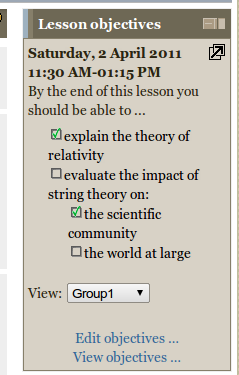
It displays current lesson objectives in the side bar (to both teacher and students) and allows a teacher to check them off as they are completed. You can enter a timetable, linked to different groups, so that objectives can be entered as far in advance as you want and will be displayed at the appropriate time.
Other features include:
- Abiliy to display a large version of the objectives, when teaching from the front of a class room (click on the 'expand' icon)
- Students can view all the objectives, a week at a time, to help keep track of what they have been doing (and will be doing)
==Recent changes==
2026-04-24 - 4.0.0.2 - M5.2 compatibility fixes
2025-10-18 - 4.0.0.1 - M5.1 compatibility fixes
2025-04-19 - 4.0.0.0 - M5.0 compatibility fixes, dropped support for M3.11 and below
2024-10-19 - 3.4.2.2 - Minor M4.5 compatibility fixes
2024-04-05 - 3.4.2.1 - Minor M4.4 compatibility fixes
2023-10-02 - 3.4.2.0 - update GitHub actions ready for 4.3 release
2023-04-14 - 3.4.1.0 - Minor M4.2 compatibility fixes, small layout fix for tick boxes
2022-11-19 - Minor M4.1 compatibility fixes
2022-01-22 - Minor M4.0 compatibility fixes
2021-05-15 - Minor M3.11 compatibility fixes
2021-04-10 - Minor internal documentation changes and switch from Travis to Github actions
2018-04-21 - Add GDPR declaration (no personal data stored). This requires M3.4 to work.
2017-05-12 - M3.3 compatibility fixes
2016-11-21 - Minor 3.2 compatibility fix (only behat tests affected)
2015-06-20 - Major 2.9 compatibility fix (changes to Moodle date time handling broke the timetable editing); full set of automated tests added
2014-07-06 - Minor 2.7 compatibility fixes
2014-04-25 - Fix timezone handling when displaying current objectives.
2013-11-28 - Minor 2.6 compatibility fixes
2012-12-07 - Moodle 2.4 compatibility fixes
2012-02-07 - Renamed all database tables to match new strict requirements on Moodle.org
2012-02-06 - Minor changes to improve 2.2 compatibility
==Installation==
- If you haven't done so already, download the zip file from https://github.com/davosmith/moodle-objectives/zipball/master
- Extract all the files to a suitable location
- Create a folder on your server '
- Upload all the files in the 'davosmith-moodle-objectives-XXXXX/objectives' folder into this blocks/objectives folder on the server.
- Log in as an administrator and click on the 'Notifications' link.
- Go into a course, turn on editing and choose 'Lesson objectives' from the 'Add a block' menu
==Usage==
Click on 'Edit objectives ...' in the footer of the block.
The first time, this will take you directly to the 'Edit timetables' screen (there is a button at the top of the 'Edit objectives' page to get back here later).
For each slot in the timetable, choose a group to display the objectives to (or 'all groups', for everyone on the course), as well as a start / end time for that lesson.
Three blank slots are added to each day every time you click 'Save'.
Once the timetable slots are filled in, click 'Save and edit objectives', to start entering lesson objectives.
Type in the lesson objectives for each lesson slot, press enter to start a new objective; start a line with one (or two) spaces to indent the objectives.
Click on 'Save' before moving to another week (via the next / previous links at the top of the page).
Click 'Save and view course' to get back to the course.
During a lesson, a teacher can click on an objective to toggle the 'tick' box between completed / not completed (this is just to help keep track of the progress through the lesson and does not affect anything else).
==Contact==
Any questions or suggestions for improvement, please drop an email to: moodle@davosmith.co.uk
4.0.0.1 (2025101800)
4.0.0.1
Plugin type: Blocks
Frankenstyle component name: block_objectives
Version build number: 2025101800
Version release name: 4.0.0.1
Maturity: Stable
Supported Moodle versions: 4.0, 4.1, 4.2, 4.3, 4.4, 4.5, 5.0, 5.1
Repository URL (Git): https://github.com/davosmith/moodle-objectives
Repository branch: MOODLE_500_STABLE
Repository tag: 4.0.0.1
Issue/bug tracker URL: https://tracker.moodle.org/issues/?jql=project%20%3D%20CONTRIB%20AND%20component%20%3D%20%22Block%3A+Lesson+objectives%22
Lesson objectives block
This is a block for Moodle 1.9 and Moodle 2.x.
This is the Moodle 2.x version ( download the Moodle 1.9 version here - https://github.com/davosmith/moodle-objectives/zipball/MOODLE_19_STABLE )
It displays current lesson objectives in the side bar (to both teacher and students) and allows a teacher to check them off as they are completed. You can enter a timetable, linked to different groups, so that objectives can be entered as far in advance as you want and will be displayed at the appropriate time.
Other features include:
- Abiliy to display a large version of the objectives, when teaching from the front of a class room (click on the 'expand' icon)
- Students can view all the objectives, a week at a time, to help keep track of what they have been doing (and will be doing)
==Recent changes==
2025-10-18 - 4.0.0.1 - M5.1 compatibility fixes
2025-04-19 - 4.0.0.0 - M5.0 compatibility fixes, dropped support for M3.11 and below
2024-10-19 - 3.4.2.2 - Minor M4.5 compatibility fixes
2024-04-05 - 3.4.2.1 - Minor M4.4 compatibility fixes
2023-10-02 - 3.4.2.0 - update GitHub actions ready for 4.3 release
2023-04-14 - 3.4.1.0 - Minor M4.2 compatibility fixes, small layout fix for tick boxes
2022-11-19 - Minor M4.1 compatibility fixes
2022-01-22 - Minor M4.0 compatibility fixes
2021-05-15 - Minor M3.11 compatibility fixes
2021-04-10 - Minor internal documentation changes and switch from Travis to Github actions
2018-04-21 - Add GDPR declaration (no personal data stored). This requires M3.4 to work.
2017-05-12 - M3.3 compatibility fixes
2016-11-21 - Minor 3.2 compatibility fix (only behat tests affected)
2015-06-20 - Major 2.9 compatibility fix (changes to Moodle date time handling broke the timetable editing); full set of automated tests added
2014-07-06 - Minor 2.7 compatibility fixes
2014-04-25 - Fix timezone handling when displaying current objectives.
2013-11-28 - Minor 2.6 compatibility fixes
2012-12-07 - Moodle 2.4 compatibility fixes
2012-02-07 - Renamed all database tables to match new strict requirements on Moodle.org
2012-02-06 - Minor changes to improve 2.2 compatibility
==Installation==
- If you haven't done so already, download the zip file from https://github.com/davosmith/moodle-objectives/zipball/master
- Extract all the files to a suitable location
- Create a folder on your server '
- Upload all the files in the 'davosmith-moodle-objectives-XXXXX/objectives' folder into this blocks/objectives folder on the server.
- Log in as an administrator and click on the 'Notifications' link.
- Go into a course, turn on editing and choose 'Lesson objectives' from the 'Add a block' menu
==Usage==
Click on 'Edit objectives ...' in the footer of the block.
The first time, this will take you directly to the 'Edit timetables' screen (there is a button at the top of the 'Edit objectives' page to get back here later).
For each slot in the timetable, choose a group to display the objectives to (or 'all groups', for everyone on the course), as well as a start / end time for that lesson.
Three blank slots are added to each day every time you click 'Save'.
Once the timetable slots are filled in, click 'Save and edit objectives', to start entering lesson objectives.
Type in the lesson objectives for each lesson slot, press enter to start a new objective; start a line with one (or two) spaces to indent the objectives.
Click on 'Save' before moving to another week (via the next / previous links at the top of the page).
Click 'Save and view course' to get back to the course.
During a lesson, a teacher can click on an objective to toggle the 'tick' box between completed / not completed (this is just to help keep track of the progress through the lesson and does not affect anything else).
==Contact==
Any questions or suggestions for improvement, please drop an email to: moodle@davosmith.co.uk
4.0.0.0 (2025041900)
4.0.0.0
Plugin type: Blocks
Frankenstyle component name: block_objectives
Version build number: 2025041900
Version release name: 4.0.0.0
Maturity: Stable
Supported Moodle versions: 4.0, 4.1, 4.2, 4.3, 4.4, 4.5, 5.0
Repository URL (Git): https://github.com/davosmith/moodle-objectives
Repository branch: MOODLE_500_STABLE
Repository tag: 4.0.0.0
Issue/bug tracker URL: https://tracker.moodle.org/issues/?jql=project%20%3D%20CONTRIB%20AND%20component%20%3D%20%22Block%3A+Lesson+objectives%22
Lesson objectives block
This is a block for Moodle 1.9 and Moodle 2.x.
This is the Moodle 2.x version ( download the Moodle 1.9 version here - https://github.com/davosmith/moodle-objectives/zipball/MOODLE_19_STABLE )
It displays current lesson objectives in the side bar (to both teacher and students) and allows a teacher to check them off as they are completed. You can enter a timetable, linked to different groups, so that objectives can be entered as far in advance as you want and will be displayed at the appropriate time.
Other features include:
- Abiliy to display a large version of the objectives, when teaching from the front of a class room (click on the 'expand' icon)
- Students can view all the objectives, a week at a time, to help keep track of what they have been doing (and will be doing)
==Recent changes==
2025-04-19 - 4.0.0.0 - M5.0 compatibility fixes, dropped support for M3.11 and below
2024-10-19 - 3.4.2.2 - Minor M4.5 compatibility fixes
2024-04-05 - 3.4.2.1 - Minor M4.4 compatibility fixes
2023-10-02 - 3.4.2.0 - update GitHub actions ready for 4.3 release
2023-04-14 - 3.4.1.0 - Minor M4.2 compatibility fixes, small layout fix for tick boxes
2022-11-19 - Minor M4.1 compatibility fixes
2022-01-22 - Minor M4.0 compatibility fixes
2021-05-15 - Minor M3.11 compatibility fixes
2021-04-10 - Minor internal documentation changes and switch from Travis to Github actions
2018-04-21 - Add GDPR declaration (no personal data stored). This requires M3.4 to work.
2017-05-12 - M3.3 compatibility fixes
2016-11-21 - Minor 3.2 compatibility fix (only behat tests affected)
2015-06-20 - Major 2.9 compatibility fix (changes to Moodle date time handling broke the timetable editing); full set of automated tests added
2014-07-06 - Minor 2.7 compatibility fixes
2014-04-25 - Fix timezone handling when displaying current objectives.
2013-11-28 - Minor 2.6 compatibility fixes
2012-12-07 - Moodle 2.4 compatibility fixes
2012-02-07 - Renamed all database tables to match new strict requirements on Moodle.org
2012-02-06 - Minor changes to improve 2.2 compatibility
==Installation==
- If you haven't done so already, download the zip file from https://github.com/davosmith/moodle-objectives/zipball/master
- Extract all the files to a suitable location
- Create a folder on your server '
- Upload all the files in the 'davosmith-moodle-objectives-XXXXX/objectives' folder into this blocks/objectives folder on the server.
- Log in as an administrator and click on the 'Notifications' link.
- Go into a course, turn on editing and choose 'Lesson objectives' from the 'Add a block' menu
==Usage==
Click on 'Edit objectives ...' in the footer of the block.
The first time, this will take you directly to the 'Edit timetables' screen (there is a button at the top of the 'Edit objectives' page to get back here later).
For each slot in the timetable, choose a group to display the objectives to (or 'all groups', for everyone on the course), as well as a start / end time for that lesson.
Three blank slots are added to each day every time you click 'Save'.
Once the timetable slots are filled in, click 'Save and edit objectives', to start entering lesson objectives.
Type in the lesson objectives for each lesson slot, press enter to start a new objective; start a line with one (or two) spaces to indent the objectives.
Click on 'Save' before moving to another week (via the next / previous links at the top of the page).
Click 'Save and view course' to get back to the course.
During a lesson, a teacher can click on an objective to toggle the 'tick' box between completed / not completed (this is just to help keep track of the progress through the lesson and does not affect anything else).
==Contact==
Any questions or suggestions for improvement, please drop an email to: moodle@davosmith.co.uk
3.4.2.2 (2024101900)
3.4.2.2
Plugin type: Blocks
Frankenstyle component name: block_objectives
Version build number: 2024101900
Version release name: 3.4.2.2
Maturity: Stable
Supported Moodle versions: 3.10, 3.11, 3.4, 3.5, 3.6, 3.7, 3.8, 3.9, 4.0, 4.1, 4.2, 4.3, 4.4, 4.5
Repository URL (Git): https://github.com/davosmith/moodle-objectives
Repository branch: master
Repository tag: 3.4.2.2
Issue/bug tracker URL: https://tracker.moodle.org/issues/?jql=project%20%3D%20CONTRIB%20AND%20component%20%3D%20%22Block%3A+Lesson+objectives%22
Lesson objectives block
This is a block for Moodle 1.9 and Moodle 2.x.
This is the Moodle 2.x version ( download the Moodle 1.9 version here - https://github.com/davosmith/moodle-objectives/zipball/MOODLE_19_STABLE )
It displays current lesson objectives in the side bar (to both teacher and students) and allows a teacher to check them off as they are completed. You can enter a timetable, linked to different groups, so that objectives can be entered as far in advance as you want and will be displayed at the appropriate time.
Other features include:
- Abiliy to display a large version of the objectives, when teaching from the front of a class room (click on the 'expand' icon)
- Students can view all the objectives, a week at a time, to help keep track of what they have been doing (and will be doing)
==Recent changes==
2024-10-19 - 3.4.2.2 - Minor M4.5 compatibility fixes
2024-04-05 - 3.4.2.1 - Minor M4.4 compatibility fixes
2023-10-02 - 3.4.2.0 - update GitHub actions ready for 4.3 release
2023-04-14 - 3.4.1.0 - Minor M4.2 compatibility fixes, small layout fix for tick boxes
2022-11-19 - Minor M4.1 compatibility fixes
2022-01-22 - Minor M4.0 compatibility fixes
2021-05-15 - Minor M3.11 compatibility fixes
2021-04-10 - Minor internal documentation changes and switch from Travis to Github actions
2018-04-21 - Add GDPR declaration (no personal data stored). This requires M3.4 to work.
2017-05-12 - M3.3 compatibility fixes
2016-11-21 - Minor 3.2 compatibility fix (only behat tests affected)
2015-06-20 - Major 2.9 compatibility fix (changes to Moodle date time handling broke the timetable editing); full set of automated tests added
2014-07-06 - Minor 2.7 compatibility fixes
2014-04-25 - Fix timezone handling when displaying current objectives.
2013-11-28 - Minor 2.6 compatibility fixes
2012-12-07 - Moodle 2.4 compatibility fixes
2012-02-07 - Renamed all database tables to match new strict requirements on Moodle.org
2012-02-06 - Minor changes to improve 2.2 compatibility
==Installation==
- If you haven't done so already, download the zip file from https://github.com/davosmith/moodle-objectives/zipball/master
- Extract all the files to a suitable location
- Create a folder on your server '
- Upload all the files in the 'davosmith-moodle-objectives-XXXXX/objectives' folder into this blocks/objectives folder on the server.
- Log in as an administrator and click on the 'Notifications' link.
- Go into a course, turn on editing and choose 'Lesson objectives' from the 'Add a block' menu
==Usage==
Click on 'Edit objectives ...' in the footer of the block.
The first time, this will take you directly to the 'Edit timetables' screen (there is a button at the top of the 'Edit objectives' page to get back here later).
For each slot in the timetable, choose a group to display the objectives to (or 'all groups', for everyone on the course), as well as a start / end time for that lesson.
Three blank slots are added to each day every time you click 'Save'.
Once the timetable slots are filled in, click 'Save and edit objectives', to start entering lesson objectives.
Type in the lesson objectives for each lesson slot, press enter to start a new objective; start a line with one (or two) spaces to indent the objectives.
Click on 'Save' before moving to another week (via the next / previous links at the top of the page).
Click 'Save and view course' to get back to the course.
During a lesson, a teacher can click on an objective to toggle the 'tick' box between completed / not completed (this is just to help keep track of the progress through the lesson and does not affect anything else).
==Contact==
Any questions or suggestions for improvement, please drop an email to: moodle@davosmith.co.uk
3.4.2.1 (2024040500)
3.4.2.1
Plugin type: Blocks
Frankenstyle component name: block_objectives
Version build number: 2024040500
Version release name: 3.4.2.1
Maturity: Stable
Supported Moodle versions: 3.10, 3.11, 3.4, 3.5, 3.6, 3.7, 3.8, 3.9, 4.0, 4.1, 4.2, 4.3, 4.4
Repository URL (Git): https://github.com/davosmith/moodle-objectives
Repository branch:
Repository tag: 3.4.2.1
Issue/bug tracker URL: https://tracker.moodle.org/issues/?jql=project%20%3D%20CONTRIB%20AND%20component%20%3D%20%22Block%3A+Lesson+objectives%22
Lesson objectives block
This is a block for Moodle 1.9 and Moodle 2.x.
This is the Moodle 2.x version ( download the Moodle 1.9 version here - https://github.com/davosmith/moodle-objectives/zipball/MOODLE_19_STABLE )
It displays current lesson objectives in the side bar (to both teacher and students) and allows a teacher to check them off as they are completed. You can enter a timetable, linked to different groups, so that objectives can be entered as far in advance as you want and will be displayed at the appropriate time.
Other features include:
- Abiliy to display a large version of the objectives, when teaching from the front of a class room (click on the 'expand' icon)
- Students can view all the objectives, a week at a time, to help keep track of what they have been doing (and will be doing)
==Recent changes==
2024-04-05 - 3.4.2.1 - Minor M4.4 compatibility fixes
2023-10-02 - 3.4.2.0 - update GitHub actions ready for 4.3 release
2023-04-14 - 3.4.1.0 - Minor M4.2 compatibility fixes, small layout fix for tick boxes
2022-11-19 - Minor M4.1 compatibility fixes
2022-01-22 - Minor M4.0 compatibility fixes
2021-05-15 - Minor M3.11 compatibility fixes
2021-04-10 - Minor internal documentation changes and switch from Travis to Github actions
2018-04-21 - Add GDPR declaration (no personal data stored). This requires M3.4 to work.
2017-05-12 - M3.3 compatibility fixes
2016-11-21 - Minor 3.2 compatibility fix (only behat tests affected)
2015-06-20 - Major 2.9 compatibility fix (changes to Moodle date time handling broke the timetable editing); full set of automated tests added
2014-07-06 - Minor 2.7 compatibility fixes
2014-04-25 - Fix timezone handling when displaying current objectives.
2013-11-28 - Minor 2.6 compatibility fixes
2012-12-07 - Moodle 2.4 compatibility fixes
2012-02-07 - Renamed all database tables to match new strict requirements on Moodle.org
2012-02-06 - Minor changes to improve 2.2 compatibility
==Installation==
- If you haven't done so already, download the zip file from https://github.com/davosmith/moodle-objectives/zipball/master
- Extract all the files to a suitable location
- Create a folder on your server '
- Upload all the files in the 'davosmith-moodle-objectives-XXXXX/objectives' folder into this blocks/objectives folder on the server.
- Log in as an administrator and click on the 'Notifications' link.
- Go into a course, turn on editing and choose 'Lesson objectives' from the 'Add a block' menu
==Usage==
Click on 'Edit objectives ...' in the footer of the block.
The first time, this will take you directly to the 'Edit timetables' screen (there is a button at the top of the 'Edit objectives' page to get back here later).
For each slot in the timetable, choose a group to display the objectives to (or 'all groups', for everyone on the course), as well as a start / end time for that lesson.
Three blank slots are added to each day every time you click 'Save'.
Once the timetable slots are filled in, click 'Save and edit objectives', to start entering lesson objectives.
Type in the lesson objectives for each lesson slot, press enter to start a new objective; start a line with one (or two) spaces to indent the objectives.
Click on 'Save' before moving to another week (via the next / previous links at the top of the page).
Click 'Save and view course' to get back to the course.
During a lesson, a teacher can click on an objective to toggle the 'tick' box between completed / not completed (this is just to help keep track of the progress through the lesson and does not affect anything else).
==Contact==
Any questions or suggestions for improvement, please drop an email to: moodle@davosmith.co.uk
3.4.2.0 (2023100200)
3.4.2.0
Plugin type: Blocks
Frankenstyle component name: block_objectives
Version build number: 2023100200
Version release name: 3.4.2.0
Maturity: Stable
Supported Moodle versions: 3.10, 3.11, 3.4, 3.5, 3.6, 3.7, 3.8, 3.9, 4.0, 4.1, 4.2, 4.3
Repository URL (Git): https://github.com/davosmith/moodle-objectives
Repository branch:
Repository tag: 3.4.2.0
Issue/bug tracker URL: https://tracker.moodle.org/issues/?jql=project%20%3D%20CONTRIB%20AND%20component%20%3D%20%22Block%3A+Lesson+objectives%22
Lesson objectives block
This is a block for Moodle 1.9 and Moodle 2.x.
This is the Moodle 2.x version ( download the Moodle 1.9 version here - https://github.com/davosmith/moodle-objectives/zipball/MOODLE_19_STABLE )
It displays current lesson objectives in the side bar (to both teacher and students) and allows a teacher to check them off as they are completed. You can enter a timetable, linked to different groups, so that objectives can be entered as far in advance as you want and will be displayed at the appropriate time.
Other features include:
- Abiliy to display a large version of the objectives, when teaching from the front of a class room (click on the 'expand' icon)
- Students can view all the objectives, a week at a time, to help keep track of what they have been doing (and will be doing)
==Recent changes==
2023-10-02 - 3.4.2.0 - update GitHub actions ready for 4.3 release
2023-04-14 - 3.4.1.0 - Minor M4.2 compatibility fixes, small layout fix for tick boxes
2022-11-19 - Minor M4.1 compatibility fixes
2022-01-22 - Minor M4.0 compatibility fixes
2021-05-15 - Minor M3.11 compatibility fixes
2021-04-10 - Minor internal documentation changes and switch from Travis to Github actions
2018-04-21 - Add GDPR declaration (no personal data stored). This requires M3.4 to work.
2017-05-12 - M3.3 compatibility fixes
2016-11-21 - Minor 3.2 compatibility fix (only behat tests affected)
2015-06-20 - Major 2.9 compatibility fix (changes to Moodle date time handling broke the timetable editing); full set of automated tests added
2014-07-06 - Minor 2.7 compatibility fixes
2014-04-25 - Fix timezone handling when displaying current objectives.
2013-11-28 - Minor 2.6 compatibility fixes
2012-12-07 - Moodle 2.4 compatibility fixes
2012-02-07 - Renamed all database tables to match new strict requirements on Moodle.org
2012-02-06 - Minor changes to improve 2.2 compatibility
==Installation==
- If you haven't done so already, download the zip file from https://github.com/davosmith/moodle-objectives/zipball/master
- Extract all the files to a suitable location
- Create a folder on your server '
- Upload all the files in the 'davosmith-moodle-objectives-XXXXX/objectives' folder into this blocks/objectives folder on the server.
- Log in as an administrator and click on the 'Notifications' link.
- Go into a course, turn on editing and choose 'Lesson objectives' from the 'Add a block' menu
==Usage==
Click on 'Edit objectives ...' in the footer of the block.
The first time, this will take you directly to the 'Edit timetables' screen (there is a button at the top of the 'Edit objectives' page to get back here later).
For each slot in the timetable, choose a group to display the objectives to (or 'all groups', for everyone on the course), as well as a start / end time for that lesson.
Three blank slots are added to each day every time you click 'Save'.
Once the timetable slots are filled in, click 'Save and edit objectives', to start entering lesson objectives.
Type in the lesson objectives for each lesson slot, press enter to start a new objective; start a line with one (or two) spaces to indent the objectives.
Click on 'Save' before moving to another week (via the next / previous links at the top of the page).
Click 'Save and view course' to get back to the course.
During a lesson, a teacher can click on an objective to toggle the 'tick' box between completed / not completed (this is just to help keep track of the progress through the lesson and does not affect anything else).
==Contact==
Any questions or suggestions for improvement, please drop an email to: moodle@davosmith.co.uk
3.4.1.0 (2023041400)
3.4.1.0
Plugin type: Blocks
Frankenstyle component name: block_objectives
Version build number: 2023041400
Version release name: 3.4.1.0
Maturity: Stable
Supported Moodle versions: 3.10, 3.11, 3.4, 3.5, 3.6, 3.7, 3.8, 3.9, 4.0, 4.1, 4.2
Repository URL (Git): https://github.com/davosmith/moodle-objectives
Repository branch: master
Repository tag: 3.4.1.0
Issue/bug tracker URL: https://tracker.moodle.org/issues/?jql=project%20%3D%20CONTRIB%20AND%20component%20%3D%20%22Block%3A+Lesson+objectives%22
Lesson objectives block
This is a block for Moodle 1.9 and Moodle 2.x.
This is the Moodle 2.x version ( download the Moodle 1.9 version here - https://github.com/davosmith/moodle-objectives/zipball/MOODLE_19_STABLE )
It displays current lesson objectives in the side bar (to both teacher and students) and allows a teacher to check them off as they are completed. You can enter a timetable, linked to different groups, so that objectives can be entered as far in advance as you want and will be displayed at the appropriate time.
Other features include:
- Abiliy to display a large version of the objectives, when teaching from the front of a class room (click on the 'expand' icon)
- Students can view all the objectives, a week at a time, to help keep track of what they have been doing (and will be doing)
==Recent changes==
2023-04-14 - 3.4.1.0 - Minor M4.2 compatibility fixes, small layout fix for tick boxes
2022-11-19 - Minor M4.1 compatibility fixes
2022-01-22 - Minor M4.0 compatibility fixes
2021-05-15 - Minor M3.11 compatibility fixes
2021-04-10 - Minor internal documentation changes and switch from Travis to Github actions
2018-04-21 - Add GDPR declaration (no personal data stored). This requires M3.4 to work.
2017-05-12 - M3.3 compatibility fixes
2016-11-21 - Minor 3.2 compatibility fix (only behat tests affected)
2015-06-20 - Major 2.9 compatibility fix (changes to Moodle date time handling broke the timetable editing); full set of automated tests added
2014-07-06 - Minor 2.7 compatibility fixes
2014-04-25 - Fix timezone handling when displaying current objectives.
2013-11-28 - Minor 2.6 compatibility fixes
2012-12-07 - Moodle 2.4 compatibility fixes
2012-02-07 - Renamed all database tables to match new strict requirements on Moodle.org
2012-02-06 - Minor changes to improve 2.2 compatibility
==Installation==
- If you haven't done so already, download the zip file from https://github.com/davosmith/moodle-objectives/zipball/master
- Extract all the files to a suitable location
- Create a folder on your server '
- Upload all the files in the 'davosmith-moodle-objectives-XXXXX/objectives' folder into this blocks/objectives folder on the server.
- Log in as an administrator and click on the 'Notifications' link.
- Go into a course, turn on editing and choose 'Lesson objectives' from the 'Add a block' menu
==Usage==
Click on 'Edit objectives ...' in the footer of the block.
The first time, this will take you directly to the 'Edit timetables' screen (there is a button at the top of the 'Edit objectives' page to get back here later).
For each slot in the timetable, choose a group to display the objectives to (or 'all groups', for everyone on the course), as well as a start / end time for that lesson.
Three blank slots are added to each day every time you click 'Save'.
Once the timetable slots are filled in, click 'Save and edit objectives', to start entering lesson objectives.
Type in the lesson objectives for each lesson slot, press enter to start a new objective; start a line with one (or two) spaces to indent the objectives.
Click on 'Save' before moving to another week (via the next / previous links at the top of the page).
Click 'Save and view course' to get back to the course.
During a lesson, a teacher can click on an objective to toggle the 'tick' box between completed / not completed (this is just to help keep track of the progress through the lesson and does not affect anything else).
==Contact==
Any questions or suggestions for improvement, please drop an email to: moodle@davosmith.co.uk
3.4+ (Build: 2022111900) (2022111900)
3.4+ (Build: 2022111900)
Plugin type: Blocks
Frankenstyle component name: block_objectives
Version build number: 2022111900
Version release name: 3.4+ (Build: 2022111900)
Maturity: Stable
Supported Moodle versions: 3.10, 3.11, 3.4, 3.5, 3.6, 3.7, 3.8, 3.9, 4.0, 4.1
Repository URL (Git): https://github.com/davosmith/moodle-objectives
Repository branch:
Repository tag: master
Issue/bug tracker URL: https://tracker.moodle.org/issues/?jql=project%20%3D%20CONTRIB%20AND%20component%20%3D%20%22Block%3A+Lesson+objectives%22
Lesson objectives block
This is a block for Moodle 1.9 and Moodle 2.x.
This is the Moodle 2.x version ( download the Moodle 1.9 version here - https://github.com/davosmith/moodle-objectives/zipball/MOODLE_19_STABLE )
It displays current lesson objectives in the side bar (to both teacher and students) and allows a teacher to check them off as they are completed. You can enter a timetable, linked to different groups, so that objectives can be entered as far in advance as you want and will be displayed at the appropriate time.
Other features include:
- Abiliy to display a large version of the objectives, when teaching from the front of a class room (click on the 'expand' icon)
- Students can view all the objectives, a week at a time, to help keep track of what they have been doing (and will be doing)
==Recent changes==
2022-11-19 - Minor M4.1 compatibility fixes
2022-01-22 - Minor M4.0 compatibility fixes
2021-05-15 - Minor M3.11 compatibility fixes
2021-04-10 - Minor internal documentation changes and switch from Travis to Github actions
2018-04-21 - Add GDPR declaration (no personal data stored). This requires M3.4 to work.
2017-05-12 - M3.3 compatibility fixes
2016-11-21 - Minor 3.2 compatibility fix (only behat tests affected)
2015-06-20 - Major 2.9 compatibility fix (changes to Moodle date time handling broke the timetable editing); full set of automated tests added
2014-07-06 - Minor 2.7 compatibility fixes
2014-04-25 - Fix timezone handling when displaying current objectives.
2013-11-28 - Minor 2.6 compatibility fixes
2012-12-07 - Moodle 2.4 compatibility fixes
2012-02-07 - Renamed all database tables to match new strict requirements on Moodle.org
2012-02-06 - Minor changes to improve 2.2 compatibility
==Installation==
- If you haven't done so already, download the zip file from https://github.com/davosmith/moodle-objectives/zipball/master
- Extract all the files to a suitable location
- Create a folder on your server '
- Upload all the files in the 'davosmith-moodle-objectives-XXXXX/objectives' folder into this blocks/objectives folder on the server.
- Log in as an administrator and click on the 'Notifications' link.
- Go into a course, turn on editing and choose 'Lesson objectives' from the 'Add a block' menu
==Usage==
Click on 'Edit objectives ...' in the footer of the block.
The first time, this will take you directly to the 'Edit timetables' screen (there is a button at the top of the 'Edit objectives' page to get back here later).
For each slot in the timetable, choose a group to display the objectives to (or 'all groups', for everyone on the course), as well as a start / end time for that lesson.
Three blank slots are added to each day every time you click 'Save'.
Once the timetable slots are filled in, click 'Save and edit objectives', to start entering lesson objectives.
Type in the lesson objectives for each lesson slot, press enter to start a new objective; start a line with one (or two) spaces to indent the objectives.
Click on 'Save' before moving to another week (via the next / previous links at the top of the page).
Click 'Save and view course' to get back to the course.
During a lesson, a teacher can click on an objective to toggle the 'tick' box between completed / not completed (this is just to help keep track of the progress through the lesson and does not affect anything else).
==Contact==
Any questions or suggestions for improvement, please drop an email to: moodle@davosmith.co.uk
3.4+ (Build: 2022012200) (2022012200)
3.4+ (Build: 2022012200)
Plugin type: Blocks
Frankenstyle component name: block_objectives
Version build number: 2022012200
Version release name: 3.4+ (Build: 2022012200)
Maturity: Stable
Supported Moodle versions: 3.10, 3.11, 3.4, 3.5, 3.6, 3.7, 3.8, 3.9, 4.0
Repository URL (Git): https://github.com/davosmith/moodle-objectives
Repository branch: master
Repository tag:
Issue/bug tracker URL: https://tracker.moodle.org/issues/?jql=project%20%3D%20CONTRIB%20AND%20component%20%3D%20%22Block%3A+Lesson+objectives%22
Lesson objectives block
This is a block for Moodle 1.9 and Moodle 2.x.
This is the Moodle 2.x version ( download the Moodle 1.9 version here - https://github.com/davosmith/moodle-objectives/zipball/MOODLE_19_STABLE )
It displays current lesson objectives in the side bar (to both teacher and students) and allows a teacher to check them off as they are completed. You can enter a timetable, linked to different groups, so that objectives can be entered as far in advance as you want and will be displayed at the appropriate time.
Other features include:
- Abiliy to display a large version of the objectives, when teaching from the front of a class room (click on the 'expand' icon)
- Students can view all the objectives, a week at a time, to help keep track of what they have been doing (and will be doing)
==Recent changes==
2022-01-22 - Minor M4.0 compatibility fixes
2021-05-15 - Minor M3.11 compatibility fixes
2021-04-10 - Minor internal documentation changes and switch from Travis to Github actions
2018-04-21 - Add GDPR declaration (no personal data stored). This requires M3.4 to work.
2017-05-12 - M3.3 compatibility fixes
2016-11-21 - Minor 3.2 compatibility fix (only behat tests affected)
2015-06-20 - Major 2.9 compatibility fix (changes to Moodle date time handling broke the timetable editing); full set of automated tests added
2014-07-06 - Minor 2.7 compatibility fixes
2014-04-25 - Fix timezone handling when displaying current objectives.
2013-11-28 - Minor 2.6 compatibility fixes
2012-12-07 - Moodle 2.4 compatibility fixes
2012-02-07 - Renamed all database tables to match new strict requirements on Moodle.org
2012-02-06 - Minor changes to improve 2.2 compatibility
==Installation==
- If you haven't done so already, download the zip file from https://github.com/davosmith/moodle-objectives/zipball/master
- Extract all the files to a suitable location
- Create a folder on your server '
- Upload all the files in the 'davosmith-moodle-objectives-XXXXX/objectives' folder into this blocks/objectives folder on the server.
- Log in as an administrator and click on the 'Notifications' link.
- Go into a course, turn on editing and choose 'Lesson objectives' from the 'Add a block' menu
==Usage==
Click on 'Edit objectives ...' in the footer of the block.
The first time, this will take you directly to the 'Edit timetables' screen (there is a button at the top of the 'Edit objectives' page to get back here later).
For each slot in the timetable, choose a group to display the objectives to (or 'all groups', for everyone on the course), as well as a start / end time for that lesson.
Three blank slots are added to each day every time you click 'Save'.
Once the timetable slots are filled in, click 'Save and edit objectives', to start entering lesson objectives.
Type in the lesson objectives for each lesson slot, press enter to start a new objective; start a line with one (or two) spaces to indent the objectives.
Click on 'Save' before moving to another week (via the next / previous links at the top of the page).
Click 'Save and view course' to get back to the course.
During a lesson, a teacher can click on an objective to toggle the 'tick' box between completed / not completed (this is just to help keep track of the progress through the lesson and does not affect anything else).
==Contact==
Any questions or suggestions for improvement, please drop an email to: moodle@davosmith.co.uk
3.4+ (Build: 2021051500) (2021051500)
3.4+ (Build: 2021051500)
Plugin type: Blocks
Frankenstyle component name: block_objectives
Version build number: 2021051500
Version release name: 3.4+ (Build: 2021051500)
Maturity: Stable
Supported Moodle versions: 3.10, 3.11, 3.4, 3.5, 3.6, 3.7, 3.8, 3.9
Repository URL (Git): https://github.com/davosmith/moodle-objectives
Repository branch: master
Repository tag:
Issue/bug tracker URL: https://tracker.moodle.org/issues/?jql=project%20%3D%20CONTRIB%20AND%20component%20%3D%20%22Block%3A+Lesson+objectives%22
Lesson objectives block
This is a block for Moodle 1.9 and Moodle 2.x.
This is the Moodle 2.x version ( download the Moodle 1.9 version here - https://github.com/davosmith/moodle-objectives/zipball/MOODLE_19_STABLE )
It displays current lesson objectives in the side bar (to both teacher and students) and allows a teacher to check them off as they are completed. You can enter a timetable, linked to different groups, so that objectives can be entered as far in advance as you want and will be displayed at the appropriate time.
Other features include:
- Abiliy to display a large version of the objectives, when teaching from the front of a class room (click on the 'expand' icon)
- Students can view all the objectives, a week at a time, to help keep track of what they have been doing (and will be doing)
==Recent changes==
2021-05-15 - Minor M3.11 compatibility fixes
2021-04-10 - Minor internal documentation changes and switch from Travis to Github actions
2018-04-21 - Add GDPR declaration (no personal data stored). This requires M3.4 to work.
2017-05-12 - M3.3 compatibility fixes
2016-11-21 - Minor 3.2 compatibility fix (only behat tests affected)
2015-06-20 - Major 2.9 compatibility fix (changes to Moodle date time handling broke the timetable editing); full set of automated tests added
2014-07-06 - Minor 2.7 compatibility fixes
2014-04-25 - Fix timezone handling when displaying current objectives.
2013-11-28 - Minor 2.6 compatibility fixes
2012-12-07 - Moodle 2.4 compatibility fixes
2012-02-07 - Renamed all database tables to match new strict requirements on Moodle.org
2012-02-06 - Minor changes to improve 2.2 compatibility
==Installation==
- If you haven't done so already, download the zip file from https://github.com/davosmith/moodle-objectives/zipball/master
- Extract all the files to a suitable location
- Create a folder on your server '
- Upload all the files in the 'davosmith-moodle-objectives-XXXXX/objectives' folder into this blocks/objectives folder on the server.
- Log in as an administrator and click on the 'Notifications' link.
- Go into a course, turn on editing and choose 'Lesson objectives' from the 'Add a block' menu
==Usage==
Click on 'Edit objectives ...' in the footer of the block.
The first time, this will take you directly to the 'Edit timetables' screen (there is a button at the top of the 'Edit objectives' page to get back here later).
For each slot in the timetable, choose a group to display the objectives to (or 'all groups', for everyone on the course), as well as a start / end time for that lesson.
Three blank slots are added to each day every time you click 'Save'.
Once the timetable slots are filled in, click 'Save and edit objectives', to start entering lesson objectives.
Type in the lesson objectives for each lesson slot, press enter to start a new objective; start a line with one (or two) spaces to indent the objectives.
Click on 'Save' before moving to another week (via the next / previous links at the top of the page).
Click 'Save and view course' to get back to the course.
During a lesson, a teacher can click on an objective to toggle the 'tick' box between completed / not completed (this is just to help keep track of the progress through the lesson and does not affect anything else).
==Contact==
Any questions or suggestions for improvement, please drop an email to: moodle@davosmith.co.uk
3.4+ (Build: 2020110700) (2020110700)
3.4+ (Build: 2020110700)
Plugin type: Blocks
Frankenstyle component name: block_objectives
Version build number: 2020110700
Version release name: 3.4+ (Build: 2020110700)
Maturity: Stable
Supported Moodle versions: 3.10, 3.4, 3.5, 3.6, 3.7, 3.8, 3.9
Repository URL (Git): https://github.com/davosmith/moodle-objectives
Repository branch: master
Repository tag:
Issue/bug tracker URL: https://tracker.moodle.org/issues/?jql=project%20%3D%20CONTRIB%20AND%20component%20%3D%20%22Block%3A+Lesson+objectives%22
Lesson objectives block
This is a block for Moodle 1.9 and Moodle 2.x.
This is the Moodle 2.x version ( download the Moodle 1.9 version here - https://github.com/davosmith/moodle-objectives/zipball/MOODLE_19_STABLE )
It displays current lesson objectives in the side bar (to both teacher and students) and allows a teacher to check them off as they are completed. You can enter a timetable, linked to different groups, so that objectives can be entered as far in advance as you want and will be displayed at the appropriate time.
Other features include:
- Abiliy to display a large version of the objectives, when teaching from the front of a class room (click on the 'expand' icon)
- Students can view all the objectives, a week at a time, to help keep track of what they have been doing (and will be doing)
==Recent changes==
2018-04-21 - Add GDPR declaration (no personal data stored). This requires M3.4 to work.
2017-05-12 - M3.3 compatibility fixes
2016-11-21 - Minor 3.2 compatibility fix (only behat tests affected)
2015-06-20 - Major 2.9 compatibility fix (changes to Moodle date time handling broke the timetable editing); full set of automated tests added
2014-07-06 - Minor 2.7 compatibility fixes
2014-04-25 - Fix timezone handling when displaying current objectives.
2013-11-28 - Minor 2.6 compatibility fixes
2012-12-07 - Moodle 2.4 compatibility fixes
2012-02-07 - Renamed all database tables to match new strict requirements on Moodle.org
2012-02-06 - Minor changes to improve 2.2 compatibility
==Installation==
- If you haven't done so already, download the zip file from https://github.com/davosmith/moodle-objectives/zipball/master
- Extract all the files to a suitable location
- Create a folder on your server '
- Upload all the files in the 'davosmith-moodle-objectives-XXXXX/objectives' folder into this blocks/objectives folder on the server.
- Log in as an administrator and click on the 'Notifications' link.
- Go into a course, turn on editing and choose 'Lesson objectives' from the 'Add a block' menu
==Usage==
Click on 'Edit objectives ...' in the footer of the block.
The first time, this will take you directly to the 'Edit timetables' screen (there is a button at the top of the 'Edit objectives' page to get back here later).
For each slot in the timetable, choose a group to display the objectives to (or 'all groups', for everyone on the course), as well as a start / end time for that lesson.
Three blank slots are added to each day every time you click 'Save'.
Once the timetable slots are filled in, click 'Save and edit objectives', to start entering lesson objectives.
Type in the lesson objectives for each lesson slot, press enter to start a new objective; start a line with one (or two) spaces to indent the objectives.
Click on 'Save' before moving to another week (via the next / previous links at the top of the page).
Click 'Save and view course' to get back to the course.
During a lesson, a teacher can click on an objective to toggle the 'tick' box between completed / not completed (this is just to help keep track of the progress through the lesson and does not affect anything else).
==Contact==
Any questions or suggestions for improvement, please drop an email to: moodle@davosmith.co.uk
3.4+ (Build: 2017051200) (2018113000)
3.4+ (Build: 2017051200)
Plugin type: Blocks
Frankenstyle component name: block_objectives
Version build number: 2018113000
Version release name: 3.4+ (Build: 2017051200)
Maturity: Stable
Supported Moodle versions: 3.4, 3.5, 3.6, 3.7, 3.8, 3.9
Repository URL (Git): https://github.com/davosmith/moodle-objectives
Repository branch: master
Repository tag:
Issue/bug tracker URL: https://tracker.moodle.org/issues/?jql=project%20%3D%20CONTRIB%20AND%20component%20%3D%20%22Block%3A+Lesson+objectives%22
Lesson objectives block
This is a block for Moodle 1.9 and Moodle 2.x.
This is the Moodle 2.x version ( download the Moodle 1.9 version here - https://github.com/davosmith/moodle-objectives/zipball/MOODLE_19_STABLE )
It displays current lesson objectives in the side bar (to both teacher and students) and allows a teacher to check them off as they are completed. You can enter a timetable, linked to different groups, so that objectives can be entered as far in advance as you want and will be displayed at the appropriate time.
Other features include:
- Abiliy to display a large version of the objectives, when teaching from the front of a class room (click on the 'expand' icon)
- Students can view all the objectives, a week at a time, to help keep track of what they have been doing (and will be doing)
==Recent changes==
2018-04-21 - Add GDPR declaration (no personal data stored). This requires M3.4 to work.
2017-05-12 - M3.3 compatibility fixes
2016-11-21 - Minor 3.2 compatibility fix (only behat tests affected)
2015-06-20 - Major 2.9 compatibility fix (changes to Moodle date time handling broke the timetable editing); full set of automated tests added
2014-07-06 - Minor 2.7 compatibility fixes
2014-04-25 - Fix timezone handling when displaying current objectives.
2013-11-28 - Minor 2.6 compatibility fixes
2012-12-07 - Moodle 2.4 compatibility fixes
2012-02-07 - Renamed all database tables to match new strict requirements on Moodle.org
2012-02-06 - Minor changes to improve 2.2 compatibility
==Installation==
- If you haven't done so already, download the zip file from https://github.com/davosmith/moodle-objectives/zipball/master
- Extract all the files to a suitable location
- Create a folder on your server '/blocks/objectives'
- Upload all the files in the 'davosmith-moodle-objectives-XXXXX/objectives' folder into this blocks/objectives folder on the server.
- Log in as an administrator and click on the 'Notifications' link.
- Go into a course, turn on editing and choose 'Lesson objectives' from the 'Add a block' menu
==Usage==
Click on 'Edit objectives ...' in the footer of the block.
The first time, this will take you directly to the 'Edit timetables' screen (there is a button at the top of the 'Edit objectives' page to get back here later).
For each slot in the timetable, choose a group to display the objectives to (or 'all groups', for everyone on the course), as well as a start / end time for that lesson.
Three blank slots are added to each day every time you click 'Save'.
Once the timetable slots are filled in, click 'Save and edit objectives', to start entering lesson objectives.
Type in the lesson objectives for each lesson slot, press enter to start a new objective; start a line with one (or two) spaces to indent the objectives.
Click on 'Save' before moving to another week (via the next / previous links at the top of the page).
Click 'Save and view course' to get back to the course.
During a lesson, a teacher can click on an objective to toggle the 'tick' box between completed / not completed (this is just to help keep track of the progress through the lesson and does not affect anything else).
==Contact==
Any questions or suggestions for improvement, please drop an email to: moodle@davosmith.co.uk
3.4+ (Build: 2017051200) (2018042100)
3.4+ (Build: 2017051200)
Plugin type: Blocks
Frankenstyle component name: block_objectives
Version build number: 2018042100
Version release name: 3.4+ (Build: 2017051200)
Maturity: Stable
Supported Moodle versions: 3.4, 3.5
Repository URL (Git): https://github.com/davosmith/moodle-objectives
Repository branch: master
Repository tag:
Issue/bug tracker URL: https://tracker.moodle.org/issues/?jql=project%20%3D%20CONTRIB%20AND%20component%20%3D%20%22Block%3A+Lesson+objectives%22
Lesson objectives block
This is a block for Moodle 1.9 and Moodle 2.x.
This is the Moodle 2.x version ( download the Moodle 1.9 version here - https://github.com/davosmith/moodle-objectives/zipball/MOODLE_19_STABLE )
It displays current lesson objectives in the side bar (to both teacher and students) and allows a teacher to check them off as they are completed. You can enter a timetable, linked to different groups, so that objectives can be entered as far in advance as you want and will be displayed at the appropriate time.
Other features include:
- Abiliy to display a large version of the objectives, when teaching from the front of a class room (click on the 'expand' icon)
- Students can view all the objectives, a week at a time, to help keep track of what they have been doing (and will be doing)
==Recent changes==
2018-04-21 - Add GDPR declaration (no personal data stored). This requires M3.4 to work.
2017-05-12 - M3.3 compatibility fixes
2016-11-21 - Minor 3.2 compatibility fix (only behat tests affected)
2015-06-20 - Major 2.9 compatibility fix (changes to Moodle date time handling broke the timetable editing); full set of automated tests added
2014-07-06 - Minor 2.7 compatibility fixes
2014-04-25 - Fix timezone handling when displaying current objectives.
2013-11-28 - Minor 2.6 compatibility fixes
2012-12-07 - Moodle 2.4 compatibility fixes
2012-02-07 - Renamed all database tables to match new strict requirements on Moodle.org
2012-02-06 - Minor changes to improve 2.2 compatibility
==Installation==
- If you haven't done so already, download the zip file from https://github.com/davosmith/moodle-objectives/zipball/master
- Extract all the files to a suitable location
- Create a folder on your server '
- Upload all the files in the 'davosmith-moodle-objectives-XXXXX/objectives' folder into this blocks/objectives folder on the server.
- Log in as an administrator and click on the 'Notifications' link.
- Go into a course, turn on editing and choose 'Lesson objectives' from the 'Add a block' menu
==Usage==
Click on 'Edit objectives ...' in the footer of the block.
The first time, this will take you directly to the 'Edit timetables' screen (there is a button at the top of the 'Edit objectives' page to get back here later).
For each slot in the timetable, choose a group to display the objectives to (or 'all groups', for everyone on the course), as well as a start / end time for that lesson.
Three blank slots are added to each day every time you click 'Save'.
Once the timetable slots are filled in, click 'Save and edit objectives', to start entering lesson objectives.
Type in the lesson objectives for each lesson slot, press enter to start a new objective; start a line with one (or two) spaces to indent the objectives.
Click on 'Save' before moving to another week (via the next / previous links at the top of the page).
Click 'Save and view course' to get back to the course.
During a lesson, a teacher can click on an objective to toggle the 'tick' box between completed / not completed (this is just to help keep track of the progress through the lesson and does not affect anything else).
==Contact==
Any questions or suggestions for improvement, please drop an email to: moodle@davosmith.co.uk
2.x (Build: 2017051200) (2017051200)
2.x (Build: 2017051200)
Plugin type: Blocks
Frankenstyle component name: block_objectives
Version build number: 2017051200
Version release name: 2.x (Build: 2017051200)
Maturity: Stable
Supported Moodle versions: 2.0, 2.1, 2.2, 2.3, 2.4, 2.5, 2.6, 2.7, 2.8, 2.9, 3.0, 3.1, 3.2, 3.3, 3.4
Repository URL (Git): https://github.com/davosmith/moodle-objectives
Repository branch: master
Repository tag:
Issue/bug tracker URL: https://tracker.moodle.org/issues/?jql=project%20%3D%20CONTRIB%20AND%20component%20%3D%20%22Block%3A+Lesson+objectives%22
Lesson objectives block
This is a block for Moodle 1.9 and Moodle 2.x.
This is the Moodle 2.x version ( download the Moodle 1.9 version here - https://github.com/davosmith/moodle-objectives/zipball/MOODLE_19_STABLE )
It displays current lesson objectives in the side bar (to both teacher and students) and allows a teacher to check them off as they are completed. You can enter a timetable, linked to different groups, so that objectives can be entered as far in advance as you want and will be displayed at the appropriate time.
Other features include:
- Abiliy to display a large version of the objectives, when teaching from the front of a class room (click on the 'expand' icon)
- Students can view all the objectives, a week at a time, to help keep track of what they have been doing (and will be doing)
==Recent changes==
2017-05-12 - M3.3 compatibility fixes
2016-11-21 - Minor 3.2 compatibility fix (only behat tests affected)
2015-06-20 - Major 2.9 compatibility fix (changes to Moodle date time handling broke the timetable editing); full set of automated tests added
2014-07-06 - Minor 2.7 compatibility fixes
2014-04-25 - Fix timezone handling when displaying current objectives.
2013-11-28 - Minor 2.6 compatibility fixes
2012-12-07 - Moodle 2.4 compatibility fixes
2012-02-07 - Renamed all database tables to match new strict requirements on Moodle.org
2012-02-06 - Minor changes to improve 2.2 compatibility
==Installation==
- If you haven't done so already, download the zip file from https://github.com/davosmith/moodle-objectives/zipball/master
- Extract all the files to a suitable location
- Create a folder on your server '/blocks/objectives'
- Upload all the files in the 'davosmith-moodle-objectives-XXXXX/objectives' folder into this blocks/objectives folder on the server.
- Log in as an administrator and click on the 'Notifications' link.
- Go into a course, turn on editing and choose 'Lesson objectives' from the 'Add a block' menu
==Usage==
Click on 'Edit objectives ...' in the footer of the block.
The first time, this will take you directly to the 'Edit timetables' screen (there is a button at the top of the 'Edit objectives' page to get back here later).
For each slot in the timetable, choose a group to display the objectives to (or 'all groups', for everyone on the course), as well as a start / end time for that lesson.
Three blank slots are added to each day every time you click 'Save'.
Once the timetable slots are filled in, click 'Save and edit objectives', to start entering lesson objectives.
Type in the lesson objectives for each lesson slot, press enter to start a new objective; start a line with one (or two) spaces to indent the objectives.
Click on 'Save' before moving to another week (via the next / previous links at the top of the page).
Click 'Save and view course' to get back to the course.
During a lesson, a teacher can click on an objective to toggle the 'tick' box between completed / not completed (this is just to help keep track of the progress through the lesson and does not affect anything else).
==Contact==
Any questions or suggestions for improvement, please drop an email to: moodle@davosmith.co.uk
2.x (Build: 2016112100) (2016112100)
2.x (Build: 2016112100)
Plugin type: Blocks
Frankenstyle component name: block_objectives
Version build number: 2016112100
Version release name: 2.x (Build: 2016112100)
Maturity: Stable
Supported Moodle versions: 2.0, 2.1, 2.2, 2.3, 2.4, 2.5, 2.6, 2.7, 2.8, 2.9, 3.0, 3.1, 3.2
Repository URL (Git): https://github.com/davosmith/moodle-objectives
Repository branch: master
Repository tag:
Issue/bug tracker URL: https://tracker.moodle.org/issues/?jql=project%20%3D%20CONTRIB%20AND%20component%20%3D%20%22Block%3A+Lesson+objectives%22
Lesson objectives block
This is a block for Moodle 1.9 and Moodle 2.x.
This is the Moodle 2.x version ( download the Moodle 1.9 version here - https://github.com/davosmith/moodle-objectives/zipball/MOODLE_19_STABLE )
It displays current lesson objectives in the side bar (to both teacher and students) and allows a teacher to check them off as they are completed. You can enter a timetable, linked to different groups, so that objectives can be entered as far in advance as you want and will be displayed at the appropriate time.
Other features include:
- Abiliy to display a large version of the objectives, when teaching from the front of a class room (click on the 'expand' icon)
- Students can view all the objectives, a week at a time, to help keep track of what they have been doing (and will be doing)
==Recent changes==
2016-11-21 - Minor 3.2 compatibility fix (only behat tests affected)
2015-06-20 - Major 2.9 compatibility fix (changes to Moodle date time handling broke the timetable editing); full set of automated tests added
2014-07-06 - Minor 2.7 compatibility fixes
2014-04-25 - Fix timezone handling when displaying current objectives.
2013-11-28 - Minor 2.6 compatibility fixes
2012-12-07 - Moodle 2.4 compatibility fixes
2012-02-07 - Renamed all database tables to match new strict requirements on Moodle.org
2012-02-06 - Minor changes to improve 2.2 compatibility
==Installation==
- If you haven't done so already, download the zip file from https://github.com/davosmith/moodle-objectives/zipball/master
- Extract all the files to a suitable location
- Create a folder on your server '
- Upload all the files in the 'davosmith-moodle-objectives-XXXXX/objectives' folder into this blocks/objectives folder on the server.
- Log in as an administrator and click on the 'Notifications' link.
- Go into a course, turn on editing and choose 'Lesson objectives' from the 'Add a block' menu
==Usage==
Click on 'Edit objectives ...' in the footer of the block.
The first time, this will take you directly to the 'Edit timetables' screen (there is a button at the top of the 'Edit objectives' page to get back here later).
For each slot in the timetable, choose a group to display the objectives to (or 'all groups', for everyone on the course), as well as a start / end time for that lesson.
Three blank slots are added to each day every time you click 'Save'.
Once the timetable slots are filled in, click 'Save and edit objectives', to start entering lesson objectives.
Type in the lesson objectives for each lesson slot, press enter to start a new objective; start a line with one (or two) spaces to indent the objectives.
Click on 'Save' before moving to another week (via the next / previous links at the top of the page).
Click 'Save and view course' to get back to the course.
During a lesson, a teacher can click on an objective to toggle the 'tick' box between completed / not completed (this is just to help keep track of the progress through the lesson and does not affect anything else).
==Contact==
Any questions or suggestions for improvement, please drop an email to: moodle@davosmith.co.uk
2.x (Build: 2015062000) (2015062000)
2.x (Build: 2015062000)
Plugin type: Blocks
Frankenstyle component name: block_objectives
Version build number: 2015062000
Version release name: 2.x (Build: 2015062000)
Maturity: Stable
Supported Moodle versions: 2.0, 2.1, 2.2, 2.3, 2.4, 2.5, 2.6, 2.7, 2.8, 2.9, 3.0, 3.1
Repository URL (Git): https://github.com/davosmith/moodle-objectives
Repository branch: master
Repository tag:
Issue/bug tracker URL: https://tracker.moodle.org/issues/?jql=project%20%3D%20CONTRIB%20AND%20component%20%3D%20%22Block%3A+Lesson+objectives%22
Lesson objectives block
This is a block for Moodle 1.9 and Moodle 2.x.
This is the Moodle 2.x version ( download the Moodle 1.9 version here - https://github.com/davosmith/moodle-objectives/zipball/MOODLE_19_STABLE )
It displays current lesson objectives in the side bar (to both teacher and students) and allows a teacher to check them off as they are completed. You can enter a timetable, linked to different groups, so that objectives can be entered as far in advance as you want and will be displayed at the appropriate time.
Other features include:
- Abiliy to display a large version of the objectives, when teaching from the front of a class room (click on the 'expand' icon)
- Students can view all the objectives, a week at a time, to help keep track of what they have been doing (and will be doing)
==Recent changes==
2015-06-20 - Major 2.9 compatibility fix (changes to Moodle date time handling broke the timetable editing); full set of automated tests added
2014-07-06 - Minor 2.7 compatibility fixes
2014-04-25 - Fix timezone handling when displaying current objectives.
2013-11-28 - Minor 2.6 compatibility fixes
2012-12-07 - Moodle 2.4 compatibility fixes
2012-02-07 - Renamed all database tables to match new strict requirements on Moodle.org
2012-02-06 - Minor changes to improve 2.2 compatibility
==Installation==
- If you haven't done so already, download the zip file from https://github.com/davosmith/moodle-objectives/zipball/master
- Extract all the files to a suitable location
- Create a folder on your server '/blocks/objectives'
- Upload all the files in the 'davosmith-moodle-objectives-XXXXX/objectives' folder into this blocks/objectives folder on the server.
- Log in as an administrator and click on the 'Notifications' link.
- Go into a course, turn on editing and choose 'Lesson objectives' from the 'Add a block' menu
==Usage==
Click on 'Edit objectives ...' in the footer of the block.
The first time, this will take you directly to the 'Edit timetables' screen (there is a button at the top of the 'Edit objectives' page to get back here later).
For each slot in the timetable, choose a group to display the objectives to (or 'all groups', for everyone on the course), as well as a start / end time for that lesson.
Three blank slots are added to each day every time you click 'Save'.
Once the timetable slots are filled in, click 'Save and edit objectives', to start entering lesson objectives.
Type in the lesson objectives for each lesson slot, press enter to start a new objective; start a line with one (or two) spaces to indent the objectives.
Click on 'Save' before moving to another week (via the next / previous links at the top of the page).
Click 'Save and view course' to get back to the course.
During a lesson, a teacher can click on an objective to toggle the 'tick' box between completed / not completed (this is just to help keep track of the progress through the lesson and does not affect anything else).
==Contact==
Any questions or suggestions for improvement, please drop an email to: moodle@davosmith.co.uk
2.x (Build: 2014060700) (2014060700)
2.x (Build: 2014060700)
Plugin type: Blocks
Frankenstyle component name: block_objectives
Version build number: 2014060700
Version release name: 2.x (Build: 2014060700)
Maturity: Stable
Supported Moodle versions: 2.0, 2.1, 2.2, 2.3, 2.4, 2.5, 2.6, 2.7
Repository URL (Git): https://github.com/davosmith/moodle-objectives
Repository branch: master
Repository tag:
Issue/bug tracker URL: https://tracker.moodle.org/issues/?jql=project%20%3D%20CONTRIB%20AND%20component%20%3D%20%22Block%3A+Lesson+objectives%22
Lesson objectives block
This is a block for Moodle 1.9 and Moodle 2.x.
This is the Moodle 2.x version ( download the Moodle 1.9 version here - https://github.com/davosmith/moodle-objectives/zipball/MOODLE_19_STABLE )
It displays current lesson objectives in the side bar (to both teacher and students) and allows a teacher to check them off as they are completed. You can enter a timetable, linked to different groups, so that objectives can be entered as far in advance as you want and will be displayed at the appropriate time.
Other features include:
- Abiliy to display a large version of the objectives, when teaching from the front of a class room (click on the 'expand' icon)
- Students can view all the objectives, a week at a time, to help keep track of what they have been doing (and will be doing)
==Recent changes==
2014-07-06 - Minor 2.7 compatibility fixes
2014-04-25 - Fix timezone handling when displaying current objectives.
2013-11-28 - Minor 2.6 compatibility fixes
2012-12-07 - Moodle 2.4 compatibility fixes
2012-02-07 - Renamed all database tables to match new strict requirements on Moodle.org
2012-02-06 - Minor changes to improve 2.2 compatibility
==Installation==
- If you haven't done so already, download the zip file from https://github.com/davosmith/moodle-objectives/zipball/master
- Extract all the files to a suitable location
- Create a folder on your server '/blocks/objectives'
- Upload all the files in the 'davosmith-moodle-objectives-XXXXX/objectives' folder into this blocks/objectives folder on the server.
- Log in as an administrator and click on the 'Notifications' link.
- Go into a course, turn on editing and choose 'Lesson objectives' from the 'Add a block' menu
==Usage==
Click on 'Edit objectives ...' in the footer of the block.
The first time, this will take you directly to the 'Edit timetables' screen (there is a button at the top of the 'Edit objectives' page to get back here later).
For each slot in the timetable, choose a group to display the objectives to (or 'all groups', for everyone on the course), as well as a start / end time for that lesson.
Three blank slots are added to each day every time you click 'Save'.
Once the timetable slots are filled in, click 'Save and edit objectives', to start entering lesson objectives.
Type in the lesson objectives for each lesson slot, press enter to start a new objective; start a line with one (or two) spaces to indent the objectives.
Click on 'Save' before moving to another week (via the next / previous links at the top of the page).
Click 'Save and view course' to get back to the course.
During a lesson, a teacher can click on an objective to toggle the 'tick' box between completed / not completed (this is just to help keep track of the progress through the lesson and does not affect anything else).
==Contact==
Any questions or suggestions for improvement, please drop an email to "davo AT davodev DOT co DOT uk" or visit http://www.davodev.co.uk
2.x (Build: 2013112800) (2013112800)
2.x (Build: 2013112800)
Plugin type: Blocks
Frankenstyle component name: block_objectives
Version build number: 2013112800
Version release name: 2.x (Build: 2013112800)
Maturity: Stable
Supported Moodle versions: 2.0, 2.1, 2.2, 2.3, 2.4, 2.5, 2.6
Repository URL (Git): https://github.com/davosmith/moodle-objectives
Repository branch: master
Repository tag:
Issue/bug tracker URL: https://tracker.moodle.org/issues/?jql=project%20%3D%20CONTRIB%20AND%20component%20%3D%20%22Block%3A+Lesson+objectives%22
Lesson objectives block
This is a block for Moodle 1.9 and Moodle 2.x.
This is the Moodle 2.x version ( download the Moodle 1.9 version here - https://github.com/davosmith/moodle-objectives/zipball/MOODLE_19_STABLE )
It displays current lesson objectives in the side bar (to both teacher and students) and allows a teacher to check them off as they are completed. You can enter a timetable, linked to different groups, so that objectives can be entered as far in advance as you want and will be displayed at the appropriate time.
Other features include:
- Abiliy to display a large version of the objectives, when teaching from the front of a class room (click on the 'expand' icon)
- Students can view all the objectives, a week at a time, to help keep track of what they have been doing (and will be doing)
==Recent changes==
2013-11-28 - Minor 2.6 compatibility fixes
2012-12-07 - Moodle 2.4 compatibility fixes
2012-02-07 - Renamed all database tables to match new strict requirements on Moodle.org
2012-02-06 - Minor changes to improve 2.2 compatibility
==Installation==
- If you haven't done so already, download the zip file from https://github.com/davosmith/moodle-objectives/zipball/master
- Extract all the files to a suitable location
- Create a folder on your server '
- Upload all the files in the 'davosmith-moodle-objectives-XXXXX/objectives' folder into this blocks/objectives folder on the server.
- Log in as an administrator and click on the 'Notifications' link.
- Go into a course, turn on editing and choose 'Lesson objectives' from the 'Add a block' menu
==Usage==
Click on 'Edit objectives ...' in the footer of the block.
The first time, this will take you directly to the 'Edit timetables' screen (there is a button at the top of the 'Edit objectives' page to get back here later).
For each slot in the timetable, choose a group to display the objectives to (or 'all groups', for everyone on the course), as well as a start / end time for that lesson.
Three blank slots are added to each day every time you click 'Save'.
Once the timetable slots are filled in, click 'Save and edit objectives', to start entering lesson objectives.
Type in the lesson objectives for each lesson slot, press enter to start a new objective; start a line with one (or two) spaces to indent the objectives.
Click on 'Save' before moving to another week (via the next / previous links at the top of the page).
Click 'Save and view course' to get back to the course.
During a lesson, a teacher can click on an objective to toggle the 'tick' box between completed / not completed (this is just to help keep track of the progress through the lesson and does not affect anything else).
==Contact==
Any questions or suggestions for improvement, please drop an email to "davo AT davodev DOT co DOT uk" or visit http://www.davodev.co.uk
2.x (Build: 2012120700) (2012120700)
2.x (Build: 2012120700)
Plugin type: Blocks
Frankenstyle component name: block_objectives
Version build number: 2012120700
Version release name: 2.x (Build: 2012120700)
Maturity: Stable
Supported Moodle versions: 2.0, 2.1, 2.2, 2.3, 2.4, 2.5
Repository URL (Git): https://github.com/davosmith/moodle-objectives
Repository branch: master
Repository tag:
Issue/bug tracker URL: https://tracker.moodle.org/issues/?jql=project%20%3D%20CONTRIB%20AND%20component%20%3D%20%22Block%3A+Lesson+objectives%22
Lesson objectives block
This is a block for Moodle 1.9 and Moodle 2.x.
This is the Moodle 2.x version ( download the Moodle 1.9 version here - https://github.com/davosmith/moodle-objectives/zipball/MOODLE_19_STABLE )
It displays current lesson objectives in the side bar (to both teacher and students) and allows a teacher to check them off as they are completed. You can enter a timetable, linked to different groups, so that objectives can be entered as far in advance as you want and will be displayed at the appropriate time.
Other features include:
- Abiliy to display a large version of the objectives, when teaching from the front of a class room (click on the 'expand' icon)
- Students can view all the objectives, a week at a time, to help keep track of what they have been doing (and will be doing)
==Recent changes==
2012-12-07 - Moodle 2.4 compatibility fixes
2012-02-07 - Renamed all database tables to match new strict requirements on Moodle.org
2012-02-06 - Minor changes to improve 2.2 compatibility
==Installation==
- If you haven't done so already, download the zip file from https://github.com/davosmith/moodle-objectives/zipball/master
- Extract all the files to a suitable location
- Create a folder on your server '/blocks/objectives'
- Upload all the files in the 'davosmith-moodle-objectives-XXXXX/objectives' folder into this blocks/objectives folder on the server.
- Log in as an administrator and click on the 'Notifications' link.
- Go into a course, turn on editing and choose 'Lesson objectives' from the 'Add a block' menu
==Usage==
Click on 'Edit objectives ...' in the footer of the block.
The first time, this will take you directly to the 'Edit timetables' screen (there is a button at the top of the 'Edit objectives' page to get back here later).
For each slot in the timetable, choose a group to display the objectives to (or 'all groups', for everyone on the course), as well as a start / end time for that lesson.
Three blank slots are added to each day every time you click 'Save'.
Once the timetable slots are filled in, click 'Save and edit objectives', to start entering lesson objectives.
Type in the lesson objectives for each lesson slot, press enter to start a new objective; start a line with one (or two) spaces to indent the objectives.
Click on 'Save' before moving to another week (via the next / previous links at the top of the page).
Click 'Save and view course' to get back to the course.
During a lesson, a teacher can click on an objective to toggle the 'tick' box between completed / not completed (this is just to help keep track of the progress through the lesson and does not affect anything else).
==Contact==
Any questions or suggestions for improvement, please drop an email to "davo AT davodev DOT co DOT uk" or visit http://www.davodev.co.uk
2.x (Build: 2012020700) (2012020700)
2.x (Build: 2012020700)
Plugin type: Blocks
Frankenstyle component name: block_objectives
Version build number: 2012020700
Version release name: 2.x (Build: 2012020700)
Maturity: Stable
Supported Moodle versions: 2.0, 2.1, 2.2
Repository URL (Git): https://github.com/davosmith/moodle-objectives.git
Repository branch: master
Repository tag:
Issue/bug tracker URL: https://tracker.moodle.org/issues/?jql=project%20%3D%20CONTRIB%20AND%20component%20%3D%20%22Block%3A+Lesson+objectives%22
Lesson objectives block
This is a block for Moodle 1.9 and Moodle 2.x.
This is the Moodle 2.x version ( download the Moodle 1.9 version here - https://github.com/davosmith/moodle-objectives/zipball/MOODLE_19_STABLE )
It displays current lesson objectives in the side bar (to both teacher and students) and allows a teacher to check them off as they are completed. You can enter a timetable, linked to different groups, so that objectives can be entered as far in advance as you want and will be displayed at the appropriate time.
Other features include:
- Abiliy to display a large version of the objectives, when teaching from the front of a class room (click on the 'expand' icon)
- Students can view all the objectives, a week at a time, to help keep track of what they have been doing (and will be doing)
==Recent changes==
2012-02-07 - Renamed all database tables to match new strict requirements on Moodle.org
2012-02-06 - Minor changes to improve 2.2 compatibility
==Installation==
- If you haven't done so already, download the zip file from https://github.com/davosmith/moodle-objectives/zipball/master
- Extract all the files to a suitable location
- Create a folder on your server '
- Upload all the files in the 'davosmith-moodle-objectives-XXXXX/objectives' folder into this blocks/objectives folder on the server.
- Log in as an administrator and click on the 'Notifications' link.
- Go into a course, turn on editing and choose 'Lesson objectives' from the 'Add a block' menu
==Usage==
Click on 'Edit objectives ...' in the footer of the block.
The first time, this will take you directly to the 'Edit timetables' screen (there is a button at the top of the 'Edit objectives' page to get back here later).
For each slot in the timetable, choose a group to display the objectives to (or 'all groups', for everyone on the course), as well as a start / end time for that lesson.
Three blank slots are added to each day every time you click 'Save'.
Once the timetable slots are filled in, click 'Save and edit objectives', to start entering lesson objectives.
Type in the lesson objectives for each lesson slot, press enter to start a new objective; start a line with one (or two) spaces to indent the objectives.
Click on 'Save' before moving to another week (via the next / previous links at the top of the page).
Click 'Save and view course' to get back to the course.
During a lesson, a teacher can click on an objective to toggle the 'tick' box between completed / not completed (this is just to help keep track of the progress through the lesson and does not affect anything else).
==Contact==
Any questions or suggestions for improvement, please drop an email to "davo AT davodev DOT co DOT uk" or visit http://www.davodev.co.uk
(2011061800)
Plugin type: Blocks
Frankenstyle component name: block_objectives
Version build number: 2011061800
Version release name:
Maturity: Stable
Supported Moodle versions: 2.0, 2.1
Repository URL (Git): https://github.com/davosmith/moodle-objectives
Repository branch: master
Repository tag:
Issue/bug tracker URL: https://tracker.moodle.org/issues/?jql=project%20%3D%20CONTRIB%20AND%20component%20%3D%20%22Block%3A+Lesson+objectives%22
Lesson objectives block
This is a block for Moodle 1.9 and Moodle 2.0.
This is the Moodle 2.0 version ( download the Moodle 2.0 version here - https://github.com/davosmith/moodle-objectives/zipball/MOODLE_19_STABLE )
It displays current lesson objectives in the side bar (to both teacher and students) and allows a teacher to check them off as they are completed. You can enter a timetable, linked to different groups, so that objectives can be entered as far in advance as you want and will be displayed at the appropriate time.
Other features include:
- Abiliy to display a large version of the objectives, when teaching from the front of a class room (click on the 'expand' icon)
- Students can view all the objectives, a week at a time, to help keep track of what they have been doing (and will be doing)
==Installation==
- If you haven't done so already, download the zip file from https://github.com/davosmith/moodle-objectives/zipball/master
- Extract all the files to a suitable location
- Create a folder on your server '
- Upload all the files in the 'davosmith-moodle-objectives-XXXXX/objectives' folder into this blocks/objectives folder on the server.
- Log in as an administrator and click on the 'Notifications' link.
- Go into a course, turn on editing and choose 'Lesson objectives' from the 'Add a block' menu
==Usage==
Click on 'Edit objectives ...' in the footer of the block.
The first time, this will take you directly to the 'Edit timetables' screen (there is a button at the top of the 'Edit objectives' page to get back here later).
For each slot in the timetable, choose a group to display the objectives to (or 'all groups', for everyone on the course), as well as a start / end time for that lesson.
Three blank slots are added to each day every time you click 'Save'.
Once the timetable slots are filled in, click 'Save and edit objectives', to start entering lesson objectives.
Type in the lesson objectives for each lesson slot, press enter to start a new objective; start a line with one (or two) spaces to indent the objectives.
Click on 'Save' before moving to another week (via the next / previous links at the top of the page).
Click 'Save and view course' to get back to the course.
During a lesson, a teacher can click on an objective to toggle the 'tick' box between completed / not completed (this is just to help keep track of the progress through the lesson and does not affect anything else).
==Contact==
Any questions or suggestions for improvement, please drop an email to "davo AT davodev DOT co DOT uk" or visit http://www.davodev.co.uk
(2011040901)
Plugin type: Blocks
Frankenstyle component name: block_objectives
Version build number: 2011040901
Version release name:
Maturity: Stable
Supported Moodle versions: 1.9
Repository URL (Git): git://github.com/davosmith/moodle-objectives.git
Repository branch: MOODLE_19_STABLE
Repository tag:
Issue/bug tracker URL: https://tracker.moodle.org/issues/?jql=project%20%3D%20CONTRIB%20AND%20component%20%3D%20%22Block%3A+Lesson+objectives%22
Lesson objectives block
This is a block for Moodle 1.9 and Moodle 2.0.
This is the Moodle 1.9 version ( download the Moodle 2.0 version here - https://github.com/davosmith/moodle-objectives/zipball/master )
It displays current lesson objectives in the side bar (to both teacher and students) and allows a teacher to check them off as they are completed. You can enter a timetable, linked to different groups, so that objectives can be entered as far in advance as you want and will be displayed at the appropriate time.
Other features include:
- Abiliy to display a large version of the objectives, when teaching from the front of a class room (click on the 'expand' icon)
- Students can view all the objectives, a week at a time, to help keep track of what they have been doing (and will be doing)
==Installation==
- If you haven't done so already, download the zip file from https://github.com/davosmith/moodle-objectives/zipball/MOODLE_19_STABLE
- Extract all the files to a suitable location
- Create a folder on your server '/blocks/objectives'
- Upload all the files in the 'davosmith-moodle-objectives-XXXXX/objectives' folder into this blocks/objectives folder on the server.
- Log in as an administrator and click on the 'Notifications' link.
- Go into a course, turn on editing and choose 'Lesson objectives' from the 'Add a block' menu
==Usage==
Click on 'Edit objectives ...' in the footer of the block.
The first time, this will take you directly to the 'Edit timetables' screen (there is a button at the top of the 'Edit objectives' page to get back here later).
For each slot in the timetable, choose a group to display the objectives to (or 'all groups', for everyone on the course), as well as a start / end time for that lesson.
Three blank slots are added to each day every time you click 'Save'.
Once the timetable slots are filled in, click 'Save and edit objectives', to start entering lesson objectives.
Type in the lesson objectives for each lesson slot, press enter to start a new objective; start a line with one (or two) spaces to indent the objectives.
Click on 'Save' before moving to another week (via the next / previous links at the top of the page).
Click 'Save and view course' to get back to the course.
During a lesson, a teacher can click on an objective to toggle the 'tick' box between completed / not completed (this is just to help keep track of the progress through the lesson and does not affect anything else).
==Contact==
Any questions or suggestions for improvement, please drop an email to "davo AT davodev DOT co DOT uk" or visit http://www.davodev.co.uk