
Ally
Versions
Current version
4.5.1 (2026012800)
4.5.1
Plugin type: Administration tools
Frankenstyle component name: tool_ally
Version build number: 2026012800
Version release name: 4.5.1
Maturity: Stable
Supported Moodle versions: 4.5
Repository URL (Git): https://github.com/anthology-ally/moodle-tool_ally
Repository branch:
Repository tag: AY-405-R4
Issue/bug tracker URL: https://github.com/anthology-ally/moodle-tool_ally/issues
Ally admin tool
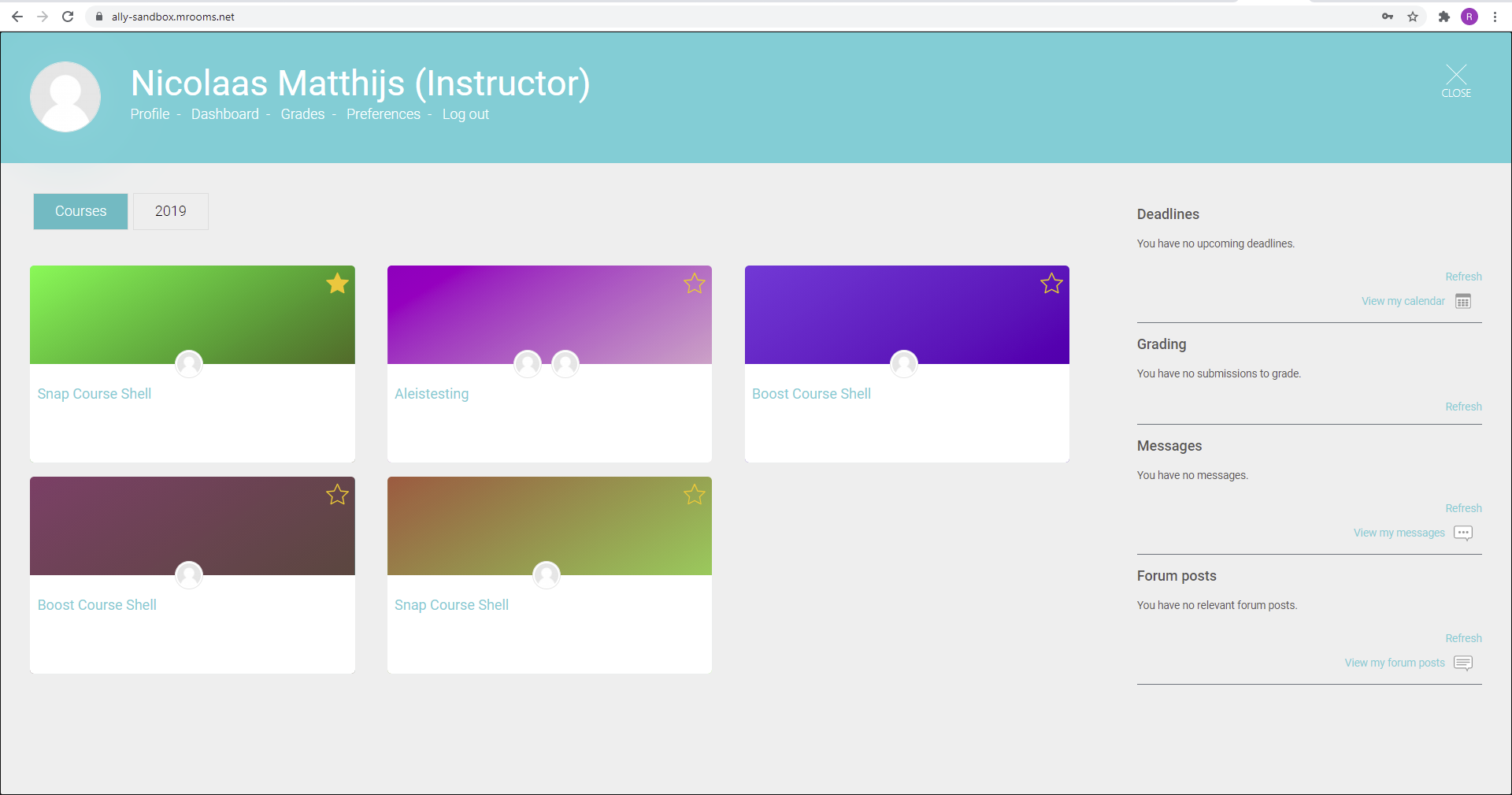
The Ally admin tool (tool_ally) provides a web service facilitating communication between Moodle and Ally. It also
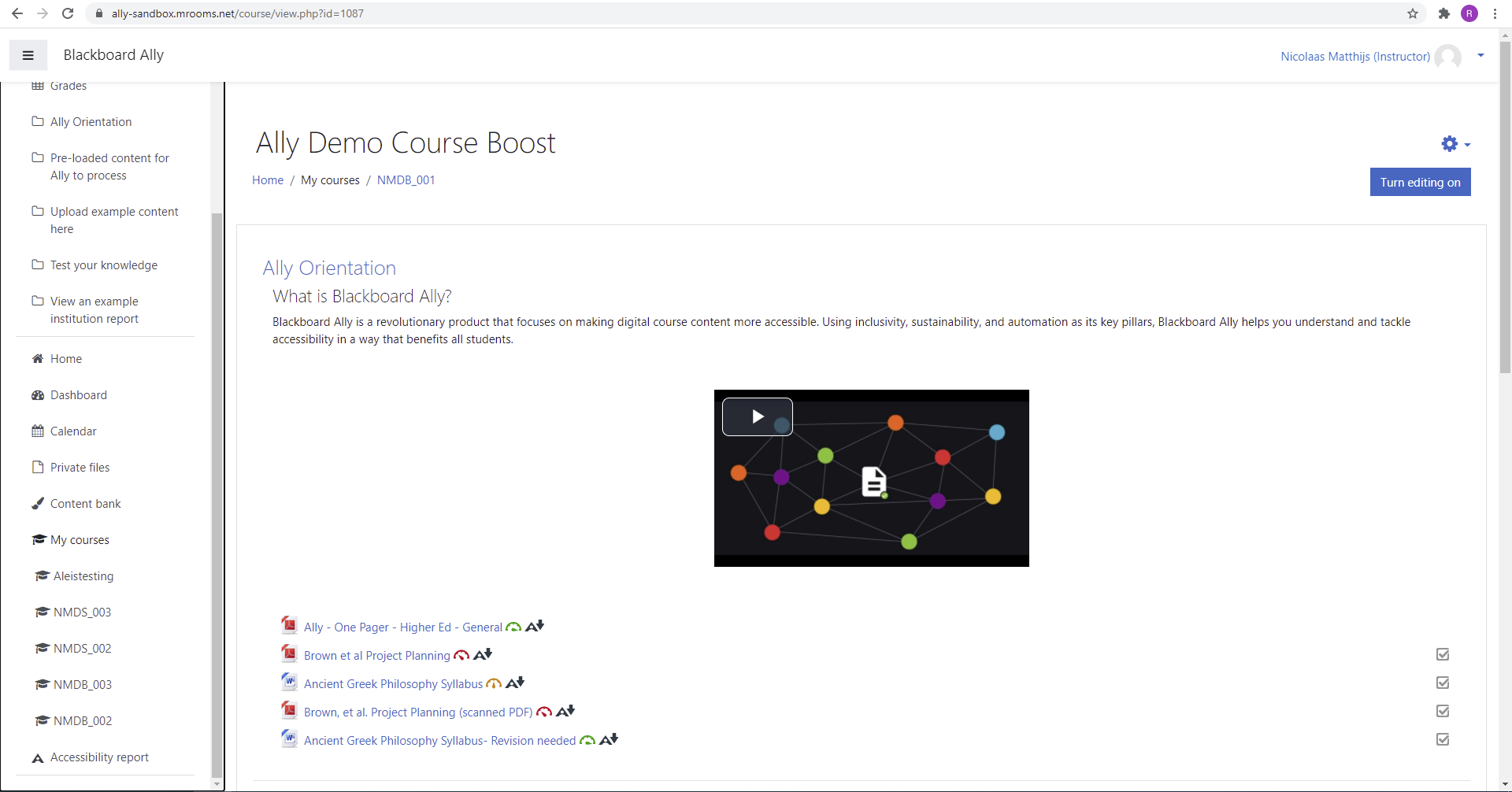
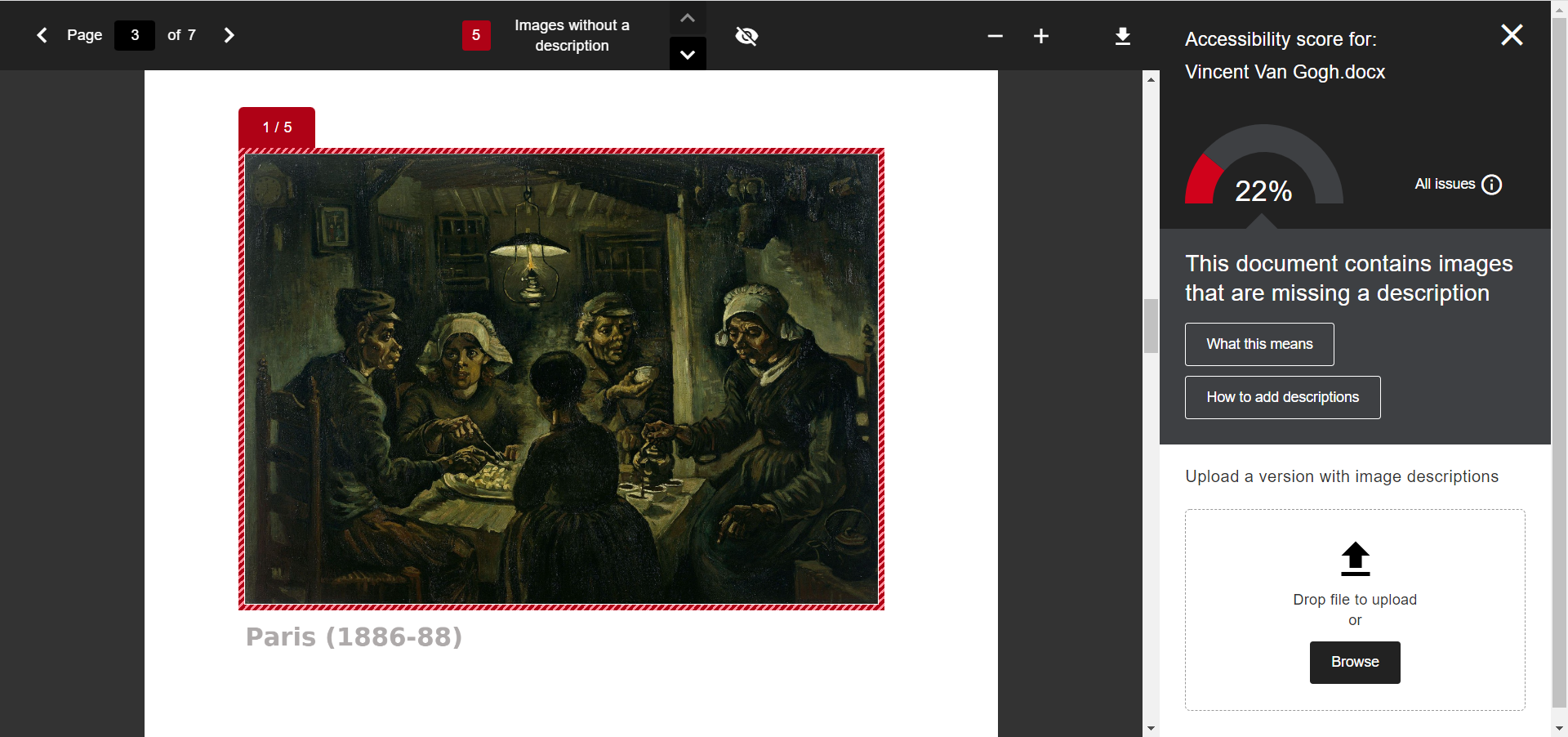
contains all the main settings required for Ally to function. Ally is an accessibility tool providing analysis / remedy
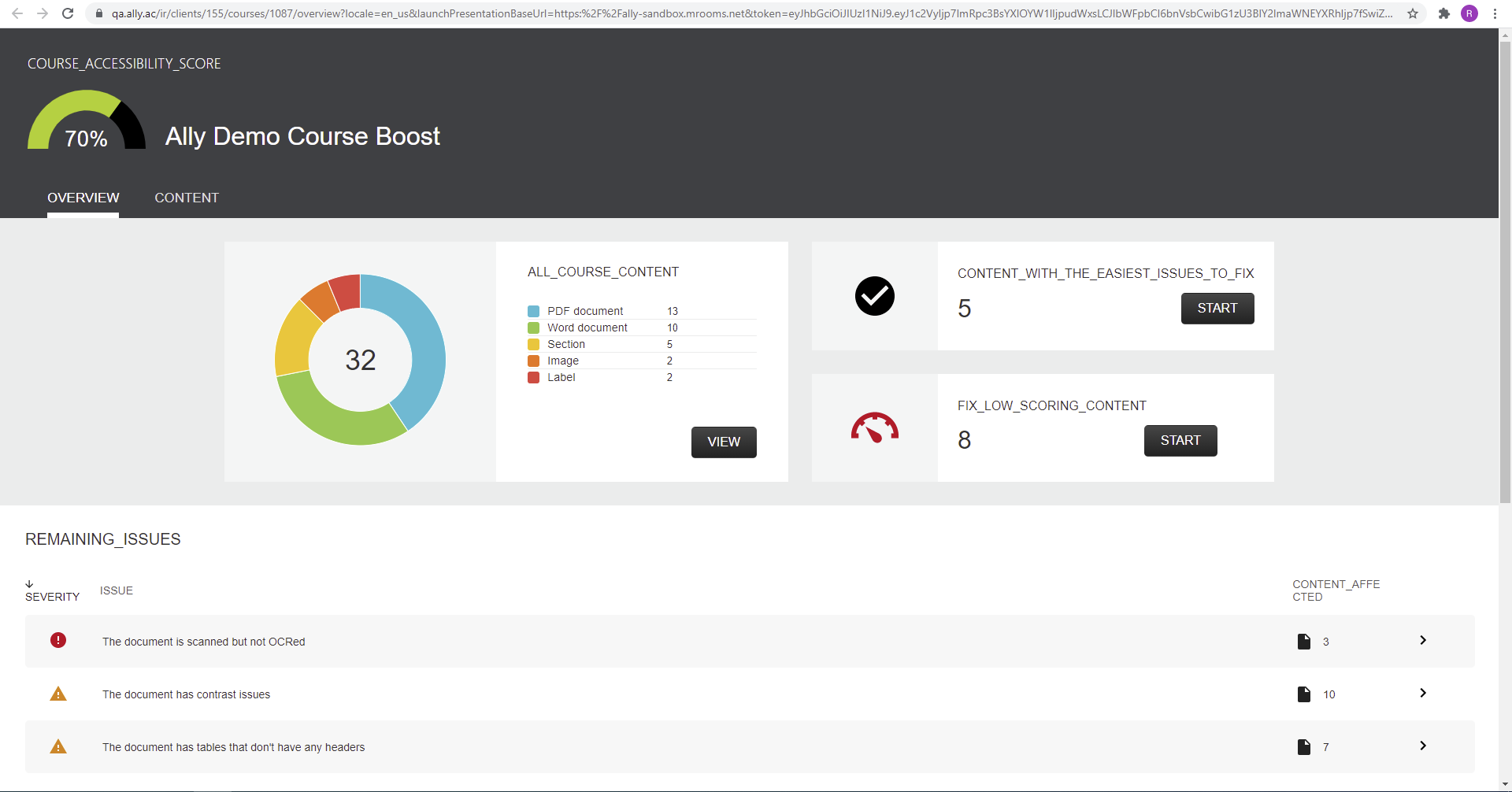
of accessibility issues for files hosted within moodle. It can provide a detailed course level report illustrating the
level of accessibility for files throughtout the course.
Installation
You can download the admin tool plugin from:
https://github.com/anthology-ally/moodle-tool_ally
This plugin should be located and named as:
[yourmoodledir]/admin/tool/ally
Configuring the Ally admin tool
Open the settings for the Ally admin tool:
Site Administration > Plugins > Admin Tools > Ally
The Secret, Key, Launch URL, File updates URL and Client id fields should be populated with values provided to you by an
Ally representative.
You will also need to make the Moodle Ally web service available to Ally. The easiest way to do this is to click the
link entitled "Auto configure Ally web service" at the bottom of the settings page and then by clicking continue. You
will be able to test that the Ally web service is working by following the link at the bottom of the page. Please note,
this URL must be accessible from the internet for Ally to function. Following this link should open a new page starting
with the following text:
{"tool_ally":{"version":...
If successful, you will need to copy this link and provide it to your Ally representative. They will contact you once
everything is set up at their end.
Additional plugins
The Ally admin tool isn't useful on its own. The main functionality of Ally is provided by two other plugins which you
should download and install:
Ally filter
The Ally filter can be downloaded from:
https://github.com/anthology-ally/moodle-filter_ally
The filter should be located and named as:
[yourmoodledir]/filter/ally
Ally accessibility report
The Ally accessibility report can be downloaded from:
https://github.com/anthology-ally/moodle-report_allylti
The report should be located and named as:
[yourmoodledir]/report/allylti
Uninstall
- Remove the
tool_ally,filter_allyandreport_allyltiplugins from the Moodle folder:
- [yourmoodledir]/admin/tool/ally
- [yourmoodledir]/filter/ally
- [yourmoodledir]/report/allylti
- Access the plugin uninstall page: Site Administration > Plugins > Plugins overview
- Look for the removed plugins and click on uninstall for each plugin.
License for Ally admin tool
© 2017 Open LMS / 2023 Anthology Inc. and its affiliates
This program is free software: you can redistribute it and/or modify it under
the terms of the GNU General Public License as published by the Free Software
Foundation, either version 3 of the License, or (at your option) any later
version.
This program is distributed in the hope that it will be useful, but WITHOUT ANY
WARRANTY; without even the implied warranty of MERCHANTABILITY or FITNESS FOR A
PARTICULAR PURPOSE. See the GNU General Public License for more details.
You should have received a copy of the GNU General Public License along with
this program. If not, see http://www.gnu.org/licenses/.
5.0.1 (2026032525)
5.0.1
Plugin type: Administration tools
Frankenstyle component name: tool_ally
Version build number: 2026032525
Version release name: 5.0.1
Maturity: Stable
Supported Moodle versions: 5.0
Repository URL (Git): https://github.com/anthology-ally/moodle-tool_ally
Repository branch:
Repository tag: AY-500-R3
Issue/bug tracker URL: https://github.com/anthology-ally/moodle-tool_ally/issues
Ally admin tool
The Ally admin tool (tool_ally) provides a web service facilitating communication between Moodle and Ally. It also
contains all the main settings required for Ally to function. Ally is an accessibility tool providing analysis / remedy
of accessibility issues for files hosted within moodle. It can provide a detailed course level report illustrating the
level of accessibility for files throughtout the course.
Installation
You can download the admin tool plugin from:
https://github.com/anthology-ally/moodle-tool_ally
This plugin should be located and named as:
[yourmoodledir]/admin/tool/ally
Configuring the Ally admin tool
Open the settings for the Ally admin tool:
Site Administration > Plugins > Admin Tools > Ally
The Secret, Key, Launch URL, File updates URL and Client id fields should be populated with values provided to you by an
Ally representative.
You will also need to make the Moodle Ally web service available to Ally. The easiest way to do this is to click the
link entitled "Auto configure Ally web service" at the bottom of the settings page and then by clicking continue. You
will be able to test that the Ally web service is working by following the link at the bottom of the page. Please note,
this URL must be accessible from the internet for Ally to function. Following this link should open a new page starting
with the following text:
{"tool_ally":{"version":...
If successful, you will need to copy this link and provide it to your Ally representative. They will contact you once
everything is set up at their end.
Additional plugins
The Ally admin tool isn't useful on its own. The main functionality of Ally is provided by two other plugins which you
should download and install:
Ally filter
The Ally filter can be downloaded from:
https://github.com/anthology-ally/moodle-filter_ally
The filter should be located and named as:
[yourmoodledir]/filter/ally
Ally accessibility report
The Ally accessibility report can be downloaded from:
https://github.com/anthology-ally/moodle-report_allylti
The report should be located and named as:
[yourmoodledir]/report/allylti
Uninstall
- Remove the
tool_ally,filter_allyandreport_allyltiplugins from the Moodle folder:
- [yourmoodledir]/admin/tool/ally
- [yourmoodledir]/filter/ally
- [yourmoodledir]/report/allylti
- Access the plugin uninstall page: Site Administration > Plugins > Plugins overview
- Look for the removed plugins and click on uninstall for each plugin.
License for Ally admin tool
© 2017 Open LMS / 2023 Anthology Inc. and its affiliates
This program is free software: you can redistribute it and/or modify it under
the terms of the GNU General Public License as published by the Free Software
Foundation, either version 3 of the License, or (at your option) any later
version.
This program is distributed in the hope that it will be useful, but WITHOUT ANY
WARRANTY; without even the implied warranty of MERCHANTABILITY or FITNESS FOR A
PARTICULAR PURPOSE. See the GNU General Public License for more details.
You should have received a copy of the GNU General Public License along with
this program. If not, see http://www.gnu.org/licenses/.
5.1.0 (2026012850)
5.1.0
Plugin type: Administration tools
Frankenstyle component name: tool_ally
Version build number: 2026012850
Version release name: 5.1.0
Maturity: Stable
Supported Moodle versions: 5.1
Repository URL (Git): https://github.com/anthology-ally/moodle-tool_ally
Repository branch:
Repository tag: AY-501-R1
Issue/bug tracker URL: https://github.com/anthology-ally/moodle-tool_ally/issues
Ally admin tool
The Ally admin tool (tool_ally) provides a web service facilitating communication between Moodle and Ally. It also
contains all the main settings required for Ally to function. Ally is an accessibility tool providing analysis / remedy
of accessibility issues for files hosted within moodle. It can provide a detailed course level report illustrating the
level of accessibility for files throughtout the course.
Installation
You can download the admin tool plugin from:
https://github.com/anthology-ally/moodle-tool_ally
This plugin should be located and named as:
[yourmoodledir]/admin/tool/ally
Configuring the Ally admin tool
Open the settings for the Ally admin tool:
Site Administration > Plugins > Admin Tools > Ally
The Secret, Key, Launch URL, File updates URL and Client id fields should be populated with values provided to you by an
Ally representative.
You will also need to make the Moodle Ally web service available to Ally. The easiest way to do this is to click the
link entitled "Auto configure Ally web service" at the bottom of the settings page and then by clicking continue. You
will be able to test that the Ally web service is working by following the link at the bottom of the page. Please note,
this URL must be accessible from the internet for Ally to function. Following this link should open a new page starting
with the following text:
{"tool_ally":{"version":...
If successful, you will need to copy this link and provide it to your Ally representative. They will contact you once
everything is set up at their end.
Additional plugins
The Ally admin tool isn't useful on its own. The main functionality of Ally is provided by two other plugins which you
should download and install:
Ally filter
The Ally filter can be downloaded from:
https://github.com/anthology-ally/moodle-filter_ally
The filter should be located and named as:
[yourmoodledir]/filter/ally
Ally accessibility report
The Ally accessibility report can be downloaded from:
https://github.com/anthology-ally/moodle-report_allylti
The report should be located and named as:
[yourmoodledir]/report/allylti
Uninstall
- Remove the
tool_ally,filter_allyandreport_allyltiplugins from the Moodle folder:
- [yourmoodledir]/admin/tool/ally
- [yourmoodledir]/filter/ally
- [yourmoodledir]/report/allylti
- Access the plugin uninstall page: Site Administration > Plugins > Plugins overview
- Look for the removed plugins and click on uninstall for each plugin.
License for Ally admin tool
© 2017 Open LMS / 2023 Anthology Inc. and its affiliates
This program is free software: you can redistribute it and/or modify it under
the terms of the GNU General Public License as published by the Free Software
Foundation, either version 3 of the License, or (at your option) any later
version.
This program is distributed in the hope that it will be useful, but WITHOUT ANY
WARRANTY; without even the implied warranty of MERCHANTABILITY or FITNESS FOR A
PARTICULAR PURPOSE. See the GNU General Public License for more details.
You should have received a copy of the GNU General Public License along with
this program. If not, see http://www.gnu.org/licenses/.
5.0.0 (2025072400)
5.0.0
Plugin type: Administration tools
Frankenstyle component name: tool_ally
Version build number: 2025072400
Version release name: 5.0.0
Maturity: Stable
Supported Moodle versions: 5.0
Repository URL (Git): https://github.com/anthology-ally/moodle-tool_ally
Repository branch:
Repository tag:
Issue/bug tracker URL: https://github.com/anthology-ally/moodle-tool_ally/issues
Ally admin tool
The Ally admin tool (tool_ally) provides a web service facilitating communication between Moodle and Ally. It also
contains all the main settings required for Ally to function. Ally is an accessibility tool providing analysis / remedy
of accessibility issues for files hosted within moodle. It can provide a detailed course level report illustrating the
level of accessibility for files throughtout the course.
Installation
You can download the admin tool plugin from:
https://github.com/anthology-ally/moodle-tool_ally
This plugin should be located and named as:
[yourmoodledir]/admin/tool/ally
Configuring the Ally admin tool
Open the settings for the Ally admin tool:
Site Administration > Plugins > Admin Tools > Ally
The Secret, Key, Launch URL, File updates URL and Client id fields should be populated with values provided to you by an
Ally representative.
You will also need to make the Moodle Ally web service available to Ally. The easiest way to do this is to click the
link entitled "Auto configure Ally web service" at the bottom of the settings page and then by clicking continue. You
will be able to test that the Ally web service is working by following the link at the bottom of the page. Please note,
this URL must be accessible from the internet for Ally to function. Following this link should open a new page starting
with the following text:
{"tool_ally":{"version":...
If successful, you will need to copy this link and provide it to your Ally representative. They will contact you once
everything is set up at their end.
Additional plugins
The Ally admin tool isn't useful on its own. The main functionality of Ally is provided by two other plugins which you
should download and install:
Ally filter
The Ally filter can be downloaded from:
https://github.com/anthology-ally/moodle-filter_ally
The filter should be located and named as:
[yourmoodledir]/filter/ally
Ally accessibility report
The Ally accessibility report can be downloaded from:
https://github.com/anthology-ally/moodle-report_allylti
The report should be located and named as:
[yourmoodledir]/report/allylti
Uninstall
- Remove the
tool_ally,filter_allyandreport_allyltiplugins from the Moodle folder:
- [yourmoodledir]/admin/tool/ally
- [yourmoodledir]/filter/ally
- [yourmoodledir]/report/allylti
- Access the plugin uninstall page: Site Administration > Plugins > Plugins overview
- Look for the removed plugins and click on uninstall for each plugin.
License for Ally admin tool
© 2017 Open LMS / 2023 Anthology Inc. and its affiliates
This program is free software: you can redistribute it and/or modify it under
the terms of the GNU General Public License as published by the Free Software
Foundation, either version 3 of the License, or (at your option) any later
version.
This program is distributed in the hope that it will be useful, but WITHOUT ANY
WARRANTY; without even the implied warranty of MERCHANTABILITY or FITNESS FOR A
PARTICULAR PURPOSE. See the GNU General Public License for more details.
You should have received a copy of the GNU General Public License along with
this program. If not, see http://www.gnu.org/licenses/.
4.5.0 (2025032300)
4.5.0
Plugin type: Administration tools
Frankenstyle component name: tool_ally
Version build number: 2025032300
Version release name: 4.5.0
Maturity: Stable
Supported Moodle versions: 4.5
Repository URL (Git): https://github.com/anthology-ally/moodle-tool_ally
Repository branch: MOODLE_405_STABLE
Repository tag: AY-405-R1
Issue/bug tracker URL: https://github.com/anthology-ally/moodle-tool_ally/issues
Ally admin tool
The Ally admin tool (tool_ally) provides a web service facilitating communication between Moodle and Ally. It also
contains all the main settings required for Ally to function. Ally is an accessibility tool providing analysis / remedy
of accessibility issues for files hosted within moodle. It can provide a detailed course level report illustrating the
level of accessibility for files throughtout the course.
Installation
You can download the admin tool plugin from:
https://github.com/anthology-ally/moodle-tool_ally
This plugin should be located and named as:
[yourmoodledir]/admin/tool/ally
Configuring the Ally admin tool
Open the settings for the Ally admin tool:
Site Administration > Plugins > Admin Tools > Ally
The Secret, Key, Launch URL, File updates URL and Client id fields should be populated with values provided to you by an
Ally representative.
You will also need to make the Moodle Ally web service available to Ally. The easiest way to do this is to click the
link entitled "Auto configure Ally web service" at the bottom of the settings page and then by clicking continue. You
will be able to test that the Ally web service is working by following the link at the bottom of the page. Please note,
this URL must be accessible from the internet for Ally to function. Following this link should open a new page starting
with the following text:
{"tool_ally":{"version":...
If successful, you will need to copy this link and provide it to your Ally representative. They will contact you once
everything is set up at their end.
Additional plugins
The Ally admin tool isn't useful on its own. The main functionality of Ally is provided by two other plugins which you
should download and install:
Ally filter
The Ally filter can be downloaded from:
https://github.com/anthology-ally/moodle-filter_ally
The filter should be located and named as:
[yourmoodledir]/filter/ally
Ally accessibility report
The Ally accessibility report can be downloaded from:
https://github.com/anthology-ally/moodle-report_allylti
The report should be located and named as:
[yourmoodledir]/report/allylti
Uninstall
- Remove the
tool_ally,filter_allyandreport_allyltiplugins from the Moodle folder:
- [yourmoodledir]/admin/tool/ally
- [yourmoodledir]/filter/ally
- [yourmoodledir]/report/allylti
- Access the plugin uninstall page: Site Administration > Plugins > Plugins overview
- Look for the removed plugins and click on uninstall for each plugin.
License for Ally admin tool
© 2017 Open LMS / 2023 Anthology Inc. and its affiliates
This program is free software: you can redistribute it and/or modify it under
the terms of the GNU General Public License as published by the Free Software
Foundation, either version 3 of the License, or (at your option) any later
version.
This program is distributed in the hope that it will be useful, but WITHOUT ANY
WARRANTY; without even the implied warranty of MERCHANTABILITY or FITNESS FOR A
PARTICULAR PURPOSE. See the GNU General Public License for more details.
You should have received a copy of the GNU General Public License along with
this program. If not, see http://www.gnu.org/licenses/.
4.4.3 (2025021900)
4.4.3
Plugin type: Administration tools
Frankenstyle component name: tool_ally
Version build number: 2025021900
Version release name: 4.4.3
Maturity: Stable
Supported Moodle versions: 4.4, 4.5
Repository URL (Git): https://github.com/anthology-ally/moodle-tool_ally
Repository branch:
Repository tag:
Issue/bug tracker URL: https://github.com/anthology-ally/moodle-tool_ally/issues
Ally admin tool
The Ally admin tool (tool_ally) provides a web service facilitating communication between Moodle and Ally. It also
contains all the main settings required for Ally to function. Ally is an accessibility tool providing analysis / remedy
of accessibility issues for files hosted within moodle. It can provide a detailed course level report illustrating the
level of accessibility for files throughtout the course.
Installation
You can download the admin tool plugin from:
https://github.com/anthology-ally/moodle-tool_ally
This plugin should be located and named as:
[yourmoodledir]/admin/tool/ally
Configuring the Ally admin tool
Open the settings for the Ally admin tool:
Site Administration > Plugins > Admin Tools > Ally
The Secret, Key, Launch URL, File updates URL and Client id fields should be populated with values provided to you by an
Ally representative.
You will also need to make the Moodle Ally web service available to Ally. The easiest way to do this is to click the
link entitled "Auto configure Ally web service" at the bottom of the settings page and then by clicking continue. You
will be able to test that the Ally web service is working by following the link at the bottom of the page. Please note,
this URL must be accessible from the internet for Ally to function. Following this link should open a new page starting
with the following text:
{"tool_ally":{"version":...
If successful, you will need to copy this link and provide it to your Ally representative. They will contact you once
everything is set up at their end.
Additional plugins
The Ally admin tool isn't useful on its own. The main functionality of Ally is provided by two other plugins which you
should download and install:
Ally filter
The Ally filter can be downloaded from:
https://github.com/anthology-ally/moodle-filter_ally
The filter should be located and named as:
[yourmoodledir]/filter/ally
Ally accessibility report
The Ally accessibility report can be downloaded from:
https://github.com/anthology-ally/moodle-report_allylti
The report should be located and named as:
[yourmoodledir]/report/allylti
Uninstall
- Remove the
tool_ally,filter_allyandreport_allyltiplugins from the Moodle folder:
- [yourmoodledir]/admin/tool/ally
- [yourmoodledir]/filter/ally
- [yourmoodledir]/report/allylti
- Access the plugin uninstall page: Site Administration > Plugins > Plugins overview
- Look for the removed plugins and click on uninstall for each plugin.
License for Ally admin tool
© 2017 Open LMS / 2023 Anthology Inc. and its affiliates
This program is free software: you can redistribute it and/or modify it under
the terms of the GNU General Public License as published by the Free Software
Foundation, either version 3 of the License, or (at your option) any later
version.
This program is distributed in the hope that it will be useful, but WITHOUT ANY
WARRANTY; without even the implied warranty of MERCHANTABILITY or FITNESS FOR A
PARTICULAR PURPOSE. See the GNU General Public License for more details.
You should have received a copy of the GNU General Public License along with
this program. If not, see http://www.gnu.org/licenses/.
4.4.3 (2024112200)
4.4.3
Plugin type: Administration tools
Frankenstyle component name: tool_ally
Version build number: 2024112200
Version release name: 4.4.3
Maturity: Stable
Supported Moodle versions: 4.4
Repository URL (Git): https://github.com/anthology-ally/moodle-tool_ally
Repository branch:
Repository tag:
Issue/bug tracker URL: https://github.com/anthology-ally/moodle-tool_ally/issues
Ally admin tool
The Ally admin tool (tool_ally) provides a web service facilitating communication between Moodle and Ally. It also
contains all the main settings required for Ally to function. Ally is an accessibility tool providing analysis / remedy
of accessibility issues for files hosted within moodle. It can provide a detailed course level report illustrating the
level of accessibility for files throughtout the course.
Installation
You can download the admin tool plugin from:
https://github.com/anthology-ally/moodle-tool_ally
This plugin should be located and named as:
[yourmoodledir]/admin/tool/ally
Configuring the Ally admin tool
Open the settings for the Ally admin tool:
Site Administration > Plugins > Admin Tools > Ally
The Secret, Key, Launch URL, File updates URL and Client id fields should be populated with values provided to you by an
Ally representative.
You will also need to make the Moodle Ally web service available to Ally. The easiest way to do this is to click the
link entitled "Auto configure Ally web service" at the bottom of the settings page and then by clicking continue. You
will be able to test that the Ally web service is working by following the link at the bottom of the page. Please note,
this URL must be accessible from the internet for Ally to function. Following this link should open a new page starting
with the following text:
{"tool_ally":{"version":...
If successful, you will need to copy this link and provide it to your Ally representative. They will contact you once
everything is set up at their end.
Additional plugins
The Ally admin tool isn't useful on its own. The main functionality of Ally is provided by two other plugins which you
should download and install:
Ally filter
The Ally filter can be downloaded from:
https://github.com/anthology-ally/moodle-filter_ally
The filter should be located and named as:
[yourmoodledir]/filter/ally
Ally accessibility report
The Ally accessibility report can be downloaded from:
https://github.com/anthology-ally/moodle-report_allylti
The report should be located and named as:
[yourmoodledir]/report/allylti
Uninstall
- Remove the
tool_ally,filter_allyandreport_allyltiplugins from the Moodle folder:
- [yourmoodledir]/admin/tool/ally
- [yourmoodledir]/filter/ally
- [yourmoodledir]/report/allylti
- Access the plugin uninstall page: Site Administration > Plugins > Plugins overview
- Look for the removed plugins and click on uninstall for each plugin.
License for Ally admin tool
© 2017 Open LMS / 2023 Anthology Inc. and its affiliates
This program is free software: you can redistribute it and/or modify it under
the terms of the GNU General Public License as published by the Free Software
Foundation, either version 3 of the License, or (at your option) any later
version.
This program is distributed in the hope that it will be useful, but WITHOUT ANY
WARRANTY; without even the implied warranty of MERCHANTABILITY or FITNESS FOR A
PARTICULAR PURPOSE. See the GNU General Public License for more details.
You should have received a copy of the GNU General Public License along with
this program. If not, see http://www.gnu.org/licenses/.
4.3.0 (2024060300)
4.3.0
Plugin type: Administration tools
Frankenstyle component name: tool_ally
Version build number: 2024060300
Version release name: 4.3.0
Maturity: Stable
Supported Moodle versions: 4.3
Repository URL (Git): https://github.com/anthology-ally/moodle-tool_ally
Repository branch:
Repository tag:
Issue/bug tracker URL: https://github.com/anthology-ally/moodle-tool_ally/issues
Ally admin tool
The Ally admin tool (tool_ally) provides a web service facilitating communication between Moodle and Ally. It also
contains all the main settings required for Ally to function. Ally is an accessibility tool providing analysis / remedy
of accessibility issues for files hosted within moodle. It can provide a detailed course level report illustrating the
level of accessibility for files throughtout the course.
Installation
You can download the admin tool plugin from:
https://github.com/anthology-ally/moodle-tool_ally
This plugin should be located and named as:
[yourmoodledir]/admin/tool/ally
Configuring the Ally admin tool
Open the settings for the Ally admin tool:
Site Administration > Plugins > Admin Tools > Ally
The Secret, Key, Launch URL, File updates URL and Client id fields should be populated with values provided to you by an
Ally representative.
You will also need to make the Moodle Ally web service available to Ally. The easiest way to do this is to click the
link entitled "Auto configure Ally web service" at the bottom of the settings page and then by clicking continue. You
will be able to test that the Ally web service is working by following the link at the bottom of the page. Please note,
this URL must be accessible from the internet for Ally to function. Following this link should open a new page starting
with the following text:
{"tool_ally":{"version":...
If successful, you will need to copy this link and provide it to your Ally representative. They will contact you once
everything is set up at their end.
Additional plugins
The Ally admin tool isn't useful on its own. The main functionality of Ally is provided by two other plugins which you
should download and install:
Ally filter
The Ally filter can be downloaded from:
https://github.com/anthology-ally/moodle-filter_ally
The filter should be located and named as:
[yourmoodledir]/filter/ally
Ally accessibility report
The Ally accessibility report can be downloaded from:
https://github.com/anthology-ally/moodle-report_allylti
The report should be located and named as:
[yourmoodledir]/report/allylti
Uninstall
- Remove the
tool_ally,filter_allyandreport_allyltiplugins from the Moodle folder:
- [yourmoodledir]/admin/tool/ally
- [yourmoodledir]/filter/ally
- [yourmoodledir]/report/allylti
- Access the plugin uninstall page: Site Administration > Plugins > Plugins overview
- Look for the removed plugins and click on uninstall for each plugin.
License for Ally admin tool
© 2017 Open LMS / 2023 Anthology Inc. and its affiliates
This program is free software: you can redistribute it and/or modify it under
the terms of the GNU General Public License as published by the Free Software
Foundation, either version 3 of the License, or (at your option) any later
version.
This program is distributed in the hope that it will be useful, but WITHOUT ANY
WARRANTY; without even the implied warranty of MERCHANTABILITY or FITNESS FOR A
PARTICULAR PURPOSE. See the GNU General Public License for more details.
You should have received a copy of the GNU General Public License along with
this program. If not, see http://www.gnu.org/licenses/.
4.2.0 (2023111500)
4.2.0
Plugin type: Administration tools
Frankenstyle component name: tool_ally
Version build number: 2023111500
Version release name: 4.2.0
Maturity: Stable
Supported Moodle versions: 4.2
Repository URL (Git): https://github.com/anthology-ally/moodle-tool_ally
Repository branch:
Repository tag:
Issue/bug tracker URL: https://github.com/anthology-ally/moodle-tool_ally/issues
Ally admin tool
The Ally admin tool (tool_ally) provides a web service facilitating communication between Moodle and Ally. It also
contains all the main settings required for Ally to function. Ally is an accessibility tool providing analysis / remedy
of accessibility issues for files hosted within moodle. It can provide a detailed course level report illustrating the
level of accessibility for files throughtout the course.
Installation
You can download the admin tool plugin from:
https://github.com/anthology-ally/moodle-tool_ally
This plugin should be located and named as:
[yourmoodledir]/admin/tool/ally
Configuring the Ally admin tool
Open the settings for the Ally admin tool:
Site Administration > Plugins > Admin Tools > Ally
The Secret, Key, Launch URL, File updates URL and Client id fields should be populated with values provided to you by an
Ally representative.
You will also need to make the Moodle Ally web service available to Ally. The easiest way to do this is to click the
link entitled "Auto configure Ally web service" at the bottom of the settings page and then by clicking continue. You
will be able to test that the Ally web service is working by following the link at the bottom of the page. Please note,
this URL must be accessible from the internet for Ally to function. Following this link should open a new page starting
with the following text:
{"tool_ally":{"version":...
If successful, you will need to copy this link and provide it to your Ally representative. They will contact you once
everything is set up at their end.
Additional plugins
The Ally admin tool isn't useful on its own. The main functionality of Ally is provided by two other plugins which you
should download and install:
Ally filter
The Ally filter can be downloaded from:
https://github.com/anthology-ally/moodle-filter_ally
The filter should be located and named as:
[yourmoodledir]/filter/ally
Ally accessibility report
The Ally accessibility report can be downloaded from:
https://github.com/anthology-ally/moodle-report_allylti
The report should be located and named as:
[yourmoodledir]/report/allylti
Uninstall
- Remove the
tool_ally,filter_allyandreport_allyltiplugins from the Moodle folder:
- [yourmoodledir]/admin/tool/ally
- [yourmoodledir]/filter/ally
- [yourmoodledir]/report/allylti
- Access the plugin uninstall page: Site Administration > Plugins > Plugins overview
- Look for the removed plugins and click on uninstall for each plugin.
License for Ally admin tool
© 2017 Open LMS / 2023 Anthology Inc. and its affiliates
This program is free software: you can redistribute it and/or modify it under
the terms of the GNU General Public License as published by the Free Software
Foundation, either version 3 of the License, or (at your option) any later
version.
This program is distributed in the hope that it will be useful, but WITHOUT ANY
WARRANTY; without even the implied warranty of MERCHANTABILITY or FITNESS FOR A
PARTICULAR PURPOSE. See the GNU General Public License for more details.
You should have received a copy of the GNU General Public License along with
this program. If not, see http://www.gnu.org/licenses/.
4.1.0 (2023061500)
4.1.0
Plugin type: Administration tools
Frankenstyle component name: tool_ally
Version build number: 2023061500
Version release name: 4.1.0
Maturity: Stable
Supported Moodle versions: 4.1
Repository URL (Git): https://github.com/anthology-ally/moodle-tool_ally
Repository branch:
Repository tag:
Issue/bug tracker URL: https://github.com/anthology-ally/moodle-tool_ally/issues
Ally admin tool
The Ally admin tool (tool_ally) provides a web service facilitating communication between Moodle and Ally. It also
contains all the main settings required for Ally to function. Ally is an accessibility tool providing analysis / remedy
of accessibility issues for files hosted within moodle. It can provide a detailed course level report illustrating the
level of accessibility for files throughtout the course.
Installation
You can download the admin tool plugin from:
https://github.com/anthology-ally/moodle-tool_ally
This plugin should be located and named as:
[yourmoodledir]/admin/tool/ally
Configuring the Ally admin tool
Open the settings for the Ally admin tool:
Site Administration > Plugins > Admin Tools > Ally
The Secret, Key, Launch URL, File updates URL and Client id fields should be populated with values provided to you by an
Ally representative.
You will also need to make the Moodle Ally web service available to Ally. The easiest way to do this is to click the
link entitled "Auto configure Ally web service" at the bottom of the settings page and then by clicking continue. You
will be able to test that the Ally web service is working by following the link at the bottom of the page. Please note,
this URL must be accessible from the internet for Ally to function. Following this link should open a new page starting
with the following text:
{"tool_ally":{"version":...
If successful, you will need to copy this link and provide it to your Ally representative. They will contact you once
everything is set up at their end.
Additional plugins
The Ally admin tool isn't useful on its own. The main functionality of Ally is provided by two other plugins which you
should download and install:
Ally filter
The Ally filter can be downloaded from:
https://github.com/anthology-ally/moodle-filter_ally
The filter should be located and named as:
[yourmoodledir]/filter/ally
Ally accessibility report
The Ally accessibility report can be downloaded from:
https://github.com/anthology-ally/moodle-report_allylti
The report should be located and named as:
[yourmoodledir]/report/allylti
Uninstall
- Remove the
tool_ally,filter_allyandreport_allyltiplugins from the Moodle folder:
- [yourmoodledir]/admin/tool/ally
- [yourmoodledir]/filter/ally
- [yourmoodledir]/report/allylti
- Access the plugin uninstall page: Site Administration > Plugins > Plugins overview
- Look for the removed plugins and click on uninstall for each plugin.
License for Ally admin tool
© 2017 Open LMS / 2023 Anthology Inc. and its affiliates
This program is free software: you can redistribute it and/or modify it under
the terms of the GNU General Public License as published by the Free Software
Foundation, either version 3 of the License, or (at your option) any later
version.
This program is distributed in the hope that it will be useful, but WITHOUT ANY
WARRANTY; without even the implied warranty of MERCHANTABILITY or FITNESS FOR A
PARTICULAR PURPOSE. See the GNU General Public License for more details.
You should have received a copy of the GNU General Public License along with
this program. If not, see http://www.gnu.org/licenses/.
4.0.7 (2023041100)
4.0.7
Plugin type: Administration tools
Frankenstyle component name: tool_ally
Version build number: 2023041100
Version release name: 4.0.7
Maturity: Stable
Supported Moodle versions: 4.0
Repository URL (Git): https://github.com/open-lms-open-source/moodle-tool_ally
Repository branch:
Repository tag:
Issue/bug tracker URL: https://github.com/anthology-ally/moodle-tool_ally/issues
Ally admin tool
The Ally admin tool (tool_ally) provides a web service facilitating communication between Moodle and Ally. It also
contains all the main settings required for Ally to function. Ally is an accessibility tool providing analysis / remedy
of accessibility issues for files hosted within moodle. It can provide a detailed course level report illustrating the
level of accessibility for files throughtout the course.
Installation
You can download the admin tool plugin from:
https://github.com/blackboard-open-source/moodle-tool_ally
This plugin should be located and named as:
[yourmoodledir]/admin/tool/ally
Configuring the Ally admin tool
Open the settings for the Ally admin tool:
Site Administration > Plugins > Admin Tools > Ally
The Secret, Key, Launch URL, File updates URL and Client id fields should be populated with values provided to you by an
Ally representative.
You will also need to make the Moodle Ally web service available to Ally. The easiest way to do this is to click the
link entitled "Auto configure Ally web service" at the bottom of the settings page and then by clicking continue. You
will be able to test that the Ally web service is working by following the link at the bottom of the page. Please note,
this URL must be accessible from the internet for Ally to function. Following this link should open a new page starting
with the following text:
{"tool_ally":{"version":...
If successful, you will need to copy this link and provide it to your Ally representative. They will contact you once
everything is set up at their end.
Additional plugins
The Ally admin tool isn't useful on its own. The main functionality of Ally is provided by two other plugins which you
should download and install:
Ally filter
The Ally filter can be downloaded from:
https://github.com/blackboard-open-source/moodle-filter_ally
The filter should be located and named as:
[yourmoodledir]/filter/ally
Ally accessibility report
The Ally accessibility report can be downloaded from:
https://github.com/blackboard-open-source/moodle-report_allylti
The report should be located and named as:
[yourmoodledir]/report/allylti
Uninstall
- Remove the
tool_ally,filter_allyandreport_allyltiplugins from the Moodle folder:
- [yourmoodledir]/admin/tool/ally
- [yourmoodledir]/filter/ally
- [yourmoodledir]/report/allylti
- Access the plugin uninstall page: Site Administration > Plugins > Plugins overview
- Look for the removed plugins and click on uninstall for each plugin.
License for Ally admin tool
© Open LMS 2017
This program is free software: you can redistribute it and/or modify it under
the terms of the GNU General Public License as published by the Free Software
Foundation, either version 3 of the License, or (at your option) any later
version.
This program is distributed in the hope that it will be useful, but WITHOUT ANY
WARRANTY; without even the implied warranty of MERCHANTABILITY or FITNESS FOR A
PARTICULAR PURPOSE. See the GNU General Public License for more details.
You should have received a copy of the GNU General Public License along with
this program. If not, see http://www.gnu.org/licenses/.
4.0.5 (2023012400)
4.0.5
Plugin type: Administration tools
Frankenstyle component name: tool_ally
Version build number: 2023012400
Version release name: 4.0.5
Maturity: Stable
Supported Moodle versions: 4.0
Repository URL (Git): https://github.com/open-lms-open-source/moodle-tool_ally
Repository branch:
Repository tag:
Issue/bug tracker URL: https://github.com/anthology-ally/moodle-tool_ally/issues
Ally admin tool
The Ally admin tool (tool_ally) provides a web service facilitating communication between Moodle and Ally. It also
contains all the main settings required for Ally to function. Ally is an accessibility tool providing analysis / remedy
of accessibility issues for files hosted within moodle. It can provide a detailed course level report illustrating the
level of accessibility for files throughtout the course.
Installation
You can download the admin tool plugin from:
https://github.com/blackboard-open-source/moodle-tool_ally
This plugin should be located and named as:
[yourmoodledir]/admin/tool/ally
Configuring the Ally admin tool
Open the settings for the Ally admin tool:
Site Administration > Plugins > Admin Tools > Ally
The Secret, Key, Launch URL, File updates URL and Client id fields should be populated with values provided to you by an
Ally representative.
You will also need to make the Moodle Ally web service available to Ally. The easiest way to do this is to click the
link entitled "Auto configure Ally web service" at the bottom of the settings page and then by clicking continue. You
will be able to test that the Ally web service is working by following the link at the bottom of the page. Please note,
this URL must be accessible from the internet for Ally to function. Following this link should open a new page starting
with the following text:
{"tool_ally":{"version":...
If successful, you will need to copy this link and provide it to your Ally representative. They will contact you once
everything is set up at their end.
Additional plugins
The Ally admin tool isn't useful on its own. The main functionality of Ally is provided by two other plugins which you
should download and install:
Ally filter
The Ally filter can be downloaded from:
https://github.com/blackboard-open-source/moodle-filter_ally
The filter should be located and named as:
[yourmoodledir]/filter/ally
Ally accessibility report
The Ally accessibility report can be downloaded from:
https://github.com/blackboard-open-source/moodle-report_allylti
The report should be located and named as:
[yourmoodledir]/report/allylti
Uninstall
- Remove the
tool_ally,filter_allyandreport_allyltiplugins from the Moodle folder:
- [yourmoodledir]/admin/tool/ally
- [yourmoodledir]/filter/ally
- [yourmoodledir]/report/allylti
- Access the plugin uninstall page: Site Administration > Plugins > Plugins overview
- Look for the removed plugins and click on uninstall for each plugin.
License for Ally admin tool
© Open LMS 2017
This program is free software: you can redistribute it and/or modify it under
the terms of the GNU General Public License as published by the Free Software
Foundation, either version 3 of the License, or (at your option) any later
version.
This program is distributed in the hope that it will be useful, but WITHOUT ANY
WARRANTY; without even the implied warranty of MERCHANTABILITY or FITNESS FOR A
PARTICULAR PURPOSE. See the GNU General Public License for more details.
You should have received a copy of the GNU General Public License along with
this program. If not, see http://www.gnu.org/licenses/.
4.0.5 (2022122100)
4.0.5
Plugin type: Administration tools
Frankenstyle component name: tool_ally
Version build number: 2022122100
Version release name: 4.0.5
Maturity: Stable
Supported Moodle versions: 4.0
Repository URL (Git): https://github.com/open-lms-open-source/moodle-tool_ally
Repository branch:
Repository tag:
Issue/bug tracker URL: https://github.com/anthology-ally/moodle-tool_ally/issues
Ally admin tool
The Ally admin tool (tool_ally) provides a web service facilitating communication between Moodle and Ally. It also
contains all the main settings required for Ally to function. Ally is an accessibility tool providing analysis / remedy
of accessibility issues for files hosted within moodle. It can provide a detailed course level report illustrating the
level of accessibility for files throughtout the course.
Installation
You can download the admin tool plugin from:
https://github.com/blackboard-open-source/moodle-tool_ally
This plugin should be located and named as:
[yourmoodledir]/admin/tool/ally
Configuring the Ally admin tool
Open the settings for the Ally admin tool:
Site Administration > Plugins > Admin Tools > Ally
The Secret, Key, Launch URL, File updates URL and Client id fields should be populated with values provided to you by an
Ally representative.
You will also need to make the Moodle Ally web service available to Ally. The easiest way to do this is to click the
link entitled "Auto configure Ally web service" at the bottom of the settings page and then by clicking continue. You
will be able to test that the Ally web service is working by following the link at the bottom of the page. Please note,
this URL must be accessible from the internet for Ally to function. Following this link should open a new page starting
with the following text:
{"tool_ally":{"version":...
If successful, you will need to copy this link and provide it to your Ally representative. They will contact you once
everything is set up at their end.
Additional plugins
The Ally admin tool isn't useful on its own. The main functionality of Ally is provided by two other plugins which you
should download and install:
Ally filter
The Ally filter can be downloaded from:
https://github.com/blackboard-open-source/moodle-filter_ally
The filter should be located and named as:
[yourmoodledir]/filter/ally
Ally accessibility report
The Ally accessibility report can be downloaded from:
https://github.com/blackboard-open-source/moodle-report_allylti
The report should be located and named as:
[yourmoodledir]/report/allylti
Uninstall
- Remove the
tool_ally,filter_allyandreport_allyltiplugins from the Moodle folder:
- [yourmoodledir]/admin/tool/ally
- [yourmoodledir]/filter/ally
- [yourmoodledir]/report/allylti
- Access the plugin uninstall page: Site Administration > Plugins > Plugins overview
- Look for the removed plugins and click on uninstall for each plugin.
License for Ally admin tool
© Open LMS 2017
This program is free software: you can redistribute it and/or modify it under
the terms of the GNU General Public License as published by the Free Software
Foundation, either version 3 of the License, or (at your option) any later
version.
This program is distributed in the hope that it will be useful, but WITHOUT ANY
WARRANTY; without even the implied warranty of MERCHANTABILITY or FITNESS FOR A
PARTICULAR PURPOSE. See the GNU General Public License for more details.
You should have received a copy of the GNU General Public License along with
this program. If not, see http://www.gnu.org/licenses/.
4.0.1 (2022101800)
4.0.1
Plugin type: Administration tools
Frankenstyle component name: tool_ally
Version build number: 2022101800
Version release name: 4.0.1
Maturity: Stable
Supported Moodle versions: 4.0
Repository URL (Git): https://github.com/open-lms-open-source/moodle-tool_ally
Repository branch:
Repository tag:
Issue/bug tracker URL: https://github.com/anthology-ally/moodle-tool_ally/issues
Ally admin tool
The Ally admin tool (tool_ally) provides a web service facilitating communication between Moodle and Ally. It also
contains all the main settings required for Ally to function. Ally is an accessibility tool providing analysis / remedy
of accessibility issues for files hosted within moodle. It can provide a detailed course level report illustrating the
level of accessibility for files throughtout the course.
Installation
You can download the admin tool plugin from:
https://github.com/blackboard-open-source/moodle-tool_ally
This plugin should be located and named as:
[yourmoodledir]/admin/tool/ally
Configuring the Ally admin tool
Open the settings for the Ally admin tool:
Site Administration > Plugins > Admin Tools > Ally
The Secret, Key, Launch URL, File updates URL and Client id fields should be populated with values provided to you by an
Ally representative.
You will also need to make the Moodle Ally web service available to Ally. The easiest way to do this is to click the
link entitled "Auto configure Ally web service" at the bottom of the settings page and then by clicking continue. You
will be able to test that the Ally web service is working by following the link at the bottom of the page. Please note,
this URL must be accessible from the internet for Ally to function. Following this link should open a new page starting
with the following text:
{"tool_ally":{"version":...
If successful, you will need to copy this link and provide it to your Ally representative. They will contact you once
everything is set up at their end.
Additional plugins
The Ally admin tool isn't useful on its own. The main functionality of Ally is provided by two other plugins which you
should download and install:
Ally filter
The Ally filter can be downloaded from:
https://github.com/blackboard-open-source/moodle-filter_ally
The filter should be located and named as:
[yourmoodledir]/filter/ally
Ally accessibility report
The Ally accessibility report can be downloaded from:
https://github.com/blackboard-open-source/moodle-report_allylti
The report should be located and named as:
[yourmoodledir]/report/allylti
Uninstall
- Remove the
tool_ally,filter_allyandreport_allyltiplugins from the Moodle folder:
- [yourmoodledir]/admin/tool/ally
- [yourmoodledir]/filter/ally
- [yourmoodledir]/report/allylti
- Access the plugin uninstall page: Site Administration > Plugins > Plugins overview
- Look for the removed plugins and click on uninstall for each plugin.
License for Ally admin tool
© Open LMS 2017
This program is free software: you can redistribute it and/or modify it under
the terms of the GNU General Public License as published by the Free Software
Foundation, either version 3 of the License, or (at your option) any later
version.
This program is distributed in the hope that it will be useful, but WITHOUT ANY
WARRANTY; without even the implied warranty of MERCHANTABILITY or FITNESS FOR A
PARTICULAR PURPOSE. See the GNU General Public License for more details.
You should have received a copy of the GNU General Public License along with
this program. If not, see .
3.11.6 (2022101200)
3.11.6
Plugin type: Administration tools
Frankenstyle component name: tool_ally
Version build number: 2022101200
Version release name: 3.11.6
Maturity: Stable
Supported Moodle versions: 3.11
Repository URL (Git): https://github.com/open-lms-open-source/moodle-tool_ally
Repository branch:
Repository tag:
Issue/bug tracker URL: https://github.com/anthology-ally/moodle-tool_ally/issues
Ally admin tool
The Ally admin tool (tool_ally) provides a web service facilitating communication between Moodle and Ally. It also
contains all the main settings required for Ally to function. Ally is an accessibility tool providing analysis / remedy
of accessibility issues for files hosted within moodle. It can provide a detailed course level report illustrating the
level of accessibility for files throughtout the course.
Installation
You can download the admin tool plugin from:
https://github.com/blackboard-open-source/moodle-tool_ally
This plugin should be located and named as:
[yourmoodledir]/admin/tool/ally
Configuring the Ally admin tool
Open the settings for the Ally admin tool:
Site Administration > Plugins > Admin Tools > Ally
The Secret, Key, Launch URL, File updates URL and Client id fields should be populated with values provided to you by an
Ally representative.
You will also need to make the Moodle Ally web service available to Ally. The easiest way to do this is to click the
link entitled "Auto configure Ally web service" at the bottom of the settings page and then by clicking continue. You
will be able to test that the Ally web service is working by following the link at the bottom of the page. Please note,
this URL must be accessible from the internet for Ally to function. Following this link should open a new page starting
with the following text:
{"tool_ally":{"version":...
If successful, you will need to copy this link and provide it to your Ally representative. They will contact you once
everything is set up at their end.
Additional plugins
The Ally admin tool isn't useful on its own. The main functionality of Ally is provided by two other plugins which you
should download and install:
Ally filter
The Ally filter can be downloaded from:
https://github.com/blackboard-open-source/moodle-filter_ally
The filter should be located and named as:
[yourmoodledir]/filter/ally
Ally accessibility report
The Ally accessibility report can be downloaded from:
https://github.com/blackboard-open-source/moodle-report_allylti
The report should be located and named as:
[yourmoodledir]/report/allylti
Uninstall
- Remove the
tool_ally,filter_allyandreport_allyltiplugins from the Moodle folder:
- [yourmoodledir]/admin/tool/ally
- [yourmoodledir]/filter/ally
- [yourmoodledir]/report/allylti
- Access the plugin uninstall page: Site Administration > Plugins > Plugins overview
- Look for the removed plugins and click on uninstall for each plugin.
License for Ally admin tool
© Open LMS 2017
This program is free software: you can redistribute it and/or modify it under
the terms of the GNU General Public License as published by the Free Software
Foundation, either version 3 of the License, or (at your option) any later
version.
This program is distributed in the hope that it will be useful, but WITHOUT ANY
WARRANTY; without even the implied warranty of MERCHANTABILITY or FITNESS FOR A
PARTICULAR PURPOSE. See the GNU General Public License for more details.
You should have received a copy of the GNU General Public License along with
this program. If not, see http://www.gnu.org/licenses/.
3.11.6 (2022072900)
3.11.6
Plugin type: Administration tools
Frankenstyle component name: tool_ally
Version build number: 2022072900
Version release name: 3.11.6
Maturity: Stable
Supported Moodle versions: 3.11
Repository URL (Git): https://github.com/open-lms-open-source/moodle-tool_ally
Repository branch:
Repository tag:
Issue/bug tracker URL: https://github.com/anthology-ally/moodle-tool_ally/issues
Ally admin tool
The Ally admin tool (tool_ally) provides a web service facilitating communication between Moodle and Ally. It also
contains all the main settings required for Ally to function. Ally is an accessibility tool providing analysis / remedy
of accessibility issues for files hosted within moodle. It can provide a detailed course level report illustrating the
level of accessibility for files throughtout the course.
Installation
You can download the admin tool plugin from:
https://github.com/blackboard-open-source/moodle-tool_ally
This plugin should be located and named as:
[yourmoodledir]/admin/tool/ally
Configuring the Ally admin tool
Open the settings for the Ally admin tool:
Site Administration > Plugins > Admin Tools > Ally
The Secret, Key, Launch URL, File updates URL and Client id fields should be populated with values provided to you by an
Ally representative.
You will also need to make the Moodle Ally web service available to Ally. The easiest way to do this is to click the
link entitled "Auto configure Ally web service" at the bottom of the settings page and then by clicking continue. You
will be able to test that the Ally web service is working by following the link at the bottom of the page. Please note,
this URL must be accessible from the internet for Ally to function. Following this link should open a new page starting
with the following text:
{"tool_ally":{"version":...
If successful, you will need to copy this link and provide it to your Ally representative. They will contact you once
everything is set up at their end.
Additional plugins
The Ally admin tool isn't useful on its own. The main functionality of Ally is provided by two other plugins which you
should download and install:
Ally filter
The Ally filter can be downloaded from:
https://github.com/blackboard-open-source/moodle-filter_ally
The filter should be located and named as:
[yourmoodledir]/filter/ally
Ally accessibility report
The Ally accessibility report can be downloaded from:
https://github.com/blackboard-open-source/moodle-report_allylti
The report should be located and named as:
[yourmoodledir]/report/allylti
Uninstall
- Remove the
tool_ally,filter_allyandreport_allyltiplugins from the Moodle folder:
- [yourmoodledir]/admin/tool/ally
- [yourmoodledir]/filter/ally
- [yourmoodledir]/report/allylti
- Access the plugin uninstall page: Site Administration > Plugins > Plugins overview
- Look for the removed plugins and click on uninstall for each plugin.
License for Ally admin tool
© Open LMS 2017
This program is free software: you can redistribute it and/or modify it under
the terms of the GNU General Public License as published by the Free Software
Foundation, either version 3 of the License, or (at your option) any later
version.
This program is distributed in the hope that it will be useful, but WITHOUT ANY
WARRANTY; without even the implied warranty of MERCHANTABILITY or FITNESS FOR A
PARTICULAR PURPOSE. See the GNU General Public License for more details.
You should have received a copy of the GNU General Public License along with
this program. If not, see http://www.gnu.org/licenses/.
3.11.3 (2022060600)
3.11.3
Plugin type: Administration tools
Frankenstyle component name: tool_ally
Version build number: 2022060600
Version release name: 3.11.3
Maturity: Stable
Supported Moodle versions: 3.11
Repository URL (Git): https://github.com/open-lms-open-source/moodle-tool_ally
Repository branch:
Repository tag:
Issue/bug tracker URL: https://github.com/anthology-ally/moodle-tool_ally/issues
Ally admin tool
The Ally admin tool (tool_ally) provides a web service facilitating communication between Moodle and Ally. It also
contains all the main settings required for Ally to function. Ally is an accessibility tool providing analysis / remedy
of accessibility issues for files hosted within moodle. It can provide a detailed course level report illustrating the
level of accessibility for files throughtout the course.
Installation
You can download the admin tool plugin from:
https://github.com/blackboard-open-source/moodle-tool_ally
This plugin should be located and named as:
[yourmoodledir]/admin/tool/ally
Configuring the Ally admin tool
Open the settings for the Ally admin tool:
Site Administration > Plugins > Admin Tools > Ally
The Secret, Key, Launch URL, File updates URL and Client id fields should be populated with values provided to you by an
Ally representative.
You will also need to make the Moodle Ally web service available to Ally. The easiest way to do this is to click the
link entitled "Auto configure Ally web service" at the bottom of the settings page and then by clicking continue. You
will be able to test that the Ally web service is working by following the link at the bottom of the page. Please note,
this URL must be accessible from the internet for Ally to function. Following this link should open a new page starting
with the following text:
{"tool_ally":{"version":...
If successful, you will need to copy this link and provide it to your Ally representative. They will contact you once
everything is set up at their end.
Additional plugins
The Ally admin tool isn't useful on its own. The main functionality of Ally is provided by two other plugins which you
should download and install:
Ally filter
The Ally filter can be downloaded from:
https://github.com/blackboard-open-source/moodle-filter_ally
The filter should be located and named as:
[yourmoodledir]/filter/ally
Ally accessibility report
The Ally accessibility report can be downloaded from:
https://github.com/blackboard-open-source/moodle-report_allylti
The report should be located and named as:
[yourmoodledir]/report/allylti
Uninstall
- Remove the
tool_ally,filter_allyandreport_allyltiplugins from the Moodle folder:
- [yourmoodledir]/admin/tool/ally
- [yourmoodledir]/filter/ally
- [yourmoodledir]/report/allylti
- Access the plugin uninstall page: Site Administration > Plugins > Plugins overview
- Look for the removed plugins and click on uninstall for each plugin.
License for Ally admin tool
© Open LMS 2017
This program is free software: you can redistribute it and/or modify it under
the terms of the GNU General Public License as published by the Free Software
Foundation, either version 3 of the License, or (at your option) any later
version.
This program is distributed in the hope that it will be useful, but WITHOUT ANY
WARRANTY; without even the implied warranty of MERCHANTABILITY or FITNESS FOR A
PARTICULAR PURPOSE. See the GNU General Public License for more details.
You should have received a copy of the GNU General Public License along with
this program. If not, see http://www.gnu.org/licenses/.
3.11.5 (2022041300)
3.11.5
Plugin type: Administration tools
Frankenstyle component name: tool_ally
Version build number: 2022041300
Version release name: 3.11.5
Maturity: Stable
Supported Moodle versions: 3.11
Repository URL (Git): https://github.com/open-lms-open-source/moodle-tool_ally
Repository branch:
Repository tag:
Issue/bug tracker URL: https://github.com/anthology-ally/moodle-tool_ally/issues
Ally admin tool
The Ally admin tool (tool_ally) provides a web service facilitating communication between Moodle and Ally. It also
contains all the main settings required for Ally to function. Ally is an accessibility tool providing analysis / remedy
of accessibility issues for files hosted within moodle. It can provide a detailed course level report illustrating the
level of accessibility for files throughtout the course.
Installation
You can download the admin tool plugin from:
https://github.com/blackboard-open-source/moodle-tool_ally
This plugin should be located and named as:
[yourmoodledir]/admin/tool/ally
Configuring the Ally admin tool
Open the settings for the Ally admin tool:
Site Administration > Plugins > Admin Tools > Ally
The Secret, Key, Launch URL, File updates URL and Client id fields should be populated with values provided to you by an
Ally representative.
You will also need to make the Moodle Ally web service available to Ally. The easiest way to do this is to click the
link entitled "Auto configure Ally web service" at the bottom of the settings page and then by clicking continue. You
will be able to test that the Ally web service is working by following the link at the bottom of the page. Please note,
this URL must be accessible from the internet for Ally to function. Following this link should open a new page starting
with the following text:
{"tool_ally":{"version":...
If successful, you will need to copy this link and provide it to your Ally representative. They will contact you once
everything is set up at their end.
Additional plugins
The Ally admin tool isn't useful on its own. The main functionality of Ally is provided by two other plugins which you
should download and install:
Ally filter
The Ally filter can be downloaded from:
https://github.com/blackboard-open-source/moodle-filter_ally
The filter should be located and named as:
[yourmoodledir]/filter/ally
Ally accessibility report
The Ally accessibility report can be downloaded from:
https://github.com/blackboard-open-source/moodle-report_allylti
The report should be located and named as:
[yourmoodledir]/report/allylti
Uninstall
- Remove the
tool_ally,filter_allyandreport_allyltiplugins from the Moodle folder:
- [yourmoodledir]/admin/tool/ally
- [yourmoodledir]/filter/ally
- [yourmoodledir]/report/allylti
- Access the plugin uninstall page: Site Administration > Plugins > Plugins overview
- Look for the removed plugins and click on uninstall for each plugin.
License for Ally admin tool
© Open LMS 2017
This program is free software: you can redistribute it and/or modify it under
the terms of the GNU General Public License as published by the Free Software
Foundation, either version 3 of the License, or (at your option) any later
version.
This program is distributed in the hope that it will be useful, but WITHOUT ANY
WARRANTY; without even the implied warranty of MERCHANTABILITY or FITNESS FOR A
PARTICULAR PURPOSE. See the GNU General Public License for more details.
You should have received a copy of the GNU General Public License along with
this program. If not, see http://www.gnu.org/licenses/.
3.11.3 (2021112600)
3.11.3
Plugin type: Administration tools
Frankenstyle component name: tool_ally
Version build number: 2021112600
Version release name: 3.11.3
Maturity: Stable
Supported Moodle versions: 3.11
Repository URL (Git): https://github.com/open-lms-open-source/moodle-tool_ally
Repository branch:
Repository tag:
Issue/bug tracker URL: https://github.com/anthology-ally/moodle-tool_ally/issues
Ally admin tool
The Ally admin tool (tool_ally) provides a web service facilitating communication between Moodle and Ally. It also
contains all the main settings required for Ally to function. Ally is an accessibility tool providing analysis / remedy
of accessibility issues for files hosted within moodle. It can provide a detailed course level report illustrating the
level of accessibility for files throughtout the course.
Installation
You can download the admin tool plugin from:
https://github.com/blackboard-open-source/moodle-tool_ally
This plugin should be located and named as:
[yourmoodledir]/admin/tool/ally
Configuring the Ally admin tool
Open the settings for the Ally admin tool:
Site Administration > Plugins > Admin Tools > Ally
The Secret, Key, Launch URL, File updates URL and Client id fields should be populated with values provided to you by an
Ally representative.
You will also need to make the Moodle Ally web service available to Ally. The easiest way to do this is to click the
link entitled "Auto configure Ally web service" at the bottom of the settings page and then by clicking continue. You
will be able to test that the Ally web service is working by following the link at the bottom of the page. Please note,
this URL must be accessible from the internet for Ally to function. Following this link should open a new page starting
with the following text:
{"tool_ally":{"version":...
If successful, you will need to copy this link and provide it to your Ally representative. They will contact you once
everything is set up at their end.
Additional plugins
The Ally admin tool isn't useful on its own. The main functionality of Ally is provided by two other plugins which you
should download and install:
Ally filter
The Ally filter can be downloaded from:
https://github.com/blackboard-open-source/moodle-filter_ally
The filter should be located and named as:
[yourmoodledir]/filter/ally
Ally accessibility report
The Ally accessibility report can be downloaded from:
https://github.com/blackboard-open-source/moodle-report_allylti
The report should be located and named as:
[yourmoodledir]/report/allylti
Uninstall
- Remove the
tool_ally,filter_allyandreport_allyltiplugins from the Moodle folder:
- [yourmoodledir]/admin/tool/ally
- [yourmoodledir]/filter/ally
- [yourmoodledir]/report/allylti
- Access the plugin uninstall page: Site Administration > Plugins > Plugins overview
- Look for the removed plugins and click on uninstall for each plugin.
License for Ally admin tool
© Open LMS 2017
This program is free software: you can redistribute it and/or modify it under
the terms of the GNU General Public License as published by the Free Software
Foundation, either version 3 of the License, or (at your option) any later
version.
This program is distributed in the hope that it will be useful, but WITHOUT ANY
WARRANTY; without even the implied warranty of MERCHANTABILITY or FITNESS FOR A
PARTICULAR PURPOSE. See the GNU General Public License for more details.
You should have received a copy of the GNU General Public License along with
this program. If not, see http://www.gnu.org/licenses/.
3.10.4 (2021060101)
3.10.4
Plugin type: Administration tools
Frankenstyle component name: tool_ally
Version build number: 2021060101
Version release name: 3.10.4
Maturity: Stable
Supported Moodle versions: 3.10
Repository URL (Git): https://github.com/open-lms-open-source/moodle-tool_ally
Repository branch:
Repository tag:
Issue/bug tracker URL: https://github.com/anthology-ally/moodle-tool_ally/issues
Ally admin tool
The Ally admin tool (tool_ally) provides a web service facilitating communication between Moodle and Ally. It also
contains all the main settings required for Ally to function. Ally is an accessibility tool providing analysis / remedy
of accessibility issues for files hosted within moodle. It can provide a detailed course level report illustrating the
level of accessibility for files throughtout the course.
Installation
You can download the admin tool plugin from:
https://github.com/blackboard-open-source/moodle-tool_ally
This plugin should be located and named as:
[yourmoodledir]/admin/tool/ally
Configuring the Ally admin tool
Open the settings for the Ally admin tool:
Site Administration > Plugins > Admin Tools > Ally
The Secret, Key, Launch URL, File updates URL and Client id fields should be populated with values provided to you by an
Ally representative.
You will also need to make the Moodle Ally web service available to Ally. The easiest way to do this is to click the
link entitled "Auto configure Ally web service" at the bottom of the settings page and then by clicking continue. You
will be able to test that the Ally web service is working by following the link at the bottom of the page. Please note,
this URL must be accessible from the internet for Ally to function. Following this link should open a new page starting
with the following text:
{"tool_ally":{"version":...
If successful, you will need to copy this link and provide it to your Ally representative. They will contact you once
everything is set up at their end.
Additional plugins
The Ally admin tool isn't useful on its own. The main functionality of Ally is provided by two other plugins which you
should download and install:
Ally filter
The Ally filter can be downloaded from:
https://github.com/blackboard-open-source/moodle-filter_ally
The filter should be located and named as:
[yourmoodledir]/filter/ally
Ally accessibility report
The Ally accessibility report can be downloaded from:
https://github.com/blackboard-open-source/moodle-report_allylti
The report should be located and named as:
[yourmoodledir]/report/allylti
Uninstall
- Remove the
tool_ally,filter_allyandreport_allyltiplugins from the Moodle folder:
- [yourmoodledir]/admin/tool/ally
- [yourmoodledir]/filter/ally
- [yourmoodledir]/report/allylti
- Access the plugin uninstall page: Site Administration > Plugins > Plugins overview
- Look for the removed plugins and click on uninstall for each plugin.
License for Ally admin tool
© Open LMS 2017
This program is free software: you can redistribute it and/or modify it under
the terms of the GNU General Public License as published by the Free Software
Foundation, either version 3 of the License, or (at your option) any later
version.
This program is distributed in the hope that it will be useful, but WITHOUT ANY
WARRANTY; without even the implied warranty of MERCHANTABILITY or FITNESS FOR A
PARTICULAR PURPOSE. See the GNU General Public License for more details.
You should have received a copy of the GNU General Public License along with
this program. If not, see http://www.gnu.org/licenses/.
3.9.5 (2020061102)
3.9.5
Plugin type: Administration tools
Frankenstyle component name: tool_ally
Version build number: 2020061102
Version release name: 3.9.5
Maturity: Stable
Supported Moodle versions: 3.9
Repository URL (Git): https://github.com/open-lms-open-source/moodle-tool_ally
Repository branch:
Repository tag:
Issue/bug tracker URL: https://github.com/anthology-ally/moodle-tool_ally/issues
Ally admin tool
The Ally admin tool (tool_ally) provides a web service facilitating communication between Moodle and Ally. It also
contains all the main settings required for Ally to function. Ally is an accessibility tool providing analysis / remedy
of accessibility issues for files hosted within moodle. It can provide a detailed course level report illustrating the
level of accessibility for files throughtout the course.
Installation
You can download the admin tool plugin from:
https://github.com/blackboard-open-source/moodle-tool_ally
This plugin should be located and named as:
[yourmoodledir]/admin/tool/ally
Configuring the Ally admin tool
Open the settings for the Ally admin tool:
Site Administration > Plugins > Admin Tools > Ally
The Secret, Key, Launch URL, File updates URL and Client id fields should be populated with values provided to you by an
Ally representative.
You will also need to make the Moodle Ally web service available to Ally. The easiest way to do this is to click the
link entitled "Auto configure Ally web service" at the bottom of the settings page and then by clicking continue. You
will be able to test that the Ally web service is working by following the link at the bottom of the page. Please note,
this URL must be accessible from the internet for Ally to function. Following this link should open a new page starting
with the following text:
{"tool_ally":{"version":...
If successful, you will need to copy this link and provide it to your Ally representative. They will contact you once
everything is set up at their end.
Additional plugins
The Ally admin tool isn't useful on its own. The main functionality of Ally is provided by two other plugins which you
should download and install:
Ally filter
The Ally filter can be downloaded from:
https://github.com/blackboard-open-source/moodle-filter_ally
The filter should be located and named as:
[yourmoodledir]/filter/ally
Ally accessibility report
The Ally accessibility report can be downloaded from:
https://github.com/blackboard-open-source/moodle-report_allylti
The report should be located and named as:
[yourmoodledir]/report/allylti
Uninstall
- Remove the
tool_ally,filter_allyandreport_allyltiplugins from the Moodle folder:
- [yourmoodledir]/admin/tool/ally
- [yourmoodledir]/filter/ally
- [yourmoodledir]/report/allylti
- Access the plugin uninstall page: Site Administration > Plugins > Plugins overview
- Look for the removed plugins and click on uninstall for each plugin.
License for Ally admin tool
© Open LMS 2017
This program is free software: you can redistribute it and/or modify it under
the terms of the GNU General Public License as published by the Free Software
Foundation, either version 3 of the License, or (at your option) any later
version.
This program is distributed in the hope that it will be useful, but WITHOUT ANY
WARRANTY; without even the implied warranty of MERCHANTABILITY or FITNESS FOR A
PARTICULAR PURPOSE. See the GNU General Public License for more details.
You should have received a copy of the GNU General Public License along with
this program. If not, see http://www.gnu.org/licenses/.
3.9.3 (2020061101)
3.9.3
Plugin type: Administration tools
Frankenstyle component name: tool_ally
Version build number: 2020061101
Version release name: 3.9.3
Maturity: Stable
Supported Moodle versions: 3.9
Repository URL (Git): https://github.com/open-lms-open-source/moodle-tool_ally
Repository branch:
Repository tag:
Issue/bug tracker URL: https://github.com/anthology-ally/moodle-tool_ally/issues
Ally admin tool
The Ally admin tool (tool_ally) provides a web service facilitating communication between Moodle and Ally. It also
contains all the main settings required for Ally to function. Ally is an accessibility tool providing analysis / remedy
of accessibility issues for files hosted within moodle. It can provide a detailed course level report illustrating the
level of accessibility for files throughtout the course.
Installation
You can download the admin tool plugin from:
https://github.com/blackboard-open-source/moodle-tool_ally
This plugin should be located and named as:
[yourmoodledir]/admin/tool/ally
Configuring the Ally admin tool
Open the settings for the Ally admin tool:
Site Administration > Plugins > Admin Tools > Ally
The Secret, Key, Launch URL, File updates URL and Client id fields should be populated with values provided to you by an
Ally representative.
You will also need to make the Moodle Ally web service available to Ally. The easiest way to do this is to click the
link entitled "Auto configure Ally web service" at the bottom of the settings page and then by clicking continue. You
will be able to test that the Ally web service is working by following the link at the bottom of the page. Please note,
this URL must be accessible from the internet for Ally to function. Following this link should open a new page starting
with the following text:
{"tool_ally":{"version":...
If successful, you will need to copy this link and provide it to your Ally representative. They will contact you once
everything is set up at their end.
Additional plugins
The Ally admin tool isn't useful on its own. The main functionality of Ally is provided by two other plugins which you
should download and install:
Ally filter
The Ally filter can be downloaded from:
https://github.com/blackboard-open-source/moodle-filter_ally
The filter should be located and named as:
[yourmoodledir]/filter/ally
Ally accessibility report
The Ally accessibility report can be downloaded from:
https://github.com/blackboard-open-source/moodle-report_allylti
The report should be located and named as:
[yourmoodledir]/report/allylti
Uninstall
- Remove the
tool_ally,filter_allyandreport_allyltiplugins from the Moodle folder:
- [yourmoodledir]/admin/tool/ally
- [yourmoodledir]/filter/ally
- [yourmoodledir]/report/allylti
- Access the plugin uninstall page: Site Administration > Plugins > Plugins overview
- Look for the removed plugins and click on uninstall for each plugin.
License for Ally admin tool
© Blackboard Inc 2017
This program is free software: you can redistribute it and/or modify it under
the terms of the GNU General Public License as published by the Free Software
Foundation, either version 3 of the License, or (at your option) any later
version.
This program is distributed in the hope that it will be useful, but WITHOUT ANY
WARRANTY; without even the implied warranty of MERCHANTABILITY or FITNESS FOR A
PARTICULAR PURPOSE. See the GNU General Public License for more details.
You should have received a copy of the GNU General Public License along with
this program. If not, see http://www.gnu.org/licenses/.
3.5.13 (2018080816)
3.5.13
Plugin type: Administration tools
Frankenstyle component name: tool_ally
Version build number: 2018080816
Version release name: 3.5.13
Maturity: Stable
Supported Moodle versions: 3.5
Repository URL (Git): https://github.com/open-lms-open-source/moodle-tool_ally
Repository branch: MOODLE_35_STABLE
Repository tag:
Issue/bug tracker URL: https://github.com/anthology-ally/moodle-tool_ally/issues
Ally admin tool
The Ally admin tool (tool_ally) provides a web service facilitating communication between Moodle and Ally. It also
contains all the main settings required for Ally to function. Ally is an accessibility tool providing analysis / remedy
of accessibility issues for files hosted within moodle. It can provide a detailed course level report illustrating the
level of accessibility for files throughtout the course.
Installation
You can download the admin tool plugin from:
https://github.com/blackboard-open-source/moodle-tool_ally
This plugin should be located and named as:
[yourmoodledir]/admin/tool/ally
Configuring the Ally admin tool
Open the settings for the Ally admin tool:
Site Administration > Plugins > Admin Tools > Ally
The Secret, Key, Launch URL, File updates URL and Client id fields should be populated with values provided to you by an
Ally representative.
You will also need to make the Moodle Ally web service available to Ally. The easiest way to do this is to click the
link entitled "Auto configure Ally web service" at the bottom of the settings page and then by clicking continue. You
will be able to test that the Ally web service is working by following the link at the bottom of the page. Please note,
this URL must be accessible from the internet for Ally to function. Following this link should open a new page starting
with the following text:
{"tool_ally":{"version":...
If successful, you will need to copy this link and provide it to your Ally representative. They will contact you once
everything is set up at their end.
Additional plugins
The Ally admin tool isn't useful on its own. The main functionality of Ally is provided by two other plugins which you
should download and install:
Ally filter
The Ally filter can be downloaded from:
https://github.com/blackboard-open-source/moodle-filter_ally
The filter should be located and named as:
[yourmoodledir]/filter/ally
Ally accessibility report
The Ally accessibility report can be downloaded from:
https://github.com/blackboard-open-source/moodle-report_allylti
The report should be located and named as:
[yourmoodledir]/report/allylti
License for Ally admin tool
© Blackboard Inc 2017
This program is free software: you can redistribute it and/or modify it under
the terms of the GNU General Public License as published by the Free Software
Foundation, either version 3 of the License, or (at your option) any later
version.
This program is distributed in the hope that it will be useful, but WITHOUT ANY
WARRANTY; without even the implied warranty of MERCHANTABILITY or FITNESS FOR A
PARTICULAR PURPOSE. See the GNU General Public License for more details.
You should have received a copy of the GNU General Public License along with
this program. If not, see http://www.gnu.org/licenses/.
3.8.6 (2020061100)
3.8.6
Plugin type: Administration tools
Frankenstyle component name: tool_ally
Version build number: 2020061100
Version release name: 3.8.6
Maturity: Stable
Supported Moodle versions: 3.8
Repository URL (Git): https://github.com/open-lms-open-source/moodle-tool_ally
Repository branch: MOODLE_38_STABLE
Repository tag:
Issue/bug tracker URL: https://github.com/anthology-ally/moodle-tool_ally/issues
Ally admin tool
The Ally admin tool (tool_ally) provides a web service facilitating communication between Moodle and Ally. It also
contains all the main settings required for Ally to function. Ally is an accessibility tool providing analysis / remedy
of accessibility issues for files hosted within moodle. It can provide a detailed course level report illustrating the
level of accessibility for files throughtout the course.
Installation
You can download the admin tool plugin from:
https://github.com/blackboard-open-source/moodle-tool_ally
This plugin should be located and named as:
[yourmoodledir]/admin/tool/ally
Configuring the Ally admin tool
Open the settings for the Ally admin tool:
Site Administration > Plugins > Admin Tools > Ally
The Secret, Key, Launch URL, File updates URL and Client id fields should be populated with values provided to you by an
Ally representative.
You will also need to make the Moodle Ally web service available to Ally. The easiest way to do this is to click the
link entitled "Auto configure Ally web service" at the bottom of the settings page and then by clicking continue. You
will be able to test that the Ally web service is working by following the link at the bottom of the page. Please note,
this URL must be accessible from the internet for Ally to function. Following this link should open a new page starting
with the following text:
{"tool_ally":{"version":...
If successful, you will need to copy this link and provide it to your Ally representative. They will contact you once
everything is set up at their end.
Additional plugins
The Ally admin tool isn't useful on its own. The main functionality of Ally is provided by two other plugins which you
should download and install:
Ally filter
The Ally filter can be downloaded from:
https://github.com/blackboard-open-source/moodle-filter_ally
The filter should be located and named as:
[yourmoodledir]/filter/ally
Ally accessibility report
The Ally accessibility report can be downloaded from:
https://github.com/blackboard-open-source/moodle-report_allylti
The report should be located and named as:
[yourmoodledir]/report/allylti
Uninstall
- Remove the
tool_ally,filter_allyandreport_allyltiplugins from the Moodle folder:
- [yourmoodledir]/admin/tool/ally
- [yourmoodledir]/filter/ally
- [yourmoodledir]/report/allylti
- Access the plugin uninstall page: Site Administration > Plugins > Plugins overview
- Look for the removed plugins and click on uninstall for each plugin.
License for Ally admin tool
© Blackboard Inc 2017
This program is free software: you can redistribute it and/or modify it under
the terms of the GNU General Public License as published by the Free Software
Foundation, either version 3 of the License, or (at your option) any later
version.
This program is distributed in the hope that it will be useful, but WITHOUT ANY
WARRANTY; without even the implied warranty of MERCHANTABILITY or FITNESS FOR A
PARTICULAR PURPOSE. See the GNU General Public License for more details.
You should have received a copy of the GNU General Public License along with
this program. If not, see http://www.gnu.org/licenses/.
3.7.5 (2019061201)
3.7.5
Plugin type: Administration tools
Frankenstyle component name: tool_ally
Version build number: 2019061201
Version release name: 3.7.5
Maturity: Stable
Supported Moodle versions: 3.7
Repository URL (Git): https://github.com/open-lms-open-source/moodle-tool_ally
Repository branch: MOODLE_37_STABLE
Repository tag:
Issue/bug tracker URL: https://github.com/anthology-ally/moodle-tool_ally/issues
Ally admin tool
The Ally admin tool (tool_ally) provides a web service facilitating communication between Moodle and Ally. It also
contains all the main settings required for Ally to function. Ally is an accessibility tool providing analysis / remedy
of accessibility issues for files hosted within moodle. It can provide a detailed course level report illustrating the
level of accessibility for files throughtout the course.
Installation
You can download the admin tool plugin from:
https://github.com/blackboard-open-source/moodle-tool_ally
This plugin should be located and named as:
[yourmoodledir]/admin/tool/ally
Configuring the Ally admin tool
Open the settings for the Ally admin tool:
Site Administration > Plugins > Admin Tools > Ally
The Secret, Key, Launch URL, File updates URL and Client id fields should be populated with values provided to you by an
Ally representative.
You will also need to make the Moodle Ally web service available to Ally. The easiest way to do this is to click the
link entitled "Auto configure Ally web service" at the bottom of the settings page and then by clicking continue. You
will be able to test that the Ally web service is working by following the link at the bottom of the page. Please note,
this URL must be accessible from the internet for Ally to function. Following this link should open a new page starting
with the following text:
{"tool_ally":{"version":...
If successful, you will need to copy this link and provide it to your Ally representative. They will contact you once
everything is set up at their end.
Additional plugins
The Ally admin tool isn't useful on its own. The main functionality of Ally is provided by two other plugins which you
should download and install:
Ally filter
The Ally filter can be downloaded from:
https://github.com/blackboard-open-source/moodle-filter_ally
The filter should be located and named as:
[yourmoodledir]/filter/ally
Ally accessibility report
The Ally accessibility report can be downloaded from:
https://github.com/blackboard-open-source/moodle-report_allylti
The report should be located and named as:
[yourmoodledir]/report/allylti
Uninstall
- Remove the
tool_ally,filter_allyandreport_allyltiplugins from the Moodle folder:
- [yourmoodledir]/admin/tool/ally
- [yourmoodledir]/filter/ally
- [yourmoodledir]/report/allylti
- Access the plugin uninstall page: Site Administration > Plugins > Plugins overview
- Look for the removed plugins and click on uninstall for each plugin.
License for Ally admin tool
© Blackboard Inc 2017
This program is free software: you can redistribute it and/or modify it under
the terms of the GNU General Public License as published by the Free Software
Foundation, either version 3 of the License, or (at your option) any later
version.
This program is distributed in the hope that it will be useful, but WITHOUT ANY
WARRANTY; without even the implied warranty of MERCHANTABILITY or FITNESS FOR A
PARTICULAR PURPOSE. See the GNU General Public License for more details.
You should have received a copy of the GNU General Public License along with
this program. If not, see http://www.gnu.org/licenses/.
3.6.8 (2019061200)
3.6.8
Plugin type: Administration tools
Frankenstyle component name: tool_ally
Version build number: 2019061200
Version release name: 3.6.8
Maturity: Stable
Supported Moodle versions: 3.6
Repository URL (Git): https://github.com/blackboard-open-source/moodle-tool_ally
Repository branch: MOODLE_36_STABLE
Repository tag:
Issue/bug tracker URL: https://github.com/anthology-ally/moodle-tool_ally/issues
Ally admin tool
The Ally admin tool (tool_ally) provides a web service facilitating communication between Moodle and Ally. It also
contains all the main settings required for Ally to function. Ally is an accessibility tool providing analysis / remedy
of accessibility issues for files hosted within moodle. It can provide a detailed course level report illustrating the
level of accessibility for files throughtout the course.
Installation
You can download the admin tool plugin from:
https://github.com/blackboard-open-source/moodle-tool_ally
This plugin should be located and named as:
[yourmoodledir]/admin/tool/ally
Configuring the Ally admin tool
Open the settings for the Ally admin tool:
Site Administration > Plugins > Admin Tools > Ally
The Secret, Key, Launch URL, File updates URL and Client id fields should be populated with values provided to you by an
Ally representative.
You will also need to make the Moodle Ally web service available to Ally. The easiest way to do this is to click the
link entitled "Auto configure Ally web service" at the bottom of the settings page and then by clicking continue. You
will be able to test that the Ally web service is working by following the link at the bottom of the page. Please note,
this URL must be accessible from the internet for Ally to function. Following this link should open a new page starting
with the following text:
{"tool_ally":{"version":...
If successful, you will need to copy this link and provide it to your Ally representative. They will contact you once
everything is set up at their end.
Additional plugins
The Ally admin tool isn't useful on its own. The main functionality of Ally is provided by two other plugins which you
should download and install:
Ally filter
The Ally filter can be downloaded from:
https://github.com/blackboard-open-source/moodle-filter_ally
The filter should be located and named as:
[yourmoodledir]/filter/ally
Ally accessibility report
The Ally accessibility report can be downloaded from:
https://github.com/blackboard-open-source/moodle-report_allylti
The report should be located and named as:
[yourmoodledir]/report/allylti
Uninstall
- Remove the
tool_ally,filter_allyandreport_allyltiplugins from the Moodle folder:
- [yourmoodledir]/admin/tool/ally
- [yourmoodledir]/filter/ally
- [yourmoodledir]/report/allylti
- Access the plugin uninstall page: Site Administration > Plugins > Plugins overview
- Look for the removed plugins and click on uninstall for each plugin.
License for Ally admin tool
© Blackboard Inc 2017
This program is free software: you can redistribute it and/or modify it under
the terms of the GNU General Public License as published by the Free Software
Foundation, either version 3 of the License, or (at your option) any later
version.
This program is distributed in the hope that it will be useful, but WITHOUT ANY
WARRANTY; without even the implied warranty of MERCHANTABILITY or FITNESS FOR A
PARTICULAR PURPOSE. See the GNU General Public License for more details.
You should have received a copy of the GNU General Public License along with
this program. If not, see http://www.gnu.org/licenses/.
3.4.4 (2018080800)
3.4.4
Plugin type: Administration tools
Frankenstyle component name: tool_ally
Version build number: 2018080800
Version release name: 3.4.4
Maturity: Stable
Supported Moodle versions: 3.4
Repository URL (Git): https://github.com/blackboard-open-source/moodle-tool_ally
Repository branch: MOODLE_34_STABLE
Repository tag:
Issue/bug tracker URL: https://github.com/anthology-ally/moodle-tool_ally/issues
Ally admin tool
The Ally admin tool (tool_ally) provides a web service facilitating communication between Moodle and Ally. It also
contains all the main settings required for Ally to function. Ally is an accessibility tool providing analysis / remedy
of accessibility issues for files hosted within moodle. It can provide a detailed course level report illustrating the
level of accessibility for files throughtout the course.
Installation
You can download the admin tool plugin from:
https://github.com/blackboard-open-source/moodle-tool_ally
This plugin should be located and named as:
[yourmoodledir]/admin/tool/ally
Configuring the Ally admin tool
Open the settings for the Ally admin tool:
Site Administration > Plugins > Admin Tools > Ally
The Secret, Key, Launch URL, File updates URL and Client id fields should be populated with values provided to you by an
Ally representative.
You will also need to make the Moodle Ally web service available to Ally. The easiest way to do this is to click the
link entitled "Auto configure Ally web service" at the bottom of the settings page and then by clicking continue. You
will be able to test that the Ally web service is working by following the link at the bottom of the page. Please note,
this URL must be accessible from the internet for Ally to function. Following this link should open a new page starting
with the following text:
{"tool_ally":{"version":...
If successful, you will need to copy this link and provide it to your Ally representative. They will contact you once
everything is set up at their end.
Additional plugins
The Ally admin tool isn't useful on its own. The main functionality of Ally is provided by two other plugins which you
should download and install:
Ally filter
The Ally filter can be downloaded from:
https://github.com/blackboard-open-source/moodle-filter_ally
The filter should be located and named as:
[yourmoodledir]/filter/ally
Ally accessibility report
The Ally accessibility report can be downloaded from:
https://github.com/blackboard-open-source/moodle-report_allylti
The report should be located and named as:
[yourmoodledir]/report/allylti
License for Ally admin tool
© Blackboard Inc 2017
This program is free software: you can redistribute it and/or modify it under
the terms of the GNU General Public License as published by the Free Software
Foundation, either version 3 of the License, or (at your option) any later
version.
This program is distributed in the hope that it will be useful, but WITHOUT ANY
WARRANTY; without even the implied warranty of MERCHANTABILITY or FITNESS FOR A
PARTICULAR PURPOSE. See the GNU General Public License for more details.
You should have received a copy of the GNU General Public License along with
this program. If not, see http://www.gnu.org/licenses/.
3.5.2 (2018080810)
3.5.2
Plugin type: Administration tools
Frankenstyle component name: tool_ally
Version build number: 2018080810
Version release name: 3.5.2
Maturity: Stable
Supported Moodle versions: 3.5
Repository URL (Git): https://github.com/blackboard-open-source/moodle-tool_ally
Repository branch: MOODLE_35_STABLE
Repository tag:
Issue/bug tracker URL: https://github.com/anthology-ally/moodle-tool_ally/issues
Ally admin tool
The Ally admin tool (tool_ally) provides a web service facilitating communication between Moodle and Ally. It also
contains all the main settings required for Ally to function. Ally is an accessibility tool providing analysis / remedy
of accessibility issues for files hosted within moodle. It can provide a detailed course level report illustrating the
level of accessibility for files throughtout the course.
Installation
You can download the admin tool plugin from:
https://github.com/blackboard-open-source/moodle-tool_ally
This plugin should be located and named as:
[yourmoodledir]/admin/tool/ally
Configuring the Ally admin tool
Open the settings for the Ally admin tool:
Site Administration > Plugins > Admin Tools > Ally
The Secret, Key, Launch URL, File updates URL and Client id fields should be populated with values provided to you by an
Ally representative.
You will also need to make the Moodle Ally web service available to Ally. The easiest way to do this is to click the
link entitled "Auto configure Ally web service" at the bottom of the settings page and then by clicking continue. You
will be able to test that the Ally web service is working by following the link at the bottom of the page. Please note,
this URL must be accessible from the internet for Ally to function. Following this link should open a new page starting
with the following text:
{"tool_ally":{"version":...
If successful, you will need to copy this link and provide it to your Ally representative. They will contact you once
everything is set up at their end.
Additional plugins
The Ally admin tool isn't useful on its own. The main functionality of Ally is provided by two other plugins which you
should download and install:
Ally filter
The Ally filter can be downloaded from:
https://github.com/blackboard-open-source/moodle-filter_ally
The filter should be located and named as:
[yourmoodledir]/filter/ally
Ally accessibility report
The Ally accessibility report can be downloaded from:
https://github.com/blackboard-open-source/moodle-report_allylti
The report should be located and named as:
[yourmoodledir]/report/allylti
License for Ally admin tool
© Blackboard Inc 2017
This program is free software: you can redistribute it and/or modify it under
the terms of the GNU General Public License as published by the Free Software
Foundation, either version 3 of the License, or (at your option) any later
version.
This program is distributed in the hope that it will be useful, but WITHOUT ANY
WARRANTY; without even the implied warranty of MERCHANTABILITY or FITNESS FOR A
PARTICULAR PURPOSE. See the GNU General Public License for more details.
You should have received a copy of the GNU General Public License along with
this program. If not, see http://www.gnu.org/licenses/.
3.5.2 (2018080805)
3.5.2
Plugin type: Administration tools
Frankenstyle component name: tool_ally
Version build number: 2018080805
Version release name: 3.5.2
Maturity: Stable
Supported Moodle versions: 3.5
Repository URL (Git): https://github.com/blackboard-open-source/moodle-tool_ally
Repository branch:
Repository tag:
Issue/bug tracker URL: https://github.com/anthology-ally/moodle-tool_ally/issues
Ally admin tool
The Ally admin tool (tool_ally) provides a web service facilitating communication between Moodle and Ally. It also
contains all the main settings required for Ally to function. Ally is an accessibility tool providing analysis / remedy
of accessibility issues for files hosted within moodle. It can provide a detailed course level report illustrating the
level of accessibility for files throughtout the course.
Installation
You can download the admin tool plugin from:
https://github.com/blackboard-open-source/moodle-tool_ally
This plugin should be located and named as:
[yourmoodledir]/admin/tool/ally
Configuring the Ally admin tool
Open the settings for the Ally admin tool:
Site Administration > Plugins > Admin Tools > Ally
The Secret, Key, Launch URL, File updates URL and Client id fields should be populated with values provided to you by an
Ally representative.
You will also need to make the Moodle Ally web service available to Ally. The easiest way to do this is to click the
link entitled "Auto configure Ally web service" at the bottom of the settings page and then by clicking continue. You
will be able to test that the Ally web service is working by following the link at the bottom of the page. Please note,
this URL must be accessible from the internet for Ally to function. Following this link should open a new page starting
with the following text:
{"tool_ally":{"version":...
If successful, you will need to copy this link and provide it to your Ally representative. They will contact you once
everything is set up at their end.
Additional plugins
The Ally admin tool isn't useful on its own. The main functionality of Ally is provided by two other plugins which you
should download and install:
Ally filter
The Ally filter can be downloaded from:
https://github.com/blackboard-open-source/moodle-filter_ally
The filter should be located and named as:
[yourmoodledir]/filter/ally
Ally accessibility report
The Ally accessibility report can be downloaded from:
https://github.com/blackboard-open-source/moodle-report_allylti
The report should be located and named as:
[yourmoodledir]/report/allylti
License for Ally admin tool
© Blackboard Inc 2017
This program is free software: you can redistribute it and/or modify it under
the terms of the GNU General Public License as published by the Free Software
Foundation, either version 3 of the License, or (at your option) any later
version.
This program is distributed in the hope that it will be useful, but WITHOUT ANY
WARRANTY; without even the implied warranty of MERCHANTABILITY or FITNESS FOR A
PARTICULAR PURPOSE. See the GNU General Public License for more details.
You should have received a copy of the GNU General Public License along with
this program. If not, see http://www.gnu.org/licenses/.
3.5.2 (2018080804)
3.5.2
Plugin type: Administration tools
Frankenstyle component name: tool_ally
Version build number: 2018080804
Version release name: 3.5.2
Maturity: Stable
Supported Moodle versions: 3.5
Repository URL (Git): https://github.com/blackboard-open-source/moodle-tool_ally
Repository branch:
Repository tag:
Issue/bug tracker URL: https://github.com/anthology-ally/moodle-tool_ally/issues
Ally admin tool
The Ally admin tool (tool_ally) provides a web service facilitating communication between Moodle and Ally. It also
contains all the main settings required for Ally to function. Ally is an accessibility tool providing analysis / remedy
of accessibility issues for files hosted within moodle. It can provide a detailed course level report illustrating the
level of accessibility for files throughtout the course.
Installation
You can download the admin tool plugin from:
https://github.com/blackboard-open-source/moodle-tool_ally
This plugin should be located and named as:
[yourmoodledir]/admin/tool/ally
Configuring the Ally admin tool
Open the settings for the Ally admin tool:
Site Administration > Plugins > Admin Tools > Ally
The Secret, Key, Launch URL, File updates URL and Client id fields should be populated with values provided to you by an
Ally representative.
You will also need to make the Moodle Ally web service available to Ally. The easiest way to do this is to click the
link entitled "Auto configure Ally web service" at the bottom of the settings page and then by clicking continue. You
will be able to test that the Ally web service is working by following the link at the bottom of the page. Please note,
this URL must be accessible from the internet for Ally to function. Following this link should open a new page starting
with the following text:
{"tool_ally":{"version":...
If successful, you will need to copy this link and provide it to your Ally representative. They will contact you once
everything is set up at their end.
Additional plugins
The Ally admin tool isn't useful on its own. The main functionality of Ally is provided by two other plugins which you
should download and install:
Ally filter
The Ally filter can be downloaded from:
https://github.com/blackboard-open-source/moodle-filter_ally
The filter should be located and named as:
[yourmoodledir]/filter/ally
Ally accessibility report
The Ally accessibility report can be downloaded from:
https://github.com/blackboard-open-source/moodle-report_allylti
The report should be located and named as:
[yourmoodledir]/report/allylti
License for Ally admin tool
© Blackboard Inc 2017
This program is free software: you can redistribute it and/or modify it under
the terms of the GNU General Public License as published by the Free Software
Foundation, either version 3 of the License, or (at your option) any later
version.
This program is distributed in the hope that it will be useful, but WITHOUT ANY
WARRANTY; without even the implied warranty of MERCHANTABILITY or FITNESS FOR A
PARTICULAR PURPOSE. See the GNU General Public License for more details.
You should have received a copy of the GNU General Public License along with
this program. If not, see http://www.gnu.org/licenses/.
3.4.1 (2017120824)
3.4.1
Plugin type: Administration tools
Frankenstyle component name: tool_ally
Version build number: 2017120824
Version release name: 3.4.1
Maturity: Stable
Supported Moodle versions: 3.4
Repository URL (Git): https://github.com/moodlerooms/moodle-tool_ally
Repository branch:
Repository tag:
Issue/bug tracker URL: https://github.com/anthology-ally/moodle-tool_ally/issues
Ally admin tool
The Ally admin tool (tool_ally) provides a web service facilitating communication between Moodle and Ally. It also
contains all the main settings required for Ally to function. Ally is an accessibility tool providing analysis / remedy
of accessibility issues for files hosted within moodle. It can provide a detailed course level report illustrating the
level of accessibility for files throughtout the course.
Installation
You can download the admin tool plugin from:
https://github.com/moodlerooms/moodle-tool_ally
This plugin should be located and named as:
[yourmoodledir]/admin/tool/ally
Configuring the Ally admin tool
Open the settings for the Ally admin tool:
Site Administration > Plugins > Admin Tools > Ally
The Secret, Key, Launch URL, File updates URL and Client id fields should be populated with values provided to you by an
Ally representative.
You will also need to make the Moodle Ally web service available to Ally. The easiest way to do this is to click the
link entitled "Auto configure Ally web service" at the bottom of the settings page and then by clicking continue. You
will be able to test that the Ally web service is working by following the link at the bottom of the page. Please note,
this URL must be accessible from the internet for Ally to function. Following this link should open a new page starting
with the following text:
{"tool_ally":{"version":...
If successful, you will need to copy this link and provide it to your Ally representative. They will contact you once
everything is set up at their end.
Additional plugins
The Ally admin tool isn't useful on its own. The main functionality of Ally is provided by two other plugins which you
should download and install:
Ally filter
The Ally filter can be downloaded from:
https://github.com/moodlerooms/moodle-filter_ally
The filter should be located and named as:
[yourmoodledir]/filter/ally
Ally accessibility report
The Ally accessibility report can be downloaded from:
https://github.com/moodlerooms/moodle-report_allylti
The report should be located and named as:
[yourmoodledir]/report/allylti
License for Ally admin tool
© Blackboard Inc 2017
This program is free software: you can redistribute it and/or modify it under
the terms of the GNU General Public License as published by the Free Software
Foundation, either version 3 of the License, or (at your option) any later
version.
This program is distributed in the hope that it will be useful, but WITHOUT ANY
WARRANTY; without even the implied warranty of MERCHANTABILITY or FITNESS FOR A
PARTICULAR PURPOSE. See the GNU General Public License for more details.
You should have received a copy of the GNU General Public License along with
this program. If not, see http://www.gnu.org/licenses/.
3.3.3 (2017120800)
3.3.3
Plugin type: Administration tools
Frankenstyle component name: tool_ally
Version build number: 2017120800
Version release name: 3.3.3
Maturity: Stable
Supported Moodle versions: 3.3
Repository URL (Git): https://github.com/moodlerooms/moodle-tool_ally
Repository branch:
Repository tag:
Issue/bug tracker URL: https://github.com/anthology-ally/moodle-tool_ally/issues
Ally admin tool
The Ally admin tool (tool_ally) provides a web service facilitating communication between Moodle and Ally. It also
contains all the main settings required for Ally to function. Ally is an accessibility tool providing analysis / remedy
of accessibility issues for files hosted within moodle. It can provide a detailed course level report illustrating the
level of accessibility for files throughtout the course.
Installation
You can download the admin tool plugin from:
https://github.com/moodlerooms/moodle-tool_ally
This plugin should be located and named as:
[yourmoodledir]/admin/tool/ally
Configuring the Ally admin tool
Open the settings for the Ally admin tool:
Site Administration > Plugins > Admin Tools > Ally
The Secret, Key, Launch URL, File updates URL and Client id fields should be populated with values provided to you by an
Ally representative.
You will also need to make the Moodle Ally web service available to Ally. The easiest way to do this is to click the
link entitled "Auto configure Ally web service" at the bottom of the settings page and then by clicking continue. You
will be able to test that the Ally web service is working by following the link at the bottom of the page. Please note,
this URL must be accessible from the internet for Ally to function. Following this link should open a new page starting
with the following text:
{"tool_ally":{"version":...
If successful, you will need to copy this link and provide it to your Ally representative. They will contact you once
everything is set up at their end.
Additional plugins
The Ally admin tool isn't useful on its own. The main functionality of Ally is provided by two other plugins which you
should download and install:
Ally filter
The Ally filter can be downloaded from:
https://github.com/moodlerooms/moodle-filter_ally
The filter should be located and named as:
[yourmoodledir]/filter/ally
Ally accessibility report
The Ally accessibility report can be downloaded from:
https://github.com/moodlerooms/moodle-report_allylti
The report should be located and named as:
[yourmoodledir]/report/allylti
License for Ally admin tool
© Blackboard Inc 2017
This program is free software: you can redistribute it and/or modify it under
the terms of the GNU General Public License as published by the Free Software
Foundation, either version 3 of the License, or (at your option) any later
version.
This program is distributed in the hope that it will be useful, but WITHOUT ANY
WARRANTY; without even the implied warranty of MERCHANTABILITY or FITNESS FOR A
PARTICULAR PURPOSE. See the GNU General Public License for more details.
You should have received a copy of the GNU General Public License along with
this program. If not, see .