
Anthology Ally (previously Blackboard Ally)

Versions
Current version
4.5.1 (2026032500)
4.5.1
Plugin type: Filters
Frankenstyle component name: filter_ally
Version build number: 2026032500
Version release name: 4.5.1
Maturity: Stable
Supported Moodle versions: 4.5
Repository URL (Git): https://github.com/anthology-ally/moodle-filter_ally
Repository branch:
Repository tag: AY-405-R3
Issue/bug tracker URL: https://github.com/anthology-ally/moodle-filter_ally/issues
Ally filter

The Ally filter provides accessibility scores and tools for files uploaded to Moodle by teachers. It also provides
alternative download types to enhance accessibility - e.g. audio, braille, etc
Installation
The Ally filter can be downloaded from:
https://github.com/anthology-ally/moodle-filter_ally
The filter should be located and named as:
[yourmoodledir]/filter/ally
Configuration
For the filter to function it is necessary to download and configure the Ally admin tool:
https://github.com/anthology-ally/moodle-tool_ally
Instructions on how to do so are available in the README.md file for the admin tool.
Usage
The filter will be functional after the Ally admin tool has been successfully configured and your Ally
representative has finalised the setup.
Non image files
The filter should automatically add two new icons to non-image files created by teachers (.pdf, .doc, .docx, .odt, .ppt,
.pptx, .odp, .html).
For teachers, a feedback icon and an alternative downloads icon will display.
For students, only the alternative downloads icon will display.
Image files
For teachers, a feedback icon will be shown.
For any potentially seizure inducing images, a seizure guard will be displayed over the image.
For students, only the seizure guard will be shown for images capable of inducing seizures.
Teacher feedback icon
The teacher feedback icon is a little meter indicator with 3 states :
- (red) low, requires improvement
- (amber) medium, has areas for improvement
- (green) high accessibility.
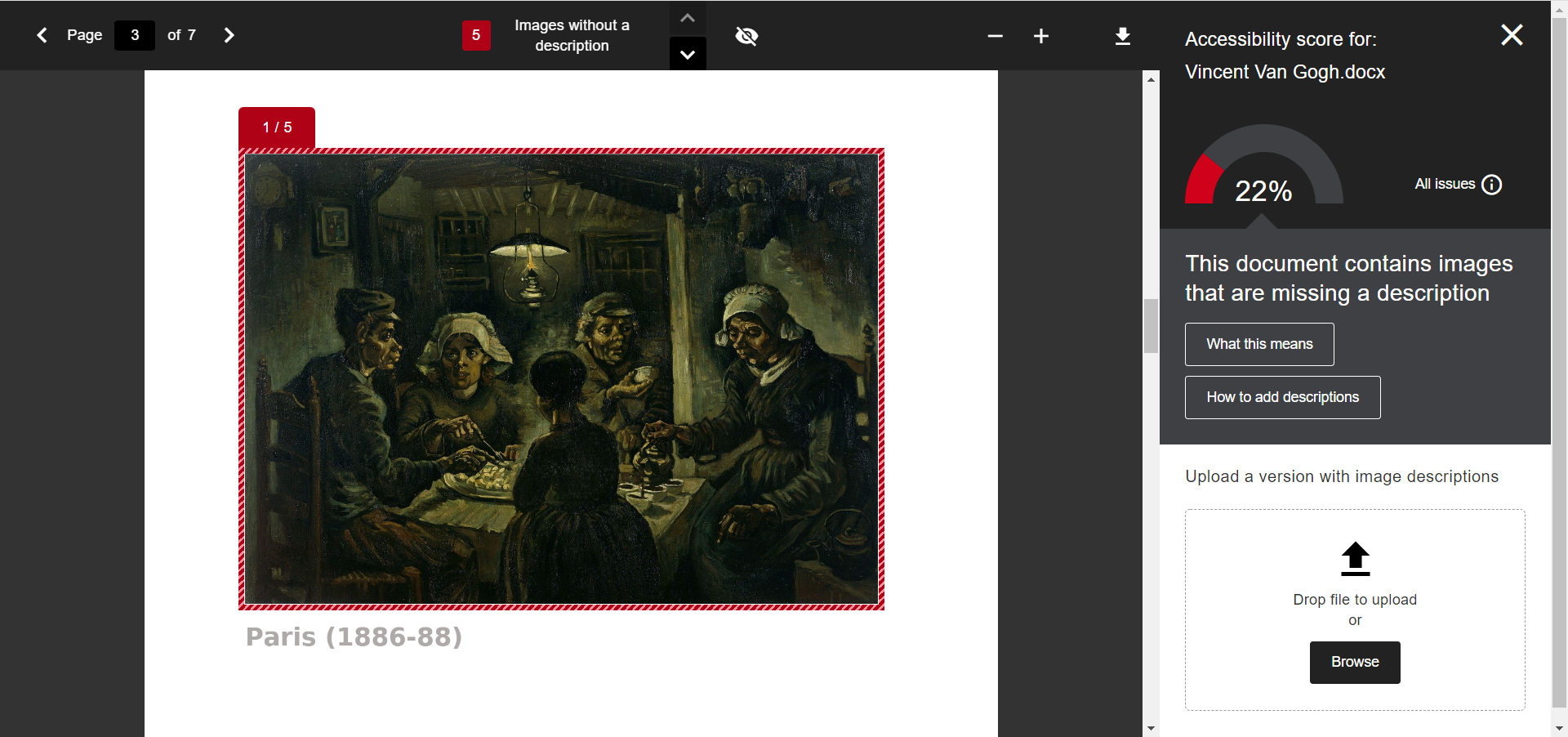
On clicking the feedback icon, the feedback modal is displayed. This modal will offer advice on how to improve the
accessibility of the file. In some cases the feedback modal will also present options to automatically correct or
improve accessibility.
Download accessible versions icon
The download icon allows students to download accessible versions.
When clicked, a modal appears where a student can select the alternative version they wish to download.
Uninstall
- Remove the
tool_ally,filter_allyandreport_allyltiplugins from the Moodle folder:
- [yourmoodledir]/admin/tool/ally
- [yourmoodledir]/filter/ally
- [yourmoodledir]/report/allylti
- Access the plugin uninstall page: Site Administration > Plugins > Plugins overview
- Look for the removed plugins and click on uninstall for each plugin.
License for Ally filter
© 2017 Open LMS / 2023 Anthology Inc. and its affiliates
This program is free software: you can redistribute it and/or modify it under
the terms of the GNU General Public License as published by the Free Software
Foundation, either version 3 of the License, or (at your option) any later
version.
This program is distributed in the hope that it will be useful, but WITHOUT ANY
WARRANTY; without even the implied warranty of MERCHANTABILITY or FITNESS FOR A
PARTICULAR PURPOSE. See the GNU General Public License for more details.
You should have received a copy of the GNU General Public License along with
this program. If not, see http://www.gnu.org/licenses/.
5.0.1 (2026032525)
5.0.1
Plugin type: Filters
Frankenstyle component name: filter_ally
Version build number: 2026032525
Version release name: 5.0.1
Maturity: Stable
Supported Moodle versions: 5.0
Repository URL (Git): https://github.com/anthology-ally/moodle-filter_ally
Repository branch:
Repository tag: AY-500-R3
Issue/bug tracker URL: https://github.com/anthology-ally/moodle-filter_ally/issues
Ally filter
The Ally filter provides accessibility scores and tools for files uploaded to Moodle by teachers. It also provides
alternative download types to enhance accessibility - e.g. audio, braille, etc
Installation
The Ally filter can be downloaded from:
https://github.com/anthology-ally/moodle-filter_ally
The filter should be located and named as:
[yourmoodledir]/filter/ally
Configuration
For the filter to function it is necessary to download and configure the Ally admin tool:
https://github.com/anthology-ally/moodle-tool_ally
Instructions on how to do so are available in the README.md file for the admin tool.
Usage
The filter will be functional after the Ally admin tool has been successfully configured and your Ally
representative has finalised the setup.
Non image files
The filter should automatically add two new icons to non-image files created by teachers (.pdf, .doc, .docx, .odt, .ppt,
.pptx, .odp, .html).
For teachers, a feedback icon and an alternative downloads icon will display.
For students, only the alternative downloads icon will display.
Image files
For teachers, a feedback icon will be shown.
For any potentially seizure inducing images, a seizure guard will be displayed over the image.
For students, only the seizure guard will be shown for images capable of inducing seizures.
Teacher feedback icon
The teacher feedback icon is a little meter indicator with 3 states :
- (red) low, requires improvement
- (amber) medium, has areas for improvement
- (green) high accessibility.
On clicking the feedback icon, the feedback modal is displayed. This modal will offer advice on how to improve the
accessibility of the file. In some cases the feedback modal will also present options to automatically correct or
improve accessibility.
Download accessible versions icon
The download icon allows students to download accessible versions.
When clicked, a modal appears where a student can select the alternative version they wish to download.
Uninstall
- Remove the
tool_ally,filter_allyandreport_allyltiplugins from the Moodle folder:
- [yourmoodledir]/admin/tool/ally
- [yourmoodledir]/filter/ally
- [yourmoodledir]/report/allylti
- Access the plugin uninstall page: Site Administration > Plugins > Plugins overview
- Look for the removed plugins and click on uninstall for each plugin.
License for Ally filter
© 2017 Open LMS / 2023 Anthology Inc. and its affiliates
This program is free software: you can redistribute it and/or modify it under
the terms of the GNU General Public License as published by the Free Software
Foundation, either version 3 of the License, or (at your option) any later
version.
This program is distributed in the hope that it will be useful, but WITHOUT ANY
WARRANTY; without even the implied warranty of MERCHANTABILITY or FITNESS FOR A
PARTICULAR PURPOSE. See the GNU General Public License for more details.
You should have received a copy of the GNU General Public License along with
this program. If not, see http://www.gnu.org/licenses/.
5.0.1 (2026012825)
5.0.1
Plugin type: Filters
Frankenstyle component name: filter_ally
Version build number: 2026012825
Version release name: 5.0.1
Maturity: Stable
Supported Moodle versions: 4.5, 5.0, 5.1
Repository URL (Git): https://github.com/anthology-ally/moodle-filter_ally
Repository branch:
Repository tag: AY-500-R2
Issue/bug tracker URL: https://github.com/anthology-ally/moodle-filter_ally/issues
Ally filter
The Ally filter provides accessibility scores and tools for files uploaded to Moodle by teachers. It also provides
alternative download types to enhance accessibility - e.g. audio, braille, etc
Installation
The Ally filter can be downloaded from:
https://github.com/anthology-ally/moodle-filter_ally
The filter should be located and named as:
[yourmoodledir]/filter/ally
Configuration
For the filter to function it is necessary to download and configure the Ally admin tool:
https://github.com/anthology-ally/moodle-tool_ally
Instructions on how to do so are available in the README.md file for the admin tool.
Usage
The filter will be functional after the Ally admin tool has been successfully configured and your Ally
representative has finalised the setup.
Non image files
The filter should automatically add two new icons to non-image files created by teachers (.pdf, .doc, .docx, .odt, .ppt,
.pptx, .odp, .html).
For teachers, a feedback icon and an alternative downloads icon will display.
For students, only the alternative downloads icon will display.
Image files
For teachers, a feedback icon will be shown.
For any potentially seizure inducing images, a seizure guard will be displayed over the image.
For students, only the seizure guard will be shown for images capable of inducing seizures.
Teacher feedback icon
The teacher feedback icon is a little meter indicator with 3 states :
- (red) low, requires improvement
- (amber) medium, has areas for improvement
- (green) high accessibility.
On clicking the feedback icon, the feedback modal is displayed. This modal will offer advice on how to improve the
accessibility of the file. In some cases the feedback modal will also present options to automatically correct or
improve accessibility.
Download accessible versions icon
The download icon allows students to download accessible versions.
When clicked, a modal appears where a student can select the alternative version they wish to download.
Uninstall
- Remove the
tool_ally,filter_allyandreport_allyltiplugins from the Moodle folder:
- [yourmoodledir]/admin/tool/ally
- [yourmoodledir]/filter/ally
- [yourmoodledir]/report/allylti
- Access the plugin uninstall page: Site Administration > Plugins > Plugins overview
- Look for the removed plugins and click on uninstall for each plugin.
License for Ally filter
© 2017 Open LMS / 2023 Anthology Inc. and its affiliates
This program is free software: you can redistribute it and/or modify it under
the terms of the GNU General Public License as published by the Free Software
Foundation, either version 3 of the License, or (at your option) any later
version.
This program is distributed in the hope that it will be useful, but WITHOUT ANY
WARRANTY; without even the implied warranty of MERCHANTABILITY or FITNESS FOR A
PARTICULAR PURPOSE. See the GNU General Public License for more details.
You should have received a copy of the GNU General Public License along with
this program. If not, see http://www.gnu.org/licenses/.
5.1.0 (2026012850)
5.1.0
Plugin type: Filters
Frankenstyle component name: filter_ally
Version build number: 2026012850
Version release name: 5.1.0
Maturity: Stable
Supported Moodle versions: 5.1
Repository URL (Git): https://github.com/anthology-ally/moodle-filter_ally
Repository branch:
Repository tag: AY-501-R2
Issue/bug tracker URL: https://github.com/anthology-ally/moodle-filter_ally/issues
Ally filter
The Ally filter provides accessibility scores and tools for files uploaded to Moodle by teachers. It also provides
alternative download types to enhance accessibility - e.g. audio, braille, etc
Installation
The Ally filter can be downloaded from:
https://github.com/anthology-ally/moodle-filter_ally
The filter should be located and named as:
[yourmoodledir]/filter/ally
Configuration
For the filter to function it is necessary to download and configure the Ally admin tool:
https://github.com/anthology-ally/moodle-tool_ally
Instructions on how to do so are available in the README.md file for the admin tool.
Usage
The filter will be functional after the Ally admin tool has been successfully configured and your Ally
representative has finalised the setup.
Non image files
The filter should automatically add two new icons to non-image files created by teachers (.pdf, .doc, .docx, .odt, .ppt,
.pptx, .odp, .html).
For teachers, a feedback icon and an alternative downloads icon will display.
For students, only the alternative downloads icon will display.
Image files
For teachers, a feedback icon will be shown.
For any potentially seizure inducing images, a seizure guard will be displayed over the image.
For students, only the seizure guard will be shown for images capable of inducing seizures.
Teacher feedback icon
The teacher feedback icon is a little meter indicator with 3 states :
- (red) low, requires improvement
- (amber) medium, has areas for improvement
- (green) high accessibility.
On clicking the feedback icon, the feedback modal is displayed. This modal will offer advice on how to improve the
accessibility of the file. In some cases the feedback modal will also present options to automatically correct or
improve accessibility.
Download accessible versions icon
The download icon allows students to download accessible versions.
When clicked, a modal appears where a student can select the alternative version they wish to download.
Uninstall
- Remove the
tool_ally,filter_allyandreport_allyltiplugins from the Moodle folder:
- [yourmoodledir]/admin/tool/ally
- [yourmoodledir]/filter/ally
- [yourmoodledir]/report/allylti
- Access the plugin uninstall page: Site Administration > Plugins > Plugins overview
- Look for the removed plugins and click on uninstall for each plugin.
License for Ally filter
© 2017 Open LMS / 2023 Anthology Inc. and its affiliates
This program is free software: you can redistribute it and/or modify it under
the terms of the GNU General Public License as published by the Free Software
Foundation, either version 3 of the License, or (at your option) any later
version.
This program is distributed in the hope that it will be useful, but WITHOUT ANY
WARRANTY; without even the implied warranty of MERCHANTABILITY or FITNESS FOR A
PARTICULAR PURPOSE. See the GNU General Public License for more details.
You should have received a copy of the GNU General Public License along with
this program. If not, see http://www.gnu.org/licenses/.
5.0.0 (2025072400)
5.0.0
Plugin type: Filters
Frankenstyle component name: filter_ally
Version build number: 2025072400
Version release name: 5.0.0
Maturity: Stable
Supported Moodle versions: 5.0
Repository URL (Git): https://github.com/anthology-ally/moodle-filter_ally
Repository branch:
Repository tag:
Issue/bug tracker URL: https://github.com/anthology-ally/moodle-filter_ally/issues
Ally filter
The Ally filter provides accessibility scores and tools for files uploaded to Moodle by teachers. It also provides
alternative download types to enhance accessibility - e.g. audio, braille, etc
Installation
The Ally filter can be downloaded from:
https://github.com/anthology-ally/moodle-filter_ally
The filter should be located and named as:
[yourmoodledir]/filter/ally
Configuration
For the filter to function it is necessary to download and configure the Ally admin tool:
https://github.com/anthology-ally/moodle-tool_ally
Instructions on how to do so are available in the README.md file for the admin tool.
Usage
The filter will be functional after the Ally admin tool has been successfully configured and your Ally
representative has finalised the setup.
Non image files
The filter should automatically add two new icons to non-image files created by teachers (.pdf, .doc, .docx, .odt, .ppt,
.pptx, .odp, .html).
For teachers, a feedback icon and an alternative downloads icon will display.
For students, only the alternative downloads icon will display.
Image files
For teachers, a feedback icon will be shown.
For any potentially seizure inducing images, a seizure guard will be displayed over the image.
For students, only the seizure guard will be shown for images capable of inducing seizures.
Teacher feedback icon
The teacher feedback icon is a little meter indicator with 3 states :
- (red) low, requires improvement
- (amber) medium, has areas for improvement
- (green) high accessibility.
On clicking the feedback icon, the feedback modal is displayed. This modal will offer advice on how to improve the
accessibility of the file. In some cases the feedback modal will also present options to automatically correct or
improve accessibility.
Download accessible versions icon
The download icon allows students to download accessible versions.
When clicked, a modal appears where a student can select the alternative version they wish to download.
Uninstall
- Remove the
tool_ally,filter_allyandreport_allyltiplugins from the Moodle folder:
- [yourmoodledir]/admin/tool/ally
- [yourmoodledir]/filter/ally
- [yourmoodledir]/report/allylti
- Access the plugin uninstall page: Site Administration > Plugins > Plugins overview
- Look for the removed plugins and click on uninstall for each plugin.
License for Ally filter
© 2017 Open LMS / 2023 Anthology Inc. and its affiliates
This program is free software: you can redistribute it and/or modify it under
the terms of the GNU General Public License as published by the Free Software
Foundation, either version 3 of the License, or (at your option) any later
version.
This program is distributed in the hope that it will be useful, but WITHOUT ANY
WARRANTY; without even the implied warranty of MERCHANTABILITY or FITNESS FOR A
PARTICULAR PURPOSE. See the GNU General Public License for more details.
You should have received a copy of the GNU General Public License along with
this program. If not, see http://www.gnu.org/licenses/.
4.4.7 (2025040401)
4.4.7
Plugin type: Filters
Frankenstyle component name: filter_ally
Version build number: 2025040401
Version release name: 4.4.7
Maturity: Stable
Supported Moodle versions: 4.4
Repository URL (Git): https://github.com/anthology-ally/moodle-filter_ally
Repository branch: MOODLE_4O4_STABLE
Repository tag: AY-404-R6
Issue/bug tracker URL: https://github.com/anthology-ally/moodle-filter_ally/issues
Ally filter
The Ally filter provides accessibility scores and tools for files uploaded to Moodle by teachers. It also provides
alternative download types to enhance accessibility - e.g. audio, braille, etc
Installation
The Ally filter can be downloaded from:
https://github.com/anthology-ally/moodle-filter_ally
The filter should be located and named as:
[yourmoodledir]/filter/ally
Configuration
For the filter to function it is necessary to download and configure the Ally admin tool:
https://github.com/anthology-ally/moodle-tool_ally
Instructions on how to do so are available in the README.md file for the admin tool.
Usage
The filter will be functional after the Ally admin tool has been successfully configured and your Ally
representative has finalised the setup.
Non image files
The filter should automatically add two new icons to non-image files created by teachers (.pdf, .doc, .docx, .odt, .ppt,
.pptx, .odp, .html).
For teachers, a feedback icon and an alternative downloads icon will display.
For students, only the alternative downloads icon will display.
Image files
For teachers, a feedback icon will be shown.
For any potentially seizure inducing images, a seizure guard will be displayed over the image.
For students, only the seizure guard will be shown for images capable of inducing seizures.
Teacher feedback icon
The teacher feedback icon is a little meter indicator with 3 states :
- (red) low, requires improvement
- (amber) medium, has areas for improvement
- (green) high accessibility.
On clicking the feedback icon, the feedback modal is displayed. This modal will offer advice on how to improve the
accessibility of the file. In some cases the feedback modal will also present options to automatically correct or
improve accessibility.
Download accessible versions icon
The download icon allows students to download accessible versions.
When clicked, a modal appears where a student can select the alternative version they wish to download.
Uninstall
- Remove the
tool_ally,filter_allyandreport_allyltiplugins from the Moodle folder:
- [yourmoodledir]/admin/tool/ally
- [yourmoodledir]/filter/ally
- [yourmoodledir]/report/allylti
- Access the plugin uninstall page: Site Administration > Plugins > Plugins overview
- Look for the removed plugins and click on uninstall for each plugin.
License for Ally filter
© 2017 Open LMS / 2023 Anthology Inc. and its affiliates
This program is free software: you can redistribute it and/or modify it under
the terms of the GNU General Public License as published by the Free Software
Foundation, either version 3 of the License, or (at your option) any later
version.
This program is distributed in the hope that it will be useful, but WITHOUT ANY
WARRANTY; without even the implied warranty of MERCHANTABILITY or FITNESS FOR A
PARTICULAR PURPOSE. See the GNU General Public License for more details.
You should have received a copy of the GNU General Public License along with
this program. If not, see http://www.gnu.org/licenses/.
4.3.8 (2025040701)
4.3.8
Plugin type: Filters
Frankenstyle component name: filter_ally
Version build number: 2025040701
Version release name: 4.3.8
Maturity: Stable
Supported Moodle versions: 4.3
Repository URL (Git): https://github.com/anthology-ally/moodle-filter_ally
Repository branch: MOODLE_403_STABLE
Repository tag: AY-403-R4
Issue/bug tracker URL: https://github.com/anthology-ally/moodle-filter_ally/issues
Ally filter
The Ally filter provides accessibility scores and tools for files uploaded to Moodle by teachers. It also provides
alternative download types to enhance accessibility - e.g. audio, braille, etc
Installation
The Ally filter can be downloaded from:
https://github.com/anthology-ally/moodle-filter_ally
The filter should be located and named as:
[yourmoodledir]/filter/ally
Configuration
For the filter to function it is necessary to download and configure the Ally admin tool:
https://github.com/anthology-ally/moodle-tool_ally
Instructions on how to do so are available in the README.md file for the admin tool.
Usage
The filter will be functional after the Ally admin tool has been successfully configured and your Ally
representative has finalised the setup.
Non image files
The filter should automatically add two new icons to non-image files created by teachers (.pdf, .doc, .docx, .odt, .ppt,
.pptx, .odp, .html).
For teachers, a feedback icon and an alternative downloads icon will display.
For students, only the alternative downloads icon will display.
Image files
For teachers, a feedback icon will be shown.
For any potentially seizure inducing images, a seizure guard will be displayed over the image.
For students, only the seizure guard will be shown for images capable of inducing seizures.
Teacher feedback icon
The teacher feedback icon is a little meter indicator with 3 states :
- (red) low, requires improvement
- (amber) medium, has areas for improvement
- (green) high accessibility.
On clicking the feedback icon, the feedback modal is displayed. This modal will offer advice on how to improve the
accessibility of the file. In some cases the feedback modal will also present options to automatically correct or
improve accessibility.
Download accessible versions icon
The download icon allows students to download accessible versions.
When clicked, a modal appears where a student can select the alternative version they wish to download.
Uninstall
- Remove the
tool_ally,filter_allyandreport_allyltiplugins from the Moodle folder:
- [yourmoodledir]/admin/tool/ally
- [yourmoodledir]/filter/ally
- [yourmoodledir]/report/allylti
- Access the plugin uninstall page: Site Administration > Plugins > Plugins overview
- Look for the removed plugins and click on uninstall for each plugin.
License for Ally filter
© 2017 Open LMS / 2023 Anthology Inc. and its affiliates
This program is free software: you can redistribute it and/or modify it under
the terms of the GNU General Public License as published by the Free Software
Foundation, either version 3 of the License, or (at your option) any later
version.
This program is distributed in the hope that it will be useful, but WITHOUT ANY
WARRANTY; without even the implied warranty of MERCHANTABILITY or FITNESS FOR A
PARTICULAR PURPOSE. See the GNU General Public License for more details.
You should have received a copy of the GNU General Public License along with
this program. If not, see http://www.gnu.org/licenses/.
4.5.0 (2025050300)
4.5.0
Plugin type: Filters
Frankenstyle component name: filter_ally
Version build number: 2025050300
Version release name: 4.5.0
Maturity: Stable
Supported Moodle versions: 4.5
Repository URL (Git): https://github.com/anthology-ally/moodle-filter_ally
Repository branch: MOODLE_405_STABLE
Repository tag: AY-405-R1
Issue/bug tracker URL: https://github.com/anthology-ally/moodle-filter_ally/issues
Ally filter
The Ally filter provides accessibility scores and tools for files uploaded to Moodle by teachers. It also provides
alternative download types to enhance accessibility - e.g. audio, braille, etc
Installation
The Ally filter can be downloaded from:
https://github.com/anthology-ally/moodle-filter_ally
The filter should be located and named as:
[yourmoodledir]/filter/ally
Configuration
For the filter to function it is necessary to download and configure the Ally admin tool:
https://github.com/anthology-ally/moodle-tool_ally
Instructions on how to do so are available in the README.md file for the admin tool.
Usage
The filter will be functional after the Ally admin tool has been successfully configured and your Ally
representative has finalised the setup.
Non image files
The filter should automatically add two new icons to non-image files created by teachers (.pdf, .doc, .docx, .odt, .ppt,
.pptx, .odp, .html).
For teachers, a feedback icon and an alternative downloads icon will display.
For students, only the alternative downloads icon will display.
Image files
For teachers, a feedback icon will be shown.
For any potentially seizure inducing images, a seizure guard will be displayed over the image.
For students, only the seizure guard will be shown for images capable of inducing seizures.
Teacher feedback icon
The teacher feedback icon is a little meter indicator with 3 states :
- (red) low, requires improvement
- (amber) medium, has areas for improvement
- (green) high accessibility.
On clicking the feedback icon, the feedback modal is displayed. This modal will offer advice on how to improve the
accessibility of the file. In some cases the feedback modal will also present options to automatically correct or
improve accessibility.
Download accessible versions icon
The download icon allows students to download accessible versions.
When clicked, a modal appears where a student can select the alternative version they wish to download.
Uninstall
- Remove the
tool_ally,filter_allyandreport_allyltiplugins from the Moodle folder:
- [yourmoodledir]/admin/tool/ally
- [yourmoodledir]/filter/ally
- [yourmoodledir]/report/allylti
- Access the plugin uninstall page: Site Administration > Plugins > Plugins overview
- Look for the removed plugins and click on uninstall for each plugin.
License for Ally filter
© 2017 Open LMS / 2023 Anthology Inc. and its affiliates
This program is free software: you can redistribute it and/or modify it under
the terms of the GNU General Public License as published by the Free Software
Foundation, either version 3 of the License, or (at your option) any later
version.
This program is distributed in the hope that it will be useful, but WITHOUT ANY
WARRANTY; without even the implied warranty of MERCHANTABILITY or FITNESS FOR A
PARTICULAR PURPOSE. See the GNU General Public License for more details.
You should have received a copy of the GNU General Public License along with
this program. If not, see http://www.gnu.org/licenses/.
4.3.7 (2025040700)
4.3.7
Plugin type: Filters
Frankenstyle component name: filter_ally
Version build number: 2025040700
Version release name: 4.3.7
Maturity: Stable
Supported Moodle versions: 4.3
Repository URL (Git): https://github.com/anthology-ally/moodle-filter_ally
Repository branch:
Repository tag:
Issue/bug tracker URL: https://github.com/anthology-ally/moodle-filter_ally/issues
Ally filter
The Ally filter provides accessibility scores and tools for files uploaded to Moodle by teachers. It also provides
alternative download types to enhance accessibility - e.g. audio, braille, etc
Installation
The Ally filter can be downloaded from:
https://github.com/anthology-ally/moodle-filter_ally
The filter should be located and named as:
[yourmoodledir]/filter/ally
Configuration
For the filter to function it is necessary to download and configure the Ally admin tool:
https://github.com/anthology-ally/moodle-tool_ally
Instructions on how to do so are available in the README.md file for the admin tool.
Usage
The filter will be functional after the Ally admin tool has been successfully configured and your Ally
representative has finalised the setup.
Non image files
The filter should automatically add two new icons to non-image files created by teachers (.pdf, .doc, .docx, .odt, .ppt,
.pptx, .odp, .html).
For teachers, a feedback icon and an alternative downloads icon will display.
For students, only the alternative downloads icon will display.
Image files
For teachers, a feedback icon will be shown.
For any potentially seizure inducing images, a seizure guard will be displayed over the image.
For students, only the seizure guard will be shown for images capable of inducing seizures.
Teacher feedback icon
The teacher feedback icon is a little meter indicator with 3 states :
- (red) low, requires improvement
- (amber) medium, has areas for improvement
- (green) high accessibility.
On clicking the feedback icon, the feedback modal is displayed. This modal will offer advice on how to improve the
accessibility of the file. In some cases the feedback modal will also present options to automatically correct or
improve accessibility.
Download accessible versions icon
The download icon allows students to download accessible versions.
When clicked, a modal appears where a student can select the alternative version they wish to download.
Uninstall
- Remove the
tool_ally,filter_allyandreport_allyltiplugins from the Moodle folder:
- [yourmoodledir]/admin/tool/ally
- [yourmoodledir]/filter/ally
- [yourmoodledir]/report/allylti
- Access the plugin uninstall page: Site Administration > Plugins > Plugins overview
- Look for the removed plugins and click on uninstall for each plugin.
License for Ally filter
© 2017 Open LMS / 2023 Anthology Inc. and its affiliates
This program is free software: you can redistribute it and/or modify it under
the terms of the GNU General Public License as published by the Free Software
Foundation, either version 3 of the License, or (at your option) any later
version.
This program is distributed in the hope that it will be useful, but WITHOUT ANY
WARRANTY; without even the implied warranty of MERCHANTABILITY or FITNESS FOR A
PARTICULAR PURPOSE. See the GNU General Public License for more details.
You should have received a copy of the GNU General Public License along with
this program. If not, see http://www.gnu.org/licenses/.
4.4.6 (2025040400)
4.4.6
Plugin type: Filters
Frankenstyle component name: filter_ally
Version build number: 2025040400
Version release name: 4.4.6
Maturity: Stable
Supported Moodle versions: 4.4
Repository URL (Git): https://github.com/anthology-ally/moodle-filter_ally
Repository branch:
Repository tag:
Issue/bug tracker URL: https://github.com/anthology-ally/moodle-filter_ally/issues
Ally filter
The Ally filter provides accessibility scores and tools for files uploaded to Moodle by teachers. It also provides
alternative download types to enhance accessibility - e.g. audio, braille, etc
Installation
The Ally filter can be downloaded from:
https://github.com/anthology-ally/moodle-filter_ally
The filter should be located and named as:
[yourmoodledir]/filter/ally
Configuration
For the filter to function it is necessary to download and configure the Ally admin tool:
https://github.com/anthology-ally/moodle-tool_ally
Instructions on how to do so are available in the README.md file for the admin tool.
Usage
The filter will be functional after the Ally admin tool has been successfully configured and your Ally
representative has finalised the setup.
Non image files
The filter should automatically add two new icons to non-image files created by teachers (.pdf, .doc, .docx, .odt, .ppt,
.pptx, .odp, .html).
For teachers, a feedback icon and an alternative downloads icon will display.
For students, only the alternative downloads icon will display.
Image files
For teachers, a feedback icon will be shown.
For any potentially seizure inducing images, a seizure guard will be displayed over the image.
For students, only the seizure guard will be shown for images capable of inducing seizures.
Teacher feedback icon
The teacher feedback icon is a little meter indicator with 3 states :
- (red) low, requires improvement
- (amber) medium, has areas for improvement
- (green) high accessibility.
On clicking the feedback icon, the feedback modal is displayed. This modal will offer advice on how to improve the
accessibility of the file. In some cases the feedback modal will also present options to automatically correct or
improve accessibility.
Download accessible versions icon
The download icon allows students to download accessible versions.
When clicked, a modal appears where a student can select the alternative version they wish to download.
Uninstall
- Remove the
tool_ally,filter_allyandreport_allyltiplugins from the Moodle folder:
- [yourmoodledir]/admin/tool/ally
- [yourmoodledir]/filter/ally
- [yourmoodledir]/report/allylti
- Access the plugin uninstall page: Site Administration > Plugins > Plugins overview
- Look for the removed plugins and click on uninstall for each plugin.
License for Ally filter
© 2017 Open LMS / 2023 Anthology Inc. and its affiliates
This program is free software: you can redistribute it and/or modify it under
the terms of the GNU General Public License as published by the Free Software
Foundation, either version 3 of the License, or (at your option) any later
version.
This program is distributed in the hope that it will be useful, but WITHOUT ANY
WARRANTY; without even the implied warranty of MERCHANTABILITY or FITNESS FOR A
PARTICULAR PURPOSE. See the GNU General Public License for more details.
You should have received a copy of the GNU General Public License along with
this program. If not, see http://www.gnu.org/licenses/.
4.4.5 (2025031900)
4.4.5
Plugin type: Filters
Frankenstyle component name: filter_ally
Version build number: 2025031900
Version release name: 4.4.5
Maturity: Stable
Supported Moodle versions: 4.4
Repository URL (Git): https://github.com/anthology-ally/moodle-filter_ally
Repository branch:
Repository tag:
Issue/bug tracker URL: https://github.com/anthology-ally/moodle-filter_ally/issues
Ally filter
The Ally filter provides accessibility scores and tools for files uploaded to Moodle by teachers. It also provides
alternative download types to enhance accessibility - e.g. audio, braille, etc
Installation
The Ally filter can be downloaded from:
https://github.com/anthology-ally/moodle-filter_ally
The filter should be located and named as:
[yourmoodledir]/filter/ally
Configuration
For the filter to function it is necessary to download and configure the Ally admin tool:
https://github.com/anthology-ally/moodle-tool_ally
Instructions on how to do so are available in the README.md file for the admin tool.
Usage
The filter will be functional after the Ally admin tool has been successfully configured and your Ally
representative has finalised the setup.
Non image files
The filter should automatically add two new icons to non-image files created by teachers (.pdf, .doc, .docx, .odt, .ppt,
.pptx, .odp, .html).
For teachers, a feedback icon and an alternative downloads icon will display.
For students, only the alternative downloads icon will display.
Image files
For teachers, a feedback icon will be shown.
For any potentially seizure inducing images, a seizure guard will be displayed over the image.
For students, only the seizure guard will be shown for images capable of inducing seizures.
Teacher feedback icon
The teacher feedback icon is a little meter indicator with 3 states :
- (red) low, requires improvement
- (amber) medium, has areas for improvement
- (green) high accessibility.
On clicking the feedback icon, the feedback modal is displayed. This modal will offer advice on how to improve the
accessibility of the file. In some cases the feedback modal will also present options to automatically correct or
improve accessibility.
Download accessible versions icon
The download icon allows students to download accessible versions.
When clicked, a modal appears where a student can select the alternative version they wish to download.
Uninstall
- Remove the
tool_ally,filter_allyandreport_allyltiplugins from the Moodle folder:
- [yourmoodledir]/admin/tool/ally
- [yourmoodledir]/filter/ally
- [yourmoodledir]/report/allylti
- Access the plugin uninstall page: Site Administration > Plugins > Plugins overview
- Look for the removed plugins and click on uninstall for each plugin.
License for Ally filter
© 2017 Open LMS / 2023 Anthology Inc. and its affiliates
This program is free software: you can redistribute it and/or modify it under
the terms of the GNU General Public License as published by the Free Software
Foundation, either version 3 of the License, or (at your option) any later
version.
This program is distributed in the hope that it will be useful, but WITHOUT ANY
WARRANTY; without even the implied warranty of MERCHANTABILITY or FITNESS FOR A
PARTICULAR PURPOSE. See the GNU General Public License for more details.
You should have received a copy of the GNU General Public License along with
this program. If not, see http://www.gnu.org/licenses/.
4.4.4 (2025031800)
4.4.4
Plugin type: Filters
Frankenstyle component name: filter_ally
Version build number: 2025031800
Version release name: 4.4.4
Maturity: Stable
Supported Moodle versions: 4.4
Repository URL (Git): https://github.com/anthology-ally/moodle-filter_ally
Repository branch:
Repository tag:
Issue/bug tracker URL: https://github.com/anthology-ally/moodle-filter_ally/issues
Ally filter
The Ally filter provides accessibility scores and tools for files uploaded to Moodle by teachers. It also provides
alternative download types to enhance accessibility - e.g. audio, braille, etc
Installation
The Ally filter can be downloaded from:
https://github.com/anthology-ally/moodle-filter_ally
The filter should be located and named as:
[yourmoodledir]/filter/ally
Configuration
For the filter to function it is necessary to download and configure the Ally admin tool:
https://github.com/anthology-ally/moodle-tool_ally
Instructions on how to do so are available in the README.md file for the admin tool.
Usage
The filter will be functional after the Ally admin tool has been successfully configured and your Ally
representative has finalised the setup.
Non image files
The filter should automatically add two new icons to non-image files created by teachers (.pdf, .doc, .docx, .odt, .ppt,
.pptx, .odp, .html).
For teachers, a feedback icon and an alternative downloads icon will display.
For students, only the alternative downloads icon will display.
Image files
For teachers, a feedback icon will be shown.
For any potentially seizure inducing images, a seizure guard will be displayed over the image.
For students, only the seizure guard will be shown for images capable of inducing seizures.
Teacher feedback icon
The teacher feedback icon is a little meter indicator with 3 states :
- (red) low, requires improvement
- (amber) medium, has areas for improvement
- (green) high accessibility.
On clicking the feedback icon, the feedback modal is displayed. This modal will offer advice on how to improve the
accessibility of the file. In some cases the feedback modal will also present options to automatically correct or
improve accessibility.
Download accessible versions icon
The download icon allows students to download accessible versions.
When clicked, a modal appears where a student can select the alternative version they wish to download.
Uninstall
- Remove the
tool_ally,filter_allyandreport_allyltiplugins from the Moodle folder:
- [yourmoodledir]/admin/tool/ally
- [yourmoodledir]/filter/ally
- [yourmoodledir]/report/allylti
- Access the plugin uninstall page: Site Administration > Plugins > Plugins overview
- Look for the removed plugins and click on uninstall for each plugin.
License for Ally filter
© 2017 Open LMS / 2023 Anthology Inc. and its affiliates
This program is free software: you can redistribute it and/or modify it under
the terms of the GNU General Public License as published by the Free Software
Foundation, either version 3 of the License, or (at your option) any later
version.
This program is distributed in the hope that it will be useful, but WITHOUT ANY
WARRANTY; without even the implied warranty of MERCHANTABILITY or FITNESS FOR A
PARTICULAR PURPOSE. See the GNU General Public License for more details.
You should have received a copy of the GNU General Public License along with
this program. If not, see http://www.gnu.org/licenses/.
4.3.6 (2024082300)
4.3.6
Plugin type: Filters
Frankenstyle component name: filter_ally
Version build number: 2024082300
Version release name: 4.3.6
Maturity: Stable
Supported Moodle versions: 4.3
Repository URL (Git): https://github.com/anthology-ally/moodle-filter_ally
Repository branch:
Repository tag:
Issue/bug tracker URL: https://github.com/anthology-ally/moodle-filter_ally/issues
Ally filter
The Ally filter provides accessibility scores and tools for files uploaded to Moodle by teachers. It also provides
alternative download types to enhance accessibility - e.g. audio, braille, etc
Installation
The Ally filter can be downloaded from:
https://github.com/anthology-ally/moodle-filter_ally
The filter should be located and named as:
[yourmoodledir]/filter/ally
Configuration
For the filter to function it is necessary to download and configure the Ally admin tool:
https://github.com/anthology-ally/moodle-tool_ally
Instructions on how to do so are available in the README.md file for the admin tool.
Usage
The filter will be functional after the Ally admin tool has been successfully configured and your Ally
representative has finalised the setup.
Non image files
The filter should automatically add two new icons to non-image files created by teachers (.pdf, .doc, .docx, .odt, .ppt,
.pptx, .odp, .html).
For teachers, a feedback icon and an alternative downloads icon will display.
For students, only the alternative downloads icon will display.
Image files
For teachers, a feedback icon will be shown.
For any potentially seizure inducing images, a seizure guard will be displayed over the image.
For students, only the seizure guard will be shown for images capable of inducing seizures.
Teacher feedback icon
The teacher feedback icon is a little meter indicator with 3 states :
- (red) low, requires improvement
- (amber) medium, has areas for improvement
- (green) high accessibility.
On clicking the feedback icon, the feedback modal is displayed. This modal will offer advice on how to improve the
accessibility of the file. In some cases the feedback modal will also present options to automatically correct or
improve accessibility.
Download accessible versions icon
The download icon allows students to download accessible versions.
When clicked, a modal appears where a student can select the alternative version they wish to download.
Uninstall
- Remove the
tool_ally,filter_allyandreport_allyltiplugins from the Moodle folder:
- [yourmoodledir]/admin/tool/ally
- [yourmoodledir]/filter/ally
- [yourmoodledir]/report/allylti
- Access the plugin uninstall page: Site Administration > Plugins > Plugins overview
- Look for the removed plugins and click on uninstall for each plugin.
License for Ally filter
© 2017 Open LMS / 2023 Anthology Inc. and its affiliates
This program is free software: you can redistribute it and/or modify it under
the terms of the GNU General Public License as published by the Free Software
Foundation, either version 3 of the License, or (at your option) any later
version.
This program is distributed in the hope that it will be useful, but WITHOUT ANY
WARRANTY; without even the implied warranty of MERCHANTABILITY or FITNESS FOR A
PARTICULAR PURPOSE. See the GNU General Public License for more details.
You should have received a copy of the GNU General Public License along with
this program. If not, see http://www.gnu.org/licenses/.
4.4.3 (2025030300)
4.4.3
Plugin type: Filters
Frankenstyle component name: filter_ally
Version build number: 2025030300
Version release name: 4.4.3
Maturity: Stable
Supported Moodle versions: 4.4
Repository URL (Git): https://github.com/anthology-ally/moodle-filter_ally
Repository branch:
Repository tag:
Issue/bug tracker URL: https://github.com/anthology-ally/moodle-filter_ally/issues
Ally filter
The Ally filter provides accessibility scores and tools for files uploaded to Moodle by teachers. It also provides
alternative download types to enhance accessibility - e.g. audio, braille, etc
Installation
The Ally filter can be downloaded from:
https://github.com/anthology-ally/moodle-filter_ally
The filter should be located and named as:
[yourmoodledir]/filter/ally
Configuration
For the filter to function it is necessary to download and configure the Ally admin tool:
https://github.com/anthology-ally/moodle-tool_ally
Instructions on how to do so are available in the README.md file for the admin tool.
Usage
The filter will be functional after the Ally admin tool has been successfully configured and your Ally
representative has finalised the setup.
Non image files
The filter should automatically add two new icons to non-image files created by teachers (.pdf, .doc, .docx, .odt, .ppt,
.pptx, .odp, .html).
For teachers, a feedback icon and an alternative downloads icon will display.
For students, only the alternative downloads icon will display.
Image files
For teachers, a feedback icon will be shown.
For any potentially seizure inducing images, a seizure guard will be displayed over the image.
For students, only the seizure guard will be shown for images capable of inducing seizures.
Teacher feedback icon
The teacher feedback icon is a little meter indicator with 3 states :
- (red) low, requires improvement
- (amber) medium, has areas for improvement
- (green) high accessibility.
On clicking the feedback icon, the feedback modal is displayed. This modal will offer advice on how to improve the
accessibility of the file. In some cases the feedback modal will also present options to automatically correct or
improve accessibility.
Download accessible versions icon
The download icon allows students to download accessible versions.
When clicked, a modal appears where a student can select the alternative version they wish to download.
Uninstall
- Remove the
tool_ally,filter_allyandreport_allyltiplugins from the Moodle folder:
- [yourmoodledir]/admin/tool/ally
- [yourmoodledir]/filter/ally
- [yourmoodledir]/report/allylti
- Access the plugin uninstall page: Site Administration > Plugins > Plugins overview
- Look for the removed plugins and click on uninstall for each plugin.
License for Ally filter
© 2017 Open LMS / 2023 Anthology Inc. and its affiliates
This program is free software: you can redistribute it and/or modify it under
the terms of the GNU General Public License as published by the Free Software
Foundation, either version 3 of the License, or (at your option) any later
version.
This program is distributed in the hope that it will be useful, but WITHOUT ANY
WARRANTY; without even the implied warranty of MERCHANTABILITY or FITNESS FOR A
PARTICULAR PURPOSE. See the GNU General Public License for more details.
You should have received a copy of the GNU General Public License along with
this program. If not, see http://www.gnu.org/licenses/.
4.4.3 (2024112200)
4.4.3
Plugin type: Filters
Frankenstyle component name: filter_ally
Version build number: 2024112200
Version release name: 4.4.3
Maturity: Stable
Supported Moodle versions: 4.4
Repository URL (Git): https://github.com/anthology-ally/moodle-filter_ally
Repository branch:
Repository tag:
Issue/bug tracker URL: https://github.com/anthology-ally/moodle-filter_ally/issues
Ally filter
The Ally filter provides accessibility scores and tools for files uploaded to Moodle by teachers. It also provides
alternative download types to enhance accessibility - e.g. audio, braille, etc
Installation
The Ally filter can be downloaded from:
https://github.com/anthology-ally/moodle-filter_ally
The filter should be located and named as:
[yourmoodledir]/filter/ally
Configuration
For the filter to function it is necessary to download and configure the Ally admin tool:
https://github.com/anthology-ally/moodle-tool_ally
Instructions on how to do so are available in the README.md file for the admin tool.
Usage
The filter will be functional after the Ally admin tool has been successfully configured and your Ally
representative has finalised the setup.
Non image files
The filter should automatically add two new icons to non-image files created by teachers (.pdf, .doc, .docx, .odt, .ppt,
.pptx, .odp, .html).
For teachers, a feedback icon and an alternative downloads icon will display.
For students, only the alternative downloads icon will display.
Image files
For teachers, a feedback icon will be shown.
For any potentially seizure inducing images, a seizure guard will be displayed over the image.
For students, only the seizure guard will be shown for images capable of inducing seizures.
Teacher feedback icon
The teacher feedback icon is a little meter indicator with 3 states :
- (red) low, requires improvement
- (amber) medium, has areas for improvement
- (green) high accessibility.
On clicking the feedback icon, the feedback modal is displayed. This modal will offer advice on how to improve the
accessibility of the file. In some cases the feedback modal will also present options to automatically correct or
improve accessibility.
Download accessible versions icon
The download icon allows students to download accessible versions.
When clicked, a modal appears where a student can select the alternative version they wish to download.
Uninstall
- Remove the
tool_ally,filter_allyandreport_allyltiplugins from the Moodle folder:
- [yourmoodledir]/admin/tool/ally
- [yourmoodledir]/filter/ally
- [yourmoodledir]/report/allylti
- Access the plugin uninstall page: Site Administration > Plugins > Plugins overview
- Look for the removed plugins and click on uninstall for each plugin.
License for Ally filter
© 2017 Open LMS / 2023 Anthology Inc. and its affiliates
This program is free software: you can redistribute it and/or modify it under
the terms of the GNU General Public License as published by the Free Software
Foundation, either version 3 of the License, or (at your option) any later
version.
This program is distributed in the hope that it will be useful, but WITHOUT ANY
WARRANTY; without even the implied warranty of MERCHANTABILITY or FITNESS FOR A
PARTICULAR PURPOSE. See the GNU General Public License for more details.
You should have received a copy of the GNU General Public License along with
this program. If not, see http://www.gnu.org/licenses/.
4.3.0 (2024062700)
4.3.0
Plugin type: Filters
Frankenstyle component name: filter_ally
Version build number: 2024062700
Version release name: 4.3.0
Maturity: Stable
Supported Moodle versions: 4.3
Repository URL (Git): https://github.com/anthology-ally/moodle-filter_ally
Repository branch:
Repository tag:
Issue/bug tracker URL: https://github.com/anthology-ally/moodle-filter_ally/issues
Ally filter
The Ally filter provides accessibility scores and tools for files uploaded to Moodle by teachers. It also provides
alternative download types to enhance accessibility - e.g. audio, braille, etc
Installation
The Ally filter can be downloaded from:
https://github.com/anthology-ally/moodle-filter_ally
The filter should be located and named as:
[yourmoodledir]/filter/ally
Configuration
For the filter to function it is necessary to download and configure the Ally admin tool:
https://github.com/anthology-ally/moodle-tool_ally
Instructions on how to do so are available in the README.md file for the admin tool.
Usage
The filter will be functional after the Ally admin tool has been successfully configured and your Ally
representative has finalised the setup.
Non image files
The filter should automatically add two new icons to non-image files created by teachers (.pdf, .doc, .docx, .odt, .ppt,
.pptx, .odp, .html).
For teachers, a feedback icon and an alternative downloads icon will display.
For students, only the alternative downloads icon will display.
Image files
For teachers, a feedback icon will be shown.
For any potentially seizure inducing images, a seizure guard will be displayed over the image.
For students, only the seizure guard will be shown for images capable of inducing seizures.
Teacher feedback icon
The teacher feedback icon is a little meter indicator with 3 states :
- (red) low, requires improvement
- (amber) medium, has areas for improvement
- (green) high accessibility.
On clicking the feedback icon, the feedback modal is displayed. This modal will offer advice on how to improve the
accessibility of the file. In some cases the feedback modal will also present options to automatically correct or
improve accessibility.
Download accessible versions icon
The download icon allows students to download accessible versions.
When clicked, a modal appears where a student can select the alternative version they wish to download.
Uninstall
- Remove the
tool_ally,filter_allyandreport_allyltiplugins from the Moodle folder:
- [yourmoodledir]/admin/tool/ally
- [yourmoodledir]/filter/ally
- [yourmoodledir]/report/allylti
- Access the plugin uninstall page: Site Administration > Plugins > Plugins overview
- Look for the removed plugins and click on uninstall for each plugin.
License for Ally filter
© 2017 Open LMS / 2023 Anthology Inc. and its affiliates
This program is free software: you can redistribute it and/or modify it under
the terms of the GNU General Public License as published by the Free Software
Foundation, either version 3 of the License, or (at your option) any later
version.
This program is distributed in the hope that it will be useful, but WITHOUT ANY
WARRANTY; without even the implied warranty of MERCHANTABILITY or FITNESS FOR A
PARTICULAR PURPOSE. See the GNU General Public License for more details.
You should have received a copy of the GNU General Public License along with
this program. If not, see http://www.gnu.org/licenses/.
4.2.0 (2024022100)
4.2.0
Plugin type: Filters
Frankenstyle component name: filter_ally
Version build number: 2024022100
Version release name: 4.2.0
Maturity: Stable
Supported Moodle versions: 4.2
Repository URL (Git): https://github.com/anthology-ally/moodle-filter_ally
Repository branch:
Repository tag:
Issue/bug tracker URL: https://github.com/anthology-ally/moodle-filter_ally/issues
Ally filter
The Ally filter provides accessibility scores and tools for files uploaded to Moodle by teachers. It also provides
alternative download types to enhance accessibility - e.g. audio, braille, etc
Installation
The Ally filter can be downloaded from:
https://github.com/anthology-ally/moodle-filter_ally
The filter should be located and named as:
[yourmoodledir]/filter/ally
Configuration
For the filter to function it is necessary to download and configure the Ally admin tool:
https://github.com/anthology-ally/moodle-tool_ally
Instructions on how to do so are available in the README.md file for the admin tool.
Usage
The filter will be functional after the Ally admin tool has been successfully configured and your Ally
representative has finalised the setup.
Non image files
The filter should automatically add two new icons to non-image files created by teachers (.pdf, .doc, .docx, .odt, .ppt,
.pptx, .odp, .html).
For teachers, a feedback icon and an alternative downloads icon will display.
For students, only the alternative downloads icon will display.
Image files
For teachers, a feedback icon will be shown.
For any potentially seizure inducing images, a seizure guard will be displayed over the image.
For students, only the seizure guard will be shown for images capable of inducing seizures.
Teacher feedback icon
The teacher feedback icon is a little meter indicator with 3 states :
- (red) low, requires improvement
- (amber) medium, has areas for improvement
- (green) high accessibility.
On clicking the feedback icon, the feedback modal is displayed. This modal will offer advice on how to improve the
accessibility of the file. In some cases the feedback modal will also present options to automatically correct or
improve accessibility.
Download accessible versions icon
The download icon allows students to download accessible versions.
When clicked, a modal appears where a student can select the alternative version they wish to download.
Uninstall
- Remove the
tool_ally,filter_allyandreport_allyltiplugins from the Moodle folder:
- [yourmoodledir]/admin/tool/ally
- [yourmoodledir]/filter/ally
- [yourmoodledir]/report/allylti
- Access the plugin uninstall page: Site Administration > Plugins > Plugins overview
- Look for the removed plugins and click on uninstall for each plugin.
License for Ally filter
© 2017 Open LMS / 2023 Anthology Inc. and its affiliates
This program is free software: you can redistribute it and/or modify it under
the terms of the GNU General Public License as published by the Free Software
Foundation, either version 3 of the License, or (at your option) any later
version.
This program is distributed in the hope that it will be useful, but WITHOUT ANY
WARRANTY; without even the implied warranty of MERCHANTABILITY or FITNESS FOR A
PARTICULAR PURPOSE. See the GNU General Public License for more details.
You should have received a copy of the GNU General Public License along with
this program. If not, see http://www.gnu.org/licenses/.
4.1.0 (2024012100)
4.1.0
Plugin type: Filters
Frankenstyle component name: filter_ally
Version build number: 2024012100
Version release name: 4.1.0
Maturity: Stable
Supported Moodle versions: 4.1
Repository URL (Git): https://github.com/anthology-ally/moodle-filter_ally
Repository branch:
Repository tag:
Issue/bug tracker URL: https://github.com/anthology-ally/moodle-filter_ally/issues
Ally filter
The Ally filter provides accessibility scores and tools for files uploaded to Moodle by teachers. It also provides
alternative download types to enhance accessibility - e.g. audio, braille, etc
Installation
The Ally filter can be downloaded from:
https://github.com/anthology-ally/moodle-filter_ally
The filter should be located and named as:
[yourmoodledir]/filter/ally
Configuration
For the filter to function it is necessary to download and configure the Ally admin tool:
https://github.com/anthology-ally/moodle-tool_ally
Instructions on how to do so are available in the README.md file for the admin tool.
Usage
The filter will be functional after the Ally admin tool has been successfully configured and your Ally
representative has finalised the setup.
Non image files
The filter should automatically add two new icons to non-image files created by teachers (.pdf, .doc, .docx, .odt, .ppt,
.pptx, .odp, .html).
For teachers, a feedback icon and an alternative downloads icon will display.
For students, only the alternative downloads icon will display.
Image files
For teachers, a feedback icon will be shown.
For any potentially seizure inducing images, a seizure guard will be displayed over the image.
For students, only the seizure guard will be shown for images capable of inducing seizures.
Teacher feedback icon
The teacher feedback icon is a little meter indicator with 3 states :
- (red) low, requires improvement
- (amber) medium, has areas for improvement
- (green) high accessibility.
On clicking the feedback icon, the feedback modal is displayed. This modal will offer advice on how to improve the
accessibility of the file. In some cases the feedback modal will also present options to automatically correct or
improve accessibility.
Download accessible versions icon
The download icon allows students to download accessible versions.
When clicked, a modal appears where a student can select the alternative version they wish to download.
Uninstall
- Remove the
tool_ally,filter_allyandreport_allyltiplugins from the Moodle folder:
- [yourmoodledir]/admin/tool/ally
- [yourmoodledir]/filter/ally
- [yourmoodledir]/report/allylti
- Access the plugin uninstall page: Site Administration > Plugins > Plugins overview
- Look for the removed plugins and click on uninstall for each plugin.
Fixes and Improvements in version 2024012100
Fix an issue where Ally icons where not displayed correctly when the Lazy Loading configuration was turned on, in the Moodle configuration.
License for Ally filter
© 2017 Open LMS / 2023 Anthology Inc. and its affiliates
This program is free software: you can redistribute it and/or modify it under
the terms of the GNU General Public License as published by the Free Software
Foundation, either version 3 of the License, or (at your option) any later
version.
This program is distributed in the hope that it will be useful, but WITHOUT ANY
WARRANTY; without even the implied warranty of MERCHANTABILITY or FITNESS FOR A
PARTICULAR PURPOSE. See the GNU General Public License for more details.
You should have received a copy of the GNU General Public License along with
this program. If not, see http://www.gnu.org/licenses/.
4.0.7 (2023041100)
4.0.7
Plugin type: Filters
Frankenstyle component name: filter_ally
Version build number: 2023041100
Version release name: 4.0.7
Maturity: Stable
Supported Moodle versions: 4.0
Repository URL (Git): https://github.com/open-lms-open-source/moodle-filter_ally
Repository branch:
Repository tag:
Issue/bug tracker URL: https://github.com/anthology-ally/moodle-filter_ally/issues
Ally filter
The Ally filter provides accessibility scores and tools for files uploaded to Moodle by teachers. It also provides
alternative download types to enhance accessibility - e.g. audio, braille, etc
Installation
The Ally filter can be downloaded from:
https://github.com/blackboard-open-source/moodle-filter_ally
The filter should be located and named as:
[yourmoodledir]/filter/ally
Configuration
For the filter to function it is necessary to download and configure the Ally admin tool:
https://github.com/blackboard-open-source/moodle-tool_ally
Instructions on how to do so are available in the README.md file for the admin tool.
Usage
The filter will be functional after the Ally admin tool has been successfully configured and your Ally
representative has finalised the setup.
Non image files
The filter should automatically add two new icons to non-image files created by teachers (.pdf, .doc, .docx, .odt, .ppt,
.pptx, .odp, .html).
For teachers, a feedback icon and an alternative downloads icon will display.
For students, only the alternative downloads icon will display.
Image files
For teachers, a feedback icon will be shown.
For any potentially seizure inducing images, a seizure guard will be displayed over the image.
For students, only the seizure guard will be shown for images capable of inducing seizures.
Teacher feedback icon
The teacher feedback icon is a little meter indicator with 3 states :
- (red) low, requires improvement
- (amber) medium, has areas for improvement
- (green) high accessibility.
On clicking the feedback icon, the feedback modal is displayed. This modal will offer advice on how to improve the
accessibility of the file. In some cases the feedback modal will also present options to automatically correct or
improve accessibility.
Download accessible versions icon
The download icon allows students to download accessible versions.
When clicked, a modal appears where a student can select the alternative version they wish to download.
Uninstall
- Remove the
tool_ally,filter_allyandreport_allyltiplugins from the Moodle folder:
- [yourmoodledir]/admin/tool/ally
- [yourmoodledir]/filter/ally
- [yourmoodledir]/report/allylti
- Access the plugin uninstall page: Site Administration > Plugins > Plugins overview
- Look for the removed plugins and click on uninstall for each plugin.
License for Ally filter
© Open LMS 2017
This program is free software: you can redistribute it and/or modify it under
the terms of the GNU General Public License as published by the Free Software
Foundation, either version 3 of the License, or (at your option) any later
version.
This program is distributed in the hope that it will be useful, but WITHOUT ANY
WARRANTY; without even the implied warranty of MERCHANTABILITY or FITNESS FOR A
PARTICULAR PURPOSE. See the GNU General Public License for more details.
You should have received a copy of the GNU General Public License along with
this program. If not, see http://www.gnu.org/licenses/.
4.0.5 (2023012400)
4.0.5
Plugin type: Filters
Frankenstyle component name: filter_ally
Version build number: 2023012400
Version release name: 4.0.5
Maturity: Stable
Supported Moodle versions: 4.0
Repository URL (Git): https://github.com/open-lms-open-source/moodle-filter_ally
Repository branch:
Repository tag:
Issue/bug tracker URL: https://github.com/anthology-ally/moodle-filter_ally/issues
Ally filter
The Ally filter provides accessibility scores and tools for files uploaded to Moodle by teachers. It also provides
alternative download types to enhance accessibility - e.g. audio, braille, etc
Installation
The Ally filter can be downloaded from:
https://github.com/blackboard-open-source/moodle-filter_ally
The filter should be located and named as:
[yourmoodledir]/filter/ally
Configuration
For the filter to function it is necessary to download and configure the Ally admin tool:
https://github.com/blackboard-open-source/moodle-tool_ally
Instructions on how to do so are available in the README.md file for the admin tool.
Usage
The filter will be functional after the Ally admin tool has been successfully configured and your Ally
representative has finalised the setup.
Non image files
The filter should automatically add two new icons to non-image files created by teachers (.pdf, .doc, .docx, .odt, .ppt,
.pptx, .odp, .html).
For teachers, a feedback icon and an alternative downloads icon will display.
For students, only the alternative downloads icon will display.
Image files
For teachers, a feedback icon will be shown.
For any potentially seizure inducing images, a seizure guard will be displayed over the image.
For students, only the seizure guard will be shown for images capable of inducing seizures.
Teacher feedback icon
The teacher feedback icon is a little meter indicator with 3 states :
- (red) low, requires improvement
- (amber) medium, has areas for improvement
- (green) high accessibility.
On clicking the feedback icon, the feedback modal is displayed. This modal will offer advice on how to improve the
accessibility of the file. In some cases the feedback modal will also present options to automatically correct or
improve accessibility.
Download accessible versions icon
The download icon allows students to download accessible versions.
When clicked, a modal appears where a student can select the alternative version they wish to download.
Uninstall
- Remove the
tool_ally,filter_allyandreport_allyltiplugins from the Moodle folder:
- [yourmoodledir]/admin/tool/ally
- [yourmoodledir]/filter/ally
- [yourmoodledir]/report/allylti
- Access the plugin uninstall page: Site Administration > Plugins > Plugins overview
- Look for the removed plugins and click on uninstall for each plugin.
License for Ally filter
© Open LMS 2017
This program is free software: you can redistribute it and/or modify it under
the terms of the GNU General Public License as published by the Free Software
Foundation, either version 3 of the License, or (at your option) any later
version.
This program is distributed in the hope that it will be useful, but WITHOUT ANY
WARRANTY; without even the implied warranty of MERCHANTABILITY or FITNESS FOR A
PARTICULAR PURPOSE. See the GNU General Public License for more details.
You should have received a copy of the GNU General Public License along with
this program. If not, see http://www.gnu.org/licenses/.
4.0.5 (2022122100)
4.0.5
Plugin type: Filters
Frankenstyle component name: filter_ally
Version build number: 2022122100
Version release name: 4.0.5
Maturity: Stable
Supported Moodle versions: 4.0
Repository URL (Git): https://github.com/open-lms-open-source/moodle-filter_ally
Repository branch:
Repository tag:
Issue/bug tracker URL: https://github.com/anthology-ally/moodle-filter_ally/issues
Ally filter
The Ally filter provides accessibility scores and tools for files uploaded to Moodle by teachers. It also provides
alternative download types to enhance accessibility - e.g. audio, braille, etc
Installation
The Ally filter can be downloaded from:
https://github.com/blackboard-open-source/moodle-filter_ally
The filter should be located and named as:
[yourmoodledir]/filter/ally
Configuration
For the filter to function it is necessary to download and configure the Ally admin tool:
https://github.com/blackboard-open-source/moodle-tool_ally
Instructions on how to do so are available in the README.md file for the admin tool.
Usage
The filter will be functional after the Ally admin tool has been successfully configured and your Ally
representative has finalised the setup.
Non image files
The filter should automatically add two new icons to non-image files created by teachers (.pdf, .doc, .docx, .odt, .ppt,
.pptx, .odp, .html).
For teachers, a feedback icon and an alternative downloads icon will display.
For students, only the alternative downloads icon will display.
Image files
For teachers, a feedback icon will be shown.
For any potentially seizure inducing images, a seizure guard will be displayed over the image.
For students, only the seizure guard will be shown for images capable of inducing seizures.
Teacher feedback icon
The teacher feedback icon is a little meter indicator with 3 states :
- (red) low, requires improvement
- (amber) medium, has areas for improvement
- (green) high accessibility.
On clicking the feedback icon, the feedback modal is displayed. This modal will offer advice on how to improve the
accessibility of the file. In some cases the feedback modal will also present options to automatically correct or
improve accessibility.
Download accessible versions icon
The download icon allows students to download accessible versions.
When clicked, a modal appears where a student can select the alternative version they wish to download.
Uninstall
- Remove the
tool_ally,filter_allyandreport_allyltiplugins from the Moodle folder:
- [yourmoodledir]/admin/tool/ally
- [yourmoodledir]/filter/ally
- [yourmoodledir]/report/allylti
- Access the plugin uninstall page: Site Administration > Plugins > Plugins overview
- Look for the removed plugins and click on uninstall for each plugin.
License for Ally filter
© Open LMS 2017
This program is free software: you can redistribute it and/or modify it under
the terms of the GNU General Public License as published by the Free Software
Foundation, either version 3 of the License, or (at your option) any later
version.
This program is distributed in the hope that it will be useful, but WITHOUT ANY
WARRANTY; without even the implied warranty of MERCHANTABILITY or FITNESS FOR A
PARTICULAR PURPOSE. See the GNU General Public License for more details.
You should have received a copy of the GNU General Public License along with
this program. If not, see http://www.gnu.org/licenses/.
4.0.1 (2022101800)
4.0.1
Plugin type: Filters
Frankenstyle component name: filter_ally
Version build number: 2022101800
Version release name: 4.0.1
Maturity: Stable
Supported Moodle versions: 4.0
Repository URL (Git): https://github.com/open-lms-open-source/moodle-filter_ally
Repository branch:
Repository tag:
Issue/bug tracker URL: https://github.com/anthology-ally/moodle-filter_ally/issues
Ally filter
The Ally filter provides accessibility scores and tools for files uploaded to Moodle by teachers. It also provides
alternative download types to enhance accessibility - e.g. audio, braille, etc
Installation
The Ally filter can be downloaded from:
https://github.com/blackboard-open-source/moodle-filter_ally
The filter should be located and named as:
[yourmoodledir]/filter/ally
Configuration
For the filter to function it is necessary to download and configure the Ally admin tool:
https://github.com/blackboard-open-source/moodle-tool_ally
Instructions on how to do so are available in the README.md file for the admin tool.
Usage
The filter will be functional after the Ally admin tool has been successfully configured and your Ally
representative has finalised the setup.
Non image files
The filter should automatically add two new icons to non-image files created by teachers (.pdf, .doc, .docx, .odt, .ppt,
.pptx, .odp, .html).
For teachers, a feedback icon and an alternative downloads icon will display.
For students, only the alternative downloads icon will display.
Image files
For teachers, a feedback icon will be shown.
For any potentially seizure inducing images, a seizure guard will be displayed over the image.
For students, only the seizure guard will be shown for images capable of inducing seizures.
Teacher feedback icon
The teacher feedback icon is a little meter indicator with 3 states :
- (red) low, requires improvement
- (amber) medium, has areas for improvement
- (green) high accessibility.
On clicking the feedback icon, the feedback modal is displayed. This modal will offer advice on how to improve the
accessibility of the file. In some cases the feedback modal will also present options to automatically correct or
improve accessibility.
Download accessible versions icon
The download icon allows students to download accessible versions.
When clicked, a modal appears where a student can select the alternative version they wish to download.
Uninstall
- Remove the
tool_ally,filter_allyandreport_allyltiplugins from the Moodle folder:
- [yourmoodledir]/admin/tool/ally
- [yourmoodledir]/filter/ally
- [yourmoodledir]/report/allylti
- Access the plugin uninstall page: Site Administration > Plugins > Plugins overview
- Look for the removed plugins and click on uninstall for each plugin.
License for Ally filter
© Open LMS 2017
This program is free software: you can redistribute it and/or modify it under
the terms of the GNU General Public License as published by the Free Software
Foundation, either version 3 of the License, or (at your option) any later
version.
This program is distributed in the hope that it will be useful, but WITHOUT ANY
WARRANTY; without even the implied warranty of MERCHANTABILITY or FITNESS FOR A
PARTICULAR PURPOSE. See the GNU General Public License for more details.
You should have received a copy of the GNU General Public License along with
this program. If not, see http://www.gnu.org/licenses/.
3.11.6 (2022101200)
3.11.6
Plugin type: Filters
Frankenstyle component name: filter_ally
Version build number: 2022101200
Version release name: 3.11.6
Maturity: Stable
Supported Moodle versions: 3.11
Repository URL (Git): https://github.com/open-lms-open-source/moodle-filter_ally
Repository branch:
Repository tag:
Issue/bug tracker URL: https://github.com/anthology-ally/moodle-filter_ally/issues
Ally filter
The Ally filter provides accessibility scores and tools for files uploaded to Moodle by teachers. It also provides
alternative download types to enhance accessibility - e.g. audio, braille, etc
Installation
The Ally filter can be downloaded from:
https://github.com/blackboard-open-source/moodle-filter_ally
The filter should be located and named as:
[yourmoodledir]/filter/ally
Configuration
For the filter to function it is necessary to download and configure the Ally admin tool:
https://github.com/blackboard-open-source/moodle-tool_ally
Instructions on how to do so are available in the README.md file for the admin tool.
Usage
The filter will be functional after the Ally admin tool has been successfully configured and your Ally
representative has finalised the setup.
Non image files
The filter should automatically add two new icons to non-image files created by teachers (.pdf, .doc, .docx, .odt, .ppt,
.pptx, .odp, .html).
For teachers, a feedback icon and an alternative downloads icon will display.
For students, only the alternative downloads icon will display.
Image files
For teachers, a feedback icon will be shown.
For any potentially seizure inducing images, a seizure guard will be displayed over the image.
For students, only the seizure guard will be shown for images capable of inducing seizures.
Teacher feedback icon
The teacher feedback icon is a little meter indicator with 3 states :
- (red) low, requires improvement
- (amber) medium, has areas for improvement
- (green) high accessibility.
On clicking the feedback icon, the feedback modal is displayed. This modal will offer advice on how to improve the
accessibility of the file. In some cases the feedback modal will also present options to automatically correct or
improve accessibility.
Download accessible versions icon
The download icon allows students to download accessible versions.
When clicked, a modal appears where a student can select the alternative version they wish to download.
Uninstall
- Remove the
tool_ally,filter_allyandreport_allyltiplugins from the Moodle folder:
- [yourmoodledir]/admin/tool/ally
- [yourmoodledir]/filter/ally
- [yourmoodledir]/report/allylti
- Access the plugin uninstall page: Site Administration > Plugins > Plugins overview
- Look for the removed plugins and click on uninstall for each plugin.
License for Ally filter
© Open LMS 2017
This program is free software: you can redistribute it and/or modify it under
the terms of the GNU General Public License as published by the Free Software
Foundation, either version 3 of the License, or (at your option) any later
version.
This program is distributed in the hope that it will be useful, but WITHOUT ANY
WARRANTY; without even the implied warranty of MERCHANTABILITY or FITNESS FOR A
PARTICULAR PURPOSE. See the GNU General Public License for more details.
You should have received a copy of the GNU General Public License along with
this program. If not, see http://www.gnu.org/licenses/.
3.11.6 (2022072900)
3.11.6
Plugin type: Filters
Frankenstyle component name: filter_ally
Version build number: 2022072900
Version release name: 3.11.6
Maturity: Stable
Supported Moodle versions: 3.11
Repository URL (Git): https://github.com/open-lms-open-source/moodle-filter_ally
Repository branch:
Repository tag:
Issue/bug tracker URL: https://github.com/anthology-ally/moodle-filter_ally/issues
Ally filter
The Ally filter provides accessibility scores and tools for files uploaded to Moodle by teachers. It also provides
alternative download types to enhance accessibility - e.g. audio, braille, etc
Installation
The Ally filter can be downloaded from:
https://github.com/blackboard-open-source/moodle-filter_ally
The filter should be located and named as:
[yourmoodledir]/filter/ally
Configuration
For the filter to function it is necessary to download and configure the Ally admin tool:
https://github.com/blackboard-open-source/moodle-tool_ally
Instructions on how to do so are available in the README.md file for the admin tool.
Usage
The filter will be functional after the Ally admin tool has been successfully configured and your Ally
representative has finalised the setup.
Non image files
The filter should automatically add two new icons to non-image files created by teachers (.pdf, .doc, .docx, .odt, .ppt,
.pptx, .odp, .html).
For teachers, a feedback icon and an alternative downloads icon will display.
For students, only the alternative downloads icon will display.
Image files
For teachers, a feedback icon will be shown.
For any potentially seizure inducing images, a seizure guard will be displayed over the image.
For students, only the seizure guard will be shown for images capable of inducing seizures.
Teacher feedback icon
The teacher feedback icon is a little meter indicator with 3 states :
- (red) low, requires improvement
- (amber) medium, has areas for improvement
- (green) high accessibility.
On clicking the feedback icon, the feedback modal is displayed. This modal will offer advice on how to improve the
accessibility of the file. In some cases the feedback modal will also present options to automatically correct or
improve accessibility.
Download accessible versions icon
The download icon allows students to download accessible versions.
When clicked, a modal appears where a student can select the alternative version they wish to download.
Uninstall
- Remove the
tool_ally,filter_allyandreport_allyltiplugins from the Moodle folder:
- [yourmoodledir]/admin/tool/ally
- [yourmoodledir]/filter/ally
- [yourmoodledir]/report/allylti
- Access the plugin uninstall page: Site Administration > Plugins > Plugins overview
- Look for the removed plugins and click on uninstall for each plugin.
License for Ally filter
© Open LMS 2017
This program is free software: you can redistribute it and/or modify it under
the terms of the GNU General Public License as published by the Free Software
Foundation, either version 3 of the License, or (at your option) any later
version.
This program is distributed in the hope that it will be useful, but WITHOUT ANY
WARRANTY; without even the implied warranty of MERCHANTABILITY or FITNESS FOR A
PARTICULAR PURPOSE. See the GNU General Public License for more details.
You should have received a copy of the GNU General Public License along with
this program. If not, see http://www.gnu.org/licenses/.
3.11.3 (2022060600)
3.11.3
Plugin type: Filters
Frankenstyle component name: filter_ally
Version build number: 2022060600
Version release name: 3.11.3
Maturity: Stable
Supported Moodle versions: 3.11
Repository URL (Git): https://github.com/open-lms-open-source/moodle-filter_ally
Repository branch:
Repository tag:
Issue/bug tracker URL: https://github.com/anthology-ally/moodle-filter_ally/issues
Ally filter
The Ally filter provides accessibility scores and tools for files uploaded to Moodle by teachers. It also provides
alternative download types to enhance accessibility - e.g. audio, braille, etc
Installation
The Ally filter can be downloaded from:
https://github.com/blackboard-open-source/moodle-filter_ally
The filter should be located and named as:
[yourmoodledir]/filter/ally
Configuration
For the filter to function it is necessary to download and configure the Ally admin tool:
https://github.com/blackboard-open-source/moodle-tool_ally
Instructions on how to do so are available in the README.md file for the admin tool.
Usage
The filter will be functional after the Ally admin tool has been successfully configured and your Ally
representative has finalised the setup.
Non image files
The filter should automatically add two new icons to non-image files created by teachers (.pdf, .doc, .docx, .odt, .ppt,
.pptx, .odp, .html).
For teachers, a feedback icon and an alternative downloads icon will display.
For students, only the alternative downloads icon will display.
Image files
For teachers, a feedback icon will be shown.
For any potentially seizure inducing images, a seizure guard will be displayed over the image.
For students, only the seizure guard will be shown for images capable of inducing seizures.
Teacher feedback icon
The teacher feedback icon is a little meter indicator with 3 states :
- (red) low, requires improvement
- (amber) medium, has areas for improvement
- (green) high accessibility.
On clicking the feedback icon, the feedback modal is displayed. This modal will offer advice on how to improve the
accessibility of the file. In some cases the feedback modal will also present options to automatically correct or
improve accessibility.
Download accessible versions icon
The download icon allows students to download accessible versions.
When clicked, a modal appears where a student can select the alternative version they wish to download.
Uninstall
- Remove the
tool_ally,filter_allyandreport_allyltiplugins from the Moodle folder:
- [yourmoodledir]/admin/tool/ally
- [yourmoodledir]/filter/ally
- [yourmoodledir]/report/allylti
- Access the plugin uninstall page: Site Administration > Plugins > Plugins overview
- Look for the removed plugins and click on uninstall for each plugin.
License for Ally filter
© Open LMS 2017
This program is free software: you can redistribute it and/or modify it under
the terms of the GNU General Public License as published by the Free Software
Foundation, either version 3 of the License, or (at your option) any later
version.
This program is distributed in the hope that it will be useful, but WITHOUT ANY
WARRANTY; without even the implied warranty of MERCHANTABILITY or FITNESS FOR A
PARTICULAR PURPOSE. See the GNU General Public License for more details.
You should have received a copy of the GNU General Public License along with
this program. If not, see http://www.gnu.org/licenses/.
3.11.5 (2022041300)
3.11.5
Plugin type: Filters
Frankenstyle component name: filter_ally
Version build number: 2022041300
Version release name: 3.11.5
Maturity: Stable
Supported Moodle versions: 3.11
Repository URL (Git): https://github.com/open-lms-open-source/moodle-filter_ally
Repository branch:
Repository tag:
Issue/bug tracker URL: https://github.com/anthology-ally/moodle-filter_ally/issues
Ally filter
The Ally filter provides accessibility scores and tools for files uploaded to Moodle by teachers. It also provides
alternative download types to enhance accessibility - e.g. audio, braille, etc
Installation
The Ally filter can be downloaded from:
https://github.com/blackboard-open-source/moodle-filter_ally
The filter should be located and named as:
[yourmoodledir]/filter/ally
Configuration
For the filter to function it is necessary to download and configure the Ally admin tool:
https://github.com/blackboard-open-source/moodle-tool_ally
Instructions on how to do so are available in the README.md file for the admin tool.
Usage
The filter will be functional after the Ally admin tool has been successfully configured and your Ally
representative has finalised the setup.
Non image files
The filter should automatically add two new icons to non-image files created by teachers (.pdf, .doc, .docx, .odt, .ppt,
.pptx, .odp, .html).
For teachers, a feedback icon and an alternative downloads icon will display.
For students, only the alternative downloads icon will display.
Image files
For teachers, a feedback icon will be shown.
For any potentially seizure inducing images, a seizure guard will be displayed over the image.
For students, only the seizure guard will be shown for images capable of inducing seizures.
Teacher feedback icon
The teacher feedback icon is a little meter indicator with 3 states :
- (red) low, requires improvement
- (amber) medium, has areas for improvement
- (green) high accessibility.
On clicking the feedback icon, the feedback modal is displayed. This modal will offer advice on how to improve the
accessibility of the file. In some cases the feedback modal will also present options to automatically correct or
improve accessibility.
Download accessible versions icon
The download icon allows students to download accessible versions.
When clicked, a modal appears where a student can select the alternative version they wish to download.
Uninstall
- Remove the
tool_ally,filter_allyandreport_allyltiplugins from the Moodle folder:
- [yourmoodledir]/admin/tool/ally
- [yourmoodledir]/filter/ally
- [yourmoodledir]/report/allylti
- Access the plugin uninstall page: Site Administration > Plugins > Plugins overview
- Look for the removed plugins and click on uninstall for each plugin.
License for Ally filter
© Open LMS 2017
This program is free software: you can redistribute it and/or modify it under
the terms of the GNU General Public License as published by the Free Software
Foundation, either version 3 of the License, or (at your option) any later
version.
This program is distributed in the hope that it will be useful, but WITHOUT ANY
WARRANTY; without even the implied warranty of MERCHANTABILITY or FITNESS FOR A
PARTICULAR PURPOSE. See the GNU General Public License for more details.
You should have received a copy of the GNU General Public License along with
this program. If not, see http://www.gnu.org/licenses/.
3.11.3 (2021112600)
3.11.3
Plugin type: Filters
Frankenstyle component name: filter_ally
Version build number: 2021112600
Version release name: 3.11.3
Maturity: Stable
Supported Moodle versions: 3.11
Repository URL (Git): https://github.com/open-lms-open-source/moodle-filter_ally
Repository branch:
Repository tag:
Issue/bug tracker URL: https://github.com/anthology-ally/moodle-filter_ally/issues
Ally filter
The Ally filter provides accessibility scores and tools for files uploaded to Moodle by teachers. It also provides
alternative download types to enhance accessibility - e.g. audio, braille, etc
Installation
The Ally filter can be downloaded from:
https://github.com/blackboard-open-source/moodle-filter_ally
The filter should be located and named as:
[yourmoodledir]/filter/ally
Configuration
For the filter to function it is necessary to download and configure the Ally admin tool:
https://github.com/blackboard-open-source/moodle-tool_ally
Instructions on how to do so are available in the README.md file for the admin tool.
Usage
The filter will be functional after the Ally admin tool has been successfully configured and your Ally
representative has finalised the setup.
Non image files
The filter should automatically add two new icons to non-image files created by teachers (.pdf, .doc, .docx, .odt, .ppt,
.pptx, .odp, .html).
For teachers, a feedback icon and an alternative downloads icon will display.
For students, only the alternative downloads icon will display.
Image files
For teachers, a feedback icon will be shown.
For any potentially seizure inducing images, a seizure guard will be displayed over the image.
For students, only the seizure guard will be shown for images capable of inducing seizures.
Teacher feedback icon
The teacher feedback icon is a little meter indicator with 3 states :
- (red) low, requires improvement
- (amber) medium, has areas for improvement
- (green) high accessibility.
On clicking the feedback icon, the feedback modal is displayed. This modal will offer advice on how to improve the
accessibility of the file. In some cases the feedback modal will also present options to automatically correct or
improve accessibility.
Download accessible versions icon
The download icon allows students to download accessible versions.
When clicked, a modal appears where a student can select the alternative version they wish to download.
Uninstall
- Remove the
tool_ally,filter_allyandreport_allyltiplugins from the Moodle folder:
- [yourmoodledir]/admin/tool/ally
- [yourmoodledir]/filter/ally
- [yourmoodledir]/report/allylti
- Access the plugin uninstall page: Site Administration > Plugins > Plugins overview
- Look for the removed plugins and click on uninstall for each plugin.
License for Ally filter
© Open LMS 2017
This program is free software: you can redistribute it and/or modify it under
the terms of the GNU General Public License as published by the Free Software
Foundation, either version 3 of the License, or (at your option) any later
version.
This program is distributed in the hope that it will be useful, but WITHOUT ANY
WARRANTY; without even the implied warranty of MERCHANTABILITY or FITNESS FOR A
PARTICULAR PURPOSE. See the GNU General Public License for more details.
You should have received a copy of the GNU General Public License along with
this program. If not, see http://www.gnu.org/licenses/.
3.10.4 (2021092200)
3.10.4
Plugin type: Filters
Frankenstyle component name: filter_ally
Version build number: 2021092200
Version release name: 3.10.4
Maturity: Stable
Supported Moodle versions: 3.10
Repository URL (Git): https://github.com/open-lms-open-source/moodle-filter_ally
Repository branch:
Repository tag:
Issue/bug tracker URL: https://github.com/anthology-ally/moodle-filter_ally/issues
Ally filter
The Ally filter provides accessibility scores and tools for files uploaded to Moodle by teachers. It also provides
alternative download types to enhance accessibility - e.g. audio, braille, etc
Installation
The Ally filter can be downloaded from:
https://github.com/blackboard-open-source/moodle-filter_ally
The filter should be located and named as:
[yourmoodledir]/filter/ally
Configuration
For the filter to function it is necessary to download and configure the Ally admin tool:
https://github.com/blackboard-open-source/moodle-tool_ally
Instructions on how to do so are available in the README.md file for the admin tool.
Usage
The filter will be functional after the Ally admin tool has been successfully configured and your Ally
representative has finalised the setup.
Non image files
The filter should automatically add two new icons to non-image files created by teachers (.pdf, .doc, .docx, .odt, .ppt,
.pptx, .odp, .html).
For teachers, a feedback icon and an alternative downloads icon will display.
For students, only the alternative downloads icon will display.
Image files
For teachers, a feedback icon will be shown.
For any potentially seizure inducing images, a seizure guard will be displayed over the image.
For students, only the seizure guard will be shown for images capable of inducing seizures.
Teacher feedback icon
The teacher feedback icon is a little meter indicator with 3 states :
- (red) low, requires improvement
- (amber) medium, has areas for improvement
- (green) high accessibility.
On clicking the feedback icon, the feedback modal is displayed. This modal will offer advice on how to improve the
accessibility of the file. In some cases the feedback modal will also present options to automatically correct or
improve accessibility.
Download accessible versions icon
The download icon allows students to download accessible versions.
When clicked, a modal appears where a student can select the alternative version they wish to download.
Uninstall
- Remove the
tool_ally,filter_allyandreport_allyltiplugins from the Moodle folder:
- [yourmoodledir]/admin/tool/ally
- [yourmoodledir]/filter/ally
- [yourmoodledir]/report/allylti
- Access the plugin uninstall page: Site Administration > Plugins > Plugins overview
- Look for the removed plugins and click on uninstall for each plugin.
License for Ally filter
© Open LMS 2017
This program is free software: you can redistribute it and/or modify it under
the terms of the GNU General Public License as published by the Free Software
Foundation, either version 3 of the License, or (at your option) any later
version.
This program is distributed in the hope that it will be useful, but WITHOUT ANY
WARRANTY; without even the implied warranty of MERCHANTABILITY or FITNESS FOR A
PARTICULAR PURPOSE. See the GNU General Public License for more details.
You should have received a copy of the GNU General Public License along with
this program. If not, see http://www.gnu.org/licenses/.
3.10.3 (2021060100)
3.10.3
Plugin type: Filters
Frankenstyle component name: filter_ally
Version build number: 2021060100
Version release name: 3.10.3
Maturity: Stable
Supported Moodle versions: 3.10
Repository URL (Git): https://github.com/open-lms-open-source/moodle-filter_ally
Repository branch:
Repository tag:
Issue/bug tracker URL: https://github.com/anthology-ally/moodle-filter_ally/issues
Ally filter
The Ally filter provides accessibility scores and tools for files uploaded to Moodle by teachers. It also provides
alternative download types to enhance accessibility - e.g. audio, braille, etc
Installation
The Ally filter can be downloaded from:
https://github.com/blackboard-open-source/moodle-filter_ally
The filter should be located and named as:
[yourmoodledir]/filter/ally
Configuration
For the filter to function it is necessary to download and configure the Ally admin tool:
https://github.com/blackboard-open-source/moodle-tool_ally
Instructions on how to do so are available in the README.md file for the admin tool.
Usage
The filter will be functional after the Ally admin tool has been successfully configured and your Ally
representative has finalised the setup.
Non image files
The filter should automatically add two new icons to non-image files created by teachers (.pdf, .doc, .docx, .odt, .ppt,
.pptx, .odp, .html).
For teachers, a feedback icon and an alternative downloads icon will display.
For students, only the alternative downloads icon will display.
Image files
For teachers, a feedback icon will be shown.
For any potentially seizure inducing images, a seizure guard will be displayed over the image.
For students, only the seizure guard will be shown for images capable of inducing seizures.
Teacher feedback icon
The teacher feedback icon is a little meter indicator with 3 states :
- (red) low, requires improvement
- (amber) medium, has areas for improvement
- (green) high accessibility.
On clicking the feedback icon, the feedback modal is displayed. This modal will offer advice on how to improve the
accessibility of the file. In some cases the feedback modal will also present options to automatically correct or
improve accessibility.
Download accessible versions icon
The download icon allows students to download accessible versions.
When clicked, a modal appears where a student can select the alternative version they wish to download.
Uninstall
- Remove the
tool_ally,filter_allyandreport_allyltiplugins from the Moodle folder:
- [yourmoodledir]/admin/tool/ally
- [yourmoodledir]/filter/ally
- [yourmoodledir]/report/allylti
- Access the plugin uninstall page: Site Administration > Plugins > Plugins overview
- Look for the removed plugins and click on uninstall for each plugin.
License for Ally filter
© Open LMS 2017
This program is free software: you can redistribute it and/or modify it under
the terms of the GNU General Public License as published by the Free Software
Foundation, either version 3 of the License, or (at your option) any later
version.
This program is distributed in the hope that it will be useful, but WITHOUT ANY
WARRANTY; without even the implied warranty of MERCHANTABILITY or FITNESS FOR A
PARTICULAR PURPOSE. See the GNU General Public License for more details.
You should have received a copy of the GNU General Public License along with
this program. If not, see http://www.gnu.org/licenses/.
3.9.3 (2020061100)
3.9.3
Plugin type: Filters
Frankenstyle component name: filter_ally
Version build number: 2020061100
Version release name: 3.9.3
Maturity: Stable
Supported Moodle versions: 3.9
Repository URL (Git): https://github.com/open-lms-open-source/moodle-filter_ally
Repository branch:
Repository tag:
Issue/bug tracker URL: https://github.com/anthology-ally/moodle-filter_ally/issues
Ally filter
The Ally filter provides accessibility scores and tools for files uploaded to Moodle by teachers. It also provides
alternative download types to enhance accessibility - e.g. audio, braille, etc
Installation
The Ally filter can be downloaded from:
https://github.com/blackboard-open-source/moodle-filter_ally
The filter should be located and named as:
[yourmoodledir]/filter/ally
Configuration
For the filter to function it is necessary to download and configure the Ally admin tool:
https://github.com/blackboard-open-source/moodle-tool_ally
Instructions on how to do so are available in the README.md file for the admin tool.
Usage
The filter will be functional after the Ally admin tool has been successfully configured and your Ally
representative has finalised the setup.
Non image files
The filter should automatically add two new icons to non-image files created by teachers (.pdf, .doc, .docx, .odt, .ppt,
.pptx, .odp, .html).
For teachers, a feedback icon and an alternative downloads icon will display.
For students, only the alternative downloads icon will display.
Image files
For teachers, a feedback icon will be shown.
For any potentially seizure inducing images, a seizure guard will be displayed over the image.
For students, only the seizure guard will be shown for images capable of inducing seizures.
Teacher feedback icon
The teacher feedback icon is a little meter indicator with 3 states :
- (red) low, requires improvement
- (amber) medium, has areas for improvement
- (green) high accessibility.
On clicking the feedback icon, the feedback modal is displayed. This modal will offer advice on how to improve the
accessibility of the file. In some cases the feedback modal will also present options to automatically correct or
improve accessibility.
Download accessible versions icon
The download icon allows students to download accessible versions.
When clicked, a modal appears where a student can select the alternative version they wish to download.
Uninstall
- Remove the
tool_ally,filter_allyandreport_allyltiplugins from the Moodle folder:
- [yourmoodledir]/admin/tool/ally
- [yourmoodledir]/filter/ally
- [yourmoodledir]/report/allylti
- Access the plugin uninstall page: Site Administration > Plugins > Plugins overview
- Look for the removed plugins and click on uninstall for each plugin.
License for Ally filter
© Open LMS 2017
This program is free software: you can redistribute it and/or modify it under
the terms of the GNU General Public License as published by the Free Software
Foundation, either version 3 of the License, or (at your option) any later
version.
This program is distributed in the hope that it will be useful, but WITHOUT ANY
WARRANTY; without even the implied warranty of MERCHANTABILITY or FITNESS FOR A
PARTICULAR PURPOSE. See the GNU General Public License for more details.
You should have received a copy of the GNU General Public License along with
this program. If not, see http://www.gnu.org/licenses/.
3.5.6 (2018080801)
3.5.6
Plugin type: Filters
Frankenstyle component name: filter_ally
Version build number: 2018080801
Version release name: 3.5.6
Maturity: Stable
Supported Moodle versions: 3.5
Repository URL (Git): https://github.com/open-lms-open-source/moodle-filter_ally
Repository branch: MOODLE_35_STABLE
Repository tag:
Issue/bug tracker URL: https://github.com/anthology-ally/moodle-filter_ally/issues
Ally filter
The Ally filter provides accessibility scores and tools for files uploaded to Moodle by teachers. It also provides
alternative download types to enhance accessibility - e.g. audio, braille, etc
Installation
The Ally filter can be downloaded from:
https://github.com/blackboard-open-source/moodle-filter_ally
The filter should be located and named as:
[yourmoodledir]/filter/ally
Configuration
For the filter to function it is necessary to download and configure the Ally admin tool:
https://github.com/blackboard-open-source/moodle-tool_ally
Instructions on how to do so are available in the README.md file for the admin tool.
Usage
The filter will be functional after the Ally admin tool has been successfully configured and your Ally
representative has finalised the setup.
Non image files
The filter should automatically add two new icons to non-image files created by teachers (.pdf, .doc, .docx, .odt, .ppt,
.pptx, .odp, .html).
For teachers, a feedback icon and an alternative downloads icon will display.
For students, only the alternative downloads icon will display.
Image files
For teachers, a feedback icon will be shown.
For any potentially seizure inducing images, a seizure guard will be displayed over the image.
For students, only the seizure guard will be shown for images capable of inducing seizures.
Teacher feedback icon
The teacher feedback icon is a little meter indicator with 3 states :
- (red) low, requires improvement
- (amber) medium, has areas for improvement
- (green) high accessibility.
On clicking the feedback icon, the feedback modal is displayed. This modal will offer advice on how to improve the
accessibility of the file. In some cases the feedback modal will also present options to automatically correct or
improve accessibility.
Download accessible versions icon
The download icon allows students to download accessible versions.
When clicked, a modal appears where a student can select the alternative version they wish to download.
License for Ally filter
© Blackboard Inc 2017
This program is free software: you can redistribute it and/or modify it under
the terms of the GNU General Public License as published by the Free Software
Foundation, either version 3 of the License, or (at your option) any later
version.
This program is distributed in the hope that it will be useful, but WITHOUT ANY
WARRANTY; without even the implied warranty of MERCHANTABILITY or FITNESS FOR A
PARTICULAR PURPOSE. See the GNU General Public License for more details.
You should have received a copy of the GNU General Public License along with
this program. If not, see http://www.gnu.org/licenses/.
3.4.4 (2018080800)
3.4.4
Plugin type: Filters
Frankenstyle component name: filter_ally
Version build number: 2018080800
Version release name: 3.4.4
Maturity: Beta
Supported Moodle versions: 3.4
Repository URL (Git): https://github.com/blackboard-open-source/moodle-filter_ally
Repository branch: MOODLE_34_STABLE
Repository tag:
Issue/bug tracker URL: https://github.com/anthology-ally/moodle-filter_ally/issues
Ally filter
The Ally filter provides accessibility scores and tools for files uploaded to Moodle by teachers. It also provides
alternative download types to enhance accessibility - e.g. audio, braille, etc
Installation
The Ally filter can be downloaded from:
https://github.com/blackboard-open-source/moodle-filter_ally
The filter should be located and named as:
[yourmoodledir]/filter/ally
Configuration
For the filter to function it is necessary to download and configure the Ally admin tool:
https://github.com/blackboard-open-source/moodle-tool_ally
Instructions on how to do so are available in the README.md file for the admin tool.
Usage
The filter will be functional after the Ally admin tool has been successfully configured and your Ally
representative has finalised the setup.
Non image files
The filter should automatically add two new icons to non-image files created by teachers (.pdf, .doc, .docx, .odt, .ppt,
.pptx, .odp, .html).
For teachers, a feedback icon and an alternative downloads icon will display.
For students, only the alternative downloads icon will display.
Image files
For teachers, a feedback icon will be shown.
For any potentially seizure inducing images, a seizure guard will be displayed over the image.
For students, only the seizure guard will be shown for images capable of inducing seizures.
Teacher feedback icon
The teacher feedback icon is a little meter indicator with 3 states :
- (red) low, requires improvement
- (amber) medium, has areas for improvement
- (green) high accessibility.
On clicking the feedback icon, the feedback modal is displayed. This modal will offer advice on how to improve the
accessibility of the file. In some cases the feedback modal will also present options to automatically correct or
improve accessibility.
Download accessible versions icon
The download icon allows students to download accessible versions.
When clicked, a modal appears where a student can select the alternative version they wish to download.
License for Ally filter
© Blackboard Inc 2017
This program is free software: you can redistribute it and/or modify it under
the terms of the GNU General Public License as published by the Free Software
Foundation, either version 3 of the License, or (at your option) any later
version.
This program is distributed in the hope that it will be useful, but WITHOUT ANY
WARRANTY; without even the implied warranty of MERCHANTABILITY or FITNESS FOR A
PARTICULAR PURPOSE. See the GNU General Public License for more details.
You should have received a copy of the GNU General Public License along with
this program. If not, see http://www.gnu.org/licenses/.
3.4.1 (2017120803)
3.4.1
Plugin type: Filters
Frankenstyle component name: filter_ally
Version build number: 2017120803
Version release name: 3.4.1
Maturity: Beta
Supported Moodle versions: 3.4
Repository URL (Git): https://github.com/moodlerooms/moodle-filter_ally
Repository branch:
Repository tag:
Issue/bug tracker URL: https://github.com/anthology-ally/moodle-filter_ally/issues
Ally filter
The Ally filter provides accessibility scores and tools for files uploaded to Moodle by teachers. It also provides
alternative download types to enhance accessibility - e.g. audio, braille, etc
Installation
The Ally filter can be downloaded from:
https://github.com/moodlerooms/moodle-filter_ally
The filter should be located and named as:
[yourmoodledir]/filter/ally
Configuration
For the filter to function it is necessary to download and configure the Ally admin tool:
https://github.com/moodlerooms/moodle-tool_ally
Instructions on how to do so are available in the README.md file for the admin tool.
Usage
The filter will be functional after the Ally admin tool has been successfully configured and your Ally
representative has finalised the setup.
Non image files
The filter should automatically add two new icons to non-image files created by teachers (.pdf, .doc, .docx, .odt, .ppt,
.pptx, .odp, .html).
For teachers, a feedback icon and an alternative downloads icon will display.
For students, only the alternative downloads icon will display.
Image files
For teachers, a feedback icon will be shown.
For any potentially seizure inducing images, a seizure guard will be displayed over the image.
For students, only the seizure guard will be shown for images capable of inducing seizures.
Teacher feedback icon
The teacher feedback icon is a little meter indicator with 3 states :
- (red) low, requires improvement
- (amber) medium, has areas for improvement
- (green) high accessibility.
On clicking the feedback icon, the feedback modal is displayed. This modal will offer advice on how to improve the
accessibility of the file. In some cases the feedback modal will also present options to automatically correct or
improve accessibility.
Download accessible versions icon
The download icon allows students to download accessible versions.
When clicked, a modal appears where a student can select the alternative version they wish to download.
License for Ally filter
© Blackboard Inc 2017
This program is free software: you can redistribute it and/or modify it under
the terms of the GNU General Public License as published by the Free Software
Foundation, either version 3 of the License, or (at your option) any later
version.
This program is distributed in the hope that it will be useful, but WITHOUT ANY
WARRANTY; without even the implied warranty of MERCHANTABILITY or FITNESS FOR A
PARTICULAR PURPOSE. See the GNU General Public License for more details.
You should have received a copy of the GNU General Public License along with
this program. If not, see http://www.gnu.org/licenses/.
3.3.3 (2017120800)
3.3.3
Plugin type: Filters
Frankenstyle component name: filter_ally
Version build number: 2017120800
Version release name: 3.3.3
Maturity: Alpha
Supported Moodle versions: 3.3
Repository URL (Git): https://github.com/moodlerooms/moodle-filter_ally
Repository branch:
Repository tag:
Issue/bug tracker URL: https://github.com/anthology-ally/moodle-filter_ally/issues
Ally filter
The Ally filter provides accessibility scores and tools for files uploaded to Moodle by teachers. It also provides
alternative download types to enhance accessibility - e.g. audio, braille, etc
Installation
The Ally filter can be downloaded from:
https://github.com/moodlerooms/moodle-filter_ally
The filter should be located and named as:
[yourmoodledir]/filter/ally
Configuration
For the filter to function it is necessary to download and configure the Ally admin tool:
https://github.com/moodlerooms/moodle-tool_ally
Instructions on how to do so are available in the README.md file for the admin tool.
Usage
The filter will be functional after the Ally admin tool has been successfully configured and your Ally
representative has finalised the setup.
Non image files
The filter should automatically add two new icons to non-image files created by teachers (.pdf, .doc, .docx, .odt, .ppt,
.pptx, .odp, .html).
For teachers, a feedback icon and an alternative downloads icon will display.
For students, only the alternative downloads icon will display.
Image files
For teachers, a feedback icon will be shown.
For any potentially seizure inducing images, a seizure guard will be displayed over the image.
For students, only the seizure guard will be shown for images capable of inducing seizures.
Teacher feedback icon
The teacher feedback icon is a little meter indicator with 3 states :
- (red) low, requires improvement
- (amber) medium, has areas for improvement
- (green) high accessibility.
On clicking the feedback icon, the feedback modal is displayed. This modal will offer advice on how to improve the
accessibility of the file. In some cases the feedback modal will also present options to automatically correct or
improve accessibility.
Download accessible versions icon
The download icon allows students to download accessible versions.
When clicked, a modal appears where a student can select the alternative version they wish to download.
License for Ally filter
© Blackboard Inc 2017
This program is free software: you can redistribute it and/or modify it under
the terms of the GNU General Public License as published by the Free Software
Foundation, either version 3 of the License, or (at your option) any later
version.
This program is distributed in the hope that it will be useful, but WITHOUT ANY
WARRANTY; without even the implied warranty of MERCHANTABILITY or FITNESS FOR A
PARTICULAR PURPOSE. See the GNU General Public License for more details.
You should have received a copy of the GNU General Public License along with
this program. If not, see .