Multiple graders
Versions
Current version
1.91 (2024080800)
1.91
Plugin type: Grading methods
Frankenstyle component name: gradingform_multigraders
Version build number: 2024080800
Version release name: 1.91
Maturity: Stable
Supported Moodle versions: 4.2
Repository URL (Git): https://github.com/newroco/moodle-multigraders
Repository branch:
Repository tag:
Issue/bug tracker URL: https://github.com/newroco/moodle-multigraders/issues
Fixed restricting grading even for the first grade only to the list of second graders.
1.9 (2024060600)
1.9
Plugin type: Grading methods
Frankenstyle component name: gradingform_multigraders
Version build number: 2024060600
Version release name: 1.9
Maturity: Stable
Supported Moodle versions: 4.2
Repository URL (Git): https://github.com/newroco/moodle-multigraders
Repository branch:
Repository tag:
Issue/bug tracker URL: https://github.com/newroco/moodle-multigraders/issues
MultiGraders form written by Lucian Pricop contact@lucianpricop.com
based on Marking Guide grading form written by Dan Marsden dan@danmarsden.com
How to install:
gulp build - to prepare the distribution version then
gulp zip - to prepare the archive under dist folder.
Add the multigraders archive to install plugin section of moodle Administration or Extract the "multigraders" folder from archive into /
How to activate:
When editing the settings of an assignment, open the grade section and for "Grading method" choose "Multiple graders".
When you save the assignment settings, you will be asked to create a form definition for this assignment. If this doesn't happen, you need to create one from Administration menu
section -> Assignment administration -> Advanced grading -> Edit multiple graders options. Some other themes may display an option "Edit multiple graders options" from the cog menu of an assignment.
When defining a new form definition, you are asked for:
- a list of graders, these will be allowed to second-grade the assignment and will also receive notifications of where second grading was requested.
- grading criteria : rich text displayed at the top of the advanced grading method as a guide to teacher on how/what to grade
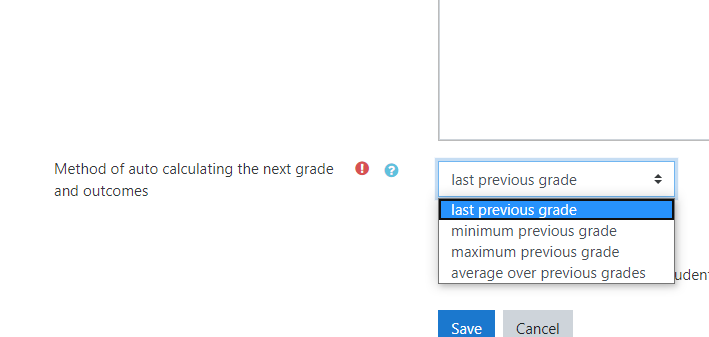
- the method of auto calculating the next grade and outcomes. So when a second grader arrives to grade, the outcomes and the grade is automatically set based on this method, they only need to change what they don't agree with:
- last previous grade: copies the data from the previous grader
- minimum previous grade: copies the minimum from all previous grades
- maximum previous grade: copies the maximum from all previous grades
- average previous grade: sets the average values from all previous grades
- blind marking: if checked, graders don't see the grades from previous graders
- show second graders notes to students: if checked students will see along with the final grade also the intermediary grades. (Every grader may choose wheter their notes are visible to students as well or only to other techers)
How it works:
- Select an assignment setup with Multiplte graders
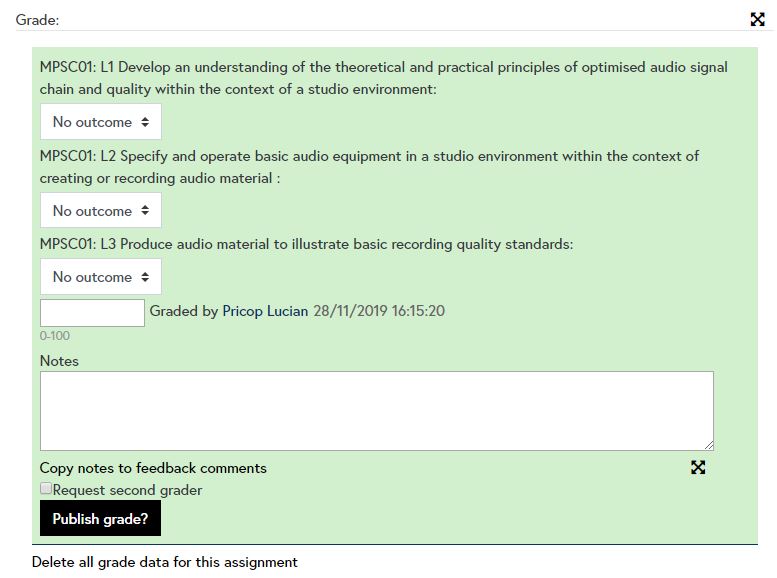
- First teacher that grades becomes "the first grader" which acts like an owner of that assignment/person grade. They are the ones to assign the final grade by checking the button/checkbox "publish grade".
- After first teach is done grading, they need to use the checkboxes to decide:
- if the notes they added should be visible to students or not
- if they want to ask for seconds graders
- if the grade is final or not
- If they requested second grading, all teachers defined as second graders will receive a moodle notifications with a link to the Assignment
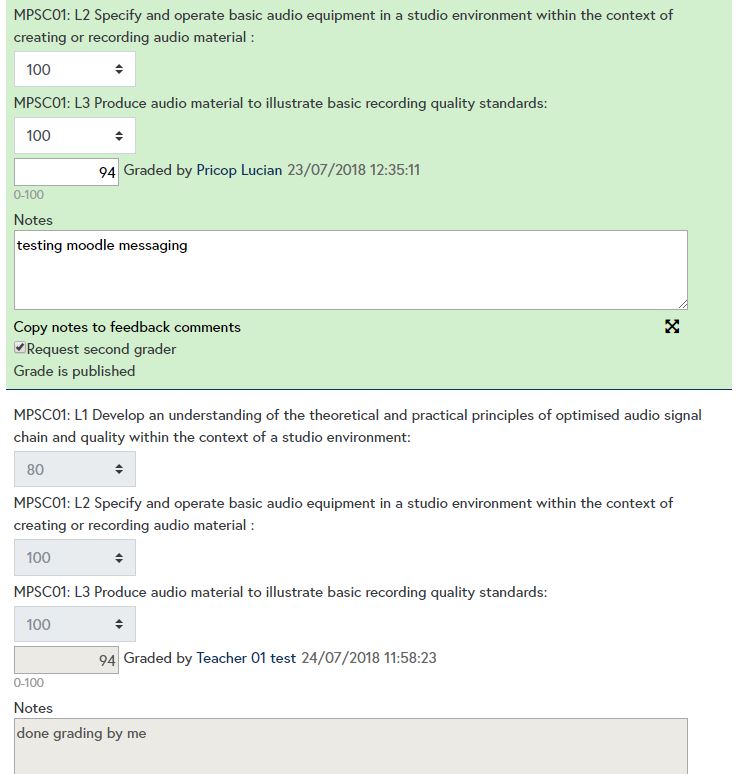
- Second graders after adding their grade and notes may choose
- if the notes they added should be visible to students or not
- if they want to ask for seconds graders - this will effectively call to a third grader
- If they requested second grading, all teachers defined as second graders will receive a moodle notifications with a link to the Assignment
- The first grader can decide at all times the final grade and to publish the grade in the gradebook.
- Any account can grade only once a certain assignment/user
Other features
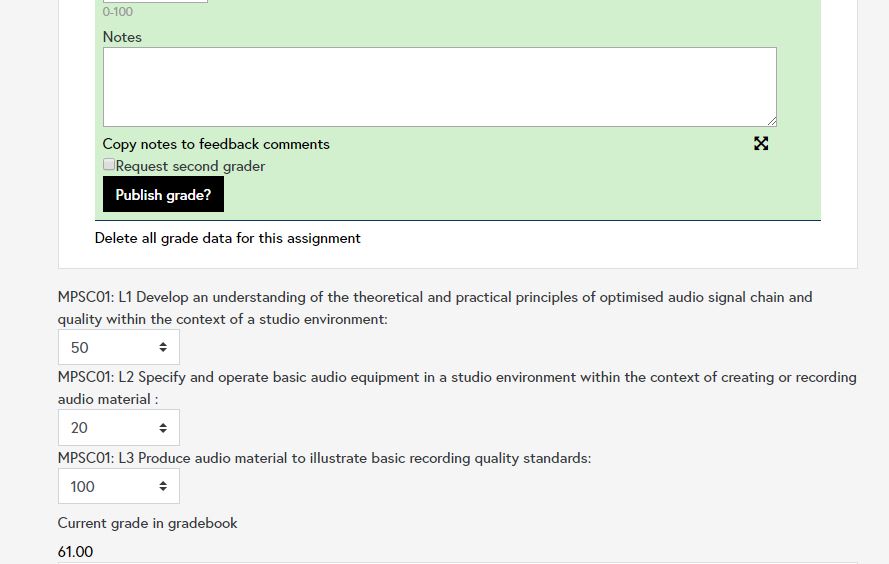
- The plugin takes care of outcomes as well and decides the grade based on the defined calculation from Gradebook setup.
The assignment and outcomes need to be under the same category, the plugin takes the formula of the category total and applies it to assignment total. - Admins may delete all data related to a grade, all comments and grades of all graders.
- If a grade is locked or overridden the plugin loses control and can't make changes; if this is the case, the plugin will notify users.
1.8 (2024052021)
1.8
Plugin type: Grading methods
Frankenstyle component name: gradingform_multigraders
Version build number: 2024052021
Version release name: 1.8
Maturity: Stable
Supported Moodle versions: 4.2
Repository URL (Git): https://github.com/newroco/moodle-multigraders
Repository branch: master
Repository tag:
Issue/bug tracker URL: https://github.com/newroco/moodle-multigraders/issues
Fixed issue #17 https://github.com/newroco/moodle-gradingform_multigraders/issues/17 - grade breakdown in view mode no longer displaying
Fixed issue #18 https://github.com/newroco/moodle-gradingform_multigraders/issues/18 - copying notes to feedback comments
Fixed issue #19 https://github.com/newroco/moodle-gradingform_multigraders/issues/19 - notification subject email contained HTML
1.7 (2024020613)
1.7
Plugin type: Grading methods
Frankenstyle component name: gradingform_multigraders
Version build number: 2024020613
Version release name: 1.7
Maturity: Stable
Supported Moodle versions: 4.2
Repository URL (Git): https://github.com/newroco/moodle-multigraders
Repository branch:
Repository tag:
Issue/bug tracker URL: https://github.com/newroco/moodle-multigraders/issues
Bug fixing various cases where the grade would not save or would not scale to a predefined scale.
1.6 (2023101003)
1.6
Plugin type: Grading methods
Frankenstyle component name: gradingform_multigraders
Version build number: 2023101003
Version release name: 1.6
Maturity: Stable
Supported Moodle versions: 4.2
Repository URL (Git): https://github.com/newroco/moodle-multigraders
Repository branch:
Repository tag:
Issue/bug tracker URL: https://github.com/newroco/moodle-multigraders/issues
Made it compatible with Moodle 4.2 . Might work with all other version of 4, but we could only test on 4.2
New features
- We added a way to publish all grades in bulk from the submissions page, there is a new bulk action at the bottom of the page "With selected..."
- Changed the grading text area to the default rich text editor used by Moodle which also offers word count
1.5 (2021051900)
1.5
Plugin type: Grading methods
Frankenstyle component name: gradingform_multigraders
Version build number: 2021051900
Version release name: 1.5
Maturity: Stable
Supported Moodle versions: 3.4, 3.6, 3.7, 3.8, 3.9
Repository URL (Git): https://github.com/newroco/moodle-multigraders
Repository branch:
Repository tag:
Issue/bug tracker URL: https://github.com/newroco/moodle-multigraders/issues
MultiGraders form written by Lucian Pricop contact@lucianpricop.com
based on Marking Guide grading form written by Dan Marsden dan@danmarsden.com
How to install:
gulp build - to prepare the distribution version then
gulp zip - to prepare the archive under dist folder.
Add the multigraders archive to install plugin section of moodle Administration or Extract the "multigraders" folder from archive into /
How to activate:
When editing the settings of an assignment, open the grade section and for "Grading method" choose "Multiple graders".
When you save the assignment settings, you will be asked to create a form definition for this assignment. If this doesn't happen, you need to create one from Administration menu
section -> Assignment administration -> Advanced grading -> Edit multiple graders options. Some other themes may display an option "Edit multiple graders options" from the cog menu of an assignment.
When defining a new form definition, you are asked for:
- a list of graders, these will be allowed to second-grade the assignment and will also receive notifications of where second grading was requested.
- grading criteria : rich text displayed at the top of the advanced grading method as a guide to teacher on how/what to grade
- the method of auto calculating the next grade and outcomes. So when a second grader arrives to grade, the outcomes and the grade is automatically set based on this method, they only need to change what they don't agree with:
- last previous grade: copies the data from the previous grader
- minimum previous grade: copies the minimum from all previous grades
- maximum previous grade: copies the maximum from all previous grades
- average previous grade: sets the average values from all previous grades
- blind marking: if checked, graders don't see the grades from previous graders
- show second graders notes to students: if checked students will see along with the final grade also the intermediary grades. (Every grader may choose wheter their notes are visible to students as well or only to other techers)
How it works:
- Select an assignment setup with Multiplte graders
- First teacher that grades becomes "the first grader" which acts like an owner of that assignment/person grade. They are the ones to assign the final grade by checking the button/checkbox "publish grade".
- After first teach is done grading, they need to use the checkboxes to decide:
- if the notes they added should be visible to students or not
- if they want to ask for seconds graders
- if the grade is final or not
- If they requested second grading, all teachers defined as second graders will receive a moodle notifications with a link to the Assignment
- Second graders after adding their grade and notes may choose
- if the notes they added should be visible to students or not
- if they want to ask for seconds graders - this will effectively call to a third grader
- If they requested second grading, all teachers defined as second graders will receive a moodle notifications with a link to the Assignment
- The first grader can decide at all times the final grade and to publish the grade in the gradebook.
- Any account can grade only once a certain assignment/user
Other features
- The plugin takes care of outcomes as well and decides the grade based on the defined calculation from Gradebook setup.
The assignment and outcomes need to be under the same category, the plugin takes the formula of the category total and applies it to assignment total. - Admins may delete all data related to a grade, all comments and grades of all graders.
- If a grade is locked or overridden the plugin loses control and can't make changes; if this is the case, the plugin will notify users.
1.5 (2021051800)
1.5
Plugin type: Grading methods
Frankenstyle component name: gradingform_multigraders
Version build number: 2021051800
Version release name: 1.5
Maturity: Stable
Supported Moodle versions: 3.4, 3.5, 3.6, 3.7, 3.8, 3.9
Repository URL (Git): https://github.com/newroco/moodle-multigraders
Repository branch:
Repository tag:
Issue/bug tracker URL: https://github.com/newroco/moodle-multigraders/issues
MultiGraders form written by Lucian Pricop contact@lucianpricop.com
based on Marking Guide grading form written by Dan Marsden dan@danmarsden.com
How to install:
gulp build - to prepare the distribution version then
gulp zip - to prepare the archive under dist folder.
Add the multigraders archive to install plugin section of moodle Administration or Extract the "multigraders" folder from archive into /
How to activate:
When editing the settings of an assignment, open the grade section and for "Grading method" choose "Multiple graders".
When you save the assignment settings, you will be asked to create a form definition for this assignment. If this doesn't happen, you need to create one from Administration menu
section -> Assignment administration -> Advanced grading -> Edit multiple graders options. Some other themes may display an option "Edit multiple graders options" from the cog menu of an assignment.
When defining a new form definition, you are asked for:
- a list of graders, these will be allowed to second-grade the assignment and will also receive notifications of where second grading was requested.
- grading criteria : rich text displayed at the top of the advanced grading method as a guide to teacher on how/what to grade
- the method of auto calculating the next grade and outcomes. So when a second grader arrives to grade, the outcomes and the grade is automatically set based on this method, they only need to change what they don't agree with:
- last previous grade: copies the data from the previous grader
- minimum previous grade: copies the minimum from all previous grades
- maximum previous grade: copies the maximum from all previous grades
- average previous grade: sets the average values from all previous grades
- blind marking: if checked, graders don't see the grades from previous graders
- show second graders notes to students: if checked students will see along with the final grade also the intermediary grades. (Every grader may choose wheter their notes are visible to students as well or only to other techers)
How it works:
- Select an assignment setup with Multiplte graders
- First teacher that grades becomes "the first grader" which acts like an owner of that assignment/person grade. They are the ones to assign the final grade by checking the button/checkbox "publish grade".
- After first teach is done grading, they need to use the checkboxes to decide:
- if the notes they added should be visible to students or not
- if they want to ask for seconds graders
- if the grade is final or not
- If they requested second grading, all teachers defined as second graders will receive a moodle notifications with a link to the Assignment
- Second graders after adding their grade and notes may choose
- if the notes they added should be visible to students or not
- if they want to ask for seconds graders - this will effectively call to a third grader
- If they requested second grading, all teachers defined as second graders will receive a moodle notifications with a link to the Assignment
- The first grader can decide at all times the final grade and to publish the grade in the gradebook.
- Any account can grade only once a certain assignment/user
Other features
- The plugin takes care of outcomes as well and decides the grade based on the defined calculation from Gradebook setup.
The assignment and outcomes need to be under the same category, the plugin takes the formula of the category total and applies it to assignment total. - Admins may delete all data related to a grade, all comments and grades of all graders.
- If a grade is locked or overridden the plugin loses control and can't make changes; if this is the case, the plugin will notify users.
1.5 (2020040100)
1.5
Plugin type: Grading methods
Frankenstyle component name: gradingform_multigraders
Version build number: 2020040100
Version release name: 1.5
Maturity: Stable
Supported Moodle versions: 3.6, 3.7, 3.8
Repository URL (Git): https://github.com/newroco/moodle-gradingform_multigraders
Repository branch:
Repository tag:
Issue/bug tracker URL: https://github.com/newroco/moodle-multigraders/issues
Fixed all issues reported to version 1.4
1.4 (2019120300)
1.4
Plugin type: Grading methods
Frankenstyle component name: gradingform_multigraders
Version build number: 2019120300
Version release name: 1.4
Maturity: Stable
Supported Moodle versions: 3.6, 3.7, 3.8
Repository URL (Git): https://github.com/newroco/moodle-multigraders
Repository branch:
Repository tag:
Issue/bug tracker URL: https://github.com/newroco/moodle-multigraders/issues
MultiGraders form written by Lucian Pricop contact@lucianpricop.com
based on Marking Guide grading form written by Dan Marsden dan@danmarsden.com
How to install:
gulp build - to prepare the distribution version then
gulp zip - to prepare the archive under dist folder.
Add the multigrades archive to install plugin section of moodle Administration or Extract the "multigraders" folder from archive into /
How to activate:
When editing the settings of an assignment, open the grade section and for "Grading method" choose "Multiple graders".
When you save the assignment settings, you will be asked to create a form definition for this assignment. If this doesn't happen, you need to create one from Administration menu
section -> Assignment administration -> Advanced grading -> Edit multiple graders options. Some other themes may display an option "Edit multiple graders options" from the cog menu of an assignment.
When defining a new form definition, you are asked for:
- a list of graders, these will be allowed to second-grade the assignment and will also receive notifications of where second grading was requested.
- grading criteria : rich text displayed at the top of the advanced grading method as a guide to teacher on how/what to grade
- the method of auto calculating the next grade and outcomes. So when a second grader arrives to grade, the outcomes and the grade is automatically set based on this method, they only need to change what they don't agree with:
- last previous grade: copies the data from the previous grader
- minimum previous grade: copies the minimum from all previous grades
- maximum previous grade: copies the maximum from all previous grades
- average previous grade: sets the average values from all previous grades
- blind marking: if checked, graders don't see the grades from previous graders
- show second graders notes to students: if checked students will see along with the final grade also the intermediary grades. (Every grader may choose wheter their notes are visible to students as well or only to other techers)
How it works:
- Select an assignment setup with Multiplte graders
- First teacher that grades becomes "the first grader" which acts like an owner of that assignment/person grade. They are the ones to assign the final grade by checking the button/checkbox "publish grade".
- After first teach is done grading, they need to use the checkboxes to decide:
- if the notes they added should be visible to students or not
- if they want to ask for seconds graders
- if the grade is final or not
- If they requested second grading, all teachers defined as second graders will receive a moodle notifications with a link to the Assignment
- Second graders after adding their grade and notes may choose
- if the notes they added should be visible to students or not
- if they want to ask for seconds graders - this will effectively call to a third grader
- If they requested second grading, all teachers defined as second graders will receive a moodle notifications with a link to the Assignment
- The first grader can decide at all times the final grade and to publish the grade in the gradebook.
- Any account can grade only once a certain assignment/user
Other features
- The plugin takes care of outcomes as well and decides the grade based on the defined calculation from Gradebook setup.
The assignment and outcomes need to be under the same category, the plugin takes the formula of the category total and applies it to assignment total. - Admins may delete all data related to a grade, all comments and grades of all graders.
- If a grade is locked or overridden the plugin loses control and can't make changes; if this is the case, the plugin will notify users.
1.4 (2019112804)
1.4
Plugin type: Grading methods
Frankenstyle component name: gradingform_multigraders
Version build number: 2019112804
Version release name: 1.4
Maturity: Stable
Supported Moodle versions: 3.6, 3.7, 3.8
Repository URL (Git): https://github.com/newroco/moodle-multigraders
Repository branch:
Repository tag:
Issue/bug tracker URL: https://github.com/newroco/moodle-multigraders/issues
MultiGraders form written by Lucian Pricop contact@lucianpricop.com
based on Marking Guide grading form written by Dan Marsden dan@danmarsden.com
How to install:
Add the multigrades archive to install plugin section of moodle Administration or Extract the "multigraders" folder from archive into /
How to activate:
When editing the settings of an assignment, open the grade section and for "Grading method" choose "Multiple graders".
When you save the assignment settings, you will be asked to create a form definition for this assignment. If this doesn't happen, you need to create one from Administration menu
section -> Assignment administration -> Advanced grading -> Edit multiple graders options. Some other themes may display an option "Edit multiple graders options" from the cog menu of an assignment.
When defining a new form definition, you are asked for:
- a list of graders, these will be allowed to second-grade the assignment and will also receive notifications of where second grading was requested.
- grading criteria : rich text displayed at the top of the advanced grading method as a guide to teacher on how/what to grade
- the method of auto calculating the next grade and outcomes. So when a second grader arrives to grade, the outcomes and the grade is automatically set based on this method, they only need to change what they don't agree with:
- last previous grade: copies the data from the previous grader
- minimum previous grade: copies the minimum from all previous grades
- maximum previous grade: copies the maximum from all previous grades
- average previous grade: sets the average values from all previous grades
- blind marking: if checked, graders don't see the grades from previous graders
- show second graders notes to students: if checked students will see along with the final grade also the intermediary grades. (Every grader may choose wheter their notes are visible to students as well or only to other techers)
How it works:
- Select an assignment setup with Multiplte graders
- First teacher that grades becomes "the first grader" which acts like an owner of that assignment/person grade. They are the ones to assign the final grade by checking the button/checkbox "publish grade".
- After first teach is done grading, they need to use the checkboxes to decide:
- if the notes they added should be visible to students or not
- if they want to ask for seconds graders
- if the grade is final or not
- If they requested second grading, all teachers defined as second graders will receive a moodle notifications with a link to the Assignment
- Second graders after adding their grade and notes may choose
- if the notes they added should be visible to students or not
- if they want to ask for seconds graders - this will effectively call to a third grader
- If they requested second grading, all teachers defined as second graders will receive a moodle notifications with a link to the Assignment
- The first grader can decide at all times the final grade and to publish the grade in the gradebook.
- Any account can grade only once a certain assignment/user
Other features
- The plugin takes care of outcomes as well and decides the grade based on the defined calculation from Gradebook setup.
The assignment and outcomes need to be under the same category, the plugin takes the formula of the category total and applies it to assignment total. - Admins may delete all data related to a grade, all comments and grades of all graders.
- If a grade is locked or overridden the plugin loses control and can't make changes; if this is the case, the plugin will notify users.
1.4 (2019071900)
1.4
Plugin type: Grading methods
Frankenstyle component name: gradingform_multigraders
Version build number: 2019071900
Version release name: 1.4
Maturity: Stable
Supported Moodle versions: 3.4, 3.5, 3.6, 3.7
Repository URL (Git): https://github.com/newroco/moodle-multigraders
Repository branch: master
Repository tag:
Issue/bug tracker URL: https://github.com/newroco/moodle-multigraders/issues
MultiGraders form written by Lucian Pricop contact@lucianpricop.com
based on Marking Guide grading form written by Dan Marsden dan@danmarsden.com
How to install:
Add the multigrades archive to install plugin section of moodle Administration or Extract the "multigraders" folder from archive into /
How to activate:
When editing the settings of an assignment, open the grade section and for "Grading method" choose "Multiple graders".
When you save the assignment settings, you will be asked to create a form definition for this assignment. If this doesn't happen, you need to create one from Administration menu
section -> Assignment administration -> Advanced grading -> Edit multiple graders options. Some other themes may display an option "Edit multiple graders options" from the cog menu of an assignment.
When defining a new form definition, you are asked for:
- a list of graders, these will be allowed to second-grade the assignment and will also receive notifications of where second grading was requested.
- grading criteria : rich text displayed at the top of the advanced grading method as a guide to teacher on how/what to grade
- the method of auto calculating the next grade and outcomes. So when a second grader arrives to grade, the outcomes and the grade is automatically set based on this method, they only need to change what they don't agree with:
- last previous grade: copies the data from the previous grader
- minimum previous grade: copies the minimum from all previous grades
- maximum previous grade: copies the maximum from all previous grades
- average previous grade: sets the average values from all previous grades
- blind marking: if checked, graders don't see the grades from previous graders
- show second graders notes to students: if checked students will see along with the final grade also the intermediary grades. (Every grader may choose wheter their notes are visible to students as well or only to other techers)
How it works:
- Select an assignment setup with Multiplte graders
- First teacher that grades becomes "the first grader" which acts like an owner of that assignment/person grade. They are the ones to assign the final grade by checking the button/checkbox "publish grade".
- After first teach is done grading, they need to use the checkboxes to decide:
- if the notes they added should be visible to students or not
- if they want to ask for seconds graders
- if the grade is final or not
- If they requested second grading, all teachers defined as second graders will receive a moodle notifications with a link to the Assignment
- Second graders after adding their grade and notes may choose
- if the notes they added should be visible to students or not
- if they want to ask for seconds graders - this will effectively call to a third grader
- If they requested second grading, all teachers defined as second graders will receive a moodle notifications with a link to the Assignment
- The first grader can decide at all times the final grade and to publish the grade in the gradebook.
- Any account can grade only once a certain assignment/user
Other features
- The plugin takes care of outcomes as well and decides the grade based on the defined calculation from Gradebook setup.
The assignment and outcomes need to be under the same category, the plugin takes the formula of the category total and applies it to assignment total. - Admins may delete all data related to a grade, all comments and grades of all graders.
- If a grade is locked or overridden the plugin loses control and can't make changes; if this is the case, the plugin will notify users.