
GO1 Content
Versions
Current version
v3.0 (2024042900)
v3.0
Plugin type: Activities
Frankenstyle component name: mod_goone
Version build number: 2024042900
Version release name: v3.0
Maturity: Stable
Supported Moodle versions: 4.1, 4.2, 4.3
Repository URL (Git): https://github.com/go1com/moodle-mod_goone
Repository branch:
Repository tag:
Issue/bug tracker URL: https://github.com/go1com/moodle-mod_goone/issues
Go1 Module
Go1 is a content company and as such they provide a content library of learning
resources that, with help from this plugin, can be added to any new or existing
Moodle course to suit your training needs. Go1 provides interactive content,
videos, documents and full-length, multi-component courses. Topics covered by
Go1 include professional development, compliance, soft skills and more.
This plugin allows Go1 content to be accessed directly in a Moodle instance.
Requirements
- A Moodle derived LMS (for example Open LMS).
How to install
The name of the directory that contains the files from this plugin should be
called 'goone' (rename it if necessary). This directory must be placed directly
under the 'mod' directory from your Moodle derived LMS, so a possible path
would be 'moodle/mod/goone/'.
Next, go to your Moodle derived LMS website and login as an admin user. It
should automatically prompt you to install the Go1 plugin. Follow the steps
presented by the website.
How it works
The Go1 plugin has several useful features, such as the following:
- Connection between your LMS and your Go1 account.
- Access to a large eLearning library, with courses for compliance,
professional development, personal growth, and more. The specific courses
available to you depend on your Go1 account. - Go1 courses can be added as Activity Modules into Courses in your LMS, so
they can be treated as regular Activity Modules (for example they can have
completion tracking, they can be graded, etcetera). - You can configure the set of admin users that can change the Go1 settings.
How to Use it
You will need to connect your Go1 account to Moodle from the Go1 plugin
administration settings page, so you should already have a Go1 account.
Configuration
In the Go1 settings page (which can be accessed by following the breadcrumb
'Home -> Site administration -> GO1'), click on the 'Retrieve GO1 credentials'
button, and follow the instructions to obtain the Client ID and the Client
secret to link your Go1 account to your LMS. Ultimately you must copy the
Client ID and the Client secret in their respective fields of the Go1 settings
page, and then click on 'Save changes'.
Basic usage
Follow these steps to create a Go1 Activity Module.
- Login as an editing teacher (or any user with a role that can create
Activity Modules, such as an admin). - Go to the course where you will create the Go1 Activity Module (or create
the course if it does not exist). Then go to the section where you want to
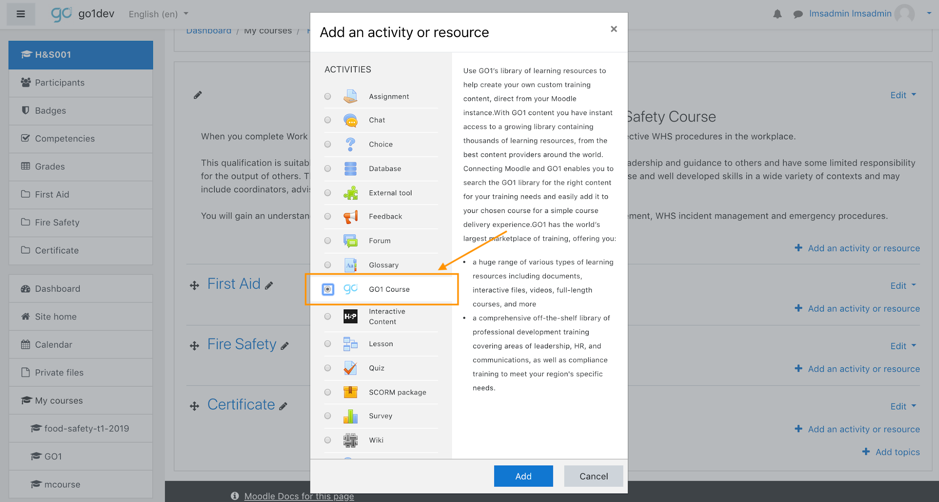
create the Go1 Activity Module. - Create a new Activity Module (this step depends on the theme of your LMS,
like Snap or Boost). - Select 'GO1 content item' from the list of Activity Modules.
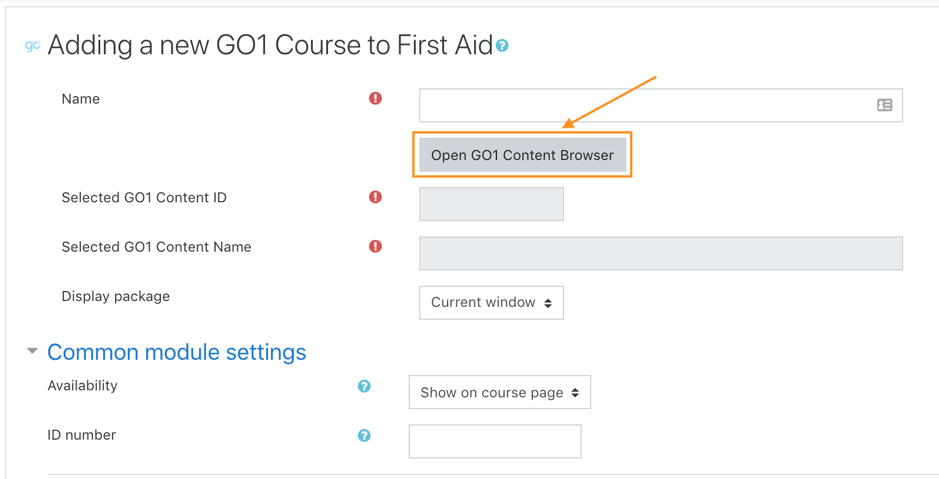
- Input the fields to fill in the form. To choose a specific Go1 course,
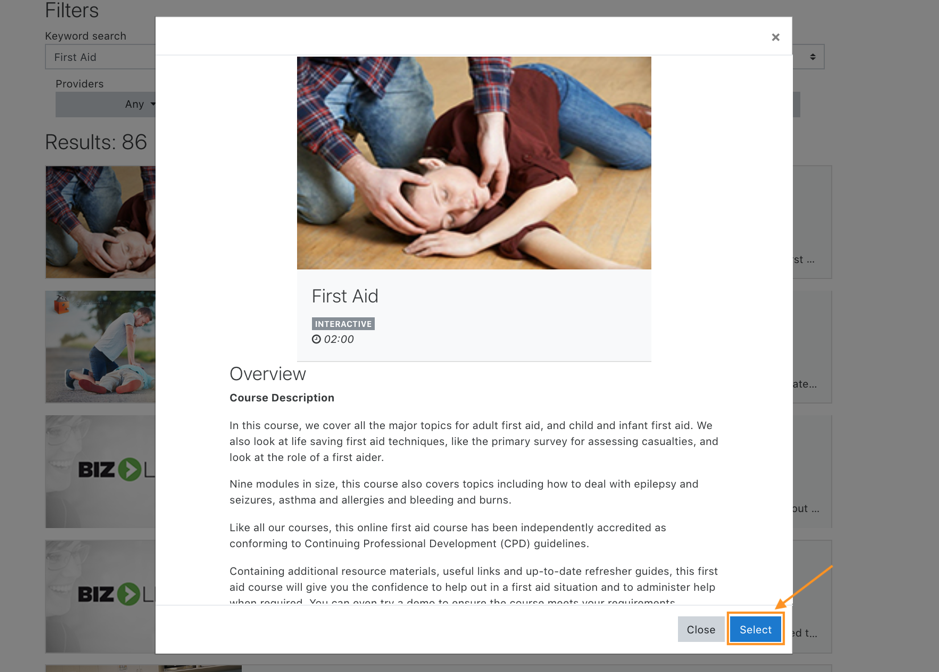
click on 'Open GO1 Content Browser', this will open a new window where you
can browse Go1 courses. Select the course of your choosing. - When you are done, click on 'Save and return to course'.
Follow these steps to use a Go1 Activity Module.
- Go to the course and section where you have created the Go1 Activity
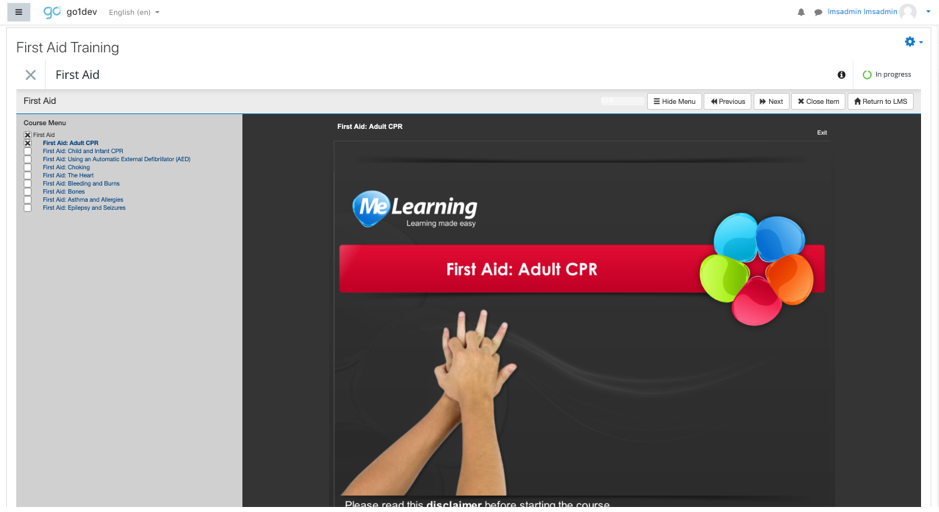
Module. - Click on the Go1 Activity Module name to access to it.
- Use the activity like a regular activity (start it, study it, complete
it, exit from it, etcetera).
Flags
The mod_goone_admin_users flag
The purpose of this flag is to determine the set of admin users that will be
capable of accessing and setting the Go1 settings.
This flag is set as an array:
$CFG->mod_goone_admin_users = ['admin1', 'admin2'];means that only the
admins 'admin1' and 'admin2' will be capable of changing the Go1 settings.
The rest of the users can only read the Client ID and the Client secret from
Go1 when accessing the Go1 settings. Not setting this flag has the opposite
effect of allowing any admin user to change the Go1 settings.
License
Copyright (c) 2021 Open LMS (https://www.openlms.net)
This plugin was developed by eCreators PTY (https://ecreators.com.au/) and
Open LMS for Go1.com (https://go1.com/).
This program is free software: you can redistribute it and/or modify it under
the terms of the GNU General Public License as published by the Free Software
Foundation, either version 3 of the License, or (at your option) any later
version.
This program is distributed in the hope that it will be useful, but WITHOUT ANY
WARRANTY; without even the implied warranty of MERCHANTABILITY or FITNESS FOR A
PARTICULAR PURPOSE. See the GNU General Public License for more details.
You should have received a copy of the GNU General Public License along with
this program. If not, see http://www.gnu.org/licenses/.
v2.0 (2022111704)
v2.0
Plugin type: Activities
Frankenstyle component name: mod_goone
Version build number: 2022111704
Version release name: v2.0
Maturity: Stable
Supported Moodle versions: 3.10, 3.11, 3.9, 4.0, 4.1
Repository URL (Git): https://github.com/go1com/moodle-mod_goone
Repository branch:
Repository tag:
Issue/bug tracker URL: https://github.com/go1com/moodle-mod_goone/issues
Go1 Module
Go1 is a content company and as such they provide a content library of learning
resources that, with help from this plugin, can be added to any new or existing
Moodle course to suit your training needs. Go1 provides interactive content,
videos, documents and full-length, multi-component courses. Topics covered by
Go1 include professional development, compliance, soft skills and more.
This plugin allows Go1 content to be accessed directly in a Moodle instance.
Requirements
- A Moodle derived LMS (for example Open LMS).
How to install
The name of the directory that contains the files from this plugin should be
called 'goone' (rename it if necessary). This directory must be placed directly
under the 'mod' directory from your Moodle derived LMS, so a possible path
would be 'moodle/mod/goone/'.
Next, go to your Moodle derived LMS website and login as an admin user. It
should automatically prompt you to install the Go1 plugin. Follow the steps
presented by the website.
How it works
The Go1 plugin has several useful features, such as the following:
- Connection between your LMS and your Go1 account.
- Access to a large eLearning library, with courses for compliance,
professional development, personal growth, and more. The specific courses
available to you depend on your Go1 account. - Go1 courses can be added as Activity Modules into Courses in your LMS, so
they can be treated as regular Activity Modules (for example they can have
completion tracking, they can be graded, etcetera). - You can configure the set of admin users that can change the Go1 settings.
How to Use it
You will need to connect your Go1 account to Moodle from the Go1 plugin
administration settings page, so you should already have a Go1 account.
Configuration
In the Go1 settings page (which can be accessed by following the breadcrumb
'Home -> Site administration -> GO1'), click on the 'Retrieve GO1 credentials'
button, and follow the instructions to obtain the Client ID and the Client
secret to link your Go1 account to your LMS. Ultimately you must copy the
Client ID and the Client secret in their respective fields of the Go1 settings
page, and then click on 'Save changes'.
Basic usage
Follow these steps to create a Go1 Activity Module.
- Login as an editing teacher (or any user with a role that can create
Activity Modules, such as an admin). - Go to the course where you will create the Go1 Activity Module (or create
the course if it does not exist). Then go to the section where you want to
create the Go1 Activity Module. - Create a new Activity Module (this step depends on the theme of your LMS,
like Snap or Boost). - Select 'GO1 content item' from the list of Activity Modules.
- Input the fields to fill in the form. To choose a specific Go1 course,
click on 'Open GO1 Content Browser', this will open a new window where you
can browse Go1 courses. Select the course of your choosing. - When you are done, click on 'Save and return to course'.
Follow these steps to use a Go1 Activity Module.
- Go to the course and section where you have created the Go1 Activity
Module. - Click on the Go1 Activity Module name to access to it.
- Use the activity like a regular activity (start it, study it, complete
it, exit from it, etcetera).
Flags
The mod_goone_admin_users flag
The purpose of this flag is to determine the set of admin users that will be
capable of accessing and setting the Go1 settings.
This flag is set as an array:
$CFG->mod_goone_admin_users = ['admin1', 'admin2'];means that only the
admins 'admin1' and 'admin2' will be capable of changing the Go1 settings.
The rest of the users can only read the Client ID and the Client secret from
Go1 when accessing the Go1 settings. Not setting this flag has the opposite
effect of allowing any admin user to change the Go1 settings.
License
Copyright (c) 2021 Open LMS (https://www.openlms.net)
This plugin was developed by eCreators PTY (https://ecreators.com.au/) and
Open LMS for Go1.com (https://go1.com/).
This program is free software: you can redistribute it and/or modify it under
the terms of the GNU General Public License as published by the Free Software
Foundation, either version 3 of the License, or (at your option) any later
version.
This program is distributed in the hope that it will be useful, but WITHOUT ANY
WARRANTY; without even the implied warranty of MERCHANTABILITY or FITNESS FOR A
PARTICULAR PURPOSE. See the GNU General Public License for more details.
You should have received a copy of the GNU General Public License along with
this program. If not, see http://www.gnu.org/licenses/.
v2.0 (2022111703)
v2.0
Plugin type: Activities
Frankenstyle component name: mod_goone
Version build number: 2022111703
Version release name: v2.0
Maturity: Beta
Supported Moodle versions: 3.10, 3.11, 3.9, 4.0
Repository URL (Git): https://github.com/go1com/moodle-mod_goone
Repository branch:
Repository tag:
Issue/bug tracker URL: https://github.com/go1com/moodle-mod_goone/issues
Go1 Module
Go1 is a content company and as such they provide a content library of learning
resources that, with help from this plugin, can be added to any new or existing
Moodle course to suit your training needs. Go1 provides interactive content,
videos, documents and full-length, multi-component courses. Topics covered by
Go1 include professional development, compliance, soft skills and more.
This plugin allows Go1 content to be accessed directly in a Moodle instance.
Requirements
- A Moodle derived LMS (for example Open LMS).
Changes in V2
Import Content from Go1 in bulk
- Administrators can now import content from Go1 in bulk
- Multiple Go1 content items can now be imported into Moodle as a single new Moodle course, added to an existing Moodle course, or, as a new Moodle course for each item selected (1:1)
Capture Completions via Go1 using Webhooks, so you never miss a learner's Completions
- The plugin can now capture completions for Go1 content providers with asynchronous completion verifications
- Completions via SCORM that are missed (due to network issues, etc.) will also be captured via webhooks and updated in Moodle
How to Use it
No existing workflows have been altered; the below indicates introduced workflows.
Importing Go1 Content
- From the Plugin Administration page, select Create Activities
- This will open a new tab and display the bulk import screen
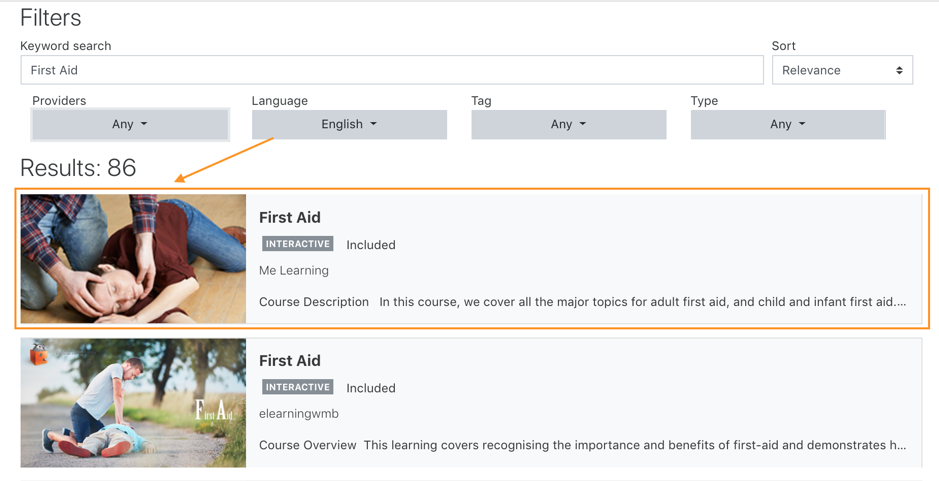
- You can now search for and filter content using the same filters available in Go1’s LMS within Moodle.
Create a Moodle course using multiple pieces of Go1 content
- Search for and select content using the provided search bar and filters.
- Once content is selected, click the Add dropdown and select Create New Courses.
- From the newly opened window, select Single Course.
- Give the new Moodle course a name, and then select Save.
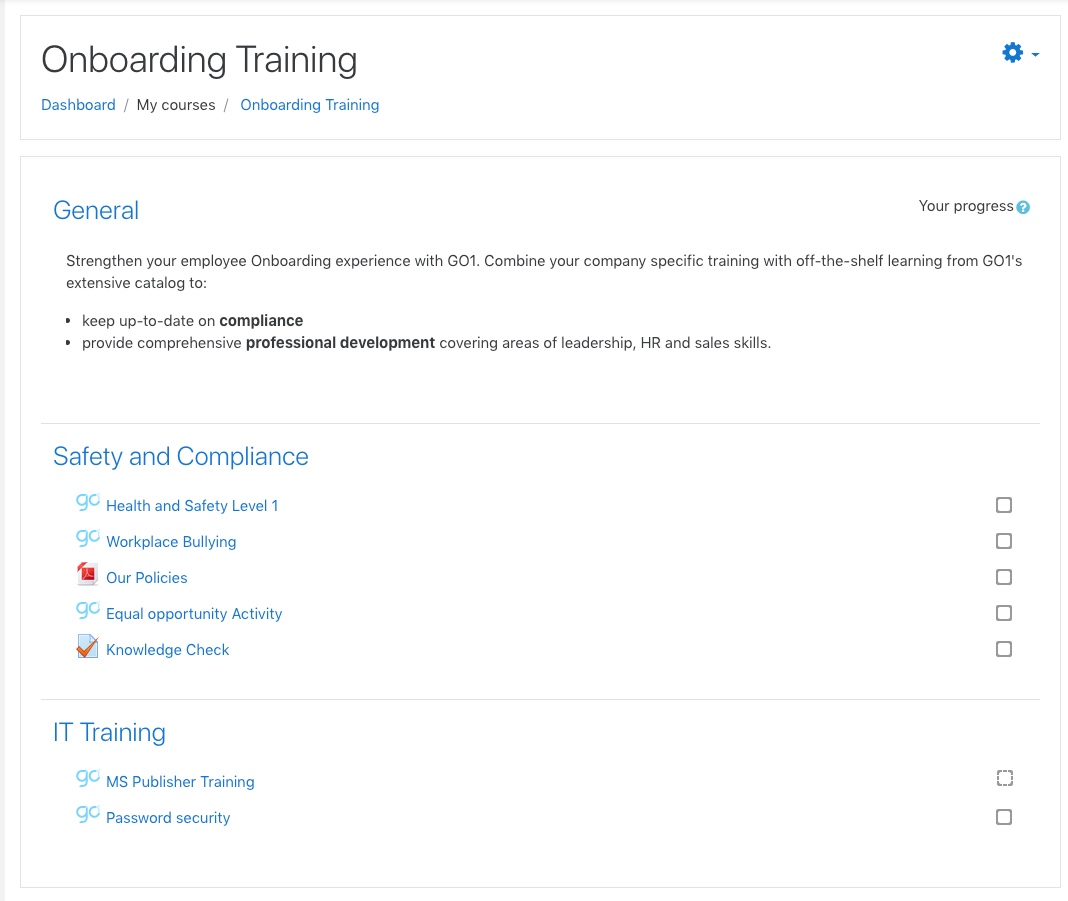
- Once the course is created, you can click on the course name to view the course, and the Edit text next to the course name to edit the newly created course.
Bulk import selected Go1 content as standalone Moodle courses
- Search for and select content using the provided search bar and filters.
- Once the content is selected, click the Add dropdown and select Create New Courses.
- From the newly opened window, select Course per item.
- Give the new Moodle course a name, and then select Save. This will create a new Moodle course with the Go1 content as a single activity, for each Go1 content item selected. Go1 content metadata will also be prefilled on the newly created courses, so they are ready for immediate consumption in Moodle.
- Once the courses are created, you can click on the course name to view the course, and the Edit text next to the course name to edit the newly created course.
Add Go1 content to an existing Moodle course
- Search for and select content using the provided search bar and filters.
- Once content is selected, click the Add dropdown and select Add to existing Course.
- From the newly opened window, type the course name into the search box and then select Search.
- Select the matching Moodle course
- Select the Course Topic/Section to add the selected Go1 content as a Moodle Activity.
- Select Save to add the Go1 content to the Moodle course.
- Once the content is added, you can click on the course name to view the course, and the Edit text next to the course name to edit the course.
Completion Webhooks
How it works
When a learner completes Go1 content via SCORM, SCORM will send back to the LMS (Moodle) the learner's completion result.
Sometimes, a course can be considered Completed in Go1, but not have that passed through to the LMS (due to issues such as internet connectivity, which SCORM is dependent upon).
This causes the two systems to be out of sync with each other and results in Moodle learners wondering why their Go1 course is not showing as Completed in Moodle.
Additionally, certain Go1 content providers verify course completions with Go1 daily - which won’t be captured via SCORM and won’t be reflected in Moodle.
To address this, the Plugin leverages webhooks to capture completion activity from Go1 and reconcile that activity in Moodle, so that when a course is marked as Completed in Go1, Moodle is alerted, and the plugin checks to see if that completion for the course is also showing for the corresponding learner.
If it isn’t showing as complete in Moodle, the plugin it will mark it as complete.
When identifying the matching Go1 user in Moodle, the plugin will attempt to find a matching Moodle user
- First, using the user email (passed during Go1 SCORM initialisation) from Go1,
- If no match is found, it will then attempt to use the first name and last name from the Go1 user (passed during Go1 SCORM initialisation) to find the Moodle user,
- If no matching user is found after this step, a log will be recorded in the Webhook Logs tool.
Setup
In the plugin administration screen, select Create Webhook. The plugin will provision a Go1 webhook and complete the required webhook setup with Moodle.
This will populate the Webhook Secret field below, and begin capturing webhook logs for troubleshooting purposes.
Viewing webhook logs
The webhook log error events the plugin receives (provided the webhook has been configured) are viewable in Moodle by navigating to the Go1 plugin administration screen and selecting View Webhook logs.
Logs will appear here when Moodle is unable to identify the learner from the Go1 enrolment.
Troubleshooting webhook logs
The webhook logs received should indicate the problem in the message event data.
If you are unable to determine the underlying cause, please reach out to Go1 support.
FAQ
What happens if the learner has been enrolled in the same Go1 content multiple times in Moodle and a completion is captured via the Webhook?
Moodle will mark the course as complete for all occurrences of the content for that learner. This lines up with the behaviour in Go1.
Is this compatible with Moodle Workplace?
The plugin was built with Moodle LMS 4.0 compatibility in mind, which is what Moodle Workplace is built upon.
The plugin is not working with (3rd party plugin name)?
The plugin was built to be compatible with Moodle 3.9 and higher - no guarantee is in place for compatibility with other plugins.
The webhook logs in the logging tool don’t show any logs?
The webhook logs logger only captures errors - which means that learning activity is being identified and reconciled in Moodle. If you believe this is not the case, please raise a support ticket with your Go1 contact or Go1 support.
How is the plugin identifying users in Moodle?
The plugin will fetch user details from Go1, which will consist of a user email, first name and last name. This will then be used to look up tables in Moodle for the matching user.
It will attempt to match a user
- first, using the
user email, if no match is found, - it will then attempt using the
first nameandlast nameto find the Moodle user. - if no matching user is found, a log will be recorded in the Webhook Logs tool.
How is the plugin identifying an imported Go1 course to update a learner's progress on a course to 'Completed'?
When Go1 SCORM is imported as an activity in Moodle, the Go1 course id for that activity is captured in a Moodle table. When a completion event is received via the webhook, the plugin will first search for a user in Moodle, and if a matching user is found, it will look for an activity progress in Moodle for that matching user and the matching Go1 course.
If the activity is
- in a
completedstate, the process ends. not startedorin progress, the plugin updates the activity progress to becompleted- not found, a log is captured in the Webhook Logs tool
How can I enable certain users to import content using the Plugin?
The plugin adds a new user capability mod/goone:viewbulkcontent - which can be used to access the bulk import screen ( which can be shared with the following URL {{yourMoodleSite}}/mod/goone/bulk.php )
Ensure your administrator users have this capability added to their users in Moodle.
What is the default course template the plugin uses to create a course?
The plugin references the course default settings - the ‘Topics’ type is the recommended course type to use with the plugin.
No Go1 interactions appear to be working?
Ensure that you have the php extension curl installed and enabled - this is required to enable API interactions with Go1.
Additionally, if the issue is with content not playing, please review our Whitelisting requirements below.
I have whitelisting requirements, what is the IP range that Go1 webhooks will use?
Go1 Whitelisting requirements for Go1 content can be found here
The Go1 Platform is using the IP range 20.188.251.48/28 (Australia East) and 13.67.161.224/28 (Central US) for traffic from its Web/API fleet. This whole range is solely allocated to Go1. You can expect connections from webhooks to come from those IPs and allow them.
How to install
The name of the directory that contains the files from this plugin should be
called 'goone' (rename it if necessary). This directory must be placed directly
under the 'mod' directory from your Moodle derived LMS, so a possible path
would be 'moodle/mod/goone/'.
Next, go to your Moodle derived LMS website and login as an admin user. It
should automatically prompt you to install the Go1 plugin. Follow the steps
presented by the website.
Configuration
In the Go1 settings page (which can be accessed by following the breadcrumb
'Home -> Site administration -> GO1'), click on the 'Retrieve GO1 credentials'
button, and follow the instructions to obtain the Client ID and the Client
secret to link your Go1 account to your LMS. Ultimately you must copy the
Client ID and the Client secret in their respective fields of the Go1 settings
page, and then click on 'Save changes'.
Once the connection with Go1 is established, you have the choice of enabling the webhook tooling.
To do so, simply click the Create Webhook button.
This will automatically create the webhook, populate the webhook secret, and open a confirmation screen.
Once confirmed, you can close the confirmation screen, and you're good to go!
Flags
The mod_goone_admin_users flag
The purpose of this flag is to determine the set of admin users that will be
capable of accessing and setting the Go1 settings.
This flag is set as an array:
$CFG->mod_goone_admin_users = ['admin1', 'admin2'];means that only the
admins 'admin1' and 'admin2' will be capable of changing the Go1 settings.
The rest of the users can only read the Client ID and the Client secret from
Go1 when accessing the Go1 settings. Not setting this flag has the opposite
effect of allowing any admin user to change the Go1 settings.
Support
Reach out to the Go1 support team here
License
Copyright (c) 2021 Open LMS (https://www.openlms.net)
This plugin was developed by eCreators PTY (https://ecreators.com.au/) and
Open LMS for Go1.com (https://go1.com/).
This program is free software: you can redistribute it and/or modify it under
the terms of the GNU General Public License as published by the Free Software
Foundation, either version 3 of the License, or (at your option) any later
version.
This program is distributed in the hope that it will be useful, but WITHOUT ANY
WARRANTY; without even the implied warranty of MERCHANTABILITY or FITNESS FOR A
PARTICULAR PURPOSE. See the GNU General Public License for more details.
You should have received a copy of the GNU General Public License along with
this program. If not, see .
v1.0 (2019091800)
v1.0
Plugin type: Activities
Frankenstyle component name: mod_goone
Version build number: 2019091800
Version release name: v1.0
Maturity: Stable
Supported Moodle versions: 3.1, 3.2, 3.3, 3.4, 3.5, 3.6, 3.7, 3.8
Repository URL (Git): https://github.com/go1com/moodle-mod_goone
Repository branch:
Repository tag:
Issue/bug tracker URL: https://github.com/go1com/moodle-mod_goone/issues
Intro
GO1 provides a content library of learning resources that can be added to any new or existing Moodle course to suit your training needs. GO1 provides interactive content, videos, documents and full-length, multi-component courses. Topics covered by GO1 include professional development, compliance, soft skills and more.
This plugin allows GO1 content to be accessed directly in Moodle.
Setup
You will need to connect your GO1 account to Moodle from the GO1 plugin administration settings page.
If you don't already have a GO1 account you can create one during the connection process.
Changelog
v1.0
- Initial release
This plugin was developed by eCreators PTY for GO1.com

