
VPL Question
Versions
Current version
3.5.2 for Moodle 3.11, 4.0, 4.1 (2026061700)
3.5.2 for Moodle 3.11, 4.0, 4.1
Plugin type: Question types
Frankenstyle component name: qtype_vplquestion
Version build number: 2026061700
Version release name: 3.5.2 for Moodle 3.11, 4.0, 4.1
Maturity: Stable
Supported Moodle versions: 3.11, 4.0, 4.1
Repository URL (Git): https://gricad-gitlab.univ-grenoble-alpes.fr/moodle-plugins/moodle-qtype_vplquestion
Repository branch: MOODLE_41_STABLE
Repository tag:
Issue/bug tracker URL: https://gricad-gitlab.univ-grenoble-alpes.fr/moodle-plugins/moodle-qtype_vplquestion/-/issues
Update 3.5.2
A few improvements for compatibility with the latest VPL versions!
3.5.2 for Moodle 4.2 (2026061701)
3.5.2 for Moodle 4.2
Plugin type: Question types
Frankenstyle component name: qtype_vplquestion
Version build number: 2026061701
Version release name: 3.5.2 for Moodle 4.2
Maturity: Stable
Supported Moodle versions: 4.2
Repository URL (Git): https://gricad-gitlab.univ-grenoble-alpes.fr/moodle-plugins/moodle-qtype_vplquestion
Repository branch: MOODLE_42_STABLE
Repository tag:
Issue/bug tracker URL: https://gricad-gitlab.univ-grenoble-alpes.fr/moodle-plugins/moodle-qtype_vplquestion/-/issues
Update 3.5.2
A few improvements for compatibility with the latest VPL versions!
3.5.2 for Moodle 4.3+ (2026061702)
3.5.2 for Moodle 4.3+
Plugin type: Question types
Frankenstyle component name: qtype_vplquestion
Version build number: 2026061702
Version release name: 3.5.2 for Moodle 4.3+
Maturity: Stable
Supported Moodle versions: 4.3, 4.4, 4.5, 5.0, 5.1, 5.2
Repository URL (Git): https://gricad-gitlab.univ-grenoble-alpes.fr/moodle-plugins/moodle-qtype_vplquestion
Repository branch: MOODLE_43+_STABLE
Repository tag:
Issue/bug tracker URL: https://gricad-gitlab.univ-grenoble-alpes.fr/moodle-plugins/moodle-qtype_vplquestion/-/issues
Update 3.5.2
A few improvements for compatibility with the latest VPL versions!
3.5.1 for Moodle 4.3+ (2026061502)
3.5.1 for Moodle 4.3+
Plugin type: Question types
Frankenstyle component name: qtype_vplquestion
Version build number: 2026061502
Version release name: 3.5.1 for Moodle 4.3+
Maturity: Stable
Supported Moodle versions: 4.3, 4.4, 4.5, 5.0, 5.1, 5.2
Repository URL (Git): https://gricad-gitlab.univ-grenoble-alpes.fr/moodle-plugins/moodle-qtype_vplquestion
Repository branch: MOODLE_43+_STABLE
Repository tag:
Issue/bug tracker URL: https://gricad-gitlab.univ-grenoble-alpes.fr/moodle-plugins/moodle-qtype_vplquestion/-/issues
Update 3.5.1
Fixed a bug when manually grading several instances of the same question.
3.5.1 for Moodle 4.2 (2026061501)
3.5.1 for Moodle 4.2
Plugin type: Question types
Frankenstyle component name: qtype_vplquestion
Version build number: 2026061501
Version release name: 3.5.1 for Moodle 4.2
Maturity: Stable
Supported Moodle versions: 4.2
Repository URL (Git): https://gricad-gitlab.univ-grenoble-alpes.fr/moodle-plugins/moodle-qtype_vplquestion
Repository branch: MOODLE_42_STABLE
Repository tag:
Issue/bug tracker URL: https://gricad-gitlab.univ-grenoble-alpes.fr/moodle-plugins/moodle-qtype_vplquestion/-/issues
Update 3.5.1
Fixed a bug when manually grading several instances of the same question.
3.5.1 for Moodle 3.11, 4.0, 4.1 (2026061500)
3.5.1 for Moodle 3.11, 4.0, 4.1
Plugin type: Question types
Frankenstyle component name: qtype_vplquestion
Version build number: 2026061500
Version release name: 3.5.1 for Moodle 3.11, 4.0, 4.1
Maturity: Stable
Supported Moodle versions: 3.11, 4.0, 4.1
Repository URL (Git): https://gricad-gitlab.univ-grenoble-alpes.fr/moodle-plugins/moodle-qtype_vplquestion
Repository branch: MOODLE_41_STABLE
Repository tag:
Issue/bug tracker URL: https://gricad-gitlab.univ-grenoble-alpes.fr/moodle-plugins/moodle-qtype_vplquestion/-/issues
Update 3.5.1
Fixed a bug when manually grading several instances of the same question.
3.5.0 for Moodle 4.3+ (2026052102)
3.5.0 for Moodle 4.3+
Plugin type: Question types
Frankenstyle component name: qtype_vplquestion
Version build number: 2026052102
Version release name: 3.5.0 for Moodle 4.3+
Maturity: Stable
Supported Moodle versions: 4.3, 4.4, 4.5, 5.0, 5.1, 5.2
Repository URL (Git): https://gricad-gitlab.univ-grenoble-alpes.fr/moodle-plugins/moodle-qtype_vplquestion
Repository branch: MOODLE_43+_STABLE
Repository tag:
Issue/bug tracker URL: https://gricad-gitlab.univ-grenoble-alpes.fr/moodle-plugins/moodle-qtype_vplquestion/-/issues
Update 3.5.0
- Terminal is now resizable!
- Added an admin setting to force/disable/allow asynchronous evaluations globally.
- Accessibility is improved.
- When restoring/importing questions, the process will try to find a base VPL with the same name when possible (thanks @Oscar Sangoi).
- Slightly improved formatting of evaluation output.
- GDPR now declares userid field in question_vplquestion_queue table.
- Internal code changes should ensure smooth transition to next Moodle releases.
3.5.0 for Moodle 4.2 (2026052101)
3.5.0 for Moodle 4.2
Plugin type: Question types
Frankenstyle component name: qtype_vplquestion
Version build number: 2026052101
Version release name: 3.5.0 for Moodle 4.2
Maturity: Stable
Supported Moodle versions: 4.2
Repository URL (Git): https://gricad-gitlab.univ-grenoble-alpes.fr/moodle-plugins/moodle-qtype_vplquestion
Repository branch: MOODLE_42_STABLE
Repository tag:
Issue/bug tracker URL: https://gricad-gitlab.univ-grenoble-alpes.fr/moodle-plugins/moodle-qtype_vplquestion/-/issues
Update 3.5.0
- Terminal is now resizable!
- Added an admin setting to force/disable/allow asynchronous evaluations globally.
- Accessibility is improved.
- When restoring/importing questions, the process will try to find a base VPL with the same name when possible (thanks @Oscar Sangoi).
- Slightly improved formatting of evaluation output.
- GDPR now declares userid field in question_vplquestion_queue table.
3.5.0 for Moodle 3.11, 4.0, 4.1 (2026052100)
3.5.0 for Moodle 3.11, 4.0, 4.1
Plugin type: Question types
Frankenstyle component name: qtype_vplquestion
Version build number: 2026052100
Version release name: 3.5.0 for Moodle 3.11, 4.0, 4.1
Maturity: Stable
Supported Moodle versions: 3.11, 4.0, 4.1
Repository URL (Git): https://gricad-gitlab.univ-grenoble-alpes.fr/moodle-plugins/moodle-qtype_vplquestion
Repository branch: MOODLE_41_STABLE
Repository tag:
Issue/bug tracker URL: https://gricad-gitlab.univ-grenoble-alpes.fr/moodle-plugins/moodle-qtype_vplquestion/-/issues
Update 3.5.0
- Terminal is now resizable!
- Added an admin setting to force/disable/allow asynchronous evaluations globally.
- Accessibility is improved.
- When restoring/importing questions, the process will try to find a base VPL with the same name when possible (thanks @Oscar Sangoi).
- Slightly improved formatting of evaluation output.
- GDPR now declares userid field in question_vplquestion_queue table.
3.4.2 for Moodle 4.2+ (2026030501)
3.4.2 for Moodle 4.2+
Plugin type: Question types
Frankenstyle component name: qtype_vplquestion
Version build number: 2026030501
Version release name: 3.4.2 for Moodle 4.2+
Maturity: Stable
Supported Moodle versions: 4.2, 4.3, 4.4, 4.5, 5.0, 5.1
Repository URL (Git): https://gricad-gitlab.univ-grenoble-alpes.fr/moodle-plugins/moodle-qtype_vplquestion
Repository branch: MOODLE_42+_STABLE
Repository tag:
Issue/bug tracker URL: https://gricad-gitlab.univ-grenoble-alpes.fr/moodle-plugins/moodle-qtype_vplquestion/-/issues
Update 3.4.2 for Moodle 4.2+
- Even more tags and attributes allowed in evaluation result, including svg, details/summary and dir attribute.
- Also, formatting is a bit better to visually match carriage returns.
- While awaiting async evaluation, questions are no longer marked with 0 points, just not graded at all.
- The badge while awaiting async evaluation is not clear about this instead of the generic "needs grading".
- Better dry regrade detection to avoid using async evaluations in these cases (thanks Oscar Sangoi).
3.4.2 (2026030500)
3.4.2
Plugin type: Question types
Frankenstyle component name: qtype_vplquestion
Version build number: 2026030500
Version release name: 3.4.2
Maturity: Stable
Supported Moodle versions: 3.11, 4.0, 4.1
Repository URL (Git): https://gricad-gitlab.univ-grenoble-alpes.fr/moodle-plugins/moodle-qtype_vplquestion
Repository branch: MOODLE_40_STABLE
Repository tag:
Issue/bug tracker URL: https://gricad-gitlab.univ-grenoble-alpes.fr/moodle-plugins/moodle-qtype_vplquestion/-/issues
Update 3.4.2
- Even more tags and attributes allowed in evaluation result, including svg, details/summary and dir attribute.
- Also, formatting is a bit better to visually match carriage returns.
- While awaiting async evaluation, questions are no longer marked with 0 points, just not graded at all.
- The badge while awaiting async evaluation is not clear about this instead of the generic "needs grading".
- Better dry regrade detection to avoid using async evaluations in these cases (thanks Oscar Sangoi).
3.4.1 for Moodle 4.2+ (2026021001)
3.4.1 for Moodle 4.2+
Plugin type: Question types
Frankenstyle component name: qtype_vplquestion
Version build number: 2026021001
Version release name: 3.4.1 for Moodle 4.2+
Maturity: Stable
Supported Moodle versions: 4.2, 4.3, 4.4, 4.5, 5.0, 5.1
Repository URL (Git): https://gricad-gitlab.univ-grenoble-alpes.fr/moodle-plugins/moodle-qtype_vplquestion
Repository branch: MOODLE_42+_STABLE
Repository tag:
Issue/bug tracker URL: https://gricad-gitlab.univ-grenoble-alpes.fr/moodle-plugins/moodle-qtype_vplquestion/-/issues
Update 3.4.1 for Moodle 4.2+
Following update 3.4.0, allow more HTML tags into evaluation result (previous was a little too strict). :-)
3.4.1 (2026021000)
3.4.1
Plugin type: Question types
Frankenstyle component name: qtype_vplquestion
Version build number: 2026021000
Version release name: 3.4.1
Maturity: Stable
Supported Moodle versions: 3.11, 4.0, 4.1
Repository URL (Git): https://gricad-gitlab.univ-grenoble-alpes.fr/moodle-plugins/moodle-qtype_vplquestion
Repository branch: MOODLE_40_STABLE
Repository tag:
Issue/bug tracker URL: https://gricad-gitlab.univ-grenoble-alpes.fr/moodle-plugins/moodle-qtype_vplquestion/-/issues
Update 3.4.1
Following update 3.4.0, allow more HTML tags into evaluation result (previous was a little too strict). :-)
3.4.0 for Moodle 4.2+ (2026012801)
3.4.0 for Moodle 4.2+
Plugin type: Question types
Frankenstyle component name: qtype_vplquestion
Version build number: 2026012801
Version release name: 3.4.0 for Moodle 4.2+
Maturity: Stable
Supported Moodle versions: 4.2, 4.3, 4.4, 4.5, 5.0, 5.1
Repository URL (Git): https://gricad-gitlab.univ-grenoble-alpes.fr/moodle-plugins/moodle-qtype_vplquestion
Repository branch: MOODLE_42+_STABLE
Repository tag:
Issue/bug tracker URL: https://gricad-gitlab.univ-grenoble-alpes.fr/moodle-plugins/moodle-qtype_vplquestion/-/issues
Update 3.4.0 for Moodle 4.2+
- Allow HTML within evaluation result (with same formatting than VPL activities: titles start with "-", preformatted lines start with ">"). Compilation and execution errors are still displayed in preformatted.
- Correctly propagate changes in editor to underlying textarea to correctly save students answers.
3.4.0 (2026012800)
3.4.0
Plugin type: Question types
Frankenstyle component name: qtype_vplquestion
Version build number: 2026012800
Version release name: 3.4.0
Maturity: Stable
Supported Moodle versions: 3.11, 4.0, 4.1
Repository URL (Git): https://gricad-gitlab.univ-grenoble-alpes.fr/moodle-plugins/moodle-qtype_vplquestion
Repository branch: MOODLE_40_STABLE
Repository tag:
Issue/bug tracker URL: https://gricad-gitlab.univ-grenoble-alpes.fr/moodle-plugins/moodle-qtype_vplquestion/-/issues
Update 3.4.0
- Allow HTML within evaluation result (with same formatting than VPL activities: titles start with "-", preformatted lines start with ">"). Compilation and execution errors are still displayed in preformatted.
- Correctly propagate changes in editor to underlying textarea to correctly save students answers.
3.3.0 for Moodle 4.2+ (2025121601)
3.3.0 for Moodle 4.2+
Plugin type: Question types
Frankenstyle component name: qtype_vplquestion
Version build number: 2025121601
Version release name: 3.3.0 for Moodle 4.2+
Maturity: Stable
Supported Moodle versions: 4.2, 4.3, 4.4, 4.5, 5.0
Repository URL (Git): https://gricad-gitlab.univ-grenoble-alpes.fr/moodle-plugins/moodle-qtype_vplquestion
Repository branch: MOODLE_42+_STABLE
Repository tag:
Issue/bug tracker URL: https://gricad-gitlab.univ-grenoble-alpes.fr/moodle-plugins/moodle-qtype_vplquestion/-/issues
Update 3.3.0 for Moodle 4.2+
- Compatibility with VPL version 4.3 and 4.4.0.
- Now requires VPL at least version 4.2.0.
- Compatibility with Moodle 5.0.
3.3.0 (2025121600)
3.3.0
Plugin type: Question types
Frankenstyle component name: qtype_vplquestion
Version build number: 2025121600
Version release name: 3.3.0
Maturity: Stable
Supported Moodle versions: 3.11, 4.0, 4.1
Repository URL (Git): https://gricad-gitlab.univ-grenoble-alpes.fr/moodle-plugins/moodle-qtype_vplquestion
Repository branch: MOODLE_40_STABLE
Repository tag:
Issue/bug tracker URL: https://gricad-gitlab.univ-grenoble-alpes.fr/moodle-plugins/moodle-qtype_vplquestion/-/issues
Update 3.3.0
- Compatibility with VPL version 4.3 and 4.4.0.
- Now requires VPL at least version 4.2.0.
3.1.0 (2025091000)
3.1.0
Plugin type: Question types
Frankenstyle component name: qtype_vplquestion
Version build number: 2025091000
Version release name: 3.1.0
Maturity: Stable
Supported Moodle versions: 3.11, 4.0, 4.1
Repository URL (Git): https://gricad-gitlab.univ-grenoble-alpes.fr/moodle-plugins/moodle-qtype_vplquestion
Repository branch:
Repository tag:
Issue/bug tracker URL: https://gricad-gitlab.univ-grenoble-alpes.fr/moodle-plugins/moodle-qtype_vplquestion/-/issues
Update 3.1.0
This update addresses several issues:
- Compatibility with VPL version 4.3.X. The issue was code not being properly highlighted. If the issue persists, try and save a new version of your question (not changing anything, just edit and save) and it should solve the problem.
- Websocket header check was incorrect (case sensitivity).
- Move out of jQueryUI (still included for underlying VPL dependencies).
3.1.0 for Moodle 4.2+ (2025091001)
3.1.0 for Moodle 4.2+
Plugin type: Question types
Frankenstyle component name: qtype_vplquestion
Version build number: 2025091001
Version release name: 3.1.0 for Moodle 4.2+
Maturity: Stable
Supported Moodle versions: 4.2, 4.3, 4.4, 4.5
Repository URL (Git): https://gricad-gitlab.univ-grenoble-alpes.fr/moodle-plugins/moodle-qtype_vplquestion
Repository branch: MOODLE_42+_STABLE
Repository tag:
Issue/bug tracker URL: https://gricad-gitlab.univ-grenoble-alpes.fr/moodle-plugins/moodle-qtype_vplquestion/-/issues
Update 3.1.0 for Moodle 4.2+
This update addresses several issues:
- Compatibility with VPL version 4.3.X. The issue was code not being properly highlighted. If the issue persists, try and save a new version of your question (not changing anything, just edit and save) and it should solve the problem.
- Websocket header check was incorrect (case sensitivity).
- Move out of jQueryUI (still included for underlying VPL dependencies).
3.0.0 for Moodle 4.2+ (2024112801)
3.0.0 for Moodle 4.2+
Plugin type: Question types
Frankenstyle component name: qtype_vplquestion
Version build number: 2024112801
Version release name: 3.0.0 for Moodle 4.2+
Maturity: Stable
Supported Moodle versions: 4.2, 4.3, 4.4, 4.5
Repository URL (Git): https://gricad-gitlab.univ-grenoble-alpes.fr/moodle-plugins/moodle-qtype_vplquestion
Repository branch: moodle-42
Repository tag:
Issue/bug tracker URL: https://gricad-gitlab.univ-grenoble-alpes.fr/moodle-plugins/moodle-qtype_vplquestion/-/issues
Update 3.0.0 for Moodle 4.2+
/!\ Upgrading to version 3.0.0 will take some time (from a few seconds to a few minutes depending on the question_vplquestion database table size). Please be aware of this, and prefer upgrading from command line rather than web interface.
New features
• Moodle support up to version 4.5.
• Asynchronous evaluations: questions can now be set to be evaluated via adhoc tasks rather than leaving the browser pending.
• Event logging for asynchronous evaluations.
• Each question can set whether VPL submissions should be discarded.
• Execution files can be inherited from VPL more clearly. No need to use "UNUSED" keyword anymore :-)
• Implementation of default values preferences for new questions.
Fixes
• Better error messages, including when VPL grade is not set to Point mode.
• Fix right panel not being interactable on quizzes with VPL Questions.
• Fix secure connection check for when VPL admin setting for execution server connection is set to "Use ws or wss depending on http or https".
• Fix edition form for Moodle 4.4+.
• Removed some warnings.
3.0.0 (2024112800)
3.0.0
Plugin type: Question types
Frankenstyle component name: qtype_vplquestion
Version build number: 2024112800
Version release name: 3.0.0
Maturity: Stable
Supported Moodle versions: 3.11, 4.0, 4.1
Repository URL (Git): https://gricad-gitlab.univ-grenoble-alpes.fr/moodle-plugins/moodle-qtype_vplquestion
Repository branch: master
Repository tag:
Issue/bug tracker URL: https://gricad-gitlab.univ-grenoble-alpes.fr/moodle-plugins/moodle-qtype_vplquestion/-/issues
Update 3.0.0
/!\ Upgrading to version 3.0.0 will take some time (from a few seconds to a few minutes depending on the question_vplquestion database table size). Please be aware of this, and prefer upgrading from command line rather than web interface.
New features
• Asynchronous evaluations: questions can now be set to be evaluated via adhoc tasks rather than leaving the browser pending.
• Event logging for asynchronous evaluations.
• Each question can set whether VPL submissions should be discarded.
• Execution files can be inherited from VPL more clearly. No need to use "UNUSED" keyword anymore :-)
• Implementation of default values preferences for new questions.
Fixes
• Better error messages, including when VPL grade is not set to Point mode.
• Fix right panel not being interactable on quizzes with VPL Questions.
• Fix secure connection check for when VPL admin setting for execution server connection is set to "Use ws or wss depending on http or https".
• Fix edition form for Moodle 4.4+.
• Removed some warnings.
2.0.0 (2024032700)
2.0.0
Plugin type: Question types
Frankenstyle component name: qtype_vplquestion
Version build number: 2024032700
Version release name: 2.0.0
Maturity: Stable
Supported Moodle versions: 3.10, 3.11, 3.5, 3.6, 3.7, 3.8, 3.9, 4.0, 4.1, 4.2, 4.3
Repository URL (Git): https://gricad-gitlab.univ-grenoble-alpes.fr/moodle-plugins/moodle-qtype_vplquestion
Repository branch:
Repository tag:
Issue/bug tracker URL: https://gricad-gitlab.univ-grenoble-alpes.fr/moodle-plugins/moodle-qtype_vplquestion/-/issues
Update 2.0.0
- One unique version for all Moodle and VPL versions! Currently compatible with VPL >= 3.3 and up-to-date with current 4.3.
- Evaluation errors should be only a bad dream now!
- Font size and editor theme are now manageable from question attempts.
1.9.0- for VPL up to v4.1 (2024030701)
1.9.0- for VPL up to v4.1
Plugin type: Question types
Frankenstyle component name: qtype_vplquestion
Version build number: 2024030701
Version release name: 1.9.0- for VPL up to v4.1
Maturity: Stable
Supported Moodle versions: 3.10, 3.11, 3.5, 3.6, 3.7, 3.8, 3.9, 4.0, 4.1, 4.2
Repository URL (Git): https://gricad-gitlab.univ-grenoble-alpes.fr/moodle-plugins/moodle-qtype_vplquestion
Repository branch: VPL_v4.1-
Repository tag:
Issue/bug tracker URL: https://gricad-gitlab.univ-grenoble-alpes.fr/moodle-plugins/moodle-qtype_vplquestion/-/issues
Update 1.9.0
• The number of tries for evaluation is no longer hard-coded as 5 tries. It is now an administrator setting.
• More information is now displayed when evaluation fails.
Known issues
I am aware that evaluation errors still occur. I am working on a fix and will publish an update as soon as I can!
1.9.0 for VPL 4.2+ (2024030700)
1.9.0 for VPL 4.2+
Plugin type: Question types
Frankenstyle component name: qtype_vplquestion
Version build number: 2024030700
Version release name: 1.9.0 for VPL 4.2+
Maturity: Stable
Supported Moodle versions: 3.10, 3.11, 3.5, 3.6, 3.7, 3.8, 3.9, 4.0, 4.1, 4.2, 4.3
Repository URL (Git): https://gricad-gitlab.univ-grenoble-alpes.fr/moodle-plugins/moodle-qtype_vplquestion
Repository branch: VPL_v4.2+
Repository tag:
Issue/bug tracker URL: https://gricad-gitlab.univ-grenoble-alpes.fr/moodle-plugins/moodle-qtype_vplquestion/-/issues
Update 1.9.0
• The number of tries for evaluation is no longer hard-coded as 5 tries. It is now an administrator setting.
• More information is now displayed when evaluation fails.
Known issues
I am aware that evaluation errors still occur. I am working on a fix and will publish an update as soon as I can!
1.8.1 for VPL 4.2 (2023100301)
1.8.1 for VPL 4.2
Plugin type: Question types
Frankenstyle component name: qtype_vplquestion
Version build number: 2023100301
Version release name: 1.8.1 for VPL 4.2
Maturity: Stable
Supported Moodle versions: 3.10, 3.11, 3.9, 4.0, 4.1, 4.2, 4.3
Repository URL (Git): https://gricad-gitlab.univ-grenoble-alpes.fr/moodle-plugins/moodle-qtype_vplquestion
Repository branch: VPL_v4.2
Repository tag:
Issue/bug tracker URL: https://gricad-gitlab.univ-grenoble-alpes.fr/moodle-plugins/moodle-qtype_vplquestion/-/issues
Update 1.8.1 for VPL 4.2
• A few checks and errors catching were added.
• Fix of a bug where answer was sometimes not taken into account for evaluation.
Update 1.8.0 for VPL 4.2
This update fixes the compatiblity issue with VPL v4.2.
Please note that this version is only compatible with VPL v4.2 onwards. Please keep using VPL Questions v1.7.X for VPL up to version 4.1.
1.7.1 for VPL up to v4.1 (2023100300)
1.7.1 for VPL up to v4.1
Plugin type: Question types
Frankenstyle component name: qtype_vplquestion
Version build number: 2023100300
Version release name: 1.7.1 for VPL up to v4.1
Maturity: Stable
Supported Moodle versions: 3.10, 3.11, 3.5, 3.6, 3.7, 3.8, 3.9, 4.0, 4.1
Repository URL (Git): https://gricad-gitlab.univ-grenoble-alpes.fr/moodle-plugins/moodle-qtype_vplquestion
Repository branch: VPL_v3.X
Repository tag:
Issue/bug tracker URL: https://gricad-gitlab.univ-grenoble-alpes.fr/moodle-plugins/moodle-qtype_vplquestion/-/issues
Update 1.7.1
• A few checks and errors catching were added.
• Fix of a bug where answer was sometimes not taken into account for evaluation.
Update 1.7.0
• VPL Questions that are part of a backup/restore process (including course duplication) should now correctly be linked with the corresponding new VPL activity in the restored course.
• (minor) VPL activity names now correctly have filters applied before displaying them in the question editing form.
1.8.0 for VPL 4.2 onwards (2023091901)
1.8.0 for VPL 4.2 onwards
Plugin type: Question types
Frankenstyle component name: qtype_vplquestion
Version build number: 2023091901
Version release name: 1.8.0 for VPL 4.2 onwards
Maturity: Stable
Supported Moodle versions: 4.0, 4.1, 4.2
Repository URL (Git): https://gricad-gitlab.univ-grenoble-alpes.fr/moodle-plugins/moodle-qtype_vplquestion
Repository branch: VPL_v4.2.0
Repository tag:
Issue/bug tracker URL: https://gricad-gitlab.univ-grenoble-alpes.fr/moodle-plugins/moodle-qtype_vplquestion/-/issues
Update 1.8.0 for VPL 4.2
This update fixes the compatiblity issue with VPL v4.2.
Please note that this version is only compatible with VPL v4.2 onwards. Please keep using VPL Questions v1.7.0 for VPL up to version 4.1.
1.8.0 for VPL 4.2 (2023091900)
1.8.0 for VPL 4.2
Plugin type: Question types
Frankenstyle component name: qtype_vplquestion
Version build number: 2023091900
Version release name: 1.8.0 for VPL 4.2
Maturity: Stable
Supported Moodle versions: 4.2
Repository URL (Git): https://gricad-gitlab.univ-grenoble-alpes.fr/moodle-plugins/moodle-qtype_vplquestion
Repository branch: MOODLE_42_STABLE
Repository tag:
Issue/bug tracker URL: https://gricad-gitlab.univ-grenoble-alpes.fr/moodle-plugins/moodle-qtype_vplquestion/-/issues
Update 1.8.0 for VPL 4.2
This update fixes the compatiblity issue with Moodle 4.2 and VPL v4.2.
Please note that this version is only compatible with VPL v4.2 onwards. Please keep using VPL Questions v1.7.0 for VPL up to version 4.1.
1.7.0 for VPL up to v4.1 (2023090500)
1.7.0 for VPL up to v4.1
Plugin type: Question types
Frankenstyle component name: qtype_vplquestion
Version build number: 2023090500
Version release name: 1.7.0 for VPL up to v4.1
Maturity: Stable
Supported Moodle versions: 3.10, 3.11, 3.5, 3.6, 3.7, 3.8, 3.9, 4.0, 4.1
Repository URL (Git): https://gricad-gitlab.univ-grenoble-alpes.fr/moodle-plugins/moodle-qtype_vplquestion
Repository branch: MOODLE_41_STABLE
Repository tag:
Issue/bug tracker URL: https://gricad-gitlab.univ-grenoble-alpes.fr/moodle-plugins/moodle-qtype_vplquestion/-/issues
Update 1.7.0
• VPL Questions that are part of a backup/restore process (including course duplication) should now correctly be linked with the corresponding new VPL activity in the restored course.
• (minor) VPL activity names now correctly have filters applied before displaying them in the question editing form.
1.6.1 (2023030100)
1.6.1
Plugin type: Question types
Frankenstyle component name: qtype_vplquestion
Version build number: 2023030100
Version release name: 1.6.1
Maturity: Stable
Supported Moodle versions: 3.10, 3.11, 3.5, 3.6, 3.7, 3.8, 3.9, 4.0, 4.1
Repository URL (Git): https://gricad-gitlab.univ-grenoble-alpes.fr/moodle-plugins/moodle-qtype_vplquestion
Repository branch:
Repository tag:
Issue/bug tracker URL: https://gricad-gitlab.univ-grenoble-alpes.fr/moodle-plugins/moodle-qtype_vplquestion/-/issues
Update 1.6.1
• Now use Moodle lock API. No more badly namespaced, old and custom semaphors. :-)
• Binary execution files are now correctly handled (displayed, but not editable).
• Tested on Moodle 4.1.
Update 1.6.0
• Verified compatibility with VPL 3.4 to 4.1.
• The CURL execution for evaluation now matches more standards for execution servers, and should be more robust.
• The terminal is no longer draggable (sorry for those who were having fun with this "feature").
• [Bugfix] Changing the template VPL and switching back to the previous one lead to an error, which is now fixed.
1.5.1 (2022092300)
1.5.1
Plugin type: Question types
Frankenstyle component name: qtype_vplquestion
Version build number: 2022092300
Version release name: 1.5.1
Maturity: Stable
Supported Moodle versions: 3.10, 3.11, 3.5, 3.6, 3.7, 3.8, 3.9, 4.0
Repository URL (Git): https://gricad-gitlab.univ-grenoble-alpes.fr/bizarda/moodle-qtype_vplquestion
Repository branch:
Repository tag:
Issue/bug tracker URL: https://gricad-gitlab.univ-grenoble-alpes.fr/moodle-plugins/moodle-qtype_vplquestion/-/issues
Update 1.5.1
- Even more details on error upon evaluation failure
- Moodle 4.0 support (no changes seemed to be needed).
1.5.0 (2022020222)
1.5.0
Plugin type: Question types
Frankenstyle component name: qtype_vplquestion
Version build number: 2022020222
Version release name: 1.5.0
Maturity: Stable
Supported Moodle versions: 3.10, 3.11, 3.5, 3.6, 3.7, 3.8, 3.9
Repository URL (Git): https://gricad-gitlab.univ-grenoble-alpes.fr/bizarda/moodle-qtype_vplquestion
Repository branch:
Repository tag:
Issue/bug tracker URL: https://gricad-gitlab.univ-grenoble-alpes.fr/moodle-plugins/moodle-qtype_vplquestion/-/issues
Update 1.5.0
Security update: execution files are now kept on server side, instead of sending them to the client. VPL submission is now made as a request.
Also: war effort to use bootstrap to reduce overall css. :-)
1.5.0 (2022020202)
1.5.0
Plugin type: Question types
Frankenstyle component name: qtype_vplquestion
Version build number: 2022020202
Version release name: 1.5.0
Maturity: Stable
Supported Moodle versions: 3.10, 3.11, 3.5, 3.6, 3.7, 3.8, 3.9
Repository URL (Git): https://gricad-gitlab.univ-grenoble-alpes.fr/bizarda/moodle-qtype_vplquestion
Repository branch:
Repository tag:
Issue/bug tracker URL: https://gricad-gitlab.univ-grenoble-alpes.fr/moodle-plugins/moodle-qtype_vplquestion/-/issues
Update 1.5.0
Security update: execution files are now kept on server side, instead of sending them to the client. VPL submission is now made as a request.
Also: war effort to use bootstrap to reduce overall css. :-)
1.4.0 (2021072300)
1.4.0
Plugin type: Question types
Frankenstyle component name: qtype_vplquestion
Version build number: 2021072300
Version release name: 1.4.0
Maturity: Stable
Supported Moodle versions: 3.10, 3.11, 3.5, 3.6, 3.7, 3.8, 3.9
Repository URL (Git): https://gricad-gitlab.univ-grenoble-alpes.fr/bizarda/moodle-qtype_vplquestion
Repository branch:
Repository tag:
Issue/bug tracker URL: https://gricad-gitlab.univ-grenoble-alpes.fr/moodle-plugins/moodle-qtype_vplquestion/-/issues
Update 1.4.0
This updates fixes the problem with responses report.
Execution information is now properly stored as question attempt vars.
1.3.8 (2021070700)
1.3.8
Plugin type: Question types
Frankenstyle component name: qtype_vplquestion
Version build number: 2021070700
Version release name: 1.3.8
Maturity: Stable
Supported Moodle versions: 3.5, 3.6, 3.7, 3.8, 3.9
Repository URL (Git): https://gricad-gitlab.univ-grenoble-alpes.fr/bizarda/moodle-qtype_vplquestion
Repository branch:
Repository tag:
Issue/bug tracker URL: https://gricad-gitlab.univ-grenoble-alpes.fr/moodle-plugins/moodle-qtype_vplquestion/-/issues
Update 1.3.7
This update fixes a bug with answers starting with a digit.
1.3.7 (2021032501)
1.3.7
Plugin type: Question types
Frankenstyle component name: qtype_vplquestion
Version build number: 2021032501
Version release name: 1.3.7
Maturity: Stable
Supported Moodle versions: 3.5, 3.6, 3.7, 3.8, 3.9
Repository URL (Git): https://gricad-gitlab.univ-grenoble-alpes.fr/bizarda/moodle-qtype_vplquestion
Repository branch:
Repository tag:
Issue/bug tracker URL: https://gricad-gitlab.univ-grenoble-alpes.fr/moodle-plugins/moodle-qtype_vplquestion/-/issues
Update 1.3.7
This update fixes compatibility with VPL 3.4.0+.
Backward compatibility with older VPL versions is maintained.
1.3.7 (2021032500)
1.3.7
Plugin type: Question types
Frankenstyle component name: qtype_vplquestion
Version build number: 2021032500
Version release name: 1.3.7
Maturity: Stable
Supported Moodle versions: 3.5, 3.6, 3.7, 3.8, 3.9
Repository URL (Git): https://gricad-gitlab.univ-grenoble-alpes.fr/bizarda/moodle-qtype_vplquestion
Repository branch:
Repository tag:
Issue/bug tracker URL: https://gricad-gitlab.univ-grenoble-alpes.fr/moodle-plugins/moodle-qtype_vplquestion/-/issues
Update 1.3.7
This update fixes compatibility with VPL 3.4.0+.
Backward compatibility with older VPL versions is maintained.
1.3.6 (2021032401)
1.3.6
Plugin type: Question types
Frankenstyle component name: qtype_vplquestion
Version build number: 2021032401
Version release name: 1.3.6
Maturity: Stable
Supported Moodle versions: 3.5, 3.6, 3.7, 3.8, 3.9
Repository URL (Git): https://gricad-gitlab.univ-grenoble-alpes.fr/bizarda/moodle-qtype_vplquestion
Repository branch:
Repository tag:
Issue/bug tracker URL: https://gricad-gitlab.univ-grenoble-alpes.fr/moodle-plugins/moodle-qtype_vplquestion/-/issues
Update 1.3.6
This update fixes the issue of communication with the execution server via secure websockets. The VPL Questions plugin now follows the config of the VPL plugin, regarding websocket protocol.
Hopefully, this should also fix most of the "no grade obtained" issues.
1.3.6 (2021032400)
1.3.6
Plugin type: Question types
Frankenstyle component name: qtype_vplquestion
Version build number: 2021032400
Version release name: 1.3.6
Maturity: Stable
Supported Moodle versions: 3.5, 3.6, 3.7, 3.8, 3.9
Repository URL (Git): https://gricad-gitlab.univ-grenoble-alpes.fr/bizarda/moodle-qtype_vplquestion
Repository branch:
Repository tag:
Issue/bug tracker URL: https://gricad-gitlab.univ-grenoble-alpes.fr/moodle-plugins/moodle-qtype_vplquestion/-/issues
Update 1.3.6
This update fixes the issue of communication with the execution server via secure websockets.
The VPL Questions plugin now follows the config of the VPL plugin, regarding websocket protocol.
Hopefully, this should also fix most of the "no grade obtained" issues.
1.3.5 (2021012700)
1.3.5
Plugin type: Question types
Frankenstyle component name: qtype_vplquestion
Version build number: 2021012700
Version release name: 1.3.5
Maturity: Stable
Supported Moodle versions: 3.5, 3.6, 3.7, 3.8, 3.9
Repository URL (Git): https://gricad-gitlab.univ-grenoble-alpes.fr/bizarda/moodle-qtype_vplquestion
Repository branch:
Repository tag:
Issue/bug tracker URL: https://gricad-gitlab.univ-grenoble-alpes.fr/moodle-plugins/moodle-qtype_vplquestion/-/issues
This version fixes the "A required parameter (sesskey) is missing" error during quiz navigation.
1.3.5 (2020111600)
1.3.5
Plugin type: Question types
Frankenstyle component name: qtype_vplquestion
Version build number: 2020111600
Version release name: 1.3.5
Maturity: Stable
Supported Moodle versions: 3.5, 3.6, 3.7, 3.8, 3.9
Repository URL (Git): https://gricad-gitlab.univ-grenoble-alpes.fr/bizarda/moodle-qtype_vplquestion
Repository branch:
Repository tag:
Issue/bug tracker URL: https://gricad-gitlab.univ-grenoble-alpes.fr/moodle-plugins/moodle-qtype_vplquestion/-/issues
This version fixes the modal lock bug when the terminal opens when jQuery UI css is included.
1.3.4 (2020110200)
1.3.4
Plugin type: Question types
Frankenstyle component name: qtype_vplquestion
Version build number: 2020110200
Version release name: 1.3.4
Maturity: Stable
Supported Moodle versions: 3.5, 3.6, 3.7, 3.8, 3.9
Repository URL (Git): https://gricad-gitlab.univ-grenoble-alpes.fr/bizarda/moodle-qtype_vplquestion
Repository branch:
Repository tag:
Issue/bug tracker URL: https://gricad-gitlab.univ-grenoble-alpes.fr/moodle-plugins/moodle-qtype_vplquestion/-/issues
VPL Question type
Version: 1.2.6 (November 2019)
Authors:
- Astor Bizard
- Florent Paccalet (previous versions).
This software is part of the Caseine project.
This software was developped with the support of the following organizations:
- Université Grenoble Alpes
- Institut Polytechnique de Grenoble
Introduction
VPL Questions are questions that can fit within a Moodle quiz. They are intended to create small to medium coding exercises, based on the Virtual Programming Lab plugin.
They are designed to offer a simple interface for students, while keeping the power and versatility of Virtual Programming Labs.
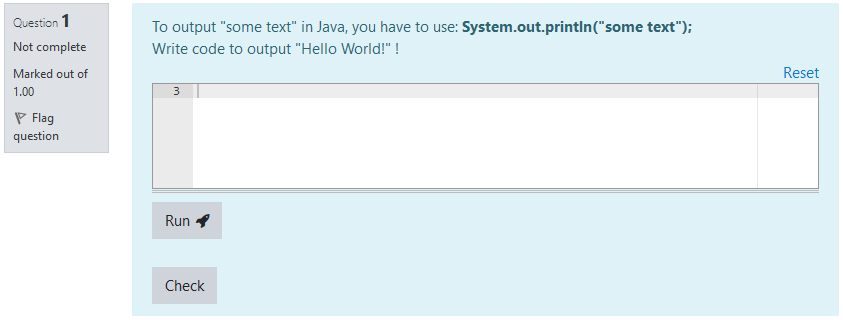
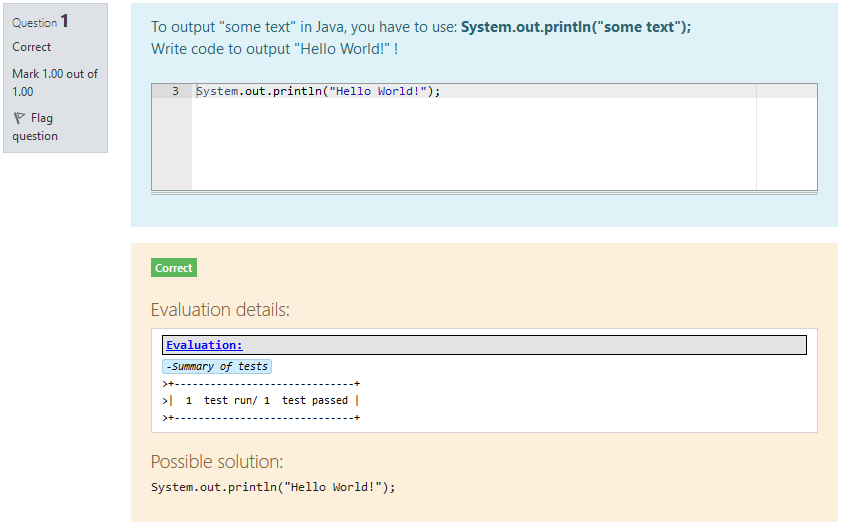
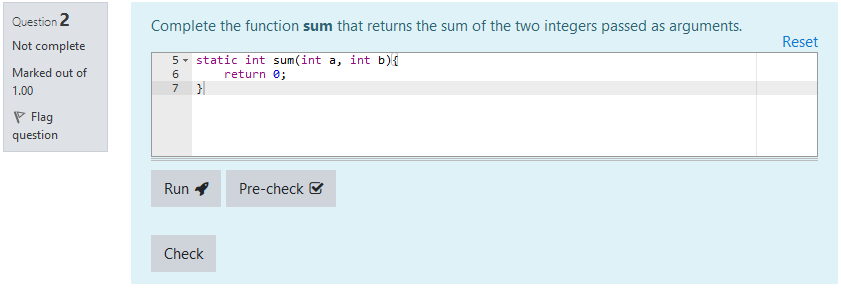
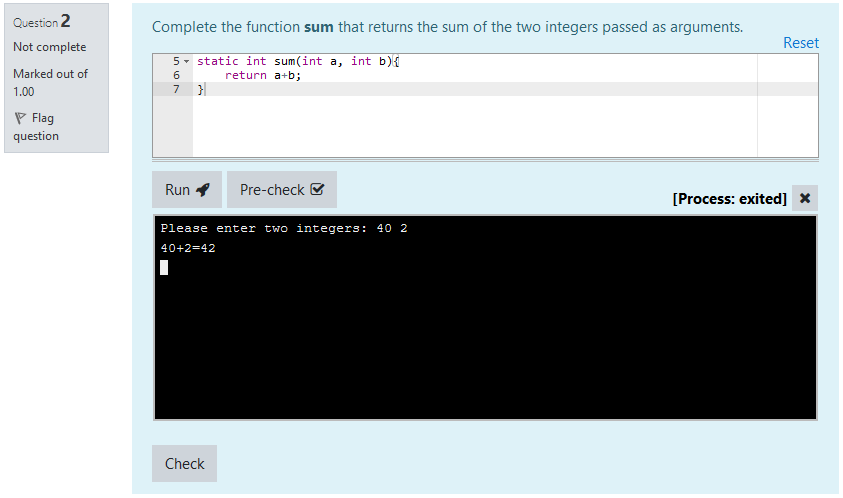
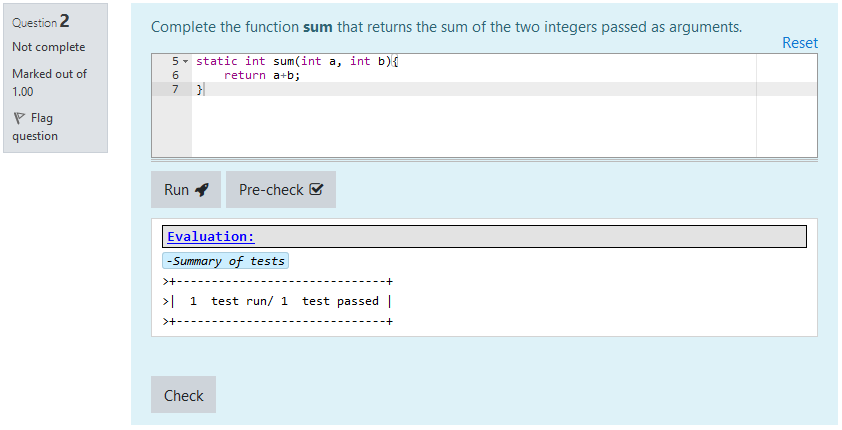
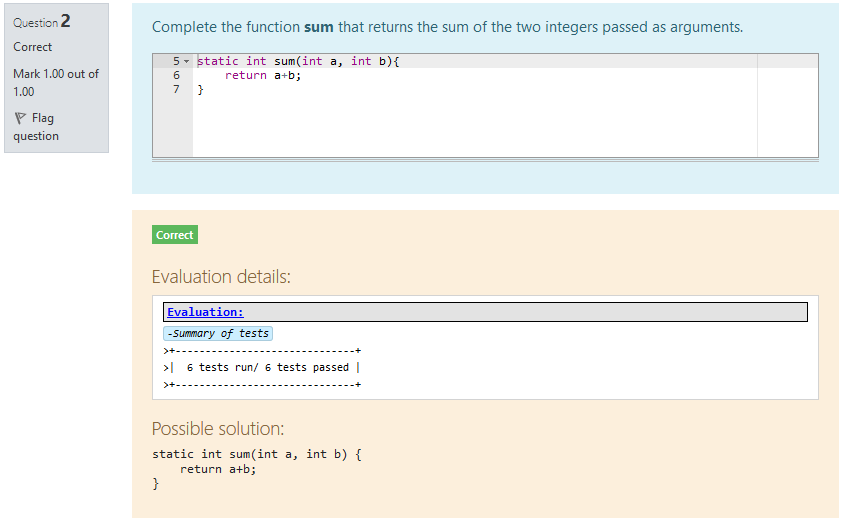
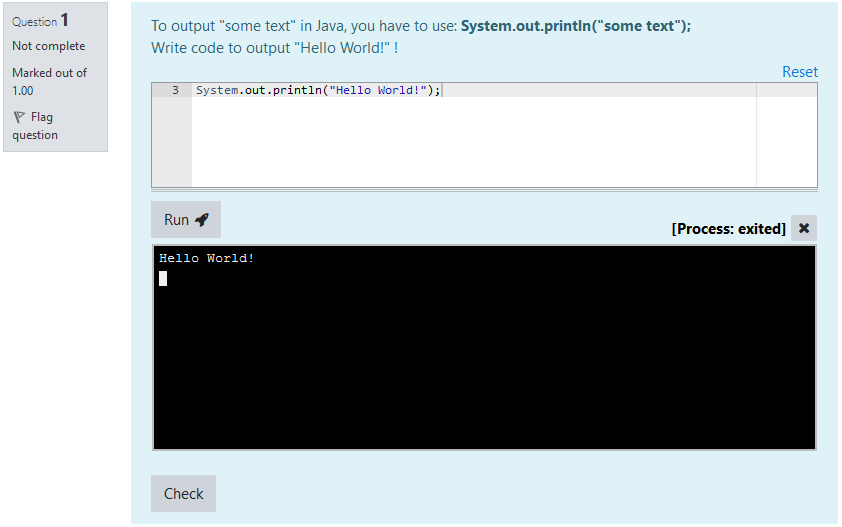
For example:
VPL Questions Architecture
A picture is worth a thousand words, so here is how it works (you can also read the thousand words right below the picture!):
A VPL Question is (as its name says) based on a VPL (Virtual Programming Lab).
The execution and evaluation of the question takes place inside that VPL, which allows powerful customizations.
A single VPL can be used for several questions, as long as it is located in the same course.
In order to execute and evaluate student's code in the VPL, the question sends that code (injected within the required file, at the place of the {{ANSWER}} tag) in a new VPL submission. The submission also includes question-specific execution files. The VPL then replaces its own execution files by the ones present in the submission.
This is what allows several questions to be based on the same VPL: as the execution files are question-specific, different execution behaviors (e.g. different test cases) can be achieved on the same VPL. However, this can not be achieved for standard execution scripts.
Create a VPL Question
Step 1: Create a dedicated VPL
The first step to create a VPL Question is to create the VPL it will be using.
To do so, simply create a new VPL inside your course.
It is (strongly) recommended to create it inside a hidden section of the course, and make it available. The goal is to hide it from students, while still allowing them to make submissions to it.
When the VPL is created, there are a few settings you will have to change before it can be used:
- Edit settings > Submission period: It is recommended to disable the deadline (Due date).
- Edit settings > Submission restrictions: Set the Maximum number of files to a large enough number, as submissions will include execution files.
- Edit settings > Common module settings: If you put the VPL inside a hidden section, make sure the Availability is set to Available but not shown on course page.
- Execution options > Common module settings: Set Run, Evaluate and Automatic grade to Yes.
- Execution files: Create a file named pre_vpl_run.sh, and paste the following code in it (this is the code that deals with submitted execution files):
for qvplfile in `ls -1`

do

     file=${qvplfile%_qvpl}

     test "$qvplfile" != "$file" && mv "$qvplfile" "$file"

done
- Required files: Create one (and only one) required file. You can write some basic code in it (like class declaration in java, an empty main function, ...).
You can also edit/add execution files. Please note that:
- Standard execution scripts will not be editable per-question. Please edit them from the VPL.
- Other execution files will be editable per-question. However, please create them first in the VPL (you won't be able to create them from a question).
IMPORTANT: Students submissions on this VPL will be discarded by the VPL Question (this behavior can be changed by an administrator in this plugin settings). This is why it is important to create a dedicated VPL (and not to use a VPL where students may want to retrieve their previous submissions).
Step 2: Create one or more VPL Questions
Once a dedicated is created by following the instructions above, you are now ready to create your VPL Questions !
To do so, create a question either from a Quiz or a Question bank, and select VPL Question:
Let's breakdown what you can do in the question editing form:
- General: You fill find here all standard settings for a question, like question name and description.
- VPL Question template: Here you can select the VPL you created earlier. This will allow you to edit the required file. Please make sure that it includes the {{ANSWER}} tag: this is where the student's code will be injected. Also, please note:
- Code written here will not be visible by students.
- The changes you make to the required file will only be effective for the current question.
- Answer template: Here you can edit what will be pre-filled in the student's answer box. It can be left empty.
- Teacher correction: Please write here your correction for the question. This is what will be used as the "Correct answer" for Quiz feedback.
If Validate is checked, the provided answer will be checked against test cases upon question save. This is very useful to check everything is working fine on VPL side, and that both your correction and your tests are correct. - Execution files and evaluate settings: This is where you can edit the execution and evaluation behavior of the question. Once again, all modifications done here will only affect the current question.
- You can edit execution files (most commonly vpl_evaluate.cases). If there is an execution file that you created in the VPL but you do not need in this question, write UNUSED at the beginning of the file: it will be ignored.
Note: Execution files are only sent to the VPL upon question evaluation. If you need them during execution (Run), please set them as Files to keep when running in the VPL. - You can also change the behavior of the Pre-check button (make it act as the Debug button on the VPL, use the execution files above, or use other files). In the last case, you will be able to edit another set of execution files, this time specific to the Pre-check button.
- You can finally decide whether students need to achieve perfect VPL grade to get the question correct, or use relative VPL grade to get a proportional note on the question.
- You can edit execution files (most commonly vpl_evaluate.cases). If there is an execution file that you created in the VPL but you do not need in this question, write UNUSED at the beginning of the file: it will be ignored.
Known issues
- Evaluation failures
It happens that the VPL on which a VPL Question is based fails to evaluate the submission. This failure results in no grade being obtained at the end of that evaluation. VPL Questions are designed to retry several times in that case, however after some retries we have to declare that the grade for this question submission is 0. Please be aware that this can happen even on right answers, so please consider reviewing evaluation results in the case VPL Questions are used in any sort of graded assignment. - Test cases hacking
Test cases, along with other execution files specific to a question, are sent to the VPL as submission files. Even if the VPL is hidden, it has to be available to students so that they can submit to it. This leads to a possibility for students to find access to the VPL, thus to the execution files they submitted. Please be aware of that possibility - what you decide to do about it is up to you.
1.3.4 (2020102900)
1.3.4
Plugin type: Question types
Frankenstyle component name: qtype_vplquestion
Version build number: 2020102900
Version release name: 1.3.4
Maturity: Stable
Supported Moodle versions: 3.5, 3.6, 3.7, 3.8, 3.9
Repository URL (Git): https://gricad-gitlab.univ-grenoble-alpes.fr/bizarda/moodle-qtype_vplquestion
Repository branch:
Repository tag:
Issue/bug tracker URL: https://gricad-gitlab.univ-grenoble-alpes.fr/moodle-plugins/moodle-qtype_vplquestion/-/issues
VPL Question type
Version: 1.2.6 (November 2019)
Authors:
- Astor Bizard
- Florent Paccalet (previous versions).
This software is part of the Caseine project.
This software was developped with the support of the following organizations:
- Université Grenoble Alpes
- Institut Polytechnique de Grenoble
Introduction
VPL Questions are questions that can fit within a Moodle quiz. They are intended to create small to medium coding exercises, based on the Virtual Programming Lab plugin.
They are designed to offer a simple interface for students, while keeping the power and versatility of Virtual Programming Labs.
For example:
VPL Questions Architecture
A picture is worth a thousand words, so here is how it works (you can also read the thousand words right below the picture!):
A VPL Question is (as its name says) based on a VPL (Virtual Programming Lab).
The execution and evaluation of the question takes place inside that VPL, which allows powerful customizations.
A single VPL can be used for several questions, as long as it is located in the same course.
In order to execute and evaluate student's code in the VPL, the question sends that code (injected within the required file, at the place of the {{ANSWER}} tag) in a new VPL submission. The submission also includes question-specific execution files. The VPL then replaces its own execution files by the ones present in the submission.
This is what allows several questions to be based on the same VPL: as the execution files are question-specific, different execution behaviors (e.g. different test cases) can be achieved on the same VPL. However, this can not be achieved for standard execution scripts.
Create a VPL Question
Step 1: Create a dedicated VPL
The first step to create a VPL Question is to create the VPL it will be using.
To do so, simply create a new VPL inside your course.
It is (strongly) recommended to create it inside a hidden section of the course, and make it available. The goal is to hide it from students, while still allowing them to make submissions to it.
When the VPL is created, there are a few settings you will have to change before it can be used:
- Edit settings > Submission period: It is recommended to disable the deadline (Due date).
- Edit settings > Submission restrictions: Set the Maximum number of files to a large enough number, as submissions will include execution files.
- Edit settings > Common module settings: If you put the VPL inside a hidden section, make sure the Availability is set to Available but not shown on course page.
- Execution options > Common module settings: Set Run, Evaluate and Automatic grade to Yes.
- Execution files: Create a file named pre_vpl_run.sh, and paste the following code in it (this is the code that deals with submitted execution files):
for qvplfile in `ls -1`

do

     file=${qvplfile%_qvpl}

     test "$qvplfile" != "$file" && mv "$qvplfile" "$file"

done
- Required files: Create one (and only one) required file. You can write some basic code in it (like class declaration in java, an empty main function, ...).
You can also edit/add execution files. Please note that:
- Standard execution scripts will not be editable per-question. Please edit them from the VPL.
- Other execution files will be editable per-question. However, please create them first in the VPL (you won't be able to create them from a question).
IMPORTANT: Students submissions on this VPL will be discarded by the VPL Question (this behavior can be changed by an administrator in this plugin settings). This is why it is important to create a dedicated VPL (and not to use a VPL where students may want to retrieve their previous submissions).
Step 2: Create one or more VPL Questions
Once a dedicated is created by following the instructions above, you are now ready to create your VPL Questions !
To do so, create a question either from a Quiz or a Question bank, and select VPL Question:
Let's breakdown what you can do in the question editing form:
- General: You fill find here all standard settings for a question, like question name and description.
- VPL Question template: Here you can select the VPL you created earlier. This will allow you to edit the required file. Please make sure that it includes the {{ANSWER}} tag: this is where the student's code will be injected. Also, please note:
- Code written here will not be visible by students.
- The changes you make to the required file will only be effective for the current question.
- Answer template: Here you can edit what will be pre-filled in the student's answer box. It can be left empty.
- Teacher correction: Please write here your correction for the question. This is what will be used as the "Correct answer" for Quiz feedback.
If Validate is checked, the provided answer will be checked against test cases upon question save. This is very useful to check everything is working fine on VPL side, and that both your correction and your tests are correct. - Execution files and evaluate settings: This is where you can edit the execution and evaluation behavior of the question. Once again, all modifications done here will only affect the current question.
- You can edit execution files (most commonly vpl_evaluate.cases). If there is an execution file that you created in the VPL but you do not need in this question, write UNUSED at the beginning of the file: it will be ignored.
Note: Execution files are only sent to the VPL upon question evaluation. If you need them during execution (Run), please set them as Files to keep when running in the VPL. - You can also change the behavior of the Pre-check button (make it act as the Debug button on the VPL, use the execution files above, or use other files). In the last case, you will be able to edit another set of execution files, this time specific to the Pre-check button.
- You can finally decide whether students need to achieve perfect VPL grade to get the question correct, or use relative VPL grade to get a proportional note on the question.
- You can edit execution files (most commonly vpl_evaluate.cases). If there is an execution file that you created in the VPL but you do not need in this question, write UNUSED at the beginning of the file: it will be ignored.
Known issues
- Evaluation failures
It happens that the VPL on which a VPL Question is based fails to evaluate the submission. This failure results in no grade being obtained at the end of that evaluation. VPL Questions are designed to retry several times in that case, however after some retries we have to declare that the grade for this question submission is 0. Please be aware that this can happen even on right answers, so please consider reviewing evaluation results in the case VPL Questions are used in any sort of graded assignment. - Test cases hacking
Test cases, along with other execution files specific to a question, are sent to the VPL as submission files. Even if the VPL is hidden, it has to be available to students so that they can submit to it. This leads to a possibility for students to find access to the VPL, thus to the execution files they submitted. Please be aware of that possibility - what you decide to do about it is up to you.
1.3.4 (2020102800)
1.3.4
Plugin type: Question types
Frankenstyle component name: qtype_vplquestion
Version build number: 2020102800
Version release name: 1.3.4
Maturity: Stable
Supported Moodle versions: 3.5, 3.6, 3.7, 3.8, 3.9
Repository URL (Git): https://gricad-gitlab.univ-grenoble-alpes.fr/bizarda/moodle-qtype_vplquestion
Repository branch:
Repository tag:
Issue/bug tracker URL: https://gricad-gitlab.univ-grenoble-alpes.fr/moodle-plugins/moodle-qtype_vplquestion/-/issues
VPL Question type
Version: 1.2.6 (November 2019)
Authors:
- Astor Bizard
- Florent Paccalet (previous versions).
This software is part of the Caseine project.
This software was developped with the support of the following organizations:
- Université Grenoble Alpes
- Institut Polytechnique de Grenoble
Introduction
VPL Questions are questions that can fit within a Moodle quiz. They are intended to create small to medium coding exercises, based on the Virtual Programming Lab plugin.
They are designed to offer a simple interface for students, while keeping the power and versatility of Virtual Programming Labs.
For example:
VPL Questions Architecture
A picture is worth a thousand words, so here is how it works (you can also read the thousand words right below the picture!):
A VPL Question is (as its name says) based on a VPL (Virtual Programming Lab).
The execution and evaluation of the question takes place inside that VPL, which allows powerful customizations.
A single VPL can be used for several questions, as long as it is located in the same course.
In order to execute and evaluate student's code in the VPL, the question sends that code (injected within the required file, at the place of the {{ANSWER}} tag) in a new VPL submission. The submission also includes question-specific execution files. The VPL then replaces its own execution files by the ones present in the submission.
This is what allows several questions to be based on the same VPL: as the execution files are question-specific, different execution behaviors (e.g. different test cases) can be achieved on the same VPL. However, this can not be achieved for standard execution scripts.
Create a VPL Question
Step 1: Create a dedicated VPL
The first step to create a VPL Question is to create the VPL it will be using.
To do so, simply create a new VPL inside your course.
It is (strongly) recommended to create it inside a hidden section of the course, and make it available. The goal is to hide it from students, while still allowing them to make submissions to it.
When the VPL is created, there are a few settings you will have to change before it can be used:
- Edit settings > Submission period: It is recommended to disable the deadline (Due date).
- Edit settings > Submission restrictions: Set the Maximum number of files to a large enough number, as submissions will include execution files.
- Edit settings > Common module settings: If you put the VPL inside a hidden section, make sure the Availability is set to Available but not shown on course page.
- Execution options > Common module settings: Set Run, Evaluate and Automatic grade to Yes.
- Execution files: Create a file named pre_vpl_run.sh, and paste the following code in it (this is the code that deals with submitted execution files):
for qvplfile in `ls -1`

do

     file=${qvplfile%_qvpl}

     test "$qvplfile" != "$file" && mv "$qvplfile" "$file"

done
- Required files: Create one (and only one) required file. You can write some basic code in it (like class declaration in java, an empty main function, ...).
You can also edit/add execution files. Please note that:
- Standard execution scripts will not be editable per-question. Please edit them from the VPL.
- Other execution files will be editable per-question. However, please create them first in the VPL (you won't be able to create them from a question).
IMPORTANT: Students submissions on this VPL will be discarded by the VPL Question (this behavior can be changed by an administrator in this plugin settings). This is why it is important to create a dedicated VPL (and not to use a VPL where students may want to retrieve their previous submissions).
Step 2: Create one or more VPL Questions
Once a dedicated is created by following the instructions above, you are now ready to create your VPL Questions !
To do so, create a question either from a Quiz or a Question bank, and select VPL Question:
Let's breakdown what you can do in the question editing form:
- General: You fill find here all standard settings for a question, like question name and description.
- VPL Question template: Here you can select the VPL you created earlier. This will allow you to edit the required file. Please make sure that it includes the {{ANSWER}} tag: this is where the student's code will be injected. Also, please note:
- Code written here will not be visible by students.
- The changes you make to the required file will only be effective for the current question.
- Answer template: Here you can edit what will be pre-filled in the student's answer box. It can be left empty.
- Teacher correction: Please write here your correction for the question. This is what will be used as the "Correct answer" for Quiz feedback.
If Validate is checked, the provided answer will be checked against test cases upon question save. This is very useful to check everything is working fine on VPL side, and that both your correction and your tests are correct. - Execution files and evaluate settings: This is where you can edit the execution and evaluation behavior of the question. Once again, all modifications done here will only affect the current question.
- You can edit execution files (most commonly vpl_evaluate.cases). If there is an execution file that you created in the VPL but you do not need in this question, write UNUSED at the beginning of the file: it will be ignored.
Note: Execution files are only sent to the VPL upon question evaluation. If you need them during execution (Run), please set them as Files to keep when running in the VPL. - You can also change the behavior of the Pre-check button (make it act as the Debug button on the VPL, use the execution files above, or use other files). In the last case, you will be able to edit another set of execution files, this time specific to the Pre-check button.
- You can finally decide whether students need to achieve perfect VPL grade to get the question correct, or use relative VPL grade to get a proportional note on the question.
- You can edit execution files (most commonly vpl_evaluate.cases). If there is an execution file that you created in the VPL but you do not need in this question, write UNUSED at the beginning of the file: it will be ignored.
Known issues
- Evaluation failures
It happens that the VPL on which a VPL Question is based fails to evaluate the submission. This failure results in no grade being obtained at the end of that evaluation. VPL Questions are designed to retry several times in that case, however after some retries we have to declare that the grade for this question submission is 0. Please be aware that this can happen even on right answers, so please consider reviewing evaluation results in the case VPL Questions are used in any sort of graded assignment. - Test cases hacking
Test cases, along with other execution files specific to a question, are sent to the VPL as submission files. Even if the VPL is hidden, it has to be available to students so that they can submit to it. This leads to a possibility for students to find access to the VPL, thus to the execution files they submitted. Please be aware of that possibility - what you decide to do about it is up to you.
1.3.4 (2020102701)
1.3.4
Plugin type: Question types
Frankenstyle component name: qtype_vplquestion
Version build number: 2020102701
Version release name: 1.3.4
Maturity: Stable
Supported Moodle versions: 3.5, 3.6, 3.7, 3.8, 3.9
Repository URL (Git): https://gricad-gitlab.univ-grenoble-alpes.fr/bizarda/moodle-qtype_vplquestion
Repository branch:
Repository tag:
Issue/bug tracker URL: https://gricad-gitlab.univ-grenoble-alpes.fr/moodle-plugins/moodle-qtype_vplquestion/-/issues
VPL Question type
Version: 1.2.6 (November 2019)
Authors:
- Astor Bizard
- Florent Paccalet (previous versions).
This software is part of the Caseine project.
This software was developped with the support of the following organizations:
- Université Grenoble Alpes
- Institut Polytechnique de Grenoble
Introduction
VPL Questions are questions that can fit within a Moodle quiz. They are intended to create small to medium coding exercises, based on the Virtual Programming Lab plugin.
They are designed to offer a simple interface for students, while keeping the power and versatility of Virtual Programming Labs.
For example:
VPL Questions Architecture
A picture is worth a thousand words, so here is how it works (you can also read the thousand words right below the picture!):
A VPL Question is (as its name says) based on a VPL (Virtual Programming Lab).
The execution and evaluation of the question takes place inside that VPL, which allows powerful customizations.
A single VPL can be used for several questions, as long as it is located in the same course.
In order to execute and evaluate student's code in the VPL, the question sends that code (injected within the required file, at the place of the {{ANSWER}} tag) in a new VPL submission. The submission also includes question-specific execution files. The VPL then replaces its own execution files by the ones present in the submission.
This is what allows several questions to be based on the same VPL: as the execution files are question-specific, different execution behaviors (e.g. different test cases) can be achieved on the same VPL. However, this can not be achieved for standard execution scripts.
Create a VPL Question
Step 1: Create a dedicated VPL
The first step to create a VPL Question is to create the VPL it will be using.
To do so, simply create a new VPL inside your course.
It is (strongly) recommended to create it inside a hidden section of the course, and make it available. The goal is to hide it from students, while still allowing them to make submissions to it.
When the VPL is created, there are a few settings you will have to change before it can be used:
- Edit settings > Submission period: It is recommended to disable the deadline (Due date).
- Edit settings > Submission restrictions: Set the Maximum number of files to a large enough number, as submissions will include execution files.
- Edit settings > Common module settings: If you put the VPL inside a hidden section, make sure the Availability is set to Available but not shown on course page.
- Execution options > Common module settings: Set Run, Evaluate and Automatic grade to Yes.
- Execution files: Create a file named pre_vpl_run.sh, and paste the following code in it (this is the code that deals with submitted execution files):
for qvplfile in `ls -1`

do

     file=${qvplfile%_qvpl}

     test "$qvplfile" != "$file" && mv "$qvplfile" "$file"

done
- Required files: Create one (and only one) required file. You can write some basic code in it (like class declaration in java, an empty main function, ...).
You can also edit/add execution files. Please note that:
- Standard execution scripts will not be editable per-question. Please edit them from the VPL.
- Other execution files will be editable per-question. However, please create them first in the VPL (you won't be able to create them from a question).
IMPORTANT: Students submissions on this VPL will be discarded by the VPL Question (this behavior can be changed by an administrator in this plugin settings). This is why it is important to create a dedicated VPL (and not to use a VPL where students may want to retrieve their previous submissions).
Step 2: Create one or more VPL Questions
Once a dedicated is created by following the instructions above, you are now ready to create your VPL Questions !
To do so, create a question either from a Quiz or a Question bank, and select VPL Question:
Let's breakdown what you can do in the question editing form:
- General: You fill find here all standard settings for a question, like question name and description.
- VPL Question template: Here you can select the VPL you created earlier. This will allow you to edit the required file. Please make sure that it includes the {{ANSWER}} tag: this is where the student's code will be injected. Also, please note:
- Code written here will not be visible by students.
- The changes you make to the required file will only be effective for the current question.
- Answer template: Here you can edit what will be pre-filled in the student's answer box. It can be left empty.
- Teacher correction: Please write here your correction for the question. This is what will be used as the "Correct answer" for Quiz feedback.
If Validate is checked, the provided answer will be checked against test cases upon question save. This is very useful to check everything is working fine on VPL side, and that both your correction and your tests are correct. - Execution files and evaluate settings: This is where you can edit the execution and evaluation behavior of the question. Once again, all modifications done here will only affect the current question.
- You can edit execution files (most commonly vpl_evaluate.cases). If there is an execution file that you created in the VPL but you do not need in this question, write UNUSED at the beginning of the file: it will be ignored.
Note: Execution files are only sent to the VPL upon question evaluation. If you need them during execution (Run), please set them as Files to keep when running in the VPL. - You can also change the behavior of the Pre-check button (make it act as the Debug button on the VPL, use the execution files above, or use other files). In the last case, you will be able to edit another set of execution files, this time specific to the Pre-check button.
- You can finally decide whether students need to achieve perfect VPL grade to get the question correct, or use relative VPL grade to get a proportional note on the question.
- You can edit execution files (most commonly vpl_evaluate.cases). If there is an execution file that you created in the VPL but you do not need in this question, write UNUSED at the beginning of the file: it will be ignored.
Known issues
- Evaluation failures
It happens that the VPL on which a VPL Question is based fails to evaluate the submission. This failure results in no grade being obtained at the end of that evaluation. VPL Questions are designed to retry several times in that case, however after some retries we have to declare that the grade for this question submission is 0. Please be aware that this can happen even on right answers, so please consider reviewing evaluation results in the case VPL Questions are used in any sort of graded assignment. - Test cases hacking
Test cases, along with other execution files specific to a question, are sent to the VPL as submission files. Even if the VPL is hidden, it has to be available to students so that they can submit to it. This leads to a possibility for students to find access to the VPL, thus to the execution files they submitted. Please be aware of that possibility - what you decide to do about it is up to you.
1.3.2 (2020082600)
1.3.2
Plugin type: Question types
Frankenstyle component name: qtype_vplquestion
Version build number: 2020082600
Version release name: 1.3.2
Maturity: Stable
Supported Moodle versions: 3.5, 3.6, 3.7, 3.8
Repository URL (Git): https://gricad-gitlab.univ-grenoble-alpes.fr/bizarda/moodle-qtype_vplquestion
Repository branch:
Repository tag:
Issue/bug tracker URL: https://gricad-gitlab.univ-grenoble-alpes.fr/moodle-plugins/moodle-qtype_vplquestion/-/issues
VPL Question type
Version: 1.2.6 (November 2019)
Authors:
- Astor Bizard
- Florent Paccalet (previous versions).
This software is part of the Caseine project.
This software was developped with the support of the following organizations:
- Universit� Grenoble Alpes
- Institut Polytechnique de Grenoble
Introduction
VPL Questions are questions that can fit within a Moodle quiz. They are intended to create small to medium coding exercises, based on the Virtual Programming Lab plugin.
They are designed to offer a simple interface for students, while keeping the power and versatility of Virtual Programming Labs.
For example:
VPL Questions Architecture
A picture is worth a thousand words, so here is how it works (you can also read the thousand words right below the picture!):
A VPL Question is (as its name says) based on a VPL (Virtual Programming Lab).
The execution and evaluation of the question takes place inside that VPL, which allows powerful customizations.
A single VPL can be used for several questions, as long as it is located in the same course.
In order to execute and evaluate student's code in the VPL, the question sends that code (injected within the required file, at the place of the {{ANSWER}} tag) in a new VPL submission. The submission also includes question-specific execution files. The VPL then replaces its own execution files by the ones present in the submission.
This is what allows several questions to be based on the same VPL: as the execution files are question-specific, different execution behaviors (e.g. different test cases) can be achieved on the same VPL. However, this can not be achieved for standard execution scripts.
Create a VPL Question
Step 1: Create a dedicated VPL
The first step to create a VPL Question is to create the VPL it will be using.
To do so, simply create a new VPL inside your course.
It is (strongly) recommended to create it inside a hidden section of the course, and make it available. The goal is to hide it from students, while still allowing them to make submissions to it.
When the VPL is created, there are a few settings you will have to change before it can be used:
- Edit settings > Submission period: It is recommended to disable the deadline (Due date).
- Edit settings > Submission restrictions: Set the Maximum number of files to a large enough number, as submissions will include execution files.
- Edit settings > Common module settings: If you put the VPL inside a hidden section, make sure the Availability is set to Available but not shown on course page.
- Execution options > Common module settings: Set Run, Evaluate and Automatic grade to Yes.
- Execution files: Create a file named pre_vpl_run.sh, and paste the following code in it (this is the code that deals with submitted execution files):
for qvplfile in `ls -1`

do

     file=${qvplfile%_qvpl}

     test "$qvplfile" != "$file" && mv "$qvplfile" "$file"

done
- Required files: Create one (and only one) required file. You can write some basic code in it (like class declaration in java, an empty main function, ...).
You can also edit/add execution files. Please note that:
- Standard execution scripts will not be editable per-question. Please edit them from the VPL.
- Other execution files will be editable per-question. However, please create them first in the VPL (you won't be able to create them from a question).
IMPORTANT: Students submissions on this VPL will be discarded by the VPL Question (this behavior can be changed by an administrator in this plugin settings). This is why it is important to create a dedicated VPL (and not to use a VPL where students may want to retrieve their previous submissions).
Step 2: Create one or more VPL Questions
Once a dedicated is created by following the instructions above, you are now ready to create your VPL Questions !
To do so, create a question either from a Quiz or a Question bank, and select VPL Question:
Let's breakdown what you can do in the question editing form:
- General: You fill find here all standard settings for a question, like question name and description.
- VPL Question template: Here you can select the VPL you created earlier. This will allow you to edit the required file. Please make sure that it includes the {{ANSWER}} tag: this is where the student's code will be injected. Also, please note:
- Code written here will not be visible by students.
- The changes you make to the required file will only be effective for the current question.
- Answer template: Here you can edit what will be pre-filled in the student's answer box. It can be left empty.
- Teacher correction: Please write here your correction for the question. This is what will be used as the "Correct answer" for Quiz feedback.
If Validate is checked, the provided answer will be checked against test cases upon question save. This is very useful to check everything is working fine on VPL side, and that both your correction and your tests are correct. - Execution files and evaluate settings: This is where you can edit the execution and evaluation behavior of the question. Once again, all modifications done here will only affect the current question.
- You can edit execution files (most commonly vpl_evaluate.cases). If there is an execution file that you created in the VPL but you do not need in this question, write UNUSED at the beginning of the file: it will be ignored.
Note: Execution files are only sent to the VPL upon question evaluation. If you need them during execution (Run), please set them as Files to keep when running in the VPL. - You can also change the behavior of the Pre-check button (make it act as the Debug button on the VPL, use the execution files above, or use other files). In the last case, you will be able to edit another set of execution files, this time specific to the Pre-check button.
- You can finally decide whether students need to achieve perfect VPL grade to get the question correct, or use relative VPL grade to get a proportional note on the question.
- You can edit execution files (most commonly vpl_evaluate.cases). If there is an execution file that you created in the VPL but you do not need in this question, write UNUSED at the beginning of the file: it will be ignored.
Known issues
- Evaluation failures
It happens that the VPL on which a VPL Question is based fails to evaluate the submission. This failure results in no grade being obtained at the end of that evaluation. VPL Questions are designed to retry several times in that case, however after some retries we have to declare that the grade for this question submission is 0. Please be aware that this can happen even on right answers, so please consider reviewing evaluation results in the case VPL Questions are used in any sort of graded assignment. - Test cases hacking
Test cases, along with other execution files specific to a question, are sent to the VPL as submission files. Even if the VPL is hidden, it has to be available to students so that they can submit to it. This leads to a possibility for students to find access to the VPL, thus to the execution files they submitted. Please be aware of that possibility - what you decide to do about it is up to you.
1.3.1 (2020070102)
1.3.1
Plugin type: Question types
Frankenstyle component name: qtype_vplquestion
Version build number: 2020070102
Version release name: 1.3.1
Maturity: Stable
Supported Moodle versions: 3.5, 3.6, 3.7
Repository URL (Git): https://gricad-gitlab.univ-grenoble-alpes.fr/bizarda/moodle-qtype_vplquestion
Repository branch:
Repository tag:
Issue/bug tracker URL: https://gricad-gitlab.univ-grenoble-alpes.fr/moodle-plugins/moodle-qtype_vplquestion/-/issues
This versions fixed the import that was still impossible for legacy reasons.
It also adds more explicit error messages if execution goes wrong.
1.3.0 (2020062500)
1.3.0
Plugin type: Question types
Frankenstyle component name: qtype_vplquestion
Version build number: 2020062500
Version release name: 1.3.0
Maturity: Stable
Supported Moodle versions: 3.5, 3.6, 3.7
Repository URL (Git): https://gricad-gitlab.univ-grenoble-alpes.fr/bizarda/moodle-qtype_vplquestion
Repository branch:
Repository tag:
Issue/bug tracker URL: https://gricad-gitlab.univ-grenoble-alpes.fr/moodle-plugins/moodle-qtype_vplquestion/-/issues
Now supports merging of files upon template VPL change. This allows more flexibility for import/export, which was a little bit technical before this update.
1.2.9 (2020050600)
1.2.9
Plugin type: Question types
Frankenstyle component name: qtype_vplquestion
Version build number: 2020050600
Version release name: 1.2.9
Maturity: Beta
Supported Moodle versions: 3.5, 3.6, 3.7
Repository URL (Git): https://gricad-gitlab.univ-grenoble-alpes.fr/bizarda/moodle-qtype_vplquestion
Repository branch:
Repository tag:
Issue/bug tracker URL: https://gricad-gitlab.univ-grenoble-alpes.fr/moodle-plugins/moodle-qtype_vplquestion/-/issues
VPL Question type
Version: 1.2.6 (November 2019)
Authors:
- Astor Bizard
- Florent Paccalet (previous versions).
This software is part of the Caseine project.
This software was developped with the support of the following organizations:
- Université Grenoble Alpes
- Institut Polytechnique de Grenoble
Introduction
VPL Questions are questions that can fit within a Moodle quiz. They are intended to create small to medium coding exercises, based on the Virtual Programming Lab plugin.
They are designed to offer a simple interface for students, while keeping the power and versatility of Virtual Programming Labs.
For example:
VPL Questions Architecture
A picture is worth a thousand words, so here is how it works (you can also read the thousand words right below the picture!):
A VPL Question is (as its name says) based on a VPL (Virtual Programming Lab).
The execution and evaluation of the question takes place inside that VPL, which allows powerful customizations.
A single VPL can be used for several questions, as long as it is located in the same course.
In order to execute and evaluate student's code in the VPL, the question sends that code (injected within the required file, at the place of the {{ANSWER}} tag) in a new VPL submission. The submission also includes question-specific execution files. The VPL then replaces its own execution files by the ones present in the submission.
This is what allows several questions to be based on the same VPL: as the execution files are question-specific, different execution behaviors (e.g. different test cases) can be achieved on the same VPL. However, this can not be achieved for standard execution scripts.
Create a VPL Question
Step 1: Create a dedicated VPL
The first step to create a VPL Question is to create the VPL it will be using.
To do so, simply create a new VPL inside your course.
It is (strongly) recommended to create it inside a hidden section of the course, and make it available. The goal is to hide it from students, while still allowing them to make submissions to it.
When the VPL is created, there are a few settings you will have to change before it can be used:
- Edit settings > Submission period: It is recommended to disable the deadline (Due date).
- Edit settings > Submission restrictions: Set the Maximum number of files to a large enough number, as submissions will include execution files.
- Edit settings > Common module settings: If you put the VPL inside a hidden section, make sure the Availability is set to Available but not shown on course page.
- Execution options > Common module settings: Set Run, Evaluate and Automatic grade to Yes.
- Execution files: Create a file named pre_vpl_run.sh, and paste the following code in it (this is the code that deals with submitted execution files):
for qvplfile in `ls -1`

do

     file=${qvplfile%_qvpl}

     test "$qvplfile" != "$file" && mv "$qvplfile" "$file"

done
- Required files: Create one (and only one) required file. You can write some basic code in it (like class declaration in java, an empty main function, ...).
You can also edit/add execution files. Please note that:
- Standard execution scripts will not be editable per-question. Please edit them from the VPL.
- Other execution files will be editable per-question. However, please create them first in the VPL (you won't be able to create them from a question).
IMPORTANT: Students submissions on this VPL will be discarded by the VPL Question (this behavior can be changed by an administrator in this plugin settings). This is why it is important to create a dedicated VPL (and not to use a VPL where students may want to retrieve their previous submissions).
Step 2: Create one or more VPL Questions
Once a dedicated is created by following the instructions above, you are now ready to create your VPL Questions !
To do so, create a question either from a Quiz or a Question bank, and select VPL Question:
Let's breakdown what you can do in the question editing form:
- General: You fill find here all standard settings for a question, like question name and description.
- VPL Question template: Here you can select the VPL you created earlier. This will allow you to edit the required file. Please make sure that it includes the {{ANSWER}} tag: this is where the student's code will be injected. Also, please note:
- Code written here will not be visible by students.
- The changes you make to the required file will only be effective for the current question.
- Answer template: Here you can edit what will be pre-filled in the student's answer box. It can be left empty.
- Teacher correction: Please write here your correction for the question. This is what will be used as the "Correct answer" for Quiz feedback.
If Validate is checked, the provided answer will be checked against test cases upon question save. This is very useful to check everything is working fine on VPL side, and that both your correction and your tests are correct. - Execution files and evaluate settings: This is where you can edit the execution and evaluation behavior of the question. Once again, all modifications done here will only affect the current question.
- You can edit execution files (most commonly vpl_evaluate.cases). If there is an execution file that you created in the VPL but you do not need in this question, write UNUSED at the beginning of the file: it will be ignored.
Note: Execution files are only sent to the VPL upon question evaluation. If you need them during execution (Run), please set them as Files to keep when running in the VPL. - You can also change the behavior of the Pre-check button (make it act as the Debug button on the VPL, use the execution files above, or use other files). In the last case, you will be able to edit another set of execution files, this time specific to the Pre-check button.
- You can finally decide whether students need to achieve perfect VPL grade to get the question correct, or use relative VPL grade to get a proportional note on the question.
- You can edit execution files (most commonly vpl_evaluate.cases). If there is an execution file that you created in the VPL but you do not need in this question, write UNUSED at the beginning of the file: it will be ignored.
Known issues
- Evaluation failures
It happens that the VPL on which a VPL Question is based fails to evaluate the submission. This failure results in no grade being obtained at the end of that evaluation. VPL Questions are designed to retry several times in that case, however after some retries we have to declare that the grade for this question submission is 0. Please be aware that this can happen even on right answers, so please consider reviewing evaluation results in the case VPL Questions are used in any sort of graded assignment. - Test cases hacking
Test cases, along with other execution files specific to a question, are sent to the VPL as submission files. Even if the VPL is hidden, it has to be available to students so that they can submit to it. This leads to a possibility for students to find access to the VPL, thus to the execution files they submitted. Please be aware of that possibility - what you decide to do about it is up to you.
1.2.8 (2020010700)
1.2.8
Plugin type: Question types
Frankenstyle component name: qtype_vplquestion
Version build number: 2020010700
Version release name: 1.2.8
Maturity: Beta
Supported Moodle versions: 3.5, 3.6, 3.7
Repository URL (Git): https://gricad-gitlab.univ-grenoble-alpes.fr/bizarda/moodle-qtype_vplquestion
Repository branch:
Repository tag:
Issue/bug tracker URL: https://gricad-gitlab.univ-grenoble-alpes.fr/moodle-plugins/moodle-qtype_vplquestion/-/issues
VPL Question type
Version: 1.2.6 (November 2019)
Authors:
- Astor Bizard
- Florent Paccalet (previous versions).
This software is part of the Caseine project.
This software was developped with the support of the following organizations:
- Université Grenoble Alpes
- Institut Polytechnique de Grenoble
Introduction
VPL Questions are questions that can fit within a Moodle quiz. They are intended to create small to medium coding exercises, based on the Virtual Programming Lab plugin.
They are designed to offer a simple interface for students, while keeping the power and versatility of Virtual Programming Labs.
For example:
VPL Questions Architecture
A picture is worth a thousand words, so here is how it works (you can also read the thousand words right below the picture!):
A VPL Question is (as its name says) based on a VPL (Virtual Programming Lab).
The execution and evaluation of the question takes place inside that VPL, which allows powerful customizations.
A single VPL can be used for several questions, as long as it is located in the same course.
In order to execute and evaluate student's code in the VPL, the question sends that code (injected within the required file, at the place of the {{ANSWER}} tag) in a new VPL submission. The submission also includes question-specific execution files. The VPL then replaces its own execution files by the ones present in the submission.
This is what allows several questions to be based on the same VPL: as the execution files are question-specific, different execution behaviors (e.g. different test cases) can be achieved on the same VPL. However, this can not be achieved for standard execution scripts.
Create a VPL Question
Step 1: Create a dedicated VPL
The first step to create a VPL Question is to create the VPL it will be using.
To do so, simply create a new VPL inside your course.
It is (strongly) recommended to create it inside a hidden section of the course, and make it available. The goal is to hide it from students, while still allowing them to make submissions to it.
When the VPL is created, there are a few settings you will have to change before it can be used:
- Edit settings > Submission period: It is recommended to disable the deadline (Due date).
- Edit settings > Submission restrictions: Set the Maximum number of files to a large enough number, as submissions will include execution files.
- Edit settings > Common module settings: If you put the VPL inside a hidden section, make sure the Availability is set to Available but not shown on course page.
- Execution options > Common module settings: Set Run, Evaluate and Automatic grade to Yes.
- Execution files: Create a file named pre_vpl_run.sh, and paste the following code in it (this is the code that deals with submitted execution files):
for qvplfile in `ls -1`

do

     file=${qvplfile%_qvpl}

     test "$qvplfile" != "$file" && mv "$qvplfile" "$file"

done
- Required files: Create one (and only one) required file. You can write some basic code in it (like class declaration in java, an empty main function, ...).
You can also edit/add execution files. Please note that:
- Standard execution scripts will not be editable per-question. Please edit them from the VPL.
- Other execution files will be editable per-question. However, please create them first in the VPL (you won't be able to create them from a question).
IMPORTANT: Students submissions on this VPL will be discarded by the VPL Question (this behavior can be changed by an administrator in this plugin settings). This is why it is important to create a dedicated VPL (and not to use a VPL where students may want to retrieve their previous submissions).
Step 2: Create one or more VPL Questions
Once a dedicated is created by following the instructions above, you are now ready to create your VPL Questions !
To do so, create a question either from a Quiz or a Question bank, and select VPL Question:
Let's breakdown what you can do in the question editing form:
- General: You fill find here all standard settings for a question, like question name and description.
- VPL Question template: Here you can select the VPL you created earlier. This will allow you to edit the required file. Please make sure that it includes the {{ANSWER}} tag: this is where the student's code will be injected. Also, please note:
- Code written here will not be visible by students.
- The changes you make to the required file will only be effective for the current question.
- Answer template: Here you can edit what will be pre-filled in the student's answer box. It can be left empty.
- Teacher correction: Please write here your correction for the question. This is what will be used as the "Correct answer" for Quiz feedback.
If Validate is checked, the provided answer will be checked against test cases upon question save. This is very useful to check everything is working fine on VPL side, and that both your correction and your tests are correct. - Execution files and evaluate settings: This is where you can edit the execution and evaluation behavior of the question. Once again, all modifications done here will only affect the current question.
- You can edit execution files (most commonly vpl_evaluate.cases). If there is an execution file that you created in the VPL but you do not need in this question, write UNUSED at the beginning of the file: it will be ignored.
Note: Execution files are only sent to the VPL upon question evaluation. If you need them during execution (Run), please set them as Files to keep when running in the VPL. - You can also change the behavior of the Pre-check button (make it act as the Debug button on the VPL, use the execution files above, or use other files). In the last case, you will be able to edit another set of execution files, this time specific to the Pre-check button.
- You can finally decide whether students need to achieve perfect VPL grade to get the question correct, or use relative VPL grade to get a proportional note on the question.
- You can edit execution files (most commonly vpl_evaluate.cases). If there is an execution file that you created in the VPL but you do not need in this question, write UNUSED at the beginning of the file: it will be ignored.
Known issues
- Evaluation failures
It happens that the VPL on which a VPL Question is based fails to evaluate the submission. This failure results in no grade being obtained at the end of that evaluation. VPL Questions are designed to retry several times in that case, however after some retries we have to declare that the grade for this question submission is 0. Please be aware that this can happen even on right answers, so please consider reviewing evaluation results in the case VPL Questions are used in any sort of graded assignment. - Test cases hacking
Test cases, along with other execution files specific to a question, are sent to the VPL as submission files. Even if the VPL is hidden, it has to be available to students so that they can submit to it. This leads to a possibility for students to find access to the VPL, thus to the execution files they submitted. Please be aware of that possibility - what you decide to do about it is up to you.
1.2.7 (2019121300)
1.2.7
Plugin type: Question types
Frankenstyle component name: qtype_vplquestion
Version build number: 2019121300
Version release name: 1.2.7
Maturity: Beta
Supported Moodle versions: 3.5, 3.6, 3.7
Repository URL (Git): https://gricad-gitlab.univ-grenoble-alpes.fr/bizarda/moodle-qtype_vplquestion
Repository branch:
Repository tag:
Issue/bug tracker URL: https://gricad-gitlab.univ-grenoble-alpes.fr/moodle-plugins/moodle-qtype_vplquestion/-/issues
VPL Question type
Version: 1.2.6 (November 2019)
Authors:
- Astor Bizard
- Florent Paccalet (previous versions).
This software is part of the Caseine project.
This software was developped with the support of the following organizations:
- Université Grenoble Alpes
- Institut Polytechnique de Grenoble
Introduction
VPL Questions are questions that can fit within a Moodle quiz. They are intended to create small to medium coding exercises, based on the Virtual Programming Lab plugin.
They are designed to offer a simple interface for students, while keeping the power and versatility of Virtual Programming Labs.
For example:
VPL Questions Architecture
A picture is worth a thousand words, so here is how it works (you can also read the thousand words right below the picture!):
A VPL Question is (as its name says) based on a VPL (Virtual Programming Lab).
The execution and evaluation of the question takes place inside that VPL, which allows powerful customizations.
A single VPL can be used for several questions, as long as it is located in the same course.
In order to execute and evaluate student's code in the VPL, the question sends that code (injected within the required file, at the place of the {{ANSWER}} tag) in a new VPL submission. The submission also includes question-specific execution files. The VPL then replaces its own execution files by the ones present in the submission.
This is what allows several questions to be based on the same VPL: as the execution files are question-specific, different execution behaviors (e.g. different test cases) can be achieved on the same VPL. However, this can not be achieved for standard execution scripts.
Create a VPL Question
Step 1: Create a dedicated VPL
The first step to create a VPL Question is to create the VPL it will be using.
To do so, simply create a new VPL inside your course.
It is (strongly) recommended to create it inside a hidden section of the course, and make it available. The goal is to hide it from students, while still allowing them to make submissions to it.
When the VPL is created, there are a few settings you will have to change before it can be used:
- Edit settings > Submission period: It is recommended to disable the deadline (Due date).
- Edit settings > Submission restrictions: Set the Maximum number of files to a large enough number, as submissions will include execution files.
- Edit settings > Common module settings: If you put the VPL inside a hidden section, make sure the Availability is set to Available but not shown on course page.
- Execution options > Common module settings: Set Run, Evaluate and Automatic grade to Yes.
- Execution files: Create a file named pre_vpl_run.sh, and paste the following code in it (this is the code that deals with submitted execution files):
for qvplfile in `ls -1`

do

     file=${qvplfile%_qvpl}

     test "$qvplfile" != "$file" && mv "$qvplfile" "$file"

done
- Required files: Create one (and only one) required file. You can write some basic code in it (like class declaration in java, an empty main function, ...).
You can also edit/add execution files. Please note that:
- Standard execution scripts will not be editable per-question. Please edit them from the VPL.
- Other execution files will be editable per-question. However, please create them first in the VPL (you won't be able to create them from a question).
IMPORTANT: Students submissions on this VPL will be discarded by the VPL Question (this behavior can be changed by an administrator in this plugin settings). This is why it is important to create a dedicated VPL (and not to use a VPL where students may want to retrieve their previous submissions).
Step 2: Create one or more VPL Questions
Once a dedicated is created by following the instructions above, you are now ready to create your VPL Questions !
To do so, create a question either from a Quiz or a Question bank, and select VPL Question:
Let's breakdown what you can do in the question editing form:
- General: You fill find here all standard settings for a question, like question name and description.
- VPL Question template: Here you can select the VPL you created earlier. This will allow you to edit the required file. Please make sure that it includes the {{ANSWER}} tag: this is where the student's code will be injected. Also, please note:
- Code written here will not be visible by students.
- The changes you make to the required file will only be effective for the current question.
- Answer template: Here you can edit what will be pre-filled in the student's answer box. It can be left empty.
- Teacher correction: Please write here your correction for the question. This is what will be used as the "Correct answer" for Quiz feedback.
If Validate is checked, the provided answer will be checked against test cases upon question save. This is very useful to check everything is working fine on VPL side, and that both your correction and your tests are correct. - Execution files and evaluate settings: This is where you can edit the execution and evaluation behavior of the question. Once again, all modifications done here will only affect the current question.
- You can edit execution files (most commonly vpl_evaluate.cases). If there is an execution file that you created in the VPL but you do not need in this question, write UNUSED at the beginning of the file: it will be ignored.
Note: Execution files are only sent to the VPL upon question evaluation. If you need them during execution (Run), please set them as Files to keep when running in the VPL. - You can also change the behavior of the Pre-check button (make it act as the Debug button on the VPL, use the execution files above, or use other files). In the last case, you will be able to edit another set of execution files, this time specific to the Pre-check button.
- You can finally decide whether students need to achieve perfect VPL grade to get the question correct, or use relative VPL grade to get a proportional note on the question.
- You can edit execution files (most commonly vpl_evaluate.cases). If there is an execution file that you created in the VPL but you do not need in this question, write UNUSED at the beginning of the file: it will be ignored.
Known issues
- Evaluation failures
It happens that the VPL on which a VPL Question is based fails to evaluate the submission. This failure results in no grade being obtained at the end of that evaluation. VPL Questions are designed to retry several times in that case, however after some retries we have to declare that the grade for this question submission is 0. Please be aware that this can happen even on right answers, so please consider reviewing evaluation results in the case VPL Questions are used in any sort of graded assignment. - Test cases hacking
Test cases, along with other execution files specific to a question, are sent to the VPL as submission files. Even if the VPL is hidden, it has to be available to students so that they can submit to it. This leads to a possibility for students to find access to the VPL, thus to the execution files they submitted. Please be aware of that possibility - what you decide to do about it is up to you.
1.2.6 (2019103000)
1.2.6
Plugin type: Question types
Frankenstyle component name: qtype_vplquestion
Version build number: 2019103000
Version release name: 1.2.6
Maturity: Beta
Supported Moodle versions: 3.5, 3.6, 3.7
Repository URL (Git): https://gricad-gitlab.univ-grenoble-alpes.fr/bizarda/moodle-qtype_vplquestion
Repository branch: master
Repository tag:
Issue/bug tracker URL: https://gricad-gitlab.univ-grenoble-alpes.fr/moodle-plugins/moodle-qtype_vplquestion/-/issues
VPL Question type
Version: 1.2.6 (November 2019)
Authors:
- Astor Bizard
- Florent Paccalet (previous versions).
This software is part of the Caseine project.
This software was developped with the support of the following organizations:
- Université Grenoble Alpes
- Institut Polytechnique de Grenoble
Introduction
VPL Questions are questions that can fit within a Moodle quiz. They are intended to create small to medium coding exercises, based on the Virtual Programming Lab plugin.
They are designed to offer a simple interface for students, while keeping the power and versatility of Virtual Programming Labs.
For example:
VPL Questions Architecture
A picture is worth a thousand words, so here is how it works (you can also read the thousand words right below the picture!):
A VPL Question is (as its name says) based on a VPL (Virtual Programming Lab).
The execution and evaluation of the question takes place inside that VPL, which allows powerful customizations.
A single VPL can be used for several questions, as long as it is located in the same course.
In order to execute and evaluate student's code in the VPL, the question sends that code (injected within the required file, at the place of the {{ANSWER}} tag) in a new VPL submission. The submission also includes question-specific execution files. The VPL then replaces its own execution files by the ones present in the submission.
This is what allows several questions to be based on the same VPL: as the execution files are question-specific, different execution behaviors (e.g. different test cases) can be achieved on the same VPL. However, this can not be achieved for standard execution scripts.
Create a VPL Question
Step 1: Create a dedicated VPL
The first step to create a VPL Question is to create the VPL it will be using.
To do so, simply create a new VPL inside your course.
It is (strongly) recommended to create it inside a hidden section of the course, and make it available. The goal is to hide it from students, while still allowing them to make submissions to it.
When the VPL is created, there are a few settings you will have to change before it can be used:
- Edit settings > Submission period: It is recommended to disable the deadline (Due date).
- Edit settings > Submission restrictions: Set the Maximum number of files to a large enough number, as submissions will include execution files.
- Edit settings > Common module settings: If you put the VPL inside a hidden section, make sure the Availability is set to Available but not shown on course page.
- Execution options > Common module settings: Set Run, Evaluate and Automatic grade to Yes.
- Execution files: Create a file named pre_vpl_run.sh, and paste the following code in it (this is the code that deals with submitted execution files):
for qvplfile in `ls -1`

do

     file=${qvplfile%_qvpl}

     test "$qvplfile" != "$file" && mv "$qvplfile" "$file"

done
- Required files: Create one (and only one) required file. You can write some basic code in it (like class declaration in java, an empty main function, ...).
You can also edit/add execution files. Please note that:
- Standard execution scripts will not be editable per-question. Please edit them from the VPL.
- Other execution files will be editable per-question. However, please create them first in the VPL (you won't be able to create them from a question).
IMPORTANT: Students submissions on this VPL will be discarded by the VPL Question (this behavior can be changed by an administrator in this plugin settings). This is why it is important to create a dedicated VPL (and not to use a VPL where students may want to retrieve their previous submissions).
Step 2: Create one or more VPL Questions
Once a dedicated is created by following the instructions above, you are now ready to create your VPL Questions !
To do so, create a question either from a Quiz or a Question bank, and select VPL Question:
Let's breakdown what you can do in the question editing form:
- General: You fill find here all standard settings for a question, like question name and description.
- VPL Question template: Here you can select the VPL you created earlier. This will allow you to edit the required file. Please make sure that it includes the {{ANSWER}} tag: this is where the student's code will be injected. Also, please note:
- Code written here will not be visible by students.
- The changes you make to the required file will only be effective for the current question.
- Answer template: Here you can edit what will be pre-filled in the student's answer box. It can be left empty.
- Teacher correction: Please write here your correction for the question. This is what will be used as the "Correct answer" for Quiz feedback.
If Validate is checked, the provided answer will be checked against test cases upon question save. This is very useful to check everything is working fine on VPL side, and that both your correction and your tests are correct. - Execution files and evaluate settings: This is where you can edit the execution and evaluation behavior of the question. Once again, all modifications done here will only affect the current question.
- You can edit execution files (most commonly vpl_evaluate.cases). If there is an execution file that you created in the VPL but you do not need in this question, write UNUSED at the beginning of the file: it will be ignored.
Note: Execution files are only sent to the VPL upon question evaluation. If you need them during execution (Run), please set them as Files to keep when running in the VPL. - You can also change the behavior of the Pre-check button (make it act as the Debug button on the VPL, use the execution files above, or use other files). In the last case, you will be able to edit another set of execution files, this time specific to the Pre-check button.
- You can finally decide whether students need to achieve perfect VPL grade to get the question correct, or use relative VPL grade to get a proportional note on the question.
- You can edit execution files (most commonly vpl_evaluate.cases). If there is an execution file that you created in the VPL but you do not need in this question, write UNUSED at the beginning of the file: it will be ignored.
Known issues
- Evaluation failures
It happens that the VPL on which a VPL Question is based fails to evaluate the submission. This failure results in no grade being obtained at the end of that evaluation. VPL Questions are designed to retry several times in that case, however after some retries we have to declare that the grade for this question submission is 0. Please be aware that this can happen even on right answers, so please consider reviewing evaluation results in the case VPL Questions are used in any sort of graded assignment. - Test cases hacking
Test cases, along with other execution files specific to a question, are sent to the VPL as submission files. Even if the VPL is hidden, it has to be available to students so that they can submit to it. This leads to a possibility for students to find access to the VPL, thus to the execution files they submitted. Please be aware of that possibility - what you decide to do about it is up to you.