
Point of view - Feedback
Versions
Current version
2.5.1 for Moodle 4+ (2026050601)
2.5.1 for Moodle 4+
Plugin type: Blocks
Frankenstyle component name: block_point_view
Version build number: 2026050601
Version release name: 2.5.1 for Moodle 4+
Maturity: Stable
Supported Moodle versions: 4.0, 4.1, 4.2, 4.3, 4.4, 4.5, 5.0, 5.1
Repository URL (Git): https://gricad-gitlab.univ-grenoble-alpes.fr/moodle-plugins/moodle-block_point_view
Repository branch: MOODLE_4X_STABLE
Repository tag:
Issue/bug tracker URL: https://gricad-gitlab.univ-grenoble-alpes.fr/moodle-plugins/moodle-block_point_view/-/issues
Update 2.5.1 for Moodle 4+
- Fix of reactions yielding "invalidrecord" exception.
- Fix of reactions and tracks display on module page.
2.3.1 for Moodle 3 (2026050600)
2.3.1 for Moodle 3
Plugin type: Blocks
Frankenstyle component name: block_point_view
Version build number: 2026050600
Version release name: 2.3.1 for Moodle 3
Maturity: Stable
Supported Moodle versions: 3.10, 3.11, 3.3, 3.4, 3.5, 3.6, 3.7, 3.8, 3.9
Repository URL (Git): https://gricad-gitlab.univ-grenoble-alpes.fr/moodle-plugins/moodle-block_point_view
Repository branch: MOODLE_3X_STABLE
Repository tag:
Issue/bug tracker URL: https://gricad-gitlab.univ-grenoble-alpes.fr/moodle-plugins/moodle-block_point_view/-/issues
Update 2.3.1 for Moodle 3
Small fix of external function sometimes leading to an error when submitting a reaction.
2.5 for Moodle 4+ (2026012700)
2.5 for Moodle 4+
Plugin type: Blocks
Frankenstyle component name: block_point_view
Version build number: 2026012700
Version release name: 2.5 for Moodle 4+
Maturity: Stable
Supported Moodle versions: 4.0, 4.1, 4.2, 4.3, 4.4, 4.5, 5.0
Repository URL (Git): https://gricad-gitlab.univ-grenoble-alpes.fr/moodle-plugins/moodle-block_point_view
Repository branch: MOODLE_4X_STABLE
Repository tag:
Issue/bug tracker URL: https://gricad-gitlab.univ-grenoble-alpes.fr/moodle-plugins/moodle-block_point_view/-/issues
Update 2.5 for Moodle 4+
Just a small update for compatibility with Moodle 5 :-)
2.4 for Moodle 4 (2025090800)
2.4 for Moodle 4
Plugin type: Blocks
Frankenstyle component name: block_point_view
Version build number: 2025090800
Version release name: 2.4 for Moodle 4
Maturity: Stable
Supported Moodle versions: 4.0, 4.1, 4.2, 4.3, 4.4, 4.5
Repository URL (Git): https://gricad-gitlab.univ-grenoble-alpes.fr/moodle-plugins/moodle-block_point_view
Repository branch: MOODLE_4X_STABLE
Repository tag:
Issue/bug tracker URL: https://gricad-gitlab.univ-grenoble-alpes.fr/moodle-plugins/moodle-block_point_view/-/issues
Update 2.4 for Moodle 4
This update addresses the compatibility problem with Tiles course format.
It also improves usability and interface on Moodle 4.2 onwards.
2.3 for Moodle 4 (2025020701)
2.3 for Moodle 4
Plugin type: Blocks
Frankenstyle component name: block_point_view
Version build number: 2025020701
Version release name: 2.3 for Moodle 4
Maturity: Stable
Supported Moodle versions: 4.0, 4.1, 4.2, 4.3, 4.4, 4.5
Repository URL (Git): https://gricad-gitlab.univ-grenoble-alpes.fr/moodle-plugins/moodle-block_point_view
Repository branch: MOODLE_4X_STABLE
Repository tag: v2.3-for-Moodle4
Issue/bug tracker URL: https://gricad-gitlab.univ-grenoble-alpes.fr/moodle-plugins/moodle-block_point_view/-/issues
Update 2.3 for Moodle 4
• Compatibility with Moodle 4.5.
• New permission 'block/point_view:addreaction' is added to manage which users can see the reaction zone and add reactions (available to student, teachers and managers by default).
• Added event logging for basic reaction interactions.
2.3 for Moodle 3 (2025020700)
2.3 for Moodle 3
Plugin type: Blocks
Frankenstyle component name: block_point_view
Version build number: 2025020700
Version release name: 2.3 for Moodle 3
Maturity: Stable
Supported Moodle versions: 3.10, 3.11, 3.3, 3.4, 3.5, 3.6, 3.7, 3.8, 3.9
Repository URL (Git): https://gricad-gitlab.univ-grenoble-alpes.fr/moodle-plugins/moodle-block_point_view
Repository branch: MOODLE_3X_STABLE
Repository tag:
Issue/bug tracker URL: https://gricad-gitlab.univ-grenoble-alpes.fr/moodle-plugins/moodle-block_point_view/-/issues
Update 2.3 for Moodle 3
• New permission 'block/point_view:addreaction' is added to manage which users can see the reaction zone and add reactions (available to student, teachers and managers by default).
• Added event logging for basic reaction interactions.
2.3 for Moodle 4 (2025010700)
2.3 for Moodle 4
Plugin type: Blocks
Frankenstyle component name: block_point_view
Version build number: 2025010700
Version release name: 2.3 for Moodle 4
Maturity: Stable
Supported Moodle versions: 4.0, 4.1, 4.2, 4.3, 4.4, 4.5
Repository URL (Git): https://gricad-gitlab.univ-grenoble-alpes.fr/moodle-plugins/moodle-block_point_view
Repository branch: MOODLE_4X_STABLE
Repository tag:
Issue/bug tracker URL: https://gricad-gitlab.univ-grenoble-alpes.fr/moodle-plugins/moodle-block_point_view/-/issues
Update 2.3 for Moodle 4
This update brings mainly compatibility with Moodle 4.5 (appearance, ignore subsections).
2.2 for Moodle 4 (2024061700)
2.2 for Moodle 4
Plugin type: Blocks
Frankenstyle component name: block_point_view
Version build number: 2024061700
Version release name: 2.2 for Moodle 4
Maturity: Stable
Supported Moodle versions: 4.0, 4.1, 4.2, 4.3, 4.4
Repository URL (Git): https://gricad-gitlab.univ-grenoble-alpes.fr/moodle-plugins/moodle-block_point_view
Repository branch: MOODLE_4X_STABLE
Repository tag: v2.2-for-Moodle4
Issue/bug tracker URL: https://gricad-gitlab.univ-grenoble-alpes.fr/moodle-plugins/moodle-block_point_view/-/issues
Update 2.2 for Moodle 4
Fix of a bug imparing interactions with block configuration in Moodle 4.2+
2.1 for Moodle 4 (2024041101)
2.1 for Moodle 4
Plugin type: Blocks
Frankenstyle component name: block_point_view
Version build number: 2024041101
Version release name: 2.1 for Moodle 4
Maturity: Stable
Supported Moodle versions: 4.0, 4.1, 4.2, 4.3
Repository URL (Git): https://gricad-gitlab.univ-grenoble-alpes.fr/moodle-plugins/moodle-block_point_view
Repository branch: MOODLE_4X_STABLE
Repository tag: v2.1-for-Moodle4
Issue/bug tracker URL: https://gricad-gitlab.univ-grenoble-alpes.fr/moodle-plugins/moodle-block_point_view/-/issues
Update 2.1 for Moodle 4
• Fix for reactions and track positions on labels with manual completion set, and with Tiles course format.
• Checkboxes are now highlighted when changed by an "Enable all" / "Disable all" button.
Note: git repo has been permanently moved to https://gricad-gitlab.univ-grenoble-alpes.fr/moodle-plugins/moodle-block_point_view. Thank you for your understanding.
2.1 for Moodle 3 (2024041100)
2.1 for Moodle 3
Plugin type: Blocks
Frankenstyle component name: block_point_view
Version build number: 2024041100
Version release name: 2.1 for Moodle 3
Maturity: Stable
Supported Moodle versions: 3.10, 3.11, 3.3, 3.4, 3.5, 3.6, 3.7, 3.8, 3.9
Repository URL (Git): https://gricad-gitlab.univ-grenoble-alpes.fr/moodle-plugins/moodle-block_point_view
Repository branch: MOODLE_3X_STABLE
Repository tag: v2.1-for-Moodle3
Issue/bug tracker URL: https://gricad-gitlab.univ-grenoble-alpes.fr/moodle-plugins/moodle-block_point_view/-/issues
Update 2.1 for Moodle 3
• Checkboxes are now highlighted when changed by an "Enable all" / "Disable all" button.
Note: git repo has been permanently moved to https://gricad-gitlab.univ-grenoble-alpes.fr/moodle-plugins/moodle-block_point_view. Thank you for your understanding.
v1.8 (2023082700)
v1.8
Plugin type: Blocks
Frankenstyle component name: block_point_view
Version build number: 2023082700
Version release name: v1.8
Maturity: Stable
Supported Moodle versions: 3.10, 3.11, 3.3, 3.4, 3.5, 3.6, 3.7, 3.8, 3.9
Repository URL (Git): https://github.com/Astor-Bizard/moodle-block_point_view
Repository branch:
Repository tag:
Issue/bug tracker URL: https://gricad-gitlab.univ-grenoble-alpes.fr/moodle-plugins/moodle-block_point_view/-/issues
Update v1.8 (for Moodle 3.X)
- Reactions can now be reset by-module, and cleaned up (to remove reactions of users no longer enrolled in the course).
2.0 (2023082800)
2.0
Plugin type: Blocks
Frankenstyle component name: block_point_view
Version build number: 2023082800
Version release name: 2.0
Maturity: Stable
Supported Moodle versions: 4.0, 4.1, 4.2
Repository URL (Git): https://github.com/Astor-Bizard/moodle-block_point_view
Repository branch:
Repository tag:
Issue/bug tracker URL: https://gricad-gitlab.univ-grenoble-alpes.fr/moodle-plugins/moodle-block_point_view/-/issues
Update 2.0 (for Moodle 4.0+)
- The block can now be displayed in course subcontexts (select "Any page" in "Where the block appears" settings section).
- If the block is displayed in course modules, difficulty track and reactions will show up on the course module pages!
- Difficulty track and reactions can also be configured directly from these pages.
- Reactions can now be reset by-module, and cleaned up (to remove reactions of users no longer enrolled in the course).
- Improved reactions position, especially for labels.
v1.7 (2022112200)
v1.7
Plugin type: Blocks
Frankenstyle component name: block_point_view
Version build number: 2022112200
Version release name: v1.7
Maturity: Stable
Supported Moodle versions: 3.10, 3.11, 3.3, 3.4, 3.5, 3.6, 3.7, 3.8, 3.9, 4.0, 4.1
Repository URL (Git): https://github.com/Astor-Bizard/moodle-block_point_view
Repository branch:
Repository tag:
Issue/bug tracker URL: https://gricad-gitlab.univ-grenoble-alpes.fr/moodle-plugins/moodle-block_point_view/-/issues
Update 1.7
- Point of View blocks now support course backup/restore, and will be backed up/restored as well!
- Added an option to disable gray highlight on course page.
- Adaptation towards Moodle 4.0+. It still needs to be improved, but is enough to mark this plugin compatible with Moodle 4.0+.
v1.6.5 (2022022800)
v1.6.5
Plugin type: Blocks
Frankenstyle component name: block_point_view
Version build number: 2022022800
Version release name: v1.6.5
Maturity: Stable
Supported Moodle versions: 3.10, 3.11, 3.3, 3.4, 3.5, 3.6, 3.7, 3.8, 3.9
Repository URL (Git): https://github.com/QuentinFombaron/moodle-block_point_view
Repository branch:
Repository tag:
Issue/bug tracker URL: https://gricad-gitlab.univ-grenoble-alpes.fr/moodle-plugins/moodle-block_point_view/-/issues
Update 1.6.5
Bugfix: The block no longer prevents page load for sites using Postgres.
Update 1.6.4
Bugfix: Reactions and difficulty tracks now correctly appear when Point of View is the only block of the page.
Also, war effort to reduce overall Moodle css by making use of bootstrap :-).
v1.6.3 (2021121001)
v1.6.3
Plugin type: Blocks
Frankenstyle component name: block_point_view
Version build number: 2021121001
Version release name: v1.6.3
Maturity: Stable
Supported Moodle versions: 3.10, 3.11, 3.3, 3.4, 3.5, 3.6, 3.7, 3.8, 3.9
Repository URL (Git): https://github.com/QuentinFombaron/moodle-block_point_view
Repository branch:
Repository tag:
Issue/bug tracker URL: https://gricad-gitlab.univ-grenoble-alpes.fr/moodle-plugins/moodle-block_point_view/-/issues
##Version 1.6.3
Fixed an issue where completion tick box was unclickable because of reactions.
v1.6.3 (2021121000)
v1.6.3
Plugin type: Blocks
Frankenstyle component name: block_point_view
Version build number: 2021121000
Version release name: v1.6.3
Maturity: Stable
Supported Moodle versions: 3.10, 3.11, 3.3, 3.4, 3.5, 3.6, 3.7, 3.8, 3.9
Repository URL (Git): https://github.com/QuentinFombaron/moodle-block_point_view
Repository branch:
Repository tag:
Issue/bug tracker URL: https://gricad-gitlab.univ-grenoble-alpes.fr/moodle-plugins/moodle-block_point_view/-/issues
Version 1.6.3
Fixed an issue where completion tick box was unclickable because of reactions.
v1.6.2 (2021100502)
v1.6.2
Plugin type: Blocks
Frankenstyle component name: block_point_view
Version build number: 2021100502
Version release name: v1.6.2
Maturity: Stable
Supported Moodle versions: 3.10, 3.11, 3.3, 3.4, 3.5, 3.6, 3.7, 3.8, 3.9
Repository URL (Git): https://github.com/QuentinFombaron/moodle-block_point_view
Repository branch:
Repository tag:
Issue/bug tracker URL: https://gricad-gitlab.univ-grenoble-alpes.fr/moodle-plugins/moodle-block_point_view/-/issues
Version 1.6.2
New features:
• Added the possibility to hide other users reactions to students.
• Added the possibility to automatically activate reactions on course modules created after the block has been configured.
• More flexibility on emoji selection at the block level.
Changes / Improvements:
• Block is only visible to students if text content is not empty. It is invisible otherwise.
• Reactions and difficulty tracks load faster.
• Now supports Tiles format.
• Now supports Moodle up to 3.11.
• Now supports More, Clean and Adaptable themes (along with Boost).
• Custom reaction texts now support filters (including multilang).
• More formats to export reactions details.
• Some accessibility improvements.
Corrections:
• Labels are now supported and do not make everything crash when they are added.
• Fixed all emoji animations.
v1.6.2 (2021100501)
v1.6.2
Plugin type: Blocks
Frankenstyle component name: block_point_view
Version build number: 2021100501
Version release name: v1.6.2
Maturity: Stable
Supported Moodle versions: 3.10, 3.11, 3.3, 3.4, 3.5, 3.6, 3.7, 3.8, 3.9
Repository URL (Git): https://github.com/QuentinFombaron/moodle-block_point_view
Repository branch:
Repository tag:
Issue/bug tracker URL: https://gricad-gitlab.univ-grenoble-alpes.fr/moodle-plugins/moodle-block_point_view/-/issues
Version 1.6.2
New features:
• Added the possibility to hide other users reactions to students.
• Added the possibility to automatically activate reactions on course modules created after the block has been configured.
• More flexibility on emoji selection at the block level.
Changes / Improvements:
• Block is only visible to students if text content is not empty. It is invisible otherwise.
• Reactions and difficulty tracks load faster.
• Now supports Tiles format.
• Now supports Moodle up to 3.11.
• Now supports More, Clean and Adaptable themes (along with Boost).
• Custom reaction texts now support filters (including multilang).
• More formats to export reactions details.
• Some accessibility improvements.
Corrections:
• Labels are now supported and do not make everything crash when they are added.
• Fixed all emoji animations.
v1.5 (2020102700)
v1.5
Plugin type: Blocks
Frankenstyle component name: block_point_view
Version build number: 2020102700
Version release name: v1.5
Maturity: Stable
Supported Moodle versions: 3.3, 3.4, 3.5, 3.6, 3.7, 3.8, 3.9
Repository URL (Git): https://github.com/QuentinFombaron/moodle-block_point_view
Repository branch:
Repository tag: v1.5.0
Issue/bug tracker URL: https://gricad-gitlab.univ-grenoble-alpes.fr/moodle-plugins/moodle-block_point_view/-/issues
Moodle plugin « Point of View »
Quentin Fombaron - October 20<SUP>th</SUP> 2020
Centre des Nouvelles Pédagogies (CNP*), Univ. Grenoble Alpes - University of innovation
The plugin Point of view offers the possibility to react and give difficulty levels to activities of a Moodle course. Students know the difficulty of the activity thank to color tracks, they also have the possibility to react via emojis, each representing an emotion, a feeling (see Usage section).
It is a Moodle plugin managed by a block to be added in a course (see 0.1 part).
This plugin is developed by Quentin Fombaron. It is initialy developped for caseine.org. Do not hesitate to send your thinking and bug reports to the contact addresses bellow.
Contacts :
* The CNP, set up as part of the IDEX Training component, brings together the DAPI, PerForm and IDEX support teams.
Block
0.1 - Add the block to a course

On the course page, in the side panel, click the Add a Block button, then in the block list, choose Point of View. The block is then added; all that remains is to configure it (See Configuration section).
0.2 Delete the block of a course

Once the block has been added (see 0.1 part), switch to edit mode then click on the Actions icon (⚙️ a gear), then Delete Point of View block.

0.3 Configuration page access
Once the block has been added (see 0.1 part), switch to edit mode then click on the Actions icon (⚙️ a gear), then Configure the Point of View block.

Usage
Important to know :
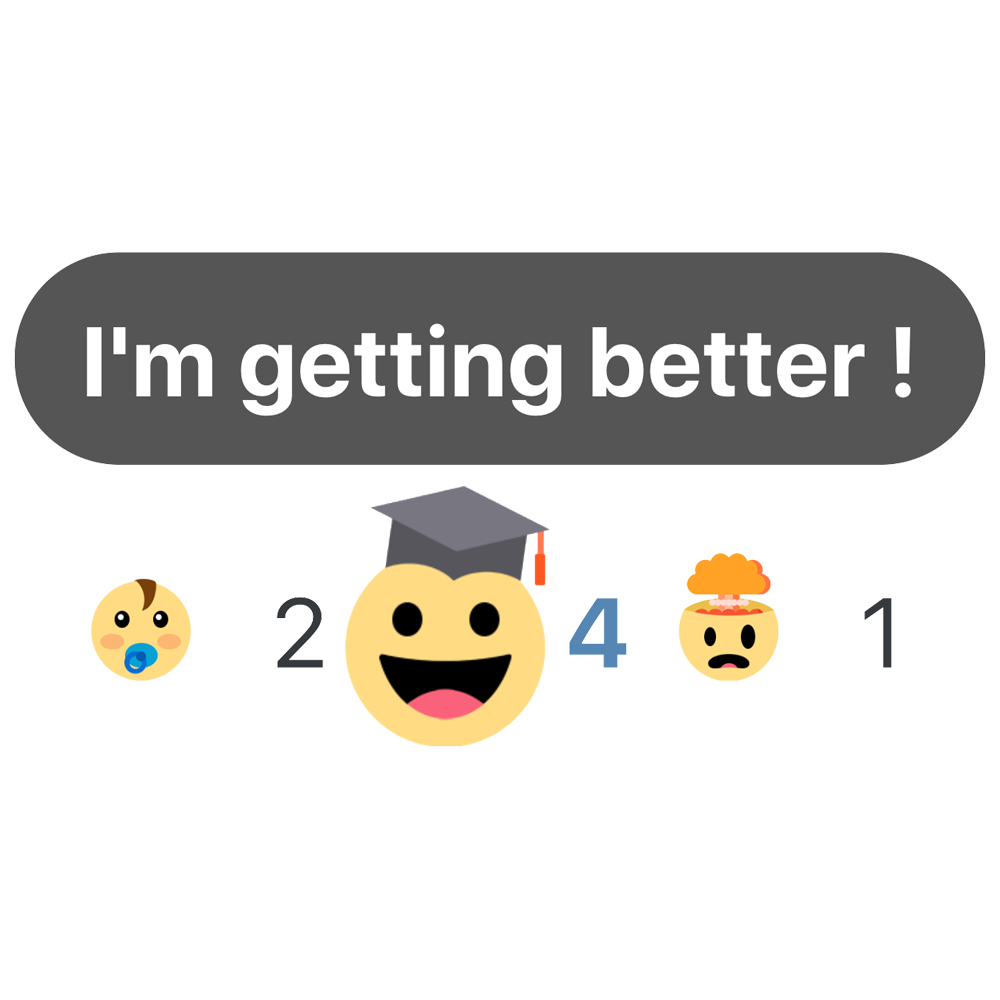
- Only 3 possible reactions are available ("Easy", "I'm getting better" and "So hard" by default).
- Only 4 possible difficulty tracks (Green, Blue, Red and Black by default) are available.
1.0 - How to display the details of an activity's reactions?

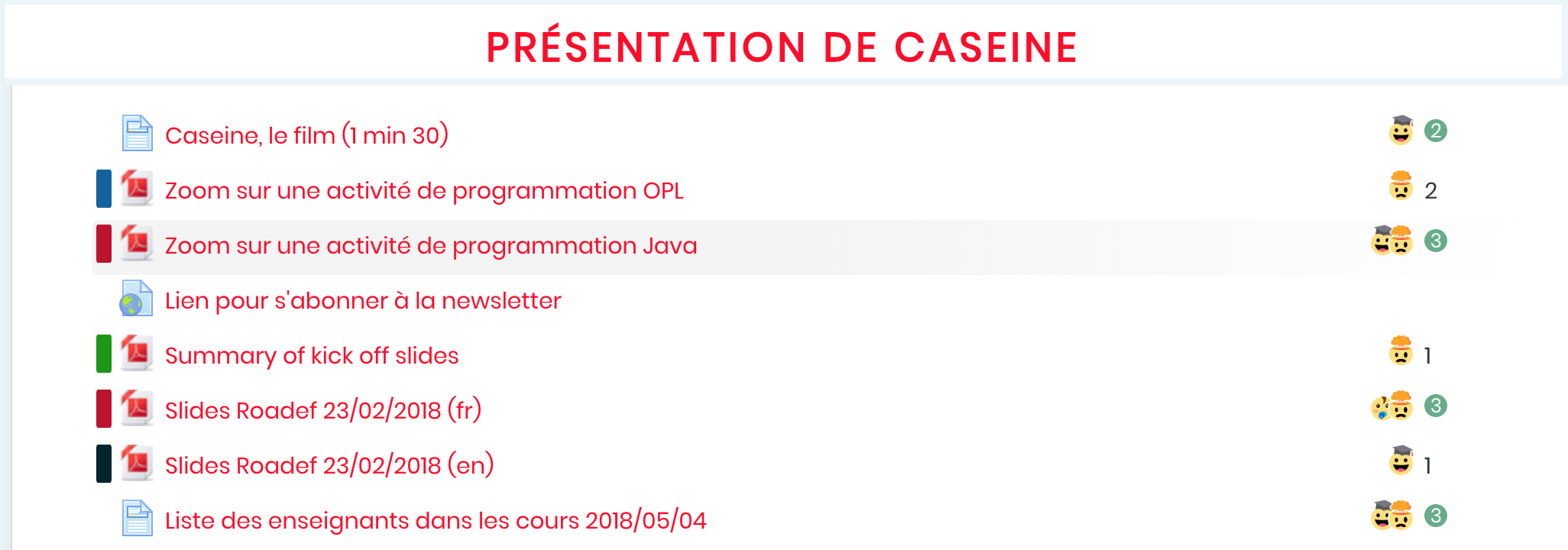
The emojis are initially grouped; it is enough to leave the mouse on the group so that the detail is displayed.

1.1 - How to react to an activity?

Once the voting details are displayed (see 1.0 part), move the mouse under each emoji to have the associated reaction.

Voting by clicking on the desired emoji, the number of votes for the associated reaction increments and turns blue. If the reaction had no vote and was therefore in black and white, it becomes in color.
Important : One and only one vote is possible per user and per activity.
1.2 - How to change of vote?

Once a vote has been taken (see 1.1 part), modify its vote by clicking on another reaction, the number of votes will then be automatically updated.
1.3 - How to delete of vote?

Once a vote has been taken (see 1.1 part), delete this vote by clicking again on the voted activity. The vote will then be deleted.
1.4 - How to know the difficulty of an activity?

Once it was configured (see 3.3 part), the difficulty track is displayed at the left of the activity name.
Configuration
2.0 - How to enable the reaction system?

On the plugin configuration page, in the Block setting tab, check/uncheck the box to enable/disable the reaction system. The activity activation and emojis customization options will be automatically hidden if the checkbox is unchecked.
2.1 - How to enable the Difficulty tracks?

On the plugin configuration page, in the Block setting tab, check/uncheck the box to enable/disable the difficulty tracks. The activation options on the activities will be automatically hidden if the box is unchecked.
3.0 - How to enable reactions on an activity?

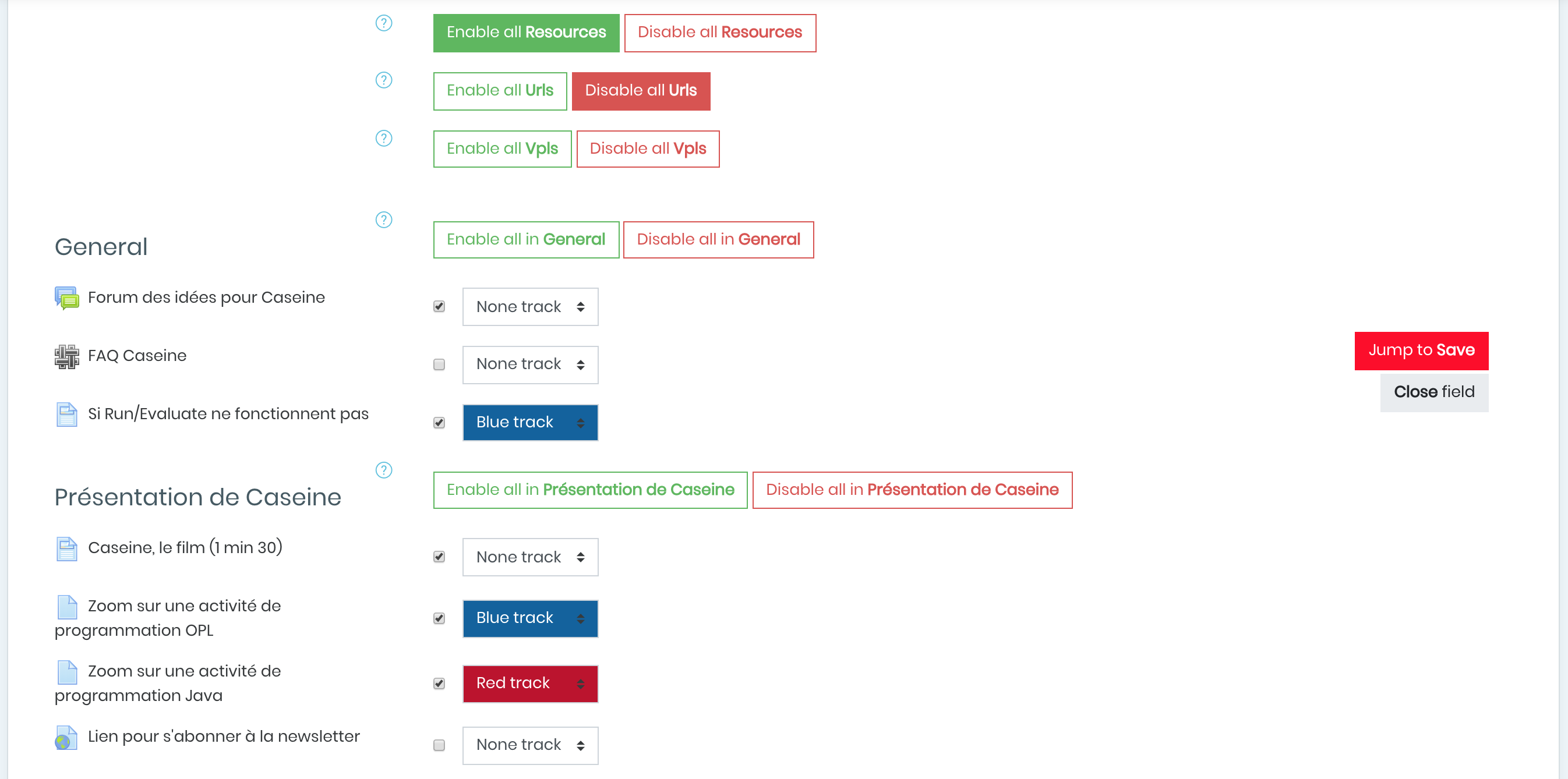
Once the reaction system is enabled (see 2.0 part), in the Configuration of Reactions and Difficulty Tracks tab, enable reactions on an activity by simply checking the box to the right of the name of the associated activity.
3.1 - How to activate reactions on all activities of the same type?

Once the reaction system is enabled (see 2.0 part), in the tab Configuration of Reactions and Difficulty Tracks, enable/disable reactions on all activities of the same type by clicking on the associated buttons. For example on the image above, the management of all resources.
3.2 - How to enable the reactions on all the activities of the same course?

Once the reaction system is enabled (see 2.0 part), in the tab Configuration of Reactions and Difficulty Tracks, enable/disable the reactions on all the activities of the same course by clicking on the associated button.
3.3 - How to define difficulty tracks?

Once the difficulty tracks are enabled (see 2.1 part), in the Configuration of Reactions and Difficulty Tracks tab, define a track to a course by choosing in the drop-down list to the right of the associated activity.

3.4 - How to use the navigation buttons?

In the Configuration of Reaction and Difficulty Tracks tab, two buttons facilitate navigation.Save saves the configuration.Close Tab closes the Configuration of Reaction and Difficulty Tracks tab.
4.0 - How to customize emojis?

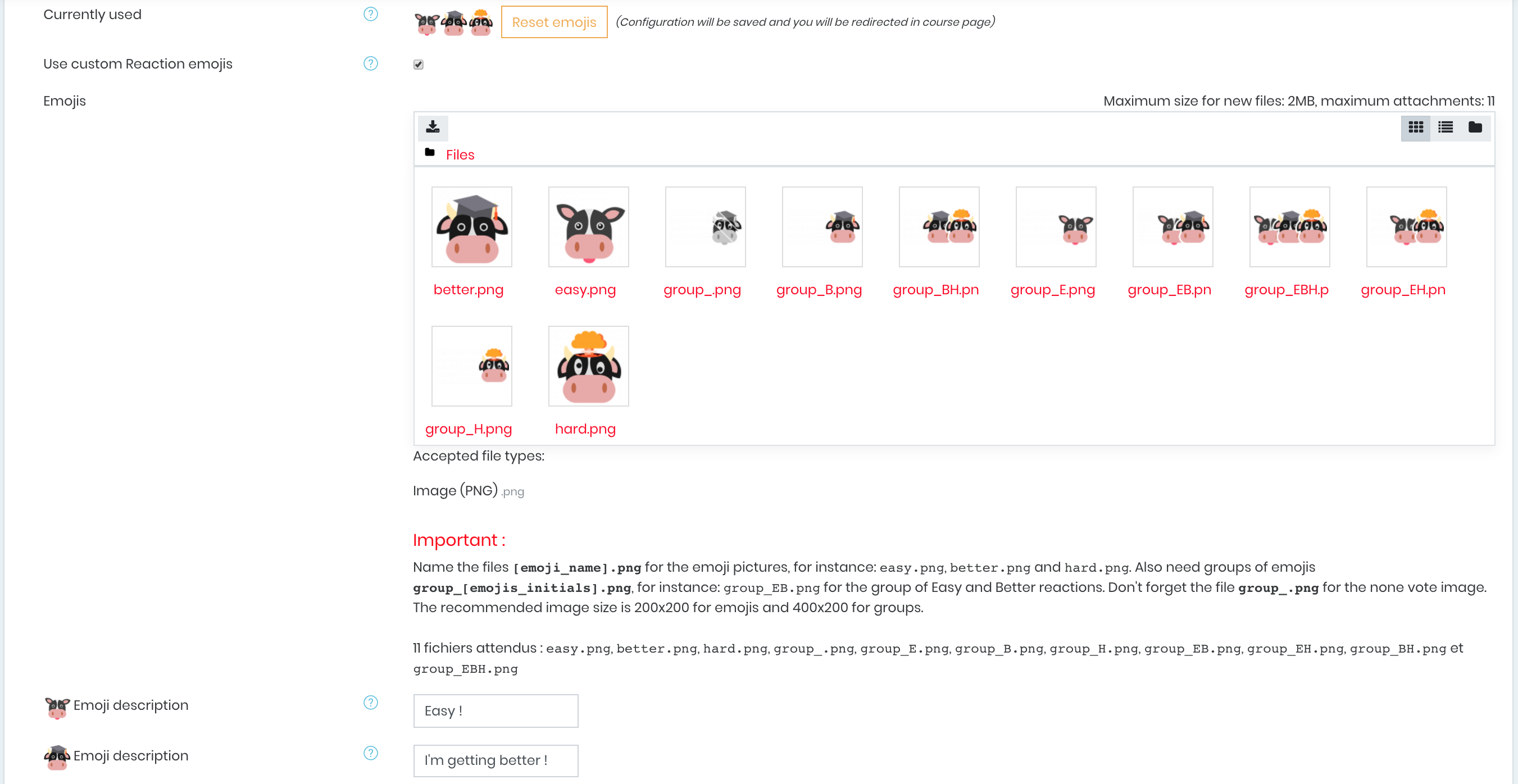
Once the reaction system is enabled (see 2.0 part), in the tab Configuration of Emojis, activate the emojis customization by checking the box above.
Then provide the required 11 files in the file area.

11 files are needed, 3 emojis, 7 emoji groups (all possible groups from 1 to 3 emojis) and 1 neutral emoji meaning no vote on the activity.
Exemple :

| | Emojis | Emojis group | None vote emoji |
| ------------------------ |:------------------------------------:|:----------------------------------------------------------------------------------------------------------------:|:--------------------:|
| File names | easy.png
better.png
hard.png | group_E.png
group_B.png
group_H.png
group_EB.png
group_EH.png
group_BH.png
group_EBH.png | group_.png |
| Sizes | 200x200 | 400x200 | 400x200 |
| Extensions | PNG | PNG | PNG |
4.1- How to restore emojis by default?

Once the reaction system is enabled (see 2.0 part), in the tab Configuration of Emojis, reset emojis by pressing the button Reset emojis. You will be automatically redirected to the course page.
4.2 - How to modify the text associated with an emoji?

Once the reaction system is enabled (see 2.0 part), in the Configuration of Emojis tab, change the name by replacing the content of the text box associated with each emoji.
4.3 How to reset the votes of a course?

In the Reset reactions tab, press the button above, a confirmation message will appear. Confirm and you will be automatically redirected to the course page. It will delete all votes of all activities the course.

Menu
5.0 - How to access the overview?

In the block content, a menu button, only visible by teachers, redirects to a page containing several tabs, including Overview.

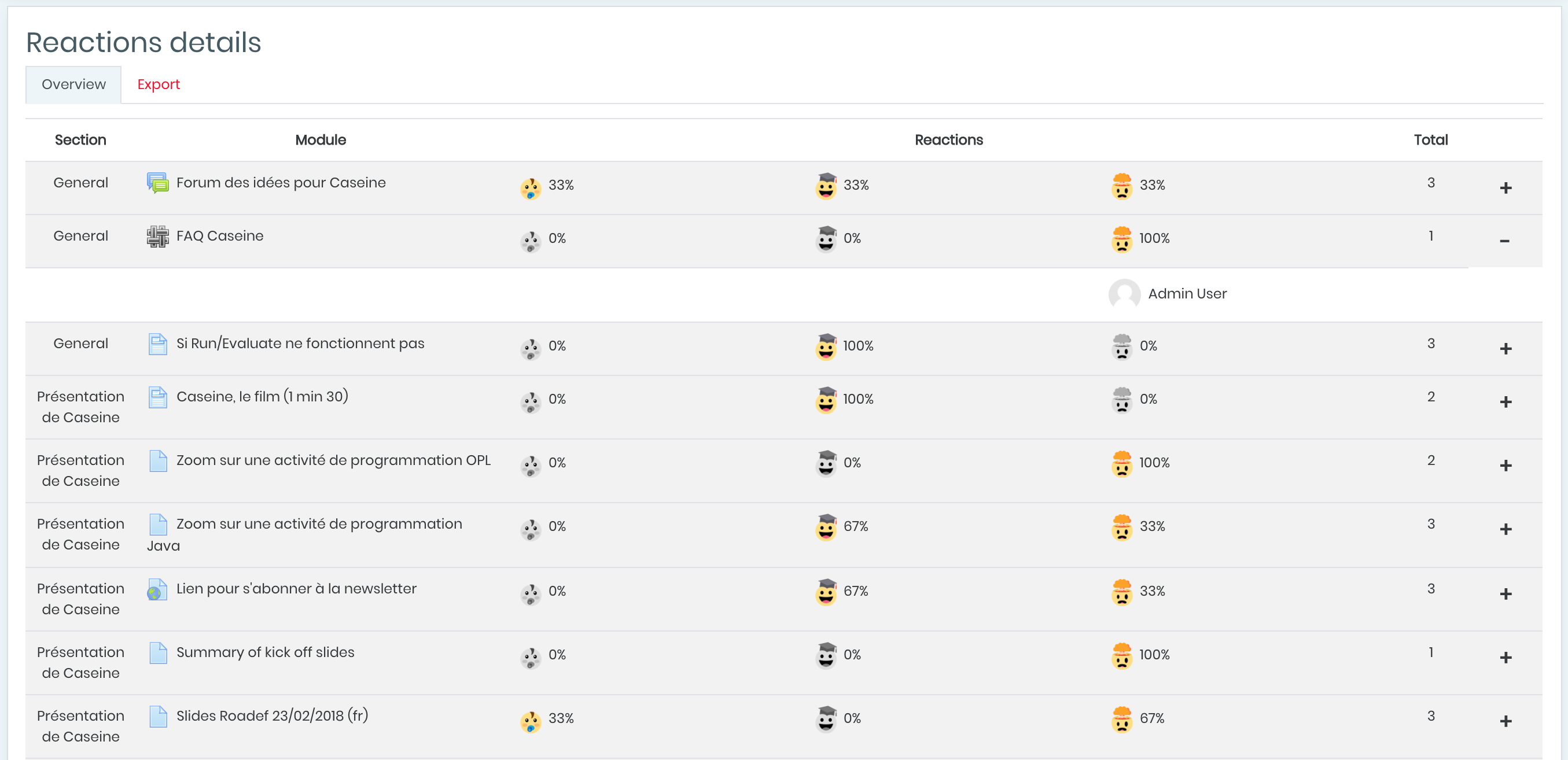
This page gives the details of the course votes in a readable table.
Reminder: Only teachers, editingteacher, manager and coursecreator have the Menu button visible.
5.1 - How to modify the display in number of votes, or in percentage?

By default, the votes are displayed in percentage, click on one of the votes and the display will be modified in number of votes.

5.2 - How to get the details of users who voted for an activity?

Click on the + to the right of the line and the details of the users associated with their voted reaction will be displayed.

6.0 - How to access the export menu?

Click on the second tab named Export.
6.1 - How to export the votes of a course?

Choose its extension between CSV, OpenOffice or Excel and click on the associated button. The download of the table will start automatically.
Administration
7.0 - How to enable/disable the reaction system on the site?

In Site Administration > Plugins > Blocks > Point of View menu, enable/disable the reaction system by checking/un-checking the box above.
7.1 - How to set default emojis for the website?

In Site Administration > Plugins > Blocks > Point of View menu, enable emojis customization by checking the box above and provide the required 11 files in the file area (see 4.0 part).
7.2 - How to customize the color of the difficulty tracks on the website?

In Site Administration > Plugins > Blocks > Point of View menu, define the color of the associated track.
v1.4 (2020102001)
v1.4
Plugin type: Blocks
Frankenstyle component name: block_point_view
Version build number: 2020102001
Version release name: v1.4
Maturity: Stable
Supported Moodle versions: 3.3, 3.4, 3.5, 3.6, 3.7, 3.8, 3.9
Repository URL (Git): https://github.com/QuentinFombaron/moodle-block_point_view
Repository branch:
Repository tag:
Issue/bug tracker URL: https://gricad-gitlab.univ-grenoble-alpes.fr/moodle-plugins/moodle-block_point_view/-/issues
Moodle plugin « Point of View »
Quentin Fombaron - October 20<SUP>th</SUP> 2020
Centre des Nouvelles Pédagogies (CNP*), Univ. Grenoble Alpes - University of innovation
The plugin Point of view offers the possibility to react and give difficulty levels to activities of a Moodle course. Students know the difficulty of the activity thank to color tracks, they also have the possibility to react via emojis, each representing an emotion, a feeling (see Usage section).
It is a Moodle plugin managed by a block to be added in a course (see 0.1 part).
This plugin is developed by Quentin Fombaron. It is initialy developped for caseine.org. Do not hesitate to send your thinking and bug reports to the contact addresses bellow.
Contacts :
* The CNP, set up as part of the IDEX Training component, brings together the DAPI, PerForm and IDEX support teams.
Block
0.1 - Add the block to a course
On the course page, in the side panel, click the Add a Block button, then in the block list, choose Point of View. The block is then added; all that remains is to configure it (See Configuration section).
0.2 Delete the block of a course
Once the block has been added (see 0.1 part), switch to edit mode then click on the Actions icon (⚙️ a gear), then Delete Point of View block.
0.3 Configuration page access
Once the block has been added (see 0.1 part), switch to edit mode then click on the Actions icon (⚙️ a gear), then Configure the Point of View block.
Usage
Important to know :
- Only 3 possible reactions are available ("Easy", "I'm getting better" and "So hard" by default).
- Only 4 possible difficulty tracks (Green, Blue, Red and Black by default) are available.
1.0 - How to display the details of an activity's reactions?
The emojis are initially grouped; it is enough to leave the mouse on the group so that the detail is displayed.
1.1 - How to react to an activity?
Once the voting details are displayed (see 1.0 part), move the mouse under each emoji to have the associated reaction.
Voting by clicking on the desired emoji, the number of votes for the associated reaction increments and turns blue. If the reaction had no vote and was therefore in black and white, it becomes in color.
Important : One and only one vote is possible per user and per activity.
1.2 - How to change of vote?
Once a vote has been taken (see 1.1 part), modify its vote by clicking on another reaction, the number of votes will then be automatically updated.
1.3 - How to delete of vote?
Once a vote has been taken (see 1.1 part), delete this vote by clicking again on the voted activity. The vote will then be deleted.
1.4 - How to know the difficulty of an activity?
Once it was configured (see 3.3 part), the difficulty track is displayed at the left of the activity name.
Configuration
2.0 - How to enable the reaction system?
On the plugin configuration page, in the Block setting tab, check/uncheck the box to enable/disable the reaction system. The activity activation and emojis customization options will be automatically hidden if the checkbox is unchecked.
2.1 - How to enable the Difficulty tracks?
On the plugin configuration page, in the Block setting tab, check/uncheck the box to enable/disable the difficulty tracks. The activation options on the activities will be automatically hidden if the box is unchecked.
3.0 - How to enable reactions on an activity?
Once the reaction system is enabled (see 2.0 part), in the Configuration of Reactions and Difficulty Tracks tab, enable reactions on an activity by simply checking the box to the right of the name of the associated activity.
3.1 - How to activate reactions on all activities of the same type?
Once the reaction system is enabled (see 2.0 part), in the tab Configuration of Reactions and Difficulty Tracks, enable/disable reactions on all activities of the same type by clicking on the associated buttons. For example on the image above, the management of all resources.
3.2 - How to enable the reactions on all the activities of the same course?
Once the reaction system is enabled (see 2.0 part), in the tab Configuration of Reactions and Difficulty Tracks, enable/disable the reactions on all the activities of the same course by clicking on the associated button.
3.3 - How to define difficulty tracks?
Once the difficulty tracks are enabled (see 2.1 part), in the Configuration of Reactions and Difficulty Tracks tab, define a track to a course by choosing in the drop-down list to the right of the associated activity.
3.4 - How to use the navigation buttons?
In the Configuration of Reaction and Difficulty Tracks tab, two buttons facilitate navigation.Save saves the configuration.Close Tab closes the Configuration of Reaction and Difficulty Tracks tab.
4.0 - How to customize emojis?
Once the reaction system is enabled (see 2.0 part), in the tab Configuration of Emojis, activate the emojis customization by checking the box above.
Then provide the required 11 files in the file area.
11 files are needed, 3 emojis, 7 emoji groups (all possible groups from 1 to 3 emojis) and 1 neutral emoji meaning no vote on the activity.
Exemple :
| | Emojis | Emojis group | None vote emoji |
| ------------------------ |:------------------------------------:|:----------------------------------------------------------------------------------------------------------------:|:--------------------:|
| File names | easy.png
better.png
hard.png | group_E.png
group_B.png
group_H.png
group_EB.png
group_EH.png
group_BH.png
group_EBH.png | group_.png |
| Sizes | 200x200 | 400x200 | 400x200 |
| Extensions | PNG | PNG | PNG |
4.1- How to restore emojis by default?
Once the reaction system is enabled (see 2.0 part), in the tab Configuration of Emojis, reset emojis by pressing the button Reset emojis. You will be automatically redirected to the course page.
4.2 - How to modify the text associated with an emoji?
Once the reaction system is enabled (see 2.0 part), in the Configuration of Emojis tab, change the name by replacing the content of the text box associated with each emoji.
4.3 How to reset the votes of a course?
In the Reset reactions tab, press the button above, a confirmation message will appear. Confirm and you will be automatically redirected to the course page. It will delete all votes of all activities the course.
Menu
5.0 - How to access the overview?
In the block content, a menu button, only visible by teachers, redirects to a page containing several tabs, including Overview.
This page gives the details of the course votes in a readable table.
Reminder: Only teachers, editingteacher, manager and coursecreator have the Menu button visible.
5.1 - How to modify the display in number of votes, or in percentage?
By default, the votes are displayed in percentage, click on one of the votes and the display will be modified in number of votes.
5.2 - How to get the details of users who voted for an activity?
Click on the + to the right of the line and the details of the users associated with their voted reaction will be displayed.
6.0 - How to access the export menu?
Click on the second tab named Export.
6.1 - How to export the votes of a course?
Choose its extension between CSV, OpenOffice or Excel and click on the associated button. The download of the table will start automatically.
Administration
7.0 - How to enable/disable the reaction system on the site?
In Site Administration > Plugins > Blocks > Point of View menu, enable/disable the reaction system by checking/un-checking the box above.
7.1 - How to set default emojis for the website?
In Site Administration > Plugins > Blocks > Point of View menu, enable emojis customization by checking the box above and provide the required 11 files in the file area (see 4.0 part).
7.2 - How to customize the color of the difficulty tracks on the website?
In Site Administration > Plugins > Blocks > Point of View menu, define the color of the associated track.
v1.3 (2020042501)
v1.3
Plugin type: Blocks
Frankenstyle component name: block_point_view
Version build number: 2020042501
Version release name: v1.3
Maturity: Stable
Supported Moodle versions: 3.3, 3.4, 3.5, 3.6, 3.7, 3.8
Repository URL (Git): https://github.com/QuentinFombaron/moodle-block_point_view
Repository branch:
Repository tag:
Issue/bug tracker URL: https://gricad-gitlab.univ-grenoble-alpes.fr/moodle-plugins/moodle-block_point_view/-/issues
Moodle plugin « Point of View »
Quentin Fombaron - April 17<SUP>th</SUP> 2020
Centre des Nouvelles Pédagogies (CNP*), Univ. Grenoble Alpes - University of innovation
The plugin Point of view offers the possibility to react and give difficulty levels to activities of a Moodle course. Students know the difficulty of the activity thank to color tracks, they also have the possibility to react via emojis, each representing an emotion, a feeling (see Usage section).
It is a Moodle plugin managed by a block to be added in a course (see 0.1 part).
This plugin is developed by Quentin Fombaron. It is initialy developped for caseine.org. Do not hesitate to send your thinking and bug reports to the contact addresses bellow.
Contacts :
* The CNP, set up as part of the IDEX Training component, brings together the DAPI, PerForm and IDEX support teams.
Block
0.1 - Add the block to a course
On the course page, in the side panel, click the Add a Block button, then in the block list, choose Point of View. The block is then added; all that remains is to configure it (See Configuration section).
0.2 Delete the block of a course
Once the block has been added (see 0.1 part), switch to edit mode then click on the Actions icon (⚙️ a gear), then Delete Point of View block.
0.3 Configuration page access
Once the block has been added (see 0.1 part), switch to edit mode then click on the Actions icon (⚙️ a gear), then Configure the Point of View block.
Usage
Important to know :
- Only 3 possible reactions are available ("Easy", "I'm getting better" and "So hard" by default).
- Only 4 possible difficulty tracks (Green, Blue, Red and Black by default) are available.
1.0 - How to display the details of an activity's reactions?
The emojis are initially grouped; it is enough to leave the mouse on the group so that the detail is displayed.
1.1 - How to react to an activity?
Once the voting details are displayed (see 1.0 part), move the mouse under each emoji to have the associated reaction.
Voting by clicking on the desired emoji, the number of votes for the associated reaction increments and turns blue. If the reaction had no vote and was therefore in black and white, it becomes in color.
Important : One and only one vote is possible per user and per activity.
1.2 - How to change of vote?
Once a vote has been taken (see 1.1 part), modify its vote by clicking on another reaction, the number of votes will then be automatically updated.
1.3 - How to delete of vote?
Once a vote has been taken (see 1.1 part), delete this vote by clicking again on the voted activity. The vote will then be deleted.
1.4 - How to know the difficulty of an activity?
Once it was configured (see 3.3 part), the difficulty track is displayed at the left of the activity name.
Configuration
2.0 - How to enable the reaction system?
On the plugin configuration page, in the Block setting tab, check/uncheck the box to enable/disable the reaction system. The activity activation and emojis customization options will be automatically hidden if the checkbox is unchecked.
2.1 - How to enable the Difficulty tracks?
On the plugin configuration page, in the Block setting tab, check/uncheck the box to enable/disable the difficulty tracks. The activation options on the activities will be automatically hidden if the box is unchecked.
3.0 - How to enable reactions on an activity?
Once the reaction system is enabled (see 2.0 part), in the Configuration of Reactions and Difficulty Tracks tab, enable reactions on an activity by simply checking the box to the right of the name of the associated activity.
3.1 - How to activate reactions on all activities of the same type?
Once the reaction system is enabled (see 2.0 part), in the tab Configuration of Reactions and Difficulty Tracks, enable/disable reactions on all activities of the same type by clicking on the associated buttons. For example on the image above, the management of all resources.
3.2 - How to enable the reactions on all the activities of the same course?
Once the reaction system is enabled (see 2.0 part), in the tab Configuration of Reactions and Difficulty Tracks, enable/disable the reactions on all the activities of the same course by clicking on the associated button.
3.3 - How to define difficulty tracks?
Once the difficulty tracks are enabled (see 2.1 part), in the Configuration of Reactions and Difficulty Tracks tab, define a track to a course by choosing in the drop-down list to the right of the associated activity.
3.4 - How to use the navigation buttons?
In the Configuration of Reaction and Difficulty Tracks tab, two buttons facilitate navigation.Save saves the configuration.Close Tab closes the Configuration of Reaction and Difficulty Tracks tab.
4.0 - How to customize emojis?
Once the reaction system is enabled (see 2.0 part), in the tab Configuration of Emojis, activate the emojis customization by checking the box above.
Then provide the required 11 files in the file area.
11 files are needed, 3 emojis, 7 emoji groups (all possible groups from 1 to 3 emojis) and 1 neutral emoji meaning no vote on the activity.
Exemple :
| | Emojis | Emojis group | None vote emoji |
| ------------------------ |:------------------------------------:|:----------------------------------------------------------------------------------------------------------------:|:--------------------:|
| File names | easy.png
better.png
hard.png | group_E.png
group_B.png
group_H.png
group_EB.png
group_EH.png
group_BH.png
group_EBH.png | group_.png |
| Sizes | 200x200 | 400x200 | 400x200 |
| Extensions | PNG | PNG | PNG |
4.1- How to restore emojis by default?
Once the reaction system is enabled (see 2.0 part), in the tab Configuration of Emojis, reset emojis by pressing the button Reset emojis. You will be automatically redirected to the course page.
4.2 - How to modify the text associated with an emoji?
Once the reaction system is enabled (see 2.0 part), in the Configuration of Emojis tab, change the name by replacing the content of the text box associated with each emoji.
4.3 How to reset the votes of a course?
In the Reset reactions tab, press the button above, a confirmation message will appear. Confirm and you will be automatically redirected to the course page. It will delete all votes of all activities the course.
Menu
5.0 - How to access the overview?
In the block content, a menu button, only visible by teachers, redirects to a page containing several tabs, including Overview.
This page gives the details of the course votes in a readable table.
Reminder: Only teachers, editingteacher, manager and coursecreator have the Menu button visible.
5.1 - How to modify the display in number of votes, or in percentage?
By default, the votes are displayed in percentage, click on one of the votes and the display will be modified in number of votes.
5.2 - How to get the details of users who voted for an activity?
Click on the + to the right of the line and the details of the users associated with their voted reaction will be displayed.
6.0 - How to access the export menu?
Click on the second tab named Export.
6.1 - How to export the votes of a course?
Choose its extension between CSV, OpenOffice or Excel and click on the associated button. The download of the table will start automatically.
Administration
7.0 - How to enable/disable the reaction system on the site?
In Site Administration > Plugins > Blocks > Point of View menu, enable/disable the reaction system by checking/un-checking the box above.
7.1 - How to set default emojis for the website?
In Site Administration > Plugins > Blocks > Point of View menu, enable emojis customization by checking the box above and provide the required 11 files in the file area (see 4.0 part).
7.2 - How to customize the color of the difficulty tracks on the website?
In Site Administration > Plugins > Blocks > Point of View menu, define the color of the associated track.