Ask4Summary

Versions
Current version
v0.1.3 (2022061300)
v0.1.3
Plugin type: Blocks
Frankenstyle component name: block_ask4summary
Version build number: 2022061300
Version release name: v0.1.3
Maturity: Stable
Supported Moodle versions: 3.3, 3.4, 3.5, 3.6, 3.7, 3.8, 3.9, 3.10, 3.11, 4.0
Repository URL (Git): https://github.com/VIP-Research-Group/moodle-block_ask4summary.git
Repository branch:
Repository tag:
Issue/bug tracker URL: https://github.com/VIP-Research-Group/moodle-block_ask4summary/issues
Short description:
Ask4Summary is a Moodle block plugin intended to serve as a question and answer
service for courses. It scans resources and activities and responds to forum
questions.
Long description:
Ask4Summary is a question and answer service that utilizes part of speech
recognition and cosine similarity to generate a summary. It will scan through
certain course activities and resources and gather their sentence content, and
words that fit within the top parts of speech. Afterwards, it will go through
all forums or a designated forum, look for questions directed towards
Ask4Summary, and gather the top parts of speech of the user's question. After,
Ask4Summary will compare the gathered parts of speech from the query to the
learning database for the course resources and perform cosine similarity on
the frequency of gathered words. Following this, the top sentences of the top
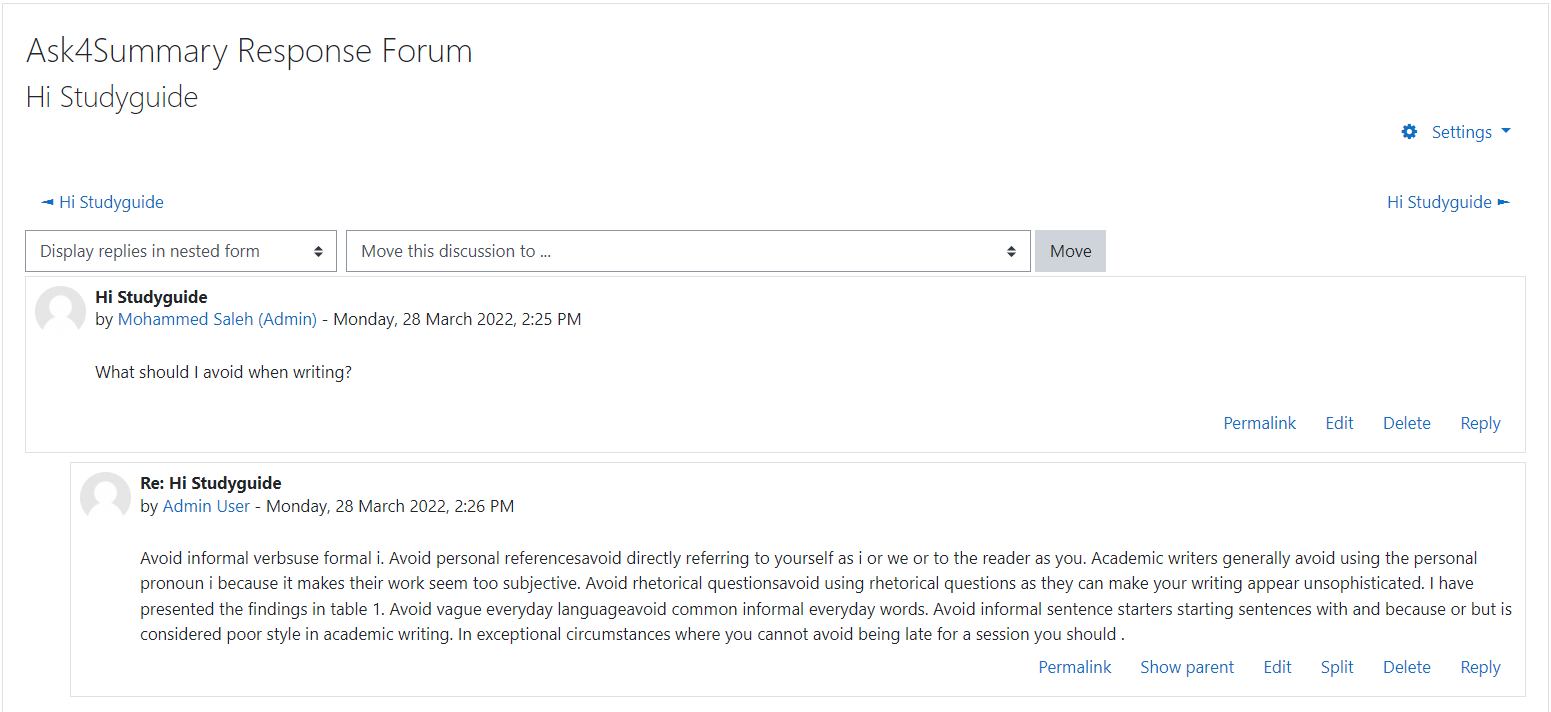
documents will be returned to the user question as a reply to their forum post.
TERMS OF USE:
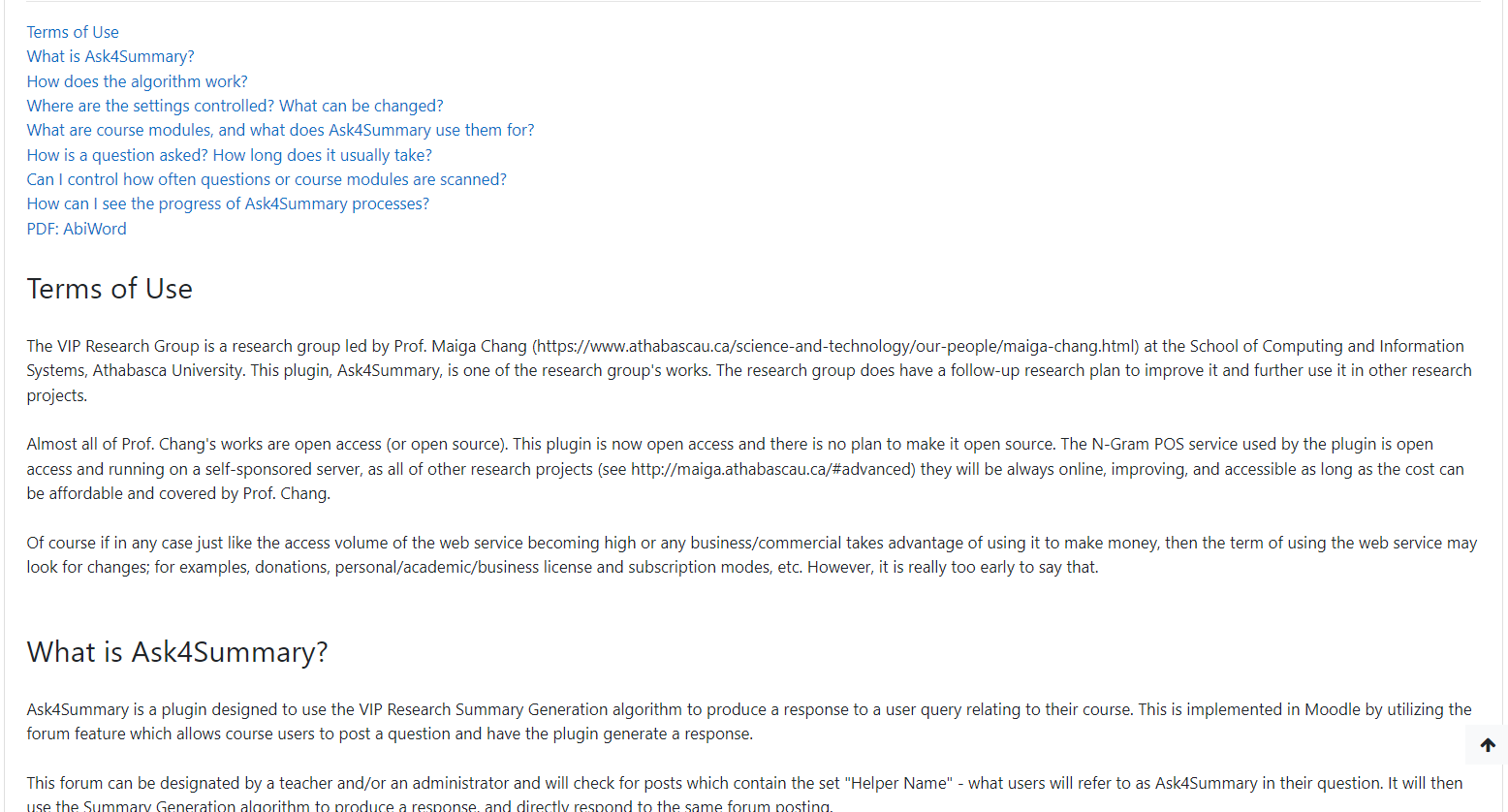
The VIP Research Group is a research group led by Prof. Maiga Chang (https://www.athabascau.ca/science-and-technology/our-people/maiga-chang.html) at the School of Computing and Information Systems, Athabasca University. This plugin, Ask4Summary, is one of the research group's works. The research group does have a follow-up research plan to improve it and further use it in other research projects.
Almost all of Prof. Chang's works are open access (or open source). The N-Gram POS service used by the plugin is open access and running on a self-sponsored server, as all of other research projects (see http://maiga.athabascau.ca/#advanced) they will be always online, improving, and accessible as long as the cost can be affordable and covered by Prof. Chang.
Of course if in any case just like the access volume of the web service becoming high or any business/commercial takes advantage of using it to make money, then the term of using the web service may look for changes; for examples, donations, personal/academic/business license and subscription modes, etc. However, it is really too early to say that.
Installation:
Ask4Summary can be installed directly from the Moodle plugin directory
by navigating to Site administration -> Plugins -> Install plugins and searching
for Ask4Summary. It can also be installed from a downloaded zip file or
by copying the plugin files into the blocks/ask4summary directory.
Post-installation set-up:
Ask4Summary contains settings unique to each course it is added to.
Students will be able to see certain settings set by teachers; but, the
majority of settings will not be seen by students. The block configuration
settings control the forum scanning settings, the course module scanning
settings, and the summary generation settings. For forum scanning: the name
which students refer to in their question can be changed, whether or not
questions should be answered, and which forum (or all forums) should be
checked. For course module scanning: you can enable or disable URL webpages,
Word documents, PDFs, Microsoft Powerpoints, and Moodle Page modules. For
summary generation: you can change how many resources should be considered
for sentences, and how many sentences should be returned.
Administrators can set the default for these settings in
Site administration -> Plugins overview, then searching for "Ask4Summary" and
clicking the associated settings link. You can also change whether the block
itself can change if it should answer questions.
The block has two scheduled tasks, "Document Scanning" and "Forum Scanning".
Document Scanning runs every night between midnight and 6 AM, and Forum
Scanning runs every 15 minutes. If you would like to change these intervals, go
to Site administration -> Server -> Scheduled tasks, then click to gear icon
icon for either.
Usage:
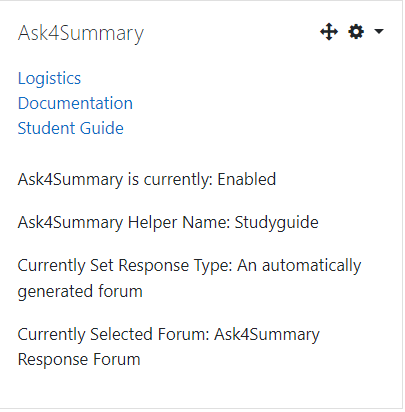
With the block installed in a course, teachers and other non-student users will
be able to see and use the program. The block contains 3 links which are used to
view the graph and run clustering, position the course resource nodes, or replay
clustering results. These links are shown to anyone who can view the block. Site
administrators will also see forms for importing and exporting logs.
With the block added to a course, all users except guests will be able to see
the block. Students will only be able to access a brief page called
"Student Guide" and be able to see the forum settings. There are two additional
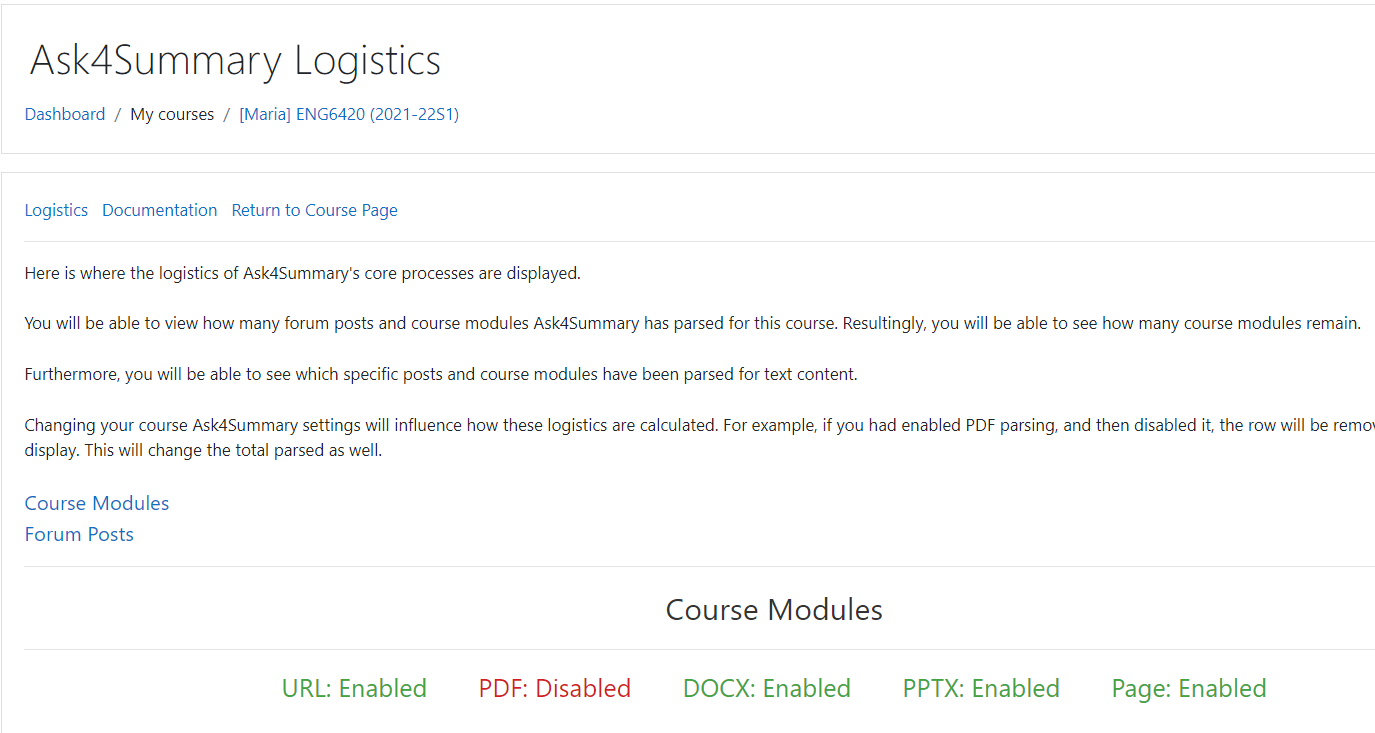
links, "Logistics" and "Documentation" that only teachers, managers, and admins
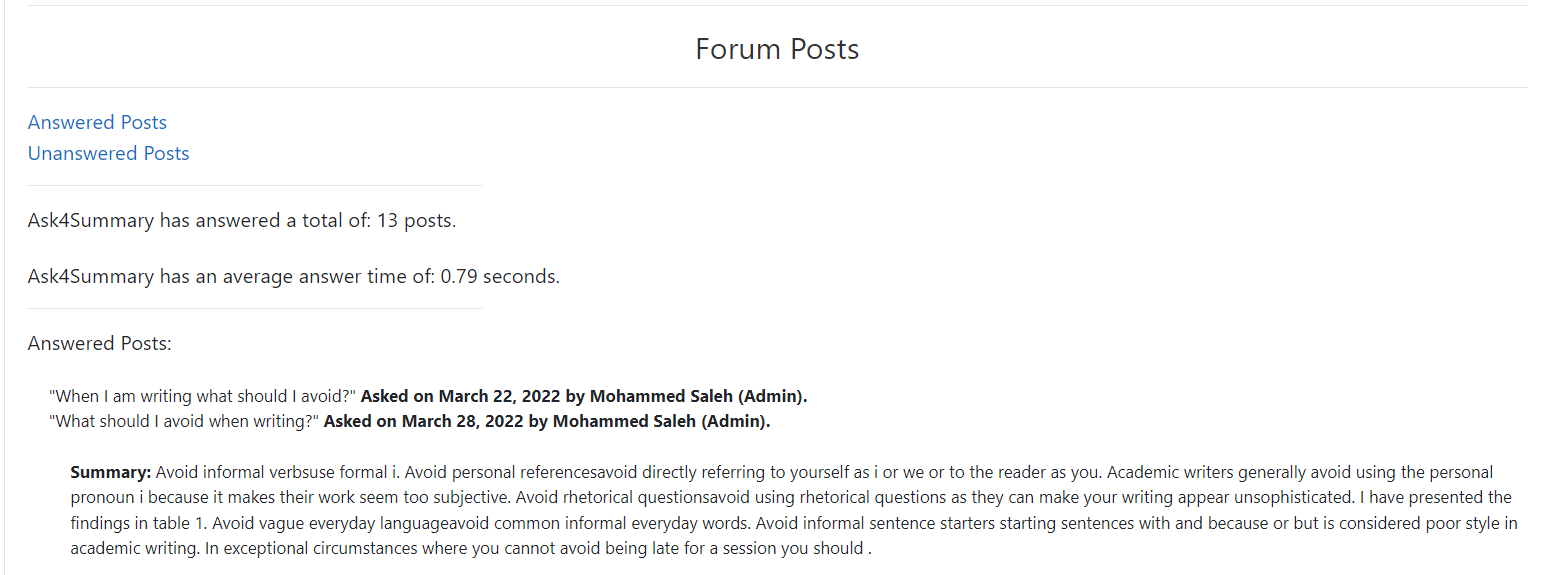
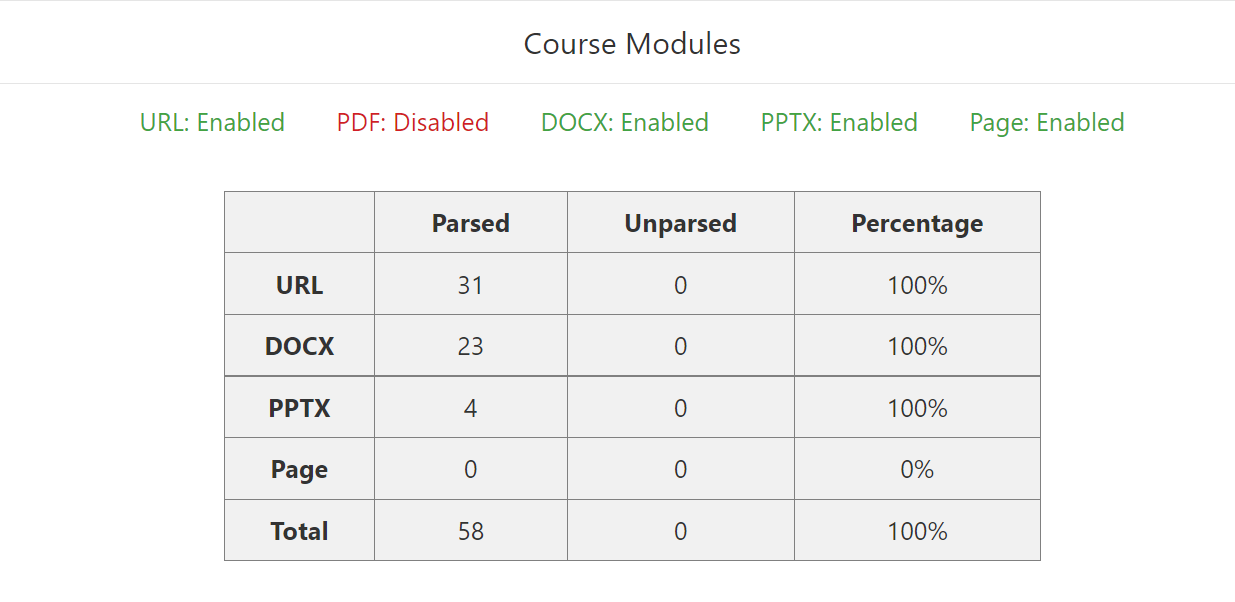
are able to access. Logistics will show you your current settings, a table view
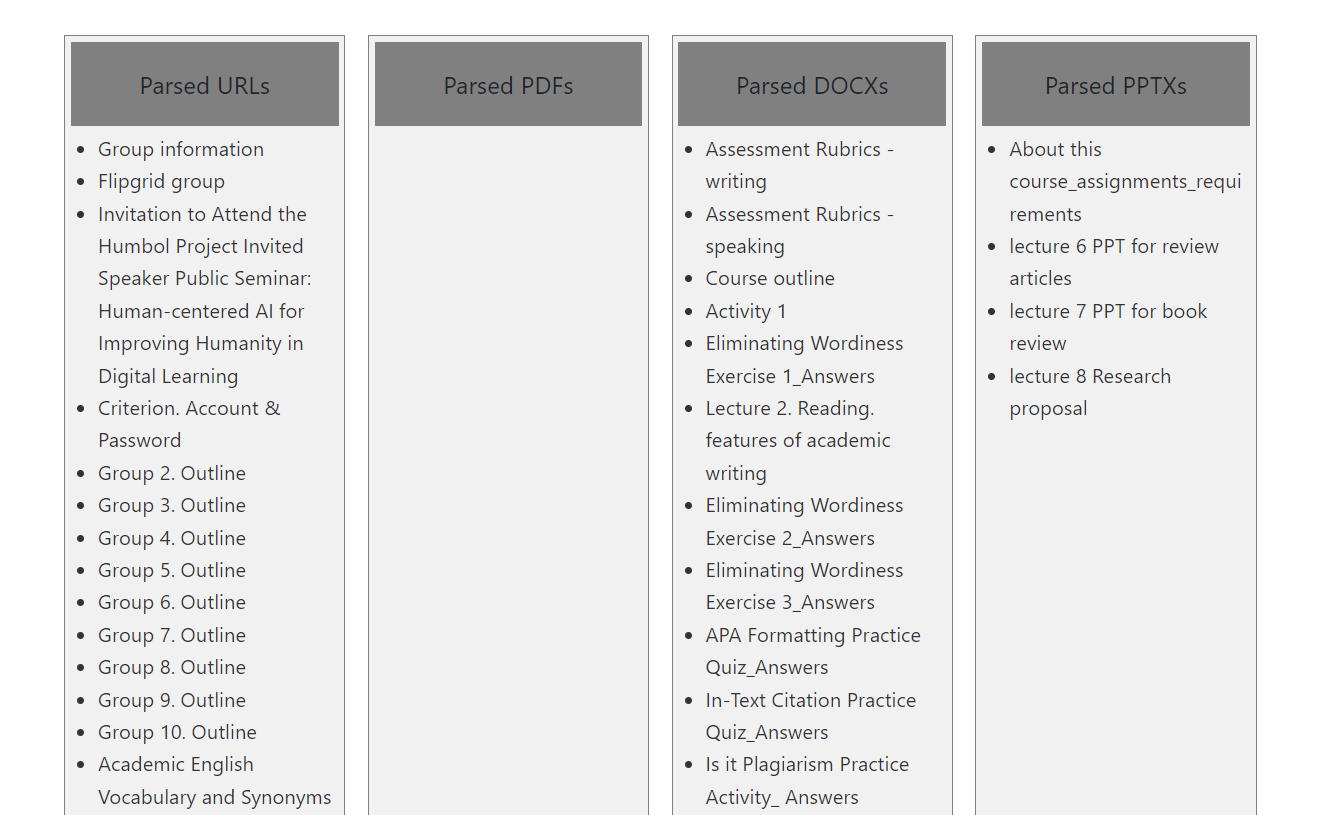
of all scanned and unscanned course modules, and a tile card view of which
specific modules have not been scanned. Following that, you will be able to
see how many questions have been answered, and the average time taken.
Furthermore, you will be able to see which questions have been answered, and
their generated summary. You will also be able to see what questions were not
able to be answered.
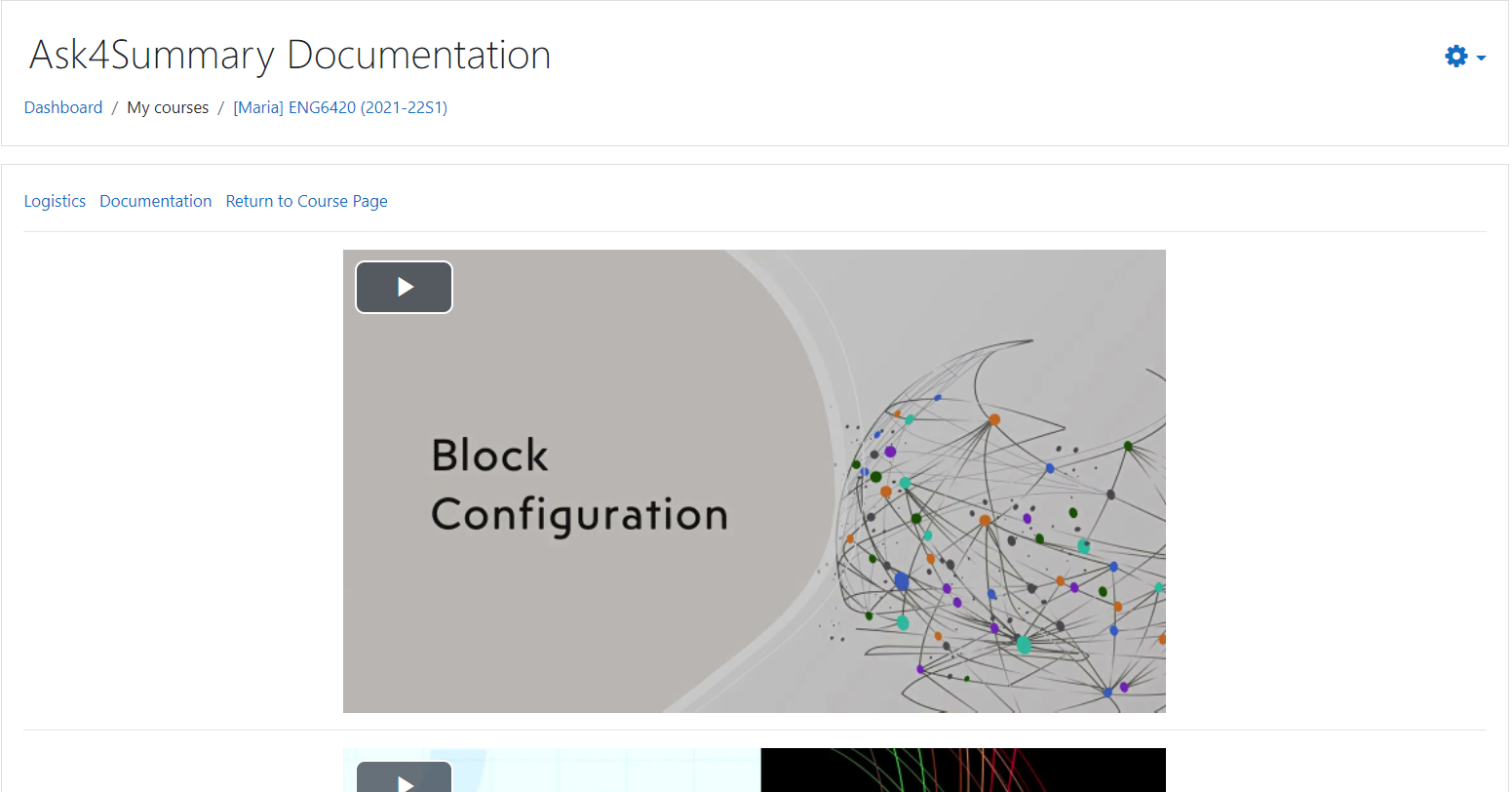
The documentation page contains useful information relating to the plugin, and
two videos describing the configuration and usage of the plugin.
Other than this, Ask4Summary is fully automated.
Forum Scanning:
Ask4Summary will look through a designated forum and check to see if there are
any questions directed to it. You can configure how forum scanning takes place.
The helper name is a name that students must include in their question to
trigger a response from Ask4Summary. The subject in their forum post must be
"Hi (helpername)" exactly, or they must begin their forum post with
"Hi (helpername)". You can also choose what forum Ask4Summary should check for
questions. It can either respond to all forums in the course, a specific forum
that you would choose, or an automatically generated forum. If you had already
generated a forum previously, you can change its name, and if you select
another option the forum will no longer be visible to students.
Course Module/Document Scanning:
Ask4Summary checks through URL webpages, PDFs, Word Documents, Powerpoint
presentations and Moodle page modules you have in the course. You can enable
or disable which of these you would like to have scanned, and you can also
change the depth of URLs to be scanned in your course. Some URLs will have
links to other URLs within them, and Ask4Summary can scan through those found
twice or three times.
PDF parsing is disabled by default because it requires the external application
AbiWord.
Question Answering:
Ask4Summary has a background task called "Answer Questions". Once Ask4Summary
has scanned through a course for all of its questions, it will queue the
answering service. This task will go through the learning database and if a
summary was able to be generated, it will respond to the forum post. Otherwise,
it will return a message to the post saying that it could not build an answer.
v0.1.2 (2022041400)
v0.1.2
Plugin type: Blocks
Frankenstyle component name: block_ask4summary
Version build number: 2022041400
Version release name: v0.1.2
Maturity: Stable
Supported Moodle versions: 3.3, 3.4, 3.5, 3.6, 3.7, 3.8, 3.9, 3.10, 3.11, 4.0
Repository URL (Git): https://github.com/VIP-Research-Group/moodle-block_ask4summary.git
Repository branch:
Repository tag:
Issue/bug tracker URL: https://github.com/VIP-Research-Group/moodle-block_ask4summary/issues
Short description:
Ask4Summary is a Moodle block plugin intended to serve as a question and answer
service for courses. It scans resources and activities and responds to forum
questions.
Long description:
Ask4Summary is a question and answer service that utilizes part of speech
recognition and cosine similarity to generate a summary. It will scan through
certain course activities and resources and gather their sentence content, and
words that fit within the top parts of speech. Afterwards, it will go through
all forums or a designated forum, look for questions directed towards
Ask4Summary, and gather the top parts of speech of the user's question. After,
Ask4Summary will compare the gathered parts of speech from the query to the
learning database for the course resources and perform cosine similarity on
the frequency of gathered words. Following this, the top sentences of the top
documents will be returned to the user question as a reply to their forum post.
TERMS OF USE:
The VIP Research Group is a research group led by Prof. Maiga Chang (https://www.athabascau.ca/science-and-technology/our-people/maiga-chang.html) at the School of Computing and Information Systems, Athabasca University. This plugin, Ask4Summary, is one of the research group's works. The research group does have a follow-up research plan to improve it and further use it in other research projects.
Almost all of Prof. Chang's works are open access (or open source). This plugin is now open access and there is no plan to make it open source. The N-Gram POS service used by the plugin is open access and running on a self-sponsored server, as all of other research projects (see http://maiga.athabascau.ca/#advanced) they will be always online, improving, and accessible as long as the cost can be affordable and covered by Prof. Chang.
Of course if in any case just like the access volume of the web service becoming high or any business/commercial takes advantage of using it to make money, then the term of using the web service may look for changes; for examples, donations, personal/academic/business license and subscription modes, etc. However, it is really too early to say that.
Installation:
Ask4Summary can be installed directly from the Moodle plugin directory
by navigating to Site administration -> Plugins -> Install plugins and searching
for Ask4Summary. It can also be installed from a downloaded zip file or
by copying the plugin files into the blocks/ask4summary directory.
Post-installation set-up:
Ask4Summary contains settings unique to each course it is added to.
Students will be able to see certain settings set by teachers; but, the
majority of settings will not be seen by students. The block configuration
settings control the forum scanning settings, the course module scanning
settings, and the summary generation settings. For forum scanning: the name
which students refer to in their question can be changed, whether or not
questions should be answered, and which forum (or all forums) should be
checked. For course module scanning: you can enable or disable URL webpages,
Word documents, PDFs, Microsoft Powerpoints, and Moodle Page modules. For
summary generation: you can change how many resources should be considered
for sentences, and how many sentences should be returned.
Administrators can set the default for these settings in
Site administration -> Plugins overview, then searching for "Ask4Summary" and
clicking the associated settings link. You can also change whether the block
itself can change if it should answer questions.
The block has two scheduled tasks, "Document Scanning" and "Forum Scanning".
Document Scanning runs every night between midnight and 6 AM, and Forum
Scanning runs every 15 minutes. If you would like to change these intervals, go
to Site administration -> Server -> Scheduled tasks, then click to gear icon
icon for either.
Usage:
With the block installed in a course, teachers and other non-student users will
be able to see and use the program. The block contains 3 links which are used to
view the graph and run clustering, position the course resource nodes, or replay
clustering results. These links are shown to anyone who can view the block. Site
administrators will also see forms for importing and exporting logs.
With the block added to a course, all users except guests will be able to see
the block. Students will only be able to access a brief page called
"Student Guide" and be able to see the forum settings. There are two additional
links, "Logistics" and "Documentation" that only teachers, managers, and admins
are able to access. Logistics will show you your current settings, a table view
of all scanned and unscanned course modules, and a tile card view of which
specific modules have not been scanned. Following that, you will be able to
see how many questions have been answered, and the average time taken.
Furthermore, you will be able to see which questions have been answered, and
their generated summary. You will also be able to see what questions were not
able to be answered.
The documentation page contains useful information relating to the plugin, and
two videos describing the configuration and usage of the plugin.
Other than this, Ask4Summary is fully automated.
Forum Scanning:
Ask4Summary will look through a designated forum and check to see if there are
any questions directed to it. You can configure how forum scanning takes place.
The helper name is a name that students must include in their question to
trigger a response from Ask4Summary. The subject in their forum post must be
"Hi (helpername)" exactly, or they must begin their forum post with
"Hi (helpername)". You can also choose what forum Ask4Summary should check for
questions. It can either respond to all forums in the course, a specific forum
that you would choose, or an automatically generated forum. If you had already
generated a forum previously, you can change its name, and if you select
another option the forum will no longer be visible to students.
Course Module/Document Scanning:
Ask4Summary checks through URL webpages, PDFs, Word Documents, Powerpoint
presentations and Moodle page modules you have in the course. You can enable
or disable which of these you would like to have scanned, and you can also
change the depth of URLs to be scanned in your course. Some URLs will have
links to other URLs within them, and Ask4Summary can scan through those found
twice or three times.
PDF parsing is disabled by default because it requires the external application
AbiWord.
Question Answering:
Ask4Summary has a background task called "Answer Questions". Once Ask4Summary
has scanned through a course for all of its questions, it will queue the
answering service. This task will go through the learning database and if a
summary was able to be generated, it will respond to the forum post. Otherwise,
it will return a message to the post saying that it could not build an answer.
v0.1.1 (2022040600)
v0.1.1
Plugin type: Blocks
Frankenstyle component name: block_ask4summary
Version build number: 2022040600
Version release name: v0.1.1
Maturity: Stable
Supported Moodle versions: 3.3, 3.4, 3.5, 3.6, 3.7, 3.8, 3.9, 3.10, 3.11, 4.0
Repository URL (Git): https://github.com/VIP-Research-Group/moodle-block_ask4summary.git
Repository branch:
Repository tag:
Issue/bug tracker URL: https://github.com/VIP-Research-Group/moodle-block_ask4summary/issues
Short description:
Ask4Summary is a Moodle block plugin intended to serve as a question and answer
service for courses. It scans resources and activities and responds to forum
questions.
Long description:
Ask4Summary is a question and answer service that utilizes part of speech
recognition and cosine similarity to generate a summary. It will scan through
certain course activities and resources and gather their sentence content, and
words that fit within the top parts of speech. Afterwards, it will go through
all forums or a designated forum, look for questions directed towards
Ask4Summary, and gather the top parts of speech of the user's question. After,
Ask4Summary will compare the gathered parts of speech from the query to the
learning database for the course resources and perform cosine similarity on
the frequency of gathered words. Following this, the top sentences of the top
documents will be returned to the user question as a reply to their forum post.
Installation:
Ask4Summary can be installed directly from the Moodle plugin directory
by navigating to Site administration -> Plugins -> Install plugins and searching
for Ask4Summary. It can also be installed from a downloaded zip file or
by copying the plugin files into the blocks/ask4summary directory.
Post-installation set-up:
Ask4Summary contains settings unique to each course it is added to.
Students will be able to see certain settings set by teachers; but, the
majority of settings will not be seen by students. The block configuration
settings control the forum scanning settings, the course module scanning
settings, and the summary generation settings. For forum scanning: the name
which students refer to in their question can be changed, whether or not
questions should be answered, and which forum (or all forums) should be
checked. For course module scanning: you can enable or disable URL webpages,
Word documents, PDFs, Microsoft Powerpoints, and Moodle Page modules. For
summary generation: you can change how many resources should be considered
for sentences, and how many sentences should be returned.
Administrators can set the default for these settings in
Site administration -> Plugins overview, then searching for "Ask4Summary" and
clicking the associated settings link. You can also change whether the block
itself can change if it should answer questions.
The block has two scheduled tasks, "Document Scanning" and "Forum Scanning".
Document Scanning runs every night between midnight and 6 AM, and Forum
Scanning runs every 15 minutes. If you would like to change these intervals, go
to Site administration -> Server -> Scheduled tasks, then click to gear icon
icon for either.
Usage:
With the block installed in a course, teachers and other non-student users will
be able to see and use the program. The block contains 3 links which are used to
view the graph and run clustering, position the course resource nodes, or replay
clustering results. These links are shown to anyone who can view the block. Site
administrators will also see forms for importing and exporting logs.
With the block added to a course, all users except guests will be able to see
the block. Students will only be able to access a brief page called
"Student Guide" and be able to see the forum settings. There are two additional
links, "Logistics" and "Documentation" that only teachers, managers, and admins
are able to access. Logistics will show you your current settings, a table view
of all scanned and unscanned course modules, and a tile card view of which
specific modules have not been scanned. Following that, you will be able to
see how many questions have been answered, and the average time taken.
Furthermore, you will be able to see which questions have been answered, and
their generated summary. You will also be able to see what questions were not
able to be answered.
The documentation page contains useful information relating to the plugin, and
two videos describing the configuration and usage of the plugin.
Other than this, Ask4Summary is fully automated.
Forum Scanning:
Ask4Summary will look through a designated forum and check to see if there are
any questions directed to it. You can configure how forum scanning takes place.
The helper name is a name that students must include in their question to
trigger a response from Ask4Summary. The subject in their forum post must be
"Hi (helpername)" exactly, or they must begin their forum post with
"Hi (helpername)". You can also choose what forum Ask4Summary should check for
questions. It can either respond to all forums in the course, a specific forum
that you would choose, or an automatically generated forum. If you had already
generated a forum previously, you can change its name, and if you select
another option the forum will no longer be visible to students.
Course Module/Document Scanning:
Ask4Summary checks through URL webpages, PDFs, Word Documents, Powerpoint
presentations and Moodle page modules you have in the course. You can enable
or disable which of these you would like to have scanned, and you can also
change the depth of URLs to be scanned in your course. Some URLs will have
links to other URLs within them, and Ask4Summary can scan through those found
twice or three times.
PDF parsing is disabled by default because it requires the external application
AbiWord.
Question Answering:
Ask4Summary has a background task called "Answer Questions". Once Ask4Summary
has scanned through a course for all of its questions, it will queue the
answering service. This task will go through the learning database and if a
summary was able to be generated, it will respond to the forum post. Otherwise,
it will return a message to the post saying that it could not build an answer.
v0.1.0.1 (2022033100)
v0.1.0.1
Plugin type: Blocks
Frankenstyle component name: block_ask4summary
Version build number: 2022033100
Version release name: v0.1.0.1
Maturity: Stable
Supported Moodle versions: 3.3, 3.4, 3.5, 3.6, 3.7, 3.8, 3.9, 3.10, 3.11, 4.0
Repository URL (Git): https://github.com/VIP-Research-Group/moodle-block_ask4summary.git
Repository branch:
Repository tag:
Issue/bug tracker URL: https://github.com/VIP-Research-Group/moodle-block_ask4summary/issues
Short description:
Ask4Summary is a Moodle block plugin intended to serve as a question and answer
service for courses. It scans resources and activities and responds to forum
questions.
Long description:
Ask4Summary is a question and answer service that utilizes part of speech
recognition and cosine similarity to generate a summary. It will scan through
certain course activities and resources and gather their sentence content, and
words that fit within the top parts of speech. Afterwards, it will go through
all forums or a designated forum, look for questions directed towards
Ask4Summary, and gather the top parts of speech of the user's question. After,
Ask4Summary will compare the gathered parts of speech from the query to the
learning database for the course resources and perform cosine similarity on
the frequency of gathered words. Following this, the top sentences of the top
documents will be returned to the user question as a reply to their forum post.
Installation:
Ask4Summary can be installed directly from the Moodle plugin directory
by navigating to Site administration -> Plugins -> Install plugins and searching
for Ask4Summary. It can also be installed from a downloaded zip file or
by copying the plugin files into the blocks/ask4summary directory.
Post-installation set-up:
Ask4Summary contains settings unique to each course it is added to.
Students will be able to see certain settings set by teachers; but, the
majority of settings will not be seen by students. The block configuration
settings control the forum scanning settings, the course module scanning
settings, and the summary generation settings. For forum scanning: the name
which students refer to in their question can be changed, whether or not
questions should be answered, and which forum (or all forums) should be
checked. For course module scanning: you can enable or disable URL webpages,
Word documents, PDFs, Microsoft Powerpoints, and Moodle Page modules. For
summary generation: you can change how many resources should be considered
for sentences, and how many sentences should be returned.
Administrators can set the default for these settings in
Site administration -> Plugins overview, then searching for "Ask4Summary" and
clicking the associated settings link. You can also change whether the block
itself can change if it should answer questions.
The block has two scheduled tasks, "Document Scanning" and "Forum Scanning".
Document Scanning runs every night between midnight and 6 AM, and Forum
Scanning runs every 15 minutes. If you would like to change these intervals, go
to Site administration -> Server -> Scheduled tasks, then click to gear icon
icon for either.
Usage:
With the block installed in a course, teachers and other non-student users will
be able to see and use the program. The block contains 3 links which are used to
view the graph and run clustering, position the course resource nodes, or replay
clustering results. These links are shown to anyone who can view the block. Site
administrators will also see forms for importing and exporting logs.
With the block added to a course, all users except guests will be able to see
the block. Students will only be able to access a brief page called
"Student Guide" and be able to see the forum settings. There are two additional
links, "Logistics" and "Documentation" that only teachers, managers, and admins
are able to access. Logistics will show you your current settings, a table view
of all scanned and unscanned course modules, and a tile card view of which
specific modules have not been scanned. Following that, you will be able to
see how many questions have been answered, and the average time taken.
Furthermore, you will be able to see which questions have been answered, and
their generated summary. You will also be able to see what questions were not
able to be answered.
The documentation page contains useful information relating to the plugin, and
two videos describing the configuration and usage of the plugin.
Other than this, Ask4Summary is fully automated.
Forum Scanning:
Ask4Summary will look through a designated forum and check to see if there are
any questions directed to it. You can configure how forum scanning takes place.
The helper name is a name that students must include in their question to
trigger a response from Ask4Summary. The subject in their forum post must be
"Hi (helpername)" exactly, or they must begin their forum post with
"Hi (helpername)". You can also choose what forum Ask4Summary should check for
questions. It can either respond to all forums in the course, a specific forum
that you would choose, or an automatically generated forum. If you had already
generated a forum previously, you can change its name, and if you select
another option the forum will no longer be visible to students.
Course Module/Document Scanning:
Ask4Summary checks through URL webpages, PDFs, Word Documents, Powerpoint
presentations and Moodle page modules you have in the course. You can enable
or disable which of these you would like to have scanned, and you can also
change the depth of URLs to be scanned in your course. Some URLs will have
links to other URLs within them, and Ask4Summary can scan through those found
twice or three times.
PDF parsing is disabled by default because it requires the external application
AbiWord.
Question Answering:
Ask4Summary has a background task called "Answer Questions". Once Ask4Summary
has scanned through a course for all of its questions, it will queue the
answering service. This task will go through the learning database and if a
summary was able to be generated, it will respond to the forum post. Otherwise,
it will return a message to the post saying that it could not build an answer.
v0.1.0 (2022032300)
v0.1.0
Plugin type: Blocks
Frankenstyle component name: block_ask4summary
Version build number: 2022032300
Version release name: v0.1.0
Maturity: Stable
Supported Moodle versions: 3.3, 3.4, 3.5, 3.6, 3.7, 3.8, 3.9, 3.10, 3.11
Repository URL (Git):
Repository branch:
Repository tag:
Issue/bug tracker URL: https://github.com/VIP-Research-Group/moodle-block_ask4summary/issues
Short description:
Ask4Summary is a Moodle block plugin intended to serve as a question and answer
service for courses. It scans resources and activities and responds to forum
questions.
Long description:
Ask4Summary is a question and answer service that utilizes part of speech
recognition and cosine similarity to generate a summary. It will scan through
certain course activities and resources and gather their sentence content, and
words that fit within the top parts of speech. Afterwards, it will go through
all forums or a designated forum, look for questions directed towards
Ask4Summary, and gather the top parts of speech of the user's question. After,
Ask4Summary will compare the gathered parts of speech from the query to the
learning database for the course resources and perform cosine similarity on
the frequency of gathered words. Following this, the top sentences of the top
documents will be returned to the user question as a reply to their forum post.
Installation:
Ask4Summary can be installed directly from the Moodle plugin directory
by navigating to Site administration -> Plugins -> Install plugins and searching
for Ask4Summary. It can also be installed from a downloaded zip file or
by copying the plugin files into the blocks/ask4summary directory.
Post-installation set-up:
Ask4Summary contains settings unique to each course it is added to.
Students will be able to see certain settings set by teachers; but, the
majority of settings will not be seen by students. The block configuration
settings control the forum scanning settings, the course module scanning
settings, and the summary generation settings. For forum scanning: the name
which students refer to in their question can be changed, whether or not
questions should be answered, and which forum (or all forums) should be
checked. For course module scanning: you can enable or disable URL webpages,
Word documents, PDFs, Microsoft Powerpoints, and Moodle Page modules. For
summary generation: you can change how many resources should be considered
for sentences, and how many sentences should be returned.
Administrators can set the default for these settings in
Site administration -> Plugins overview, then searching for "Ask4Summary" and
clicking the associated settings link. You can also change whether the block
itself can change if it should answer questions.
The block has two scheduled tasks, "Document Scanning" and "Forum Scanning".
Document Scanning runs every night between midnight and 6 AM, and Forum
Scanning runs every 15 minutes. If you would like to change these intervals, go
to Site administration -> Server -> Scheduled tasks, then click to gear icon
icon for either.
Usage:
With the block installed in a course, teachers and other non-student users will
be able to see and use the program. The block contains 3 links which are used to
view the graph and run clustering, position the course resource nodes, or replay
clustering results. These links are shown to anyone who can view the block. Site
administrators will also see forms for importing and exporting logs.
With the block added to a course, all users except guests will be able to see
the block. Students will only be able to access a brief page called
"Student Guide" and be able to see the forum settings. There are two additional
links, "Logistics" and "Documentation" that only teachers, managers, and admins
are able to access. Logistics will show you your current settings, a table view
of all scanned and unscanned course modules, and a tile card view of which
specific modules have not been scanned. Following that, you will be able to
see how many questions have been answered, and the average time taken.
Furthermore, you will be able to see which questions have been answered, and
their generated summary. You will also be able to see what questions were not
able to be answered.
The documentation page contains useful information relating to the plugin, and
two videos describing the configuration and usage of the plugin.
Other than this, Ask4Summary is fully automated.
Forum Scanning:
Ask4Summary will look through a designated forum and check to see if there are
any questions directed to it. You can configure how forum scanning takes place.
The helper name is a name that students must include in their question to
trigger a response from Ask4Summary. The subject in their forum post must be
"Hi (helpername)" exactly, or they must begin their forum post with
"Hi (helpername)". You can also choose what forum Ask4Summary should check for
questions. It can either respond to all forums in the course, a specific forum
that you would choose, or an automatically generated forum. If you had already
generated a forum previously, you can change its name, and if you select
another option the forum will no longer be visible to students.
Course Module/Document Scanning:
Ask4Summary checks through URL webpages, PDFs, Word Documents, Powerpoint
presentations and Moodle page modules you have in the course. You can enable
or disable which of these you would like to have scanned, and you can also
change the depth of URLs to be scanned in your course. Some URLs will have
links to other URLs within them, and Ask4Summary can scan through those found
twice or three times.
PDF parsing is disabled by default because it requires the external application
AbiWord.
Question Answering:
Ask4Summary has a background task called "Answer Questions". Once Ask4Summary
has scanned through a course for all of its questions, it will queue the
answering service. This task will go through the learning database and if a
summary was able to be generated, it will respond to the forum post. Otherwise,
it will return a message to the post saying that it could not build an answer.