RumbleTalk Group Chat
Versions
Current version
v1.2.4 (2025071300)
v1.2.4
Plugin type: Activities
Frankenstyle component name: mod_rumbletalkchat
Version build number: 2025071300
Version release name: v1.2.4
Maturity: Stable
Supported Moodle versions: 5.0
Repository URL (Git): https://github.com/RumbleTalk/moodle-mod_rumbletalkchat
Repository branch:
Repository tag:
Issue/bug tracker URL: https://tracker.moodle.org/browse/CONTRIB-9166
RumbleTalk
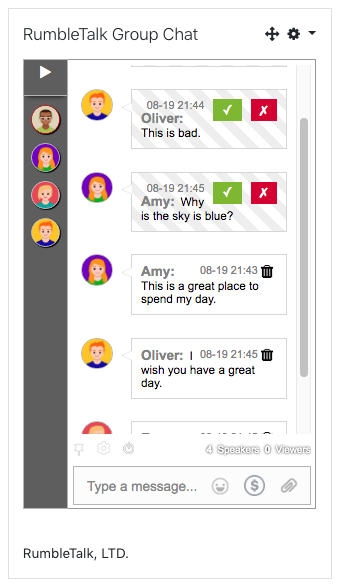
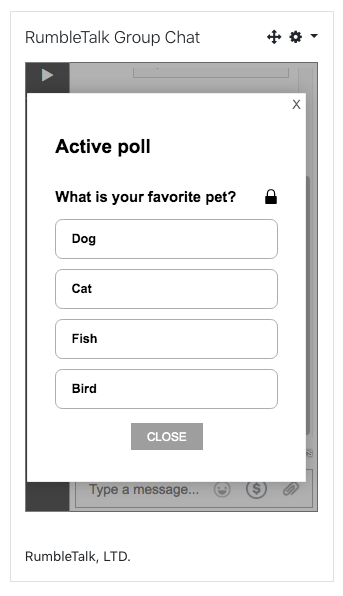
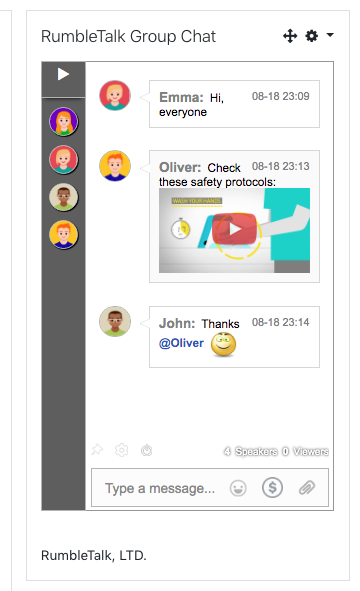
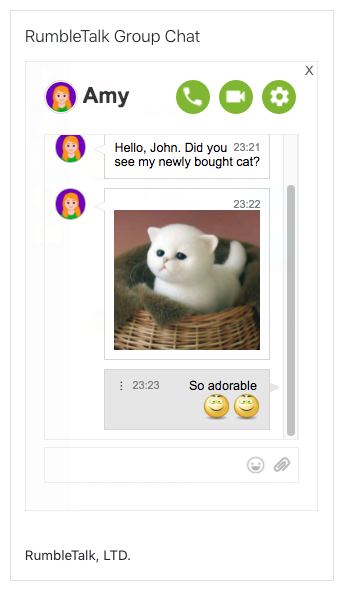
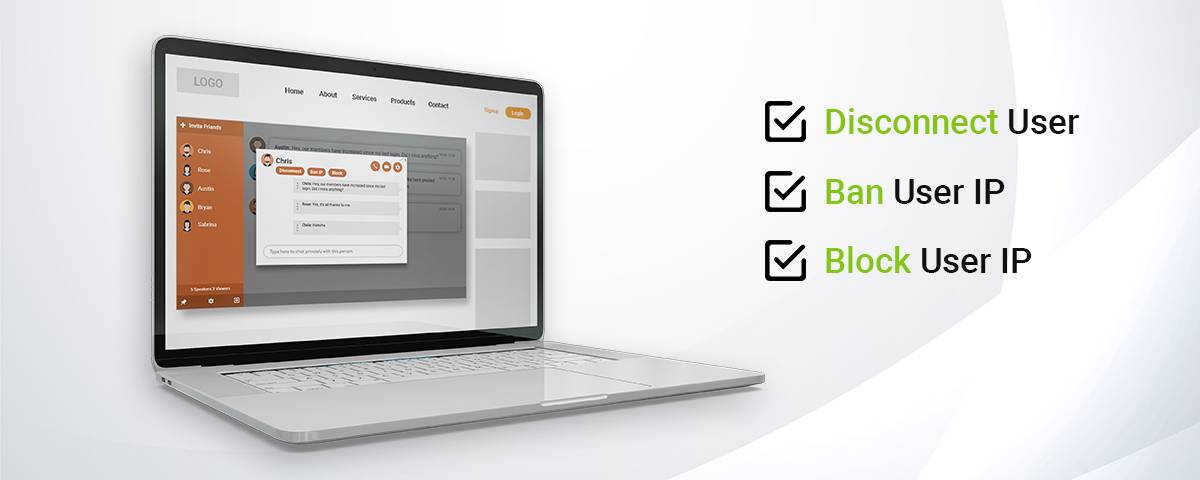
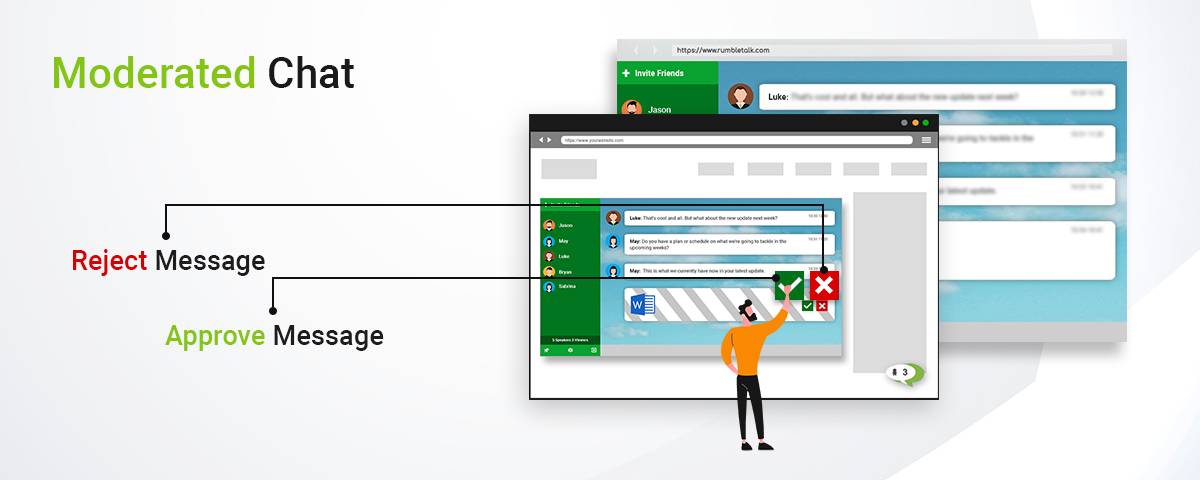
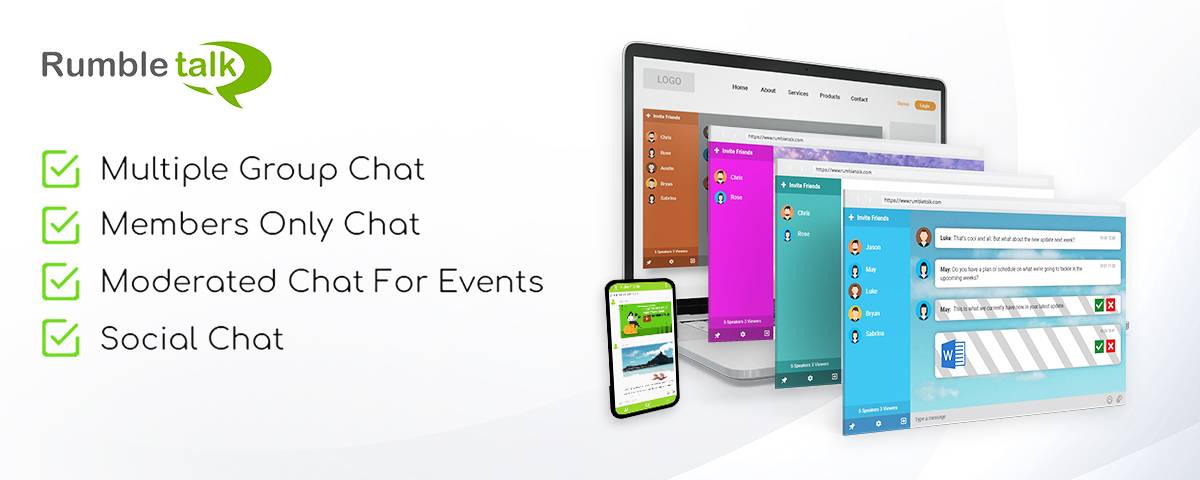
RumbleTalk Group Chat is a chat modular plugin which allows you to embed a chat in your Moodle page.
The chat is free for a limited number of seats, you must have a paid subscription to be able to use the advanced features and extra seats.
It is the most customizable HTML5 group chat. A site owner can choose their own chat theme from a variety of ready made themes and even create their own theme. It is the fastest way to add a unique fully functional chatroom to any blog or website.
@package mod_rumbletalkchat
@copyright 2025 RumbleTalk, LTD {@link https://www.rumbletalk.com}
@license https://www.gnu.org/copyleft/gpl.html GNU GPL v3 or later
License: GPLv2 or later
License URI: https://www.gnu.org/licenses/gpl-3.0.html
== Installation ==
First, Install the Plugin:
* via Moodle plugins directory *
1. Login as Admin at your Moodle Website
2. Go to "Site Administration" -> "Plugins" -> "Install Plugins" (If you can't find this location, then plugin installation is prevented on your site.)
3. Click the button 'Install plugins from Moodle plugins directory'.
4. Search for "RumbleTalk"
5. Click the title of "RumbleTalk" and click the Install button
6. Confirm the installation request
7. Check the plugin validation report by clicking "Continue" button.
* via uploaded ZIP file *
1. Go to Moodle plugins directory(https://moodle.org/plugins)
2. Search for "RumbleTalk" and open the "RumbleTalk" plugin and click "Download" button
This will download the ZIP file of RumbleTalk
3. Login as Admin at your Moodle Website
4. Go to "Site Administration" -> "Plugins" -> "Install Plugins"
5. Upload the RumbleTalk ZIP file
6. Click the "Install plugin from the ZIP File"
7. Confirm the installation request
8. Check the plugin validation report by clicking "Continue" button
Second, Get your chat code:
1. You must first login to your RumbleTalk Administator Panel,
https://cp.rumbletalk.com/login.
2. Then copy the hash code found on the bottom of your chat inside the Administrator Panel.
Inserting RumbleTalk Chat mod:
- Homepage -
1. Click "Settings" (represented by gear icon)
2. Under "Settings", select "Turn editing on".
3. Open Menu (represented by 3 stacked lines
located at the Upper Left of the screen).
4. Open "Add an activity or resource"
5. A pop-up window will appear, click "RumbleTalk" option.
- Other Pages -
1. Click "Customise this page"
2. Open Menu (represented by 3 stacked lines
located at the Upper Left of the screen).
3. Open "Add an activity or resource"
4. A pop-up window will appear, click "RumbleTalk" option.
Last, use your hash code to embed a chat.
1. Open "RumbleTalk" mod activity.
2. Click the "RumbleTalk" settings tab, and enter the hashcode of your chat
3. Click the button "Save and return to course" or "Save and display" once your done
Trouble shooting:
1. If you see "There is no chat available." message
2. Click the "RumbleTalk" settings tab, and enter the hashcode of your chat
Make sure that the hashcode is an 8 characters.
3. Click the button "Save and return to course" or "Save and display" once your done
Uninstall:
1. Go to "Site Administration" -> "Plugins" -> "Plugins Overview"
2. Select the "Additional plugins" tab
3. Click "Uninstall" in the RumbleTalk row
4. Click "Continue" to confirm the process
5. After that you should see success message and click "Continue"
v1.2.3 (2024080200)
v1.2.3
Plugin type: Activities
Frankenstyle component name: mod_rumbletalkchat
Version build number: 2024080200
Version release name: v1.2.3
Maturity: Stable
Supported Moodle versions: 4.0, 4.1, 4.2, 4.3, 4.4
Repository URL (Git): https://github.com/RumbleTalk/moodle-mod_rumbletalkchat
Repository branch:
Repository tag:
Issue/bug tracker URL: https://tracker.moodle.org/browse/CONTRIB-9166
RumbleTalk
RumbleTalk Group Chat is a chat modular plugin which allows you to embed a chat in your Moodle page.
The chat is free for a limited number of seats, you must have a paid subscription to be able to use the advanced features and extra seats.
It is the most customizable HTML5 group chat. A site owner can choose their own chat theme from a variety of ready made themes and even create their own theme. It is the fastest way to add a unique fully functional chatroom to any blog or website.
@package mod_rumbletalkchat
@copyright 2022 RumbleTalk, LTD {@link https://www.rumbletalk.com}
@license https://www.gnu.org/copyleft/gpl.html GNU GPL v3 or later
License: GPLv2 or later
License URI: https://www.gnu.org/licenses/gpl-3.0.html
== Installation ==
First, Install the Plugin:
* via Moodle plugins directory *
1. Login as Admin at your Moodle Website
2. Go to "Site Administration" -> "Plugins" -> "Install Plugins" (If you can't find this location, then plugin installation is prevented on your site.)
3. Click the button 'Install plugins from Moodle plugins directory'.
4. Search for "RumbleTalk"
5. Click the title of "RumbleTalk" and click the Install button
6. Confirm the installation request
7. Check the plugin validation report by clicking "Continue" button.
* via uploaded ZIP file *
1. Go to Moodle plugins directory(https://moodle.org/plugins)
2. Search for "RumbleTalk" and open the "RumbleTalk" plugin and click "Download" button
This will download the ZIP file of RumbleTalk
3. Login as Admin at your Moodle Website
4. Go to "Site Administration" -> "Plugins" -> "Install Plugins"
5. Upload the RumbleTalk ZIP file
6. Click the "Install plugin from the ZIP File"
7. Confirm the installation request
8. Check the plugin validation report by clicking "Continue" button
Second, Get your chat code:
1. You must first login to your RumbleTalk Administator Panel,
https://cp.rumbletalk.com/login.
2. Then copy the hash code found on the bottom of your chat inside the Administrator Panel.
Inserting RumbleTalk Chat mod:
- Homepage -
1. Click "Settings" (represented by gear icon)
2. Under "Settings", select "Turn editing on".
3. Open Menu (represented by 3 stacked lines
located at the Upper Left of the screen).
4. Open "Add an activity or resource"
5. A pop-up window will appear, click "RumbleTalk" option.
- Other Pages -
1. Click "Customise this page"
2. Open Menu (represented by 3 stacked lines
located at the Upper Left of the screen).
3. Open "Add an activity or resource"
4. A pop-up window will appear, click "RumbleTalk" option.
Last, use your hash code to embed a chat.
1. Open "RumbleTalk" mod activity.
2. Click the "RumbleTalk" settings tab, and enter the hashcode of your chat
3. Click the button "Save and return to course" or "Save and display" once your done
Trouble shooting:
1. If you see "There is no chat available." message
2. Click the "RumbleTalk" settings tab, and enter the hashcode of your chat
Make sure that the hashcode is an 8 characters.
3. Click the button "Save and return to course" or "Save and display" once your done
Uninstall:
1. Go to "Site Administration" -> "Plugins" -> "Plugins Overview"
2. Select the "Additional plugins" tab
3. Click "Uninstall" in the RumbleTalk row
4. Click "Continue" to confirm the process
5. After that you should see success message and click "Continue"
v1.2.2 (2024051600)
v1.2.2
Plugin type: Activities
Frankenstyle component name: mod_rumbletalkchat
Version build number: 2024051600
Version release name: v1.2.2
Maturity: Stable
Supported Moodle versions: 4.0, 4.1, 4.2, 4.3, 4.4
Repository URL (Git): https://github.com/RumbleTalk/moodle-mod_rumbletalkchat
Repository branch:
Repository tag:
Issue/bug tracker URL: https://tracker.moodle.org/browse/CONTRIB-9166
RumbleTalk
RumbleTalk Group Chat is a chat modular plugin that allows you to embed a chat in your Moodle page.
The chat is free for a limited number of seats, you must have a paid subscription to be able to use the advanced features and extra seats.
It is the most customizable HTML5 group chat. A site owner can choose their chat theme from a variety of ready-made themes and even create their theme. It is the fastest way to add a unique fully functional chatroom to any blog or website.
@package mod_rumbletalkchat
@copyright 2024 RumbleTalk, LTD {@link https://www.rumbletalk.com}
@license https://www.gnu.org/copyleft/gpl.html GNU GPL v3 or later
License: GPLv2 or later
License URI: https://www.gnu.org/licenses/gpl-3.0.html
== Installation ==
First, Install the Plugin:
* via Moodle plugins directory *
1. Login as Admin at your Moodle Website
2. Go to "Site Administration" -> "Plugins" -> "Install Plugins" (If you can't find this location, then plugin installation is prevented on your site.)
3. Click the button 'Install plugins from Moodle plugins directory'.
4. Search for "RumbleTalk"
5. Click the title of "RumbleTalk" and click the Install button
6. Confirm the installation request
7. Check the plugin validation report by clicking the "Continue" button.
* via uploaded ZIP file *
1. Go to the Moodle plugins directory(https://moodle.org/plugins)
2. Search for "RumbleTalk" and open the "RumbleTalk" plugin and click "Download" button
This will download the ZIP file of RumbleTalk
3. Login as Admin at your Moodle Website
4. Go to "Site Administration" -> "Plugins" -> "Install Plugins"
5. Upload the RumbleTalk ZIP file
6. Click the "Install plugin from the ZIP File"
7. Confirm the installation request
8. Check the plugin validation report by clicking the "Continue" button
Second, Get your chat code:
1. You must first log in to your RumbleTalk Administrator Panel,
https://cp.rumbletalk.com/login.
2. Then copy the hash code found at the bottom of your chat inside the Administrator Panel.
Inserting RumbleTalk Chat mod:
- Homepage -
1. Click "Settings" (represented by a gear icon)
2. Under "Settings", select "Turn editing on".
3. Open Menu (represented by 3 stacked lines
located at the Upper Left of the screen).
4. Open "Add an activity or resource"
5. A pop-up window will appear, click the "RumbleTalk" option.
- Other Pages -
1. Click "Customise this page"
2. Open Menu (represented by 3 stacked lines
located at the Upper Left of the screen).
3. Open "Add an activity or resource"
4. A pop-up window will appear, click the "RumbleTalk" option.
Last, use your hash code to embed a chat.
1. Open "RumbleTalk" mod activity.
2. Click the "RumbleTalk" settings tab, and enter the hashcode of your chat
3. Click the button "Save and return to course" or "Save and display" once you're done
Troubleshooting:
1. If you see the "There is no chat available." message
2. Click the "RumbleTalk" settings tab, and enter the hashcode of your chat
Make sure that the hashcode is 8 characters.
3. Click the button "Save and return to course" or "Save and display" once you're done
Uninstall:
1. Go to "Site Administration" -> "Plugins" -> "Plugins Overview"
2. Select the "Additional plugins" tab
3. Click "Uninstall" in the RumbleTalk row
4. Click "Continue" to confirm the process
5. After that you should see the success message and click "Continue"
v1.2.1 (2024012500)
v1.2.1
Plugin type: Activities
Frankenstyle component name: mod_rumbletalkchat
Version build number: 2024012500
Version release name: v1.2.1
Maturity: Stable
Supported Moodle versions: 4.0, 4.1, 4.2, 4.3
Repository URL (Git): https://github.com/RumbleTalk/moodle-mod_rumbletalkchat
Repository branch:
Repository tag:
Issue/bug tracker URL: https://tracker.moodle.org/browse/CONTRIB-9166
RumbleTalk
RumbleTalk Group Chat is a chat modular plugin that allows you to embed a chat in your Moodle page.
The chat is free for a limited number of seats, you must have a paid subscription to be able to use the advanced features and extra seats.
It is the most customizable HTML5 group chat. A site owner can choose their chat theme from a variety of ready-made themes and even create their theme. It is the fastest way to add a unique fully functional chatroom to any blog or website.
@package mod_rumbletalkchat
@copyright 2024 RumbleTalk, LTD {@link https://www.rumbletalk.com}
@license https://www.gnu.org/copyleft/gpl.html GNU GPL v3 or later
License: GPLv2 or later
License URI: https://www.gnu.org/licenses/gpl-3.0.html
== Installation ==
First, Install the Plugin:
* via Moodle plugins directory *
1. Login as Admin at your Moodle Website
2. Go to "Site Administration" -> "Plugins" -> "Install Plugins" (If you can't find this location, then plugin installation is prevented on your site.)
3. Click the button 'Install plugins from Moodle plugins directory'.
4. Search for "RumbleTalk"
5. Click the title of "RumbleTalk" and click the Install button
6. Confirm the installation request
7. Check the plugin validation report by clicking the "Continue" button.
* via uploaded ZIP file *
1. Go to the Moodle plugins directory(https://moodle.org/plugins)
2. Search for "RumbleTalk" and open the "RumbleTalk" plugin and click "Download" button
This will download the ZIP file of RumbleTalk
3. Login as Admin at your Moodle Website
4. Go to "Site Administration" -> "Plugins" -> "Install Plugins"
5. Upload the RumbleTalk ZIP file
6. Click the "Install plugin from the ZIP File"
7. Confirm the installation request
8. Check the plugin validation report by clicking the "Continue" button
Second, Get your chat code:
1. You must first log in to your RumbleTalk Administrator Panel,
https://cp.rumbletalk.com/login.
2. Then copy the hash code found at the bottom of your chat inside the Administrator Panel.
Inserting RumbleTalk Chat mod:
- Homepage -
1. Click "Settings" (represented by a gear icon)
2. Under "Settings", select "Turn editing on".
3. Open Menu (represented by 3 stacked lines
located at the Upper Left of the screen).
4. Open "Add an activity or resource"
5. A pop-up window will appear, click the "RumbleTalk" option.
- Other Pages -
1. Click "Customise this page"
2. Open Menu (represented by 3 stacked lines
located at the Upper Left of the screen).
3. Open "Add an activity or resource"
4. A pop-up window will appear, click the "RumbleTalk" option.
Last, use your hash code to embed a chat.
1. Open "RumbleTalk" mod activity.
2. Click the "RumbleTalk" settings tab, and enter the hashcode of your chat
3. Click the button "Save and return to course" or "Save and display" once you're done
Troubleshooting:
1. If you see the "There is no chat available." message
2. Click the "RumbleTalk" settings tab, and enter the hashcode of your chat
Make sure that the hashcode is 8 characters.
3. Click the button "Save and return to course" or "Save and display" once you're done
Uninstall:
1. Go to "Site Administration" -> "Plugins" -> "Plugins Overview"
2. Select the "Additional plugins" tab
3. Click "Uninstall" in the RumbleTalk row
4. Click "Continue" to confirm the process
5. After that you should see the success message and click "Continue"
v1.2 (2023012400)
v1.2
Plugin type: Activities
Frankenstyle component name: mod_rumbletalkchat
Version build number: 2023012400
Version release name: v1.2
Maturity: Beta
Supported Moodle versions: 3.10, 3.11, 3.9, 4.0, 4.1
Repository URL (Git): https://github.com/RumbleTalk/moodle-mod_rumbletalkchat
Repository branch:
Repository tag:
Issue/bug tracker URL: https://tracker.moodle.org/browse/CONTRIB-9166
RumbleTalk
RumbleTalk Group Chat is a chat modular plugin which allows you to embed a chat in your Moodle page.
The chat is free for a limited number of seats, you must have a paid subscription to be able to use the advanced features and extra seats.
It is the most customizable HTML5 group chat. A site owner can choose their own chat theme from a variety of ready made themes and even create their own theme. It is the fastest way to add a unique fully functional chatroom to any blog or website.
@package mod_rumbletalkchat
@copyright 2022 RumbleTalk, LTD {@link https://www.rumbletalk.com}
@license https://www.gnu.org/copyleft/gpl.html GNU GPL v3 or later
License: GPLv2 or later
License URI: https://www.gnu.org/licenses/gpl-3.0.html
== Installation ==
First, Install the Plugin:
* via Moodle plugins directory *
1. Login as Admin at your Moodle Website
2. Go to "Site Administration" -> "Plugins" -> "Install Plugins" (If you can't find this location, then plugin installation is prevented on your site.)
3. Click the button 'Install plugins from Moodle plugins directory'.
4. Search for "RumbleTalk"
5. Click the title of "RumbleTalk" and click the Install button
6. Confirm the installation request
7. Check the plugin validation report by clicking "Continue" button.
* via uploaded ZIP file *
1. Go to Moodle plugins directory(https://moodle.org/plugins)
2. Search for "RumbleTalk" and open the "RumbleTalk" plugin and click "Download" button
This will download the ZIP file of RumbleTalk
3. Login as Admin at your Moodle Website
4. Go to "Site Administration" -> "Plugins" -> "Install Plugins"
5. Upload the RumbleTalk ZIP file
6. Click the "Install plugin from the ZIP File"
7. Confirm the installation request
8. Check the plugin validation report by clicking "Continue" button
Second, Get your chat code:
1. You must first login to your RumbleTalk Administator Panel,
https://cp.rumbletalk.com/login.
2. Then copy the hash code found on the bottom of your chat inside the Administrator Panel.
Inserting RumbleTalk Chat mod:
- Homepage -
1. Click "Settings" (represented by gear icon)
2. Under "Settings", select "Turn editing on".
3. Open Menu (represented by 3 stacked lines
located at the Upper Left of the screen).
4. Open "Add an activity or resource"
5. A pop-up window will appear, click "RumbleTalk" option.
- Other Pages -
1. Click "Customise this page"
2. Open Menu (represented by 3 stacked lines
located at the Upper Left of the screen).
3. Open "Add an activity or resource"
4. A pop-up window will appear, click "RumbleTalk" option.
Last, use your hash code to embed a chat.
1. Open "RumbleTalk" mod activity.
2. Click the "RumbleTalk" settings tab, and enter the hashcode of your chat
3. Click the button "Save and return to course" or "Save and display" once your done
Trouble shooting:
1. If you see "There is no chat available." message
2. Click the "RumbleTalk" settings tab, and enter the hashcode of your chat
Make sure that the hashcode is an 8 characters.
3. Click the button "Save and return to course" or "Save and display" once your done
Uninstall:
1. Go to "Site Administration" -> "Plugins" -> "Plugins Overview"
2. Select the "Additional plugins" tab
3. Click "Uninstall" in the RumbleTalk row
4. Click "Continue" to confirm the process
5. After that you should see success message and click "Continue"
v1.1 (2022071500)
v1.1
Plugin type: Activities
Frankenstyle component name: mod_rumbletalkchat
Version build number: 2022071500
Version release name: v1.1
Maturity: Beta
Supported Moodle versions: 3.10, 3.11, 3.9, 4.0, 4.1
Repository URL (Git): https://github.com/jeirod/moodle-mod_rumbletalkchat
Repository branch: main
Repository tag:
Issue/bug tracker URL: https://tracker.moodle.org/browse/CONTRIB-9166
RumbleTalk
RumbleTalk Group Chat is a chat modular plugin which allows you to embed a chat in your Moodle page.
The chat is free for a limited number of seats, you must have a paid subscription to be able to use the advanced features and extra seats.
It is the most customizable HTML5 group chat. A site owner can choose their own chat theme from a variety of ready made themes and even create their own theme. It is the fastest way to add a unique fully functional chatroom to any blog or website.
@package mod_rumbletalkchat
@copyright 2022 RumbleTalk, LTD {@link https://www.rumbletalk.com}
@license https://www.gnu.org/copyleft/gpl.html GNU GPL v3 or later
License: GPLv2 or later
License URI: https://www.gnu.org/licenses/gpl-3.0.html
== Installation ==
First, Install the Plugin:
* via Moodle plugins directory *
1. Login as Admin at your Moodle Website
2. Go to "Site Administration" -> "Plugins" -> "Install Plugins" (If you can't find this location, then plugin installation is prevented on your site.)
3. Click the button 'Install plugins from Moodle plugins directory'.
4. Search for "RumbleTalk"
5. Click the title of "RumbleTalk" and click the Install button
6. Confirm the installation request
7. Check the plugin validation report by clicking "Continue" button.
* via uploaded ZIP file *
1. Go to Moodle plugins directory(https://moodle.org/plugins)
2. Search for "RumbleTalk" and open the "RumbleTalk" plugin and click "Download" button
This will download the ZIP file of RumbleTalk
3. Login as Admin at your Moodle Website
4. Go to "Site Administration" -> "Plugins" -> "Install Plugins"
5. Upload the RumbleTalk ZIP file
6. Click the "Install plugin from the ZIP File"
7. Confirm the installation request
8. Check the plugin validation report by clicking "Continue" button
Second, Get your chat code:
1. You must first login to your RumbleTalk Administator Panel,
https://cp.rumbletalk.com/login.
2. Then copy the hash code found on the bottom of your chat inside the Administrator Panel.
Inserting RumbleTalk Chat mod:
- Homepage -
1. Click "Settings" (represented by gear icon)
2. Under "Settings", select "Turn editing on".
3. Open Menu (represented by 3 stacked lines
located at the Upper Left of the screen).
4. Open "Add an activity or resource"
5. A pop-up window will appear, click "RumbleTalk" option.
- Other Pages -
1. Click "Customise this page"
2. Open Menu (represented by 3 stacked lines
located at the Upper Left of the screen).
3. Open "Add an activity or resource"
4. A pop-up window will appear, click "RumbleTalk" option.
Last, use your hash code to embed a chat.
1. Open "RumbleTalk" mod activity.
2. Click the "RumbleTalk" settings tab, and enter the hashcode of your chat
3. Click the button "Save and return to course" or "Save and display" once your done
Trouble shooting:
1. If you see "There is no chat available." message
2. Click the "RumbleTalk" settings tab, and enter the hashcode of your chat
Make sure that the hashcode is an 8 characters.
3. Click the button "Save and return to course" or "Save and display" once your done
Uninstall:
1. Go to "Site Administration" -> "Plugins" -> "Plugins Overview"
2. Select the "Additional plugins" tab
3. Click "Uninstall" in the RumbleTalk row
4. Click "Continue" to confirm the process
5. After that you should see success message and click "Continue"