
Source code Pro
Versions
Current version
2.1.5 (2026042201)
2.1.5
Plugin type: TinyMCE
Frankenstyle component name: tiny_codepro
Version build number: 2026042201
Version release name: 2.1.5
Maturity: Stable
Supported Moodle versions: 4.1, 4.2, 4.3, 4.4, 4.5, 5.0, 5.1, 5.2
Repository URL (Git): https://github.com/jmulet/tiny_codepro
Repository branch:
Repository tag: v2.1.5
Issue/bug tracker URL: https://github.com/jmulet/tiny_codepro
Source Code Pro for TinyMCE Editor
A Moodle plugin for the TinyMCE editor that enhances the built-in source code editor.
This plugin leverages CodeMirror version 6 to provide features such as syntax highlighting,
autocompletion, block folding, and more.
Compatibility
- Moodle 4.1 – 4.3: It replaces the default plain text source code editor.
- Moodle 4.4 and beyond: It provides advanced features compared to the default HTML code editor.
Features
- Syntax highlighting with line numbers
- Search and replace functionality
- Code formatting
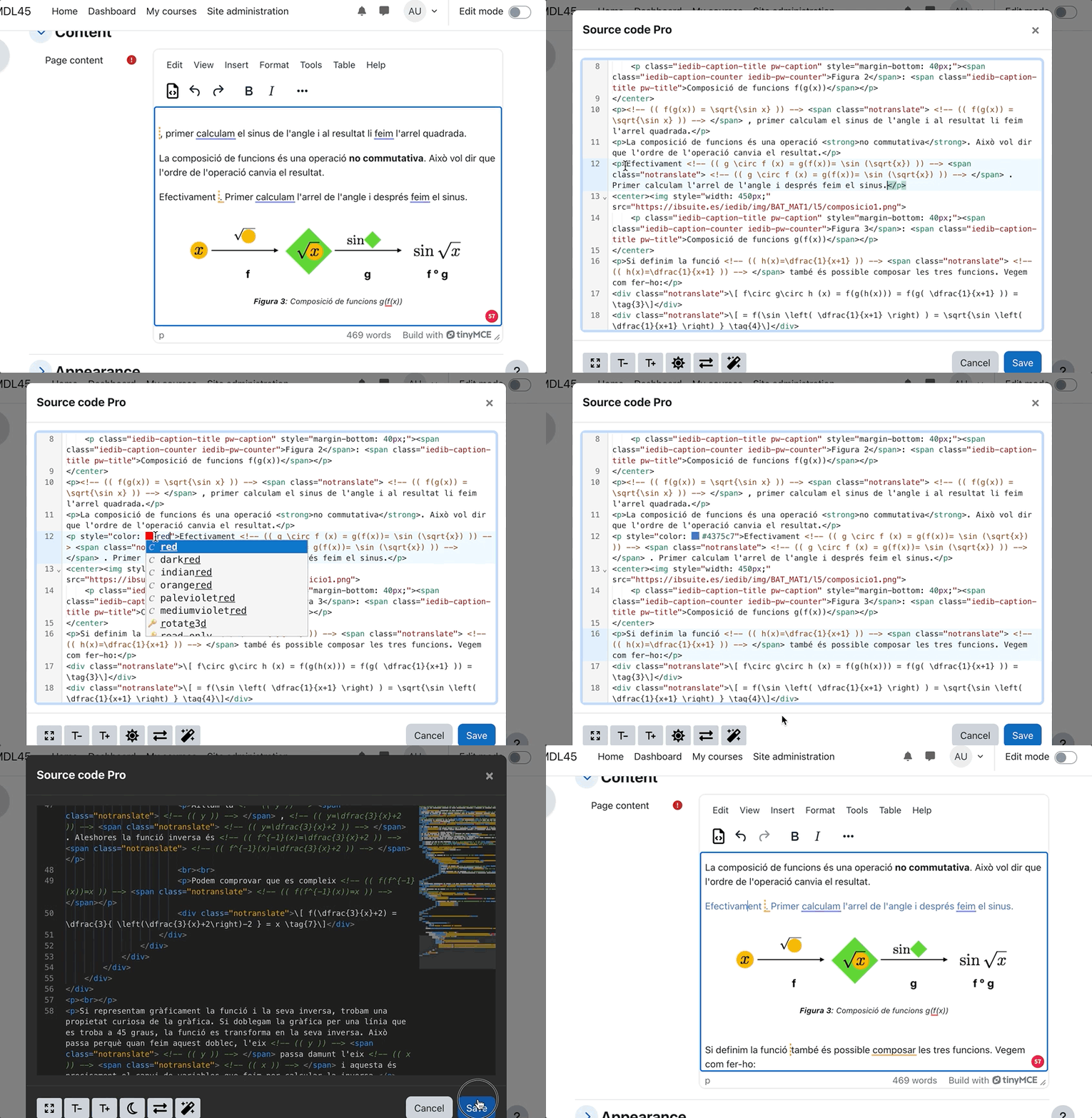
- Cursor position synchronization with TinyMCE (since v1.1.4)
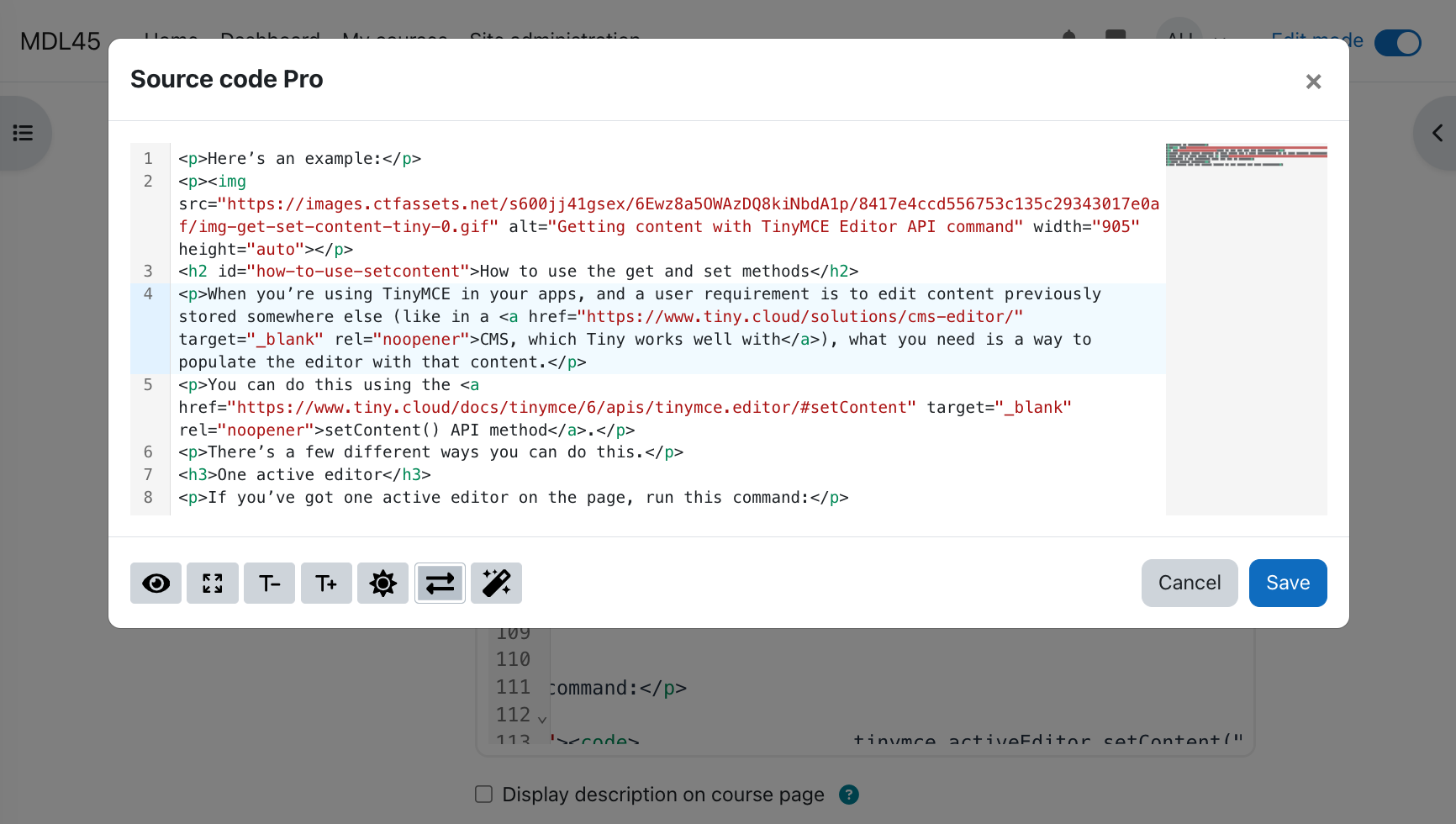
- Light and dark themes
- Toggle fullscreen mode
- New in v2.0:
- Dialog and panel UI modes
- Configurable font size
- Improved cursor synchronization
- Color picker
- VSCode-like minimap
- New in v2.1.5:
- Emmet expand abbreviation
UI Modes
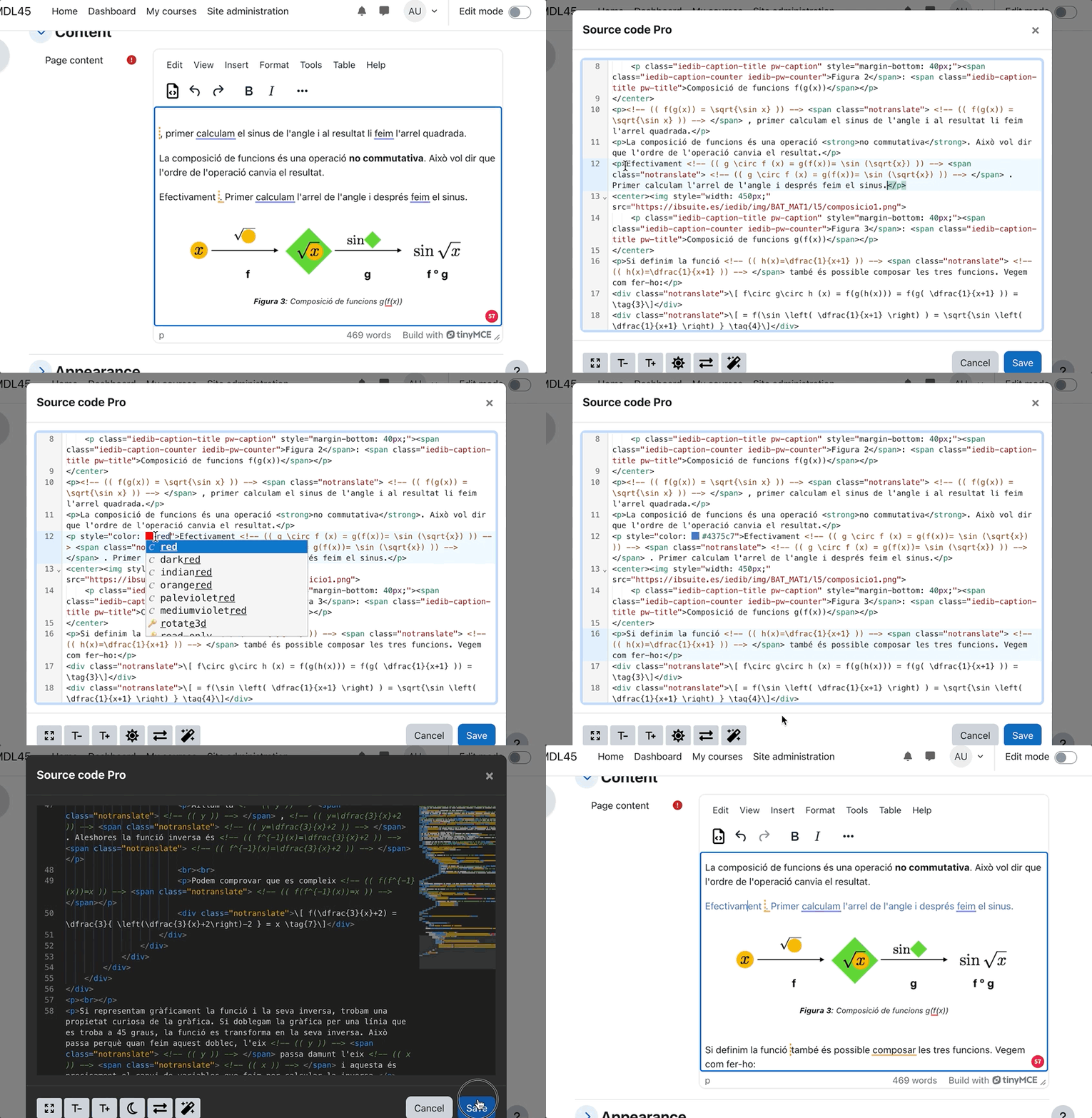
The code editor can be displayed in two different modes:
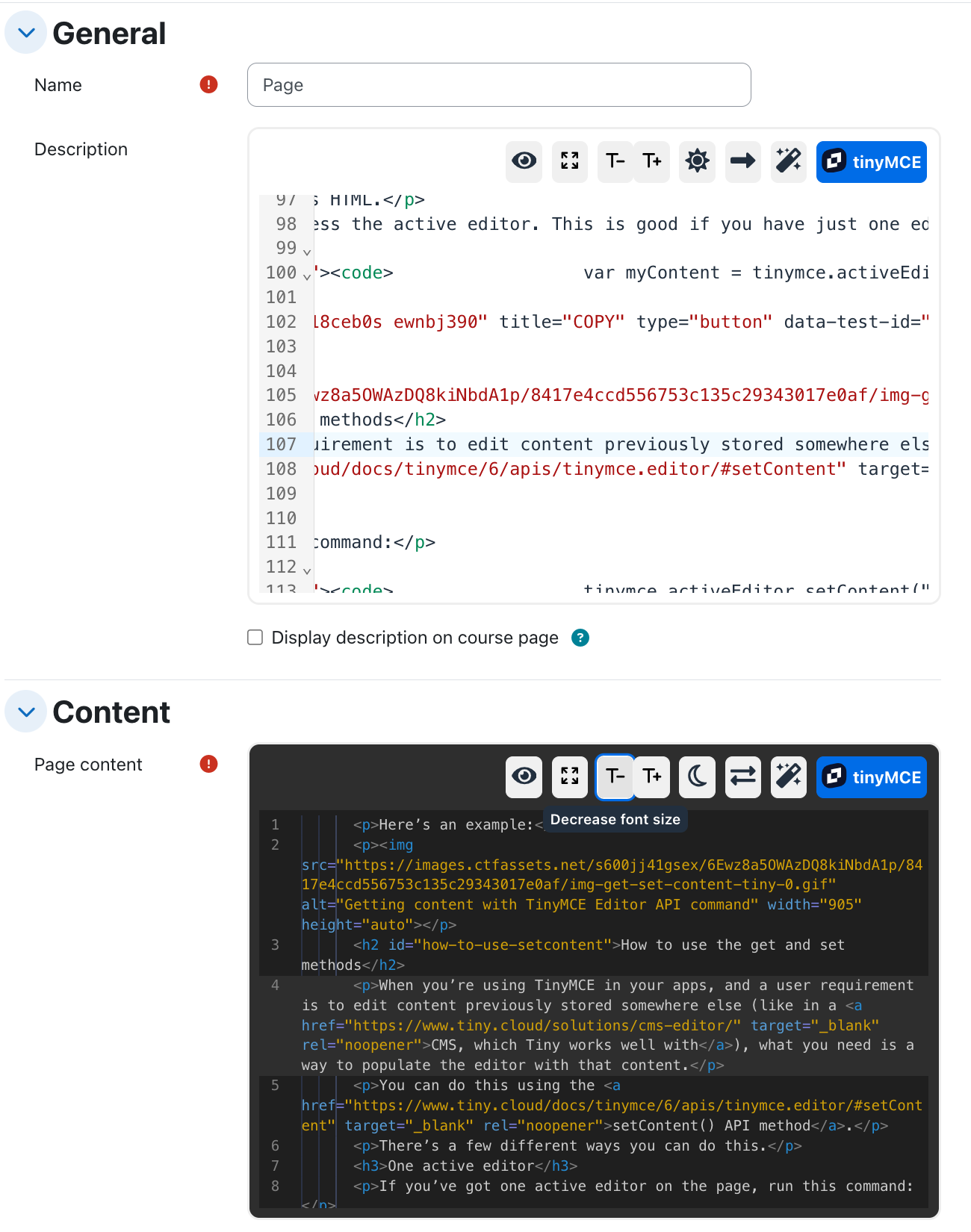
- Dialog Mode: A single editor instance is displayed in a modal. Changes must be explicitly confirmed or rejected.
- Panel Mode: Multiple editor instances can be used simultaneously, with changes applied automatically. (Available from Moodle 4.3)
An administrator setting allows choosing the default mode or enabling users to switch between both modes.
Key Bindings
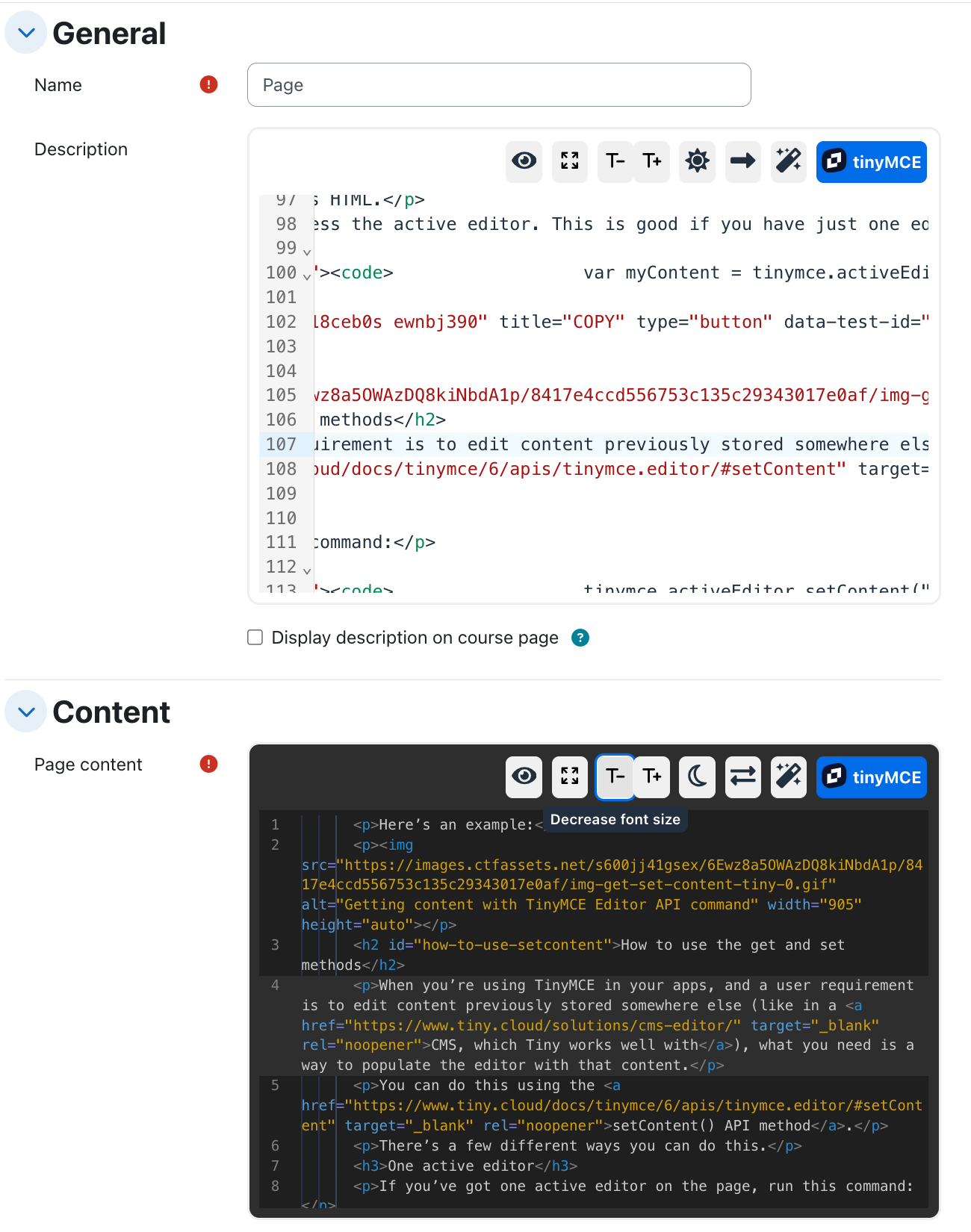
Note: On macOS,
Altcorresponds to theOptionkey.
| Shortcut | Action |
|----------|--------|
| Cmd-E or Ctrl-E | Expand Abbreviation (Emmet plugin) |
| Shift-Alt-M | Toggle minimap |
| Shift-Alt-W | Toggle line wrapping* |
| Shift-Alt-T | Toggle theme (light/dark) |
| Shift-Alt-P | Format code |
| Shift-Alt-D | Save preferences as defaults |
| Shift-Alt-A | Accept changes |
| Shift-Alt-C | Cancel changes |
*Please note that line wrapping can only be toggled in panel mode when in fullscreen mode.
Installation
- Navigate to Site Administration ' Plugins ' Install plugins ' Install plugin from ZIP file.
- Once installed:
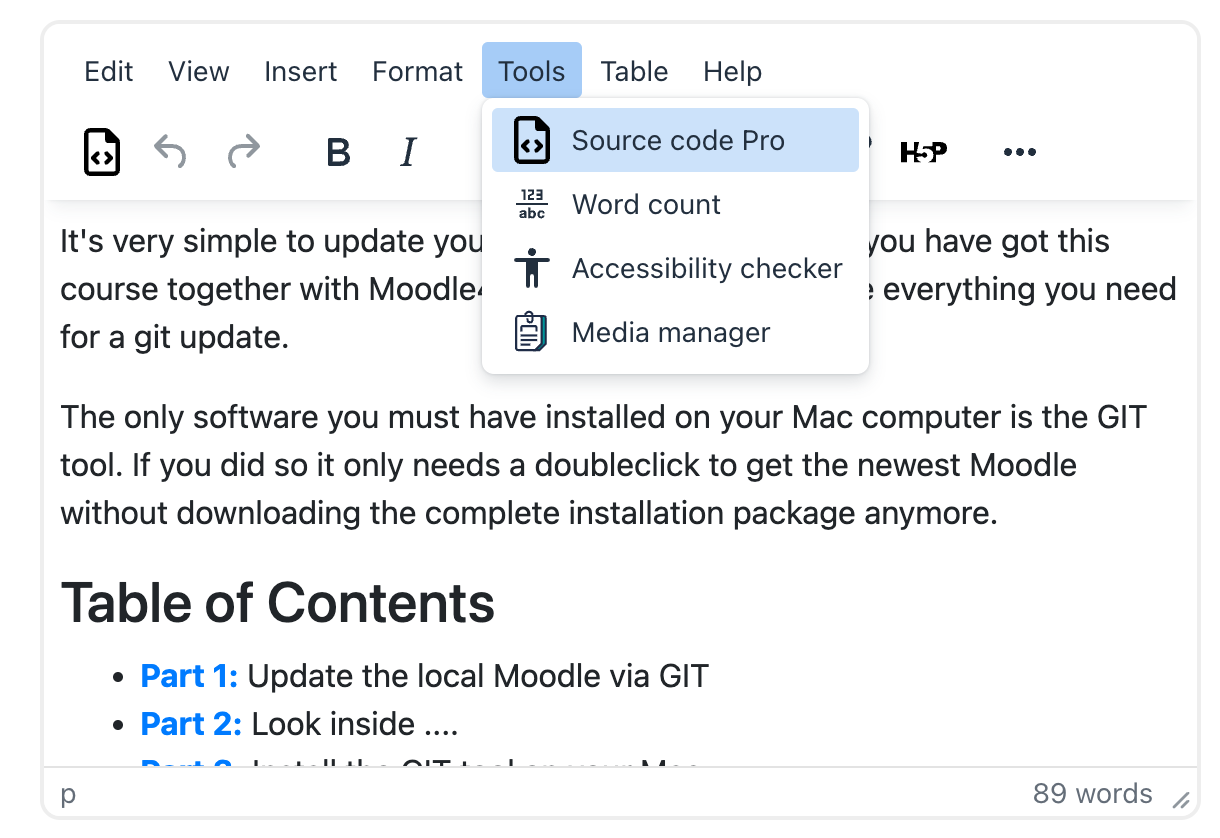
- The menu item "Source Code" will be replaced by "Source Code Pro."
- A new toolbar button will be added in the first position.
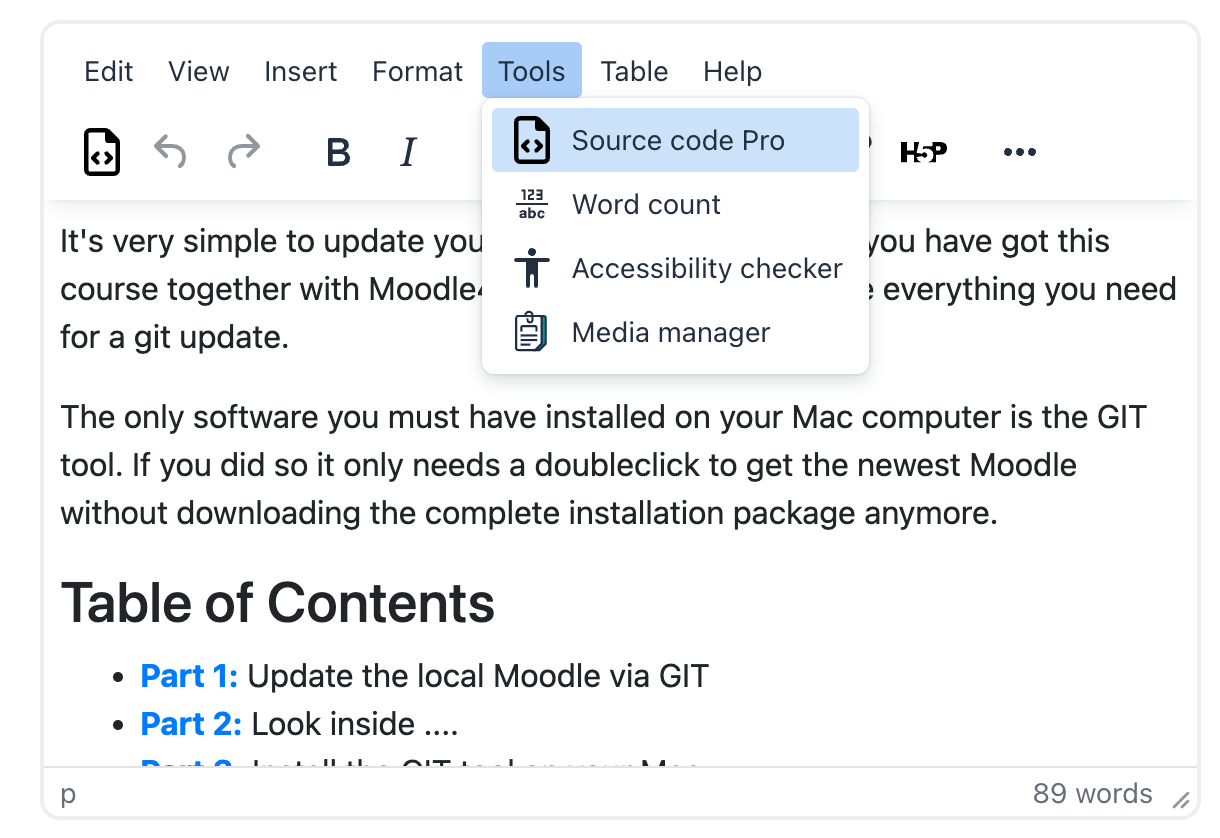
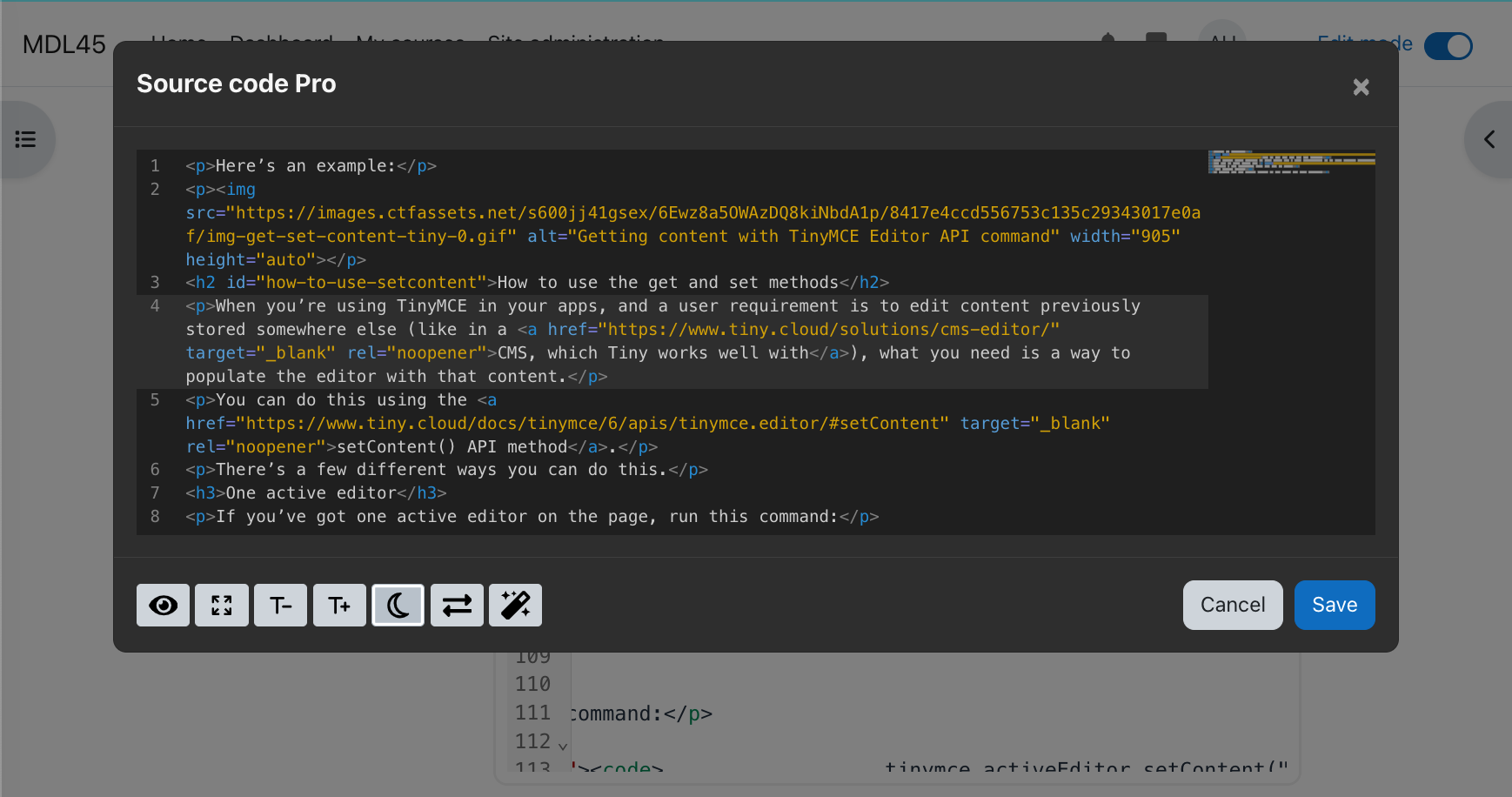
The source code editor (in dialog mode) opens in a modal dialog that can expand to fit the full window. It supports both light and dark themes and includes a toggle for line wrapping.
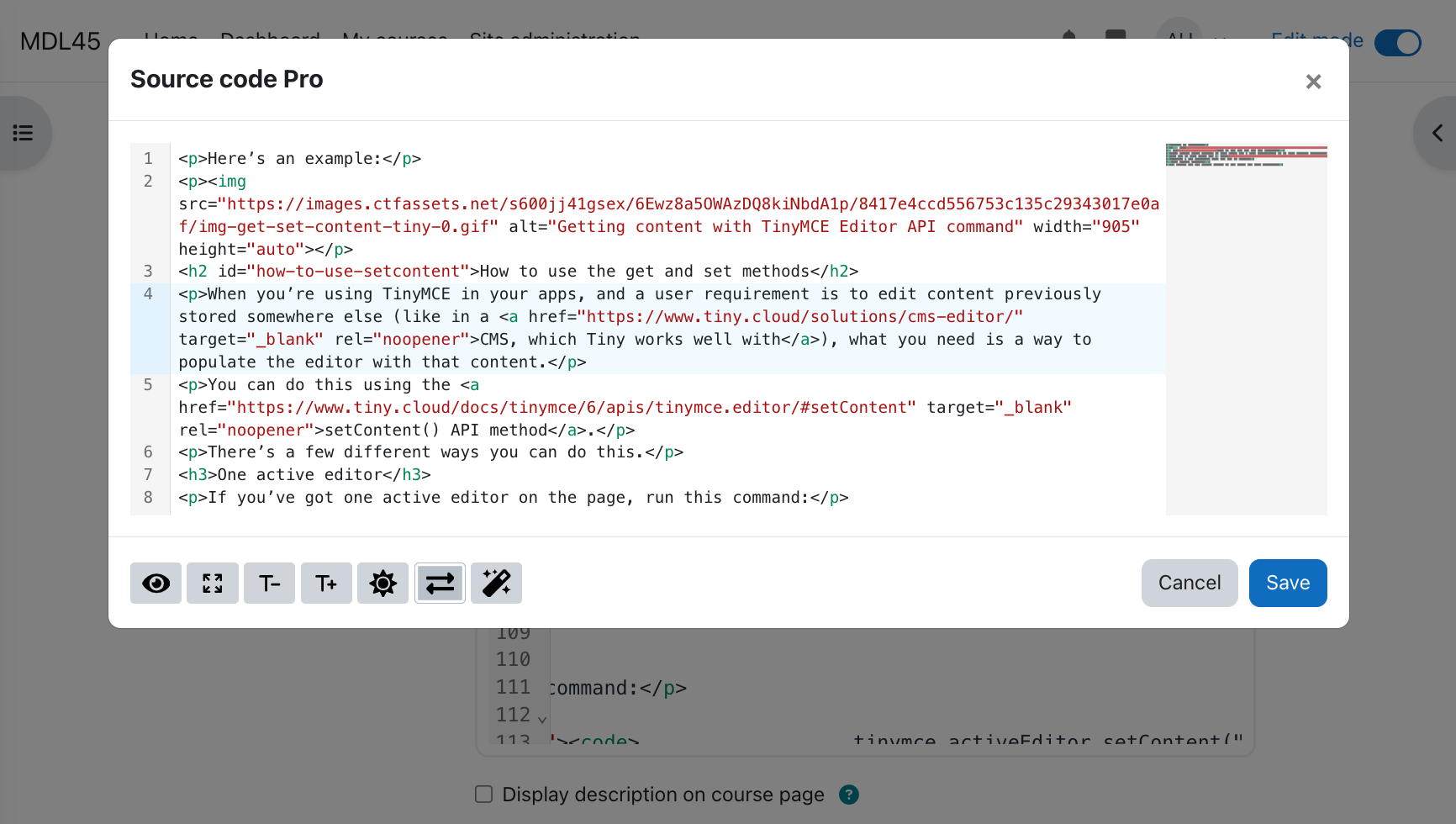
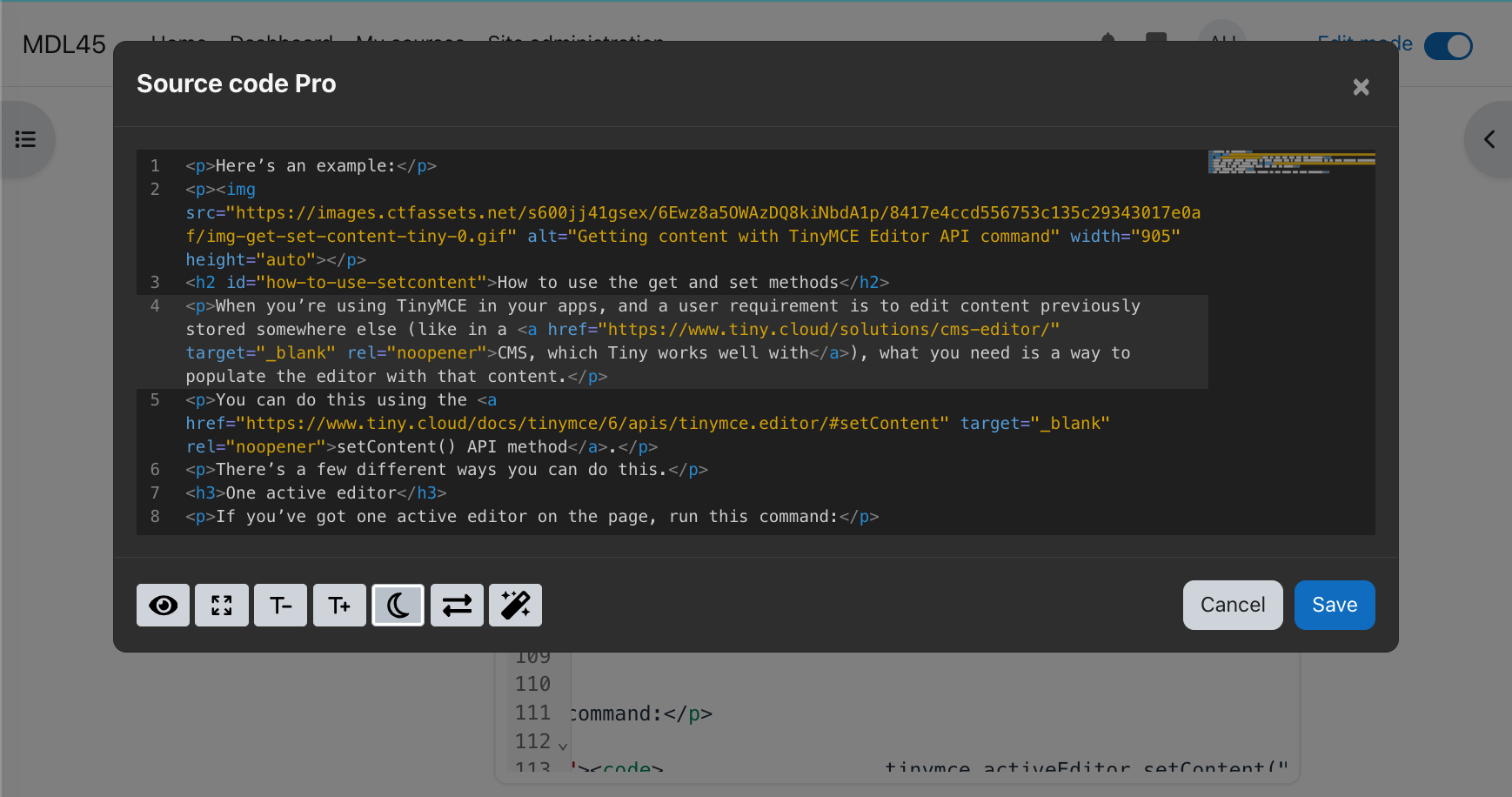
The plugin also integrates with the htmlfy library for automatic code formatting.
Configuration
Admin Settings
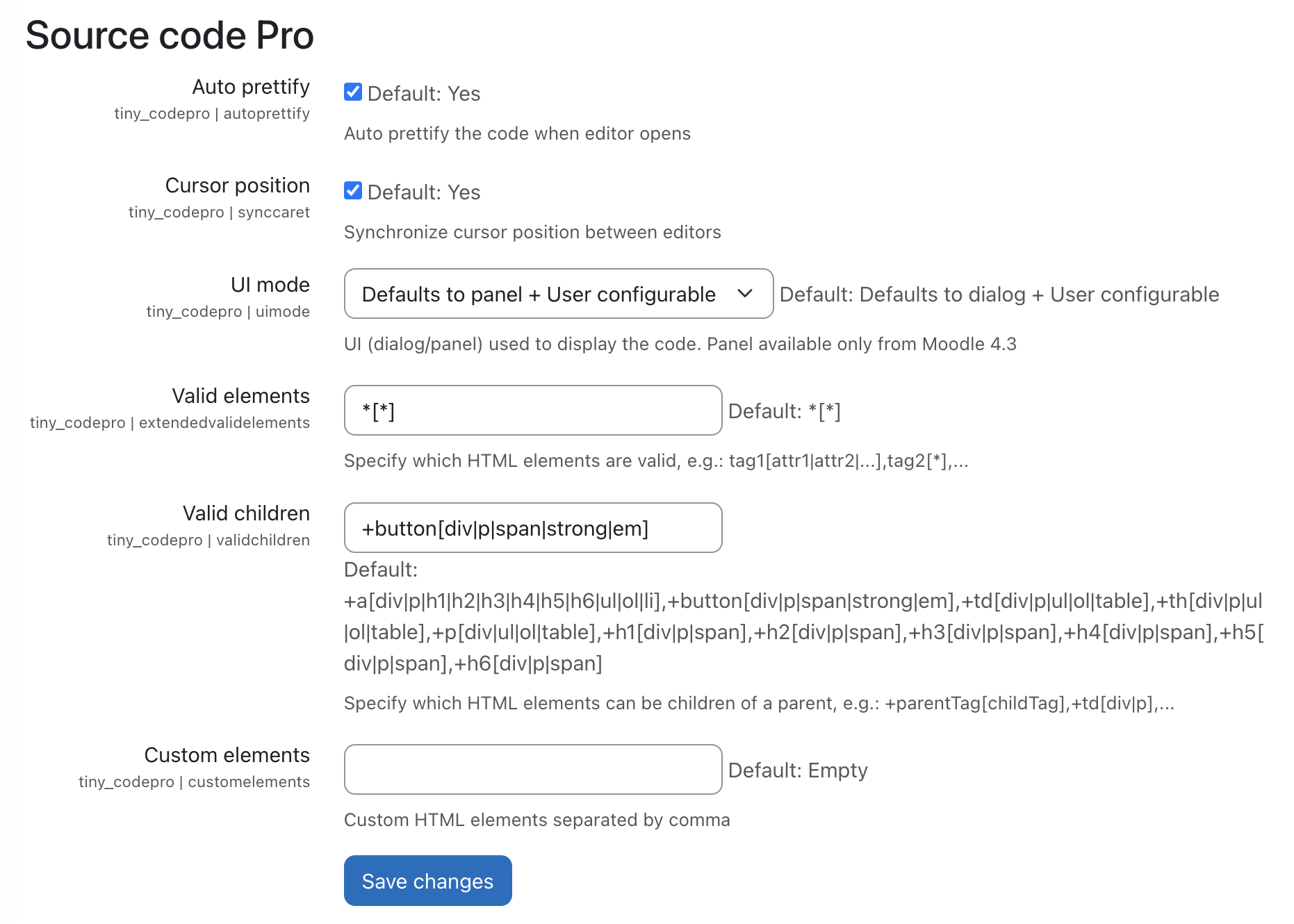
This section describes the configurable admin settings available for the Tiny CodePro plugin, which enable fine-grained control over valid HTML structures, element nesting, and custom elements in the editor.
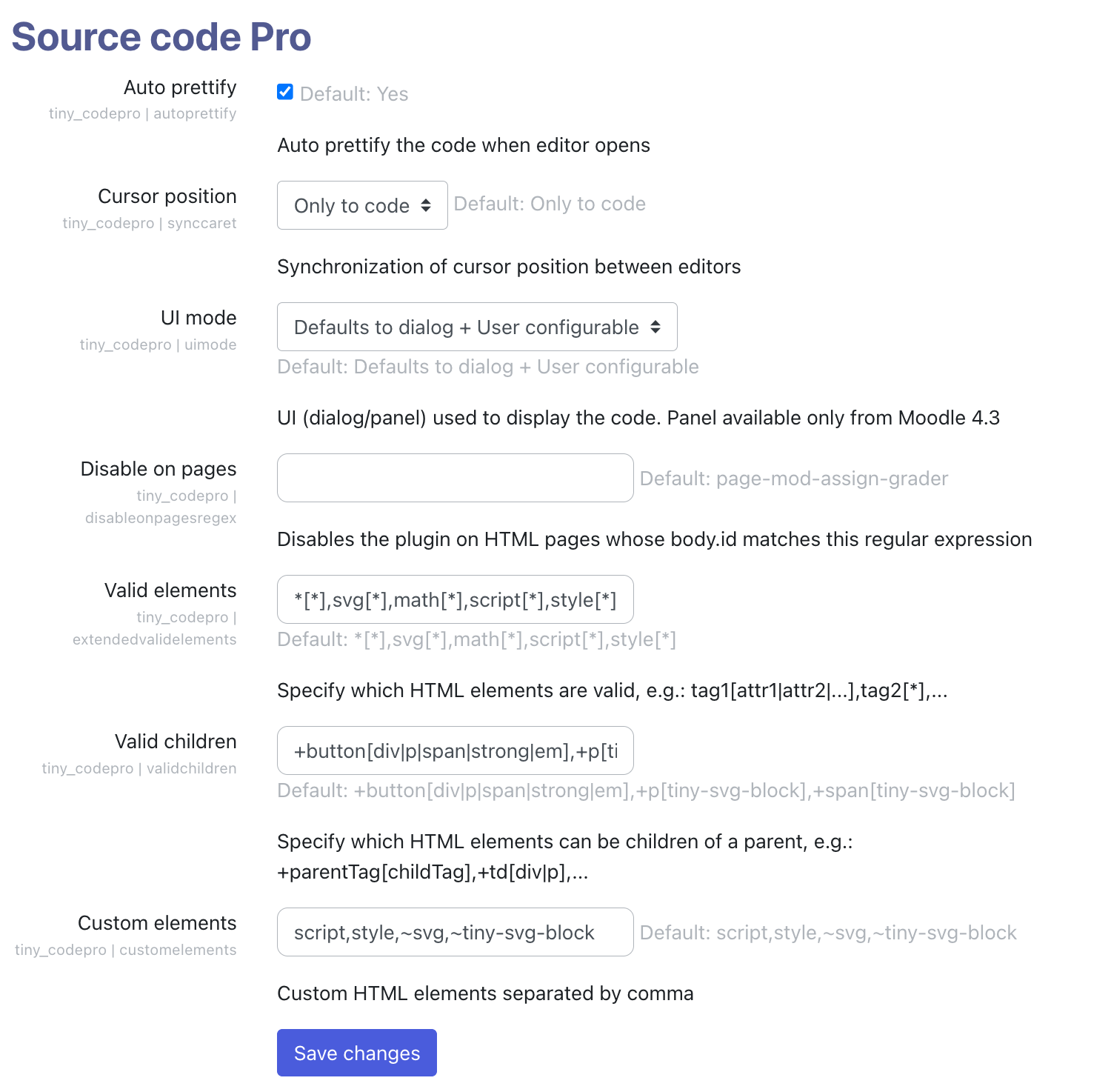
For more information, you can read the Content filtering options in TinyMCE documentation page.
🔧 tiny_codepro | extendedvalidelements
Default:
*[*],svg[*],math[*],script[*],style[*]
Description:
Specifies which HTML elements and attributes are considered valid in the editor. Use the format:
tag[attr1|attr2|...],tag[*] to allow specific attributes, or [*] to allow all.
Example:
*[*],svg[*],math[*],script[*]
This example allows all attributes on all tags, as well as unrestricted use of <svg>, <math>, and script elements.
Note: Even though
scriptis included as a valid element, TinyMCE will remove it if it appears at the very top of the content. Placing it elsewhere in the code is fine.
🧱 tiny_codepro | validchildren
Default:
+body[script],+button[div|p|span|strong|em],+p[tiny-svg-block],+span[tiny-svg-block]
Description:
Specifies which HTML elements are allowed as children of specific parent tags.
Use the format:
+parentTag[childTag] or +parentTag[child1|child2|...].
Example:
+body[script],+button[div|p|span|strong|em],+p[tiny-svg-block],+span[tiny-svg-block]
This allows:
scriptinside<body>- Elements like
<div>,<p>,<span>,<strong>,<em>inside<button> - Custom
<tiny-svg-block>inside<p>and<span>
🧩 tiny_codepro | customelements
Default:
script,~svg,~tiny-svg-block
Description:
Defines custom HTML elements to be recognized by the editor. Separate each element by a comma.
Prefixing an element with ~ indicates a custom or non-standard element (e.g., SVG-based blocks).
Example:
script,~svg,~tiny-svg-block
This example allows:
- Standard
scriptelements - Custom or extended
<svg>elements - The
<tiny-svg-block>component
⚠️ Warning
Even though the
scripttag is a block-level element, TinyMCE's filtering policy may remove it if it is placed at the beginning of the document. To prevent this, you should either wrap the tag in a<div>or move it to another part of the content. Keep in mind that allowingscripttags can introduce security vulnerabilities, particularly through cross-site scripting (XSS) attacks.
Plugin visibility
Additionally, the capability tiny/codepro:viewplugin determines which user roles can see and use the plugin.
If the plugin is disabled, users will still have access to the default code editor provided by TinyMCE. For example, you can use this setting to ensure that students use the basic code editor instead of the plugin.
The admin setting "Disable on pages" allows you to specify a regular expression that matches the body element's ID on pages where the plugin should be disabled. For example, the regular expression:
^page-mod-(assign-grader|forum)
will match the grader page for assignments and all forum pages. On these matched pages, the plugin will be disabled, and the default TinyMCE code editor will be shown instead.
Frontend configuration
Regular users can configure:
- Default UI Mode: Choose between "Dialog" and "Panel" mode.
- User Mode Switching: Allow users to switch UI modes (if the administrator choose one of the user:... options).
- Theme Selection: Set a default theme or allow users to toggle between light and dark modes.
- Font Size Configuration: Adjust font sizes for better readability.
Build & Development
Generate AMD Modules
To compile source files from /amd/src into /amd/build, run:
npx grunt amd
Build CodeMirror with custom features
Refer to the documentation in libs/codemirror for details on modifying the CodeMirror dependency.
Privacy
This plugin implements the Moodle Privacy API. It uses the user_preferences system to store user-specific settings such as: theme, ui mode, line wrapping and font size.
No personal data is collected or transmitted externally. All preferences are stored within the Moodle instance to enhance the user experience.
Credits
Thanks to CodeMirror and the awesome CodeMirror plugins developed by Replit. All icons are obtained from FontAwesome 6 free plugins. Many thanks also to the developers of the htmlfy npm module.
Enjoy coding with Source Code Pro!
2.1.4 (2025121802)
2.1.4
Plugin type: TinyMCE
Frankenstyle component name: tiny_codepro
Version build number: 2025121802
Version release name: 2.1.4
Maturity: Stable
Supported Moodle versions: 4.1, 4.2, 4.3, 4.4, 4.5, 5.0, 5.1
Repository URL (Git): https://github.com/jmulet/tiny_codepro
Repository branch:
Repository tag: v2.1.4
Issue/bug tracker URL: https://github.com/jmulet/tiny_codepro
Source Code Pro for TinyMCE Editor
A Moodle plugin for the TinyMCE editor that enhances the built-in source code editor.
This plugin leverages CodeMirror version 6 to provide features such as syntax highlighting,
autocompletion, block folding, and more.
Compatibility
- Moodle 4.1 – 4.3: It replaces the default plain text source code editor.
- Moodle 4.4 and beyond: It provides advanced features compared to the default HTML code editor.
Features
- Syntax highlighting with line numbers
- Search and replace functionality
- Code formatting
- Cursor position synchronization with TinyMCE (since v1.1.4)
- Light and dark themes
- Toggle fullscreen mode
- New in v2.0:
- Dialog and panel UI modes
- Configurable font size
- Improved cursor synchronization
- Color picker
- VSCode-like minimap
UI Modes
The code editor can be displayed in two different modes:
- Dialog Mode: A single editor instance is displayed in a modal. Changes must be explicitly confirmed or rejected.
- Panel Mode: Multiple editor instances can be used simultaneously, with changes applied automatically. (Available from Moodle 4.3)
An administrator setting allows choosing the default mode or enabling users to switch between both modes.
Key Bindings
Note: On macOS,
Altcorresponds to theOptionkey.
| Shortcut | Action |
|----------|--------|
| Shift-Alt-M | Toggle minimap |
| Shift-Alt-W | Toggle line wrapping* |
| Shift-Alt-T | Toggle theme (light/dark) |
| Shift-Alt-P | Format code |
| Shift-Alt-D | Save preferences as defaults |
| Shift-Alt-A | Accept changes |
| Shift-Alt-C | Cancel changes |
*Please note that line wrapping can only be toggled in panel mode when in fullscreen mode.
Installation
- Navigate to Site Administration ' Plugins ' Install plugins ' Install plugin from ZIP file.
- Once installed:
- The menu item "Source Code" will be replaced by "Source Code Pro."
- A new toolbar button will be added in the first position.
The source code editor (in dialog mode) opens in a modal dialog that can expand to fit the full window. It supports both light and dark themes and includes a toggle for line wrapping.
The plugin also integrates with the htmlfy library for automatic code formatting.
Configuration
Admin Settings
This section describes the configurable admin settings available for the Tiny CodePro plugin, which enable fine-grained control over valid HTML structures, element nesting, and custom elements in the editor.
For more information, you can read the Content filtering options in TinyMCE documentation page.
🔧 tiny_codepro | extendedvalidelements
Default:
*[*],svg[*],math[*],script[*],style[*]
Description:
Specifies which HTML elements and attributes are considered valid in the editor. Use the format:
tag[attr1|attr2|...],tag[*] to allow specific attributes, or [*] to allow all.
Example:
*[*],svg[*],math[*],script[*]
This example allows all attributes on all tags, as well as unrestricted use of <svg>, <math>, and script elements.
Note: Even though
scriptis included as a valid element, TinyMCE will remove it if it appears at the very top of the content. Placing it elsewhere in the code is fine.
🧱 tiny_codepro | validchildren
Default:
+body[script],+button[div|p|span|strong|em],+p[tiny-svg-block],+span[tiny-svg-block]
Description:
Specifies which HTML elements are allowed as children of specific parent tags.
Use the format:
+parentTag[childTag] or +parentTag[child1|child2|...].
Example:
+body[script],+button[div|p|span|strong|em],+p[tiny-svg-block],+span[tiny-svg-block]
This allows:
scriptinside<body>- Elements like
<div>,<p>,<span>,<strong>,<em>inside<button> - Custom
<tiny-svg-block>inside<p>and<span>
🧩 tiny_codepro | customelements
Default:
script,~svg,~tiny-svg-block
Description:
Defines custom HTML elements to be recognized by the editor. Separate each element by a comma.
Prefixing an element with ~ indicates a custom or non-standard element (e.g., SVG-based blocks).
Example:
script,~svg,~tiny-svg-block
This example allows:
- Standard
scriptelements - Custom or extended
<svg>elements - The
<tiny-svg-block>component
⚠️ Warning
Even though the
scripttag is a block-level element, TinyMCE's filtering policy may remove it if it is placed at the beginning of the document. To prevent this, you should either wrap the tag in a<div>or move it to another part of the content. Keep in mind that allowingscripttags can introduce security vulnerabilities, particularly through cross-site scripting (XSS) attacks.
Plugin visibility
Additionally, the capability tiny/codepro:viewplugin determines which user roles can see and use the plugin.
If the plugin is disabled, users will still have access to the default code editor provided by TinyMCE. For example, you can use this setting to ensure that students use the basic code editor instead of the plugin.
The admin setting "Disable on pages" allows you to specify a regular expression that matches the body element's ID on pages where the plugin should be disabled. For example, the regular expression:
^page-mod-(assign-grader|forum)
will match the grader page for assignments and all forum pages. On these matched pages, the plugin will be disabled, and the default TinyMCE code editor will be shown instead.
Frontend configuration
Regular users can configure:
- Default UI Mode: Choose between "Dialog" and "Panel" mode.
- User Mode Switching: Allow users to switch UI modes (if the administrator choose one of the user:... options).
- Theme Selection: Set a default theme or allow users to toggle between light and dark modes.
- Font Size Configuration: Adjust font sizes for better readability.
Build & Development
Generate AMD Modules
To compile source files from /amd/src into /amd/build, run:
npx grunt amd
Build CodeMirror with custom features
Refer to the documentation in libs/codemirror for details on modifying the CodeMirror dependency.
Credits
Thanks to CodeMirror and the awesome CodeMirror plugins developed by Replit. All icons are obtained from FontAwesome 6 free plugins. Many thanks also to the developers of the htmlfy npm module.
Enjoy coding with Source Code Pro!
2.1.2 (2025080701)
2.1.2
Plugin type: TinyMCE
Frankenstyle component name: tiny_codepro
Version build number: 2025080701
Version release name: 2.1.2
Maturity: Stable
Supported Moodle versions: 4.1, 4.2, 4.3, 4.4, 4.5, 5.0
Repository URL (Git): https://github.com/jmulet/tiny_codepro
Repository branch:
Repository tag:
Issue/bug tracker URL: https://github.com/jmulet/tiny_codepro
Source Code Pro for TinyMCE Editor
A Moodle plugin for the TinyMCE editor that enhances the built-in source code editor.
This plugin leverages CodeMirror version 6 to provide features such as syntax highlighting,
autocompletion, block folding, and more.
Compatibility
- Moodle 4.1 – 4.3: It replaces the default plain text source code editor.
- Moodle 4.4 and beyond: It provides advanced features compared to the default HTML code editor.
Features
- Syntax highlighting with line numbers
- Search and replace functionality
- Code formatting
- Cursor position synchronization with TinyMCE (since v1.1.4)
- Light and dark themes
- Toggle fullscreen mode
- New in v2.0:
- Dialog and panel UI modes
- Configurable font size
- Improved cursor synchronization
- Color picker
- VSCode-like minimap
UI Modes
The code editor can be displayed in two different modes:
- Dialog Mode: A single editor instance is displayed in a modal. Changes must be explicitly confirmed or rejected.
- Panel Mode: Multiple editor instances can be used simultaneously, with changes applied automatically. (Available from Moodle 4.3)
An administrator setting allows choosing the default mode or enabling users to switch between both modes.
Key Bindings
Note: On macOS,
Altcorresponds to theOptionkey.
| Shortcut | Action |
|----------|--------|
| Shift-Alt-M | Toggle minimap |
| Shift-Alt-W | Toggle line wrapping* |
| Shift-Alt-T | Toggle theme (light/dark) |
| Shift-Alt-P | Format code |
| Shift-Alt-D | Save preferences as defaults |
| Shift-Alt-A | Accept changes |
| Shift-Alt-C | Cancel changes |
*Please note that line wrapping can only be toggled in panel mode when in fullscreen mode.
Installation
- Navigate to Site Administration ' Plugins ' Install plugins ' Install plugin from ZIP file.
- Once installed:
- The menu item "Source Code" will be replaced by "Source Code Pro."
- A new toolbar button will be added in the first position.
The source code editor (in dialog mode) opens in a modal dialog that can expand to fit the full window. It supports both light and dark themes and includes a toggle for line wrapping.
The plugin also integrates with the htmlfy library for automatic code formatting.
Configuration
Admin Settings
This section describes the configurable admin settings available for the Tiny CodePro plugin, which enable fine-grained control over valid HTML structures, element nesting, and custom elements in the editor.
For more information, you can read the Content filtering options in TinyMCE documentation page.
🔧 tiny_codepro | extendedvalidelements
Default:
*[*],svg[*],math[*],script[*],style[*]
Description:
Specifies which HTML elements and attributes are considered valid in the editor. Use the format:
tag[attr1|attr2|...],tag[*] to allow specific attributes, or [*] to allow all.
Example:
*[*],svg[*],math[*],script[*]
This example allows all attributes on all tags, as well as unrestricted use of svg, math, and script elements.
Note: Even though
scriptis included as a valid element, TinyMCE will remove it if it appears at the very top of the content. Placing it elsewhere in the code is fine.
🧱 tiny_codepro | validchildren
Default:
+body[script],+button[div|p|span|strong|em],+p[tiny-svg-block],+span[tiny-svg-block]
Description:
Specifies which HTML elements are allowed as children of specific parent tags.
Use the format:
+parentTag[childTag] or +parentTag[child1|child2|...].
Example:
+body[script],+button[div|p|span|strong|em],+p[tiny-svg-block],+span[tiny-svg-block]
This allows:
scriptinsidebody- Elements like
div,p,span,strong,eminsidebutton - Custom
tiny-svg-blockinsidepandspan
🧩 tiny_codepro | customelements
Default:
script,~svg,~tiny-svg-block
Description:
Defines custom HTML elements to be recognized by the editor. Separate each element by a comma.
Prefixing an element with ~ indicates a custom or non-standard element (e.g., SVG-based blocks).
Example:
script,~svg,~tiny-svg-block
This example allows:
- Standard
scriptelements - Custom or extended
svgelements - The
tiny-svg-blockcomponent
⚠️ Warning
Even though the
scripttag is a block-level element, TinyMCE's filtering policy may remove it if it is placed at the beginning of the document. To prevent this, you should either wrap the tag in adivor move it to another part of the content. Keep in mind that allowingscripttags can introduce security vulnerabilities, particularly through cross-site scripting (XSS) attacks.
Plugin visibility
Additionally, the capability tiny/codepro:viewplugin determines which user roles can see and use the plugin.
If the plugin is disabled, users will still have access to the default code editor provided by TinyMCE. For example, you can use this setting to ensure that students use the basic code editor instead of the plugin.
The admin setting "Disable on pages" allows you to specify a regular expression that matches the body element's ID on pages where the plugin should be disabled. For example, the regular expression:
^page-mod-(assign-grader|forum)
will match the grader page for assignments and all forum pages. On these matched pages, the plugin will be disabled, and the default TinyMCE code editor will be shown instead.
Frontend configuration
Regular users can configure:
- Default UI Mode: Choose between "Dialog" and "Panel" mode.
- User Mode Switching: Allow users to switch UI modes (if the administrator choose one of the user:... options).
- Theme Selection: Set a default theme or allow users to toggle between light and dark modes.
- Font Size Configuration: Adjust font sizes for better readability.
Build & Development
Generate AMD Modules
To compile source files from /amd/src into /amd/build, run:
npx grunt amd
Build CodeMirror with custom features
Refer to the documentation in libs/codemirror for details on modifying the CodeMirror dependency.
Credits
Thanks to CodeMirror and the awesome CodeMirror plugins developed by Replit. All icons are obtained from FontAwesome 6 free plugins. Many thanks also to the developers of the htmlfy npm module.
Enjoy coding with Source Code Pro!
2.1.0 (2025052601)
2.1.0
Plugin type: TinyMCE
Frankenstyle component name: tiny_codepro
Version build number: 2025052601
Version release name: 2.1.0
Maturity: Stable
Supported Moodle versions: 4.1, 4.2, 4.3, 4.4, 4.5, 5.0
Repository URL (Git): https://github.com/jmulet/tiny_codepro
Repository branch:
Repository tag: v2.1.0
Issue/bug tracker URL: https://github.com/jmulet/tiny_codepro
Source Code Pro for TinyMCE Editor
A Moodle plugin for the TinyMCE editor that enhances the built-in source code editor.
This plugin leverages CodeMirror version 6 to provide features such as syntax highlighting,
autocompletion, block folding, and more.
Compatibility
- Moodle 4.1 – 4.3: It replaces the default plain text source code editor.
- Moodle 4.4 and beyond: It provides advanced features compared to the default HTML code editor.
Features
- Syntax highlighting with line numbers
- Search and replace functionality
- Code formatting
- Cursor position synchronization with TinyMCE (since v1.1.4)
- Light and dark themes
- Toggle fullscreen mode
- New in v2.0:
- Dialog and panel UI modes
- Configurable font size
- Improved cursor synchronization
- Color picker
- VSCode-like minimap
UI Modes
The code editor can be displayed in two different modes:
- Dialog Mode: A single editor instance is displayed in a modal. Changes must be explicitly confirmed or rejected.
- Panel Mode: Multiple editor instances can be used simultaneously, with changes applied automatically. (Available from Moodle 4.3)
An administrator setting allows choosing the default mode or enabling users to switch between both modes.
Key Bindings
Note: On macOS,
Altcorresponds to theOptionkey.
| Shortcut | Action |
|----------|--------|
| Shift-Alt-M | Toggle minimap |
| Shift-Alt-W | Toggle line wrapping* |
| Shift-Alt-T | Toggle theme (light/dark) |
| Shift-Alt-P | Format code |
| Shift-Alt-D | Save preferences as defaults |
| Shift-Alt-A | Accept changes |
| Shift-Alt-C | Cancel changes |
*Please note that line wrapping can only be toggled in panel mode when in fullscreen mode.
Installation
- Navigate to Site Administration ' Plugins ' Install plugins ' Install plugin from ZIP file.
- Once installed:
- The menu item "Source Code" will be replaced by "Source Code Pro."
- A new toolbar button will be added in the first position.
The source code editor (in dialog mode) opens in a modal dialog that can expand to fit the full window. It supports both light and dark themes and includes a toggle for line wrapping.
The plugin also integrates with the htmlfy library for automatic code formatting.
Configuration
Administradors can set these options
Additionally, the capability tiny/codepro:viewplugin controls visibility for specific roles.
Regular users can configure:
- Default UI Mode: Choose between "Dialog" and "Panel" mode.
- User Mode Switching: Allow users to switch UI modes.
- Theme Selection: Set a default theme or allow users to toggle between light and dark modes.
- Font Size Configuration: Adjust font sizes for better readability.
Build & Development
Generate AMD Modules
To compile source files from /amd/src into /amd/build, run:
npx grunt amd
Build CodeMirror with custom features
Refer to the documentation in libs/codemirror for details on modifying the CodeMirror dependency.
Credits
Thanks to CodeMirror and the awesome CodeMirror plugins developed by Replit. All icons are obtained from FontAwesome 6 free plugins. Many thanks also to the developers of the htmlfy npm module.
Enjoy coding with Source Code Pro!
2.0.1 (2025020101)
2.0.1
Plugin type: TinyMCE
Frankenstyle component name: tiny_codepro
Version build number: 2025020101
Version release name: 2.0.1
Maturity: Stable
Supported Moodle versions: 4.1, 4.2, 4.3, 4.4, 4.5
Repository URL (Git): https://github.com/jmulet/tiny_codepro
Repository branch: master
Repository tag: v2.0.1
Issue/bug tracker URL: https://github.com/jmulet/tiny_codepro
Source Code Pro for TinyMCE Editor
A Moodle plugin for the TinyMCE editor that enhances the built-in source code editor.
This plugin leverages CodeMirror version 6 to provide features such as syntax highlighting,
autocompletion, block folding, and more.
Compatibility
- Moodle 4.1 – 4.3: It replaces the default plain text source code editor.
- Moodle 4.4 and beyond: It provides advanced features compared to the default HTML code editor.
Features
- Syntax highlighting with line numbers
- Search and replace functionality
- Code formatting
- Cursor position synchronization with TinyMCE (since v1.1.4)
- Light and dark themes
- Toggle fullscreen mode
- New in v2.0:
- Dialog and panel UI modes
- Configurable font size
- Improved cursor synchronization
- Color picker
- VSCode-like minimap
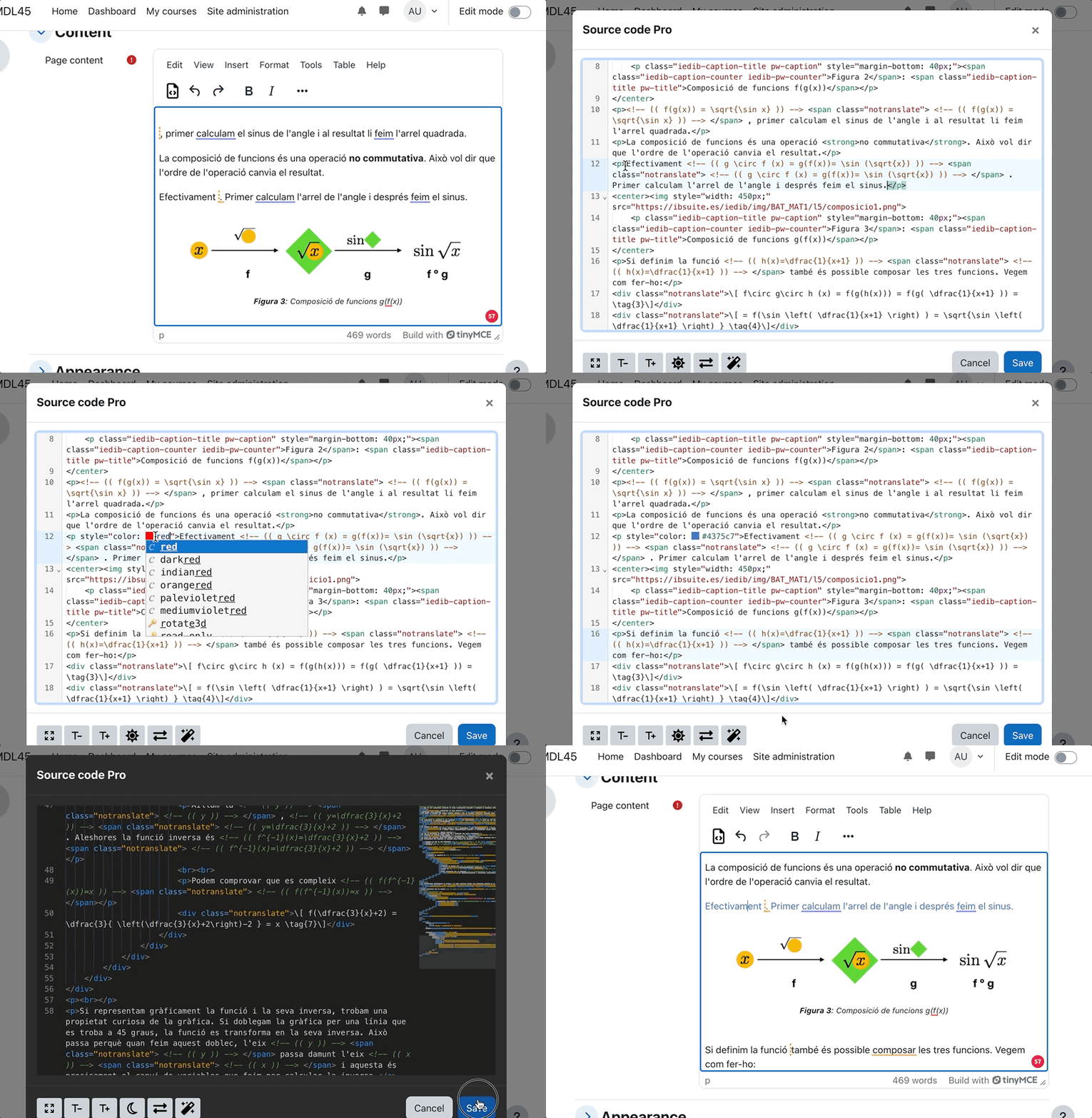
UI Modes
The code editor can be displayed in two different modes:
- Dialog Mode: A single editor instance is displayed in a modal. Changes must be explicitly confirmed or rejected.
- Panel Mode: Multiple editor instances can be used simultaneously, with changes applied automatically.
An administrator setting allows choosing the default mode or enabling users to switch between both modes.
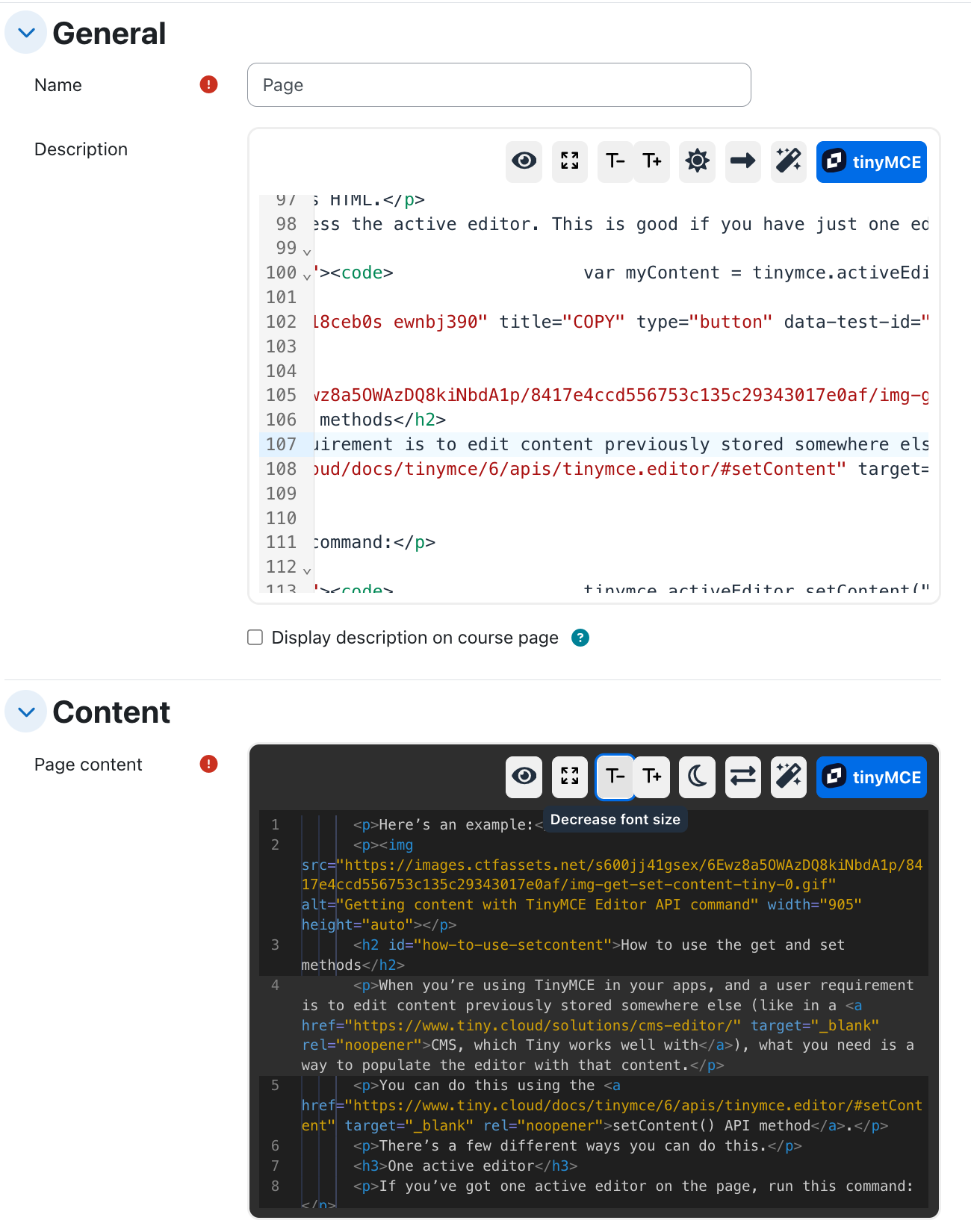
Key Bindings
Note: On macOS,
Altcorresponds to theOptionkey.
| Shortcut | Action |
|----------|--------|
| Shift-Alt-M | Toggle minimap |
| Shift-Alt-W | Toggle line wrapping* |
| Shift-Alt-T | Toggle theme (light/dark) |
| Shift-Alt-P | Format code |
| Shift-Alt-D | Save preferences as defaults |
| Shift-Alt-A | Accept changes |
| Shift-Alt-C | Cancel changes |
*Please note that line wrapping is always enabled in panel mode.
Installation
- Navigate to Site Administration ' Plugins ' Install plugins ' Install plugin from ZIP file.
- Once installed:
- The menu item "Source Code" will be replaced by "Source Code Pro."
- A new toolbar button will be added in the first position.
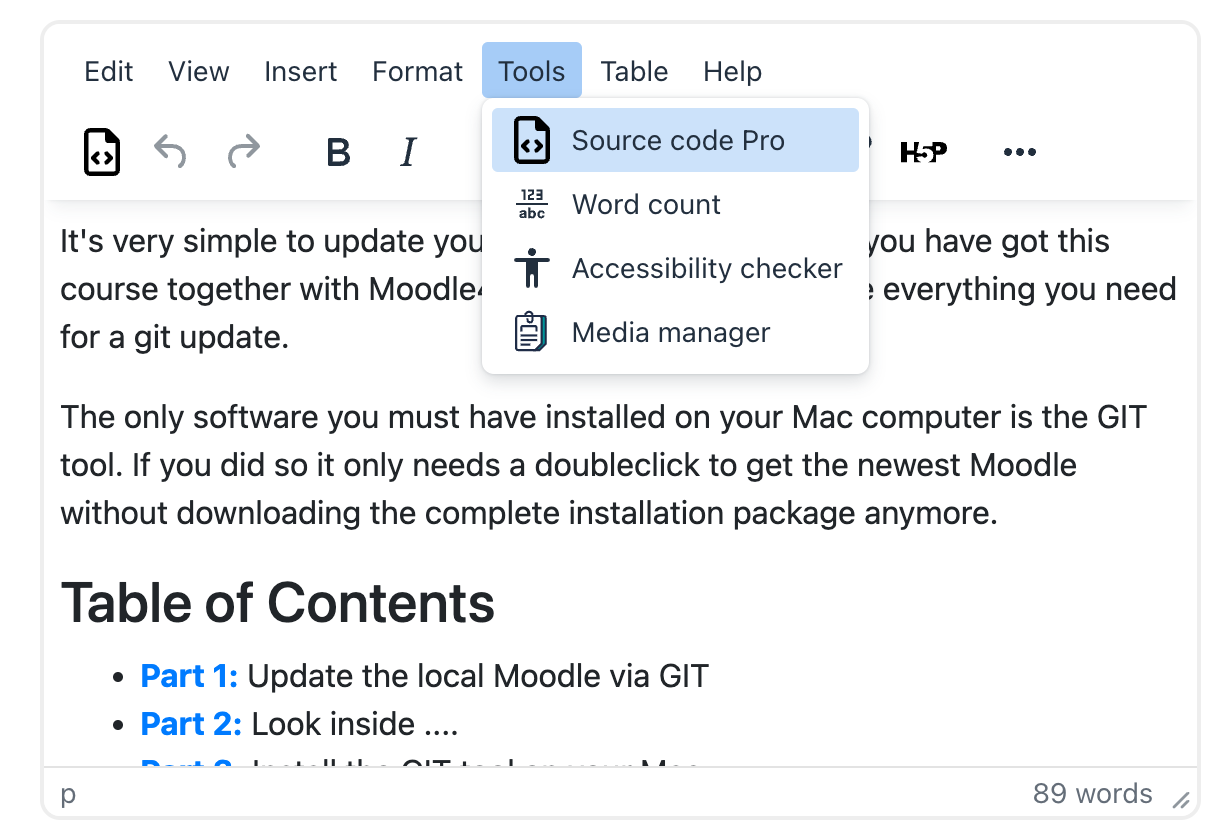
The source code editor (in dialog mode) opens in a modal dialog that can expand to fit the full window. It supports both light and dark themes and includes a toggle for line wrapping.
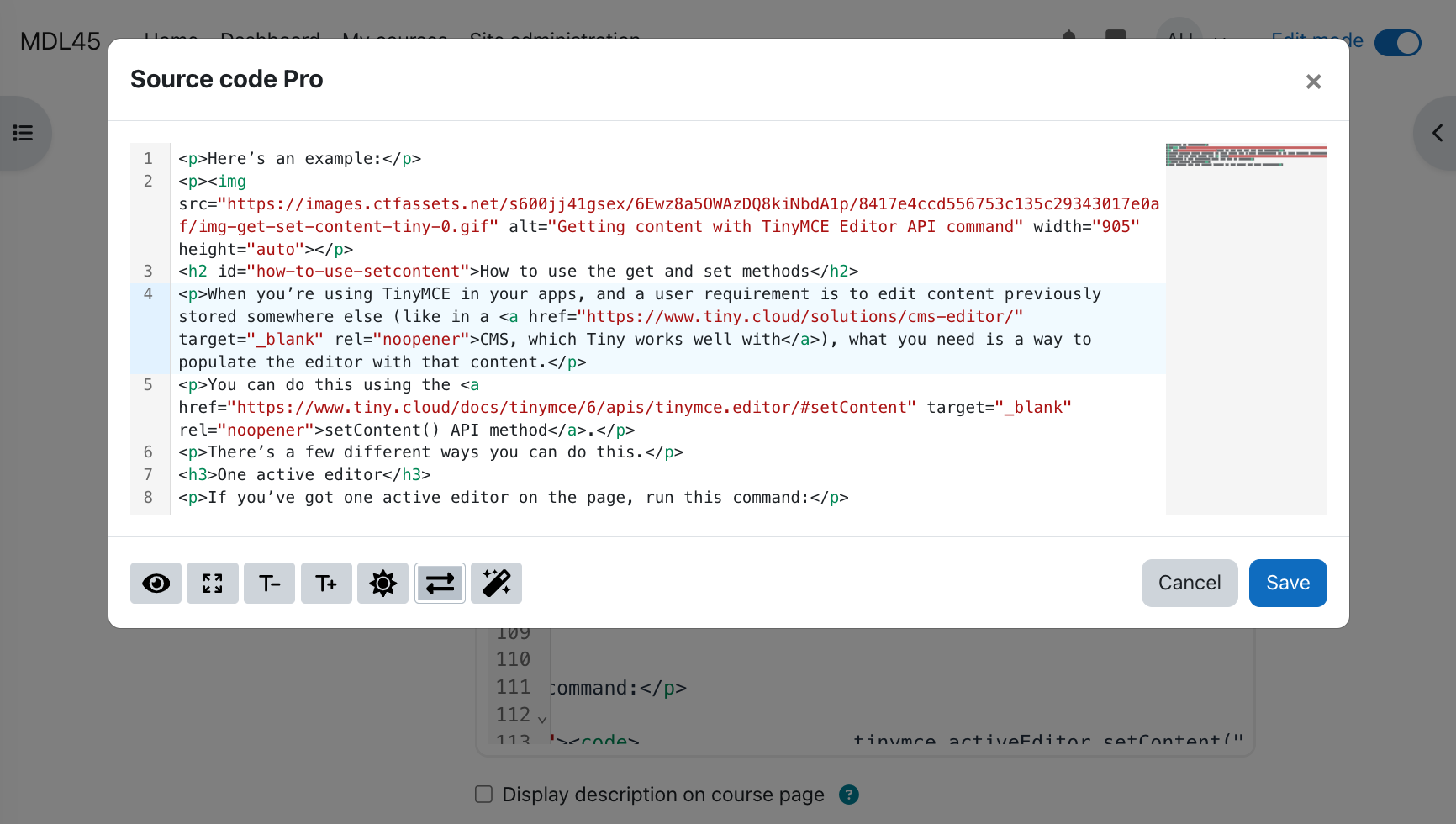
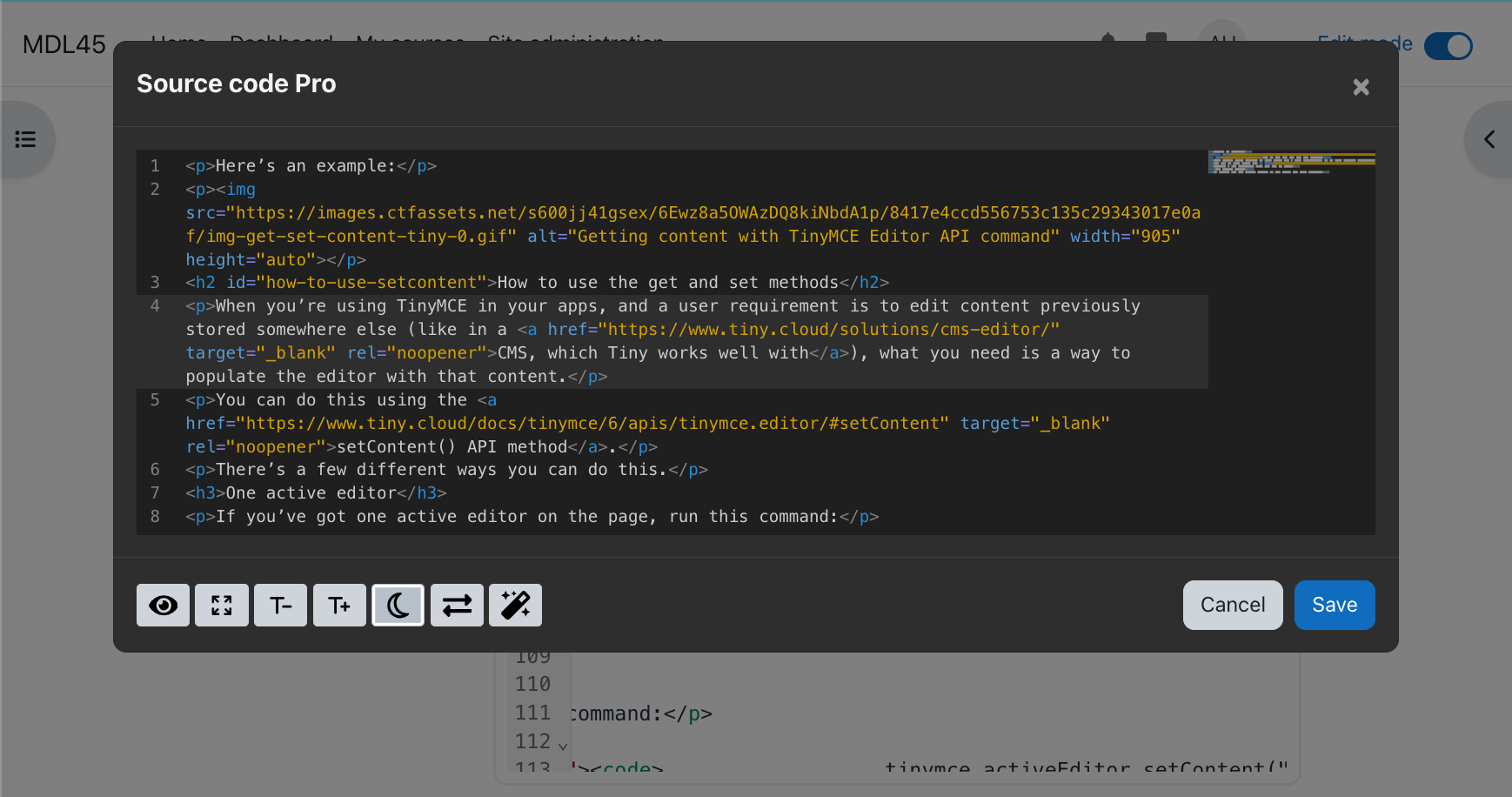
The plugin also integrates with the htmlfy library for automatic code formatting.
Configuration
Administradors can set these options
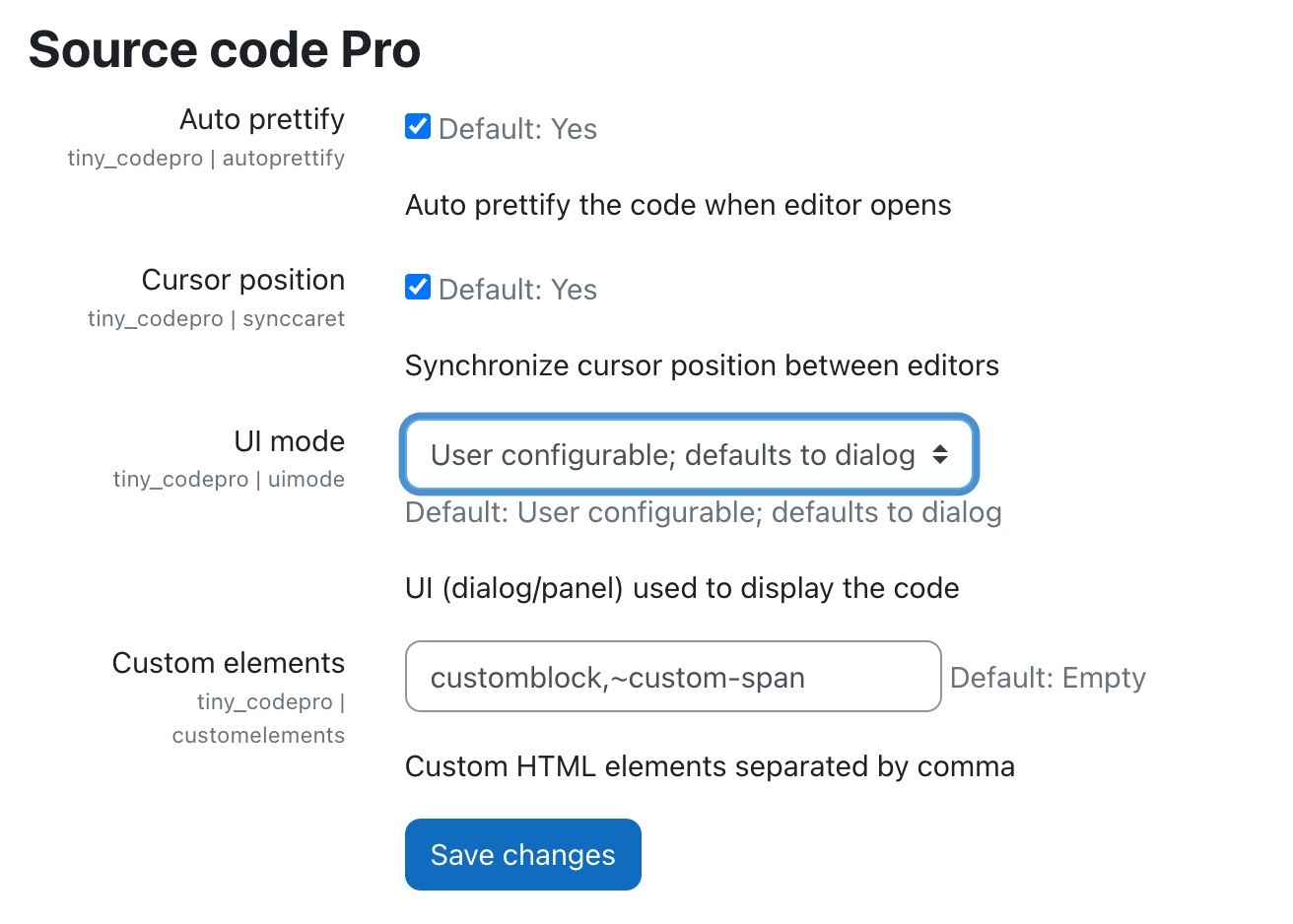
Additionally, the capability tiny/codepro:viewplugin controls visibility for specific roles.
Regular users can configure:
- Default UI Mode: Choose between "Dialog" and "Panel" mode.
- User Mode Switching: Allow users to switch UI modes.
- Theme Selection: Set a default theme or allow users to toggle between light and dark modes.
- Font Size Configuration: Adjust font sizes for better readability.
Build & Development
Generate AMD Modules
To compile source files from /amd/src into /amd/build, run:
npx grunt amd
Build CodeMirror with custom features
Refer to the documentation in libs/codemirror for details on modifying the CodeMirror dependency.
Credits
Thanks to CodeMirror and the awesome CodeMirror plugins developed by Replit. All icons are obtained from FontAwesome 6 free plugins. Many thanks also to the developers of the htmlfy npm module.
Enjoy coding with Source Code Pro!
1.1.4 (2024113001)
1.1.4
Plugin type: TinyMCE
Frankenstyle component name: tiny_codepro
Version build number: 2024113001
Version release name: 1.1.4
Maturity: Stable
Supported Moodle versions: 4.1, 4.2, 4.3, 4.4, 4.5
Repository URL (Git): https://github.com/jmulet/tiny_codepro
Repository branch:
Repository tag: v1.1.4
Issue/bug tracker URL: https://github.com/jmulet/tiny_codepro
Source Code Pro for tiny editor
A plugin for the Moodle TinyMCE editor which replaces the basic source code editor shipped by TinyMCE6.
This plugin leverages codeMirror version 6 to provide syntax highlight, autocompletion, block fold, etc.
Features
- Color syntax and line numbers
- Search and replace
- Code formatting
- Cursor position synchronized with Tiny editor (since v1.1.4)
- Light and dark themes
- Toggle fullscreen mode
This plugin does not include any configuration settings. The installation is straightforward: simply go to Site Administration area (Plugins ' Install plugins ' Install plugin from ZIP file).
Once the plugin is installed, the items named "Source Code" in the menu, will be replaced by "Source Code Pro". Also a button will be added in the first position of the toolbar.

The source code opens in a modal dialogue that can be expanded to fit the entire window. It accepts two themes (light and dark). You will also find a button to toggle line wrapping.


Now, the code can be easily formatted thanks to htmlfy library. The following animation shows the editor in action. Enjoy it!

The capability 'tiny/codepro:viewplugin' allows to set the plugin visibility for any role.
Icon by Fontawesome 6.4.
Generate AMD modules
In order to generate the compiled code in /amd/build from sources in /amd/src, you need to execute the command
npx grunt amd
Generate codemirror dependency with extra toppings
Please refer to the documentation in libs/codemirror.
1.1.3 (2024101201)
1.1.3
Plugin type: TinyMCE
Frankenstyle component name: tiny_codepro
Version build number: 2024101201
Version release name: 1.1.3
Maturity: Stable
Supported Moodle versions: 4.1, 4.2, 4.3, 4.4, 4.5
Repository URL (Git): https://github.com/jmulet/tiny_codepro
Repository branch:
Repository tag: v1.1.3
Issue/bug tracker URL: https://github.com/jmulet/tiny_codepro
Source Code Pro for tiny editor
A plugin for the Moodle TinyMCE editor which replaces the basic source code editor shipped by TinyMCE6.
This plugin leverages codeMirror version 6 to provide syntax highlight, autocompletion, block fold, etc.
This plugin does not include any configuration settings. The installation is straightforward: simply go to Site Administration area (Plugins ' Install plugins ' Install plugin from ZIP file).
Once the plugin is installed, the items named "Source Code" in the menu, will be replaced by "Source Code Pro". Also a button will be added in the first position of the toolbar.
The source code opens in a modal dialogue that can be expanded to fit the entire window. It accepts two themes (light and dark). You will also find a button to toggle line wrapping.
Now, the code can be easily formatted thanks to htmlfy library. The following animation shows the editor in action. Enjoy it!
The capability 'tiny/codepro:viewplugin' allows to set the plugin visibility for any role.
Icon by Fontawesome 6.4.
Generate AMD modules
In order to generate the compiled code in /amd/build from sources in /amd/src, you need to execute the command
npx grunt amd
Generate codemirror dependency with extra toppings
Please refer to the documentation in libs/codemirror.
1.1.2 (2024082502)
1.1.2
Plugin type: TinyMCE
Frankenstyle component name: tiny_codepro
Version build number: 2024082502
Version release name: 1.1.2
Maturity: Stable
Supported Moodle versions: 4.1, 4.2, 4.3, 4.4
Repository URL (Git): https://github.com/jmulet/tiny_codepro
Repository branch:
Repository tag: v1.1.2
Issue/bug tracker URL: https://github.com/jmulet/tiny_codepro
Source Code Pro for tiny editor
A plugin for the Moodle TinyMCE editor which replaces the basic source code editor shipped by TinyMCE6.
This plugin leverages codeMirror version 6 to provide syntax highlight, autocompletion, block fold, etc.
This plugin does not include any configuration settings. The installation is straightforward: simply go to Site Administration area (Plugins ' Install plugins ' Install plugin from ZIP file).
Once the plugin is installed, the items named "Source Code" in the menu, will be replaced by "Source Code Pro". Also a button will be added in the first position of the toolbar.
The source code opens in a modal dialogue that can be expanded to fit the entire window. It accepts two themes (light and dark). You will also find a button to toggle line wrapping.
Now, the code can be easily formatted thanks to htmlfy library. The following animation shows the editor in action. Enjoy it!
The capability 'tiny/codepro:viewplugin' allows to set the plugin visibility for any role.
Icon by Fontawesome 6.4.
Generate AMD modules
In order to generate the compiled code in /amd/build from sources in /amd/src, you need to execute the command
npx grunt amd
Generate codemirror dependency with extra toppings
Please refer to the documentation in libs/codemirror.
1.1.1 (2024071902)
1.1.1
Plugin type: TinyMCE
Frankenstyle component name: tiny_codepro
Version build number: 2024071902
Version release name: 1.1.1
Maturity: Stable
Supported Moodle versions: 4.1, 4.2, 4.3, 4.4
Repository URL (Git): https://github.com/jmulet/tiny_codepro
Repository branch:
Repository tag: v1.1.1
Issue/bug tracker URL: https://github.com/jmulet/tiny_codepro
Source Code Pro for tiny editor
A plugin for the Moodle TinyMCE editor which replaces the basic source code editor shipped by TinyMCE6.
This plugin leverages codeMirror version 6 to provide syntax highlight, autocompletion, block fold, etc.
This plugin does not include any configuration settings. The installation is straightforward: simply go to Site Administration area (Plugins ' Install plugins ' Install plugin from ZIP file).
Once the plugin is installed, the items named "Source Code" in the menu, will be replaced by "Source Code Pro". Also a button will be added in the first position of the toolbar.
The source code opens in a modal dialogue that can be expanded to fit the entire window. It accepts two themes (light and dark). You will also find a button to toggle line wrapping.
Now, the code can be easily formatted thanks to htmlfy library. The following animation shows the editor in action. Enjoy it!
The capability 'tiny/codepro:viewplugin' allows to set the plugin visibility for any role.
Icon by Fontawesome 6.4.
Generate AMD modules
In order to generate the compiled code in /amd/build from sources in /amd/src, you need to execute the command
npx grunt amd
Generate codemirror dependency with extra toppings
Please refer to the documentation in libs/codemirror.
1.1.0 (2024071901)
1.1.0
Plugin type: TinyMCE
Frankenstyle component name: tiny_codepro
Version build number: 2024071901
Version release name: 1.1.0
Maturity: Stable
Supported Moodle versions: 4.1, 4.2, 4.3, 4.4
Repository URL (Git): https://github.com/jmulet/tiny_codepro
Repository branch: master
Repository tag: v1.1.0
Issue/bug tracker URL: https://github.com/jmulet/tiny_codepro
Source Code Pro for tiny editor
A plugin for the Moodle TinyMCE editor which replaces the basic source code editor shipped by TinyMCE6.
This plugin leverages codeMirror version 6 to provide syntax highlight, autocompletion, block fold, etc.
This plugin does not include any configuration settings. The installation is straightforward: simply go to Site Administration area (Plugins ' Install plugins ' Install plugin from ZIP file).
Once the plugin is installed, the items named "Source Code" in the menu, will be replaced by "Source Code Pro". Also a button will be added in the first position of the toolbar.
The source code opens in a modal dialogue that can be expanded to fit the entire window. It accepts two themes (light and dark). You will also find a button to toggle line wrapping.
Now, the code can be easily formatted thanks to htmlfy library. The following animation shows the editor in action. Enjoy it!
The capability 'tiny/codepro:viewplugin' allows to set the plugin visibility for any role.
Icon by Fontawesome 6.4.
Generate AMD modules
In order to generate the compiled code in /amd/build from sources in /amd/src, you need to execute the command
npx grunt amd
Generate codemirror dependency with extra toppings
Please refer to the documentation in libs/codemirror.