Prevent Copy Plugin for Moodle
The Prevent Copy plugin protects your course content by preventing students and other users from copying, cutting, or pasting text on specific pages. This is useful when you want to protect exam content, sensitive materials, or prevent unauthorized copying of course resources.
What This Plugin Does
Once activated, this plugin can:
- Block right-click context menus on protected pages
- Prevent copy, cut, and paste operations
- Block text selection on specific course pages
- Apply protections to specific user roles (students, teachers, etc.)
Installation
- Download the plugin files to your Moodle server
- Extract them into the
/local/preventcopy/ directory
- Go to Site Administration > Notifications to complete the installation
- The plugin will be automatically enabled
Setting Up the Plugin
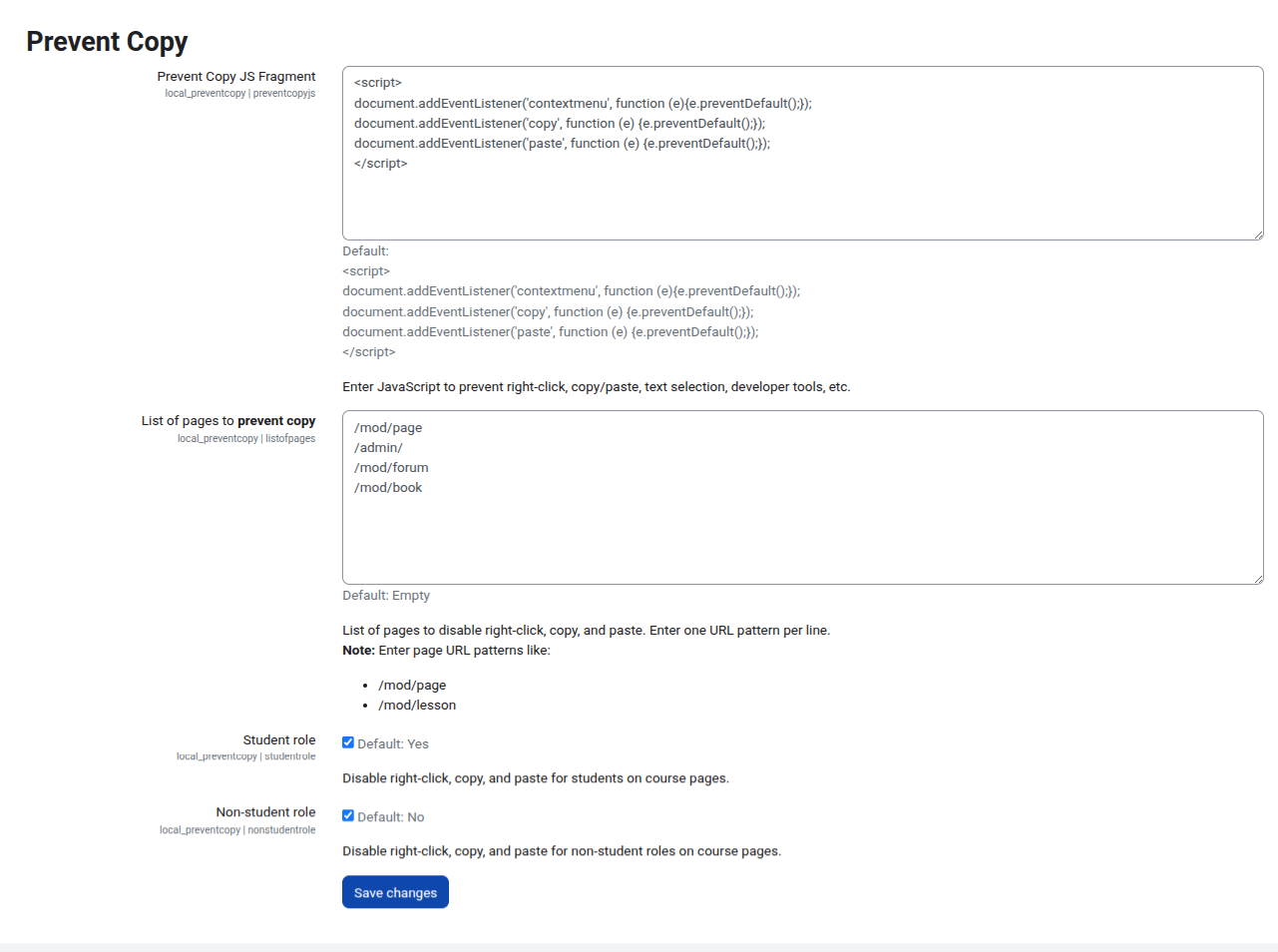
Step 1: Enable the Plugin for Your Users
Go to Site Administration > Plugins > Local plugins > Prevent Copy
You'll see these settings:
Which users should have copy/paste disabled?
- Check "Students" to protect content from students
- Check "Teachers & Staff" to also protect content from teachers, managers, and other staff members
- Note: Site administrators are never restricted
Step 2: Choose Which Pages to Protect
In the "List of pages to protect" field, enter the pages you want to protect. Type one page per line.
Common page examples:
/mod/lesson

/mod/page

/mod/quiz

/course/view

/mod/assign
You can also use specific course IDs:
course=5

course=10
How it works: The plugin checks if the page URL contains your pattern. For example:
- Pattern:
/mod/page will protect any page module
- Pattern:
/mod/lesson will protect any lesson module
- Pattern:
course=5 will protect all pages in course with ID 5
Step 3: Configure What Actions to Block
In the "Script Configuration" field, you'll see code that controls what users cannot do. The default code blocks:
- Right-click context menu
- Copy (
Ctrl+C / Cmd+C)
- Cut (
Ctrl+X / Cmd+X)
- Paste (
Ctrl+V / Cmd+V)
- Text selection
Customizing JavaScript Restrictions
Understanding the Script Configuration
The plugin uses JavaScript code to block user actions. The default configuration looks like this:
// Block right-click menu

document.addEventListener('contextmenu', function (e) { e.preventDefault(); });


// Block copy action (Ctrl+C)

document.addEventListener('copy', function (e) { e.preventDefault(); });


// Block paste action (Ctrl+V)

document.addEventListener('paste', function (e) { e.preventDefault(); });


// Block cut action (Ctrl+X)

document.addEventListener('cut', function (e) { e.preventDefault(); });


// Block text selection

document.addEventListener('selectstart', function (e) { e.preventDefault(); });

document.addEventListener('selectall', function (e) { e.preventDefault(); });
Customizing Your Restrictions
You can modify which actions are blocked by editing the script. Here are some examples:
Example 1: Block only right-click (allow copy/paste)
document.addEventListener('contextmenu', function (e) { e.preventDefault(); });
Example 2: Block copy and paste (allow right-click)
document.addEventListener('copy', function (e) { e.preventDefault(); });

document.addEventListener('paste', function (e) { e.preventDefault(); });

document.addEventListener('cut', function (e) { e.preventDefault(); });
Example 3: Block only text selection
document.addEventListener('selectstart', function (e) { e.preventDefault(); });
Example 4: Disable all restrictions (leave empty)
Leave the script configuration empty or remove all code to disable the plugin without uninstalling it.
Example 5: Complete block, event in TinyMCE editor
<script>

(() => {


  const blockedEvents = ['copy','cut','paste','contextmenu','dragover','drop'];

  const blockedKeys = ['c','v','x','a'];

  const blockedCommands = ['Copy','Paste','Cut','SelectAll'];


  // Global protection

  blockedEvents.forEach(evt =>

    document.addEventListener(evt, e => e.preventDefault())

  );


  document.addEventListener('keydown', e => {

    if ((e.ctrlKey || e.metaKey) && blockedKeys.includes(e.key.toLowerCase())) {

      e.preventDefault();

    }

  });


  // TinyMCE protection

  const setupEditor = editor => {

    editor.on('init', () => {


      const doc = editor.getDoc();

      if (!doc) return;


      blockedEvents.forEach(evt =>

        doc.addEventListener(evt, e => {

          e.preventDefault();

          e.stopPropagation();

        })

      );


      doc.addEventListener('keydown', e => {

        if ((e.ctrlKey || e.metaKey) && blockedKeys.includes(e.key.toLowerCase())) {

          e.preventDefault();

          e.stopPropagation();

        }

      });


      editor.on('BeforeExecCommand', e => {

        if (blockedCommands.includes(e.command)) {

          e.preventDefault();

        }

      });


    });

  };


  // Wait for TinyMCE

  const init = () => {

    if (typeof tinymce === 'undefined') {

      return setTimeout(init, 500);

    }


    tinymce.editors?.forEach(setupEditor);


    tinymce.on('AddEditor', e => setupEditor(e.editor));

  };


  init();


})();

</script>
Common Use Cases
Protecting Exam Content
Pages: /mod/quiz

Users: Students

Script: Full default (all blocks enabled)
Protecting Lesson Materials
Pages: /mod/lesson

Users: Students

Script: Full default
Protecting Sensitive Documents
Pages: /mod/page, course=3

Users: Students and Teachers

Script: Full default
Allow Copy But Block Right-Click
Pages: Your protected pages

Users: Students

Script: Only the contextmenu line
How Users Will Experience This
When protection is active:
- Users cannot see the context menu when they right-click
- Users cannot copy text using Ctrl+C (or Cmd+C on Mac)
- Users cannot cut text using Ctrl+X (or Cmd+X on Mac)
- Users cannot paste using Ctrl+V (or Cmd+V on Mac)
- Users cannot select and drag text
What Users CAN Still Do
- Read and view all content normally
- Use keyboard navigation (Tab, Arrow keys)
- Access links by clicking on them
- Print the page (if browser allows)
- Take screenshots
- Use browser developer tools (if enabled)
Important Notes
- Administrative users (site administrators) are never restricted, even if you enable protections for teachers
- The plugin only works on pages you specifically configure - other pages are unaffected
- Restrictions apply based on the user's role in the course or site
- This plugin enhances content security but should not be relied upon as the only security measure
Troubleshooting
The restrictions aren't working on my pages
Check that the page URL contains your pattern:
- If pattern is
/mod/lesson, the full URL must contain /mod/lesson
Clear your browser cache and refresh the page
Verify the user's role is enabled:
- If you only enabled "Students", teachers won't be restricted
Check if you're logged in as a site administrator - they are never restricted
Users are still able to copy
- Some browser extensions or accessibility tools can override the restrictions
- Advanced users with developer tools enabled may bypass protections
- Try refreshing the page if JavaScript didn't load properly
I want to disable the plugin temporarily
Leave the "List of pages to protect" field empty - the plugin will be inactive without needing to uninstall it.
Support & Feedback
For issues or feature requests, please visit the plugin repository or contact your Moodle administrator.