Facility To Moodle 2
Versions
Current version
2.4 (Build:2013050908) (2013050908)
2.4 (Build:2013050908)
Plugin type: Blocks
Frankenstyle component name: block_facility_to_moodle
Version build number: 2013050908
Version release name: 2.4 (Build:2013050908)
Maturity: Release Candidate
Supported Moodle versions: 2.3, 2.4, 2.5
Repository URL (Git):
Repository branch:
Repository tag:
Issue/bug tracker URL:
VERSION
See version.php
LICENCE
See LICENCE.TXT for details
SCHOOLS KNOWN TO BE USING THIS BLOCK
Ossett Academy, Wakefield
Kettlethorpe High School, Wakefield
Horbury Specialist Language College, Wakefield
Notre Dame High School, Sheffield
PRE-INSTALL PREPARATION
Please see documentation for prerequisite server requirements (unixODBC, freeTDS, MSSQL all compiled into PHP).
http://prototype.ossettacademy.co.uk/src/docs/ & http://prototype.ossettacademy.co.uk/src/docs/Supporting_Docs/
This version will ONLY function with Moodle 2.3+
Admin Numbers
The block uses admin numbers as a unique ID to link Moodle / Active Directory accounts to Facility CMIS student records. This means you will have to ensure the following:
a) The 'description' field of every student Active Directory account contains the student's admin number (exactly as it is in Facility, with preceeding 0's)
b) If you have existing student accounts in Moodle, you MUST add the students admin number (exactly as it is in Facility) to the idnumber field. If you don't have existing student accounts in Moodle, dont worry - the block will create their accounts!
- To avoid manual work in the future, always ensure your new intake network accounts are created via a file exported from Facility CMIS with Firstname, Lastname, Idnumber, DOB which you can then import into Active Directory. Basically, your new intake network accounts can be created via a simple import process with the description field automatically populated with the idnumber. Speak to your network manager about this. Any network manager worth his/her salt should be able to do this - it is not hard.
StaffCode
Facility StaffCode should be present in AD description field for all staff.
Normal Roles
Parent: short name 'parent' - Set the following permissions to 'allow':
moodle/user:readuserposts
moodle/user:readuserblogs
moodle/user:viewuseractivitiesreport
moodle/user:viewusergrades
INSTALLATION
A full manual is available which will give you more comprehensive information for installation, configuration and usage of this block.
See http://prototype.ossettacademy.co.uk/src/docs/ & http://prototype.ossettacademy.co.uk/src/docs/Supporting_Docs/
- Unzip the archive into your blocks folder.
- Log in to Moodle as an admin From Moodle, select 'Notifications' under the Site Administration block. This should set your db tables up for this block.
- Set up basic settings, then head to Site Administration > Plugins > Blocks > Facility to Moodle and setup BDNs.
SITE USAGE
- Add the block to your moodle front page (site)
- To transfer students, click 'transfer students'.
- To transfer parents, click 'transfer parents'.
COURSE USAGE
- Add the block as a sticky block across all courses
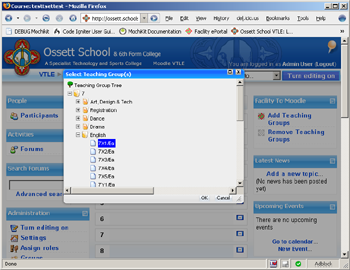
- Click 'Add Teaching Groups' from 'Facility to Moodle' block
- Select year group, subject, teaching group(s)
- Click OK
2012080713 (2012080713)
2012080713
Plugin type: Blocks
Frankenstyle component name: block_facility_to_moodle
Version build number: 2012080713
Version release name: 2012080713
Maturity: Beta
Supported Moodle versions: 2.1, 2.2
Repository URL (Git):
Repository branch:
Repository tag:
Issue/bug tracker URL:
VERSION
See version.php
LICENCE
See LICENCE.TXT for details
SCHOOLS KNOWN TO BE USING THIS BLOCK
Ossett Academy, Wakefield
Kettlethorpe High School, Wakefield
Horbury Specialist Language College, Wakefield
Notre Dame High School, Sheffield
PRE-INSTALL PREPARATION
Please see documentation for prerequisite server requirements (unixODBC, freeTDS, MSSQL all compiled into PHP).
http://prototype.ossettacademy.co.uk/src/docs/ & http://prototype.ossettacademy.co.uk/src/docs/Supporting_Docs/
This version will ONLY function with Moodle 2.2+
Admin Numbers
The block uses admin numbers as a unique ID to link Moodle / Active Directory accounts to Facility CMIS student records. This means you will have to ensure the following:
a) The 'description' field of every student Active Directory account contains the student's admin number (exactly as it is in Facility, with preceeding 0's)
b) If you have existing student accounts in Moodle, you MUST add the students admin number (exactly as it is in Facility) to the idnumber field. If you don't have existing student accounts in Moodle, dont worry - the block will create their accounts!
- To avoid manual work in the future, always ensure your new intake network accounts are created via a file exported from Facility CMIS with Firstname, Lastname, Idnumber, DOB which you can then import into Active Directory. Basically, your new intake network accounts can be created via a simple import process with the description field automatically populated with the idnumber. Speak to your network manager about this. Any network manager worth his/her salt should be able to do this - it is not hard.
StaffCode
Facility StaffCode should be present in AD description field for all staff.
Normal Roles
Parent: short name 'parent' - Set the following permissions to 'allow':
moodle/user:readuserposts
moodle/user:readuserblogs
moodle/user:viewuseractivitiesreport
moodle/user:viewusergrades
INSTALLATION
A full manual is available which will give you more comprehensive information for installation, configuration and usage of this block.
See http://prototype.ossettacademy.co.uk/src/docs/ & http://prototype.ossettacademy.co.uk/src/docs/Supporting_Docs/
- Unzip the archive into your blocks folder.
- Log in to Moodle as an admin From Moodle, select 'Notifications' under the Site Administration block. This should set your db tables up for this block.
- Set up basic settings, then head to Site Administration > Plugins > Blocks > Facility to Moodle and setup BDNs.
SITE USAGE
- Add the block to your moodle front page (site)
- To transfer students, click 'transfer students'.
- To transfer parents, click 'transfer parents'.
COURSE USAGE
- Add the block as a sticky block across all courses
- Click 'Add Teaching Groups' from 'Facility to Moodle' block
- Select year group, subject, teaching group(s)
- Click OK
2012070308 (2012070308)
2012070308
Plugin type: Blocks
Frankenstyle component name: block_facility_to_moodle
Version build number: 2012070308
Version release name: 2012070308
Maturity: Beta
Supported Moodle versions: 2.2
Repository URL (Git):
Repository branch:
Repository tag:
Issue/bug tracker URL:
VERSION
See version.php
LICENCE
See LICENCE.TXT for details
SCHOOLS KNOWN TO BE USING THIS BLOCK
Ossett Academy, Wakefield
Kettlethorpe High School, Wakefield
Horbury Specialist Language College, Wakefield
Notre Dame High School, Sheffield
PRE-INSTALL PREPARATION
Please see documentation for prerequisite server requirements (unixODBC, freeTDS, MSSQL all compiled into PHP).
http://prototype.ossettacademy.co.uk/src/docs/ & http://prototype.ossettacademy.co.uk/src/docs/Supporting_Docs/
This version will ONLY function with Moodle 2.2+
Admin Numbers
The block uses admin numbers as a unique ID to link Moodle / Active Directory accounts to Facility CMIS student records. This means you will have to ensure the following:
a) The 'description' field of every student Active Directory account contains the student's admin number (exactly as it is in Facility, with preceeding 0's)
b) If you have existing student accounts in Moodle, you MUST add the students admin number (exactly as it is in Facility) to the idnumber field. If you don't have existing student accounts in Moodle, dont worry - the block will create their accounts!
- To avoid manual work in the future, always ensure your new intake network accounts are created via a file exported from Facility CMIS with Firstname, Lastname, Idnumber, DOB which you can then import into Active Directory. Basically, your new intake network accounts can be created via a simple import process with the description field automatically populated with the idnumber. Speak to your network manager about this. Any network manager worth his/her salt should be able to do this - it is not hard.
StaffCode
Facility StaffCode should be present in AD description field for all staff.
Normal Roles
Parent: short name 'parent' - Set the following permissions to 'allow':
moodle/user:readuserposts
moodle/user:readuserblogs
moodle/user:viewuseractivitiesreport
moodle/user:viewusergrades
INSTALLATION
A full manual is available which will give you more comprehensive information for installation, configuration and usage of this block.
See http://prototype.ossettacademy.co.uk/src/docs/ & http://prototype.ossettacademy.co.uk/src/docs/Supporting_Docs/
- Unzip the archive into your blocks folder.
- Log in to Moodle as an admin From Moodle, select 'Notifications' under the Site Administration block. This should set your db tables up for this block.
- Set up basic settings, then head to Site Administration > Plugins > Blocks > Facility to Moodle and setup BDNs.
SITE USAGE
- Add the block to your moodle front page (site)
- To transfer students, click 'transfer students'.
- To transfer parents, click 'transfer parents'.
COURSE USAGE
- Add the block as a sticky block across all courses
- Click 'Add Teaching Groups' from 'Facility to Moodle' block
- Select year group, subject, teaching group(s)
- Click OK
20120040310 (20120040310)
20120040310
Plugin type: Blocks
Frankenstyle component name: block_facility_to_moodle
Version build number: 20120040310
Version release name: 20120040310
Maturity: Beta
Supported Moodle versions: 2.2
Repository URL (Git):
Repository branch:
Repository tag:
Issue/bug tracker URL:
VERSION
See version.php
LICENCE
See LICENCE.TXT for details
SCHOOLS KNOWN TO BE USING THIS BLOCK
Ossett Academy, Wakefield
Kettlethorpe High School, Wakefield
Horbury Specialist Language College, Wakefield
Notre Dame High School, Sheffield
PRE-INSTALL PREPARATION
Please see documentation for prerequisite server requirements (unixODBC, freeTDS, MSSQL all compiled into PHP).
http://prototype.ossettacademy.co.uk/src/docs/ & http://prototype.ossettacademy.co.uk/src/docs/Supporting_Docs/
This version will ONLY function with Moodle 2.2+
Admin Numbers
The block uses admin numbers as a unique ID to link Moodle / Active Directory accounts to Facility CMIS student records. This means you will have to ensure the following:
a) The 'description' field of every student Active Directory account contains the student's admin number (exactly as it is in Facility, with preceeding 0's)
b) If you have existing student accounts in Moodle, you MUST add the students admin number (exactly as it is in Facility) to the idnumber field. If you don't have existing student accounts in Moodle, dont worry - the block will create their accounts!
- To avoid manual work in the future, always ensure your new intake network accounts are created via a file exported from Facility CMIS with Firstname, Lastname, Idnumber, DOB which you can then import into Active Directory. Basically, your new intake network accounts can be created via a simple import process with the description field automatically populated with the idnumber. Speak to your network manager about this. Any network manager worth his/her salt should be able to do this - it is not hard.
StaffCode
Facility StaffCode should be present in AD description field for all staff.
Normal Roles
Parent: short name 'parent' - Set the following permissions to 'allow':
moodle/user:readuserposts
moodle/user:readuserblogs
moodle/user:viewuseractivitiesreport
moodle/user:viewusergrades
INSTALLATION
A full manual is available which will give you more comprehensive information for installation, configuration and usage of this block.
See http://prototype.ossettacademy.co.uk/src/docs/ & http://prototype.ossettacademy.co.uk/src/docs/Supporting_Docs/
- Unzip the archive into your blocks folder, and upload the contents of the lib folder to Moodle's /lib directory.
- Log in to Moodle as an admin From Moodle, select 'Notifications' under the Site Administration block. This should set your db tables up for this block.
- Set up basic settings, then head to Site Administration > Plugins > Blocks > Facility to Moodle and setup BDNs.
SITE USAGE
- Add the block to your moodle front page (site)
- To transfer students, click 'transfer students'.
- To transfer parents, click 'transfer parents'.
COURSE USAGE
- Add the block as a sticky block across all courses
- Click 'Add Teaching Groups' from 'Facility to Moodle' block
- Select year group, subject, teaching group(s)
- Click OK