
Learnwise
Versions
Current version
1.4.2a (2026072200)
1.4.2a
Plugin type: Local plugins
Frankenstyle component name: local_learnwise
Version build number: 2026072200
Version release name: 1.4.2a
Maturity: Stable
Supported Moodle versions: 3.10, 3.11, 3.9, 4.0, 4.1, 4.2, 4.3, 4.4, 4.5, 5.0, 5.1, 5.2
Repository URL (Git): https://github.com/LearnWiseAI/moodle-local_learnwise
Repository branch:
Repository tag: 1.4.2a
Issue/bug tracker URL: https://github.com/LearnWiseAI/moodle-local_learnwise/issues
1.4.2b (2026072000)
1.4.2b
Plugin type: Local plugins
Frankenstyle component name: local_learnwise
Version build number: 2026072000
Version release name: 1.4.2b
Maturity: Stable
Supported Moodle versions: 3.4, 3.5, 3.6, 3.7, 3.8
Repository URL (Git): https://github.com/LearnWiseAI/moodle-local_learnwise
Repository branch:
Repository tag: 1.4.2b
Issue/bug tracker URL: https://github.com/LearnWiseAI/moodle-local_learnwise/issues
1.4.1a (2026070200)
1.4.1a
Plugin type: Local plugins
Frankenstyle component name: local_learnwise
Version build number: 2026070200
Version release name: 1.4.1a
Maturity: Stable
Supported Moodle versions: 3.10, 3.11, 3.9, 4.0, 4.1, 4.2, 4.3, 4.4, 4.5, 5.0, 5.1, 5.2
Repository URL (Git): https://github.com/LearnWiseAI/moodle-local_learnwise
Repository branch:
Repository tag: 1.4.1a
Issue/bug tracker URL: https://github.com/LearnWiseAI/moodle-local_learnwise/issues
Moodle LearnWise Plugin
This plugin allows you to set up and configure the LearnWise AI assistant (https://www.learnwise.ai/) for your Moodle site. Learn more about LearnWise at https://www.learnwise.ai/how-it-works.
Note that this plugin requires an existing organizational account within the LearnWise platform. Want to learn more about LearnWise? Please get in touch with us at https://www.learnwise.ai/demo.
Requirements
- Moodle 3.9 or Higher
- PHP 7.4 or Higher
- Access to the LearnWise Admin Panel
- Site administrator privileges in your Moodle environment
Installation steps
- Download the plugin from Moodle plugins directory or from GitHub repository.
- Go to Site Administrator > Plugins > Install plugins and upload the downloaded plugin zip file

Configure the Plugin in Moodle
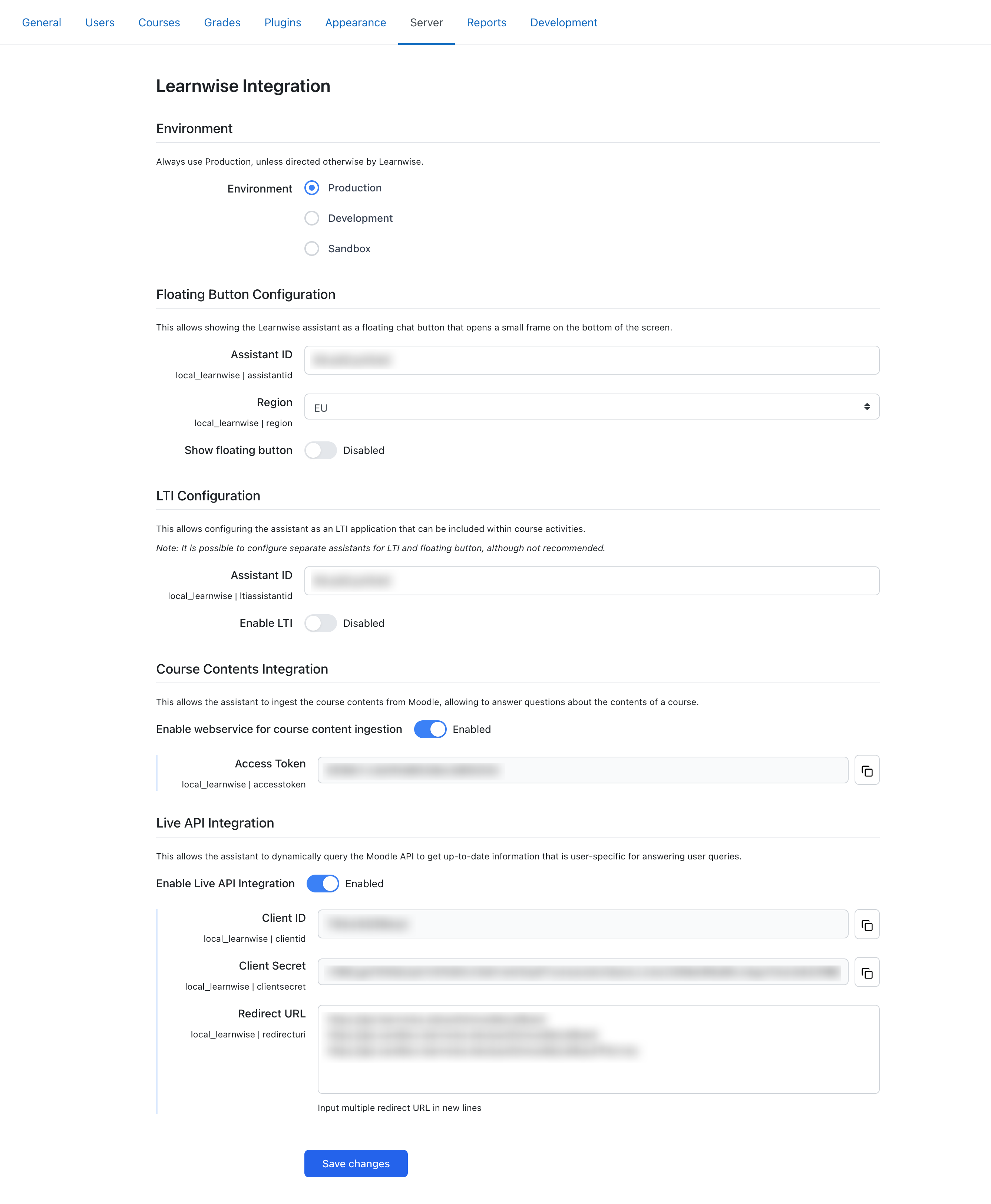
- Go to Site Administration > Server > LearnWise Integration.
- Select "Production" as your environment.

1. Option A: Floating Support Button Integration
- Locate your Assistant ID in the Publish > Configure LTI> Moodle window
- Paste the Assistant ID into the corresponding field in Moodle.
- Select the region.
- Enter the Course IDs comma separated (optional) to load the chat on specific courses.
- Click Save.
- The floating LearnWise button will now appear on the bottom-right corner of your Moodle interface.

2. Option B: LTI Course Assistant Integration
Enable LTI toggle in Moodle
From the Moodle LTI setup screen, copy the following:
- Platform ID
- Client ID
- Deployment ID

Paste these into the appropriate fields in the LearnWise wizard located on the Publish > LTI Connection > Moodle channel
Click Next, then Submit to create the LTI connection.

3. Ingest Moodle Course Content (Optional)
To enable the assistant to interact with course-specific material:
- In the LearnWise Admin Panel, go to the "Knowledge" tab.
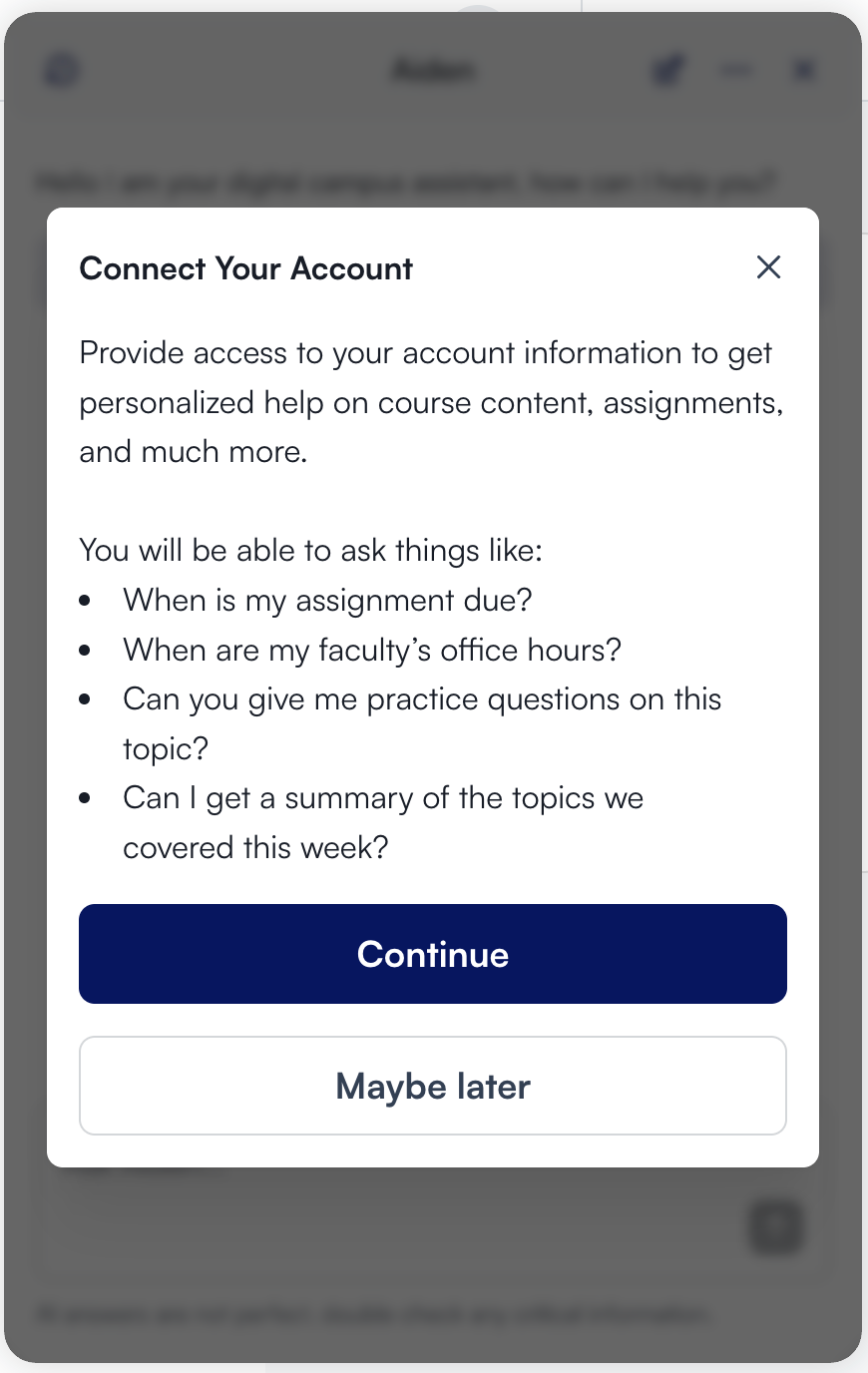
- Click Courses > Moodle > Connect.

- In Moodle:
- Go to Site Administration > Server > LearnWise Integration.
- Enable web service for course content ingestion in Moodle
- Copy your Platform ID and Access Token.

- Paste them into the connection window in LearnWise & select which course content you would like to ingest form the list of content types
- Your assistant is now ready set-up to ingest course content

4. Enable Live API Integration (Optional)
To pull live Moodle data (user role, assignments, etc.):
- Enable the Live API Integration toggle in Moodle
- Copy the Client ID and Secret from your Moodle

- Paste them into your LearnWise dashboard and click Verify.
- If successful, you’ll be redirected to Moodle to confirm authorization.

5. AI Assessment (Optional)
This allows the assistant to assist in assignment grading

6. Launch the Assistant in Moodle Courses
- In Moodle, navigate to any course where you want to add the assistant.
- Choose Add an activity or resource
- Select LearnWise from the list of external tools.
(If it is not listed, ensure it is toggled on as an option under LTI external tools) - Save and return to course.
1.4.1b (2026070250)
1.4.1b
Plugin type: Local plugins
Frankenstyle component name: local_learnwise
Version build number: 2026070250
Version release name: 1.4.1b
Maturity: Stable
Supported Moodle versions: 3.4, 3.5, 3.6, 3.7, 3.8
Repository URL (Git): https://github.com/LearnWiseAI/moodle-local_learnwise
Repository branch:
Repository tag: 1.4.1b
Issue/bug tracker URL: https://github.com/LearnWiseAI/moodle-local_learnwise/issues
Moodle LearnWise Plugin
This plugin allows you to set up and configure the LearnWise AI assistant (https://www.learnwise.ai/) for your Moodle site. Learn more about LearnWise at https://www.learnwise.ai/how-it-works.
Note that this plugin requires an existing organizational account within the LearnWise platform. Want to learn more about LearnWise? Please get in touch with us at https://www.learnwise.ai/demo.
Requirements
- Moodle 3.9 or Higher
- PHP 7.4 or Higher
- Access to the LearnWise Admin Panel
- Site administrator privileges in your Moodle environment
Installation steps
- Download the plugin from Moodle plugins directory or from GitHub repository.
- Go to Site Administrator > Plugins > Install plugins and upload the downloaded plugin zip file
Configure the Plugin in Moodle
- Go to Site Administration > Server > LearnWise Integration.
- Select "Production" as your environment.
1. Option A: Floating Support Button Integration
- Locate your Assistant ID in the Publish > Configure LTI> Moodle window
- Paste the Assistant ID into the corresponding field in Moodle.
- Select the region.
- Enter the Course IDs comma separated (optional) to load the chat on specific courses.
- Click Save.
- The floating LearnWise button will now appear on the bottom-right corner of your Moodle interface.
2. Option B: LTI Course Assistant Integration
Enable LTI toggle in Moodle
From the Moodle LTI setup screen, copy the following:
- Platform ID
- Client ID
- Deployment ID
Paste these into the appropriate fields in the LearnWise wizard located on the Publish > LTI Connection > Moodle channel
Click Next, then Submit to create the LTI connection.
3. Ingest Moodle Course Content (Optional)
To enable the assistant to interact with course-specific material:
- In the LearnWise Admin Panel, go to the "Knowledge" tab.
- Click Courses > Moodle > Connect.
- In Moodle:
- Go to Site Administration > Server > LearnWise Integration.
- Enable web service for course content ingestion in Moodle
- Copy your Platform ID and Access Token.
- Paste them into the connection window in LearnWise & select which course content you would like to ingest form the list of content types
- Your assistant is now ready set-up to ingest course content
4. Enable Live API Integration (Optional)
To pull live Moodle data (user role, assignments, etc.):
- Enable the Live API Integration toggle in Moodle
- Copy the Client ID and Secret from your Moodle
- Paste them into your LearnWise dashboard and click Verify.
- If successful, you’ll be redirected to Moodle to confirm authorization.
5. AI Assessment (Optional)
This allows the assistant to assist in assignment grading
6. Launch the Assistant in Moodle Courses
- In Moodle, navigate to any course where you want to add the assistant.
- Choose Add an activity or resource
- Select LearnWise from the list of external tools.
(If it is not listed, ensure it is toggled on as an option under LTI external tools) - Save and return to course.
1.4.0b (2026070150)
1.4.0b
Plugin type: Local plugins
Frankenstyle component name: local_learnwise
Version build number: 2026070150
Version release name: 1.4.0b
Maturity: Stable
Supported Moodle versions: 3.4, 3.5, 3.6, 3.7, 3.8
Repository URL (Git): https://github.com/LearnWiseAI/moodle-local_learnwise
Repository branch:
Repository tag: 1.4.0b
Issue/bug tracker URL: https://github.com/LearnWiseAI/moodle-local_learnwise/issues
Moodle LearnWise Plugin
This plugin allows you to set up and configure the LearnWise AI assistant (https://www.learnwise.ai/) for your Moodle site. Learn more about LearnWise at https://www.learnwise.ai/how-it-works.
Note that this plugin requires an existing organizational account within the LearnWise platform. Want to learn more about LearnWise? Please get in touch with us at https://www.learnwise.ai/demo.
Requirements
- Moodle 3.9 or Higher
- PHP 7.4 or Higher
- Access to the LearnWise Admin Panel
- Site administrator privileges in your Moodle environment
Installation steps
- Download the plugin from Moodle plugins directory or from GitHub repository.
- Go to Site Administrator > Plugins > Install plugins and upload the downloaded plugin zip file
Configure the Plugin in Moodle
- Go to Site Administration > Server > LearnWise Integration.
- Select "Production" as your environment.
1. Option A: Floating Support Button Integration
- Locate your Assistant ID in the Publish > Configure LTI> Moodle window
- Paste the Assistant ID into the corresponding field in Moodle.
- Select the region.
- Enter the Course IDs comma separated (optional) to load the chat on specific courses.
- Click Save.
- The floating LearnWise button will now appear on the bottom-right corner of your Moodle interface.
2. Option B: LTI Course Assistant Integration
Enable LTI toggle in Moodle
From the Moodle LTI setup screen, copy the following:
- Platform ID
- Client ID
- Deployment ID
Paste these into the appropriate fields in the LearnWise wizard located on the Publish > LTI Connection > Moodle channel
Click Next, then Submit to create the LTI connection.
3. Ingest Moodle Course Content (Optional)
To enable the assistant to interact with course-specific material:
- In the LearnWise Admin Panel, go to the "Knowledge" tab.
- Click Courses > Moodle > Connect.
- In Moodle:
- Go to Site Administration > Server > LearnWise Integration.
- Enable web service for course content ingestion in Moodle
- Copy your Platform ID and Access Token.
- Paste them into the connection window in LearnWise & select which course content you would like to ingest form the list of content types
- Your assistant is now ready set-up to ingest course content
4. Enable Live API Integration (Optional)
To pull live Moodle data (user role, assignments, etc.):
- Enable the Live API Integration toggle in Moodle
- Copy the Client ID and Secret from your Moodle
- Paste them into your LearnWise dashboard and click Verify.
- If successful, you’ll be redirected to Moodle to confirm authorization.
5. AI Assessment (Optional)
This allows the assistant to assist in assignment grading
6. Launch the Assistant in Moodle Courses
- In Moodle, navigate to any course where you want to add the assistant.
- Choose Add an activity or resource
- Select LearnWise from the list of external tools.
(If it is not listed, ensure it is toggled on as an option under LTI external tools) - Save and return to course.
1.4.0a (2026070100)
1.4.0a
Plugin type: Local plugins
Frankenstyle component name: local_learnwise
Version build number: 2026070100
Version release name: 1.4.0a
Maturity: Stable
Supported Moodle versions: 3.10, 3.11, 3.9, 4.0, 4.1, 4.2, 4.3, 4.4, 4.5, 5.0, 5.1, 5.2
Repository URL (Git): https://github.com/LearnWiseAI/moodle-local_learnwise
Repository branch:
Repository tag: 1.4.0a
Issue/bug tracker URL: https://github.com/LearnWiseAI/moodle-local_learnwise/issues
Moodle LearnWise Plugin
This plugin allows you to set up and configure the LearnWise AI assistant (https://www.learnwise.ai/) for your Moodle site. Learn more about LearnWise at https://www.learnwise.ai/how-it-works.
Note that this plugin requires an existing organizational account within the LearnWise platform. Want to learn more about LearnWise? Please get in touch with us at https://www.learnwise.ai/demo.
Requirements
- Moodle 3.9 or Higher
- PHP 7.4 or Higher
- Access to the LearnWise Admin Panel
- Site administrator privileges in your Moodle environment
Installation steps
- Download the plugin from Moodle plugins directory or from GitHub repository.
- Go to Site Administrator > Plugins > Install plugins and upload the downloaded plugin zip file
Configure the Plugin in Moodle
- Go to Site Administration > Server > LearnWise Integration.
- Select "Production" as your environment.
1. Option A: Floating Support Button Integration
- Locate your Assistant ID in the Publish > Configure LTI> Moodle window
- Paste the Assistant ID into the corresponding field in Moodle.
- Select the region.
- Enter the Course IDs comma separated (optional) to load the chat on specific courses.
- Click Save.
- The floating LearnWise button will now appear on the bottom-right corner of your Moodle interface.
2. Option B: LTI Course Assistant Integration
Enable LTI toggle in Moodle
From the Moodle LTI setup screen, copy the following:
- Platform ID
- Client ID
- Deployment ID
Paste these into the appropriate fields in the LearnWise wizard located on the Publish > LTI Connection > Moodle channel
Click Next, then Submit to create the LTI connection.
3. Ingest Moodle Course Content (Optional)
To enable the assistant to interact with course-specific material:
- In the LearnWise Admin Panel, go to the "Knowledge" tab.
- Click Courses > Moodle > Connect.
- In Moodle:
- Go to Site Administration > Server > LearnWise Integration.
- Enable web service for course content ingestion in Moodle
- Copy your Platform ID and Access Token.
- Paste them into the connection window in LearnWise & select which course content you would like to ingest form the list of content types
- Your assistant is now ready set-up to ingest course content
4. Enable Live API Integration (Optional)
To pull live Moodle data (user role, assignments, etc.):
- Enable the Live API Integration toggle in Moodle
- Copy the Client ID and Secret from your Moodle
- Paste them into your LearnWise dashboard and click Verify.
- If successful, you’ll be redirected to Moodle to confirm authorization.
5. AI Assessment (Optional)
This allows the assistant to assist in assignment grading
6. Launch the Assistant in Moodle Courses
- In Moodle, navigate to any course where you want to add the assistant.
- Choose Add an activity or resource
- Select LearnWise from the list of external tools.
(If it is not listed, ensure it is toggled on as an option under LTI external tools) - Save and return to course.
1.3.9b (2026060500)
1.3.9b
Plugin type: Local plugins
Frankenstyle component name: local_learnwise
Version build number: 2026060500
Version release name: 1.3.9b
Maturity: Stable
Supported Moodle versions: 3.4, 3.5, 3.6, 3.7, 3.8
Repository URL (Git): https://github.com/LearnWiseAI/moodle-local_learnwise
Repository branch:
Repository tag: 1.3.9b
Issue/bug tracker URL: https://github.com/LearnWiseAI/moodle-local_learnwise/issues
Moodle LearnWise Plugin
This plugin allows you to set up and configure the LearnWise AI assistant (https://www.learnwise.ai/) for your Moodle site. Learn more about LearnWise at https://www.learnwise.ai/how-it-works.
Note that this plugin requires an existing organizational account within the LearnWise platform. Want to learn more about LearnWise? Please get in touch with us at https://www.learnwise.ai/demo.
Requirements
- Moodle 3.9 or Higher
- PHP 7.4 or Higher
- Access to the LearnWise Admin Panel
- Site administrator privileges in your Moodle environment
Installation steps
- Download the plugin from Moodle plugins directory or from GitHub repository.
- Go to Site Administrator > Plugins > Install plugins and upload the downloaded plugin zip file
Configure the Plugin in Moodle
- Go to Site Administration > Server > LearnWise Integration.
- Select "Production" as your environment.
1. Option A: Floating Support Button Integration
- Locate your Assistant ID in the Publish > Configure LTI> Moodle window
- Paste the Assistant ID into the corresponding field in Moodle.
- Select the region.
- Enter the Course IDs comma separated (optional) to load the chat on specific courses.
- Click Save.
- The floating LearnWise button will now appear on the bottom-right corner of your Moodle interface.
2. Option B: LTI Course Assistant Integration
Enable LTI toggle in Moodle
From the Moodle LTI setup screen, copy the following:
- Platform ID
- Client ID
- Deployment ID
Paste these into the appropriate fields in the LearnWise wizard located on the Publish > LTI Connection > Moodle channel
Click Next, then Submit to create the LTI connection.
3. Ingest Moodle Course Content (Optional)
To enable the assistant to interact with course-specific material:
- In the LearnWise Admin Panel, go to the "Knowledge" tab.
- Click Courses > Moodle > Connect.
- In Moodle:
- Go to Site Administration > Server > LearnWise Integration.
- Enable web service for course content ingestion in Moodle
- Copy your Platform ID and Access Token.
- Paste them into the connection window in LearnWise & select which course content you would like to ingest form the list of content types
- Your assistant is now ready set-up to ingest course content
4. Enable Live API Integration (Optional)
To pull live Moodle data (user role, assignments, etc.):
- Enable the Live API Integration toggle in Moodle
- Copy the Client ID and Secret from your Moodle
- Paste them into your LearnWise dashboard and click Verify.
- If successful, you’ll be redirected to Moodle to confirm authorization.
5. AI Assessment (Optional)
This allows the assistant to assist in assignment grading
6. Launch the Assistant in Moodle Courses
- In Moodle, navigate to any course where you want to add the assistant.
- Choose Add an activity or resource
- Select LearnWise from the list of external tools.
(If it is not listed, ensure it is toggled on as an option under LTI external tools) - Save and return to course.
1.3.9a (2026060400)
1.3.9a
Plugin type: Local plugins
Frankenstyle component name: local_learnwise
Version build number: 2026060400
Version release name: 1.3.9a
Maturity: Stable
Supported Moodle versions: 3.10, 3.11, 3.9, 4.0, 4.1, 4.2, 4.3, 4.4, 4.5, 5.0, 5.1, 5.2
Repository URL (Git): https://github.com/LearnWiseAI/moodle-local_learnwise
Repository branch:
Repository tag: 1.3.9a
Issue/bug tracker URL: https://github.com/LearnWiseAI/moodle-local_learnwise/issues
Moodle LearnWise Plugin
This plugin allows you to set up and configure the LearnWise AI assistant (https://www.learnwise.ai/) for your Moodle site. Learn more about LearnWise at https://www.learnwise.ai/how-it-works.
Note that this plugin requires an existing organizational account within the LearnWise platform. Want to learn more about LearnWise? Please get in touch with us at https://www.learnwise.ai/demo.
Requirements
- Moodle 3.9 or Higher
- PHP 7.4 or Higher
- Access to the LearnWise Admin Panel
- Site administrator privileges in your Moodle environment
Installation steps
- Download the plugin from Moodle plugins directory or from GitHub repository.
- Go to Site Administrator > Plugins > Install plugins and upload the downloaded plugin zip file
Configure the Plugin in Moodle
- Go to Site Administration > Server > LearnWise Integration.
- Select "Production" as your environment.
1. Option A: Floating Support Button Integration
- Locate your Assistant ID in the Publish > Configure LTI> Moodle window
- Paste the Assistant ID into the corresponding field in Moodle.
- Select the region.
- Enter the Course IDs comma separated (optional) to load the chat on specific courses.
- Click Save.
- The floating LearnWise button will now appear on the bottom-right corner of your Moodle interface.
2. Option B: LTI Course Assistant Integration
Enable LTI toggle in Moodle
From the Moodle LTI setup screen, copy the following:
- Platform ID
- Client ID
- Deployment ID
Paste these into the appropriate fields in the LearnWise wizard located on the Publish > LTI Connection > Moodle channel
Click Next, then Submit to create the LTI connection.
3. Ingest Moodle Course Content (Optional)
To enable the assistant to interact with course-specific material:
- In the LearnWise Admin Panel, go to the "Knowledge" tab.
- Click Courses > Moodle > Connect.
- In Moodle:
- Go to Site Administration > Server > LearnWise Integration.
- Enable web service for course content ingestion in Moodle
- Copy your Platform ID and Access Token.
- Paste them into the connection window in LearnWise & select which course content you would like to ingest form the list of content types
- Your assistant is now ready set-up to ingest course content
4. Enable Live API Integration (Optional)
To pull live Moodle data (user role, assignments, etc.):
- Enable the Live API Integration toggle in Moodle
- Copy the Client ID and Secret from your Moodle
- Paste them into your LearnWise dashboard and click Verify.
- If successful, you’ll be redirected to Moodle to confirm authorization.
5. AI Assessment (Optional)
This allows the assistant to assist in assignment grading
6. Launch the Assistant in Moodle Courses
- In Moodle, navigate to any course where you want to add the assistant.
- Choose Add an activity or resource
- Select LearnWise from the list of external tools.
(If it is not listed, ensure it is toggled on as an option under LTI external tools) - Save and return to course.
1.3.8b (2026051500)
1.3.8b
Plugin type: Local plugins
Frankenstyle component name: local_learnwise
Version build number: 2026051500
Version release name: 1.3.8b
Maturity: Stable
Supported Moodle versions: 3.4, 3.5, 3.6, 3.7, 3.8
Repository URL (Git): https://github.com/LearnWiseAI/moodle-local_learnwise
Repository branch:
Repository tag: 1.3.8b
Issue/bug tracker URL: https://github.com/LearnWiseAI/moodle-local_learnwise/issues
Moodle LearnWise Plugin
This plugin allows you to set up and configure the LearnWise AI assistant (https://www.learnwise.ai/) for your Moodle site. Learn more about LearnWise at https://www.learnwise.ai/how-it-works.
Note that this plugin requires an existing organizational account within the LearnWise platform. Want to learn more about LearnWise? Please get in touch with us at https://www.learnwise.ai/demo.
Requirements
- Moodle 3.9 or Higher
- PHP 7.4 or Higher
- Access to the LearnWise Admin Panel
- Site administrator privileges in your Moodle environment
Installation steps
- Download the plugin from Moodle plugins directory or from GitHub repository.
- Go to Site Administrator > Plugins > Install plugins and upload the downloaded plugin zip file
Configure the Plugin in Moodle
- Go to Site Administration > Server > LearnWise Integration.
- Select "Production" as your environment.
1. Option A: Floating Support Button Integration
- Locate your Assistant ID in the Publish > Configure LTI> Moodle window
- Paste the Assistant ID into the corresponding field in Moodle.
- Select the region.
- Enter the Course IDs comma separated (optional) to load the chat on specific courses.
- Click Save.
- The floating LearnWise button will now appear on the bottom-right corner of your Moodle interface.
2. Option B: LTI Course Assistant Integration
Enable LTI toggle in Moodle
From the Moodle LTI setup screen, copy the following:
- Platform ID
- Client ID
- Deployment ID
Paste these into the appropriate fields in the LearnWise wizard located on the Publish > LTI Connection > Moodle channel
Click Next, then Submit to create the LTI connection.
3. Ingest Moodle Course Content (Optional)
To enable the assistant to interact with course-specific material:
- In the LearnWise Admin Panel, go to the "Knowledge" tab.
- Click Courses > Moodle > Connect.
- In Moodle:
- Go to Site Administration > Server > LearnWise Integration.
- Enable web service for course content ingestion in Moodle
- Copy your Platform ID and Access Token.
- Paste them into the connection window in LearnWise & select which course content you would like to ingest form the list of content types
- Your assistant is now ready set-up to ingest course content
4. Enable Live API Integration (Optional)
To pull live Moodle data (user role, assignments, etc.):
- Enable the Live API Integration toggle in Moodle
- Copy the Client ID and Secret from your Moodle
- Paste them into your LearnWise dashboard and click Verify.
- If successful, you’ll be redirected to Moodle to confirm authorization.
5. AI Assessment (Optional)
This allows the assistant to assist in assignment grading
6. Launch the Assistant in Moodle Courses
- In Moodle, navigate to any course where you want to add the assistant.
- Choose Add an activity or resource
- Select LearnWise from the list of external tools.
(If it is not listed, ensure it is toggled on as an option under LTI external tools) - Save and return to course.
1.3.8a (2026051400)
1.3.8a
Plugin type: Local plugins
Frankenstyle component name: local_learnwise
Version build number: 2026051400
Version release name: 1.3.8a
Maturity: Stable
Supported Moodle versions: 3.10, 3.11, 3.9, 4.0, 4.1, 4.2, 4.3, 4.4, 4.5, 5.0, 5.1, 5.2
Repository URL (Git): https://github.com/LearnWiseAI/moodle-local_learnwise
Repository branch:
Repository tag: 1.3.8a
Issue/bug tracker URL: https://github.com/LearnWiseAI/moodle-local_learnwise/issues
Moodle LearnWise Plugin
This plugin allows you to set up and configure the LearnWise AI assistant (https://www.learnwise.ai/) for your Moodle site. Learn more about LearnWise at https://www.learnwise.ai/how-it-works.
Note that this plugin requires an existing organizational account within the LearnWise platform. Want to learn more about LearnWise? Please get in touch with us at https://www.learnwise.ai/demo.
Requirements
- Moodle 3.9 or Higher
- PHP 7.4 or Higher
- Access to the LearnWise Admin Panel
- Site administrator privileges in your Moodle environment
Installation steps
- Download the plugin from Moodle plugins directory or from GitHub repository.
- Go to Site Administrator > Plugins > Install plugins and upload the downloaded plugin zip file
Configure the Plugin in Moodle
- Go to Site Administration > Server > LearnWise Integration.
- Select "Production" as your environment.
1. Option A: Floating Support Button Integration
- Locate your Assistant ID in the Publish > Configure LTI> Moodle window
- Paste the Assistant ID into the corresponding field in Moodle.
- Select the region.
- Enter the Course IDs comma separated (optional) to load the chat on specific courses.
- Click Save.
- The floating LearnWise button will now appear on the bottom-right corner of your Moodle interface.
2. Option B: LTI Course Assistant Integration
Enable LTI toggle in Moodle
From the Moodle LTI setup screen, copy the following:
- Platform ID
- Client ID
- Deployment ID
Paste these into the appropriate fields in the LearnWise wizard located on the Publish > LTI Connection > Moodle channel
Click Next, then Submit to create the LTI connection.
3. Ingest Moodle Course Content (Optional)
To enable the assistant to interact with course-specific material:
- In the LearnWise Admin Panel, go to the "Knowledge" tab.
- Click Courses > Moodle > Connect.
- In Moodle:
- Go to Site Administration > Server > LearnWise Integration.
- Enable web service for course content ingestion in Moodle
- Copy your Platform ID and Access Token.
- Paste them into the connection window in LearnWise & select which course content you would like to ingest form the list of content types
- Your assistant is now ready set-up to ingest course content
4. Enable Live API Integration (Optional)
To pull live Moodle data (user role, assignments, etc.):
- Enable the Live API Integration toggle in Moodle
- Copy the Client ID and Secret from your Moodle
- Paste them into your LearnWise dashboard and click Verify.
- If successful, you’ll be redirected to Moodle to confirm authorization.
5. AI Assessment (Optional)
This allows the assistant to assist in assignment grading
6. Launch the Assistant in Moodle Courses
- In Moodle, navigate to any course where you want to add the assistant.
- Choose Add an activity or resource
- Select LearnWise from the list of external tools.
(If it is not listed, ensure it is toggled on as an option under LTI external tools) - Save and return to course.
1.3.6a (2026050600)
1.3.6a
Plugin type: Local plugins
Frankenstyle component name: local_learnwise
Version build number: 2026050600
Version release name: 1.3.6a
Maturity: Stable
Supported Moodle versions: 3.10, 3.11, 3.9, 4.0, 4.1, 4.2, 4.3, 4.4, 4.5, 5.0, 5.1, 5.2
Repository URL (Git): https://github.com/LearnWiseAI/moodle-local_learnwise
Repository branch:
Repository tag: 1.3.6a
Issue/bug tracker URL: https://github.com/LearnWiseAI/moodle-local_learnwise/issues
Moodle LearnWise Plugin
This plugin allows you to set up and configure the LearnWise AI assistant (https://www.learnwise.ai/) for your Moodle site. Learn more about LearnWise at https://www.learnwise.ai/how-it-works.
Note that this plugin requires an existing organizational account within the LearnWise platform. Want to learn more about LearnWise? Please get in touch with us at https://www.learnwise.ai/demo.
Requirements
- Moodle 3.9 or Higher
- PHP 7.4 or Higher
- Access to the LearnWise Admin Panel
- Site administrator privileges in your Moodle environment
Installation steps
- Download the plugin from Moodle plugins directory or from GitHub repository.
- Go to Site Administrator > Plugins > Install plugins and upload the downloaded plugin zip file
Configure the Plugin in Moodle
- Go to Site Administration > Server > LearnWise Integration.
- Select "Production" as your environment.
1. Option A: Floating Support Button Integration
- Locate your Assistant ID in the Publish > Configure LTI> Moodle window
- Paste the Assistant ID into the corresponding field in Moodle.
- Select the region.
- Enter the Course IDs comma separated (optional) to load the chat on specific courses.
- Click Save.
- The floating LearnWise button will now appear on the bottom-right corner of your Moodle interface.
2. Option B: LTI Course Assistant Integration
Enable LTI toggle in Moodle
From the Moodle LTI setup screen, copy the following:
- Platform ID
- Client ID
- Deployment ID
Paste these into the appropriate fields in the LearnWise wizard located on the Publish > LTI Connection > Moodle channel
Click Next, then Submit to create the LTI connection.
3. Ingest Moodle Course Content (Optional)
To enable the assistant to interact with course-specific material:
- In the LearnWise Admin Panel, go to the "Knowledge" tab.
- Click Courses > Moodle > Connect.
- In Moodle:
- Go to Site Administration > Server > LearnWise Integration.
- Enable web service for course content ingestion in Moodle
- Copy your Platform ID and Access Token.
- Paste them into the connection window in LearnWise & select which course content you would like to ingest form the list of content types
- Your assistant is now ready set-up to ingest course content
4. Enable Live API Integration (Optional)
To pull live Moodle data (user role, assignments, etc.):
- Enable the Live API Integration toggle in Moodle
- Copy the Client ID and Secret from your Moodle
- Paste them into your LearnWise dashboard and click Verify.
- If successful, you’ll be redirected to Moodle to confirm authorization.
5. AI Assessment (Optional)
This allows the assistant to assist in assignment grading
6. Launch the Assistant in Moodle Courses
- In Moodle, navigate to any course where you want to add the assistant.
- Choose Add an activity or resource
- Select LearnWise from the list of external tools.
(If it is not listed, ensure it is toggled on as an option under LTI external tools) - Save and return to course.
1.3.5b (2026050400)
1.3.5b
Plugin type: Local plugins
Frankenstyle component name: local_learnwise
Version build number: 2026050400
Version release name: 1.3.5b
Maturity: Stable
Supported Moodle versions: 3.4, 3.5, 3.6, 3.7, 3.8
Repository URL (Git): https://github.com/LearnWiseAI/moodle-local_learnwise
Repository branch:
Repository tag: 1.3.5b
Issue/bug tracker URL: https://github.com/LearnWiseAI/moodle-local_learnwise/issues
Moodle LearnWise Plugin
This plugin allows you to set up and configure the LearnWise AI assistant (https://www.learnwise.ai/) for your Moodle site. Learn more about LearnWise at https://www.learnwise.ai/how-it-works.
Note that this plugin requires an existing organizational account within the LearnWise platform. Want to learn more about LearnWise? Please get in touch with us at https://www.learnwise.ai/demo.
Requirements
- Moodle 3.9 or Higher
- PHP 7.4 or Higher
- Access to the LearnWise Admin Panel
- Site administrator privileges in your Moodle environment
Installation steps
- Download the plugin from Moodle plugins directory or from GitHub repository.
- Go to Site Administrator > Plugins > Install plugins and upload the downloaded plugin zip file
Configure the Plugin in Moodle
- Go to Site Administration > Server > LearnWise Integration.
- Select "Production" as your environment.
1. Option A: Floating Support Button Integration
- Locate your Assistant ID in the Publish > Configure LTI> Moodle window
- Paste the Assistant ID into the corresponding field in Moodle.
- Select the region.
- Enter the Course IDs comma separated (optional) to load the chat on specific courses.
- Click Save.
- The floating LearnWise button will now appear on the bottom-right corner of your Moodle interface.
2. Option B: LTI Course Assistant Integration
Enable LTI toggle in Moodle
From the Moodle LTI setup screen, copy the following:
- Platform ID
- Client ID
- Deployment ID
Paste these into the appropriate fields in the LearnWise wizard located on the Publish > LTI Connection > Moodle channel
Click Next, then Submit to create the LTI connection.
3. Ingest Moodle Course Content (Optional)
To enable the assistant to interact with course-specific material:
- In the LearnWise Admin Panel, go to the "Knowledge" tab.
- Click Courses > Moodle > Connect.
- In Moodle:
- Go to Site Administration > Server > LearnWise Integration.
- Enable web service for course content ingestion in Moodle
- Copy your Platform ID and Access Token.
- Paste them into the connection window in LearnWise & select which course content you would like to ingest form the list of content types
- Your assistant is now ready set-up to ingest course content
4. Enable Live API Integration (Optional)
To pull live Moodle data (user role, assignments, etc.):
- Enable the Live API Integration toggle in Moodle
- Copy the Client ID and Secret from your Moodle
- Paste them into your LearnWise dashboard and click Verify.
- If successful, you’ll be redirected to Moodle to confirm authorization.
5. AI Assessment (Optional)
This allows the assistant to assist in assignment grading
6. Launch the Assistant in Moodle Courses
- In Moodle, navigate to any course where you want to add the assistant.
- Choose Add an activity or resource
- Select LearnWise from the list of external tools.
(If it is not listed, ensure it is toggled on as an option under LTI external tools) - Save and return to course.
1.3.5a (2026042900)
1.3.5a
Plugin type: Local plugins
Frankenstyle component name: local_learnwise
Version build number: 2026042900
Version release name: 1.3.5a
Maturity: Stable
Supported Moodle versions: 3.10, 3.11, 3.9, 4.0, 4.1, 4.2, 4.3, 4.4, 4.5, 5.0, 5.1, 5.2
Repository URL (Git): https://github.com/LearnWiseAI/moodle-local_learnwise
Repository branch:
Repository tag: 1.3.5a
Issue/bug tracker URL: https://github.com/LearnWiseAI/moodle-local_learnwise/issues
Moodle LearnWise Plugin
This plugin allows you to set up and configure the LearnWise AI assistant (https://www.learnwise.ai/) for your Moodle site. Learn more about LearnWise at https://www.learnwise.ai/how-it-works.
Note that this plugin requires an existing organizational account within the LearnWise platform. Want to learn more about LearnWise? Please get in touch with us at https://www.learnwise.ai/demo.
Requirements
- Moodle 3.9 or Higher
- PHP 7.4 or Higher
- Access to the LearnWise Admin Panel
- Site administrator privileges in your Moodle environment
Installation steps
- Download the plugin from Moodle plugins directory or from GitHub repository.
- Go to Site Administrator > Plugins > Install plugins and upload the downloaded plugin zip file
Configure the Plugin in Moodle
- Go to Site Administration > Server > LearnWise Integration.
- Select "Production" as your environment.
1. Option A: Floating Support Button Integration
- Locate your Assistant ID in the Publish > Configure LTI> Moodle window
- Paste the Assistant ID into the corresponding field in Moodle.
- Select the region.
- Enter the Course IDs comma separated (optional) to load the chat on specific courses.
- Click Save.
- The floating LearnWise button will now appear on the bottom-right corner of your Moodle interface.
2. Option B: LTI Course Assistant Integration
Enable LTI toggle in Moodle
From the Moodle LTI setup screen, copy the following:
- Platform ID
- Client ID
- Deployment ID
Paste these into the appropriate fields in the LearnWise wizard located on the Publish > LTI Connection > Moodle channel
Click Next, then Submit to create the LTI connection.
3. Ingest Moodle Course Content (Optional)
To enable the assistant to interact with course-specific material:
- In the LearnWise Admin Panel, go to the "Knowledge" tab.
- Click Courses > Moodle > Connect.
- In Moodle:
- Go to Site Administration > Server > LearnWise Integration.
- Enable web service for course content ingestion in Moodle
- Copy your Platform ID and Access Token.
- Paste them into the connection window in LearnWise & select which course content you would like to ingest form the list of content types
- Your assistant is now ready set-up to ingest course content
4. Enable Live API Integration (Optional)
To pull live Moodle data (user role, assignments, etc.):
- Enable the Live API Integration toggle in Moodle
- Copy the Client ID and Secret from your Moodle
- Paste them into your LearnWise dashboard and click Verify.
- If successful, you’ll be redirected to Moodle to confirm authorization.
5. AI Assessment (Optional)
This allows the assistant to assist in assignment grading
6. Launch the Assistant in Moodle Courses
- In Moodle, navigate to any course where you want to add the assistant.
- Choose Add an activity or resource
- Select LearnWise from the list of external tools.
(If it is not listed, ensure it is toggled on as an option under LTI external tools) - Save and return to course.
1.3.4a (2026041301)
1.3.4a
Plugin type: Local plugins
Frankenstyle component name: local_learnwise
Version build number: 2026041301
Version release name: 1.3.4a
Maturity: Stable
Supported Moodle versions: 3.10, 3.11, 3.9, 4.0, 4.1, 4.2, 4.3, 4.4, 4.5, 5.0, 5.1
Repository URL (Git): https://github.com/LearnWiseAI/moodle-local_learnwise
Repository branch:
Repository tag: 1.3.4a
Issue/bug tracker URL: https://github.com/LearnWiseAI/moodle-local_learnwise/issues
Moodle LearnWise Plugin
This plugin allows you to set up and configure the LearnWise AI assistant (https://www.learnwise.ai/) for your Moodle site. Learn more about LearnWise at https://www.learnwise.ai/how-it-works.
Note that this plugin requires an existing organizational account within the LearnWise platform. Want to learn more about LearnWise? Please get in touch with us at https://www.learnwise.ai/demo.
Requirements
- Moodle 3.9 or Higher
- PHP 7.4 or Higher
- Access to the LearnWise Admin Panel
- Site administrator privileges in your Moodle environment
Installation steps
- Download the plugin from Moodle plugins directory or from GitHub repository.
- Go to Site Administrator > Plugins > Install plugins and upload the downloaded plugin zip file
Configure the Plugin in Moodle
- Go to Site Administration > Server > LearnWise Integration.
- Select "Production" as your environment.
1. Option A: Floating Support Button Integration
- Locate your Assistant ID in the Publish > Configure LTI> Moodle window
- Paste the Assistant ID into the corresponding field in Moodle.
- Select the region.
- Enter the Course IDs comma separated (optional) to load the chat on specific courses.
- Click Save.
- The floating LearnWise button will now appear on the bottom-right corner of your Moodle interface.
2. Option B: LTI Course Assistant Integration
Enable LTI toggle in Moodle
From the Moodle LTI setup screen, copy the following:
- Platform ID
- Client ID
- Deployment ID
Paste these into the appropriate fields in the LearnWise wizard located on the Publish > LTI Connection > Moodle channel
Click Next, then Submit to create the LTI connection.
3. Ingest Moodle Course Content (Optional)
To enable the assistant to interact with course-specific material:
- In the LearnWise Admin Panel, go to the "Knowledge" tab.
- Click Courses > Moodle > Connect.
- In Moodle:
- Go to Site Administration > Server > LearnWise Integration.
- Enable web service for course content ingestion in Moodle
- Copy your Platform ID and Access Token.
- Paste them into the connection window in LearnWise & select which course content you would like to ingest form the list of content types
- Your assistant is now ready set-up to ingest course content
4. Enable Live API Integration (Optional)
To pull live Moodle data (user role, assignments, etc.):
- Enable the Live API Integration toggle in Moodle
- Copy the Client ID and Secret from your Moodle
- Paste them into your LearnWise dashboard and click Verify.
- If successful, you’ll be redirected to Moodle to confirm authorization.
5. AI Assessment (Optional)
This allows the assistant to assist in assignment grading
6. Launch the Assistant in Moodle Courses
- In Moodle, navigate to any course where you want to add the assistant.
- Choose Add an activity or resource
- Select LearnWise from the list of external tools.
(If it is not listed, ensure it is toggled on as an option under LTI external tools) - Save and return to course.
1.3.3a (2026041001)
1.3.3a
Plugin type: Local plugins
Frankenstyle component name: local_learnwise
Version build number: 2026041001
Version release name: 1.3.3a
Maturity: Stable
Supported Moodle versions: 3.10, 3.11, 3.9, 4.0, 4.1, 4.2, 4.3, 4.4, 4.5, 5.0, 5.1
Repository URL (Git): https://github.com/LearnWiseAI/moodle-local_learnwise
Repository branch:
Repository tag: 1.3.3a
Issue/bug tracker URL: https://github.com/LearnWiseAI/moodle-local_learnwise/issues
Moodle LearnWise Plugin
This plugin allows you to set up and configure the LearnWise AI assistant (https://www.learnwise.ai/) for your Moodle site. Learn more about LearnWise at https://www.learnwise.ai/how-it-works.
Note that this plugin requires an existing organizational account within the LearnWise platform. Want to learn more about LearnWise? Please get in touch with us at https://www.learnwise.ai/demo.
Requirements
- Moodle 3.9 or Higher
- PHP 7.4 or Higher
- Access to the LearnWise Admin Panel
- Site administrator privileges in your Moodle environment
Installation steps
- Download the plugin from Moodle plugins directory or from GitHub repository.
- Go to Site Administrator > Plugins > Install plugins and upload the downloaded plugin zip file
Configure the Plugin in Moodle
- Go to Site Administration > Server > LearnWise Integration.
- Select "Production" as your environment.
1. Option A: Floating Support Button Integration
- Locate your Assistant ID in the Publish > Configure LTI> Moodle window
- Paste the Assistant ID into the corresponding field in Moodle.
- Select the region.
- Enter the Course IDs comma separated (optional) to load the chat on specific courses.
- Click Save.
- The floating LearnWise button will now appear on the bottom-right corner of your Moodle interface.
2. Option B: LTI Course Assistant Integration
Enable LTI toggle in Moodle
From the Moodle LTI setup screen, copy the following:
- Platform ID
- Client ID
- Deployment ID
Paste these into the appropriate fields in the LearnWise wizard located on the Publish > LTI Connection > Moodle channel
Click Next, then Submit to create the LTI connection.
3. Ingest Moodle Course Content (Optional)
To enable the assistant to interact with course-specific material:
- In the LearnWise Admin Panel, go to the "Knowledge" tab.
- Click Courses > Moodle > Connect.
- In Moodle:
- Go to Site Administration > Server > LearnWise Integration.
- Enable web service for course content ingestion in Moodle
- Copy your Platform ID and Access Token.
- Paste them into the connection window in LearnWise & select which course content you would like to ingest form the list of content types
- Your assistant is now ready set-up to ingest course content
4. Enable Live API Integration (Optional)
To pull live Moodle data (user role, assignments, etc.):
- Enable the Live API Integration toggle in Moodle
- Copy the Client ID and Secret from your Moodle
- Paste them into your LearnWise dashboard and click Verify.
- If successful, you’ll be redirected to Moodle to confirm authorization.
5. AI Assessment (Optional)
This allows the assistant to assist in assignment grading
6. Launch the Assistant in Moodle Courses
- In Moodle, navigate to any course where you want to add the assistant.
- Choose Add an activity or resource
- Select LearnWise from the list of external tools.
(If it is not listed, ensure it is toggled on as an option under LTI external tools) - Save and return to course.
1.3.2b (2026041300)
1.3.2b
Plugin type: Local plugins
Frankenstyle component name: local_learnwise
Version build number: 2026041300
Version release name: 1.3.2b
Maturity: Stable
Supported Moodle versions: 3.4, 3.5, 3.6, 3.7, 3.8
Repository URL (Git): https://github.com/LearnWiseAI/moodle-local_learnwise
Repository branch:
Repository tag: 1.3.2b
Issue/bug tracker URL: https://github.com/LearnWiseAI/moodle-local_learnwise/issues
Moodle LearnWise Plugin
This plugin allows you to set up and configure the LearnWise AI assistant (https://www.learnwise.ai/) for your Moodle site. Learn more about LearnWise at https://www.learnwise.ai/how-it-works.
Note that this plugin requires an existing organizational account within the LearnWise platform. Want to learn more about LearnWise? Please get in touch with us at https://www.learnwise.ai/demo.
Requirements
- Moodle 3.9 or Higher
- PHP 7.4 or Higher
- Access to the LearnWise Admin Panel
- Site administrator privileges in your Moodle environment
Installation steps
- Download the plugin from Moodle plugins directory or from GitHub repository.
- Go to Site Administrator > Plugins > Install plugins and upload the downloaded plugin zip file
Configure the Plugin in Moodle
- Go to Site Administration > Server > LearnWise Integration.
- Select "Production" as your environment.
1. Option A: Floating Support Button Integration
- Locate your Assistant ID in the Publish > Configure LTI> Moodle window
- Paste the Assistant ID into the corresponding field in Moodle.
- Select the region.
- Enter the Course IDs comma separated (optional) to load the chat on specific courses.
- Click Save.
- The floating LearnWise button will now appear on the bottom-right corner of your Moodle interface.
2. Option B: LTI Course Assistant Integration
Enable LTI toggle in Moodle
From the Moodle LTI setup screen, copy the following:
- Platform ID
- Client ID
- Deployment ID
Paste these into the appropriate fields in the LearnWise wizard located on the Publish > LTI Connection > Moodle channel
Click Next, then Submit to create the LTI connection.
3. Ingest Moodle Course Content (Optional)
To enable the assistant to interact with course-specific material:
- In the LearnWise Admin Panel, go to the "Knowledge" tab.
- Click Courses > Moodle > Connect.
- In Moodle:
- Go to Site Administration > Server > LearnWise Integration.
- Enable web service for course content ingestion in Moodle
- Copy your Platform ID and Access Token.
- Paste them into the connection window in LearnWise & select which course content you would like to ingest form the list of content types
- Your assistant is now ready set-up to ingest course content
4. Enable Live API Integration (Optional)
To pull live Moodle data (user role, assignments, etc.):
- Enable the Live API Integration toggle in Moodle
- Copy the Client ID and Secret from your Moodle
- Paste them into your LearnWise dashboard and click Verify.
- If successful, you’ll be redirected to Moodle to confirm authorization.
5. AI Assessment (Optional)
This allows the assistant to assist in assignment grading
6. Launch the Assistant in Moodle Courses
- In Moodle, navigate to any course where you want to add the assistant.
- Choose Add an activity or resource
- Select LearnWise from the list of external tools.
(If it is not listed, ensure it is toggled on as an option under LTI external tools) - Save and return to course.
1.3.2a (2026041000)
1.3.2a
Plugin type: Local plugins
Frankenstyle component name: local_learnwise
Version build number: 2026041000
Version release name: 1.3.2a
Maturity: Stable
Supported Moodle versions: 3.10, 3.11, 3.9, 4.0, 4.1, 4.2, 4.3, 4.4, 4.5, 5.0, 5.1
Repository URL (Git): https://github.com/LearnWiseAI/moodle-local_learnwise
Repository branch:
Repository tag: 1.3.2a
Issue/bug tracker URL: https://github.com/LearnWiseAI/moodle-local_learnwise/issues
Moodle LearnWise Plugin
This plugin allows you to set up and configure the LearnWise AI assistant (https://www.learnwise.ai/) for your Moodle site. Learn more about LearnWise at https://www.learnwise.ai/how-it-works.
Note that this plugin requires an existing organizational account within the LearnWise platform. Want to learn more about LearnWise? Please get in touch with us at https://www.learnwise.ai/demo.
Requirements
- Moodle 3.9 or Higher
- PHP 7.4 or Higher
- Access to the LearnWise Admin Panel
- Site administrator privileges in your Moodle environment
Installation steps
- Download the plugin from Moodle plugins directory or from GitHub repository.
- Go to Site Administrator > Plugins > Install plugins and upload the downloaded plugin zip file
Configure the Plugin in Moodle
- Go to Site Administration > Server > LearnWise Integration.
- Select "Production" as your environment.
1. Option A: Floating Support Button Integration
- Locate your Assistant ID in the Publish > Configure LTI> Moodle window
- Paste the Assistant ID into the corresponding field in Moodle.
- Select the region.
- Enter the Course IDs comma separated (optional) to load the chat on specific courses.
- Click Save.
- The floating LearnWise button will now appear on the bottom-right corner of your Moodle interface.
2. Option B: LTI Course Assistant Integration
Enable LTI toggle in Moodle
From the Moodle LTI setup screen, copy the following:
- Platform ID
- Client ID
- Deployment ID
Paste these into the appropriate fields in the LearnWise wizard located on the Publish > LTI Connection > Moodle channel
Click Next, then Submit to create the LTI connection.
3. Ingest Moodle Course Content (Optional)
To enable the assistant to interact with course-specific material:
- In the LearnWise Admin Panel, go to the "Knowledge" tab.
- Click Courses > Moodle > Connect.
- In Moodle:
- Go to Site Administration > Server > LearnWise Integration.
- Enable web service for course content ingestion in Moodle
- Copy your Platform ID and Access Token.
- Paste them into the connection window in LearnWise & select which course content you would like to ingest form the list of content types
- Your assistant is now ready set-up to ingest course content
4. Enable Live API Integration (Optional)
To pull live Moodle data (user role, assignments, etc.):
- Enable the Live API Integration toggle in Moodle
- Copy the Client ID and Secret from your Moodle
- Paste them into your LearnWise dashboard and click Verify.
- If successful, you’ll be redirected to Moodle to confirm authorization.
5. AI Assessment (Optional)
This allows the assistant to assist in assignment grading
6. Launch the Assistant in Moodle Courses
- In Moodle, navigate to any course where you want to add the assistant.
- Choose Add an activity or resource
- Select LearnWise from the list of external tools.
(If it is not listed, ensure it is toggled on as an option under LTI external tools) - Save and return to course.
1.3.1a (2026033100)
1.3.1a
Plugin type: Local plugins
Frankenstyle component name: local_learnwise
Version build number: 2026033100
Version release name: 1.3.1a
Maturity: Stable
Supported Moodle versions: 3.10, 3.11, 3.9, 4.0, 4.1, 4.2, 4.3, 4.4, 4.5, 5.0, 5.1
Repository URL (Git): https://github.com/LearnWiseAI/moodle-local_learnwise
Repository branch:
Repository tag: 1.3.1a
Issue/bug tracker URL: https://github.com/LearnWiseAI/moodle-local_learnwise/issues
Moodle LearnWise Plugin
This plugin allows you to set up and configure the LearnWise AI assistant (https://www.learnwise.ai/) for your Moodle site. Learn more about LearnWise at https://www.learnwise.ai/how-it-works.
Note that this plugin requires an existing organizational account within the LearnWise platform. Want to learn more about LearnWise? Please get in touch with us at https://www.learnwise.ai/demo.
Requirements
- Moodle 3.9 or Higher
- PHP 7.4 or Higher
- Access to the LearnWise Admin Panel
- Site administrator privileges in your Moodle environment
Installation steps
- Download the plugin from Moodle plugins directory or from GitHub repository.
- Go to Site Administrator > Plugins > Install plugins and upload the downloaded plugin zip file
Configure the Plugin in Moodle
- Go to Site Administration > Server > LearnWise Integration.
- Select "Production" as your environment.
1. Option A: Floating Support Button Integration
- Locate your Assistant ID in the Publish > Configure LTI> Moodle window
- Paste the Assistant ID into the corresponding field in Moodle.
- Select the region.
- Enter the Course IDs comma separated (optional) to load the chat on specific courses.
- Click Save.
- The floating LearnWise button will now appear on the bottom-right corner of your Moodle interface.
2. Option B: LTI Course Assistant Integration
Enable LTI toggle in Moodle
From the Moodle LTI setup screen, copy the following:
- Platform ID
- Client ID
- Deployment ID
Paste these into the appropriate fields in the LearnWise wizard located on the Publish > LTI Connection > Moodle channel
Click Next, then Submit to create the LTI connection.
3. Ingest Moodle Course Content (Optional)
To enable the assistant to interact with course-specific material:
- In the LearnWise Admin Panel, go to the "Knowledge" tab.
- Click Courses > Moodle > Connect.
- In Moodle:
- Go to Site Administration > Server > LearnWise Integration.
- Enable web service for course content ingestion in Moodle
- Copy your Platform ID and Access Token.
- Paste them into the connection window in LearnWise & select which course content you would like to ingest form the list of content types
- Your assistant is now ready set-up to ingest course content
4. Enable Live API Integration (Optional)
To pull live Moodle data (user role, assignments, etc.):
- Enable the Live API Integration toggle in Moodle
- Copy the Client ID and Secret from your Moodle
- Paste them into your LearnWise dashboard and click Verify.
- If successful, you’ll be redirected to Moodle to confirm authorization.
5. AI Assessment (Optional)
This allows the assistant to assist in assignment grading
6. Launch the Assistant in Moodle Courses
- In Moodle, navigate to any course where you want to add the assistant.
- Choose Add an activity or resource
- Select LearnWise from the list of external tools.
(If it is not listed, ensure it is toggled on as an option under LTI external tools) - Save and return to course.
1.3.0a (2026022700)
1.3.0a
Plugin type: Local plugins
Frankenstyle component name: local_learnwise
Version build number: 2026022700
Version release name: 1.3.0a
Maturity: Stable
Supported Moodle versions: 3.10, 3.11, 3.9, 4.0, 4.1, 4.2, 4.3, 4.4, 4.5, 5.0, 5.1
Repository URL (Git): https://github.com/LearnWiseAI/moodle-local_learnwise
Repository branch:
Repository tag: 1.3.0a
Issue/bug tracker URL: https://github.com/LearnWiseAI/moodle-local_learnwise/issues
Moodle LearnWise Plugin
This plugin allows you to set up and configure the LearnWise AI assistant (https://www.learnwise.ai/) for your Moodle site. Learn more about LearnWise at https://www.learnwise.ai/how-it-works.
Note that this plugin requires an existing organizational account within the LearnWise platform. Want to learn more about LearnWise? Please get in touch with us at https://www.learnwise.ai/demo.
Requirements
- Moodle 3.9 or Higher
- PHP 7.4 or Higher
- Access to the LearnWise Admin Panel
- Site administrator privileges in your Moodle environment
Installation steps
- Download the plugin from Moodle plugins directory or from GitHub repository.
- Go to Site Administrator > Plugins > Install plugins and upload the downloaded plugin zip file
Configure the Plugin in Moodle
- Go to Site Administration > Server > LearnWise Integration.
- Select "Production" as your environment.
1. Option A: Floating Support Button Integration
- Locate your Assistant ID in the Publish > Configure LTI> Moodle window
- Paste the Assistant ID into the corresponding field in Moodle.
- Select the region.
- Enter the Course IDs comma separated (optional) to load the chat on specific courses.
- Click Save.
- The floating LearnWise button will now appear on the bottom-right corner of your Moodle interface.
2. Option B: LTI Course Assistant Integration
Enable LTI toggle in Moodle
From the Moodle LTI setup screen, copy the following:
- Platform ID
- Client ID
- Deployment ID
Paste these into the appropriate fields in the LearnWise wizard located on the Publish > LTI Connection > Moodle channel
Click Next, then Submit to create the LTI connection.
3. Ingest Moodle Course Content (Optional)
To enable the assistant to interact with course-specific material:
- In the LearnWise Admin Panel, go to the "Knowledge" tab.
- Click Courses > Moodle > Connect.
- In Moodle:
- Go to Site Administration > Server > LearnWise Integration.
- Enable web service for course content ingestion in Moodle
- Copy your Platform ID and Access Token.
- Paste them into the connection window in LearnWise & select which course content you would like to ingest form the list of content types
- Your assistant is now ready set-up to ingest course content
4. Enable Live API Integration (Optional)
To pull live Moodle data (user role, assignments, etc.):
- Enable the Live API Integration toggle in Moodle
- Copy the Client ID and Secret from your Moodle
- Paste them into your LearnWise dashboard and click Verify.
- If successful, you’ll be redirected to Moodle to confirm authorization.
5. AI Assessment (Optional)
This allows the assistant to assist in assignment grading
6. Launch the Assistant in Moodle Courses
- In Moodle, navigate to any course where you want to add the assistant.
- Choose Add an activity or resource
- Select LearnWise from the list of external tools.
(If it is not listed, ensure it is toggled on as an option under LTI external tools) - Save and return to course.
1.3.0b (2026022600)
1.3.0b
Plugin type: Local plugins
Frankenstyle component name: local_learnwise
Version build number: 2026022600
Version release name: 1.3.0b
Maturity: Stable
Supported Moodle versions: 3.4, 3.5, 3.6, 3.7, 3.8
Repository URL (Git): https://github.com/LearnWiseAI/moodle-local_learnwise
Repository branch:
Repository tag: 1.3.0b
Issue/bug tracker URL: https://github.com/LearnWiseAI/moodle-local_learnwise/issues
Moodle LearnWise Plugin
This plugin allows you to set up and configure the LearnWise AI assistant (https://www.learnwise.ai/) for your Moodle site. Learn more about LearnWise at https://www.learnwise.ai/how-it-works.
Note that this plugin requires an existing organizational account within the LearnWise platform. Want to learn more about LearnWise? Please get in touch with us at https://www.learnwise.ai/demo.
Requirements
- Moodle 3.4 or Higher
- PHP 7.2 or Higher
- Access to the LearnWise Admin Panel
- Site administrator privileges in your Moodle environment
Installation steps
- Download the plugin from Moodle plugins directory or from GitHub repository.
- Go to Site Administrator > Plugins > Install plugins and upload the downloaded plugin zip file
Configure the Plugin in Moodle
- Go to Site Administration > Server > LearnWise Integration.
- Select "Production" as your environment.
1. Option A: Floating Support Button Integration
- Locate your Assistant ID in the Publish > Configure LTI> Moodle window
- Paste the Assistant ID into the corresponding field in Moodle.
- Select the region.
- Enter the Course IDs comma separated (optional) to load the chat on specific courses.
- Click Save.
- The floating LearnWise button will now appear on the bottom-right corner of your Moodle interface.
2. Option B: LTI Course Assistant Integration
Enable LTI toggle in Moodle
From the Moodle LTI setup screen, copy the following:
- Platform ID
- Client ID
- Deployment ID
Paste these into the appropriate fields in the LearnWise wizard located on the Publish > LTI Connection > Moodle channel
Click Next, then Submit to create the LTI connection.
3. Ingest Moodle Course Content (Optional)
To enable the assistant to interact with course-specific material:
- In the LearnWise Admin Panel, go to the "Knowledge" tab.
- Click Courses > Moodle > Connect.
- In Moodle:
- Go to Site Administration > Server > LearnWise Integration.
- Enable web service for course content ingestion in Moodle
- Copy your Platform ID and Access Token.
- Paste them into the connection window in LearnWise & select which course content you would like to ingest form the list of content types
- Your assistant is now ready set-up to ingest course content
4. Enable Live API Integration (Optional)
To pull live Moodle data (user role, assignments, etc.):
- Enable the Live API Integration toggle in Moodle
- Copy the Client ID and Secret from your Moodle
- Paste them into your LearnWise dashboard and click Verify.
- If successful, you’ll be redirected to Moodle to confirm authorization.
5. AI Assessment (Optional)
This allows the assistant to assist in assignment grading
6. Launch the Assistant in Moodle Courses
- In Moodle, navigate to any course where you want to add the assistant.
- Choose Add an activity or resource
- Select LearnWise from the list of external tools.
(If it is not listed, ensure it is toggled on as an option under LTI external tools) - Save and return to course.
1.2.1 (2025122500)
1.2.1
Plugin type: Local plugins
Frankenstyle component name: local_learnwise
Version build number: 2025122500
Version release name: 1.2.1
Maturity: Stable
Supported Moodle versions: 3.4, 3.5, 3.6, 3.7, 3.8
Repository URL (Git): https://github.com/LearnWiseAI/moodle-local_learnwise
Repository branch:
Repository tag:
Issue/bug tracker URL: https://github.com/LearnWiseAI/moodle-local_learnwise/issues
Moodle LearnWise Plugin
This plugin allows you to set up and configure the LearnWise AI assistant (https://www.learnwise.ai/) for your Moodle site. Learn more about LearnWise at https://www.learnwise.ai/how-it-works.
Note that this plugin requires an existing organizational account within the LearnWise platform. Want to learn more about LearnWise? Please get in touch with us at https://www.learnwise.ai/demo.
Requirements
- Moodle 3.9 or Higher
- PHP 7.4 or Higher
- Access to the LearnWise Admin Panel
- Site administrator privileges in your Moodle environment
Installation steps
- Download the plugin from Moodle plugins directory or from GitHub repository.
- Go to Site Administrator > Plugins > Install plugins and upload the downloaded plugin zip file
Configure the Plugin in Moodle
- Go to Site Administration > Server > LearnWise Integration.
- Select "Production" as your environment.
1. Option A: Floating Support Button Integration
- Locate your Assistant ID in the Publish > Configure LTI> Moodle window
- Paste the Assistant ID into the corresponding field in Moodle.
- Select the region.
- Enter the Course IDs comma separated (optional) to load the chat on specific courses.
- Click Save.
- The floating LearnWise button will now appear on the bottom-right corner of your Moodle interface.
2. Option B: LTI Course Assistant Integration
Enable LTI toggle in Moodle
From the Moodle LTI setup screen, copy the following:
- Platform ID
- Client ID
- Deployment ID
Paste these into the appropriate fields in the LearnWise wizard located on the Publish > LTI Connection > Moodle channel
Click Next, then Submit to create the LTI connection.
3. Ingest Moodle Course Content (Optional)
To enable the assistant to interact with course-specific material:
- In the LearnWise Admin Panel, go to the "Knowledge" tab.
- Click Courses > Moodle > Connect.
- In Moodle:
- Go to Site Administration > Server > LearnWise Integration.
- Enable web service for course content ingestion in Moodle
- Copy your Platform ID and Access Token.
- Paste them into the connection window in LearnWise & select which course content you would like to ingest form the list of content types
- Your assistant is now ready set-up to ingest course content
4. Enable Live API Integration (Optional)
To pull live Moodle data (user role, assignments, etc.):
- Enable the Live API Integration toggle in Moodle
- Copy the Client ID and Secret from your Moodle
- Paste them into your LearnWise dashboard and click Verify.
- If successful, you’ll be redirected to Moodle to confirm authorization.
5. AI Assessment (Optional)
This allows the assistant to assist in assignment grading
6. Launch the Assistant in Moodle Courses
- In Moodle, navigate to any course where you want to add the assistant.
- Choose Add an activity or resource
- Select LearnWise from the list of external tools.
(If it is not listed, ensure it is toggled on as an option under LTI external tools) - Save and return to course.
1.2.1 (2025122300)
1.2.1
Plugin type: Local plugins
Frankenstyle component name: local_learnwise
Version build number: 2025122300
Version release name: 1.2.1
Maturity: Stable
Supported Moodle versions: 3.10, 3.11, 3.9, 4.0, 4.1, 4.2, 4.3, 4.4, 4.5, 5.0, 5.1
Repository URL (Git): https://github.com/LearnWiseAI/moodle-local_learnwise
Repository branch:
Repository tag:
Issue/bug tracker URL: https://github.com/LearnWiseAI/moodle-local_learnwise/issues
Moodle LearnWise Plugin
This plugin allows you to set up and configure the LearnWise AI assistant (https://www.learnwise.ai/) for your Moodle site. Learn more about LearnWise at https://www.learnwise.ai/how-it-works.
Note that this plugin requires an existing organizational account within the LearnWise platform. Want to learn more about LearnWise? Please get in touch with us at https://www.learnwise.ai/demo.
Requirements
- Moodle 3.9 or Higher
- PHP 7.4 or Higher
- Access to the LearnWise Admin Panel
- Site administrator privileges in your Moodle environment
Installation steps
- Download the plugin from Moodle plugins directory or from GitHub repository.
- Go to Site Administrator > Plugins > Install plugins and upload the downloaded plugin zip file
Configure the Plugin in Moodle
- Go to Site Administration > Server > LearnWise Integration.
- Select "Production" as your environment.
1. Option A: Floating Support Button Integration
- Locate your Assistant ID in the Publish > Configure LTI> Moodle window
- Paste the Assistant ID into the corresponding field in Moodle.
- Select the region.
- Enter the Course IDs comma separated (optional) to load the chat on specific courses.
- Click Save.
- The floating LearnWise button will now appear on the bottom-right corner of your Moodle interface.
2. Option B: LTI Course Assistant Integration
Enable LTI toggle in Moodle
From the Moodle LTI setup screen, copy the following:
- Platform ID
- Client ID
- Deployment ID
Paste these into the appropriate fields in the LearnWise wizard located on the Publish > LTI Connection > Moodle channel
Click Next, then Submit to create the LTI connection.
3. Ingest Moodle Course Content (Optional)
To enable the assistant to interact with course-specific material:
- In the LearnWise Admin Panel, go to the "Knowledge" tab.
- Click Courses > Moodle > Connect.
- In Moodle:
- Go to Site Administration > Server > LearnWise Integration.
- Enable web service for course content ingestion in Moodle
- Copy your Platform ID and Access Token.
- Paste them into the connection window in LearnWise & select which course content you would like to ingest form the list of content types
- Your assistant is now ready set-up to ingest course content
4. Enable Live API Integration (Optional)
To pull live Moodle data (user role, assignments, etc.):
- Enable the Live API Integration toggle in Moodle
- Copy the Client ID and Secret from your Moodle
- Paste them into your LearnWise dashboard and click Verify.
- If successful, you’ll be redirected to Moodle to confirm authorization.
5. AI Assessment (Optional)
This allows the assistant to assist in assignment grading
6. Launch the Assistant in Moodle Courses
- In Moodle, navigate to any course where you want to add the assistant.
- Choose Add an activity or resource
- Select LearnWise from the list of external tools.
(If it is not listed, ensure it is toggled on as an option under LTI external tools) - Save and return to course.
1.1 (2025092400)
1.1
Plugin type: Local plugins
Frankenstyle component name: local_learnwise
Version build number: 2025092400
Version release name: 1.1
Maturity: Stable
Supported Moodle versions: 3.10, 3.11, 3.9, 4.0, 4.1, 4.2, 4.3, 4.4, 4.5, 5.0
Repository URL (Git): https://github.com/LearnWiseAI/moodle-local_learnwise
Repository branch:
Repository tag:
Issue/bug tracker URL: https://github.com/LearnWiseAI/moodle-local_learnwise/issues
Moodle LearnWise Plugin
This plugin allows you to set up and configure the LearnWise AI assistant (https://www.learnwise.ai/) for your Moodle site. Learn more about LearnWise at https://www.learnwise.ai/how-it-works.
Note that this plugin requires an existing organizational account within the LearnWise platform. Want to learn more about LearnWise? Please get in touch with us at https://www.learnwise.ai/demo.
Requirements
- Moodle 3.9 or Higher
- PHP 7.4 or Higher
- Access to the LearnWise Admin Panel
- Site administrator privileges in your Moodle environment
Installation steps
- Download the plugin from Moodle plugins directory or from GitHub repository.
- Go to Site Administrator > Plugins > Install plugins and upload the downloaded plugin zip file
Configure the Plugin in Moodle
- Go to Site Administration > Server > LearnWise Integration.
- Select "Production" as your environment.
1. Option A: Floating Support Button Integration
- Locate your Assistant ID in the Publish > Configure LTI> Moodle window
- Paste the Assistant ID into the corresponding field in Moodle.
- Select the region.
- Enter the Course IDs comma separated (optional) to load the chat on specific courses.
- Click Save.
- The floating LearnWise button will now appear on the bottom-right corner of your Moodle interface.
2. Option B: LTI Course Assistant Integration
Enable LTI toggle in Moodle
From the Moodle LTI setup screen, copy the following:
- Platform ID
- Client ID
- Deployment ID
Paste these into the appropriate fields in the LearnWise wizard located on the Publish > LTI Connection > Moodle channel
Click Next, then Submit to create the LTI connection.
3. Ingest Moodle Course Content (Optional)
To enable the assistant to interact with course-specific material:
- In the LearnWise Admin Panel, go to the "Knowledge" tab.
- Click Courses > Moodle > Connect.
- In Moodle:
- Go to Site Administration > Server > LearnWise Integration.
- Enable web service for course content ingestion in Moodle
- Copy your Platform ID and Access Token.
- Paste them into the connection window in LearnWise & select which course content you would like to ingest form the list of content types
- Your assistant is now ready set-up to ingest course content
4. Enable Live API Integration (Optional)
To pull live Moodle data (user role, assignments, etc.):
- Enable the Live API Integration toggle in Moodle
- Copy the Client ID and Secret from your Moodle
- Paste them into your LearnWise dashboard and click Verify.
- If successful, you’ll be redirected to Moodle to confirm authorization.
5. Launch the Assistant in Moodle Courses
- In Moodle, navigate to any course where you want to add the assistant.
- Choose Add an activity or resource
- Select LearnWise from the list of external tools.
(If it is not listed, ensure it is toggled on as an option under LTI external tools) - Save and return to course.
1.1 (2025092201)
1.1
Plugin type: Local plugins
Frankenstyle component name: local_learnwise
Version build number: 2025092201
Version release name: 1.1
Maturity: Stable
Supported Moodle versions: 3.10, 3.11, 3.9, 4.0, 4.1, 4.2, 4.3, 4.4, 4.5, 5.0
Repository URL (Git): https://github.com/LearnWiseAI/moodle-local_learnwise
Repository branch:
Repository tag:
Issue/bug tracker URL: https://github.com/LearnWiseAI/moodle-local_learnwise/issues
Moodle LearnWise Plugin
This plugin allows you to set up and configure the LearnWise AI assistant (https://www.learnwise.ai/) for your Moodle site. Learn more about LearnWise at https://www.learnwise.ai/how-it-works.
Note that this plugin requires an existing organizational account within the LearnWise platform. Want to learn more about LearnWise? Please get in touch with us at https://www.learnwise.ai/demo.
Requirements
- Moodle 3.9 or Higher
- PHP 7.4 or Higher
- Access to the LearnWise Admin Panel
- Site administrator privileges in your Moodle environment
Installation steps
- Download the plugin from Moodle plugins directory or from GitHub repository.
- Go to Site Administrator > Plugins > Install plugins and upload the downloaded plugin zip file
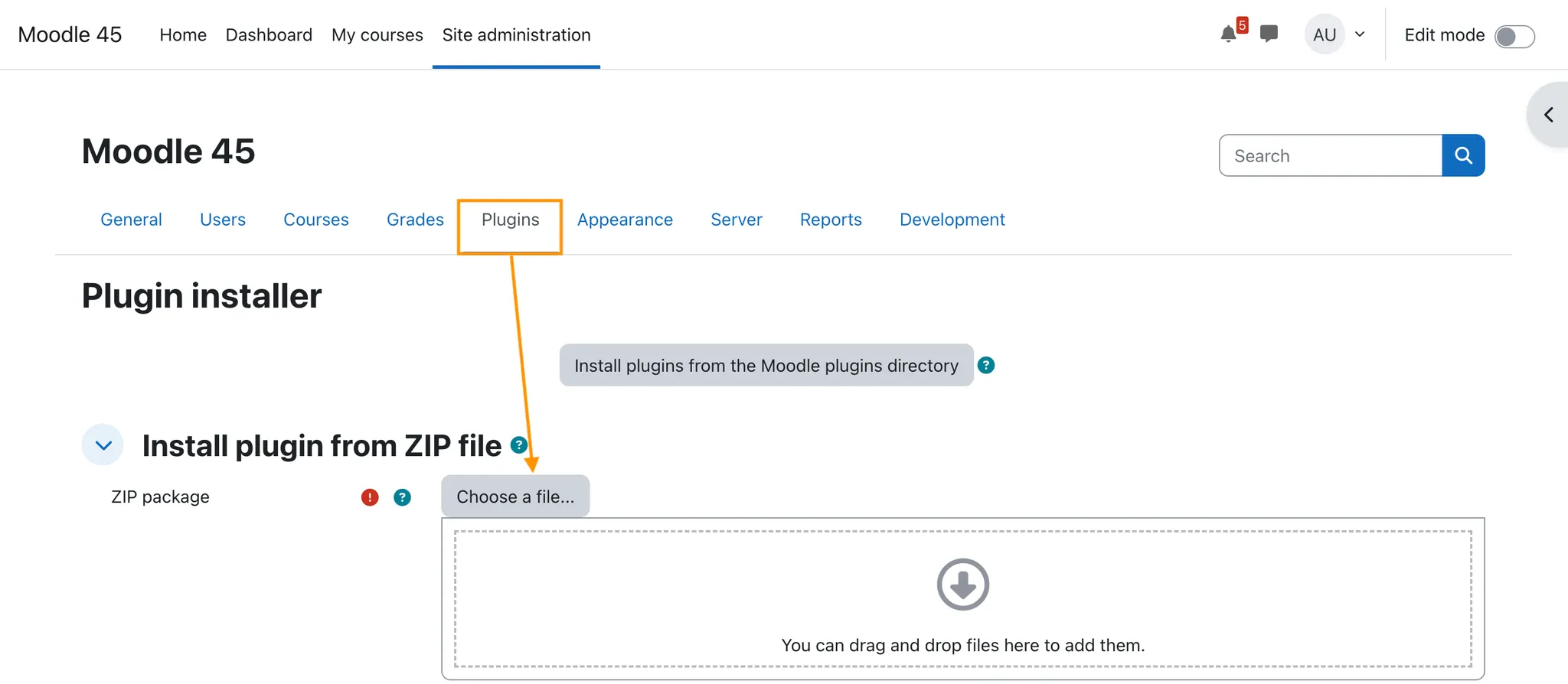
Configure the Plugin in Moodle
- Go to Site Administration > Server > LearnWise Integration.
- Select "Production" as your environment.
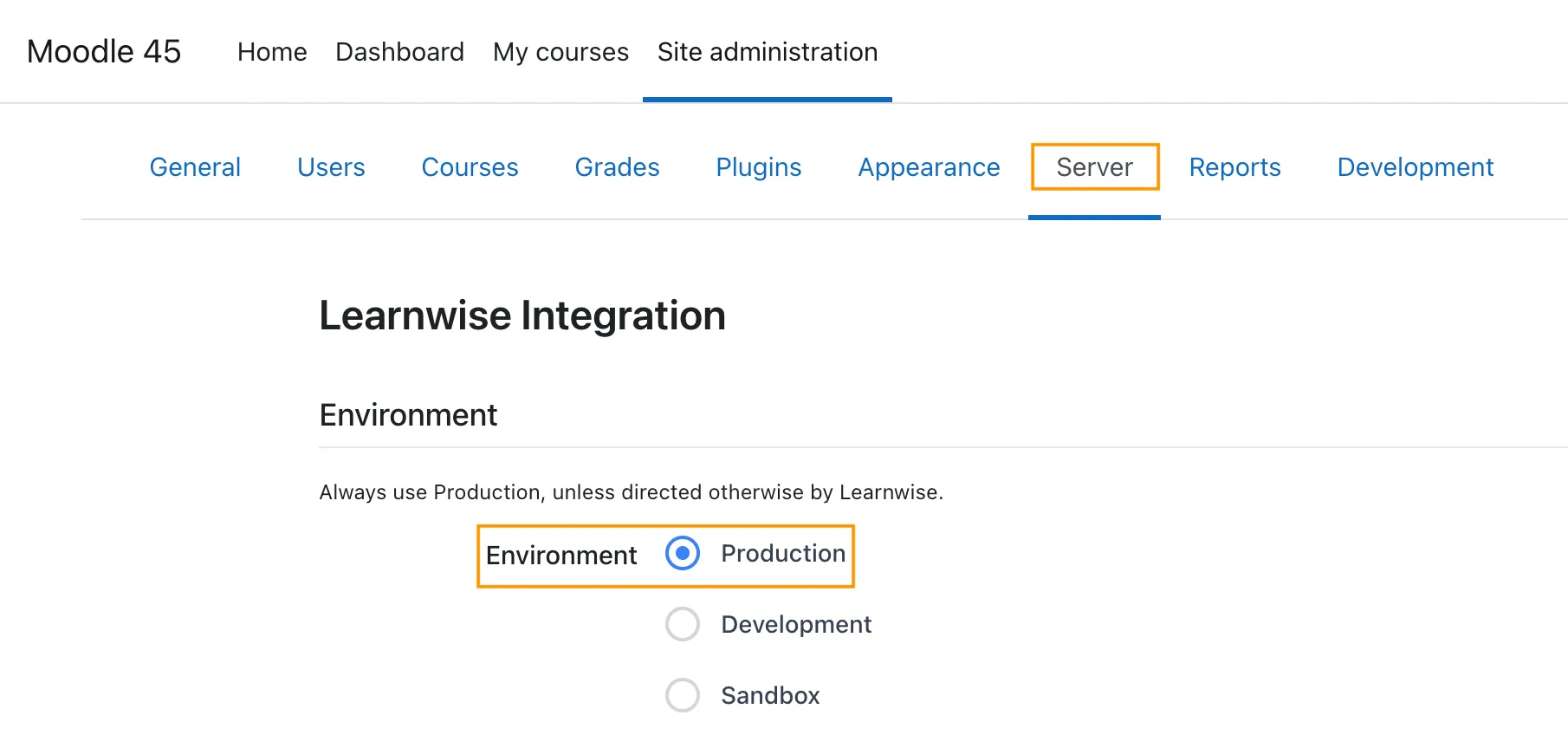
1. Option A: Floating Support Button Integration
- Locate your Assistant ID in the Publish > Configure LTI> Moodle window
- Paste the Assistant ID into the corresponding field in Moodle.
- Select the region.
- Enter the Course IDs comma separated (optional) to load the chat on specific courses.
- Click Save.
- The floating LearnWise button will now appear on the bottom-right corner of your Moodle interface.
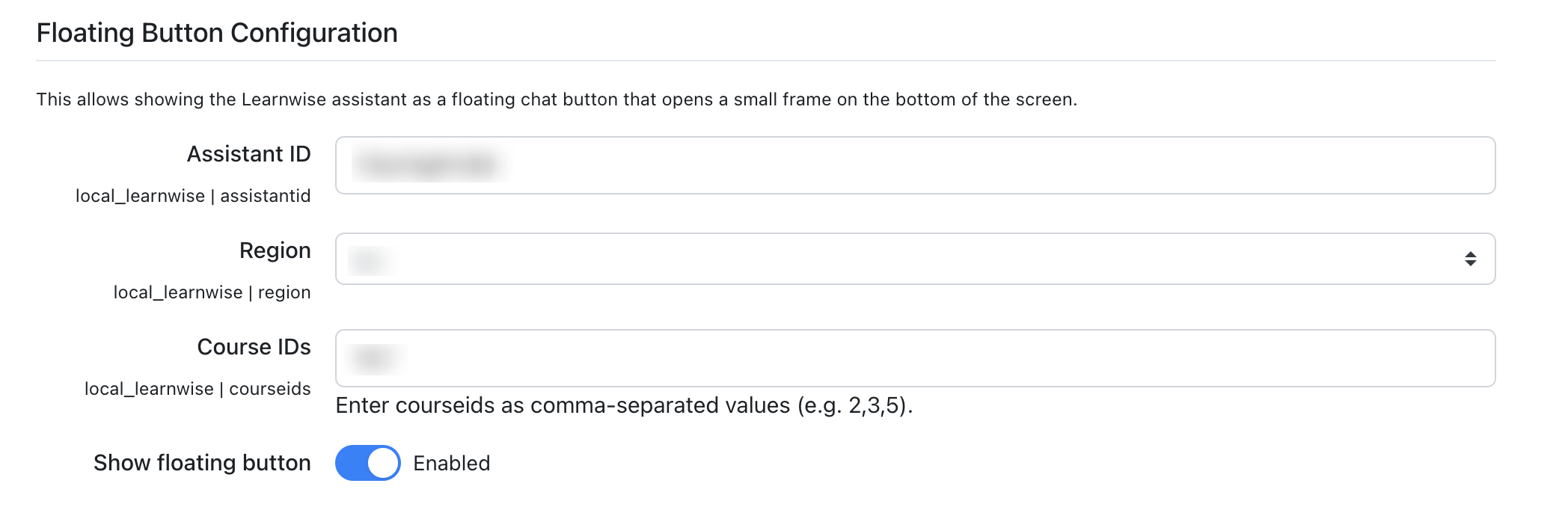
2. Option B: LTI Course Assistant Integration
Enable LTI toggle in Moodle
From the Moodle LTI setup screen, copy the following:
- Platform ID
- Client ID
- Deployment ID
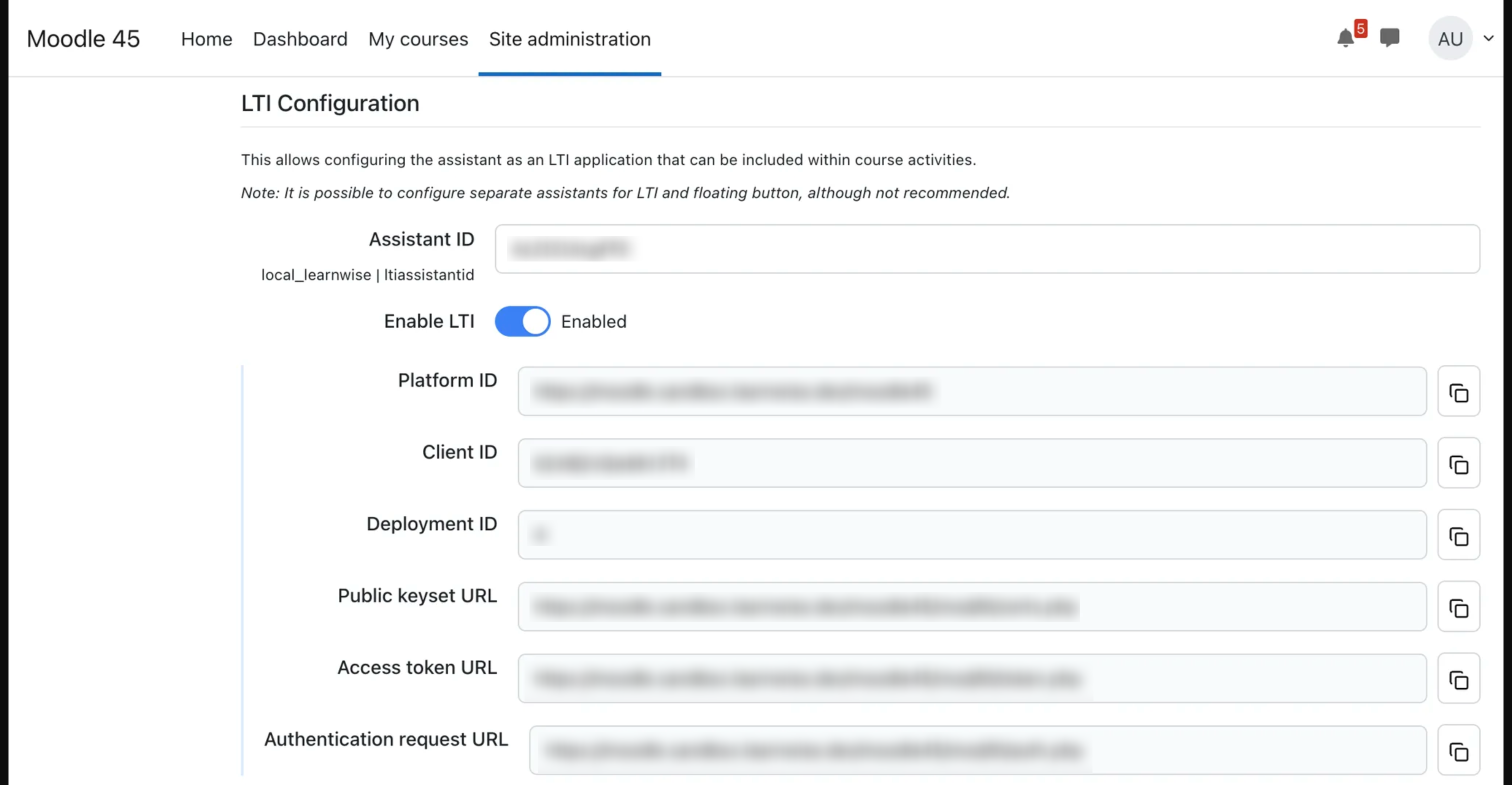
Paste these into the appropriate fields in the LearnWise wizard located on the Publish > LTI Connection > Moodle channel
Click Next, then Submit to create the LTI connection.
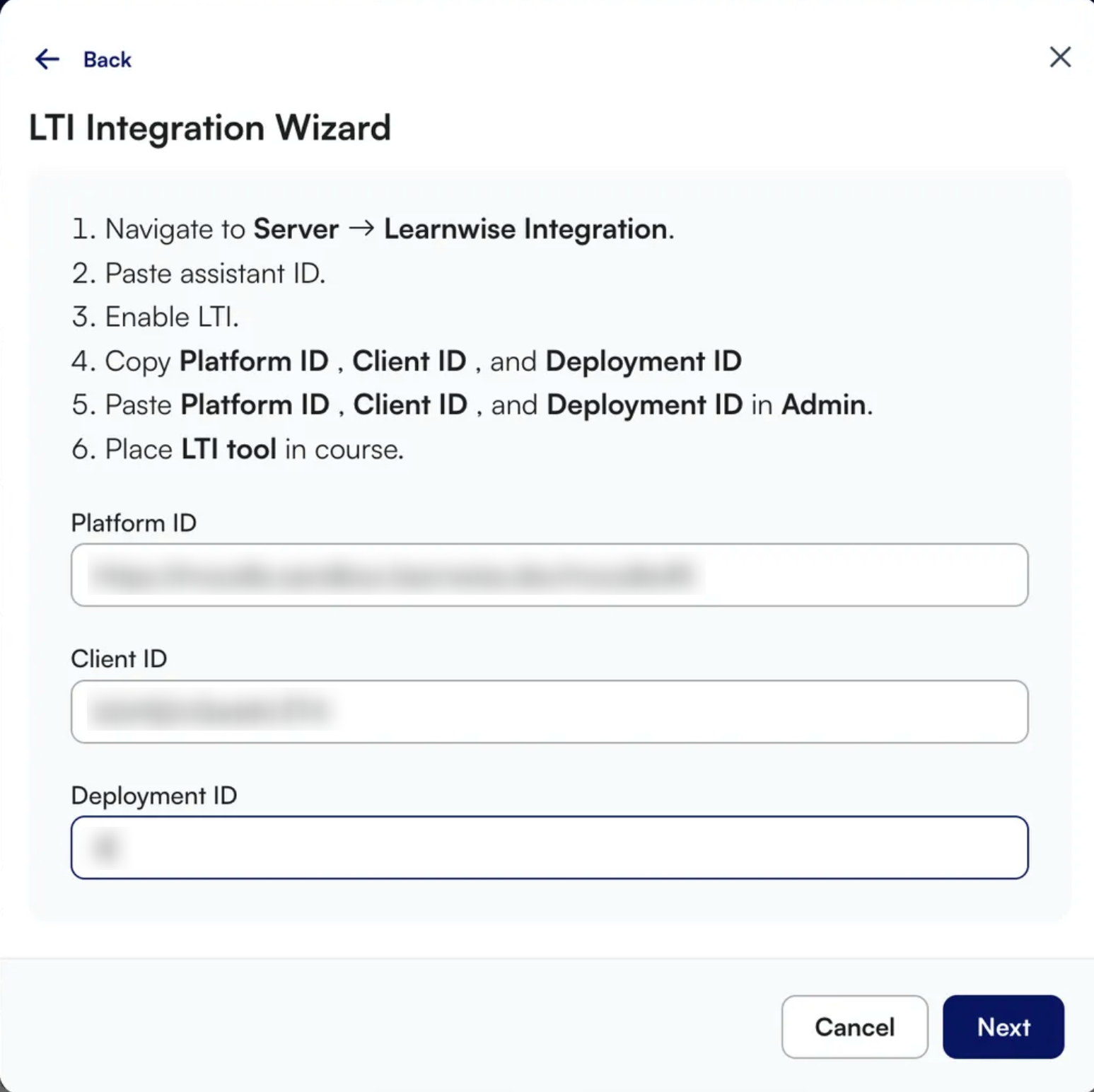
3. Ingest Moodle Course Content (Optional)
To enable the assistant to interact with course-specific material:
- In the LearnWise Admin Panel, go to the "Knowledge" tab.
- Click Courses > Moodle > Connect.
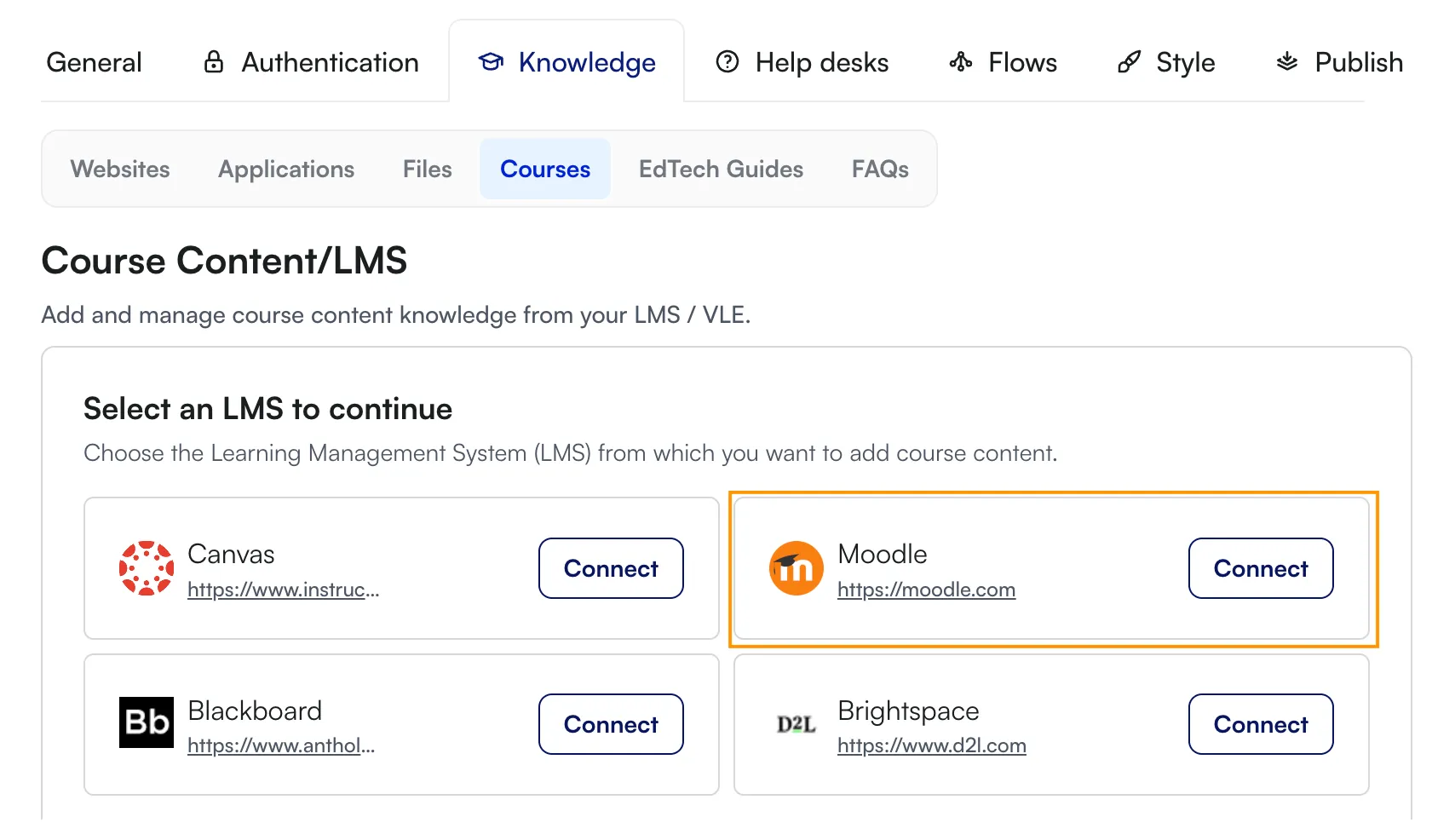
- In Moodle:
- Go to Site Administration > Server > LearnWise Integration.
- Enable web service for course content ingestion in Moodle
- Copy your Platform ID and Access Token.
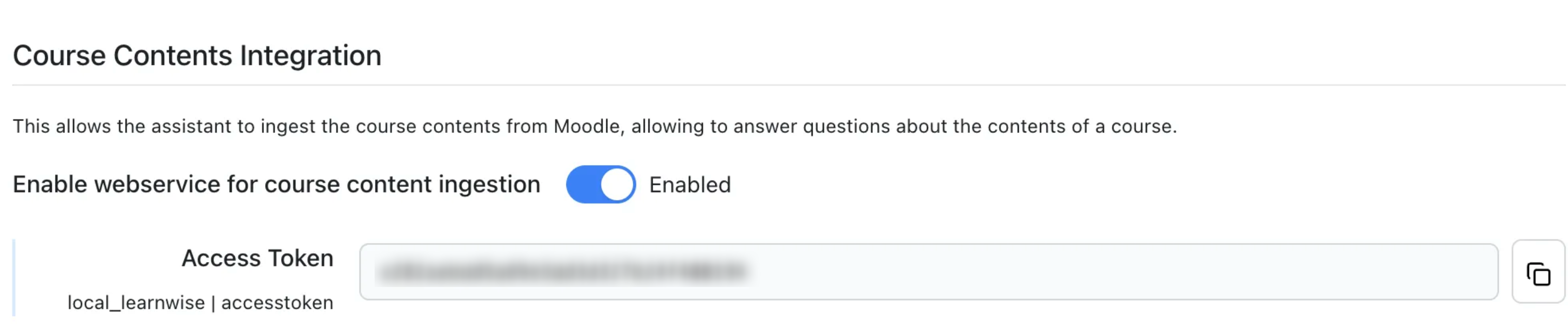
- Paste them into the connection window in LearnWise & select which course content you would like to ingest form the list of content types
- Your assistant is now ready set-up to ingest course content
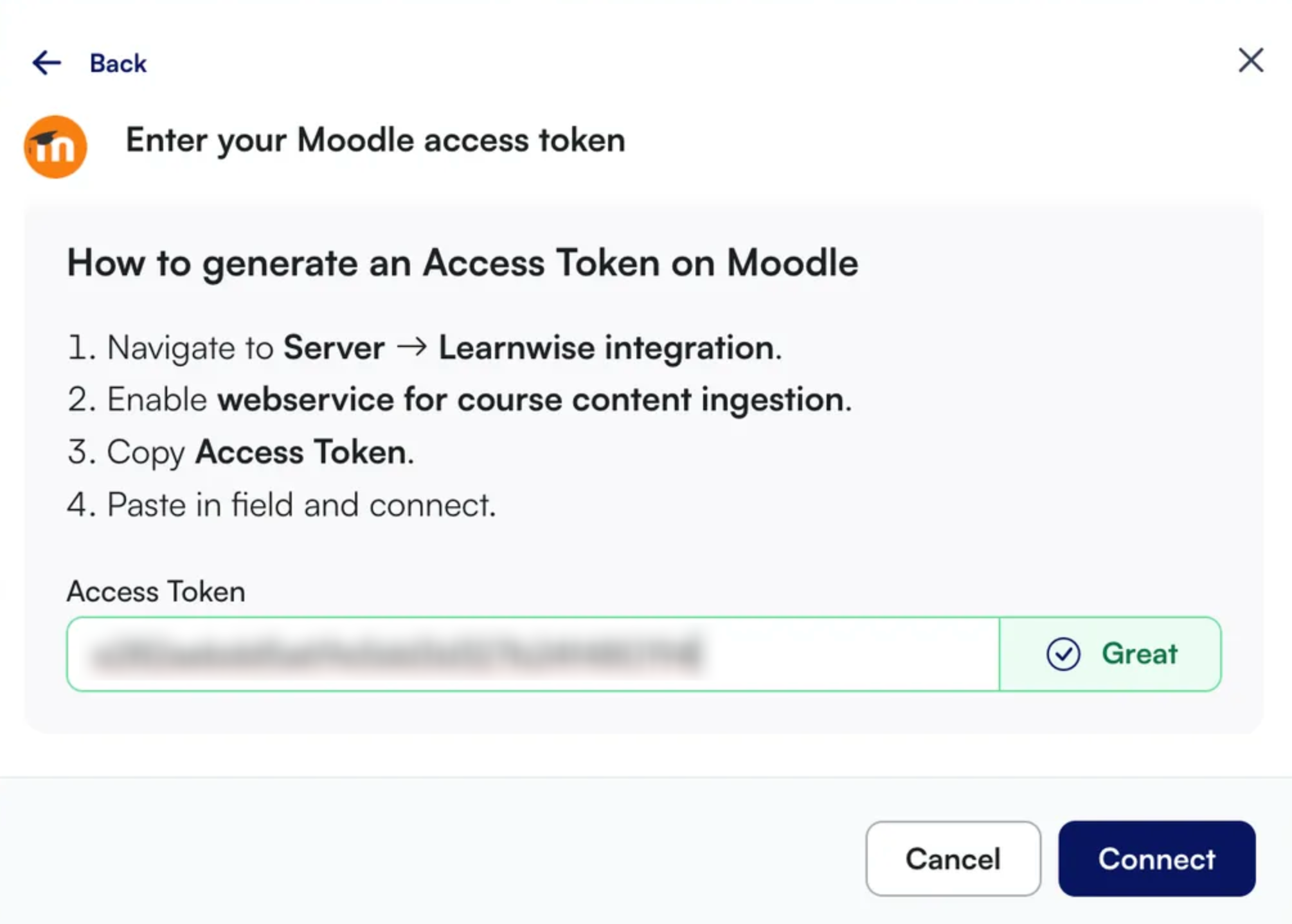
4. Enable Live API Integration (Optional)
To pull live Moodle data (user role, assignments, etc.):
- Enable the Live API Integration toggle in Moodle
- Copy the Client ID and Secret from your Moodle
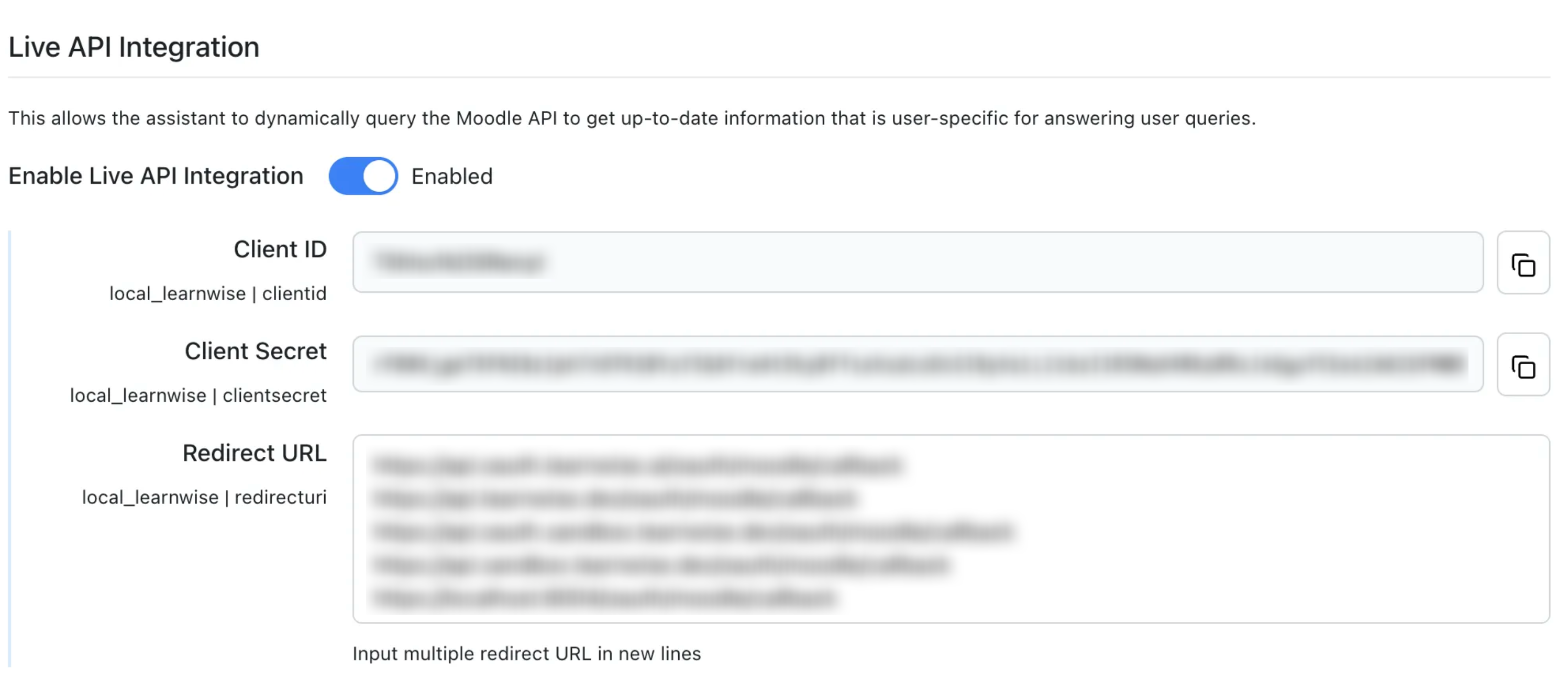
- Paste them into your LearnWise dashboard and click Verify.
- If successful, you’ll be redirected to Moodle to confirm authorization.
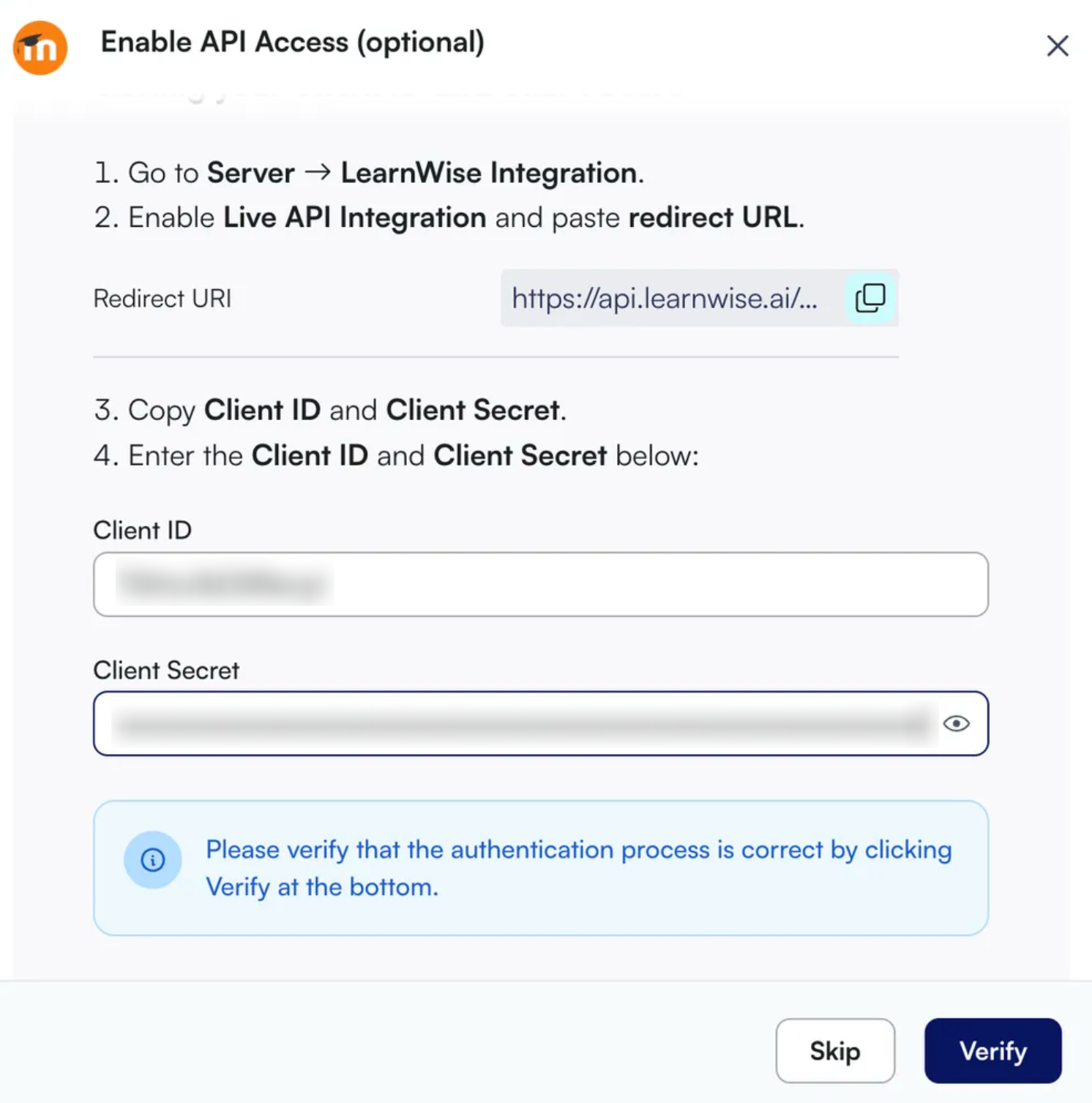
5. Launch the Assistant in Moodle Courses
- In Moodle, navigate to any course where you want to add the assistant.
- Choose Add an activity or resource
- Select LearnWise from the list of external tools.
(If it is not listed, ensure it is toggled on as an option under LTI external tools) - Save and return to course.
1.1 (2025092200)
1.1
Plugin type: Local plugins
Frankenstyle component name: local_learnwise
Version build number: 2025092200
Version release name: 1.1
Maturity: Stable
Supported Moodle versions: 3.10, 3.11, 3.9, 4.0, 4.1, 4.2, 4.3, 4.4, 4.5, 5.0
Repository URL (Git): https://github.com/LearnWiseAI/moodle-local_learnwise
Repository branch:
Repository tag:
Issue/bug tracker URL: https://github.com/LearnWiseAI/moodle-local_learnwise/issues
Moodle LearnWise Plugin
This plugin allows you to set up and configure the LearnWise AI assistant (https://www.learnwise.ai/) for your Moodle site. Learn more about LearnWise at https://www.learnwise.ai/how-it-works.
Note that this plugin requires an existing organizational account within the LearnWise platform. Want to learn more about LearnWise? Please get in touch with us at https://www.learnwise.ai/demo.
Requirements
- Moodle 3.9 or Higher
- PHP 7.4 or Higher
- Access to the LearnWise Admin Panel
- Site administrator privileges in your Moodle environment
Installation steps
- Download the plugin from Moodle plugins directory or from GitHub repository.
- Go to Site Administrator > Plugins > Install plugins and upload the downloaded plugin zip file
Configure the Plugin in Moodle
- Go to Site Administration > Server > LearnWise Integration.
- Select "Production" as your environment.
1. Option A: Floating Support Button Integration
- Locate your Assistant ID in the Publish > Configure LTI> Moodle window
- Paste the Assistant ID into the corresponding field in Moodle.
- Select the region.
- Enter the Course IDs comma separated (optional) to load the chat on specific courses.
- Click Save.
- The floating LearnWise button will now appear on the bottom-right corner of your Moodle interface.
2. Option B: LTI Course Assistant Integration
Enable LTI toggle in Moodle
From the Moodle LTI setup screen, copy the following:
- Platform ID
- Client ID
- Deployment ID
Paste these into the appropriate fields in the LearnWise wizard located on the Publish > LTI Connection > Moodle channel
Click Next, then Submit to create the LTI connection.
3. Ingest Moodle Course Content (Optional)
To enable the assistant to interact with course-specific material:
- In the LearnWise Admin Panel, go to the "Knowledge" tab.
- Click Courses > Moodle > Connect.
- In Moodle:
- Go to Site Administration > Server > LearnWise Integration.
- Enable web service for course content ingestion in Moodle
- Copy your Platform ID and Access Token.
- Paste them into the connection window in LearnWise & select which course content you would like to ingest form the list of content types
- Your assistant is now ready set-up to ingest course content
4. Enable Live API Integration (Optional)
To pull live Moodle data (user role, assignments, etc.):
- Enable the Live API Integration toggle in Moodle
- Copy the Client ID and Secret from your Moodle
- Paste them into your LearnWise dashboard and click Verify.
- If successful, you’ll be redirected to Moodle to confirm authorization.
5. Launch the Assistant in Moodle Courses
- In Moodle, navigate to any course where you want to add the assistant.
- Choose Add an activity or resource
- Select LearnWise from the list of external tools.
(If it is not listed, ensure it is toggled on as an option under LTI external tools) - Save and return to course.