Course Creator AI
Versions
Current version
1.4.1 (2026072500)
1.4.1
Plugin type: Local plugins
Frankenstyle component name: local_coursegen
Version build number: 2026072500
Version release name: 1.4.1
Maturity: Stable
Supported Moodle versions: 4.5, 5.0, 5.1
Repository URL (Git): https://github.com/datacurso/moodle-local_coursegen
Repository branch:
Repository tag: 1.3.3
Issue/bug tracker URL: https://github.com/datacurso/moodle-local_local_coursegen/issues
1.4.0 (2026072404)
1.4.0
Plugin type: Local plugins
Frankenstyle component name: local_coursegen
Version build number: 2026072404
Version release name: 1.4.0
Maturity: Stable
Supported Moodle versions: 4.5, 5.0, 5.1
Repository URL (Git): https://github.com/datacurso/moodle-local_coursegen
Repository branch:
Repository tag: 1.3.3
Issue/bug tracker URL: https://github.com/datacurso/moodle-local_local_coursegen/issues
1.3.3 (2026041000)
1.3.3
Plugin type: Local plugins
Frankenstyle component name: local_coursegen
Version build number: 2026041000
Version release name: 1.3.3
Maturity: Stable
Supported Moodle versions: 4.5, 5.0, 5.1
Repository URL (Git): https://github.com/industria-elearning/moodle-local_coursegen
Repository branch:
Repository tag: 1.3.3
Issue/bug tracker URL: https://github.com/datacurso/moodle-local_local_coursegen/issues
1.3.3
Released on: 2026-04-10
Compatibility note: This version is compatible from Moodle 4.5 to Moodle 5.1.
Added
- Automated prompt-based course creation service
Added a dedicated backend automation service to orchestrate end-to-end course creation from prompt context, including planning/execution/result stages and user enrolment when applicable. - Centralized result application service
Added a dedicated result service to apply remote AI course results in a structured and reusable way.
Changed
- More resilient remote automation flow
Improved planning stream handling, execute retries, and result polling to better tolerate transient backend/network issues during automated creation. - Completion enforcement support in module creation flow
Extended module manager parameter handling to support manual completion enforcement during internal automation paths. - Version bump
Internal version bumped to 2026041000 and release version bumped to 1.3.3.
Fixed
- Static analysis and coding-style compliance
Updated PHPDoc parameter annotations and long-line formatting in automation/privacy files to satisfy CI checks (PHPDoc Checker and Codechecker). - Language pack consistency cleanup
Normalized language files formatting for repository consistency.
1.3.2
Released on: 2026-01-26
Compatibility note: This version is compatible from Moodle 4.5 to Moodle 5.1.
Added
- Optional admin settings for DataCurso service URLs
Added admin settings to optionally override the default DataCurso service base URLs for the standard service and the EU-hosted service. - Translations for service URL settings
Added language strings fordatacurso_service_urlanddatacurso_service_url_euacross supported locales. - CHANGES.md for version history
Added a new CHANGES.md file to maintain a clear, versioned history of releases and changes.
Changed
- AI API client respects configured service URLs when provided
Updatedai_course_apiinitialization to use the configured DataCurso service URLs when available, falling back to defaults otherwise. - Version bump
Internal version bumped to 2026012300 and release version bumped to 1.3.2.
1.3.1
Released on: 2025-12-16
Compatibility note: This version is compatible from Moodle 4.5 to Moodle 5.1.
Added
- AI response language selector on the course form
Added a new AI response language field to the course generation form (autocomplete from Moodle’s language list), with a help button and a sensible default based on the current user language. - Per-course persistence of the selected language
The selected language is stored in the course context record so it can be reused across AI interactions (planning, messaging, and execution). - Translations for the language selector
Added language strings across supported locales for the language selector on course form.
Changed
- AI request payloads now include
langwhen available
Course planning, message, and execute requests now send the selected language code so the backend can return AI output in the configured language. - Course context save flow extended
Updated context saving to persist the selected language alongside context type, system instruction, and prompt/syllabus data. - Documentation updated
Updated the README to document the new AI response language control in the Datacurso section. - Version bump
Internal version bumped to 2025121601 and release version bumped to 1.3.1.
1.3.0
Released on: 2025-12-11
Compatibility note: This version is compatible from Moodle 4.5 to Moodle 5.1.
Added
- Optional image generation support for AI course planning
Added a new course form setting to optionally enable AI image generation for planned courses. The option is disabled by default and, when enabled, is passed as a boolean flag to the course planning API. - Translations for image generation controls on the course form
Introduced language strings for the new image generation setting so the course form remains fully localized.
Changed
- Course planning API payload extended
The course planning request now includes animage generationflag, allowing the backend AI planning service to respect the course-level configuration. - Documentation and configuration examples updated
Updated the README to document how to configure and use the new image generation option on the course form. - Version bump
Internal version bumped to 2025121100 and release version bumped to 1.3.0.
1.2.1
Released on: 2025-12-09
Compatibility note: This version is compatible from Moodle 4.5 to Moodle 5.1.
Fixed
- Fixes an issue where the AI course-creation modal didn’t appear because course view URL validation was too strict.
- The previous logic required an exact path match to
/course/view.php, which failed on subdirectory installs likehttps://mysite.com/mymoodle/. - Updated the detection to use a substring check with
strpos()for/course/view.php, so URL variations and extra path components are handled correctly.
1.2.0
Released on: 2025-12-05
Compatibility note: This version is compatible from Moodle 4.5 to Moodle 5.1.
Added
- Optional system instruction support
System instructions can now be enabled via a checkbox as an optional complement to other context types, with conditional validation and selection when enabled. - Improved navigation for system instruction editing
Breadcrumbs/navigation were enhanced to make editing system instructions clearer.
Changed
- Terminology and entity rename: "model" ' "system instruction"
Renamed classes, form fields, parameters, context type constants, DB table references, and API endpoints to use "system instruction" terminology across the codebase. - System instruction workflow integrated into context flow
System instructions are no longer a standalone context type; they’re integrated as an optional step after choosing a context type. - Form UX reordered
Reordered fields to: context type selector ' custom prompt ' syllabus upload ' system instruction checkbox/selector. - Course planning API call updated
Simplified course planning to use the v2 API - Version bump
Internal version bumped to 2025120500 and release bumped to 1.2.0. - Documentation and translations refreshed
Updated README, images, and language strings to match the new system instruction terminology and flow.
Fixed
- Help text improved
Clarified help text for the custom prompt textarea. - Coding standards cleanup
Addressed PHPCS line-length and spacing issues. - Privacy provider tests aligned
Updated privacy provider tests to reference the renamed system instruction table.
1.0.3
Released on: 2025-12-02
Compatibility note: This version is compatible from Moodle 4.5 to Moodle 5.1.
Added
- Automated release workflow for the plugin.
A new GitHub Actions workflow was added to streamline/automate Moodle plugin releases. - Support from moodle 4.5 to 5.1
Added$plugin->supportedinversion.phpto declare Moodle compatibility from 4.5 to 5.1
Changed
- Release bump to 1.0.3
The plugin release number was updated to 1.0.3.
1.3.2 (2026012300)
1.3.2
Plugin type: Local plugins
Frankenstyle component name: local_coursegen
Version build number: 2026012300
Version release name: 1.3.2
Maturity: Stable
Supported Moodle versions: 4.5, 5.0, 5.1
Repository URL (Git): https://github.com/industria-elearning/moodle-local_coursegen
Repository branch:
Repository tag: 1.3.2
Issue/bug tracker URL: https://github.com/datacurso/moodle-local_local_coursegen/issues
1.3.2
Released on: 2026-01-26
Compatibility note: This version is compatible from Moodle 4.5 to Moodle 5.1.
Added
- Optional admin settings for DataCurso service URLs
Added admin settings to optionally override the default DataCurso service base URLs for the standard service and the EU-hosted service. - Translations for service URL settings
Added language strings fordatacurso_service_urlanddatacurso_service_url_euacross supported locales. - CHANGES.md for version history
Added a new CHANGES.md file to maintain a clear, versioned history of releases and changes.
Changed
- AI API client respects configured service URLs when provided
Updatedai_course_apiinitialization to use the configured DataCurso service URLs when available, falling back to defaults otherwise. - Version bump
Internal version bumped to 2026012300 and release version bumped to 1.3.2.
1.3.1
Released on: 2025-12-16
Compatibility note: This version is compatible from Moodle 4.5 to Moodle 5.1.
Added
- AI response language selector on the course form
Added a new AI response language field to the course generation form (autocomplete from Moodle’s language list), with a help button and a sensible default based on the current user language. - Per-course persistence of the selected language
The selected language is stored in the course context record so it can be reused across AI interactions (planning, messaging, and execution). - Translations for the language selector
Added language strings across supported locales for the language selector on course form.
Changed
- AI request payloads now include
langwhen available
Course planning, message, and execute requests now send the selected language code so the backend can return AI output in the configured language. - Course context save flow extended
Updated context saving to persist the selected language alongside context type, system instruction, and prompt/syllabus data. - Documentation updated
Updated the README to document the new AI response language control in the Datacurso section. - Version bump
Internal version bumped to 2025121601 and release version bumped to 1.3.1.
1.3.0
Released on: 2025-12-11
Compatibility note: This version is compatible from Moodle 4.5 to Moodle 5.1.
Added
- Optional image generation support for AI course planning
Added a new course form setting to optionally enable AI image generation for planned courses. The option is disabled by default and, when enabled, is passed as a boolean flag to the course planning API. - Translations for image generation controls on the course form
Introduced language strings for the new image generation setting so the course form remains fully localized.
Changed
- Course planning API payload extended
The course planning request now includes animage generationflag, allowing the backend AI planning service to respect the course-level configuration. - Documentation and configuration examples updated
Updated the README to document how to configure and use the new image generation option on the course form. - Version bump
Internal version bumped to 2025121100 and release version bumped to 1.3.0.
1.2.1
Released on: 2025-12-09
Compatibility note: This version is compatible from Moodle 4.5 to Moodle 5.1.
Fixed
- Fixes an issue where the AI course-creation modal didn’t appear because course view URL validation was too strict.
- The previous logic required an exact path match to
/course/view.php, which failed on subdirectory installs likehttps://mysite.com/mymoodle/. - Updated the detection to use a substring check with
strpos()for/course/view.php, so URL variations and extra path components are handled correctly.
1.2.0
Released on: 2025-12-05
Compatibility note: This version is compatible from Moodle 4.5 to Moodle 5.1.
Added
- Optional system instruction support
System instructions can now be enabled via a checkbox as an optional complement to other context types, with conditional validation and selection when enabled. - Improved navigation for system instruction editing
Breadcrumbs/navigation were enhanced to make editing system instructions clearer.
Changed
- Terminology and entity rename: "model" ' "system instruction"
Renamed classes, form fields, parameters, context type constants, DB table references, and API endpoints to use "system instruction" terminology across the codebase. - System instruction workflow integrated into context flow
System instructions are no longer a standalone context type; they’re integrated as an optional step after choosing a context type. - Form UX reordered
Reordered fields to: context type selector ' custom prompt ' syllabus upload ' system instruction checkbox/selector. - Course planning API call updated
Simplified course planning to use the v2 API - Version bump
Internal version bumped to 2025120500 and release bumped to 1.2.0. - Documentation and translations refreshed
Updated README, images, and language strings to match the new system instruction terminology and flow.
Fixed
- Help text improved
Clarified help text for the custom prompt textarea. - Coding standards cleanup
Addressed PHPCS line-length and spacing issues. - Privacy provider tests aligned
Updated privacy provider tests to reference the renamed system instruction table.
1.0.3
Released on: 2025-12-02
Compatibility note: This version is compatible from Moodle 4.5 to Moodle 5.1.
Added
- Automated release workflow for the plugin.
A new GitHub Actions workflow was added to streamline/automate Moodle plugin releases. - Support from moodle 4.5 to 5.1
Added$plugin->supportedinversion.phpto declare Moodle compatibility from 4.5 to 5.1
Changed
- Release bump to 1.0.3
The plugin release number was updated to 1.0.3.
1.3.1 (2025121601)
1.3.1
Plugin type: Local plugins
Frankenstyle component name: local_coursegen
Version build number: 2025121601
Version release name: 1.3.1
Maturity: Stable
Supported Moodle versions: 4.5, 5.0, 5.1
Repository URL (Git): https://github.com/industria-elearning/moodle-local_coursegen
Repository branch:
Repository tag: 1.3.1
Issue/bug tracker URL: https://github.com/datacurso/moodle-local_local_coursegen/issues
Course Creator AI
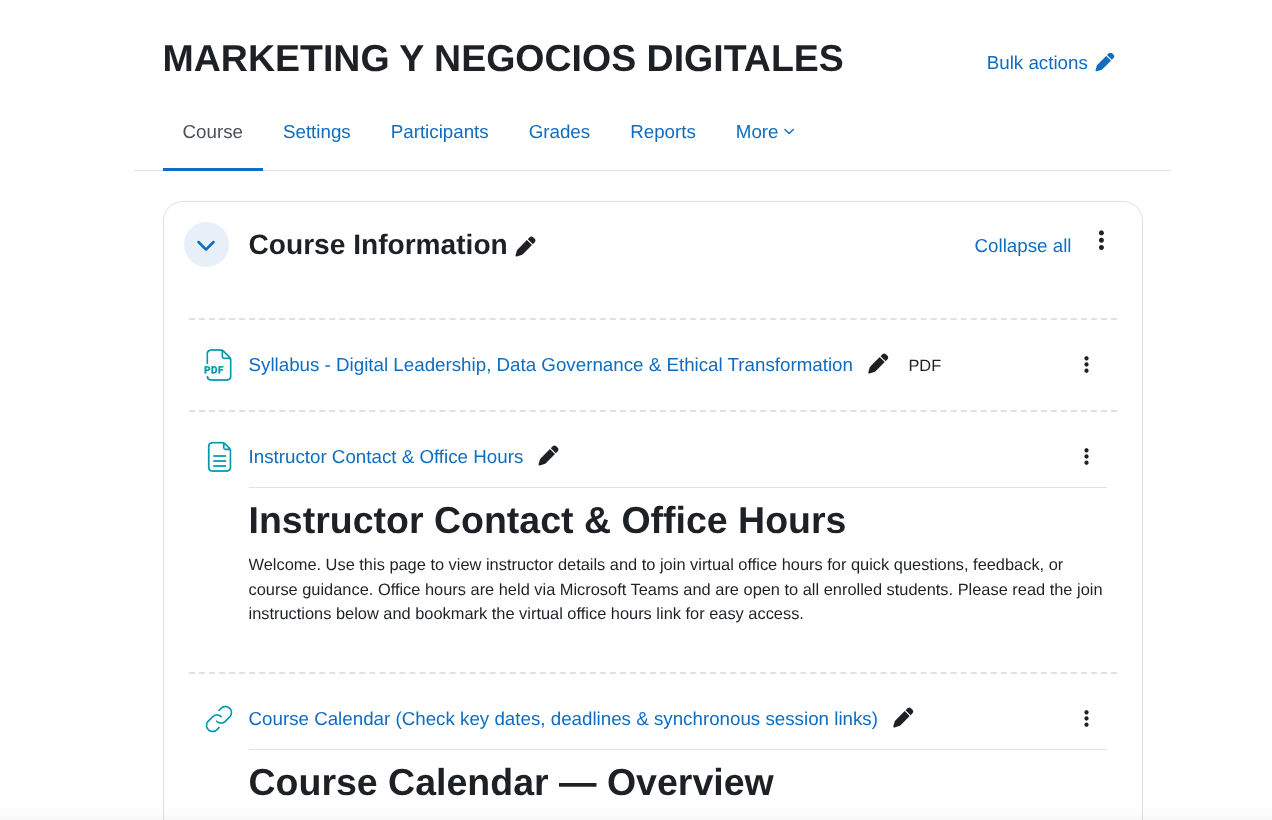
The Datacurso Course Creator AI plugin empowers Moodle teachers to generate complete courses automatically using artificial intelligence.
It offers two flexible creation modes — via a syllabus or through an instructional design model — allowing teachers to build structured, pedagogically sound courses in minutes.
This plugin also enables the independent creation of activities within any existing course, giving educators the ability to enhance their classes with AI-generated learning activities at any time.
This plugin is part of the suite of Datacurso AI Plugin Suite.
The Datacurso AI Plugin Suite
Transform Moodle into a smarter, faster, and more engaging learning platform with the Datacurso AI Plugin Suite — a collection of next-generation tools that bring artificial intelligence directly into your LMS.
All plugins in this suite are powered by the Datacurso AI Provider.
Explore the Suite
Ranking Activities AI
Empower students to rate course activities while AI analyzes feedback and provides deep insights to educators.
Forum AI
Introduce an AI assistant into your forums that contributes to discussions and keeps engagement alive.
Assign AI
Let AI review student submissions, suggest feedback, and support teachers in the grading process.
Share Certificate AI
Celebrate achievements automatically! AI generates personalized social media posts when students earn certificates.
Student Life Story AI
Gain a complete view of student performance with AI-generated summaries across all enrolled courses.
Key Features
- Full Course Generation: Create entire Moodle courses automatically based on a syllabus or instructional model.
- AI-Powered Activities: Generate interactive, engaging activities that align with your course objectives.
- Instructional Flexibility: Combine AI creativity with structured educational models to ensure quality learning experiences.
- Independent Activity Creation: Add new AI-generated activities to any course on demand.
Pre-requisites
- Moodle 4.5
- Install the Moodle AI provider DataCurso AI Provider. Download it for free from https://moodle.org/plugins/aiprovider_datacurso/versions.
- In the DataCurso AI Provider settings, configure a valid license key as documented at https://docs.datacurso.com/index.php?title=Datacurso_AI_Provider#Getting_license_keys.
IMPORTANT
This plugin will not function unless the DataCurso AI Provider plugin is installed and licensed.
Installing via uploaded ZIP file
- Log in to your Moodle site as an admin and go to
Site administration > Plugins > Install plugins. - Upload the ZIP file with the plugin code. You should only be prompted to add
extra details if your plugin type is not automatically detected. - Check the plugin validation report and finish the installation.
Installing manually
The plugin can be also installed by putting the contents of this directory to
{your/moodle/dirroot}/local/coursegen
Afterwards, log in to your Moodle site as an admin and go to Site administration > Notifications to complete the installation.
Alternatively, you can run
php admin/cli/upgrade.php
to complete the installation from the command line.
Manage system instructions
System instructions let you define reusable guidance that reinforces the selected context (Syllabus or Custom prompt) when creating a course.
They describe how the AI should generate content: tone, structure, level of detail, constraints, and specific rules that must always be respected while producing sections, activities, and resources.
To manage system instructions:
- Log in to your Moodle site as an admin and go to
Site administration > Plugins > Course Creator AI > Manage system instructions.
- Click on
Add new system instructionto create a new instruction.
- Fill in the form fields:
- Name: Enter a clear name for the system instruction you will reuse across courses.
- Description: Provide detailed rules and guidelines the AI must follow when generating course content (e.g. structure of sections and activities, constraints, etc.).
- Click on
Save changes.
- You can edit or delete system instructions at any time with the
EditandDeletebuttons from the Manage system instructions page.
Create a Course with Datacurso AI
Follow these steps to create a new course using the Datacurso AI workflow:
Open the course creation page
Path A:
Site administration > Courses > Manage courses and categoriesand click the Create new course button.
Path B: From your My courses area, click the Create course button.
Fill in basic course details
Complete standard fields like
Course full name,Course short name,Course category,Course format, and any other required fields.
Configure the Datacurso section
The Datacurso section lets you define the context that the AI will use to understand the course you want to create, the language in which it should respond, and whether it should generate images. It is divided into five main configuration areas:
1. AI response language
- Use the AI response language selector to choose the language in which the AI will respond and generate the course content.
- This value is saved per course and reused across AI interactions (planning, adjusting the plan, and course creation).
2. Images for the course
- Use the Images for the course selector to decide whether the AI should generate images for sections, activities and other visual elements of the course.
- By default this is set to Do not generate images.
- Important: Enabling image generation may drastically increase the number of credits consumed in your Datacurso AI Provider license key, because each generated image uses additional credits.
3. Context type
Use the Context Type selector to choose how you will provide the main context for the course:
- Custom prompt: You describe the course context manually.
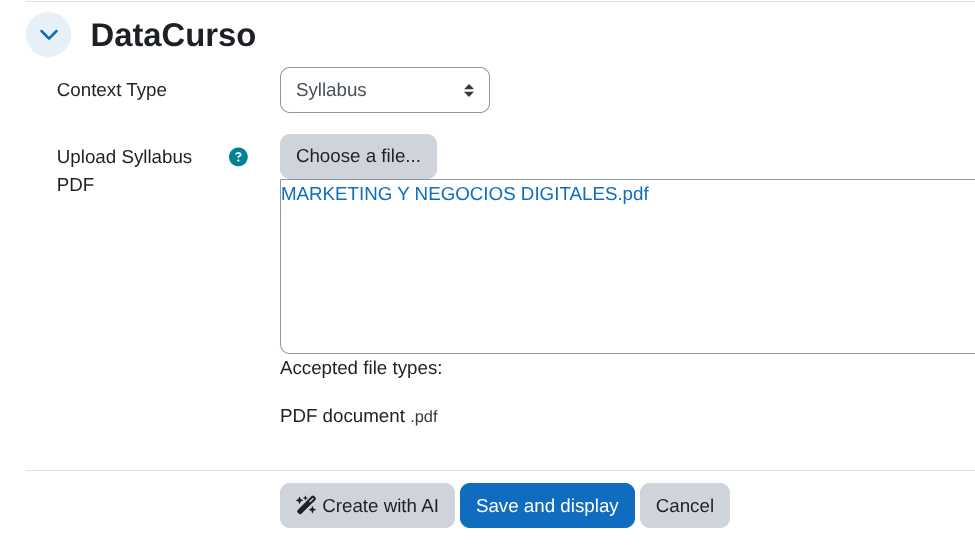
- Upload Syllabus (PDF): You provide an existing syllabus document.
4. Context details
If you choose Custom prompt
- A textarea labeled Prompt for AI appears.
- Enter a clear and detailed prompt that describes how you want the course to be generated (objectives, student profile, content, level, constraints, examples, etc.).
If you choose Upload Syllabus (PDF)
- A file picker labeled Upload Syllabus PDF appears.
- Upload a PDF with the course syllabus. It will be sent to the AI for context analysis.
5. Optional system instructions (for any context type)
- You can reinforce either context type (
Custom promptorSyllabus) with a reusable system instruction. - Tick the checkbox Check to use a system instruction to enable this feature.
- If there are system instructions configured (see Manage system instructions):
- A selector labeled System instruction to apply appears with the available options.
- The selected system instruction will be applied together with the chosen context (prompt or syllabus) when generating the course.
- If there are no system instructions configured:
- A notice is shown with a link to the Manage system instructions page so you can create them.
- You can reinforce either context type (
Plan with AI
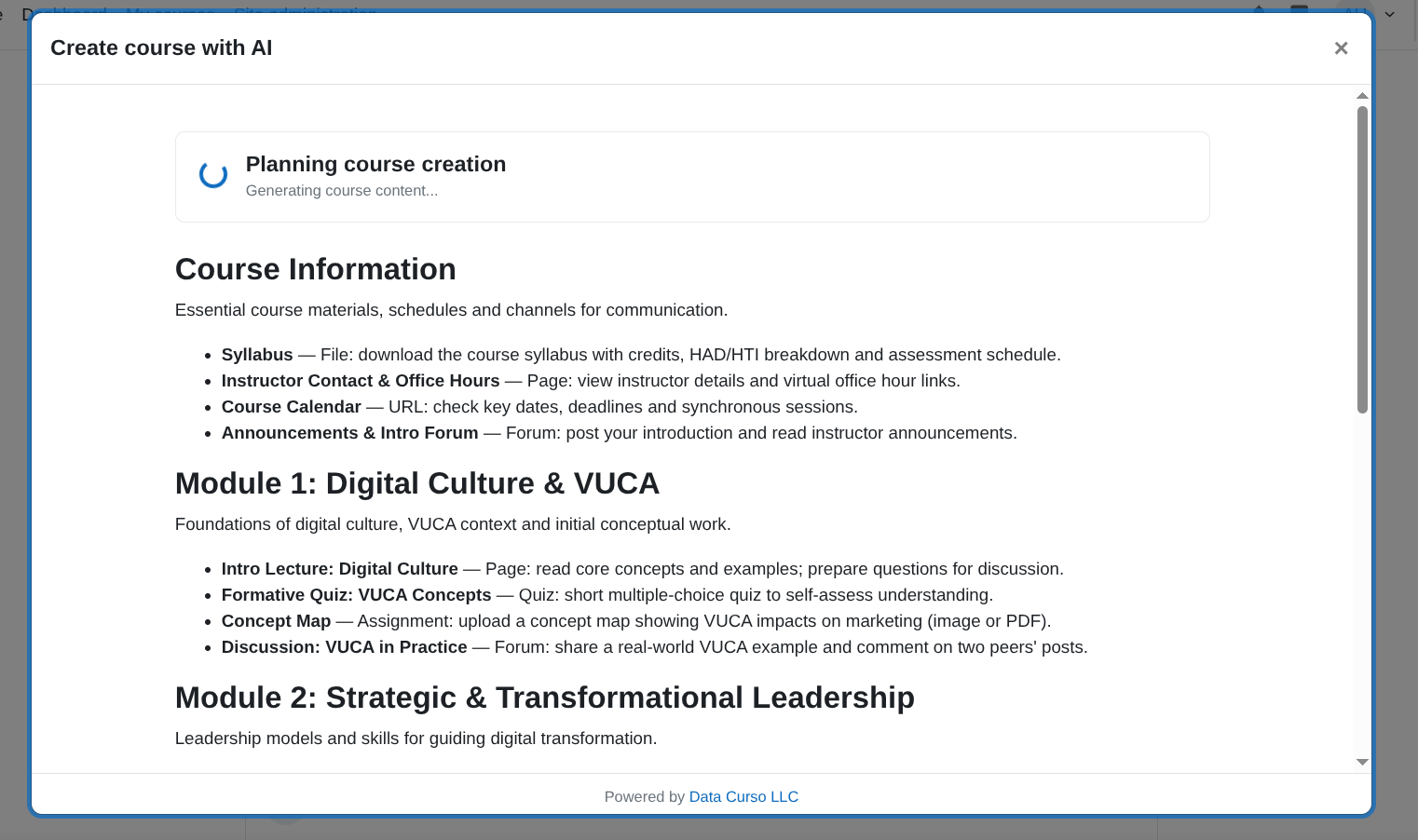
Click Create with AI to start the AI planning process.
A modal window will open and display the planning progress.
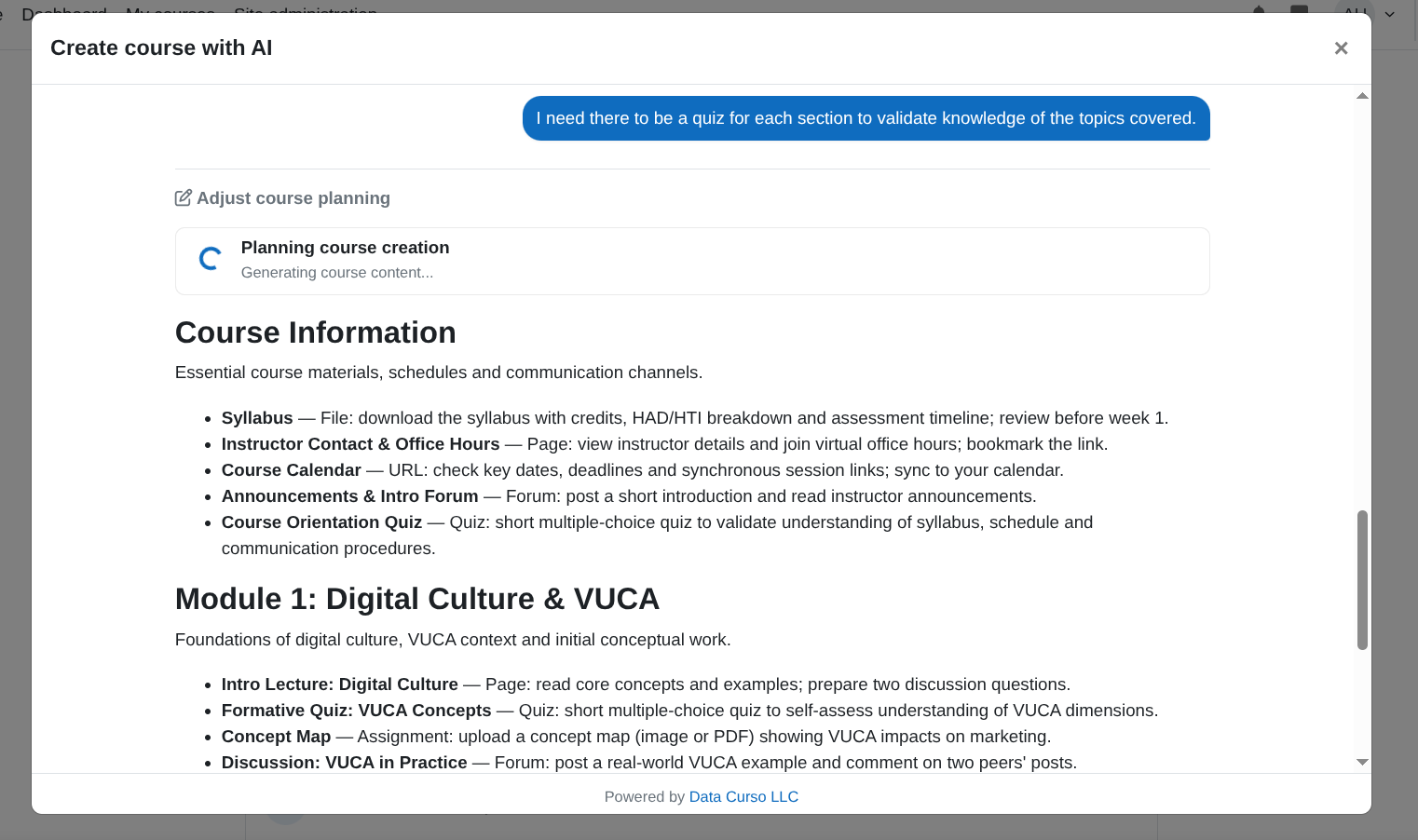
Once the plan is generated, you can optionally adjust it by clicking Adjust course planning, then provide a prompt with your instructions to re-plan.
The progress of the plan adjustment will be displayed in the modal window.
Create the course
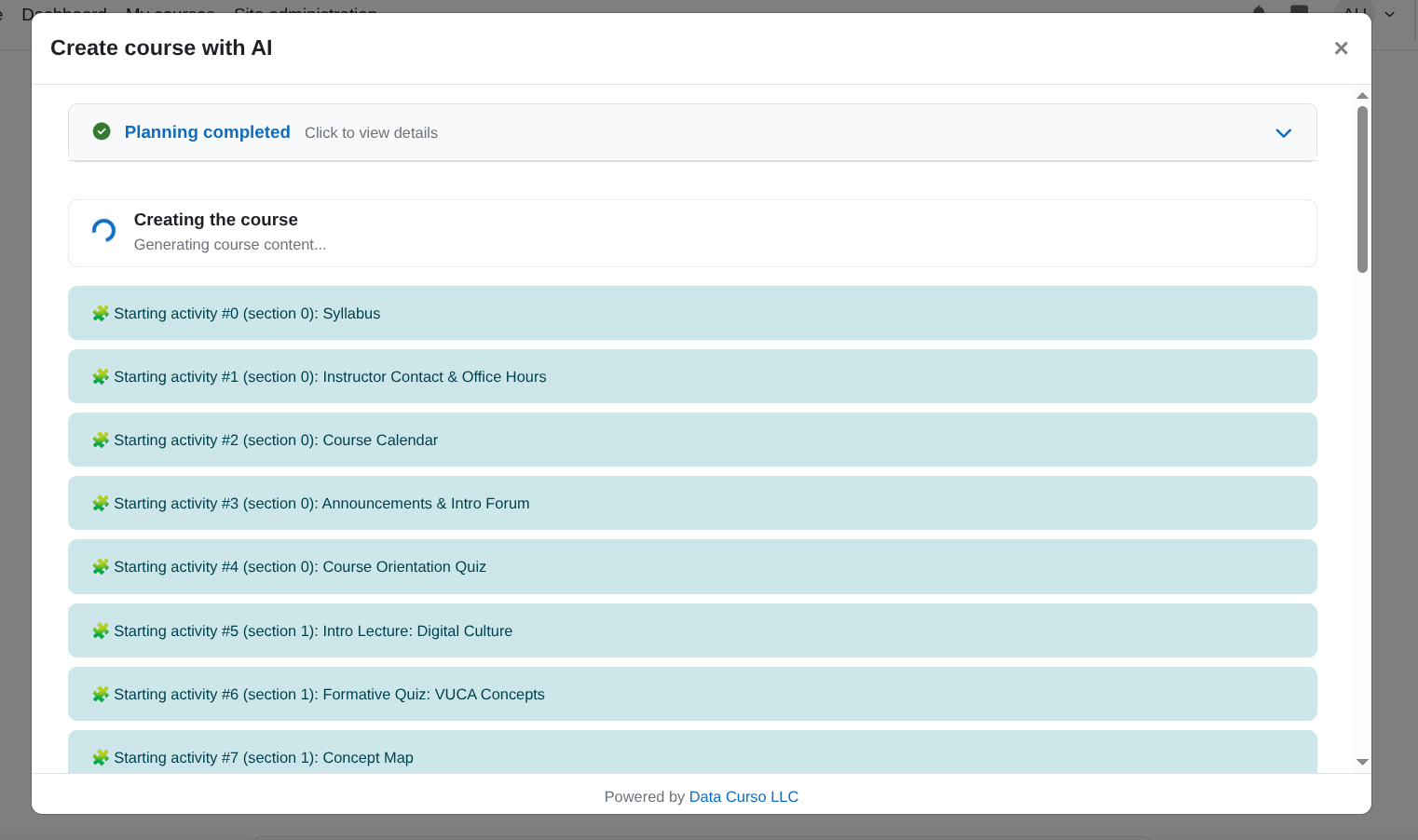
When the planning looks good, click Accept and create course.
This starts creating the course with planned content.
The modal will show real-time updates for each phase of the process.
Once the process is completed, it redirects to the created course.
IMPORTANT!
- Do not close the modal window during the planning or creation process to avoid issues with course creation.
Create an Activity with Datacurso AI
Check the Datacurso context
Before using the AI activity creator, confirm that the course already has a Datacurso context defined.
If the course already has a context (for example, an Instructional Model or an uploaded Syllabus PDF), the AI will automatically use it to generate the activity.
If the course does not have a context yet, you can set it from the course settings:
- Open the course and click Edit settings.
- Go to the Datacurso section. The following options will be displayed:
1. Context type
Use the Context Type selector to choose how you will provide the main context for the course:
- Custom prompt: You describe the course context manually.
- Upload Syllabus (PDF): You provide an existing syllabus document.
2. Context details
If you choose Custom prompt
- A textarea labeled Prompt for AI appears.
- Enter a clear and detailed prompt that describes how you want the course to be generated (objectives, student profile, content, level, constraints, examples, etc.).
If you choose Upload Syllabus (PDF)
- A file picker labeled Upload Syllabus PDF appears.
- Upload a PDF with the course syllabus. It will be sent to the AI for context analysis.
Once the Datacurso context is set at the course level, it will be automatically reused for all AI-generated activities within that course.
Start the activity creation
Enter to the course view and turn the Edit mode on.
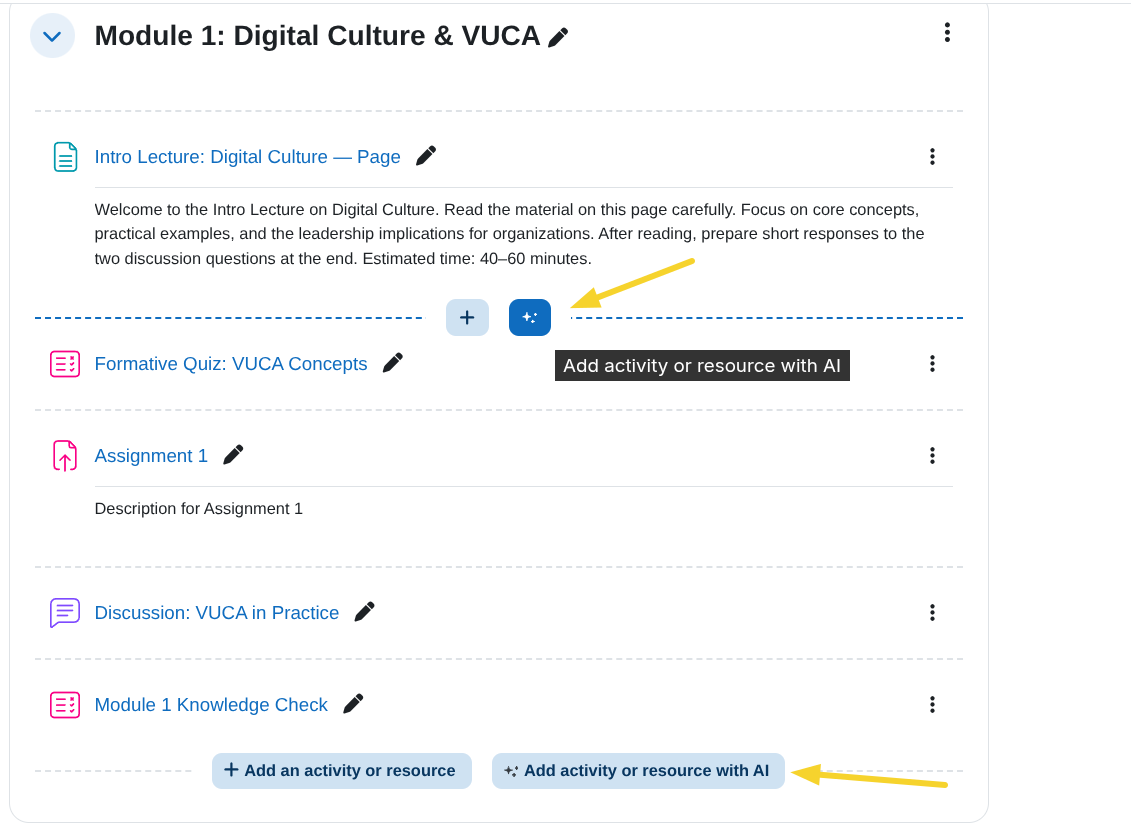
Next to the standard Add activity or resource button, click the new button Add activity or resource with AI.
Provide the activity prompt
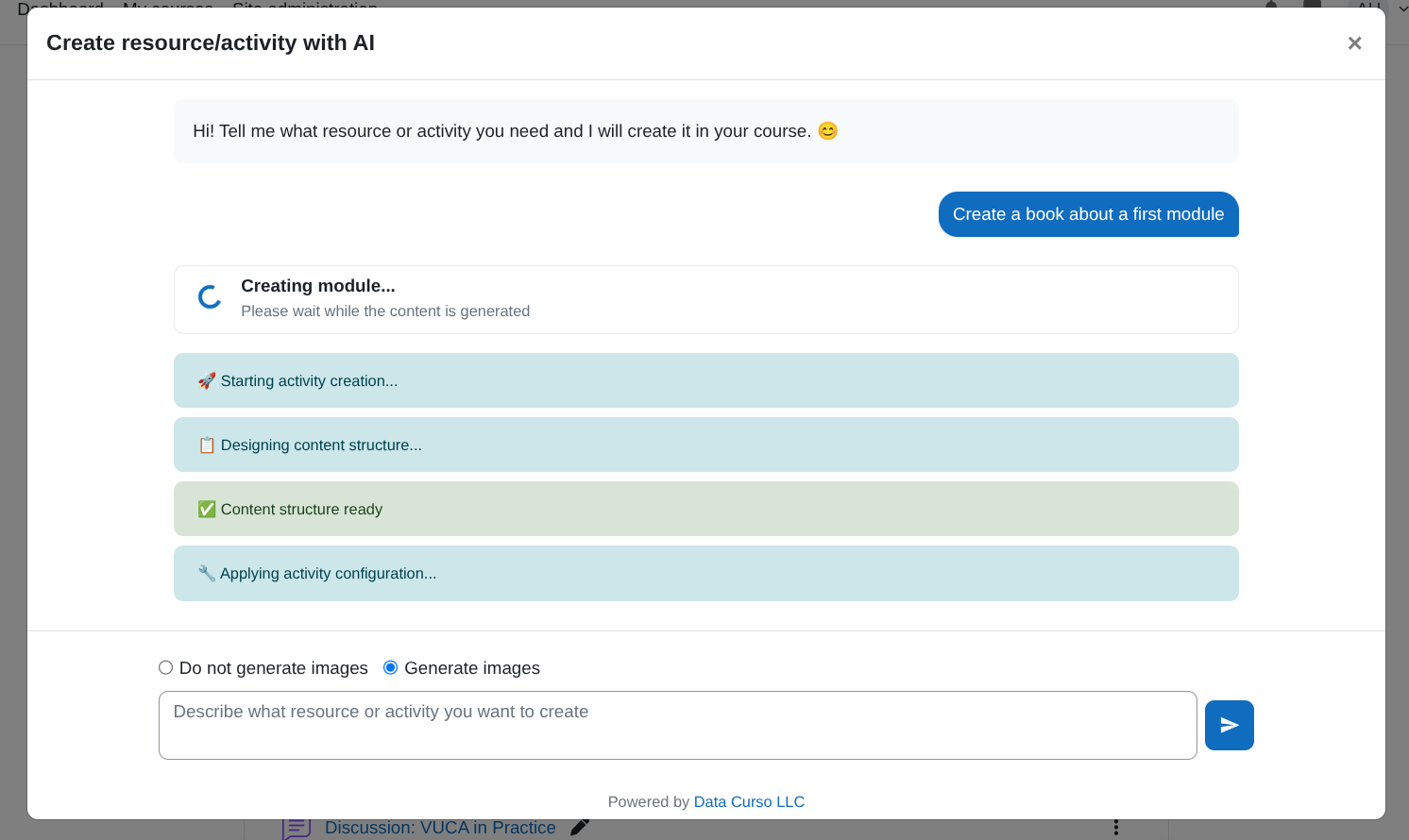
A modal window with a chat input will open. Enter a clear prompt describing the activity you want to create (e.g., type of activity, learning objectives, instructions, etc.).
Optional: Images in the activity
Use the combobox to choose whether the activity should include images. By default this is set to No not generate images.
If you want to generate images, select Generate images.
Start creation
Press Enter in the text field or click the Send icon button to begin creating the activity with AI.
The modal will display real-time progress updates for each phase of the process.
Once the process is completed, it redirects to the created activity.
IMPORTANT!
- Do not close the modal window until the process has fully completed to avoid issues with activity creation.
License
2025 Data Curso LLC https://datacurso.com
This program is free software: you can redistribute it and/or modify it under
the terms of the GNU General Public License as published by the Free Software
Foundation, either version 3 of the License, or (at your option) any later
version.
This program is distributed in the hope that it will be useful, but WITHOUT ANY
WARRANTY; without even the implied warranty of MERCHANTABILITY or FITNESS FOR A
PARTICULAR PURPOSE. See the GNU General Public License for more details.
You should have received a copy of the GNU General Public License along with
this program. If not, see https://www.gnu.org/licenses/.
1.3.0 (2025121100)
1.3.0
Plugin type: Local plugins
Frankenstyle component name: local_coursegen
Version build number: 2025121100
Version release name: 1.3.0
Maturity: Stable
Supported Moodle versions: 4.5, 5.0, 5.1
Repository URL (Git): https://github.com/industria-elearning/moodle-local_coursegen
Repository branch:
Repository tag: 1.3.0
Issue/bug tracker URL: https://github.com/datacurso/moodle-local_local_coursegen/issues
Added
- Optional image generation support for AI course planning
Added a new course form setting to optionally enable AI image generation for planned courses. The option is disabled by default and, when enabled, is passed as a boolean flag to the course planning API. - Translations for image generation controls on the course form
Introduced language strings for the new image generation setting so the course form remains fully localized.
Changed
- Course planning API payload extended
The course planning request now includes animage generationflag, allowing the backend AI planning service to respect the course-level configuration. - Documentation and configuration examples updated
Updated the README to document how to configure and use the new image generation option on the course form. - Version bump
Internal version bumped to 2025121100 and release version bumped to 1.3.0.
1.2.1 (2025120900)
1.2.1
Plugin type: Local plugins
Frankenstyle component name: local_coursegen
Version build number: 2025120900
Version release name: 1.2.1
Maturity: Stable
Supported Moodle versions: 4.5, 5.0, 5.1
Repository URL (Git): https://github.com/industria-elearning/moodle-local_coursegen
Repository branch:
Repository tag: 1.2.1
Issue/bug tracker URL: https://github.com/datacurso/moodle-local_local_coursegen/issues
Compatibility note: This version is compatible from Moodle 4.5 to Moodle 5.1.
Fixed
- Fixes an issue where the AI course-creation modal didn’t appear because course view URL validation was too strict.
- The previous logic required an exact path match to
/course/view.php, which failed on subdirectory installs likehttps://mysite.com/mymoodle/. - Updated the detection to use a substring check with
strpos()for/course/view.php, so URL variations and extra path components are handled correctly.
1.2.0 (2025120500)
1.2.0
Plugin type: Local plugins
Frankenstyle component name: local_coursegen
Version build number: 2025120500
Version release name: 1.2.0
Maturity: Stable
Supported Moodle versions: 4.5, 5.0, 5.1
Repository URL (Git): https://github.com/industria-elearning/moodle-local_coursegen
Repository branch:
Repository tag: 1.2.0
Issue/bug tracker URL: https://github.com/datacurso/moodle-local_local_coursegen/issues
Course Creator AI
The Datacurso Course Creator AI plugin empowers Moodle teachers to generate complete courses automatically using artificial intelligence.
It offers two flexible creation modes — via a syllabus or through an instructional design model — allowing teachers to build structured, pedagogically sound courses in minutes.
This plugin also enables the independent creation of activities within any existing course, giving educators the ability to enhance their classes with AI-generated learning activities at any time.
This plugin is part of the suite of Datacurso AI Plugin Suite.
The Datacurso AI Plugin Suite
Transform Moodle into a smarter, faster, and more engaging learning platform with the Datacurso AI Plugin Suite — a collection of next-generation tools that bring artificial intelligence directly into your LMS.
All plugins in this suite are powered by the Datacurso AI Provider.
Explore the Suite
Ranking Activities AI
Empower students to rate course activities while AI analyzes feedback and provides deep insights to educators.
Forum AI
Introduce an AI assistant into your forums that contributes to discussions and keeps engagement alive.
Assign AI
Let AI review student submissions, suggest feedback, and support teachers in the grading process.
Share Certificate AI
Celebrate achievements automatically! AI generates personalized social media posts when students earn certificates.
Student Life Story AI
Gain a complete view of student performance with AI-generated summaries across all enrolled courses.
Key Features
- Full Course Generation: Create entire Moodle courses automatically based on a syllabus or instructional model.
- AI-Powered Activities: Generate interactive, engaging activities that align with your course objectives.
- Instructional Flexibility: Combine AI creativity with structured educational models to ensure quality learning experiences.
- Independent Activity Creation: Add new AI-generated activities to any course on demand.
Pre-requisites
- Moodle 4.5
- Install the Moodle AI provider DataCurso AI Provider. Download it for free from https://moodle.org/plugins/aiprovider_datacurso/versions.
- In the DataCurso AI Provider settings, configure a valid license key as documented at https://docs.datacurso.com/index.php?title=Datacurso_AI_Provider#Getting_license_keys.
IMPORTANT
This plugin will not function unless the DataCurso AI Provider plugin is installed and licensed.
Installing via uploaded ZIP file
- Log in to your Moodle site as an admin and go to
Site administration > Plugins > Install plugins. - Upload the ZIP file with the plugin code. You should only be prompted to add
extra details if your plugin type is not automatically detected. - Check the plugin validation report and finish the installation.
Installing manually
The plugin can be also installed by putting the contents of this directory to
{your/moodle/dirroot}/local/coursegen
Afterwards, log in to your Moodle site as an admin and go to Site administration > Notifications to complete the installation.
Alternatively, you can run
php admin/cli/upgrade.php
to complete the installation from the command line.
Manage system instructions
System instructions let you define reusable guidance that reinforces the selected context (Syllabus or Custom prompt) when creating a course.
They describe how the AI should generate content: tone, structure, level of detail, constraints, and specific rules that must always be respected while producing sections, activities, and resources.
To manage system instructions:
- Log in to your Moodle site as an admin and go to
Site administration > Plugins > Course Creator AI > Manage system instructions.
- Click on
Add new system instructionto create a new instruction.
- Fill in the form fields:
- Name: Enter a clear name for the system instruction you will reuse across courses.
- Description: Provide detailed rules and guidelines the AI must follow when generating course content (e.g. structure of sections and activities, constraints, etc.).
- Click on
Save changes.
- You can edit or delete system instructions at any time with the
EditandDeletebuttons from the Manage system instructions page.
Create a Course with Datacurso AI
Follow these steps to create a new course using the Datacurso AI workflow:
Open the course creation page
Path A:
Site administration > Courses > Manage courses and categoriesand click the Create new course button.
Path B: From your My courses area, click the Create course button.
Fill in basic course details
Complete standard fields like
Course full name,Course short name,Course category,Course format, and any other required fields.
Configure the Datacurso section
The Datacurso section controls how the AI will understand the course you want to create. It is divided into three main parts:
1. Context type
Use the Context Type selector to choose how you will provide the main context for the course:
- Custom prompt: You describe the course context manually.
- Upload Syllabus (PDF): You provide an existing syllabus document.
2. Context details
If you choose Custom prompt
- A textarea labeled Prompt for AI appears.
- Enter a clear and detailed prompt that describes how you want the course to be generated (objectives, student profile, content, level, constraints, examples, etc.).
If you choose Upload Syllabus (PDF)
- A file picker labeled Upload Syllabus PDF appears.
- Upload a PDF with the course syllabus. It will be sent to the AI for context analysis.
3. Optional system instructions (for any context type)
- You can reinforce either context type (
Custom promptorSyllabus) with a reusable system instruction. - Tick the checkbox Activate to use a system instruction to enable this feature.
- If there are system instructions configured (see Manage system instructions):
- A selector labeled System instruction to apply appears with the available options.
- The selected system instruction will be applied together with the chosen context (prompt or syllabus) when generating the course.
- If there are no system instructions configured:
- A notice is shown with a link to the Manage system instructions page so you can create them.
- You can reinforce either context type (
Plan with AI
Click Create with AI to start the AI planning process.
A modal window will open and display the planning progress.
Once the plan is generated, you can optionally adjust it by clicking Adjust course planning, then provide a prompt with your instructions to re-plan.
The progress of the plan adjustment will be displayed in the modal window.
Create the course
When the planning looks good, click Accept and create course.
This starts creating the course with planned content.
The modal will show real-time updates for each phase of the process.
Once the process is completed, it redirects to the created course.
IMPORTANT!
- Do not close the modal window during the planning or creation process to avoid issues with course creation.
Create an Activity with Datacurso AI
Check the Datacurso context
Before using the AI activity creator, confirm that the course already has a Datacurso context defined.
If the course already has a context (for example, an Instructional Model or an uploaded Syllabus PDF), the AI will automatically use it to generate the activity.
If the course does not have a context yet, you can set it from the course settings:
- Open the course and click Edit settings.
- Go to the Datacurso section. The following options will be displayed:
1. Context type
Use the Context Type selector to choose how you will provide the main context for the course:
- Custom prompt: You describe the course context manually.
- Upload Syllabus (PDF): You provide an existing syllabus document.
2. Context details
If you choose Custom prompt
- A textarea labeled Prompt for AI appears.
- Enter a clear and detailed prompt that describes how you want the course to be generated (objectives, student profile, content, level, constraints, examples, etc.).
If you choose Upload Syllabus (PDF)
- A file picker labeled Upload Syllabus PDF appears.
- Upload a PDF with the course syllabus. It will be sent to the AI for context analysis.
Once the Datacurso context is set at the course level, it will be automatically reused for all AI-generated activities within that course.
Start the activity creation
Enter to the course view and turn the Edit mode on.
Next to the standard Add activity or resource button, click the new button Add activity or resource with AI.
Provide the activity prompt
A modal window with a chat input will open. Enter a clear prompt describing the activity you want to create (e.g., type of activity, learning objectives, instructions, etc.).
Optional: Images in the activity
Use the combobox to choose whether the activity should include images. By default this is set to No not generate images.
If you want to generate images, select Generate images.
Start creation
Press Enter in the text field or click the Send icon button to begin creating the activity with AI.
The modal will display real-time progress updates for each phase of the process.
Once the process is completed, it redirects to the created activity.
IMPORTANT!
- Do not close the modal window until the process has fully completed to avoid issues with activity creation.
License
2025 Data Curso LLC https://datacurso.com
This program is free software: you can redistribute it and/or modify it under
the terms of the GNU General Public License as published by the Free Software
Foundation, either version 3 of the License, or (at your option) any later
version.
This program is distributed in the hope that it will be useful, but WITHOUT ANY
WARRANTY; without even the implied warranty of MERCHANTABILITY or FITNESS FOR A
PARTICULAR PURPOSE. See the GNU General Public License for more details.
You should have received a copy of the GNU General Public License along with
this program. If not, see https://www.gnu.org/licenses/.
1.0.3 (2025120200)
1.0.3
Plugin type: Local plugins
Frankenstyle component name: local_coursegen
Version build number: 2025120200
Version release name: 1.0.3
Maturity: Stable
Supported Moodle versions: 4.5, 5.0, 5.1
Repository URL (Git): https://github.com/industria-elearning/moodle-local_coursegen
Repository branch:
Repository tag: 1.0.3
Issue/bug tracker URL: https://github.com/datacurso/moodle-local_local_coursegen/issues
Course Creator AI
The Datacurso Course Creator AI plugin empowers Moodle teachers to generate complete courses automatically using artificial intelligence.
It offers two flexible creation modes — via a syllabus or through an instructional design model — allowing teachers to build structured, pedagogically sound courses in minutes.
This plugin also enables the independent creation of activities within any existing course, giving educators the ability to enhance their classes with AI-generated learning activities at any time.
This plugin is part of the suite of Datacurso AI Plugin Suite.
The Datacurso AI Plugin Suite
Transform Moodle into a smarter, faster, and more engaging learning platform with the Datacurso AI Plugin Suite — a collection of next-generation tools that bring artificial intelligence directly into your LMS.
All plugins in this suite are powered by the Datacurso AI Provider.
Explore the Suite
Ranking Activities AI
Empower students to rate course activities while AI analyzes feedback and provides deep insights to educators.
Forum AI
Introduce an AI assistant into your forums that contributes to discussions and keeps engagement alive.
Assign AI
Let AI review student submissions, suggest feedback, and support teachers in the grading process.
Share Certificate AI
Celebrate achievements automatically! AI generates personalized social media posts when students earn certificates.
Student Life Story AI
Gain a complete view of student performance with AI-generated summaries across all enrolled courses.
Key Features
- Full Course Generation: Create entire Moodle courses automatically based on a syllabus or instructional model.
- AI-Powered Activities: Generate interactive, engaging activities that align with your course objectives.
- Instructional Flexibility: Combine AI creativity with structured educational models to ensure quality learning experiences.
- Independent Activity Creation: Add new AI-generated activities to any course on demand.
Pre-requisites
- Moodle 4.5
- Install the Moodle AI provider DataCurso AI Provider. Download it for free from https://moodle.org/plugins/aiprovider_datacurso/versions.
- In the DataCurso AI Provider settings, configure a valid license key as documented at https://docs.datacurso.com/index.php?title=Datacurso_AI_Provider#Getting_license_keys.
IMPORTANT
This plugin will not function unless the DataCurso AI Provider plugin is installed and licensed.
Installing via uploaded ZIP file
- Log in to your Moodle site as an admin and go to
Site administration > Plugins > Install plugins. - Upload the ZIP file with the plugin code. You should only be prompted to add
extra details if your plugin type is not automatically detected. - Check the plugin validation report and finish the installation.
Installing manually
The plugin can be also installed by putting the contents of this directory to
{your/moodle/dirroot}/local/coursegen
Afterwards, log in to your Moodle site as an admin and go to Site administration > Notifications to complete the installation.
Alternatively, you can run
php admin/cli/upgrade.php
to complete the installation from the command line.
Manage instructional models
With instructional models, you can define the structure and content of your courses.
They serve as reusable blueprints (e.g., ADDIE, Gagné) that guide the AI during planning and generation, specifying phases, steps, and constraints the assistant should follow when producing sections, activities, and content.
To manage instructional models:
- Log in to your Moodle site as an admin and go to
Site administration > Plugins > Course Creator AI > Manage models.
- Click on
Add new modelto create a new model.
- Fill in the form fields:
- Name: Enter the name of the instructional model you will use for course design. For example: ADDIE, Gagne, or another recognized framework.
- Description: Provide the full description of the instructional model, including its phases/steps, purpose, and how it should guide course design.
- Click on
Save changes.
- You can edit or delete models at any time with the
EditandDeletebuttons from the Manage models page.
Create a Course with Datacurso AI
Follow these steps to create a new course using the Datacurso AI workflow:
Open the course creation page
Path A:
Site administration > Courses > Manage courses and categoriesand click the Create new course button.
Path B: From your My courses area, click the Create course button.
Fill in basic course details
Complete standard fields like
Course full name,Course short name,Course category, and any other required fields.
Configure the Datacurso section
- In the
Datacursosection, select the Context Type:
Instructional Model (default): Choose from models created in the section Manage instructional mode. A selector labeled Choose the model to use will appear, listing yo available models.
Upload Syllabus (PDF): Switch to this option to show a file picker labeled Upload Syllabus PDF a upload your syllabus.
Plan with AI
Click Create with AI to start the AI planning process.
A modal window will open and display the planning progress.
Once the plan is generated, you can optionally adjust it by clicking Adjust course planning, then provide a prompt with your instructions to re-plan.
The progress of the plan adjustment will be displayed in the modal window.
Create the course
When the planning looks good, click Accept and create course.
This starts creating the course with planned content.
The modal will show real-time updates for each phase of the process.
Once the process is completed, it redirects to the created course.
IMPORTANT!
- Do not close the modal window during the planning or creation process to avoid issues with course creation.
Create an Activity with Datacurso AI
Check the Datacurso context
Before using the AI activity creator, confirm that the course already has a Datacurso context defined.
If the course already has a context (for example, an Instructional Model or an uploaded Syllabus PDF), the AI will automatically use it to generate the activity.
If the course does not have a context yet, you can set it from the course settings:
- Open the course and click Edit settings.
- Go to the Datacurso section.
- In Context Type, choose one of the following options:
Instructional Model (default): Choose from models created in the section Manage instructional mode. A selector labeled Choose the model to use will appear, listing yo available models.
Upload Syllabus (PDF): Switch to this option to show a file picker labeled Upload Syllabus PDF a upload your syllabus.
Once the Datacurso context is set at the course level, it will be automatically reused for all AI-generated activities within that course.
Start the activity creation
Enter to the course view and turn the Edit mode on.
Next to the standard Add activity or resource button, click the new button Add activity or resource with AI.
Provide the activity prompt
A modal window with a chat input will open. Enter a clear prompt describing the activity you want to create (e.g., type of activity, learning objectives, instructions, etc.).
Optional: Images in the activity
Use the combobox to choose whether the activity should include images. By default this is set to No not generate images.
If you want to generate images, select Generate images.
Start creation
Press Enter in the text field or click the Send icon button to begin creating the activity with AI.
The modal will display real-time progress updates for each phase of the process.
Once the process is completed, it redirects to the created activity.
IMPORTANT!
- Do not close the modal window until the process has fully completed to avoid issues with activity creation.
License
2025 Data Curso LLC https://datacurso.com
This program is free software: you can redistribute it and/or modify it under
the terms of the GNU General Public License as published by the Free Software
Foundation, either version 3 of the License, or (at your option) any later
version.
This program is distributed in the hope that it will be useful, but WITHOUT ANY
WARRANTY; without even the implied warranty of MERCHANTABILITY or FITNESS FOR A
PARTICULAR PURPOSE. See the GNU General Public License for more details.
You should have received a copy of the GNU General Public License along with
this program. If not, see https://www.gnu.org/licenses/.
1.0.2 (2025112900)
1.0.2
Plugin type: Local plugins
Frankenstyle component name: local_coursegen
Version build number: 2025112900
Version release name: 1.0.2
Maturity: Stable
Supported Moodle versions: 4.5, 5.0, 5.1
Repository URL (Git): https://github.com/industria-elearning/moodle-local_coursegen
Repository branch:
Repository tag:
Issue/bug tracker URL: https://github.com/datacurso/moodle-local_local_coursegen/issues
1.0.2 (2025112800)
1.0.2
Plugin type: Local plugins
Frankenstyle component name: local_coursegen
Version build number: 2025112800
Version release name: 1.0.2
Maturity: Stable
Supported Moodle versions: 4.5, 5.0, 5.1
Repository URL (Git): https://github.com/industria-elearning/moodle-local_coursegen
Repository branch:
Repository tag:
Issue/bug tracker URL: https://github.com/datacurso/moodle-local_local_coursegen/issues
1.0.1 (2025112603)
1.0.1
Plugin type: Local plugins
Frankenstyle component name: local_coursegen
Version build number: 2025112603
Version release name: 1.0.1
Maturity: Stable
Supported Moodle versions: 4.5
Repository URL (Git): https://github.com/industria-elearning/moodle-local_coursegen
Repository branch:
Repository tag:
Issue/bug tracker URL: https://github.com/datacurso/moodle-local_local_coursegen/issues
1.0.1 (2025112000)
1.0.1
Plugin type: Local plugins
Frankenstyle component name: local_coursegen
Version build number: 2025112000
Version release name: 1.0.1
Maturity: Stable
Supported Moodle versions: 4.5
Repository URL (Git): https://github.com/industria-elearning/moodle-local_coursegen
Repository branch:
Repository tag:
Issue/bug tracker URL: https://github.com/datacurso/moodle-local_local_coursegen/issues
1.0.1 (2025111001)
1.0.1
Plugin type: Local plugins
Frankenstyle component name: local_coursegen
Version build number: 2025111001
Version release name: 1.0.1
Maturity: Stable
Supported Moodle versions: 4.5
Repository URL (Git): https://github.com/industria-elearning/moodle-local_coursegen
Repository branch:
Repository tag:
Issue/bug tracker URL: https://github.com/datacurso/moodle-local_local_coursegen/issues
1.0.1 (2025102702)
1.0.1
Plugin type: Local plugins
Frankenstyle component name: local_coursegen
Version build number: 2025102702
Version release name: 1.0.1
Maturity: Stable
Supported Moodle versions: 4.5
Repository URL (Git): https://github.com/industria-elearning/moodle-local_coursegen
Repository branch: main
Repository tag:
Issue/bug tracker URL: https://github.com/datacurso/moodle-local_local_coursegen/issues
0.1.0 (2025101900)
0.1.0
Plugin type: Local plugins
Frankenstyle component name: local_coursegen
Version build number: 2025101900
Version release name: 0.1.0
Maturity: Stable
Supported Moodle versions: 4.5
Repository URL (Git): https://github.com/industria-elearning/moodle-local_local_coursegen
Repository branch: main
Repository tag:
Issue/bug tracker URL: https://github.com/datacurso/moodle-local_local_coursegen/issues