Share Certificate AI
Versions
Current version
1.1.2 (2026070200)
1.1.2
Plugin type: Local plugins
Frankenstyle component name: local_socialcert
Version build number: 2026070200
Version release name: 1.1.2
Maturity: Stable
Supported Moodle versions: 4.5, 5.0, 5.1
Repository URL (Git): https://github.com/datacurso/moodle-local_socialcert
Repository branch:
Repository tag: 1.1.2
Issue/bug tracker URL: https://github.com/datacurso/moodle-local-socialcert/issues
[1.1.1] - 2026-04-23
🚀 Added
- Add LinkedIn Docs reference for organization ID (003e148)
🐞 Fixed
- Update verification URL in README and main_panel to use correct endpoint (962d67f)
1.1.1 (2026042300)
1.1.1
Plugin type: Local plugins
Frankenstyle component name: local_socialcert
Version build number: 2026042300
Version release name: 1.1.1
Maturity: Stable
Supported Moodle versions: 4.5, 5.0, 5.1
Repository URL (Git): https://github.com/industria-elearning/moodle-local_socialcert
Repository branch:
Repository tag: 1.1.1
Issue/bug tracker URL: https://github.com/datacurso/moodle-local-socialcert/issues
[1.1.1] - 2026-04-23
🚀 Added
- Add LinkedIn Docs reference for organization ID (003e148)
🐞 Fixed
- Update verification URL in README and main_panel to use correct endpoint (962d67f)
1.1.0 (2025121200)
1.1.0
Plugin type: Local plugins
Frankenstyle component name: local_socialcert
Version build number: 2025121200
Version release name: 1.1.0
Maturity: Stable
Supported Moodle versions: 4.5, 5.0, 5.1
Repository URL (Git): https://github.com/industria-elearning/moodle-local_socialcert
Repository branch:
Repository tag: 1.1.0
Issue/bug tracker URL: https://github.com/datacurso/moodle-local-socialcert/issues
Share Certificate AI (local_socialcert)
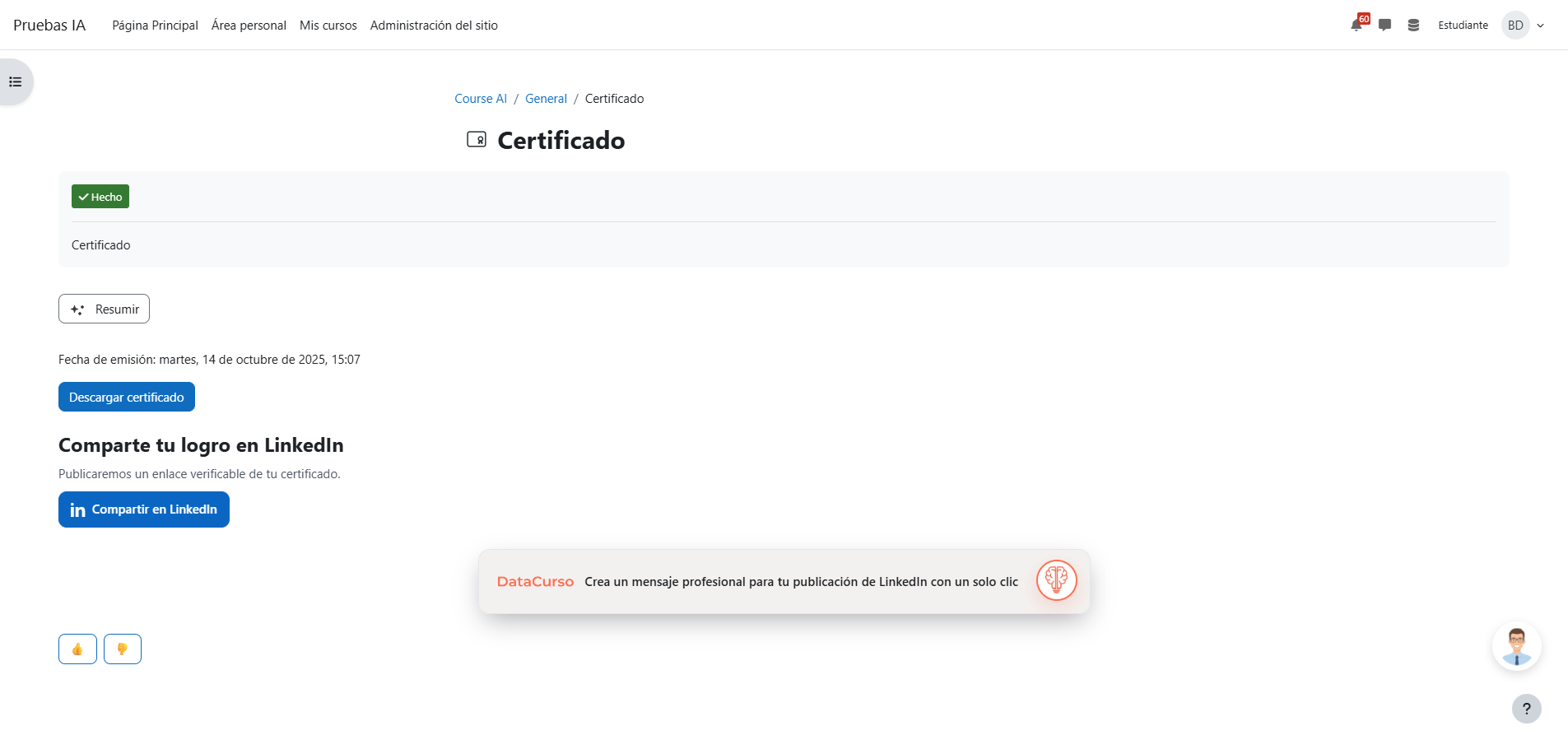
A Moodle plugin that adds an "Add certificate to LinkedIn" button to Custom certificate activities and, optionally, generates a professional AI message ready for your LinkedIn post. All with one click for the learner.
Dependency: Requires
mod_customcert. It doesn’t modify Custom certificate; it only adds a contextual action.
Features
- LinkedIn Add-to-profile button on each issued certificate (from Custom certificate).
- Provider AI integration (another Buen Data plugin) to suggest LinkedIn post copy.
- Public verification link (
verify.php?code=...) included automatically. - Complies with Moodle’s privacy API; no additional personal data is stored.
- Languages: English (default), Spanish, German, French, Portuguese, Indonesian, and Russian.
Prerequisites
- Moodle 4.5
- Install the Moodle AI provider "DataCurso AI Provider."
Download it for free from https://moodle.org/plugins/aiprovider_datacurso/versions. - In the DataCurso AI Provider settings, configure a valid license key as documented at
https://docs.datacurso.com/index.php?title=Datacurso_AI_Provider#Getting_license_keys. - "Custom certificate" (https://moodle.org/plugins/mod_customcert) (recommended minimum: 2024042212).
IMPORTANT: This plugin will not function unless the DataCurso AI Provider plugin is installed and licensed.
Pre-requisites
- Moodle 4.5 (recommended minimum: 2025100201) or later.
mod_customcert(recommended minimum: 2024042212).- Provider AI to auto-generate the LinkedIn post message (version 2025100201) — optional.
Installing via ZIP upload
- Log in as administrator and go to Site administration ' Plugins ' Install plugins.
- Upload the plugin ZIP.
- Review the validation report and complete the installation.
Installing manually
Copy this directory to:
{your/moodle/dirroot}/local/socialcert
Log in as administrator and visit Site administration ' Notifications to complete the upgrade,
or run from CLI:
php admin/cli/upgrade.php
Plugin Configuration
Once installed, configure the plugin as follows:
Sign in as a site administrator.
Navigate to Site administration ' Plugins ' Local plugins ' Share Certificate AI.
In General settings, review and complete:
Organization name (
organizationname) — recommended.
- Used in the suggested LinkedIn text and as the certificate issuer name.
- For best results, enter the exact name as it appears on LinkedIn (same casing, spacing, and accents).
LinkedIn Organization ID (
organizationid) — optional.
- Use only if you post on behalf of a LinkedIn Company Page.
- If left empty, LinkedIn’s default behavior applies (user profile or default context).
Enable AI (
enableai) — global toggle.
- Turn on to show the Generate text for LinkedIn button on the certificate page. If off, the panel won’t offer the suggested text.
Click Save changes.
(Recommended) Go to Site administration ' Development ' Purge all caches to ensure the frontend reflects the new settings.
How to find your LinkedIn Organization ID
You must be an administrator of your institution’s LinkedIn Page.
- Open your organization’s LinkedIn Page in admin view.
- Copy the numeric ID from the URL.
Example:
https://www.linkedin.com/company/61803398/admin/...
In this example, the Organization ID is 61803398.
Organization name recommendations
- Use the exact public name of the LinkedIn Page (match capitalization, accents, and spaces).
- This helps ensure consistent behavior across the plugin.
Using it in a course
Add a Custom certificate activity to your course.
Make sure the learner already has an issued certificate (entry exists in
customcert_issues).
The Add to LinkedIn profile action will appear in the activity menu only when:
- An issue exists for the current user, and
- A valid
organizationidis configured in the plugin settings.
Important
- If no certificate has been issued, the action is blocked and an error is shown.
- In that case, the plugin will not take the user to LinkedIn and the share flow is not available until the certificate is issued.
Add to LinkedIn (one-click)
On the certificate page, click Share on LinkedIn.
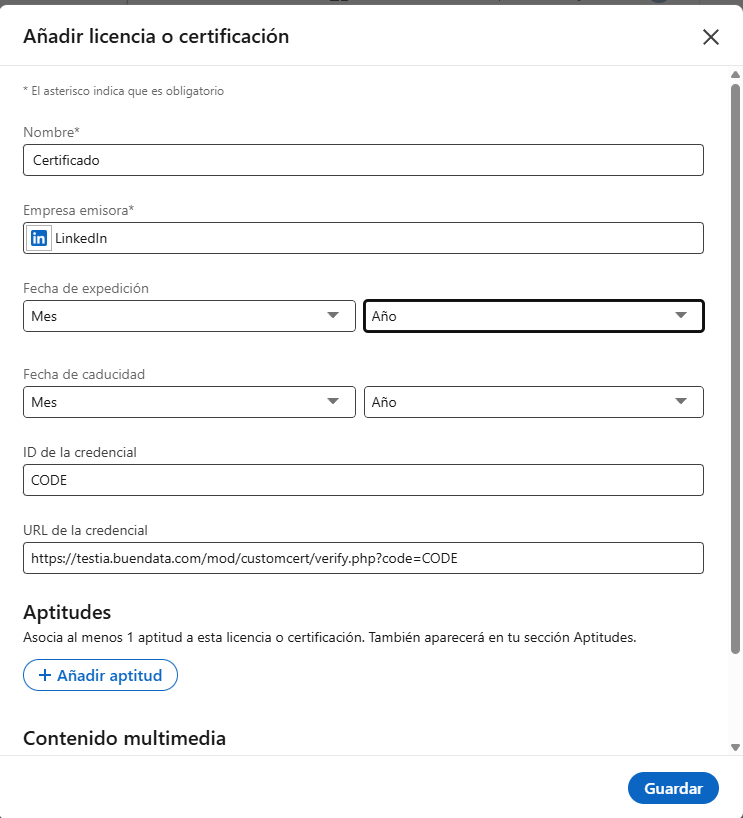
A LinkedIn window opens with your certificate details already filled in (title, issuer, issue date, credential ID, and verification URL). Review and click Save/Add.
If you’re not signed in to LinkedIn, you’ll be asked to log in first.
If the button doesn’t appear, make sure your certificate has been issued and your site admin has set the organization name/ID.
Generate a LinkedIn post suggestion (AI)
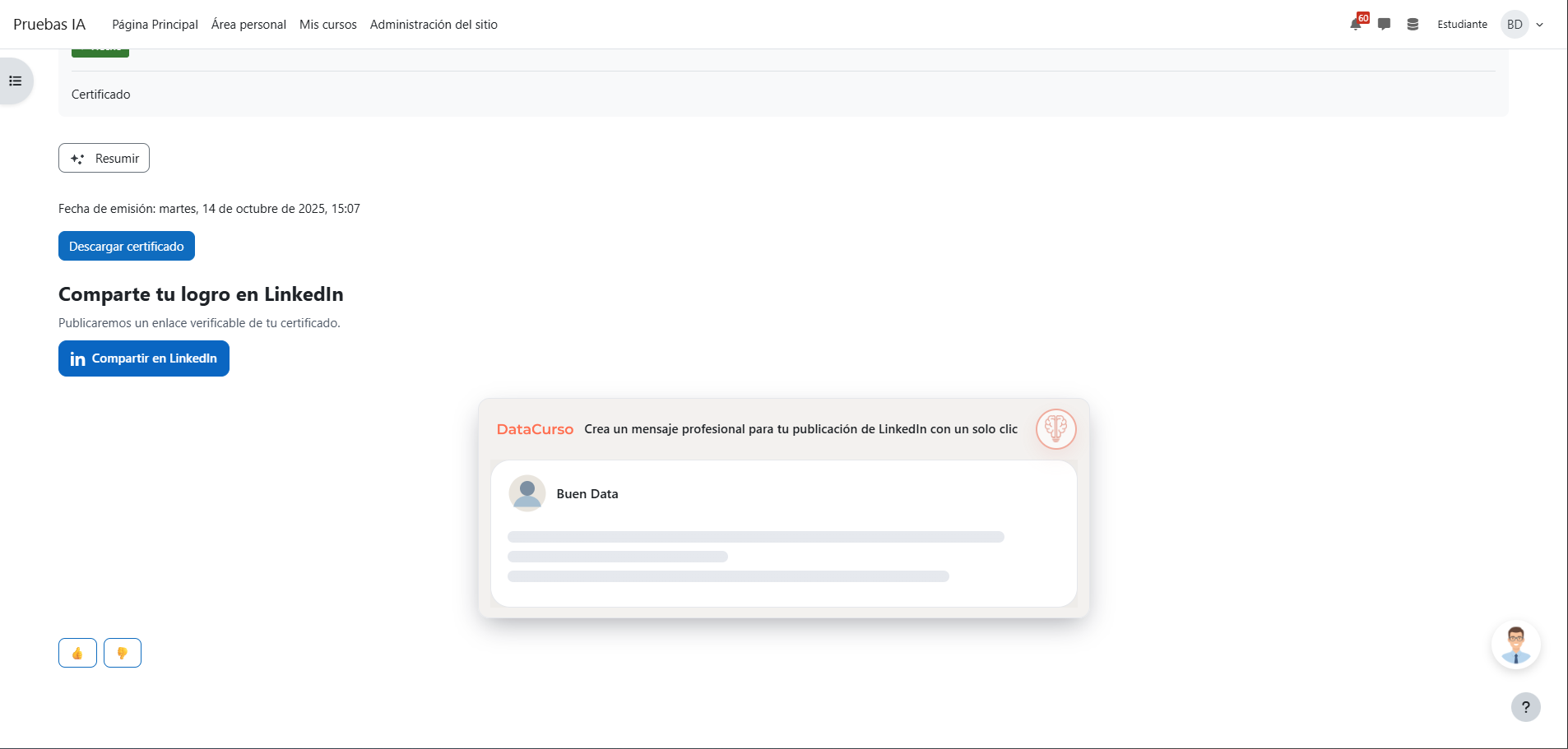
On the certificate page, find the SocialCert card and the AI button (brain icon).
Click the AI button. The component will expand and show a preview with the suggested LinkedIn message.
Review the suggested text. You can adjust it if you want (the plugin does not publish for you).
Click Copy (clipboard icon) in the panel’s corner to copy the text.
Open LinkedIn, paste the copied message into your post, and publish.
License
2025 Data Curso LLC https://datacurso.com
This program is free software: you can redistribute it and/or modify it under
the terms of the GNU General Public License as published by the Free Software
Foundation, either version 3 of the License, or (at your option) any later
version.
This program is distributed in the hope that it will be useful, but WITHOUT ANY
WARRANTY; without even the implied warranty of MERCHANTABILITY or FITNESS FOR A
PARTICULAR PURPOSE. See the GNU General Public License for more details.
You should have received a copy of the GNU General Public License along with
this program. If not, see https://www.gnu.org/licenses/.
1.0.2 (2025120200)
1.0.2
Plugin type: Local plugins
Frankenstyle component name: local_socialcert
Version build number: 2025120200
Version release name: 1.0.2
Maturity: Stable
Supported Moodle versions: 4.5
Repository URL (Git): https://github.com/industria-elearning/moodle-local_socialcert
Repository branch:
Repository tag: 1.0.2
Issue/bug tracker URL: https://github.com/datacurso/moodle-local-socialcert/issues
Share Certificate AI (local_socialcert)
A Moodle plugin that adds an "Add certificate to LinkedIn" button to Custom certificate activities and, optionally, generates a professional AI message ready for your LinkedIn post. All with one click for the learner.
Dependency: Requires
mod_customcert. It doesn’t modify Custom certificate; it only adds a contextual action.
Features
- LinkedIn Add-to-profile button on each issued certificate (from Custom certificate).
- Provider AI integration (another Buen Data plugin) to suggest LinkedIn post copy.
- Public verification link (
verify.php?code=...) included automatically. - Complies with Moodle’s privacy API; no additional personal data is stored.
- Languages: English (default), Spanish, German, French, Portuguese, Indonesian, and Russian.
Prerequisites
- Moodle 4.5
- Install the Moodle AI provider "DataCurso AI Provider."
Download it for free from https://moodle.org/plugins/aiprovider_datacurso/versions. - In the DataCurso AI Provider settings, configure a valid license key as documented at
https://docs.datacurso.com/index.php?title=Datacurso_AI_Provider#Getting_license_keys. - "Custom certificate" (https://moodle.org/plugins/mod_customcert) (recommended minimum: 2024042212).
IMPORTANT: This plugin will not function unless the DataCurso AI Provider plugin is installed and licensed.
Pre-requisites
- Moodle 4.5 (recommended minimum: 2025100201) or later.
mod_customcert(recommended minimum: 2024042212).- Provider AI to auto-generate the LinkedIn post message (version 2025100201) — optional.
Installing via ZIP upload
- Log in as administrator and go to Site administration ' Plugins ' Install plugins.
- Upload the plugin ZIP.
- Review the validation report and complete the installation.
Installing manually
Copy this directory to:
{your/moodle/dirroot}/local/socialcert
Log in as administrator and visit Site administration ' Notifications to complete the upgrade,
or run from CLI:
php admin/cli/upgrade.php
Plugin Configuration
Once installed, configure the plugin as follows:
Sign in as a site administrator.
Navigate to Site administration ' Plugins ' Local plugins ' Share Certificate AI.
In General settings, review and complete:
Organization name (
organizationname) — recommended.
- Used in the suggested LinkedIn text and as the certificate issuer name.
- For best results, enter the exact name as it appears on LinkedIn (same casing, spacing, and accents).
LinkedIn Organization ID (
organizationid) — optional.
- Use only if you post on behalf of a LinkedIn Company Page.
- If left empty, LinkedIn’s default behavior applies (user profile or default context).
Enable AI (
enableai) — global toggle.
- Turn on to show the Generate text for LinkedIn button on the certificate page. If off, the panel won’t offer the suggested text.
Click Save changes.
(Recommended) Go to Site administration ' Development ' Purge all caches to ensure the frontend reflects the new settings.
How to find your LinkedIn Organization ID
You must be an administrator of your institution’s LinkedIn Page.
- Open your organization’s LinkedIn Page in admin view.
- Copy the numeric ID from the URL.
Example:
https://www.linkedin.com/company/61803398/admin/...
In this example, the Organization ID is 61803398.
Organization name recommendations
- Use the exact public name of the LinkedIn Page (match capitalization, accents, and spaces).
- This helps ensure consistent behavior across the plugin.
Using it in a course
Add a Custom certificate activity to your course.
Make sure the learner already has an issued certificate (entry exists in
customcert_issues).
The Add to LinkedIn profile action will appear in the activity menu only when:
- An issue exists for the current user, and
- A valid
organizationidis configured in the plugin settings.
Important
- If no certificate has been issued, the action is blocked and an error is shown.
- In that case, the plugin will not take the user to LinkedIn and the share flow is not available until the certificate is issued.
Add to LinkedIn (one-click)
On the certificate page, click Share on LinkedIn.
A LinkedIn window opens with your certificate details already filled in (title, issuer, issue date, credential ID, and verification URL). Review and click Save/Add.
If you’re not signed in to LinkedIn, you’ll be asked to log in first.
If the button doesn’t appear, make sure your certificate has been issued and your site admin has set the organization name/ID.
Generate a LinkedIn post suggestion (AI)
On the certificate page, find the SocialCert card and the AI button (brain icon).
Click the AI button. The component will expand and show a preview with the suggested LinkedIn message.
Review the suggested text. You can adjust it if you want (the plugin does not publish for you).
Click Copy (clipboard icon) in the panel’s corner to copy the text.
Open LinkedIn, paste the copied message into your post, and publish.
License
2025 Data Curso LLC https://datacurso.com
This program is free software: you can redistribute it and/or modify it under
the terms of the GNU General Public License as published by the Free Software
Foundation, either version 3 of the License, or (at your option) any later
version.
This program is distributed in the hope that it will be useful, but WITHOUT ANY
WARRANTY; without even the implied warranty of MERCHANTABILITY or FITNESS FOR A
PARTICULAR PURPOSE. See the GNU General Public License for more details.
You should have received a copy of the GNU General Public License along with
this program. If not, see https://www.gnu.org/licenses/.
1.0.1 (2025102904)
1.0.1
Plugin type: Local plugins
Frankenstyle component name: local_socialcert
Version build number: 2025102904
Version release name: 1.0.1
Maturity: Stable
Supported Moodle versions: 4.5
Repository URL (Git): https://github.com/industria-elearning/moodle-local-socialcert
Repository branch:
Repository tag:
Issue/bug tracker URL: https://github.com/datacurso/moodle-local-socialcert/issues
1.0.0 (2025101900)
1.0.0
Plugin type: Local plugins
Frankenstyle component name: local_socialcert
Version build number: 2025101900
Version release name: 1.0.0
Maturity: Stable
Supported Moodle versions: 4.5
Repository URL (Git): https://github.com/industria-elearning/moodle-local-socialcert
Repository branch: main
Repository tag:
Issue/bug tracker URL: https://github.com/datacurso/moodle-local-socialcert/issues