FastComments for Moodle


Add threaded commenting and collaborative/inline chat to your Moodle courses and activities with FastComments.
Screenshots
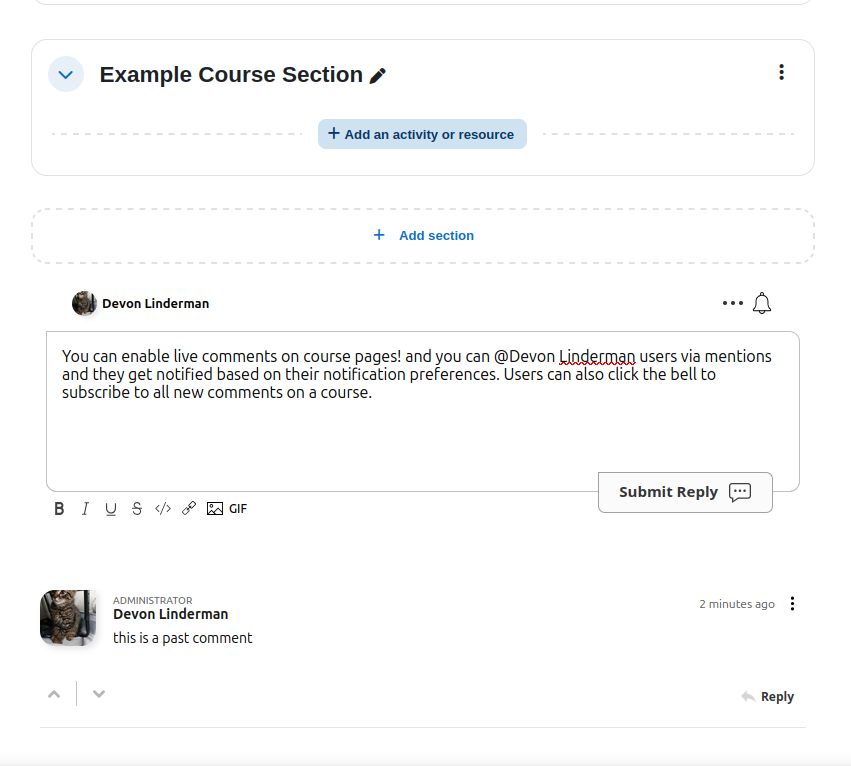
Course Page Comments
Live comments on course pages. Users can @mention each other and get notified based on their notification preferences. Click the bell to subscribe to all new comments on a course.
The rich text editor supports links, images, GIFs, and more. All of these can be configured or disabled.
![Live comments on a course page - shows @mention in the editor, an existing threaded comment with admin badge, upvote/downvote, reply button, and the notification bell]()
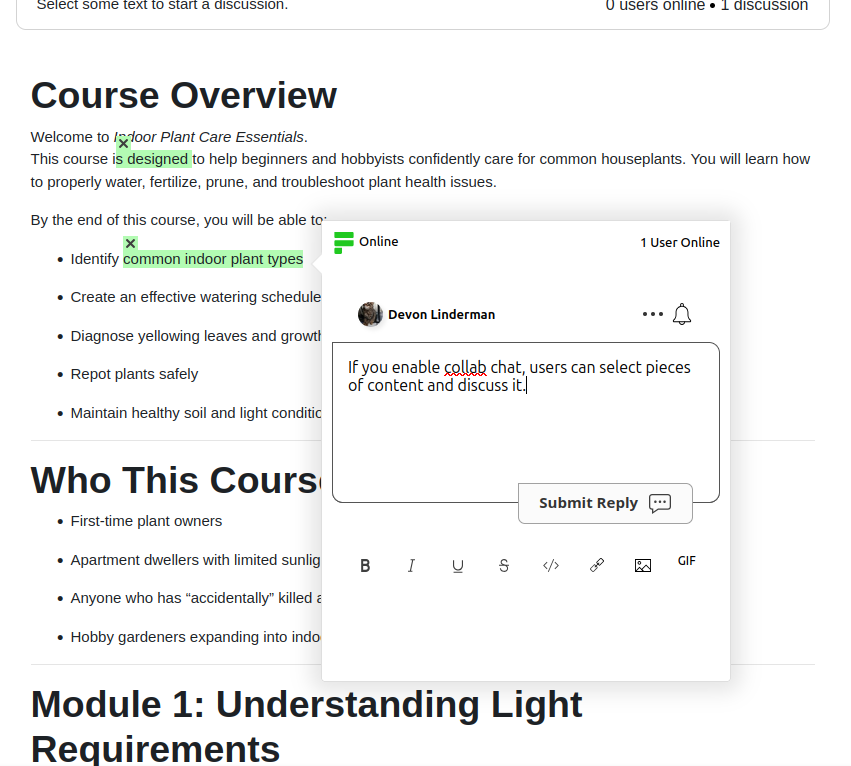
Collaborative Chat
With collab chat enabled, users can select pieces of content and discuss it. A top bar prompts "Select some text to start a discussion" and shows online user count and active discussions. Highlighted text is anchored in place so the conversation stays tied to the content.
![Collab chat on a course page - text "common indoor plant types" is highlighted, a popup discussion panel shows 1 user online, and the user is typing a reply]()
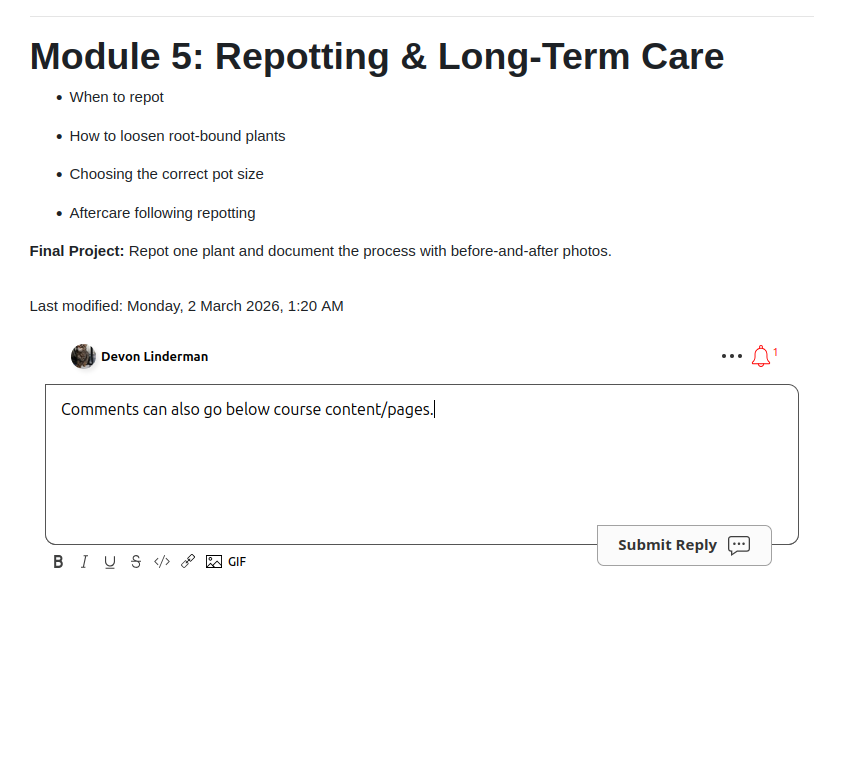
Module / Page Comments
Comments can also go below course content and pages (modules, books, etc.). The notification bell shows when there are unread notifications.
![Comment widget below a module page - notification bell shows 1 unread, rich text editor with the same formatting toolbar]()
Features
- Threaded comments with @mentions, upvoting/downvoting, and reply chains
- Rich text editor:bold, italic, underline, strikethrough, code blocks, links, images, and GIFs
- Collaborative chat:select text on any page to start an inline discussion anchored to that content
- Online presence indicator showing who is currently viewing the page
- Users seamlessly logged into the comment area. Secure SSO (HMAC-SHA256) and Simple SSO for seamless Moodle login integration
- Moodle admins are automatically synced as FastComments moderators (with Secure SSO)
- Comments on course pages and/or individual module/activity pages (configurable)
- Notification bell with unread badge:users can subscribe to all new comments on a page
- Per-user notification preferences accessible from the user profile
- EU CDN option for GDPR-friendly deployments
- Three commenting styles: traditional comments, collab chat, or both combined
Requirements
- Moodle 4.1 or later
- PHP 7.4+ (as required by Moodle 4.1)
- A FastComments account (Tenant ID required; API Secret required for Secure SSO). Free trial allows testing the plugin. Plans start at $0.99/mo.
Installation
Download or clone this repository into your Moodle installation:
git clone https://github.com/FastComments/fastcomments-moodle.git /path/to/moodle/local/fastcomments
Log in as a site administrator and visit Site Administration > Notifications. Moodle will detect the new plugin and run the install.
Navigate to Site Administration > Plugins > Local plugins > FastComments to configure.
Configuration
Go to Site Administration > Plugins > Local plugins > FastComments. The settings are:
| Setting | Description |
|---|---|
| Tenant ID | Your FastComments Tenant ID (found in your FastComments dashboard). |
| API Secret | Your FastComments API Secret. Required when using Secure SSO. |
| SSO Mode | Choose Secure, Simple, or None (see SSO Modes below). |
| Page Contexts | Which page types display comments:course pages, module/activity pages, or both. |
| Commenting Style | Select from three modes (see Commenting Styles below). |
| CDN URL | Defaults to https://cdn.fastcomments.com. Change to an EU CDN endpoint if needed. |
Commenting Styles
| Style | Behavior |
|---|---|
| Comments | A comment widget is rendered below the page content with threaded replies, @mentions, and the notification bell. |
| Collab Chat | A bar appears at the top of the page prompting users to select text and start a discussion. Highlighted text is anchored to the content. Shows online users and active discussion count. No bottom widget. |
| Collab Chat + Comments | Both modes active:users can highlight text for inline discussions and also use the comment widget below the content. |
SSO Modes
| Mode | How it works |
|---|---|
| Secure (recommended) | User identity is signed server-side with HMAC-SHA256 using your API Secret. Moodle admins are automatically synced as FastComments moderators. User avatars, names, and email addresses are passed securely. |
| Simple | User data (name, email, avatar) is passed client-side without a signature. Quick to set up but less secure. |
| None | No SSO:users comment anonymously. |
User Preferences
Logged-in users can manage their FastComments notification settings from their Moodle profile under the FastComments section. Two preferences are available:
- Reply notifications:receive an email when someone replies to your comment.
- Subscription notifications:receive emails for threads you have subscribed to.
License
This plugin is licensed under the GNU General Public License v3 or later.