tiny_imageia — TinyMCE plugin for Moodle 4.5+
Educational AI image generator using OpenAI gpt-image-2
📋 Description
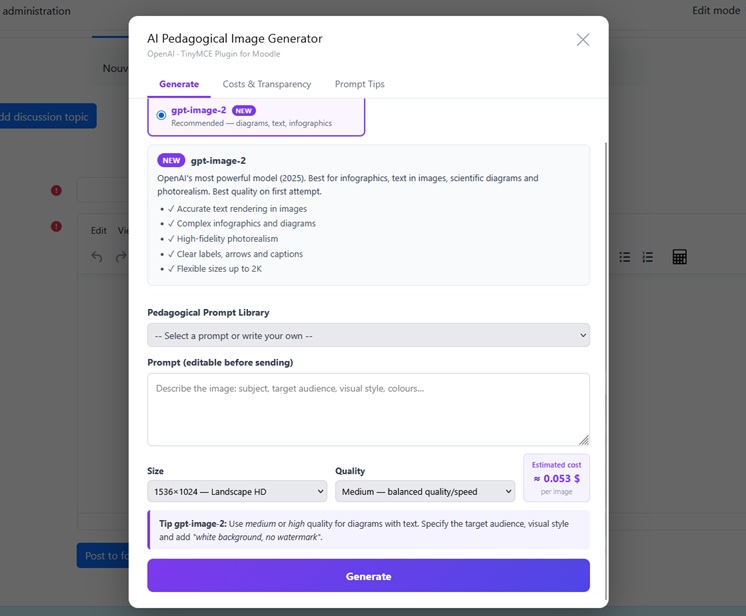
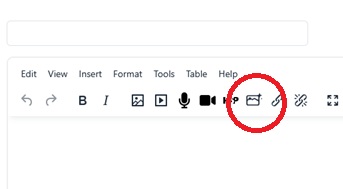
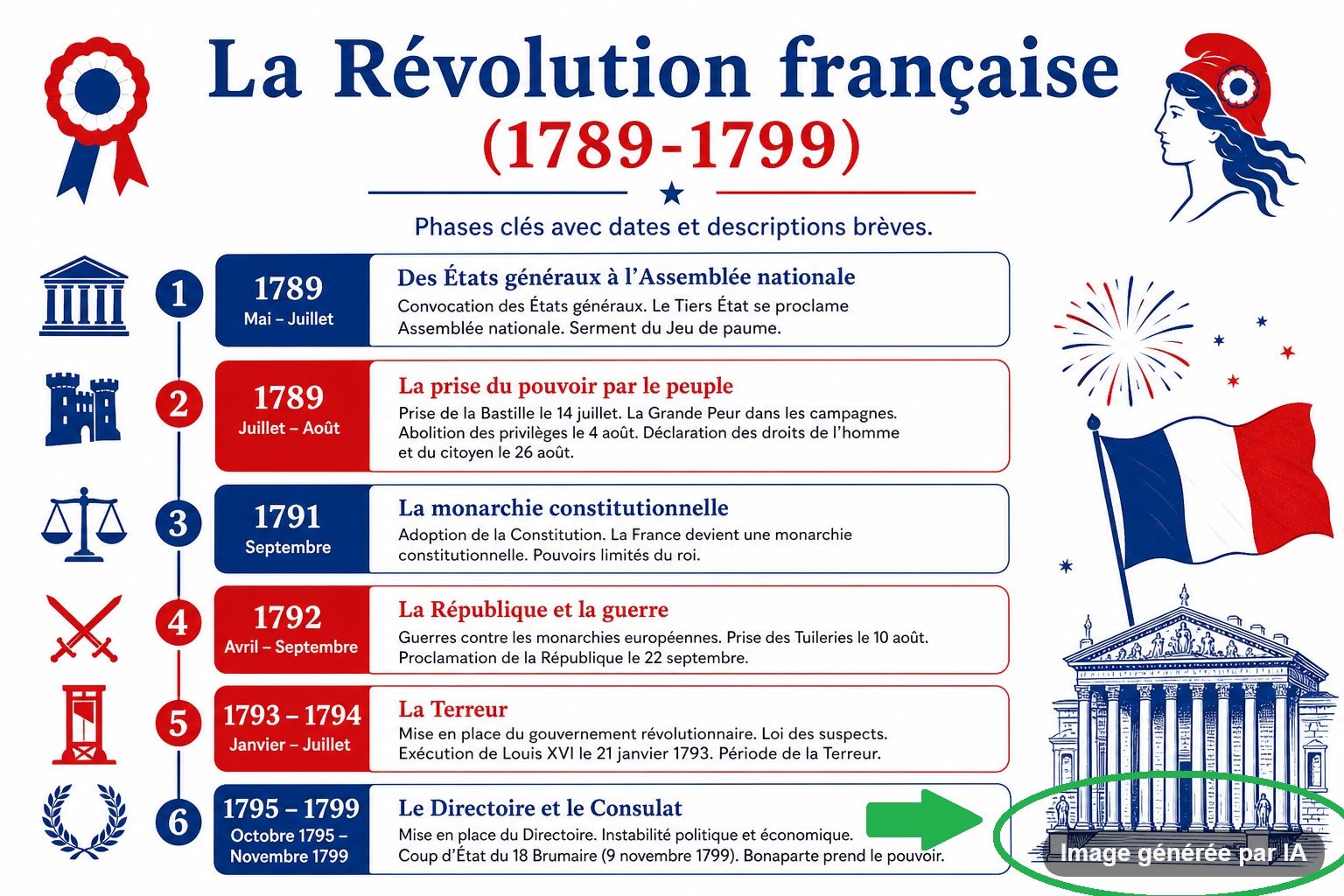
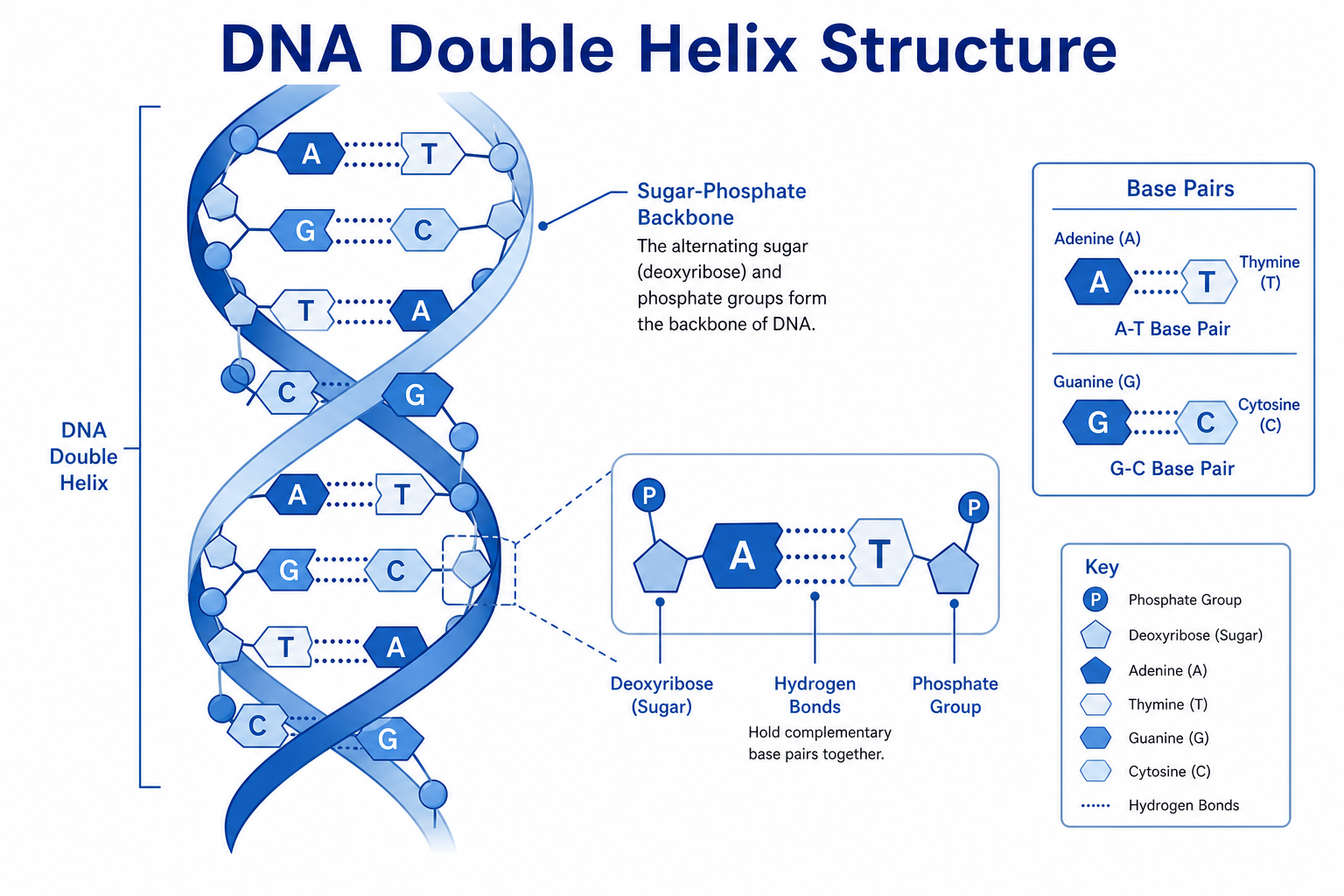
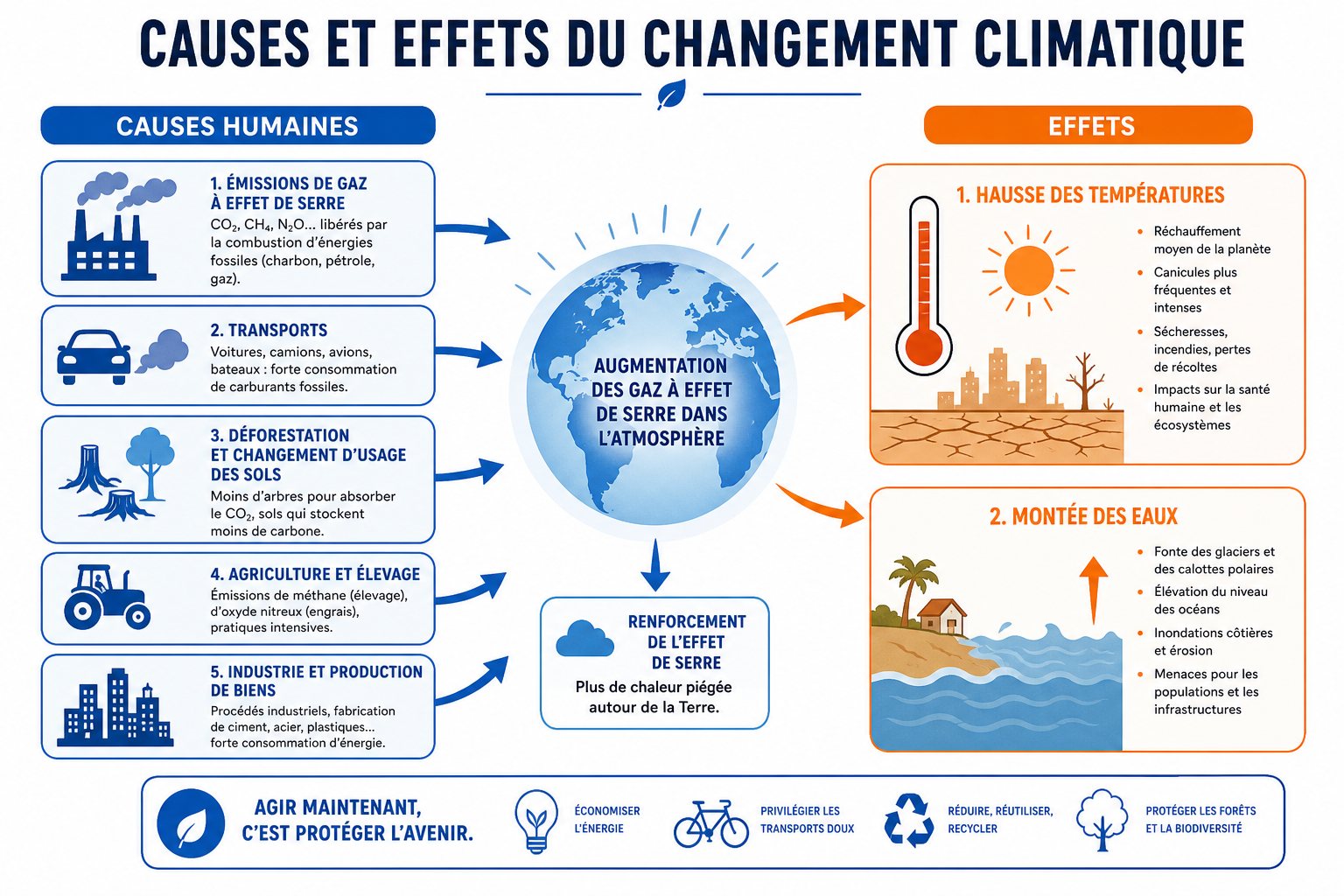
This plugin adds an -️ AI Image button to the Moodle TinyMCE toolbar.
It allows teachers and course creators to generate educational images directly inside Moodle using OpenAI's gpt-image-2 image generation model.
The plugin lets users:
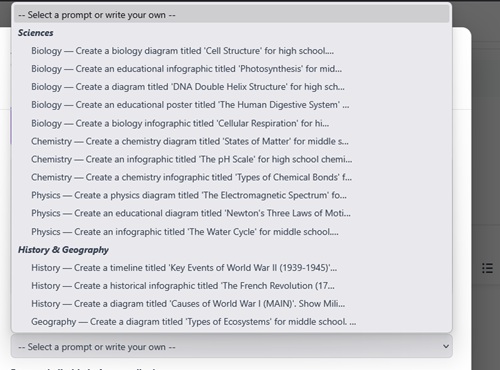
- Choose a prompt from a bank of 30+ ready-to-use educational prompts
(Science, History and Geography, Languages, Mathematics, Arts, Computing)
- Edit the selected prompt before sending it
- Write a custom prompt
- Generate an image through the OpenAI API using
gpt-image-2 only
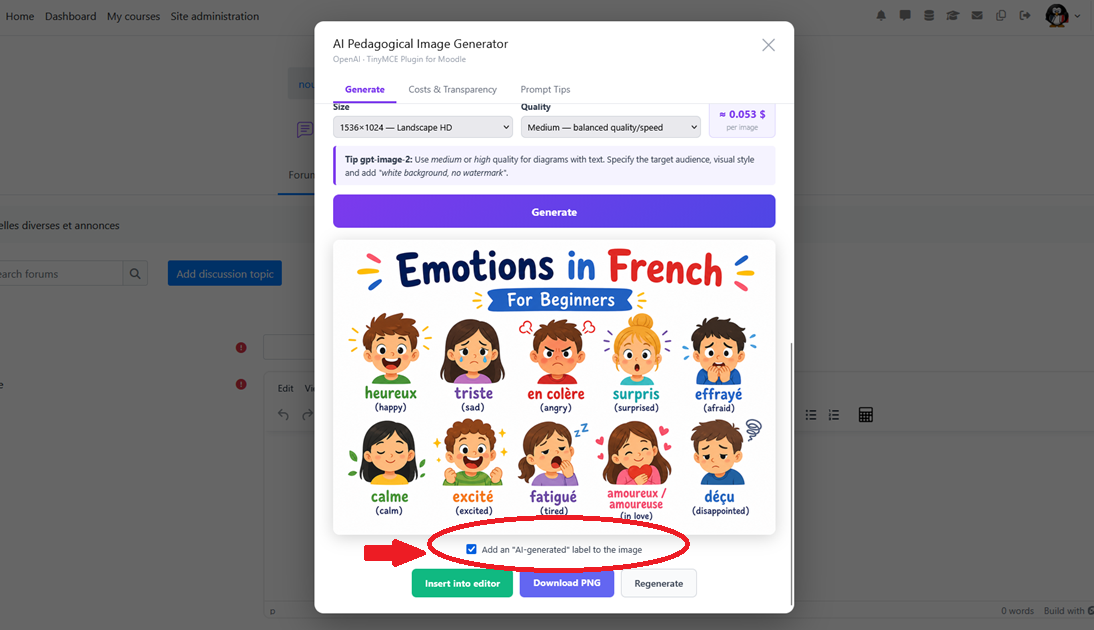
- Insert the generated image directly into the Moodle editor
- Download the generated image as a PNG file
⚙️ Requirements
- Moodle 4.3 minimum; Moodle 4.5+ is recommended
- The TinyMCE editor enabled; this plugin is not for Atto
- A paid OpenAI API key with access to image generation
- PHP cURL enabled on the Moodle server
🚀 Installation
Method 1 — Moodle web interface, recommended
- Download the plugin ZIP file.
- Log in as a Moodle administrator.
- Go to Site administration ' Plugins ' Install plugins.
- Upload the ZIP file and click Install plugin.
- Follow the on-screen installation steps.
Method 2 — FTP or SSH
- Unzip the archive.
- Copy the
imageia folder to:
/var/www/moodle/lib/editor/tiny/plugins/
- Go to Site administration ' Notifications to complete the installation.
🔧 Configuration
After installation:
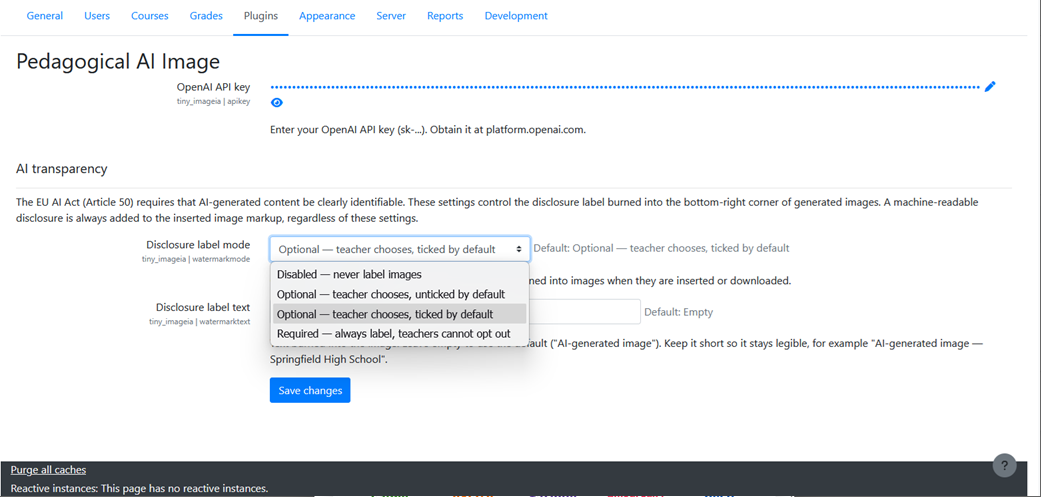
- Go to Site administration ' Plugins ' Text editors ' Educational ImageIA.
- Enter your OpenAI API key (
sk-...).
- Save the settings.
Add the button to the TinyMCE toolbar
- Go to Site administration ' Plugins ' Text editors ' TinyMCE ' General settings.
- Add
tiny_imageia to the toolbar row where you want the button to appear.
Example:
bold italic | tiny_imageia | image media
🎓 Usage
- Open any Moodle page or activity that uses the TinyMCE editor.
- Click the -️ button in the toolbar.
- In the dialog box:
- Select a prompt from the drop-down list, or
- Write your own prompt
- Edit the prompt if needed
- Choose the image size and quality
- Click 🚀 Generate image.
- Once the image appears:
- " Insert into editor — inserts the image into your Moodle content
- ⬇️ Download — saves the PNG file to your computer
📚 Prompt bank subjects
| Subject | Topics |
|---------|--------|
| 🔬 Science | Biology, Chemistry, Physics |
| -️ History and Geography | History, Geography |
| -️ Languages | French, English |
| 📐 Mathematics | Geometry, Algebra |
| 🎨 Arts | Art education |
| ' Computing | Digital skills, Cybersecurity, AI |
' OpenAI API costs for gpt-image-2
Pricing date: May 13, 2026.
OpenAI prices image generation by tokens, not by a single fixed price per image.
The prices below are taken from the OpenAI API pricing page for image generation.
Actual cost depends on prompt length, image size, image quality, and generated output tokens.
Standard API pricing
| Model | Modality | Input | Cached input | Output |
|-------|----------|-------|--------------|--------|
| gpt-image-2 | Image | $8.00 / 1M tokens | $2.00 / 1M tokens | $30.00 / 1M tokens |
| gpt-image-2 | Text | $5.00 / 1M tokens | $1.25 / 1M tokens | — |
Batch API pricing
| Model | Modality | Input | Cached input | Output |
|-------|----------|-------|--------------|--------|
| gpt-image-2 | Image | $4.00 / 1M tokens | $1.00 / 1M tokens | $15.00 / 1M tokens |
| gpt-image-2 | Text | $2.50 / 1M tokens | $0.625 / 1M tokens | — |
Note: this Moodle plugin uses the standard image generation endpoint for interactive generation. Batch pricing is listed for reference only.
🔐 Security
This plugin uses a server-side PHP proxy endpoint, generate.php.
The OpenAI API key is stored in Moodle's plugin configuration and is read on the server only.
The browser sends the prompt, size, quality, selected model, and Moodle session key to generate.php; it does not receive the OpenAI API key.
Recommended production precautions:
- Keep the OpenAI API key restricted to trusted Moodle administrators.
- Use HTTPS for the Moodle site.
- Keep Moodle, PHP, and this plugin up to date.
- Monitor OpenAI usage from the OpenAI dashboard.
- Review Moodle web server logs if generation errors occur.
📄 License
GPL v3 — free to use, modify, and distribute.
Correct Moodle structure
The folder on disk must be named imageia and placed in:
lib/editor/tiny/plugins/imageia
The Moodle component declared in version.php remains:
tiny_imageia
Do not install this plugin in a folder named tiny_imageia, otherwise Moodle may detect it as tiny_tiny_imageia.
Version 1.0.2
- Uses
gpt-image-2 as the only image generation model.
- Sends OpenAI requests through the server-side
generate.php proxy.
- Keeps the OpenAI API key on the server instead of exposing it to the browser.
- Button registered as
tiny_imageia_imageia following Moodle TinyMCE skeleton naming.
- Toolbar insertion moved back to the standard
content toolbar region.
- Menu item registered separately from the toolbar button.