Requirements
Examus plugin was tested with Moodle versions 3.8 to 5.0 +.
Installation and integration
- Plugin installation
Download ZIP file from (https://github.com/examus/moodle-availability_examus2), login to your Moodle site as an admin, open Site administration ' Plugins ' Install plugins, upload the ZIP file and install it.
- Integration setup
Contact the Examus staff and you will receive three parameters:
- Examus_url
- Integration_name
- Jwt_secret
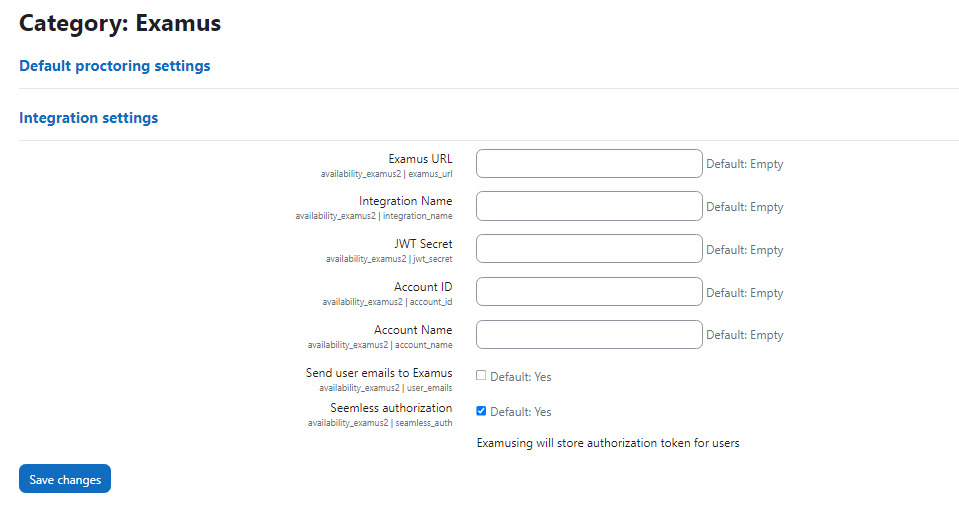
After receiving these parameters, go to the path: Administration ' Plugins ' Availability restrictions ' Proctoring Examus and enter the data obtained above in the appropriate fields.
On the same page, fill in the remaining fields: Account ID and Account Name
- Account Name – the name of your company. This parameter is the name of your organization within the proctoring system, this parameter is also issued by Examus employees.
Usage
Setting a restriction for a module
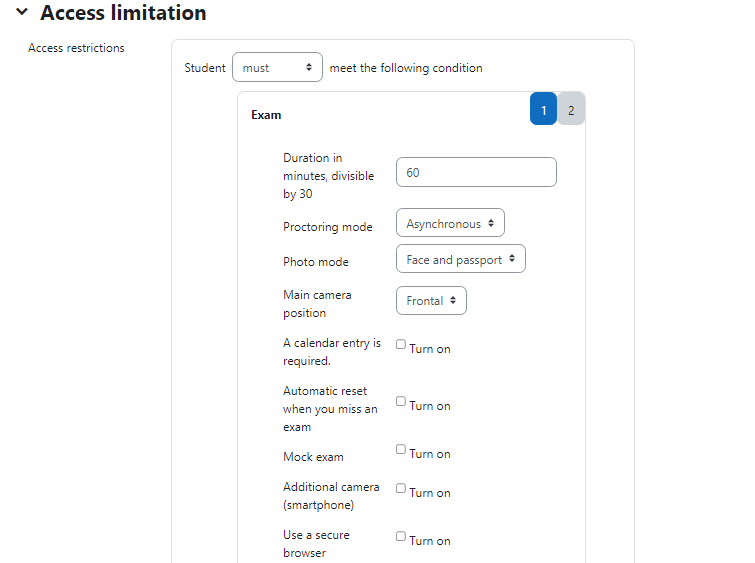
- In course editing mode, choose `Edit settings` for the module (quiz) you want to use with Examus proctoring. Scroll down to `Restrict access`.
- Choose `Add restrictions... ' Examus` to enable proctoring for this module.
- Specify the duration of the proctoring session. If you already have a time restriction for the module (quiz), the proctoring session duration must be equal to the time restriction setting.
- Choose the proctoring settings.