Pimenko team
Lead maintainer

Add this plugin to your favourites and star it on GitHub to support it! This plugin is provided by Pimenko, Moodle Certified Partner, Moodle Core Contributor & creators of Ludilearn.
With Moodle 4.0, a new feature has appeared: the "course index".
It is displayed on the left side of all courses. This course index is very similar to the "course module navigation" block. The only difference between the course module navigation block and the course index is that the names of the activities (mods) are truncated in the course index while the names are in full in the course module navigation.
Another difference is that this plugin is displayed as a block. This means that you can have a course summary with course formats that don't include the course index (such as the tiles course fomart).
It is for these reasons that Pimenko:
Update :
Since this plugin continues to be actively used, we have decided to keep it as up-to-date as possible.
Please note, however, that our time to dedicate to this maintenance is limited, so we will do our best. :)
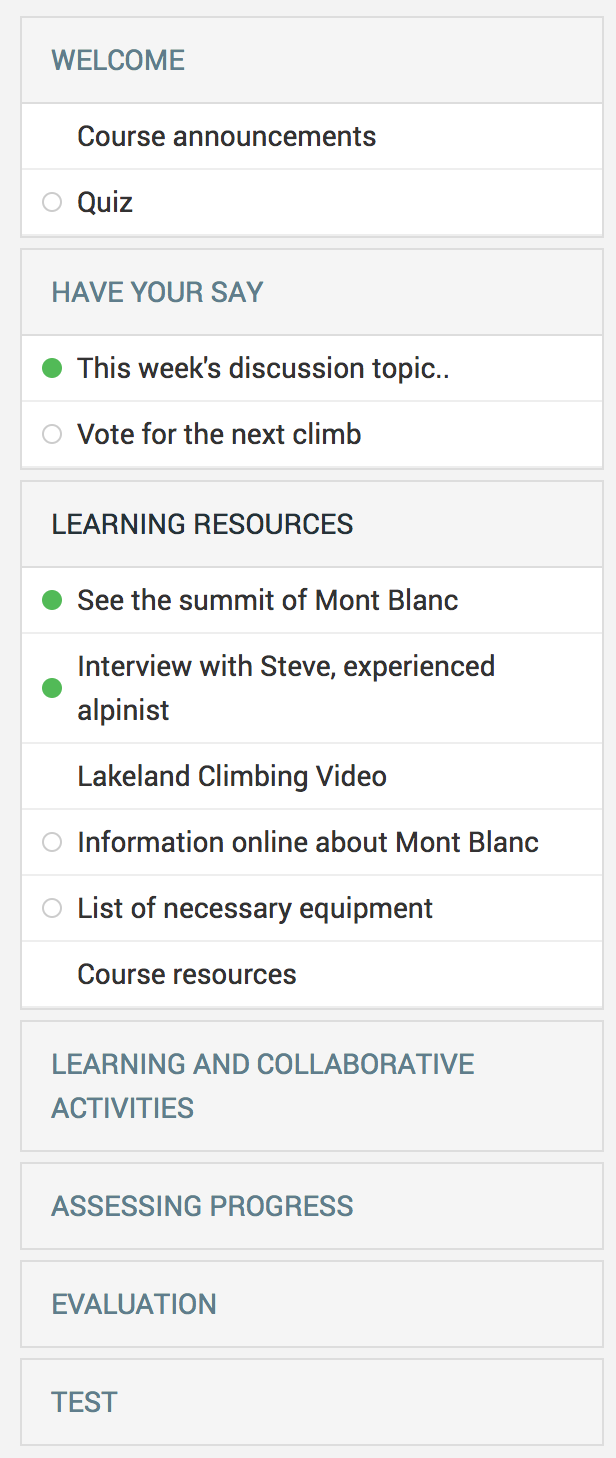
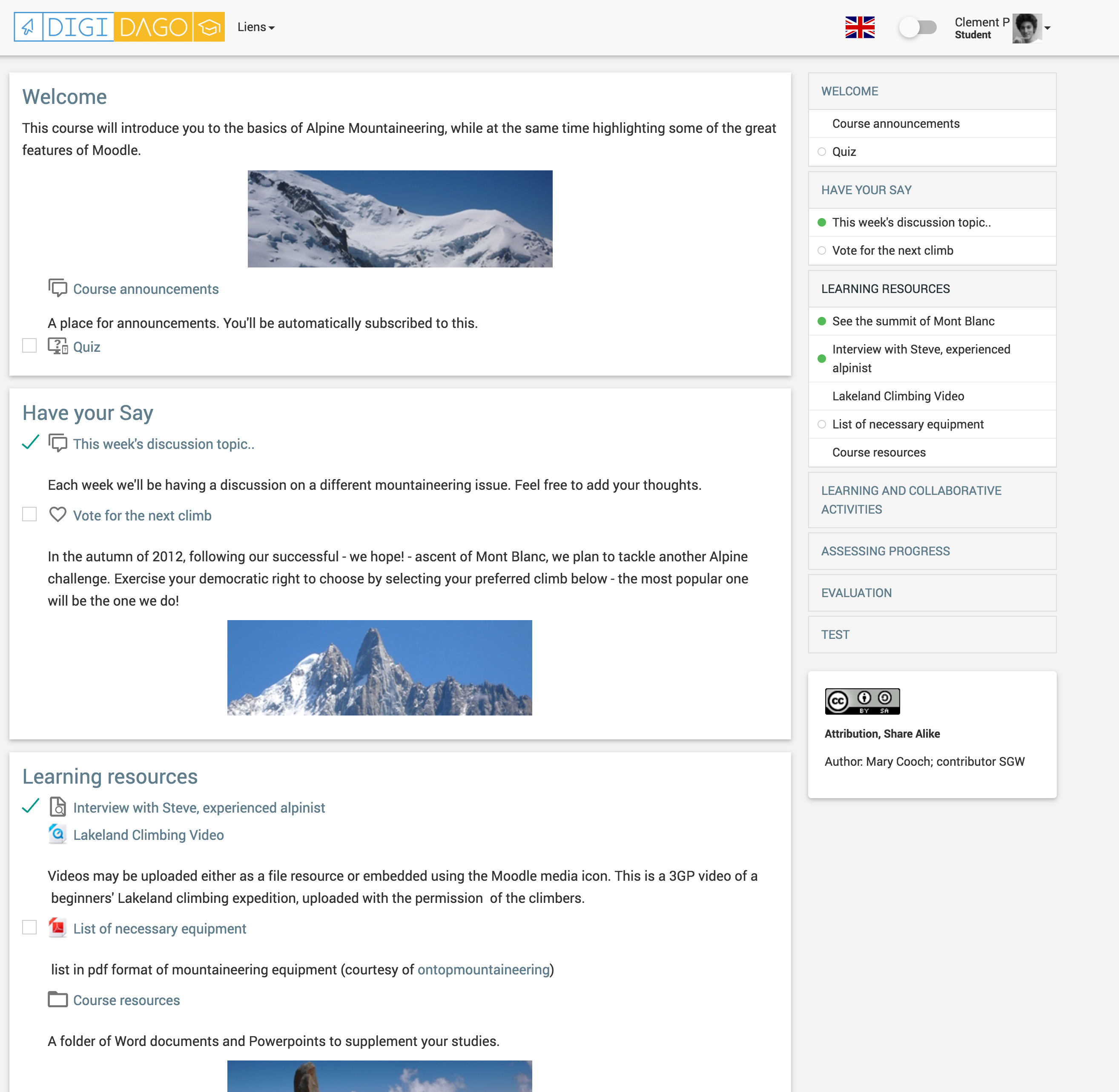
Course module navigation is a block developed by Pimenko that shows the users a summary (like a table of contents) of a course with section names and a list of all resources and activities (except URLs).
One objective of this block is to present the course contents and section titles.
- Clicking at section name will point to section area or section page (for example if you use a course format like one section by page).
- Clicking at resources and activites will display the page of the resource or activity.
This block automatically uses the names of the sections, as well as the names of the resources and the activities. When you use course module navigation, we recommend to use pages to add videos or contents in order to be able to view all resources in the list of the block. If you use labels, contents will not be displayed in course navigation, unless you explicity select this in the plugin options. In case you want to display the course module navigation on all pages of the course (main, activities, resources), make sure to check permission of the block and display it on "every page".
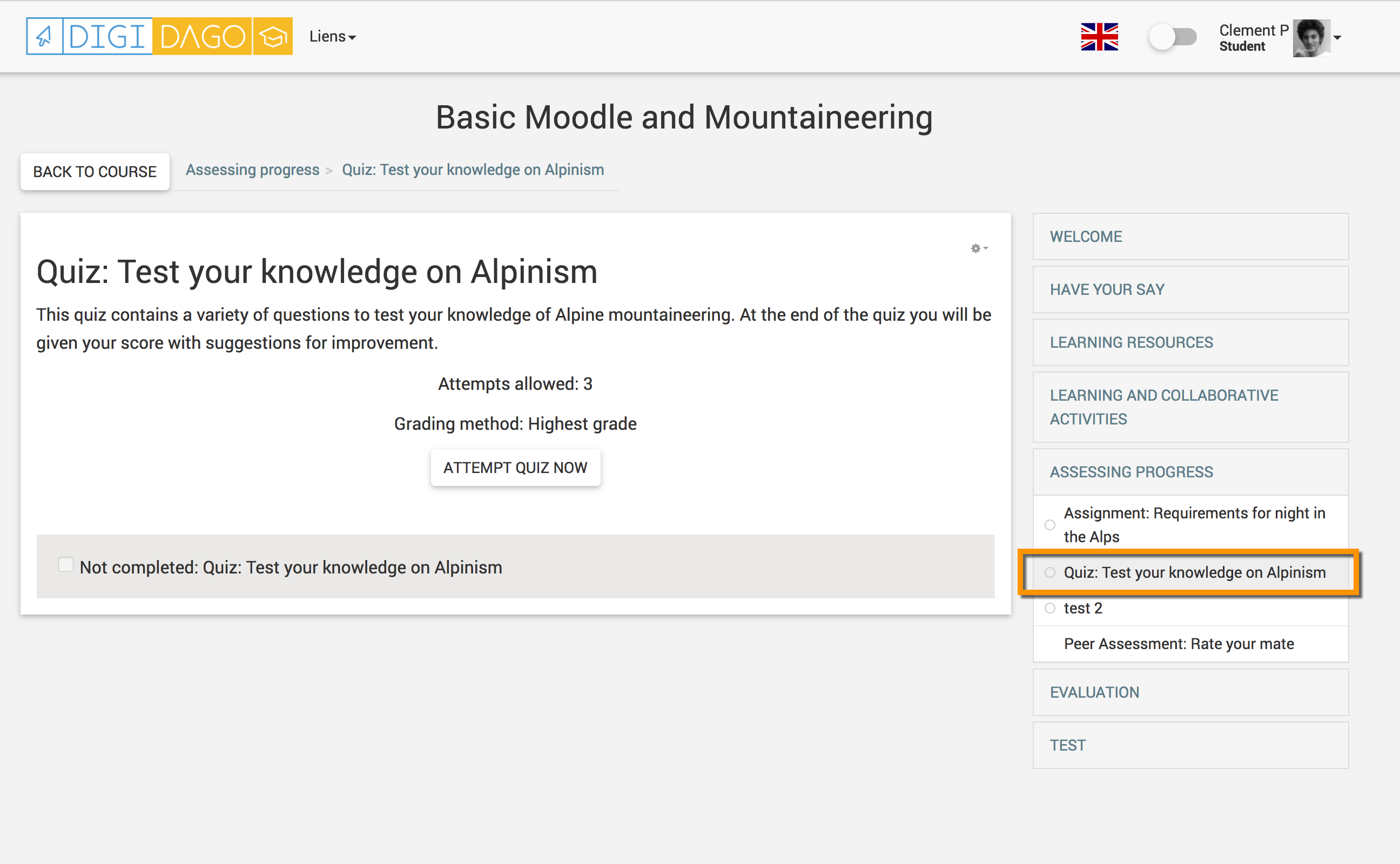
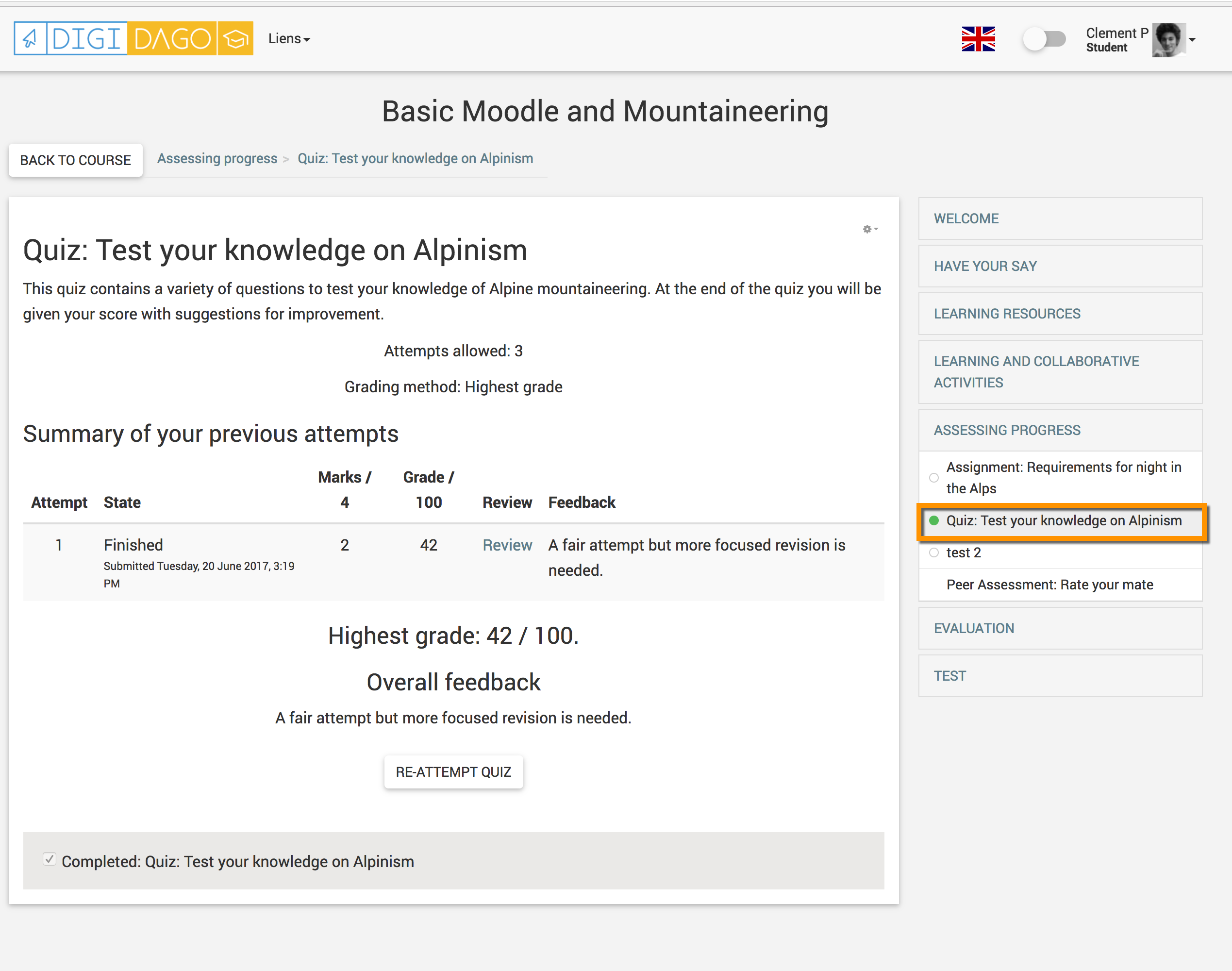
If activity completion is used in the course, course navigation block will display a circle (either empty or green) to display the state of completion.
- When clicking on the title : 'Displays the menu' or 'Goes to that page'.
- Show / hide labels
-Display all tabs collapsed / not collapsed
- Display sections titles and resources/activities / Show only titles

