Amanda Doughty
Lead maintainer
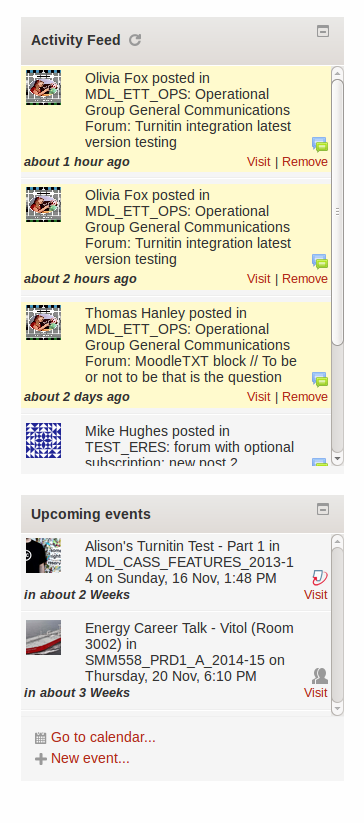
Activity stream block
=====================
The block has a dependency on moodle-message_culactivity_stream which creates and populates the table it uses.
The block selects and displays a list of the users messages from the table {message_culactivity_stream}. Each message includes a link to view the notification subject and one to remove the message from the users feed. With JS enabled, the block checks for new notifications every 5 mins. It also appends older messages as the users scrolls down the list. If the block is displayed on the site page then all course messages are included. If the block is displayed on a course page then only course messages for the containing course are displayed.
The block identifies course messages by displaying a course image (the first image file uploaded to the course summary files area) or a gravatar (if the course has no course image). The messages are required to include the course id for this to work. The event data sent to the message lib does not always include the course id or any useful/consistent way of identifying the course that the message originated from. If the message cannot be linked to a course id, the avatar will be the user from picture or a gravatar if none exists.
There is a core code patch for adding the course id to messages: https://tracker.moodle.org/browse/MDL-47162
The block has a setting to choose a gravatar type but this will
only work if the core code setting 'enablegravatar' is enabled. So in
summary, the avatar for a message defaults in the following order:
Requirement - course id and image uploaded to course summary files.
1. Course image centred horizontally and vertically
Requirement - course id and 'enablegravatar' is enabled
2. Course gravatar
Requirement - course id
3. Moodle image /pix/u/f2
Requirement - user from image uploaded
4. User image
Requirement - 'enablegravatar' is enabled
5. User gravatar
6. Moodle image /pix/u/f2


