# moodle-block_overviewmyrolesincourses
A: How to use
B: Settings
C: Capabilitys
D: Installing via uploaded ZIP file
E: Installing manually
## A: How to use ##
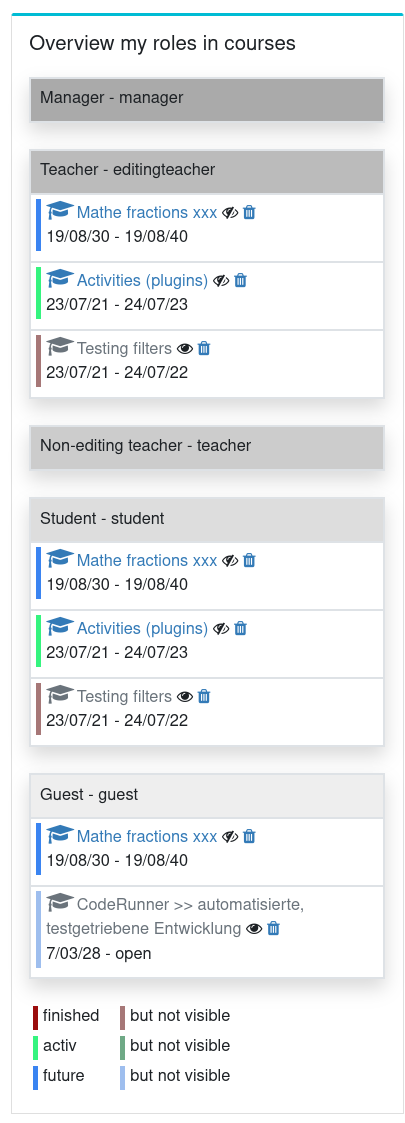
Block that shows a list of all courses a user is enrolled .
![]()
## B: Settings ##
![]()
- block_overviewmyrolesincourses | isactiv (set true, the block is activated)
- block_overviewmyrolesincourses | supportedroles (Siteadmin can select the roles that should be supported from a list of roles that can be assigned in coursecontext.)
- block_overviewmyrolesincourses | showdeleteicon (If a user has the capability moodle/course:delete then a delete icon is shown)
## C: Capabilitys ##
C1: 'myaddinstance'
capability to add the block at the my-page
C2: 'addinstance'
capability to add the block at the course-page
## D: Installing via uploaded ZIP file ##
1. Log in to your Moodle site as an admin and go to _Site administration >
Plugins > Install plugins_.
2. Upload the ZIP file with the plugin code. You should only be prompted to add
extra details if your plugin type is not automatically detected.
3. Check the plugin validation report and finish the installation.
## E: Installing manually ##
The plugin can be also installed by putting the contents of this directory to
{your/moodle/dirroot}/blocks/overviewmyrolesincourses
Afterwards, log in to your Moodle site as an admin and go to _Site administration >
Notifications_ to complete the installation.
Alternatively, you can run
$ php admin/cli/upgrade.php
to complete the installation from the command line.