Ascensio System SIA
Lead maintainer

You can register a free account on the official website: onlyoffice.com/docspace-registration.aspx.
The STARTUP plan of ONLYOFFICE DocSpace is absolutely free to use. If you want to check other tariff plans, visit this page.
At first, go to your ONLYOFFICE DocSpace (sign up / sign in) -> Developer Tools -> API keys -> Create new secret key to create the API key.
Set Permissions = All for full access, or customize permissions by selecting Permissions = Restricted.
The minimum required permissions for the API key are:
Ensure the API key is created by a user with the DocSpace Admin role.
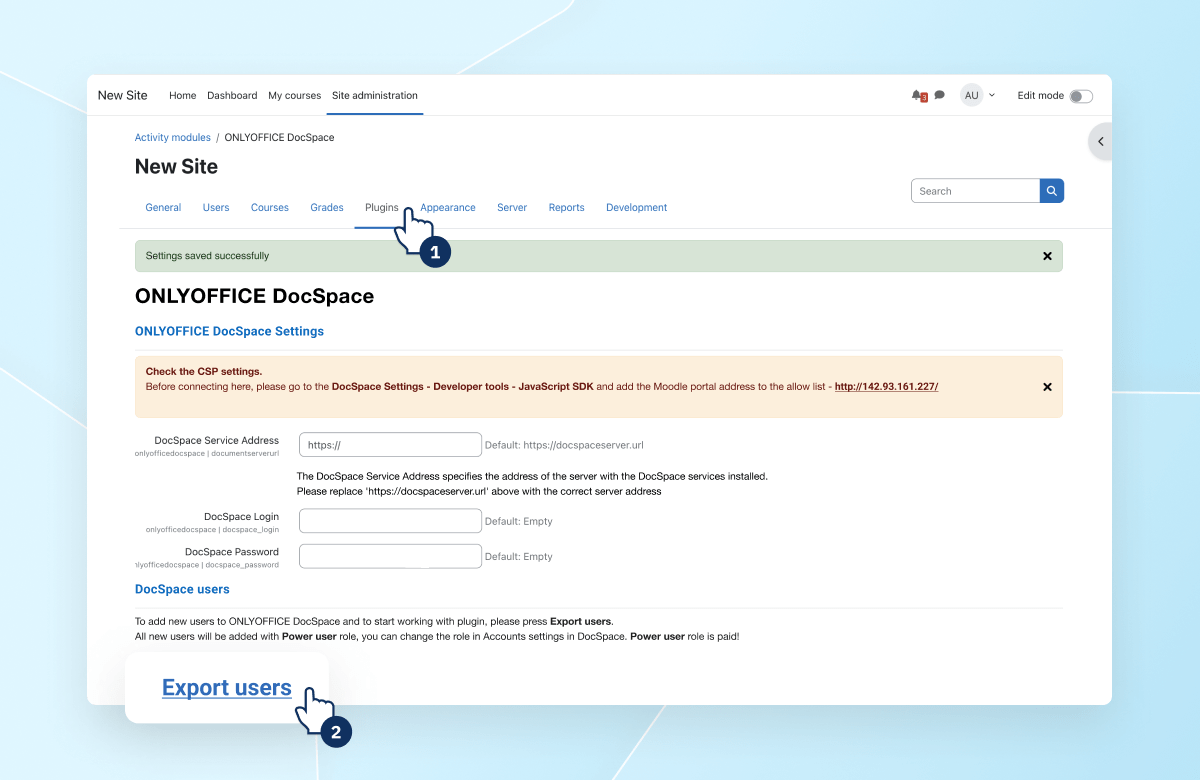
In Moodle, go to Site Administration -> Plugins -> Activity Modules -> ONLYOFFICE DocSpace.
Here, enter the DocSpace Service Address (the URL of your DocSpace) and ONLYOFFICE DocSpace API key, then click the Connect button.
If the connection is successful, two buttons will appear on the settings page:
To start working, you need to export users from Moodle to DocSpace. To do this, click the Export Users button on the settings page. A page with the list of users will open. This list includes Moodle users with the roles Teacher, Manager, Course Creator. If a user with such credentials (email) already exists in DocSpace, synchronizing authorization will not occur.
To add a Moodle user to DocSpace, select the checkbox and click the Invite to DocSpace button. The selected users will be added to DocSpace.
In the DocSpace User Status column, you can track whether a Moodle user has been added to DocSpace or not:
To remove user data from DocSpace in Moodle, simply check the box next to the desired user and click the Unlink DocSpace Account button. This will delete the selected users' DocSpace data from Moodle.
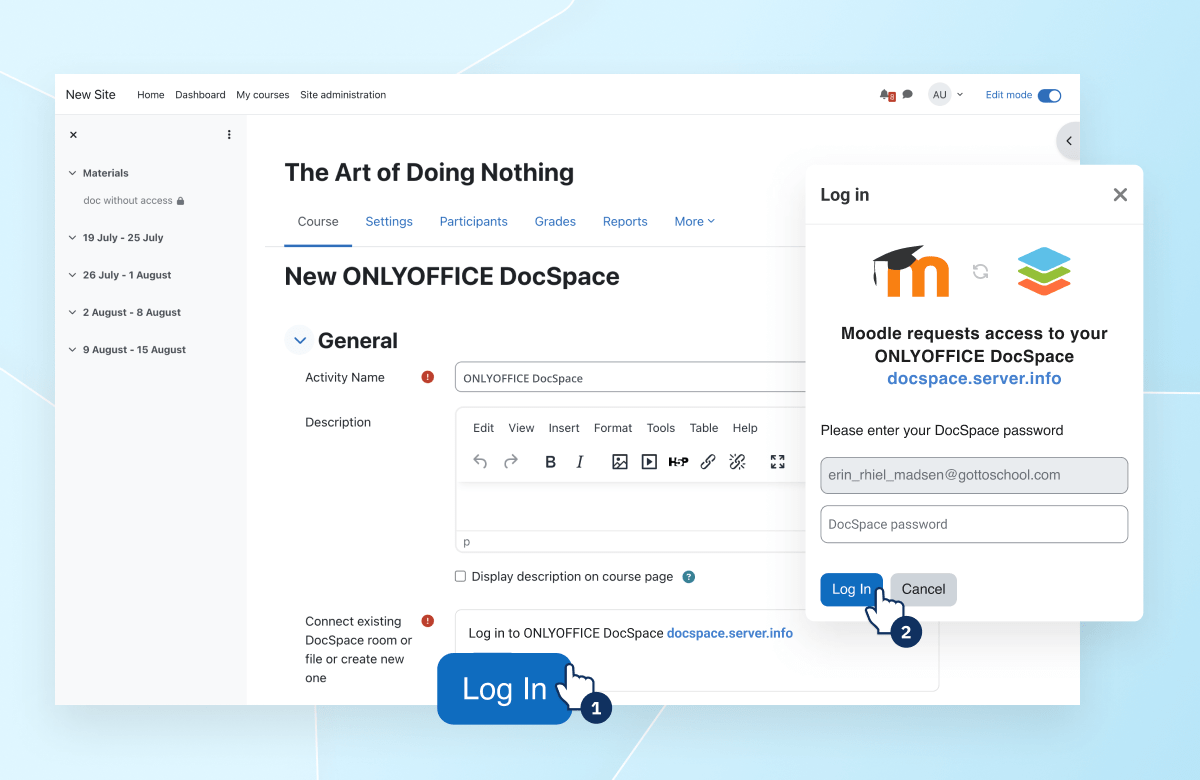
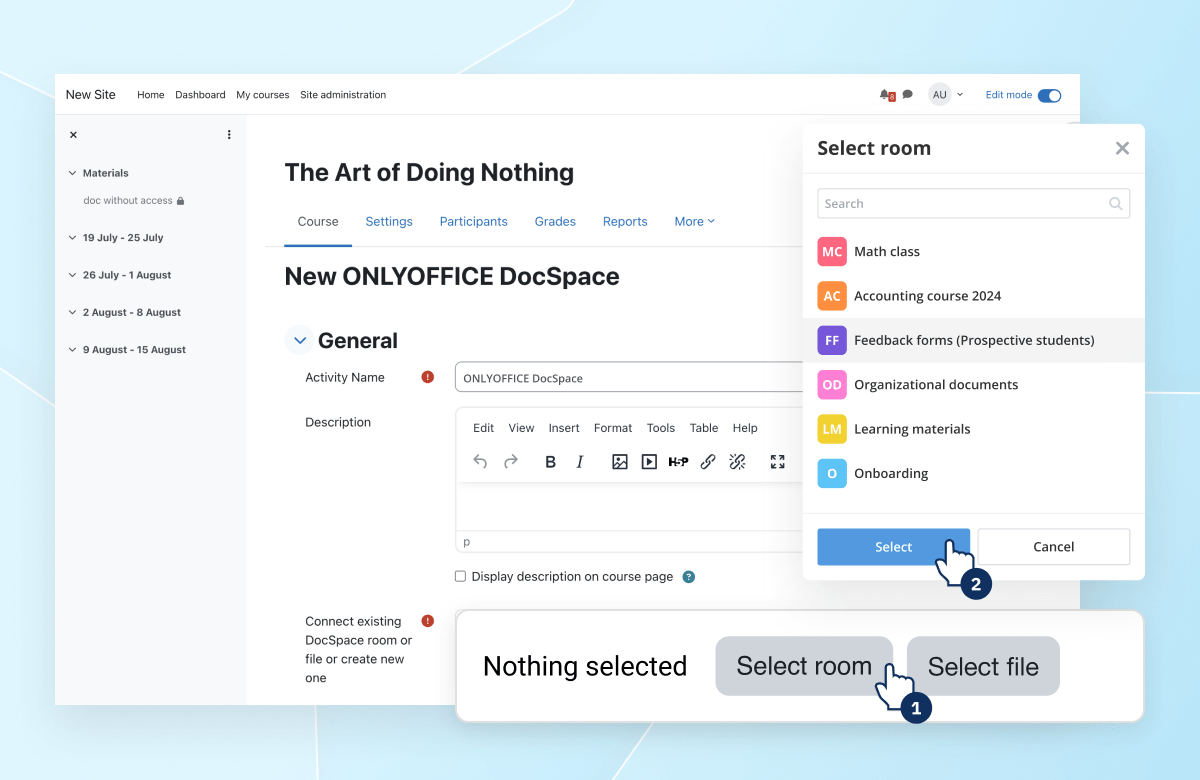
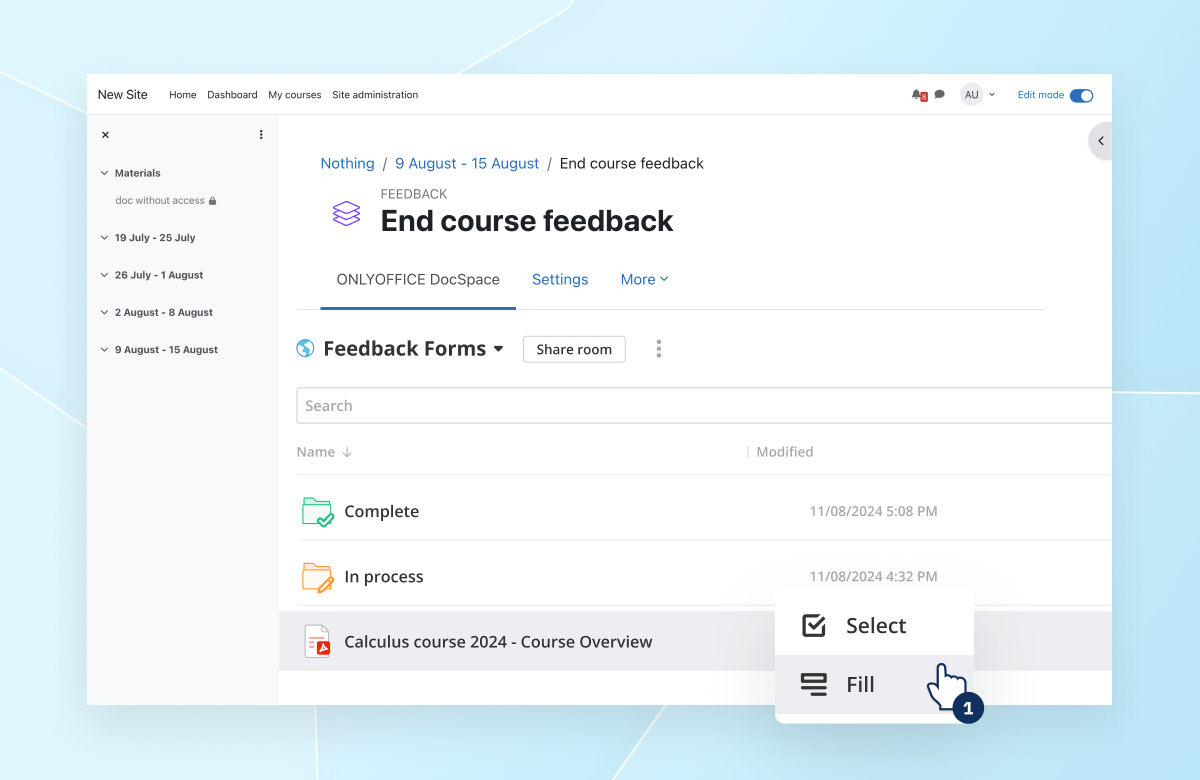
The plugin adds a new type of ONLYOFFICE DocSpace activity when creating a course in Moodle.
