Astor Bizard
Lead maintainer

Version: 1.5 (July 2022)
Author: Astor Bizard
This software is part of the Caseine project.
This software was developped with the support of the following organizations:
- Université Grenoble Alpes
- Institut Polytechnique de Grenoble
The "Random activity" activity type is a module that allows teachers
to randomly split students among other activities within a course.
Typically, suppose we have two versions of an exercise: a Quiz (named
Quiz 1) and an Assignment (named TP 1), along with documentation for
each activity.
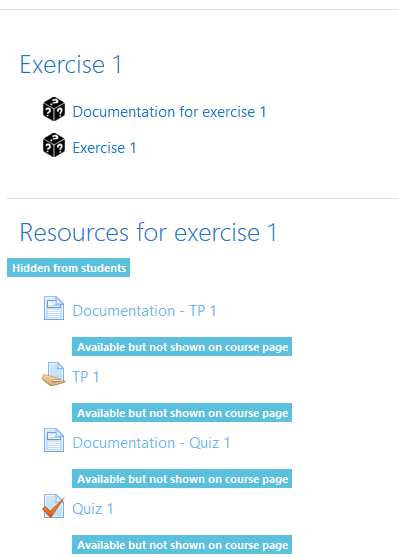
Now suppose we want to split students randomly among these activities.
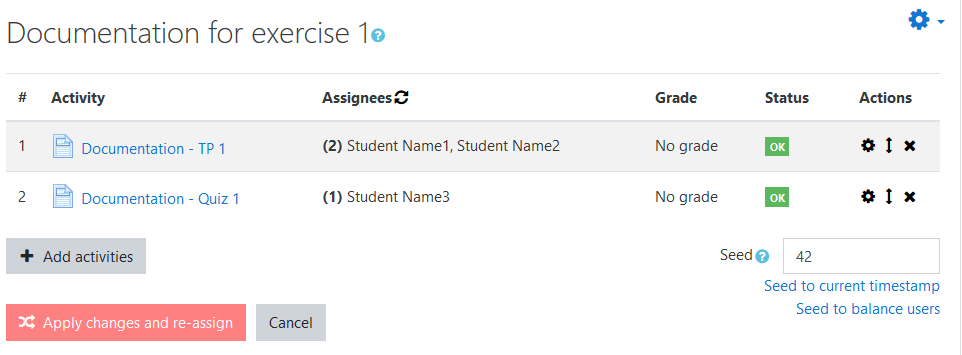
We can come up with this:
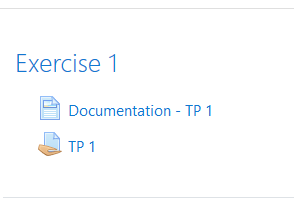
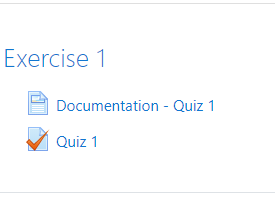
... which will give one of the following results for each student:

You first need to create a pool activities, among which students will be split.
It is recommended to place them in a hidden section of your course, and
make them available (this can be done from the course page, or from the
settings page of each activity in the "Common module settings" section).
This can also be done by using stealth activities (see https://docs.moodle.org/311/en/Stealth_activities). However, please be aware of an issue with stealth activities appearing on the calendar: https://tracker.moodle.org/browse/MDL-73535.
To create a Random activity in your course, simply proceed the same way as other activity types.
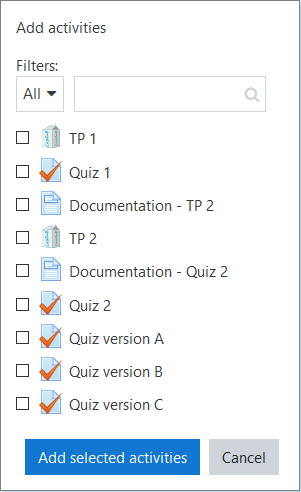
To set up the activities pool for your Random activity, click "Save and
display" at the end of the editing form, as the activities pool is set
up on the view page.
From here, you can view the current activities pool, and edit it by clicking the "Edit" and "Add activities" buttons.

When you are done editing the activities pool, click "Apply changes and re-assign" to apply the changes.
You should then see students enrolled in your course assigned to the activities you added.
Note: Students will not see this page when accessing the Random activity. They will be automatically redirected to the activity they are assigned to.
Notice the "Seed" field on the bottom right of the view page. This is
the seed for the random splitting of students among activities.
This means that a different seed will lead to a different distribution,
and an identical seed will lead to an identical distribution*.
You can thus use an identical seed in several Random activities** to
split students among several pool of activities while preserving
consistency (eg. our example in Introduction: we had one Random activity
"Documentation for exercise 1" and one Random activity "Exercise 1",
both with the same seed to ensure a student will always get the correct
documentation for his exercise).
* This is only true if the activities pool has the same size (an
activities pool of a different size with the same seed will lead to a
different distribution).
** This will only work for Random activities with the same seed and the same number of activities in their pools.
The Random activity acts as a redirection on students side. Please be aware that if you change a seed or the activities pool after students have accessed it may lead to students being assigned to a new activity, thus leading to them losing some of their work / grades.
Random activities support grades. If a Random activity is graded, the
grades are automatically retrieved from the activities the students are
assigned to.
To make a graded assignment with a Random activity, a nice way to proceed is:
- Set up grading methods for every activity in the pool,
- Set up a grading method for the Random activity,
- Head to the gradebook and set the weights for activities in the pool to 0.
That way, only the Random activity grade will be accounted in the
gradebook, and every student will have exactly one grade for the graded
assignment.
Random activities support completion tracking.
You can set automatic completion tracking of Random activities, by selecting "Students must complete their assigned activity".
That way, when a user completes its assigned activity, the Random activity will automatically be set as complete.
These features are not currently supported but will be added in future releases:
- CSV export of student affectation on activities

