Johan Venter
Lead maintainer

mod_selfprofile is a Moodle activity module that helps teachers create reusable self-profile questionnaires for reflective learning. A SelfProfile activity is made up of:
SelfProfile is intended for reflective self-assessment, not for clinical, psychometric, diagnostic, selection, or high-stakes assessment. It is a teacher-authored learning activity that helps learners think about their interests, preferences, aptitudes, strengths, learning habits, ministry fit, leadership style, study readiness, or professional development needs.
Teachers often want learners to reflect on questions such as:
A Moodle quiz can ask questions and give marks, but a reflective self-profile is different. It is less about being right or wrong and more about helping the learner recognise patterns in their own responses.
SelfProfile gives teachers a structured way to build these reflective instruments inside Moodle, while still allowing the instrument to be exported, shared, adapted, and imported again.
SelfProfile can be used for many low-stakes reflective activities, including:
The plugin does not claim to create validated psychological tests. Teachers remain responsible for the quality, wording, fairness, and educational appropriateness of the items they create.
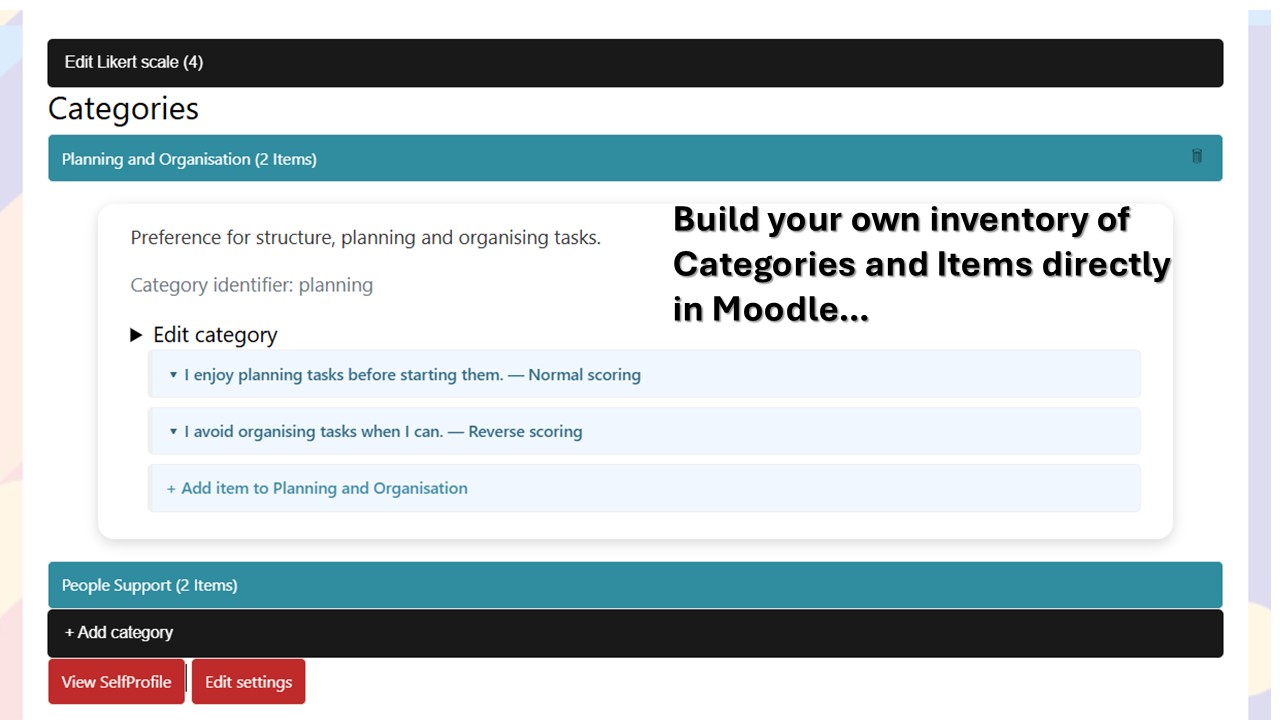
A teacher creates a SelfProfile activity inside a Moodle course.
The teacher can then:
Example category:
Planning and Organisation
Example item:
I enjoy organising people, projects and events.
Example Likert scale:
| Value | Label |
|---|---|
| 0 | Strongly disagree |
| 1 | Disagree |
| 2 | Agree |
| 3 | Strongly agree |
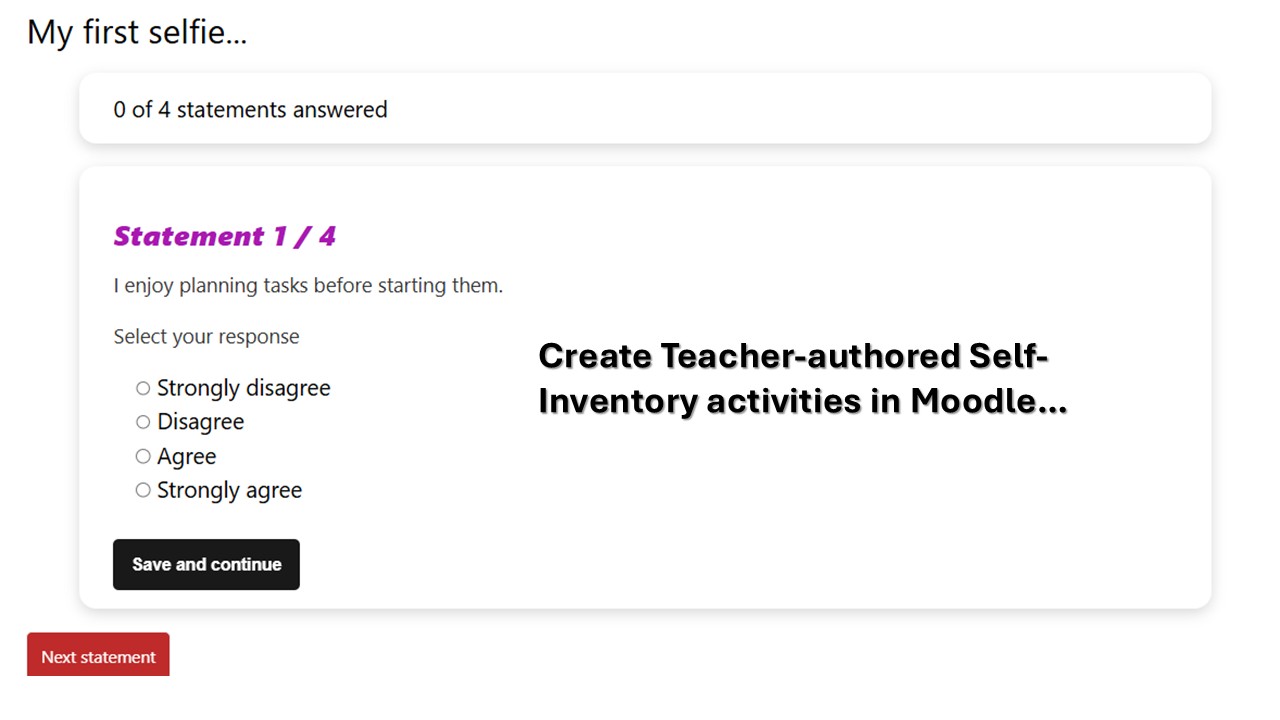
When a student opens the activity, the student sees:
Items are presented in a randomised order drawn from all enabled teacher-created items. The student’s progress is saved as the activity progresses, so the student can leave and return later.
Once all items have been answered, the student submits the completed profile.
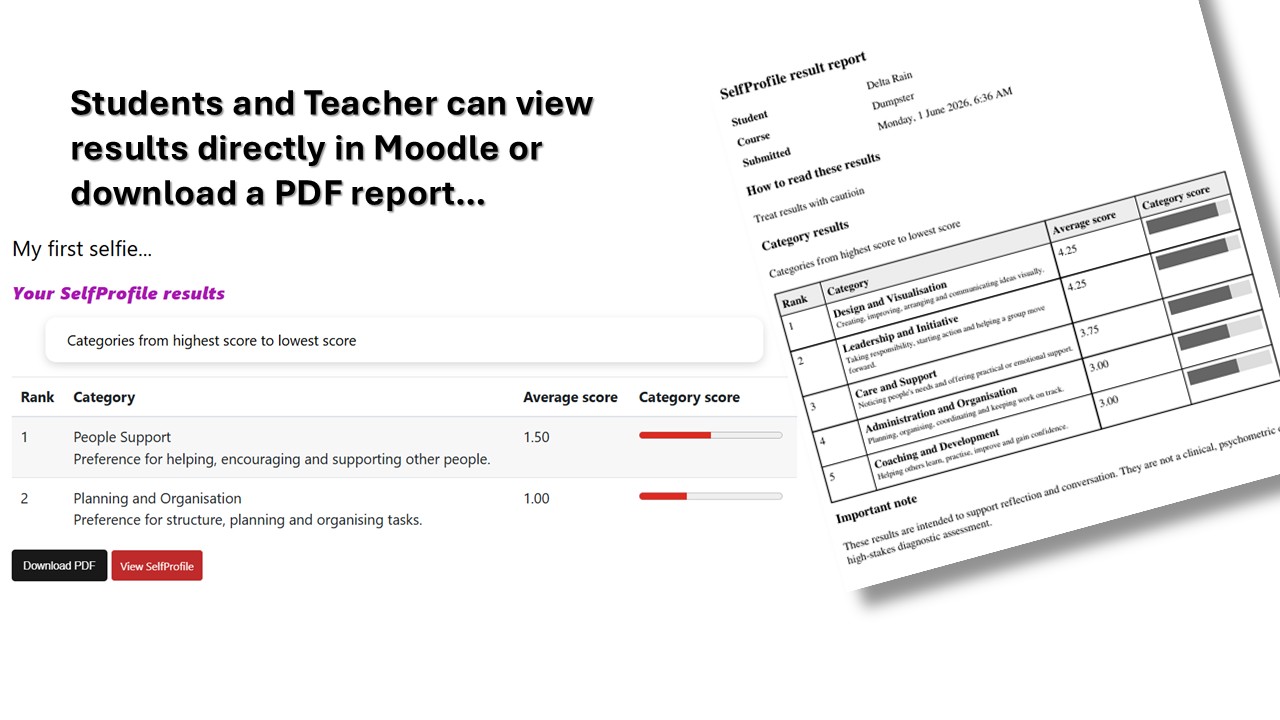
After submission, depending on the teacher’s settings, the student can see a category-based results summary. The summary is intended to support reflection and discussion, not to label or diagnose the student.
Results are calculated per category.
Each category score is based on the student’s responses to the items belonging to that category. Reverse-scored items are adjusted before the category score is calculated.
Example result:
| Rank | Category | Average score |
|---|---|---|
| 1 | Planning and Organisation | 3.45 |
| 2 | Coaching and Development | 3.20 |
| 3 | Design and Visualisation | 2.80 |
The student report ranks categories from highest to lowest. The plugin can also produce a downloadable PDF report.
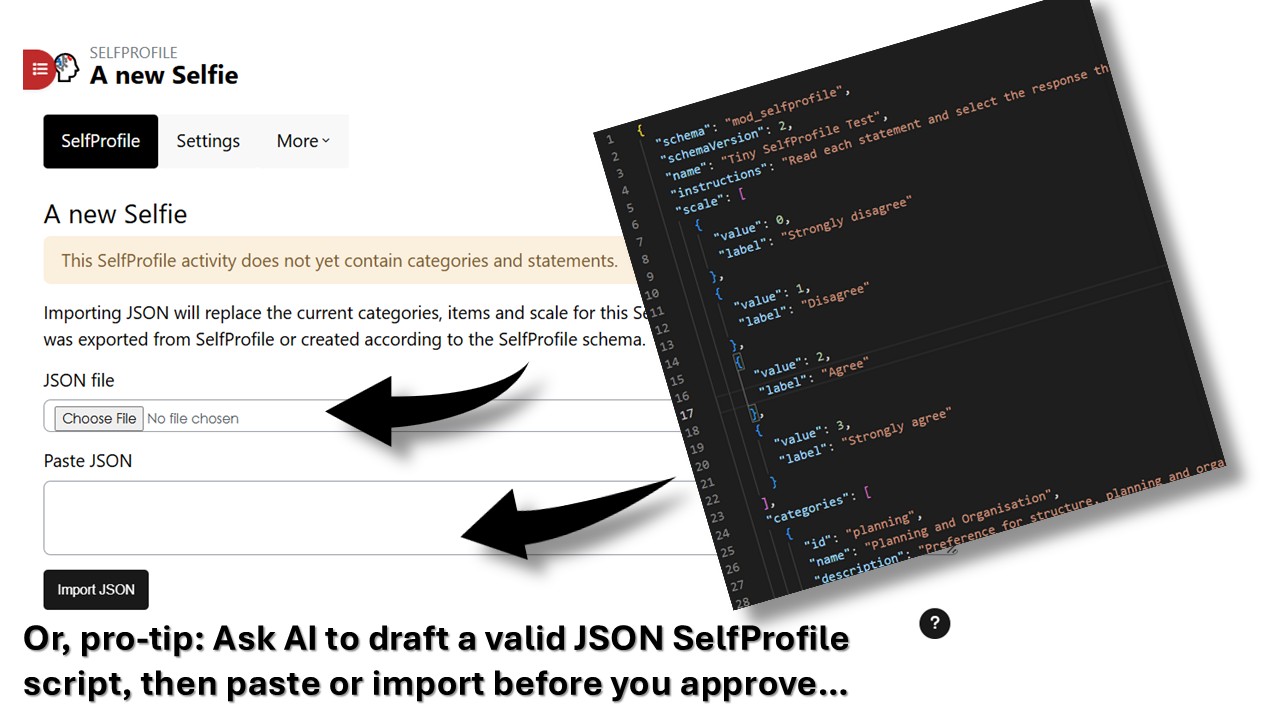
A teacher can export the structure of a SelfProfile activity as a JSON file.
The exported JSON includes:
The exported JSON does not include:
This makes it possible for teachers to share SelfProfile instruments with colleagues in the same way that teachers often share Moodle quiz questions using formats such as Aiken. A colleague can import the JSON, adapt it, and use it in another Moodle course.
SelfProfile becomes especially powerful when a teacher uses a valid JSON example as a pattern for AI-assisted authoring.
For example, a teacher can copy the JSON example below and ask ChatGPT to create a new SelfProfile instrument on a different topic, while keeping the same schema, structure, and field names.
A teacher might ask:
Use the SelfProfile JSON example below as the exact structure. Create a 50-item self-profile for first-year university students on study readiness. Use 5 categories with 10 items per category. Use clear, age-appropriate wording. Include a balanced mixture of normal and reverse-scored items, but avoid confusing double negatives. Return only valid JSON that can be imported into
mod_selfprofile.
This workflow allows teachers to create, review, edit, and share reflective instruments quickly. The teacher should still check every AI-generated item for clarity, fairness, bias, cultural appropriateness, and educational fit before using it with learners.
The following is a valid SelfProfile JSON version 2 example. It can be used as a template for creating new instruments.
{
  "schema": "mod_selfprofile",
  "schemaVersion": 2,
  "name": "Study Readiness SelfProfile",
  "instructions": "Read each item carefully and choose the response that best describes you at this point in your learning journey. There are no right or wrong answers. Use your responses to reflect on your current study habits and possible areas for growth.",
  "resultpreamble": "Your results show the categories where your responses were strongest. These results are intended for reflection and discussion. They are not a diagnosis or a fixed label.",
  "scale": [
    {
      "value": 0,
      "label": "Strongly disagree"
    },
    {
      "value": 1,
      "label": "Disagree"
    },
    {
      "value": 2,
      "label": "Agree"
    },
    {
      "value": 3,
      "label": "Strongly agree"
    }
  ],
  "categories": [
    {
      "id": "planning",
      "name": "Planning",
      "description": "How well you prepare, organise tasks, and manage your learning time.",
      "statements": [
        {
          "id": "planning_1",
          "text": "I plan my study tasks before I start working.",
          "scoringdirection": "normal"
        },
        {
          "id": "planning_2",
          "text": "I often begin studying without knowing what I need to finish.",
          "scoringdirection": "reverse"
        },
        {
          "id": "planning_3",
          "text": "I break large assignments into smaller steps.",
          "scoringdirection": "normal"
        }
      ]
    },
    {
      "id": "focus",
      "name": "Focus",
      "description": "How well you manage attention and distractions while learning.",
      "statements": [
        {
          "id": "focus_1",
          "text": "I can usually stay focused during a study session.",
          "scoringdirection": "normal"
        },
        {
          "id": "focus_2",
          "text": "Small distractions often pull me away from my work.",
          "scoringdirection": "reverse"
        },
        {
          "id": "focus_3",
          "text": "I choose study spaces that help me concentrate.",
          "scoringdirection": "normal"
        }
      ]
    },
    {
      "id": "helpseeking",
      "name": "Help seeking",
      "description": "How willing you are to ask for help, feedback, or clarification.",
      "statements": [
        {
          "id": "helpseeking_1",
          "text": "I ask questions when I do not understand something.",
          "scoringdirection": "normal"
        },
        {
          "id": "helpseeking_2",
          "text": "I avoid asking for help even when I am stuck.",
          "scoringdirection": "reverse"
        },
        {
          "id": "helpseeking_3",
          "text": "I use feedback to improve my next piece of work.",
          "scoringdirection": "normal"
        }
      ]
    }
  ],
  "metadata": {
    "exportedFrom": "mod_selfprofile",
    "exportedAt": "2026-06-02T00:00:00+00:00",
    "containsStudentData": false
  }
}
Teachers can adapt the prompt below.
Use the SelfProfile JSON version 2 example as the exact structure.

Create a SelfProfile instrument on this topic:
[INSERT TOPIC]

Audience:
[INSERT LEARNER GROUP]

Create:
- [NUMBER] categories
- [NUMBER] items per category
- a clear category id for each category
- a clear item id for each item
- concise item wording
- normal and reverse-scored items where appropriate
- no double negatives
- no clinical, diagnostic, or high-stakes claims

Keep:
- "schema": "mod_selfprofile"
- "schemaVersion": 2
- the same JSON field names
- the same scale format
- the same category and item structure
- "containsStudentData": false

Return only valid JSON. Do not include markdown fences, explanation, or commentary.
When writing SelfProfile items:
Better:
I organise my study materials before I begin.
Riskier:
I am not the kind of person who does not plan badly.
The second example is confusing because it uses negative wording in a way that may distort responses.
selfprofile folder into the Moodle mod directory.The plugin includes Moodle database install/upgrade support and activity backup/restore support.
When an activity is backed up and restored, the teacher-authored SelfProfile structure is included. Student data handling follows Moodle backup and privacy rules.
