Course Manager report is intended for teachers as a tool for managing their courses. Based on native functions as well as other functions specifically developed for this report, its main goal is to raise awarness among teachers of what they store in their courses, if their courses are alive or not… and encourage them to clean Moodle by :
- opening functions which don’t go against system permissions (such a trash category) ;
- giving shortcuts function to clean course (reports, bulk uneroll cohorts, simple reinit) ;
- offering visualization tools to encourage to clean courses.
How does it work ?
Every night, an automatic task will calculate a serial of reports concerning courses storings and courses log actvity. Those reports are shown to teachers in a dashboard, and can be added in each course if chosen.
There are 6 reports :
• Heavy courses : fix a limit for what will be considered as heavy (in Mo)
• Empty courses : courses with only native forum
• No students : courses wihtout any students enrolled
• No visits : courses with no visits of students, but of teachers too !
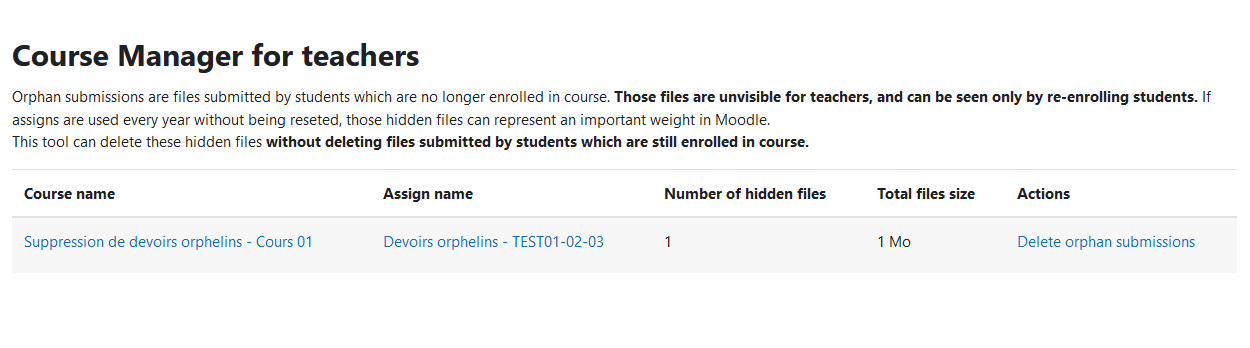
• Orphan submissions : warns teachers if some assigns contain submissions from unenrolled students.
The total weight of course files will also be calculated.
How are displayed reports ?
Teachers can become acquainted with these reports :
- By seeing them in the Course manager Teacher Dashboard ;
- By seeing them directly in courses (if enabled by admin) ;
- By receiving every month a mailing recapitulating courses concerned by reports (if enabled by admin).
What is the Course Manager Teacher Dashboard ?
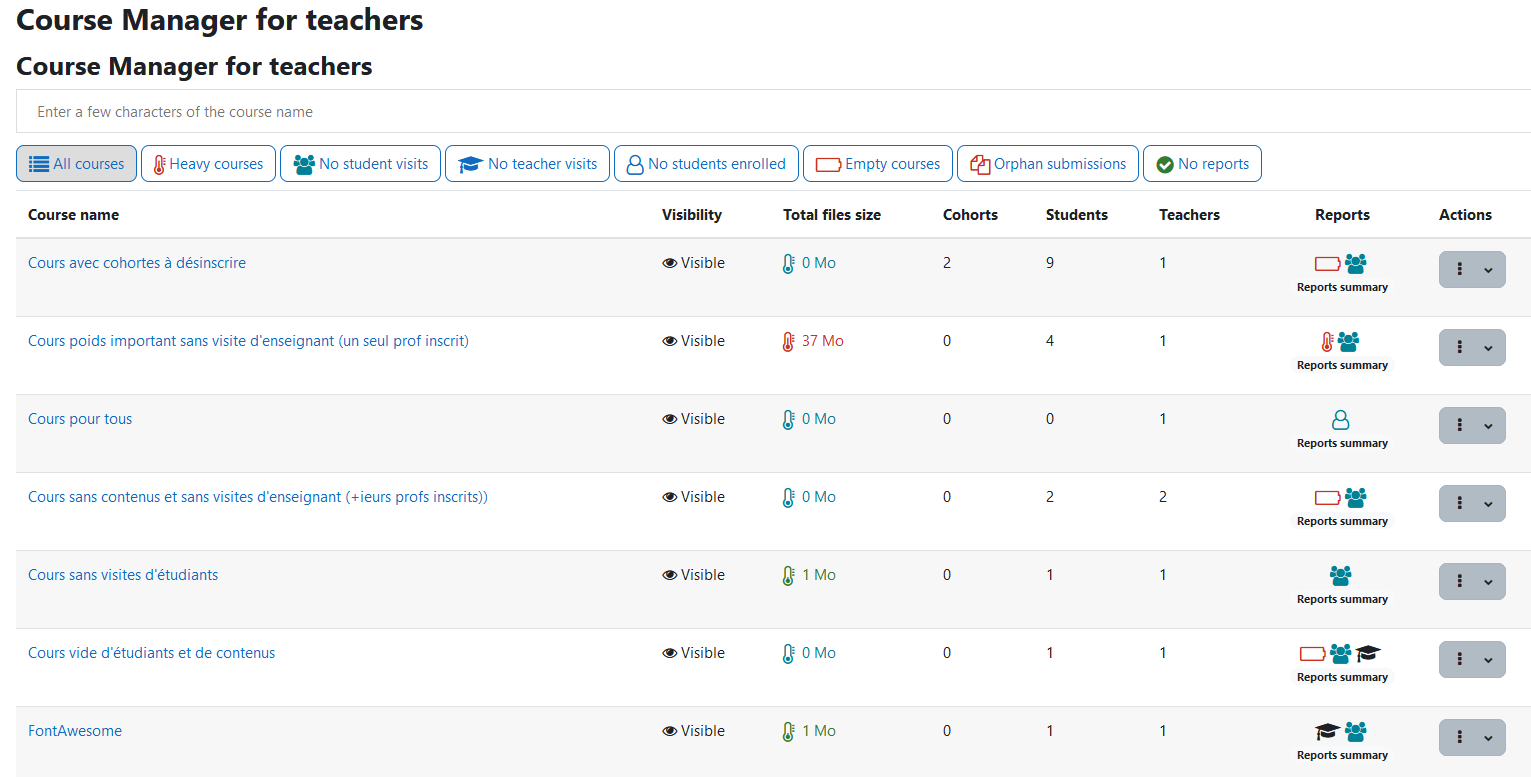
This tool offers a view of every course a user is enrolled in as teacher (or any other role defined in settings). Each course display informations (visible course, files weight, number of studens and teachers enrolled…), reports list, and offers tools such as shortcuts for :
- Moving a course in a trash category ;
- Seeing files weight in course and most heavy activities ;
- Resetting course with a simplified tool ;
- Unenrolling cohorts.
The dashboard can easily be filtered for each reports, and a search tool can help to find courses.
Are there tools for Moodle admin ?
The plugin is completed with special tools for admins in Site admin > Report section :
- Filearea report : calculates files weight according to their file area, that can help to detect problems.
- Orphan submissions : this report offers possibility to clean assigns from submissions uploaded by enrolled students in a course which is not reinitialized. Those files can represent a very heavy weight !
- Courses without teachers : this report lists all courses without teachers, and offers a tool to move them in trash category.
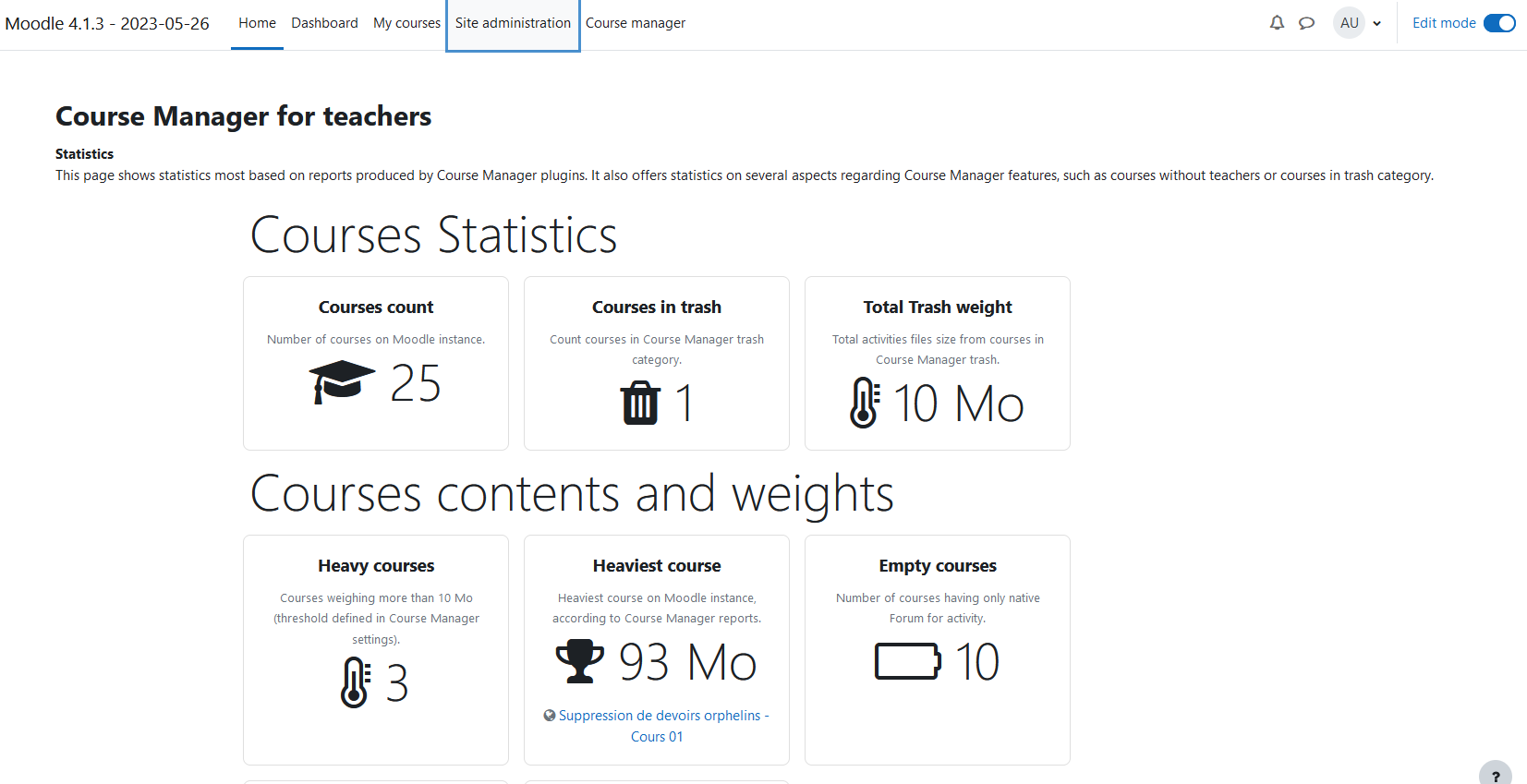
- Stats pages : this page will display statistics about your Moodle instance, based on reports calculted by this plugin.
How to give access to teacher dashbord ?
If you want to give access to dashboard, you must add in navigation, in a block or any other way a direct link to this tool :
/report/coursemanager/view.php file.
Suggestion : simply use the custom menu items setting in Admin > Appearance > Theme settings to add an element in main navigation.
This plugin can also give a direct access to dashboard by adding an icon next to profile icon if enabled in settings.
Reports displayed in course and templates
Reports displayed in course can be added in two ways :
- By displaying a serial of icons next to course title ;
- By adding a collapsed button right under course navigation.
They can also be hidden if necessary.
Those two ways has been tested with several Moodle templates such as Almond, Boost, Boost Union, Classic, Moove and Trema.
Other templates has been tested too, with several behaviors :
- Themes Academi, Degrade, Eguru and Klass : the icon display mode works, showing a small gap for icons
- Theme Adaptable : icon display mode doesn’t work, because targetted zone doesn’t exist in this template.
Settings for admin
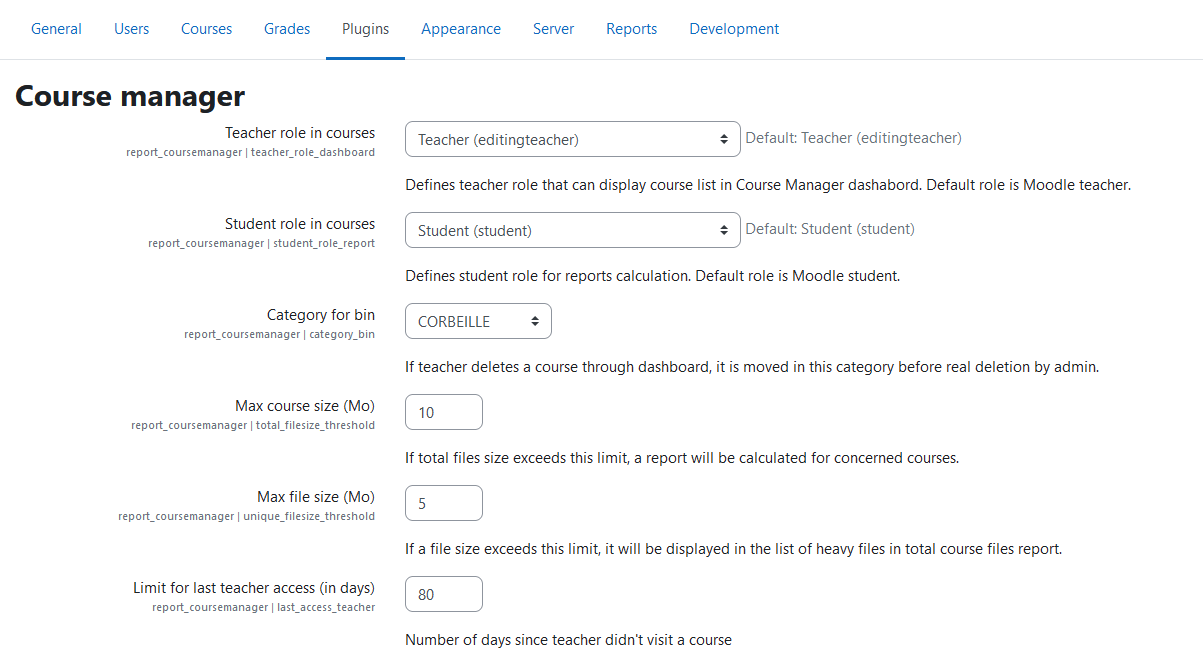
This plugin offers possibility to set every threshold that will trigger a report :
- Limit weight for a file or course ;
- Roles concerned (teacher and student)
- Number of days without visit for teachers and students
You can also set settings for :
- Defining trash category ;
- Activating or not reports mailing ;
- Modifying mail content ;
- Selecting the way reports are displayed in courses (next to course title, under course title or none).
All comments are welcome to help improve this plugin. Please use GitHub issues for improvements, bug or others ideas.
Steps for making Course Manager work
- Install plugin in report directory (see below for more information)
- Create a category called "Trash" or another name : this category will be used to move and store all courses that teachers want to delete.
- Defined all settings in plugin settings page. You must define thresholds for course weight, file weight, number of days without visits for teacher and for students. Without these, Course Manager won't be able to calculate reports. Enable reports you want to display or not.
- Add a link to teacher dashboard (see "How to give access to teacher dashbord ?" section above) or enable icon in navbar.
- If you can, manually run scheduled tasks (\report_coursemanager\task\...) in admin to generate course reports. If you can't, task are automatically trigerred during the night. Then, reports can be displayed in teacher dashboard and/or directly in courses if enabled.