Kelson da Costa Medeiros
Lead maintainer

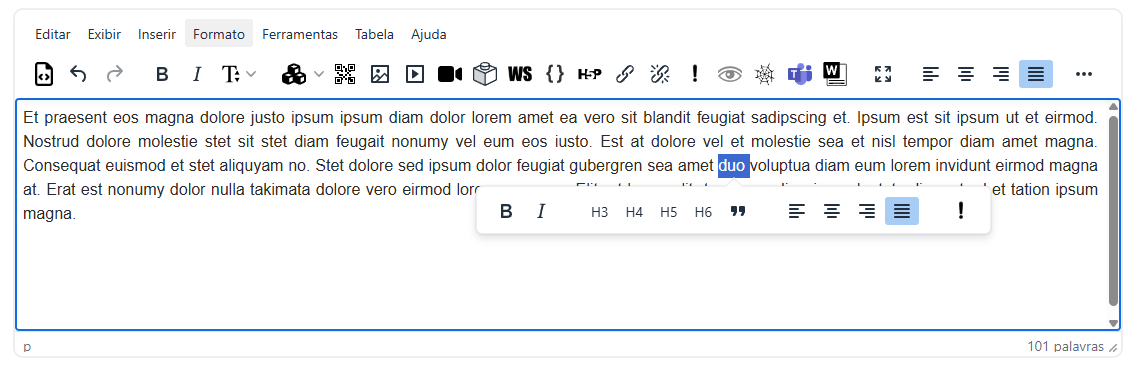
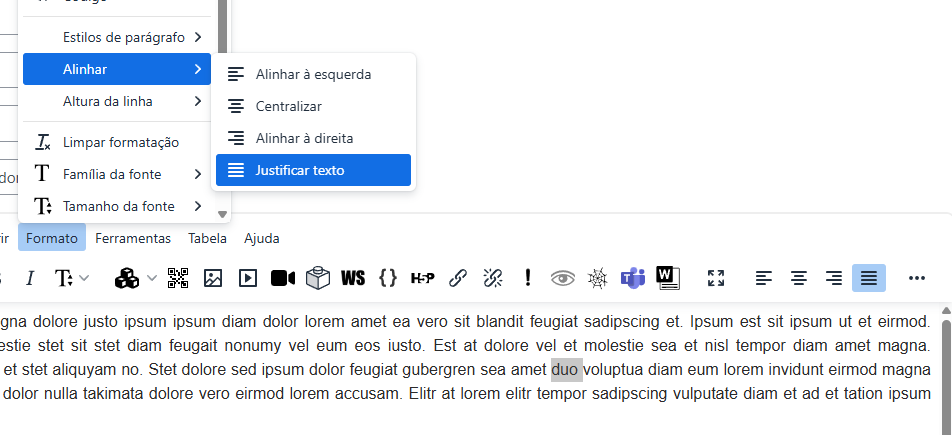
Adds a Justify button to the TinyMCE editor toolbar, enabling full text justification in all Moodle content areas — a feature removed from TinyMCE by default.
When Moodle adopted TinyMCE as its default text editor, the familiar Justify alignment option was no longer included. Tiny Justify brings it back — adding a dedicated toolbar button, a menu entry, and quick-toolbar support so that teachers and content creators can justify text just like they would in a word processor.
No configuration is needed by teachers. Once the plugin is installed by an administrator, the Justify button is immediately available everywhere the TinyMCE editor appears.
After the plugin is installed, you will notice a new Justify icon (☰ four equal-length horizontal lines) in the TinyMCE toolbar, right next to the existing alignment buttons (left, centre, right).
How to justify text:
Alternative ways to justify:
No special permissions or extra steps are required — if you can edit content in Moodle, you can use Justify.
Installation:
The plugin installs itself under lib/editor/tiny/plugins/justify.
Requirements:
Configuration:
No additional configuration is required. Once installed, the Justify button is automatically added to:
The plugin works for all users who have access to the TinyMCE editor — there are no capability or role restrictions to configure.
Privacy:
This plugin does not store, collect, or transmit any personal data.
Languages included:

