
Accredible Certificates and Badges
Versions
Current version
v2.5.0 (2026061600)
v2.5.0
Plugin type: Activities
Frankenstyle component name: mod_accredible
Version build number: 2026061600
Version release name: v2.5.0
Maturity: Stable
Supported Moodle versions: 2.7, 2.8, 2.9, 3.0, 3.1, 3.10, 3.11, 3.2, 3.3, 3.4, 3.5, 3.6, 3.7, 3.8, 3.9, 4.0, 4.1, 4.2, 4.3, 4.4, 4.5, 5.0, 5.1
Repository URL (Git): https://github.com/accredible/moodle-mod_accredible
Repository branch:
Repository tag: v2.5.0
Issue/bug tracker URL: https://github.com/accredible/moodle-mod_accredible/issues

Accredible Moodle Activity Plugin
Overview
The Accredible platform enables organizations to create, manage and distribute digital credentials as digital certificates or open badges.
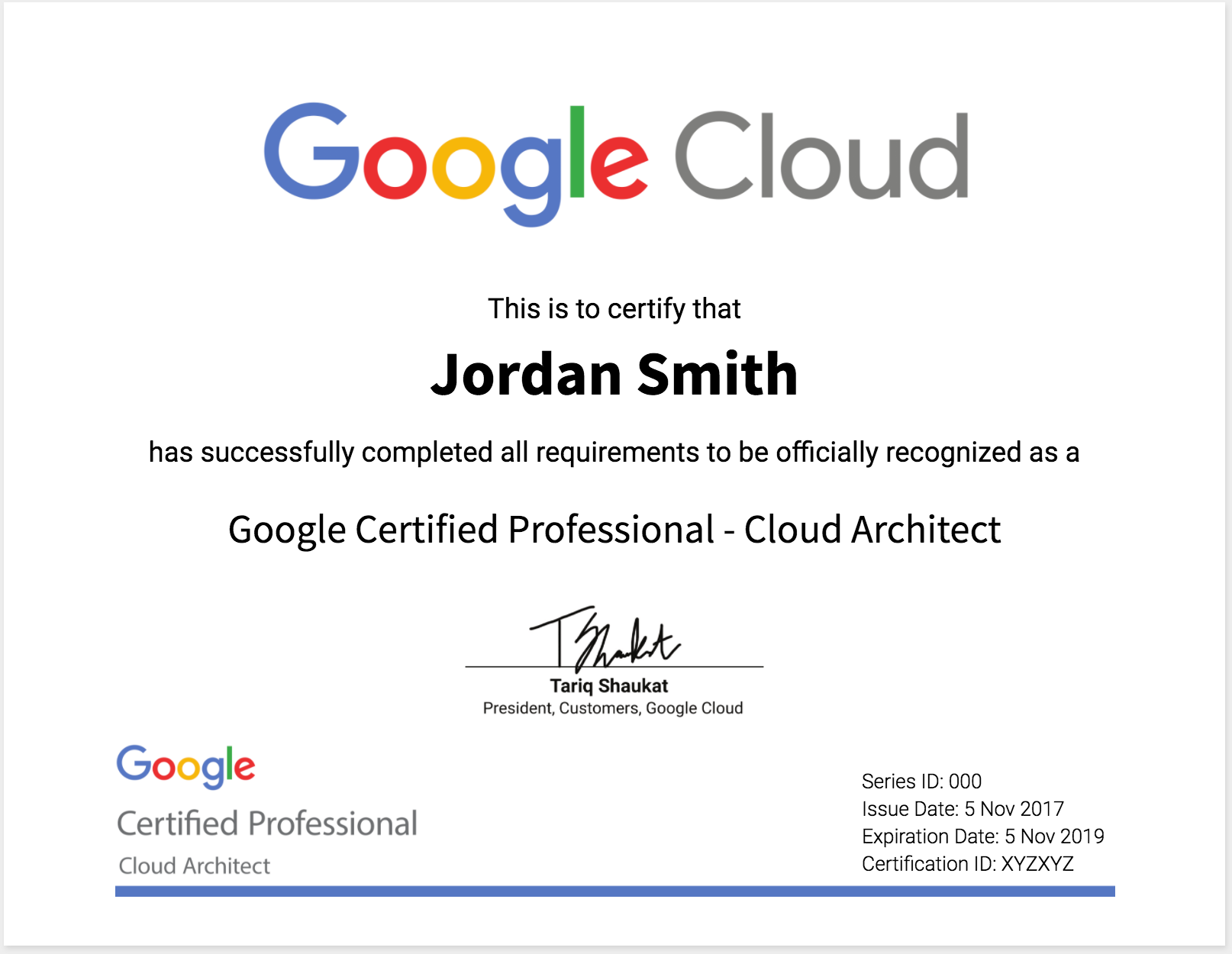
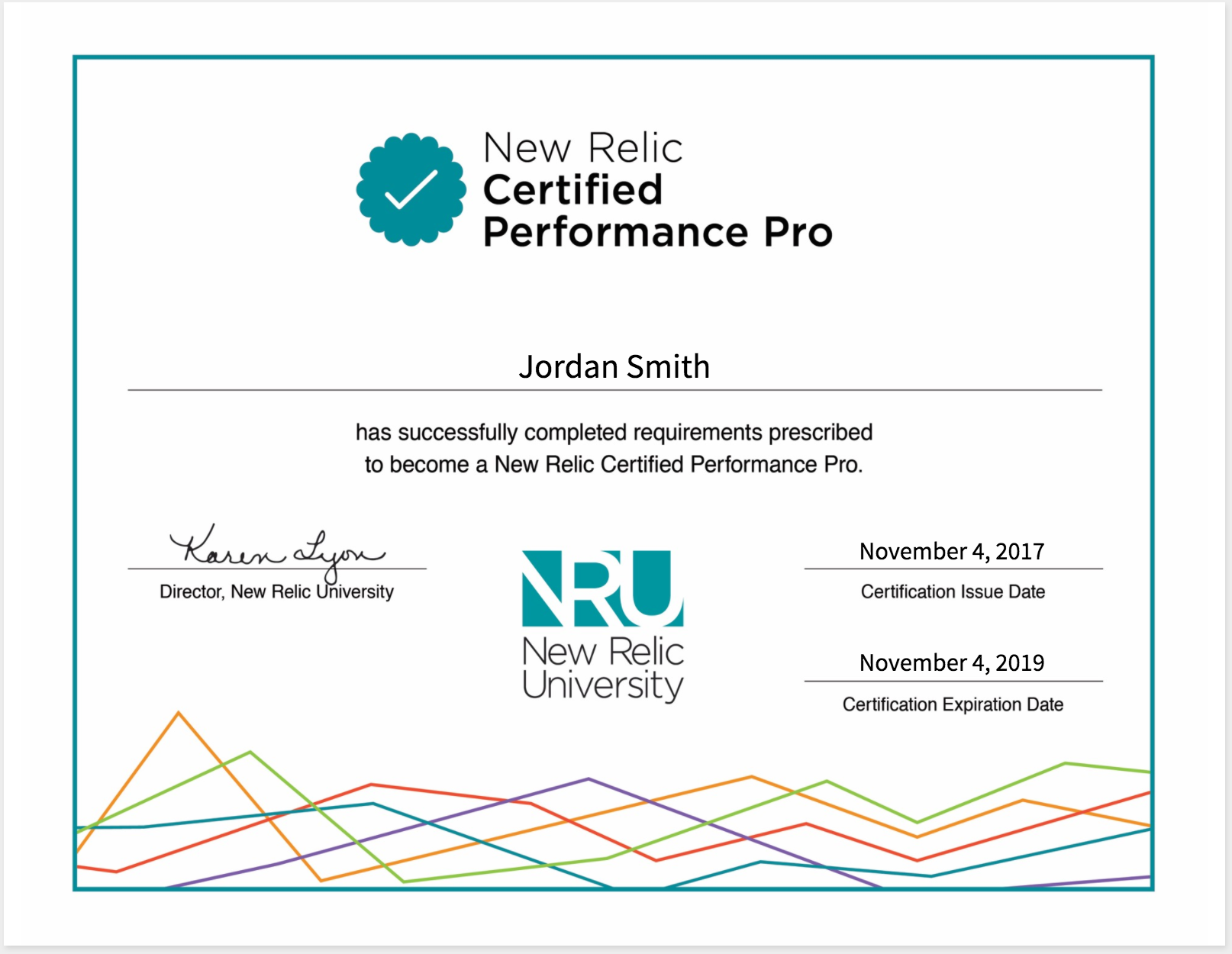
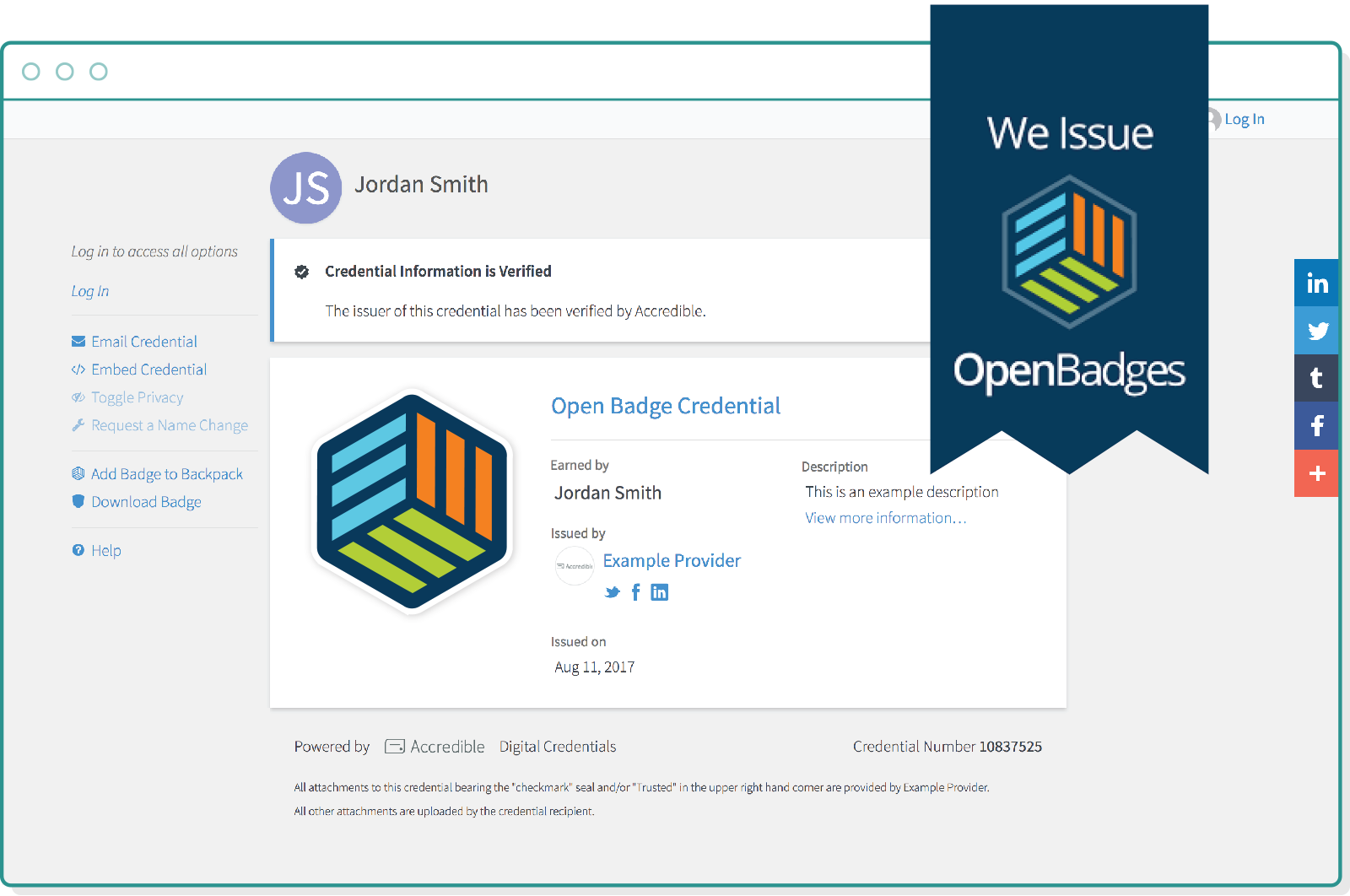
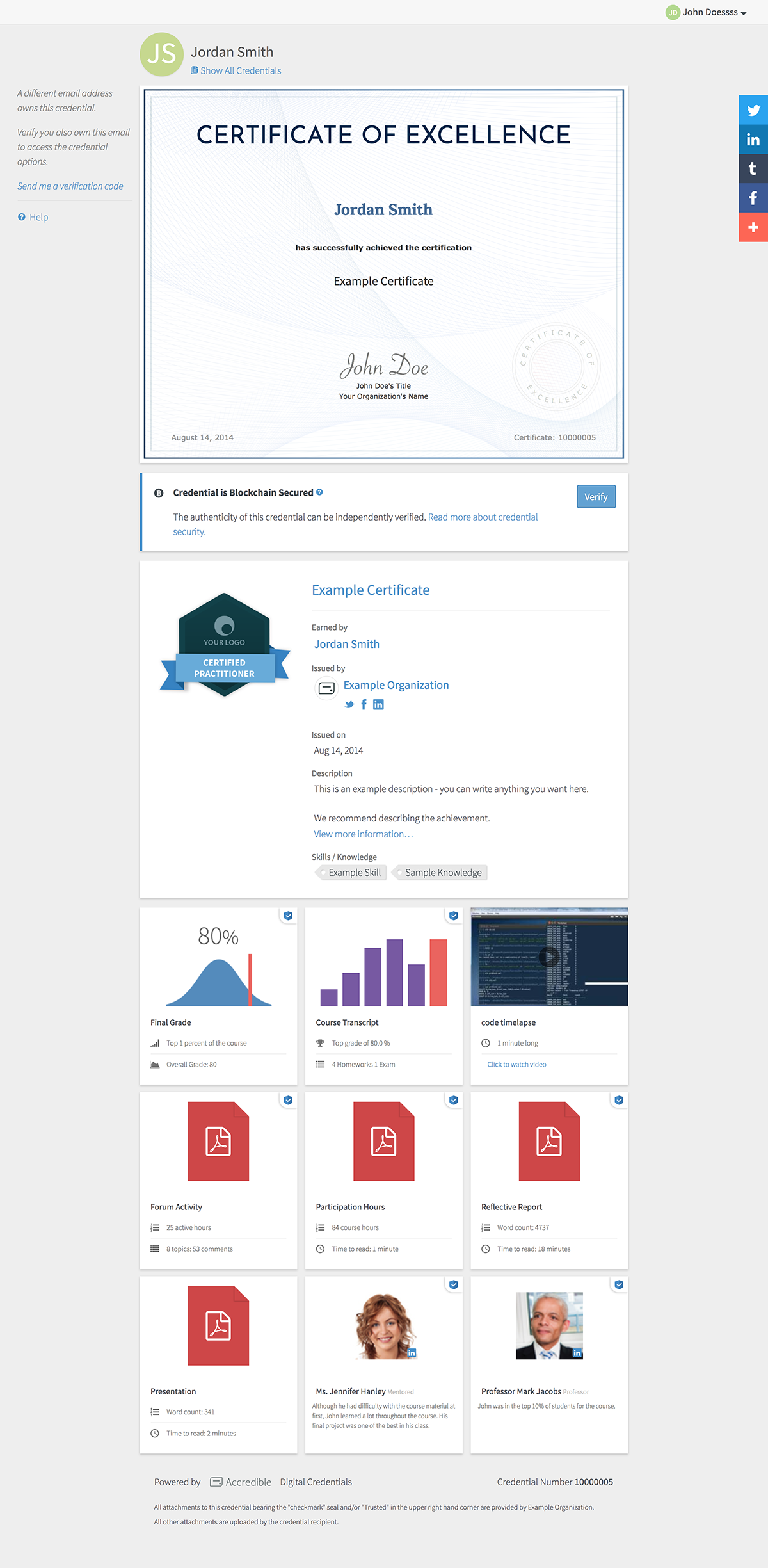
An example digital certificate and badge can be viewed here: https://www.credential.net/10000005
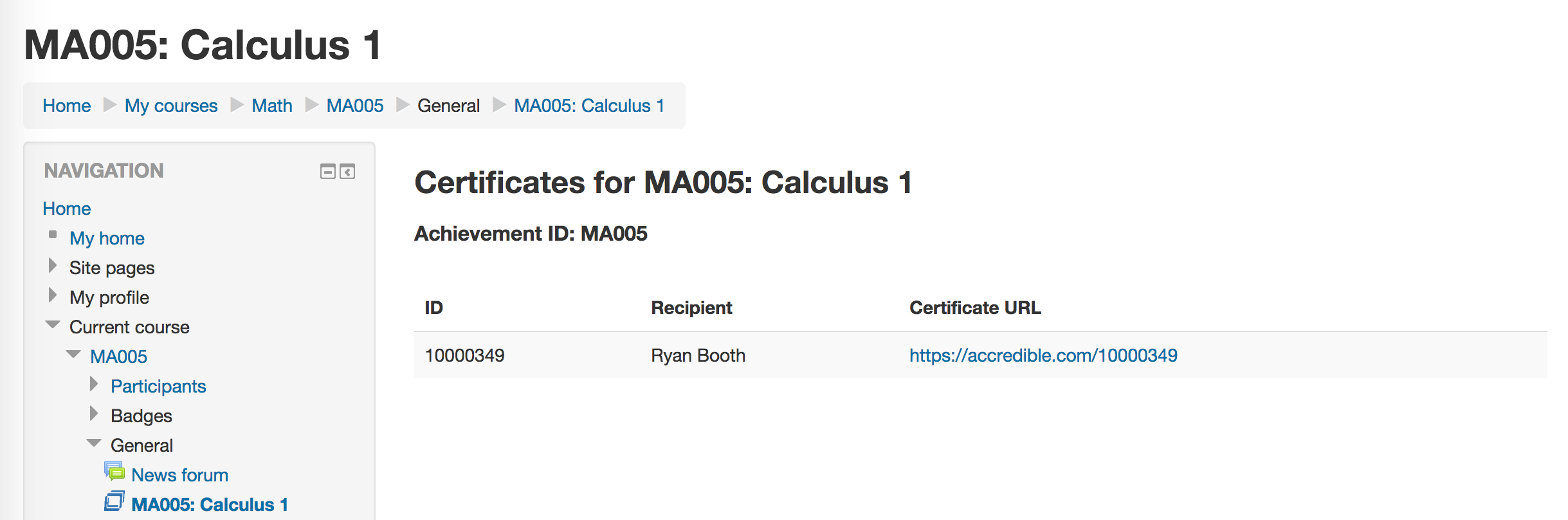
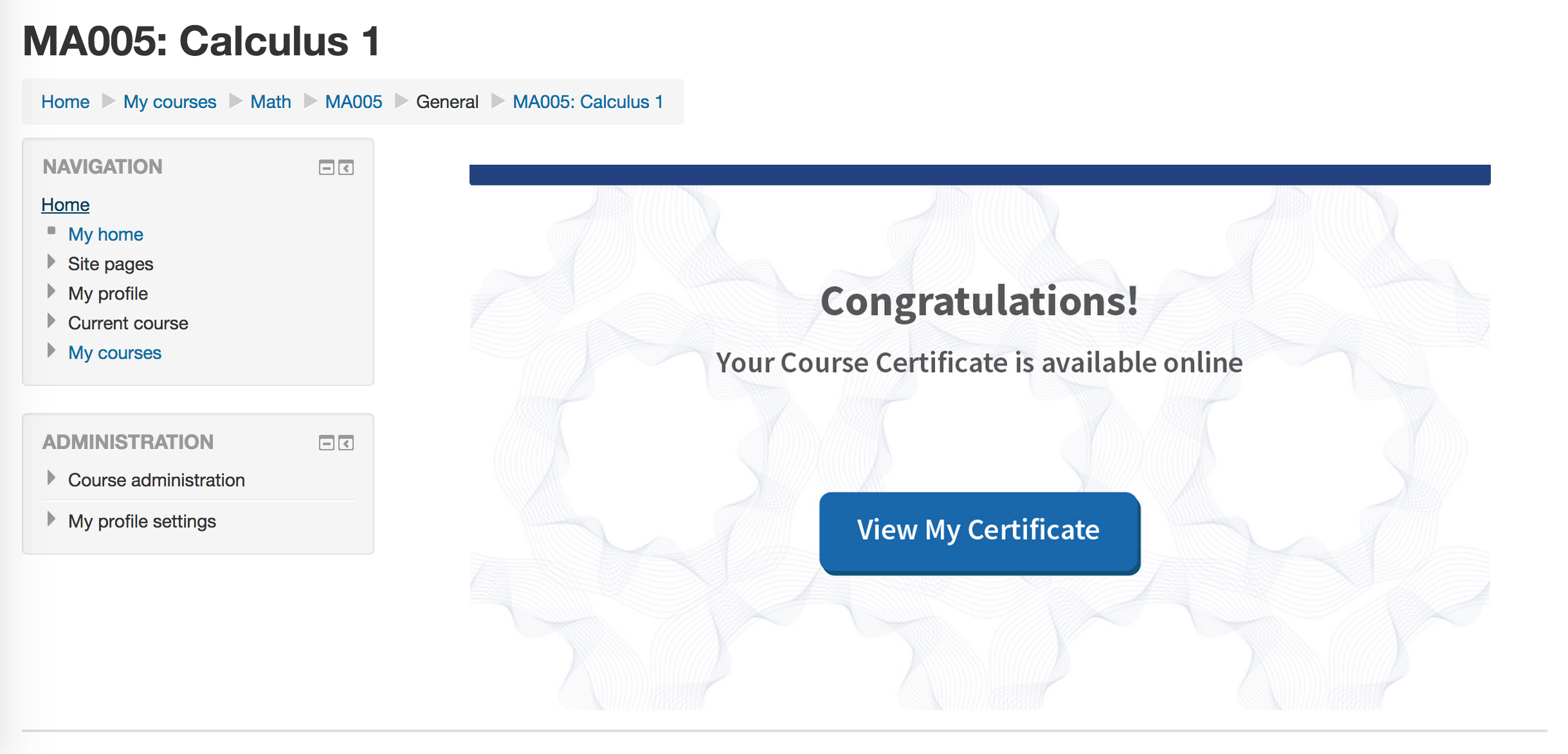
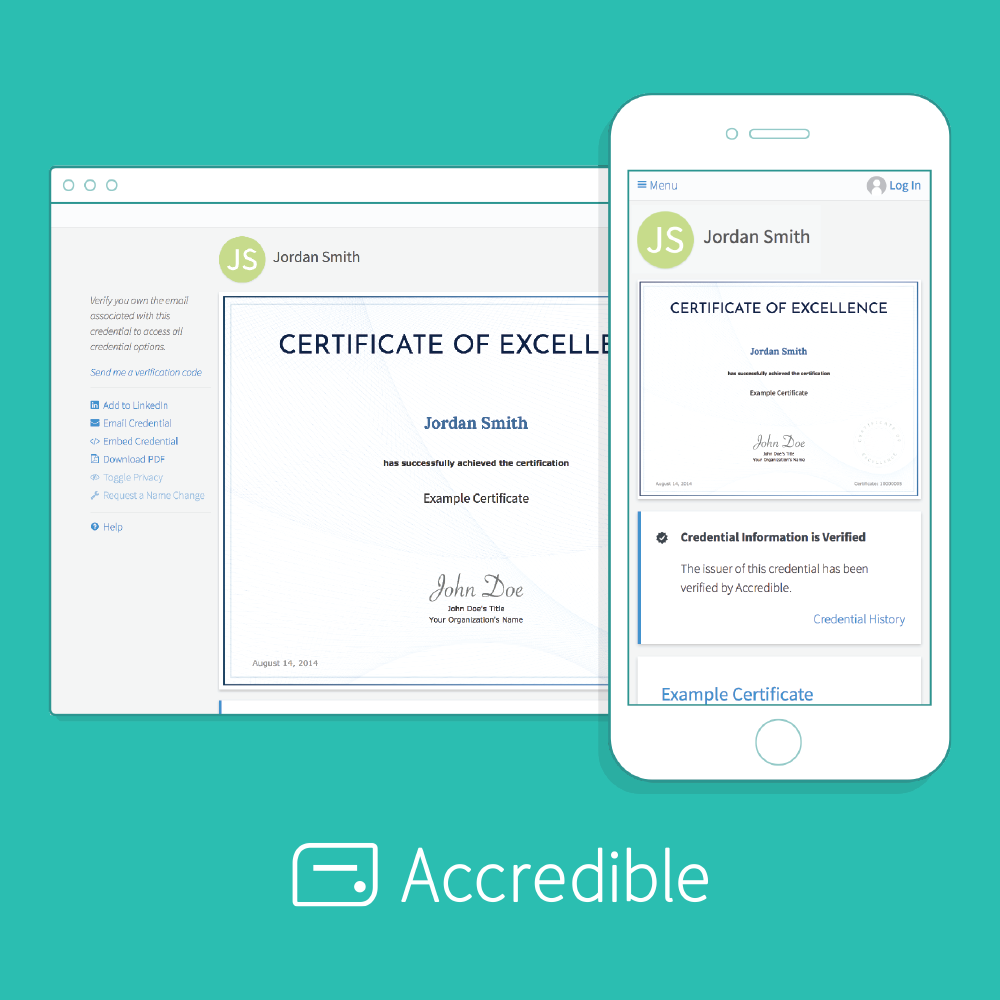
This plugin enables you to issue dynamic, digital certificates or open badges on your Moodle instance. They act as a replacement for the PDF certificates normally generated for your courses.
Here's a video showing a tutorial on how to install and start using the plugin:
Example Output


Compatability
This plugin has been tested and is working on Moodle 2.7+ and Moodle 3.1+.
Plugin Installation
There are two installation methods that are available. Follow one of these, then log into your Moodle site as an administrator and visit the notifications page to complete the install.
Git
If you have git installed, simply visit the Moodle /mod directory and clone this repo:
git clone https://github.com/accredible/moodle-mod_accredible.git accredible
Download the zip
- Visit https://github.com/accredible/moodle-mod_accredible and download the zip.
- Extract the zip file's contents and rename it 'accredible'. You have to rename it for the plugin to work.
- Place the folder in your /mod folder, inside your Moodle directory.
Get your API key
Make sure you have your API key from Accredible. It's available from the settings page on our dashboard: https://dashboard.accredible.com.
Continue Moodle set up
Start by installing the new plugin (go to Site Administration > Notifications if your Moodle doesn't ask you to install automatically).

After clicking 'Upgrade Moodle database now', this is when you'll enter your API key from Accredible.

Creating a Certificate or Badge
Add an Activity
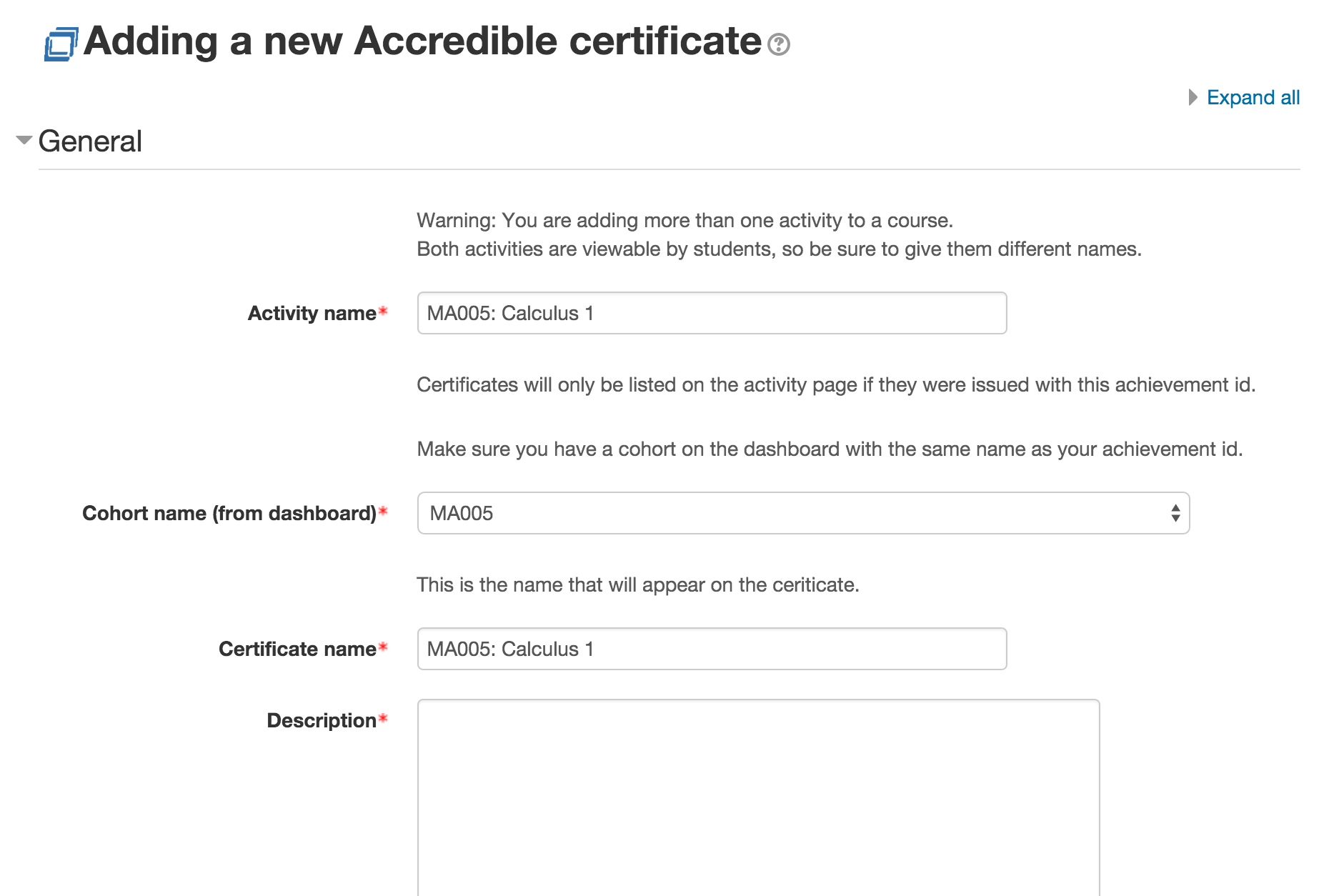
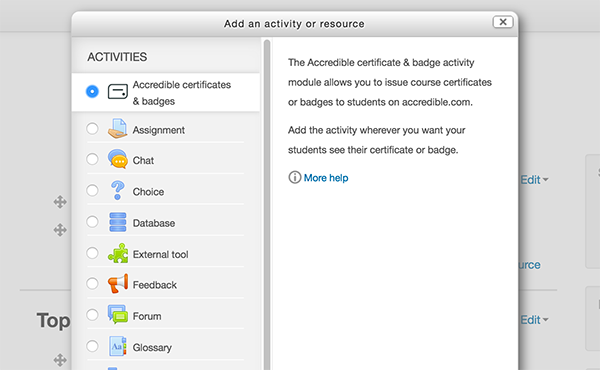
Go to the course you want to issue certificates or badges for and add an Accredible activity. First select add activity:

then select Accredible:

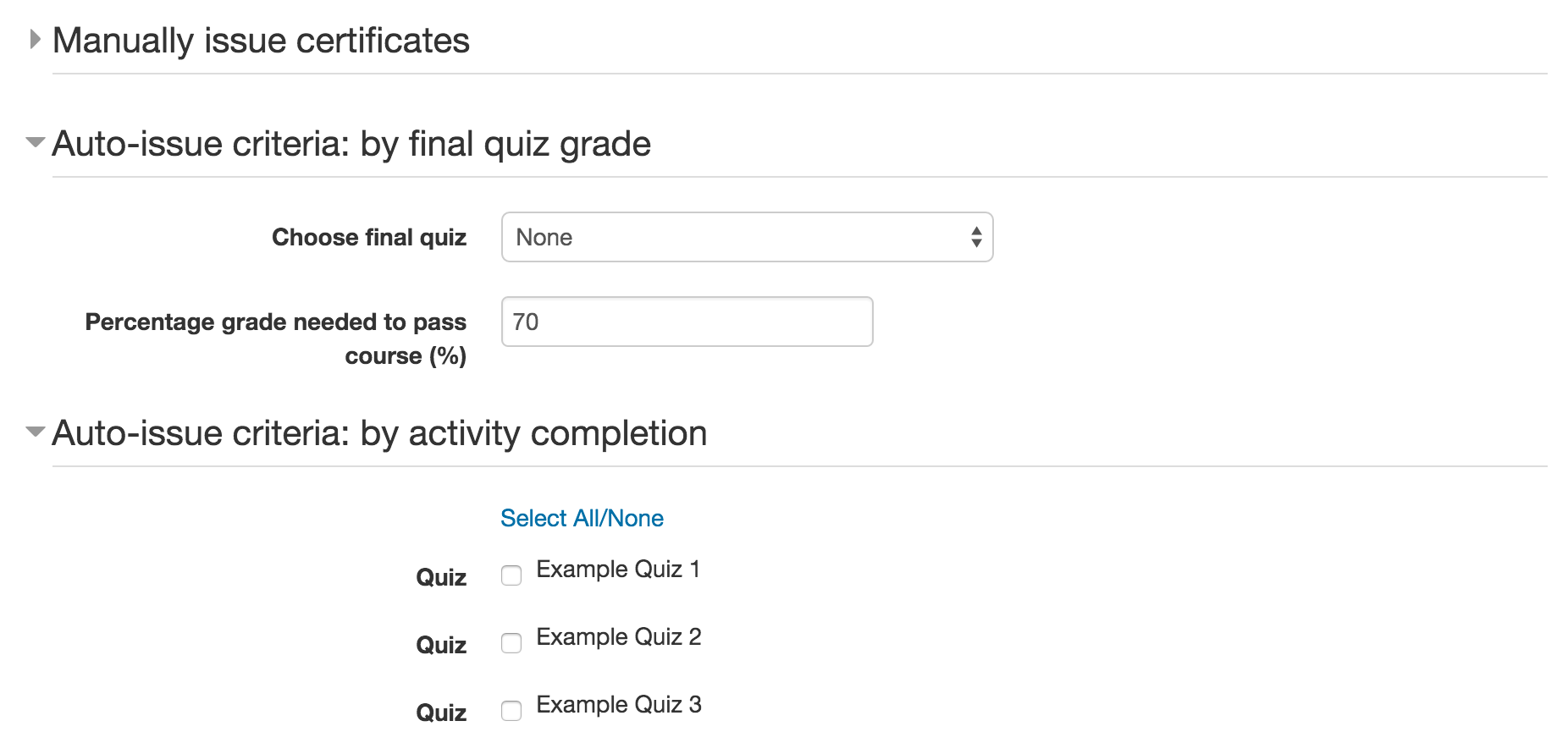
Issuing a certificate or badge is easy - choose from 3 issuing options:
- Pick student names and manually issue credentials. Only students that don't already have a credential will show a checkbox.
- Choose the Quiz Activity that represents the final exam, and set a minimum grade requirement. Certificates/Badges will get issued as soon as the student receives a grade above the threshold.
- Choose for a student to receive their certificate/badge when they complete the course if you've setup completion tracking.

Note: if you set both types of auto-issue criteria, completing either will issue a certificate/badge.
Note: Make sure you don't allow students to set their completion of the Accredible activity or they'll be able to issue their own certificates/badges.
Once you've added the activity to your course we'll auto-create a Group on your Accredible account where these credentials will belong. You'll see this on your dashboard.

Then select a certificate design and or badge design to be able to send out credentails in this group.

From now on new certificates and badges will be automatically sent to recipients based upon the criteria you chose.
You are able to add, edit and remove your badges and certificates at any time through the platform.
Contact us at support@accredible.com if you have issues or ideas on how we can make this integration better.
Bug reports
If you discover any bugs, feel free to create an issue on GitHub. Please add as much information as possible to help us fixing the possible bug. We also encourage you to help even more by forking and sending us a pull request.
https://github.com/accredible/acms-php-api/issues
FAQs
Why is nothing showing up? I can't see a certificate.
A certificate isn't created until you've either manually created one or had a student go through the criteria you set on the activity. For example if you select some required activities then a certificate won't be created until an enrolled student has completed them. Completing an activity or quiz as a course admin won't create a certificate.
Development Information
Development setup
Prerequisites
Step 1: Initial installation
Run docker-compose.yml without any plugins for the first time to successfully complete initial installation.
docker-compose up -d
If the initial installation is successfully completed, ==> ** Moodle setup finished! ** will be displayed in the docker log and you will be able to access the moodle instance at http://127.0.0.1:8080.
After the installation, you can stop the containers to re-run them with the Accredible plugin.
docker-compose down
Step 2: Run Moodle with the Accredible plugin
Run the Moodle instance with the Accredible plugin in your local repo.
docker-compose -f docker-compose.yml -f docker-compose.plugin.yml up -d
If you are using your Accredible account in the production, you need to set an empty value in ACCREDIBLE_DEV_API_ENDPOINT in docker-compose.plugin.yml. Otherwise, http://127.0.0.1:3000/v1/ is used for the API calls.
/opt/bitnami/moodle/config.php: No such file or directory
The following error is raised if the moodle service has not completed the initial installation:
moodle_1 | grep: /opt/bitnami/moodle/config.php: No such file or directory
Please make sure if the initial installation has been completed.
If the error keeps happening, it would be better to clear the containers with the following commands:
docker-compose down -v
and set it up again from the beginning.
Moodle instance
You can access the Moodle instance at http://127.0.0.1:8080 and log into the admin page with:
MOODLE_USERNAME: user

MOODLE_PASSWORD: bitnami
phpMyAdmin
You can access the phpMyAdmin at http://127.0.0.1:8081 and log into it with:
MOODLE_DATABASE_USER : bn_moodle

MOODLE_DATABASE_PASSWORD: (No password)
Environment variables
You can find available environment variables on README.md of the original docker-compose repository from bitnami.
Test
This plugin uses PHPUnit for the unit tests.
Please refer to Writing PHPUnit tests for more deitals about how to write unit tests.
Setup PHPUnit
After running Moodle with the Accredible plugin, log in to the Moodle container.
docker exec -it moodle-mod_accredible-moodle-1 bash
Add the following lines to config.php.
vim /bitnami/moodle/config.php
// PHPUnit

$CFG->phpunit_prefix = 'phpu_';

$CFG->phpunit_dataroot = '/bitnami/phpu_moodledata';

$CFG->phpunit_dbtype    = 'mariadb';

$CFG->phpunit_dblibrary = 'native';

$CFG->phpunit_dbhost    = 'mariadb';

$CFG->phpunit_dbname    = 'test';

$CFG->phpunit_dbuser    = 'bn_moodle';

$CFG->phpunit_dbpass    = '';
Initialise the test environment using the following command.
php /bitnami/moodle/admin/tool/phpunit/cli/init.php
Run tests
Log in to the Moodle container.
docker exec -it moodle-mod_accredible-moodle-1 bash
Run unit tests of this plugin using the following command.
cd /bitnami/moodle

vendor/bin/phpunit --testsuite mod_accredible_testsuite
Run unit tests for a single test class.
vendor/bin/phpunit --filter mod_accredible_xxx_testcase
If you encounter the following error while running tests,
Error in bootstrap script:

cache_exception: cache/Invalid cache configuration file

$a contents:
Run the script below to clear the test database and run the init.php command above to initialize the test environment again.
php /bitnami/moodle/admin/tool/phpunit/cli/util.php --drop
Coding style
This plugin is trying to be consistent and follow the recommendations according to the Moodle coding style.
Code checker setup
You can check if the code meets the Moodle coding style with PHP_CodeSniffer and Code checker.
1. PHP_CodeSniffer
Install PHP_CodeSniffer (PHPCS).
For Mac:
brew install php-code-sniffer

phpcs --version
2. Code checker
Download the Moodle coding standard with Code checker and add it to PHPCS.
git clone https://github.com/moodlehq/moodle-local_codechecker.git .codechecker

phpcs --config-set installed_paths $(pwd)/.codechecker
Check the installed coding standards with the following command:
phpcs -i
Confirm that moodle is displayed in the installed coding standards.
Run Code checker
Replace [FILE_PATH] by the target directory or file path, and run the following command to check the coding style.
phpcs --standard=moodle [FILE_PATH]
v2.4.0 (2026020300)
v2.4.0
Plugin type: Activities
Frankenstyle component name: mod_accredible
Version build number: 2026020300
Version release name: v2.4.0
Maturity: Stable
Supported Moodle versions: 2.7, 2.8, 2.9, 3.0, 3.1, 3.10, 3.11, 3.2, 3.3, 3.4, 3.5, 3.6, 3.7, 3.8, 3.9, 4.0, 4.1, 4.2, 4.3, 4.4, 4.5, 5.0
Repository URL (Git): https://github.com/accredible/moodle-mod_accredible
Repository branch:
Repository tag: v2.4.0
Issue/bug tracker URL: https://github.com/accredible/moodle-mod_accredible/issues
Accredible Moodle Activity Plugin
Overview
The Accredible platform enables organizations to create, manage and distribute digital credentials as digital certificates or open badges.
An example digital certificate and badge can be viewed here: https://www.credential.net/10000005
This plugin enables you to issue dynamic, digital certificates or open badges on your Moodle instance. They act as a replacement for the PDF certificates normally generated for your courses.
Here's a video showing a tutorial on how to install and start using the plugin:
Example Output
Compatability
This plugin has been tested and is working on Moodle 2.7+ and Moodle 3.1+.
Plugin Installation
There are two installation methods that are available. Follow one of these, then log into your Moodle site as an administrator and visit the notifications page to complete the install.
Git
If you have git installed, simply visit the Moodle /mod directory and clone this repo:
git clone https://github.com/accredible/moodle-mod_accredible.git accredible
Download the zip
- Visit https://github.com/accredible/moodle-mod_accredible and download the zip.
- Extract the zip file's contents and rename it 'accredible'. You have to rename it for the plugin to work.
- Place the folder in your /mod folder, inside your Moodle directory.
Get your API key
Make sure you have your API key from Accredible. It's available from the settings page on our dashboard: https://dashboard.accredible.com.
Continue Moodle set up
Start by installing the new plugin (go to Site Administration > Notifications if your Moodle doesn't ask you to install automatically).
After clicking 'Upgrade Moodle database now', this is when you'll enter your API key from Accredible.
Creating a Certificate or Badge
Add an Activity
Go to the course you want to issue certificates or badges for and add an Accredible activity. First select add activity:
then select Accredible:
Issuing a certificate or badge is easy - choose from 3 issuing options:
- Pick student names and manually issue credentials. Only students that don't already have a credential will show a checkbox.
- Choose the Quiz Activity that represents the final exam, and set a minimum grade requirement. Certificates/Badges will get issued as soon as the student receives a grade above the threshold.
- Choose for a student to receive their certificate/badge when they complete the course if you've setup completion tracking.
Note: if you set both types of auto-issue criteria, completing either will issue a certificate/badge.
Note: Make sure you don't allow students to set their completion of the Accredible activity or they'll be able to issue their own certificates/badges.
Once you've added the activity to your course we'll auto-create a Group on your Accredible account where these credentials will belong. You'll see this on your dashboard.
Then select a certificate design and or badge design to be able to send out credentails in this group.
From now on new certificates and badges will be automatically sent to recipients based upon the criteria you chose.
You are able to add, edit and remove your badges and certificates at any time through the platform.
Contact us at support@accredible.com if you have issues or ideas on how we can make this integration better.
Bug reports
If you discover any bugs, feel free to create an issue on GitHub. Please add as much information as possible to help us fixing the possible bug. We also encourage you to help even more by forking and sending us a pull request.
https://github.com/accredible/acms-php-api/issues
FAQs
Why is nothing showing up? I can't see a certificate.
A certificate isn't created until you've either manually created one or had a student go through the criteria you set on the activity. For example if you select some required activities then a certificate won't be created until an enrolled student has completed them. Completing an activity or quiz as a course admin won't create a certificate.
Development Information
Development setup
Prerequisites
Step 1: Initial installation
Run docker-compose.yml without any plugins for the first time to successfully complete initial installation.
docker-compose up -d
If the initial installation is successfully completed, ==> ** Moodle setup finished! ** will be displayed in the docker log and you will be able to access the moodle instance at http://127.0.0.1:8080.
After the installation, you can stop the containers to re-run them with the Accredible plugin.
docker-compose down
Step 2: Run Moodle with the Accredible plugin
Run the Moodle instance with the Accredible plugin in your local repo.
docker-compose -f docker-compose.yml -f docker-compose.plugin.yml up -d
If you are using your Accredible account in the production, you need to set an empty value in ACCREDIBLE_DEV_API_ENDPOINT in docker-compose.plugin.yml. Otherwise, http://127.0.0.1:3000/v1/ is used for the API calls.
/opt/bitnami/moodle/config.php: No such file or directory
The following error is raised if the moodle service has not completed the initial installation:
moodle_1 | grep: /opt/bitnami/moodle/config.php: No such file or directory
Please make sure if the initial installation has been completed.
If the error keeps happening, it would be better to clear the containers with the following commands:
docker-compose down -v
and set it up again from the beginning.
Moodle instance
You can access the Moodle instance at http://127.0.0.1:8080 and log into the admin page with:
MOODLE_USERNAME: user

MOODLE_PASSWORD: bitnami
phpMyAdmin
You can access the phpMyAdmin at http://127.0.0.1:8081 and log into it with:
MOODLE_DATABASE_USER : bn_moodle

MOODLE_DATABASE_PASSWORD: (No password)
Environment variables
You can find available environment variables on README.md of the original docker-compose repository from bitnami.
Test
This plugin uses PHPUnit for the unit tests.
Please refer to Writing PHPUnit tests for more deitals about how to write unit tests.
Setup PHPUnit
After running Moodle with the Accredible plugin, log in to the Moodle container.
docker exec -it moodle-mod_accredible-moodle-1 bash
Add the following lines to config.php.
vim /bitnami/moodle/config.php
// PHPUnit

$CFG->phpunit_prefix = 'phpu_';

$CFG->phpunit_dataroot = '/bitnami/phpu_moodledata';

$CFG->phpunit_dbtype    = 'mariadb';

$CFG->phpunit_dblibrary = 'native';

$CFG->phpunit_dbhost    = 'mariadb';

$CFG->phpunit_dbname    = 'test';

$CFG->phpunit_dbuser    = 'bn_moodle';

$CFG->phpunit_dbpass    = '';
Initialise the test environment using the following command.
php /bitnami/moodle/admin/tool/phpunit/cli/init.php
Run tests
Log in to the Moodle container.
docker exec -it moodle-mod_accredible-moodle-1 bash
Run unit tests of this plugin using the following command.
cd /bitnami/moodle

vendor/bin/phpunit --testsuite mod_accredible_testsuite
Run unit tests for a single test class.
vendor/bin/phpunit --filter mod_accredible_xxx_testcase
If you encounter the following error while running tests,
Error in bootstrap script:

cache_exception: cache/Invalid cache configuration file

$a contents:
Run the script below to clear the test database and run the init.php command above to initialize the test environment again.
php /bitnami/moodle/admin/tool/phpunit/cli/util.php --drop
Coding style
This plugin is trying to be consistent and follow the recommendations according to the Moodle coding style.
Code checker setup
You can check if the code meets the Moodle coding style with PHP_CodeSniffer and Code checker.
1. PHP_CodeSniffer
Install PHP_CodeSniffer (PHPCS).
For Mac:
brew install php-code-sniffer

phpcs --version
2. Code checker
Download the Moodle coding standard with Code checker and add it to PHPCS.
git clone https://github.com/moodlehq/moodle-local_codechecker.git .codechecker

phpcs --config-set installed_paths $(pwd)/.codechecker
Check the installed coding standards with the following command:
phpcs -i
Confirm that moodle is displayed in the installed coding standards.
Run Code checker
Replace [FILE_PATH] by the target directory or file path, and run the following command to check the coding style.
phpcs --standard=moodle [FILE_PATH]
v2.3.6 (2025120101)
v2.3.6
Plugin type: Activities
Frankenstyle component name: mod_accredible
Version build number: 2025120101
Version release name: v2.3.6
Maturity: Stable
Supported Moodle versions: 2.7, 2.8, 2.9, 3.0, 3.1, 3.10, 3.11, 3.2, 3.3, 3.4, 3.5, 3.6, 3.7, 3.8, 3.9, 4.0, 4.1, 4.2, 4.3, 4.4, 4.5
Repository URL (Git): https://github.com/accredible/moodle-mod_accredible/releases
Repository branch:
Repository tag: v2.3.6
Issue/bug tracker URL: https://github.com/accredible/moodle-mod_accredible/issues
Accredible Moodle Activity Plugin
Overview
The Accredible platform enables organizations to create, manage and distribute digital credentials as digital certificates or open badges.
An example digital certificate and badge can be viewed here: https://www.credential.net/10000005
This plugin enables you to issue dynamic, digital certificates or open badges on your Moodle instance. They act as a replacement for the PDF certificates normally generated for your courses.
Here's a video showing a tutorial on how to install and start using the plugin:
Example Output
Compatability
This plugin has been tested and is working on Moodle 2.7+ and Moodle 3.1+.
Plugin Installation
There are two installation methods that are available. Follow one of these, then log into your Moodle site as an administrator and visit the notifications page to complete the install.
Git
If you have git installed, simply visit the Moodle /mod directory and clone this repo:
git clone https://github.com/accredible/moodle-mod_accredible.git accredible
Download the zip
- Visit https://github.com/accredible/moodle-mod_accredible and download the zip.
- Extract the zip file's contents and rename it 'accredible'. You have to rename it for the plugin to work.
- Place the folder in your /mod folder, inside your Moodle directory.
Get your API key
Make sure you have your API key from Accredible. It's available from the settings page on our dashboard: https://dashboard.accredible.com.
Continue Moodle set up
Start by installing the new plugin (go to Site Administration > Notifications if your Moodle doesn't ask you to install automatically).
After clicking 'Upgrade Moodle database now', this is when you'll enter your API key from Accredible.
Creating a Certificate or Badge
Add an Activity
Go to the course you want to issue certificates or badges for and add an Accredible activity. First select add activity:
then select Accredible:
Issuing a certificate or badge is easy - choose from 3 issuing options:
- Pick student names and manually issue credentials. Only students that don't already have a credential will show a checkbox.
- Choose the Quiz Activity that represents the final exam, and set a minimum grade requirement. Certificates/Badges will get issued as soon as the student receives a grade above the threshold.
- Choose for a student to receive their certificate/badge when they complete the course if you've setup completion tracking.
Note: if you set both types of auto-issue criteria, completing either will issue a certificate/badge.
Note: Make sure you don't allow students to set their completion of the Accredible activity or they'll be able to issue their own certificates/badges.
Once you've added the activity to your course we'll auto-create a Group on your Accredible account where these credentials will belong. You'll see this on your dashboard.
Then select a certificate design and or badge design to be able to send out credentails in this group.
From now on new certificates and badges will be automatically sent to recipients based upon the criteria you chose.
You are able to add, edit and remove your badges and certificates at any time through the platform.
Contact us at support@accredible.com if you have issues or ideas on how we can make this integration better.
Bug reports
If you discover any bugs, feel free to create an issue on GitHub. Please add as much information as possible to help us fixing the possible bug. We also encourage you to help even more by forking and sending us a pull request.
https://github.com/accredible/acms-php-api/issues
FAQs
Why is nothing showing up? I can't see a certificate.
A certificate isn't created until you've either manually created one or had a student go through the criteria you set on the activity. For example if you select some required activities then a certificate won't be created until an enrolled student has completed them. Completing an activity or quiz as a course admin won't create a certificate.
Development Information
Development setup
Prerequisites
Step 1: Initial installation
Run docker-compose.yml without any plugins for the first time to successfully complete initial installation.
docker-compose up -d
If the initial installation is successfully completed, ==> ** Moodle setup finished! ** will be displayed in the docker log and you will be able to access the moodle instance at http://127.0.0.1:8080.
After the installation, you can stop the containers to re-run them with the Accredible plugin.
docker-compose down
Step 2: Run Moodle with the Accredible plugin
Run the Moodle instance with the Accredible plugin in your local repo.
docker-compose -f docker-compose.yml -f docker-compose.plugin.yml up -d
If you are using your Accredible account in the production, you need to set an empty value in ACCREDIBLE_DEV_API_ENDPOINT in docker-compose.plugin.yml. Otherwise, http://127.0.0.1:3000/v1/ is used for the API calls.
/opt/bitnami/moodle/config.php: No such file or directory
The following error is raised if the moodle service has not completed the initial installation:
moodle_1 | grep: /opt/bitnami/moodle/config.php: No such file or directory
Please make sure if the initial installation has been completed.
If the error keeps happening, it would be better to clear the containers with the following commands:
docker-compose down -v
and set it up again from the beginning.
Moodle instance
You can access the Moodle instance at http://127.0.0.1:8080 and log into the admin page with:
MOODLE_USERNAME: user

MOODLE_PASSWORD: bitnami
phpMyAdmin
You can access the phpMyAdmin at http://127.0.0.1:8081 and log into it with:
MOODLE_DATABASE_USER : bn_moodle

MOODLE_DATABASE_PASSWORD: (No password)
Environment variables
You can find available environment variables on README.md of the original docker-compose repository from bitnami.
Test
This plugin uses PHPUnit for the unit tests.
Please refer to Writing PHPUnit tests for more deitals about how to write unit tests.
Setup PHPUnit
After running Moodle with the Accredible plugin, log in to the Moodle container.
docker exec -it moodle-mod_accredible-moodle-1 bash
Add the following lines to config.php.
vim /bitnami/moodle/config.php
// PHPUnit

$CFG->phpunit_prefix = 'phpu_';

$CFG->phpunit_dataroot = '/bitnami/phpu_moodledata';

$CFG->phpunit_dbtype    = 'mariadb';

$CFG->phpunit_dblibrary = 'native';

$CFG->phpunit_dbhost    = 'mariadb';

$CFG->phpunit_dbname    = 'test';

$CFG->phpunit_dbuser    = 'bn_moodle';

$CFG->phpunit_dbpass    = '';
Initialise the test environment using the following command.
php /bitnami/moodle/admin/tool/phpunit/cli/init.php
Run tests
Log in to the Moodle container.
docker exec -it moodle-mod_accredible-moodle-1 bash
Run unit tests of this plugin using the following command.
cd /bitnami/moodle

vendor/bin/phpunit --testsuite mod_accredible_testsuite
Run unit tests for a single test class.
vendor/bin/phpunit --filter mod_accredible_xxx_testcase
If you encounter the following error while running tests,
Error in bootstrap script:

cache_exception: cache/Invalid cache configuration file

$a contents:
Run the script below to clear the test database and run the init.php command above to initialize the test environment again.
php /bitnami/moodle/admin/tool/phpunit/cli/util.php --drop
Coding style
This plugin is trying to be consistent and follow the recommendations according to the Moodle coding style.
Code checker setup
You can check if the code meets the Moodle coding style with PHP_CodeSniffer and Code checker.
1. PHP_CodeSniffer
Install PHP_CodeSniffer (PHPCS).
For Mac:
brew install php-code-sniffer

phpcs --version
2. Code checker
Download the Moodle coding standard with Code checker and add it to PHPCS.
git clone https://github.com/moodlehq/moodle-local_codechecker.git .codechecker

phpcs --config-set installed_paths $(pwd)/.codechecker
Check the installed coding standards with the following command:
phpcs -i
Confirm that moodle is displayed in the installed coding standards.
Run Code checker
Replace [FILE_PATH] by the target directory or file path, and run the following command to check the coding style.
phpcs --standard=moodle [FILE_PATH]
v2.3.5 (2025062301)
v2.3.5
Plugin type: Activities
Frankenstyle component name: mod_accredible
Version build number: 2025062301
Version release name: v2.3.5
Maturity: Stable
Supported Moodle versions: 2.7, 2.8, 2.9, 3.0, 3.1, 3.10, 3.11, 3.2, 3.3, 3.4, 3.5, 3.6, 3.7, 3.8, 3.9, 4.0, 4.1, 4.2, 4.3, 4.4, 4.5
Repository URL (Git): https://github.com/accredible/moodle-mod_accredible/releases
Repository branch:
Repository tag: v2.3.5
Issue/bug tracker URL: https://github.com/accredible/moodle-mod_accredible/issues
Accredible Moodle Activity Plugin
Overview
The Accredible platform enables organizations to create, manage and distribute digital credentials as digital certificates or open badges.
An example digital certificate and badge can be viewed here: https://www.credential.net/10000005
This plugin enables you to issue dynamic, digital certificates or open badges on your Moodle instance. They act as a replacement for the PDF certificates normally generated for your courses.
Here's a video showing a tutorial on how to install and start using the plugin:
Example Output
Compatability
This plugin has been tested and is working on Moodle 2.7+ and Moodle 3.1+.
Plugin Installation
There are two installation methods that are available. Follow one of these, then log into your Moodle site as an administrator and visit the notifications page to complete the install.
Git
If you have git installed, simply visit the Moodle /mod directory and clone this repo:
git clone https://github.com/accredible/moodle-mod_accredible.git accredible
Download the zip
- Visit https://github.com/accredible/moodle-mod_accredible and download the zip.
- Extract the zip file's contents and rename it 'accredible'. You have to rename it for the plugin to work.
- Place the folder in your /mod folder, inside your Moodle directory.
Get your API key
Make sure you have your API key from Accredible. It's available from the settings page on our dashboard: https://dashboard.accredible.com.
Continue Moodle set up
Start by installing the new plugin (go to Site Administration > Notifications if your Moodle doesn't ask you to install automatically).
After clicking 'Upgrade Moodle database now', this is when you'll enter your API key from Accredible.
Creating a Certificate or Badge
Add an Activity
Go to the course you want to issue certificates or badges for and add an Accredible activity. First select add activity:
then select Accredible:
Issuing a certificate or badge is easy - choose from 3 issuing options:
- Pick student names and manually issue credentials. Only students that don't already have a credential will show a checkbox.
- Choose the Quiz Activity that represents the final exam, and set a minimum grade requirement. Certificates/Badges will get issued as soon as the student receives a grade above the threshold.
- Choose for a student to receive their certificate/badge when they complete the course if you've setup completion tracking.
Note: if you set both types of auto-issue criteria, completing either will issue a certificate/badge.
Note: Make sure you don't allow students to set their completion of the Accredible activity or they'll be able to issue their own certificates/badges.
Once you've added the activity to your course we'll auto-create a Group on your Accredible account where these credentials will belong. You'll see this on your dashboard.
Then select a certificate design and or badge design to be able to send out credentails in this group.
From now on new certificates and badges will be automatically sent to recipients based upon the criteria you chose.
You are able to add, edit and remove your badges and certificates at any time through the platform.
Contact us at support@accredible.com if you have issues or ideas on how we can make this integration better.
Bug reports
If you discover any bugs, feel free to create an issue on GitHub. Please add as much information as possible to help us fixing the possible bug. We also encourage you to help even more by forking and sending us a pull request.
https://github.com/accredible/acms-php-api/issues
FAQs
Why is nothing showing up? I can't see a certificate.
A certificate isn't created until you've either manually created one or had a student go through the criteria you set on the activity. For example if you select some required activities then a certificate won't be created until an enrolled student has completed them. Completing an activity or quiz as a course admin won't create a certificate.
Development Information
Development setup
Prerequisites
Step 1: Initial installation
Run docker-compose.yml without any plugins for the first time to successfully complete initial installation.
docker-compose up -d
If the initial installation is successfully completed, ==> ** Moodle setup finished! ** will be displayed in the docker log and you will be able to access the moodle instance at http://127.0.0.1:8080.
After the installation, you can stop the containers to re-run them with the Accredible plugin.
docker-compose down
Step 2: Run Moodle with the Accredible plugin
Run the Moodle instance with the Accredible plugin in your local repo.
docker-compose -f docker-compose.yml -f docker-compose.plugin.yml up -d
If you are using your Accredible account in the production, you need to set an empty value in ACCREDIBLE_DEV_API_ENDPOINT in docker-compose.plugin.yml. Otherwise, http://127.0.0.1:3000/v1/ is used for the API calls.
/opt/bitnami/moodle/config.php: No such file or directory
The following error is raised if the moodle service has not completed the initial installation:
moodle_1 | grep: /opt/bitnami/moodle/config.php: No such file or directory
Please make sure if the initial installation has been completed.
If the error keeps happening, it would be better to clear the containers with the following commands:
docker-compose down -v
and set it up again from the beginning.
Moodle instance
You can access the Moodle instance at http://127.0.0.1:8080 and log into the admin page with:
MOODLE_USERNAME: user

MOODLE_PASSWORD: bitnami
phpMyAdmin
You can access the phpMyAdmin at http://127.0.0.1:8081 and log into it with:
MOODLE_DATABASE_USER : bn_moodle

MOODLE_DATABASE_PASSWORD: (No password)
Environment variables
You can find available environment variables on README.md of the original docker-compose repository from bitnami.
Test
This plugin uses PHPUnit for the unit tests.
Please refer to Writing PHPUnit tests for more deitals about how to write unit tests.
Setup PHPUnit
After running Moodle with the Accredible plugin, log in to the Moodle container.
docker exec -it moodle-mod_accredible-moodle-1 bash
Add the following lines to config.php.
vim /bitnami/moodle/config.php
// PHPUnit

$CFG->phpunit_prefix = 'phpu_';

$CFG->phpunit_dataroot = '/bitnami/phpu_moodledata';

$CFG->phpunit_dbtype    = 'mariadb';

$CFG->phpunit_dblibrary = 'native';

$CFG->phpunit_dbhost    = 'mariadb';

$CFG->phpunit_dbname    = 'test';

$CFG->phpunit_dbuser    = 'bn_moodle';

$CFG->phpunit_dbpass    = '';
Initialise the test environment using the following command.
php /bitnami/moodle/admin/tool/phpunit/cli/init.php
Run tests
Log in to the Moodle container.
docker exec -it moodle-mod_accredible-moodle-1 bash
Run unit tests of this plugin using the following command.
cd /bitnami/moodle

vendor/bin/phpunit --testsuite mod_accredible_testsuite
Run unit tests for a single test class.
vendor/bin/phpunit --filter mod_accredible_xxx_testcase
If you encounter the following error while running tests,
Error in bootstrap script:

cache_exception: cache/Invalid cache configuration file

$a contents:
Run the script below to clear the test database and run the init.php command above to initialize the test environment again.
php /bitnami/moodle/admin/tool/phpunit/cli/util.php --drop
Coding style
This plugin is trying to be consistent and follow the recommendations according to the Moodle coding style.
Code checker setup
You can check if the code meets the Moodle coding style with PHP_CodeSniffer and Code checker.
1. PHP_CodeSniffer
Install PHP_CodeSniffer (PHPCS).
For Mac:
brew install php-code-sniffer

phpcs --version
2. Code checker
Download the Moodle coding standard with Code checker and add it to PHPCS.
git clone https://github.com/moodlehq/moodle-local_codechecker.git .codechecker

phpcs --config-set installed_paths $(pwd)/.codechecker
Check the installed coding standards with the following command:
phpcs -i
Confirm that moodle is displayed in the installed coding standards.
Run Code checker
Replace [FILE_PATH] by the target directory or file path, and run the following command to check the coding style.
phpcs --standard=moodle [FILE_PATH]
v2.3.4 (2024061901)
v2.3.4
Plugin type: Activities
Frankenstyle component name: mod_accredible
Version build number: 2024061901
Version release name: v2.3.4
Maturity: Stable
Supported Moodle versions: 2.7, 2.8, 2.9, 3.0, 3.1, 3.10, 3.11, 3.2, 3.3, 3.4, 3.5, 3.6, 3.7, 3.8, 3.9, 4.0, 4.1, 4.2, 4.3, 4.4
Repository URL (Git): https://github.com/accredible/moodle-mod_accredible/releases
Repository branch:
Repository tag: v2.3.4
Issue/bug tracker URL: https://github.com/accredible/moodle-mod_accredible/issues
Accredible Moodle Activity Plugin
Overview
The Accredible platform enables organizations to create, manage and distribute digital credentials as digital certificates or open badges.
This plugin enables you to issue dynamic, digital certificates or open badges on your Moodle instance. They act as a replacement for the PDF certificates normally generated for your courses.
Example Output
Compatability
This plugin has been tested and is working on Moodle 2.7+ and Moodle 3.1+.
Plugin Installation
There are two installation methods that are available. Follow one of these, then log into your Moodle site as an administrator and visit the notifications page to complete the install.
Git
If you have git installed, simply visit the Moodle /mod directory and clone this repo:
git clone https://github.com/accredible/moodle-mod_accredible.git accredible
Download the zip
- Visit https://github.com/accredible/moodle-mod_accredible and download the zip.
- Extract the zip file's contents and rename it 'accredible'. You have to rename it for the plugin to work.
- Place the folder in your /mod folder, inside your Moodle directory.
Get your API key
Make sure you have your API key from Accredible. It's available from the settings page on our dashboard: https://dashboard.accredible.com.
Continue Moodle set up
Start by installing the new plugin (go to Site Administration > Notifications if your Moodle doesn't ask you to install automatically).
After clicking 'Upgrade Moodle database now', this is when you'll enter your API key from Accredible.
Creating a Certificate or Badge
Add an Activity
Go to the course you want to issue certificates or badges for and add an Accredible activity. First select add activity:
then select Accredible:
Issuing a certificate or badge is easy - choose from 3 issuing options:
- Pick student names and manually issue credentials. Only students that don't already have a credential will show a checkbox.
- Choose the Quiz Activity that represents the final exam, and set a minimum grade requirement. Certificates/Badges will get issued as soon as the student receives a grade above the threshold.
- Choose for a student to receive their certificate/badge when they complete the course if you've setup completion tracking.
Note: if you set both types of auto-issue criteria, completing either will issue a certificate/badge.
Note: Make sure you don't allow students to set their completion of the Accredible activity or they'll be able to issue their own certificates/badges.
Once you've added the activity to your course we'll auto-create a Group on your Accredible account where these credentials will belong. You'll see this on your dashboard.
Then select a certificate design and or badge design to be able to send out credentails in this group.
From now on new certificates and badges will be automatically sent to recipients based upon the criteria you chose.
You are able to add, edit and remove your badges and certificates at any time through the platform.
Contact us at support@accredible.com if you have issues or ideas on how we can make this integration better.
Bug reports
If you discover any bugs, feel free to create an issue on GitHub. Please add as much information as possible to help us fixing the possible bug. We also encourage you to help even more by forking and sending us a pull request.
https://github.com/accredible/acms-php-api/issues
FAQs
Why is nothing showing up? I can't see a certificate.
A certificate isn't created until you've either manually created one or had a student go through the criteria you set on the activity. For example if you select some required activities then a certificate won't be created until an enrolled student has completed them. Completing an activity or quiz as a course admin won't create a certificate.
Development Information
Development setup
Prerequisites
Step 1: Initial installation
Run docker-compose.yml without any plugins for the first time to successfully complete initial installation.
docker-compose up -d
If the initial installation is successfully completed, ==> ** Moodle setup finished! ** will be displayed in the docker log and you will be able to access the moodle instance at http://127.0.0.1:8080.
After the installation, you can stop the containers to re-run them with the Accredible plugin.
docker-compose down
Step 2: Run Moodle with the Accredible plugin
Run the Moodle instance with the Accredible plugin in your local repo.
docker-compose -f docker-compose.yml -f docker-compose.plugin.yml up -d
If you are using your Accredible account in the production, you need to set an empty value in ACCREDIBLE_DEV_API_ENDPOINT in docker-compose.plugin.yml. Otherwise, http://127.0.0.1:3000/v1/ is used for the API calls.
/opt/bitnami/moodle/config.php: No such file or directory
The following error is raised if the moodle service has not completed the initial installation:
moodle_1 | grep: /opt/bitnami/moodle/config.php: No such file or directory
Please make sure if the initial installation has been completed.
If the error keeps happening, it would be better to clear the containers with the following commands:
docker-compose down -v
and set it up again from the beginning.
Moodle instance
You can access the Moodle instance at http://127.0.0.1:8080 and log into the admin page with:
MOODLE_USERNAME: user

MOODLE_PASSWORD: bitnami
phpMyAdmin
You can access the phpMyAdmin at http://127.0.0.1:8081 and log into it with:
MOODLE_DATABASE_USER : bn_moodle

MOODLE_DATABASE_PASSWORD: (No password)
Environment variables
You can find available environment variables on README.md of the original docker-compose repository from bitnami.
Test
This plugin uses PHPUnit for the unit tests.
Please refer to Writing PHPUnit tests for more deitals about how to write unit tests.
Setup PHPUnit
After running Moodle with the Accredible plugin, log in to the Moodle container.
docker exec -it moodle-mod_accredible-moodle-1 bash
Add the following lines to config.php.
vim /bitnami/moodle/config.php
// PHPUnit

$CFG->phpunit_prefix = 'phpu_';

$CFG->phpunit_dataroot = '/bitnami/phpu_moodledata';

$CFG->phpunit_dbtype    = 'mariadb';

$CFG->phpunit_dblibrary = 'native';

$CFG->phpunit_dbhost    = 'mariadb';

$CFG->phpunit_dbname    = 'test';

$CFG->phpunit_dbuser    = 'bn_moodle';

$CFG->phpunit_dbpass    = '';
Initialise the test environment using the following command.
php /bitnami/moodle/admin/tool/phpunit/cli/init.php
Run tests
Log in to the Moodle container.
docker exec -it moodle-mod_accredible-moodle-1 bash
Run unit tests of this plugin using the following command.
cd /bitnami/moodle

vendor/bin/phpunit --testsuite mod_accredible_testsuite
Run unit tests for a single test class.
vendor/bin/phpunit --filter mod_accredible_xxx_testcase
If you encounter the following error while running tests,
Error in bootstrap script:

cache_exception: cache/Invalid cache configuration file

$a contents:
Run the script below to clear the test database and run the init.php command above to initialize the test environment again.
php /bitnami/moodle/admin/tool/phpunit/cli/util.php --drop
Coding style
This plugin is trying to be consistent and follow the recommendations according to the Moodle coding style.
Code checker setup
You can check if the code meets the Moodle coding style with PHP_CodeSniffer and Code checker.
1. PHP_CodeSniffer
Install PHP_CodeSniffer (PHPCS).
For Mac:
brew install php-code-sniffer

phpcs --version
2. Code checker
Download the Moodle coding standard with Code checker and add it to PHPCS.
git clone https://github.com/moodlehq/moodle-local_codechecker.git .codechecker

phpcs --config-set installed_paths $(pwd)/.codechecker
Check the installed coding standards with the following command:
phpcs -i
Confirm that moodle is displayed in the installed coding standards.
Run Code checker
Replace [FILE_PATH] by the target directory or file path, and run the following command to check the coding style.
phpcs --standard=moodle [FILE_PATH]
v2.3.3 (2024061900)
v2.3.3
Plugin type: Activities
Frankenstyle component name: mod_accredible
Version build number: 2024061900
Version release name: v2.3.3
Maturity: Stable
Supported Moodle versions: 2.7, 2.8, 2.9, 3.0, 3.1, 3.10, 3.11, 3.2, 3.3, 3.4, 3.5, 3.6, 3.7, 3.8, 3.9, 4.0, 4.1, 4.2, 4.3, 4.4
Repository URL (Git): https://github.com/accredible/moodle-mod_accredible/releases
Repository branch:
Repository tag: v2.3.3
Issue/bug tracker URL: https://github.com/accredible/moodle-mod_accredible/issues
Accredible Moodle Activity Plugin
Overview
The Accredible platform enables organizations to create, manage and distribute digital credentials as digital certificates or open badges.
An example digital certificate and badge can be viewed here: https://www.credential.net/10000005
This plugin enables you to issue dynamic, digital certificates or open badges on your Moodle instance. They act as a replacement for the PDF certificates normally generated for your courses.
Here's a video showing a tutorial on how to install and start using the plugin:
Example Output
Compatability
This plugin has been tested and is working on Moodle 2.7+ and Moodle 3.1+.
Plugin Installation
There are two installation methods that are available. Follow one of these, then log into your Moodle site as an administrator and visit the notifications page to complete the install.
Git
If you have git installed, simply visit the Moodle /mod directory and clone this repo:
git clone https://github.com/accredible/moodle-mod_accredible.git accredible
Download the zip
- Visit https://github.com/accredible/moodle-mod_accredible and download the zip.
- Extract the zip file's contents and rename it 'accredible'. You have to rename it for the plugin to work.
- Place the folder in your /mod folder, inside your Moodle directory.
Get your API key
Make sure you have your API key from Accredible. It's available from the settings page on our dashboard: https://dashboard.accredible.com.
Continue Moodle set up
Start by installing the new plugin (go to Site Administration > Notifications if your Moodle doesn't ask you to install automatically).
After clicking 'Upgrade Moodle database now', this is when you'll enter your API key from Accredible.
Creating a Certificate or Badge
Add an Activity
Go to the course you want to issue certificates or badges for and add an Accredible activity. First select add activity:
then select Accredible:
Issuing a certificate or badge is easy - choose from 3 issuing options:
- Pick student names and manually issue credentials. Only students that don't already have a credential will show a checkbox.
- Choose the Quiz Activity that represents the final exam, and set a minimum grade requirement. Certificates/Badges will get issued as soon as the student receives a grade above the threshold.
- Choose for a student to receive their certificate/badge when they complete the course if you've setup completion tracking.
Note: if you set both types of auto-issue criteria, completing either will issue a certificate/badge.
Note: Make sure you don't allow students to set their completion of the Accredible activity or they'll be able to issue their own certificates/badges.
Once you've added the activity to your course we'll auto-create a Group on your Accredible account where these credentials will belong. You'll see this on your dashboard.
Then select a certificate design and or badge design to be able to send out credentails in this group.
From now on new certificates and badges will be automatically sent to recipients based upon the criteria you chose.
You are able to add, edit and remove your badges and certificates at any time through the platform.
Contact us at support@accredible.com if you have issues or ideas on how we can make this integration better.
Bug reports
If you discover any bugs, feel free to create an issue on GitHub. Please add as much information as possible to help us fixing the possible bug. We also encourage you to help even more by forking and sending us a pull request.
https://github.com/accredible/acms-php-api/issues
FAQs
Why is nothing showing up? I can't see a certificate.
A certificate isn't created until you've either manually created one or had a student go through the criteria you set on the activity. For example if you select some required activities then a certificate won't be created until an enrolled student has completed them. Completing an activity or quiz as a course admin won't create a certificate.
Development Information
Development setup
Prerequisites
Step 1: Initial installation
Run docker-compose.yml without any plugins for the first time to successfully complete initial installation.
docker-compose up -d
If the initial installation is successfully completed, ==> ** Moodle setup finished! ** will be displayed in the docker log and you will be able to access the moodle instance at http://127.0.0.1:8080.
After the installation, you can stop the containers to re-run them with the Accredible plugin.
docker-compose down
Step 2: Run Moodle with the Accredible plugin
Run the Moodle instance with the Accredible plugin in your local repo.
docker-compose -f docker-compose.yml -f docker-compose.plugin.yml up -d
If you are using your Accredible account in the production, you need to set an empty value in ACCREDIBLE_DEV_API_ENDPOINT in docker-compose.plugin.yml. Otherwise, http://127.0.0.1:3000/v1/ is used for the API calls.
/opt/bitnami/moodle/config.php: No such file or directory
The following error is raised if the moodle service has not completed the initial installation:
moodle_1 | grep: /opt/bitnami/moodle/config.php: No such file or directory
Please make sure if the initial installation has been completed.
If the error keeps happening, it would be better to clear the containers with the following commands:
docker-compose down -v
and set it up again from the beginning.
Moodle instance
You can access the Moodle instance at http://127.0.0.1:8080 and log into the admin page with:
MOODLE_USERNAME: user

MOODLE_PASSWORD: bitnami
phpMyAdmin
You can access the phpMyAdmin at http://127.0.0.1:8081 and log into it with:
MOODLE_DATABASE_USER : bn_moodle

MOODLE_DATABASE_PASSWORD: (No password)
Environment variables
You can find available environment variables on README.md of the original docker-compose repository from bitnami.
Test
This plugin uses PHPUnit for the unit tests.
Please refer to Writing PHPUnit tests for more deitals about how to write unit tests.
Setup PHPUnit
After running Moodle with the Accredible plugin, log in to the Moodle container.
docker exec -it moodle-mod_accredible-moodle-1 bash
Add the following lines to config.php.
vim /bitnami/moodle/config.php
// PHPUnit

$CFG->phpunit_prefix = 'phpu_';

$CFG->phpunit_dataroot = '/bitnami/phpu_moodledata';

$CFG->phpunit_dbtype    = 'mariadb';

$CFG->phpunit_dblibrary = 'native';

$CFG->phpunit_dbhost    = 'mariadb';

$CFG->phpunit_dbname    = 'test';

$CFG->phpunit_dbuser    = 'bn_moodle';

$CFG->phpunit_dbpass    = '';
Initialise the test environment using the following command.
php /bitnami/moodle/admin/tool/phpunit/cli/init.php
Run tests
Log in to the Moodle container.
docker exec -it moodle-mod_accredible-moodle-1 bash
Run unit tests of this plugin using the following command.
cd /bitnami/moodle

vendor/bin/phpunit --testsuite mod_accredible_testsuite
Run unit tests for a single test class.
vendor/bin/phpunit --filter mod_accredible_xxx_testcase
If you encounter the following error while running tests,
Error in bootstrap script:

cache_exception: cache/Invalid cache configuration file

$a contents:
Run the script below to clear the test database and run the init.php command above to initialize the test environment again.
php /bitnami/moodle/admin/tool/phpunit/cli/util.php --drop
Coding style
This plugin is trying to be consistent and follow the recommendations according to the Moodle coding style.
Code checker setup
You can check if the code meets the Moodle coding style with PHP_CodeSniffer and Code checker.
1. PHP_CodeSniffer
Install PHP_CodeSniffer (PHPCS).
For Mac:
brew install php-code-sniffer

phpcs --version
2. Code checker
Download the Moodle coding standard with Code checker and add it to PHPCS.
git clone https://github.com/moodlehq/moodle-local_codechecker.git .codechecker

phpcs --config-set installed_paths $(pwd)/.codechecker
Check the installed coding standards with the following command:
phpcs -i
Confirm that moodle is displayed in the installed coding standards.
Run Code checker
Replace [FILE_PATH] by the target directory or file path, and run the following command to check the coding style.
phpcs --standard=moodle [FILE_PATH]
v2.2.2 (2023070300)
v2.2.2
Plugin type: Activities
Frankenstyle component name: mod_accredible
Version build number: 2023070300
Version release name: v2.2.2
Maturity: Stable
Supported Moodle versions: 2.7, 2.8, 2.9, 3.0, 3.1, 3.10, 3.11, 3.2, 3.3, 3.4, 3.5, 3.6, 3.7, 3.8, 3.9, 4.0, 4.1, 4.2
Repository URL (Git): https://github.com/accredible/moodle-mod_accredible/releases
Repository branch:
Repository tag: v2.2.2
Issue/bug tracker URL: https://github.com/accredible/moodle-mod_accredible/issues
Accredible Moodle Activity Plugin
Overview
The Accredible platform enables organizations to create, manage and distribute digital credentials as digital certificates or open badges.
An example digital certificate and badge can be viewed here: https://www.credential.net/10000005
This plugin enables you to issue dynamic, digital certificates or open badges on your Moodle instance. They act as a replacement for the PDF certificates normally generated for your courses.
Here's a video showing a tutorial on how to install and start using the plugin:
Example Output
Compatability
This plugin has been tested and is working on Moodle 2.7+ and Moodle 3.1+.
Plugin Installation
There are two installation methods that are available. Follow one of these, then log into your Moodle site as an administrator and visit the notifications page to complete the install.
Git
If you have git installed, simply visit the Moodle /mod directory and clone this repo:
git clone https://github.com/accredible/moodle-mod_accredible.git accredible
Download the zip
- Visit https://github.com/accredible/moodle-mod_accredible and download the zip.
- Extract the zip file's contents and rename it 'accredible'. You have to rename it for the plugin to work.
- Place the folder in your /mod folder, inside your Moodle directory.
Get your API key
Make sure you have your API key from Accredible. It's available from the settings page on our dashboard: https://dashboard.accredible.com.
Continue Moodle set up
Start by installing the new plugin (go to Site Administration > Notifications if your Moodle doesn't ask you to install automatically).
After clicking 'Upgrade Moodle database now', this is when you'll enter your API key from Accredible.
Creating a Certificate or Badge
Add an Activity
Go to the course you want to issue certificates or badges for and add an Accredible activity. First select add activity:
then select Accredible:
Issuing a certificate or badge is easy - choose from 3 issuing options:
- Pick student names and manually issue credentials. Only students that don't already have a credential will show a checkbox.
- Choose the Quiz Activity that represents the final exam, and set a minimum grade requirement. Certificates/Badges will get issued as soon as the student receives a grade above the threshold.
- Choose for a student to receive their certificate/badge when they complete the course if you've setup completion tracking.
Note: if you set both types of auto-issue criteria, completing either will issue a certificate/badge.
Note: Make sure you don't allow students to set their completion of the Accredible activity or they'll be able to issue their own certificates/badges.
Once you've added the activity to your course we'll auto-create a Group on your Accredible account where these credentials will belong. You'll see this on your dashboard.
Then select a certificate design and or badge design to be able to send out credentails in this group.
From now on new certificates and badges will be automatically sent to recipients based upon the criteria you chose.
You are able to add, edit and remove your badges and certificates at any time through the platform.
Contact us at support@accredible.com if you have issues or ideas on how we can make this integration better.
Bug reports
If you discover any bugs, feel free to create an issue on GitHub. Please add as much information as possible to help us fixing the possible bug. We also encourage you to help even more by forking and sending us a pull request.
https://github.com/accredible/acms-php-api/issues
FAQs
Why is nothing showing up? I can't see a certificate.
A certificate isn't created until you've either manually created one or had a student go through the criteria you set on the activity. For example if you select some required activities then a certificate won't be created until an enrolled student has completed them. Completing an activity or quiz as a course admin won't create a certificate.
Development Information
Development setup
Prerequisites
Step 1: Initial installation
Run docker-compose.yml without any plugins for the first time to successfully complete initial installation.
docker-compose up -d
If the initial installation is successfully completed, ==> ** Moodle setup finished! ** will be displayed in the docker log and you will be able to access the moodle instance at http://127.0.0.1:8080.
After the installation, you can stop the containers to re-run them with the Accredible plugin.
docker-compose down
Step 2: Run Moodle with the Accredible plugin
Run the Moodle instance with the Accredible plugin in your local repo.
docker-compose -f docker-compose.yml -f docker-compose.plugin.yml up -d
If you are using your Accredible account in the production, you need to set an empty value in ACCREDIBLE_DEV_API_ENDPOINT in docker-compose.plugin.yml. Otherwise, http://127.0.0.1:3000/v1/ is used for the API calls.
/opt/bitnami/moodle/config.php: No such file or directory
The following error is raised if the moodle service has not completed the initial installation:
moodle_1 | grep: /opt/bitnami/moodle/config.php: No such file or directory
Please make sure if the initial installation has been completed.
If the error keeps happening, it would be better to clear the containers with the following commands:
docker-compose down -v

rm -rf .docker/volumes/mariadb/data
and set it up again from the beginning.
Moodle instance
You can access the Moodle instance at http://127.0.0.1:8080 and log into the admin page with:
MOODLE_USERNAME: user

MOODLE_PASSWORD: bitnami
phpMyAdmin
You can access the phpMyAdmin at http://127.0.0.1:8081 and log into it with:
MOODLE_DATABASE_USER : bn_moodle

MOODLE_DATABASE_PASSWORD: (No password)
Environment variables
You can find available environment variables on README.md of the original docker-compose repository from bitnami.
Test
This plugin uses PHPUnit for the unit tests.
Please refer to Writing PHPUnit tests for more deitals about how to write unit tests.
Setup PHPUnit
After running Moodle with the Accredible plugin, log in to the Moodle container.
docker exec -it moodle-mod_accredible_moodle_1 bash
Add the following lines to config.php.
vim /bitnami/moodle/config.php
// PHPUnit

$CFG->phpunit_prefix = 'phpu_';

$CFG->phpunit_dataroot = '/bitnami/phpu_moodledata';

$CFG->phpunit_dbtype    = 'mariadb';

$CFG->phpunit_dblibrary = 'native';

$CFG->phpunit_dbhost    = 'mariadb';

$CFG->phpunit_dbname    = 'test';

$CFG->phpunit_dbuser    = 'bn_moodle';

$CFG->phpunit_dbpass    = '';
Initialise the test environment using the following command.
php /bitnami/moodle/admin/tool/phpunit/cli/init.php
Run tests
Log in to the Moodle container.
docker exec -it moodle-mod_accredible_moodle_1 bash
Run unit tests of this plugin using the following command.
cd /bitnami/moodle

vendor/bin/phpunit --testsuite mod_accredible_testsuite
Run unit tests for a single test class.
vendor/bin/phpunit --filter mod_accredible_xxx_testcase
Coding style
This plugin is trying to be consistent and follow the recommendations according to the Moodle coding style.
Code checker setup
You can check if the code meets the Moodle coding style with PHP_CodeSniffer and Code checker.
1. PHP_CodeSniffer
Install PHP_CodeSniffer (PHPCS).
For Mac:
brew install php-code-sniffer

phpcs --version
2. Code checker
Download the Moodle coding standard with Code checker and add it to PHPCS.
git clone git://github.com/moodlehq/moodle-local_codechecker.git .codechecker

phpcs --config-set installed_paths $(pwd)/.codechecker
Check the installed coding standards with the following command:
phpcs -i
Confirm that moodle is displayed in the installed coding standards.
Run Code checker
Replace [FILE_PATH] by the target directory or file path, and run the following command to check the coding style.
phpcs --standard=moodle [FILE_PATH]
v2.2.1 (2022102400)
v2.2.1
Plugin type: Activities
Frankenstyle component name: mod_accredible
Version build number: 2022102400
Version release name: v2.2.1
Maturity: Stable
Supported Moodle versions: 2.7, 2.8, 2.9, 3.0, 3.1, 3.10, 3.11, 3.2, 3.3, 3.4, 3.5, 3.6, 3.7, 3.8, 3.9, 4.0
Repository URL (Git): https://github.com/accredible/moodle-mod_accredible/releases
Repository branch:
Repository tag: v2.2.1
Issue/bug tracker URL: https://github.com/accredible/moodle-mod_accredible/issues
Accredible Moodle Activity Plugin
Overview
The Accredible platform enables organizations to create, manage and distribute digital credentials as digital certificates or open badges.
An example digital certificate and badge can be viewed here: https://www.credential.net/10000005
This plugin enables you to issue dynamic, digital certificates or open badges on your Moodle instance. They act as a replacement for the PDF certificates normally generated for your courses.
Here's a video showing a tutorial on how to install and start using the plugin:
Example Output
Compatability
This plugin has been tested and is working on Moodle 2.7+ and Moodle 3.1+.
Plugin Installation
There are two installation methods that are available. Follow one of these, then log into your Moodle site as an administrator and visit the notifications page to complete the install.
Git
If you have git installed, simply visit the Moodle /mod directory and clone this repo:
git clone https://github.com/accredible/moodle-mod_accredible.git accredible
Download the zip
- Visit https://github.com/accredible/moodle-mod_accredible and download the zip.
- Extract the zip file's contents and rename it 'accredible'. You have to rename it for the plugin to work.
- Place the folder in your /mod folder, inside your Moodle directory.
Get your API key
Make sure you have your API key from Accredible. It's available from the settings page on our dashboard: https://dashboard.accredible.com.
Continue Moodle set up
Start by installing the new plugin (go to Site Administration > Notifications if your Moodle doesn't ask you to install automatically).
After clicking 'Upgrade Moodle database now', this is when you'll enter your API key from Accredible.
Creating a Certificate or Badge
Add an Activity
Go to the course you want to issue certificates or badges for and add an Accredible activity. First select add activity:
then select Accredible:
Issuing a certificate or badge is easy - choose from 3 issuing options:
- Pick student names and manually issue credentials. Only students that don't already have a credential will show a checkbox.
- Choose the Quiz Activity that represents the final exam, and set a minimum grade requirement. Certificates/Badges will get issued as soon as the student receives a grade above the threshold.
- Choose for a student to receive their certificate/badge when they complete the course if you've setup completion tracking.
Note: if you set both types of auto-issue criteria, completing either will issue a certificate/badge.
Note: Make sure you don't allow students to set their completion of the Accredible activity or they'll be able to issue their own certificates/badges.
Once you've added the activity to your course we'll auto-create a Group on your Accredible account where these credentials will belong. You'll see this on your dashboard.
Then select a certificate design and or badge design to be able to send out credentails in this group.
From now on new certificates and badges will be automatically sent to recipients based upon the criteria you chose.
You are able to add, edit and remove your badges and certificates at any time through the platform.
Contact us at support@accredible.com if you have issues or ideas on how we can make this integration better.
Bug reports
If you discover any bugs, feel free to create an issue on GitHub. Please add as much information as possible to help us fixing the possible bug. We also encourage you to help even more by forking and sending us a pull request.
https://github.com/accredible/acms-php-api/issues
FAQs
Why is nothing showing up? I can't see a certificate.
A certificate isn't created until you've either manually created one or had a student go through the criteria you set on the activity. For example if you select some required activities then a certificate won't be created until an enrolled student has completed them. Completing an activity or quiz as a course admin won't create a certificate.
Development Information
Development setup
Prerequisites
Step 1: Initial installation
Run docker-compose.yml without any plugins for the first time to successfully complete initial installation.
docker-compose up -d
If the initial installation is successfully completed, ==> ** Moodle setup finished! ** will be displayed in the docker log and you will be able to access the moodle instance at http://127.0.0.1:8080.
After the installation, you can stop the containers to re-run them with the Accredible plugin.
docker-compose down
Step 2: Run Moodle with the Accredible plugin
Run the Moodle instance with the Accredible plugin in your local repo.
docker-compose -f docker-compose.yml -f docker-compose.plugin.yml up -d
If you are using your Accredible account in the production, you need to set an empty value in ACCREDIBLE_DEV_API_ENDPOINT in docker-compose.plugin.yml. Otherwise, http://127.0.0.1:3000/v1/ is used for the API calls.
/opt/bitnami/moodle/config.php: No such file or directory
The following error is raised if the moodle service has not completed the initial installation:
moodle_1 | grep: /opt/bitnami/moodle/config.php: No such file or directory
Please make sure if the initial installation has been completed.
If the error keeps happening, it would be better to clear the containers with the following commands:
docker-compose down -v

rm -rf .docker/volumes/mariadb/data
and set it up again from the beginning.
Moodle instance
You can access the Moodle instance at http://127.0.0.1:8080 and log into the admin page with:
MOODLE_USERNAME: user

MOODLE_PASSWORD: bitnami
phpMyAdmin
You can access the phpMyAdmin at http://127.0.0.1:8081 and log into it with:
MOODLE_DATABASE_USER : bn_moodle

MOODLE_DATABASE_PASSWORD: (No password)
Environment variables
You can find available environment variables on README.md of the original docker-compose repository from bitnami.
Test
This plugin uses PHPUnit for the unit tests.
Please refer to Writing PHPUnit tests for more deitals about how to write unit tests.
Setup PHPUnit
After running Moodle with the Accredible plugin, log in to the Moodle container.
docker exec -it moodle-mod_accredible_moodle_1 bash
Add the following lines to config.php.
vim /bitnami/moodle/config.php
// PHPUnit

$CFG->phpunit_prefix = 'phpu_';

$CFG->phpunit_dataroot = '/bitnami/phpu_moodledata';

$CFG->phpunit_dbtype    = 'mariadb';

$CFG->phpunit_dblibrary = 'native';

$CFG->phpunit_dbhost    = 'mariadb';

$CFG->phpunit_dbname    = 'test';

$CFG->phpunit_dbuser    = 'bn_moodle';

$CFG->phpunit_dbpass    = '';
Initialise the test environment using the following command.
php /bitnami/moodle/admin/tool/phpunit/cli/init.php
Run tests
Log in to the Moodle container.
docker exec -it moodle-mod_accredible_moodle_1 bash
Run unit tests of this plugin using the following command.
cd /bitnami/moodle

vendor/bin/phpunit --testsuite mod_accredible_testsuite
Run unit tests for a single test class.
vendor/bin/phpunit --filter mod_accredible_xxx_testcase
Coding style
This plugin is trying to be consistent and follow the recommendations according to the Moodle coding style.
Code checker setup
You can check if the code meets the Moodle coding style with PHP_CodeSniffer and Code checker.
1. PHP_CodeSniffer
Install PHP_CodeSniffer (PHPCS).
For Mac:
brew install php-code-sniffer

phpcs --version
2. Code checker
Download the Moodle coding standard with Code checker and add it to PHPCS.
git clone git://github.com/moodlehq/moodle-local_codechecker.git .codechecker

phpcs --config-set installed_paths $(pwd)/.codechecker
Check the installed coding standards with the following command:
phpcs -i
Confirm that moodle is displayed in the installed coding standards.
Run Code checker
Replace [FILE_PATH] by the target directory or file path, and run the following command to check the coding style.
phpcs --standard=moodle [FILE_PATH]
v2.2.0 (2022072800)
v2.2.0
Plugin type: Activities
Frankenstyle component name: mod_accredible
Version build number: 2022072800
Version release name: v2.2.0
Maturity: Stable
Supported Moodle versions: 2.7, 2.8, 2.9, 3.0, 3.1, 3.10, 3.11, 3.2, 3.3, 3.4, 3.5, 3.6, 3.7, 3.8, 3.9, 4.0
Repository URL (Git): https://github.com/accredible/moodle-mod_accredible/releases
Repository branch:
Repository tag: v2.2
Issue/bug tracker URL: https://github.com/accredible/moodle-mod_accredible/issues
Accredible Moodle Activity Plugin
Overview
The Accredible platform enables organizations to create, manage and distribute digital credentials as digital certificates or open badges.
An example digital certificate and badge can be viewed here: https://www.credential.net/10000005
This plugin enables you to issue dynamic, digital certificates or open badges on your Moodle instance. They act as a replacement for the PDF certificates normally generated for your courses.
Here's a video showing a tutorial on how to install and start using the plugin:
Example Output
Compatability
This plugin has been tested and is working on Moodle 2.7+ and Moodle 3.1+.
Plugin Installation
There are two installation methods that are available. Follow one of these, then log into your Moodle site as an administrator and visit the notifications page to complete the install.
Git
If you have git installed, simply visit the Moodle /mod directory and clone this repo:
git clone https://github.com/accredible/moodle-mod_accredible.git accredible
Download the zip
- Visit https://github.com/accredible/moodle-mod_accredible and download the zip.
- Extract the zip file's contents and rename it 'accredible'. You have to rename it for the plugin to work.
- Place the folder in your /mod folder, inside your Moodle directory.
Get your API key
Make sure you have your API key from Accredible. It's available from the settings page on our dashboard: https://dashboard.accredible.com.
Continue Moodle set up
Start by installing the new plugin (go to Site Administration > Notifications if your Moodle doesn't ask you to install automatically).
After clicking 'Upgrade Moodle database now', this is when you'll enter your API key from Accredible.
Creating a Certificate or Badge
Add an Activity
Go to the course you want to issue certificates or badges for and add an Accredible activity. First select add activity:
then select Accredible:
Issuing a certificate or badge is easy - choose from 3 issuing options:
- Pick student names and manually issue credentials. Only students that don't already have a credential will show a checkbox.
- Choose the Quiz Activity that represents the final exam, and set a minimum grade requirement. Certificates/Badges will get issued as soon as the student receives a grade above the threshold.
- Choose for a student to receive their certificate/badge when they complete the course if you've setup completion tracking.
Note: if you set both types of auto-issue criteria, completing either will issue a certificate/badge.
Note: Make sure you don't allow students to set their completion of the Accredible activity or they'll be able to issue their own certificates/badges.
Once you've added the activity to your course we'll auto-create a Group on your Accredible account where these credentials will belong. You'll see this on your dashboard.
Then select a certificate design and or badge design to be able to send out credentails in this group.
From now on new certificates and badges will be automatically sent to recipients based upon the criteria you chose.
You are able to add, edit and remove your badges and certificates at any time through the platform.
Contact us at support@accredible.com if you have issues or ideas on how we can make this integration better.
Bug reports
If you discover any bugs, feel free to create an issue on GitHub. Please add as much information as possible to help us fixing the possible bug. We also encourage you to help even more by forking and sending us a pull request.
https://github.com/accredible/acms-php-api/issues
FAQs
Why is nothing showing up? I can't see a certificate.
A certificate isn't created until you've either manually created one or had a student go through the criteria you set on the activity. For example if you select some required activities then a certificate won't be created until an enrolled student has completed them. Completing an activity or quiz as a course admin won't create a certificate.
Development Information
Development setup
Prerequisites
Step 1: Initial installation
Run docker-compose.yml without any plugins for the first time to successfully complete initial installation.
docker-compose up -d
If the initial installation is successfully completed, ==> ** Moodle setup finished! ** will be displayed in the docker log and you will be able to access the moodle instance at http://127.0.0.1:8080.
After the installation, you can stop the containers to re-run them with the Accredible plugin.
docker-compose down
Step 2: Run Moodle with the Accredible plugin
Run the Moodle instance with the Accredible plugin in your local repo.
docker-compose -f docker-compose.yml -f docker-compose.plugin.yml up -d
If you are using your Accredible account in the production, you need to set an empty value in ACCREDIBLE_DEV_API_ENDPOINT in docker-compose.plugin.yml. Otherwise, http://127.0.0.1:3000/v1/ is used for the API calls.
/opt/bitnami/moodle/config.php: No such file or directory
The following error is raised if the moodle service has not completed the initial installation:
moodle_1 | grep: /opt/bitnami/moodle/config.php: No such file or directory
Please make sure if the initial installation has been completed.
If the error keeps happening, it would be better to clear the containers with the following commands:
docker-compose down -v

rm -rf .docker/volumes/mariadb/data
and set it up again from the beginning.
Moodle instance
You can access the Moodle instance at http://127.0.0.1:8080 and log into the admin page with:
MOODLE_USERNAME: user

MOODLE_PASSWORD: bitnami
phpMyAdmin
You can access the phpMyAdmin at http://127.0.0.1:8081 and log into it with:
MOODLE_DATABASE_USER : bn_moodle

MOODLE_DATABASE_PASSWORD: (No password)
Environment variables
You can find available environment variables on README.md of the original docker-compose repository from bitnami.
Test
This plugin uses PHPUnit for the unit tests.
Please refer to Writing PHPUnit tests for more deitals about how to write unit tests.
Setup PHPUnit
After running Moodle with the Accredible plugin, log in to the Moodle container.
docker exec -it moodle-mod_accredible_moodle_1 bash
Add the following lines to config.php.
vim /bitnami/moodle/config.php
// PHPUnit

$CFG->phpunit_prefix = 'phpu_';

$CFG->phpunit_dataroot = '/bitnami/phpu_moodledata';

$CFG->phpunit_dbtype    = 'mariadb';

$CFG->phpunit_dblibrary = 'native';

$CFG->phpunit_dbhost    = 'mariadb';

$CFG->phpunit_dbname    = 'test';

$CFG->phpunit_dbuser    = 'bn_moodle';

$CFG->phpunit_dbpass    = '';
Initialise the test environment using the following command.
php /bitnami/moodle/admin/tool/phpunit/cli/init.php
Run tests
Log in to the Moodle container.
docker exec -it moodle-mod_accredible_moodle_1 bash
Run unit tests of this plugin using the following command.
cd /bitnami/moodle

vendor/bin/phpunit --testsuite mod_accredible_testsuite
Run unit tests for a single test class.
vendor/bin/phpunit --filter mod_accredible_xxx_testcase
Coding style
This plugin is trying to be consistent and follow the recommendations according to the Moodle coding style.
Code checker setup
You can check if the code meets the Moodle coding style with PHP_CodeSniffer and Code checker.
1. PHP_CodeSniffer
Install PHP_CodeSniffer (PHPCS).
For Mac:
brew install php-code-sniffer

phpcs --version
2. Code checker
Download the Moodle coding standard with Code checker and add it to PHPCS.
git clone git://github.com/moodlehq/moodle-local_codechecker.git .codechecker

phpcs --config-set installed_paths $(pwd)/.codechecker
Check the installed coding standards with the following command:
phpcs -i
Confirm that moodle is displayed in the installed coding standards.
Run Code checker
Replace [FILE_PATH] by the target directory or file path, and run the following command to check the coding style.
phpcs --standard=moodle [FILE_PATH]
v2.1.2 (2022060800)
v2.1.2
Plugin type: Activities
Frankenstyle component name: mod_accredible
Version build number: 2022060800
Version release name: v2.1.2
Maturity: Stable
Supported Moodle versions: 2.7, 2.8, 2.9, 3.0, 3.1, 3.10, 3.11, 3.2, 3.3, 3.4, 3.5, 3.6, 3.7, 3.8, 3.9, 4.0
Repository URL (Git): https://github.com/accredible/moodle-mod_accredible/releases
Repository branch:
Repository tag: v2.1.2
Issue/bug tracker URL: https://github.com/accredible/moodle-mod_accredible/issues
Accredible Moodle Activity Plugin
Overview
The Accredible platform enables organizations to create, manage and distribute digital credentials as digital certificates or open badges.
An example digital certificate and badge can be viewed here: https://www.credential.net/10000005
This plugin enables you to issue dynamic, digital certificates or open badges on your Moodle instance. They act as a replacement for the PDF certificates normally generated for your courses.
Here's a video showing a tutorial on how to install and start using the plugin:
Example Output
Compatability
This plugin has been tested and is working on Moodle 2.7+ and Moodle 3.1+.
Plugin Installation
There are two installation methods that are available. Follow one of these, then log into your Moodle site as an administrator and visit the notifications page to complete the install.
Git
If you have git installed, simply visit the Moodle /mod directory and clone this repo:
git clone https://github.com/accredible/moodle-mod_accredible.git accredible
Download the zip
- Visit https://github.com/accredible/moodle-mod_accredible and download the zip.
- Extract the zip file's contents and rename it 'accredible'. You have to rename it for the plugin to work.
- Place the folder in your /mod folder, inside your Moodle directory.
Get your API key
Make sure you have your API key from Accredible. It's available from the settings page on our dashboard: https://dashboard.accredible.com.
Continue Moodle set up
Start by installing the new plugin (go to Site Administration > Notifications if your Moodle doesn't ask you to install automatically).
After clicking 'Upgrade Moodle database now', this is when you'll enter your API key from Accredible.
Creating a Certificate or Badge
Add an Activity
Go to the course you want to issue certificates or badges for and add an Accredible activity. First select add activity:
then select Accredible:
Issuing a certificate or badge is easy - choose from 3 issuing options:
- Pick student names and manually issue credentials. Only students that don't already have a credential will show a checkbox.
- Choose the Quiz Activity that represents the final exam, and set a minimum grade requirement. Certificates/Badges will get issued as soon as the student receives a grade above the threshold.
- Choose for a student to receive their certificate/badge when they complete the course if you've setup completion tracking.
Note: if you set both types of auto-issue criteria, completing either will issue a certificate/badge.
Note: Make sure you don't allow students to set their completion of the Accredible activity or they'll be able to issue their own certificates/badges.
Once you've added the activity to your course we'll auto-create a Group on your Accredible account where these credentials will belong. You'll see this on your dashboard.
Then select a certificate design and or badge design to be able to send out credentails in this group.
From now on new certificates and badges will be automatically sent to recipients based upon the criteria you chose.
You are able to add, edit and remove your badges and certificates at any time through the platform.
Contact us at support@accredible.com if you have issues or ideas on how we can make this integration better.
Bug reports
If you discover any bugs, feel free to create an issue on GitHub. Please add as much information as possible to help us fixing the possible bug. We also encourage you to help even more by forking and sending us a pull request.
https://github.com/accredible/acms-php-api/issues
FAQs
Why is nothing showing up? I can't see a certificate.
A certificate isn't created until you've either manually created one or had a student go through the criteria you set on the activity. For example if you select some required activities then a certificate won't be created until an enrolled student has completed them. Completing an activity or quiz as a course admin won't create a certificate.
Development Information
Development setup
Prerequisites
Step 1: Initial installation
Run docker-compose.yml without any plugins for the first time to successfully complete initial installation.
docker-compose up -d
If the initial installation is successfully completed, ==> ** Moodle setup finished! ** will be displayed in the docker log and you will be able to access the moodle instance at http://127.0.0.1:8080.
After the installation, you can stop the containers to re-run them with the Accredible plugin.
docker-compose down
Step 2: Run Moodle with the Accredible plugin
Run the Moodle instance with the Accredible plugin in your local repo.
docker-compose -f docker-compose.yml -f docker-compose.plugin.yml up -d
If you are using your Accredible account in the production, you need to set an empty value in ACCREDIBLE_DEV_API_ENDPOINT in docker-compose.plugin.yml. Otherwise, http://127.0.0.1:3000/v1/ is used for the API calls.
/opt/bitnami/moodle/config.php: No such file or directory
The following error is raised if the moodle service has not completed the initial installation:
moodle_1 | grep: /opt/bitnami/moodle/config.php: No such file or directory
Please make sure if the initial installation has been completed.
If the error keeps happening, it would be better to clear the containers with the following commands:
docker-compose down -v

rm -rf .docker/volumes/mariadb/data
and set it up again from the beginning.
Moodle instance
You can access the Moodle instance at http://127.0.0.1:8080 and log into the admin page with:
MOODLE_USERNAME: user

MOODLE_PASSWORD: bitnami
phpMyAdmin
You can access the phpMyAdmin at http://127.0.0.1:8081 and log into it with:
MOODLE_DATABASE_USER : bn_moodle

MOODLE_DATABASE_PASSWORD: (No password)
Environment variables
You can find available environment variables on README.md of the original docker-compose repository from bitnami.
Test
This plugin uses PHPUnit for the unit tests.
Please refer to Writing PHPUnit tests for more deitals about how to write unit tests.
Setup PHPUnit
After running Moodle with the Accredible plugin, log in to the Moodle container.
docker exec -it moodle-mod_accredible_moodle_1 bash
Add the following lines to config.php.
vim /bitnami/moodle/config.php
// PHPUnit

$CFG->phpunit_prefix = 'phpu_';

$CFG->phpunit_dataroot = '/bitnami/phpu_moodledata';

$CFG->phpunit_dbtype    = 'mariadb';

$CFG->phpunit_dblibrary = 'native';

$CFG->phpunit_dbhost    = 'mariadb';

$CFG->phpunit_dbname    = 'test';

$CFG->phpunit_dbuser    = 'bn_moodle';

$CFG->phpunit_dbpass    = '';
Initialise the test environment using the following command.
php /bitnami/moodle/admin/tool/phpunit/cli/init.php
Run tests
Log in to the Moodle container.
docker exec -it moodle-mod_accredible_moodle_1 bash
Run unit tests of this plugin using the following command.
cd /bitnami/moodle

vendor/bin/phpunit --testsuite mod_accredible_testsuite
Run unit tests for a single test class.
vendor/bin/phpunit --filter mod_accredible_xxx_testcase
Coding style
This plugin is trying to be consistent and follow the recommendations according to the Moodle coding style.
Code checker setup
You can check if the code meets the Moodle coding style with PHP_CodeSniffer and Code checker.
1. PHP_CodeSniffer
Install PHP_CodeSniffer (PHPCS).
For Mac:
brew install php-code-sniffer

phpcs --version
2. Code checker
Download the Moodle coding standard with Code checker and add it to PHPCS.
git clone git://github.com/moodlehq/moodle-local_codechecker.git .codechecker

phpcs --config-set installed_paths $(pwd)/.codechecker
Check the installed coding standards with the following command:
phpcs -i
Confirm that moodle is displayed in the installed coding standards.
Run Code checker
Replace [FILE_PATH] by the target directory or file path, and run the following command to check the coding style.
phpcs --standard=moodle [FILE_PATH]
v2.1.1 (2022052301)
v2.1.1
Plugin type: Activities
Frankenstyle component name: mod_accredible
Version build number: 2022052301
Version release name: v2.1.1
Maturity: Stable
Supported Moodle versions: 2.7, 2.8, 2.9, 3.0, 3.1, 3.10, 3.11, 3.2, 3.3, 3.4, 3.5, 3.6, 3.7, 3.8, 3.9, 4.0
Repository URL (Git): https://github.com/accredible/moodle-mod_accredible/releases
Repository branch:
Repository tag: v2.1.1
Issue/bug tracker URL: https://github.com/accredible/moodle-mod_accredible/issues
Accredible Moodle Activity Plugin
Overview
The Accredible platform enables organizations to create, manage and distribute digital credentials as digital certificates or open badges.
An example digital certificate and badge can be viewed here: https://www.credential.net/10000005
This plugin enables you to issue dynamic, digital certificates or open badges on your Moodle instance. They act as a replacement for the PDF certificates normally generated for your courses.
Here's a video showing a tutorial on how to install and start using the plugin:
Example Output
Compatability
This plugin has been tested and is working on Moodle 2.7+ and Moodle 3.1+.
Plugin Installation
There are two installation methods that are available. Follow one of these, then log into your Moodle site as an administrator and visit the notifications page to complete the install.
Git
If you have git installed, simply visit the Moodle /mod directory and clone this repo:
git clone https://github.com/accredible/moodle-mod_accredible.git accredible
Download the zip
- Visit https://github.com/accredible/moodle-mod_accredible and download the zip.
- Extract the zip file's contents and rename it 'accredible'. You have to rename it for the plugin to work.
- Place the folder in your /mod folder, inside your Moodle directory.
Get your API key
Make sure you have your API key from Accredible. It's available from the settings page on our dashboard: https://dashboard.accredible.com.
Continue Moodle set up
Start by installing the new plugin (go to Site Administration > Notifications if your Moodle doesn't ask you to install automatically).
After clicking 'Upgrade Moodle database now', this is when you'll enter your API key from Accredible.
Creating a Certificate or Badge
Add an Activity
Go to the course you want to issue certificates or badges for and add an Accredible activity. First select add activity:
then select Accredible:
Issuing a certificate or badge is easy - choose from 3 issuing options:
- Pick student names and manually issue credentials. Only students that don't already have a credential will show a checkbox.
- Choose the Quiz Activity that represents the final exam, and set a minimum grade requirement. Certificates/Badges will get issued as soon as the student receives a grade above the threshold.
- Choose for a student to receive their certificate/badge when they complete the course if you've setup completion tracking.
Note: if you set both types of auto-issue criteria, completing either will issue a certificate/badge.
Note: Make sure you don't allow students to set their completion of the Accredible activity or they'll be able to issue their own certificates/badges.
Once you've added the activity to your course we'll auto-create a Group on your Accredible account where these credentials will belong. You'll see this on your dashboard.
Then select a certificate design and or badge design to be able to send out credentails in this group.
From now on new certificates and badges will be automatically sent to recipients based upon the criteria you chose.
You are able to add, edit and remove your badges and certificates at any time through the platform.
Contact us at support@accredible.com if you have issues or ideas on how we can make this integration better.
Bug reports
If you discover any bugs, feel free to create an issue on GitHub. Please add as much information as possible to help us fixing the possible bug. We also encourage you to help even more by forking and sending us a pull request.
https://github.com/accredible/acms-php-api/issues
FAQs
Why is nothing showing up? I can't see a certificate.
A certificate isn't created until you've either manually created one or had a student go through the criteria you set on the activity. For example if you select some required activities then a certificate won't be created until an enrolled student has completed them. Completing an activity or quiz as a course admin won't create a certificate.
Development Information
Development setup
Prerequisites
Step 1: Initial installation
Run docker-compose.yml without any plugins for the first time to successfully complete initial installation.
docker-compose up -d
If the initial installation is successfully completed, ==> ** Moodle setup finished! ** will be displayed in the docker log and you will be able to access the moodle instance at http://127.0.0.1:8080.
After the installation, you can stop the containers to re-run them with the Accredible plugin.
docker-compose down
Step 2: Run Moodle with the Accredible plugin
Run the Moodle instance with the Accredible plugin in your local repo.
docker-compose -f docker-compose.yml -f docker-compose.plugin.yml up -d
If you are using your Accredible account in the production, you need to set an empty value in ACCREDIBLE_DEV_API_ENDPOINT in docker-compose.plugin.yml. Otherwise, http://127.0.0.1:3000/v1/ is used for the API calls.
/opt/bitnami/moodle/config.php: No such file or directory
The following error is raised if the moodle service has not completed the initial installation:
moodle_1 | grep: /opt/bitnami/moodle/config.php: No such file or directory
Please make sure if the initial installation has been completed.
If the error keeps happening, it would be better to clear the containers with the following commands:
docker-compose down -v

rm -rf .docker/volumes/mariadb/data
and set it up again from the beginning.
Moodle instance
You can access the Moodle instance at http://127.0.0.1:8080 and log into the admin page with:
MOODLE_USERNAME: user

MOODLE_PASSWORD: bitnami
phpMyAdmin
You can access the phpMyAdmin at http://127.0.0.1:8081 and log into it with:
MOODLE_DATABASE_USER : bn_moodle

MOODLE_DATABASE_PASSWORD: (No password)
Environment variables
You can find available environment variables on README.md of the original docker-compose repository from bitnami.
Test
This plugin uses PHPUnit for the unit tests.
Please refer to Writing PHPUnit tests for more deitals about how to write unit tests.
Setup PHPUnit
After running Moodle with the Accredible plugin, log in to the Moodle container.
docker exec -it moodle-mod_accredible_moodle_1 bash
Add the following lines to config.php.
vim /bitnami/moodle/config.php
// PHPUnit

$CFG->phpunit_prefix = 'phpu_';

$CFG->phpunit_dataroot = '/bitnami/phpu_moodledata';

$CFG->phpunit_dbtype    = 'mariadb';

$CFG->phpunit_dblibrary = 'native';

$CFG->phpunit_dbhost    = 'mariadb';

$CFG->phpunit_dbname    = 'test';

$CFG->phpunit_dbuser    = 'bn_moodle';

$CFG->phpunit_dbpass    = '';
Initialise the test environment using the following command.
php /bitnami/moodle/admin/tool/phpunit/cli/init.php
Run tests
Log in to the Moodle container.
docker exec -it moodle-mod_accredible_moodle_1 bash
Run unit tests of this plugin using the following command.
cd /bitnami/moodle

vendor/bin/phpunit --testsuite mod_accredible_testsuite
Run unit tests for a single test class.
vendor/bin/phpunit --filter mod_accredible_xxx_testcase
Coding style
This plugin is trying to be consistent and follow the recommendations according to the Moodle coding style.
Code checker setup
You can check if the code meets the Moodle coding style with PHP_CodeSniffer and Code checker.
1. PHP_CodeSniffer
Install PHP_CodeSniffer (PHPCS).
For Mac:
brew install php-code-sniffer

phpcs --version
2. Code checker
Download the Moodle coding standard with Code checker and add it to PHPCS.
git clone git://github.com/moodlehq/moodle-local_codechecker.git .codechecker

phpcs --config-set installed_paths $(pwd)/.codechecker
Check the installed coding standards with the following command:
phpcs -i
Confirm that moodle is displayed in the installed coding standards.
Run Code checker
Replace [FILE_PATH] by the target directory or file path, and run the following command to check the coding style.
phpcs --standard=moodle [FILE_PATH]
v2.1.0 (2022052300)
v2.1.0
Plugin type: Activities
Frankenstyle component name: mod_accredible
Version build number: 2022052300
Version release name: v2.1.0
Maturity: Stable
Supported Moodle versions: 2.7, 2.8, 2.9, 3.0, 3.1, 3.10, 3.11, 3.2, 3.3, 3.4, 3.5, 3.6, 3.7, 3.8, 3.9, 4.0
Repository URL (Git): https://github.com/accredible/moodle-mod_accredible/releases
Repository branch:
Repository tag: v2.1.0
Issue/bug tracker URL: https://github.com/accredible/moodle-mod_accredible/issues
Accredible Moodle Activity Plugin
Overview
The Accredible platform enables organizations to create, manage and distribute digital credentials as digital certificates or open badges.
An example digital certificate and badge can be viewed here: https://www.credential.net/10000005
This plugin enables you to issue dynamic, digital certificates or open badges on your Moodle instance. They act as a replacement for the PDF certificates normally generated for your courses.
Here's a video showing a tutorial on how to install and start using the plugin:
Example Output
Compatability
This plugin has been tested and is working on Moodle 2.7+ and Moodle 3.1+.
Plugin Installation
There are two installation methods that are available. Follow one of these, then log into your Moodle site as an administrator and visit the notifications page to complete the install.
Git
If you have git installed, simply visit the Moodle /mod directory and clone this repo:
git clone https://github.com/accredible/moodle-mod_accredible.git accredible
Download the zip
- Visit https://github.com/accredible/moodle-mod_accredible and download the zip.
- Extract the zip file's contents and rename it 'accredible'. You have to rename it for the plugin to work.
- Place the folder in your /mod folder, inside your Moodle directory.
Get your API key
Make sure you have your API key from Accredible. It's available from the settings page on our dashboard: https://dashboard.accredible.com.
Continue Moodle set up
Start by installing the new plugin (go to Site Administration > Notifications if your Moodle doesn't ask you to install automatically).
After clicking 'Upgrade Moodle database now', this is when you'll enter your API key from Accredible.
Creating a Certificate or Badge
Add an Activity
Go to the course you want to issue certificates or badges for and add an Accredible activity. First select add activity:
then select Accredible:
Issuing a certificate or badge is easy - choose from 3 issuing options:
- Pick student names and manually issue credentials. Only students that don't already have a credential will show a checkbox.
- Choose the Quiz Activity that represents the final exam, and set a minimum grade requirement. Certificates/Badges will get issued as soon as the student receives a grade above the threshold.
- Choose for a student to receive their certificate/badge when they complete the course if you've setup completion tracking.
Note: if you set both types of auto-issue criteria, completing either will issue a certificate/badge.
Note: Make sure you don't allow students to set their completion of the Accredible activity or they'll be able to issue their own certificates/badges.
Once you've added the activity to your course we'll auto-create a Group on your Accredible account where these credentials will belong. You'll see this on your dashboard.
Then select a certificate design and or badge design to be able to send out credentails in this group.
From now on new certificates and badges will be automatically sent to recipients based upon the criteria you chose.
You are able to add, edit and remove your badges and certificates at any time through the platform.
Contact us at support@accredible.com if you have issues or ideas on how we can make this integration better.
Bug reports
If you discover any bugs, feel free to create an issue on GitHub. Please add as much information as possible to help us fixing the possible bug. We also encourage you to help even more by forking and sending us a pull request.
https://github.com/accredible/acms-php-api/issues
FAQs
Why is nothing showing up? I can't see a certificate.
A certificate isn't created until you've either manually created one or had a student go through the criteria you set on the activity. For example if you select some required activities then a certificate won't be created until an enrolled student has completed them. Completing an activity or quiz as a course admin won't create a certificate.
Development Information
Development setup
Prerequisites
Step 1: Initial installation
Run docker-compose.yml without any plugins for the first time to successfully complete initial installation.
docker-compose up -d
If the initial installation is successfully completed, ==> ** Moodle setup finished! ** will be displayed in the docker log and you will be able to access the moodle instance at http://127.0.0.1:8080.
After the installation, you can stop the containers to re-run them with the Accredible plugin.
docker-compose down
Step 2: Run Moodle with the Accredible plugin
Run the Moodle instance with the Accredible plugin in your local repo.
docker-compose -f docker-compose.yml -f docker-compose.plugin.yml up -d
If you are using your Accredible account in the production, you need to set an empty value in ACCREDIBLE_DEV_API_ENDPOINT in docker-compose.plugin.yml. Otherwise, http://127.0.0.1:3000/v1/ is used for the API calls.
/opt/bitnami/moodle/config.php: No such file or directory
The following error is raised if the moodle service has not completed the initial installation:
moodle_1 | grep: /opt/bitnami/moodle/config.php: No such file or directory
Please make sure if the initial installation has been completed.
If the error keeps happening, it would be better to clear the containers with the following commands:
docker-compose down -v

rm -rf .docker/volumes/mariadb/data
and set it up again from the beginning.
Moodle instance
You can access the Moodle instance at http://127.0.0.1:8080 and log into the admin page with:
MOODLE_USERNAME: user

MOODLE_PASSWORD: bitnami
phpMyAdmin
You can access the phpMyAdmin at http://127.0.0.1:8081 and log into it with:
MOODLE_DATABASE_USER : bn_moodle

MOODLE_DATABASE_PASSWORD: (No password)
Environment variables
You can find available environment variables on README.md of the original docker-compose repository from bitnami.
Test
This plugin uses PHPUnit for the unit tests.
Please refer to Writing PHPUnit tests for more deitals about how to write unit tests.
Setup PHPUnit
After running Moodle with the Accredible plugin, log in to the Moodle container.
docker exec -it moodle-mod_accredible_moodle_1 bash
Add the following lines to config.php.
vim /bitnami/moodle/config.php
// PHPUnit

$CFG->phpunit_prefix = 'phpu_';

$CFG->phpunit_dataroot = '/bitnami/phpu_moodledata';

$CFG->phpunit_dbtype    = 'mariadb';

$CFG->phpunit_dblibrary = 'native';

$CFG->phpunit_dbhost    = 'mariadb';

$CFG->phpunit_dbname    = 'test';

$CFG->phpunit_dbuser    = 'bn_moodle';

$CFG->phpunit_dbpass    = '';
Initialise the test environment using the following command.
php /bitnami/moodle/admin/tool/phpunit/cli/init.php
Run tests
Log in to the Moodle container.
docker exec -it moodle-mod_accredible_moodle_1 bash
Run unit tests of this plugin using the following command.
cd /bitnami/moodle

vendor/bin/phpunit --testsuite mod_accredible_testsuite
Run unit tests for a single test class.
vendor/bin/phpunit --filter mod_accredible_xxx_testcase
Coding style
This plugin is trying to be consistent and follow the recommendations according to the Moodle coding style.
Code checker setup
You can check if the code meets the Moodle coding style with PHP_CodeSniffer and Code checker.
1. PHP_CodeSniffer
Install PHP_CodeSniffer (PHPCS).
For Mac:
brew install php-code-sniffer

phpcs --version
2. Code checker
Download the Moodle coding standard with Code checker and add it to PHPCS.
git clone git://github.com/moodlehq/moodle-local_codechecker.git .codechecker

phpcs --config-set installed_paths $(pwd)/.codechecker
Check the installed coding standards with the following command:
phpcs -i
Confirm that moodle is displayed in the installed coding standards.
Run Code checker
Replace [FILE_PATH] by the target directory or file path, and run the following command to check the coding style.
phpcs --standard=moodle [FILE_PATH]
v1.8.0 (2022042600)
v1.8.0
Plugin type: Activities
Frankenstyle component name: mod_accredible
Version build number: 2022042600
Version release name: v1.8.0
Maturity: Stable
Supported Moodle versions: 2.7, 2.8, 2.9, 3.0, 3.1, 3.10, 3.11, 3.2, 3.3, 3.4, 3.5, 3.6, 3.7, 3.8, 3.9, 4.0
Repository URL (Git): https://github.com/accredible/moodle-mod_accredible/releases
Repository branch:
Repository tag: v1.8.0
Issue/bug tracker URL: https://github.com/accredible/moodle-mod_accredible/issues
Accredible Moodle Activity Plugin
Overview
The Accredible platform enables organizations to create, manage and distribute digital credentials as digital certificates or open badges.
An example digital certificate and badge can be viewed here: https://www.credential.net/10000005
This plugin enables you to issue dynamic, digital certificates or open badges on your Moodle instance. They act as a replacement for the PDF certificates normally generated for your courses.
Here's a video showing a tutorial on how to install and start using the plugin:
Example Output
Compatability
This plugin has been tested and is working on Moodle 2.7+ and Moodle 3.1+.
Plugin Installation
There are two installation methods that are available. Follow one of these, then log into your Moodle site as an administrator and visit the notifications page to complete the install.
Git
If you have git installed, simply visit the Moodle /mod directory and clone this repo:
git clone https://github.com/accredible/moodle-mod_accredible.git accredible
Download the zip
- Visit https://github.com/accredible/moodle-mod_accredible and download the zip.
- Extract the zip file's contents and rename it 'accredible'. You have to rename it for the plugin to work.
- Place the folder in your /mod folder, inside your Moodle directory.
Get your API key
Make sure you have your API key from Accredible. It's available from the settings page on our dashboard: https://dashboard.accredible.com.
Continue Moodle set up
Start by installing the new plugin (go to Site Administration > Notifications if your Moodle doesn't ask you to install automatically).
After clicking 'Upgrade Moodle database now', this is when you'll enter your API key from Accredible.
Creating a Certificate or Badge
Add an Activity
Go to the course you want to issue certificates or badges for and add an Accredible activity. First select add activity:
then select Accredible:
Issuing a certificate or badge is easy - choose from 3 issuing options:
- Pick student names and manually issue credentials. Only students that don't already have a credential will show a checkbox.
- Choose the Quiz Activity that represents the final exam, and set a minimum grade requirement. Certificates/Badges will get issued as soon as the student receives a grade above the threshold.
- Choose for a student to receive their certificate/badge when they complete the course if you've setup completion tracking.
Note: if you set both types of auto-issue criteria, completing either will issue a certificate/badge.
Note: Make sure you don't allow students to set their completion of the Accredible activity or they'll be able to issue their own certificates/badges.
Once you've added the activity to your course we'll auto-create a Group on your Accredible account where these credentials will belong. You'll see this on your dashboard.
Then select a certificate design and or badge design to be able to send out credentails in this group.
From now on new certificates and badges will be automatically sent to recipients based upon the criteria you chose.
You are able to add, edit and remove your badges and certificates at any time through the platform.
Contact us at support@accredible.com if you have issues or ideas on how we can make this integration better.
Bug reports
If you discover any bugs, feel free to create an issue on GitHub. Please add as much information as possible to help us fixing the possible bug. We also encourage you to help even more by forking and sending us a pull request.
https://github.com/accredible/acms-php-api/issues
FAQs
Why is nothing showing up? I can't see a certificate.
A certificate isn't created until you've either manually created one or had a student go through the criteria you set on the activity. For example if you select some required activities then a certificate won't be created until an enrolled student has completed them. Completing an activity or quiz as a course admin won't create a certificate.
Development Information
Development setup
Prerequisites
Step 1: Initial installation
Run docker-compose.yml without any plugins for the first time to successfully complete initial installation.
docker-compose up -d
If the initial installation is successfully completed, ==> ** Moodle setup finished! ** will be displayed in the docker log and you will be able to access the moodle instance at http://127.0.0.1:8080.
After the installation, you can stop the containers to re-run them with the Accredible plugin.
docker-compose down
Step 2: Run Moodle with the Accredible plugin
Run the Moodle instance with the Accredible plugin in your local repo.
docker-compose -f docker-compose.yml -f docker-compose.plugin.yml up -d
If you are using your Accredible account in the production, you need to set an empty value in ACCREDIBLE_DEV_API_ENDPOINT in docker-compose.plugin.yml. Otherwise, http://127.0.0.1:3000/v1/ is used for the API calls.
/opt/bitnami/moodle/config.php: No such file or directory
The following error is raised if the moodle service has not completed the initial installation:
moodle_1 | grep: /opt/bitnami/moodle/config.php: No such file or directory
Please make sure if the initial installation has been completed.
If the error keeps happening, it would be better to clear the containers with the following commands:
docker-compose down -v

rm -rf .docker/volumes/mariadb/data
and set it up again from the beginning.
Moodle instance
You can access the Moodle instance at http://127.0.0.1:8080 and log into the admin page with:
MOODLE_USERNAME: user

MOODLE_PASSWORD: bitnami
phpMyAdmin
You can access the phpMyAdmin at http://127.0.0.1:8081 and log into it with:
MOODLE_DATABASE_USER : bn_moodle

MOODLE_DATABASE_PASSWORD: (No password)
Environment variables
You can find available environment variables on README.md of the original docker-compose repository from bitnami.
Test
This plugin uses PHPUnit for the unit tests.
Please refer to Writing PHPUnit tests for more deitals about how to write unit tests.
Setup PHPUnit
After running Moodle with the Accredible plugin, log in to the Moodle container.
docker exec -it moodle-mod_accredible_moodle_1 bash
Add the following lines to config.php.
vim /bitnami/moodle/config.php
// PHPUnit

$CFG->phpunit_prefix = 'phpu_';

$CFG->phpunit_dataroot = '/bitnami/phpu_moodledata';

$CFG->phpunit_dbtype    = 'mariadb';

$CFG->phpunit_dblibrary = 'native';

$CFG->phpunit_dbhost    = 'mariadb';

$CFG->phpunit_dbname    = 'test';

$CFG->phpunit_dbuser    = 'bn_moodle';

$CFG->phpunit_dbpass    = '';
Initialise the test environment using the following command.
php /bitnami/moodle/admin/tool/phpunit/cli/init.php
Run tests
Log in to the Moodle container.
docker exec -it moodle-mod_accredible_moodle_1 bash
Run unit tests of this plugin using the following command.
cd /bitnami/moodle

vendor/bin/phpunit --testsuite mod_accredible_testsuite
Run unit tests for a single test class.
vendor/bin/phpunit --filter mod_accredible_xxx_testcase
Coding style
This plugin is trying to be consistent and follow the recommendations according to the Moodle coding style.
Code checker setup
You can check if the code meets the Moodle coding style with PHP_CodeSniffer and Code checker.
1. PHP_CodeSniffer
Install PHP_CodeSniffer (PHPCS).
For Mac:
brew install php-code-sniffer

phpcs --version
2. Code checker
Download the Moodle coding standard with Code checker and add it to PHPCS.
git clone git://github.com/moodlehq/moodle-local_codechecker.git .codechecker

phpcs --config-set installed_paths $(pwd)/.codechecker
Check the installed coding standards with the following command:
phpcs -i
Confirm that moodle is displayed in the installed coding standards.
Run Code checker
Replace [FILE_PATH] by the target directory or file path, and run the following command to check the coding style.
phpcs --standard=moodle [FILE_PATH]
v1.7.6 (2021121600)
v1.7.6
Plugin type: Activities
Frankenstyle component name: mod_accredible
Version build number: 2021121600
Version release name: v1.7.6
Maturity: Stable
Supported Moodle versions: 2.7, 2.8, 2.9, 3.0, 3.1, 3.10, 3.11, 3.2, 3.3, 3.4, 3.5, 3.6, 3.7, 3.8, 3.9
Repository URL (Git): https://github.com/accredible/moodle-mod_accredible/releases
Repository branch:
Repository tag: v1.7.6
Issue/bug tracker URL: https://github.com/accredible/moodle-mod_accredible/issues
Accredible Moodle Activity Plugin
Overview
The Accredible platform enables organizations to create, manage and distribute digital credentials as digital certificates or open badges.
An example digital certificate and badge can be viewed here: https://www.credential.net/10000005
This plugin enables you to issue dynamic, digital certificates or open badges on your Moodle instance. They act as a replacement for the PDF certificates normally generated for your courses.
Here's a video showing a tutorial on how to install and start using the plugin:
Example Output
Compatability
This plugin has been tested and is working on Moodle 2.7+ and Moodle 3.1+.
Plugin Installation
There are two installation methods that are available. Follow one of these, then log into your Moodle site as an administrator and visit the notifications page to complete the install.
Git
If you have git installed, simply visit the Moodle /mod directory and clone this repo:
git clone https://github.com/accredible/moodle-mod_accredible.git accredible
Download the zip
- Visit https://github.com/accredible/moodle-mod_accredible and download the zip.
- Extract the zip file's contents and rename it 'accredible'. You have to rename it for the plugin to work.
- Place the folder in your /mod folder, inside your Moodle directory.
Get your API key
Make sure you have your API key from Accredible. It's available from the settings page on our dashboard: https://dashboard.accredible.com.
Continue Moodle set up
Start by installing the new plugin (go to Site Administration > Notifications if your Moodle doesn't ask you to install automatically).
After clicking 'Upgrade Moodle database now', this is when you'll enter your API key from Accredible.
Creating a Certificate or Badge
Add an Activity
Go to the course you want to issue certificates or badges for and add an Accredible activity. First select add activity:
then select Accredible:
Issuing a certificate or badge is easy - choose from 3 issuing options:
- Pick student names and manually issue credentials. Only students that don't already have a credential will show a checkbox.
- Choose the Quiz Activity that represents the final exam, and set a minimum grade requirement. Certificates/Badges will get issued as soon as the student receives a grade above the threshold.
- Choose for a student to receive their certificate/badge when they complete the course if you've setup completion tracking.
Note: if you set both types of auto-issue criteria, completing either will issue a certificate/badge.
Note: Make sure you don't allow students to set their completion of the Accredible activity or they'll be able to issue their own certificates/badges.
Once you've added the activity to your course we'll auto-create a Group on your Accredible account where these credentials will belong. You'll see this on your dashboard.
Then select a certificate design and or badge design to be able to send out credentails in this group.
From now on new certificates and badges will be automatically sent to recipients based upon the criteria you chose.
You are able to add, edit and remove your badges and certificates at any time through the platform.
Contact us at support@accredible.com if you have issues or ideas on how we can make this integration better.
Bug reports
If you discover any bugs, feel free to create an issue on GitHub. Please add as much information as possible to help us fixing the possible bug. We also encourage you to help even more by forking and sending us a pull request.
https://github.com/accredible/acms-php-api/issues
FAQs
Why is nothing showing up? I can't see a certificate.
A certificate isn't created until you've either manually created one or had a student go through the criteria you set on the activity. For example if you select some required activities then a certificate won't be created until an enrolled student has completed them. Completing an activity or quiz as a course admin won't create a certificate.
Development Information
Development setup
Prerequisites
Step 1: Initial installation
Run docker-compose.yml without any plugins for the first time to successfully complete initial installation.
docker-compose up -d
If the initial installation is successfully completed, ==> ** Moodle setup finished! ** will be displayed in the docker log and you will be able to access the moodle instance at http://127.0.0.1:8080.
After the installation, you can stop the containers to re-run them with the Accredible plugin.
docker-compose down
Step 2: Run Moodle with the Accredible plugin
Run the Moodle instance with the Accredible plugin in your local repo.
docker-compose -f docker-compose.yml -f docker-compose.plugin.yml up -d
If you are using your Accredible account in the production, you need to set an empty value in ACCREDIBLE_DEV_API_ENDPOINT in docker-compose.plugin.yml. Otherwise, http://127.0.0.1:3000/v1/ is used for the API calls.
/opt/bitnami/moodle/config.php: No such file or directory
The following error is raised if the moodle service has not completed the initial installation:
moodle_1 | grep: /opt/bitnami/moodle/config.php: No such file or directory
Please make sure if the initial installation has been completed.
If the error keeps happening, it would be better to clear the containers with the following commands:
docker-compose down -v

rm -rf .docker/volumes/mariadb/data
and set it up again from the beginning.
Moodle instance
You can access the Moodle instance at http://127.0.0.1:8080 and log into the admin page with:
MOODLE_USERNAME: user

MOODLE_PASSWORD: bitnami
phpMyAdmin
You can access the phpMyAdmin at http://127.0.0.1:8081 and log into it with:
MOODLE_DATABASE_USER : bn_moodle

MOODLE_DATABASE_PASSWORD: (No password)
Environment variables
You can find available environment variables on README.md of the original docker-compose repository from bitnami.
Test
This plugin uses PHPUnit for the unit tests.
Please refer to Writing PHPUnit tests for more deitals about how to write unit tests.
Setup PHPUnit
After running Moodle with the Accredible plugin, log in to the Moodle container.
docker exec -it moodle-mod_accredible_moodle_1 bash
Add the following lines to config.php.
vim /bitnami/moodle/config.php
// PHPUnit

$CFG->phpunit_prefix = 'phpu_';

$CFG->phpunit_dataroot = '/bitnami/phpu_moodledata';

$CFG->phpunit_dbtype    = 'mariadb';

$CFG->phpunit_dblibrary = 'native';

$CFG->phpunit_dbhost    = 'mariadb';

$CFG->phpunit_dbname    = 'test';

$CFG->phpunit_dbuser    = 'bn_moodle';

$CFG->phpunit_dbpass    = '';
Initialise the test environment using the following command.
php /bitnami/moodle/admin/tool/phpunit/cli/init.php
Run tests
Log in to the Moodle container.
docker exec -it moodle-mod_accredible_moodle_1 bash
Run unit tests of this plugin using the following command.
cd /bitnami/moodle

vendor/bin/phpunit --testsuite mod_accredible_testsuite
Run unit tests for a single test class.
vendor/bin/phpunit --filter mod_accredible_xxx_testcase
Coding style
This plugin is trying to be consistent and follow the recommendations according to the Moodle coding style.
Code checker setup
You can check if the code meets the Moodle coding style with PHP_CodeSniffer and Code checker.
1. PHP_CodeSniffer
Install PHP_CodeSniffer (PHPCS).
For Mac:
brew install php-code-sniffer

phpcs --version
2. Code checker
Download the Moodle coding standard with Code checker and add it to PHPCS.
git clone git://github.com/moodlehq/moodle-local_codechecker.git .codechecker

phpcs --config-set installed_paths $(pwd)/.codechecker
Check the installed coding standards with the following command:
phpcs -i
Confirm that moodle is displayed in the installed coding standards.
Run Code checker
Replace [FILE_PATH] by the target directory or file path, and run the following command to check the coding style.
phpcs --standard=moodle [FILE_PATH]
v1.7.5 (2021101400)
v1.7.5
Plugin type: Activities
Frankenstyle component name: mod_accredible
Version build number: 2021101400
Version release name: v1.7.5
Maturity: Stable
Supported Moodle versions: 2.7, 2.8, 2.9, 3.0, 3.1, 3.10, 3.11, 3.2, 3.3, 3.4, 3.5, 3.6, 3.7, 3.8, 3.9
Repository URL (Git): https://github.com/accredible/moodle-mod_accredible/releases
Repository branch:
Repository tag: v1.7.5
Issue/bug tracker URL: https://github.com/accredible/moodle-mod_accredible/issues
Accredible Moodle Activity Plugin
Overview
The Accredible platform enables organizations to create, manage and distribute digital credentials as digital certificates or open badges.
An example digital certificate and badge can be viewed here: https://www.credential.net/10000005
This plugin enables you to issue dynamic, digital certificates or open badges on your Moodle instance. They act as a replacement for the PDF certificates normally generated for your courses.
Here's a video showing a tutorial on how to install and start using the plugin:
Example Output
Compatability
This plugin has been tested and is working on Moodle 2.7+ and Moodle 3.1+.
Plugin Installation
There are two installation methods that are available. Follow one of these, then log into your Moodle site as an administrator and visit the notifications page to complete the install.
Git
If you have git installed, simply visit the Moodle /mod directory and clone this repo:
git clone https://github.com/accredible/moodle-mod_accredible.git accredible
Download the zip
- Visit https://github.com/accredible/moodle-mod_accredible and download the zip.
- Extract the zip file's contents and rename it 'accredible'. You have to rename it for the plugin to work.
- Place the folder in your /mod folder, inside your Moodle directory.
Get your API key
Make sure you have your API key from Accredible. It's available from the settings page on our dashboard: https://dashboard.accredible.com.
Continue Moodle set up
Start by installing the new plugin (go to Site Administration > Notifications if your Moodle doesn't ask you to install automatically).
After clicking 'Upgrade Moodle database now', this is when you'll enter your API key from Accredible.
Creating a Certificate or Badge
Add an Activity
Go to the course you want to issue certificates or badges for and add an Accredible activity. First select add activity:
then select Accredible:
Issuing a certificate or badge is easy - choose from 3 issuing options:
- Pick student names and manually issue credentials. Only students that don't already have a credential will show a checkbox.
- Choose the Quiz Activity that represents the final exam, and set a minimum grade requirement. Certificates/Badges will get issued as soon as the student receives a grade above the threshold.
- Choose for a student to receive their certificate/badge when they complete the course if you've setup completion tracking.
Note: if you set both types of auto-issue criteria, completing either will issue a certificate/badge.
Note: Make sure you don't allow students to set their completion of the Accredible activity or they'll be able to issue their own certificates/badges.
Once you've added the activity to your course we'll auto-create a Group on your Accredible account where these credentials will belong. You'll see this on your dashboard.
Then select a certificate design and or badge design to be able to send out credentails in this group.
From now on new certificates and badges will be automatically sent to recipients based upon the criteria you chose.
You are able to add, edit and remove your badges and certificates at any time through the platform.
Contact us at support@accredible.com if you have issues or ideas on how we can make this integration better.
Bug reports
If you discover any bugs, feel free to create an issue on GitHub. Please add as much information as possible to help us fixing the possible bug. We also encourage you to help even more by forking and sending us a pull request.
https://github.com/accredible/acms-php-api/issues
FAQs
Why is nothing showing up? I can't see a certificate.
A certificate isn't created until you've either manually created one or had a student go through the criteria you set on the activity. For example if you select some required activities then a certificate won't be created until an enrolled student has completed them. Completing an activity or quiz as a course admin won't create a certificate.
Development Information
Development setup
Prerequisites
Step 1: Initial installation
Run docker-compose.yml without any plugins for the first time to successfully complete initial installation.
docker-compose up -d
If the initial installation is successfully completed, ==> ** Moodle setup finished! ** will be displayed in the docker log and you will be able to access the moodle instance at http://127.0.0.1:8080.
After the installation, you can stop the containers to re-run them with the Accredible plugin.
docker-compose down
Step 2: Run Moodle with the Accredible plugin
Run the Moodle instance with the Accredible plugin in your local repo.
docker-compose -f docker-compose.yml -f docker-compose.plugin.yml up -d
If you are using your Accredible account in the production, you need to set an empty value in ACCREDIBLE_DEV_API_ENDPOINT in docker-compose.plugin.yml. Otherwise, http://127.0.0.1:3000/v1/ is used for the API calls.
/opt/bitnami/moodle/config.php: No such file or directory
The following error is raised if the moodle service has not completed the initial installation:
moodle_1 | grep: /opt/bitnami/moodle/config.php: No such file or directory
Please make sure if the initial installation has been completed.
If the error keeps happening, it would be better to clear the containers with the following commands:
docker-compose down -v

rm -rf .docker/volumes/mariadb/data
and set it up again from the beginning.
Moodle instance
You can access the Moodle instance at http://127.0.0.1:8080 and log into the admin page with:
MOODLE_USERNAME: user

MOODLE_PASSWORD: bitnami
phpMyAdmin
You can access the phpMyAdmin at http://127.0.0.1:8081 and log into it with:
MOODLE_DATABASE_USER : bn_moodle

MOODLE_DATABASE_PASSWORD: (No password)
Environment variables
You can find available environment variables on README.md of the original docker-compose repository from bitnami.
Test
This plugin uses PHPUnit for the unit tests.
Please refer to Writing PHPUnit tests for more deitals about how to write unit tests.
Setup PHPUnit
After running Moodle with the Accredible plugin, log in to the Moodle container.
docker exec -it moodle-mod_accredible_moodle_1 bash
Add the following lines to config.php.
vim /bitnami/moodle/config.php
// PHPUnit

$CFG->phpunit_prefix = 'phpu_';

$CFG->phpunit_dataroot = '/bitnami/phpu_moodledata';

$CFG->phpunit_dbtype    = 'mariadb';

$CFG->phpunit_dblibrary = 'native';

$CFG->phpunit_dbhost    = 'mariadb';

$CFG->phpunit_dbname    = 'test';

$CFG->phpunit_dbuser    = 'bn_moodle';

$CFG->phpunit_dbpass    = '';
Initialise the test environment using the following command.
php /bitnami/moodle/admin/tool/phpunit/cli/init.php
Run tests
Log in to the Moodle container.
docker exec -it moodle-mod_accredible_moodle_1 bash
Run unit tests of this plugin using the following command.
cd /bitnami/moodle

vendor/bin/phpunit --testsuite mod_accredible_testsuite
Run unit tests for a single test class.
vendor/bin/phpunit --filter mod_accredible_xxx_testcase
Coding style
This plugin is trying to be consistent and follow the recommendations according to the Moodle coding style.
Code checker setup
You can check if the code meets the Moodle coding style with PHP_CodeSniffer and Code checker.
1. PHP_CodeSniffer
Install PHP_CodeSniffer (PHPCS).
For Mac:
brew install php-code-sniffer

phpcs --version
2. Code checker
Download the Moodle coding standard with Code checker and add it to PHPCS.
git clone git://github.com/moodlehq/moodle-local_codechecker.git .codechecker

phpcs --config-set installed_paths $(pwd)/.codechecker
Check the installed coding standards with the following command:
phpcs -i
Confirm that moodle is displayed in the installed coding standards.
Run Code checker
Replace [FILE_PATH] by the target directory or file path, and run the following command to check the coding style.
phpcs --standard=moodle [FILE_PATH]
v1.7.4 (2021100800)
v1.7.4
Plugin type: Activities
Frankenstyle component name: mod_accredible
Version build number: 2021100800
Version release name: v1.7.4
Maturity: Stable
Supported Moodle versions: 2.7, 2.8, 2.9, 3.0, 3.1, 3.10, 3.11, 3.2, 3.3, 3.4, 3.5, 3.6, 3.7, 3.8, 3.9
Repository URL (Git): https://github.com/accredible/moodle-mod_accredible/releases
Repository branch:
Repository tag: v1.7.4
Issue/bug tracker URL: https://github.com/accredible/moodle-mod_accredible/issues
Accredible Moodle Activity Plugin
Overview
The Accredible platform enables organizations to create, manage and distribute digital credentials as digital certificates or open badges.
An example digital certificate and badge can be viewed here: https://www.credential.net/10000005
This plugin enables you to issue dynamic, digital certificates or open badges on your Moodle instance. They act as a replacement for the PDF certificates normally generated for your courses.
Here's a video showing a tutorial on how to install and start using the plugin:
Example Output
Compatability
This plugin has been tested and is working on Moodle 2.7+ and Moodle 3.1+.
Plugin Installation
There are two installation methods that are available. Follow one of these, then log into your Moodle site as an administrator and visit the notifications page to complete the install.
Git
If you have git installed, simply visit the Moodle /mod directory and clone this repo:
git clone https://github.com/accredible/moodle-mod_accredible.git accredible
Download the zip
- Visit https://github.com/accredible/moodle-mod_accredible and download the zip.
- Extract the zip file's contents and rename it 'accredible'. You have to rename it for the plugin to work.
- Place the folder in your /mod folder, inside your Moodle directory.
Get your API key
Make sure you have your API key from Accredible. It's available from the settings page on our dashboard: https://dashboard.accredible.com.
Continue Moodle set up
Start by installing the new plugin (go to Site Administration > Notifications if your Moodle doesn't ask you to install automatically).
After clicking 'Upgrade Moodle database now', this is when you'll enter your API key from Accredible.
Creating a Certificate or Badge
Add an Activity
Go to the course you want to issue certificates or badges for and add an Accredible activity. First select add activity:
then select Accredible:
Issuing a certificate or badge is easy - choose from 3 issuing options:
- Pick student names and manually issue credentials. Only students that don't already have a credential will show a checkbox.
- Choose the Quiz Activity that represents the final exam, and set a minimum grade requirement. Certificates/Badges will get issued as soon as the student receives a grade above the threshold.
- Choose for a student to receive their certificate/badge when they complete the course if you've setup completion tracking.
Note: if you set both types of auto-issue criteria, completing either will issue a certificate/badge.
Note: Make sure you don't allow students to set their completion of the Accredible activity or they'll be able to issue their own certificates/badges.
Once you've added the activity to your course we'll auto-create a Group on your Accredible account where these credentials will belong. You'll see this on your dashboard.
Then select a certificate design and or badge design to be able to send out credentails in this group.
From now on new certificates and badges will be automatically sent to recipients based upon the criteria you chose.
You are able to add, edit and remove your badges and certificates at any time through the platform.
Contact us at support@accredible.com if you have issues or ideas on how we can make this integration better.
Bug reports
If you discover any bugs, feel free to create an issue on GitHub. Please add as much information as possible to help us fixing the possible bug. We also encourage you to help even more by forking and sending us a pull request.
https://github.com/accredible/acms-php-api/issues
FAQs
Why is nothing showing up? I can't see a certificate.
A certificate isn't created until you've either manually created one or had a student go through the criteria you set on the activity. For example if you select some required activities then a certificate won't be created until an enrolled student has completed them. Completing an activity or quiz as a course admin won't create a certificate.
Development Information
Development setup
Prerequisites
Step 1: Initial installation
Run docker-compose.yml without any plugins for the first time to successfully complete initial installation.
docker-compose up -d
If the initial installation is successfully completed, ==> ** Moodle setup finished! ** will be displayed in the docker log and you will be able to access the moodle instance at http://127.0.0.1:8080.
After the installation, you can stop the containers to re-run them with the Accredible plugin.
docker-compose down
Step 2: Run Moodle with the Accredible plugin
Run the Moodle instance with the Accredible plugin in your local repo.
docker-compose -f docker-compose.yml -f docker-compose.plugin.yml up -d
If you are using your Accredible account in the production, you need to set an empty value in ACCREDIBLE_DEV_API_ENDPOINT in docker-compose.plugin.yml. Otherwise, http://127.0.0.1:3000/v1/ is used for the API calls.
/opt/bitnami/moodle/config.php: No such file or directory
The following error is raised if the moodle service has not completed the initial installation:
moodle_1 | grep: /opt/bitnami/moodle/config.php: No such file or directory
Please make sure if the initial installation has been completed.
If the error keeps happening, it would be better to clear the containers with the following commands:
docker-compose down -v

rm -rf .docker/volumes/mariadb/data
and set it up again from the beginning.
Moodle instance
You can access the Moodle instance at http://127.0.0.1:8080 and log into the admin page with:
MOODLE_USERNAME: user

MOODLE_PASSWORD: bitnami
phpMyAdmin
You can access the phpMyAdmin at http://127.0.0.1:8081 and log into it with:
MOODLE_DATABASE_USER : bn_moodle

MOODLE_DATABASE_PASSWORD: (No password)
Environment variables
You can find available environment variables on README.md of the original docker-compose repository from bitnami.
Test
This plugin uses PHPUnit for the unit tests.
Please refer to Writing PHPUnit tests for more deitals about how to write unit tests.
Setup PHPUnit
After running Moodle with the Accredible plugin, log in to the Moodle container.
docker exec -it moodle-mod_accredible_moodle_1 bash
Add the following lines to config.php.
vim /bitnami/moodle/config.php
// PHPUnit

$CFG->phpunit_prefix = 'phpu_';

$CFG->phpunit_dataroot = '/bitnami/phpu_moodledata';

$CFG->phpunit_dbtype    = 'mariadb';

$CFG->phpunit_dblibrary = 'native';

$CFG->phpunit_dbhost    = 'mariadb';

$CFG->phpunit_dbname    = 'test';

$CFG->phpunit_dbuser    = 'bn_moodle';

$CFG->phpunit_dbpass    = '';
Initialise the test environment using the following command.
php /bitnami/moodle/admin/tool/phpunit/cli/init.php
Run tests
Log in to the Moodle container.
docker exec -it moodle-mod_accredible_moodle_1 bash
Run unit tests of this plugin using the following command.
cd /bitnami/moodle

vendor/bin/phpunit --testsuite mod_accredible_testsuite
Run unit tests for a single test class.
vendor/bin/phpunit --filter mod_accredible_xxx_testcase
Coding style
This plugin is trying to be consistent and follow the recommendations according to the Moodle coding style.
Code checker setup
You can check if the code meets the Moodle coding style with PHP_CodeSniffer and Code checker.
1. PHP_CodeSniffer
Install PHP_CodeSniffer (PHPCS).
For Mac:
brew install php-code-sniffer

phpcs --version
2. Code checker
Download the Moodle coding standard with Code checker and add it to PHPCS.
git clone git://github.com/moodlehq/moodle-local_codechecker.git .codechecker

phpcs --config-set installed_paths $(pwd)/.codechecker
Check the installed coding standards with the following command:
phpcs -i
Confirm that moodle is displayed in the installed coding standards.
Run Code checker
Replace [FILE_PATH] by the target directory or file path, and run the following command to check the coding style.
phpcs --standard=moodle [FILE_PATH]
v1.7.3 (2021083101)
v1.7.3
Plugin type: Activities
Frankenstyle component name: mod_accredible
Version build number: 2021083101
Version release name: v1.7.3
Maturity: Stable
Supported Moodle versions: 2.7, 2.8, 2.9, 3.0, 3.1, 3.10, 3.11, 3.2, 3.3, 3.4, 3.5, 3.6, 3.7, 3.8, 3.9
Repository URL (Git): https://github.com/accredible/moodle-mod_accredible/releases
Repository branch:
Repository tag: v1.7.3
Issue/bug tracker URL: https://github.com/accredible/moodle-mod_accredible/issues
Accredible Moodle Activity Plugin
Overview
The Accredible platform enables organizations to create, manage and distribute digital credentials as digital certificates or open badges.
An example digital certificate and badge can be viewed here: https://www.credential.net/10000005
This plugin enables you to issue dynamic, digital certificates or open badges on your Moodle instance. They act as a replacement for the PDF certificates normally generated for your courses.
Here's a video showing a tutorial on how to install and start using the plugin:
Example Output
Compatability
This plugin has been tested and is working on Moodle 2.7+ and Moodle 3.1+.
Plugin Installation
There are two installation methods that are available. Follow one of these, then log into your Moodle site as an administrator and visit the notifications page to complete the install.
Git
If you have git installed, simply visit the Moodle /mod directory and clone this repo:
git clone https://github.com/accredible/moodle-mod_accredible.git accredible
Download the zip
- Visit https://github.com/accredible/moodle-mod_accredible and download the zip.
- Extract the zip file's contents and rename it 'accredible'. You have to rename it for the plugin to work.
- Place the folder in your /mod folder, inside your Moodle directory.
Get your API key
Make sure you have your API key from Accredible. It's available from the settings page on our dashboard: https://dashboard.accredible.com.
Continue Moodle set up
Start by installing the new plugin (go to Site Administration > Notifications if your Moodle doesn't ask you to install automatically).
After clicking 'Upgrade Moodle database now', this is when you'll enter your API key from Accredible.
Creating a Certificate or Badge
Add an Activity
Go to the course you want to issue certificates or badges for and add an Accredible activity. First select add activity:
then select Accredible:
Issuing a certificate or badge is easy - choose from 3 issuing options:
- Pick student names and manually issue credentials. Only students that don't already have a credential will show a checkbox.
- Choose the Quiz Activity that represents the final exam, and set a minimum grade requirement. Certificates/Badges will get issued as soon as the student receives a grade above the threshold.
- Choose for a student to receive their certificate/badge when they complete the course if you've setup completion tracking.
Note: if you set both types of auto-issue criteria, completing either will issue a certificate/badge.
Note: Make sure you don't allow students to set their completion of the Accredible activity or they'll be able to issue their own certificates/badges.
Once you've added the activity to your course we'll auto-create a Group on your Accredible account where these credentials will belong. You'll see this on your dashboard.
Then select a certificate design and or badge design to be able to send out credentails in this group.
From now on new certificates and badges will be automatically sent to recipients based upon the criteria you chose.
You are able to add, edit and remove your badges and certificates at any time through the platform.
Contact us at support@accredible.com if you have issues or ideas on how we can make this integration better.
Bug reports
If you discover any bugs, feel free to create an issue on GitHub. Please add as much information as possible to help us fixing the possible bug. We also encourage you to help even more by forking and sending us a pull request.
https://github.com/accredible/acms-php-api/issues
FAQs
Why is nothing showing up? I can't see a certificate.
A certificate isn't created until you've either manually created one or had a student go through the criteria you set on the activity. For example if you select some required activities then a certificate won't be created until an enrolled student has completed them. Completing an activity or quiz as a course admin won't create a certificate.
Development Information
Coding style
This plugin is trying to be consistent and follow the recommendations according to the Moodle coding style.
Development setup
Prerequisites
Step 1: Initial installation
Run docker-compose.yml without any plugins for the first time to successfully complete initial installation.
docker-compose up -d
If the initial installation is successfully completed, ==> ** Moodle setup finished! ** will be displayed in the docker log and you will be able to access the moodle instance at http://127.0.0.1:8080.
After the installation, you can stop the containers to re-run them with the Accredible plugin.
docker-compose down
Step 2: Run Moodle with the Accredible plugin
Run the Moodle instance with the Accredible plugin in your local repo.
docker-compose -f docker-compose.yml -f docker-compose.plugin.yml up -d
If you are using your Accredible account in the production, you need to set an empty value in ACCREDIBLE_DEV_API_ENDPOINT in docker-compose.plugin.yml. Otherwise, http://127.0.0.1:3000/v1/ is used for the API calls.
/opt/bitnami/moodle/config.php: No such file or directory
The following error is raised if the moodle service has not completed the initial installation:
moodle_1 | grep: /opt/bitnami/moodle/config.php: No such file or directory
Please make sure if the initial installation has been completed.
If the error keeps happening, it would be better to clear the containers with the following commands:
docker-compose down -v

rm -rf .docker/volumes/mariadb/data
and set it up again from the beginning.
Moodle instance
You can access the Moodle instance at http://127.0.0.1:8080 and log into the admin page with:
MOODLE_USERNAME: user

MOODLE_PASSWORD: bitnami
phpMyAdmin
You can access the phpMyAdmin at http://127.0.0.1:8081 and log into it with:
MOODLE_DATABASE_USER : bn_moodle

MOODLE_DATABASE_PASSWORD: (No password)
Environment variables
You can find available environment variables on README.md of the original docker-compose repository from bitnami.
v1.7.2 (2021081801)
v1.7.2
Plugin type: Activities
Frankenstyle component name: mod_accredible
Version build number: 2021081801
Version release name: v1.7.2
Maturity: Stable
Supported Moodle versions: 2.7, 2.8, 2.9, 3.0, 3.1, 3.10, 3.11, 3.2, 3.3, 3.4, 3.5, 3.6, 3.7, 3.8, 3.9
Repository URL (Git): https://github.com/accredible/moodle-mod_accredible/releases
Repository branch:
Repository tag: v1.7.2
Issue/bug tracker URL: https://github.com/accredible/moodle-mod_accredible/issues
Accredible Moodle Activity Plugin
Overview
The Accredible platform enables organizations to create, manage and distribute digital credentials as digital certificates or open badges.
An example digital certificate and badge can be viewed here: https://www.credential.net/10000005
This plugin enables you to issue dynamic, digital certificates or open badges on your Moodle instance. They act as a replacement for the PDF certificates normally generated for your courses.
Here's a video showing a tutorial on how to install and start using the plugin:
Example Output
Compatability
This plugin has been tested and is working on Moodle 2.7+ and Moodle 3.1+.
Plugin Installation
There are two installation methods that are available. Follow one of these, then log into your Moodle site as an administrator and visit the notifications page to complete the install.
Git
If you have git installed, simply visit the Moodle /mod directory and clone this repo:
git clone https://github.com/accredible/moodle-mod_accredible.git accredible
Download the zip
- Visit https://github.com/accredible/moodle-mod_accredible and download the zip.
- Extract the zip file's contents and rename it 'accredible'. You have to rename it for the plugin to work.
- Place the folder in your /mod folder, inside your Moodle directory.
Get your API key
Make sure you have your API key from Accredible. It's available from the settings page on our dashboard: https://dashboard.accredible.com.
Continue Moodle set up
Start by installing the new plugin (go to Site Administration > Notifications if your Moodle doesn't ask you to install automatically).
After clicking 'Upgrade Moodle database now', this is when you'll enter your API key from Accredible.
Creating a Certificate or Badge
Add an Activity
Go to the course you want to issue certificates or badges for and add an Accredible activity. First select add activity:
then select Accredible:
Issuing a certificate or badge is easy - choose from 3 issuing options:
- Pick student names and manually issue credentials. Only students that don't already have a credential will show a checkbox.
- Choose the Quiz Activity that represents the final exam, and set a minimum grade requirement. Certificates/Badges will get issued as soon as the student receives a grade above the threshold.
- Choose for a student to receive their certificate/badge when they complete the course if you've setup completion tracking.
Note: if you set both types of auto-issue criteria, completing either will issue a certificate/badge.
Note: Make sure you don't allow students to set their completion of the Accredible activity or they'll be able to issue their own certificates/badges.
Once you've added the activity to your course we'll auto-create a Group on your Accredible account where these credentials will belong. You'll see this on your dashboard.
Then select a certificate design and or badge design to be able to send out credentails in this group.
From now on new certificates and badges will be automatically sent to recipients based upon the criteria you chose.
You are able to add, edit and remove your badges and certificates at any time through the platform.
Contact us at support@accredible.com if you have issues or ideas on how we can make this integration better.
Bug reports
If you discover any bugs, feel free to create an issue on GitHub. Please add as much information as possible to help us fixing the possible bug. We also encourage you to help even more by forking and sending us a pull request.
https://github.com/accredible/acms-php-api/issues
FAQs
Why is nothing showing up? I can't see a certificate.
A certificate isn't created until you've either manually created one or had a student go through the criteria you set on the activity. For example if you select some required activities then a certificate won't be created until an enrolled student has completed them. Completing an activity or quiz as a course admin won't create a certificate.
v1.7.1 (2021072601)
v1.7.1
Plugin type: Activities
Frankenstyle component name: mod_accredible
Version build number: 2021072601
Version release name: v1.7.1
Maturity: Stable
Supported Moodle versions: 2.7, 2.8, 2.9, 3.0, 3.1, 3.10, 3.11, 3.2, 3.3, 3.4, 3.5, 3.6, 3.7, 3.8, 3.9
Repository URL (Git): https://github.com/accredible/moodle-mod_accredible/releases
Repository branch:
Repository tag: v1.7.1
Issue/bug tracker URL: https://github.com/accredible/moodle-mod_accredible/issues
Accredible Moodle Activity Plugin
Overview
The Accredible platform enables organizations to create, manage and distribute digital credentials as digital certificates or open badges.
An example digital certificate and badge can be viewed here: https://www.credential.net/10000005
This plugin enables you to issue dynamic, digital certificates or open badges on your Moodle instance. They act as a replacement for the PDF certificates normally generated for your courses.
Here's a video showing a tutorial on how to install and start using the plugin:
Example Output
Compatability
This plugin has been tested and is working on Moodle 2.7+ and Moodle 3.1+.
Plugin Installation
There are two installation methods that are available. Follow one of these, then log into your Moodle site as an administrator and visit the notifications page to complete the install.
Git
If you have git installed, simply visit the Moodle /mod directory and clone this repo:
git clone https://github.com/accredible/moodle-mod_accredible.git accredible
Download the zip
- Visit https://github.com/accredible/moodle-mod_accredible and download the zip.
- Extract the zip file's contents and rename it 'accredible'. You have to rename it for the plugin to work.
- Place the folder in your /mod folder, inside your Moodle directory.
Get your API key
Make sure you have your API key from Accredible. It's available from the settings page on our dashboard: https://dashboard.accredible.com.
Continue Moodle set up
Start by installing the new plugin (go to Site Administration > Notifications if your Moodle doesn't ask you to install automatically).
After clicking 'Upgrade Moodle database now', this is when you'll enter your API key from Accredible.
Creating a Certificate or Badge
Add an Activity
Go to the course you want to issue certificates or badges for and add an Accredible activity. First select add activity:
then select Accredible:
Issuing a certificate or badge is easy - choose from 3 issuing options:
- Pick student names and manually issue credentials. Only students that don't already have a credential will show a checkbox.
- Choose the Quiz Activity that represents the final exam, and set a minimum grade requirement. Certificates/Badges will get issued as soon as the student receives a grade above the threshold.
- Choose for a student to receive their certificate/badge when they complete the course if you've setup completion tracking.
Note: if you set both types of auto-issue criteria, completing either will issue a certificate/badge.
Note: Make sure you don't allow students to set their completion of the Accredible activity or they'll be able to issue their own certificates/badges.
Once you've added the activity to your course we'll auto-create a Group on your Accredible account where these credentials will belong. You'll see this on your dashboard.
Then select a certificate design and or badge design to be able to send out credentails in this group.
From now on new certificates and badges will be automatically sent to recipients based upon the criteria you chose.
You are able to add, edit and remove your badges and certificates at any time through the platform.
Contact us at support@accredible.com if you have issues or ideas on how we can make this integration better.
Bug reports
If you discover any bugs, feel free to create an issue on GitHub. Please add as much information as possible to help us fixing the possible bug. We also encourage you to help even more by forking and sending us a pull request.
https://github.com/accredible/acms-php-api/issues
FAQs
Why is nothing showing up? I can't see a certificate.
A certificate isn't created until you've either manually created one or had a student go through the criteria you set on the activity. For example if you select some required activities then a certificate won't be created until an enrolled student has completed them. Completing an activity or quiz as a course admin won't create a certificate.
v1.7.0 (2021061401)
v1.7.0
Plugin type: Activities
Frankenstyle component name: mod_accredible
Version build number: 2021061401
Version release name: v1.7.0
Maturity: Stable
Supported Moodle versions: 2.7, 2.8, 2.9, 3.0, 3.1, 3.10, 3.11, 3.2, 3.3, 3.4, 3.5, 3.6, 3.7, 3.8, 3.9
Repository URL (Git): https://github.com/accredible/moodle-mod_accredible/releases
Repository branch:
Repository tag: v1.7.0
Issue/bug tracker URL: https://github.com/accredible/moodle-mod_accredible/issues
Accredible Moodle Activity Plugin
Overview
The Accredible platform enables organizations to create, manage and distribute digital credentials as digital certificates or open badges.
An example digital certificate and badge can be viewed here: https://www.credential.net/10000005
This plugin enables you to issue dynamic, digital certificates or open badges on your Moodle instance. They act as a replacement for the PDF certificates normally generated for your courses.
Here's a video showing a tutorial on how to install and start using the plugin:
Example Output
Compatability
This plugin has been tested and is working on Moodle 2.7+ and Moodle 3.1+.
Plugin Installation
There are two installation methods that are available. Follow one of these, then log into your Moodle site as an administrator and visit the notifications page to complete the install.
Git
If you have git installed, simply visit the Moodle /mod directory and clone this repo:
git clone https://github.com/accredible/moodle-mod_accredible.git accredible
Download the zip
- Visit https://github.com/accredible/moodle-mod_accredible and download the zip.
- Extract the zip file's contents and rename it 'accredible'. You have to rename it for the plugin to work.
- Place the folder in your /mod folder, inside your Moodle directory.
Get your API key
Make sure you have your API key from Accredible. It's available from the settings page on our dashboard: https://dashboard.accredible.com.
Continue Moodle set up
Start by installing the new plugin (go to Site Administration > Notifications if your Moodle doesn't ask you to install automatically).
After clicking 'Upgrade Moodle database now', this is when you'll enter your API key from Accredible.
Creating a Certificate or Badge
Add an Activity
Go to the course you want to issue certificates or badges for and add an Accredible activity. First select add activity:
then select Accredible:
Issuing a certificate or badge is easy - choose from 3 issuing options:
- Pick student names and manually issue credentials. Only students that don't already have a credential will show a checkbox.
- Choose the Quiz Activity that represents the final exam, and set a minimum grade requirement. Certificates/Badges will get issued as soon as the student receives a grade above the threshold.
- Choose for a student to receive their certificate/badge when they complete the course if you've setup completion tracking.
Note: if you set both types of auto-issue criteria, completing either will issue a certificate/badge.
Note: Make sure you don't allow students to set their completion of the Accredible activity or they'll be able to issue their own certificates/badges.
Once you've added the activity to your course we'll auto-create a Group on your Accredible account where these credentials will belong. You'll see this on your dashboard.
Then select a certificate design and or badge design to be able to send out credentails in this group.
From now on new certificates and badges will be automatically sent to recipients based upon the criteria you chose.
You are able to add, edit and remove your badges and certificates at any time through the platform.
Contact us at support@accredible.com if you have issues or ideas on how we can make this integration better.
Bug reports
If you discover any bugs, feel free to create an issue on GitHub. Please add as much information as possible to help us fixing the possible bug. We also encourage you to help even more by forking and sending us a pull request.
https://github.com/accredible/acms-php-api/issues
FAQs
Why is nothing showing up? I can't see a certificate.
A certificate isn't created until you've either manually created one or had a student go through the criteria you set on the activity. For example if you select some required activities then a certificate won't be created until an enrolled student has completed them. Completing an activity or quiz as a course admin won't create a certificate.
v1.6.4 (2021040501)
v1.6.4
Plugin type: Activities
Frankenstyle component name: mod_accredible
Version build number: 2021040501
Version release name: v1.6.4
Maturity: Stable
Supported Moodle versions: 2.7, 2.8, 2.9, 3.0, 3.1, 3.10, 3.2, 3.3, 3.4, 3.5, 3.6, 3.7, 3.8, 3.9
Repository URL (Git): https://github.com/accredible/moodle-mod_accredible/releases
Repository branch:
Repository tag: v1.6.4
Issue/bug tracker URL: https://github.com/accredible/moodle-mod_accredible/issues
Accredible Moodle Activity Plugin
Overview
The Accredible platform enables organizations to create, manage and distribute digital credentials as digital certificates or open badges.
An example digital certificate and badge can be viewed here: https://www.credential.net/10000005
This plugin enables you to issue dynamic, digital certificates or open badges on your Moodle instance. They act as a replacement for the PDF certificates normally generated for your courses.
Here's a video showing a tutorial on how to install and start using the plugin:
Example Output
Compatability
This plugin has been tested and is working on Moodle 2.7+ and Moodle 3.1+.
Plugin Installation
There are two installation methods that are available. Follow one of these, then log into your Moodle site as an administrator and visit the notifications page to complete the install.
Git
If you have git installed, simply visit the Moodle /mod directory and clone this repo:
git clone https://github.com/accredible/moodle-mod_accredible.git accredible
Download the zip
- Visit https://github.com/accredible/moodle-mod_accredible and download the zip.
- Extract the zip file's contents and rename it 'accredible'. You have to rename it for the plugin to work.
- Place the folder in your /mod folder, inside your Moodle directory.
Get your API key
Make sure you have your API key from Accredible. It's available from the settings page on our dashboard: https://dashboard.accredible.com.
Continue Moodle set up
Start by installing the new plugin (go to Site Administration > Notifications if your Moodle doesn't ask you to install automatically).
After clicking 'Upgrade Moodle database now', this is when you'll enter your API key from Accredible.
Creating a Certificate or Badge
Add an Activity
Go to the course you want to issue certificates or badges for and add an Accredible activity. First select add activity:
then select Accredible:
Issuing a certificate or badge is easy - choose from 3 issuing options:
- Pick student names and manually issue credentials. Only students that don't already have a credential will show a checkbox.
- Choose the Quiz Activity that represents the final exam, and set a minimum grade requirement. Certificates/Badges will get issued as soon as the student receives a grade above the threshold.
- Choose for a student to receive their certificate/badge when they complete the course if you've setup completion tracking.
Note: if you set both types of auto-issue criteria, completing either will issue a certificate/badge.
Note: Make sure you don't allow students to set their completion of the Accredible activity or they'll be able to issue their own certificates/badges.
Once you've added the activity to your course we'll auto-create a Group on your Accredible account where these credentials will belong. You'll see this on your dashboard.
Then select a certificate design and or badge design to be able to send out credentails in this group.
From now on new certificates and badges will be automatically sent to recipients based upon the criteria you chose.
You are able to add, edit and remove your badges and certificates at any time through the platform.
Contact us at support@accredible.com if you have issues or ideas on how we can make this integration better.
Bug reports
If you discover any bugs, feel free to create an issue on GitHub. Please add as much information as possible to help us fixing the possible bug. We also encourage you to help even more by forking and sending us a pull request.
https://github.com/accredible/acms-php-api/issues
FAQs
Why is nothing showing up? I can't see a certificate.
A certificate isn't created until you've either manually created one or had a student go through the criteria you set on the activity. For example if you select some required activities then a certificate won't be created until an enrolled student has completed them. Completing an activity or quiz as a course admin won't create a certificate.
v1.6.3 (2020020301)
v1.6.3
Plugin type: Activities
Frankenstyle component name: mod_accredible
Version build number: 2020020301
Version release name: v1.6.3
Maturity: Stable
Supported Moodle versions: 2.7, 2.8, 2.9, 3.0, 3.1, 3.10, 3.2, 3.3, 3.4, 3.5, 3.6, 3.7, 3.8, 3.9
Repository URL (Git): https://github.com/accredible/moodle-mod_accredible/releases
Repository branch:
Repository tag: v1.6.3
Issue/bug tracker URL: https://github.com/accredible/moodle-mod_accredible/issues
Accredible Moodle Activity Plugin
Overview
The Accredible platform enables organizations to create, manage and distribute digital credentials as digital certificates or open badges.
An example digital certificate and badge can be viewed here: https://www.credential.net/10000005
This plugin enables you to issue dynamic, digital certificates or open badges on your Moodle instance. They act as a replacement for the PDF certificates normally generated for your courses.
Here's a video showing a tutorial on how to install and start using the plugin:
Example Output
Compatability
This plugin has been tested and is working on Moodle 2.7+ and Moodle 3.1+.
Plugin Installation
There are two installation methods that are available. Follow one of these, then log into your Moodle site as an administrator and visit the notifications page to complete the install.
Git
If you have git installed, simply visit the Moodle /mod directory and clone this repo:
git clone https://github.com/accredible/moodle-mod_accredible.git accredible
Download the zip
- Visit https://github.com/accredible/moodle-mod_accredible and download the zip.
- Extract the zip file's contents and rename it 'accredible'. You have to rename it for the plugin to work.
- Place the folder in your /mod folder, inside your Moodle directory.
Get your API key
Make sure you have your API key from Accredible. It's available from the settings page on our dashboard: https://dashboard.accredible.com.
Continue Moodle set up
Start by installing the new plugin (go to Site Administration > Notifications if your Moodle doesn't ask you to install automatically).
After clicking 'Upgrade Moodle database now', this is when you'll enter your API key from Accredible.
Creating a Certificate or Badge
Add an Activity
Go to the course you want to issue certificates or badges for and add an Accredible activity. First select add activity:
then select Accredible:
Issuing a certificate or badge is easy - choose from 3 issuing options:
- Pick student names and manually issue credentials. Only students that don't already have a credential will show a checkbox.
- Choose the Quiz Activity that represents the final exam, and set a minimum grade requirement. Certificates/Badges will get issued as soon as the student receives a grade above the threshold.
- Choose for a student to receive their certificate/badge when they complete the course if you've setup completion tracking.
Note: if you set both types of auto-issue criteria, completing either will issue a certificate/badge.
Note: Make sure you don't allow students to set their completion of the Accredible activity or they'll be able to issue their own certificates/badges.
Once you've added the activity to your course we'll auto-create a Group on your Accredible account where these credentials will belong. You'll see this on your dashboard.
Then select a certificate design and or badge design to be able to send out credentails in this group.
From now on new certificates and badges will be automatically sent to recipients based upon the criteria you chose.
You are able to add, edit and remove your badges and certificates at any time through the platform.
Contact us at support@accredible.com if you have issues or ideas on how we can make this integration better.
Bug reports
If you discover any bugs, feel free to create an issue on GitHub. Please add as much information as possible to help us fixing the possible bug. We also encourage you to help even more by forking and sending us a pull request.
https://github.com/accredible/acms-php-api/issues
FAQs
Why is nothing showing up? I can't see a certificate.
A certificate isn't created until you've either manually created one or had a student go through the criteria you set on the activity. For example if you select some required activities then a certificate won't be created until an enrolled student has completed them. Completing an activity or quiz as a course admin won't create a certificate.
v1.6.2 (2020012701)
v1.6.2
Plugin type: Activities
Frankenstyle component name: mod_accredible
Version build number: 2020012701
Version release name: v1.6.2
Maturity: Stable
Supported Moodle versions: 2.7, 2.8, 2.9, 3.0, 3.1, 3.10, 3.2, 3.3, 3.4, 3.5, 3.6, 3.7, 3.8, 3.9
Repository URL (Git): https://github.com/accredible/moodle-mod_accredible/releases
Repository branch:
Repository tag: v1.6.2
Issue/bug tracker URL: https://github.com/accredible/moodle-mod_accredible/issues
Accredible Moodle Activity Plugin
Overview
The Accredible platform enables organizations to create, manage and distribute digital credentials as digital certificates or open badges.
An example digital certificate and badge can be viewed here: https://www.credential.net/10000005
This plugin enables you to issue dynamic, digital certificates or open badges on your Moodle instance. They act as a replacement for the PDF certificates normally generated for your courses.
Here's a video showing a tutorial on how to install and start using the plugin:
Example Output
Compatability
This plugin has been tested and is working on Moodle 2.7+ and Moodle 3.1+.
Plugin Installation
There are two installation methods that are available. Follow one of these, then log into your Moodle site as an administrator and visit the notifications page to complete the install.
Git
If you have git installed, simply visit the Moodle /mod directory and clone this repo:
git clone https://github.com/accredible/moodle-mod_accredible.git accredible
Download the zip
- Visit https://github.com/accredible/moodle-mod_accredible and download the zip.
- Extract the zip file's contents and rename it 'accredible'. You have to rename it for the plugin to work.
- Place the folder in your /mod folder, inside your Moodle directory.
Get your API key
Make sure you have your API key from Accredible. It's available from the settings page on our dashboard: https://dashboard.accredible.com.
Continue Moodle set up
Start by installing the new plugin (go to Site Administration > Notifications if your Moodle doesn't ask you to install automatically).
After clicking 'Upgrade Moodle database now', this is when you'll enter your API key from Accredible.
Creating a Certificate or Badge
Add an Activity
Go to the course you want to issue certificates or badges for and add an Accredible activity. First select add activity:
then select Accredible:
Issuing a certificate or badge is easy - choose from 3 issuing options:
- Pick student names and manually issue credentials. Only students that don't already have a credential will show a checkbox.
- Choose the Quiz Activity that represents the final exam, and set a minimum grade requirement. Certificates/Badges will get issued as soon as the student receives a grade above the threshold.
- Choose for a student to receive their certificate/badge when they complete the course if you've setup completion tracking.
Note: if you set both types of auto-issue criteria, completing either will issue a certificate/badge.
Note: Make sure you don't allow students to set their completion of the Accredible activity or they'll be able to issue their own certificates/badges.
Once you've added the activity to your course we'll auto-create a Group on your Accredible account where these credentials will belong. You'll see this on your dashboard.
Then select a certificate design and or badge design to be able to send out credentails in this group.
From now on new certificates and badges will be automatically sent to recipients based upon the criteria you chose.
You are able to add, edit and remove your badges and certificates at any time through the platform.
Contact us at support@accredible.com if you have issues or ideas on how we can make this integration better.
Bug reports
If you discover any bugs, feel free to create an issue on GitHub. Please add as much information as possible to help us fixing the possible bug. We also encourage you to help even more by forking and sending us a pull request.
https://github.com/accredible/acms-php-api/issues
FAQs
Why is nothing showing up? I can't see a certificate.
A certificate isn't created until you've either manually created one or had a student go through the criteria you set on the activity. For example if you select some required activities then a certificate won't be created until an enrolled student has completed them. Completing an activity or quiz as a course admin won't create a certificate.
v1.6.1 (2020011301)
v1.6.1
Plugin type: Activities
Frankenstyle component name: mod_accredible
Version build number: 2020011301
Version release name: v1.6.1
Maturity: Stable
Supported Moodle versions: 2.8, 2.9, 3.0, 3.1, 3.10, 3.2, 3.3, 3.4, 3.5, 3.6, 3.7, 3.8, 3.9
Repository URL (Git): https://github.com/accredible/moodle-mod_accredible/releases
Repository branch:
Repository tag: v1.6.1
Issue/bug tracker URL: https://github.com/accredible/moodle-mod_accredible/issues
Accredible Moodle Activity Plugin
Overview
The Accredible platform enables organizations to create, manage and distribute digital credentials as digital certificates or open badges.
An example digital certificate and badge can be viewed here: https://www.credential.net/10000005
This plugin enables you to issue dynamic, digital certificates or open badges on your Moodle instance. They act as a replacement for the PDF certificates normally generated for your courses.
Here's a video showing a tutorial on how to install and start using the plugin:
Example Output
Compatability
This plugin has been tested and is working on Moodle 2.7+ and Moodle 3.1+.
Plugin Installation
There are two installation methods that are available. Follow one of these, then log into your Moodle site as an administrator and visit the notifications page to complete the install.
Git
If you have git installed, simply visit the Moodle /mod directory and clone this repo:
git clone https://github.com/accredible/moodle-mod_accredible.git accredible
Download the zip
- Visit https://github.com/accredible/moodle-mod_accredible and download the zip.
- Extract the zip file's contents and rename it 'accredible'. You have to rename it for the plugin to work.
- Place the folder in your /mod folder, inside your Moodle directory.
Get your API key
Make sure you have your API key from Accredible. It's available from the settings page on our dashboard: https://dashboard.accredible.com.
Continue Moodle set up
Start by installing the new plugin (go to Site Administration > Notifications if your Moodle doesn't ask you to install automatically).
After clicking 'Upgrade Moodle database now', this is when you'll enter your API key from Accredible.
Creating a Certificate or Badge
Add an Activity
Go to the course you want to issue certificates or badges for and add an Accredible activity. First select add activity:
then select Accredible:
Issuing a certificate or badge is easy - choose from 3 issuing options:
- Pick student names and manually issue credentials. Only students that don't already have a credential will show a checkbox.
- Choose the Quiz Activity that represents the final exam, and set a minimum grade requirement. Certificates/Badges will get issued as soon as the student receives a grade above the threshold.
- Choose for a student to receive their certificate/badge when they complete the course if you've setup completion tracking.
Note: if you set both types of auto-issue criteria, completing either will issue a certificate/badge.
Note: Make sure you don't allow students to set their completion of the Accredible activity or they'll be able to issue their own certificates/badges.
Once you've added the activity to your course we'll auto-create a Group on your Accredible account where these credentials will belong. You'll see this on your dashboard.
Then select a certificate design and or badge design to be able to send out credentails in this group.
From now on new certificates and badges will be automatically sent to recipients based upon the criteria you chose.
You are able to add, edit and remove your badges and certificates at any time through the platform.
Contact us at support@accredible.com if you have issues or ideas on how we can make this integration better.
Bug reports
If you discover any bugs, feel free to create an issue on GitHub. Please add as much information as possible to help us fixing the possible bug. We also encourage you to help even more by forking and sending us a pull request.
https://github.com/accredible/acms-php-api/issues
FAQs
Why is nothing showing up? I can't see a certificate.
A certificate isn't created until you've either manually created one or had a student go through the criteria you set on the activity. For example if you select some required activities then a certificate won't be created until an enrolled student has completed them. Completing an activity or quiz as a course admin won't create a certificate.
v1.5.1 (2019041601)
v1.5.1
Plugin type: Activities
Frankenstyle component name: mod_accredible
Version build number: 2019041601
Version release name: v1.5.1
Maturity: Stable
Supported Moodle versions: 2.7, 2.8, 2.9, 3.0, 3.1, 3.2, 3.3, 3.4, 3.5, 3.6, 3.7
Repository URL (Git): https://github.com/accredible/moodle-mod_accredible/releases
Repository branch:
Repository tag: v1.5.1
Issue/bug tracker URL: https://github.com/accredible/moodle-mod_accredible/issues
Accredible Moodle Activity Plugin
Overview
The Accredible platform enables organizations to create, manage and distribute digital credentials as digital certificates or open badges.
An example digital certificate and badge can be viewed here: https://www.credential.net/10000005
This plugin enables you to issue dynamic, digital certificates or open badges on your Moodle instance. They act as a replacement for the PDF certificates normally generated for your courses.
Here's a video showing a tutorial on how to install and start using the plugin:
Example Output
Compatability
This plugin has been tested and is working on Moodle 2.7+ and Moodle 3.1+.
Plugin Installation
There are two installation methods that are available. Follow one of these, then log into your Moodle site as an administrator and visit the notifications page to complete the install.
Git
If you have git installed, simply visit the Moodle /mod directory and clone this repo:
git clone https://github.com/accredible/moodle-mod_accredible.git accredible
Download the zip
- Visit https://github.com/accredible/moodle-mod_accredible and download the zip.
- Extract the zip file's contents and rename it 'accredible'. You have to rename it for the plugin to work.
- Place the folder in your /mod folder, inside your Moodle directory.
Get your API key
Make sure you have your API key from Accredible. It's available from the settings page on our dashboard: https://dashboard.accredible.com.
Continue Moodle set up
Start by installing the new plugin (go to Site Administration > Notifications if your Moodle doesn't ask you to install automatically).
After clicking 'Upgrade Moodle database now', this is when you'll enter your API key from Accredible.
Creating a Certificate or Badge
Add an Activity
Go to the course you want to issue certificates or badges for and add an Accredible activity. First select add activity:
then select Accredible:
Issuing a certificate or badge is easy - choose from 3 issuing options:
- Pick student names and manually issue credentials. Only students that don't already have a credential will show a checkbox.
- Choose the Quiz Activity that represents the final exam, and set a minimum grade requirement. Certificates/Badges will get issued as soon as the student receives a grade above the threshold.
- Choose for a student to receive their certificate/badge when they complete the course if you've setup completion tracking.
Note: if you set both types of auto-issue criteria, completing either will issue a certificate/badge.
Note: Make sure you don't allow students to set their completion of the Accredible activity or they'll be able to issue their own certificates/badges.
Once you've added the activity to your course we'll auto-create a Group on your Accredible account where these credentials will belong. You'll see this on your dashboard.
Then select a certificate design and or badge design to be able to send out credentails in this group.
From now on new certificates and badges will be automatically sent to recipients based upon the criteria you chose.
You are able to add, edit and remove your badges and certificates at any time through the platform.
Contact us at support@accredible.com if you have issues or ideas on how we can make this integration better.
Bug reports
If you discover any bugs, feel free to create an issue on GitHub. Please add as much information as possible to help us fixing the possible bug. We also encourage you to help even more by forking and sending us a pull request.
https://github.com/accredible/acms-php-api/issues
FAQs
Why is nothing showing up? I can't see a certificate.
A certificate isn't created until you've either manually created one or had a student go through the criteria you set on the activity. For example if you select some required activities then a certificate won't be created until an enrolled student has completed them. Completing an activity or quiz as a course admin won't create a certificate.
v1.5.0 (2019030701)
v1.5.0
Plugin type: Activities
Frankenstyle component name: mod_accredible
Version build number: 2019030701
Version release name: v1.5.0
Maturity: Stable
Supported Moodle versions: 2.7, 2.8, 2.9, 3.0, 3.1, 3.2, 3.3, 3.4, 3.5, 3.6
Repository URL (Git): https://github.com/accredible/moodle-mod_accredible/releases
Repository branch:
Repository tag: v1.5.0
Issue/bug tracker URL: https://github.com/accredible/moodle-mod_accredible/issues
Upgrade notice: The plugin no longer de-duplicates credentials locally and respects your Group's Allow Duplicate settings.
Accredible Moodle Activity Plugin
Overview
The Accredible platform enables organizations to create, manage and distribute digital credentials as digital certificates or open badges.
An example digital certificate and badge can be viewed here: https://www.credential.net/10000005
This plugin enables you to issue dynamic, digital certificates or open badges on your Moodle instance. They act as a replacement for the PDF certificates normally generated for your courses.
Here's a video showing a tutorial on how to install and start using the plugin:
Example Output
Compatability
This plugin has been tested and is working on Moodle 2.7+ and Moodle 3.1+.
Plugin Installation
There are two installation methods that are available. Follow one of these, then log into your Moodle site as an administrator and visit the notifications page to complete the install.
Git
If you have git installed, simply visit the Moodle /mod directory and clone this repo:
git clone https://github.com/accredible/moodle-mod_accredible.git accredible
Download the zip
- Visit https://github.com/accredible/moodle-mod_accredible and download the zip.
- Extract the zip file's contents and rename it 'accredible'. You have to rename it for the plugin to work.
- Place the folder in your /mod folder, inside your Moodle directory.
Get your API key
Make sure you have your API key from Accredible. It's available from the settings page on our dashboard: https://dashboard.accredible.com.
Continue Moodle set up
Start by installing the new plugin (go to Site Administration > Notifications if your Moodle doesn't ask you to install automatically).
After clicking 'Upgrade Moodle database now', this is when you'll enter your API key from Accredible.
Creating a Certificate or Badge
Add an Activity
Go to the course you want to issue certificates or badges for and add an Accredible activity. First select add activity:
then select Accredible:
Issuing a certificate or badge is easy - choose from 3 issuing options:
- Pick student names and manually issue credentials. Only students that don't already have a credential will show a checkbox.
- Choose the Quiz Activity that represents the final exam, and set a minimum grade requirement. Certificates/Badges will get issued as soon as the student receives a grade above the threshold.
- Choose for a student to receive their certificate/badge when they complete the course if you've setup completion tracking.
Note: if you set both types of auto-issue criteria, completing either will issue a certificate/badge.
Note: Make sure you don't allow students to set their completion of the Accredible activity or they'll be able to issue their own certificates/badges.
Once you've added the activity to your course we'll auto-create a Group on your Accredible account where these credentials will belong. You'll see this on your dashboard.
Then select a certificate design and or badge design to be able to send out credentails in this group.
From now on new certificates and badges will be automatically sent to recipients based upon the criteria you chose.
You are able to add, edit and remove your badges and certificates at any time through the platform.
Contact us at support@accredible.com if you have issues or ideas on how we can make this integration better.
Bug reports
If you discover any bugs, feel free to create an issue on GitHub. Please add as much information as possible to help us fixing the possible bug. We also encourage you to help even more by forking and sending us a pull request.
https://github.com/accredible/acms-php-api/issues
FAQs
Why is nothing showing up? I can't see a certificate.
A certificate isn't created until you've either manually created one or had a student go through the criteria you set on the activity. For example if you select some required activities then a certificate won't be created until an enrolled student has completed them. Completing an activity or quiz as a course admin won't create a certificate.
v1.4.15 (2019011801)
v1.4.15
Plugin type: Activities
Frankenstyle component name: mod_accredible
Version build number: 2019011801
Version release name: v1.4.15
Maturity: Stable
Supported Moodle versions: 2.7, 2.8, 2.9, 3.0, 3.1, 3.2, 3.3, 3.4, 3.5, 3.6
Repository URL (Git): https://github.com/accredible/moodle-mod_accredible/releases
Repository branch:
Repository tag: v1.4.15
Issue/bug tracker URL: https://github.com/accredible/moodle-mod_accredible/issues
Accredible Moodle Activity Plugin
Overview
The Accredible platform enables organizations to create, manage and distribute digital credentials as digital certificates or open badges.
An example digital certificate and badge can be viewed here: https://www.credential.net/10000005
This plugin enables you to issue dynamic, digital certificates or open badges on your Moodle instance. They act as a replacement for the PDF certificates normally generated for your courses.
Here's a video showing a tutorial on how to install and start using the plugin:
Example Output
Compatability
This plugin has been tested and is working on Moodle 2.7+ and Moodle 3.1+.
Plugin Installation
There are two installation methods that are available. Follow one of these, then log into your Moodle site as an administrator and visit the notifications page to complete the install.
Git
If you have git installed, simply visit the Moodle /mod directory and clone this repo:
git clone https://github.com/accredible/moodle-mod_accredible.git accredible
Download the zip
- Visit https://github.com/accredible/moodle-mod_accredible and download the zip.
- Extract the zip file's contents and rename it 'accredible'. You have to rename it for the plugin to work.
- Place the folder in your /mod folder, inside your Moodle directory.
Get your API key
Make sure you have your API key from Accredible. It's available from the settings page on our dashboard: https://dashboard.accredible.com.
Continue Moodle set up
Start by installing the new plugin (go to Site Administration > Notifications if your Moodle doesn't ask you to install automatically).
After clicking 'Upgrade Moodle database now', this is when you'll enter your API key from Accredible.
Creating a Certificate or Badge
Add an Activity
Go to the course you want to issue certificates or badges for and add an Accredible activity. First select add activity:
then select Accredible:
Issuing a certificate or badge is easy - choose from 3 issuing options:
- Pick student names and manually issue credentials. Only students that don't already have a credential will show a checkbox.
- Choose the Quiz Activity that represents the final exam, and set a minimum grade requirement. Certificates/Badges will get issued as soon as the student receives a grade above the threshold.
- Choose for a student to receive their certificate/badge when they complete the course if you've setup completion tracking.
Note: if you set both types of auto-issue criteria, completing either will issue a certificate/badge.
Note: Make sure you don't allow students to set their completion of the Accredible activity or they'll be able to issue their own certificates/badges.
Once you've added the activity to your course we'll auto-create a Group on your Accredible account where these credentials will belong. You'll see this on your dashboard.
Then select a certificate design and or badge design to be able to send out credentails in this group.
From now on new certificates and badges will be automatically sent to recipients based upon the criteria you chose.
You are able to add, edit and remove your badges and certificates at any time through the platform.
Contact us at support@accredible.com if you have issues or ideas on how we can make this integration better.
Bug reports
If you discover any bugs, feel free to create an issue on GitHub. Please add as much information as possible to help us fixing the possible bug. We also encourage you to help even more by forking and sending us a pull request.
https://github.com/accredible/acms-php-api/issues
FAQs
Why is nothing showing up? I can't see a certificate.
A certificate isn't created until you've either manually created one or had a student go through the criteria you set on the activity. For example if you select some required activities then a certificate won't be created until an enrolled student has completed them. Completing an activity or quiz as a course admin won't create a certificate.
v1.4.14 (2018100501)
v1.4.14
Plugin type: Activities
Frankenstyle component name: mod_accredible
Version build number: 2018100501
Version release name: v1.4.14
Maturity: Stable
Supported Moodle versions: 2.7, 2.8, 2.9, 3.0, 3.1, 3.2, 3.3, 3.4, 3.5
Repository URL (Git): https://github.com/accredible/moodle-mod_accredible/releases
Repository branch:
Repository tag: v1.4.14
Issue/bug tracker URL: https://github.com/accredible/moodle-mod_accredible/issues
Accredible Moodle Activity Plugin
Overview
The Accredible platform enables organizations to create, manage and distribute digital credentials as digital certificates or open badges.
An example digital certificate and badge can be viewed here: https://www.credential.net/10000005
This plugin enables you to issue dynamic, digital certificates or open badges on your Moodle instance. They act as a replacement for the PDF certificates normally generated for your courses.
Here's a video showing a tutorial on how to install and start using the plugin:
Example Output
Compatability
This plugin has been tested and is working on Moodle 2.7+ and Moodle 3.1+.
Plugin Installation
There are two installation methods that are available. Follow one of these, then log into your Moodle site as an administrator and visit the notifications page to complete the install.
Git
If you have git installed, simply visit the Moodle /mod directory and clone this repo:
git clone https://github.com/accredible/moodle-mod_accredible.git accredible
Download the zip
- Visit https://github.com/accredible/moodle-mod_accredible and download the zip.
- Extract the zip file's contents and rename it 'accredible'. You have to rename it for the plugin to work.
- Place the folder in your /mod folder, inside your Moodle directory.
Get your API key
Make sure you have your API key from Accredible. It's available from the settings page on our dashboard: https://dashboard.accredible.com.
Continue Moodle set up
Start by installing the new plugin (go to Site Administration > Notifications if your Moodle doesn't ask you to install automatically).
After clicking 'Upgrade Moodle database now', this is when you'll enter your API key from Accredible.
Creating a Certificate or Badge
Add an Activity
Go to the course you want to issue certificates or badges for and add an Accredible activity. First select add activity:
then select Accredible:
Issuing a certificate or badge is easy - choose from 3 issuing options:
- Pick student names and manually issue credentials. Only students that don't already have a credential will show a checkbox.
- Choose the Quiz Activity that represents the final exam, and set a minimum grade requirement. Certificates/Badges will get issued as soon as the student receives a grade above the threshold.
- Choose for a student to receive their certificate/badge when they complete the course if you've setup completion tracking.
Note: if you set both types of auto-issue criteria, completing either will issue a certificate/badge.
Note: Make sure you don't allow students to set their completion of the Accredible activity or they'll be able to issue their own certificates/badges.
Once you've added the activity to your course we'll auto-create a Group on your Accredible account where these credentials will belong. You'll see this on your dashboard.
Then select a certificate design and or badge design to be able to send out credentails in this group.
From now on new certificates and badges will be automatically sent to recipients based upon the criteria you chose.
You are able to add, edit and remove your badges and certificates at any time through the platform.
Contact us at support@accredible.com if you have issues or ideas on how we can make this integration better.
Bug reports
If you discover any bugs, feel free to create an issue on GitHub. Please add as much information as possible to help us fixing the possible bug. We also encourage you to help even more by forking and sending us a pull request.
https://github.com/accredible/acms-php-api/issues
FAQs
Why is nothing showing up? I can't see a certificate.
A certificate isn't created until you've either manually created one or had a student go through the criteria you set on the activity. For example if you select some required activities then a certificate won't be created until an enrolled student has completed them. Completing an activity or quiz as a course admin won't create a certificate.
v1.4.13 (2018060601)
v1.4.13
Plugin type: Activities
Frankenstyle component name: mod_accredible
Version build number: 2018060601
Version release name: v1.4.13
Maturity: Stable
Supported Moodle versions: 2.7, 2.8, 2.9, 3.0, 3.1, 3.2, 3.3, 3.4, 3.5
Repository URL (Git): https://github.com/accredible/moodle-mod_accredible/releases
Repository branch:
Repository tag: v1.4.13
Issue/bug tracker URL: https://github.com/accredible/moodle-mod_accredible/issues
Accredible Moodle Activity Plugin
Overview
The Accredible platform enables organizations to create, manage and distribute digital credentials as digital certificates or open badges.
An example digital certificate and badge can be viewed here: https://www.credential.net/10000005
This plugin enables you to issue dynamic, digital certificates or open badges on your Moodle instance. They act as a replacement for the PDF certificates normally generated for your courses.
Here's a video showing a tutorial on how to install and start using the plugin:
Example Output
Compatability
This plugin has been tested and is working on Moodle 2.7+ and Moodle 3.1+.
Plugin Installation
There are two installation methods that are available. Follow one of these, then log into your Moodle site as an administrator and visit the notifications page to complete the install.
Git
If you have git installed, simply visit the Moodle /mod directory and clone this repo:
git clone https://github.com/accredible/moodle-mod_accredible.git accredible
Download the zip
- Visit https://github.com/accredible/moodle-mod_accredible and download the zip.
- Extract the zip file's contents and rename it 'accredible'. You have to rename it for the plugin to work.
- Place the folder in your /mod folder, inside your Moodle directory.
Get your API key
Make sure you have your API key from Accredible. It's available from the settings page on our dashboard: https://dashboard.accredible.com.
Continue Moodle set up
Start by installing the new plugin (go to Site Administration > Notifications if your Moodle doesn't ask you to install automatically).
After clicking 'Upgrade Moodle database now', this is when you'll enter your API key from Accredible.
Creating a Certificate or Badge
Add an Activity
Go to the course you want to issue certificates or badges for and add an Accredible activity. First select add activity:
then select Accredible:
Issuing a certificate or badge is easy - choose from 3 issuing options:
- Pick student names and manually issue credentials. Only students that don't already have a credential will show a checkbox.
- Choose the Quiz Activity that represents the final exam, and set a minimum grade requirement. Certificates/Badges will get issued as soon as the student receives a grade above the threshold.
- Choose for a student to receive their certificate/badge when they complete the course if you've setup completion tracking.
Note: if you set both types of auto-issue criteria, completing either will issue a certificate/badge.
Note: Make sure you don't allow students to set their completion of the Accredible activity or they'll be able to issue their own certificates/badges.
Once you've added the activity to your course we'll auto-create a Group on your Accredible account where these credentials will belong. You'll see this on your dashboard.
Then select a certificate design and or badge design to be able to send out credentails in this group.
From now on new certificates and badges will be automatically sent to recipients based upon the criteria you chose.
You are able to add, edit and remove your badges and certificates at any time through the platform.
Contact us at support@accredible.com if you have issues or ideas on how we can make this integration better.
Bug reports
If you discover any bugs, feel free to create an issue on GitHub. Please add as much information as possible to help us fixing the possible bug. We also encourage you to help even more by forking and sending us a pull request.
https://github.com/accredible/acms-php-api/issues
FAQs
Why is nothing showing up? I can't see a certificate.
A certificate isn't created until you've either manually created one or had a student go through the criteria you set on the activity. For example if you select some required activities then a certificate won't be created until an enrolled student has completed them. Completing an activity or quiz as a course admin won't create a certificate.
v1.4.12 (2018050801)
v1.4.12
Plugin type: Activities
Frankenstyle component name: mod_accredible
Version build number: 2018050801
Version release name: v1.4.12
Maturity: Stable
Supported Moodle versions: 2.7, 2.8, 2.9, 3.0, 3.1, 3.2, 3.3, 3.4, 3.5
Repository URL (Git): https://github.com/accredible/moodle-mod_accredible/releases
Repository branch:
Repository tag: v1.4.12
Issue/bug tracker URL: https://github.com/accredible/moodle-mod_accredible/issues
Accredible Moodle Activity Plugin
Overview
The Accredible platform enables organizations to create, manage and distribute digital credentials as digital certificates or open badges.
An example digital certificate and badge can be viewed here: https://www.credential.net/10000005
This plugin enables you to issue dynamic, digital certificates or open badges on your Moodle instance. They act as a replacement for the PDF certificates normally generated for your courses.
Here's a video showing a tutorial on how to install and start using the plugin:
Example Output
Compatability
This plugin has been tested and is working on Moodle 2.7+ and Moodle 3.1+.
Plugin Installation
There are two installation methods that are available. Follow one of these, then log into your Moodle site as an administrator and visit the notifications page to complete the install.
Git
If you have git installed, simply visit the Moodle /mod directory and clone this repo:
git clone https://github.com/accredible/moodle-mod_accredible.git accredible
Download the zip
- Visit https://github.com/accredible/moodle-mod_accredible and download the zip.
- Extract the zip file's contents and rename it 'accredible'. You have to rename it for the plugin to work.
- Place the folder in your /mod folder, inside your Moodle directory.
Get your API key
Make sure you have your API key from Accredible. It's available from the settings page on our dashboard: https://dashboard.accredible.com.
Continue Moodle set up
Start by installing the new plugin (go to Site Administration > Notifications if your Moodle doesn't ask you to install automatically).
After clicking 'Upgrade Moodle database now', this is when you'll enter your API key from Accredible.
Creating a Certificate or Badge
Add an Activity
Go to the course you want to issue certificates or badges for and add an Accredible activity. First select add activity:
then select Accredible:
Issuing a certificate or badge is easy - choose from 3 issuing options:
- Pick student names and manually issue credentials. Only students that don't already have a credential will show a checkbox.
- Choose the Quiz Activity that represents the final exam, and set a minimum grade requirement. Certificates/Badges will get issued as soon as the student receives a grade above the threshold.
- Choose for a student to receive their certificate/badge when they complete the course if you've setup completion tracking.
Note: if you set both types of auto-issue criteria, completing either will issue a certificate/badge.
Note: Make sure you don't allow students to set their completion of the Accredible activity or they'll be able to issue their own certificates/badges.
Once you've added the activity to your course we'll auto-create a Group on your Accredible account where these credentials will belong. You'll see this on your dashboard.
Then select a certificate design and or badge design to be able to send out credentails in this group.
From now on new certificates and badges will be automatically sent to recipients based upon the criteria you chose.
You are able to add, edit and remove your badges and certificates at any time through the platform.
Contact us at support@accredible.com if you have issues or ideas on how we can make this integration better.
Bug reports
If you discover any bugs, feel free to create an issue on GitHub. Please add as much information as possible to help us fixing the possible bug. We also encourage you to help even more by forking and sending us a pull request.
https://github.com/accredible/acms-php-api/issues
FAQs
Why is nothing showing up? I can't see a certificate.
A certificate isn't created until you've either manually created one or had a student go through the criteria you set on the activity. For example if you select some required activities then a certificate won't be created until an enrolled student has completed them. Completing an activity or quiz as a course admin won't create a certificate.
v1.4.11 (2018031201)
v1.4.11
Plugin type: Activities
Frankenstyle component name: mod_accredible
Version build number: 2018031201
Version release name: v1.4.11
Maturity: Stable
Supported Moodle versions: 2.7, 2.8, 2.9, 3.0, 3.1, 3.2, 3.3, 3.4
Repository URL (Git): https://github.com/accredible/moodle-mod_accredible/releases
Repository branch:
Repository tag: v1.4.11
Issue/bug tracker URL: https://github.com/accredible/moodle-mod_accredible/issues
Accredible Moodle Activity Plugin
Overview
The Accredible platform enables organizations to create, manage and distribute digital credentials as digital certificates or open badges.
An example digital certificate and badge can be viewed here: https://www.credential.net/10000005
This plugin enables you to issue dynamic, digital certificates or open badges on your Moodle instance. They act as a replacement for the PDF certificates normally generated for your courses.
Here's a video showing a tutorial on how to install and start using the plugin:
Example Output
Compatability
This plugin has been tested and is working on Moodle 2.7+ and Moodle 3.1+.
Plugin Installation
There are two installation methods that are available. Follow one of these, then log into your Moodle site as an administrator and visit the notifications page to complete the install.
Git
If you have git installed, simply visit the Moodle /mod directory and clone this repo:
git clone https://github.com/accredible/moodle-mod_accredible.git accredible
Download the zip
- Visit https://github.com/accredible/moodle-mod_accredible and download the zip.
- Extract the zip file's contents and rename it 'accredible'. You have to rename it for the plugin to work.
- Place the folder in your /mod folder, inside your Moodle directory.
Get your API key
Make sure you have your API key from Accredible. It's available from the settings page on our dashboard: https://dashboard.accredible.com.
Continue Moodle set up
Start by installing the new plugin (go to Site Administration > Notifications if your Moodle doesn't ask you to install automatically).
After clicking 'Upgrade Moodle database now', this is when you'll enter your API key from Accredible.
Creating a Certificate or Badge
Add an Activity
Go to the course you want to issue certificates or badges for and add an Accredible activity. First select add activity:
then select Accredible:
Issuing a certificate or badge is easy - choose from 3 issuing options:
- Pick student names and manually issue credentials. Only students that don't already have a credential will show a checkbox.
- Choose the Quiz Activity that represents the final exam, and set a minimum grade requirement. Certificates/Badges will get issued as soon as the student receives a grade above the threshold.
- Choose for a student to receive their certificate/badge when they complete the course if you've setup completion tracking.
Note: if you set both types of auto-issue criteria, completing either will issue a certificate/badge.
Note: Make sure you don't allow students to set their completion of the Accredible activity or they'll be able to issue their own certificates/badges.
Once you've added the activity to your course we'll auto-create a Group on your Accredible account where these credentials will belong. You'll see this on your dashboard.
Then select a certificate design and or badge design to be able to send out credentails in this group.
From now on new certificates and badges will be automatically sent to recipients based upon the criteria you chose.
You are able to add, edit and remove your badges and certificates at any time through the platform.
Contact us at support@accredible.com if you have issues or ideas on how we can make this integration better.
Bug reports
If you discover any bugs, feel free to create an issue on GitHub. Please add as much information as possible to help us fixing the possible bug. We also encourage you to help even more by forking and sending us a pull request.
https://github.com/accredible/acms-php-api/issues
FAQs
Why is nothing showing up? I can't see a certificate.
A certificate isn't created until you've either manually created one or had a student go through the criteria you set on the activity. For example if you select some required activities then a certificate won't be created until an enrolled student has completed them. Completing an activity or quiz as a course admin won't create a certificate.
v1.4.10 (2018031200)
v1.4.10
Plugin type: Activities
Frankenstyle component name: mod_accredible
Version build number: 2018031200
Version release name: v1.4.10
Maturity: Stable
Supported Moodle versions: 2.7, 2.8, 2.9, 3.0, 3.1, 3.2, 3.3, 3.4
Repository URL (Git): https://github.com/accredible/moodle-mod_accredible/releases
Repository branch:
Repository tag: v1.4.10
Issue/bug tracker URL: https://github.com/accredible/moodle-mod_accredible/issues
Accredible Moodle Activity Plugin
Overview
The Accredible platform enables organizations to create, manage and distribute digital credentials as digital certificates or open badges.
An example digital certificate and badge can be viewed here: https://www.credential.net/10000005
This plugin enables you to issue dynamic, digital certificates or open badges on your Moodle instance. They act as a replacement for the PDF certificates normally generated for your courses.
Here's a video showing a tutorial on how to install and start using the plugin:
Example Output
Compatability
This plugin has been tested and is working on Moodle 2.7+ and Moodle 3.1+.
Plugin Installation
There are two installation methods that are available. Follow one of these, then log into your Moodle site as an administrator and visit the notifications page to complete the install.
Git
If you have git installed, simply visit the Moodle /mod directory and clone this repo:
git clone https://github.com/accredible/moodle-mod_accredible.git accredible
Download the zip
- Visit https://github.com/accredible/moodle-mod_accredible and download the zip.
- Extract the zip file's contents and rename it 'accredible'. You have to rename it for the plugin to work.
- Place the folder in your /mod folder, inside your Moodle directory.
Get your API key
Make sure you have your API key from Accredible. It's available from the settings page on our dashboard: https://dashboard.accredible.com.
Continue Moodle set up
Start by installing the new plugin (go to Site Administration > Notifications if your Moodle doesn't ask you to install automatically).
After clicking 'Upgrade Moodle database now', this is when you'll enter your API key from Accredible.
Creating a Certificate or Badge
Add an Activity
Go to the course you want to issue certificates or badges for and add an Accredible activity. First select add activity:
then select Accredible:
Issuing a certificate or badge is easy - choose from 3 issuing options:
- Pick student names and manually issue credentials. Only students that don't already have a credential will show a checkbox.
- Choose the Quiz Activity that represents the final exam, and set a minimum grade requirement. Certificates/Badges will get issued as soon as the student receives a grade above the threshold.
- Choose for a student to receive their certificate/badge when they complete the course if you've setup completion tracking.
Note: if you set both types of auto-issue criteria, completing either will issue a certificate/badge.
Note: Make sure you don't allow students to set their completion of the Accredible activity or they'll be able to issue their own certificates/badges.
Once you've added the activity to your course we'll auto-create a Group on your Accredible account where these credentials will belong. You'll see this on your dashboard.
Then select a certificate design and or badge design to be able to send out credentails in this group.
From now on new certificates and badges will be automatically sent to recipients based upon the criteria you chose.
You are able to add, edit and remove your badges and certificates at any time through the platform.
Contact us at support@accredible.com if you have issues or ideas on how we can make this integration better.
Bug reports
If you discover any bugs, feel free to create an issue on GitHub. Please add as much information as possible to help us fixing the possible bug. We also encourage you to help even more by forking and sending us a pull request.
https://github.com/accredible/acms-php-api/issues
FAQs
Why is nothing showing up? I can't see a certificate.
A certificate isn't created until you've either manually created one or had a student go through the criteria you set on the activity. For example if you select some required activities then a certificate won't be created until an enrolled student has completed them. Completing an activity or quiz as a course admin won't create a certificate.
v1.4.9 (2018030900)
v1.4.9
Plugin type: Activities
Frankenstyle component name: mod_accredible
Version build number: 2018030900
Version release name: v1.4.9
Maturity: Stable
Supported Moodle versions: 2.7, 2.8, 2.9, 3.0, 3.1, 3.2, 3.3, 3.4
Repository URL (Git): https://github.com/accredible/moodle-mod_accredible/releases
Repository branch:
Repository tag: v1.4.9
Issue/bug tracker URL: https://github.com/accredible/moodle-mod_accredible/issues
Accredible Moodle Activity Plugin
Overview
The Accredible platform enables organizations to create, manage and distribute digital credentials as digital certificates or open badges.
An example digital certificate and badge can be viewed here: https://www.credential.net/10000005
This plugin enables you to issue dynamic, digital certificates or open badges on your Moodle instance. They act as a replacement for the PDF certificates normally generated for your courses.
Here's a video showing a tutorial on how to install and start using the plugin:
Example Output
Compatability
This plugin has been tested and is working on Moodle 2.7+ and Moodle 3.1+.
Plugin Installation
There are two installation methods that are available. Follow one of these, then log into your Moodle site as an administrator and visit the notifications page to complete the install.
Git
If you have git installed, simply visit the Moodle /mod directory and clone this repo:
git clone https://github.com/accredible/moodle-mod_accredible.git accredible
Download the zip
- Visit https://github.com/accredible/moodle-mod_accredible and download the zip.
- Extract the zip file's contents and rename it 'accredible'. You have to rename it for the plugin to work.
- Place the folder in your /mod folder, inside your Moodle directory.
Get your API key
Make sure you have your API key from Accredible. It's available from the settings page on our dashboard: https://dashboard.accredible.com.
Continue Moodle set up
Start by installing the new plugin (go to Site Administration > Notifications if your Moodle doesn't ask you to install automatically).
After clicking 'Upgrade Moodle database now', this is when you'll enter your API key from Accredible.
Creating a Certificate or Badge
Add an Activity
Go to the course you want to issue certificates or badges for and add an Accredible activity. First select add activity:
then select Accredible:
Issuing a certificate or badge is easy - choose from 3 issuing options:
- Pick student names and manually issue credentials. Only students that don't already have a credential will show a checkbox.
- Choose the Quiz Activity that represents the final exam, and set a minimum grade requirement. Certificates/Badges will get issued as soon as the student receives a grade above the threshold.
- Choose for a student to receive their certificate/badge when they complete the course if you've setup completion tracking.
Note: if you set both types of auto-issue criteria, completing either will issue a certificate/badge.
Note: Make sure you don't allow students to set their completion of the Accredible activity or they'll be able to issue their own certificates/badges.
Once you've added the activity to your course we'll auto-create a Group on your Accredible account where these credentials will belong. You'll see this on your dashboard.
Then select a certificate design and or badge design to be able to send out credentails in this group.
From now on new certificates and badges will be automatically sent to recipients based upon the criteria you chose.
You are able to add, edit and remove your badges and certificates at any time through the platform.
Contact us at support@accredible.com if you have issues or ideas on how we can make this integration better.
Bug reports
If you discover any bugs, feel free to create an issue on GitHub. Please add as much information as possible to help us fixing the possible bug. We also encourage you to help even more by forking and sending us a pull request.
https://github.com/accredible/acms-php-api/issues
FAQs
Why is nothing showing up? I can't see a certificate.
A certificate isn't created until you've either manually created one or had a student go through the criteria you set on the activity. For example if you select some required activities then a certificate won't be created until an enrolled student has completed them. Completing an activity or quiz as a course admin won't create a certificate.
v1.4.8 (2017122000)
v1.4.8
Plugin type: Activities
Frankenstyle component name: mod_accredible
Version build number: 2017122000
Version release name: v1.4.8
Maturity: Stable
Supported Moodle versions: 2.7, 2.8, 2.9, 3.0, 3.1, 3.2, 3.3
Repository URL (Git): https://github.com/accredible/moodle-mod_accredible/releases
Repository branch:
Repository tag: v1.4.8
Issue/bug tracker URL: https://github.com/accredible/moodle-mod_accredible/issues
Accredible Moodle Activity Plugin
Overview
The Accredible platform enables organizations to create, manage and distribute digital credentials as digital certificates or open badges.
An example digital certificate and badge can be viewed here: https://www.credential.net/10000005
This plugin enables you to issue dynamic, digital certificates or open badges on your Moodle instance. They act as a replacement for the PDF certificates normally generated for your courses.
Here's a video showing a tutorial on how to install and start using the plugin:
Example Output
Compatability
This plugin has been tested and is working on Moodle 2.7+ and Moodle 3.1+.
Plugin Installation
There are two installation methods that are available. Follow one of these, then log into your Moodle site as an administrator and visit the notifications page to complete the install.
Git
If you have git installed, simply visit the Moodle /mod directory and clone this repo:
git clone https://github.com/accredible/moodle-mod_accredible.git accredible
Download the zip
- Visit https://github.com/accredible/moodle-mod_accredible and download the zip.
- Extract the zip file's contents and rename it 'accredible'. You have to rename it for the plugin to work.
- Place the folder in your /mod folder, inside your Moodle directory.
Get your API key
Make sure you have your API key from Accredible. It's available from the settings page on our dashboard: https://dashboard.accredible.com.
Continue Moodle set up
Start by installing the new plugin (go to Site Administration > Notifications if your Moodle doesn't ask you to install automatically).
After clicking 'Upgrade Moodle database now', this is when you'll enter your API key from Accredible.
Creating a Certificate or Badge
Add an Activity
Go to the course you want to issue certificates or badges for and add an Accredible activity. First select add activity:
then select Accredible:
Issuing a certificate or badge is easy - choose from 3 issuing options:
- Pick student names and manually issue credentials. Only students that don't already have a credential will show a checkbox.
- Choose the Quiz Activity that represents the final exam, and set a minimum grade requirement. Certificates/Badges will get issued as soon as the student receives a grade above the threshold.
- Choose for a student to receive their certificate/badge when they complete the course if you've setup completion tracking.
Note: if you set both types of auto-issue criteria, completing either will issue a certificate/badge.
Note: Make sure you don't allow students to set their completion of the Accredible activity or they'll be able to issue their own certificates/badges.
Once you've added the activity to your course we'll auto-create a Group on your Accredible account where these credentials will belong. You'll see this on your dashboard.
Then select a certificate design and or badge design to be able to send out credentails in this group.
From now on new certificates and badges will be automatically sent to recipients based upon the criteria you chose.
You are able to add, edit and remove your badges and certificates at any time through the platform.
Contact us at support@accredible.com if you have issues or ideas on how we can make this integration better.
Bug reports
If you discover any bugs, feel free to create an issue on GitHub. Please add as much information as possible to help us fixing the possible bug. We also encourage you to help even more by forking and sending us a pull request.
https://github.com/accredible/acms-php-api/issues
FAQs
Why is nothing showing up? I can't see a certificate.
A certificate isn't created until you've either manually created one or had a student go through the criteria you set on the activity. For example if you select some required activities then a certificate won't be created until an enrolled student has completed them. Completing an activity or quiz as a course admin won't create a certificate.
v1.4.7 (2017121501)
v1.4.7
Plugin type: Activities
Frankenstyle component name: mod_accredible
Version build number: 2017121501
Version release name: v1.4.7
Maturity: Stable
Supported Moodle versions: 2.7, 2.8, 2.9, 3.0, 3.1, 3.2, 3.3
Repository URL (Git): https://github.com/accredible/moodle-mod_accredible/releases
Repository branch:
Repository tag: v1.4.7
Issue/bug tracker URL: https://github.com/accredible/moodle-mod_accredible/issues
Accredible Moodle Activity Plugin
Overview
The Accredible platform enables organizations to create, manage and distribute digital credentials as digital certificates or open badges.
An example digital certificate and badge can be viewed here: https://www.credential.net/10000005
This plugin enables you to issue dynamic, digital certificates or open badges on your Moodle instance. They act as a replacement for the PDF certificates normally generated for your courses.
Here's a video showing a tutorial on how to install and start using the plugin:
Example Output
Compatability
This plugin has been tested and is working on Moodle 2.7+ and Moodle 3.1+.
Plugin Installation
There are two installation methods that are available. Follow one of these, then log into your Moodle site as an administrator and visit the notifications page to complete the install.
Git
If you have git installed, simply visit the Moodle /mod directory and clone this repo:
git clone https://github.com/accredible/moodle-mod_accredible.git accredible
Download the zip
- Visit https://github.com/accredible/moodle-mod_accredible and download the zip.
- Extract the zip file's contents and rename it 'accredible'. You have to rename it for the plugin to work.
- Place the folder in your /mod folder, inside your Moodle directory.
Get your API key
Make sure you have your API key from Accredible. It's available from the settings page on our dashboard: https://dashboard.accredible.com.
Continue Moodle set up
Start by installing the new plugin (go to Site Administration > Notifications if your Moodle doesn't ask you to install automatically).
After clicking 'Upgrade Moodle database now', this is when you'll enter your API key from Accredible.
Creating a Certificate or Badge
Add an Activity
Go to the course you want to issue certificates or badges for and add an Accredible activity. First select add activity:
then select Accredible:
Issuing a certificate or badge is easy - choose from 3 issuing options:
- Pick student names and manually issue credentials. Only students that don't already have a credential will show a checkbox.
- Choose the Quiz Activity that represents the final exam, and set a minimum grade requirement. Certificates/Badges will get issued as soon as the student receives a grade above the threshold.
- Choose for a student to receive their certificate/badge when they complete the course if you've setup completion tracking.
Note: if you set both types of auto-issue criteria, completing either will issue a certificate/badge.
Note: Make sure you don't allow students to set their completion of the Accredible activity or they'll be able to issue their own certificates/badges.
Once you've added the activity to your course we'll auto-create a Group on your Accredible account where these credentials will belong. You'll see this on your dashboard.
Then select a certificate design and or badge design to be able to send out credentails in this group.
From now on new certificates and badges will be automatically sent to recipients based upon the criteria you chose.
You are able to add, edit and remove your badges and certificates at any time through the platform.
Contact us at support@accredible.com if you have issues or ideas on how we can make this integration better.
Bug reports
If you discover any bugs, feel free to create an issue on GitHub. Please add as much information as possible to help us fixing the possible bug. We also encourage you to help even more by forking and sending us a pull request.
https://github.com/accredible/acms-php-api/issues
FAQs
Why is nothing showing up? I can't see a certificate.
A certificate isn't created until you've either manually created one or had a student go through the criteria you set on the activity. For example if you select some required activities then a certificate won't be created until an enrolled student has completed them. Completing an activity or quiz as a course admin won't create a certificate.
v1.4.5 (2017121500)
v1.4.5
Plugin type: Activities
Frankenstyle component name: mod_accredible
Version build number: 2017121500
Version release name: v1.4.5
Maturity: Stable
Supported Moodle versions: 2.7, 2.8, 2.9, 3.0, 3.1, 3.2, 3.3
Repository URL (Git): https://github.com/accredible/moodle-mod_accredible/releases
Repository branch:
Repository tag: v1.4.6
Issue/bug tracker URL: https://github.com/accredible/moodle-mod_accredible/issues
Accredible Moodle Activity Plugin
Overview
The Accredible platform enables organizations to create, manage and distribute digital credentials as digital certificates or open badges.
An example digital certificate and badge can be viewed here: https://www.credential.net/10000005
This plugin enables you to issue dynamic, digital certificates or open badges on your Moodle instance. They act as a replacement for the PDF certificates normally generated for your courses.
Here's a video showing a tutorial on how to install and start using the plugin:
Example Output
Compatability
This plugin has been tested and is working on Moodle 2.7+ and Moodle 3.1+.
Plugin Installation
There are two installation methods that are available. Follow one of these, then log into your Moodle site as an administrator and visit the notifications page to complete the install.
Git
If you have git installed, simply visit the Moodle /mod directory and clone this repo:
git clone https://github.com/accredible/moodle-mod_accredible.git accredible
Download the zip
- Visit https://github.com/accredible/moodle-mod_accredible and download the zip.
- Extract the zip file's contents and rename it 'accredible'. You have to rename it for the plugin to work.
- Place the folder in your /mod folder, inside your Moodle directory.
Get your API key
Make sure you have your API key from Accredible. It's available from the settings page on our dashboard: https://dashboard.accredible.com.
Continue Moodle set up
Start by installing the new plugin (go to Site Administration > Notifications if your Moodle doesn't ask you to install automatically).
After clicking 'Upgrade Moodle database now', this is when you'll enter your API key from Accredible.
Creating a Certificate or Badge
Add an Activity
Go to the course you want to issue certificates or badges for and add an Accredible activity. First select add activity:
then select Accredible:
Issuing a certificate or badge is easy - choose from 3 issuing options:
- Pick student names and manually issue credentials. Only students that don't already have a credential will show a checkbox.
- Choose the Quiz Activity that represents the final exam, and set a minimum grade requirement. Certificates/Badges will get issued as soon as the student receives a grade above the threshold.
- Choose for a student to receive their certificate/badge when they complete the course if you've setup completion tracking.
Note: if you set both types of auto-issue criteria, completing either will issue a certificate/badge.
Note: Make sure you don't allow students to set their completion of the Accredible activity or they'll be able to issue their own certificates/badges.
Once you've added the activity to your course we'll auto-create a Group on your Accredible account where these credentials will belong. You'll see this on your dashboard.
Then select a certificate design and or badge design to be able to send out credentails in this group.
From now on new certificates and badges will be automatically sent to recipients based upon the criteria you chose.
You are able to add, edit and remove your badges and certificates at any time through the platform.
Contact us at support@accredible.com if you have issues or ideas on how we can make this integration better.
Bug reports
If you discover any bugs, feel free to create an issue on GitHub. Please add as much information as possible to help us fixing the possible bug. We also encourage you to help even more by forking and sending us a pull request.
https://github.com/accredible/acms-php-api/issues
FAQs
Why is nothing showing up? I can't see a certificate.
A certificate isn't created until you've either manually created one or had a student go through the criteria you set on the activity. For example if you select some required activities then a certificate won't be created until an enrolled student has completed them. Completing an activity or quiz as a course admin won't create a certificate.
v1.4.4 (2017121302)
v1.4.4
Plugin type: Activities
Frankenstyle component name: mod_accredible
Version build number: 2017121302
Version release name: v1.4.4
Maturity: Stable
Supported Moodle versions: 2.7, 2.8, 2.9, 3.0, 3.1, 3.2, 3.3
Repository URL (Git): https://github.com/accredible/moodle-mod_accredible/releases
Repository branch:
Repository tag: v1.4.4
Issue/bug tracker URL: https://github.com/accredible/moodle-mod_accredible/issues
Accredible Moodle Activity Plugin
Overview
The Accredible platform enables organizations to create, manage and distribute digital credentials as digital certificates or open badges.
An example digital certificate and badge can be viewed here: https://www.credential.net/10000005
This plugin enables you to issue dynamic, digital certificates or open badges on your Moodle instance. They act as a replacement for the PDF certificates normally generated for your courses.
Here's a video showing a tutorial on how to install and start using the plugin:
Example Output
Compatability
This plugin has been tested and is working on Moodle 2.7+ and Moodle 3.1+.
Plugin Installation
There are two installation methods that are available. Follow one of these, then log into your Moodle site as an administrator and visit the notifications page to complete the install.
Git
If you have git installed, simply visit the Moodle /mod directory and clone this repo:
git clone https://github.com/accredible/moodle-mod_accredible.git accredible
Download the zip
- Visit https://github.com/accredible/moodle-mod_accredible and download the zip.
- Extract the zip file's contents and rename it 'accredible'. You have to rename it for the plugin to work.
- Place the folder in your /mod folder, inside your Moodle directory.
Get your API key
Make sure you have your API key from Accredible. It's available from the settings page on our dashboard: https://dashboard.accredible.com.
Continue Moodle set up
Start by installing the new plugin (go to Site Administration > Notifications if your Moodle doesn't ask you to install automatically).
After clicking 'Upgrade Moodle database now', this is when you'll enter your API key from Accredible.
Creating a Certificate or Badge
Add an Activity
Go to the course you want to issue certificates or badges for and add an Accredible activity. First select add activity:
then select Accredible:
Issuing a certificate or badge is easy - choose from 3 issuing options:
- Pick student names and manually issue credentials. Only students that don't already have a credential will show a checkbox.
- Choose the Quiz Activity that represents the final exam, and set a minimum grade requirement. Certificates/Badges will get issued as soon as the student receives a grade above the threshold.
- Choose for a student to receive their certificate/badge when they complete the course if you've setup completion tracking.
Note: if you set both types of auto-issue criteria, completing either will issue a certificate/badge.
Note: Make sure you don't allow students to set their completion of the Accredible activity or they'll be able to issue their own certificates/badges.
Once you've added the activity to your course we'll auto-create a Group on your Accredible account where these credentials will belong. You'll see this on your dashboard.
Then select a certificate design and or badge design to be able to send out credentails in this group.
From now on new certificates and badges will be automatically sent to recipients based upon the criteria you chose.
You are able to add, edit and remove your badges and certificates at any time through the platform.
Contact us at support@accredible.com if you have issues or ideas on how we can make this integration better.
Bug reports
If you discover any bugs, feel free to create an issue on GitHub. Please add as much information as possible to help us fixing the possible bug. We also encourage you to help even more by forking and sending us a pull request.
https://github.com/accredible/acms-php-api/issues
FAQs
Why is nothing showing up? I can't see a certificate.
A certificate isn't created until you've either manually created one or had a student go through the criteria you set on the activity. For example if you select some required activities then a certificate won't be created until an enrolled student has completed them. Completing an activity or quiz as a course admin won't create a certificate.
v1.4.3 (2017121301)
v1.4.3
Plugin type: Activities
Frankenstyle component name: mod_accredible
Version build number: 2017121301
Version release name: v1.4.3
Maturity: Stable
Supported Moodle versions: 2.7, 2.8, 2.9, 3.0, 3.1, 3.2, 3.3
Repository URL (Git): https://github.com/accredible/moodle-mod_accredible/releases
Repository branch:
Repository tag: v1.4.3-Fixes
Issue/bug tracker URL: https://github.com/accredible/moodle-mod_accredible/issues
Accredible Moodle Activity Plugin
Overview
The Accredible platform enables organizations to create, manage and distribute digital credentials as digital certificates or open badges.
An example digital certificate and badge can be viewed here: https://www.credential.net/10000005
This plugin enables you to issue dynamic, digital certificates or open badges on your Moodle instance. They act as a replacement for the PDF certificates normally generated for your courses.
Here's a video showing a tutorial on how to install and start using the plugin:
Example Output
Compatability
This plugin has been tested and is working on Moodle 2.7+ and Moodle 3.1+.
Plugin Installation
There are two installation methods that are available. Follow one of these, then log into your Moodle site as an administrator and visit the notifications page to complete the install.
Git
If you have git installed, simply visit the Moodle /mod directory and clone this repo:
git clone https://github.com/accredible/moodle-mod_accredible.git accredible
Download the zip
- Visit https://github.com/accredible/moodle-mod_accredible and download the zip.
- Extract the zip file's contents and rename it 'accredible'. You have to rename it for the plugin to work.
- Place the folder in your /mod folder, inside your Moodle directory.
Get your API key
Make sure you have your API key from Accredible. It's available from the settings page on our dashboard: https://dashboard.accredible.com.
Continue Moodle set up
Start by installing the new plugin (go to Site Administration > Notifications if your Moodle doesn't ask you to install automatically).
After clicking 'Upgrade Moodle database now', this is when you'll enter your API key from Accredible.
Creating a Certificate or Badge
Add an Activity
Go to the course you want to issue certificates or badges for and add an Accredible activity. First select add activity:
then select Accredible:
Issuing a certificate or badge is easy - choose from 3 issuing options:
- Pick student names and manually issue credentials. Only students that don't already have a credential will show a checkbox.
- Choose the Quiz Activity that represents the final exam, and set a minimum grade requirement. Certificates/Badges will get issued as soon as the student receives a grade above the threshold.
- Choose for a student to receive their certificate/badge when they complete the course if you've setup completion tracking.
Note: if you set both types of auto-issue criteria, completing either will issue a certificate/badge.
Note: Make sure you don't allow students to set their completion of the Accredible activity or they'll be able to issue their own certificates/badges.
Once you've added the activity to your course we'll auto-create a Group on your Accredible account where these credentials will belong. You'll see this on your dashboard.
Then select a certificate design and or badge design to be able to send out credentails in this group.
From now on new certificates and badges will be automatically sent to recipients based upon the criteria you chose.
You are able to add, edit and remove your badges and certificates at any time through the platform.
Contact us at support@accredible.com if you have issues or ideas on how we can make this integration better.
Bug reports
If you discover any bugs, feel free to create an issue on GitHub. Please add as much information as possible to help us fixing the possible bug. We also encourage you to help even more by forking and sending us a pull request.
https://github.com/accredible/acms-php-api/issues
FAQs
Why is nothing showing up? I can't see a certificate.
A certificate isn't created until you've either manually created one or had a student go through the criteria you set on the activity. For example if you select some required activities then a certificate won't be created until an enrolled student has completed them. Completing an activity or quiz as a course admin won't create a certificate.
v1.4.2 (2017121300)
v1.4.2
Plugin type: Activities
Frankenstyle component name: mod_accredible
Version build number: 2017121300
Version release name: v1.4.2
Maturity: Stable
Supported Moodle versions: 2.7, 2.8, 2.9, 3.0, 3.1, 3.2, 3.3
Repository URL (Git): https://github.com/accredible/moodle-mod_accredible/releases
Repository branch:
Repository tag: v1.4.2-Fixes
Issue/bug tracker URL: https://github.com/accredible/moodle-mod_accredible/issues
Accredible Moodle Activity Plugin
Overview
The Accredible platform enables organizations to create, manage and distribute digital credentials as digital certificates or open badges.
An example digital certificate and badge can be viewed here: https://www.credential.net/10000005
This plugin enables you to issue dynamic, digital certificates or open badges on your Moodle instance. They act as a replacement for the PDF certificates normally generated for your courses.
Here's a video showing a tutorial on how to install and start using the plugin:
Example Output
Compatability
This plugin has been tested and is working on Moodle 2.7+ and Moodle 3.1+.
Plugin Installation
There are two installation methods that are available. Follow one of these, then log into your Moodle site as an administrator and visit the notifications page to complete the install.
Git
If you have git installed, simply visit the Moodle /mod directory and clone this repo:
git clone https://github.com/accredible/moodle-mod_accredible.git accredible
Download the zip
- Visit https://github.com/accredible/moodle-mod_accredible and download the zip.
- Extract the zip file's contents and rename it 'accredible'. You have to rename it for the plugin to work.
- Place the folder in your /mod folder, inside your Moodle directory.
Get your API key
Make sure you have your API key from Accredible. It's available from the settings page on our dashboard: https://dashboard.accredible.com.
Continue Moodle set up
Start by installing the new plugin (go to Site Administration > Notifications if your Moodle doesn't ask you to install automatically).
After clicking 'Upgrade Moodle database now', this is when you'll enter your API key from Accredible.
Creating a Certificate or Badge
Add an Activity
Go to the course you want to issue certificates or badges for and add an Accredible activity. First select add activity:
then select Accredible:
Issuing a certificate or badge is easy - choose from 3 issuing options:
- Pick student names and manually issue credentials. Only students that don't already have a credential will show a checkbox.
- Choose the Quiz Activity that represents the final exam, and set a minimum grade requirement. Certificates/Badges will get issued as soon as the student receives a grade above the threshold.
- Choose for a student to receive their certificate/badge when they complete the course if you've setup completion tracking.
Note: if you set both types of auto-issue criteria, completing either will issue a certificate/badge.
Note: Make sure you don't allow students to set their completion of the Accredible activity or they'll be able to issue their own certificates/badges.
Once you've added the activity to your course we'll auto-create a Group on your Accredible account where these credentials will belong. You'll see this on your dashboard.
Then select a certificate design and or badge design to be able to send out credentails in this group.
From now on new certificates and badges will be automatically sent to recipients based upon the criteria you chose.
You are able to add, edit and remove your badges and certificates at any time through the platform.
Contact us at support@accredible.com if you have issues or ideas on how we can make this integration better.
Bug reports
If you discover any bugs, feel free to create an issue on GitHub. Please add as much information as possible to help us fixing the possible bug. We also encourage you to help even more by forking and sending us a pull request.
https://github.com/accredible/acms-php-api/issues
FAQs
Why is nothing showing up? I can't see a certificate.
A certificate isn't created until you've either manually created one or had a student go through the criteria you set on the activity. For example if you select some required activities then a certificate won't be created until an enrolled student has completed them. Completing an activity or quiz as a course admin won't create a certificate.
v1.4.1 (2017120800)
v1.4.1
Plugin type: Activities
Frankenstyle component name: mod_accredible
Version build number: 2017120800
Version release name: v1.4.1
Maturity: Stable
Supported Moodle versions: 2.7, 2.8, 2.9, 3.0, 3.1, 3.2, 3.3
Repository URL (Git): https://github.com/accredible/moodle-mod_accredible/releases
Repository branch:
Repository tag: v1.4.1-Enrollments
Issue/bug tracker URL: https://github.com/accredible/moodle-mod_accredible/issues
Accredible Moodle Activity Plugin
Overview
The Accredible platform enables organizations to create, manage and distribute digital credentials as digital certificates or open badges.
An example digital certificate and badge can be viewed here: https://www.credential.net/10000005
This plugin enables you to issue dynamic, digital certificates or open badges on your Moodle instance. They act as a replacement for the PDF certificates normally generated for your courses.
Here's a video showing a tutorial on how to install and start using the plugin:
Example Output
Compatability
This plugin has been tested and is working on Moodle 2.7+ and Moodle 3.1+.
Plugin Installation
There are two installation methods that are available. Follow one of these, then log into your Moodle site as an administrator and visit the notifications page to complete the install.
Git
If you have git installed, simply visit the Moodle /mod directory and clone this repo:
git clone https://github.com/accredible/moodle-mod_accredible.git accredible
Download the zip
- Visit https://github.com/accredible/moodle-mod_accredible and download the zip.
- Extract the zip file's contents and rename it 'accredible'. You have to rename it for the plugin to work.
- Place the folder in your /mod folder, inside your Moodle directory.
Get your API key
Make sure you have your API key from Accredible. It's available from the settings page on our dashboard: https://dashboard.accredible.com.
Continue Moodle set up
Start by installing the new plugin (go to Site Administration > Notifications if your Moodle doesn't ask you to install automatically).
After clicking 'Upgrade Moodle database now', this is when you'll enter your API key from Accredible.
Creating a Certificate or Badge
Add an Activity
Go to the course you want to issue certificates or badges for and add an Accredible activity. First select add activity:
then select Accredible:
Issuing a certificate or badge is easy - choose from 3 issuing options:
- Pick student names and manually issue credentials. Only students that don't already have a credential will show a checkbox.
- Choose the Quiz Activity that represents the final exam, and set a minimum grade requirement. Certificates/Badges will get issued as soon as the student receives a grade above the threshold.
- Choose for a student to receive their certificate/badge when they complete the course if you've setup completion tracking.
Note: if you set both types of auto-issue criteria, completing either will issue a certificate/badge.
Note: Make sure you don't allow students to set their completion of the Accredible activity or they'll be able to issue their own certificates/badges.
Once you've added the activity to your course we'll auto-create a Group on your Accredible account where these credentials will belong. You'll see this on your dashboard.
Then select a certificate design and or badge design to be able to send out credentails in this group.
From now on new certificates and badges will be automatically sent to recipients based upon the criteria you chose.
You are able to add, edit and remove your badges and certificates at any time through the platform.
Contact us at support@accredible.com if you have issues or ideas on how we can make this integration better.
Bug reports
If you discover any bugs, feel free to create an issue on GitHub. Please add as much information as possible to help us fixing the possible bug. We also encourage you to help even more by forking and sending us a pull request.
https://github.com/accredible/acms-php-api/issues
FAQs
Why is nothing showing up? I can't see a certificate.
A certificate isn't created until you've either manually created one or had a student go through the criteria you set on the activity. For example if you select some required activities then a certificate won't be created until an enrolled student has completed them. Completing an activity or quiz as a course admin won't create a certificate.
v1.4.0 (2017112900)
v1.4.0
Plugin type: Activities
Frankenstyle component name: mod_accredible
Version build number: 2017112900
Version release name: v1.4.0
Maturity: Stable
Supported Moodle versions: 2.7, 2.8, 2.9, 3.0, 3.1, 3.2, 3.3
Repository URL (Git): https://github.com/accredible/moodle-mod_accredible/releases
Repository branch:
Repository tag: v1.4.0-SSO
Issue/bug tracker URL: https://github.com/accredible/moodle-mod_accredible/issues
Accredible Moodle Activity Plugin
Overview
The Accredible platform enables organizations to create, manage and distribute digital credentials as digital certificates or open badges.
An example digital certificate and badge can be viewed here: https://www.credential.net/10000005
This plugin enables you to issue dynamic, digital certificates or open badges on your Moodle instance. They act as a replacement for the PDF certificates normally generated for your courses.
Here's a video showing a tutorial on how to install and start using the plugin:
Example Output
Compatability
This plugin has been tested and is working on Moodle 2.7+ and Moodle 3.1+.
Plugin Installation
There are two installation methods that are available. Follow one of these, then log into your Moodle site as an administrator and visit the notifications page to complete the install.
Git
If you have git installed, simply visit the Moodle /mod directory and clone this repo:
git clone https://github.com/accredible/moodle-mod_accredible.git accredible
Download the zip
- Visit https://github.com/accredible/moodle-mod_accredible and download the zip.
- Extract the zip file's contents and rename it 'accredible'. You have to rename it for the plugin to work.
- Place the folder in your /mod folder, inside your Moodle directory.
Get your API key
Make sure you have your API key from Accredible. It's available from the settings page on our dashboard: https://dashboard.accredible.com.
Continue Moodle set up
Start by installing the new plugin (go to Site Administration > Notifications if your Moodle doesn't ask you to install automatically).
After clicking 'Upgrade Moodle database now', this is when you'll enter your API key from Accredible.
Creating a Certificate or Badge
Add an Activity
Go to the course you want to issue certificates or badges for and add an Accredible activity. First select add activity:
then select Accredible:
Issuing a certificate or badge is easy - choose from 3 issuing options:
- Pick student names and manually issue credentials. Only students that don't already have a credential will show a checkbox.
- Choose the Quiz Activity that represents the final exam, and set a minimum grade requirement. Certificates/Badges will get issued as soon as the student receives a grade above the threshold.
- Choose for a student to receive their certificate/badge when they complete the course if you've setup completion tracking.
Note: if you set both types of auto-issue criteria, completing either will issue a certificate/badge.
Note: Make sure you don't allow students to set their completion of the Accredible activity or they'll be able to issue their own certificates/badges.
Once you've added the activity to your course we'll auto-create a Group on your Accredible account where these credentials will belong. You'll see this on your dashboard.
Then select a certificate design and or badge design to be able to send out credentails in this group.
From now on new certificates and badges will be automatically sent to recipients based upon the criteria you chose.
You are able to add, edit and remove your badges and certificates at any time through the platform.
Contact us at support@accredible.com if you have issues or ideas on how we can make this integration better.
Bug reports
If you discover any bugs, feel free to create an issue on GitHub. Please add as much information as possible to help us fixing the possible bug. We also encourage you to help even more by forking and sending us a pull request.
https://github.com/accredible/acms-php-api/issues
FAQs
Why is nothing showing up? I can't see a certificate.
A certificate isn't created until you've either manually created one or had a student go through the criteria you set on the activity. For example if you select some required activities then a certificate won't be created until an enrolled student has completed them. Completing an activity or quiz as a course admin won't create a certificate.
v1.3.1 (2017060700)
v1.3.1
Plugin type: Activities
Frankenstyle component name: mod_accredible
Version build number: 2017060700
Version release name: v1.3.1
Maturity: Stable
Supported Moodle versions: 2.7, 2.8, 2.9, 3.0, 3.1, 3.2
Repository URL (Git): https://github.com/accredible/moodle-mod_accredible/releases
Repository branch:
Repository tag: v1.3.1-Remove-Listener
Issue/bug tracker URL: https://github.com/accredible/moodle-mod_accredible/issues
Accredible Moodle Activity Plugin
Overview
The Accredible platform enables organizations to create, manage and distribute digital credentials as digital certificates or open badges.
An example digital certificate and badge can be viewed here: https://www.credential.net/10000005
This plugin enables you to issue dynamic, digital certificates or open badges on your Moodle instance. They act as a replacement for the PDF certificates normally generated for your courses.
Here's a video showing a tutorial on how to install and start using the plugin:
Example Output
Compatability
This plugin has been tested and is working on Moodle 2.7+ and Moodle 3.1+.
Plugin Installation
There are two installation methods that are available. Follow one of these, then log into your Moodle site as an administrator and visit the notifications page to complete the install.
Git
If you have git installed, simply visit the Moodle /mod directory and clone this repo:
git clone https://github.com/accredible/moodle-mod_accredible.git accredible
Download the zip
- Visit https://github.com/accredible/moodle-mod_accredible and download the zip.
- Extract the zip file's contents and rename it 'accredible'. You have to rename it for the plugin to work.
- Place the folder in your /mod folder, inside your Moodle directory.
Get your API key
Make sure you have your API key from Accredible. It's available from the settings page on our dashboard: https://www.accredible.com/issuer/dashboard.
Continue Moodle set up
Start by installing the new plugin (go to Site Administration > Notifications if your Moodle doesn't ask you to install automatically).
After clicking 'Upgrade Moodle database now', this is when you'll enter your API key from Accredible.
Creating a Certificate or Badge
Add an Activity
Go to the course you want to issue certificates or badges for and add an Accredible activity. First select add activity:
then select Accredible:
Issuing a certificate or badge is easy - choose from 3 issuing options:
- Pick student names and manually issue credentials. Only students that don't already have a credential will show a checkbox.
- Choose the Quiz Activity that represents the final exam, and set a minimum grade requirement. Certificates/Badges will get issued as soon as the student receives a grade above the threshold.
- Choose for a student to receive their certificate/badge when they complete the course if you've setup completion tracking.
Note: if you set both types of auto-issue criteria, completing either will issue a certificate/badge.
Note: Make sure you don't allow students to set their completion of the Accredible activity or they'll be able to issue their own certificates/badges.
Once you've added the activity to your course we'll auto-create a Group on your Accredible account where these credentials will belong. You'll see this on your dashboard.
Then select a certificate design and or badge design to be able to send out credentails in this group.
From now on new certificates and badges will be automatically sent to recipients based upon the criteria you chose.
You are able to add, edit and remove your badges and certificates at any time through the platform.
Contact us at support@accredible.com if you have issues or ideas on how we can make this integration better.
Bug reports
If you discover any bugs, feel free to create an issue on GitHub. Please add as much information as possible to help us fixing the possible bug. We also encourage you to help even more by forking and sending us a pull request.
https://github.com/accredible/acms-php-api/issues
FAQs
Why is nothing showing up? I can't see a certificate.
A certificate isn't created until you've either manually created one or had a student go through the criteria you set on the activity. For example if you select some required activities then a certificate won't be created until an enrolled student has completed them. Completing an activity or quiz as a course admin won't create a certificate.
v1.3.0 (2017040700)
v1.3.0
Plugin type: Activities
Frankenstyle component name: mod_accredible
Version build number: 2017040700
Version release name: v1.3.0
Maturity: Stable
Supported Moodle versions: 2.7, 2.8, 2.9, 3.0, 3.1, 3.2
Repository URL (Git): https://github.com/accredible/moodle-mod_accredible/releases
Repository branch:
Repository tag: v1.3.0-Paginate-Lookups
Issue/bug tracker URL: https://github.com/accredible/moodle-mod_accredible/issues
Accredible Moodle Activity Plugin
Overview
The Accredible platform enables organizations to create, manage and distribute digital credentials as digital certificates or open badges.
An example digital certificate and badge can be viewed here: https://www.credential.net/10000005
This plugin enables you to issue dynamic, digital certificates or open badges on your Moodle instance. They act as a replacement for the PDF certificates normally generated for your courses.
Here's a video showing a tutorial on how to install and start using the plugin:
Example Output
Compatability
This plugin has been tested and is working on Moodle 2.7+ and Moodle 3.1+.
Plugin Installation
There are two installation methods that are available. Follow one of these, then log into your Moodle site as an administrator and visit the notifications page to complete the install.
Git
If you have git installed, simply visit the Moodle /mod directory and clone this repo:
git clone https://github.com/accredible/moodle-mod_accredible.git accredible
Download the zip
- Visit https://github.com/accredible/moodle-mod_accredible and download the zip.
- Extract the zip file's contents and rename it 'accredible'. You have to rename it for the plugin to work.
- Place the folder in your /mod folder, inside your Moodle directory.
Get your API key
Make sure you have your API key from Accredible. It's available from the settings page on our dashboard: https://www.accredible.com/issuer/dashboard.
Continue Moodle set up
Start by installing the new plugin (go to Site Administration > Notifications if your Moodle doesn't ask you to install automatically).
After clicking 'Upgrade Moodle database now', this is when you'll enter your API key from Accredible.
Creating a Certificate or Badge
Add an Activity
Go to the course you want to issue certificates or badges for and add an Accredible activity. First select add activity:
then select Accredible:
Issuing a certificate or badge is easy - choose from 3 issuing options:
- Pick student names and manually issue credentials. Only students that don't already have a credential will show a checkbox.
- Choose the Quiz Activity that represents the final exam, and set a minimum grade requirement. Certificates/Badges will get issued as soon as the student receives a grade above the threshold.
- Choose for a student to receive their certificate/badge when they complete the course if you've setup completion tracking.
Note: if you set both types of auto-issue criteria, completing either will issue a certificate/badge.
Note: Make sure you don't allow students to set their completion of the Accredible activity or they'll be able to issue their own certificates/badges.
Once you've added the activity to your course we'll auto-create a Group on your Accredible account where these credentials will belong. You'll see this on your dashboard.
Then select a certificate design and or badge design to be able to send out credentails in this group.
From now on new certificates and badges will be automatically sent to recipients based upon the criteria you chose.
You are able to add, edit and remove your badges and certificates at any time through the platform.
Contact us at support@accredible.com if you have issues or ideas on how we can make this integration better.
Bug reports
If you discover any bugs, feel free to create an issue on GitHub. Please add as much information as possible to help us fixing the possible bug. We also encourage you to help even more by forking and sending us a pull request.
https://github.com/accredible/acms-php-api/issues
FAQs
Why is nothing showing up? I can't see a certificate.
A certificate isn't created until you've either manually created one or had a student go through the criteria you set on the activity. For example if you select some required activities then a certificate won't be created until an enrolled student has completed them. Completing an activity or quiz as a course admin won't create a certificate.
v1.2.1 (2017032900)
v1.2.1
Plugin type: Activities
Frankenstyle component name: mod_accredible
Version build number: 2017032900
Version release name: v1.2.1
Maturity: Stable
Supported Moodle versions: 2.8, 2.9, 3.0, 3.1, 3.2
Repository URL (Git): https://github.com/accredible/moodle-mod_accredible/releases
Repository branch:
Repository tag: v1.2.1-Version-Bump
Issue/bug tracker URL: https://github.com/accredible/moodle-mod_accredible/issues
Accredible Moodle Activity Plugin
Overview
The Accredible platform enables organizations to create, manage and distribute digital credentials as digital certificates or open badges.
An example digital certificate and badge can be viewed here: https://www.credential.net/10000005
This plugin enables you to issue dynamic, digital certificates or open badges on your Moodle instance. They act as a replacement for the PDF certificates normally generated for your courses.
Here's a video showing a tutorial on how to install and start using the plugin:
Example Output
Compatability
This plugin has been tested and is working on Moodle 2.7+ and Moodle 3.1+.
Plugin Installation
There are two installation methods that are available. Follow one of these, then log into your Moodle site as an administrator and visit the notifications page to complete the install.
Git
If you have git installed, simply visit the Moodle /mod directory and clone this repo:
git clone https://github.com/accredible/moodle-mod_accredible.git accredible
Download the zip
- Visit https://github.com/accredible/moodle-mod_accredible and download the zip.
- Extract the zip file's contents and rename it 'accredible'. You have to rename it for the plugin to work.
- Place the folder in your /mod folder, inside your Moodle directory.
Get your API key
Make sure you have your API key from Accredible. It's available from the settings page on our dashboard: https://www.accredible.com/issuer/dashboard.
Continue Moodle set up
Start by installing the new plugin (go to Site Administration > Notifications if your Moodle doesn't ask you to install automatically).
After clicking 'Upgrade Moodle database now', this is when you'll enter your API key from Accredible.
Creating a Certificate or Badge
Add an Activity
Go to the course you want to issue certificates or badges for and add an Accredible activity. First select add activity:
then select Accredible:
Issuing a certificate or badge is easy - choose from 3 issuing options:
- Pick student names and manually issue credentials. Only students that don't already have a credential will show a checkbox.
- Choose the Quiz Activity that represents the final exam, and set a minimum grade requirement. Certificates/Badges will get issued as soon as the student receives a grade above the threshold.
- Choose for a student to receive their certificate/badge when they complete the course if you've setup completion tracking.
Note: if you set both types of auto-issue criteria, completing either will issue a certificate/badge.
Note: Make sure you don't allow students to set their completion of the Accredible activity or they'll be able to issue their own certificates/badges.
Once you've added the activity to your course we'll auto-create a Group on your Accredible account where these credentials will belong. You'll see this on your dashboard.
Then select a certificate design and or badge design to be able to send out credentails in this group.
From now on new certificates and badges will be automatically sent to recipients based upon the criteria you chose.
You are able to add, edit and remove your badges and certificates at any time through the platform.
Contact us at support@accredible.com if you have issues or ideas on how we can make this integration better.
Bug reports
If you discover any bugs, feel free to create an issue on GitHub. Please add as much information as possible to help us fixing the possible bug. We also encourage you to help even more by forking and sending us a pull request.
https://github.com/accredible/acms-php-api/issues
FAQs
Why is nothing showing up? I can't see a certificate.
A certificate isn't created until you've either manually created one or had a student go through the criteria you set on the activity. For example if you select some required activities then a certificate won't be created until an enrolled student has completed them. Completing an activity or quiz as a course admin won't create a certificate.
v1.1.8 (2016122200)
v1.1.8
Plugin type: Activities
Frankenstyle component name: mod_accredible
Version build number: 2016122200
Version release name: v1.1.8
Maturity: Stable
Supported Moodle versions: 2.7, 2.8, 2.9, 3.0, 3.1, 3.2
Repository URL (Git): https://github.com/accredible/moodle-mod_accredible/releases
Repository branch:
Repository tag: v1.2.0-Completion-Tracking
Issue/bug tracker URL: https://github.com/accredible/moodle-mod_accredible/issues
Accredible Moodle Activity Plugin
Overview
The Accredible platform enables organizations to create, manage and distribute digital credentials as digital certificates or open badges.
An example digital certificate and badge can be viewed here: https://www.credential.net/10000005
This plugin enables you to issue dynamic, digital certificates or open badges on your Moodle instance. They act as a replacement for the PDF certificates normally generated for your courses.
Here's a video showing a tutorial on how to install and start using the plugin:
Example Output
Compatability
This plugin has been tested and is working on Moodle 2.7+ and Moodle 3.1+.
Plugin Installation
There are two installation methods that are available. Follow one of these, then log into your Moodle site as an administrator and visit the notifications page to complete the install.
Git
If you have git installed, simply visit the Moodle /mod directory and clone this repo:
git clone https://github.com/accredible/moodle-mod_accredible.git accredible
Download the zip
- Visit https://github.com/accredible/moodle-mod_accredible and download the zip.
- Extract the zip file's contents and rename it 'accredible'. You have to rename it for the plugin to work.
- Place the folder in your /mod folder, inside your Moodle directory.
Get your API key
Make sure you have your API key from Accredible. It's available from the settings page on our dashboard: https://www.accredible.com/issuer/dashboard.
Continue Moodle set up
Start by installing the new plugin (go to Site Administration > Notifications if your Moodle doesn't ask you to install automatically).
After clicking 'Upgrade Moodle database now', this is when you'll enter your API key from Accredible.
Creating a Certificate or Badge
Add an Activity
Go to the course you want to issue certificates or badges for and add an Accredible activity. First select add activity:
then select Accredible:
Issuing a certificate or badge is easy - choose from 3 issuing options:
- Pick student names and manually issue credentials. Only students that don't already have a credential will show a checkbox.
- Choose the Quiz Activity that represents the final exam, and set a minimum grade requirement. Certificates/Badges will get issued as soon as the student receives a grade above the threshold.
- Choose for a student to receive their certificate/badge when they complete the course if you've setup completion tracking.
Note: if you set both types of auto-issue criteria, completing either will issue a certificate/badge.
Note: Make sure you don't allow students to set their completion of the Accredible activity or they'll be able to issue their own certificates/badges.
Once you've added the activity to your course we'll auto-create a Group on your Accredible account where these credentials will belong. You'll see this on your dashboard.
Then select a certificate design and or badge design to be able to send out credentails in this group.
From now on new certificates and badges will be automatically sent to recipients based upon the criteria you chose.
You are able to add, edit and remove your badges and certificates at any time through the platform.
Contact us at support@accredible.com if you have issues or ideas on how we can make this integration better.
Bug reports
If you discover any bugs, feel free to create an issue on GitHub. Please add as much information as possible to help us fixing the possible bug. We also encourage you to help even more by forking and sending us a pull request.
https://github.com/accredible/acms-php-api/issues
FAQs
Why is nothing showing up? I can't see a certificate.
A certificate isn't created until you've either manually created one or had a student go through the criteria you set on the activity. For example if you select some required activities then a certificate won't be created until an enrolled student has completed them. Completing an activity or quiz as a course admin won't create a certificate.
v1.1.7 (2016121500)
v1.1.7
Plugin type: Activities
Frankenstyle component name: mod_accredible
Version build number: 2016121500
Version release name: v1.1.7
Maturity: Stable
Supported Moodle versions: 2.7, 2.8, 2.9, 3.0, 3.1, 3.2
Repository URL (Git): https://github.com/accredible/moodle-mod_accredible/releases
Repository branch:
Repository tag: v1.1.7-Allow-Group-Update
Issue/bug tracker URL: https://github.com/accredible/moodle-mod_accredible/issues
Accredible Moodle Activity Plugin
Overview
The Accredible platform enables organizations to create, manage and distribute digital credentials as digital certificates or open badges.
An example digital certificate and badge can be viewed here: https://www.credential.net/10000005
This plugin enables you to issue dynamic, digital certificates or open badges on your Moodle instance. They act as a replacement for the PDF certificates normally generated for your courses.
Here's a video showing a tutorial on how to install and start using the plugin:
Example Output
Compatability
This plugin has been tested and is working on Moodle 2.7+ and Moodle 3.1+.
Plugin Installation
There are two installation methods that are available. Follow one of these, then log into your Moodle site as an administrator and visit the notifications page to complete the install.
Git
If you have git installed, simply visit the Moodle /mod directory and clone this repo:
git clone https://github.com/accredible/moodle-mod_accredible.git accredible
Download the zip
- Visit https://github.com/accredible/moodle-mod_accredible and download the zip.
- Extract the zip file's contents and rename it 'accredible'. You have to rename it for the plugin to work.
- Place the folder in your /mod folder, inside your Moodle directory.
Get your API key
Make sure you have your API key from Accredible. It's available from the settings page on our dashboard: https://www.accredible.com/issuer/dashboard.
Continue Moodle set up
Start by installing the new plugin (go to Site Administration > Notifications if your Moodle doesn't ask you to install automatically).
After clicking 'Upgrade Moodle database now', this is when you'll enter your API key from Accredible.
Creating a Certificate or Badge
Add an Activity
Go to the course you want to issue certificates or badges for and add an Accredible activity. First select add activity:
then select Accredible:
Issuing a certificate or badge is easy - choose from 3 issuing options:
- Pick student names and manually issue credentials. Only students that don't already have a credential will show a checkbox.
- Choose the Quiz Activity that represents the final exam, and set a minimum grade requirement. Certificates/Badges will get issued as soon as the student receives a grade above the threshold.
- Choose multiple Activities that need to be completed (attempted) for a student to receive their certificate/badge.
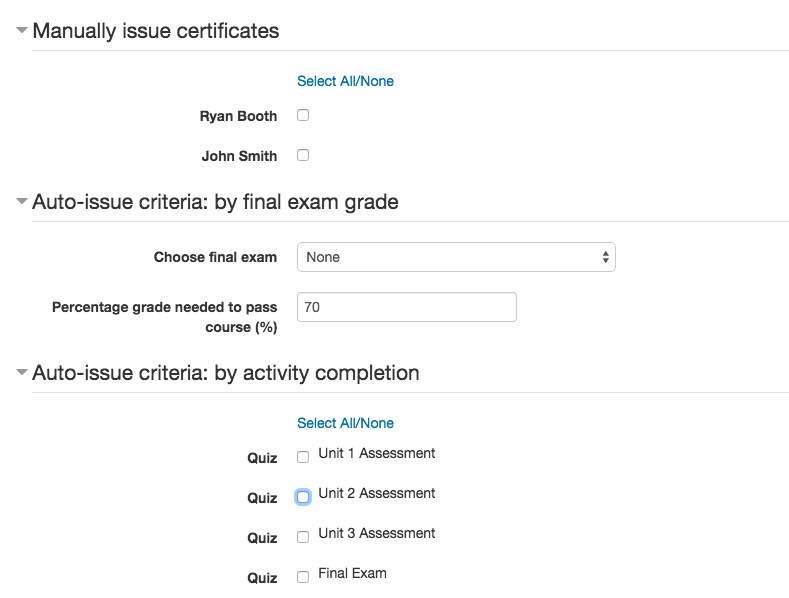
Note: if you set both types of auto-issue criteria, completing either will issue a certificate/badge.
Once you've added the activity to your course we'll auto-create a Group on your Accredible account where these credentials will belong. You'll see this on your dashboard.
Then select a certificate design and or badge design to be able to send out credentails in this group.
From now on new certificates and badges will be automatically sent to recipients based upon the criteria you chose.
You are able to add, edit and remove your badges and certificates at any time through the platform.
Contact us at support@accredible.com if you have issues or ideas on how we can make this integration better.
Bug reports
If you discover any bugs, feel free to create an issue on GitHub. Please add as much information as possible to help us fixing the possible bug. We also encourage you to help even more by forking and sending us a pull request.
https://github.com/accredible/acms-php-api/issues
FAQs
Why is nothing showing up? I can't see a certificate.
A certificate isn't created until you've either manually created one or had a student go through the criteria you set on the activity. For example if you select some required activities then a certificate won't be created until an enrolled student has completed them. Completing an activity or quiz as a course admin won't create a certificate.
v1.1.6 (2016120600)
v1.1.6
Plugin type: Activities
Frankenstyle component name: mod_accredible
Version build number: 2016120600
Version release name: v1.1.6
Maturity: Stable
Supported Moodle versions: 2.7, 2.8, 2.9, 3.0, 3.1, 3.2
Repository URL (Git): https://github.com/accredible/moodle-mod_accredible/releases
Repository branch:
Repository tag: v1.1.6-Fix-Quiz-Submission
Issue/bug tracker URL: https://github.com/accredible/moodle-mod_accredible/issues
Accredible Moodle Activity Plugin
Overview
The Accredible platform enables organizations to create, manage and distribute digital credentials as digital certificates or open badges.
An example digital certificate and badge can be viewed here: https://www.credential.net/10000005
This plugin enables you to issue dynamic, digital certificates or open badges on your Moodle instance. They act as a replacement for the PDF certificates normally generated for your courses.
Here's a video showing a tutorial on how to install and start using the plugin:
Example Output
Compatability
This plugin has been tested and is working on Moodle 2.7+ and Moodle 3.1+.
Plugin Installation
There are two installation methods that are available. Follow one of these, then log into your Moodle site as an administrator and visit the notifications page to complete the install.
Git
If you have git installed, simply visit the Moodle /mod directory and clone this repo:
git clone https://github.com/accredible/moodle-mod_accredible.git accredible
Download the zip
- Visit https://github.com/accredible/moodle-mod_accredible and download the zip.
- Extract the zip file's contents and rename it 'accredible'. You have to rename it for the plugin to work.
- Place the folder in your /mod folder, inside your Moodle directory.
Get your API key
Make sure you have your API key from Accredible. It's available from the settings page on our dashboard: https://www.accredible.com/issuer/dashboard.
Continue Moodle set up
Start by installing the new plugin (go to Site Administration > Notifications if your Moodle doesn't ask you to install automatically).
After clicking 'Upgrade Moodle database now', this is when you'll enter your API key from Accredible.
Creating a Certificate or Badge
Add an Activity
Go to the course you want to issue certificates or badges for and add an Accredible activity. First select add activity:
then select Accredible:
Issuing a certificate or badge is easy - choose from 3 issuing options:
- Pick student names and manually issue credentials. Only students that don't already have a credential will show a checkbox.
- Choose the Quiz Activity that represents the final exam, and set a minimum grade requirement. Certificates/Badges will get issued as soon as the student receives a grade above the threshold.
- Choose multiple Activities that need to be completed (attempted) for a student to receive their certificate/badge.
Note: if you set both types of auto-issue criteria, completing either will issue a certificate/badge.
Once you've added the activity to your course we'll auto-create a Group on your Accredible account where these credentials will belong. You'll see this on your dashboard.
Then select a certificate design and or badge design to be able to send out credentails in this group.
From now on new certificates and badges will be automatically sent to recipients based upon the criteria you chose.
You are able to add, edit and remove your badges and certificates at any time through the platform.
Contact us at support@accredible.com if you have issues or ideas on how we can make this integration better.
Bug reports
If you discover any bugs, feel free to create an issue on GitHub. Please add as much information as possible to help us fixing the possible bug. We also encourage you to help even more by forking and sending us a pull request.
https://github.com/accredible/acms-php-api/issues
FAQs
Why is nothing showing up? I can't see a certificate.
A certificate isn't created until you've either manually created one or had a student go through the criteria you set on the activity. For example if you select some required activities then a certificate won't be created until an enrolled student has completed them. Completing an activity or quiz as a course admin won't create a certificate.
v1.1.5 (2016111402)
v1.1.5
Plugin type: Activities
Frankenstyle component name: mod_accredible
Version build number: 2016111402
Version release name: v1.1.5
Maturity: Stable
Supported Moodle versions: 2.7, 2.8, 2.9, 3.0, 3.1, 3.2
Repository URL (Git): https://github.com/accredible/moodle-mod_accredible/releases
Repository branch:
Repository tag: v1.1.5-Remove-Test-Endpoint
Issue/bug tracker URL: https://github.com/accredible/moodle-mod_accredible/issues
Accredible Moodle Activity Plugin
Overview
The Accredible platform enables organizations to create, manage and distribute digital credentials as digital certificates or open badges.
An example digital certificate and badge can be viewed here: https://www.credential.net/10000005
This plugin enables you to issue dynamic, digital certificates or open badges on your Moodle instance. They act as a replacement for the PDF certificates normally generated for your courses.
Example Output
Compatability
This plugin has been tested and is working on Moodle 2.7+ and Moodle 3.1+.
Plugin Installation
There are two installation methods that are available. Follow one of these, then log into your Moodle site as an administrator and visit the notifications page to complete the install.
Git
If you have git installed, simply visit the Moodle /mod directory and clone this repo:
git clone https://github.com/accredible/moodle-mod_accredible.git accredible
Download the zip
- Visit https://github.com/accredible/moodle-mod_accredible and download the zip.
- Extract the zip file's contents and rename it 'accredible'. You have to rename it for the plugin to work.
- Place the folder in your /mod folder, inside your Moodle directory.
Get your API key
Make sure you have your API key from Accredible. It's available from the settings page on our dashboard: https://www.accredible.com/issuer/dashboard.
Continue Moodle set up
Start by installing the new plugin (go to Site Administration > Notifications if your Moodle doesn't ask you to install automatically).
After clicking 'Upgrade Moodle database now', this is when you'll enter your API key from Accredible.
Creating a Certificate or Badge
Add an Activity
Go to the course you want to issue certificates or badges for and add an Accredible activity. First select add activity:
then select Accredible:
Issuing a certificate or badge is easy - choose from 3 issuing options:
- Pick student names and manually issue credentials. Only students that don't already have a credential will show a checkbox.
- Choose the Quiz Activity that represents the final exam, and set a minimum grade requirement. Certificates/Badges will get issued as soon as the student receives a grade above the threshold.
- Choose multiple Activities that need to be completed (attempted) for a student to receive their certificate/badge.
Note: if you set both types of auto-issue criteria, completing either will issue a certificate/badge.
Once you've added the activity to your course we'll auto-create a Group on your Accredible account where these credentials will belong. You'll see this on your dashboard.
Then select a certificate design and or badge design to be able to send out credentails in this group.
From now on new certificates and badges will be automatically sent to recipients based upon the criteria you chose.
You are able to add, edit and remove your badges and certificates at any time through the platform.
Contact us at support@accredible.com if you have issues or ideas on how we can make this integration better.
Bug reports
If you discover any bugs, feel free to create an issue on GitHub. Please add as much information as possible to help us fixing the possible bug. We also encourage you to help even more by forking and sending us a pull request.
https://github.com/accredible/acms-php-api/issues
FAQs
Why is nothing showing up? I can't see a certificate.
A certificate isn't created until you've either manually created one or had a student go through the criteria you set on the activity. For example if you select some required activities then a certificate won't be created until an enrolled student has completed them. Completing an activity or quiz as a course admin won't create a certificate.
v1.1.4 (2016111401)
v1.1.4
Plugin type: Activities
Frankenstyle component name: mod_accredible
Version build number: 2016111401
Version release name: v1.1.4
Maturity: Stable
Supported Moodle versions: 2.7, 2.8, 2.9, 3.0, 3.1, 3.2
Repository URL (Git): https://github.com/accredible/moodle-mod_accredible/releases
Repository branch:
Repository tag: v1.1.4-Bump-Version-Number
Issue/bug tracker URL: https://github.com/accredible/moodle-mod_accredible/issues
Accredible Moodle Activity Plugin
Overview
The Accredible platform enables organizations to create, manage and distribute digital credentials as digital certificates or open badges.
An example digital certificate and badge can be viewed here: https://www.credential.net/10000005
This plugin enables you to issue dynamic, digital certificates or open badges on your Moodle instance. They act as a replacement for the PDF certificates normally generated for your courses.
Example Output
Compatability
This plugin has been tested and is working on Moodle 2.7+ and Moodle 3.1+.
Plugin Installation
There are two installation methods that are available. Follow one of these, then log into your Moodle site as an administrator and visit the notifications page to complete the install.
Git
If you have git installed, simply visit the Moodle /mod directory and clone this repo:
git clone https://github.com/accredible/moodle-mod_accredible.git accredible
Download the zip
- Visit https://github.com/accredible/moodle-mod_accredible and download the zip.
- Extract the zip file's contents and rename it 'accredible'. You have to rename it for the plugin to work.
- Place the folder in your /mod folder, inside your Moodle directory.
Get your API key
Make sure you have your API key from Accredible. It's available from the settings page on our dashboard: https://www.accredible.com/issuer/dashboard.
Continue Moodle set up
Start by installing the new plugin (go to Site Administration > Notifications if your Moodle doesn't ask you to install automatically).
After clicking 'Upgrade Moodle database now', this is when you'll enter your API key from Accredible.
Creating a Certificate or Badge
Add an Activity
Go to the course you want to issue certificates or badges for and add an Accredible activity. First select add activity:
then select Accredible:
Issuing a certificate or badge is easy - choose from 3 issuing options:
- Pick student names and manually issue credentials. Only students that don't already have a credential will show a checkbox.
- Choose the Quiz Activity that represents the final exam, and set a minimum grade requirement. Certificates/Badges will get issued as soon as the student receives a grade above the threshold.
- Choose multiple Activities that need to be completed (attempted) for a student to receive their certificate/badge.
Note: if you set both types of auto-issue criteria, completing either will issue a certificate/badge.
Once you've added the activity to your course we'll auto-create a Group on your Accredible account where these credentials will belong. You'll see this on your dashboard.
Then select a certificate design and or badge design to be able to send out credentails in this group.
From now on new certificates and badges will be automatically sent to recipients based upon the criteria you chose.
You are able to add, edit and remove your badges and certificates at any time through the platform.
Contact us at support@accredible.com if you have issues or ideas on how we can make this integration better.
Bug reports
If you discover any bugs, feel free to create an issue on GitHub. Please add as much information as possible to help us fixing the possible bug. We also encourage you to help even more by forking and sending us a pull request.
https://github.com/accredible/acms-php-api/issues
FAQs
Why is nothing showing up? I can't see a certificate.
A certificate isn't created until you've either manually created one or had a student go through the criteria you set on the activity. For example if you select some required activities then a certificate won't be created until an enrolled student has completed them. Completing an activity or quiz as a course admin won't create a certificate.
V1.1.3 (2016111400)
V1.1.3
Plugin type: Activities
Frankenstyle component name: mod_accredible
Version build number: 2016111400
Version release name: V1.1.3
Maturity: Stable
Supported Moodle versions: 2.7, 2.8, 2.9, 3.0, 3.1, 3.2
Repository URL (Git): https://github.com/accredible/moodle-mod_accredible/releases
Repository branch:
Repository tag: v1.1.3-Bump-Version-Number
Issue/bug tracker URL: https://github.com/accredible/moodle-mod_accredible/issues
Accredible Moodle Activity Plugin
Overview
The Accredible platform enables organizations to create, manage and distribute digital credentials as digital certificates or open badges.
An example digital certificate and badge can be viewed here: https://www.credential.net/10000005
This plugin enables you to issue dynamic, digital certificates or open badges on your Moodle instance. They act as a replacement for the PDF certificates normally generated for your courses.
Example Output
Compatability
This plugin has been tested and is working on Moodle 2.7+ and Moodle 3.1+.
Plugin Installation
There are two installation methods that are available. Follow one of these, then log into your Moodle site as an administrator and visit the notifications page to complete the install.
Git
If you have git installed, simply visit the Moodle /mod directory and clone this repo:
git clone https://github.com/accredible/moodle-mod_accredible.git accredible
Download the zip
- Visit https://github.com/accredible/moodle-mod_accredible and download the zip.
- Extract the zip file's contents and rename it 'accredible'. You have to rename it for the plugin to work.
- Place the folder in your /mod folder, inside your Moodle directory.
Get your API key
Make sure you have your API key from Accredible. It's available from the settings page on our dashboard: https://www.accredible.com/issuer/dashboard.
Continue Moodle set up
Start by installing the new plugin (go to Site Administration > Notifications if your Moodle doesn't ask you to install automatically).
After clicking 'Upgrade Moodle database now', this is when you'll enter your API key from Accredible.
Creating a Certificate or Badge
Add an Activity
Go to the course you want to issue certificates or badges for and add an Accredible activity. First select add activity:
then select Accredible:
Issuing a certificate or badge is easy - choose from 3 issuing options:
- Pick student names and manually issue credentials. Only students that don't already have a credential will show a checkbox.
- Choose the Quiz Activity that represents the final exam, and set a minimum grade requirement. Certificates/Badges will get issued as soon as the student receives a grade above the threshold.
- Choose multiple Activities that need to be completed (attempted) for a student to receive their certificate/badge.
Note: if you set both types of auto-issue criteria, completing either will issue a certificate/badge.
Once you've added the activity to your course we'll auto-create a Group on your Accredible account where these credentials will belong. You'll see this on your dashboard.
Then select a certificate design and or badge design to be able to send out credentails in this group.
From now on new certificates and badges will be automatically sent to recipients based upon the criteria you chose.
You are able to add, edit and remove your badges and certificates at any time through the platform.
Contact us at support@accredible.com if you have issues or ideas on how we can make this integration better.
Bug reports
If you discover any bugs, feel free to create an issue on GitHub. Please add as much information as possible to help us fixing the possible bug. We also encourage you to help even more by forking and sending us a pull request.
https://github.com/accredible/acms-php-api/issues
FAQs
Why is nothing showing up? I can't see a certificate.
A certificate isn't created until you've either manually created one or had a student go through the criteria you set on the activity. For example if you select some required activities then a certificate won't be created until an enrolled student has completed them. Completing an activity or quiz as a course admin won't create a certificate.
V1 (2016010800)
V1
Plugin type: Activities
Frankenstyle component name: mod_accredible
Version build number: 2016010800
Version release name: V1
Maturity: Release Candidate
Supported Moodle versions: 2.7, 2.8, 2.9, 3.0
Repository URL (Git): https://github.com/accredible/moodle-mod_accredible/releases
Repository branch:
Repository tag: v1.0.0-New-Design-Templates
Issue/bug tracker URL: https://github.com/accredible/moodle-mod_accredible/issues
Introduction
This plugin enables you to issue dynamic, digital certificates using the Accredible API on your Moodle instance. They act as a replacement for the PDF certificates normally generated for your courses. An example output certificate can be viewed at: https://accredible.com/example.
Compatability
This plugin is currently a Release Candidate. It is being used in production by a large course provider.
It was developed for Moodle versions 27 and greater.
Note - Version 1 Launched
We have just updated the plugin to work with our more advanced certificate designs. Your existing set up will still work, but you must transition to templates to use version 1 of the plugin. To transition to templates:
- Log into the Accredible Dashboard, and create a new cohort for API use.
- Install version 1.0.0 of the accredible plugin.
- Edit your existing certificate activities, and select the appropriate templates.
If you would like to use a new template with your old certificates, we can work with you to transition them to the new design. It's quite simple, and won't require you to email your students again. Contact us at support@accredible.com.
Plugin Installation
There are two installation methods that are available. Follow one of these, then log into your Moodle site as an administrator and visit the notifications page to complete the install.
Git
If you have git installed, simply visit the Moodle /mod directory and clone this repo:
git clone https://github.com/accredible/moodle-mod_accredible.git accredible
Download the zip
- Visit https://github.com/accredible/moodle-mod_accredible and download the zip.
- Extract the zip file's contents and rename it 'accredible'. You have to rename it for the plugin to work.
- Place the folder in your /mod folder, inside your Moodle directory.
Get your API key
Make sure you have your API key from Accredible. We should have shared it with you, but it's also on the API Management Dashboard.
Continue Moodle set up
Start by installing the new plugin (go to Site Administration > Notifications if your Moodle doesn't ask you to install automatically).
![alt text][install-image]
[install-image]: https://s3.amazonaws.com/accredible-moodle-instructions/install_plugin.png "Installing the plugin"
After clicking 'Upgrade Moodle database now', this is when you'll enter your API key from Accredible.
![alt text][api-image]
[api-image]: https://s3.amazonaws.com/accredible-moodle-instructions/set_api_key.png "Enter your Accredible API key"
Creating a Certificate
Add an Activity
Go to the course you want to issue certificates for and add an Accredible Certificates activity.
![alt text][activity-image]
[activity-image]: https://s3.amazonaws.com/accredible-moodle-instructions/choose_activity.png "Add an Accredible Certificates Activity"
Issuing a certificate is easy - choose from 3 issuing options:
- Pick student names and manually issue certificates. Only students that need a certificates have a checkbox.
- Choose the Quiz Activity that represents the final exam, and set a minimum grade requirement. Certificates will get issued as soon as the student receives a grade above the threshold.
- Choose multiple Activities that need to be completed (attempted) for a student to receive their certificate.
![alt text][settings-image]
[settings-image]: https://s3.amazonaws.com/accredible-moodle-instructions/activity_settings.png "Choose how to issue certificates"
Note: if you set both types of auto-issue criteria, completing either will issue a certificate.
Once you've issued the certificate, head over to Accredible to edit the appearance.
Contact us at support@accredible.com if you have issues.
FAQs
Why is nothing showing up? I can't see a certificate.
A certificate isn't created until you've either manually created one or had a student go through the criteria you set on the activity. For example if you select some required activities then a certificate won't be created until an enrolled student has completed them. Completing an activity or quiz as a course admin won't create a certificate.
Beta (2015031700)
Beta
Plugin type: Activities
Frankenstyle component name: mod_accredible
Version build number: 2015031700
Version release name: Beta
Maturity: Beta
Supported Moodle versions: 2.7
Repository URL (Git): https://github.com/accredible/moodle-mod_accredible/releases
Repository branch:
Repository tag: v0.2.4-Grading-Fixes
Issue/bug tracker URL: https://github.com/accredible/moodle-mod_accredible/issues
Update
- Added a maximum grade (transcripts were accepting more than 100%)
- Removed the final exam from the transcript because it was causing duplicates
Beta (2015030800)
Beta
Plugin type: Activities
Frankenstyle component name: mod_accredible
Version build number: 2015030800
Version release name: Beta
Maturity: Beta
Supported Moodle versions: 2.7
Repository URL (Git): https://github.com/accredible/moodle-mod_accredible/releases
Repository branch:
Repository tag: v0.2.3-Transcript-of-Grades
Issue/bug tracker URL: https://github.com/accredible/moodle-mod_accredible/issues
- Multiple certificates per course - you can now have more than one certificate activity per course, enabling multiple certification levels per course.
- Final exam grade updates - if a student retakes a quiz that counts as the final, the grade will be updated if it is higher
- Transcript of grades - if a student finishes 2/3 of a course's quizzes
Introduction
This plugin enables you to issue dynamic, digital certificates using the Accredible API on your Moodle instance. They act as a replacement for the PDF certificates normally generated for your courses. An example output certificate can be viewed at: https://accredible.com/example.
Compatability
This plugin is currently in Beta. It was developed for Moodle versions 27 and greater.
Installation
There are two installation methods that are available. Follow one of these, then log into your Moodle site as an administrator and visit the notifications page to complete the install.
Git
If you have git installed, simply visit the Moodle /mod directory and clone this repo:
git clone https://github.com/accredible/moodle-mod_accredible.git accredible
Download the zip
- Visit https://github.com/accredible/moodle-mod_accredible and download the zip.
- Extract the zip file's contents and rename it 'accredible'. You have to rename it for the plugin to work.
- Place the folder in your /mod folder, inside your Moodle directory.
Get your API key
Make sure you have your API key from Accredible. We should have shared it with you, but it's also on the API Management Dashboard.
Continue Moodle set up
Start by installing the new plugin (go to Site Administration > Notifications if your Moodle doesn't ask you to install automatically).
![alt text][install-image]
[install-image]: https://s3.amazonaws.com/accredible-moodle-instructions/install_plugin.png "Installing the plugin"
After clicking 'Upgrade Moodle database now', this is when you'll enter your API key from Accredible.
![alt text][api-image]
[api-image]: https://s3.amazonaws.com/accredible-moodle-instructions/set_api_key.png "Enter your Accredible API key"
Creating a Certificate
Add an Activity
Go to the course you want to issue certificates for and add an Accredible Certificates activity.
![alt text][activity-image]
[activity-image]: https://s3.amazonaws.com/accredible-moodle-instructions/choose_activity.png "Add an Accredible Certificates Activity"
Issuing a certificate is easy - choose from 3 issuing options:
- Pick student names and manually issue certificates. Only students that need a certificates have a checkbox.
- Choose the Quiz Activity that represents the final exam, and set a minimum grade requirement. Certificates will get issued as soon as the student receives a grade above the threshold.
- Choose multiple Activities that need to be completed (attempted) for a student to receive their certificate.
![alt text][settings-image]
[settings-image]: https://s3.amazonaws.com/accredible-moodle-instructions/activity_settings.png "Choose how to issue certificates"
Note: if you set both types of auto-issue criteria, completing either will issue a certificate.
Once you've issued the certificate, head over to Accredible to edit the appearance.
Contact us at support@accredible.com if you have issues.
FAQs
Why is nothing showing up? I can't see a certificate.
A certificate isn't created until you've either manually created one or had a student go through the criteria you set on the activity. For example if you select some required activities then a certificate won't be created until an enrolled student has completed them. Completing an activity or quiz as a course admin won't create a certificate.
Alpha (2014112600)
Alpha
Plugin type: Activities
Frankenstyle component name: mod_accredible
Version build number: 2014112600
Version release name: Alpha
Maturity: Alpha
Supported Moodle versions: 2.7
Repository URL (Git): https://github.com/accredible/moodle-mod_accredible/releases
Repository branch:
Repository tag:
Issue/bug tracker URL: https://github.com/accredible/moodle-mod_accredible/issues
Introduction
This plugin enables you to issue dynamic, digital certificates for free using the Accredible API on your Moodle instance. They act as a replacement for the PDF certificates normally generated for your courses. An example output certificate can be viewed at: https://accredible.com/example.
Compatability
This plugin is currently in Beta. It was developed for Moodle versions 27 and greater.
Installation
There are two installation methods that are available. Follow one of these, then log into your Moodle site as an administrator and visit the notifications page to complete the install.
Git
If you do not have git installed, please see the below link. Please note, it is not necessary to set up the SSH Keys. This is only needed if you are going to create a repository of your own on github.com.
Information on installing git - http://help.github.com/set-up-git-redirect/
Once you have git installed, simply visit the Moodle /mod directory and clone this repo:
git clone https://github.com/accredible/moodle-mod_accredible.git accredible
Download the zip
- Visit https://github.com/accredible/moodle-mod_accredible and download the zip.
- Extract the zip file's contents and rename it 'accredible'. You have to rename it for the plugin to work.
- Place the folder in your /mod folder, inside your Moodle directory.
Get your API key
Make sure you have your API key from Accredible. We should have shared it with you, but it's also on the API Management Dashboard.
Continue Moodle set up
Start by installing the new plugin (go to Site Administration > Notifications if your Moodle doesn't ask you to install automatically).
![alt text][install-image]
[install-image]: https://s3.amazonaws.com/accredible-moodle-instructions/install_plugin.png "Installing the plugin"
After clicking 'Upgrade Moodle database now', this is when you'll enter your API key from Accredible.
![alt text][api-image]
[api-image]: https://s3.amazonaws.com/accredible-moodle-instructions/set_api_key.png "Enter your Accredible API key"
Creating a Certificate
Add an Activity
Go to the course you want to issue certificates for and add an Accredible Certificates activity.
![alt text][activity-image]
[activity-image]: https://s3.amazonaws.com/accredible-moodle-instructions/choose_activity.png "Add an Accredible Certificates Activity"
Issuing a certificate is easy - choose from 3 issuing options:
- Pick student names and manually issue certificates. Only students that need a certificates have a checkbox.
- Choose the Quiz Activity that represents the final exam, and set a minimum grade requirement. Certificates will get issued as soon as the student receives a grade above the threshold.
- Choose multiple Activities that need to be completed (attempted) for a student to receive their certificate.
![alt text][settings-image]
[settings-image]: https://s3.amazonaws.com/accredible-moodle-instructions/activity_settings.png "Choose how to issue certificates"
Note: if you set both types of auto-issue criteria, completing either will issue a certificate.
Once you've issued the certificate, head over to Accredible to edit the appearance.
Contact us at support@accredible.com if you have issues.