
Buttons



Versions
Current version
4.5 (2025110405)
4.5
Plugin type: Course formats
Frankenstyle component name: format_buttons
Version build number: 2025110405
Version release name: 4.5
Maturity: Stable
Supported Moodle versions: 4.5
Repository URL (Git): https://github.com/jrangelardila/moodle-format_buttons
Repository branch:
Repository tag:
Issue/bug tracker URL: https://github.com/jrangelardila/moodle-format_buttons/issues
Moodle Course Format "Buttons"
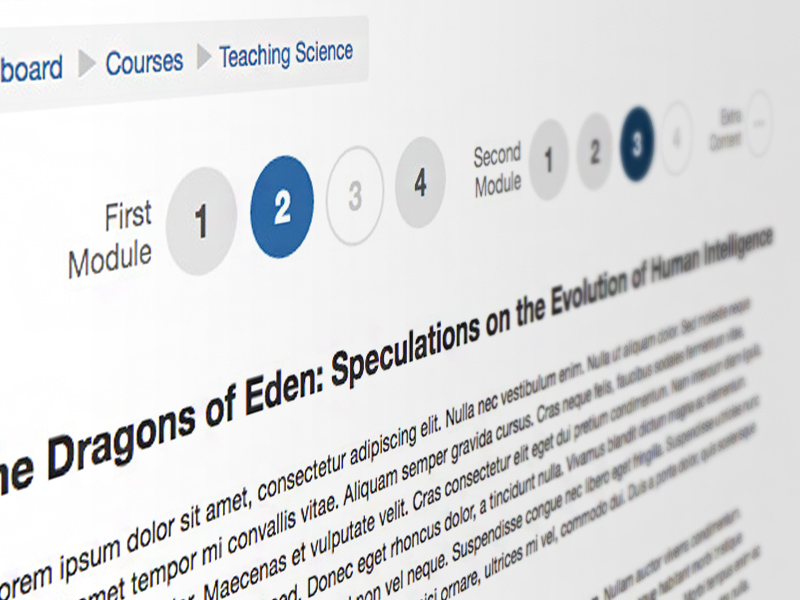
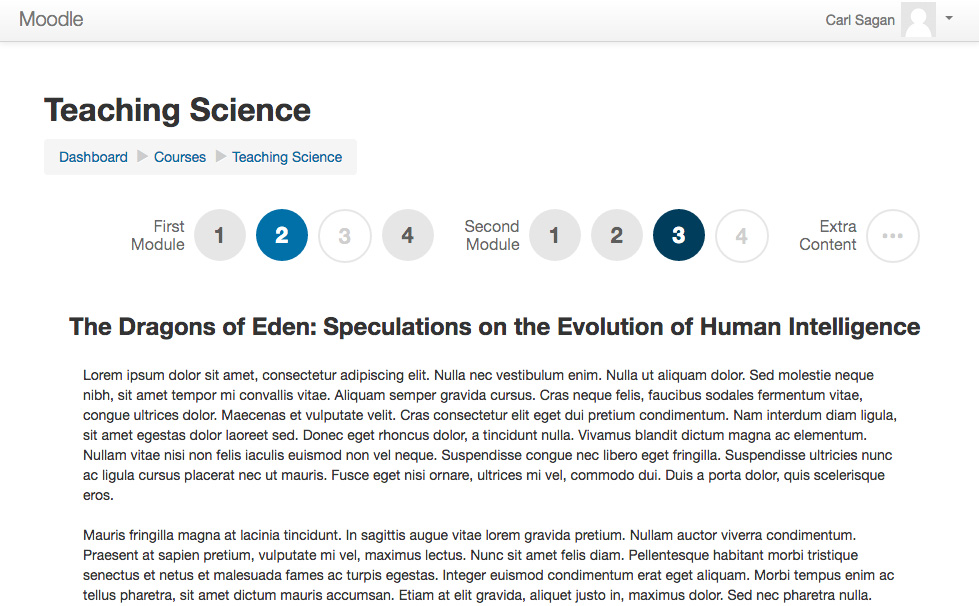
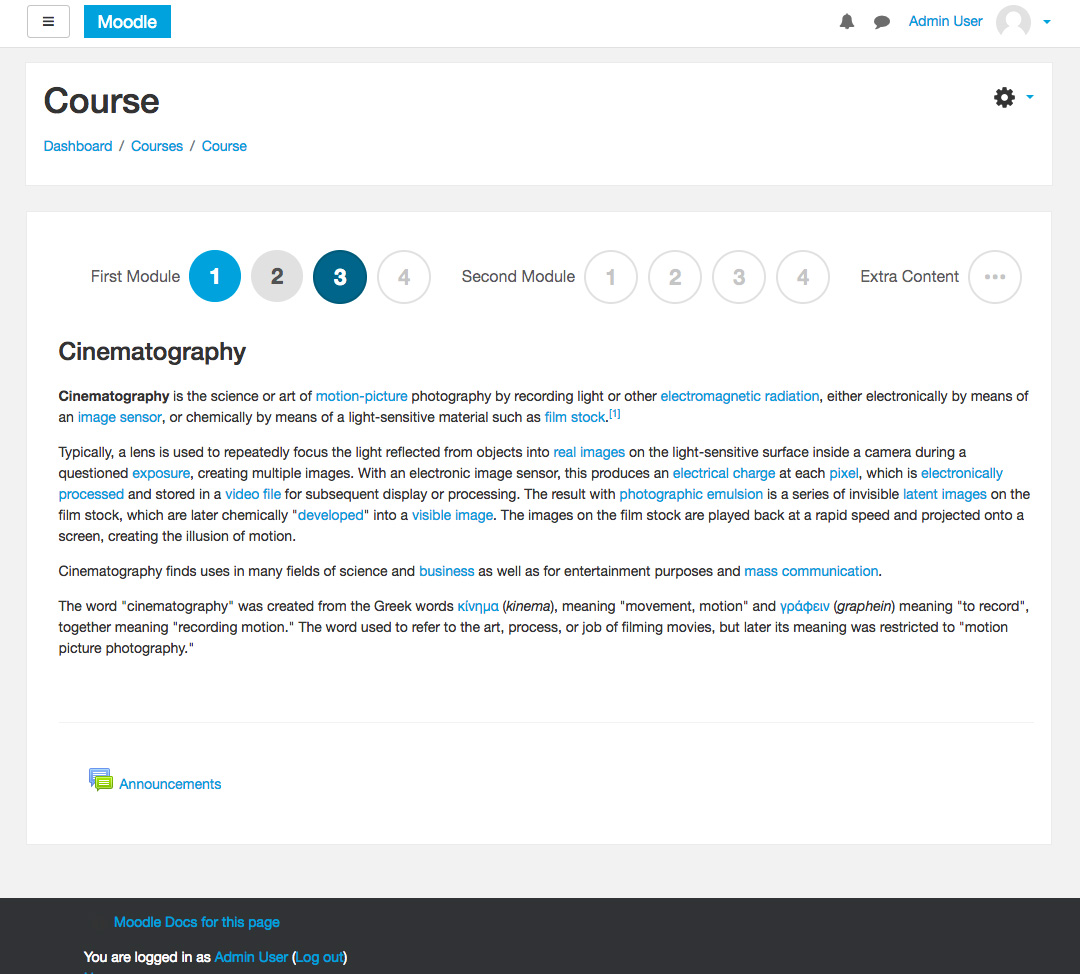
Buttons is a course format that creates a menu with buttons to access the sections, one by one.
Features
- Create groups of sections, to separate topics in modules or periods;
- Create names to the groups to identify them. (Example: First Semester, Topics about a specific theme);
- Change the colors of the buttons (when active, inactive, on over and hidden), to fit it your Moodle theme;
- Select the list-style in numbers, alphabet or roman numeral.
Installation
- For recent Moodle versions, you can install this plugin automatically from the Moodle plugins database.
Manual Installation
- You can manually download the zip file from the Moodle Plugins Database.
- After downloading the zip file, expand it and put it's contents in your .../moodle/course/format/ directory.
- The folder name must be 'buttons'.
- Go to 'Admin - Site administration - Notifications' page.
- Follow the instructions inside the page to finish the installation.
Usage
- When creating a new course, select 'Buttons format' in the 'Course format' dropdown menu.
- To select the format, simply choose it from the list of course formats in the course settings.
- Choose the number of sections, or leave the default of 10 sections.
- Choose where you want the first (zero) section (which has the default 'Announcements' forum) positioned: Either 'Above the list buttons' or 'Below the visible section'.
- Select the sequential rule. You can uses the count original of the topics, or chose to reset the count to each new grouping.
- Select the list-style in numbers, alphabet or roman numeral.
- Write the titles for all the groupings you will use and the number of sections that each one will have. If a group has only one section, the icon will be (...).
- Write the hexadecimal color for the current section button and the visible section button, or leave it empty to use the default value.
Documentation
You can read the Documentation page at Moodle.org
About
- Jhon Rangel (maintainer)
- Rodrigo Brandão (author)
- Moodle plugin page at Moodle.org
- Plugin project at GitHub.com
5.x (2026060200)
5.x
Plugin type: Course formats
Frankenstyle component name: format_buttons
Version build number: 2026060200
Version release name: 5.x
Maturity: Stable
Supported Moodle versions: 5.0, 5.1, 5.2
Repository URL (Git): https://github.com/jrangelardila/moodle-format_buttons
Repository branch:
Repository tag:
Issue/bug tracker URL: https://github.com/jrangelardila/moodle-format_buttons/issues
[2025041711] - 2025-04-18
Changed
- Restructured all renderer classes and Mustache templates.
- Updated plugin structure to match Moodle’s official guidelines.
⚠️ The previous structure was compatible with early versions of Moodle 4.1 (pre-stable).
This update ensures full compatibility with Moodle 5.x.
[2025042000] - 2025-04-20
Changed
- Add two class in section: selector and navigation.
- Changed default configs.
- Added cache to save the last section where the user was.
4.5 (2025110402)
4.5
Plugin type: Course formats
Frankenstyle component name: format_buttons
Version build number: 2025110402
Version release name: 4.5
Maturity: Stable
Supported Moodle versions: 4.5
Repository URL (Git): https://github.com/jrangelardila/moodle-format_buttons
Repository branch:
Repository tag:
Issue/bug tracker URL: https://github.com/jrangelardila/moodle-format_buttons/issues
Moodle Course Format "Buttons"
Buttons is a course format that creates a menu with buttons to access the sections, one by one.
Features
- Create groups of sections, to separate topics in modules or periods;
- Create names to the groups to identify them. (Example: First Semester, Topics about a specific theme);
- Change the colors of the buttons (when active, inactive, on over and hidden), to fit it your Moodle theme;
- Select the list-style in numbers, alphabet or roman numeral.
Installation
- For recent Moodle versions, you can install this plugin automatically from the Moodle plugins database.
Manual Installation
- You can manually download the zip file from the Moodle Plugins Database.
- After downloading the zip file, expand it and put it's contents in your .../moodle/course/format/ directory.
- The folder name must be 'buttons'.
- Go to 'Admin - Site administration - Notifications' page.
- Follow the instructions inside the page to finish the installation.
Usage
- When creating a new course, select 'Buttons format' in the 'Course format' dropdown menu.
- To select the format, simply choose it from the list of course formats in the course settings.
- Choose the number of sections, or leave the default of 10 sections.
- Choose where you want the first (zero) section (which has the default 'Announcements' forum) positioned: Either 'Above the list buttons' or 'Below the visible section'.
- Select the sequential rule. You can uses the count original of the topics, or chose to reset the count to each new grouping.
- Select the list-style in numbers, alphabet or roman numeral.
- Write the titles for all the groupings you will use and the number of sections that each one will have. If a group has only one section, the icon will be (...).
- Write the hexadecimal color for the current section button and the visible section button, or leave it empty to use the default value.
Documentation
You can read the Documentation page at Moodle.org
About
- Jhon Rangel (maintainer)
- Rodrigo Brandão (author)
- Moodle plugin page at Moodle.org
- Plugin project at GitHub.com
5.x (2025110400)
5.x
Plugin type: Course formats
Frankenstyle component name: format_buttons
Version build number: 2025110400
Version release name: 5.x
Maturity: Stable
Supported Moodle versions: 5.0, 5.1, 5.2
Repository URL (Git): https://github.com/jrangelardila/moodle-format_buttons
Repository branch:
Repository tag:
Issue/bug tracker URL: https://github.com/jrangelardila/moodle-format_buttons/issues
[2025041711] - 2025-04-18
Changed
- Restructured all renderer classes and Mustache templates.
- Updated plugin structure to match Moodle’s official guidelines.
⚠️ The previous structure was compatible with early versions of Moodle 4.1 (pre-stable).
This update ensures full compatibility with Moodle 5.x.
[2025042000] - 2025-04-20
Changed
- Add two class in section: selector and navigation.
- Changed default configs.
- Added cache to save the last section where the user was.
4.x (2025090500)
4.x
Plugin type: Course formats
Frankenstyle component name: format_buttons
Version build number: 2025090500
Version release name: 4.x
Maturity: Stable
Supported Moodle versions: 4.2, 4.3, 4.4
Repository URL (Git): https://github.com/jrangelardila/moodle-format_buttons
Repository branch:
Repository tag:
Issue/bug tracker URL: https://github.com/jrangelardila/moodle-format_buttons/issues
Moodle Course Format "Buttons"
Buttons is a course format that creates a menu with buttons to access the sections, one by one.
Features
- Create groups of sections, to separate topics in modules or periods;
- Create names to the groups to identify them. (Example: First Semester, Topics about a specific theme);
- Change the colors of the buttons (when active, inactive, on over and hidden), to fit it your Moodle theme;
- Select the list-style in numbers, alphabet or roman numeral.
Installation
- For recent Moodle versions, you can install this plugin automatically from the Moodle plugins database.
Manual Installation
- You can manually download the zip file from the Moodle Plugins Database.
- After downloading the zip file, expand it and put it's contents in your .../moodle/course/format/ directory.
- The folder name must be 'buttons'.
- Go to 'Admin - Site administration - Notifications' page.
- Follow the instructions inside the page to finish the installation.
Usage
- When creating a new course, select 'Buttons format' in the 'Course format' dropdown menu.
- To select the format, simply choose it from the list of course formats in the course settings.
- Choose the number of sections, or leave the default of 10 sections.
- Choose where you want the first (zero) section (which has the default 'Announcements' forum) positioned: Either 'Above the list buttons' or 'Below the visible section'.
- Select the sequential rule. You can uses the count original of the topics, or chose to reset the count to each new grouping.
- Select the list-style in numbers, alphabet or roman numeral.
- Write the titles for all the groupings you will use and the number of sections that each one will have. If a group has only one section, the icon will be (...).
- Write the hexadecimal color for the current section button and the visible section button, or leave it empty to use the default value.
Documentation
You can read the Documentation page at Moodle.org
About
- Jhon Rangel (maintainer)
- Rodrigo Brandão (author)
- Moodle plugin page at Moodle.org
- Plugin project at GitHub.com
5.x (2025072601)
5.x
Plugin type: Course formats
Frankenstyle component name: format_buttons
Version build number: 2025072601
Version release name: 5.x
Maturity: Stable
Supported Moodle versions: 5.0
Repository URL (Git): https://github.com/jrangelardila/moodle-format_buttons
Repository branch:
Repository tag:
Issue/bug tracker URL: https://github.com/jrangelardila/moodle-format_buttons/issues
[2025041711] - 2025-04-18
Changed
- Restructured all renderer classes and Mustache templates.
- Updated plugin structure to match Moodle’s official guidelines.
⚠️ The previous structure was compatible with early versions of Moodle 4.1 (pre-stable).
This update ensures full compatibility with Moodle 5.x.
[2025042000] - 2025-04-20
Changed
- Add two class in section: selector and navigation.
- Changed default configs.
- Added cache to save the last section where the user was.
4.x (2025072600)
4.x
Plugin type: Course formats
Frankenstyle component name: format_buttons
Version build number: 2025072600
Version release name: 4.x
Maturity: Stable
Supported Moodle versions: 4.2, 4.3, 4.4, 4.5
Repository URL (Git): https://github.com/jrangelardila/moodle-format_buttons
Repository branch:
Repository tag:
Issue/bug tracker URL: https://github.com/jrangelardila/moodle-format_buttons/issues
Moodle Course Format "Buttons"
Buttons is a course format that creates a menu with buttons to access the sections, one by one.
Features
- Create groups of sections, to separate topics in modules or periods;
- Create names to the groups to identify them. (Example: First Semester, Topics about a specific theme);
- Change the colors of the buttons (when active, inactive, on over and hidden), to fit it your Moodle theme;
- Select the list-style in numbers, alphabet or roman numeral.
Installation
- For recent Moodle versions, you can install this plugin automatically from the Moodle plugins database.
Manual Installation
- You can manually download the zip file from the Moodle Plugins Database.
- After downloading the zip file, expand it and put it's contents in your .../moodle/course/format/ directory.
- The folder name must be 'buttons'.
- Go to 'Admin - Site administration - Notifications' page.
- Follow the instructions inside the page to finish the installation.
Usage
- When creating a new course, select 'Buttons format' in the 'Course format' dropdown menu.
- To select the format, simply choose it from the list of course formats in the course settings.
- Choose the number of sections, or leave the default of 10 sections.
- Choose where you want the first (zero) section (which has the default 'Announcements' forum) positioned: Either 'Above the list buttons' or 'Below the visible section'.
- Select the sequential rule. You can uses the count original of the topics, or chose to reset the count to each new grouping.
- Select the list-style in numbers, alphabet or roman numeral.
- Write the titles for all the groupings you will use and the number of sections that each one will have. If a group has only one section, the icon will be (...).
- Write the hexadecimal color for the current section button and the visible section button, or leave it empty to use the default value.
Documentation
You can read the Documentation page at Moodle.org
About
- Jhon Rangel (maintainer)
- Rodrigo Brandão (author)
- Moodle plugin page at Moodle.org
- Plugin project at GitHub.com
5.x (2025070400)
5.x
Plugin type: Course formats
Frankenstyle component name: format_buttons
Version build number: 2025070400
Version release name: 5.x
Maturity: Stable
Supported Moodle versions: 4.4, 4.5, 5.0
Repository URL (Git): https://github.com/jrangelardila/moodle-format_buttons
Repository branch:
Repository tag:
Issue/bug tracker URL: https://github.com/jrangelardila/moodle-format_buttons/issues
[2025041711] - 2025-04-18
Changed
- Restructured all renderer classes and Mustache templates.
- Updated plugin structure to match Moodle’s official guidelines.
⚠️ The previous structure was compatible with early versions of Moodle 4.1 (pre-stable).
This update ensures full compatibility with Moodle 5.x.
[2025042000] - 2025-04-20
Changed
- Add two class in section: selector and navigation.
- Changed default configs.
- Added cache to save the last section where the user was.
5.x (2025070300)
5.x
Plugin type: Course formats
Frankenstyle component name: format_buttons
Version build number: 2025070300
Version release name: 5.x
Maturity: Stable
Supported Moodle versions: 4.5, 5.0
Repository URL (Git): https://github.com/jrangelardila/moodle-format_buttons
Repository branch:
Repository tag:
Issue/bug tracker URL: https://github.com/jrangelardila/moodle-format_buttons/issues
[2025041711] - 2025-04-18
Changed
- Restructured all renderer classes and Mustache templates.
- Updated plugin structure to match Moodle’s official guidelines.
⚠️ The previous structure was compatible with early versions of Moodle 4.1 (pre-stable).
This update ensures full compatibility with Moodle 5.x.
[2025042000] - 2025-04-20
Changed
- Add two class in section: selector and navigation.
- Changed default configs.
- Added cache to save the last section where the user was.
4.x (2025051200)
4.x
Plugin type: Course formats
Frankenstyle component name: format_buttons
Version build number: 2025051200
Version release name: 4.x
Maturity: Stable
Supported Moodle versions: 4.2, 4.3, 4.4, 4.5
Repository URL (Git): https://github.com/jrangelardila/moodle-format_buttons
Repository branch:
Repository tag:
Issue/bug tracker URL: https://github.com/jrangelardila/moodle-format_buttons/issues
Moodle Course Format "Buttons"
Buttons is a course format that creates a menu with buttons to access the sections, one by one.
Features
- Create groups of sections, to separate topics in modules or periods;
- Create names to the groups to identify them. (Example: First Semester, Topics about a specific theme);
- Change the colors of the buttons (when active, inactive, on over and hidden), to fit it your Moodle theme;
- Select the list-style in numbers, alphabet or roman numeral.
Installation
- For recent Moodle versions, you can install this plugin automatically from the Moodle plugins database.
Manual Installation
- You can manually download the zip file from the Moodle Plugins Database.
- After downloading the zip file, expand it and put it's contents in your .../moodle/course/format/ directory.
- The folder name must be 'buttons'.
- Go to 'Admin - Site administration - Notifications' page.
- Follow the instructions inside the page to finish the installation.
Usage
- When creating a new course, select 'Buttons format' in the 'Course format' dropdown menu.
- To select the format, simply choose it from the list of course formats in the course settings.
- Choose the number of sections, or leave the default of 10 sections.
- Choose where you want the first (zero) section (which has the default 'Announcements' forum) positioned: Either 'Above the list buttons' or 'Below the visible section'.
- Select the sequential rule. You can uses the count original of the topics, or chose to reset the count to each new grouping.
- Select the list-style in numbers, alphabet or roman numeral.
- Write the titles for all the groupings you will use and the number of sections that each one will have. If a group has only one section, the icon will be (...).
- Write the hexadecimal color for the current section button and the visible section button, or leave it empty to use the default value.
Documentation
You can read the Documentation page at Moodle.org
About
- Jhon Rangel (maintainer)
- Rodrigo Brandão (author)
- Moodle plugin page at Moodle.org
- Plugin project at GitHub.com
5.x (2025042000)
5.x
Plugin type: Course formats
Frankenstyle component name: format_buttons
Version build number: 2025042000
Version release name: 5.x
Maturity: Stable
Supported Moodle versions: 5.0
Repository URL (Git): https://github.com/jrangelardila/moodle-format_buttons
Repository branch:
Repository tag:
Issue/bug tracker URL: https://github.com/jrangelardila/moodle-format_buttons/issues
[2025041711] - 2025-04-18
Changed
- Restructured all renderer classes and Mustache templates.
- Updated plugin structure to match Moodle’s official guidelines.
⚠️ The previous structure was compatible with early versions of Moodle 4.1 (pre-stable).
This update ensures full compatibility with Moodle 5.x.
[2025042000] - 2025-04-20
Changed
- Add two class in section: selector and navigation.
- Changed default configs.
- Added cache to save the last section where the user was.
5.x (2025041500)
5.x
Plugin type: Course formats
Frankenstyle component name: format_buttons
Version build number: 2025041500
Version release name: 5.x
Maturity: Stable
Supported Moodle versions: 5.0
Repository URL (Git): https://github.com/jrangelardila/moodle-format_buttons
Repository branch:
Repository tag:
Issue/bug tracker URL: https://github.com/jrangelardila/moodle-format_buttons/issues
Moodle Course Format "Buttons"
Buttons is a course format that creates a menu with buttons to access the sections, one by one.
Features
- Create groups of sections, to separate topics in modules or periods;
- Create names to the groups to identify them. (Example: First Semester, Topics about a specific theme);
- Change the colors of the buttons (when active, inactive, on over and hidden), to fit it your Moodle theme;
- Select the list-style in numbers, alphabet or roman numeral.
Installation
- For recent Moodle versions, you can install this plugin automatically from the Moodle plugins database.
Manual Installation
- You can manually download the zip file from the Moodle Plugins Database.
- After downloading the zip file, expand it and put it's contents in your .../moodle/course/format/ directory.
- The folder name must be 'buttons'.
- Go to 'Admin - Site administration - Notifications' page.
- Follow the instructions inside the page to finish the installation.
Usage
- When creating a new course, select 'Buttons format' in the 'Course format' dropdown menu.
- To select the format, simply choose it from the list of course formats in the course settings.
- Choose the number of sections, or leave the default of 10 sections.
- Choose where you want the first (zero) section (which has the default 'Announcements' forum) positioned: Either 'Above the list buttons' or 'Below the visible section'.
- Select the sequential rule. You can uses the count original of the topics, or chose to reset the count to each new grouping.
- Select the list-style in numbers, alphabet or roman numeral.
- Write the titles for all the groupings you will use and the number of sections that each one will have. If a group has only one section, the icon will be (...).
- Write the hexadecimal color for the current section button and the visible section button, or leave it empty to use the default value.
Documentation
You can read the Documentation page at Moodle.org
About
- Jhon Rangel (maintainer)
- Rodrigo Brandão (author)
- Moodle plugin page at Moodle.org
- Plugin project at GitHub.com
4.x (2025040100)
4.x
Plugin type: Course formats
Frankenstyle component name: format_buttons
Version build number: 2025040100
Version release name: 4.x
Maturity: Stable
Supported Moodle versions: 4.2, 4.3, 4.4, 4.5
Repository URL (Git): https://github.com/jrangelardila/moodle-format_buttons
Repository branch:
Repository tag:
Issue/bug tracker URL: https://github.com/jrangelardila/moodle-format_buttons/issues
Moodle Course Format "Buttons"
Buttons is a course format that creates a menu with buttons to access the sections, one by one.
Features
- Create groups of sections, to separate topics in modules or periods;
- Create names to the groups to identify them. (Example: First Semester, Topics about a specific theme);
- Change the colors of the buttons (when active, inactive, on over and hidden), to fit it your Moodle theme;
- Select the list-style in numbers, alphabet or roman numeral.
Installation
- For recent Moodle versions, you can install this plugin automatically from the Moodle plugins database.
Manual Installation
- You can manually download the zip file from the Moodle Plugins Database.
- After downloading the zip file, expand it and put it's contents in your .../moodle/course/format/ directory.
- The folder name must be 'buttons'.
- Go to 'Admin - Site administration - Notifications' page.
- Follow the instructions inside the page to finish the installation.
Usage
- When creating a new course, select 'Buttons format' in the 'Course format' dropdown menu.
- To select the format, simply choose it from the list of course formats in the course settings.
- Choose the number of sections, or leave the default of 10 sections.
- Choose where you want the first (zero) section (which has the default 'Announcements' forum) positioned: Either 'Above the list buttons' or 'Below the visible section'.
- Select the sequential rule. You can uses the count original of the topics, or chose to reset the count to each new grouping.
- Select the list-style in numbers, alphabet or roman numeral.
- Write the titles for all the groupings you will use and the number of sections that each one will have. If a group has only one section, the icon will be (...).
- Write the hexadecimal color for the current section button and the visible section button, or leave it empty to use the default value.
Documentation
You can read the Documentation page at Moodle.org
About
- Jhon Rangel (maintainer)
- Rodrigo Brandão (author)
- Moodle plugin page at Moodle.org
- Plugin project at GitHub.com
4.x (2025033100)
4.x
Plugin type: Course formats
Frankenstyle component name: format_buttons
Version build number: 2025033100
Version release name: 4.x
Maturity: Stable
Supported Moodle versions: 4.2, 4.3, 4.4, 4.5
Repository URL (Git): https://github.com/jrangelardila/moodle-format_buttons
Repository branch:
Repository tag:
Issue/bug tracker URL: https://github.com/jrangelardila/moodle-format_buttons/issues
Moodle Course Format "Buttons"
Buttons is a course format that creates a menu with buttons to access the sections, one by one.
Features
- Create groups of sections, to separate topics in modules or periods;
- Create names to the groups to identify them. (Example: First Semester, Topics about a specific theme);
- Change the colors of the buttons (when active, inactive, on over and hidden), to fit it your Moodle theme;
- Select the list-style in numbers, alphabet or roman numeral.
Installation
- For recent Moodle versions, you can install this plugin automatically from the Moodle plugins database.
Manual Installation
- You can manually download the zip file from the Moodle Plugins Database.
- After downloading the zip file, expand it and put it's contents in your .../moodle/course/format/ directory.
- The folder name must be 'buttons'.
- Go to 'Admin - Site administration - Notifications' page.
- Follow the instructions inside the page to finish the installation.
Usage
- When creating a new course, select 'Buttons format' in the 'Course format' dropdown menu.
- To select the format, simply choose it from the list of course formats in the course settings.
- Choose the number of sections, or leave the default of 10 sections.
- Choose where you want the first (zero) section (which has the default 'Announcements' forum) positioned: Either 'Above the list buttons' or 'Below the visible section'.
- Select the sequential rule. You can uses the count original of the topics, or chose to reset the count to each new grouping.
- Select the list-style in numbers, alphabet or roman numeral.
- Write the titles for all the groupings you will use and the number of sections that each one will have. If a group has only one section, the icon will be (...).
- Write the hexadecimal color for the current section button and the visible section button, or leave it empty to use the default value.
Documentation
You can read the Documentation page at Moodle.org
About
- Jhon Rangel (maintainer)
- Rodrigo Brandão (author)
- Moodle plugin page at Moodle.org
- Plugin project at GitHub.com
4.x (2025031600)
4.x
Plugin type: Course formats
Frankenstyle component name: format_buttons
Version build number: 2025031600
Version release name: 4.x
Maturity: Stable
Supported Moodle versions: 4.2, 4.3, 4.4, 4.5
Repository URL (Git): https://github.com/jrangelardila/moodle-format_buttons
Repository branch:
Repository tag:
Issue/bug tracker URL: https://github.com/jrangelardila/moodle-format_buttons/issues
Moodle Course Format "Buttons"
Buttons is a course format that creates a menu with buttons to access the sections, one by one.
Features
- Create groups of sections, to separate topics in modules or periods;
- Create names to the groups to identify them. (Example: First Semester, Topics about a specific theme);
- Change the colors of the buttons (when active, inactive, on over and hidden), to fit it your Moodle theme;
- Select the list-style in numbers, alphabet or roman numeral.
Installation
- For recent Moodle versions, you can install this plugin automatically from the Moodle plugins database.
Manual Installation
- You can manually download the zip file from the Moodle Plugins Database.
- After downloading the zip file, expand it and put it's contents in your .../moodle/course/format/ directory.
- The folder name must be 'buttons'.
- Go to 'Admin - Site administration - Notifications' page.
- Follow the instructions inside the page to finish the installation.
Usage
- When creating a new course, select 'Buttons format' in the 'Course format' dropdown menu.
- To select the format, simply choose it from the list of course formats in the course settings.
- Choose the number of sections, or leave the default of 10 sections.
- Choose where you want the first (zero) section (which has the default 'Announcements' forum) positioned: Either 'Above the list buttons' or 'Below the visible section'.
- Select the sequential rule. You can uses the count original of the topics, or chose to reset the count to each new grouping.
- Select the list-style in numbers, alphabet or roman numeral.
- Write the titles for all the groupings you will use and the number of sections that each one will have. If a group has only one section, the icon will be (...).
- Write the hexadecimal color for the current section button and the visible section button, or leave it empty to use the default value.
Documentation
You can read the Documentation page at Moodle.org
About
- Jhon Rangel (maintainer)
- Rodrigo Brandão (author)
- Moodle plugin page at Moodle.org
- Plugin project at GitHub.com
4.x (2025031300)
4.x
Plugin type: Course formats
Frankenstyle component name: format_buttons
Version build number: 2025031300
Version release name: 4.x
Maturity: Stable
Supported Moodle versions: 4.2, 4.3, 4.4, 4.5
Repository URL (Git): https://github.com/jrangelardila/moodle-format_buttons
Repository branch:
Repository tag:
Issue/bug tracker URL: https://github.com/jrangelardila/moodle-format_buttons/issues
Moodle Course Format "Buttons"
Buttons is a course format that creates a menu with buttons to access the sections, one by one.
Features
- Create groups of sections, to separate topics in modules or periods;
- Create names to the groups to identify them. (Example: First Semester, Topics about a specific theme);
- Change the colors of the buttons (when active, inactive, on over and hidden), to fit it your Moodle theme;
- Select the list-style in numbers, alphabet or roman numeral.
Installation
- For recent Moodle versions, you can install this plugin automatically from the Moodle plugins database.
Manual Installation
- You can manually download the zip file from the Moodle Plugins Database.
- After downloading the zip file, expand it and put it's contents in your .../moodle/course/format/ directory.
- The folder name must be 'buttons'.
- Go to 'Admin - Site administration - Notifications' page.
- Follow the instructions inside the page to finish the installation.
Usage
- When creating a new course, select 'Buttons format' in the 'Course format' dropdown menu.
- To select the format, simply choose it from the list of course formats in the course settings.
- Choose the number of sections, or leave the default of 10 sections.
- Choose where you want the first (zero) section (which has the default 'Announcements' forum) positioned: Either 'Above the list buttons' or 'Below the visible section'.
- Select the sequential rule. You can uses the count original of the topics, or chose to reset the count to each new grouping.
- Select the list-style in numbers, alphabet or roman numeral.
- Write the titles for all the groupings you will use and the number of sections that each one will have. If a group has only one section, the icon will be (...).
- Write the hexadecimal color for the current section button and the visible section button, or leave it empty to use the default value.
Documentation
You can read the Documentation page at Moodle.org
About
- Jhon Rangel (maintainer)
- Rodrigo Brandão (author)
- Moodle plugin page at Moodle.org
- Plugin project at GitHub.com
4.x (2025011300)
4.x
Plugin type: Course formats
Frankenstyle component name: format_buttons
Version build number: 2025011300
Version release name: 4.x
Maturity: Stable
Supported Moodle versions: 4.2, 4.3, 4.4, 4.5
Repository URL (Git): https://github.com/jrangelardila/moodle-format_buttons
Repository branch:
Repository tag:
Issue/bug tracker URL: https://github.com/jrangelardila/moodle-format_buttons/issues
Moodle Course Format "Buttons"
Buttons is a course format that creates a menu with buttons to access the sections, one by one.
Features
- Create groups of sections, to separate topics in modules or periods;
- Create names to the groups to identify them. (Example: First Semester, Topics about a specific theme);
- Change the colors of the buttons (when active, inactive, on over and hidden), to fit it your Moodle theme;
- Select the list-style in numbers, alphabet or roman numeral.
Installation
- For recent Moodle versions, you can install this plugin automatically from the Moodle plugins database.
Manual Installation
- You can manually download the zip file from the Moodle Plugins Database.
- After downloading the zip file, expand it and put it's contents in your .../moodle/course/format/ directory.
- The folder name must be 'buttons'.
- Go to 'Admin - Site administration - Notifications' page.
- Follow the instructions inside the page to finish the installation.
Usage
- When creating a new course, select 'Buttons format' in the 'Course format' dropdown menu.
- To select the format, simply choose it from the list of course formats in the course settings.
- Choose the number of sections, or leave the default of 10 sections.
- Choose where you want the first (zero) section (which has the default 'Announcements' forum) positioned: Either 'Above the list buttons' or 'Below the visible section'.
- Select the sequential rule. You can uses the count original of the topics, or chose to reset the count to each new grouping.
- Select the list-style in numbers, alphabet or roman numeral.
- Write the titles for all the groupings you will use and the number of sections that each one will have. If a group has only one section, the icon will be (...).
- Write the hexadecimal color for the current section button and the visible section button, or leave it empty to use the default value.
Documentation
You can read the Documentation page at Moodle.org
About
- Jhon Rangel (maintainer)
- Rodrigo Brandão (author)
- Moodle plugin page at Moodle.org
- Plugin project at GitHub.com
4.x (2025010300)
4.x
Plugin type: Course formats
Frankenstyle component name: format_buttons
Version build number: 2025010300
Version release name: 4.x
Maturity: Stable
Supported Moodle versions: 4.2, 4.3, 4.4, 4.5
Repository URL (Git): https://github.com/jrangelardila/moodle-format_buttons
Repository branch:
Repository tag:
Issue/bug tracker URL: https://github.com/jrangelardila/moodle-format_buttons/issues
Moodle Course Format "Buttons"
Buttons is a course format that creates a menu with buttons to access the sections, one by one.
Features
- Create groups of sections, to separate topics in modules or periods;
- Create names to the groups to identify them. (Example: First Semester, Topics about a specific theme);
- Change the colors of the buttons (when active, inactive, on over and hidden), to fit it your Moodle theme;
- Select the list-style in numbers, alphabet or roman numeral.
Installation
- For recent Moodle versions, you can install this plugin automatically from the Moodle plugins database.
Manual Installation
- You can manually download the zip file from the Moodle Plugins Database.
- After downloading the zip file, expand it and put it's contents in your .../moodle/course/format/ directory.
- The folder name must be 'buttons'.
- Go to 'Admin - Site administration - Notifications' page.
- Follow the instructions inside the page to finish the installation.
Usage
- When creating a new course, select 'Buttons format' in the 'Course format' dropdown menu.
- To select the format, simply choose it from the list of course formats in the course settings.
- Choose the number of sections, or leave the default of 10 sections.
- Choose where you want the first (zero) section (which has the default 'Announcements' forum) positioned: Either 'Above the list buttons' or 'Below the visible section'.
- Select the sequential rule. You can uses the count original of the topics, or chose to reset the count to each new grouping.
- Select the list-style in numbers, alphabet or roman numeral.
- Write the titles for all the groupings you will use and the number of sections that each one will have. If a group has only one section, the icon will be (...).
- Write the hexadecimal color for the current section button and the visible section button, or leave it empty to use the default value.
Documentation
You can read the Documentation page at Moodle.org
About
- Jhon Rangel (maintainer)
- Rodrigo Brandão (author)
- Moodle plugin page at Moodle.org
- Plugin project at GitHub.com
4.x (2024111100)
4.x
Plugin type: Course formats
Frankenstyle component name: format_buttons
Version build number: 2024111100
Version release name: 4.x
Maturity: Stable
Supported Moodle versions: 4.2, 4.3, 4.4, 4.5
Repository URL (Git): https://github.com/jrangelardila/moodle-format_buttons
Repository branch:
Repository tag:
Issue/bug tracker URL: https://github.com/jrangelardila/moodle-format_buttons/issues
Moodle Course Format "Buttons"
Buttons is a course format that creates a menu with buttons to access the sections, one by one.
Features
- Create groups of sections, to separate topics in modules or periods;
- Create names to the groups to identify them. (Example: First Semester, Topics about a specific theme);
- Change the colors of the buttons (when active, inactive, on over and hidden), to fit it your Moodle theme;
- Select the list-style in numbers, alphabet or roman numeral.
Installation
- For recent Moodle versions, you can install this plugin automatically from the Moodle plugins database.
Manual Installation
- You can manually download the zip file from the Moodle Plugins Database.
- After downloading the zip file, expand it and put it's contents in your .../moodle/course/format/ directory.
- The folder name must be 'buttons'.
- Go to 'Admin - Site administration - Notifications' page.
- Follow the instructions inside the page to finish the installation.
Usage
- When creating a new course, select 'Buttons format' in the 'Course format' dropdown menu.
- To select the format, simply choose it from the list of course formats in the course settings.
- Choose the number of sections, or leave the default of 10 sections.
- Choose where you want the first (zero) section (which has the default 'Announcements' forum) positioned: Either 'Above the list buttons' or 'Below the visible section'.
- Select the sequential rule. You can uses the count original of the topics, or chose to reset the count to each new grouping.
- Select the list-style in numbers, alphabet or roman numeral.
- Write the titles for all the groupings you will use and the number of sections that each one will have. If a group has only one section, the icon will be (...).
- Write the hexadecimal color for the current section button and the visible section button, or leave it empty to use the default value.
Documentation
You can read the Documentation page at Moodle.org
About
- Jhon Rangel (maintainer)
- Rodrigo Brandão (author)
- Moodle plugin page at Moodle.org
- Plugin project at GitHub.com
4.x (2024110500)
4.x
Plugin type: Course formats
Frankenstyle component name: format_buttons
Version build number: 2024110500
Version release name: 4.x
Maturity: Stable
Supported Moodle versions: 4.2, 4.3, 4.4, 4.5
Repository URL (Git): https://github.com/jrangelardila/moodle-format_buttons
Repository branch:
Repository tag:
Issue/bug tracker URL: https://github.com/jrangelardila/moodle-format_buttons/issues
Moodle Course Format "Buttons"
Buttons is a course format that creates a menu with buttons to access the sections, one by one.
Features
- Create groups of sections, to separate topics in modules or periods;
- Create names to the groups to identify them. (Example: First Semester, Topics about a specific theme);
- Change the colors of the buttons (when active, inactive, on over and hidden), to fit it your Moodle theme;
- Select the list-style in numbers, alphabet or roman numeral.
Installation
- For recent Moodle versions, you can install this plugin automatically from the Moodle plugins database.
Manual Installation
- You can manually download the zip file from the Moodle Plugins Database.
- After downloading the zip file, expand it and put it's contents in your .../moodle/course/format/ directory.
- The folder name must be 'buttons'.
- Go to 'Admin - Site administration - Notifications' page.
- Follow the instructions inside the page to finish the installation.
Usage
- When creating a new course, select 'Buttons format' in the 'Course format' dropdown menu.
- To select the format, simply choose it from the list of course formats in the course settings.
- Choose the number of sections, or leave the default of 10 sections.
- Choose where you want the first (zero) section (which has the default 'Announcements' forum) positioned: Either 'Above the list buttons' or 'Below the visible section'.
- Select the sequential rule. You can uses the count original of the topics, or chose to reset the count to each new grouping.
- Select the list-style in numbers, alphabet or roman numeral.
- Write the titles for all the groupings you will use and the number of sections that each one will have. If a group has only one section, the icon will be (...).
- Write the hexadecimal color for the current section button and the visible section button, or leave it empty to use the default value.
Documentation
You can read the Documentation page at Moodle.org
About
- Jhon Rangel (maintainer)
- Rodrigo Brandão (author)
- Moodle plugin page at Moodle.org
- Plugin project at GitHub.com
4.x (2024110200)
4.x
Plugin type: Course formats
Frankenstyle component name: format_buttons
Version build number: 2024110200
Version release name: 4.x
Maturity: Stable
Supported Moodle versions: 4.2, 4.3, 4.4, 4.5
Repository URL (Git): https://github.com/jrangelardila/moodle-format_buttons
Repository branch:
Repository tag:
Issue/bug tracker URL: https://github.com/jrangelardila/moodle-format_buttons/issues
Moodle Course Format "Buttons"
Buttons is a course format that creates a menu with buttons to access the sections, one by one.
Features
- Create groups of sections, to separate topics in modules or periods;
- Create names to the groups to identify them. (Example: First Semester, Topics about a specific theme);
- Change the colors of the buttons (when active, inactive, on over and hidden), to fit it your Moodle theme;
- Select the list-style in numbers, alphabet or roman numeral.
Installation
- For recent Moodle versions, you can install this plugin automatically from the Moodle plugins database.
Manual Installation
- You can manually download the zip file from the Moodle Plugins Database.
- After downloading the zip file, expand it and put it's contents in your .../moodle/course/format/ directory.
- The folder name must be 'buttons'.
- Go to 'Admin - Site administration - Notifications' page.
- Follow the instructions inside the page to finish the installation.
Usage
- When creating a new course, select 'Buttons format' in the 'Course format' dropdown menu.
- To select the format, simply choose it from the list of course formats in the course settings.
- Choose the number of sections, or leave the default of 10 sections.
- Choose where you want the first (zero) section (which has the default 'Announcements' forum) positioned: Either 'Above the list buttons' or 'Below the visible section'.
- Select the sequential rule. You can uses the count original of the topics, or chose to reset the count to each new grouping.
- Select the list-style in numbers, alphabet or roman numeral.
- Write the titles for all the groupings you will use and the number of sections that each one will have. If a group has only one section, the icon will be (...).
- Write the hexadecimal color for the current section button and the visible section button, or leave it empty to use the default value.
Documentation
You can read the Documentation page at Moodle.org
About
- Jhon Rangel (maintainer)
- Rodrigo Brandão (author)
- Moodle plugin page at Moodle.org
- Plugin project at GitHub.com
1.8 (2024101100)
1.8
Plugin type: Course formats
Frankenstyle component name: format_buttons
Version build number: 2024101100
Version release name: 1.8
Maturity: Stable
Supported Moodle versions: 4.2, 4.3, 4.4, 4.5
Repository URL (Git): https://github.com/brandaorodrigo/moodle-format_buttons
Repository branch:
Repository tag:
Issue/bug tracker URL: https://github.com/jrangelardila/moodle-format_buttons/issues
Moodle Course Format "Buttons"
Buttons is a course format that creates a menu with buttons to access the sections, one by one.
Features
- Create groups of sections, to separate topics in modules or periods;
- Create names to the groups to identify them. (Example: First Semester, Topics about a specific theme);
- Change the colors of the buttons (when active, inactive, on over and hidden), to fit it your Moodle theme;
- Select the list-style in numbers, alphabet or roman numeral.
Installation
- For recent Moodle versions, you can install this plugin automatically from the Moodle plugins database.
Manual Installation
- You can manually download the zip file from the Moodle Plugins Database.
- After downloading the zip file, expand it and put it's contents in your .../moodle/course/format/ directory.
- The folder name must be 'buttons'.
- Go to 'Admin - Site administration - Notifications' page.
- Follow the instructions inside the page to finish the installation.
Usage
- When creating a new course, select 'Buttons format' in the 'Course format' dropdown menu.
- To select the format, simply choose it from the list of course formats in the course settings.
- Choose the number of sections, or leave the default of 10 sections.
- Choose where you want the first (zero) section (which has the default 'Announcements' forum) positioned: Either 'Above the list buttons' or 'Below the visible section'.
- Select the sequential rule. You can uses the count original of the topics, or chose to reset the count to each new grouping.
- Select the list-style in numbers, alphabet or roman numeral.
- Write the titles for all the groupings you will use and the number of sections that each one will have. If a group has only one section, the icon will be (...).
- Write the hexadecimal color for the current section button and the visible section button, or leave it empty to use the default value.
Documentation
You can read the Documentation page at Moodle.org
About
- Jhon Rangel (maintainer)
- Rodrigo Brandão (author)
- Moodle plugin page at Moodle.org
- Plugin project at GitHub.com
4.x (2022020801)
4.x
Plugin type: Course formats
Frankenstyle component name: format_buttons
Version build number: 2022020801
Version release name: 4.x
Maturity: Stable
Supported Moodle versions: 4.0, 4.1
Repository URL (Git): https://github.com/brandaorodrigo/moodle-format_buttons
Repository branch:
Repository tag:
Issue/bug tracker URL: https://github.com/jrangelardila/moodle-format_buttons/issues
Moodle Course Format "Buttons"
Buttons is a course format that creates a menu with buttons to access the sections, one by one.
Features
- Create groups of sections, to separate topics in modules or periods;
- Create names to the groups to identify them. (Example: First Semester, Topics about a specific theme);
- Change the colors of the buttons (when active, inactive, on over and hidden), to fit it your Moodle theme;
- Select the list-style in numbers, alphabet or roman numeral.
Installation
- For recent Moodle versions, you can install this plugin automatically from the Moodle plugins database.
Manual Installation
- You can manually download the zip file from the Moodle Plugins Database.
- After downloading the zip file, expand it and put it's contents in your .../moodle/course/format/ directory.
- The folder name must be 'buttons'.
- Go to 'Admin - Site administration - Notifications' page.
- Follow the instructions inside the page to finish the installation.
Usage
- When creating a new course, select 'Buttons format' in the 'Course format' dropdown menu.
- To select the format, simply choose it from the list of course formats in the course settings.
- Choose the number of sections, or leave the default of 10 sections.
- Choose where you want the first (zero) section (which has the default 'Announcements' forum) positioned: Either 'Above the list buttons' or 'Below the visible section'.
- Select the sequential rule. You can uses the count original of the topics, or chose to reset the count to each new grouping.
- Select the list-style in numbers, alphabet or roman numeral.
- Write the titles for all the groupings you will use and the number of sections that each one will have. If a group has only one section, the icon will be (...).
- Write the hexadecimal color for the current section button and the visible section button, or leave it empty to use the default value.
Documentation
You can read the Documentation page at Moodle.org
About
- Rodrigo Brandão (author)
- Moodle plugin page at Moodle.org
- Plugin project at GitHub.com
3.x (2020072801)
3.x
Plugin type: Course formats
Frankenstyle component name: format_buttons
Version build number: 2020072801
Version release name: 3.x
Maturity: Stable
Supported Moodle versions: 3.0, 3.1, 3.10, 3.11, 3.2, 3.3, 3.4, 3.5, 3.6, 3.7, 3.8, 3.9
Repository URL (Git): https://github.com/brandaorodrigo/moodle-format_buttons
Repository branch:
Repository tag:
Issue/bug tracker URL: https://github.com/jrangelardila/moodle-format_buttons/issues
Moodle Course Format "Buttons"
Buttons is a course format that creates a menu with buttons to access the sections, one by one.
Features
- Create groups of sections, to separate topics in modules or periods;
- Create names to the groups to identify them. (Example: First Semester, Topics about a specific theme);
- Change the colors of the buttons (when active, inactive, on over and hidden), to fit it your Moodle theme;
- Select the list-style in numbers, alphabet or roman numeral.
Installation
- For recent Moodle versions, you can install this plugin automatically from the Moodle plugins database.
Manual Installation
- You can manually download the zip file from the Moodle Plugins Database.
- After downloading the zip file, expand it and put it's contents in your .../moodle/course/format/ directory.
- The folder name must be 'buttons'.
- Go to 'Admin - Site administration - Notifications' page.
- Follow the instructions inside the page to finish the installation.
Usage
- When creating a new course, select 'Buttons format' in the 'Course format' dropdown menu.
- To select the format, simply choose it from the list of course formats in the course settings.
- Choose the number of sections, or leave the default of 10 sections.
- Choose where you want the first (zero) section (which has the default 'Announcements' forum) positioned: Either 'Above the list buttons' or 'Below the visible section'.
- Select the sequential rule. You can uses the count original of the topics, or chose to reset the count to each new grouping.
- Select the list-style in numbers, alphabet or roman numeral.
- Write the titles for all the groupings you will use and the number of sections that each one will have. If a group has only one section, the icon will be (...).
- Write the hexadecimal color for the current section button and the visible section button, or leave it empty to use the default value.
Documentation
You can read the Documentation page at Moodle.org
About
- Rodrigo Brandão (author)
- Moodle plugin page at Moodle.org
- Plugin project at GitHub.com
3.x (2019100702)
3.x
Plugin type: Course formats
Frankenstyle component name: format_buttons
Version build number: 2019100702
Version release name: 3.x
Maturity: Stable
Supported Moodle versions: 3.0, 3.1, 3.2, 3.3, 3.4, 3.5, 3.6, 3.7, 3.8, 3.9
Repository URL (Git): https://github.com/brandaorodrigo/moodle-format_buttons
Repository branch:
Repository tag:
Issue/bug tracker URL: https://github.com/jrangelardila/moodle-format_buttons/issues
Moodle Course Format "Buttons"
Buttons is a course format that creates a menu with buttons to access the sections, one by one.
Features
- Create groups of sections, to separate topics in modules or periods;
- Create names to the groups to identify them. (Example: First Semester, Topics about a specific theme);
- Change the colors of the buttons (when active, inactive, on over and hidden), to fit it your Moodle theme;
- Select the list-style in numbers, alphabet or roman numeral.
Installation
- For recent Moodle versions, you can install this plugin automatically from the Moodle plugins database.
Manual Installation
- You can manually download the zip file from the Moodle Plugins Database.
- After downloading the zip file, expand it and put it's contents in your .../moodle/course/format/ directory.
- The folder name must be 'buttons'.
- Go to 'Admin - Site administration - Notifications' page.
- Follow the instructions inside the page to finish the installation.
Usage
- When creating a new course, select 'Buttons format' in the 'Course format' dropdown menu.
- To select the format, simply choose it from the list of course formats in the course settings.
- Choose the number of sections, or leave the default of 10 sections.
- Choose where you want the first (zero) section (which has the default 'Announcements' forum) positioned: Either 'Above the list buttons' or 'Below the visible section'.
- Select the sequential rule. You can uses the count original of the topics, or chose to reset the count to each new grouping.
- Select the list-style in numbers, alphabet or roman numeral.
- Write the titles for all the groupings you will use and the number of sections that each one will have. If a group has only one section, the icon will be (...).
- Write the hexadecimal color for the current section button and the visible section button, or leave it empty to use the default value.
Documentation
You can read the Documentation page at Moodle.org
About
- Rodrigo Brandão (author)
- Moodle plugin page at Moodle.org
- Plugin project at GitHub.com
(Build: 2019100701) (2019100701)
(Build: 2019100701)
Plugin type: Course formats
Frankenstyle component name: format_buttons
Version build number: 2019100701
Version release name: (Build: 2019100701)
Maturity: Stable
Supported Moodle versions: 3.6, 3.7
Repository URL (Git): https://github.com/brandaorodrigo/moodle-format_buttons
Repository branch:
Repository tag:
Issue/bug tracker URL: https://github.com/jrangelardila/moodle-format_buttons/issues
Moodle Course Format "Buttons"
Buttons is a course format that creates a menu with buttons to access the sections, one by one.
Features
- Create groups of sections, to separate topics in modules or periods;
- Create names to the groups to identify them. (Example: First Semester, Topics about a specific theme);
- Change the colors of the buttons (when active, inactive, on over and hidden), to fit it your Moodle theme;
- Select the list-style in numbers, alphabet or roman numeral.
Installation
- For recent Moodle versions, you can install this plugin automatically from the Moodle plugins database.
Manual Installation
- You can manually download the zip file from the Moodle Plugins Database.
- After downloading the zip file, expand it and put it's contents in your .../moodle/course/format/ directory.
- The folder name must be 'buttons'.
- Go to 'Admin - Site administration - Notifications' page.
- Follow the instructions inside the page to finish the installation.
Usage
- When creating a new course, select 'Buttons format' in the 'Course format' dropdown menu.
- To select the format, simply choose it from the list of course formats in the course settings.
- Choose the number of sections, or leave the default of 10 sections.
- Choose where you want the first (zero) section (which has the default 'Announcements' forum) positioned: Either 'Above the list buttons' or 'Below the visible section'.
- Select the sequential rule. You can uses the count original of the topics, or chose to reset the count to each new grouping.
- Select the list-style in numbers, alphabet or roman numeral.
- Write the titles for all the groupings you will use and the number of sections that each one will have. If a group has only one section, the icon will be (...).
- Write the hexadecimal color for the current section button and the visible section button, or leave it empty to use the default value.
Documentation
You can read the Documentation page at Moodle.org
About
- Rodrigo Brandão (author)
- Moodle plugin page at Moodle.org
- Plugin project at GitHub.com
(Build: 2019100700) (2019100700)
(Build: 2019100700)
Plugin type: Course formats
Frankenstyle component name: format_buttons
Version build number: 2019100700
Version release name: (Build: 2019100700)
Maturity: Stable
Supported Moodle versions: 3.6, 3.7
Repository URL (Git): https://github.com/brandaorodrigo/moodle-format_buttons
Repository branch:
Repository tag:
Issue/bug tracker URL: https://github.com/jrangelardila/moodle-format_buttons/issues
Moodle Course Format "Buttons"
Buttons is a course format that creates a menu with buttons to access the sections, one by one.
Features
- Create groups of sections, to separate topics in modules or periods;
- Create names to the groups to identify them. (Example: First Semester, Topics about a specific theme);
- Change the colors of the buttons (when active, inactive, on over and hidden), to fit it your Moodle theme;
- Select the list-style in numbers, alphabet or roman numeral.
Installation
- For recent Moodle versions, you can install this plugin automatically from the Moodle plugins database.
Manual Installation
- You can manually download the zip file from the Moodle Plugins Database.
- After downloading the zip file, expand it and put it's contents in your .../moodle/course/format/ directory.
- The folder name must be 'buttons'.
- Go to 'Admin - Site administration - Notifications' page.
- Follow the instructions inside the page to finish the installation.
Usage
- When creating a new course, select 'Buttons format' in the 'Course format' dropdown menu.
- To select the format, simply choose it from the list of course formats in the course settings.
- Choose the number of sections, or leave the default of 10 sections.
- Choose where you want the first (zero) section (which has the default 'Announcements' forum) positioned: Either 'Above the list buttons' or 'Below the visible section'.
- Select the sequential rule. You can uses the count original of the topics, or chose to reset the count to each new grouping.
- Select the list-style in numbers, alphabet or roman numeral.
- Write the titles for all the groupings you will use and the number of sections that each one will have. If a group has only one section, the icon will be (...).
- Write the hexadecimal color for the current section button and the visible section button, or leave it empty to use the default value.
Documentation
You can read the Documentation page at Moodle.org
About
- Rodrigo Brandão (author)
- Moodle plugin page at Moodle.org
- Plugin project at GitHub.com
(Build: 2019100200) (2019100200)
(Build: 2019100200)
Plugin type: Course formats
Frankenstyle component name: format_buttons
Version build number: 2019100200
Version release name: (Build: 2019100200)
Maturity: Stable
Supported Moodle versions: 3.6, 3.7
Repository URL (Git): https://github.com/brandaorodrigo/moodle-format_buttons
Repository branch:
Repository tag:
Issue/bug tracker URL: https://github.com/jrangelardila/moodle-format_buttons/issues
Moodle Course Format "Buttons"
Buttons is a course format that creates a menu with buttons to access the sections, one by one.
Features
- Create groups of sections, to separate topics in modules or periods;
- Create names to the groups to identify them. (Example: First Semester, Topics about a specific theme);
- Change the colors of the buttons (when active, inactive, on over and hidden), to fit it your Moodle theme;
- Select the list-style in numbers, alphabet or roman numeral.
Installation
- For recent Moodle versions, you can install this plugin automatically from the Moodle plugins database.
Manual Installation
- You can manually download the zip file from the Moodle Plugins Database.
- After downloading the zip file, expand it and put it's contents in your .../moodle/course/format/ directory.
- The folder name must be 'buttons'.
- Go to 'Admin - Site administration - Notifications' page.
- Follow the instructions inside the page to finish the installation.
Usage
- When creating a new course, select 'Buttons format' in the 'Course format' dropdown menu.
- To select the format, simply choose it from the list of course formats in the course settings.
- Choose the number of sections, or leave the default of 10 sections.
- Choose where you want the first (zero) section (which has the default 'Announcements' forum) positioned: Either 'Above the list buttons' or 'Below the visible section'.
- Select the sequential rule. You can uses the count original of the topics, or chose to reset the count to each new grouping.
- Select the list-style in numbers, alphabet or roman numeral.
- Write the titles for all the groupings you will use and the number of sections that each one will have. If a group has only one section, the icon will be (...).
- Write the hexadecimal color for the current section button and the visible section button, or leave it empty to use the default value.
Documentation
You can read the Documentation page at Moodle.org
About
- Rodrigo Brandão (author)
- Moodle plugin page at Moodle.org
- Plugin project at GitHub.com
2.x (2018062700)
2.x
Plugin type: Course formats
Frankenstyle component name: format_buttons
Version build number: 2018062700
Version release name: 2.x
Maturity: Stable
Supported Moodle versions: 2.8, 2.9
Repository URL (Git): https://github.com/brandaorodrigo/moodle-format_buttons
Repository branch:
Repository tag:
Issue/bug tracker URL: https://github.com/jrangelardila/moodle-format_buttons/issues
Moodle Course Format "Buttons"
Buttons is a course format that creates a menu with buttons to access the sections, one by one.
Features
- Create groups of sections, to separate topics in modules or periods;
- Create names to the groups to identify them. (Example: First Semester, Topics about a specific theme);
- Change the colors of the buttons (when active, inactive, on over and hidden), to fit it your Moodle theme;
- Select the list-style in numbers, alphabet or roman numeral.
Installation
- For recent Moodle versions, you can install this plugin automatically from the Moodle plugins database.
Manual Installation
- You can manually download the zip file from the Moodle Plugins Database.
- After downloading the zip file, expand it and put it's contents in your .../moodle/course/format/ directory.
- The folder name must be 'buttons'.
- Go to 'Admin - Site administration - Notifications' page.
- Follow the instructions inside the page to finish the installation.
Usage
- When creating a new course, select 'Buttons format' in the 'Course format' dropdown menu.
- To select the format, simply choose it from the list of course formats in the course settings.
- Choose the number of sections, or leave the default of 10 sections.
- Choose where you want the first (zero) section (which has the default 'Announcements' forum) positioned: Either 'Above the list buttons' or 'Below the visible section'.
- Select the sequential rule. You can uses the count original of the topics, or chose to reset the count to each new grouping.
- Select the list-style in numbers, alphabet or roman numeral.
- Write the titles for all the groupings you will use and the number of sections that each one will have. If a group has only one section, the icon will be (...).
- Write the hexadecimal color for the current section button and the visible section button, or leave it empty to use the default value.
Documentation
You can read the Documentation page at Moodle.org
About
- Rodrigo Brandão (author)
- Moodle plugin page at Moodle.org
- Plugin project at GitHub.com
(Build: 2018062600) (2018062600)
(Build: 2018062600)
Plugin type: Course formats
Frankenstyle component name: format_buttons
Version build number: 2018062600
Version release name: (Build: 2018062600)
Maturity: Stable
Supported Moodle versions: 2.8, 2.9, 3.0, 3.1, 3.2, 3.3, 3.4, 3.5
Repository URL (Git): https://github.com/brandaorodrigo/moodle-format_buttons
Repository branch:
Repository tag:
Issue/bug tracker URL: https://github.com/jrangelardila/moodle-format_buttons/issues
Moodle Course Format "Buttons"
Buttons is a course format that creates a menu with buttons to access the sections, one by one.
Features
- Create groups of sections, to separate topics in modules or periods;
- Create names to the groups to identify them. (Example: First Semester, Topics about a specific theme);
- Change the colors of the buttons (when active, inactive, on over and hidden), to fit it your Moodle theme;
- Select the list-style in numbers, alphabet or roman numeral.
Installation
- For recent Moodle versions, you can install this plugin automatically from the Moodle plugins database.
Manual Installation
- You can manually download the zip file from the Moodle Plugins Database.
- After downloading the zip file, expand it and put it's contents in your .../moodle/course/format/ directory.
- The folder name must be 'buttons'.
- Go to 'Admin - Site administration - Notifications' page.
- Follow the instructions inside the page to finish the installation.
Usage
- When creating a new course, select 'Buttons format' in the 'Course format' dropdown menu.
- To select the format, simply choose it from the list of course formats in the course settings.
- Choose the number of sections, or leave the default of 10 sections.
- Choose where you want the first (zero) section (which has the default 'Announcements' forum) positioned: Either 'Above the list buttons' or 'Below the visible section'.
- Select the sequential rule. You can uses the count original of the topics, or chose to reset the count to each new grouping.
- Select the list-style in numbers, alphabet or roman numeral.
- Write the titles for all the groupings you will use and the number of sections that each one will have. If a group has only one section, the icon will be (...).
- Write the hexadecimal color for the current section button and the visible section button, or leave it empty to use the default value.
Documentation
You can read the Documentation page at Moodle.org
About
- Rodrigo Brandão (author)
- Moodle plugin page at Moodle.org
- Plugin project at GitHub.com
(Build: 2018022400) (2018022400)
(Build: 2018022400)
Plugin type: Course formats
Frankenstyle component name: format_buttons
Version build number: 2018022400
Version release name: (Build: 2018022400)
Maturity: Stable
Supported Moodle versions: 2.8, 2.9, 3.0, 3.1, 3.2, 3.3, 3.4, 3.5
Repository URL (Git): https://github.com/brandaorodrigo/moodle-format_buttons
Repository branch:
Repository tag:
Issue/bug tracker URL: https://github.com/jrangelardila/moodle-format_buttons/issues
- Add support to H5P content;
- Fix issue in inplace editable section name.
(Build: 2018022200) (2018022200)
(Build: 2018022200)
Plugin type: Course formats
Frankenstyle component name: format_buttons
Version build number: 2018022200
Version release name: (Build: 2018022200)
Maturity: Stable
Supported Moodle versions: 2.8, 2.9, 3.0, 3.1, 3.2, 3.3, 3.4, 3.5
Repository URL (Git): https://github.com/brandaorodrigo/moodle-format_buttons
Repository branch:
Repository tag:
Issue/bug tracker URL: https://github.com/jrangelardila/moodle-format_buttons/issues
- Fixes issue that occurred in Moodles version 3.2 or lower
(Build: 2018022100) (2018022100)
(Build: 2018022100)
Plugin type: Course formats
Frankenstyle component name: format_buttons
Version build number: 2018022100
Version release name: (Build: 2018022100)
Maturity: Stable
Supported Moodle versions: 2.8, 2.9, 3.0, 3.1, 3.2, 3.3, 3.4, 3.5
Repository URL (Git): https://github.com/brandaorodrigo/moodle-format_buttons
Repository branch:
Repository tag:
Issue/bug tracker URL: https://github.com/jrangelardila/moodle-format_buttons/issues
- New feature to define the buttons style
- Now up to 12 groups can be used
- pix_url issue fixed
- Support to Moodle 2.x depreciated
(Build: 2017120700) (2017120700)
(Build: 2017120700)
Plugin type: Course formats
Frankenstyle component name: format_buttons
Version build number: 2017120700
Version release name: (Build: 2017120700)
Maturity: Stable
Supported Moodle versions: 2.8, 2.9, 3.0, 3.1, 3.2, 3.3, 3.4, 3.5
Repository URL (Git): https://github.com/brandaorodrigo/moodle-format_buttons
Repository branch:
Repository tag:
Issue/bug tracker URL: https://github.com/jrangelardila/moodle-format_buttons/issues
Moodle Course Format "Buttons"
Buttons is a course format that creates a menu with buttons to access the sections, one by one.
Features
- Create groups of sections, to separate topics in modules or periods;
- Create names to the groups to identify them. (Example: First Semester, Topics about a specific theme);
- Change the colors of the buttons (when active, inactive, on over and hidden), to fit it your Moodle theme;
- Select the list-style in numbers, alphabet or roman numeral.
Installation
- For recent Moodle versions, you can install this plugin automatically from the Moodle plugins database.
Manual Installation
- You can manually download the zip file from the Moodle Plugins Database.
- After downloading the zip file, expand it and put it's contents in your .../moodle/course/format/ directory.
- The folder name must be 'buttons'.
- Go to 'Admin - Site administration - Notifications' page.
- Follow the instructions inside the page to finish the installation.
Usage
- When creating a new course, select 'Buttons format' in the 'Course format' dropdown menu.
- To select the format, simply choose it from the list of course formats in the course settings.
- Choose the number of sections, or leave the default of 10 sections.
- Choose where you want the first (zero) section (which has the default 'Announcements' forum) positioned: Either 'Above the list buttons' or 'Below the visible section'.
- Select the sequential rule. You can uses the count original of the topics, or chose to reset the count to each new grouping.
- Select the list-style in numbers, alphabet or roman numeral.
- Write the titles for all the groupings you will use and the number of sections that each one will have. If a group has only one section, the icon will be (...).
- Write the hexadecimal color for the current section button and the visible section button, or leave it empty to use the default value.
Documentation
You can read the Documentation page at Moodle.org
About
- Rodrigo Brandão (author)
- Moodle plugin page at Moodle.org
- Plugin project at GitHub.com
(Build: 2017120500) (2017120500)
(Build: 2017120500)
Plugin type: Course formats
Frankenstyle component name: format_buttons
Version build number: 2017120500
Version release name: (Build: 2017120500)
Maturity: Stable
Supported Moodle versions: 2.8, 2.9, 3.0, 3.1, 3.2, 3.3, 3.4, 3.5
Repository URL (Git): https://github.com/brandaorodrigo/moodle-format_buttons
Repository branch:
Repository tag:
Issue/bug tracker URL: https://github.com/jrangelardila/moodle-format_buttons/issues
Moodle Course Format "Buttons"
Buttons is a course format that creates a menu with buttons to access the sections, one by one.
Features
- Create groups of sections, to separate topics in modules or periods;
- Create names to the groups to identify them. (Example: First Semester, Topics about a specific theme);
- Change the colors of the buttons (when active, inactive, on over and hidden), to fit it your Moodle theme;
- Select the list-style in numbers, alphabet or roman numeral.
Installation
- For recent Moodle versions, you can install this plugin automatically from the Moodle plugins database.
Manual Installation
- You can manually download the zip file from the Moodle Plugins Database.
- After downloading the zip file, expand it and put it's contents in your .../moodle/course/format/ directory.
- The folder name must be 'buttons'.
- Go to 'Admin - Site administration - Notifications' page.
- Follow the instructions inside the page to finish the installation.
Usage
- When creating a new course, select 'Buttons format' in the 'Course format' dropdown menu.
- To select the format, simply choose it from the list of course formats in the course settings.
- Choose the number of sections, or leave the default of 10 sections.
- Choose where you want the first (zero) section (which has the default 'Announcements' forum) positioned: Either 'Above the list buttons' or 'Below the visible section'.
- Select the sequential rule. You can uses the count original of the topics, or chose to reset the count to each new grouping.
- Select the list-style in numbers, alphabet or roman numeral.
- Write the titles for all the groupings you will use and the number of sections that each one will have. If a group has only one section, the icon will be (...).
- Write the hexadecimal color for the current section button and the visible section button, or leave it empty to use the default value.
Documentation
You can read the Documentation page at Moodle.org
About
- Rodrigo Brandão (author)
- Moodle plugin page at Moodle.org
- Plugin project at GitHub.com
(Build: 2017071000) (2017071000)
(Build: 2017071000)
Plugin type: Course formats
Frankenstyle component name: format_buttons
Version build number: 2017071000
Version release name: (Build: 2017071000)
Maturity: Stable
Supported Moodle versions: 2.8, 2.9, 3.0, 3.1, 3.2, 3.3, 3.4, 3.5
Repository URL (Git): https://github.com/brandaorodrigo/moodle-format_buttons
Repository branch:
Repository tag:
Issue/bug tracker URL: https://github.com/jrangelardila/moodle-format_buttons/issues
Moodle Course Format "Buttons"
Buttons is a course format that creates a menu with buttons to access the sections, one by one.
Features
- Create groups of sections, to separate topics in modules or periods;
- Create names to the groups to identify them. (Example: First Semester, Topics about a specific theme);
- Change the colors of the buttons (when active, inactive, on over and hidden), to fit it your Moodle theme;
- Select the list-style in numbers, alphabet or roman numeral.
Installation
- For recent Moodle versions, you can install this plugin automatically from the Moodle plugins database.
Manual Installation
- You can manually download the zip file from the Moodle Plugins Database.
- After downloading the zip file, expand it and put it's contents in your .../moodle/course/format/ directory.
- The folder name must be 'buttons'.
- Go to 'Admin - Site administration - Notifications' page.
- Follow the instructions inside the page to finish the installation.
Usage
- When creating a new course, select 'Buttons format' in the 'Course format' dropdown menu.
- To select the format, simply choose it from the list of course formats in the course settings.
- Choose the number of sections, or leave the default of 10 sections.
- Choose where you want the first (zero) section (which has the default 'Announcements' forum) positioned: Either 'Above the list buttons' or 'Below the visible section'.
- Select the sequential rule. You can uses the count original of the topics, or chose to reset the count to each new grouping.
- Select the list-style in numbers, alphabet or roman numeral.
- Write the titles for all the groupings you will use and the number of sections that each one will have. If a group has only one section, the icon will be (...).
- Write the hexadecimal color for the current section button and the visible section button, or leave it empty to use the default value.
Documentation
You can read the Documentation page at Moodle.org
About
- Rodrigo Brandão (author)
- Moodle plugin page at Moodle.org
- Plugin project at GitHub.com
(Build: 2017070700) (2017070700)
(Build: 2017070700)
Plugin type: Course formats
Frankenstyle component name: format_buttons
Version build number: 2017070700
Version release name: (Build: 2017070700)
Maturity: Stable
Supported Moodle versions: 2.8, 2.9, 3.0, 3.1, 3.2, 3.3, 3.4, 3.5
Repository URL (Git): https://github.com/brandaorodrigo/moodle-format_buttons
Repository branch:
Repository tag:
Issue/bug tracker URL: https://github.com/jrangelardila/moodle-format_buttons/issues
Moodle Course Format "Buttons"
Buttons is a course format that creates a menu with buttons to access the sections, one by one.
Features
- Create groups of sections, to separate topics in modules or periods;
- Create names to the groups to identify them. (Example: First Semester, Topics about a specific theme);
- Change the colors of the buttons (when active, inactive, on over and hidden), to fit it your Moodle theme;
- Select the list-style in numbers, alphabet or roman numeral.
Installation
- For recent Moodle versions, you can install this plugin automatically from the Moodle plugins database.
Manual Installation
- You can manually download the zip file from the Moodle Plugins Database.
- After downloading the zip file, expand it and put it's contents in your .../moodle/course/format/ directory.
- The folder name must be 'buttons'.
- Go to 'Admin - Site administration - Notifications' page.
- Follow the instructions inside the page to finish the installation.
Usage
- When creating a new course, select 'Buttons format' in the 'Course format' dropdown menu.
- To select the format, simply choose it from the list of course formats in the course settings.
- Choose the number of sections, or leave the default of 10 sections.
- Choose where you want the first (zero) section (which has the default 'Announcements' forum) positioned: Either 'Above the list buttons' or 'Below the visible section'.
- Select the sequential rule. You can uses the count original of the topics, or chose to reset the count to each new grouping.
- Select the list-style in numbers, alphabet or roman numeral.
- Write the titles for all the groupings you will use and the number of sections that each one will have. If a group has only one section, the icon will be (...).
- Write the hexadecimal color for the current section button and the visible section button, or leave it empty to use the default value.
Documentation
You can read the Documentation page at Moodle.org
About
- Rodrigo Brandão (author)
- Moodle plugin page at Moodle.org
- Plugin project at GitHub.com
(Build: 2017062800) (2017062800)
(Build: 2017062800)
Plugin type: Course formats
Frankenstyle component name: format_buttons
Version build number: 2017062800
Version release name: (Build: 2017062800)
Maturity: Stable
Supported Moodle versions: 2.8, 2.9, 3.0, 3.1, 3.2, 3.3, 3.4, 3.5
Repository URL (Git): https://github.com/brandaorodrigo/moodle-format_buttons
Repository branch:
Repository tag:
Issue/bug tracker URL: https://github.com/jrangelardila/moodle-format_buttons/issues
Moodle Course Format "Buttons"
"Buttons" is a course format that creates a menu with buttons in javascript to access the sections, one by one.
Features
- Create groups of sections, to separate topics in modules or periods;
- Create names to the groups to identify them. (Example: First Semester, Topics about a specific theme);
- Change the colors of the buttons (when active, inactive, on over and hidden), to fit it your Moodle theme;
- Select the list-style in numbers, alphabet or roman numeral.
Installation
- For recent Moodle versions, you can install this plugin automatically from the Moodle plugins database.
Manual Installation
- You can manually download the zip file from the Moodle Plugins Database.
- After downloading the zip file, expand it and put it's contents in your .../moodle/course/format/ directory.
- The folder name must be 'buttons'.
- Go to 'Admin - Site administration - Notifications' page.
- Follow the instructions inside the page to finish the installation.
Usage
- When creating a new course, select 'Buttons format' in the 'Course format' dropdown menu.
- To select the format, simply choose it from the list of course formats in the course settings.
- Choose the number of sections, or leave the default of 10 sections.
- Choose where you want the first (zero) section (which has the default 'Announcements' forum) positioned: Either 'Above the list buttons' or 'Below the visible section'.
- Select the sequential rule. You can uses the count original of the topics, or chose to reset the count to each new grouping.
- Select the list-style in numbers, alphabet or roman numeral.
- Write the titles for all the groupings you will use and the number of sections that each one will have. If a group has only one section, the icon will be (...).
- Write the hexadecimal color for the current section button and the visible section button, or leave it empty to use the default value.
About
- Rodrigo Brandão (author)
- Moodle plugin page at Moodle.org
- Plugin project at GitHub.com
(Build: 2017051100) (2017051100)
(Build: 2017051100)
Plugin type: Course formats
Frankenstyle component name: format_buttons
Version build number: 2017051100
Version release name: (Build: 2017051100)
Maturity: Stable
Supported Moodle versions: 2.8, 2.9, 3.0, 3.1, 3.2, 3.3, 3.4, 3.5
Repository URL (Git): https://github.com/brandaorodrigo/moodle-format_buttons
Repository branch:
Repository tag:
Issue/bug tracker URL: https://github.com/jrangelardila/moodle-format_buttons/issues
format_buttons
"Buttons" is a course format that creates a menu with buttons in javascript to access the sections, one by one.
It has features to change the button colours and create group of sections.
(Build: 2017050700) (2017050700)
(Build: 2017050700)
Plugin type: Course formats
Frankenstyle component name: format_buttons
Version build number: 2017050700
Version release name: (Build: 2017050700)
Maturity: Stable
Supported Moodle versions: 2.8, 2.9, 3.0, 3.1, 3.2, 3.3, 3.4, 3.5
Repository URL (Git): https://github.com/brandaorodrigo/moodle-format_buttons
Repository branch:
Repository tag:
Issue/bug tracker URL: https://github.com/jrangelardila/moodle-format_buttons/issues
format_buttons
"Buttons" is a course format that creates a menu with buttons in javascript to access the sections, one by one.
It has features to change the button colours and create group of sections.
(Build: 2017050616) (2017050616)
(Build: 2017050616)
Plugin type: Course formats
Frankenstyle component name: format_buttons
Version build number: 2017050616
Version release name: (Build: 2017050616)
Maturity: Stable
Supported Moodle versions: 2.8, 2.9, 3.0, 3.1, 3.2, 3.3, 3.4, 3.5
Repository URL (Git): https://github.com/brandaorodrigo/moodle-format_buttons
Repository branch:
Repository tag:
Issue/bug tracker URL: https://github.com/jrangelardila/moodle-format_buttons/issues
format_buttons
"Buttons" is a course format that creates a menu with buttons in javascript to access the sections, one by one.
It has features to change the button colours and create group of sections.
(Build: 2017050600) (2017050600)
(Build: 2017050600)
Plugin type: Course formats
Frankenstyle component name: format_buttons
Version build number: 2017050600
Version release name: (Build: 2017050600)
Maturity: Stable
Supported Moodle versions: 2.8, 2.9, 3.0, 3.1, 3.2, 3.3, 3.4, 3.5
Repository URL (Git): https://github.com/brandaorodrigo/moodle-format_buttons
Repository branch:
Repository tag:
Issue/bug tracker URL: https://github.com/jrangelardila/moodle-format_buttons/issues
format_buttons
"Buttons" is a course format that creates a menu with buttons in javascript to access the sections, one by one.
It has features to change the button colours and create group of sections.
(Build: 2016091100) (2016091100)
(Build: 2016091100)
Plugin type: Course formats
Frankenstyle component name: format_buttons
Version build number: 2016091100
Version release name: (Build: 2016091100)
Maturity: Stable
Supported Moodle versions: 2.8, 2.9, 3.0, 3.1, 3.2, 3.3, 3.4, 3.5
Repository URL (Git): https://github.com/brandaorodrigo/moodle-format_buttons
Repository branch:
Repository tag:
Issue/bug tracker URL: https://github.com/jrangelardila/moodle-format_buttons/issues
format_buttons
"Buttons" is a course format that creates a menu with buttons in javascript to access the sections, one by one.
It has features to change the button colours and create group of sections.
(Build: 2016081700) (2016081700)
(Build: 2016081700)
Plugin type: Course formats
Frankenstyle component name: format_buttons
Version build number: 2016081700
Version release name: (Build: 2016081700)
Maturity: Stable
Supported Moodle versions: 2.8, 2.9, 3.0, 3.1, 3.2, 3.3, 3.4, 3.5
Repository URL (Git): https://github.com/brandaorodrigo/moodle-format_buttons
Repository branch:
Repository tag:
Issue/bug tracker URL: https://github.com/jrangelardila/moodle-format_buttons/issues
format_buttons
"Buttons" is a course format that creates a menu with buttons in javascript to access the sections, one by one.
It has features to change the button colours and create group of sections.
(Build: 2016073000) (2016073000)
(Build: 2016073000)
Plugin type: Course formats
Frankenstyle component name: format_buttons
Version build number: 2016073000
Version release name: (Build: 2016073000)
Maturity: Alpha
Supported Moodle versions: 2.8, 2.9, 3.0, 3.1, 3.2, 3.3, 3.4, 3.5
Repository URL (Git): https://github.com/brandaorodrigo/moodle-format_buttons
Repository branch:
Repository tag:
Issue/bug tracker URL: https://github.com/jrangelardila/moodle-format_buttons/issues
format_buttons
BUTTONS is a course format that creates a menu with buttons in javascript to access the sections, one by one.
It has features to create group of sections (example: modules, period) and change the button colors.
(Build: 2016072700) (2016072700)
(Build: 2016072700)
Plugin type: Course formats
Frankenstyle component name: format_buttons
Version build number: 2016072700
Version release name: (Build: 2016072700)
Maturity: Alpha
Supported Moodle versions: 2.8, 2.9, 3.0, 3.1, 3.2, 3.3, 3.4, 3.5
Repository URL (Git):
Repository branch:
Repository tag:
Issue/bug tracker URL: https://github.com/jrangelardila/moodle-format_buttons/issues
format_buttons
BUTTONS is a course format that creates a menu with buttons in javascript to access the sections, one by one.
It has features to create group of sections (example: modules, period) and change the button colors.