Issam Taboubi
Lead maintainer
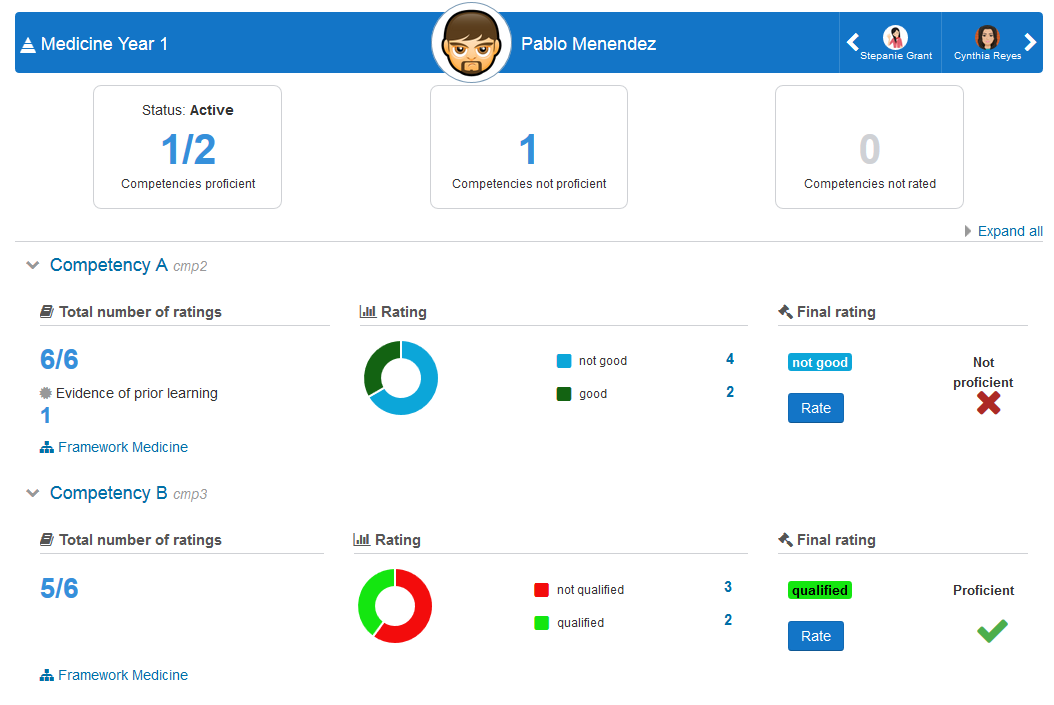
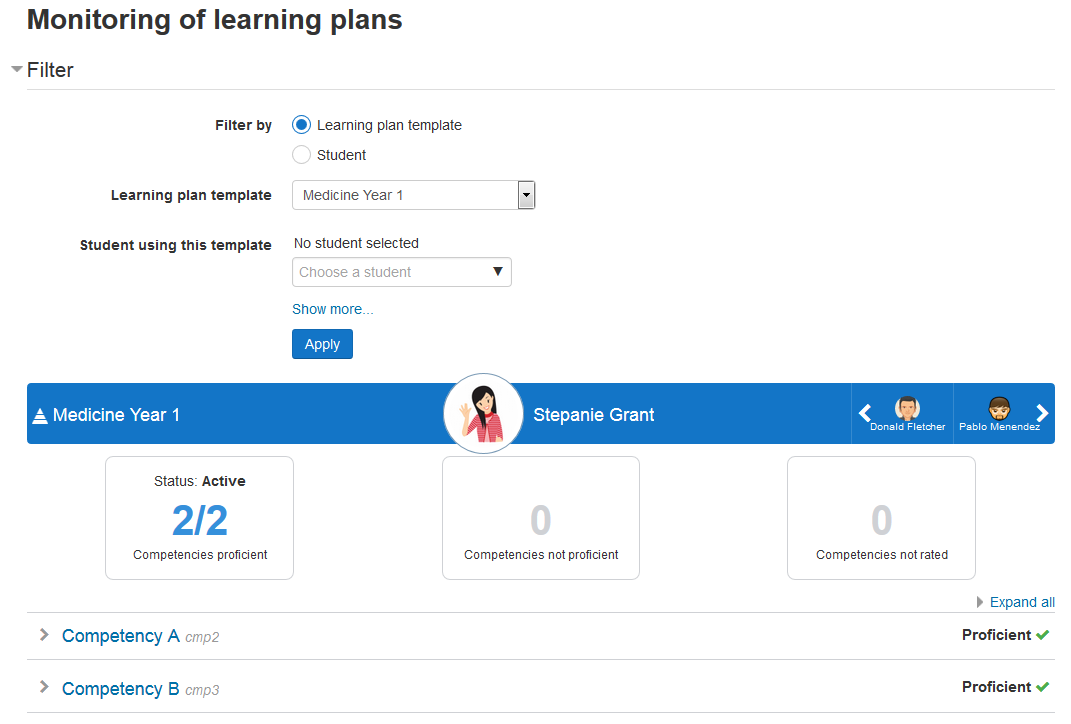
The main goal of this plugin is to facilitate the work of learning plan managers. It provides an overview of user learning plan, without leaving the page to get information related to this learning plan (such as rating in courses, user evidence, etc.) It also offers statistics by learning plans and competencies. For learning plan templates with a very large number of learning plans (generated from cohorts), this plugin is the best solution, with its advanced filters, it allows you to filter the learning plans by several criterias.
This plugin can be used in system or category context. The user using this plugin in the category must have these permissions:
Note that planview is always set in user context level. Thus, we must assign a user to a cohort using Site administration/Users/Permissions/Assign user roles to cohort so he will have the "moodle/competency:planview" of every member of that
specific cohort (must wait for the next cron execution to take effect).
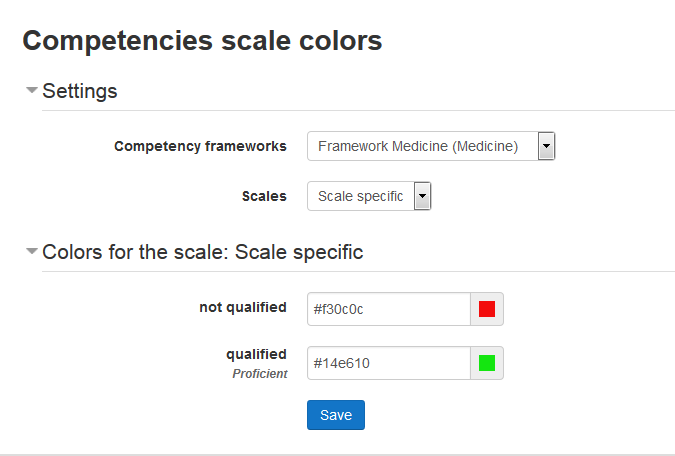
To fully benefit from the reports, a color must be associated to each value of the scale. To set the scale values colors, you must have "moodle/competency:competencymanage" permission. Here are the steps :

That's it, now the colors are set and ready to be used in the reports pages.
In a category context or system context go on Reports / - Monitoring of learning plans
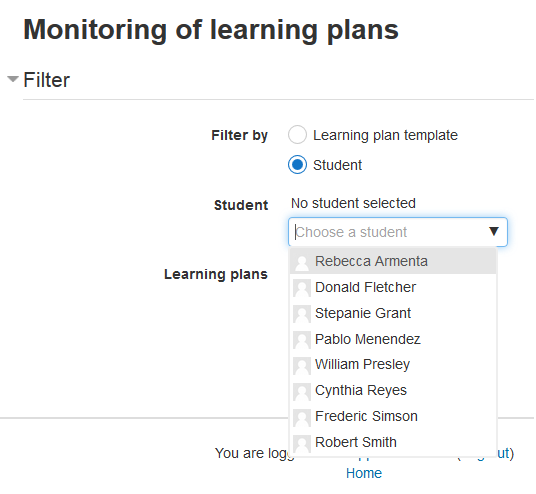
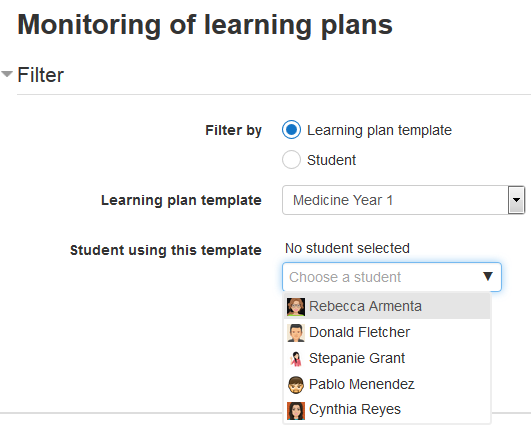
Filtering helps us find a user's learning plan. Here are the steps:
From a learning plan template, we can filter learning plans.
You will see the learning plan of the student selected, and you can navigate between learning plan based on that template. If there is no student selected, the first student from the template will be displayed.

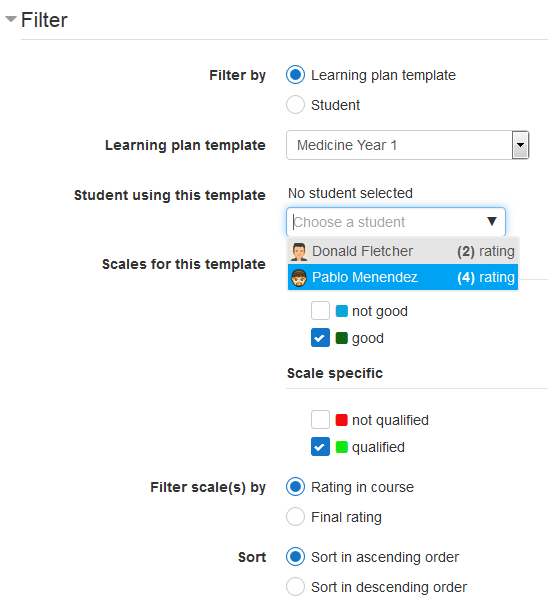
By clicking on "show more...", you can have more options to filter learning plans by scales values.
There are two options for using scales values filter
When filtering by scales values, the number of rating in the student list will be displayed:

We can choose a particular student by typing his name in the user picker field in order to retrieve his learning plans

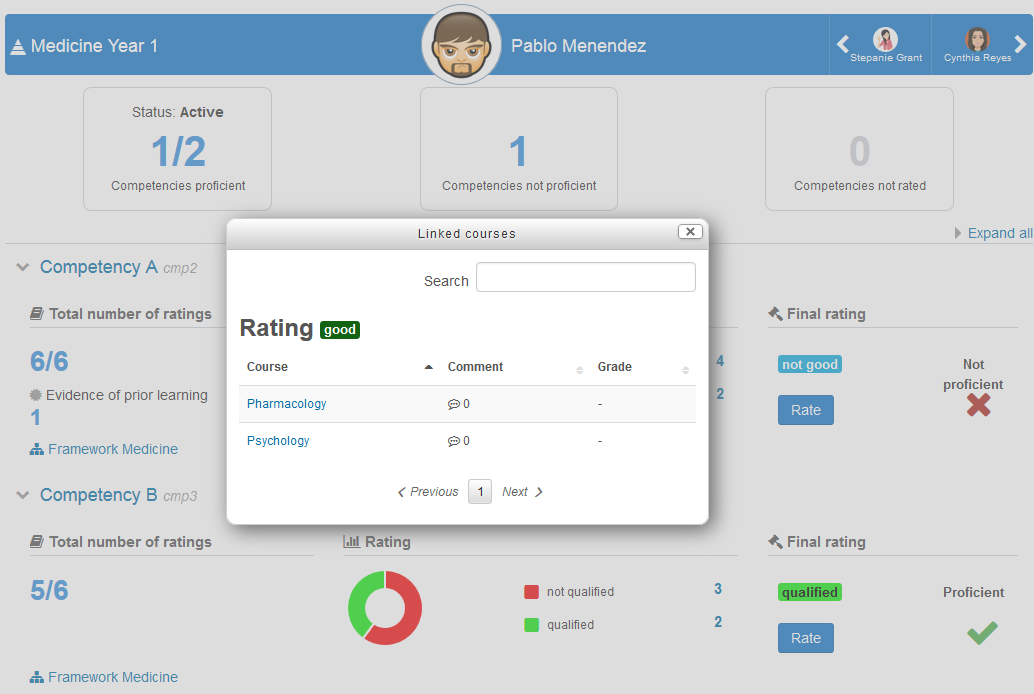
The details of the learning plan is divided into three blocks:
This block contain the following informations:
This block displays the following informations:
This part has three blocks
Total number of rating
It display the number of courses linked to the competency and wherein the user is enrolled. Clicking on the number will trigger a popup containing the list of courses linked to the competency and if the competency was rated in this course or not.
Also, this block displays the number of evidences of prior learning. You can have more details on the list of evidences by clicking on this number
Rating
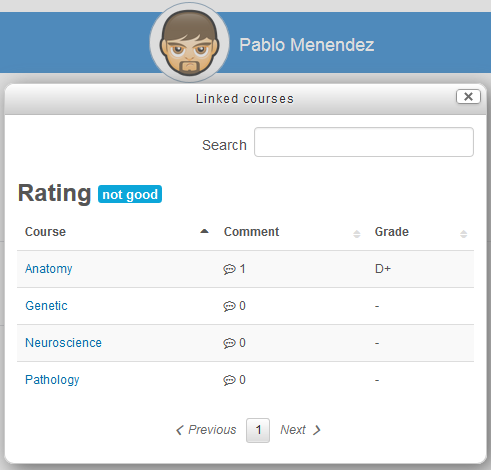
This block displays the number of rated courses by scale value. Clicking on this number triggers a popup that displays the course name, comments left by the teacher and the final course grade.

Final rating
This block gives us details about the final rating (rating in learning plan) :
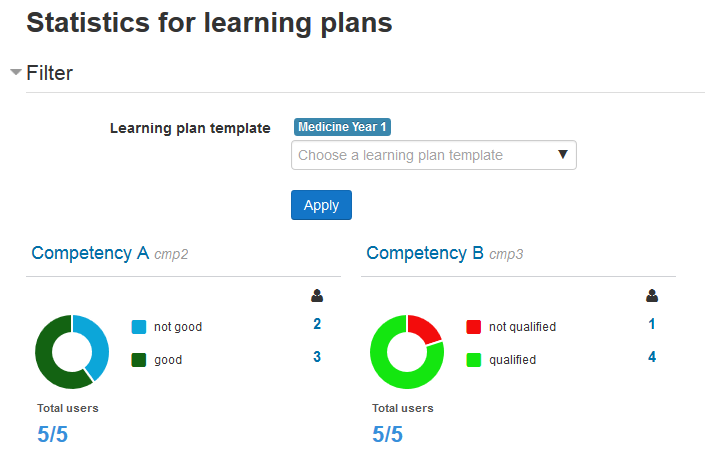
This page provides statistics for learning plans. It groups statistics by competency for a given template. For each competency we display the total users in template and number of users by scale value. To get this page, go on Reports / - Statistics for learning plans

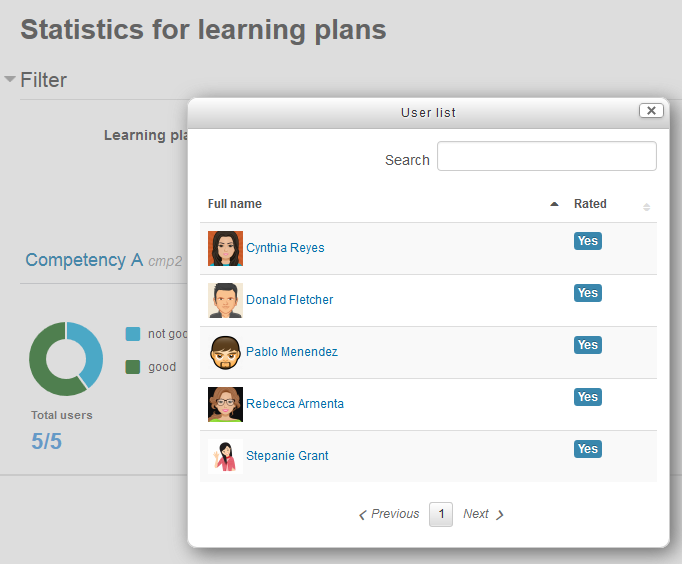
Total users
Clicking on the "Total users" number triggers a popup with the list of all the users related to this competency. It shows if each user has been rated.

Number of users by scale value
It displays the number of users rated with a given scale value for the competency.

This page gives the user the ability to keep track of his learning plans with all the details mentioned above. To get this page go to the user profile page and click on Monitoring of learning plans in the reports block.
To display the report, the user must select a learning plan and click on "Apply"
The block comment in the learning plan page (core) is now available in the report page, and we can filter by users having at least one comment.
A collapsible block was added, containing the resulting user list from search and filters, so we can easily navigate between users. That way, we are not limited to the next/previous buttons of the main learning plan bar.
We can reset all competencies of a learning plan: this will reset the value of rating but the evidences will be kept.
We can also make a reset on single competency.
This feature allows to rate competencies for all users learning plan of learning plan template.A scale value can be chosen for each competency. Note that rated students won't be impacted : to force ratings, tick "Force rating of users already rated" option. The ratings will take effect in the next passage of the CRON.
It shows ratings in courses in a table display, that can be filtered by competency, course name or/and scale value.


