
ownCloud
Versions
Current version
v3.6-r1 (2018112300)
v3.6-r1
Plugin type: Repositories
Frankenstyle component name: repository_owncloud
Version build number: 2018112300
Version release name: v3.6-r1
Maturity: Stable
Supported Moodle versions: 3.3, 3.4, 3.5, 3.6, 3.7
Repository URL (Git): https://github.com/learnweb/moodle-repository_owncloud/
Repository branch:
Repository tag: v3.6-r1
Issue/bug tracker URL: https://github.com/learnweb/moodle-repository_owncloud/issues
:warning: This is the last (regular) release of repository_owncloud. See notes below...
Stable release. Supports:
- Moodle 3.3.2, 3.4, 3.5, 3.6 (and higher).
- PHP 7.0, 7.1, 7.2.
- ownCloud 10.0.1 (or newer) + OAuth2 app from marketplace.
- Nextcloud 14.0.4 (or newer).
Changes
- Important: This is the last (regular) release of repository_owncloud. Starting with Moodle 3.6, this repository is integrated into core. Please consider moving away from this plugin and switching to the official version in core.
- Migration feature: This plugin helps you migrate to the official version in core. Once you are on Moodle 3.6, this functionality is available in the settings of the ownCloud repository.
- Change in Privacy API declarations.
Download options
We provide several brandings so that you can improve the experience of your Moodle users by showing a specific icon. Note that each of the following versions will work with any of the three systems without problems, regardless of which version you choose. The icon is the only difference.


v3.5-r4 (2018101900)
v3.5-r4
Plugin type: Repositories
Frankenstyle component name: repository_owncloud
Version build number: 2018101900
Version release name: v3.5-r4
Maturity: Stable
Supported Moodle versions: 3.3, 3.4, 3.5
Repository URL (Git): https://github.com/learnweb/moodle-repository_owncloud/
Repository branch:
Repository tag: v3.5-r4
Issue/bug tracker URL: https://github.com/learnweb/moodle-repository_owncloud/issues
Stable release. Supports:
- Moodle 3.3.2, 3.4, 3.5 (and higher).
- PHP 7.0, 7.1, 7.2.
- ownCloud 10.0.1 (or newer) + OAuth2 app from marketplace.
- Nextcloud 14.0.1 (or newer).
Changes
- System account connections are not initialised unless explicitly required for a particular action.
- Output content of access controlled links via Moodle instead of performing a redirect (necessary due to a security policy change in Nextcloud).
Download options
We provide several brandings so that you can improve the experience of your Moodle users by showing a specific icon. Note that each of the following versions will work with any of the three systems without problems, regardless of which version you choose. The icon is the only difference.
v3.5-r3 (2018091200)
v3.5-r3
Plugin type: Repositories
Frankenstyle component name: repository_owncloud
Version build number: 2018091200
Version release name: v3.5-r3
Maturity: Stable
Supported Moodle versions: 3.3, 3.4, 3.5
Repository URL (Git): https://github.com/learnweb/moodle-repository_owncloud/
Repository branch:
Repository tag: v3.5-r3
Issue/bug tracker URL: https://github.com/learnweb/moodle-repository_owncloud/issues
Stable release. Supports:
- Moodle 3.3.2, 3.4, 3.5 (and higher).
- PHP 7.0, 7.1, 7.2.
- ownCloud 10.0.1 (or newer) + OAuth2 app from marketplace.
- Nextcloud 13.0.1 (or newer).
Changes
- Fix folder creation error: We need to clean for
PARAM_FILE, notPARAM_PATH(slashes in name parts were problematic previously). - On error, explicitly communicate which folder could not be created.
- If a file has been shared with the system account: Don't fail, continue!
- Fix issuer validation.
- Check system account connectivity before using it in
send_file. - Save one roundtrip to find out the user name of the system account (Moodle stored that already).
- Simplify
$resultarray increate_folder_path_access_controlled_links. - Remove obsolete language strings and improve PHPdoc.
Download options
We provide several brandings so that you can improve the experience of your Moodle users by showing a specific icon. Note that each of the following versions will work with any of the three systems without problems, regardless of which version you choose. The icon is the only difference.
v3.5-r2 (2018081400)
v3.5-r2
Plugin type: Repositories
Frankenstyle component name: repository_owncloud
Version build number: 2018081400
Version release name: v3.5-r2
Maturity: Stable
Supported Moodle versions: 3.3, 3.4, 3.5
Repository URL (Git): https://github.com/learnweb/moodle-repository_owncloud/
Repository branch:
Repository tag: v3.5-r2
Issue/bug tracker URL: https://github.com/learnweb/moodle-repository_owncloud/issues
Stable release. Supports:
- Moodle 3.3.2, 3.4, 3.5 (and higher).
- PHP 7.0, 7.1, 7.2.
- ownCloud 10.0.1 (or newer) + OAuth2 app from marketplace.
- Nextcloud 13.0.1 (or newer).
Changes
- Add access controlled link functionality, comparable to Google Drive and OneDrive plugins.
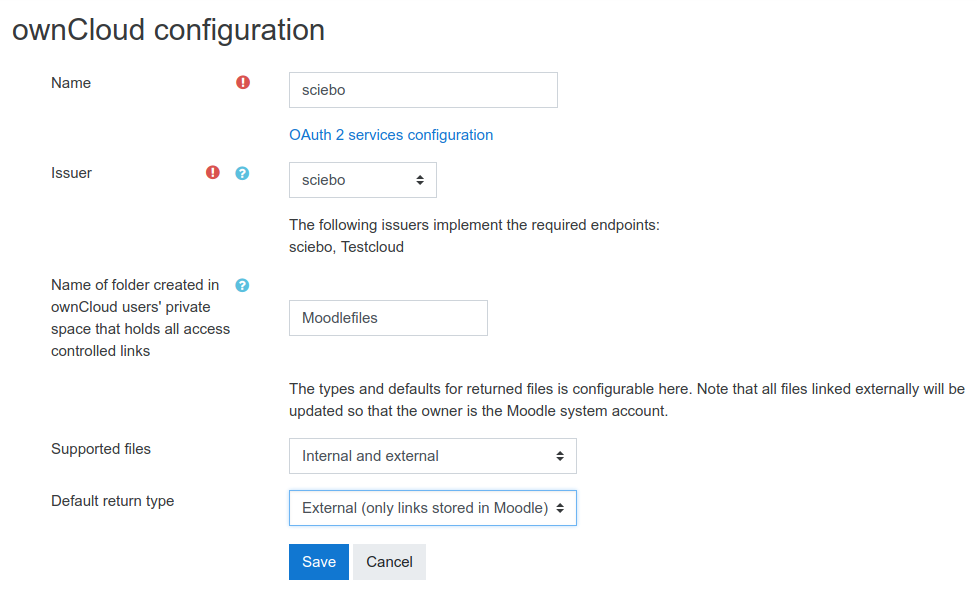
- Repository instance settings that restrict how files from the external system may be used.
Download options
We provide several brandings so that you can improve the experience of your Moodle users by showing a specific icon. Note that each of the following versions will work with any of the three systems without problems, regardless of which version you choose. The icon is the only difference.
v3.5-r1 (2018051100)
v3.5-r1
Plugin type: Repositories
Frankenstyle component name: repository_owncloud
Version build number: 2018051100
Version release name: v3.5-r1
Maturity: Stable
Supported Moodle versions: 3.3, 3.4, 3.5
Repository URL (Git): https://github.com/learnweb/moodle-repository_owncloud/
Repository branch:
Repository tag: v3.5-r1
Issue/bug tracker URL: https://github.com/learnweb/moodle-repository_owncloud/issues
Stable release. Supports:
- Moodle 3.3.2, 3.4, 3.5 (and higher).
- PHP 5.6, 7.0, 7.1.
- ownCloud 10.0.1 (or newer) + OAuth2 app from marketplace.
- Nextcloud 13.0.1 (or newer).
Changes
- Updated the docs to account for Nextcloud endpoints.
- Since Nextcloud 13.0.1, Nextcloud supports linking files as well! No plugin upgrade needed.
- Add support for Moodle's privacy API.
Download options
We provide several brandings so that you can improve the experience of your Moodle users by showing a specific icon. Note that each of the following versions will work with any of the three systems without problems, regardless of which version you choose. The icon is the only difference.
v3.4-r2 (2017102300)
v3.4-r2
Plugin type: Repositories
Frankenstyle component name: repository_owncloud
Version build number: 2017102300
Version release name: v3.4-r2
Maturity: Stable
Supported Moodle versions: 3.3, 3.4
Repository URL (Git): https://github.com/learnweb/moodle-repository_owncloud/
Repository branch:
Repository tag: v3.4-r2
Issue/bug tracker URL: https://github.com/learnweb/moodle-repository_owncloud/issues
Stable release. Supports:
- Moodle 3.3.2, 3.4 (and higher).
- PHP 5.6, 7.0, 7.1.
- ownCloud 10.0.1 (or newer) + OAuth2 app from marketplace.
- Nextcloud 12.0.2 (or newer).
Changes
- Tested for compatibility with Moodle 3.4 (with release 2017102100.00).
- Uses the updated webdav_client in Moodle's webdavlib.php (thanks to MDL-59844) in Moodle 3.4.
- Provides a "Polyfill" for webdav_client in Moodle 3.3 installations to remain backwards compatible.
Download options
We provide several brandings so that you can improve the experience of your Moodle users by showing a specific icon. Note that each of the following versions will work with any of the three systems without problems, regardless of which version you choose. The icon is the only difference.
(Note: This release replaces v3.4-r1 which declared outdated requirements.)
v3.3-r7 (2017081800)
v3.3-r7
Plugin type: Repositories
Frankenstyle component name: repository_owncloud
Version build number: 2017081800
Version release name: v3.3-r7
Maturity: Stable
Supported Moodle versions: 3.3
Repository URL (Git): https://github.com/learnweb/moodle-repository_owncloud/
Repository branch:
Repository tag: v3.3-r7
Issue/bug tracker URL: https://github.com/learnweb/moodle-repository_owncloud/issues
owncloud Repository Plugin for Moodle
This plugin enables Moodle users to have direct access to their private files from ownCloud in the Moodle file picker and the URL resource module,
enabling to upload files into Moodle directly from their ownCloud,
without having to download it to their local machine first.
Is your institution using multiple ownCloud servers? Don't worry,
a Moodle administrator can connect multiple ownCloud servers that are
then presented separately to the users. They can't add their own ownCloud servers, though.
This plugin was originally created by Information Systems students of the project seminar sciebo@Learnweb
at the University of Münster in 2016-17; see https://github.com/pssl16 for an archive(!) of their great work.
Learnweb (University of Münster) took over maintenance in 2017.
Installation
This plugin requires configuration in ownCloud (add Moodle as an allowed client)
as well as in Moodle (add ownCloud servers to which users will be able to connect).
1. Add Moodle as a client to ownCloud
Prerequisites: Current ownCloud installation (Recommended: Version 10+) with enabled HTTPS and the oauth2 ownCloud app.
Log in as an administrator. Go to Settings - User authentication and add your Moodle installation as a client:
| Name | Redirection URI |
| ---------------- | --------------------------------------------- |
| Your Moodle name | Your Moodle URL + /admin/oauth2callback.php |
For example, if your users reach Moodle at https://moodle.example.com,
your redirection URI would be https://moodle.example.com/admin/oauth2callback.php.
The name can be chosen freely, but note that it will presented to ownCloud users,
so the name should be self-explanatory to them.
After adding the client, the table displays a corresponding Client Identifier and a secret.
Those will be required for the configuration in Moodle, so keep them at hand.
2. Install this plugin to Moodle
Copy the content of this repository to repository/owncloud.
No additional settings are displayed to the admin when installing the plugin.
However, when the repository is enabled, the admin has to select an issuer which defines the ownCloud server.
The next steps describe how the necessary issuer is created in Moodle's central OAuth 2 services settings.
Afterwards, an ownCloud repository instance is created using that issuer.
3. Create OAuth 2 Issuer
You need to configure Moodle so that it knows how to talk to your ownCloud server.
For this, a so-called OAuth 2 issuer has to be registered in the admin menu Site administration - Server - OAuth 2 services.
There, select Create custom service.
Choose the name freely; it will only be shown to you.
Enter ClientID and Secret from the ownCloud settings of step 1.
As Service base URL, enter the full URL to your ownCloud installation, including a custom port (if any).
For example, if the ownCloud installation is at https://owncloud.example.com:8000/oc/, then this is the base URL.
Ignore the other settings and click Save changes.
Afterwards, your issuer is listed in a table.
There, click Configure endpoints to configure the services that we want to use, as ownCloud does not support auto discovery.
For the ownCloud Repository plugin four endpoints have to be registered that are ownCloud-specific:
| Endpoint name | Endpoint URL |
| ------------------------- | --------------------------------------------------------- |
| token_endpoint | Base URL + /index.php/apps/oauth2/api/v1/token |
| authorization_endpoint | Base URL + /index.php/apps/oauth2/authorize |
| webdav_endpoint | Base URL + /remote.php/webdav/ |
| ocs_endpoint | Base URL + /ocs/v1.php/apps/files_sharing/api/v1/shares |
Given the Base URL example above, an exemplary token_endpoint URL is https://owncloud.example.com:8000/oc/index.php/apps/oauth2/api/v1/token.
Return to the issuer overview and click on Configure user field mappings. Enter the following mappings:
| External field name | Internal field name |
| ------------------- | ------------------- |
| ocs-data-email | email |
| ocs-data-id | username |
This is sufficient to use the ownCloud repository!
For further information on configuring OAuth 2 clients visit the Moodle documentation on OAuth 2.
4. Create a repository instance
Now that the ownCloud issuer is configured, it can be associated with an instance of the repository.
Go to the repository settings Site administration - Plugins - Repositories - Manage repositories
and enable the ownCloud respository (Enabled and visible).
When asked for special user permissions, do not check any boxes. As they may not configure OAuth 2 issuers, these permissions are not that useful.
Then, open the Settings of the ownCloud repository and click Create a repository instance.
Enter a name that will be displayed to Moodle users and select the configured issuer.
A text underneath the select box tells you which issuers are suited for use with this repository.
If your issuer does not show up, double-check the issuer settings; particularly all URLs (base URL and endpoints) and the names of the endpoints.

Afterwards, everything is configured and ready to go! Let's see what this looks like for your users:
User View
The repository is available in all activities where the file picker is used.
However, course admins can disable it in the Course Administration - Repositories menu.
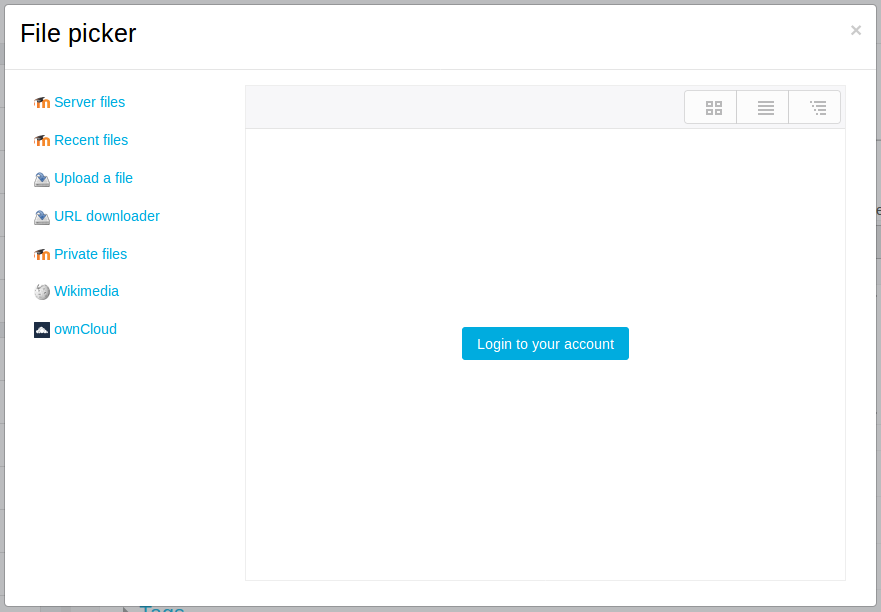
In the file picker a login button is displayed (assuming that the user is not authenticated yet):

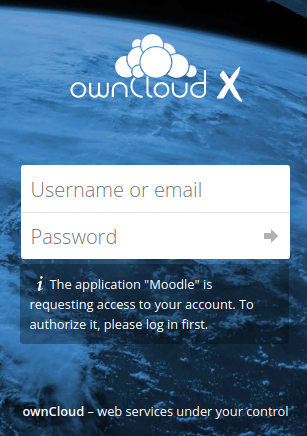
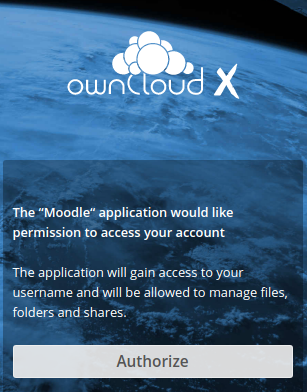
When the button is clicked a pop-up window or a new tab is opened and the user will be requested to login at the ownCloud instance and authorise access from Moodle.
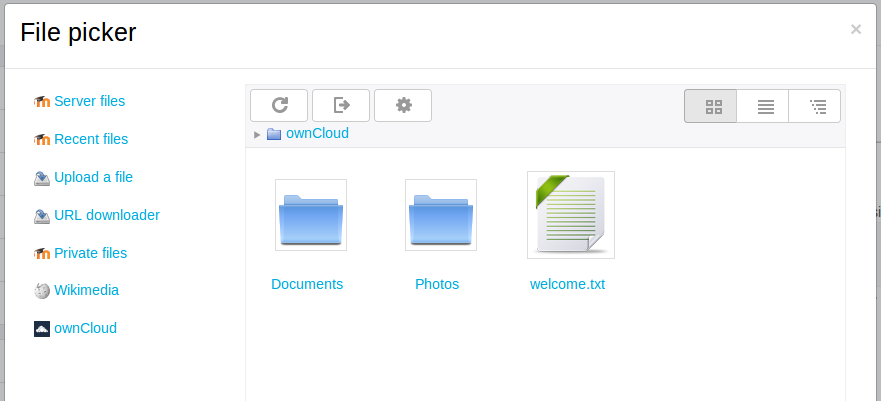
If authorisation is granted, the user sees a tabular listing of the files available:

Here the user can select files, reload the content and logout. The settings button is only displayed to admins, who will be redirected to the repository settings.
Hints for Developers and Contributors
The plugin uses Moodle's OAuth 2 API that was added in Moodle 3.3.
It makes use of a slightly modified version of Moodle's webdav_client (lib/webdavlib.php)
that was extended to incorporate OAuth-2-authenticated requests.
The modified version is the class repository_owncloud\owncloud_client; the effective differences to
the original webdavlib.php are described by the patch in classes/webdavlib.php.diff.
Additional information can be found in our original documentation (in German).
v3.3-r6 (2017081601)
v3.3-r6
Plugin type: Repositories
Frankenstyle component name: repository_owncloud
Version build number: 2017081601
Version release name: v3.3-r6
Maturity: Stable
Supported Moodle versions: 3.3
Repository URL (Git): https://github.com/learnweb/moodle-repository_owncloud/
Repository branch:
Repository tag: v3.3-r6
Issue/bug tracker URL: https://github.com/learnweb/moodle-repository_owncloud/issues
owncloud Repository Plugin for Moodle


This plugin enables Moodle users to have direct access to their private files from ownCloud in the Moodle file picker and the URL resource module,
enabling to upload files into Moodle directly from their ownCloud,
without having to download it to their local machine first.
Is your institution using multiple ownCloud servers? Don't worry,
a Moodle administrator can connect multiple ownCloud servers that are
then presented separately to the users. They can't add their own ownCloud servers, though.
This plugin was originally created by Information Systems students of the project seminar sciebo@Learnweb
at the University of Münster in 2016-17; see https://github.com/pssl16 for an archive(!) of their great work.
Learnweb (University of Münster) took over maintenance in 2017.
Installation
This plugin requires configuration in ownCloud (add Moodle as an allowed client)
as well as in Moodle (add ownCloud servers to which users will be able to connect).
1. Add Moodle as a client to ownCloud
Prerequisites: Current ownCloud installation (Recommended: Version 10+) with enabled HTTPS and the oauth2 ownCloud app.
Log in as an administrator. Go to Settings - User authentication and add your Moodle installation as a client:
| Name | Redirection URI |
| ---------------- | --------------------------------------------- |
| Your Moodle name | Your Moodle URL + /admin/oauth2callback.php |
For example, if your users reach Moodle at https://moodle.example.com,
your redirection URI would be https://moodle.example.com/admin/oauth2callback.php.
The name can be chosen freely, but note that it will presented to ownCloud users,
so the name should be self-explanatory to them.
After adding the client, the table displays a corresponding Client Identifier and a secret.
Those will be required for the configuration in Moodle, so keep them at hand.
2. Install this plugin to Moodle
Copy the content of this repository to repository/owncloud.
No additional settings are displayed to the admin when installing the plugin.
However, when the repository is enabled, the admin has to select an issuer which defines the ownCloud server.
The next steps describe how the necessary issuer is created in Moodle's central OAuth 2 services settings.
Afterwards, an ownCloud repository instance is created using that issuer.
3. Create OAuth 2 Issuer
You need to configure Moodle so that it knows how to talk to your ownCloud server.
For this, a so-called OAuth 2 issuer has to be registered in the admin menu Site administration - Server - OAuth 2 services.
There, select Create custom service.
Choose the name freely; it will only be shown to you.
Enter ClientID and Secret from the ownCloud settings of step 1.
As Service base URL, enter the full URL to your ownCloud installation, including a custom port (if any).
For example, if the ownCloud installation is at https://owncloud.example.com:8000/oc/, then this is the base URL.
Ignore the other settings and click Save changes.
Afterwards, your issuer is listed in a table.
There, click Configure endpoints to configure the services that we want to use, as ownCloud does not support auto discovery.
For the ownCloud Repository plugin four endpoints have to be registered that are ownCloud-specific:
| Endpoint name | Endpoint URL |
| ------------------------- | --------------------------------------------------------- |
| token_endpoint | Base URL + /index.php/apps/oauth2/api/v1/token |
| authorization_endpoint | Base URL + /index.php/apps/oauth2/authorize |
| webdav_endpoint | Base URL + /remote.php/webdav/ |
| ocs_endpoint | Base URL + /ocs/v1.php/apps/files_sharing/api/v1/shares |
Given the Base URL example above, an exemplary token_endpoint URL is https://owncloud.example.com:8000/oc/index.php/apps/oauth2/api/v1/token.
Return to the issuer overview and click on Configure user field mappings. Enter the following mappings:
| External field name | Internal field name |
| ------------------- | ------------------- |
| ocs-data-email | email |
| ocs-data-id | username |
This is sufficient to use the ownCloud repository!
For further information on configuring OAuth 2 clients visit the Moodle documentation on OAuth 2.
4. Create a repository instance
Now that the ownCloud issuer is configured, it can be associated with an instance of the repository.
Go to the repository settings Site administration - Plugins - Repositories - Manage repositories
and enable the ownCloud respository (Enabled and visible).
When asked for special user permissions, do not check any boxes. As they may not configure OAuth 2 issuers, these permissions are not that useful.
Then, open the Settings of the ownCloud repository and click Create a repository instance.
Enter a name that will be displayed to Moodle users and select the configured issuer.
A text underneath the select box tells you which issuers are suited for use with this repository.
If your issuer does not show up, double-check the issuer settings; particularly all URLs (base URL and endpoints) and the names of the endpoints.
Afterwards, everything is configured and ready to go! Let's see what this looks like for your users:
User View
The repository is available in all activities where the file picker is used.
However, course admins can disable it in the Course Administration - Repositories menu.
In the file picker a login button is displayed (assuming that the user is not authenticated yet):
When the button is clicked a pop-up window or a new tab is opened and the user will be requested to login at the ownCloud instance and authorise access from Moodle.
If authorisation is granted, the user sees a tabular listing of the files available:
Here the user can select files, reload the content and logout. The settings button is only displayed to admins, who will be redirected to the repository settings.
Hints for Developers and Contributors
The plugin uses Moodle's OAuth 2 API that was added in Moodle 3.3.
It makes use of a slightly modified version of Moodle's webdav_client (lib/webdavlib.php)
that was extended to incorporate OAuth-2-authenticated requests.
The modified version is the class repository_owncloud\owncloud_client; the effective differences to
the original webdavlib.php are described by the patch in classes/webdavlib.php.diff.
Additional information can be found in our original documentation (in German).
v3.3-r5 (2017080401)
v3.3-r5
Plugin type: Repositories
Frankenstyle component name: repository_owncloud
Version build number: 2017080401
Version release name: v3.3-r5
Maturity: Stable
Supported Moodle versions: 3.3
Repository URL (Git): https://github.com/learnweb/moodle-repository_owncloud/
Repository branch:
Repository tag: v3.3-r5
Issue/bug tracker URL: https://github.com/learnweb/moodle-repository_owncloud/issues
owncloud Repository Plugin for Moodle
This plugin enables Moodle users to have direct access to their private files from ownCloud in the Moodle file picker and the URL resource module,
enabling to upload files into Moodle directly from their ownCloud,
without having to download it to their local machine first.
Is your institution using multiple ownCloud servers? Don't worry,
a Moodle administrator can connect multiple ownCloud servers that are
then presented separately to the users. They can't add their own ownCloud servers, though.
This plugin was originally created by Information Systems students of the project seminar sciebo@Learnweb
at the University of Münster in 2016-17; see https://github.com/pssl16 for an archive(!) of their great work.
Learnweb (University of Münster) took over maintenance in 2017.
This is the first stable release of the ownCloud repository, brought to you as a joint effort of Learnweb and sciebo (University of Münster, Germany).