Enlightlite
Versions
Current version
v4.1.1 (2023012001)
v4.1.1
Plugin type: Themes
Frankenstyle component name: theme_enlightlite
Version build number: 2023012001
Version release name: v4.1.1
Maturity: Stable
Supported Moodle versions: 4.1
Repository URL (Git): https://github.com/lmsace/enlightlite
Repository branch:
Repository tag:
Issue/bug tracker URL: https://github.com/lmsace/enlightlite/issues
<header id="header">

    <div class="logo">

        <h2><span>Enlight Lite</span></h2>

    </div>

</header>
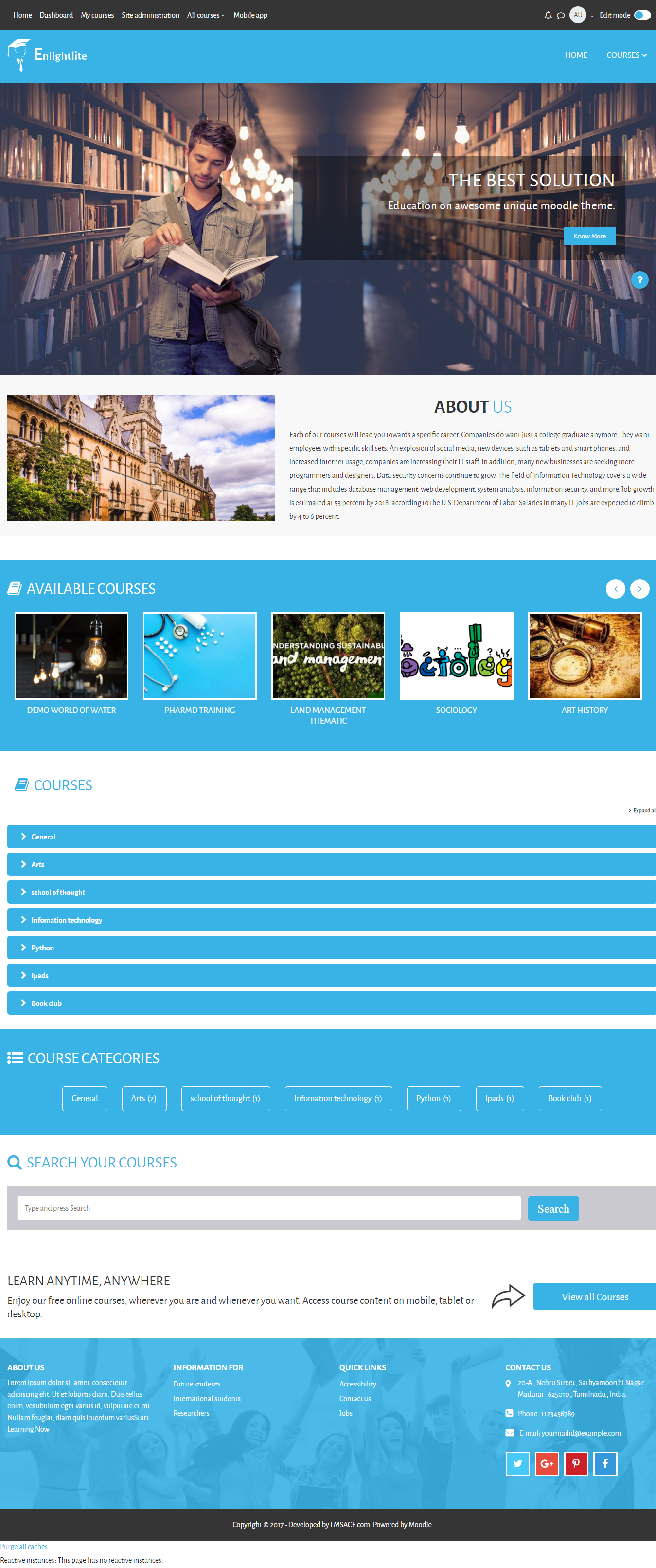
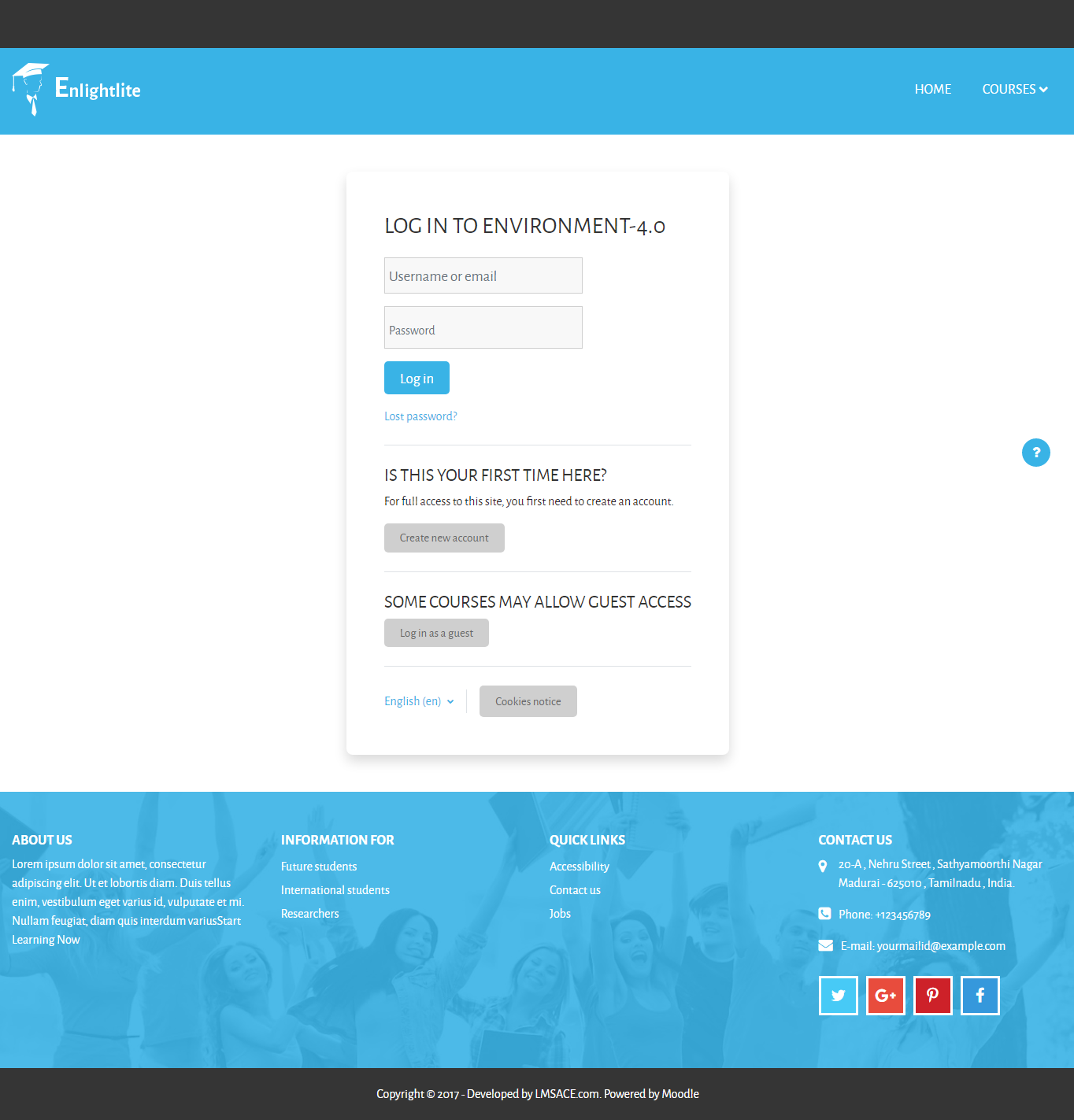
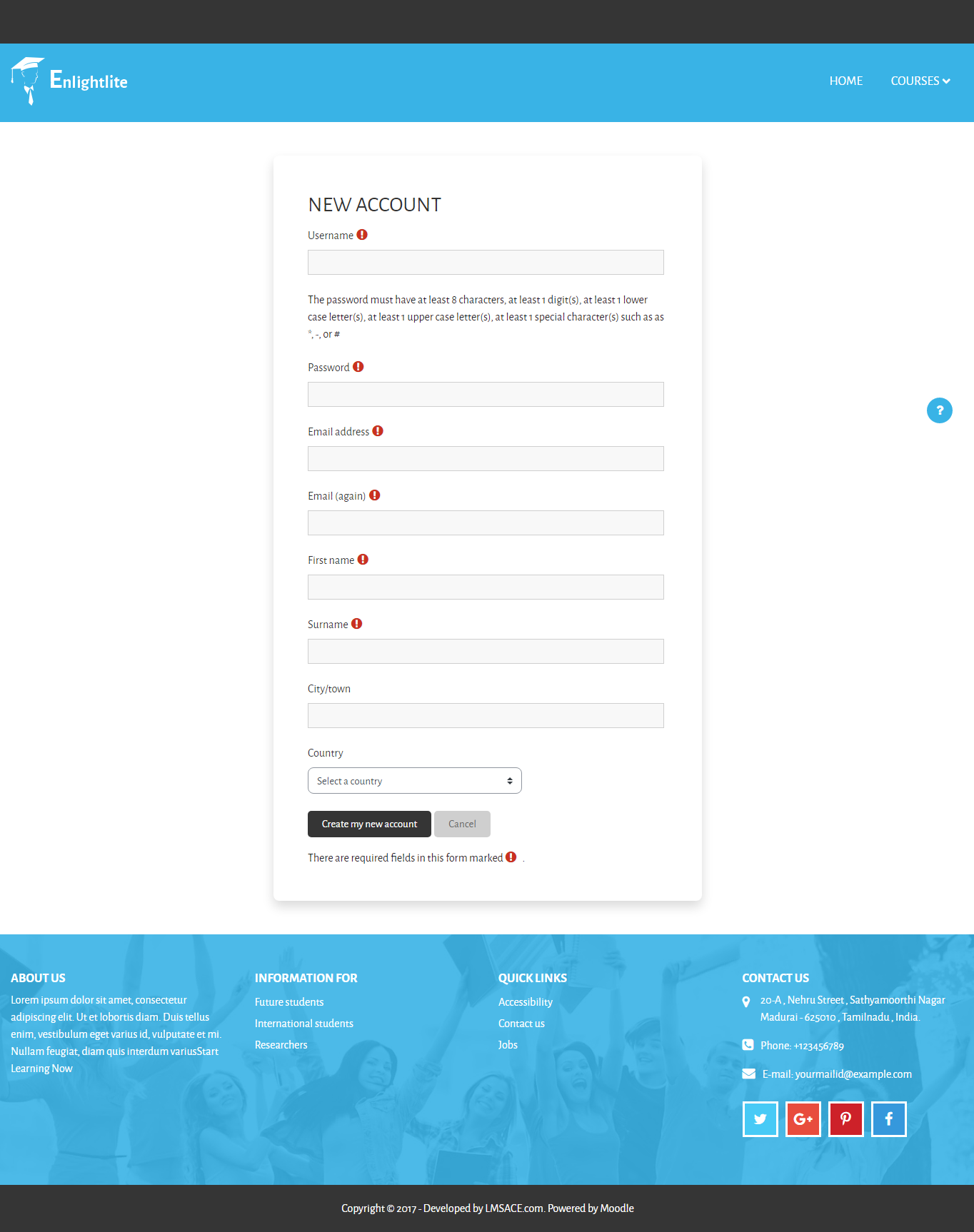
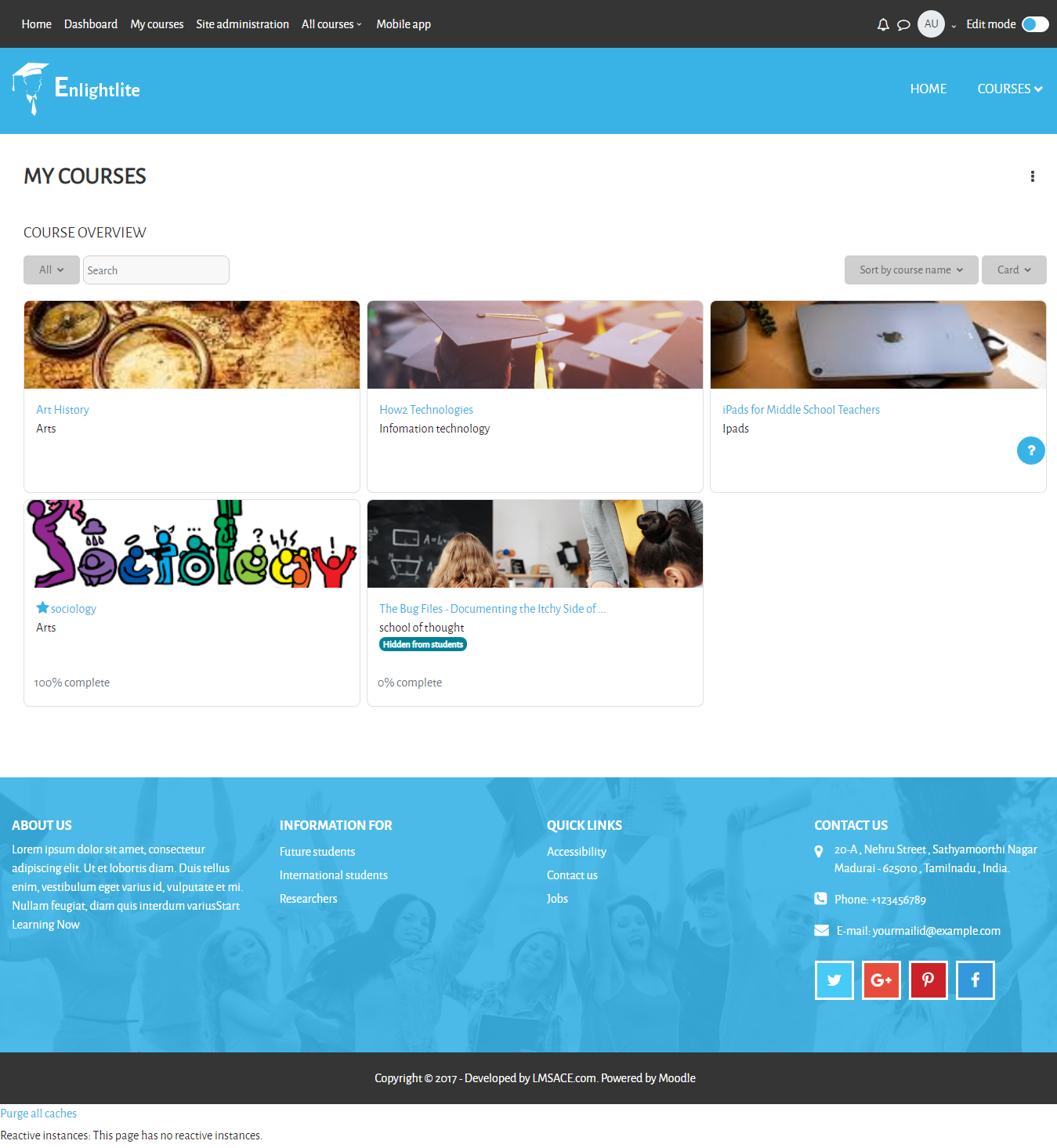
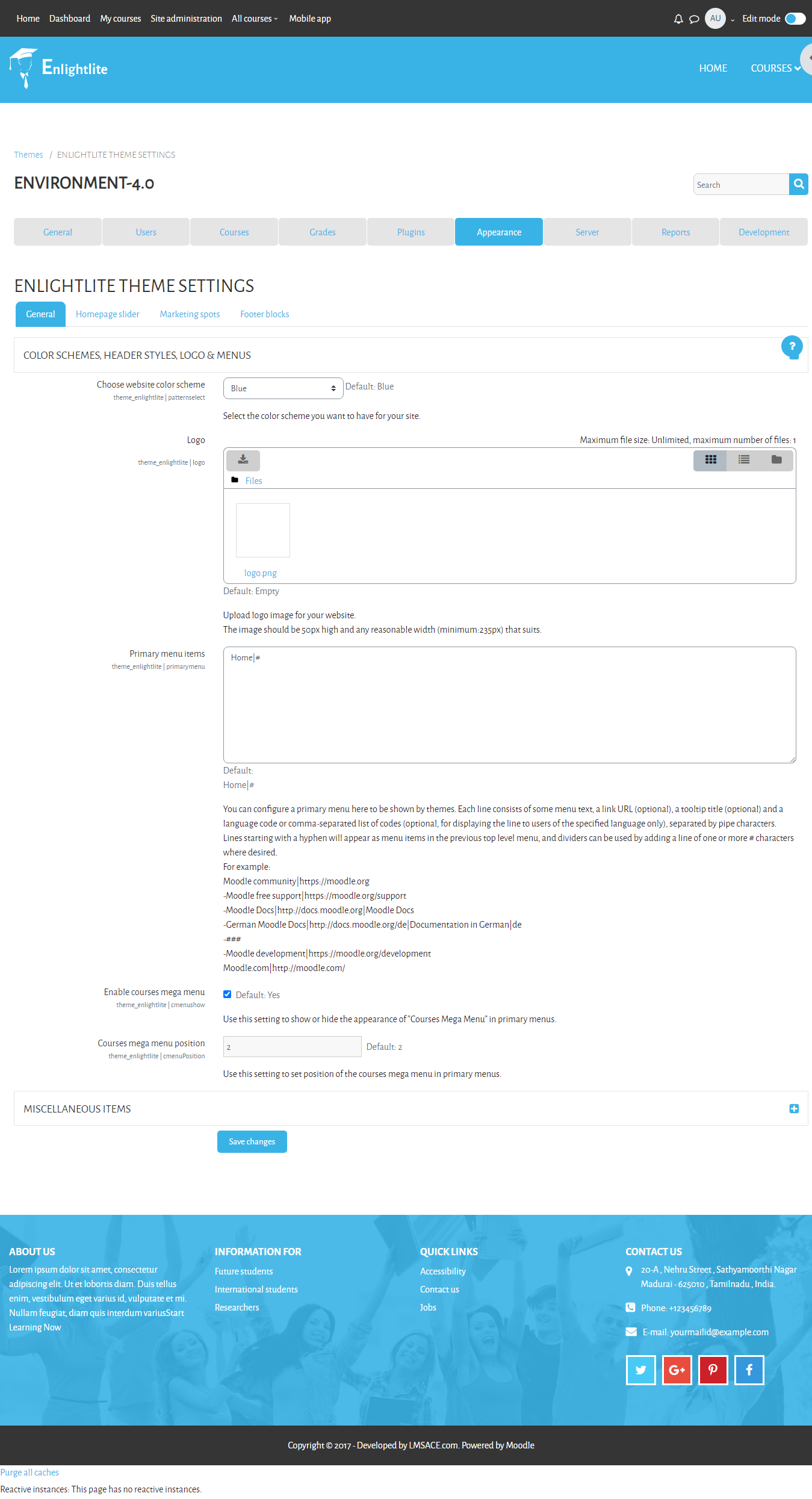
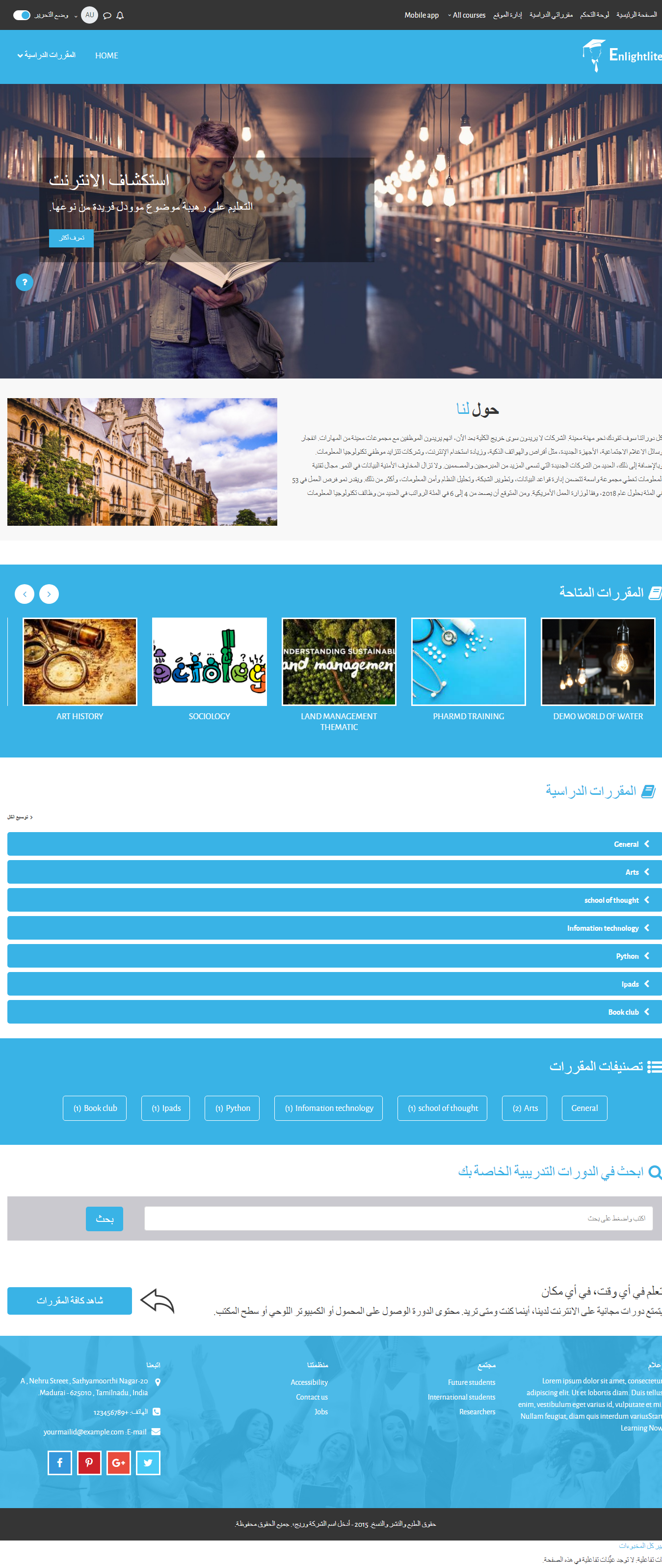
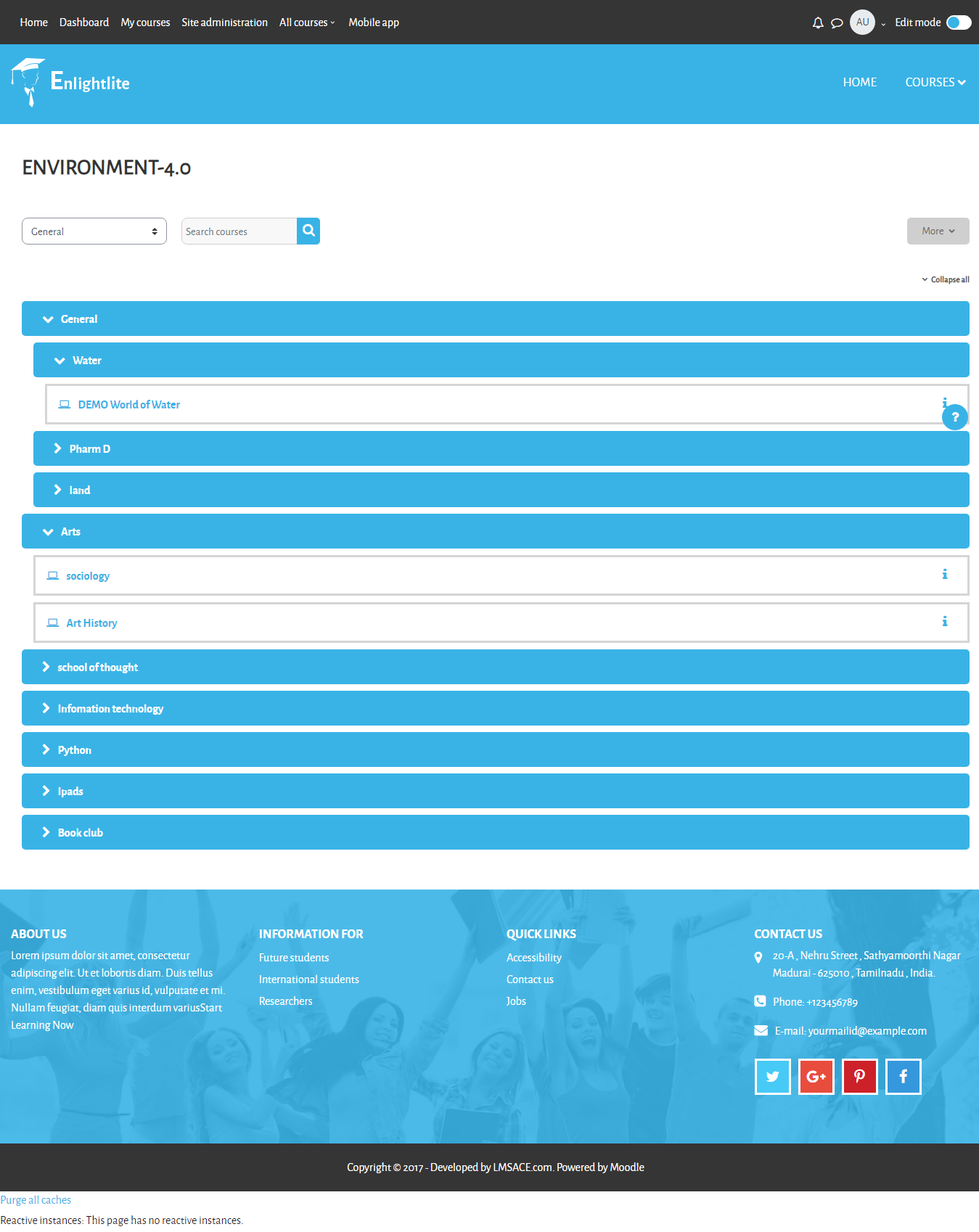
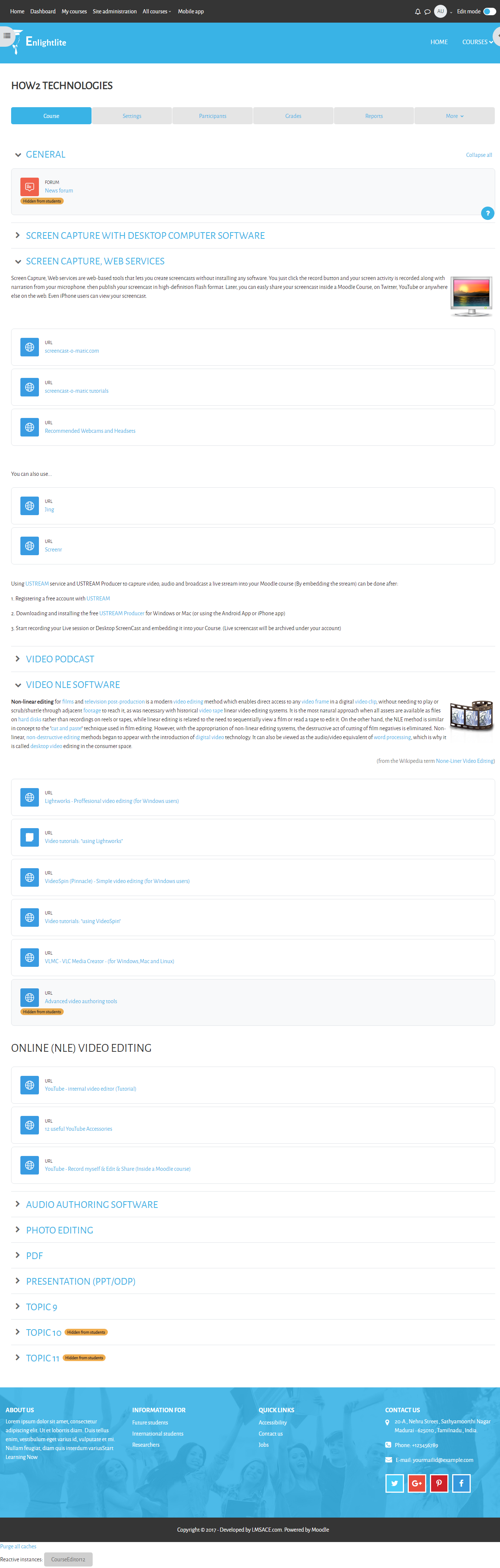
About Enlightlite Moodle theme
Enlight Lite is a beautiful and fully responsive Moodle theme well suited for Universities,Schools &
Online learning websites.
- Theme Demo URL : Moodle Enlightlite Theme
- Theme Version : 4.1
- Relesed on : 20 January 2023
- Authors : LMSACE Dev Team
- Copyright © 2015 onwards www.lmsace.com
Supported moodle versions
Compatible with Moodle 4.0
Supported browsers
IE9+
Recent versions of all modern browsers
Enlightlite theme - Installation steps
- On your download pacakge, you will find theme_enlightlite.zip
- Unzip - theme_enlightlite.zip, you will get folder 'enlightlite'
- Copy folder 'enlightlite' and put into theme folder of your moodle system
- Next login as Site administrator
- Go to 'Site administration' -> 'Notifications' ,
here on 'Plugins check' page you will see the enlightlite theme in listing. - Click the "Upgrade Moodle database now" button displayed on bottom of the page
- You will get success message once the theme installed successfully.
- By clicking "Continue" button on success page , you will get options to change the enlightlite theme settings.
- You can modify the settings later too :-)
Steps to set enlightlite theme as default theme for your moodle system
- Login as site administrator
- Go to Site administration -> Appearance -> Themes -> Theme selector
- Click the "Change theme" button for device type as "Default"
- It will list all the available themes for "Default device"
- Then click "Use theme" button on "Enlightlite theme"
- Next click the "Continue" button ,thats it.
- Cheers,you have done it !!!
- If you need any support related to this theme , kindly send a mail to info@lmsace.com
v4.2 (2023080100)
v4.2
Plugin type: Themes
Frankenstyle component name: theme_enlightlite
Version build number: 2023080100
Version release name: v4.2
Maturity: Stable
Supported Moodle versions: 4.2
Repository URL (Git): https://github.com/lmsace/enlightlite
Repository branch:
Repository tag:
Issue/bug tracker URL: https://github.com/lmsace/enlightlite/issues
<header id="header">

    <div class="logo">

        <h2><span>Enlight Lite</span></h2>

    </div>

</header>
About Enlightlite Moodle theme
Enlight Lite is a beautiful and fully responsive Moodle theme well suited for Universities,Schools &
Online learning websites.
- Theme Demo URL : Moodle Enlightlite Theme
- Theme Version : 4.2
- Relesed on : 01 August 2023
- Authors : LMSACE Dev Team
- Copyright © 2015 onwards www.lmsace.com
Supported moodle versions
Compatible with Moodle 4.2
Supported browsers
IE9+
Recent versions of all modern browsers
Enlightlite theme - Installation steps
- On your download pacakge, you will find theme_enlightlite.zip
- Unzip - theme_enlightlite.zip, you will get folder 'enlightlite'
- Copy folder 'enlightlite' and put into theme folder of your moodle system
- Next login as Site administrator
- Go to 'Site administration' -> 'Notifications' ,
here on 'Plugins check' page you will see the enlightlite theme in listing. - Click the "Upgrade Moodle database now" button displayed on bottom of the page
- You will get success message once the theme installed successfully.
- By clicking "Continue" button on success page , you will get options to change the enlightlite theme settings.
- You can modify the settings later too :-)
Steps to set enlightlite theme as default theme for your moodle system
- Login as site administrator
- Go to Site administration -> Appearance -> Themes -> Theme selector
- Click the "Change theme" button for device type as "Default"
- It will list all the available themes for "Default device"
- Then click "Use theme" button on "Enlightlite theme"
- Next click the "Continue" button ,thats it.
- Cheers,you have done it !!!
- If you need any support related to this theme , kindly send a mail to info@lmsace.com
v4.1 (2023012000)
v4.1
Plugin type: Themes
Frankenstyle component name: theme_enlightlite
Version build number: 2023012000
Version release name: v4.1
Maturity: Stable
Supported Moodle versions: 4.1
Repository URL (Git): https://github.com/lmsace/enlightlite
Repository branch: https://github.com/lmsace/enlightlite/tree/v4.1
Repository tag: https://github.com/lmsace/enlightlite/tree/V4.1
Issue/bug tracker URL: https://github.com/lmsace/enlightlite/issues
Enlight Lite
About Enlightlite Moodle theme
Enlight Lite is a beautiful and fully responsive Moodle theme well suited for Universities,Schools &
Online learning websites.
- Theme Demo URL : Moodle Enlightlite Theme
- Theme Version : 4.1
- Relesed on : 20 January 2023
- Authors : LMSACE Dev Team
- Copyright © 2015 onwards www.lmsace.com
Supported moodle versions
Compatible with Moodle 4.0
Supported browsers
IE9+
Recent versions of all modern browsers
Enlightlite theme - Installation steps
- On your download pacakge, you will find theme_enlightlite.zip
- Unzip - theme_enlightlite.zip, you will get folder 'enlightlite'
- Copy folder 'enlightlite' and put into theme folder of your moodle system
- Next login as Site administrator
- Go to 'Site administration' -> 'Notifications' ,
here on 'Plugins check' page you will see the enlightlite theme in listing. - Click the "Upgrade Moodle database now" button displayed on bottom of the page
- You will get success message once the theme installed successfully.
- By clicking "Continue" button on success page , you will get options to change the enlightlite theme settings.
- You can modify the settings later too :-)
Steps to set enlightlite theme as default theme for your moodle system
- Login as site administrator
- Go to Site administration -> Appearance -> Themes -> Theme selector
- Click the "Change theme" button for device type as "Default"
- It will list all the available themes for "Default device"
- Then click "Use theme" button on "Enlightlite theme"
- Next click the "Continue" button ,thats it.
- Cheers,you have done it !!!
- If you need any support related to this theme , kindly send a mail to info@lmsace.com
<div class="social-links">

    <ul>

        <li><a href="https://www.facebook.com/Lmsaceofficial-960502504094063/"><i class="fa fa-facebook"></i></a></li>

        <li><a href="https://twitter.com/lmsaceofficial"><i class="fa fa-twitter"></i></a></li>

        <li><a><i class="fa fa-skype"></i></a></li>

        <li><a href="https://www.linkedin.com/company/lmsaceofficial/"><i class="fa fa-linkedin"></i></a></li>

    </ul>

</div>
v4.0.4 (2022052704)
v4.0.4
Plugin type: Themes
Frankenstyle component name: theme_enlightlite
Version build number: 2022052704
Version release name: v4.0.4
Maturity: Stable
Supported Moodle versions: 4.0
Repository URL (Git): https://github.com/lmsace/enlightlite
Repository branch:
Repository tag:
Issue/bug tracker URL: https://github.com/lmsace/enlightlite/issues
Read Me Enlightlite Theme
<header id="header">

    <div class="logo">

        <h2><span>Enlight Lite</span></h2>

    </div>

</header>
About Enlightlite Moodle theme
Enlight Lite is a beautiful and fully responsive Moodle theme well suited for Universities,Schools &
Online learning websites.
- Theme Demo URL : Moodle Enlightlite Theme
- Theme Version : 4.0.4
- Relesed on : 27 May 2022
- Authors : LMSACE Dev Team
- Copyright © 2015 onwards www.lmsace.com
Supported moodle versions
Compatible with Moodle 4.0
Supported browsers
IE9+
Recent versions of all modern browsers
Enlightlite theme - Installation steps
- On your download pacakge, you will find theme_enlightlite.zip
- Unzip - theme_enlightlite.zip, you will get folder 'enlightlite'
- Copy folder 'enlightlite' and put into theme folder of your moodle system
- Next login as Site administrator
- Go to 'Site administration' -> 'Notifications' ,
here on 'Plugins check' page you will see the enlightlite theme in listing. - Click the "Upgrade Moodle database now" button displayed on bottom of the page
- You will get success message once the theme installed successfully.
- By clicking "Continue" button on success page , you will get options to change the enlightlite theme settings.
- You can modify the settings later too :-)
Steps to set enlightlite theme as default theme for your moodle system
- Login as site administrator
- Go to Site administration -> Appearance -> Themes -> Theme selector
- Click the "Change theme" button for device type as "Default"
- It will list all the available themes for "Default device"
- Then click "Use theme" button on "Enlightlite theme"
- Next click the "Continue" button ,thats it.
- Cheers,you have done it !!!
- If you need any support related to this theme , kindly send a mail to info@lmsace.com
v4.0.3 (2022052700)
v4.0.3
Plugin type: Themes
Frankenstyle component name: theme_enlightlite
Version build number: 2022052700
Version release name: v4.0.3
Maturity: Stable
Supported Moodle versions: 4.0
Repository URL (Git): https://github.com/lmsace/enlightlite
Repository branch:
Repository tag:
Issue/bug tracker URL: https://github.com/lmsace/enlightlite/issues
<header id="header">

    <div class="logo">

        <h2><span>Enlight Lite</span></h2>

    </div>

</header>
About Enlightlite Moodle theme
Enlight Lite is a beautiful and fully responsive Moodle theme well suited for Universities,Schools &
Online learning websites.
- Theme Demo URL : Moodle Enlightlite Theme
- Theme Version : 4.0.3
- Relesed on : 27 May 2022
- Authors : LMSACE Dev Team
- Copyright © 2015 onwards www.lmsace.com
Supported moodle versions
Compatible with Moodle 4.0
Supported browsers
IE9+
Recent versions of all modern browsers
Enlightlite theme - Installation steps
- On your download pacakge, you will find theme_enlightlite.zip
- Unzip - theme_enlightlite.zip, you will get folder 'enlightlite'
- Copy folder 'enlightlite' and put into theme folder of your moodle system
- Next login as Site administrator
- Go to 'Site administration' -> 'Notifications' ,
here on 'Plugins check' page you will see the enlightlite theme in listing. - Click the "Upgrade Moodle database now" button displayed on bottom of the page
- You will get success message once the theme installed successfully.
- By clicking "Continue" button on success page , you will get options to change the enlightlite theme settings.
- You can modify the settings later too :-)
Steps to set enlightlite theme as default theme for your moodle system
- Login as site administrator
- Go to Site administration -> Appearance -> Themes -> Theme selector
- Click the "Change theme" button for device type as "Default"
- It will list all the available themes for "Default device"
- Then click "Use theme" button on "Enlightlite theme"
- Next click the "Continue" button ,thats it.
- Cheers,you have done it !!!
- If you need any support related to this theme , kindly send a mail to info@lmsace.com
v4.0.2 (2022051901)
v4.0.2
Plugin type: Themes
Frankenstyle component name: theme_enlightlite
Version build number: 2022051901
Version release name: v4.0.2
Maturity: Stable
Supported Moodle versions: 4.0
Repository URL (Git): https://github.com/lmsace/enlightlite
Repository branch:
Repository tag:
Issue/bug tracker URL: https://github.com/lmsace/enlightlite/issues
Read Me Enlightlite Theme
<header id="header">

    <div class="logo">

        <h2><span>Enlight Lite</span></h2>

    </div>

</header>
About Enlightlite Moodle theme
Enlight Lite is a beautiful and fully responsive Moodle theme well suited for Universities,Schools &
Online learning websites.
- Theme Demo URL : Moodle Enlightlite Theme
- Theme Version : 4.0.2
- Relesed on : 19 May 2022
- Authors : LMSACE Dev Team
- Copyright © 2015 onwards www.lmsace.com
Supported moodle versions
Compatible with Moodle 4.0
Supported browsers
IE9+
Recent versions of all modern browsers
Enlightlite theme - Installation steps
- On your download pacakge, you will find theme_enlightlite.zip
- Unzip - theme_enlightlite.zip, you will get folder 'enlightlite'
- Copy folder 'enlightlite' and put into theme folder of your moodle system
- Next login as Site administrator
- Go to 'Site administration' -> 'Notifications' ,
here on 'Plugins check' page you will see the enlightlite theme in listing. - Click the "Upgrade Moodle database now" button displayed on bottom of the page
- You will get success message once the theme installed successfully.
- By clicking "Continue" button on success page , you will get options to change the enlightlite theme settings.
- You can modify the settings later too :-)
Steps to set enlightlite theme as default theme for your moodle system
- Login as site administrator
- Go to Site administration -> Appearance -> Themes -> Theme selector
- Click the "Change theme" button for device type as "Default"
- It will list all the available themes for "Default device"
- Then click "Use theme" button on "Enlightlite theme"
- Next click the "Continue" button ,thats it.
- Cheers,you have done it !!!
- If you need any support related to this theme , kindly send a mail to info@lmsace.com
v4.0.1 (2022051900)
v4.0.1
Plugin type: Themes
Frankenstyle component name: theme_enlightlite
Version build number: 2022051900
Version release name: v4.0.1
Maturity: Stable
Supported Moodle versions: 4.0
Repository URL (Git): https://github.com/lmsace/enlightlite
Repository branch:
Repository tag:
Issue/bug tracker URL: https://github.com/lmsace/enlightlite/issues
<header id="header">

    <div class="logo">

        <h2><span>Enlight Lite</span></h2>

    </div>

</header>
About Enlightlite Moodle theme
Enlight Lite is a beautiful and fully responsive Moodle theme well suited for Universities,Schools &
Online learning websites.
- Theme Demo URL : Moodle Enlightlite Theme
- Theme Version : 4.0.1
- Relesed on : 19 May 2022
- Authors : LMSACE Dev Team
- Copyright © 2015 onwards www.lmsace.com
Supported moodle versions
Compatible with Moodle 4.0
Supported browsers
IE9+
Recent versions of all modern browsers
Enlightlite theme - Installation steps
- On your download pacakge, you will find theme_enlightlite.zip
- Unzip - theme_enlightlite.zip, you will get folder 'enlightlite'
- Copy folder 'enlightlite' and put into theme folder of your moodle system
- Next login as Site administrator
- Go to 'Site administration' -> 'Notifications' ,
here on 'Plugins check' page you will see the enlightlite theme in listing. - Click the "Upgrade Moodle database now" button displayed on bottom of the page
- You will get success message once the theme installed successfully.
- By clicking "Continue" button on success page , you will get options to change the enlightlite theme settings.
- You can modify the settings later too :-)
Steps to set enlightlite theme as default theme for your moodle system
- Login as site administrator
- Go to Site administration -> Appearance -> Themes -> Theme selector
- Click the "Change theme" button for device type as "Default"
- It will list all the available themes for "Default device"
- Then click "Use theme" button on "Enlightlite theme"
- Next click the "Continue" button ,thats it.
- Cheers,you have done it !!!
- If you need any support related to this theme , kindly send a mail to info@lmsace.com
v4.0 (2022051700)
v4.0
Plugin type: Themes
Frankenstyle component name: theme_enlightlite
Version build number: 2022051700
Version release name: v4.0
Maturity: Stable
Supported Moodle versions: 4.0
Repository URL (Git): https://github.com/lmsace/enlightlite
Repository branch:
Repository tag:
Issue/bug tracker URL: https://github.com/lmsace/enlightlite/issues
<header id="header">

    <div class="logo">

        <h2><span>Enlight Lite</span></h2>

    </div>

</header>
About Enlightlite Moodle theme
Enlight Lite is a beautiful and fully responsive Moodle theme well suited for Universities,Schools &
Online learning websites.
- Theme Demo URL : Moodle Enlightlite Theme
- Theme Version : 4.0
- Relesed on : 17 May 2022
- Authors : LMSACE Dev Team
- Copyright © 2015 onwards www.lmsace.com
Supported moodle versions
Compatible with Moodle 4.0
Supported browsers
IE9+
Recent versions of all modern browsers
Enlightlite theme - Installation steps
- On your download pacakge, you will find theme_enlightlite.zip
- Unzip - theme_enlightlite.zip, you will get folder 'enlightlite'
- Copy folder 'enlightlite' and put into theme folder of your moodle system
- Next login as Site administrator
- Go to 'Site administration' -> 'Notifications' ,
here on 'Plugins check' page you will see the enlightlite theme in listing. - Click the "Upgrade Moodle database now" button displayed on bottom of the page
- You will get success message once the theme installed successfully.
- By clicking "Continue" button on success page , you will get options to change the enlightlite theme settings.
- You can modify the settings later too :-)
Steps to set enlightlite theme as default theme for your moodle system
- Login as site administrator
- Go to Site administration -> Appearance -> Themes -> Theme selector
- Click the "Change theme" button for device type as "Default"
- It will list all the available themes for "Default device"
- Then click "Use theme" button on "Enlightlite theme"
- Next click the "Continue" button ,thats it.
- Cheers,you have done it !!!
- If you need any support related to this theme , kindly send a mail to info@lmsace.com
v4.0 (2022051600)
v4.0
Plugin type: Themes
Frankenstyle component name: theme_enlightlite
Version build number: 2022051600
Version release name: v4.0
Maturity: Stable
Supported Moodle versions: 4.0
Repository URL (Git): https://github.com/lmsace/enlightlite
Repository branch:
Repository tag:
Issue/bug tracker URL: https://github.com/lmsace/enlightlite/issues
<header id="header">

    <div class="logo">

        <h2><span>Enlight Lite</span></h2>

    </div>

</header>
About Enlightlite Moodle theme
Enlight Lite is a beautiful and fully responsive Moodle theme well suited for Universities,Schools &
Online learning websites.
- Theme Demo URL : Moodle Enlightlite Theme
- Theme Version : 4.0
- Relesed on : 16 May 2022
- Authors : LMSACE Dev Team
- Copyright © 2015 onwards www.lmsace.com
Supported moodle versions
Compatible with Moodle 4.0
Supported browsers
IE9+
Recent versions of all modern browsers
Enlightlite theme - Installation steps
- On your download pacakge, you will find theme_enlightlite.zip
- Unzip - theme_enlightlite.zip, you will get folder 'enlightlite'
- Copy folder 'enlightlite' and put into theme folder of your moodle system
- Next login as Site administrator
- Go to 'Site administration' -> 'Notifications' ,
here on 'Plugins check' page you will see the enlightlite theme in listing. - Click the "Upgrade Moodle database now" button displayed on bottom of the page
- You will get success message once the theme installed successfully.
- By clicking "Continue" button on success page , you will get options to change the enlightlite theme settings.
- You can modify the settings later too :-)
Steps to set enlightlite theme as default theme for your moodle system
- Login as site administrator
- Go to Site administration -> Appearance -> Themes -> Theme selector
- Click the "Change theme" button for device type as "Default"
- It will list all the available themes for "Default device"
- Then click "Use theme" button on "Enlightlite theme"
- Next click the "Continue" button ,thats it.
- Cheers,you have done it !!!
- If you need any support related to this theme , kindly send a mail to info@lmsace.com
v3.11 (2022032201)
v3.11
Plugin type: Themes
Frankenstyle component name: theme_enlightlite
Version build number: 2022032201
Version release name: v3.11
Maturity: Stable
Supported Moodle versions: 3.11
Repository URL (Git): https://github.com/lmsace/enlightlite
Repository branch:
Repository tag:
Issue/bug tracker URL: https://github.com/lmsace/enlightlite/issues
<header id="header">

    <div class="logo">

        <h2><span>Enlight Lite</span></h2>

    </div>

</header>
About Enlightlite Moodle theme
Enlight Lite is a beautiful and fully responsive Moodle theme well suited for Universities,Schools & Online learning websites.
- Theme Demo URL : Moodle Enlightlite Theme
- Theme Version : 3.11
- Relesed on : 22 March 2022
- Authors : LMSACE Dev Team
- Copyright © 2015 onwards www.lmsace.com
Supported moodle versions
Compatible with Moodle 3.11
Supported browsers
IE9+
Recent versions of all modern browsers
Enlightlite theme - Installation steps
- On your download pacakge, you will find theme_enlightlite.zip
- Unzip - theme_enlightlite.zip, you will get folder 'enlightlite'
- Copy folder 'enlightlite' and put into theme folder of your moodle system
- Next login as Site administrator
- Go to 'Site administration' -> 'Notifications' ,
here on 'Plugins check' page you will see the enlightlite theme in listing. - Click the "Upgrade Moodle database now" button displayed on bottom of the page
- You will get success message once the theme installed successfully.
- By clicking "Continue" button on success page , you will get options to change the enlightlite theme settings.
- You can modify the settings later too :-)
Steps to set enlightlite theme as default theme for your moodle system
- Login as site administrator
- Go to Site administration -> Appearance -> Themes -> Theme selector
- Click the "Change theme" button for device type as "Default"
- It will list all the available themes for "Default device"
- Then click "Use theme" button on "Enlightlite theme"
- Next click the "Continue" button ,thats it.
- Cheers,you have done it !!!
- If you need any support related to this theme , kindly send a mail to info@lmsace.com
v3.10 (2022032200)
v3.10
Plugin type: Themes
Frankenstyle component name: theme_enlightlite
Version build number: 2022032200
Version release name: v3.10
Maturity: Stable
Supported Moodle versions: 3.10
Repository URL (Git): https://github.com/lmsace/enlightlite
Repository branch:
Repository tag:
Issue/bug tracker URL: https://github.com/lmsace/enlightlite/issues
<header id="header">

    <div class="logo">

        <h2><span>Enlight Lite</span></h2>

    </div>

</header>
About Enlightlite Moodle theme
Enlight Lite is a beautiful and fully responsive Moodle theme well suited for Universities,Schools & Online learning websites.
- Theme Demo URL : Moodle Enlightlite Theme
- Theme Version : 3.10
- Relesed on : 22 March 2022
- Authors : LMSACE Dev Team
- Copyright © 2015 onwards www.lmsace.com
Supported moodle versions
Compatible with Moodle 3.10
Supported browsers
IE9+
Recent versions of all modern browsers
Enlightlite theme - Installation steps
- On your download pacakge, you will find theme_enlightlite.zip
- Unzip - theme_enlightlite.zip, you will get folder 'enlightlite'
- Copy folder 'enlightlite' and put into theme folder of your moodle system
- Next login as Site administrator
- Go to 'Site administration' -> 'Notifications' ,
here on 'Plugins check' page you will see the enlightlite theme in listing. - Click the "Upgrade Moodle database now" button displayed on bottom of the page
- You will get success message once the theme installed successfully.
- By clicking "Continue" button on success page , you will get options to change the enlightlite theme settings.
- You can modify the settings later too :-)
Steps to set enlightlite theme as default theme for your moodle system
- Login as site administrator
- Go to Site administration -> Appearance -> Themes -> Theme selector
- Click the "Change theme" button for device type as "Default"
- It will list all the available themes for "Default device"
- Then click "Use theme" button on "Enlightlite theme"
- Next click the "Continue" button ,thats it.
- Cheers,you have done it !!!
- If you need any support related to this theme , kindly send a mail to info@lmsace.com
v3.11 (2022031502)
v3.11
Plugin type: Themes
Frankenstyle component name: theme_enlightlite
Version build number: 2022031502
Version release name: v3.11
Maturity: Stable
Supported Moodle versions: 3.11
Repository URL (Git): https://github.com/lmsace/enlightlite
Repository branch:
Repository tag:
Issue/bug tracker URL: https://github.com/lmsace/enlightlite/issues
<header id="header">

    <div class="logo">

        <h2><span>Enlight Lite</span></h2>

    </div>

</header>
About Enlightlite Moodle theme
Enlight Lite is a beautiful and fully responsive Moodle theme well suited for Universities,Schools & Online learning websites.
- Theme Demo URL : Moodle Enlightlite Theme
- Theme Version : 3.11
- Relesed on : 15 March 2022
- Authors : LMSACE Dev Team
- Copyright © 2015 onwards www.lmsace.com
Supported moodle versions
Compatible with Moodle 3.11
Supported browsers
IE9+
Recent versions of all modern browsers
Enlightlite theme - Installation steps
- On your download pacakge, you will find theme_enlightlite.zip
- Unzip - theme_enlightlite.zip, you will get folder 'enlightlite'
- Copy folder 'enlightlite' and put into theme folder of your moodle system
- Next login as Site administrator
- Go to 'Site administration' -> 'Notifications' ,
here on 'Plugins check' page you will see the enlightlite theme in listing. - Click the "Upgrade Moodle database now" button displayed on bottom of the page
- You will get success message once the theme installed successfully.
- By clicking "Continue" button on success page , you will get options to change the enlightlite theme settings.
- You can modify the settings later too :-)
Steps to set enlightlite theme as default theme for your moodle system
- Login as site administrator
- Go to Site administration -> Appearance -> Themes -> Theme selector
- Click the "Change theme" button for device type as "Default"
- It will list all the available themes for "Default device"
- Then click "Use theme" button on "Enlightlite theme"
- Next click the "Continue" button ,thats it.
- Cheers,you have done it !!!
- If you need any support related to this theme , kindly send a mail to info@lmsace.com
v3.10 (2022031501)
v3.10
Plugin type: Themes
Frankenstyle component name: theme_enlightlite
Version build number: 2022031501
Version release name: v3.10
Maturity: Stable
Supported Moodle versions: 3.10
Repository URL (Git): https://github.com/lmsace/enlightlite
Repository branch:
Repository tag:
Issue/bug tracker URL: https://github.com/lmsace/enlightlite/issues
<header id="header">

    <div class="logo">

        <h2><span>Enlight Lite</span></h2>

    </div>

</header>
About Enlightlite Moodle theme
Enlight Lite is a beautiful and fully responsive Moodle theme well suited for Universities,Schools & Online learning websites.
- Theme Demo URL : Moodle Enlightlite Theme
- Theme Version : 3.10
- Relesed on : 15 March 2022
- Authors : LMSACE Dev Team
- Copyright © 2015 onwards www.lmsace.com
Supported moodle versions
Compatible with Moodle 3.10
Supported browsers
IE9+
Recent versions of all modern browsers
Enlightlite theme - Installation steps
- On your download pacakge, you will find theme_enlightlite.zip
- Unzip - theme_enlightlite.zip, you will get folder 'enlightlite'
- Copy folder 'enlightlite' and put into theme folder of your moodle system
- Next login as Site administrator
- Go to 'Site administration' -> 'Notifications' ,
here on 'Plugins check' page you will see the enlightlite theme in listing. - Click the "Upgrade Moodle database now" button displayed on bottom of the page
- You will get success message once the theme installed successfully.
- By clicking "Continue" button on success page , you will get options to change the enlightlite theme settings.
- You can modify the settings later too :-)
Steps to set enlightlite theme as default theme for your moodle system
- Login as site administrator
- Go to Site administration -> Appearance -> Themes -> Theme selector
- Click the "Change theme" button for device type as "Default"
- It will list all the available themes for "Default device"
- Then click "Use theme" button on "Enlightlite theme"
- Next click the "Continue" button ,thats it.
- Cheers,you have done it !!!
- If you need any support related to this theme , kindly send a mail to info@lmsace.com
v3.9 (2022031500)
v3.9
Plugin type: Themes
Frankenstyle component name: theme_enlightlite
Version build number: 2022031500
Version release name: v3.9
Maturity: Stable
Supported Moodle versions: 3.9
Repository URL (Git): https://github.com/lmsace/enlightlite
Repository branch:
Repository tag:
Issue/bug tracker URL: https://github.com/lmsace/enlightlite/issues
<header id="header">

    <div class="logo">

        <h2><span>Enlight Lite</span></h2>

    </div>

</header>
About Enlightlite Moodle theme
Enlight Lite is a beautiful and fully responsive Moodle theme well suited for Universities,Schools & Online learning websites.
- Theme Demo URL : Moodle Enlightlite Theme
- Theme Version : 3.9
- Relesed on : 15 March 2022
- Authors : LMSACE Dev Team
- Copyright © 2015 onwards www.lmsace.com
Supported moodle versions
Compatible with Moodle 3.9
Supported browsers
IE9+
Recent versions of all modern browsers
Enlightlite theme - Installation steps
- On your download pacakge, you will find theme_enlightlite.zip
- Unzip - theme_enlightlite.zip, you will get folder 'enlightlite'
- Copy folder 'enlightlite' and put into theme folder of your moodle system
- Next login as Site administrator
- Go to 'Site administration' -> 'Notifications' ,
here on 'Plugins check' page you will see the enlightlite theme in listing. - Click the "Upgrade Moodle database now" button displayed on bottom of the page
- You will get success message once the theme installed successfully.
- By clicking "Continue" button on success page , you will get options to change the enlightlite theme settings.
- You can modify the settings later too :-)
Steps to set enlightlite theme as default theme for your moodle system
- Login as site administrator
- Go to Site administration -> Appearance -> Themes -> Theme selector
- Click the "Change theme" button for device type as "Default"
- It will list all the available themes for "Default device"
- Then click "Use theme" button on "Enlightlite theme"
- Next click the "Continue" button ,thats it.
- Cheers,you have done it !!!
- If you need any support related to this theme , kindly send a mail to info@lmsace.com
v3.11 (2021070600)
v3.11
Plugin type: Themes
Frankenstyle component name: theme_enlightlite
Version build number: 2021070600
Version release name: v3.11
Maturity: Stable
Supported Moodle versions: 3.11
Repository URL (Git): https://bitbucket.org/lmsace/enlightlite
Repository branch:
Repository tag:
Issue/bug tracker URL: https://github.com/lmsace/enlightlite/issues
<header id="header">

    <div class="logo">

        <h2><span>Enlight Lite</span></h2>

    </div>

</header>
About Enlightlite Moodle theme
Enlight Lite is a beautiful and fully responsive Moodle theme well suited for Universities,Schools & Online learning websites.
- Theme Demo URL : Moodle Enlightlite Theme
- Theme Version : 3.11
- Relesed on : 06 July 2021
- Authors : LMSACE Dev Team
- Copyright © 2015 onwards www.lmsace.com
Supported moodle versions
Compatible with Moodle 3.11
Supported browsers
IE9+
Recent versions of all modern browsers
Enlightlite theme - Installation steps
- On your download pacakge, you will find theme_enlightlite.zip
- Unzip - theme_enlightlite.zip, you will get folder 'enlightlite'
- Copy folder 'enlightlite' and put into theme folder of your moodle system
- Next login as Site administrator
- Go to 'Site administration' -> 'Notifications' ,
here on 'Plugins check' page you will see the enlightlite theme in listing. - Click the "Upgrade Moodle database now" button displayed on bottom of the page
- You will get success message once the theme installed successfully.
- By clicking "Continue" button on success page , you will get options to change the enlightlite theme settings.
- You can modify the settings later too :-)
Steps to set enlightlite theme as default theme for your moodle system
- Login as site administrator
- Go to Site administration -> Appearance -> Themes -> Theme selector
- Click the "Change theme" button for device type as "Default"
- It will list all the available themes for "Default device"
- Then click "Use theme" button on "Enlightlite theme"
- Next click the "Continue" button ,thats it.
- Cheers,you have done it !!!
- If you need any support related to this theme , kindly send a mail to info@lmsace.com
v3.11 (2021052200)
v3.11
Plugin type: Themes
Frankenstyle component name: theme_enlightlite
Version build number: 2021052200
Version release name: v3.11
Maturity: Stable
Supported Moodle versions: 3.11
Repository URL (Git): https://bitbucket.org/lmsace/enlightlite
Repository branch:
Repository tag:
Issue/bug tracker URL: https://github.com/lmsace/enlightlite/issues
Read Me Enlightlite Theme
<header id="header">

    <div class="logo">

        <h2><span>Enlight Lite</span></h2>

    </div>

</header>
About Enlightlite Moodle theme
Enlight Lite is a beautiful and fully responsive Moodle theme well suited for Universities,Schools & Online learning websites.
- Theme Demo URL : Moodle Enlightlite Theme
- Theme Version : 3.11
- Relesed on : 22 May 2021
- Authors : LMSACE Dev Team
- Copyright © 2015 onwards www.lmsace.com
Supported moodle versions
Compatible with Moodle 3.11
Supported browsers
IE9+
Recent versions of all modern browsers
Enlightlite theme - Installation steps
- On your download pacakge, you will find theme_enlightlite.zip
- Unzip - theme_enlightlite.zip, you will get folder 'enlightlite'
- Copy folder 'enlightlite' and put into theme folder of your moodle system
- Next login as Site administrator
- Go to 'Site administration' -> 'Notifications' ,
here on 'Plugins check' page you will see the enlightlite theme in listing. - Click the "Upgrade Moodle database now" button displayed on bottom of the page
- You will get success message once the theme installed successfully.
- By clicking "Continue" button on success page , you will get options to change the enlightlite theme settings.
- You can modify the settings later too :-)
Steps to set enlightlite theme as default theme for your moodle system
- Login as site administrator
- Go to Site administration -> Appearance -> Themes -> Theme selector
- Click the "Change theme" button for device type as "Default"
- It will list all the available themes for "Default device"
- Then click "Use theme" button on "Enlightlite theme"
- Next click the "Continue" button ,thats it.
- Cheers,you have done it !!!
- If you need any support related to this theme , kindly send a mail to info@lmsace.com
v3.10 (2020113000)
v3.10
Plugin type: Themes
Frankenstyle component name: theme_enlightlite
Version build number: 2020113000
Version release name: v3.10
Maturity: Stable
Supported Moodle versions: 3.10
Repository URL (Git): https://bitbucket.org/lmsace/enlightlite
Repository branch:
Repository tag:
Issue/bug tracker URL: https://github.com/lmsace/enlightlite/issues
<header id="header">

    <div class="logo">

        <h2><span>Enlight Lite</span></h2>

    </div>

</header>
About Enlightlite Moodle theme
Enlight Lite is a beautiful and fully responsive Moodle theme well suited for Universities,Schools & Online learning websites.
- Theme Demo URL : Moodle Enlightlite Theme
- Theme Version : 3.10
- Relesed on : 30 November 2020
- Authors : LMSACE Dev Team
- Copyright © 2015 onwards www.lmsace.com
Supported moodle versions
Compatible with Moodle 3.10
Supported browsers
IE9+
Recent versions of all modern browsers
Enlightlite theme - Installation steps
- On your download pacakge, you will find theme_enlightlite.zip
- Unzip - theme_enlightlite.zip, you will get folder 'enlightlite'
- Copy folder 'enlightlite' and put into theme folder of your moodle system
- Next login as Site administrator
- Go to 'Site administration' -> 'Notifications' ,
here on 'Plugins check' page you will see the enlightlite theme in listing. - Click the "Upgrade Moodle database now" button displayed on bottom of the page
- You will get success message once the theme installed successfully.
- By clicking "Continue" button on success page , you will get options to change the enlightlite theme settings.
- You can modify the settings later too :-)
Steps to set enlightlite theme as default theme for your moodle system
- Login as site administrator
- Go to Site administration -> Appearance -> Themes -> Theme selector
- Click the "Change theme" button for device type as "Default"
- It will list all the available themes for "Default device"
- Then click "Use theme" button on "Enlightlite theme"
- Next click the "Continue" button ,thats it.
- Cheers,you have done it !!!
- If you need any support related to this theme , kindly send a mail to info@lmsace.com
v3.9 (2020073000)
v3.9
Plugin type: Themes
Frankenstyle component name: theme_enlightlite
Version build number: 2020073000
Version release name: v3.9
Maturity: Stable
Supported Moodle versions: 3.9
Repository URL (Git): https://bitbucket.org/lmsace/enlightlite
Repository branch:
Repository tag:
Issue/bug tracker URL: https://github.com/lmsace/enlightlite/issues
<header id="header">

    <div class="logo">

        <h2><span>Enlight Lite</span></h2>

    </div>

</header>
About Enlightlite Moodle theme
Enlight Lite is a beautiful and fully responsive Moodle theme well suited for Universities,Schools & Online learning websites.
- Theme Demo URL : Moodle Enlightlite Theme
- Theme Version : 3.9
- Relesed on : 30 July 2020
- Authors : LMSACE Dev Team
- Copyright © 2015 onwards www.lmsace.com
Supported moodle versions
Compatible with Moodle 3.9
Supported browsers
IE9+
Recent versions of all modern browsers
Enlightlite theme - Installation steps
- On your download pacakge, you will find theme_enlightlite.zip
- Unzip - theme_enlightlite.zip, you will get folder 'enlightlite'
- Copy folder 'enlightlite' and put into theme folder of your moodle system
- Next login as Site administrator
- Go to 'Site administration' -> 'Notifications' ,
here on 'Plugins check' page you will see the enlightlite theme in listing. - Click the "Upgrade Moodle database now" button displayed on bottom of the page
- You will get success message once the theme installed successfully.
- By clicking "Continue" button on success page , you will get options to change the enlightlite theme settings.
- You can modify the settings later too :-)
Steps to set enlightlite theme as default theme for your moodle system
- Login as site administrator
- Go to Site administration -> Appearance -> Themes -> Theme selector
- Click the "Change theme" button for device type as "Default"
- It will list all the available themes for "Default device"
- Then click "Use theme" button on "Enlightlite theme"
- Next click the "Continue" button ,thats it.
- Cheers,you have done it !!!
- If you need any support related to this theme , kindly send a mail to info@lmsace.com
v3.8 (2019120701)
v3.8
Plugin type: Themes
Frankenstyle component name: theme_enlightlite
Version build number: 2019120701
Version release name: v3.8
Maturity: Stable
Supported Moodle versions: 3.8
Repository URL (Git): https://bitbucket.org/lmsace/enlightlite
Repository branch:
Repository tag:
Issue/bug tracker URL: https://github.com/lmsace/enlightlite/issues
Read Me Enlightlite Theme
    <div class="logo">

        <h2><span>Enlight Lite</span></h2>

    </div>
About Enlightlite Moodle theme
Enlight Lite is a beautiful and fully responsive Moodle theme well suited for Universities,Schools & Online learning websites.
- Theme Demo URL : Moodle Enlightlite Theme
- Theme Version : 3.8
- Relesed on : 07 December 2019
- Authors : LMSACE Dev Team
- Copyright © 2015 onwards www.lmsace.com
Supported moodle versions
Compatible with Moodle 3.8
Supported browsers
IE9+
Recent versions of all modern browsers
Enlightlite theme - Installation steps
- On your download pacakge, you will find theme_enlightlite.zip
- Unzip - theme_enlightlite.zip, you will get folder 'enlightlite'
- Copy folder 'enlightlite' and put into theme folder of your moodle system
- Next login as Site administrator
- Go to 'Site administration' -> 'Notifications' ,
here on 'Plugins check' page you will see the enlightlite theme in listing. - Click the "Upgrade Moodle database now" button displayed on bottom of the page
- You will get success message once the theme installed successfully.
- By clicking "Continue" button on success page , you will get options to change the enlightlite theme settings.
- You can modify the settings later too :-)
Steps to set enlightlite theme as default theme for your moodle system
- Login as site administrator
- Go to Site administration -> Appearance -> Themes -> Theme selector
- Click the "Change theme" button for device type as "Default"
- It will list all the available themes for "Default device"
- Then click "Use theme" button on "Enlightlite theme"
- Next click the "Continue" button ,thats it.
- Cheers,you have done it !!!
- If you need any support related to this theme , kindly send a mail to info@lmsace.com
v3.7 (2019052000)
v3.7
Plugin type: Themes
Frankenstyle component name: theme_enlightlite
Version build number: 2019052000
Version release name: v3.7
Maturity: Stable
Supported Moodle versions: 3.7
Repository URL (Git): https://bitbucket.org/lmsace/enlightlite
Repository branch:
Repository tag:
Issue/bug tracker URL: https://github.com/lmsace/enlightlite/issues
<header id="header">

    <div class="logo">

        <h2><span>Enlight Lite</span></h2>

    </div>

</header>
About Enlightlite Moodle theme
Enlight Lite is a beautiful and fully responsive Moodle theme well suited for Universities,Schools & Online learning websites.
- Theme Demo URL : Moodle Enlightlite Theme
- Theme Version : 3.7
- Relesed on : 20 May 2019
- Authors : LMSACE Dev Team
- Copyright © 2015 onwards www.lmsace.com
Supported moodle versions
Compatible with Moodle 3.7
Supported browsers
IE9+
Recent versions of all modern browsers
Enlightlite theme - Installation steps
- On your download pacakge, you will find theme_enlightlite.zip
- Unzip - theme_enlightlite.zip, you will get folder 'enlightlite'
- Copy folder 'enlightlite' and put into theme folder of your moodle system
- Next login as Site administrator
- Go to 'Site administration' -> 'Notifications' ,
here on 'Plugins check' page you will see the enlightlite theme in listing. - Click the "Upgrade Moodle database now" button displayed on bottom of the page
- You will get success message once the theme installed successfully.
- By clicking "Continue" button on success page , you will get options to change the enlightlite theme settings.
- You can modify the settings later too :-)
Steps to set enlightlite theme as default theme for your moodle system
- Login as site administrator
- Go to Site administration -> Appearance -> Themes -> Theme selector
- Click the "Change theme" button for device type as "Default"
- It will list all the available themes for "Default device"
- Then click "Use theme" button on "Enlightlite theme"
- Next click the "Continue" button ,thats it.
- Cheers,you have done it !!!
- If you need any support related to this theme , kindly send a mail to info@lmsace.com
v3.6.2 (2019012601)
v3.6.2
Plugin type: Themes
Frankenstyle component name: theme_enlightlite
Version build number: 2019012601
Version release name: v3.6.2
Maturity: Stable
Supported Moodle versions: 3.6
Repository URL (Git): https://bitbucket.org/lmsace/enlightlite
Repository branch:
Repository tag:
Issue/bug tracker URL: https://github.com/lmsace/enlightlite/issues
Read Me Enlightlite Theme
    <div class="logo">

        <h2><span>Enlight Lite</span></h2>

    </div>
About Enlightlite Moodle theme
Enlight Lite is a beautiful and fully responsive Moodle theme well suited for Universities,Schools & Online learning websites.
- Theme Demo URL : Moodle Enlightlite Theme
- Theme Version : 3.6.2
- Relesed on : 26 January 2019
- Authors : LMSACE Dev Team
- Copyright © 2015 onwards www.lmsace.com
Supported moodle versions
Compatible with Moodle 3.6.2
Supported browsers
IE9+
Recent versions of all modern browsers
Enlightlite theme - Installation steps
- On your download pacakge, you will find theme_enlightlite.zip
- Unzip - theme_enlightlite.zip, you will get folder 'enlightlite'
- Copy folder 'enlightlite' and put into theme folder of your moodle system
- Next login as Site administrator
- Go to 'Site administration' -> 'Notifications' ,
here on 'Plugins check' page you will see the enlightlite theme in listing. - Click the "Upgrade Moodle database now" button displayed on bottom of the page
- You will get success message once the theme installed successfully.
- By clicking "Continue" button on success page , you will get options to change the enlightlite theme settings.
- You can modify the settings later too :-)
Steps to set enlightlite theme as default theme for your moodle system
- Login as site administrator
- Go to Site administration -> Appearance -> Themes -> Theme selector
- Click the "Change theme" button for device type as "Default"
- It will list all the available themes for "Default device"
- Then click "Use theme" button on "Enlightlite theme"
- Next click the "Continue" button ,thats it.
- Cheers,you have done it !!!
- If you need any support related to this theme , kindly send a mail to info@lmsace.com
v3.6.2 (2019012600)
v3.6.2
Plugin type: Themes
Frankenstyle component name: theme_enlightlite
Version build number: 2019012600
Version release name: v3.6.2
Maturity: Stable
Supported Moodle versions: 3.6
Repository URL (Git): https://bitbucket.org/lmsace/enlightlite
Repository branch:
Repository tag:
Issue/bug tracker URL: https://github.com/lmsace/enlightlite/issues
<header id="header">

    <div class="logo">

        <h2><span>Enlight Lite</span></h2>

    </div>

</header>
About Enlightlite Moodle theme
Enlight Lite is a beautiful and fully responsive Moodle theme well suited for Universities,Schools & Online learning websites.
- Theme Demo URL : Moodle Enlightlite Theme
- Theme Version : 3.6.2
- Relesed on : 26 January 2019
- Authors : LMSACE Dev Team
- Copyright © 2015 onwards www.lmsace.com
Supported moodle versions
Compatible with Moodle 3.6.2
Supported browsers
IE9+
Recent versions of all modern browsers
Enlightlite theme - Installation steps
- On your download pacakge, you will find theme_enlightlite.zip
- Unzip - theme_enlightlite.zip, you will get folder 'enlightlite'
- Copy folder 'enlightlite' and put into theme folder of your moodle system
- Next login as Site administrator
- Go to 'Site administration' -> 'Notifications' ,
here on 'Plugins check' page you will see the enlightlite theme in listing. - Click the "Upgrade Moodle database now" button displayed on bottom of the page
- You will get success message once the theme installed successfully.
- By clicking "Continue" button on success page , you will get options to change the enlightlite theme settings.
- You can modify the settings later too :-)
Steps to set enlightlite theme as default theme for your moodle system
- Login as site administrator
- Go to Site administration -> Appearance -> Themes -> Theme selector
- Click the "Change theme" button for device type as "Default"
- It will list all the available themes for "Default device"
- Then click "Use theme" button on "Enlightlite theme"
- Next click the "Continue" button ,thats it.
- Cheers,you have done it !!!
- If you need any support related to this theme , kindly send a mail to info@lmsace.com
v3.6.1 (2018122900)
v3.6.1
Plugin type: Themes
Frankenstyle component name: theme_enlightlite
Version build number: 2018122900
Version release name: v3.6.1
Maturity: Stable
Supported Moodle versions: 3.6
Repository URL (Git): https://bitbucket.org/lmsace/enlightlite
Repository branch:
Repository tag:
Issue/bug tracker URL: https://github.com/lmsace/enlightlite/issues
Read Me Enlightlite Theme
    <div class="logo">

        <h2><span>Enlight Lite</span></h2>

    </div>
About Enlightlite Moodle theme
Enlight Lite is a beautiful and fully responsive Moodle theme well suited for Universities,Schools & Online learning websites.
- Theme Demo URL : Moodle Enlightlite Theme
- Theme Version : 3.6.1
- Relesed on : 29 December 2018
- Authors : LMSACE Dev Team
- Copyright © 2015 onwards www.lmsace.com
Supported moodle versions
Compatible with Moodle 3.6.1
Supported browsers
IE9+
Recent versions of all modern browsers
Enlightlite theme - Installation steps
- On your download pacakge, you will find theme_enlightlite.zip
- Unzip - theme_enlightlite.zip, you will get folder 'enlightlite'
- Copy folder 'enlightlite' and put into theme folder of your moodle system
- Next login as Site administrator
- Go to 'Site administration' -> 'Notifications' ,
here on 'Plugins check' page you will see the enlightlite theme in listing. - Click the "Upgrade Moodle database now" button displayed on bottom of the page
- You will get success message once the theme installed successfully.
- By clicking "Continue" button on success page , you will get options to change the enlightlite theme settings.
- You can modify the settings later too :-)
Steps to set enlightlite theme as default theme for your moodle system
- Login as site administrator
- Go to Site administration -> Appearance -> Themes -> Theme selector
- Click the "Change theme" button for device type as "Default"
- It will list all the available themes for "Default device"
- Then click "Use theme" button on "Enlightlite theme"
- Next click the "Continue" button ,thats it.
- Cheers,you have done it !!!
- If you need any support related to this theme , kindly send a mail to info@lmsace.com
v3.6.0 (2018122800)
v3.6.0
Plugin type: Themes
Frankenstyle component name: theme_enlightlite
Version build number: 2018122800
Version release name: v3.6.0
Maturity: Stable
Supported Moodle versions: 3.6
Repository URL (Git): https://bitbucket.org/lmsace/enlightlite
Repository branch:
Repository tag:
Issue/bug tracker URL: https://github.com/lmsace/enlightlite/issues
<header id="header">

    <div class="logo">

        <h2><span>Enlightlite</span></h2>

    </div>

</header>
About Enlightlite Moodle theme
Enlight Lite is a beautiful and fully responsive Moodle theme well suited for Universities,Schools & Online learning websites.
- Theme Demo URL : Moodle Enlightlite Theme
- Theme Version : 3.6.0
- Relesed on : 28 December 2018
- Authors : LMSACE Dev Team
- Copyright © 2015 onwards www.lmsace.com
Supported moodle versions
Compatible with Moodle 3.6.1
Supported browsers
IE9+
Recent versions of all modern browsers
Enlightlite theme - Installation steps
- On your download pacakge, you will find theme_enlightlite.zip
- Unzip - theme_enlightlite.zip, you will get folder 'enlightlite'
- Copy folder 'enlightlite' and put into theme folder of your moodle system
- Next login as Site administrator
- Go to 'Site administration' -> 'Notifications' ,
here on 'Plugins check' page you will see the enlightlite theme in listing. - Click the "Upgrade Moodle database now" button displayed on bottom of the page
- You will get success message once the theme installed successfully.
- By clicking "Continue" button on success page , you will get options to change the enlightlite theme settings.
- You can modify the settings later too :-)
Steps to set enlightlite theme as default theme for your moodle system
- Login as site administrator
- Go to Site administration -> Appearance -> Themes -> Theme selector
- Click the "Change theme" button for device type as "Default"
- It will list all the available themes for "Default device"
- Then click "Use theme" button on "Enlightlite theme"
- Next click the "Continue" button ,thats it.
- Cheers,you have done it !!!
- If you need any support related to this theme , kindly send a mail to info@lmsace.com
v1.5.0.2 (2018111500)
v1.5.0.2
Plugin type: Themes
Frankenstyle component name: theme_enlightlite
Version build number: 2018111500
Version release name: v1.5.0.2
Maturity: Stable
Supported Moodle versions: 3.3
Repository URL (Git): https://bitbucket.org/lmsace/enlightlite
Repository branch:
Repository tag:
Issue/bug tracker URL: https://github.com/lmsace/enlightlite/issues
    <div class="logo">

        <h2><span>Enlight Lite</span></h2>

    </div>
About Enlightlite Moodle theme
Enlight Lite is a beautiful and fully responsive Moodle theme
well suited for Universities,Schools & Online learning websites.
- Theme Demo URL : Moodle Enlightlite Theme
- Theme Version : 1.5.0.2
- Relesed on : 15 November 2018
- Authors : LMSACE Dev Team
- Copyright © 2015 onwards www.lmsace.com
Supported moodle versions
Compatible with Moodle 3.3 - 3.3.9
Supported browsers
IE9+
Recent versions of all modern browsers
Enlightlite theme - Installation steps
- On your download pacakge, you will find theme_enlightlite.zip
- Unzip - theme_enlightlite.zip, you will get folder 'enlightlite'
- Copy folder 'enlightlite' and put into theme folder of your moodle system
- Next login as Site administrator
- Go to 'Site administration' -> 'Notifications' ,
here on 'Plugins check' page you will see the enlightlite theme in listing. - Click the "Upgrade Moodle database now" button displayed on bottom of the page
- You will get success message once the theme installed successfully.
- By clicking "Continue" button on success page , you will get options to change the enlightlite theme settings.
- You can modify the settings later too :-)
Steps to set enlightlite theme as default theme for your moodle system
- Login as site administrator
- Go to Site administration -> Appearance -> Themes -> Theme selector
- Click the "Change theme" button for device type as "Default"
- It will list all the available themes for "Default device"
- Then click "Use theme" button on "Enlightlite theme"
- Next click the "Continue" button ,thats it.
- Cheers,you have done it !!!
- If you need any support related to this theme , kindly send a mail to info@lmsace.com
v3.5.3 (2018111501)
v3.5.3
Plugin type: Themes
Frankenstyle component name: theme_enlightlite
Version build number: 2018111501
Version release name: v3.5.3
Maturity: Stable
Supported Moodle versions: 3.5
Repository URL (Git): https://bitbucket.org/lmsace/enlightlite
Repository branch:
Repository tag:
Issue/bug tracker URL: https://github.com/lmsace/enlightlite/issues
    <div class="logo">

        <h2><span>Enlight Lite</span></h2>

    </div>
About Enlightlite Moodle theme
Enlight Lite is a beautiful and fully responsive Moodle theme well suited for Universities,Schools & Online learning websites.
- Theme Demo URL : Moodle Enlightlite Theme
- Theme Version : 3.5.3
- Relesed on : 15 November 2018
- Authors : LMSACE Dev Team
- Copyright © 2015 onwards www.lmsace.com
Supported moodle versions
Compatible with Moodle 3.5.3+
Supported browsers
IE9+
Recent versions of all modern browsers
Enlightlite theme - Installation steps
- On your download pacakge, you will find theme_enlightlite.zip
- Unzip - theme_enlightlite.zip, you will get folder 'enlightlite'
- Copy folder 'enlightlite' and put into theme folder of your moodle system
- Next login as Site administrator
- Go to 'Site administration' -> 'Notifications' ,
here on 'Plugins check' page you will see the enlightlite theme in listing. - Click the "Upgrade Moodle database now" button displayed on bottom of the page
- You will get success message once the theme installed successfully.
- By clicking "Continue" button on success page , you will get options to change the enlightlite theme settings.
- You can modify the settings later too :-)
Steps to set enlightlite theme as default theme for your moodle system
- Login as site administrator
- Go to Site administration -> Appearance -> Themes -> Theme selector
- Click the "Change theme" button for device type as "Default"
- It will list all the available themes for "Default device"
- Then click "Use theme" button on "Enlightlite theme"
- Next click the "Continue" button ,thats it.
- Cheers,you have done it !!!
- If you need any support related to this theme , kindly send a mail to info@lmsace.com
v3.5.2 (2018102501)
v3.5.2
Plugin type: Themes
Frankenstyle component name: theme_enlightlite
Version build number: 2018102501
Version release name: v3.5.2
Maturity: Stable
Supported Moodle versions: 3.5
Repository URL (Git): https://bitbucket.org/lmsace/enlightlite
Repository branch:
Repository tag:
Issue/bug tracker URL: https://github.com/lmsace/enlightlite/issues
Read Me Enlightlite Theme
    <div class="logo">

        <h2><span>Enlight Lite</span></h2>

    </div>
About Enlightlite Moodle theme
Enlight Lite is a beautiful and fully responsive Moodle theme well suited for Universities,Schools & Online learning websites.
- Theme Demo URL : Moodle Enlightlite Theme
- Theme Version : 3.5.2
- Relesed on : 25 October 2018
- Authors : LMSACE Dev Team
- Copyright © 2015 onwards www.lmsace.com
Supported moodle versions
Compatible with Moodle 3.5.2
Supported browsers
IE9+
Recent versions of all modern browsers
Enlightlite theme - Installation steps
- On your download pacakge, you will find theme_enlightlite.zip
- Unzip - theme_enlightlite.zip, you will get folder 'enlightlite'
- Copy folder 'enlightlite' and put into theme folder of your moodle system
- Next login as Site administrator
- Go to 'Site administration' -> 'Notifications' , here on 'Plugins check' page you will see the enlightlite theme in listing.
- Click the "Upgrade Moodle database now" button displayed on bottom of the page
- You will get success message once the theme installed successfully.
- By clicking "Continue" button on success page , you will get options to change the enlightlite theme settings.
- You can modify the settings later too :-)
Steps to set enlightlite theme as default theme for your moodle system
- Login as site administrator
- Go to Site administration -> Appearance -> Themes -> Theme selector
- Click the "Change theme" button for device type as "Default"
- It will list all the available themes for "Default device"
- Then click "Use theme" button on "Enlightlite theme"
- Next click the "Continue" button ,thats it.
- Cheers,you have done it !!!
- If you need any support related to this theme , kindly send a mail to info@lmsace.com
v1.4.0.1 (2018052900)
v1.4.0.1
Plugin type: Themes
Frankenstyle component name: theme_enlightlite
Version build number: 2018052900
Version release name: v1.4.0.1
Maturity: Stable
Supported Moodle versions: 3.2
Repository URL (Git): https://bitbucket.org/lmsace/enlightlite
Repository branch:
Repository tag:
Issue/bug tracker URL: https://github.com/lmsace/enlightlite/issues
Read Me Enlightlite Theme
    <div class="logo">

        <h2><span>Enlight Lite</span></h2>

    </div>
About Enlightlite Moodle theme
Enlight Lite is a beautiful and fully responsive Moodle theme well suited for Universities,Schools & Online learning websites.
- Theme Demo URL : Moodle Enlightlite Theme
- Theme Version : 1.4.0.1
- Relesed on : 29 May 2018
- Authors : LMSACE Dev Team
- Copyright © 2015 onwards www.lmsace.com
Supported moodle versions
Compatible with Moodle 3.2 - 3.2.4
Supported browsers
IE9+
Recent versions of all modern browsers
Enlightlite theme - Installation steps
- On your download pacakge, you will find theme_enlightlite.zip
- Unzip - theme_enlightlite.zip, you will get folder 'enlightlite'
- Copy folder 'enlightlite' and put into theme folder of your moodle system
- Next login as Site administrator
- Go to 'Site administration' -> 'Notifications' ,
here on 'Plugins check' page you will see the enlightlite theme in listing. - Click the "Upgrade Moodle database now" button displayed on bottom of the page
- You will get success message once the theme installed successfully.
- By clicking "Continue" button on success page , you will get options to change the enlightlite theme settings.
- You can modify the settings later too :-)
Steps to set enlightlite theme as default theme for your moodle system
- Login as site administrator
- Go to Site administration -> Appearance -> Themes -> Theme selector
- Click the "Change theme" button for device type as "Default"
- It will list all the available themes for "Default device"
- Then click "Use theme" button on "Enlightlite theme"
- Next click the "Continue" button ,thats it.
- Cheers,you have done it !!!
- If you need any support related to this theme , kindly send a mail to info@lmsace.com
v3.5 (2018052400)
v3.5
Plugin type: Themes
Frankenstyle component name: theme_enlightlite
Version build number: 2018052400
Version release name: v3.5
Maturity: Stable
Supported Moodle versions: 3.5
Repository URL (Git): https://bitbucket.org/lmsace/enlightlite
Repository branch:
Repository tag:
Issue/bug tracker URL: https://github.com/lmsace/enlightlite/issues
<header id="header">

    <div class="logo">

        <h2><span>Enlight Lite</span></h2>

    </div>

</header>
About Enlightlite Moodle theme
Enlight Lite is a beautiful and fully responsive Moodle theme well suited for Universities,Schools & Online learning websites.
- Theme Demo URL : Moodle Enlightlite Theme
- Theme Version : 3.5.0.1
- Relesed on : 24 May 2018
- Authors : LMSACE Dev Team
- Copyright © 2015 onwards www.lmsace.com
Supported moodle versions
Compatible with Moodle 3.5
Supported browsers
IE9+
Recent versions of all modern browsers
Enlightlite theme - Installation steps
- On your download pacakge, you will find theme_enlightlite.zip
- Unzip - theme_enlightlite.zip, you will get folder 'enlightlite'
- Copy folder 'enlightlite' and put into theme folder of your moodle system
- Next login as Site administrator
- Go to 'Site administration' -> 'Notifications' ,
here on 'Plugins check' page you will see the enlightlite theme in listing. - Click the "Upgrade Moodle database now" button displayed on bottom of the page
- You will get success message once the theme installed successfully.
- By clicking "Continue" button on success page , you will get options to change the enlightlite theme settings.
- You can modify the settings later too :-)
Steps to set enlightlite theme as default theme for your moodle system
- Login as site administrator
- Go to Site administration -> Appearance -> Themes -> Theme selector
- Click the "Change theme" button for device type as "Default"
- It will list all the available themes for "Default device"
- Then click "Use theme" button on "Enlightlite theme"
- Next click the "Continue" button ,thats it.
- Cheers,you have done it !!!
- If you need any support related to this theme , kindly send a mail to info@lmsace.com
v3.4.0.1 (2018010100)
v3.4.0.1
Plugin type: Themes
Frankenstyle component name: theme_enlightlite
Version build number: 2018010100
Version release name: v3.4.0.1
Maturity: Stable
Supported Moodle versions: 3.4
Repository URL (Git): https://bitbucket.org/lmsace/enlightlite
Repository branch:
Repository tag:
Issue/bug tracker URL: https://github.com/lmsace/enlightlite/issues
Read Me Enlightlite Theme
    <div class="logo">

        <h2><span>EnlightLite</span></h2>

    </div>
About Enlightlite Moodle theme
Enlight Lite is a beautiful and fully responsive Moodle theme
well suited for Universities,Schools & Online learning websites.
- Theme Demo URL : Moodle Enlightlite Theme
- Theme Version : 3.4.0.1
- Relesed on : 01 January 2018
- Authors : LMSACE Dev Team
- Copyright © 2015 onwards www.lmsace.com
Supported moodle versions
Compatible with Moodle 3.4
Supported browsers
IE9+
Recent versions of all modern browsers
Enlightlite theme - Installation steps
- On your download pacakge, you will find theme_enlightlite.zip
- Unzip - theme_enlightlite.zip, you will get folder 'enlightlite'
- Copy folder 'enlightlite' and put into theme folder of your moodle system
- Next login as Site administrator
- Go to 'Site administration' -> 'Notifications' ,
here on 'Plugins check' page you will see the enlightlite theme in listing. - Click the "Upgrade Moodle database now" button displayed on bottom of the page
- You will get success message once the theme installed successfully.
- By clicking "Continue" button on success page , you will get options to change the enlightlite theme settings.
- You can modify the settings later too :-)
Steps to set enlightlite theme as default theme for your moodle system
- Login as site administrator
- Go to Site administration -> Appearance -> Themes -> Theme selector
- Click the "Change theme" button for device type as "Default"
- It will list all the available themes for "Default device"
- Then click "Use theme" button on "Enlightlite theme"
- Next click the "Continue" button ,thats it.
- Cheers,you have done it !!!
- If you need any support related to this theme , kindly send a mail to info@lmsace.com
v1.5 (2017111700)
v1.5
Plugin type: Themes
Frankenstyle component name: theme_enlightlite
Version build number: 2017111700
Version release name: v1.5
Maturity: Stable
Supported Moodle versions: 3.3
Repository URL (Git): https://bitbucket.org/lmsace/enlightlite
Repository branch:
Repository tag:
Issue/bug tracker URL: https://github.com/lmsace/enlightlite/issues
<header id="header">

    <div class="logo">

        <h2><span>Enlight Lite</span></h2>

    </div>

</header>
About Enlightlite Moodle theme
Enlight Lite is a beautiful and fully responsive Moodle theme
well suited for Universities,Schools & Online learning websites.
- Theme Demo URL : Moodle Enlightlite Theme
- Theme Version : 1.5
- Relesed on : 17 November 2017
- Authors : LMSACE Dev Team
- Copyright © 2015 onwards www.lmsace.com
Supported moodle versions
Compatible with Moodle 3.3 - 3.3.3
Supported browsers
IE9+
Recent versions of all modern browsers
Enlightlite theme - Installation steps
- On your download pacakge, you will find theme_enlightlite.zip
- Unzip - theme_enlightlite.zip, you will get folder 'enlightlite'
- Copy folder 'enlightlite' and put into theme folder of your moodle system
- Next login as Site administrator
- Go to 'Site administration' -> 'Notifications' ,
here on 'Plugins check' page you will see the enlightlite theme in listing. - Click the "Upgrade Moodle database now" button displayed on bottom of the page
- You will get success message once the theme installed successfully.
- By clicking "Continue" button on success page , you will get options to change the enlightlite theme settings.
- You can modify the settings later too :-)
Steps to set enlightlite theme as default theme for your moodle system
- Login as site administrator
- Go to Site administration -> Appearance -> Themes -> Theme selector
- Click the "Change theme" button for device type as "Default"
- It will list all the available themes for "Default device"
- Then click "Use theme" button on "Enlightlite theme"
- Next click the "Continue" button ,thats it.
- Cheers,you have done it !!!
- If you need any support related to this theme , kindly send a mail to info@lmsace.com
v1.4 (2017101400)
v1.4
Plugin type: Themes
Frankenstyle component name: theme_enlightlite
Version build number: 2017101400
Version release name: v1.4
Maturity: Stable
Supported Moodle versions: 3.2
Repository URL (Git): https://bitbucket.org/lmsace/enlightlite
Repository branch:
Repository tag:
Issue/bug tracker URL: https://github.com/lmsace/enlightlite/issues
Read Me Enlightlite Theme
    <div class="logo">

        <h2><span>Enlight Lite</span></h2>

    </div>
About Enlightlite Moodle theme
Enlight Lite is a beautiful and fully responsive Moodle theme well suited for Universities,Schools & Online learning websites.
- Theme Demo URL : Moodle Enlightlite Theme
- Theme Version : 1.4
- Relesed on : 14 October 2017
- Authors : LMSACE Dev Team
- Copyright © 2015 onwards www.lmsace.com
Supported moodle versions
Compatible with Moodle 3.2 - 3.2.4
Supported browsers
IE9+
Recent versions of all modern browsers
Enlightlite theme - Installation steps
- On your download pacakge, you will find theme_enlightlite.zip
- Unzip - theme_enlightlite.zip, you will get folder 'enlightlite'
- Copy folder 'enlightlite' and put into theme folder of your moodle system
- Next login as Site administrator
- Go to 'Site administration' -> 'Notifications' ,
here on 'Plugins check' page you will see the enlightlite theme in listing. - Click the "Upgrade Moodle database now" button displayed on bottom of the page
- You will get success message once the theme installed successfully.
- By clicking "Continue" button on success page , you will get options to change the enlightlite theme settings.
- You can modify the settings later too :-)
Steps to set enlightlite theme as default theme for your moodle system
- Login as site administrator
- Go to Site administration -> Appearance -> Themes -> Theme selector
- Click the "Change theme" button for device type as "Default"
- It will list all the available themes for "Default device"
- Then click "Use theme" button on "Enlightlite theme"
- Next click the "Continue" button ,thats it.
- Cheers,you have done it !!!
- If you need any support related to this theme , kindly send a mail to info@lmsace.com