Jota Jota
Lead maintainer
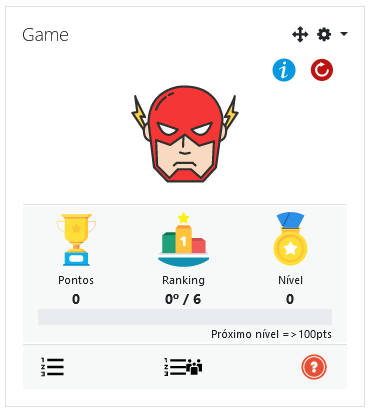
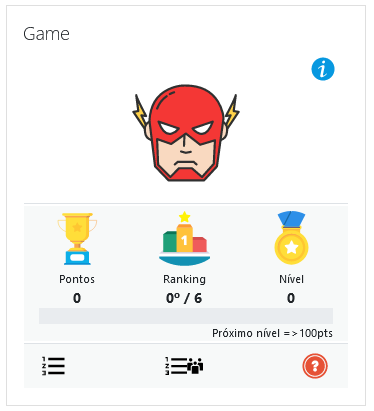
The goal of the Block Game plugin is to apply gamification techniques to the moodle platform in a simple and uncomplicated way.
With the plugin it is possible to apply several gamification techniques. See below.
| 1 - Avatar | |
|
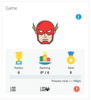
Use Avatar: Allows the user to choose or change their avatar at any time. When the dotted icon appears it means the user has not yet chosen yours, by clicking on it, or your avatar, it takes you to the selection page, just click on the desired avatar to make the choice. Selecting some avatars will require the user to reach a certain level to unlock them. Avatar change in the course: It is possible in the general settings of the plugin, to allow the user to choose his in any course that the block is added! This option makes the plugin more flexible and can be used in just one or more courses, without the need to include the block in the general area of the platform! |
|
| 2 - Player Information | |
|
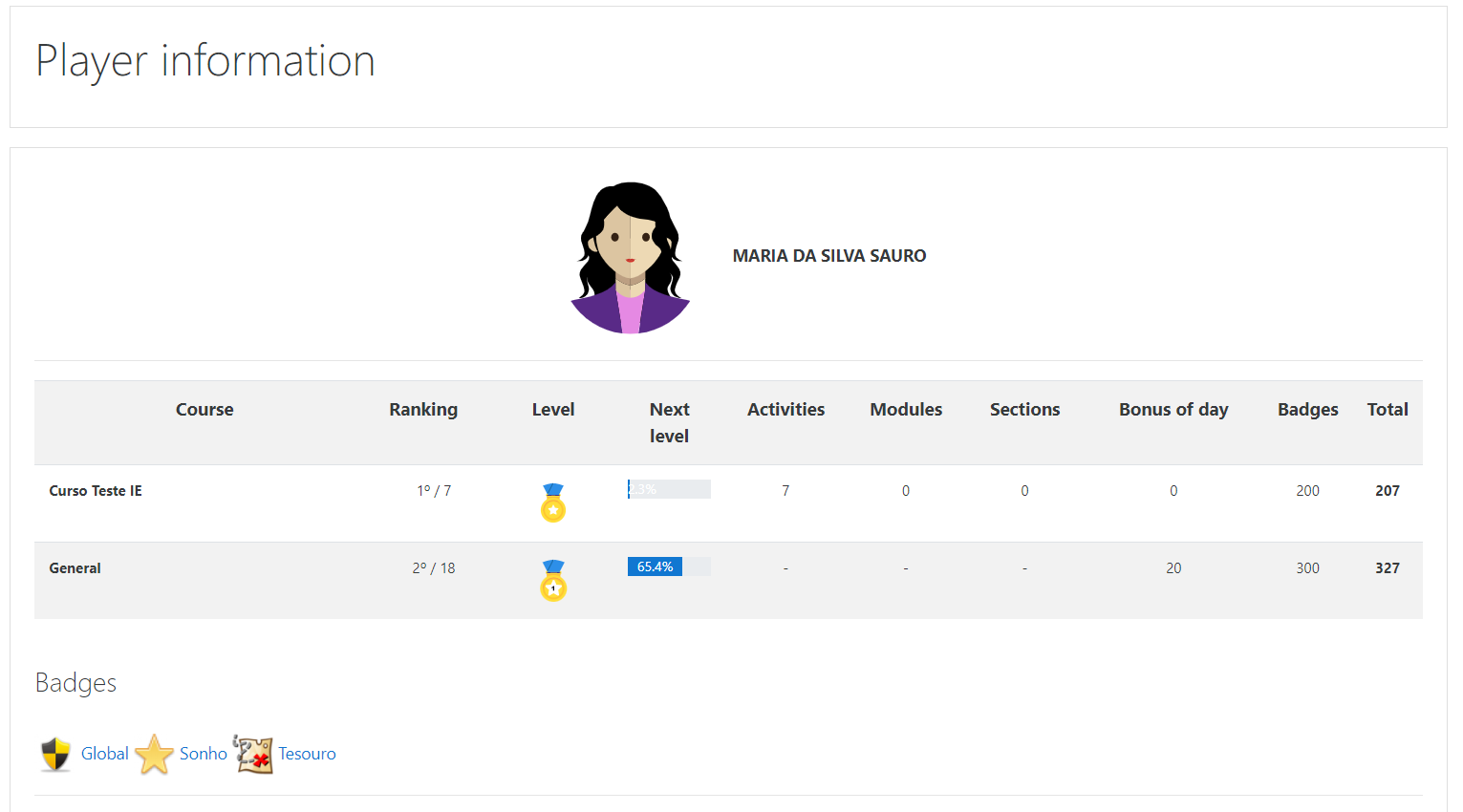
Show Player Information: Allows the user to access an area that consolidates the information of the same in the game, if accessed in the context of the platform presents information of all courses that the user participates using the block. |
|
| 3 - User Rating | |
|
Show Rank: Shows the user's ranking relative to other players. |
|
| 4 - Score | |
|
Show Score: Shows the user's current score in the game. Scoring system: The game has scoring system because the player's score will define his rating and the level he is at.
|
|
| 5 - Level | |
|
Show Level: Allows you to display or not the level system. If configured to display you can configure the number of levels and the score required to reach each level. Still regarding the level the block has a progress bar that shows the user how much is left to reach the next level. |
|
| 6 - Level progress bar | |
|
When displaying the level, a progress bar for the user's level in relation to the next level will also be shown. |
|
| 7 - Game help | |
|
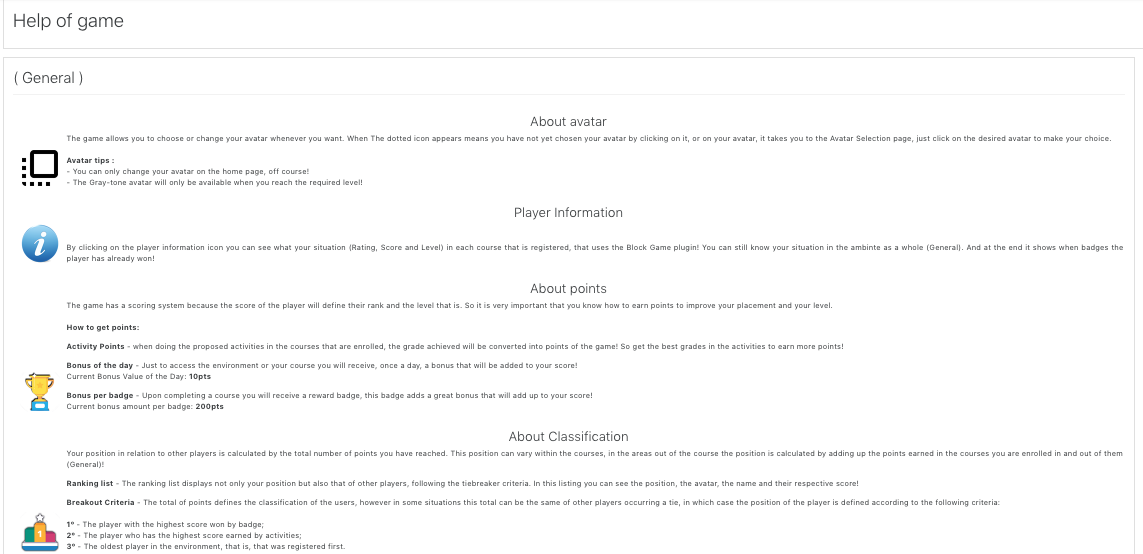
Displays a detailed description of the rules of the game, helps the user to understand how to use the resources of the block, how to score and level up. The game help is dynamically changed according to the configuration defined in the block. |
|
| 8 - Groups Ranking | |
|
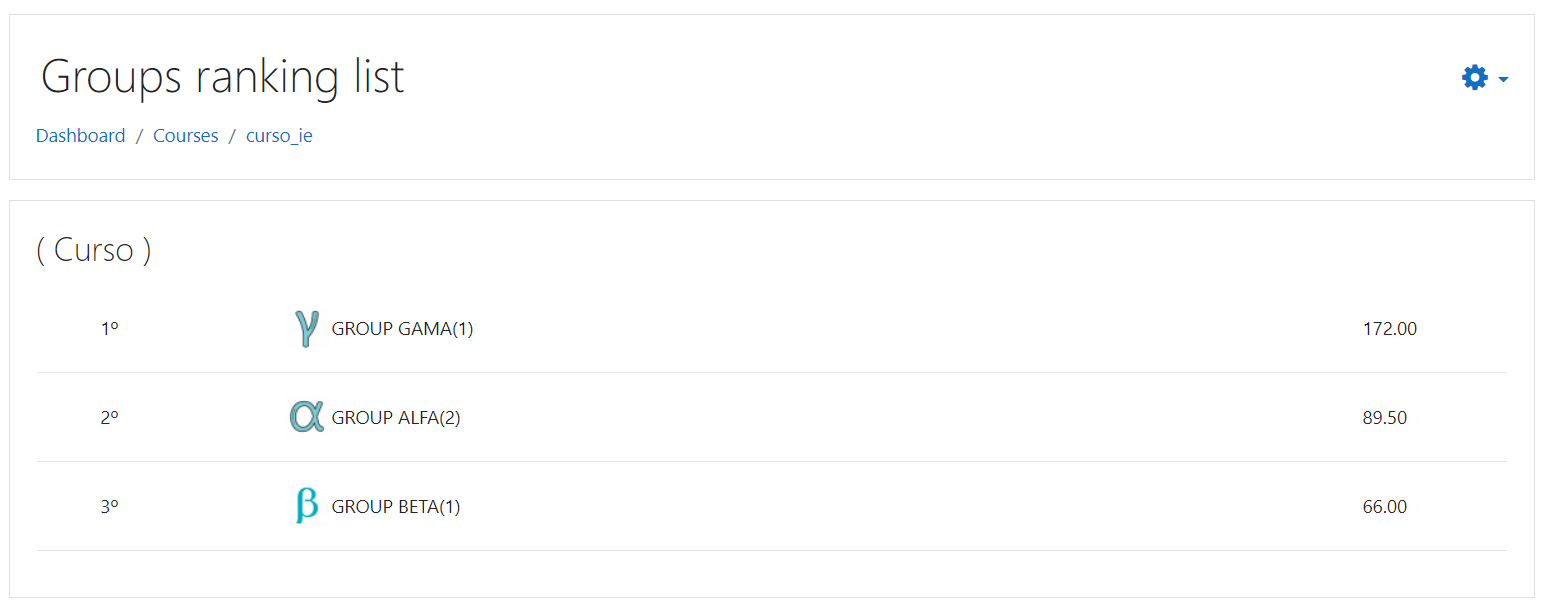
Show Groups Ranking: Allows you to show the classification of groups, being able to calculate the group's score by adding the members' score or an arithmetic average. Uses the groups created and configured on the platform. |
|
| 9 - Ranking | |
|
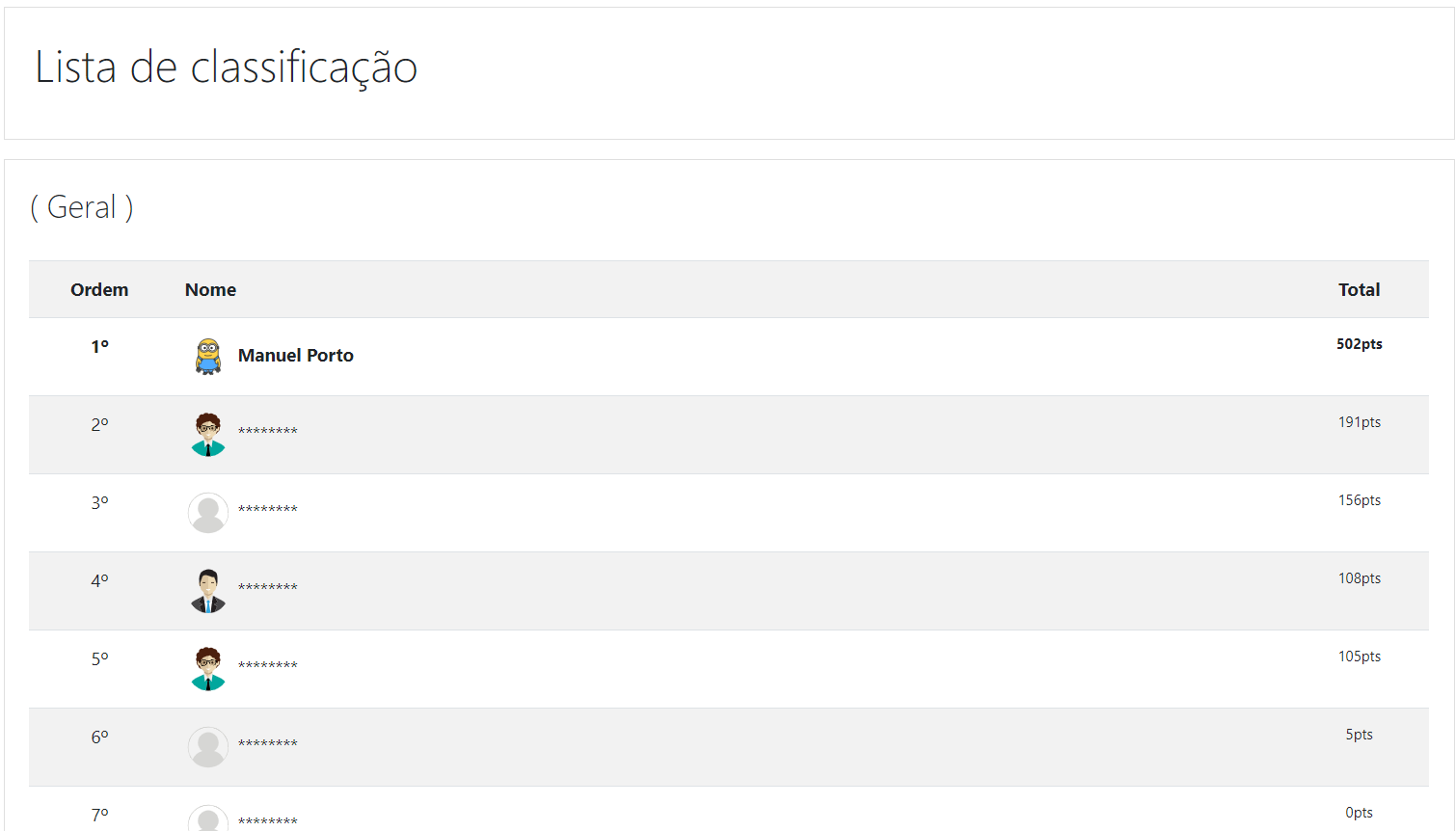
Show Ranking: Allows you to show either the individual student rating on the platform or course and the classified list. - Preserve User Identity - If showing the rating, lets you preserve the identity of users in the classified list. |
|
| 10 - Reset Game | |
|
When the course is in edit mode, the option to restart the game appears, resetting the score of all course users. |
|
All images used in the plugin are under the Creative Commons license.
Important: Compatible with MySQL and PostgreSQL only
First way
Second way
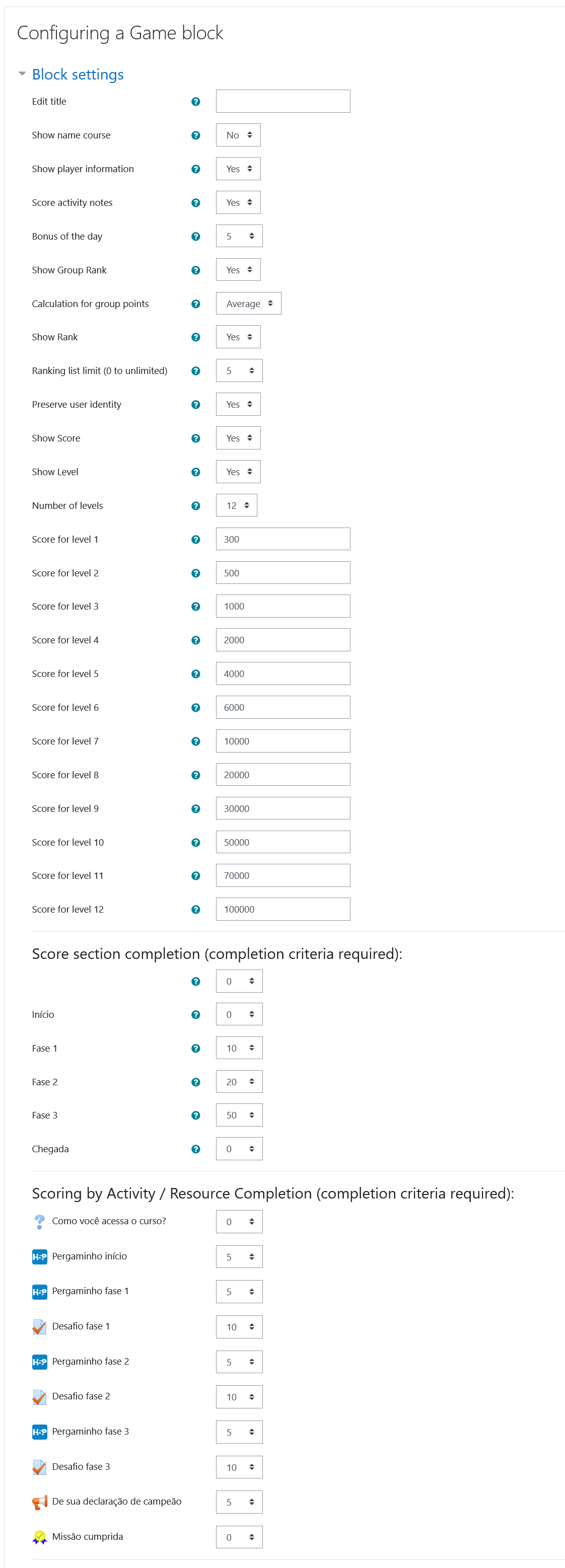
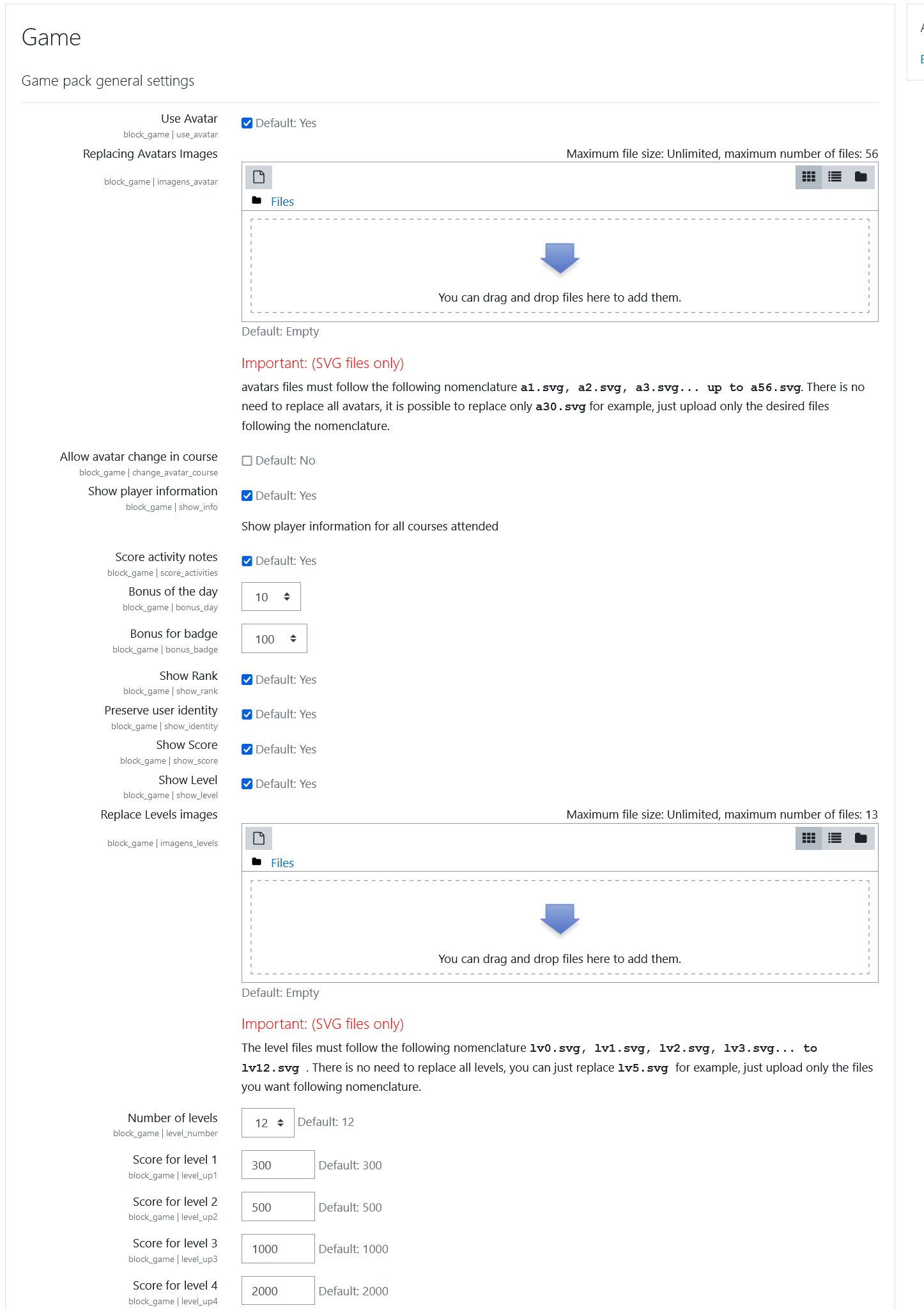
The initial configuration is done by the administrator, right after installation. The plugin configuration in the course is in the block configuration area.
After installing the plugin, the block can be added to the course and / or on the moodle main page.
After including the block in a course, it is necessary to enter the block configuration area and make the display and punctuation settings. These settings change the game rules presented in the help option.

