This release sees the addition of 3 more options for configuring the use of the word and sentence similarity calculator and compatibility with Moodle 4.1
Learning Object Relation Discovery (LORD)

This plugin determines the similarity between all the learning activities in a
course and uses the similarity to configure a network graph of the activities.
This plugin extracts all the text content from the various learning objects in
a course and uses that content to determine a similarity measure between each
activity and every other activity. The similarity value comes from a Web service
that takes 2 sentences and compares them, returning a similarity measure, which
is then used as a link distance between the activity nodes in a network graph. The
different distances combined with the graphing physics simulation produce a unique
configuration of nodes. This plugin acts as a stand alone program, but is
designed to be used with the Behaviour Analytics block, where the nodes in the
graph are manually configured. This program is designed to replace the manual
configuration process with an automated one.
Setting up the plugin
The LORD plugin installs like any other plugin. It makes use
of a scheduled task to do background processing, which compares the various
learning activities in the course. The frequency of the comparisons can be
adjusted by from Site administration -> Server -> Scheduled tasks. By default,
the task is set to run every 5 minutes and will make a single comparison between
learning activities for each course that the plugin is installed in. No
comparisons will be made, however, until the discovery process is turned on both
globally and locally in the course in which the block is installed. To turn on
the discovery process globally, navigate to Site administration -> Plugins ->
Plugins overview -> Settings (for LORD). The discovery process can be turned on
locally from the Settings link in the block.
How to use the plugin
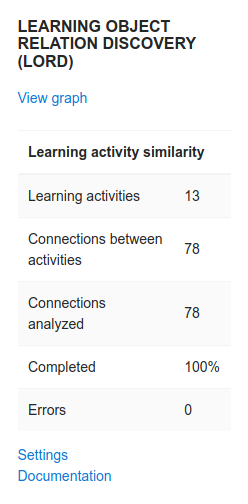
This plugin is simple to use. The block shown on the course page contains a link
to the graphing page, a progress chart, and a link to settings. The progress
chart will show how many activity connections have been compared, which is a
lengthy process. The Web service takes time to compare the content from the
different activities, so the process is run in the background. Depending on the
number of learning activities in the course and the frequency of the scheduled
task, the process could take from hours to weeks. The progress chart will show
what has been done to date.
Once all activity connections have been compared, the graph can
be viewed by clicking the associated link. If there are missing values, the graph
does not configure properly. The first time the graphing page is viewed, a new
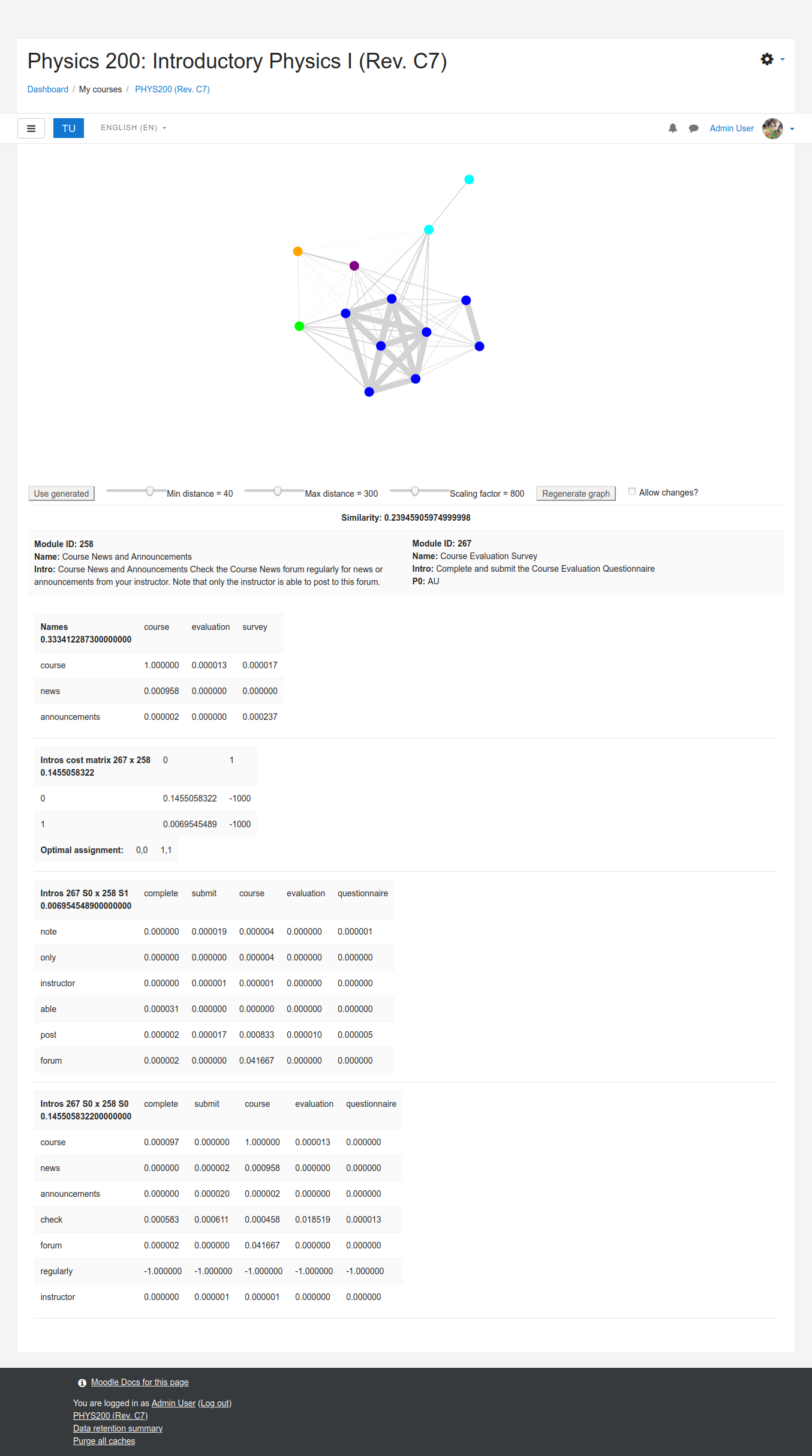
graph is generated, which is the system graph. Clicking and dragging the graph
nodes will also rearrange the configuration and produce a custom graph. The
graphing interface has a button to switch between the custom and system graphs.
There are also 3 sliders that control the distance parameters for graph
generation and another button to regenerate the system graph.
When viewing the graph, left-clicking a node will show the learning content for
the associated learning object. Right-clicking another node will show the content
for both nodes as well as the similarity value between them. Beneath the
similarity value and content are a number of matrices showing the similarity
values between words in the sentences, sentences in the paragraphs, and
paragraphs in the content. All these similarities combine to form the final
similarity value.
There is a settings page that contains various options for the plugin. The first
is a checkbox to start or resume the discovery process. No comparisons between
learning objects will be made unless the plugin is configured to do so. There
are also options to control the maximum number of sentences and paragraphs
compared between learning objects and the maximum number of words to allow in a
sentence. There are also adjustable weights for use in the final similarity value
calculation, where the names, the introductions, and the rest of the module
content can be weighted differently. There are 4 options to configure the use of
the word and sentence similarity calculator. There are 3 reset options, one to
reset just the comparison errors, one to reset all comparisons, and the other to
reset both comparisons and module content. Finally, there is an option to add or
remove stop words from the dictionary.
License
This program is free software: you can redistribute it and/or modify it under
the terms of the GNU General Public License as published by the Free Software
Foundation, either version 3 of the License, or (at your option) any later
version.
This program is distributed in the hope that it will be useful, but WITHOUT ANY
WARRANTY; without even the implied warranty of MERCHANTABILITY or FITNESS FOR A
PARTICULAR PURPOSE. See the GNU General Public License for more details.
You should have received a copy of the GNU General Public License along with
this program. If not, see http://www.gnu.org/licenses/.