Thomas Dondorf
Lead maintainer

This project offers a privacy-friendly Learning Analytics solution for Moodle. The plugins integrate into Moodle courses and offer statistics to teachers and students.
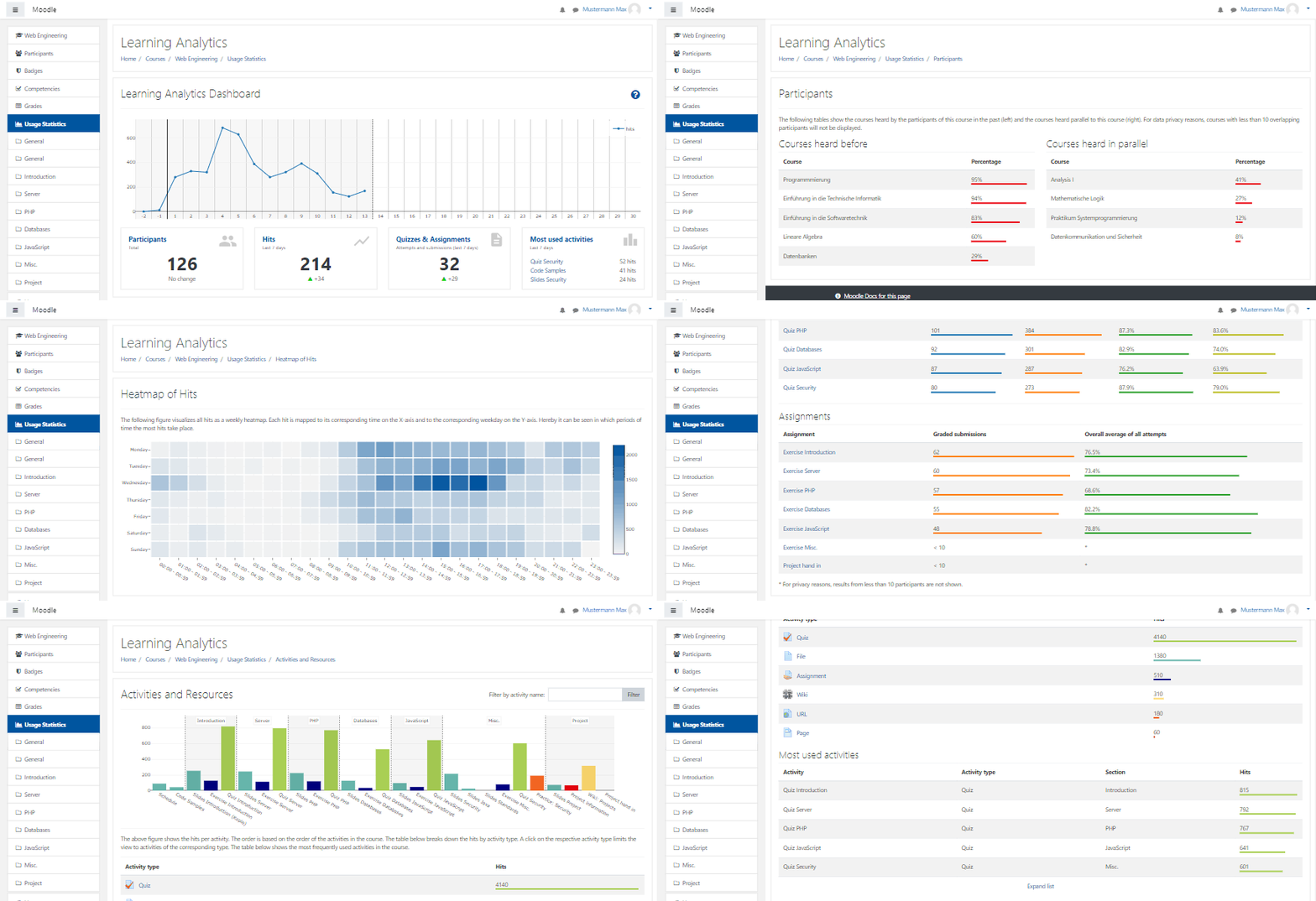
This Learning Analytics solution consists of two plugins.
local_learning_analytics: User Interfacelogstore_lanalytics: (this plugin) Logs the events to the databaseRequirements:
Install this plugin before installing the local plugin.
After installation you need to enable the logstore plugin.
logstore plugin with the name Learning Analytics Log') to enable the log store.The log store is now activated and will log events.
After installation and activation of the logstore, there should be a link in each course menu called "Coure Statistics" leading to the following page (COURSE_ID is the course id of the corresponding course):
https://MOODLE_INSTALLATION/local/learning_analytics/index.php/reports/coursedashboard?course=COURSE_ID
logstore_standardAfter installation, all statistics are empty as no data has been logged so far. But your Moodle site might log data through Moodle's own logging system, the logstore_standard_log. The logstore plugin offers a simple way to import that data by using the import.php script. It can be called from the shell like this:
$ cd MOODLE_PATH/admin/tool/log/store/lanalytics
$ php cli/import.php
This will immediately start the import process. Instead you can also call php cli/import.php --help to see a list of possible options. You can for example only import the last X weeks or import only events starting from a specific ID to limit the amount of data you import.
You should configure both plugins. The logstore plugin has options related to logging data and writing data to the database. The local plugin has options related to displaying the data.
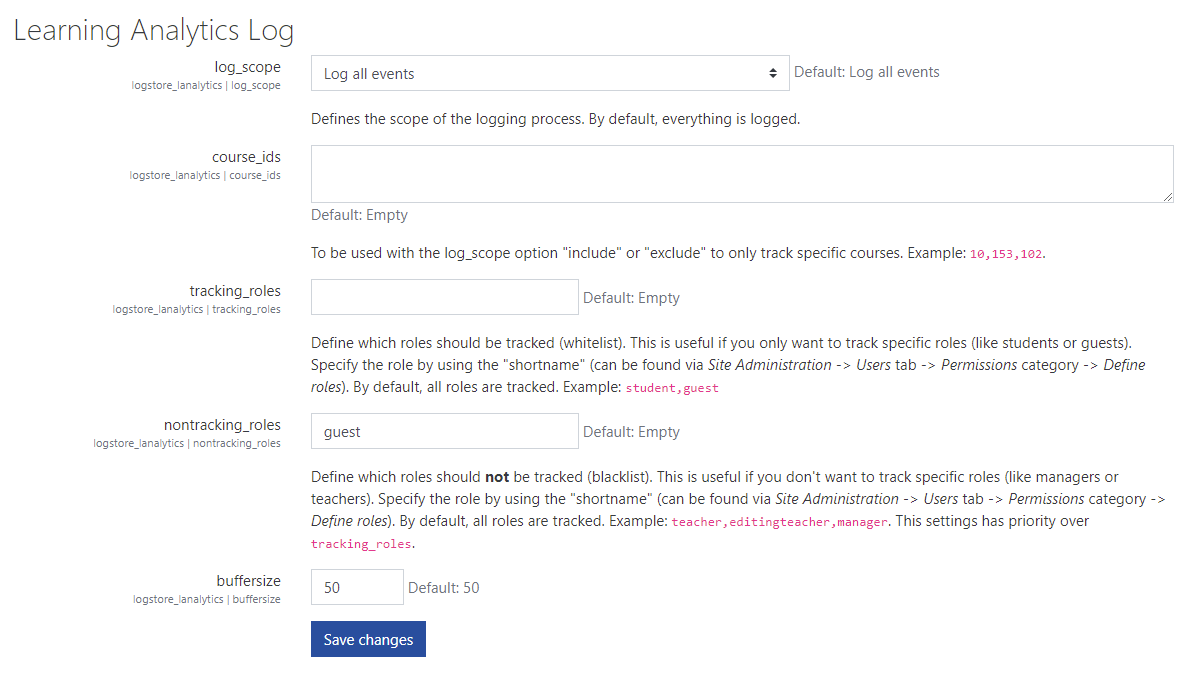
logstore_lanalytics configurationYou can find the administration page of the logstore plugin at the same position where you activiated it:
Administration -> Plugins -> Logging -> Learning Analytics Log
The logstore has the following options:
log_scope: One of all, include, exclude. Defines the scope of the logging process. By default, everything is logged.all: Logs all eventsinclude: Log events only in courses specified via course_idsexclude: Log events excluding the courses specified via course_idscourse_ids: To be used with the log_scope option include or exclude to only track specific courses. Example: 10,153,102.tracking_roles: Define which roles should be tracked (whitelist) unless specified via nontracking_roles. This is useful if you only want to track specific roles (like students or guests). By default, all roles are tracked. Example: student,guest. See Role Tracking for more information.nontracking_roles: Define which roles should not be tracked. This is useful if you don't want to track specific roles (like managers or teachers). By default, no roles are ignored. Example: teacher,editingteacher,manager. See Role Tracking for more information.buffersize: Same as buffersize of other loggers. In case a single page fires more than one event, this is the number of events that will be buffered before writing them to database. Defaults to 50.When deciding on what to log, keep in mind that there are two plugins:
logstore plugin (this one) that decides which courses are logged.local plugin that decides in which courses a link is added to the course navigation.In case a teacher wants to use Learning Analytics while the semester is already running, you better already have activated the logging in before. That's why we recommend to activiate the logging for all courses by setting log_scope to all and then use the options of the local plugin to decide who has access to the user interface.
There are two settings to define which roles are to be tracked and which not. Specify the role by using the "shortname" (can be found via Site Administration -> Users tab -> Permissions category -> Define roles).
tracking_roles: Whitelist (Only track these roles unless specified by nontracking_roles)nontracking_roles: Blacklist (don't track these roles)The blacklist has priority over the whitelist. Keep in mind that a user can be a teacher in one course and a student in another course meanining that a user might be tracked in one course while being excluded from tracking in another.
If tracking_roles is not set, all roles are assumed to be tracked (unless roles are given in nontracking_roles). If tracking_roles and nontracking_roles are unset, all roles are tracked.
For an example, let's assume the following settings:
| Setting | Value |
|---|---|
tracking_roles |
guest,student |
nontracking_roles |
teacher,manager |
In words, this setting translates to:
Only track users in the course that have the role
guestorstudent, unless they also have the roleteacherormanager.
More information is provided in the local plugin: local_learning_analytics


