Stefan-Alexander Scholz
Lead maintainer




Pulse provides flexible tools that help teachers keep learners informed, engaged, and on track throughout their Moodle courses. It supports both simple and complex learning workflows — from sending timely notifications to managing confirmations, approvals, or adaptive progression. Routine communication can be automated, allowing educators to focus more on teaching while Pulse handles the operational follow-up. Pulse consists of two core components:
Together, these components help keep learners — as well as parents, teachers, or line managers — up to date, and prompt actions precisely when needed.
Pulse provides great features that are completely free. For more functionality, we offer a Pro plan.
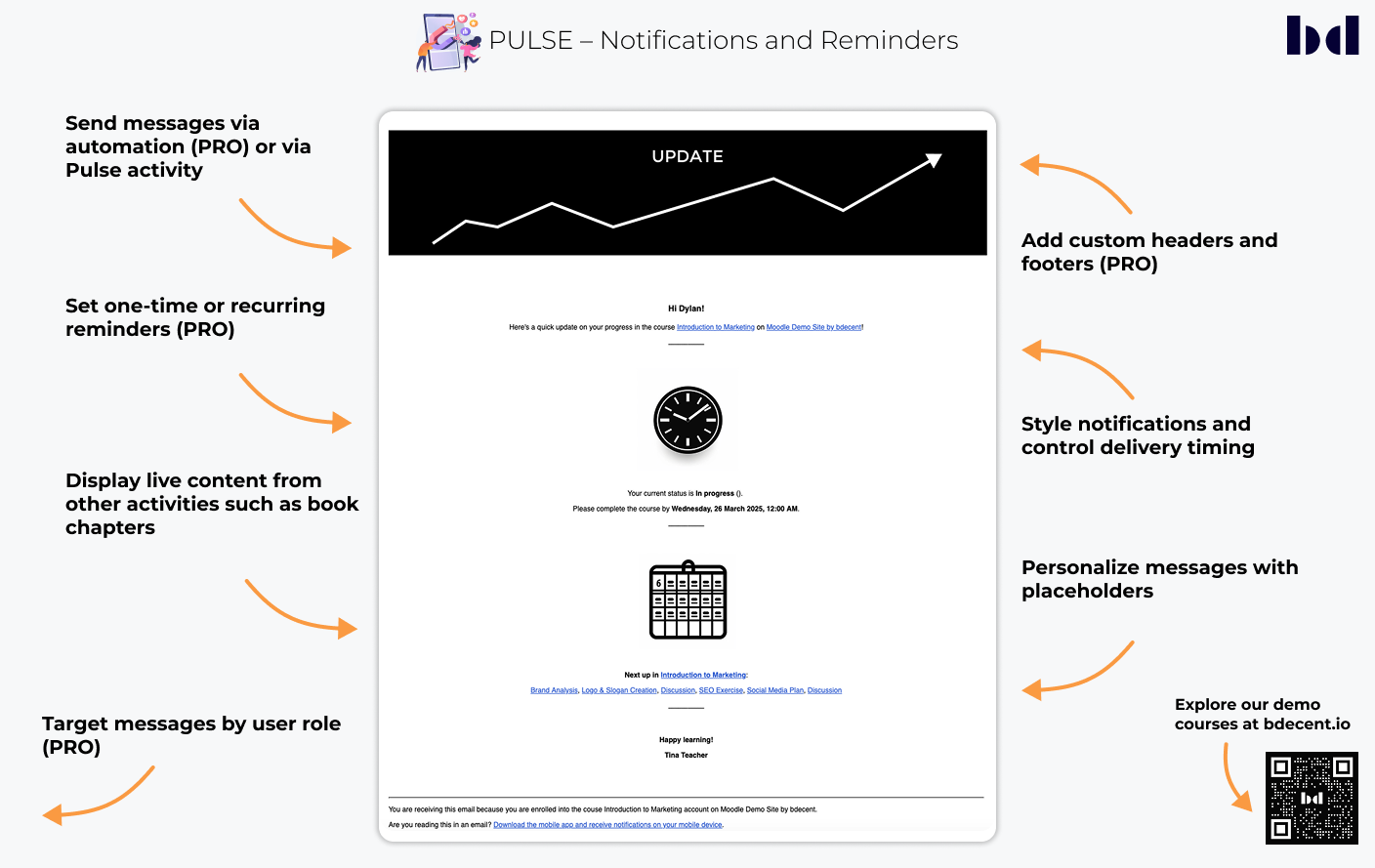
The Pulse activity enables teachers to send notifications to students and other roles directly within a Moodle course. Notifications can be triggered when the activity becomes available or based on defined conditions such as course enrollment, group membership, or activity completion. Messages may be displayed on the course page or sent by email and can include placeholders to add user-specific or course-related information. In the Pro version, notifications can also be sent through the Pulse automation engine, allowing automated communication based on predefined conditions.

Teachers can create and send custom notifications directly from a course. Availability restrictions define when a message is sent, for example on course enrollment, after completing an activity, or at a specific date.
Placeholders automatically insert relevant user and system data — such as names, progress, or activity details — to make messages more context-specific.
Additional options allow inclusion of content from Moodle activities (such as Page or Book), adding headers or footers with text or images, and defining recipients by role, including teachers, parents, or line managers.
Reminders can be scheduled for fixed or relative dates, or set to repeat at defined intervals.
Ensures notifications are only sent when relevant by suppressing them under defined conditions, such as after course completion or when selected activities are already complete, helping to avoid redundant reminders in re-engagement and progress-nudge scenarios.
Pulse expands Moodle’s standard activity completion and progression options, allowing teachers to design flexible and adaptive learning paths.
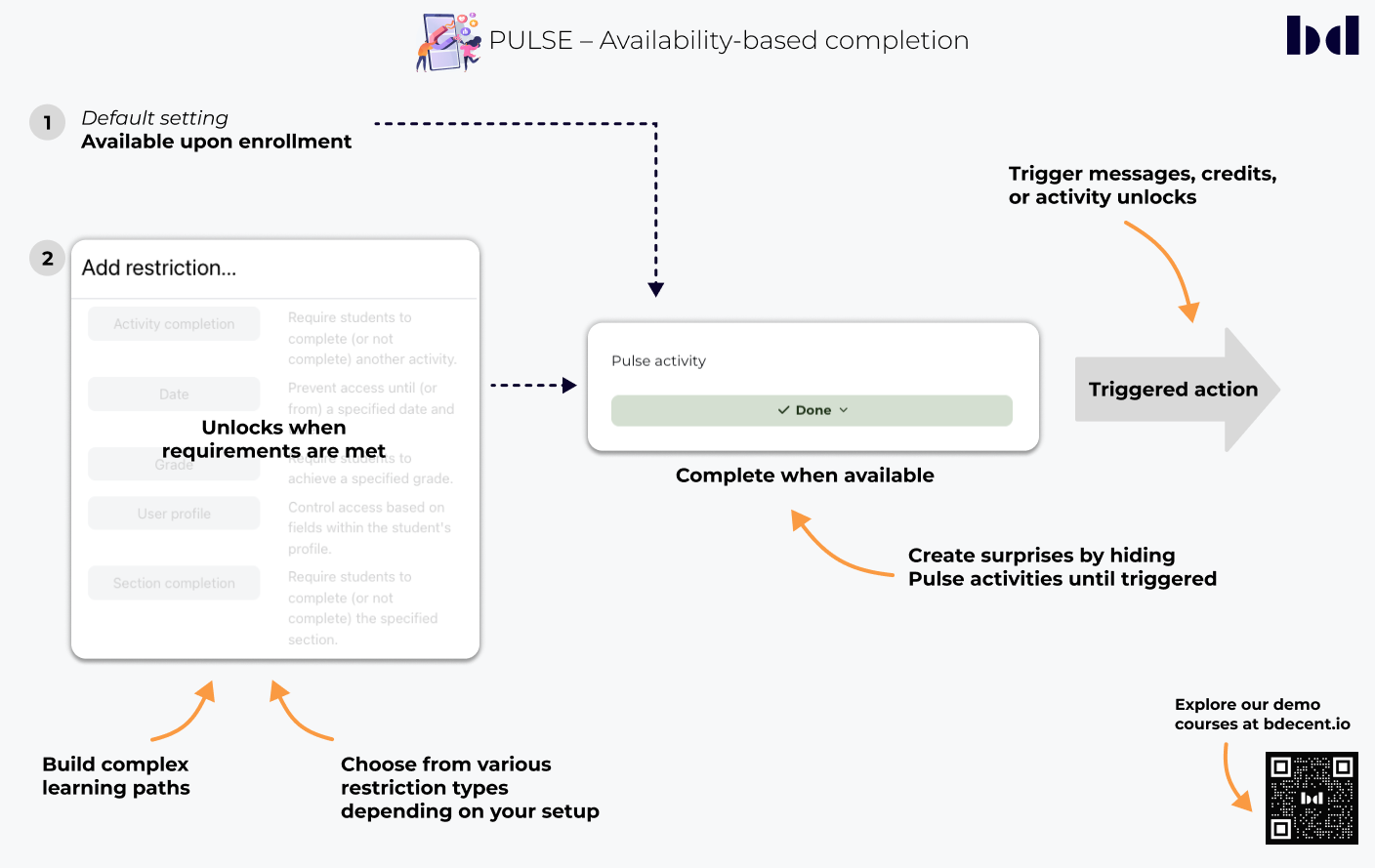
By placing Pulse activities strategically within a course, actions can be triggered exactly when needed — for example, after completing another activity, reaching a date, or meeting a specific condition. Reactions PRO can also be used to capture confirmations, approvals, or quick learner feedback, adding an interactive layer to your completion workflows. This enables dynamic course structures, multilingual content choices, and personalized learning paths that respond to each learner’s progress.


Activities can be automatically marked as complete once they become available, based on defined conditions such as enrollment, dates, or prerequisites. This allows smooth progression without requiring manual interaction from students.
Pulse activities can include confirmation steps, requiring learners to actively acknowledge information or consent statements before the activity is marked as complete. This manual completion is non-reversible, ensuring that confirmations or acknowledgments remain final. A customizable confirmation button and an optional modal dialog provide flexibility for various use cases, such as policy agreements, safety confirmations, or learning path selections.
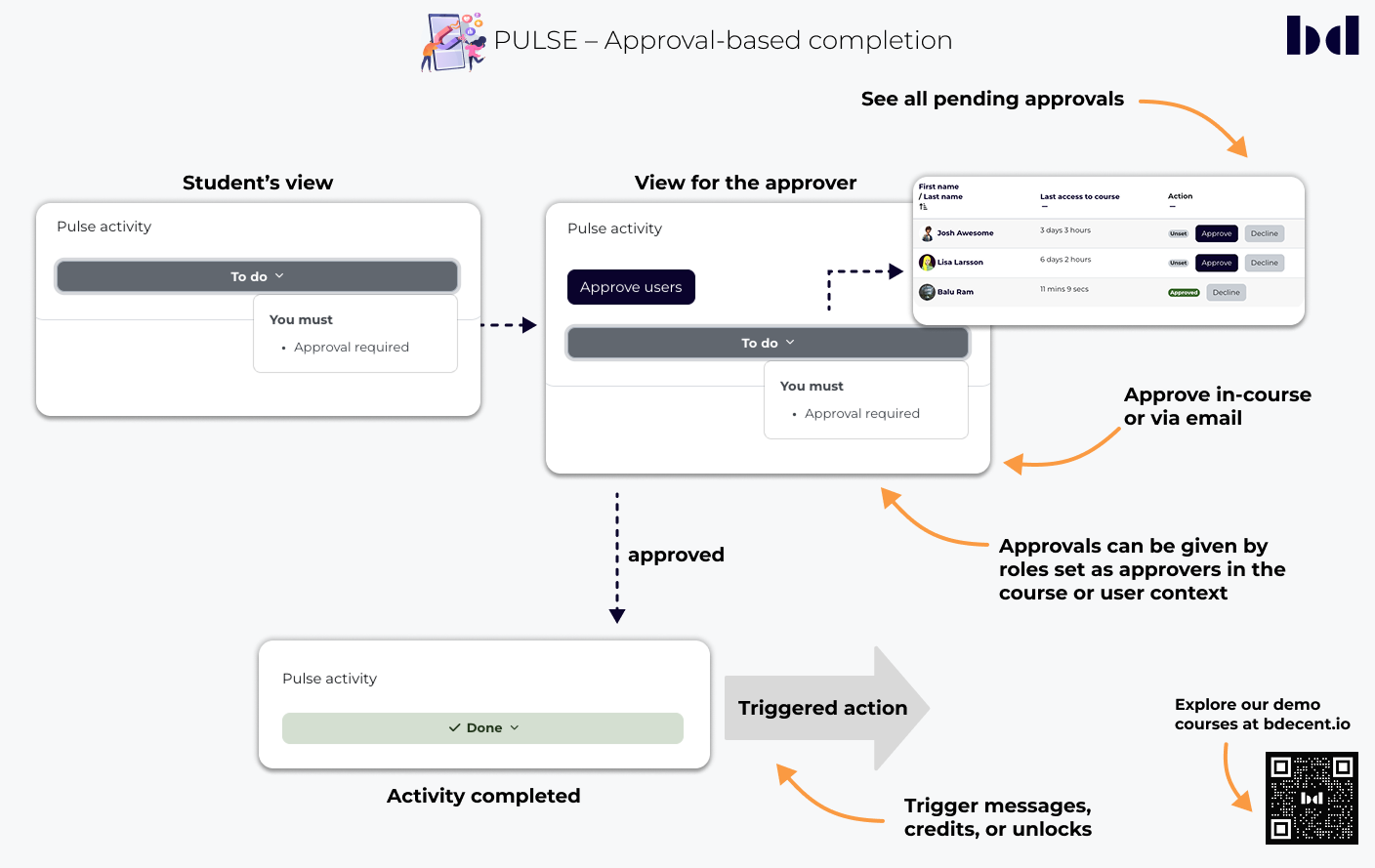
Completion can also depend on approval from other roles — such as teachers, parents, or managers — supporting structured and compliance-oriented workflows.
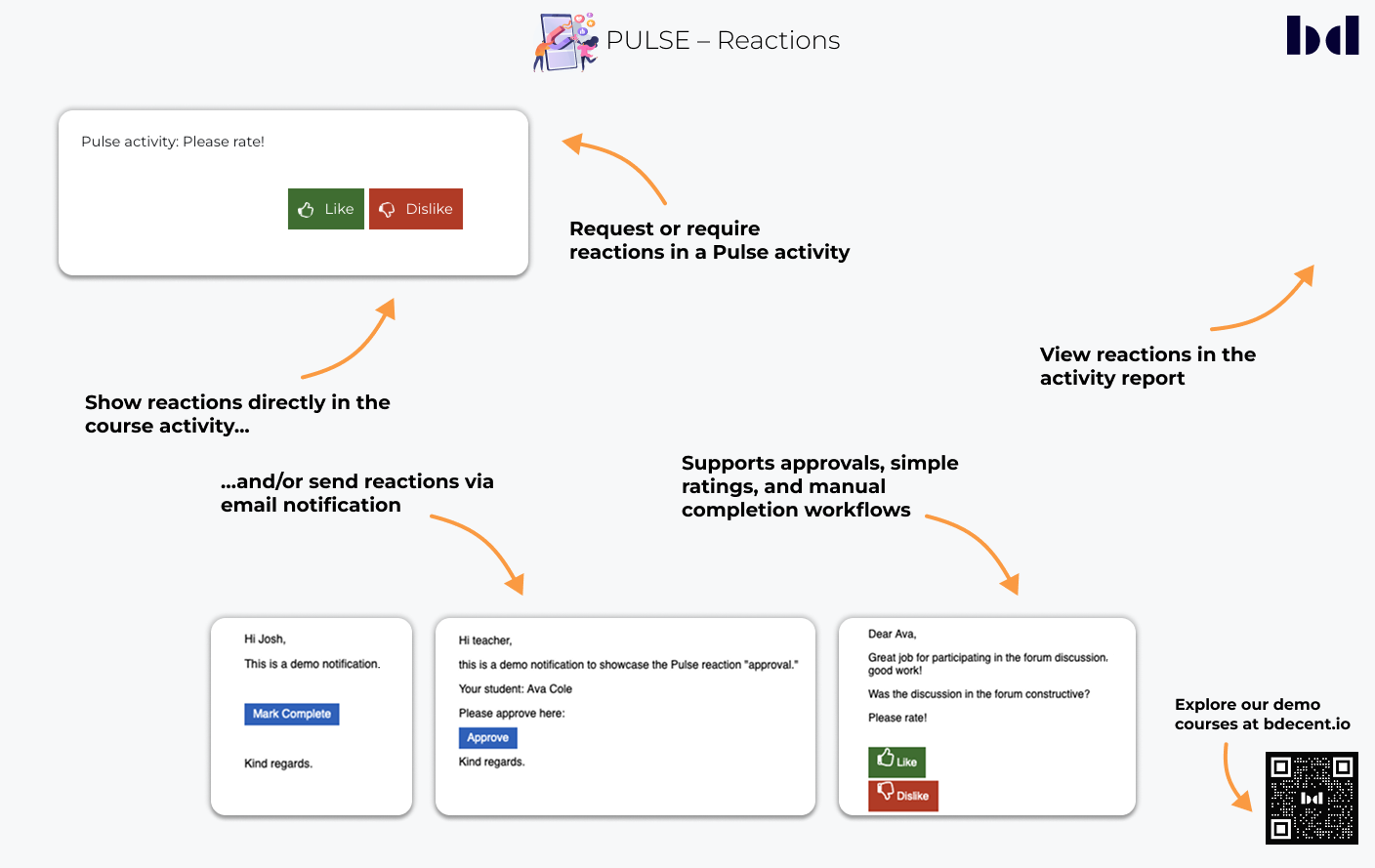
Pulse Reactions let learners and approvers respond directly to notifications — either inside the course or through secure, tokenized email links. Reactions can confirm activity completion, capture quick feedback through simple ratings (thumbs up/down), or allow designated roles such as teachers or managers to approve a learner’s Pulse activity. This makes it easy to collect acknowledgments, track progress, and streamline approval workflows.
Pulse includes features that help teachers create activities more efficiently and present content in a clear, structured, and visually consistent way. These options support both ease of setup and improved readability for learners.

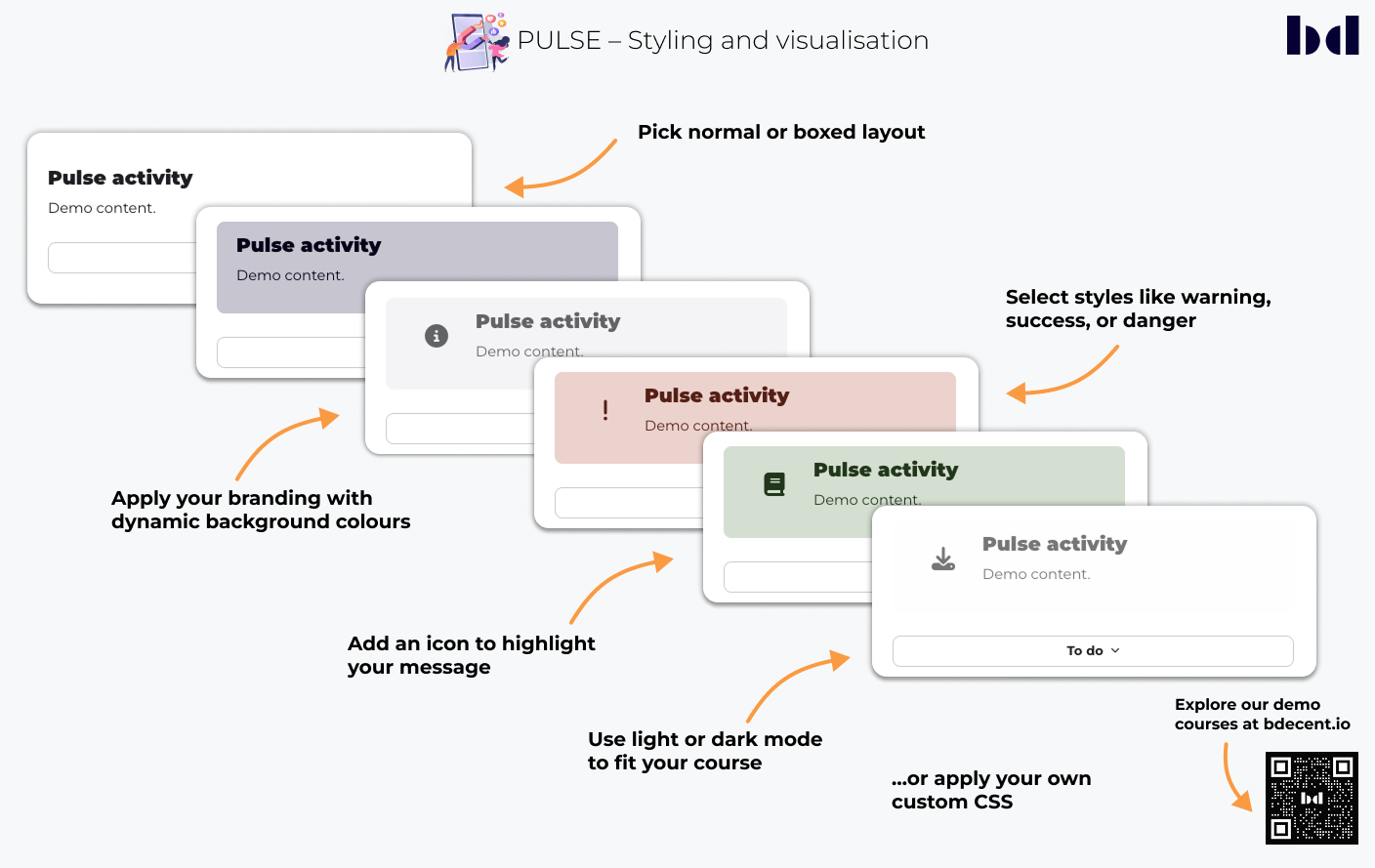
Choose between standard or boxed layouts and apply style variants such as primary, secondary, warning, success, or danger. Styles can optionally use the site’s brand colors, and icons can be added to highlight key information.
Apply custom CSS for advanced visual adjustments and full alignment with institutional design guidelines.
Use predefined presets to create Pulse activities quickly and consistently. Administrators can create and manage presets centrally, while teachers apply them to streamline setup.
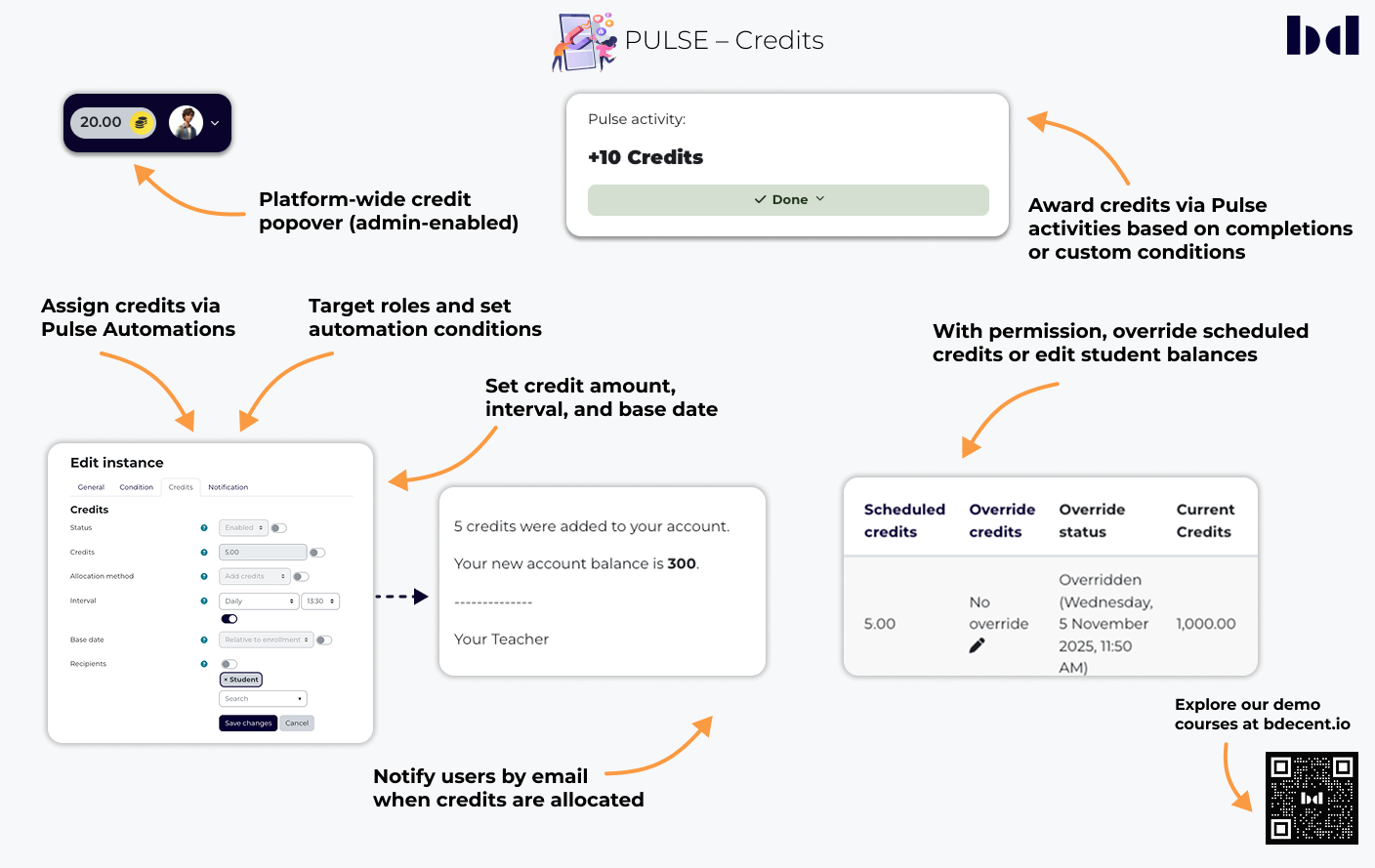
Credits can be allocated automatically via Pulse Automations or directly within Pulse activities, depending on course progress, completion status, or custom conditions.

Credits are stored in a dedicated user profile field and displayed both in the user’s profile and (optional) in a popover region in the navigation bar.
Enables teachers to reward learners for completing activities or achieving defined milestones.
Allows automatic allocation of credits at defined intervals, such as daily or weekly, with full control over timing and target roles.
Lets teachers or administrators adjust credit balances or override upcoming automations when needed.
Integrates with the free Credit Enrolment plugin to provide course access based on available credit balance.
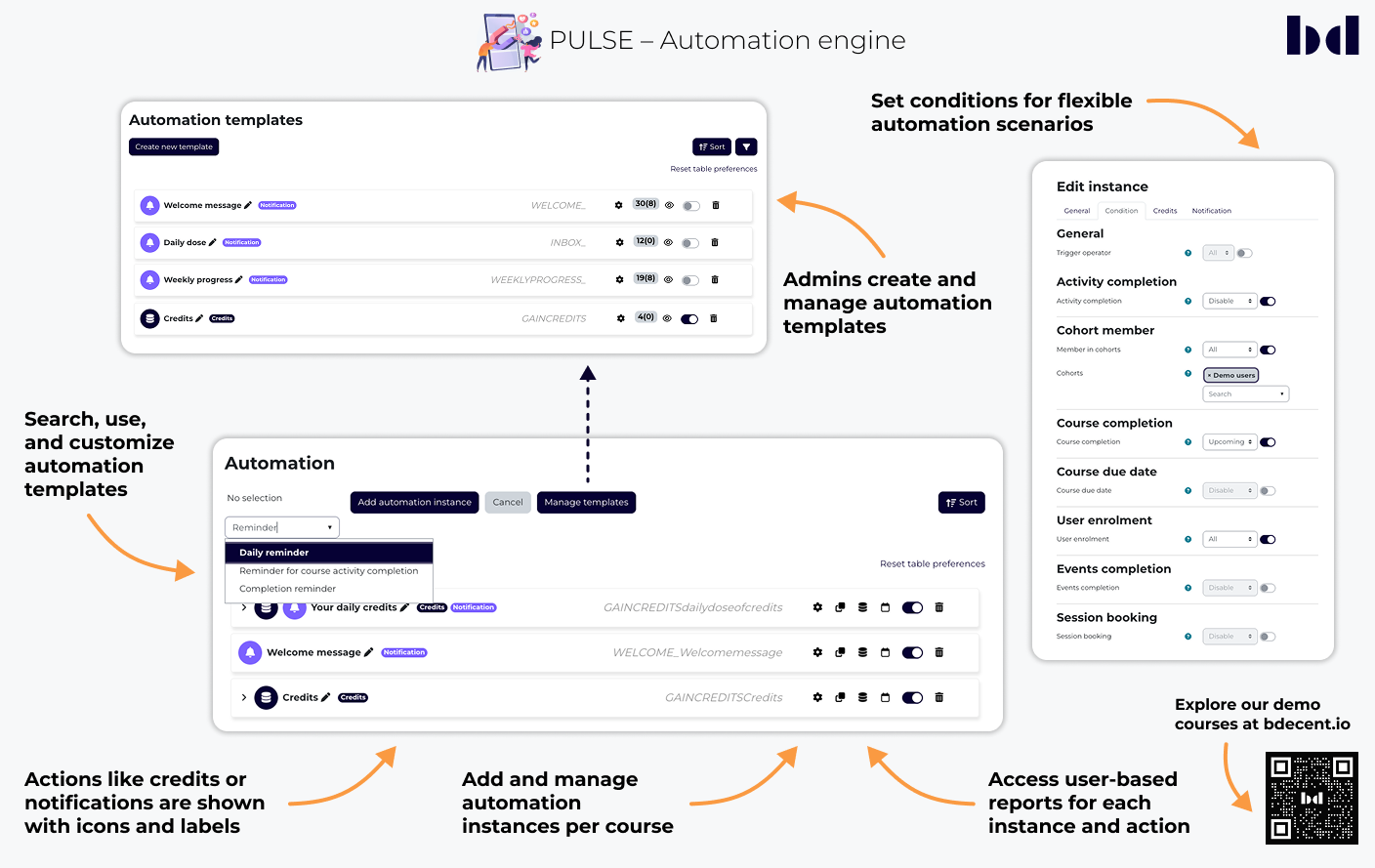
The Pulse automation engine enables automated workflows that perform actions based on predefined conditions or events. When triggers occur — such as an activity completion or an announcement — Pulse can execute actions automatically, streamlining communication and reducing manual effort.

Provide a consistent framework for creating scalable automations across multiple courses while maintaining flexibility.
Inherit default settings from templates but can be customized individually to suit specific course requirements.
Offers a centralized interface for managing and monitoring automation instances, ensuring transparency and control.
Define the triggers that start an automation, based on events, enrolments, activity or course completion, cohort membership, course due dates (Requires the Timetable plugin), or session bookings (Requires the Facetoface plugin). Combine multiple triggers and choose whether any or all of them must occur. Event-based automations can also run repeatedly or with a defined limit, giving you precise control over how often actions are executed.
Execute automated tasks such as sending notifications or allocating credits.
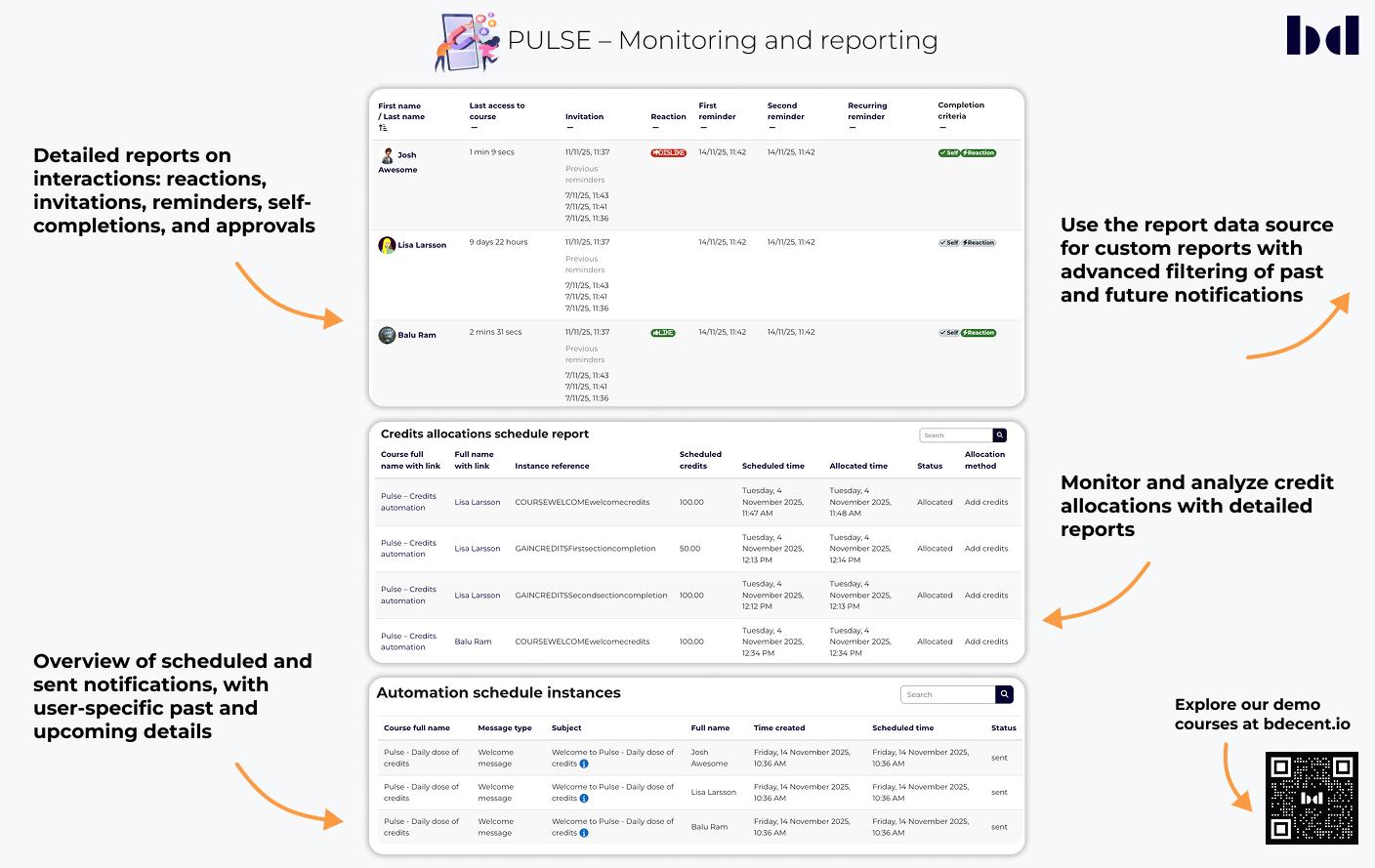
Pulse provides reporting tools that give administrators and teachers insight into user interactions, notifications, and automation activity. Reports are available through Moodle’s standard reporting interface and support filtering and export options for detailed analysis of both past and upcoming actions.

Displays reports on learner engagement, including reactions, invitations, reminders, manual completions, and approval records triggered through Pulse activities.
Shows all scheduled and sent notifications defined by the Automation Engine, ensuring transparency and traceability of automated communication.
Provides insights into credit allocations and distributions generated by the Automation Engine, allowing detailed tracking of reward activity.


