moodle-repository_panopto
This is Panopto repository plugin, a compulsory part of Panopto resource
module plugin developed by
Lancaster University to simplify using Panopto video recordings in Moodle
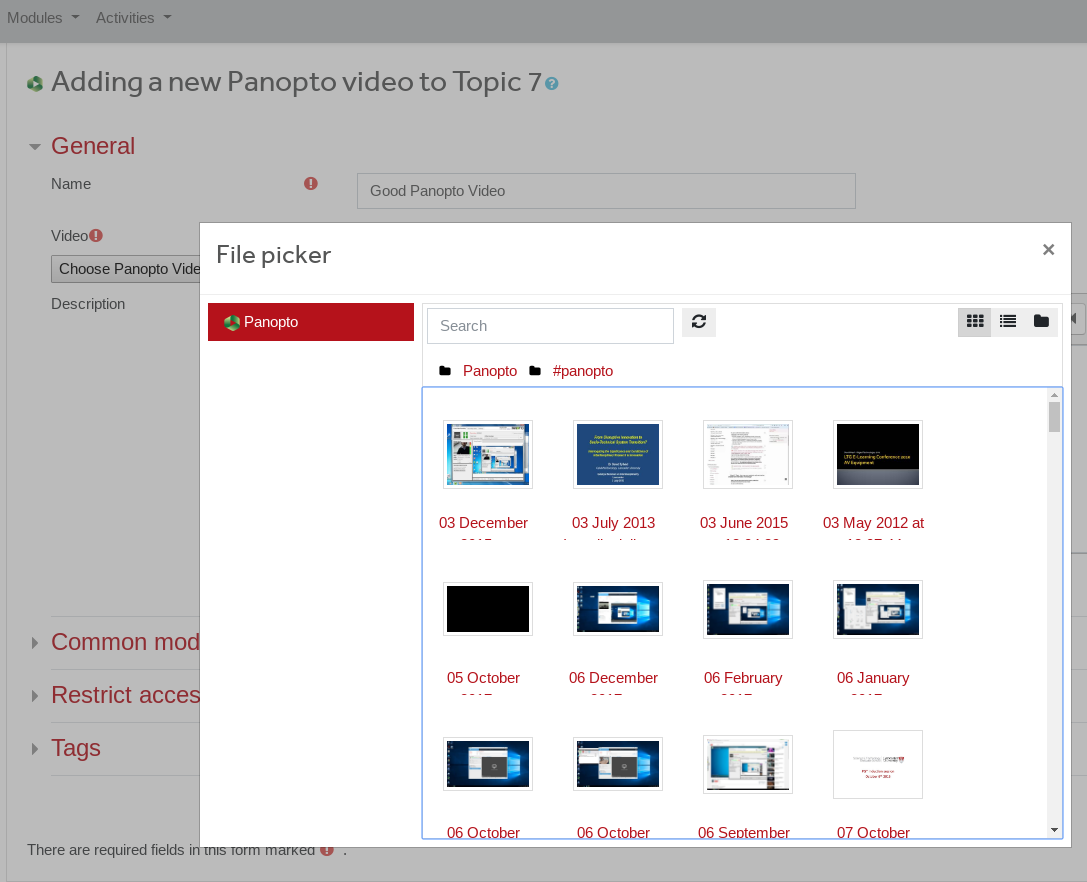
courses. It provides navigation through Panopto directory tree, making the
process of selecting the video easier. Also it provides abstraction layer
for communication with Panopto server, not only for purposes of directory
listing that plugin provides, but for other queries Panopto resource module
needs to make.

Please read Panopto resource
module documentation for
details on this resource module and unique functionality features it
provides.
Installation
Place plugin content at ./repository/panopto directory and go though
installation in Moodle admin interface.
This plugin is designed to work with Panopto resource
plugin which needs to be
installed as well.
Make sure that block_panopto is
not installed in your system, in fact it may work together, but will cause
a lot of confusion due to the differences in access rights allocation.
Configuration
This plugin provides communication with Panopto server, so it requires
configuring "Identity provider" instance on Panopto site and specifying
connection settings in this plugin configuration.
Configuring Panopto
You need admin right in Panopto to configure it.
Create a separate user with admin rights for using for API
communication.
Choose "Identity Providers" in System menu, click "Add provider".
This will open the configuration form that needs to be populated:
Provider Type: Select "Moodle"
Instance Name: Enter unique Instance name e.g. 'Moodle'.
Friendly Description: More user friendly name of this Identity
provider.
Bounce Page URL: Used for sign on through Moodle, see below.
Parent folder name: Not applicable for this plugin.
Application Key: You will need this for plugin configuration.
Bounce page blocks iframes: Set disabled.
Default Sign-in Option: Used for sign on through Moodle, see below.
Personal folders for users: Select the user group that is to be
assigned personal folders automatically.
Plug-in generation: There is no information what this setting does,
repositiry plugin works in production with this setting set to 1.
LTI Username parameter override: Leave blank.
Show this in Sign-in Dropdown: Used for sign on through Moodle, see
below.
Configuring Panopto connection in Moodle
Open Panopto repository plugin settings in Moodle, scroll down to
"Connection settings" and define:
Panopto server hostname: FQDN of your Panopto server, e.g.
'demo.hosted.panopto.com'.
Panopto API username: User on the Panopto server to use for API calls,
you created it at step 1 of Confguring Panopto section above.
Panopto API user password: Password for API user.
Identitiy Provider Instance Name: Instance name that has been defined
in Panopto Identity Providers settings. Notice, this is case sensitive.
Identitiy Provider Application Key: Application Key from Panopto
Identity Providers settings.
Once above is configured, you should be able to start using Panopto
resource activity.
Other plugin configuration parameters
Folders tree cache TTL: Set duration in seconds when folders tree cache
will be valid (300 seconds by default). This speeds up folders navigation
in repository interface, but changes made remotely on Panopto (e.g. new
folder created) will be reflected in the interface when local cache has
expired. Setting to 0 will disable folders tree cache.
Show orphaned sessions: If enabled, Panopto repository root directory
will contain all sessions user has access to, but does not have access to
folder containing those sessions (otherwise they would be listed within
folders as normal). Orphaned sessions are still searchable through search
box irrespective of this setting.
Configuring Sign On to Panopto through Moodle
This is optional for this plugin, as it is designed that users will be
accessing Panopto though Panopto resource activity in course. Though, if
you want to let users to login to Panopto through Moodle for other reason
(e.g. there are also public videos or permissions for some videos are
allocated manually to certain users), do the folowing:
- In this repositiry plugin settings, note "Bounce Page URL" listed at the
bottom of the configuration page, e.g.:
In the Panopto Identity Providers Instance settings, set Bounce Page URL to

http://yourmoodlesite/repository/repository_callback.php?repo_id=xx in

order to enable SSO.
In "Identity Providers" on Panopto site find your instance and set:
Bounce Page URL: Set to URL you found in previous step.
Default Sign-in Option: Enable if you want to make Moodle the default
sign-in option for the users.
Show this in Sign-in Dropdown: Enable.
Panopto API library
Plugin is using
php-panopto-api PHP library
which covers full Panopto API functionality and has been developed specifically
for this plugin.