Daniel Schröter
Lead maintainer
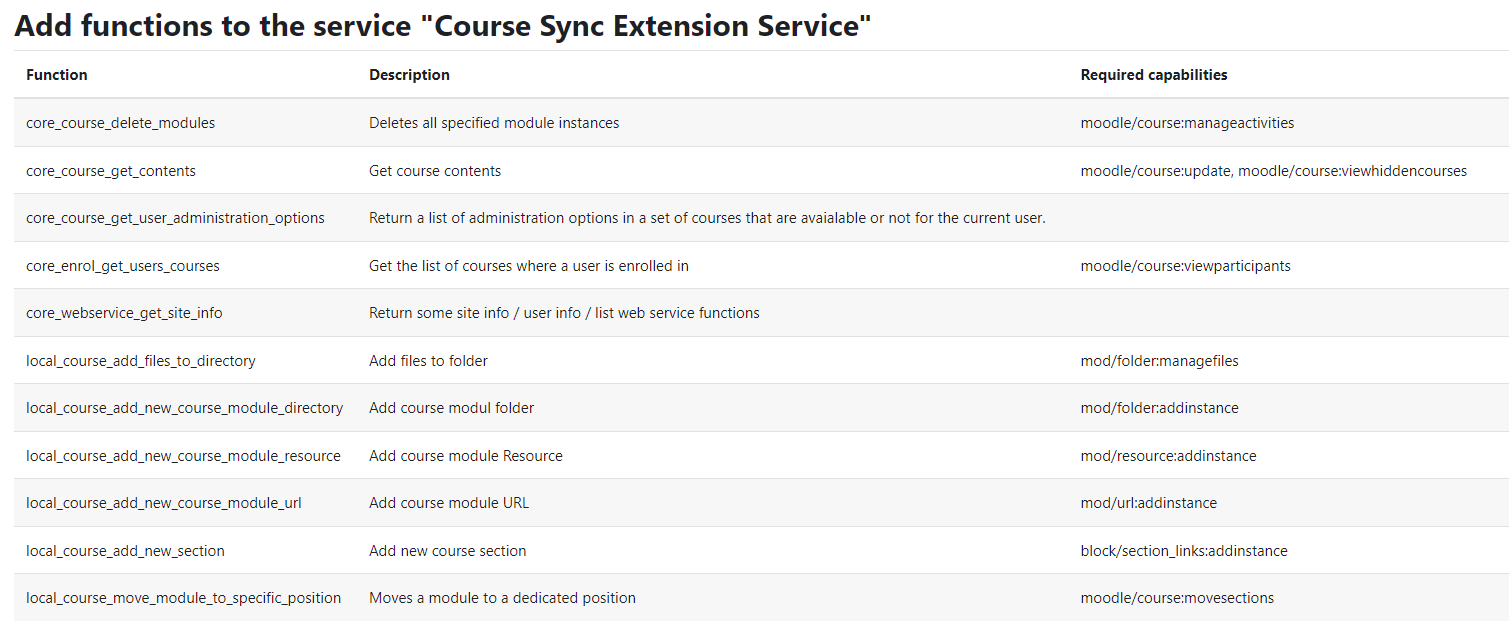
This plugin for Moodle (type: local) adds serveral functions to the Moodle Web Service API. Those fuctions allow users and external services to remotely create and move new course modules. Furthermore an external service (called "Course Sync Extension Service") containing the newly added functions and other core web service functions, which are helpful to use the added functions, is added.
The plugin is developed to work with the desktop application MoodleSync, used for file synchronization between a local directory and the learning platform Moodle.
Following functions are added: Function | Description | Note -------- | -------- | -------- local_course_add_new_course_module_url |Add course module URL | local_course_add_new_course_module_resource | Add course module Resource | File needs to be uploaded with "/webservice/upload.php" web service call. local_course_add_new_course_module_directory | Add course modul Folder | Files need to be uploaded with "/webservice/upload.php" web service call. local_course_add_files_to_directory | Add files to existing folders | Files need to be uploaded with "/webservice/upload.php" web service call local_course_move_module_to_specific_position | Move a module to a dedicated position | local_course_add_new_section | Create and position a new course section |
Usage: