Moodle Accounts in LDAP
Versions
Current version
v1.3 (2026061500)
v1.3
Plugin type: Reports
Frankenstyle component name: report_ldapaccounts
Version build number: 2026061500
Version release name: v1.3
Maturity: Stable
Supported Moodle versions: 4.1, 4.2, 4.3, 4.4, 4.5, 5.0, 5.1, 5.2
Repository URL (Git): https://github.com/srobotta/moodle-report_ldapaccounts
Repository branch:
Repository tag: v1.3
Issue/bug tracker URL: https://github.com/srobotta/moodle-report_ldapaccounts/issues
Report LDAP User Accounts


This plugin displays a report page and matches user accounts in Moodle with an LDAP
directory in the organisation. Various filters can be used
to select users. The report may also be exported. Via a cli script non existent users
in LDAP may be suspended in Moolde.
In addition the plugins contains a scheduled task and a cli script that checks for
new accounts in LDAP and creates a corresponding user account in Moodle. This is helpful
when new users should be enroled in courses but haven't yet logged into Moodle and
have an account created during the login process.
Use cases
Suspend user
The use case for the need of this plugin was that the Moodle authentication is
done via Shibboleth
(an SSO service). If the user is authenticated via the SSO provider
and the identity service of the institution, the user is redirected to Moodle together
with some information who he is. He then is logged in or even created. A LDAP directory
may work here as the identity provider for Shibboleth but there is no direct
connection from/to Moodle.
Whenever a user drops out of the institution the identity provider will not allow to
log him in anymore. However, the account in Moodle is still active and emails may be
sent out to the users email address.
Therefore, this plugin contains a mechanism to detect such users and disable or delete
them from Moodle once they do not exist in the LDAP anymore. The CLI script should
automate the process e.g. at each start of a new term.
Create new accout
Another use case where the plugin comes in use, is the creation of accounts whenever
a new user appears in the LDAP. In general, an account is automatically created once
the new user tries to login via SSO and the user does not yet have an account in Moodle.
However, teachers or administration staff cannot enrol a user into a course
unless the user has not yet tried a login. With the automatic creation of the account
once the user exists in the LDAP directory (the IDS), the user is automatically created
and can already enrolled into courses without having him to become active to login.
The sonchronization of the user accounts is done via a Moodle Scheduled Task but can also be
done via a command line script. New users are searched via the property createTimestamp, a
standard field that exists in LDAP. After a run the current time is stored in a Moodle
plugin setting and the next time only newer created accounts are queried in LDAP.
Installation
- Unpack the zip file into your Moodle installation below the
reportdirectory. - Inside the directory rename the folder
moodle-report_ldapaccountsintoldapaccounts. - Go to the settings page at "Site administration" -> "Plugins" -> "Report" -> "Settings for Moodle Accounts in LDAP Report"
and add the connection data to your LDAP server.
User identification between Moodle and LDAP
The user match from Moodle in LDAP is done via email solemnly. At the moment there
is no other property considered to be taken as the user identity. The user data
is taken from the user table in Moodle. The matching email field in LDAP can be configured
in the settings of the plugin (report_ldapaccounts | ldapmailfield).
When querying the LDAP directory it's only checked whether there is a match or not.
The email field is the only field that is returned by the LDAP query together with the
dn field (the user id). However, the latter is not used by the plugin.
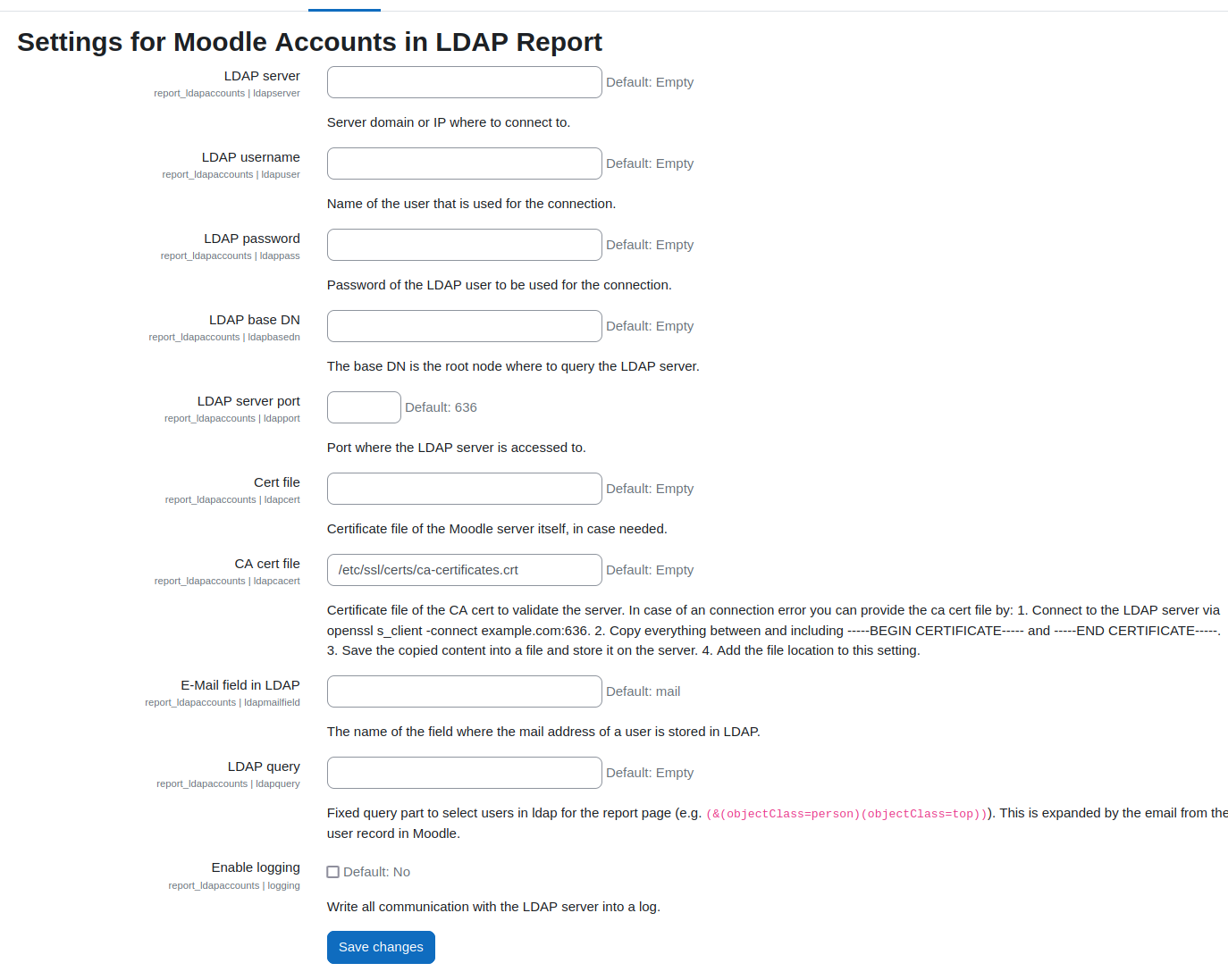
Settings
At "Site administration" -> "Plugins" -> "Report" -> "Settings for Moodle Accounts in LDAP Report"
you find all settings regarding this plugin.
There is a list of fields with the LDAP prefix that handle the connection to the LDAP
server. You may also provide certificate files for the connection in case necessary.
The setting "Email field in LDAP" report_ldapaccounts | ldapmailfield may contain a
different field name where the email is stored in the LDAP directory. By default,
this is mail.
The setting "LDAP Query" report_ldapaccounts | ldapquery may contain some additional
LDAP query parameters to select an user. Imagine the use case that the LDAP directory
contains person and institution items, both having an email field. In this setting the
query might contain additional conditions e.g. (objectClass=person) to select the
person items only.
The setting "Enable logging" report_ldapaccounts | logging is to log all the
communication between Moodle and the LDAP service. This is intended for debug reasons
and should not be enabled unless necessary (see also notes on Privacy below).
For the user account synchronization there are two settings, "Username / IDM field in LDAP"
report_ldapaccounts | ldapusernamefield which contains the name of the LDAP directory
where the user is identified and that is used in Moodle for the user name. In our
specific case this is an identifier that comes from the Shibboleth provider, which and
which is stored in our LDAP/IDM that returns the privileges to the authentication that
the user may have. The value of this field is used as the username in Moodle and users
coming authenticated via the SSO are mapped to that user. If the account doesn't yet
exist, it would be created on the fly upon the first login.
The setting "Authentication method for synchronized users"
report_ldapaccounts | syncauthmethod contains the method that the user should use
when logging in to Moodle. Ideally this is an SSO method available in your Moodle.
There is a setting report_ldapaccounts | lastsyncrun which is not listed on the
admin settings page, but which is used to hold the timestamp of the last synchronization.
The value is a unix timestamp.
Privacy
In general the LDAP report just fetches data from the LDAP server and lists data
in the report that are already in the Moodle database. However, there are two
exceptions when more data is stored and or stored at other places than the database.
This is:
- If the user selects to download the report as a CSV file, the data gets stored in
a file that is located in the Moodle data directory. The file remains there until
it's removed from an external job or manually by the Admin (see below). - For debug reasons logging can be enabled. This logs the entire communication between
Moodle and the LDAP server. The logs are stored in log files separated by date in the
data directory of Moodle. In case of the LDAP response it may contain personal
information from the LDAP entries that are not yet in Moodle and also will not be
processed any further. - New users that come from LDAP and are created in Moodle, have the properties email
first- and lastname, a username and the preferred language stored in Moodle. This
data however, is passed through the plugin only and standard functionality of Moodle
is used to process data.
Type of stored data
As explained before, what is stored depends on the type of the LDAP request and the
selection of the data to be fetched from the user table.
When the option Download report as CSV is selected, any of the selected columns from the
user table will be stored into the CSV file, except for the columns password and
secret. These two are never exported.
The LDAP server may return many other values, depending on the query, e.g. which properties
are selected from the data entity. By default, the query selects the mail field only, to
match the entity from the LDAP result with the data set from the user table. However,
if in the settings the LDAP query is filled to select other fields as well, or if in
the cli script the query is expanded by the argument --ldapquery more data from the entity
may be stored in the logs.
Data location
Both, the csv files for downloading and the log files are stored in moodletemp in a
sub directory report_ldapaccounts. Logfiles have the date included when they were
written.
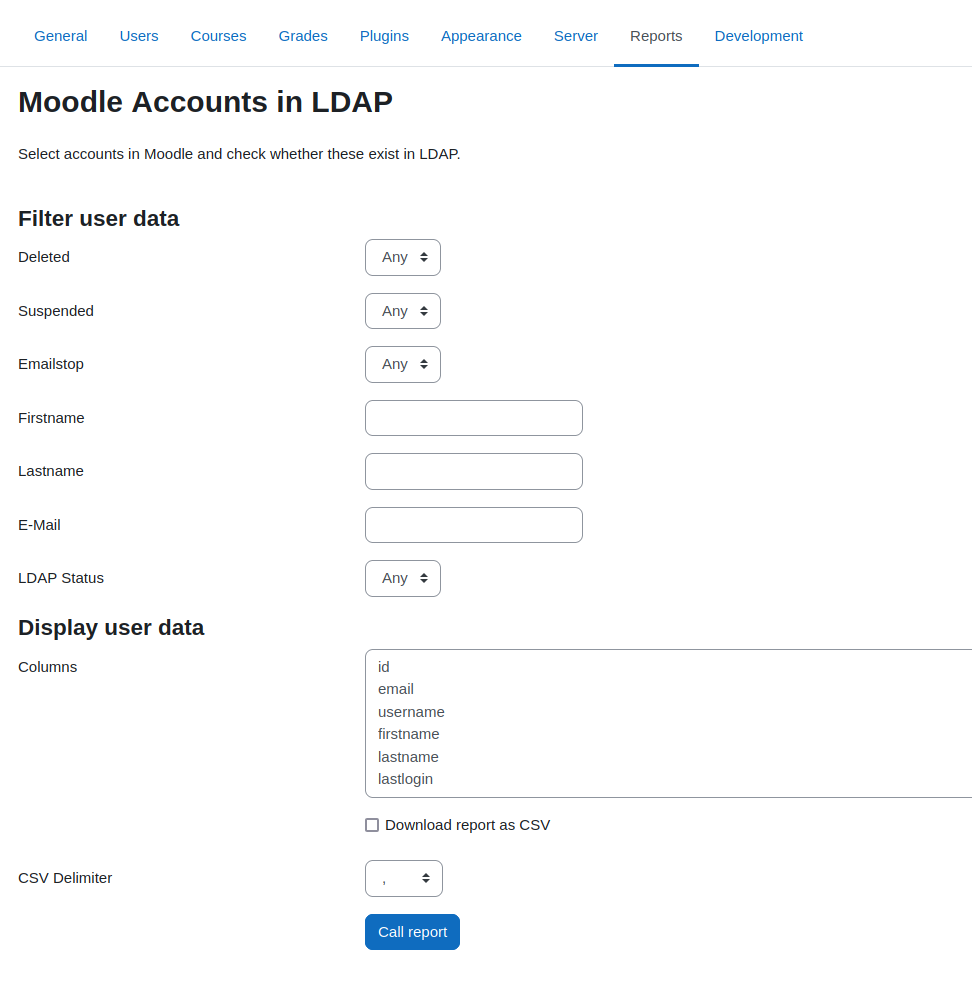
Report page
The report page can be called using the path /report/ldapaccounts/. You also get to
that page via "Site administration" -> "Reports" -> "Moodle Accounts in LDAP".
Filter
In the form the first section "Filter user data" contains filters to select which
users to fetch from the Moodle database that should appear in the report.
If you have more than one authentication method you will see a selection to filter
by authentication method. The selections "Deleted", "Suspended", "Emailstop", and
"LDAP status" work all the same, 0 means option disabled and 1 means option enabled.
By default, any of the options can be set i.e. the filter is not applied to the search.
The Filters firstname and lastname can be used to select users starting with these
letters. No wildcard has to be used.
The email field may use a wildcard. Here you can use a concrete email or e.g. select
all emails from a certain domain only. Wildcard character is the asterisk.
While all filters work directly with the data from the user table in Moodle the
"LDAP status" field is used on the results after the user items have been queried at
the LDAP directory. If the filter is set, only the users are displayed that match the
criteria (i.e. exist in the LDAP or not).
Display user data
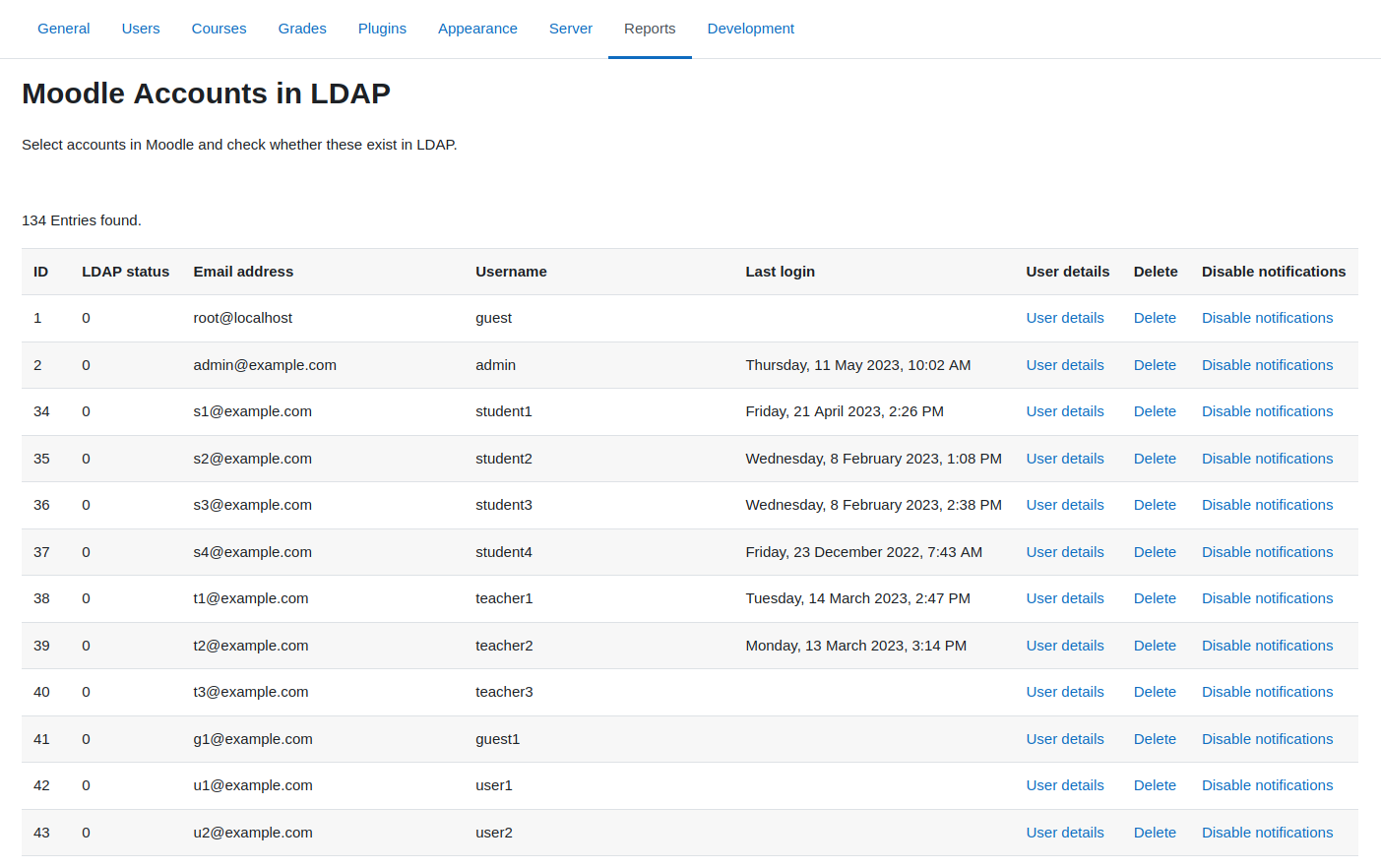
The selection "columns" contains a list of field names that exist in the user table.
In addition, the field ldap_status is here available as well to display whether
the user exists in the LDAP directory. At the end of the selected column list
the fields "User details", "Delete", "Suspend", and "Disable notifications" are added automatically.
These contain links to the users profile page and links to delete the user
account entirely or just disable notifications for a user.
The password and the secret fields cannot be displayed. Custom defined user
fields are also not considered.
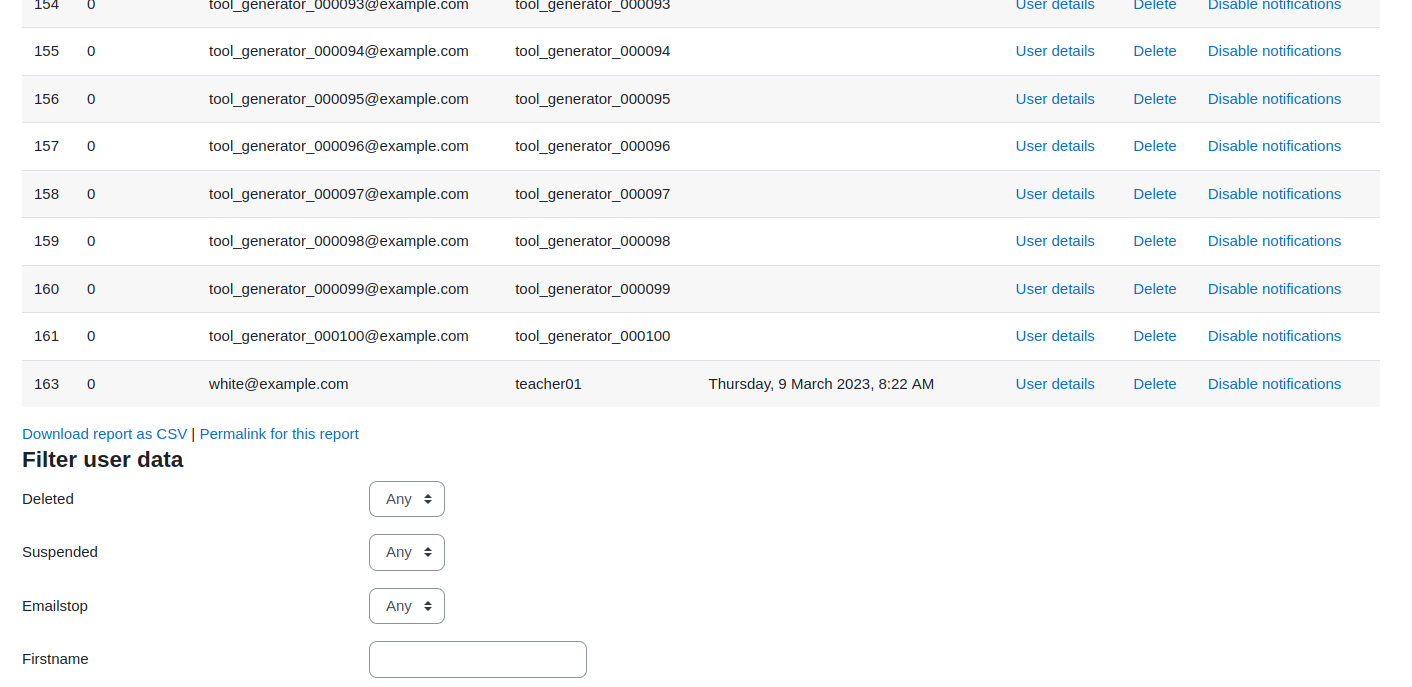
CSV Download
The report can also be downloaded as a csv file, in case the checkbox is set in the
form. A download link appears below the report table. The files are stored in a
subdirectory report_ldapaccounts of the Moodle data directory. Old files are not
deleted at the moment, therefore, a cronjob should be installed to do this.
Permalink
Below the user table a permalink is displayed. This link reflects the current query.
Used in another time it queries the data by the same criteria. This link can be
bookmarked so that the user doesn't need to remember each setting in the reports page
form. When calling the link, the form is displayed and preset with the search terms
already.
CLI
There are two cli script that reside in report/ldapaccounts/cli/. Administrators
may run it from the command line occasionally or put it into a cronjob to run it
periodically.
The script ldapaccounts.php exports a list of accounts from Moodle in conjunction
with the LDAP status depending on the given filter.
The output is always a csv formatted string witten to standard out. You may write
that into a file using the io redirection arguments.
The cli script ldapssosync.php queries the LDAP server for newly created users and
creates an account in Moodle. There is a switch -n to simulate the process without
actually writing any changes. The created users are written to standard out as a
json encoded string with the few properties set by the script, when a user is created.
Also, the time from when to query new accounts in LDAP can be set on the command line
via the argument -d.
For a list of possible arguments use
the --help switch to display it.
Functionality of ldapaccounts.php
Modes
There are two modes of the script. The first mode works the same as the report page.
You select user data. The resulting records are print to standard out.
The other option is to use the --action parameter to define an action with users
that do not exist in LDAP. These can be delete, suspend, or emailstop.
To suspend user accounts that are not in LDAP you would use --action=suspend to set
the suspended property to 1 in the user table.
Also, when using the --action parameter the output are the data sets that have been
modified (actually they will be modified within an update command before the next
chunk of user records is fetched). If a user record should be modified, but may have
that flag set already that is defined by the action, then this data set is not printed
out.
Filters
Filters are more flexible than in the reports page. You can basically use any
column that exists in the user table to define some criterion and filter data with
this condition. Each filter criterion is used with an and conjunction. If a filter
is set on the firstname and on the lastname both criteria must match so that the
user record is selected.
If you use any wildcard on strings the asterisk must be set. Also if you use > or <
then these operators must be prepended on the value.
Filters must be written as json. To filter all users whose surname starts with W
and that are not yet suspended and that have an email in the example.org institution
would use the following filter (including the argument switch):
-f='{"lastname":"w*","suspended":0,"email":"*example.org"}'
Other features
In case you use a different ldapmail field or add a query part to the ldap query
these options can be submitted by the arguments --ldapmail and --ldapquery.
These two values can also be defined in the settings and be used always for all
queries in the cli script and the reports page.
To have no output witten to standard out, the switch --silent might be used. This
apparently makes sense only if you also use the --action switch.
Functionality of ldapssosync.php
The cli script does basically the same as the sync_ldap_accounts task which is
listed in the scheduled tasks list as "Sync new accounts from LDAP to add user in Moodle".
The cli script lets you control the behaviour a bit more and lets you run a simulated
synchronization.
CLI arguments
Without any arguments the synchronization is just done in the same was as the scheduled
task would do it.
Set -d or --date with a parsable date time string in PHP. This is the point of time
from where new accounts in LDAP are looked up.
Set -n or --dryrun without a value. This simulates the run only, does not create any
accounts and also does not update the timestamp of the last synchronization.
The SSO field in LDAP can be set via -m or --ldapmail and the authmethod (the technical
name e.g. manual) can be set via -a or --authmethod.
Create new users in Moodle
By default new users are created running the scheduled task or the cli script. The first
must be disabled, if you not wish to do so, the latter is a manual step anyway and can
controlled by you whenever you want to do it.
A new user uses the following mappings from LDAP to Moodle:
| LDAP field | Moodle user table | Comment |
|---------------------|---------------------|------------------------------------|
| sn | lastname | hard coded |
| givenname | firstname | hard coded |
| mail | email | via cli argument or setting |
| preferredlanguage | lang | hard coded |
| <fixed> | username | must be set via setting or cli arg |
| n.a. | auth | must be set via setting or cli arg |
| n.a. | deleted | always 0 |
| n.a. | conirmed | always 1 |
| n.a. | description | Via lang string userdescription |
| n.a. | descriptionformat | hard coded to FORMAT_PLAIN |
This actually addresses all our needs and works in our environment. If you need
a more detailed configuration, please do not hesitate to open an issue.
Limitations and possible future features
Originally the plugin was tailored with a lot of hard coding facts for our personal
use. We tried to make it more generic, so that it can be used by other institutions
as well. At the moment the functionality of the plugin meets our requirements.
Possible future changes could be:
- More flexibility in matching users in Moodle and LDAP (the username field could be
used for that, too - this is the case for the accout creation but not the original
use case suspending users). - Use output options of Moodle and not the hard coded csv export.
- Fetch and display other values from the LDAP server, not only the email field to
match the users. - Use some ajax so that the queries may work in the background and the table is
displayed after the data has been populated. For our institution we can query
more that 30k records within less than a minute, therefore we use the direct way
to display the data. - A command that deletes old CSV files that have been generated before a certain time.
- A scheduled task that checks users in Moodle and LDAP and automatically suspends
users.
Version history
v1.3
- Implement Filter for user-defined fields #7
This allows filtering and displaying dat