About the plugin
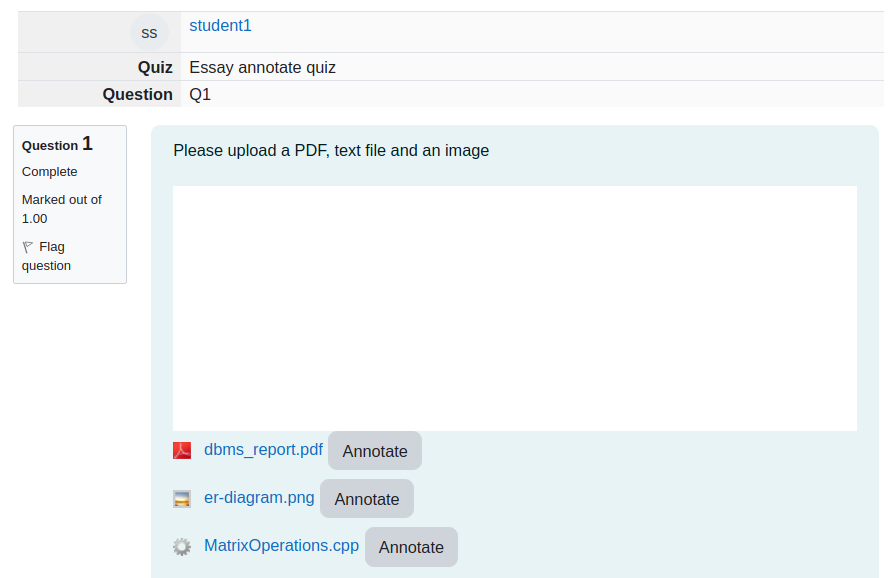
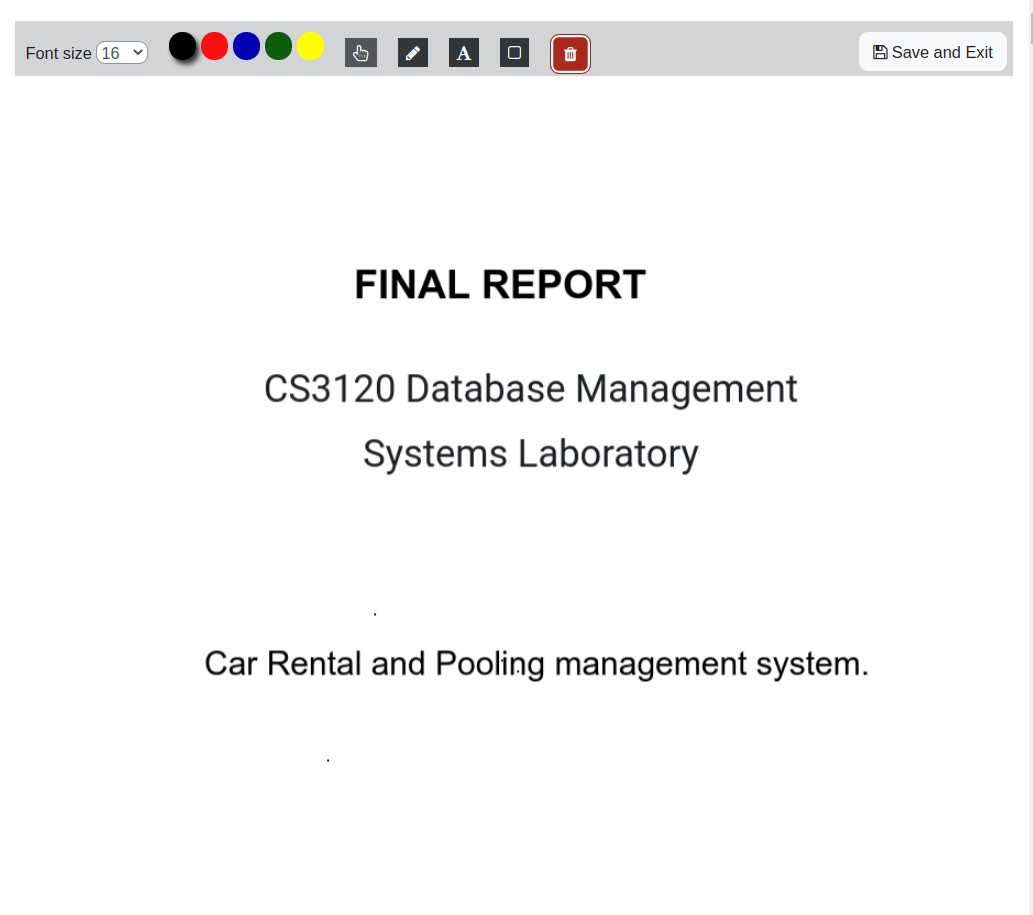
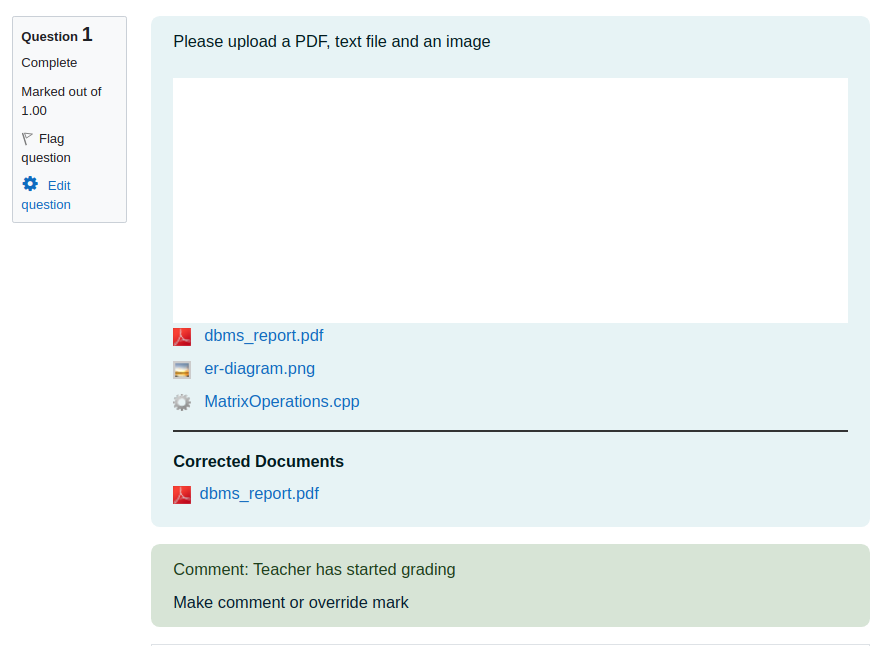
The essay annotate question type is an extension to essay question type that allows the teacher to annotate the files uploaded as attachments by the student in an answer. The file types supported include PDF and those with mime type image (such as .png and .jpeg) and mime type text (such as .py, .c, .cpp, and .txt). The plugin requires the permission to execute external binary files on the Moodle server. The user documentation can be found in the Wiki section.
Technical report and demo video can be found here.
Dependencies
Supported versions
Tested on Moodle versions 4.0 to 4.4
Installation steps
Installing the plugin
Using GUI
- Download the repository as a ZIP file by navigating to
Code > Local > Download ZIP in the homepage of the repository, or using this link.
- Login to Moodle as Admin
- Navigate to
Site administration > Plugins > Install plugins
- Upload the ZIP file to
ZIP package section.
- Expand
Show more...
- Choose
Plugin type as Question type (qtype).
- Rename the root directory to
essayannotate.
- Click on
Install plugin from ZIP file and follow the prompted steps.
Manually
- Get the contents of the repo by either
- Downloading the repository as a ZIP file by navigating to
Code > Local > Download ZIP in the homepage of the repository, or using this link. Then unzip the repo, and rename the folder name to essayannotate.
- Cloning this repo. Then rename the folder name to
essayannotate.
- Move this folder into the
question/type folder on your Moodle site, to create a new folder at question/type/essayannotate.
- Login to Moodle as Admin
- Follow the prompted steps to install the plugin. If install/upgrade does not begin automatically, you can initiate it manually by navigating to the following link:
Administration > Site administration > Notifications
Installing the dependencies (if required)
- Install ImageMagick from here.
- Install Ghostscript from here.
Configuring the settings
Once installation is successful, you will be prompted to enter ImageMagick Path and Ghostscript Path. You can get these by running which convert and which gs respectively.
Replace the following line in /etc/ImageMagick-xx/policy.xml (xx is the version number).
<policy domain="coder" rights="none" pattern="PDF" />
with
<policy domain="coder" rights="read|write" pattern="PDF" />
To check ImageMagick is working, convert a png file to a pdf, in terminal run convert file.png file.pdf.
Create a directory essayPDF with write permission to the user running the Moodle server in the temp dir of Moodle data.
The Team
This work has been completed as part of three Undergraduate Major Projects at IIT Palakkad over the years 2021-22, 2022-23, and 2023-24.
| Project Mentor | Email ID |
|--------------------|------------------------|
| Dr. Jasine Babu | jasine@iitpkd.ac.in |
Special thanks to Mr. Sumesh K S (Technical Supdt.) & Mr. Neeraj Patil (BTech 2022) for their support in testing.
Third party code used
- Fabric JS: Javascript Canvas Library, SVG-to-Canvas (and canvas-to-SVG) Parser
- FPDF: FPDF is a PHP class which allows to generate PDF files with pure PHP
- FPDI: Collection of PHP classes facilitating developers to read pages from existing PDF documents and use them as templates in FPDF
- Alpha PDF: The AlphaPDF is an extended class on FPDI that is used for setting transparency.
- PDF JS: PDF.js is a Portable Document Format (PDF) viewer that is built with HTML5
- PDF JS Annotations: Wrapper for PDF JS to add annotations. We have done suitable modifications to this code.
Icon
The icon ![]() for this plugin is taken from svgrepo.com.
for this plugin is taken from svgrepo.com.
LICENSE: MIT License

AUTHOR: instructure-ui