Course list
Versions
Current version
Courselist plugin Version 4.5-i (2026050200)
Courselist plugin Version 4.5-i
Plugin type: Local plugins
Frankenstyle component name: local_courselist
Version build number: 2026050200
Version release name: Courselist plugin Version 4.5-i
Maturity: Stable
Supported Moodle versions: 4.1, 4.2, 4.3, 4.4, 4.5
Repository URL (Git): https://github.com/emeneo/moodle-local_courselist.git
Repository branch:
Repository tag:
Issue/bug tracker URL: https://github.com/emeneo/moodle-local_courselist/issues
Summary
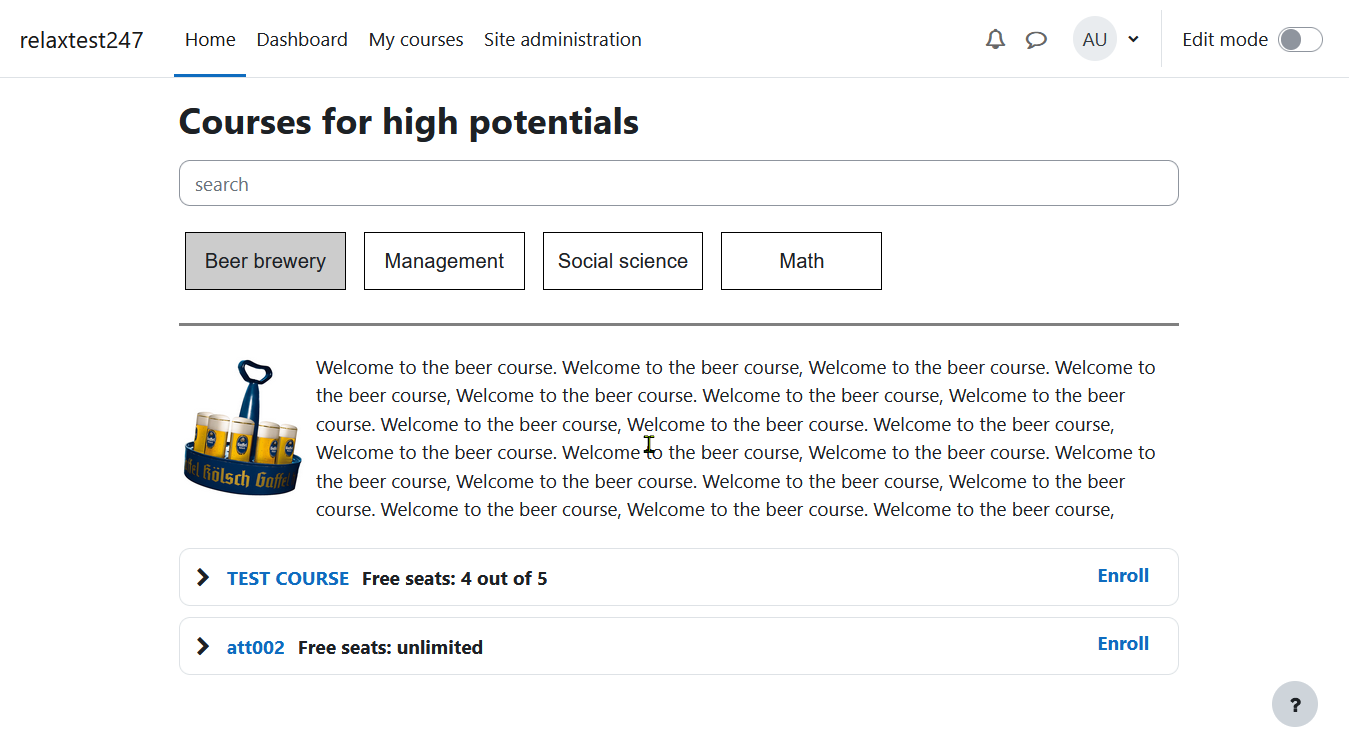
The plugin makes the following possibe: Creation of unlimited alternative course list pages (course catalogs, course menus), based on custom course fields (checkbox).
Installation
The plugin can be installed by either uploading it via the moodle upload interface or manually by placing the unzipped package into the folder /local/
Setup a new course list
Create course list categories and add courses (Admin)
- Go to Site Administration --> Courses --> Course custom fields
URL: /course/customfield.php - Klick on "Add a new category"
- Change the name of the newly created category (in the following we will use "Demo", then click on "Add new custom field" (Type: "Checkbox")
- In the popup window enter:
• Field name
• Short name
• Description
Under common custom course fields settings, choose
• Locked=YES
• Visible to = Nobody
Repeat for all categories needed.
Create new course list page (Admin)
First go to Site Administration -> Plugins -> Local Plugins -> Manage course list
/local/courselist/manage.php)
Click on "Add new list"
Enter:
• Start- and end date of course visibility
• Course list name
• Description
Finally select related custom course field categories. Here we will select "Demo".
You can visit the course list page by clicking on its name
Let Courses appear in the Course list (Teacher, Admin)
1 Go to the settings of the related course.
2 Select where your course should appear
Important:
In order for the max enrolments to appear on the course list page, the enrolment method "waitlist enrolment" or "student enrolment" has to be at the top of enrolment methods.
Courselist plugin Version 4.5-g (2025042100)
Courselist plugin Version 4.5-g
Plugin type: Local plugins
Frankenstyle component name: local_courselist
Version build number: 2025042100
Version release name: Courselist plugin Version 4.5-g
Maturity: Stable
Supported Moodle versions: 4.1, 4.2, 4.3, 4.4, 4.5
Repository URL (Git): https://github.com/emeneo/moodle-local_courselist.git
Repository branch:
Repository tag: v.4.5-g
Issue/bug tracker URL: https://github.com/emeneo/moodle-local_courselist/issues
Summary
The plugin makes the following possibe: Creation of unlimited alternative course list pages (course catalogs, course menus), based on custom course fields (checkbox).
Installation
The plugin can be installed by either uploading it via the moodle upload interface or manually by placing the unzipped package into the folder /local/
Setup a new course list
Create course list categories and add courses (Admin)
- Go to Site Administration --> Courses --> Course custom fields
URL: /course/customfield.php - Klick on "Add a new category"
- Change the name of the newly created category (in the following we will use "Demo", then click on "Add new custom field" (Type: "Checkbox")
- In the popup window enter:
• Field name
• Short name
• Description
Under common custom course fields settings, choose
• Locked=YES
• Visible to = Nobody
Repeat for all categories needed.
Create new course list page (Admin)
First go to Site Administration -> Plugins -> Local Plugins -> Manage course list
/local/courselist/manage.php)
Click on "Add new list"
Enter:
• Start- and end date of course visibility
• Course list name
• Description
Finally select related custom course field categories. Here we will select "Demo".
You can visit the course list page by clicking on its name
Let Courses appear in the Course list (Teacher, Admin)
1 Go to the settings of the related course.
2 Select where your course should appear
Important:
In order for the max enrolments to appear on the course list page, the enrolment method "waitlist enrolment" or "student enrolment" has to be at the top of enrolment methods.
Courselist plugin Version 4.5-f (2025032900)
Courselist plugin Version 4.5-f
Plugin type: Local plugins
Frankenstyle component name: local_courselist
Version build number: 2025032900
Version release name: Courselist plugin Version 4.5-f
Maturity: Stable
Supported Moodle versions: 4.1, 4.2, 4.3, 4.4, 4.5
Repository URL (Git): https://github.com/emeneo/moodle-local_courselist.git
Repository branch:
Repository tag: v.4.5-f
Issue/bug tracker URL: https://github.com/emeneo/moodle-local_courselist/issues
Summary
The plugin makes the following possibe: Creation of unlimited alternative course list pages (course catalogs, course menus), based on custom course fields (checkbox).
Installation
The plugin can be installed by either uploading it via the moodle upload interface or manually by placing the unzipped package into the folder /local/
Setup a new course list
Create course list categories and add courses (Admin)
- Go to Site Administration --> Courses --> Course custom fields
URL: /course/customfield.php - Klick on "Add a new category"
- Change the name of the newly created category (in the following we will use "Demo", then click on "Add new custom field" (Type: "Checkbox")
- In the popup window enter:
• Field name
• Short name
• Description
Under common custom course fields settings, choose
• Locked=YES
• Visible to = Nobody
Repeat for all categories needed.
Create new course list page (Admin)
First go to Site Administration -> Plugins -> Local Plugins -> Manage course list
/local/courselist/manage.php)
Click on "Add new list"
Enter:
• Start- and end date of course visibility
• Course list name
• Description
Finally select related custom course field categories. Here we will select "Demo".
You can visit the course list page by clicking on its name
Let Courses appear in the Course list (Teacher, Admin)
1 Go to the settings of the related course.
2 Select where your course should appear
Important:
In order for the max enrolments to appear on the course list page, the enrolment method "waitlist enrolment" or "student enrolment" has to be at the top of enrolment methods.
Courselist plugin Version 4.5-e (2025030112)
Courselist plugin Version 4.5-e
Plugin type: Local plugins
Frankenstyle component name: local_courselist
Version build number: 2025030112
Version release name: Courselist plugin Version 4.5-e
Maturity: Stable
Supported Moodle versions: 4.1, 4.2, 4.3, 4.4, 4.5
Repository URL (Git): https://github.com/emeneo/moodle-local_courselist.git
Repository branch:
Repository tag: v4.5-e
Issue/bug tracker URL: https://github.com/emeneo/moodle-local_courselist/issues
Summary
The plugin makes the following possibe: Creation of unlimited alternative course list pages (course catalogs, course menus), based on custom course fields (checkbox).
Installation
The plugin can be installed by either uploading it via the moodle upload interface or manually by placing the unzipped package into the folder /local/
Setup a new course list
Create course list categories and add courses (Admin)
- Go to Site Administration --> Courses --> Course custom fields
URL: /course/customfield.php - Klick on "Add a new category"
- Change the name of the newly created category (in the following we will use "Demo", then click on "Add new custom field" (Type: "Checkbox")
- In the popup window enter:
• Field name
• Short name
• Description
Under common custom course fields settings, choose
• Locked=YES
• Visible to = Nobody
Repeat for all categories needed.
Create new course list page (Admin)
First go to Site Administration -> Plugins -> Local Plugins -> Manage course list
/local/courselist/manage.php)
Click on "Add new list"
Enter:
• Start- and end date of course visibility
• Course list name
• Description
Finally select related custom course field categories. Here we will select "Demo".
You can visit the course list page by clicking on its name
Let Courses appear in the Course list (Teacher, Admin)
1 Go to the settings of the related course.
2 Select where your course should appear
Important:
In order for the max enrolments to appear on the course list page, the enrolment method "waitlist enrolment" or "student enrolment" has to be at the top of enrolment methods.
Courselist plugin Version 4.5-d (2025030111)
Courselist plugin Version 4.5-d
Plugin type: Local plugins
Frankenstyle component name: local_courselist
Version build number: 2025030111
Version release name: Courselist plugin Version 4.5-d
Maturity: Stable
Supported Moodle versions: 4.1, 4.2, 4.3, 4.4, 4.5
Repository URL (Git): https://github.com/emeneo/moodle-local_courselist.git
Repository branch:
Repository tag: v4.5d
Issue/bug tracker URL: https://github.com/emeneo/moodle-local_courselist/issues
Summary
The plugin makes the following possibe: Creation of unlimited alternative course list pages (course catalogs, course menus), based on custom course fields (checkbox).
Installation
The plugin can be installed by either uploading it via the moodle upload interface or manually by placing the unzipped package into the folder /local/
Setup a new course list
Create course list categories and add courses (Admin)
- Go to Site Administration --> Courses --> Course custom fields
URL: /course/customfield.php - Klick on "Add a new category"
- Change the name of the newly created category (in the following we will use "Demo", then click on "Add new custom field" (Type: "Checkbox")
- In the popup window enter:
• Field name
• Short name
• Description
Under common custom course fields settings, choose
• Locked=YES
• Visible to = Nobody
Repeat for all categories needed.
Create new course list page (Admin)
First go to Site Administration -> Plugins -> Local Plugins -> Manage course list
/local/courselist/manage.php)
Click on "Add new list"
Enter:
• Start- and end date of course visibility
• Course list name
• Description
Finally select related custom course field categories. Here we will select "Demo".
You can visit the course list page by clicking on its name
Let Courses appear in the Course list (Teacher, Admin)
1 Go to the settings of the related course.
2 Select where your course should appear
Important:
In order for the max enrolments to appear on the course list page, the enrolment method "waitlist enrolment" or "student enrolment" has to be at the top of enrolment methods.
Courselist plugin Version 4.5-c (2025030110)
Courselist plugin Version 4.5-c
Plugin type: Local plugins
Frankenstyle component name: local_courselist
Version build number: 2025030110
Version release name: Courselist plugin Version 4.5-c
Maturity: Stable
Supported Moodle versions: 4.1, 4.2, 4.3, 4.4, 4.5
Repository URL (Git): https://github.com/emeneo/moodle-local_courselist.git
Repository branch:
Repository tag: v4.5c
Issue/bug tracker URL: https://github.com/emeneo/moodle-local_courselist/issues
Summary
The plugin makes the following possibe: Creation of unlimited alternative course list pages (course catalogs, course menus), based on custom course fields (checkbox).
Installation
The plugin can be installed by either uploading it via the moodle upload interface or manually by placing the unzipped package into the folder /local/
Setup a new course list
Create course list categories and add courses (Admin)
- Go to Site Administration --> Courses --> Course custom fields
URL: /course/customfield.php - Klick on "Add a new category"
- Change the name of the newly created category (in the following we will use "Demo", then click on "Add new custom field" (Type: "Checkbox")
- In the popup window enter:
• Field name
• Short name
• Description
Under common custom course fields settings, choose
• Locked=YES
• Visible to = Nobody
Repeat for all categories needed.
Create new course list page (Admin)
First go to Site Administration -> Plugins -> Local Plugins -> Manage course list
/local/courselist/manage.php)
Click on "Add new list"
Enter:
• Start- and end date of course visibility
• Course list name
• Description
Finally select related custom course field categories. Here we will select "Demo".
You can visit the course list page by clicking on its name
Let Courses appear in the Course list (Teacher, Admin)
1 Go to the settings of the related course.
2 Select where your course should appear
Important:
In order for the max enrolments to appear on the course list page, the enrolment method "waitlist enrolment" or "student enrolment" has to be at the top of enrolment methods.
Courselist plugin Version 4.5-b (2025030109)
Courselist plugin Version 4.5-b
Plugin type: Local plugins
Frankenstyle component name: local_courselist
Version build number: 2025030109
Version release name: Courselist plugin Version 4.5-b
Maturity: Stable
Supported Moodle versions: 4.1, 4.2, 4.3, 4.4, 4.5
Repository URL (Git): https://github.com/emeneo/moodle-local_courselist.git
Repository branch:
Repository tag: v4.5b
Issue/bug tracker URL: https://github.com/emeneo/moodle-local_courselist/issues
Summary
The plugin makes the following possibe: Creation of unlimited alternative course list pages (course catalogs, course menus), based on custom course fields (checkbox).
Installation
The plugin can be installed by either uploading it via the moodle upload interface or manually by placing the unzipped package into the folder /local/
Setup a new course list
Create course list categories and add courses (Admin)
- Go to Site Administration --> Courses --> Course custom fields
URL: /course/customfield.php - Klick on "Add a new category"
- Change the name of the newly created category (in the following we will use "Demo", then click on "Add new custom field" (Type: "Checkbox")
- In the popup window enter:
• Field name
• Short name
• Description
Under common custom course fields settings, choose
• Locked=YES
• Visible to = Nobody
Repeat for all categories needed.
Create new course list page (Admin)
First go to Site Administration -> Plugins -> Local Plugins -> Manage course list
/local/courselist/manage.php)
Click on "Add new list"
Enter:
• Start- and end date of course visibility
• Course list name
• Description
Finally select related custom course field categories. Here we will select "Demo".
You can visit the course list page by clicking on its name
Let Courses appear in the Course list (Teacher, Admin)
1 Go to the settings of the related course.
2 Select where your course should appear
Important:
In order for the max enrolments to appear on the course list page, the enrolment method "waitlist enrolment" or "student enrolment" has to be at the top of enrolment methods.
Courselist plugin Version 4.5-a (2025030108)
Courselist plugin Version 4.5-a
Plugin type: Local plugins
Frankenstyle component name: local_courselist
Version build number: 2025030108
Version release name: Courselist plugin Version 4.5-a
Maturity: Stable
Supported Moodle versions: 4.1, 4.2, 4.3, 4.4, 4.5
Repository URL (Git): https://github.com/emeneo/moodle-local_courselist.git
Repository branch:
Repository tag: v4.5a
Issue/bug tracker URL: https://github.com/emeneo/moodle-local_courselist/issues
Summary
The plugin makes the following possibe: Creation of unlimited alternative course list pages (course catalogs, course menus), based on custom course fields (checkbox).
Installation
The plugin can be installed by either uploading it via the moodle upload interface or manually by placing the unzipped package into the folder /local/
Setup a new course list
Create course list categories and add courses (Admin)
- Go to Site Administration --> Courses --> Course custom fields
URL: /course/customfield.php - Klick on "Add a new category"
- Change the name of the newly created category (in the following we will use "Demo", then click on "Add new custom field" (Type: "Checkbox")
- In the popup window enter:
• Field name
• Short name
• Description
Under common custom course fields settings, choose
• Locked=YES
• Visible to = Nobody
Repeat for all categories needed.
Create new course list page (Admin)
First go to Site Administration -> Plugins -> Local Plugins -> Manage course list
/local/courselist/manage.php)
Click on "Add new list"
Enter:
• Start- and end date of course visibility
• Course list name
• Description
Finally select related custom course field categories. Here we will select "Demo".
You can visit the course list page by clicking on its name
Let Courses appear in the Course list (Teacher, Admin)
1 Go to the settings of the related course.
2 Select where your course should appear
Important:
In order for the max enrolments to appear on the course list page, the enrolment method "waitlist enrolment" or "student enrolment" has to be at the top of enrolment methods.
Courselist plugin Version 4.4-i (2025021300)
Courselist plugin Version 4.4-i
Plugin type: Local plugins
Frankenstyle component name: local_courselist
Version build number: 2025021300
Version release name: Courselist plugin Version 4.4-i
Maturity: Stable
Supported Moodle versions: 4.1, 4.2, 4.3, 4.4
Repository URL (Git): https://github.com/emeneo/moodle-local_courselist.git
Repository branch:
Repository tag: v4.4-i
Issue/bug tracker URL: https://github.com/emeneo/moodle-local_courselist/issues
Summary
The plugin makes the following possibe: Creation of unlimited alternative course list pages (course catalogs, course menus), based on custom course fields (checkbox).
Installation
The plugin can be installed by either uploading it via the moodle upload interface or manually by placing the unzipped package into the folder /local/
Setup a new course list
Create course list categories and add courses (Admin)
- Go to Site Administration --> Courses --> Course custom fields
URL: /course/customfield.php - Klick on "Add a new category"
- Change the name of the newly created category (in the following we will use "Demo", then click on "Add new custom field" (Type: "Checkbox")
- In the popup window enter:
• Field name
• Short name
• Description
Under common custom course fields settings, choose
• Locked=YES
• Visible to = Nobody
Repeat for all categories needed.
Create new course list page (Admin)
First go to Site Administration -> Plugins -> Local Plugins -> Manage course list
/local/courselist/manage.php)
Click on "Add new list"
Enter:
• Start- and end date of course visibility
• Course list name
• Description
Finally select related custom course field categories. Here we will select "Demo".
You can visit the course list page by clicking on its name
Let Courses appear in the Course list (Teacher, Admin)
1 Go to the settings of the related course.
2 Select where your course should appear
Important:
In order for the max enrolments to appear on the course list page, the enrolment method "waitlist enrolment" or "student enrolment" has to be at the top of enrolment methods.
Courselist plugin Version 4.4-h (2025010800)
Courselist plugin Version 4.4-h
Plugin type: Local plugins
Frankenstyle component name: local_courselist
Version build number: 2025010800
Version release name: Courselist plugin Version 4.4-h
Maturity: Stable
Supported Moodle versions: 4.1, 4.2, 4.3, 4.4
Repository URL (Git): https://github.com/emeneo/moodle-local_courselist.git
Repository branch:
Repository tag: v4.4-h2
Issue/bug tracker URL: https://github.com/emeneo/moodle-local_courselist/issues
Summary
The plugin makes the following possibe: Creation of unlimited alternative course list pages (course catalogs, course menus), based on custom course fields (checkbox).
Installation
The plugin can be installed by either uploading it via the moodle upload interface or manually by placing the unzipped package into the folder /local/
Setup a new course list
Create course list categories and add courses (Admin)
- Go to Site Administration --> Courses --> Course custom fields
URL: /course/customfield.php - Klick on "Add a new category"
- Change the name of the newly created category (in the following we will use "Demo", then click on "Add new custom field" (Type: "Checkbox")
- In the popup window enter:
• Field name
• Short name
• Description
Under common custom course fields settings, choose
• Locked=YES
• Visible to = Nobody
Repeat for all categories needed.
Create new course list page (Admin)
First go to Site Administration -> Plugins -> Local Plugins -> Manage course list
/local/courselist/manage.php)
Click on "Add new list"
Enter:
• Start- and end date of course visibility
• Course list name
• Description
Finally select related custom course field categories. Here we will select "Demo".
You can visit the course list page by clicking on its name
Let Courses appear in the Course list (Teacher, Admin)
1 Go to the settings of the related course.
2 Select where your course should appear
Important:
In order for the max enrolments to appear on the course list page, the enrolment method "waitlist enrolment" or "student enrolment" has to be at the top of enrolment methods.
Courselist plugin Version 4.4-g (2024121700)
Courselist plugin Version 4.4-g
Plugin type: Local plugins
Frankenstyle component name: local_courselist
Version build number: 2024121700
Version release name: Courselist plugin Version 4.4-g
Maturity: Stable
Supported Moodle versions: 4.1, 4.2, 4.3, 4.4
Repository URL (Git): https://github.com/emeneo/moodle-local_courselist.git
Repository branch:
Repository tag: v4.4-g
Issue/bug tracker URL: https://github.com/emeneo/moodle-local_courselist/issues
Summary
The plugin makes the following possibe: Creation of unlimited alternative course list pages (course catalogs, course menus), based on custom course fields (checkbox).
Installation
The plugin can be installed by either uploading it via the moodle upload interface or manually by placing the unzipped package into the folder /local/
Setup a new course list
Create course list categories and add courses (Admin)
- Go to Site Administration --> Courses --> Course custom fields
URL: /course/customfield.php - Klick on "Add a new category"
- Change the name of the newly created category (in the following we will use "Demo", then click on "Add new custom field" (Type: "Checkbox")
- In the popup window enter:
• Field name
• Short name
• Description
Under common custom course fields settings, choose
• Locked=YES
• Visible to = Nobody
Repeat for all categories needed.
Create new course list page (Admin)
First go to Site Administration -> Plugins -> Local Plugins -> Manage course list
/local/courselist/manage.php)
Click on "Add new list"
Enter:
• Start- and end date of course visibility
• Course list name
• Description
Finally select related custom course field categories. Here we will select "Demo".
You can visit the course list page by clicking on its name
Let Courses appear in the Course list (Teacher, Admin)
1 Go to the settings of the related course.
2 Select where your course should appear
Important:
In order for the max enrolments to appear on the course list page, the enrolment method "waitlist enrolment" or "student enrolment" has to be at the top of enrolment methods.
Courselist plugin Version 4.4-f (2024121000)
Courselist plugin Version 4.4-f
Plugin type: Local plugins
Frankenstyle component name: local_courselist
Version build number: 2024121000
Version release name: Courselist plugin Version 4.4-f
Maturity: Stable
Supported Moodle versions: 4.1, 4.2, 4.3, 4.4
Repository URL (Git): https://github.com/emeneo/moodle-local_courselist.git
Repository branch:
Repository tag: v4.4-f
Issue/bug tracker URL: https://github.com/emeneo/moodle-local_courselist/issues
Summary
The plugin makes the following possibe: Creation of unlimited alternative course list pages (course catalogs, course menus), based on custom course fields (checkbox).
Installation
The plugin can be installed by either uploading it via the moodle upload interface or manually by placing the unzipped package into the folder /local/
Setup a new course list
Create course list categories and add courses (Admin)
- Go to Site Administration --> Courses --> Course custom fields
URL: /course/customfield.php - Klick on "Add a new category"
- Change the name of the newly created category (in the following we will use "Demo", then click on "Add new custom field" (Type: "Checkbox")
- In the popup window enter:
• Field name
• Short name
• Description
Under common custom course fields settings, choose
• Locked=YES
• Visible to = Nobody
Repeat for all categories needed.
Create new course list page (Admin)
First go to Site Administration -> Plugins -> Local Plugins -> Manage course list
/local/courselist/manage.php)
Click on "Add new list"
Enter:
• Start- and end date of course visibility
• Course list name
• Description
Finally select related custom course field categories. Here we will select "Demo".
You can visit the course list page by clicking on its name
Let Courses appear in the Course list (Teacher, Admin)
1 Go to the settings of the related course.
2 Select where your course should appear
Important:
In order for the max enrolments to appear on the course list page, the enrolment method "waitlist enrolment" or "student enrolment" has to be at the top of enrolment methods.
Courselist plugin Version 4.4-e (2024112800)
Courselist plugin Version 4.4-e
Plugin type: Local plugins
Frankenstyle component name: local_courselist
Version build number: 2024112800
Version release name: Courselist plugin Version 4.4-e
Maturity: Stable
Supported Moodle versions: 4.1, 4.2, 4.3, 4.4
Repository URL (Git): https://github.com/emeneo/moodle-local_courselist.git
Repository branch:
Repository tag: v4.4-e
Issue/bug tracker URL: https://github.com/emeneo/moodle-local_courselist/issues
Summary
The plugin makes the following possibe: Creation of unlimited alternative course list pages (course catalogs, course menus), based on custom course fields (checkbox).
Installation
The plugin can be installed by either uploading it via the moodle upload interface or manually by placing the unzipped package into the folder /local/
Setup a new course list
Create course list categories and add courses (Admin)
- Go to Site Administration --> Courses --> Course custom fields
URL: /course/customfield.php - Klick on "Add a new category"
- Change the name of the newly created category (in the following we will use "Demo", then click on "Add new custom field" (Type: "Checkbox")
- In the popup window enter:
• Field name
• Short name
• Description
Under common custom course fields settings, choose
• Locked=YES
• Visible to = Nobody
Repeat for all categories needed.
Create new course list page (Admin)
First go to Site Administration -> Plugins -> Local Plugins -> Manage course list
/local/courselist/manage.php)
Click on "Add new list"
Enter:
• Start- and end date of course visibility
• Course list name
• Description
Finally select related custom course field categories. Here we will select "Demo".
You can visit the course list page by clicking on its name
Let Courses appear in the Course list (Teacher, Admin)
1 Go to the settings of the related course.
2 Select where your course should appear
Important:
In order for the max enrolments to appear on the course list page, the enrolment method "waitlist enrolment" or "student enrolment" has to be at the top of enrolment methods.
Courselist plugin Version 4.4-d (2024101110)
Courselist plugin Version 4.4-d
Plugin type: Local plugins
Frankenstyle component name: local_courselist
Version build number: 2024101110
Version release name: Courselist plugin Version 4.4-d
Maturity: Stable
Supported Moodle versions: 4.1, 4.2, 4.3, 4.4
Repository URL (Git): https://github.com/emeneo/moodle-local_courselist.git
Repository branch:
Repository tag: v.4.4-d
Issue/bug tracker URL: https://github.com/emeneo/moodle-local_courselist/issues
Summary
The plugin makes the following possibe: Creation of unlimited alternative course list pages (course catalogs, course menus), based on custom course fields (checkbox).
Installation
The plugin can be installed by either uploading it via the moodle upload interface or manually by placing the unzipped package into the folder /local/
Setup a new course list
Create course list categories and add courses (Admin)
- Go to Site Administration --> Courses --> Course custom fields
URL: /course/customfield.php - Klick on "Add a new category"
- Change the name of the newly created category (in the following we will use "Demo", then click on "Add new custom field" (Type: "Checkbox")
- In the popup window enter:
• Field name
• Short name
• Description
Under common custom course fields settings, choose
• Locked=YES
• Visible to = Nobody
Repeat for all categories needed.
Create new course list page (Admin)
First go to Site Administration -> Plugins -> Local Plugins -> Manage course list
/local/courselist/manage.php)
Click on "Add new list"
Enter:
• Start- and end date of course visibility
• Course list name
• Description
Finally select related custom course field categories. Here we will select "Demo".
You can visit the course list page by clicking on its name
Let Courses appear in the Course list (Teacher, Admin)
1 Go to the settings of the related course.
2 Select where your course should appear
Important:
In order for the max enrolments to appear on the course list page, the enrolment method "waitlist enrolment" or "student enrolment" has to be at the top of enrolment methods.
Courselist plugin Version 4.4-b (2024101109)
Courselist plugin Version 4.4-b
Plugin type: Local plugins
Frankenstyle component name: local_courselist
Version build number: 2024101109
Version release name: Courselist plugin Version 4.4-b
Maturity: Stable
Supported Moodle versions: 4.1, 4.2, 4.3, 4.4
Repository URL (Git): https://github.com/emeneo/moodle-local_courselist.git
Repository branch:
Repository tag: v.4.4-c
Issue/bug tracker URL: https://github.com/emeneo/moodle-local_courselist/issues
Summary
The plugin makes the following possibe: Creation of unlimited alternative course list pages (course catalogs, course menus), based on custom course fields (checkbox).
Installation
The plugin can be installed by either uploading it via the moodle upload interface or manually by placing the unzipped package into the folder /local/
Setup a new course list
Create course list categories and add courses (Admin)
- Go to Site Administration --> Courses --> Course custom fields
URL: /course/customfield.php - Klick on "Add a new category"
- Change the name of the newly created category (in the following we will use "Demo", then click on "Add new custom field" (Type: "Checkbox")
- In the popup window enter:
• Field name
• Short name
• Description
Under common custom course fields settings, choose
• Locked=YES
• Visible to = Nobody
Repeat for all categories needed.
Create new course list page (Admin)
First go to Site Administration -> Plugins -> Local Plugins -> Manage course list
/local/courselist/manage.php)
Click on "Add new list"
Enter:
• Start- and end date of course visibility
• Course list name
• Description
Finally select related custom course field categories. Here we will select "Demo".
You can visit the course list page by clicking on its name
Let Courses appear in the Course list (Teacher, Admin)
1 Go to the settings of the related course.
2 Select where your course should appear
Important:
In order for the max enrolments to appear on the course list page, the enrolment method "waitlist enrolment" or "student enrolment" has to be at the top of enrolment methods.
Courselist plugin Version 4.4-b (2024101107)
Courselist plugin Version 4.4-b
Plugin type: Local plugins
Frankenstyle component name: local_courselist
Version build number: 2024101107
Version release name: Courselist plugin Version 4.4-b
Maturity: Stable
Supported Moodle versions: 4.1, 4.2, 4.3, 4.4
Repository URL (Git): https://github.com/emeneo/moodle-local_courselist.git
Repository branch:
Repository tag: v.4.4-b
Issue/bug tracker URL: https://github.com/emeneo/moodle-local_courselist/issues
Summary
The plugin makes the following possibe: Creation of unlimited alternative course list pages (course catalogs, course menus), based on custom course fields (checkbox).
Installation
The plugin can be installed by either uploading it via the moodle upload interface or manually by placing the unzipped package into the folder /local/
Setup a new course list
Create course list categories and add courses (Admin)
- Go to Site Administration --> Courses --> Course custom fields
URL: /course/customfield.php - Klick on "Add a new category"
- Change the name of the newly created category (in the following we will use "Demo", then click on "Add new custom field" (Type: "Checkbox")
- In the popup window enter:
• Field name
• Short name
• Description
Under common custom course fields settings, choose
• Locked=YES
• Visible to = Nobody
Repeat for all categories needed.
Create new course list page (Admin)
First go to Site Administration -> Plugins -> Local Plugins -> Manage course list
/local/courselist/manage.php)
Click on "Add new list"
Enter:
• Start- and end date of course visibility
• Course list name
• Description
Finally select related custom course field categories. Here we will select "Demo".
You can visit the course list page by clicking on its name
Let Courses appear in the Course list (Teacher, Admin)
1 Go to the settings of the related course.
2 Select where your course should appear
Important:
In order for the max enrolments to appear on the course list page, the enrolment method "waitlist enrolment" or "student enrolment" has to be at the top of enrolment methods.
Courselist plugin Version 4.4-a (2024090400)
Courselist plugin Version 4.4-a
Plugin type: Local plugins
Frankenstyle component name: local_courselist
Version build number: 2024090400
Version release name: Courselist plugin Version 4.4-a
Maturity: Stable
Supported Moodle versions: 4.4
Repository URL (Git): https://github.com/emeneo/moodle-local_courselist.git
Repository branch:
Repository tag: v.4.4-a
Issue/bug tracker URL: https://github.com/emeneo/moodle-local_courselist/issues
Summary
The plugin makes the following possibe: Creation of unlimited alternative course list pages (course catalogs, course menus), based on custom course fields (checkbox).
Installation
The plugin can be installed by either uploading it via the moodle upload interface or manually by placing the unzipped package into the folder /local/
Setup a new course list
Create course list categories and add courses (Admin)
- Go to Site Administration --> Courses --> Course custom fields
URL: /course/customfield.php - Klick on "Add a new category"
- Change the name of the newly created category (in the following we will use "Demo", then click on "Add new custom field" (Type: "Checkbox")
- In the popup window enter:
• Field name
• Short name
• Description
Under common custom course fields settings, choose
• Locked=YES
• Visible to = Nobody
Repeat for all categories needed.
Create new course list page (Admin)
First go to Site Administration -> Plugins -> Local Plugins -> Manage course list
/local/courselist/manage.php)
Click on "Add new list"
Enter:
• Start- and end date of course visibility
• Course list name
• Description
Finally select related custom course field categories. Here we will select "Demo".
You can visit the course list page by clicking on its name
Let Courses appear in the Course list (Teacher, Admin)
1 Go to the settings of the related course.
2 Select where your course should appear
Important:
In order for the max enrolments to appear on the course list page, the enrolment method "waitlist enrolment" or "student enrolment" has to be at the top of enrolment methods.