This plugin is provided by Moodle's Premium Partner E-Learning touch'
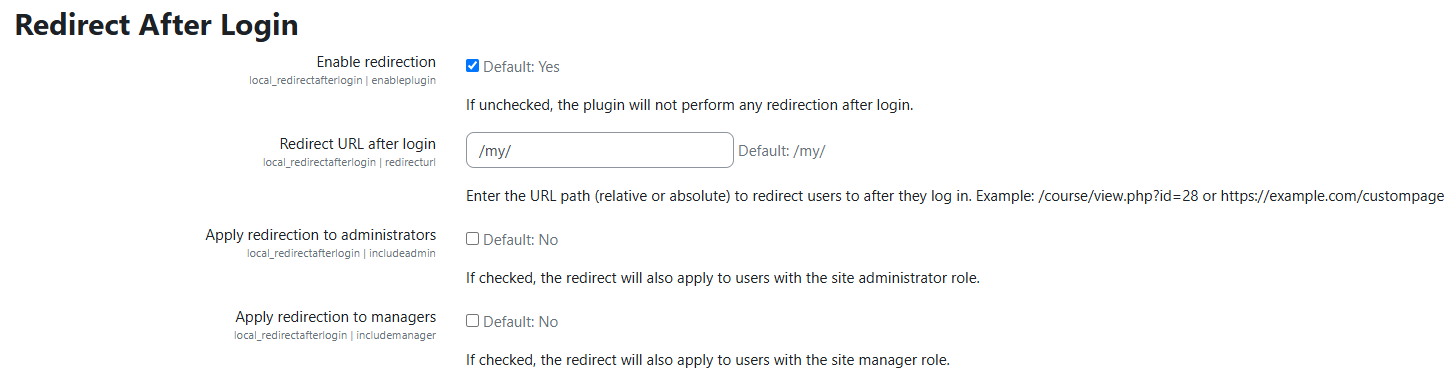
This Moodle plugin allows administrators to define custom redirection behavior after user login.
It supports both global redirects and cohort-based redirects, giving you fine-grained control over post-login navigation.
Features
Global Redirection
- Redirect all users to a specific URL after login (e.g.
/my/, a course, or a dashboard).
- Option to exclude administrators and/or managers.
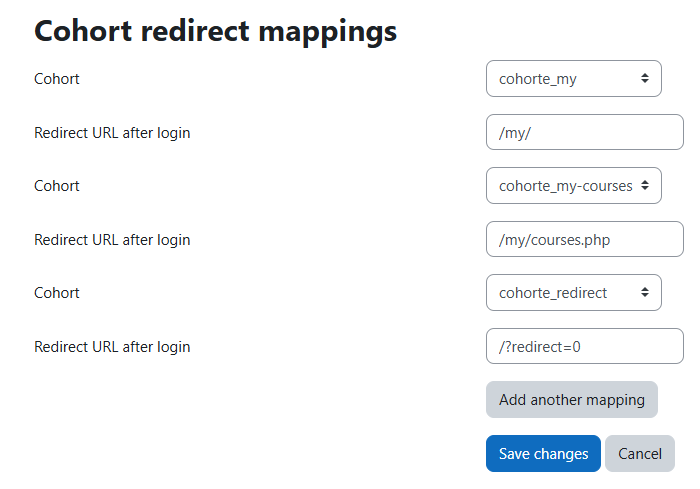
Cohort-based Redirection
- Assign specific redirect URLs to individual cohorts.
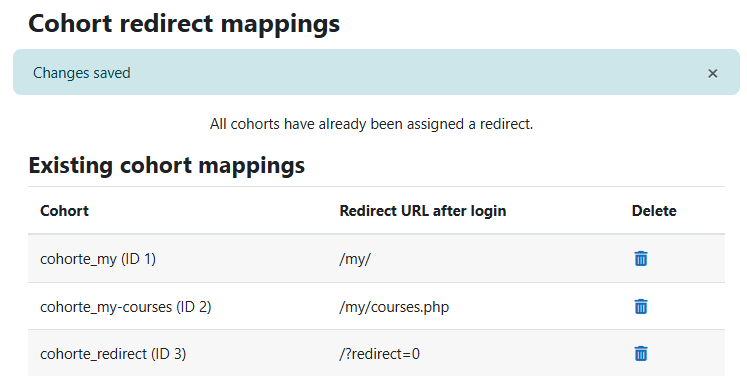
- Cohorts already mapped are hidden from the dropdown to avoid duplicates.
- Add multiple cohort mappings in a single form.
- Display of existing mappings in a table with delete icons.
- Option to exclude admins and/or managers.
Redirection Logic
- If the user belongs to a cohort with a defined redirect ' they are redirected to that URL (first match wins).
- If no cohort match ' global redirect applies.
- If neither is defined ' Moodle default behavior is used.
- Exclusion rules for admins and managers are respected.
Installation
For more information, see the official plugin installation guide.
Moodle Way
- Download the latest version or source code of the plugin compatible with your Moodle platform.
- Go to your platform's plugin installation page: Site administration > Plugins > Install plugins.
- Upload the plugin file and follow the installation process.
Manual
- Download the latest version or source code of the plugin compatible with your Moodle platform.
- Navigate to the moodle/local directory on your platform.
- Unzip the plugin into the directory and make sure that the folder containing the plugin files is named multiple_enrollments.
Using Git
- Open a terminal and navigate to the moodle/local directory on your platform.
- Clone the project using the following command:
git clone https://github.com/E-learningTouch/moodle-local_redirectafterlogin redirectafterlogin
Other plugins made by ELT