![Dixeo logo]()
Dixeo Course Generator for Moodle LMS
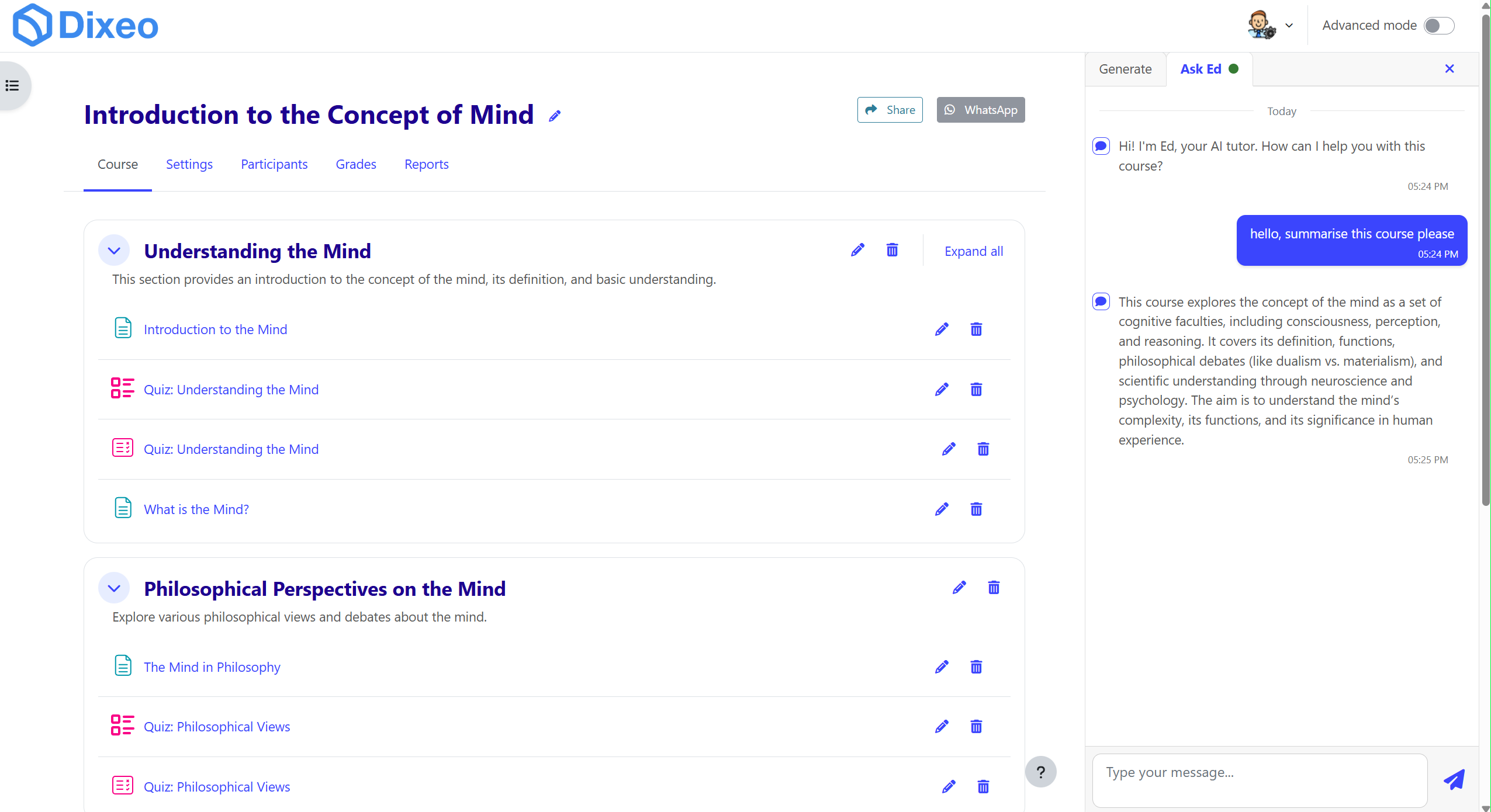
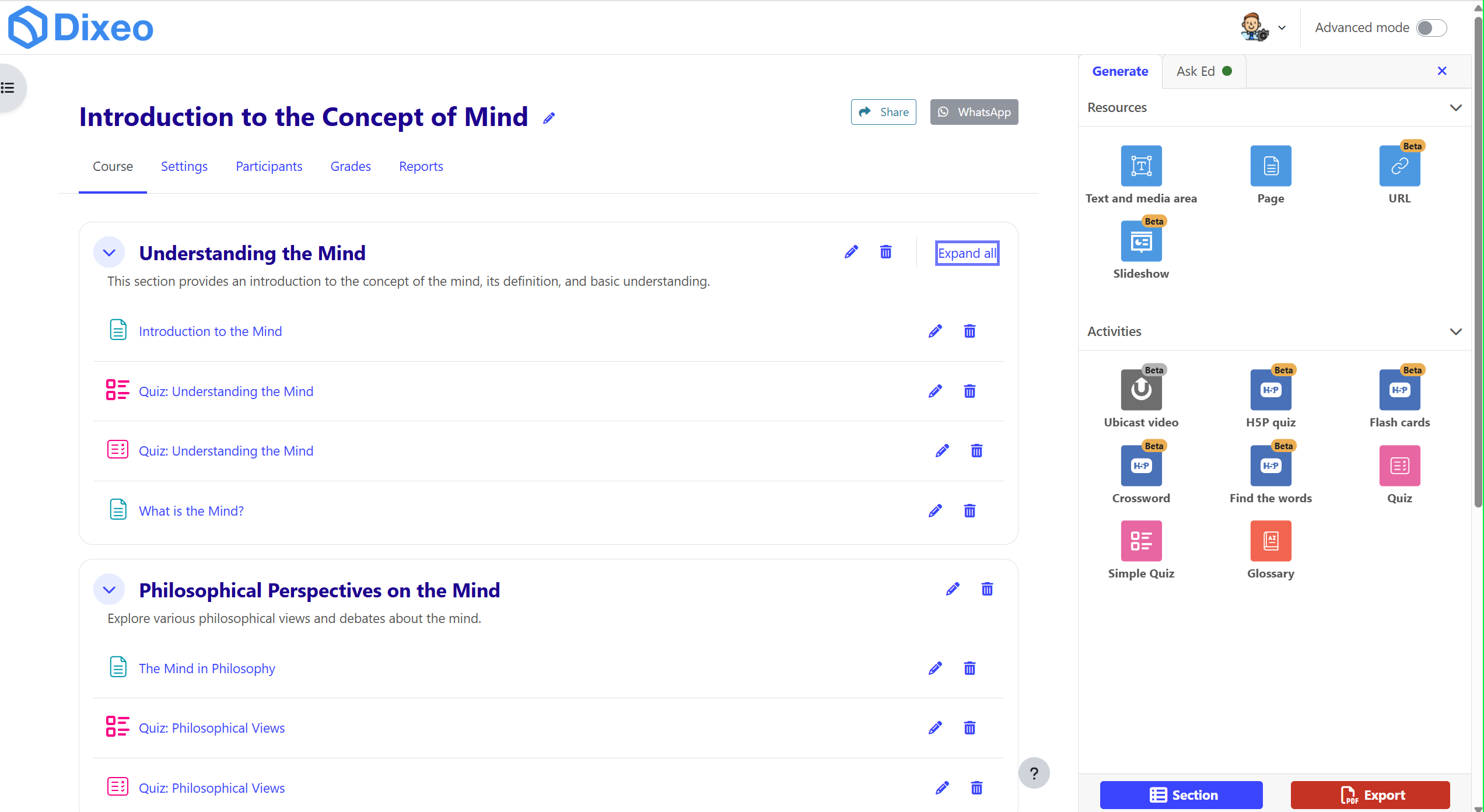
Effortlessly create complete Moodle courses using the power of AI. The Dixeo Course Generator helps administrators and educators turn a simple course description and optional supporting files into a fully functional, ready-to-use Moodle course in just a few clicks.
This plugin generates your course on Dixeo.com and automatically configures your Moodle platform to access it via LTI.
You can also create a free Dixeo account to start building courses directly.
🚀 Features
AI-Powered Course Generation
Automatically generate structured courses based on a short description.
File Upload Support
Enrich the course generation by uploading relevant source files (e.g., PDFs, docs).
Automatic LTI Module Integration
The plugin sets up LTI modules for seamless access to the generated content.
Multi-language Support
Available in English, French, Spanish, and Italian.
⚙️ Installation
- Download the plugin ZIP file.
- Extract and place the folder named
dixeo_coursegen into the /blocks directory of your Moodle installation.
- Log in to your Moodle site as an administrator.
- Navigate to Site administration — Moodle will detect the new plugin and walk you through the installation steps.
🔧 Configuration
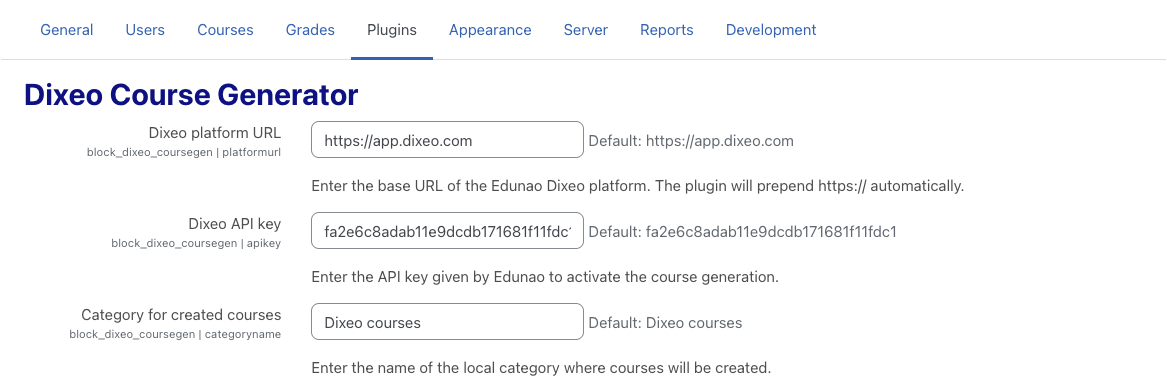
![Dixeo settings]()
- Go to Site administration > Plugins > Blocks > Dixeo Course Generator.
- Enter the API key provided by Dixeo.
- Specify the default category name where generated courses will be created.
- Ensure the LTI enrolment method is enabled on your Moodle platform.
'🏫 How to Use
![Dixeo settings]()
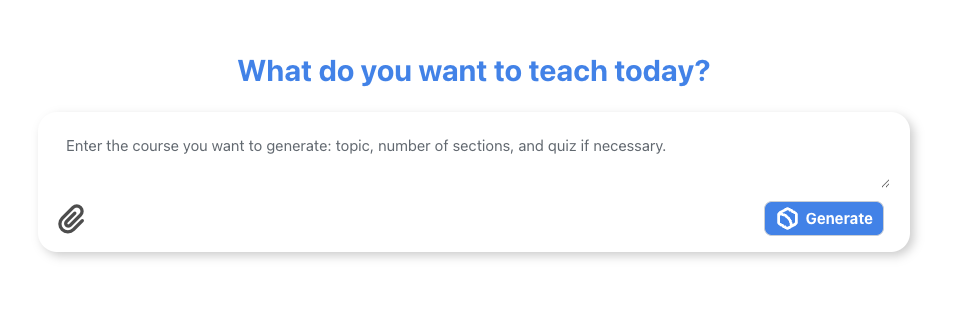
- Add the Dixeo Course Generator block to your Moodle dashboard or course page.
- Provide a course description in the input box.
- (Optional) Upload any supporting documents to enhance content generation.
- Click the Generate button.
- Wait a few moments for the course to be created.
- A success message will appear with a link to the newly generated course.
🔐 Permissions
Ensure that users have the moodle/course:create capability to access and use the plugin features.
🆘 Support
For assistance, questions, or further information, please contact contact@dixeo.com or refer to the official plugin documentation.
Created and maintained by Dixeo