ifthenpay | Payment Gateway
📦 A Payment Gateway Plugin for Moodle 📦
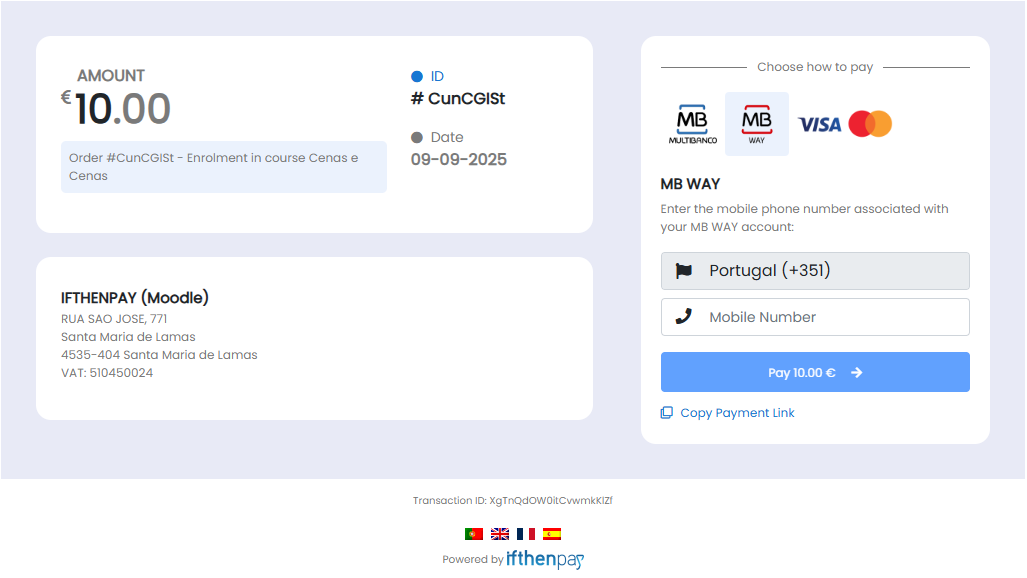
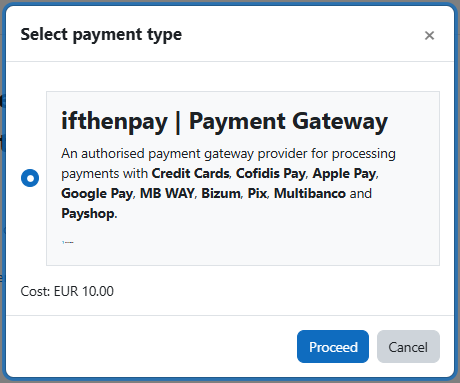
Accept diverse payments—including credit and store cards (like Cartão Crédito), mobile and digital wallets (such as Apple Pay, Google Pay, MBWAY and Pix), and local bank transfers (Multibanco and Payshop)—all through our secure gateway.
To unlock the full potential of this integration, users must have an active ifthenpay account. Once subscribed, you'll need to activate a Gateway Key and associate/activate your selected Payment Methods by
contacting our helpdesk. Please note that our services operate under a tariff structure; users should check tariffs per payment method in our
website.
Setup 📥
1. Install the plugin in your Moodle instance.
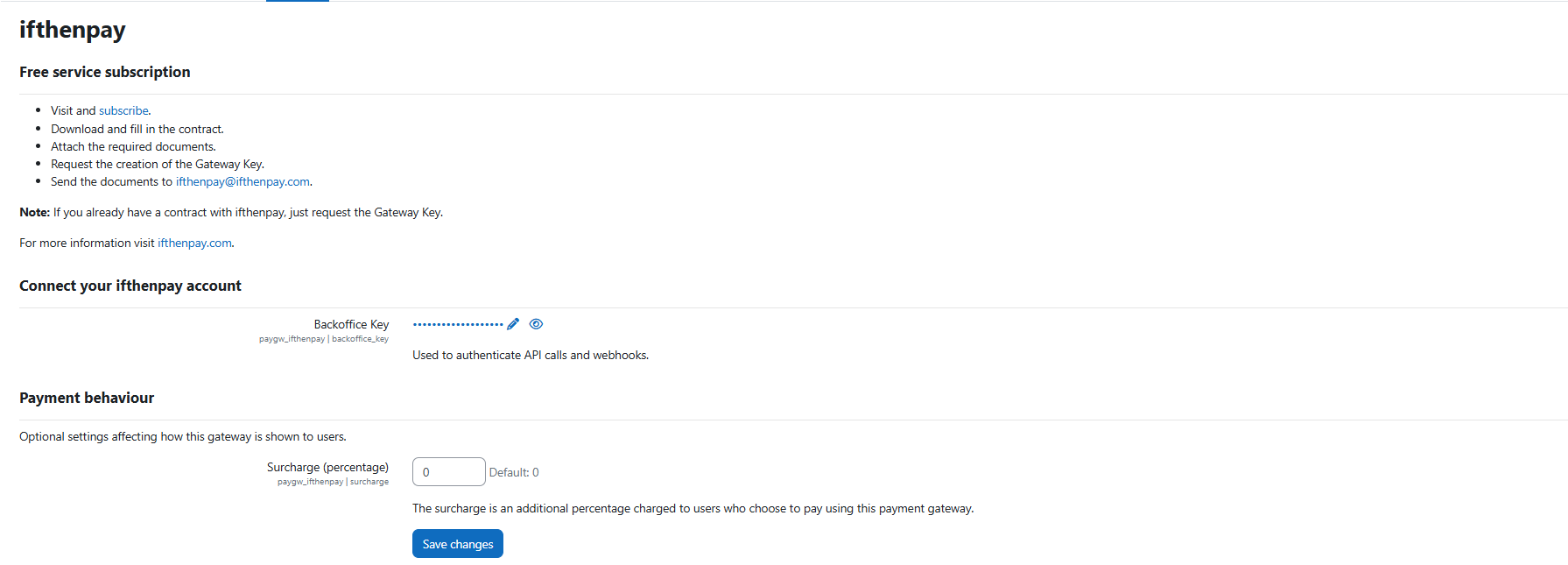
3. Retrieve your Backoffice Key and generate one or more Gateway Keys as needed.
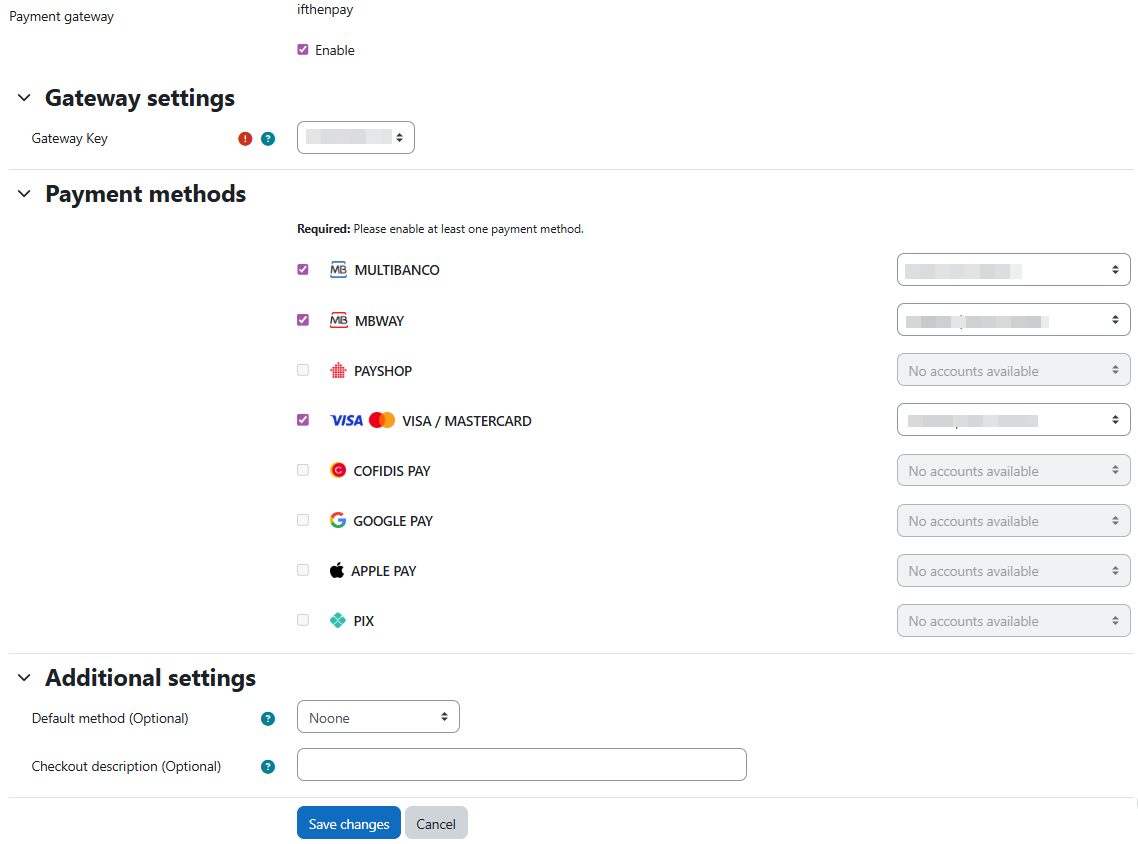
4. Configure each Gateway Key with the desired payment methods and associated accounts (with support from our helpdesk team).
5. In Moodle, configure the ifthenpay payment account by chosing the desired Gateway Key and link it to the associated payment methods.
6. Enable Enrolment on Payment for the Moodle courses you wish to offer with paid access.
7. Configure the enrolment method for each course, specifying the currency you want to accept.
Language Support 🌍
This plugin currently supports the following languages:
- 🇬🇧 English (UK) — `en-UK`
- 🇵🇹 Portuguese (Portugal) — `pt-PT`
The plugin will automatically adapt its text and interface to match the language configured in your Moodle settings, ensuring a seamless experience for both admins and customers.
Support & Maintenance 🛠️
If you encounter issues or need assistance, please refer to the following resources:
Keeping the Plugin Updated:
- Always use the latest versions of Moodle, and this plugin.
- Review the changelog before updating.
- After updates, test payment flows to ensure functionality.
Regular updates and active monitoring will ensure continued compatibility and optimal performance.