WhatsApp Chat Plugin for Moodle
A Moodle local plugin that adds a floating WhatsApp chat button to your Moodle site.
This plugin allows users to easily contact you via WhatsApp directly from any Moodle page through a floating chat button. It provides customizable messaging options.
Features
- Floating Chat Button: Displays a WhatsApp icon button that floats on the bottom corner of Moodle pages
- Customizable Position: Choose between left or right side positioning
- Configurable Phone Number: Set the destination phone number with country code
- Customizable Messages: Configure popup message and header title
- Multi-language Support: Available in English and Spanish
- Privacy Compliant: Does not store any personal user data
- Responsive Design: Works seamlessly across all devices and screen sizes
Requirements
Configuration
After installation, configure the plugin through Moodle's administration interface:
Navigate to Site administration > Plugins > Local plugins > WhatsApp Chat
![Configuration link]()
Configure the following settings:
- Show WhatsApp button: Enable or disable the floating chat button (default: enabled)
- Phone number: Enter the destination phone number including country code (e.g., +1234567890)
- Popup message: Customize the message displayed in the floating button
- Header title: Set the title shown in the chat window header
- Position: Choose between
Left or Right side positioning
![Configuration]()
Usage
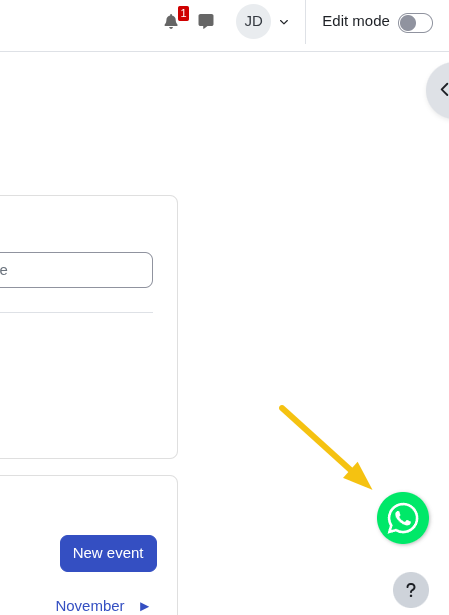
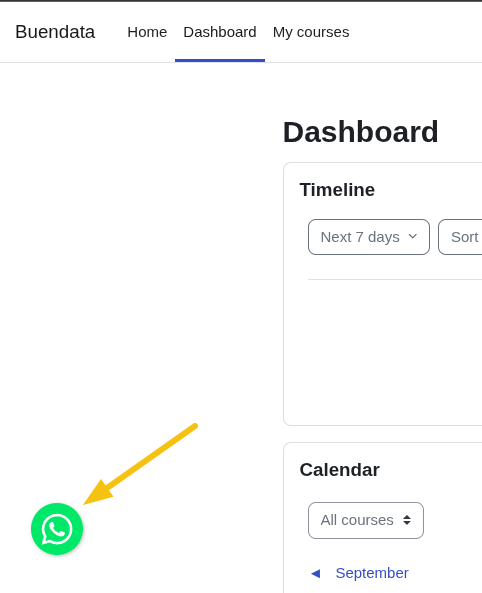
Once configured, users will see a floating WhatsApp button on all Moodle pages.
If the position is set to Left, the button will be displayed on the bottom left side of the page.
![Usage Left]()
If set to Right, it will appear on the bottom right side of the page.
![Usage Right]()
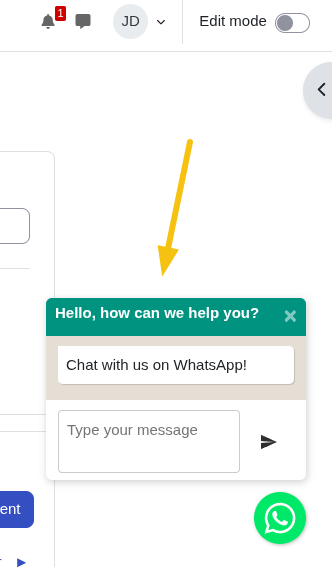
When the button is clicked:
- A chat popup window opens with your configured header title
- Users can type their message in the provided text input
- Clicking "Send" opens WhatsApp with a pre-filled message to your configured phone number
![Popup]()
The plugin enhances user engagement by providing an immediate communication channel for support inquiries, feedback, or general questions.
Installing via uploaded ZIP file
- Log in to your Moodle site as an admin and go to Site administration >
Plugins > Install plugins.
- Upload the ZIP file with the plugin code. You should only be prompted to add
extra details if your plugin type is not automatically detected.
- Check the plugin validation report and finish the installation.
Installing manually
The plugin can be also installed by putting the contents of this directory to
{your/moodle/dirroot}/local/whatsapp
Afterwards, log in to your Moodle site as an admin and go to Site administration >
Notifications to complete the installation.
Alternatively, you can run
$ php admin/cli/upgrade.php
to complete the installation from the command line.
License
2025 Buenda Data https://buendata.com
This program is free software: you can redistribute it and/or modify it under
the terms of the GNU General Public License as published by the Free Software
Foundation, either version 3 of the License, or (at your option) any later
version.
This program is distributed in the hope that it will be useful, but WITHOUT ANY
WARRANTY; without even the implied warranty of MERCHANTABILITY or FITNESS FOR A
PARTICULAR PURPOSE. See the GNU General Public License for more details.
You should have received a copy of the GNU General Public License along with
this program. If not, see https://www.gnu.org/licenses/.