Assignment AI
Versions
Current version
1.1.5 (2026110316)
1.1.5
Plugin type: Local plugins
Frankenstyle component name: local_assign_ai
Version build number: 2026110316
Version release name: 1.1.5
Maturity: Stable
Supported Moodle versions: 4.5, 5.0, 5.1
Repository URL (Git): https://github.com/datacurso/moodle-local_assign_ai
Repository branch:
Repository tag: 1.1.5
Issue/bug tracker URL: https://github.com/datacurso/moodle-local_assign_ai/issues
Assignment AI
The Assignment AI plugin brings intelligent automation to the grading and feedback process within Moodle.
Its main goal is to assist teachers and administrators in reviewing student submissions by analyzing the content of their assignments using Artificial Intelligence (AI).
Through semantic analysis and adaptive interpretation, the plugin evaluates the quality and relevance of each student’s submission and generates personalized suggestions for grades, feedback, and pedagogical comments aligned with predefined criteria or rubrics.
This system does not replace teacher judgment — it acts as an assistant, supporting educators by providing quick, consistent, and constructive insights for every task.
Pre-requisites
- Moodle 4.5
- Install the Moodle AI provider "DataCurso AI Provider". Download it for free from https://moodle.org/plugins/aiprovider_datacurso/versions.
- In the DataCurso AI Provider settings, configure a valid license key as documented at https://docs.datacurso.com/index.php?title=Datacurso_AI_Provider#Getting_license_keys.
IMPORTANT: This plugin will not function unless the "DataCurso AI Provider" plugin is installed and licensed.
Installation via uploaded ZIP file
- Log in to your Moodle site as an administrator and go to Site
Administration > Plugins > Install Plugins. - Upload the ZIP file with the plugin code. You'll only be prompted to add additional details if the plugin type isn't automatically detected.
- Check the plugin validation report and complete the installation.
Manual installation
The plugin can also be installed by placing the contents of this directory in
{your/moodle/dirroot}/local/assign_ai
Next, log in to your Moodle site as an administrator and go to Site Administration > General > Notifications to complete the installation.
Alternatively, you can run
php admin/cli/upgrade.php
to complete the installation from the command line.
Review homework with artificial intelligence
Once installed, Assignment AI integrates seamlessly with Moodle’s Assignment module, adding a new layer of functionality that enhances how teachers review student submissions.
Below is the general workflow:
Enter the assignment to be reviewed
Teachers start by entering any standard Moodle assignment activity. This can be an essay, report, or file submission created using the usual assignment setup interface.
Assignments can include grading criteria or rubrics — these elements will later be interpreted by the AI to produce accurate analyses and feedback.
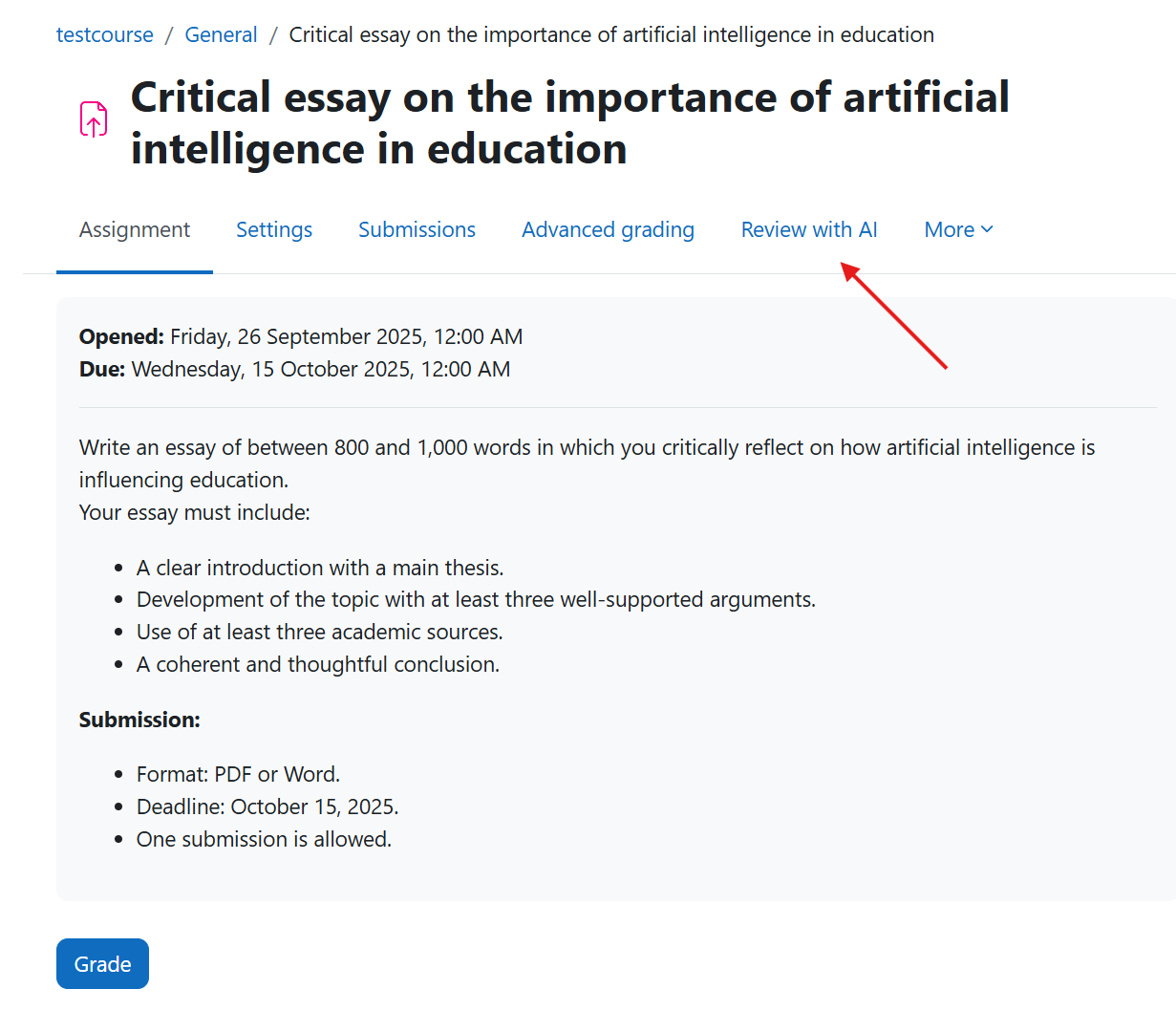
Access the AI review section
Inside the assignment administration view, a new tab or section called "Review with AI" appears. From here, teachers can access all AI-powered review options.
This interface lists all student submissions, including their current review status (e.g., Pending, Reviewed, or Feedback generated).
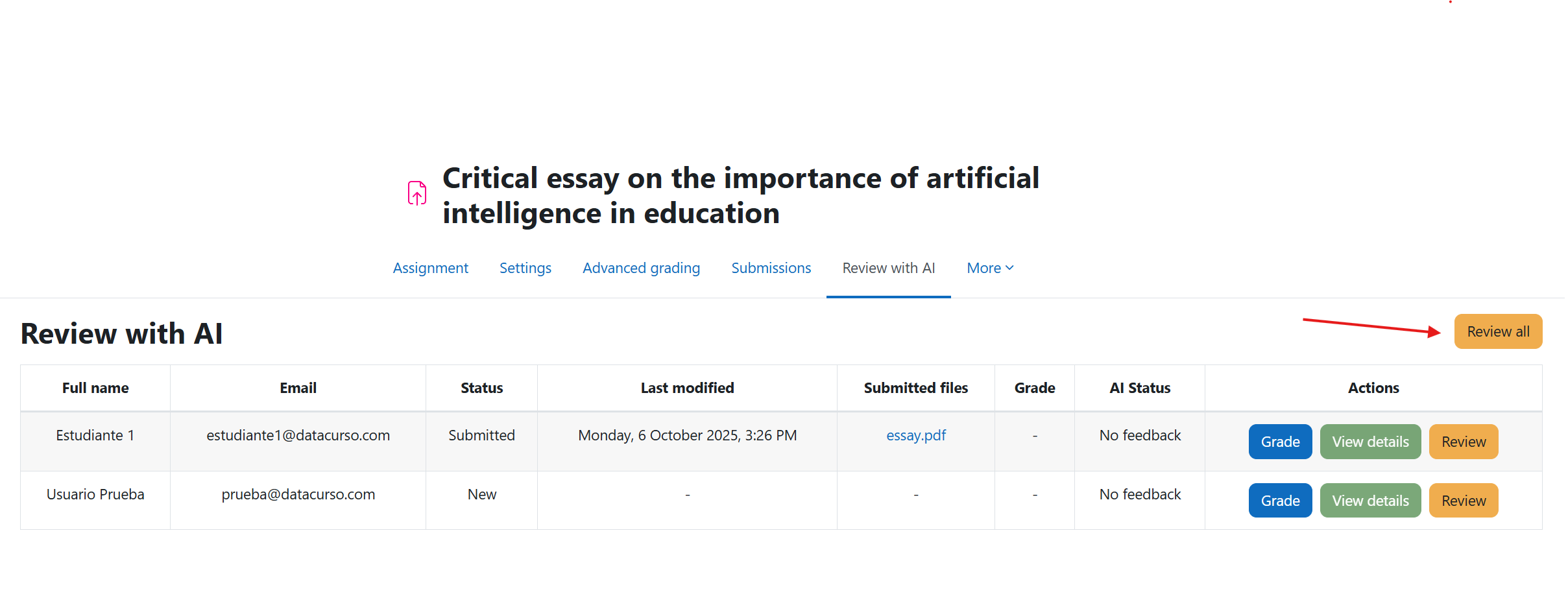
Review all submissions
By clicking the "Review All" button, the system will automatically send all submitted assignments to the AI engine for evaluation.
The AI analyzes each file or text entry individually, using the defined grading criteria or rubric as a reference framework.
During this process, the AI evaluates aspects such as:
- Clarity and coherence of writing.
- Relevance to the assignment prompt.
- Conceptual understanding of the topic.
- Grammar, spelling, and structure.
- Originality and argumentative quality.
Review an individual student
Teachers also have the option to review a single student’s submission by clicking the "Review" button next to that student.
This is useful when the instructor wants to manually supervise or validate the AI’s feedback before approving it.
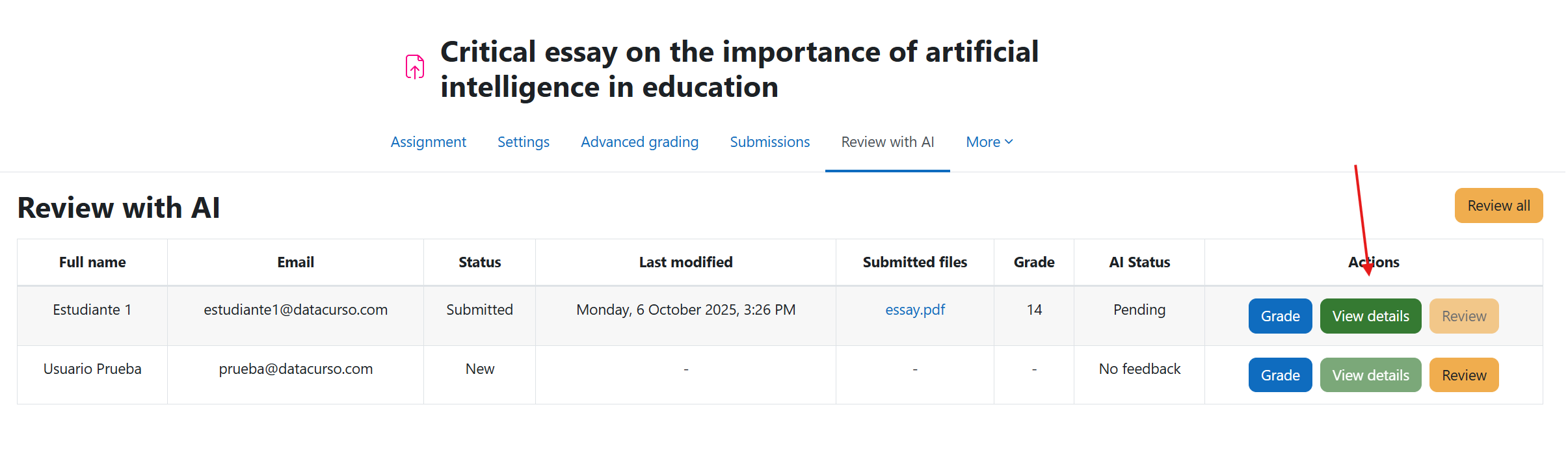
View AI-generated results
Once the AI has analyzed a submission, the system automatically generates a suggested grade and a personalized feedback comment. Teachers can then click "View Details" to see a detailed breakdown of the analysis.
Edit and manage AI feedback
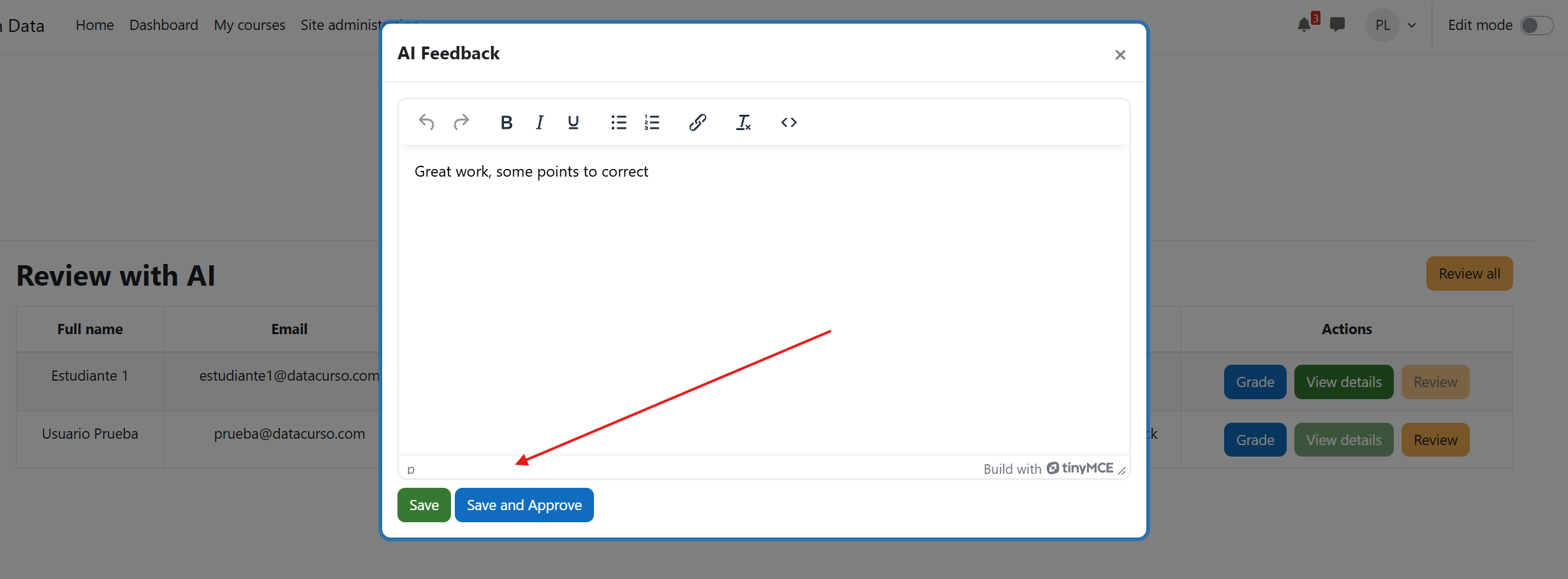
A modal window opens displaying the full AI-generated feedback.
Here, the teacher can:
- Review the AI’s suggested grade and comment.
- Edit or refine the text to better fit their evaluation.
- Save the feedback as a draft for later review.
- Or approve and publish it directly to the student.
When approved, the feedback and grade become visible to the student through the standard Moodle grading interface.
Grading interface and rubric integration
By clicking on Grade, the teacher is redirected to Moodle’s standard grading view for that assignment.
Final AI feedback presentation
The final view shows the full AI-generated textual feedback alongside the corresponding grade. This allows the teacher to see how the AI justified its evaluation based on the assignment’s learning criteria.
1.1.4 (2026110315)
1.1.4
Plugin type: Local plugins
Frankenstyle component name: local_assign_ai
Version build number: 2026110315
Version release name: 1.1.4
Maturity: Stable
Supported Moodle versions: 4.5, 5.0, 5.1
Repository URL (Git): https://github.com/datacurso/moodle-local_assign_ai
Repository branch:
Repository tag: 1.1.4
Issue/bug tracker URL: https://github.com/datacurso/moodle-local_assign_ai/issues
Assignment AI
The Assignment AI plugin brings intelligent automation to the grading and feedback process within Moodle.
Its main goal is to assist teachers and administrators in reviewing student submissions by analyzing the content of their assignments using Artificial Intelligence (AI).
Through semantic analysis and adaptive interpretation, the plugin evaluates the quality and relevance of each student’s submission and generates personalized suggestions for grades, feedback, and pedagogical comments aligned with predefined criteria or rubrics.
This system does not replace teacher judgment — it acts as an assistant, supporting educators by providing quick, consistent, and constructive insights for every task.
Pre-requisites
- Moodle 4.5
- Install the Moodle AI provider "DataCurso AI Provider". Download it for free from https://moodle.org/plugins/aiprovider_datacurso/versions.
- In the DataCurso AI Provider settings, configure a valid license key as documented at https://docs.datacurso.com/index.php?title=Datacurso_AI_Provider#Getting_license_keys.
IMPORTANT: This plugin will not function unless the "DataCurso AI Provider" plugin is installed and licensed.
Installation via uploaded ZIP file
- Log in to your Moodle site as an administrator and go to Site
Administration > Plugins > Install Plugins. - Upload the ZIP file with the plugin code. You'll only be prompted to add additional details if the plugin type isn't automatically detected.
- Check the plugin validation report and complete the installation.
Manual installation
The plugin can also be installed by placing the contents of this directory in
{your/moodle/dirroot}/local/assign_ai
Next, log in to your Moodle site as an administrator and go to Site Administration > General > Notifications to complete the installation.
Alternatively, you can run
php admin/cli/upgrade.php
to complete the installation from the command line.
Review homework with artificial intelligence
Once installed, Assignment AI integrates seamlessly with Moodle’s Assignment module, adding a new layer of functionality that enhances how teachers review student submissions.
Below is the general workflow:
Enter the assignment to be reviewed
Teachers start by entering any standard Moodle assignment activity. This can be an essay, report, or file submission created using the usual assignment setup interface.
Assignments can include grading criteria or rubrics — these elements will later be interpreted by the AI to produce accurate analyses and feedback.
Access the AI review section
Inside the assignment administration view, a new tab or section called "Review with AI" appears. From here, teachers can access all AI-powered review options.
This interface lists all student submissions, including their current review status (e.g., Pending, Reviewed, or Feedback generated).
Review all submissions
By clicking the "Review All" button, the system will automatically send all submitted assignments to the AI engine for evaluation.
The AI analyzes each file or text entry individually, using the defined grading criteria or rubric as a reference framework.
During this process, the AI evaluates aspects such as:
- Clarity and coherence of writing.
- Relevance to the assignment prompt.
- Conceptual understanding of the topic.
- Grammar, spelling, and structure.
- Originality and argumentative quality.
Review an individual student
Teachers also have the option to review a single student’s submission by clicking the "Review" button next to that student.
This is useful when the instructor wants to manually supervise or validate the AI’s feedback before approving it.
View AI-generated results
Once the AI has analyzed a submission, the system automatically generates a suggested grade and a personalized feedback comment. Teachers can then click "View Details" to see a detailed breakdown of the analysis.
Edit and manage AI feedback
A modal window opens displaying the full AI-generated feedback.
Here, the teacher can:
- Review the AI’s suggested grade and comment.
- Edit or refine the text to better fit their evaluation.
- Save the feedback as a draft for later review.
- Or approve and publish it directly to the student.
When approved, the feedback and grade become visible to the student through the standard Moodle grading interface.
Grading interface and rubric integration
By clicking on Grade, the teacher is redirected to Moodle’s standard grading view for that assignment.
Final AI feedback presentation
The final view shows the full AI-generated textual feedback alongside the corresponding grade. This allows the teacher to see how the AI justified its evaluation based on the assignment’s learning criteria.
1.1.3 (2026110310)
1.1.3
Plugin type: Local plugins
Frankenstyle component name: local_assign_ai
Version build number: 2026110310
Version release name: 1.1.3
Maturity: Stable
Supported Moodle versions: 4.5, 5.0, 5.1
Repository URL (Git): https://github.com/datacurso/moodle-local_assign_ai
Repository branch:
Repository tag: 1.1.3
Issue/bug tracker URL: https://github.com/datacurso/moodle-local_assign_ai/issues
Assignment AI
The Assignment AI plugin brings intelligent automation to the grading and feedback process within Moodle.
Its main goal is to assist teachers and administrators in reviewing student submissions by analyzing the content of their assignments using Artificial Intelligence (AI).
Through semantic analysis and adaptive interpretation, the plugin evaluates the quality and relevance of each student’s submission and generates personalized suggestions for grades, feedback, and pedagogical comments aligned with predefined criteria or rubrics.
This system does not replace teacher judgment — it acts as an assistant, supporting educators by providing quick, consistent, and constructive insights for every task.
Pre-requisites
- Moodle 4.5
- Install the Moodle AI provider "DataCurso AI Provider". Download it for free from https://moodle.org/plugins/aiprovider_datacurso/versions.
- In the DataCurso AI Provider settings, configure a valid license key as documented at https://docs.datacurso.com/index.php?title=Datacurso_AI_Provider#Getting_license_keys.
IMPORTANT: This plugin will not function unless the "DataCurso AI Provider" plugin is installed and licensed.
Installation via uploaded ZIP file
- Log in to your Moodle site as an administrator and go to Site
Administration > Plugins > Install Plugins. - Upload the ZIP file with the plugin code. You'll only be prompted to add additional details if the plugin type isn't automatically detected.
- Check the plugin validation report and complete the installation.
Manual installation
The plugin can also be installed by placing the contents of this directory in
{your/moodle/dirroot}/local/assign_ai
Next, log in to your Moodle site as an administrator and go to Site Administration > General > Notifications to complete the installation.
Alternatively, you can run
php admin/cli/upgrade.php
to complete the installation from the command line.
Review homework with artificial intelligence
Once installed, Assignment AI integrates seamlessly with Moodle’s Assignment module, adding a new layer of functionality that enhances how teachers review student submissions.
Below is the general workflow:
Enter the assignment to be reviewed
Teachers start by entering any standard Moodle assignment activity. This can be an essay, report, or file submission created using the usual assignment setup interface.
Assignments can include grading criteria or rubrics — these elements will later be interpreted by the AI to produce accurate analyses and feedback.
Access the AI review section
Inside the assignment administration view, a new tab or section called "Review with AI" appears. From here, teachers can access all AI-powered review options.
This interface lists all student submissions, including their current review status (e.g., Pending, Reviewed, or Feedback generated).
Review all submissions
By clicking the "Review All" button, the system will automatically send all submitted assignments to the AI engine for evaluation.
The AI analyzes each file or text entry individually, using the defined grading criteria or rubric as a reference framework.
During this process, the AI evaluates aspects such as:
- Clarity and coherence of writing.
- Relevance to the assignment prompt.
- Conceptual understanding of the topic.
- Grammar, spelling, and structure.
- Originality and argumentative quality.
Review an individual student
Teachers also have the option to review a single student’s submission by clicking the "Review" button next to that student.
This is useful when the instructor wants to manually supervise or validate the AI’s feedback before approving it.
View AI-generated results
Once the AI has analyzed a submission, the system automatically generates a suggested grade and a personalized feedback comment. Teachers can then click "View Details" to see a detailed breakdown of the analysis.
Edit and manage AI feedback
A modal window opens displaying the full AI-generated feedback.
Here, the teacher can:
- Review the AI’s suggested grade and comment.
- Edit or refine the text to better fit their evaluation.
- Save the feedback as a draft for later review.
- Or approve and publish it directly to the student.
When approved, the feedback and grade become visible to the student through the standard Moodle grading interface.
Grading interface and rubric integration
By clicking on Grade, the teacher is redirected to Moodle’s standard grading view for that assignment.
Final AI feedback presentation
The final view shows the full AI-generated textual feedback alongside the corresponding grade. This allows the teacher to see how the AI justified its evaluation based on the assignment’s learning criteria.
1.1.2 (2026110307)
1.1.2
Plugin type: Local plugins
Frankenstyle component name: local_assign_ai
Version build number: 2026110307
Version release name: 1.1.2
Maturity: Stable
Supported Moodle versions: 4.5, 5.0, 5.1
Repository URL (Git): https://github.com/industria-elearning/moodle-local_assign_ai
Repository branch:
Repository tag: 1.1.2
Issue/bug tracker URL: https://github.com/datacurso/moodle-local_assign_ai/issues
Assignment AI
The Assignment AI plugin brings intelligent automation to the grading and feedback process within Moodle.
Its main goal is to assist teachers and administrators in reviewing student submissions by analyzing the content of their assignments using Artificial Intelligence (AI).
Through semantic analysis and adaptive interpretation, the plugin evaluates the quality and relevance of each student’s submission and generates personalized suggestions for grades, feedback, and pedagogical comments aligned with predefined criteria or rubrics.
This system does not replace teacher judgment — it acts as an assistant, supporting educators by providing quick, consistent, and constructive insights for every task.
Pre-requisites
- Moodle 4.5
- Install the Moodle AI provider "DataCurso AI Provider". Download it for free from https://moodle.org/plugins/aiprovider_datacurso/versions.
- In the DataCurso AI Provider settings, configure a valid license key as documented at https://docs.datacurso.com/index.php?title=Datacurso_AI_Provider#Getting_license_keys.
IMPORTANT: This plugin will not function unless the "DataCurso AI Provider" plugin is installed and licensed.
Installation via uploaded ZIP file
- Log in to your Moodle site as an administrator and go to Site
Administration > Plugins > Install Plugins. - Upload the ZIP file with the plugin code. You'll only be prompted to add additional details if the plugin type isn't automatically detected.
- Check the plugin validation report and complete the installation.
Manual installation
The plugin can also be installed by placing the contents of this directory in
{your/moodle/dirroot}/local/assign_ai
Next, log in to your Moodle site as an administrator and go to Site Administration > General > Notifications to complete the installation.
Alternatively, you can run
php admin/cli/upgrade.php
to complete the installation from the command line.
Review homework with artificial intelligence
Once installed, Assignment AI integrates seamlessly with Moodle’s Assignment module, adding a new layer of functionality that enhances how teachers review student submissions.
Below is the general workflow:
Enter the assignment to be reviewed
Teachers start by entering any standard Moodle assignment activity. This can be an essay, report, or file submission created using the usual assignment setup interface.
Assignments can include grading criteria or rubrics — these elements will later be interpreted by the AI to produce accurate analyses and feedback.
Access the AI review section
Inside the assignment administration view, a new tab or section called "Review with AI" appears. From here, teachers can access all AI-powered review options.
This interface lists all student submissions, including their current review status (e.g., Pending, Reviewed, or Feedback generated).
Review all submissions
By clicking the "Review All" button, the system will automatically send all submitted assignments to the AI engine for evaluation.
The AI analyzes each file or text entry individually, using the defined grading criteria or rubric as a reference framework.
During this process, the AI evaluates aspects such as:
- Clarity and coherence of writing.
- Relevance to the assignment prompt.
- Conceptual understanding of the topic.
- Grammar, spelling, and structure.
- Originality and argumentative quality.
Review an individual student
Teachers also have the option to review a single student’s submission by clicking the "Review" button next to that student.
This is useful when the instructor wants to manually supervise or validate the AI’s feedback before approving it.
View AI-generated results
Once the AI has analyzed a submission, the system automatically generates a suggested grade and a personalized feedback comment. Teachers can then click "View Details" to see a detailed breakdown of the analysis.
Edit and manage AI feedback
A modal window opens displaying the full AI-generated feedback.
Here, the teacher can:
- Review the AI’s suggested grade and comment.
- Edit or refine the text to better fit their evaluation.
- Save the feedback as a draft for later review.
- Or approve and publish it directly to the student.
When approved, the feedback and grade become visible to the student through the standard Moodle grading interface.
Grading interface and rubric integration
By clicking on Grade, the teacher is redirected to Moodle’s standard grading view for that assignment.
Final AI feedback presentation
The final view shows the full AI-generated textual feedback alongside the corresponding grade. This allows the teacher to see how the AI justified its evaluation based on the assignment’s learning criteria.
1.1.1 (2026110306)
1.1.1
Plugin type: Local plugins
Frankenstyle component name: local_assign_ai
Version build number: 2026110306
Version release name: 1.1.1
Maturity: Stable
Supported Moodle versions: 4.5, 5.0, 5.1
Repository URL (Git): https://github.com/industria-elearning/moodle-local_assign_ai
Repository branch:
Repository tag: 1.1.1
Issue/bug tracker URL: https://github.com/datacurso/moodle-local_assign_ai/issues
Assignment AI
The Assignment AI plugin brings intelligent automation to the grading and feedback process within Moodle.
Its main goal is to assist teachers and administrators in reviewing student submissions by analyzing the content of their assignments using Artificial Intelligence (AI).
Through semantic analysis and adaptive interpretation, the plugin evaluates the quality and relevance of each student’s submission and generates personalized suggestions for grades, feedback, and pedagogical comments aligned with predefined criteria or rubrics.
This system does not replace teacher judgment — it acts as an assistant, supporting educators by providing quick, consistent, and constructive insights for every task.
Pre-requisites
- Moodle 4.5
- Install the Moodle AI provider "DataCurso AI Provider". Download it for free from https://moodle.org/plugins/aiprovider_datacurso/versions.
- In the DataCurso AI Provider settings, configure a valid license key as documented at https://docs.datacurso.com/index.php?title=Datacurso_AI_Provider#Getting_license_keys.
IMPORTANT: This plugin will not function unless the "DataCurso AI Provider" plugin is installed and licensed.
Installation via uploaded ZIP file
- Log in to your Moodle site as an administrator and go to Site
Administration > Plugins > Install Plugins. - Upload the ZIP file with the plugin code. You'll only be prompted to add additional details if the plugin type isn't automatically detected.
- Check the plugin validation report and complete the installation.
Manual installation
The plugin can also be installed by placing the contents of this directory in
{your/moodle/dirroot}/local/assign_ai
Next, log in to your Moodle site as an administrator and go to Site Administration > General > Notifications to complete the installation.
Alternatively, you can run
php admin/cli/upgrade.php
to complete the installation from the command line.
Review homework with artificial intelligence
Once installed, Assignment AI integrates seamlessly with Moodle’s Assignment module, adding a new layer of functionality that enhances how teachers review student submissions.
Below is the general workflow:
Enter the assignment to be reviewed
Teachers start by entering any standard Moodle assignment activity. This can be an essay, report, or file submission created using the usual assignment setup interface.
Assignments can include grading criteria or rubrics — these elements will later be interpreted by the AI to produce accurate analyses and feedback.
Access the AI review section
Inside the assignment administration view, a new tab or section called "Review with AI" appears. From here, teachers can access all AI-powered review options.
This interface lists all student submissions, including their current review status (e.g., Pending, Reviewed, or Feedback generated).
Review all submissions
By clicking the "Review All" button, the system will automatically send all submitted assignments to the AI engine for evaluation.
The AI analyzes each file or text entry individually, using the defined grading criteria or rubric as a reference framework.
During this process, the AI evaluates aspects such as:
- Clarity and coherence of writing.
- Relevance to the assignment prompt.
- Conceptual understanding of the topic.
- Grammar, spelling, and structure.
- Originality and argumentative quality.
Review an individual student
Teachers also have the option to review a single student’s submission by clicking the "Review" button next to that student.
This is useful when the instructor wants to manually supervise or validate the AI’s feedback before approving it.
View AI-generated results
Once the AI has analyzed a submission, the system automatically generates a suggested grade and a personalized feedback comment. Teachers can then click "View Details" to see a detailed breakdown of the analysis.
Edit and manage AI feedback
A modal window opens displaying the full AI-generated feedback.
Here, the teacher can:
- Review the AI’s suggested grade and comment.
- Edit or refine the text to better fit their evaluation.
- Save the feedback as a draft for later review.
- Or approve and publish it directly to the student.
When approved, the feedback and grade become visible to the student through the standard Moodle grading interface.
Grading interface and rubric integration
By clicking on Grade, the teacher is redirected to Moodle’s standard grading view for that assignment.
Final AI feedback presentation
The final view shows the full AI-generated textual feedback alongside the corresponding grade. This allows the teacher to see how the AI justified its evaluation based on the assignment’s learning criteria.
1.1.0 (2026042900)
1.1.0
Plugin type: Local plugins
Frankenstyle component name: local_assign_ai
Version build number: 2026042900
Version release name: 1.1.0
Maturity: Stable
Supported Moodle versions: 4.5, 5.0, 5.1
Repository URL (Git): https://github.com/industria-elearning/workplace-local_assign_ai
Repository branch:
Repository tag: 1.1.0
Issue/bug tracker URL: https://github.com/datacurso/moodle-local_assign_ai/issues
Assignment AI for Moodle Workplace
The Assignment AI plugin brings intelligent automation to the grading and feedback process within Moodle.
Its main goal is to assist teachers and administrators in reviewing student submissions by analyzing the content of their assignments using Artificial Intelligence (AI).
Through semantic analysis and adaptive interpretation, the plugin evaluates the quality and relevance of each student’s submission and generates personalized suggestions for grades, feedback, and pedagogical comments aligned with predefined criteria or rubrics.
This system does not replace teacher judgment — it acts as an assistant, supporting educators by providing quick, consistent, and constructive insights for every task.
Pre-requisites
- Moodle 4.5
- Install the Moodle AI provider "DataCurso AI Provider". Download it for free from https://moodle.org/plugins/aiprovider_datacurso/versions.
- In the DataCurso AI Provider settings, configure a valid license key as documented at https://docs.datacurso.com/index.php?title=Datacurso_AI_Provider#Getting_license_keys.
IMPORTANT: This plugin will not function unless the "DataCurso AI Provider" plugin is installed and licensed.
Installation via uploaded ZIP file
- Log in to your Moodle site as an administrator and go to Site
Administration > Plugins > Install Plugins. - Upload the ZIP file with the plugin code. You'll only be prompted to add additional details if the plugin type isn't automatically detected.
- Check the plugin validation report and complete the installation.
Moodle Workplace – Multitenant support
Assignment AI is fully compatible with Moodle Workplace and is designed to operate correctly in multitenant environments.
In Moodle Workplace, multiple organizations (tenants) share the same platform while maintaining strict separation of data, configuration, and operational behavior. Assignment AI respects this architecture by ensuring that all configuration settings are stored and applied per tenant.
Tenant-aware configuration
Each tenant manages its own Assignment AI configuration independently. This means that:
- AI features can be enabled or disabled per tenant
- Autograding and reviewer settings can be customized per organization
- Changes made by one tenant do not affect other tenants on the same Workplace instance
- Assignment AI behavior adapts automatically to the active tenant context
This guarantees that organizations sharing a Moodle Workplace installation can use Assignment AI with full autonomy and without configuration conflicts.
Data isolation and consistency
To ensure data integrity and consistency in multitenant deployments:
- Configuration records are uniquely stored per assignment and tenant
- Tenant isolation is enforced at the data level
- Historical configurations remain intact and accessible within their respective tenant contexts
This approach ensures reliable operation of Assignment AI across complex Workplace deployments, including environments with multiple organizations, departments, or client instances hosted on the same platform.
Assignment AI seamlessly integrates into Moodle Workplace, following platform best practices and ensuring a secure, scalable, and predictable experience for all tenants.
Manual installation
The plugin can also be installed by placing the contents of this directory in
{your/moodle/dirroot}/local/assign_ai
Next, log in to your Moodle site as an administrator and go to Site Administration > General > Notifications to complete the installation.
Alternatively, you can run
php admin/cli/upgrade.php
to complete the installation from the command line.
Review homework with artificial intelligence
Once installed, Assignment AI integrates seamlessly with Moodle’s Assignment module, adding a new layer of functionality that enhances how teachers review student submissions.
Below is the general workflow:
Enter the assignment to be reviewed
Teachers start by entering any standard Moodle assignment activity. This can be an essay, report, or file submission created using the usual assignment setup interface.
Assignments can include grading criteria or rubrics — these elements will later be interpreted by the AI to produce accurate analyses and feedback.
Access the AI review section
Inside the assignment administration view, a new tab or section called "Review with AI" appears. From here, teachers can access all AI-powered review options.
This interface lists all student submissions, including their current review status (e.g., Pending, Reviewed, or Feedback generated).
Review all submissions
By clicking the "Review All" button, the system will automatically send all submitted assignments to the AI engine for evaluation.
The AI analyzes each file or text entry individually, using the defined grading criteria or rubric as a reference framework.
During this process, the AI evaluates aspects such as:
- Clarity and coherence of writing.
- Relevance to the assignment prompt.
- Conceptual understanding of the topic.
- Grammar, spelling, and structure.
- Originality and argumentative quality.
Review an individual student
Teachers also have the option to review a single student’s submission by clicking the "Review" button next to that student.
This is useful when the instructor wants to manually supervise or validate the AI’s feedback before approving it.
View AI-generated results
Once the AI has analyzed a submission, the system automatically generates a suggested grade and a personalized feedback comment. Teachers can then click "View Details" to see a detailed breakdown of the analysis.
Edit and manage AI feedback
A modal window opens displaying the full AI-generated feedback.
Here, the teacher can:
- Review the AI’s suggested grade and comment.
- Edit or refine the text to better fit their evaluation.
- Save the feedback as a draft for later review.
- Or approve and publish it directly to the student.
When approved, the feedback and grade become visible to the student through the standard Moodle grading interface.
Grading interface and rubric integration
By clicking on Grade, the teacher is redirected to Moodle’s standard grading view for that assignment.
Final AI feedback presentation
The final view shows the full AI-generated textual feedback alongside the corresponding grade. This allows the teacher to see how the AI justified its evaluation based on the assignment’s learning criteria.
1.1.0 (2026110305)
1.1.0
Plugin type: Local plugins
Frankenstyle component name: local_assign_ai
Version build number: 2026110305
Version release name: 1.1.0
Maturity: Stable
Supported Moodle versions: 4.5, 5.0, 5.1
Repository URL (Git): https://github.com/industria-elearning/moodle-local_assign_ai
Repository branch:
Repository tag: 1.1.0
Issue/bug tracker URL: https://github.com/datacurso/moodle-local_assign_ai/issues
Assignment AI
The Assignment AI plugin brings intelligent automation to the grading and feedback process within Moodle.
Its main goal is to assist teachers and administrators in reviewing student submissions by analyzing the content of their assignments using Artificial Intelligence (AI).
Through semantic analysis and adaptive interpretation, the plugin evaluates the quality and relevance of each student’s submission and generates personalized suggestions for grades, feedback, and pedagogical comments aligned with predefined criteria or rubrics.
This system does not replace teacher judgment — it acts as an assistant, supporting educators by providing quick, consistent, and constructive insights for every task.
Pre-requisites
- Moodle 4.5
- Install the Moodle AI provider "DataCurso AI Provider". Download it for free from https://moodle.org/plugins/aiprovider_datacurso/versions.
- In the DataCurso AI Provider settings, configure a valid license key as documented at https://docs.datacurso.com/index.php?title=Datacurso_AI_Provider#Getting_license_keys.
IMPORTANT: This plugin will not function unless the "DataCurso AI Provider" plugin is installed and licensed.
Installation via uploaded ZIP file
- Log in to your Moodle site as an administrator and go to Site
Administration > Plugins > Install Plugins. - Upload the ZIP file with the plugin code. You'll only be prompted to add additional details if the plugin type isn't automatically detected.
- Check the plugin validation report and complete the installation.
Manual installation
The plugin can also be installed by placing the contents of this directory in
{your/moodle/dirroot}/local/assign_ai
Next, log in to your Moodle site as an administrator and go to Site Administration > General > Notifications to complete the installation.
Alternatively, you can run
php admin/cli/upgrade.php
to complete the installation from the command line.
Review homework with artificial intelligence
Once installed, Assignment AI integrates seamlessly with Moodle’s Assignment module, adding a new layer of functionality that enhances how teachers review student submissions.
Below is the general workflow:
Enter the assignment to be reviewed
Teachers start by entering any standard Moodle assignment activity. This can be an essay, report, or file submission created using the usual assignment setup interface.
Assignments can include grading criteria or rubrics — these elements will later be interpreted by the AI to produce accurate analyses and feedback.
Access the AI review section
Inside the assignment administration view, a new tab or section called "Review with AI" appears. From here, teachers can access all AI-powered review options.
This interface lists all student submissions, including their current review status (e.g., Pending, Reviewed, or Feedback generated).
Review all submissions
By clicking the "Review All" button, the system will automatically send all submitted assignments to the AI engine for evaluation.
The AI analyzes each file or text entry individually, using the defined grading criteria or rubric as a reference framework.
During this process, the AI evaluates aspects such as:
- Clarity and coherence of writing.
- Relevance to the assignment prompt.
- Conceptual understanding of the topic.
- Grammar, spelling, and structure.
- Originality and argumentative quality.
Review an individual student
Teachers also have the option to review a single student’s submission by clicking the "Review" button next to that student.
This is useful when the instructor wants to manually supervise or validate the AI’s feedback before approving it.
View AI-generated results
Once the AI has analyzed a submission, the system automatically generates a suggested grade and a personalized feedback comment. Teachers can then click "View Details" to see a detailed breakdown of the analysis.
Edit and manage AI feedback
A modal window opens displaying the full AI-generated feedback.
Here, the teacher can:
- Review the AI’s suggested grade and comment.
- Edit or refine the text to better fit their evaluation.
- Save the feedback as a draft for later review.
- Or approve and publish it directly to the student.
When approved, the feedback and grade become visible to the student through the standard Moodle grading interface.
Grading interface and rubric integration
By clicking on Grade, the teacher is redirected to Moodle’s standard grading view for that assignment.
Final AI feedback presentation
The final view shows the full AI-generated textual feedback alongside the corresponding grade. This allows the teacher to see how the AI justified its evaluation based on the assignment’s learning criteria.
1.0.10 (2026110304)
1.0.10
Plugin type: Local plugins
Frankenstyle component name: local_assign_ai
Version build number: 2026110304
Version release name: 1.0.10
Maturity: Stable
Supported Moodle versions: 4.5, 5.0, 5.1
Repository URL (Git): https://github.com/industria-elearning/moodle-local_assign_ai
Repository branch:
Repository tag: 1.0.10
Issue/bug tracker URL: https://github.com/datacurso/moodle-local_assign_ai/issues
Assignment AI
The Assignment AI plugin brings intelligent automation to the grading and feedback process within Moodle.
Its main goal is to assist teachers and administrators in reviewing student submissions by analyzing the content of their assignments using Artificial Intelligence (AI).
Through semantic analysis and adaptive interpretation, the plugin evaluates the quality and relevance of each student’s submission and generates personalized suggestions for grades, feedback, and pedagogical comments aligned with predefined criteria or rubrics.
This system does not replace teacher judgment — it acts as an assistant, supporting educators by providing quick, consistent, and constructive insights for every task.
Pre-requisites
- Moodle 4.5
- Install the Moodle AI provider "DataCurso AI Provider". Download it for free from https://moodle.org/plugins/aiprovider_datacurso/versions.
- In the DataCurso AI Provider settings, configure a valid license key as documented at https://docs.datacurso.com/index.php?title=Datacurso_AI_Provider#Getting_license_keys.
IMPORTANT: This plugin will not function unless the "DataCurso AI Provider" plugin is installed and licensed.
Installation via uploaded ZIP file
- Log in to your Moodle site as an administrator and go to Site
Administration > Plugins > Install Plugins. - Upload the ZIP file with the plugin code. You'll only be prompted to add additional details if the plugin type isn't automatically detected.
- Check the plugin validation report and complete the installation.
Manual installation
The plugin can also be installed by placing the contents of this directory in
{your/moodle/dirroot}/local/assign_ai
Next, log in to your Moodle site as an administrator and go to Site Administration > General > Notifications to complete the installation.
Alternatively, you can run
php admin/cli/upgrade.php
to complete the installation from the command line.
Review homework with artificial intelligence
Once installed, Assignment AI integrates seamlessly with Moodle’s Assignment module, adding a new layer of functionality that enhances how teachers review student submissions.
Below is the general workflow:
Enter the assignment to be reviewed
Teachers start by entering any standard Moodle assignment activity. This can be an essay, report, or file submission created using the usual assignment setup interface.
Assignments can include grading criteria or rubrics — these elements will later be interpreted by the AI to produce accurate analyses and feedback.
Access the AI review section
Inside the assignment administration view, a new tab or section called "Review with AI" appears. From here, teachers can access all AI-powered review options.
This interface lists all student submissions, including their current review status (e.g., Pending, Reviewed, or Feedback generated).
Review all submissions
By clicking the "Review All" button, the system will automatically send all submitted assignments to the AI engine for evaluation.
The AI analyzes each file or text entry individually, using the defined grading criteria or rubric as a reference framework.
During this process, the AI evaluates aspects such as:
- Clarity and coherence of writing.
- Relevance to the assignment prompt.
- Conceptual understanding of the topic.
- Grammar, spelling, and structure.
- Originality and argumentative quality.
Review an individual student
Teachers also have the option to review a single student’s submission by clicking the "Review" button next to that student.
This is useful when the instructor wants to manually supervise or validate the AI’s feedback before approving it.
View AI-generated results
Once the AI has analyzed a submission, the system automatically generates a suggested grade and a personalized feedback comment. Teachers can then click "View Details" to see a detailed breakdown of the analysis.
Edit and manage AI feedback
A modal window opens displaying the full AI-generated feedback.
Here, the teacher can:
- Review the AI’s suggested grade and comment.
- Edit or refine the text to better fit their evaluation.
- Save the feedback as a draft for later review.
- Or approve and publish it directly to the student.
When approved, the feedback and grade become visible to the student through the standard Moodle grading interface.
Grading interface and rubric integration
By clicking on Grade, the teacher is redirected to Moodle’s standard grading view for that assignment.
Final AI feedback presentation
The final view shows the full AI-generated textual feedback alongside the corresponding grade. This allows the teacher to see how the AI justified its evaluation based on the assignment’s learning criteria.
1.0.5 (2026032701)
1.0.5
Plugin type: Local plugins
Frankenstyle component name: local_assign_ai
Version build number: 2026032701
Version release name: 1.0.5
Maturity: Stable
Supported Moodle versions: 4.5, 5.0, 5.1
Repository URL (Git): https://github.com/industria-elearning/workplace-local_assign_ai
Repository branch:
Repository tag: 1.0.5
Issue/bug tracker URL: https://github.com/datacurso/moodle-local_assign_ai/issues
Assignment AI for Moodle Workplace
The Assignment AI plugin brings intelligent automation to the grading and feedback process within Moodle.
Its main goal is to assist teachers and administrators in reviewing student submissions by analyzing the content of their assignments using Artificial Intelligence (AI).
Through semantic analysis and adaptive interpretation, the plugin evaluates the quality and relevance of each student’s submission and generates personalized suggestions for grades, feedback, and pedagogical comments aligned with predefined criteria or rubrics.
This system does not replace teacher judgment — it acts as an assistant, supporting educators by providing quick, consistent, and constructive insights for every task.
Pre-requisites
- Moodle 4.5
- Install the Moodle AI provider "DataCurso AI Provider". Download it for free from https://moodle.org/plugins/aiprovider_datacurso/versions.
- In the DataCurso AI Provider settings, configure a valid license key as documented at https://docs.datacurso.com/index.php?title=Datacurso_AI_Provider#Getting_license_keys.
IMPORTANT: This plugin will not function unless the "DataCurso AI Provider" plugin is installed and licensed.
Installation via uploaded ZIP file
- Log in to your Moodle site as an administrator and go to Site
Administration > Plugins > Install Plugins. - Upload the ZIP file with the plugin code. You'll only be prompted to add additional details if the plugin type isn't automatically detected.
- Check the plugin validation report and complete the installation.
Moodle Workplace – Multitenant support
Assignment AI is fully compatible with Moodle Workplace and is designed to operate correctly in multitenant environments.
In Moodle Workplace, multiple organizations (tenants) share the same platform while maintaining strict separation of data, configuration, and operational behavior. Assignment AI respects this architecture by ensuring that all configuration settings are stored and applied per tenant.
Tenant-aware configuration
Each tenant manages its own Assignment AI configuration independently. This means that:
- AI features can be enabled or disabled per tenant
- Autograding and reviewer settings can be customized per organization
- Changes made by one tenant do not affect other tenants on the same Workplace instance
- Assignment AI behavior adapts automatically to the active tenant context
This guarantees that organizations sharing a Moodle Workplace installation can use Assignment AI with full autonomy and without configuration conflicts.
Data isolation and consistency
To ensure data integrity and consistency in multitenant deployments:
- Configuration records are uniquely stored per assignment and tenant
- Tenant isolation is enforced at the data level
- Historical configurations remain intact and accessible within their respective tenant contexts
This approach ensures reliable operation of Assignment AI across complex Workplace deployments, including environments with multiple organizations, departments, or client instances hosted on the same platform.
Assignment AI seamlessly integrates into Moodle Workplace, following platform best practices and ensuring a secure, scalable, and predictable experience for all tenants.
Manual installation
The plugin can also be installed by placing the contents of this directory in
{your/moodle/dirroot}/local/assign_ai
Next, log in to your Moodle site as an administrator and go to Site Administration > General > Notifications to complete the installation.
Alternatively, you can run
php admin/cli/upgrade.php
to complete the installation from the command line.
Review homework with artificial intelligence
Once installed, Assignment AI integrates seamlessly with Moodle’s Assignment module, adding a new layer of functionality that enhances how teachers review student submissions.
Below is the general workflow:
Enter the assignment to be reviewed
Teachers start by entering any standard Moodle assignment activity. This can be an essay, report, or file submission created using the usual assignment setup interface.
Assignments can include grading criteria or rubrics — these elements will later be interpreted by the AI to produce accurate analyses and feedback.
Access the AI review section
Inside the assignment administration view, a new tab or section called "Review with AI" appears. From here, teachers can access all AI-powered review options.
This interface lists all student submissions, including their current review status (e.g., Pending, Reviewed, or Feedback generated).
Review all submissions
By clicking the "Review All" button, the system will automatically send all submitted assignments to the AI engine for evaluation.
The AI analyzes each file or text entry individually, using the defined grading criteria or rubric as a reference framework.
During this process, the AI evaluates aspects such as:
- Clarity and coherence of writing.
- Relevance to the assignment prompt.
- Conceptual understanding of the topic.
- Grammar, spelling, and structure.
- Originality and argumentative quality.
Review an individual student
Teachers also have the option to review a single student’s submission by clicking the "Review" button next to that student.
This is useful when the instructor wants to manually supervise or validate the AI’s feedback before approving it.
View AI-generated results
Once the AI has analyzed a submission, the system automatically generates a suggested grade and a personalized feedback comment. Teachers can then click "View Details" to see a detailed breakdown of the analysis.
Edit and manage AI feedback
A modal window opens displaying the full AI-generated feedback.
Here, the teacher can:
- Review the AI’s suggested grade and comment.
- Edit or refine the text to better fit their evaluation.
- Save the feedback as a draft for later review.
- Or approve and publish it directly to the student.
When approved, the feedback and grade become visible to the student through the standard Moodle grading interface.
Grading interface and rubric integration
By clicking on Grade, the teacher is redirected to Moodle’s standard grading view for that assignment.
Final AI feedback presentation
The final view shows the full AI-generated textual feedback alongside the corresponding grade. This allows the teacher to see how the AI justified its evaluation based on the assignment’s learning criteria.
1.0.8 (2026110302)
1.0.8
Plugin type: Local plugins
Frankenstyle component name: local_assign_ai
Version build number: 2026110302
Version release name: 1.0.8
Maturity: Stable
Supported Moodle versions: 4.5, 5.0, 5.1
Repository URL (Git): https://github.com/industria-elearning/moodle-local_assign_ai
Repository branch:
Repository tag: 1.0.8
Issue/bug tracker URL: https://github.com/datacurso/moodle-local_assign_ai/issues
Assignment AI
The Assignment AI plugin brings intelligent automation to the grading and feedback process within Moodle.
Its main goal is to assist teachers and administrators in reviewing student submissions by analyzing the content of their assignments using Artificial Intelligence (AI).
Through semantic analysis and adaptive interpretation, the plugin evaluates the quality and relevance of each student’s submission and generates personalized suggestions for grades, feedback, and pedagogical comments aligned with predefined criteria or rubrics.
This system does not replace teacher judgment — it acts as an assistant, supporting educators by providing quick, consistent, and constructive insights for every task.
Pre-requisites
- Moodle 4.5
- Install the Moodle AI provider "DataCurso AI Provider". Download it for free from https://moodle.org/plugins/aiprovider_datacurso/versions.
- In the DataCurso AI Provider settings, configure a valid license key as documented at https://docs.datacurso.com/index.php?title=Datacurso_AI_Provider#Getting_license_keys.
IMPORTANT: This plugin will not function unless the "DataCurso AI Provider" plugin is installed and licensed.
Installation via uploaded ZIP file
- Log in to your Moodle site as an administrator and go to Site
Administration > Plugins > Install Plugins. - Upload the ZIP file with the plugin code. You'll only be prompted to add additional details if the plugin type isn't automatically detected.
- Check the plugin validation report and complete the installation.
Manual installation
The plugin can also be installed by placing the contents of this directory in
{your/moodle/dirroot}/local/assign_ai
Next, log in to your Moodle site as an administrator and go to Site Administration > General > Notifications to complete the installation.
Alternatively, you can run
php admin/cli/upgrade.php
to complete the installation from the command line.
Review homework with artificial intelligence
Once installed, Assignment AI integrates seamlessly with Moodle’s Assignment module, adding a new layer of functionality that enhances how teachers review student submissions.
Below is the general workflow:
Enter the assignment to be reviewed
Teachers start by entering any standard Moodle assignment activity. This can be an essay, report, or file submission created using the usual assignment setup interface.
Assignments can include grading criteria or rubrics — these elements will later be interpreted by the AI to produce accurate analyses and feedback.
Access the AI review section
Inside the assignment administration view, a new tab or section called "Review with AI" appears. From here, teachers can access all AI-powered review options.
This interface lists all student submissions, including their current review status (e.g., Pending, Reviewed, or Feedback generated).
Review all submissions
By clicking the "Review All" button, the system will automatically send all submitted assignments to the AI engine for evaluation.
The AI analyzes each file or text entry individually, using the defined grading criteria or rubric as a reference framework.
During this process, the AI evaluates aspects such as:
- Clarity and coherence of writing.
- Relevance to the assignment prompt.
- Conceptual understanding of the topic.
- Grammar, spelling, and structure.
- Originality and argumentative quality.
Review an individual student
Teachers also have the option to review a single student’s submission by clicking the "Review" button next to that student.
This is useful when the instructor wants to manually supervise or validate the AI’s feedback before approving it.
View AI-generated results
Once the AI has analyzed a submission, the system automatically generates a suggested grade and a personalized feedback comment. Teachers can then click "View Details" to see a detailed breakdown of the analysis.
Edit and manage AI feedback
A modal window opens displaying the full AI-generated feedback.
Here, the teacher can:
- Review the AI’s suggested grade and comment.
- Edit or refine the text to better fit their evaluation.
- Save the feedback as a draft for later review.
- Or approve and publish it directly to the student.
When approved, the feedback and grade become visible to the student through the standard Moodle grading interface.
Grading interface and rubric integration
By clicking on Grade, the teacher is redirected to Moodle’s standard grading view for that assignment.
Final AI feedback presentation
The final view shows the full AI-generated textual feedback alongside the corresponding grade. This allows the teacher to see how the AI justified its evaluation based on the assignment’s learning criteria.
1.0.7 (2026110301)
1.0.7
Plugin type: Local plugins
Frankenstyle component name: local_assign_ai
Version build number: 2026110301
Version release name: 1.0.7
Maturity: Stable
Supported Moodle versions: 4.5, 5.0, 5.1
Repository URL (Git): https://github.com/industria-elearning/moodle-local_assign_ai
Repository branch:
Repository tag: 1.0.7
Issue/bug tracker URL: https://github.com/datacurso/moodle-local_assign_ai/issues
Assignment AI
The Assignment AI plugin brings intelligent automation to the grading and feedback process within Moodle.
Its main goal is to assist teachers and administrators in reviewing student submissions by analyzing the content of their assignments using Artificial Intelligence (AI).
Through semantic analysis and adaptive interpretation, the plugin evaluates the quality and relevance of each student’s submission and generates personalized suggestions for grades, feedback, and pedagogical comments aligned with predefined criteria or rubrics.
This system does not replace teacher judgment — it acts as an assistant, supporting educators by providing quick, consistent, and constructive insights for every task.
Pre-requisites
- Moodle 4.5
- Install the Moodle AI provider "DataCurso AI Provider". Download it for free from https://moodle.org/plugins/aiprovider_datacurso/versions.
- In the DataCurso AI Provider settings, configure a valid license key as documented at https://docs.datacurso.com/index.php?title=Datacurso_AI_Provider#Getting_license_keys.
IMPORTANT: This plugin will not function unless the "DataCurso AI Provider" plugin is installed and licensed.
Installation via uploaded ZIP file
- Log in to your Moodle site as an administrator and go to Site
Administration > Plugins > Install Plugins. - Upload the ZIP file with the plugin code. You'll only be prompted to add additional details if the plugin type isn't automatically detected.
- Check the plugin validation report and complete the installation.
Manual installation
The plugin can also be installed by placing the contents of this directory in
{your/moodle/dirroot}/local/assign_ai
Next, log in to your Moodle site as an administrator and go to Site Administration > General > Notifications to complete the installation.
Alternatively, you can run
php admin/cli/upgrade.php
to complete the installation from the command line.
Review homework with artificial intelligence
Once installed, Assignment AI integrates seamlessly with Moodle’s Assignment module, adding a new layer of functionality that enhances how teachers review student submissions.
Below is the general workflow:
Enter the assignment to be reviewed
Teachers start by entering any standard Moodle assignment activity. This can be an essay, report, or file submission created using the usual assignment setup interface.
Assignments can include grading criteria or rubrics — these elements will later be interpreted by the AI to produce accurate analyses and feedback.
Access the AI review section
Inside the assignment administration view, a new tab or section called "Review with AI" appears. From here, teachers can access all AI-powered review options.
This interface lists all student submissions, including their current review status (e.g., Pending, Reviewed, or Feedback generated).
Review all submissions
By clicking the "Review All" button, the system will automatically send all submitted assignments to the AI engine for evaluation.
The AI analyzes each file or text entry individually, using the defined grading criteria or rubric as a reference framework.
During this process, the AI evaluates aspects such as:
- Clarity and coherence of writing.
- Relevance to the assignment prompt.
- Conceptual understanding of the topic.
- Grammar, spelling, and structure.
- Originality and argumentative quality.
Review an individual student
Teachers also have the option to review a single student’s submission by clicking the "Review" button next to that student.
This is useful when the instructor wants to manually supervise or validate the AI’s feedback before approving it.
View AI-generated results
Once the AI has analyzed a submission, the system automatically generates a suggested grade and a personalized feedback comment. Teachers can then click "View Details" to see a detailed breakdown of the analysis.
Edit and manage AI feedback
A modal window opens displaying the full AI-generated feedback.
Here, the teacher can:
- Review the AI’s suggested grade and comment.
- Edit or refine the text to better fit their evaluation.
- Save the feedback as a draft for later review.
- Or approve and publish it directly to the student.
When approved, the feedback and grade become visible to the student through the standard Moodle grading interface.
Grading interface and rubric integration
By clicking on Grade, the teacher is redirected to Moodle’s standard grading view for that assignment.
Final AI feedback presentation
The final view shows the full AI-generated textual feedback alongside the corresponding grade. This allows the teacher to see how the AI justified its evaluation based on the assignment’s learning criteria.
1.0.6 (2026110300)
1.0.6
Plugin type: Local plugins
Frankenstyle component name: local_assign_ai
Version build number: 2026110300
Version release name: 1.0.6
Maturity: Stable
Supported Moodle versions: 4.5, 5.0, 5.1
Repository URL (Git): https://github.com/industria-elearning/moodle-local_assign_ai
Repository branch:
Repository tag: 1.0.6
Issue/bug tracker URL: https://github.com/datacurso/moodle-local_assign_ai/issues
Assignment AI
The Assignment AI plugin brings intelligent automation to the grading and feedback process within Moodle.
Its main goal is to assist teachers and administrators in reviewing student submissions by analyzing the content of their assignments using Artificial Intelligence (AI).
Through semantic analysis and adaptive interpretation, the plugin evaluates the quality and relevance of each student’s submission and generates personalized suggestions for grades, feedback, and pedagogical comments aligned with predefined criteria or rubrics.
This system does not replace teacher judgment — it acts as an assistant, supporting educators by providing quick, consistent, and constructive insights for every task.
Pre-requisites
- Moodle 4.5
- Install the Moodle AI provider "DataCurso AI Provider". Download it for free from https://moodle.org/plugins/aiprovider_datacurso/versions.
- In the DataCurso AI Provider settings, configure a valid license key as documented at https://docs.datacurso.com/index.php?title=Datacurso_AI_Provider#Getting_license_keys.
IMPORTANT: This plugin will not function unless the "DataCurso AI Provider" plugin is installed and licensed.
Installation via uploaded ZIP file
- Log in to your Moodle site as an administrator and go to Site
Administration > Plugins > Install Plugins. - Upload the ZIP file with the plugin code. You'll only be prompted to add additional details if the plugin type isn't automatically detected.
- Check the plugin validation report and complete the installation.
Manual installation
The plugin can also be installed by placing the contents of this directory in
{your/moodle/dirroot}/local/assign_ai
Next, log in to your Moodle site as an administrator and go to Site Administration > General > Notifications to complete the installation.
Alternatively, you can run
php admin/cli/upgrade.php
to complete the installation from the command line.
Review homework with artificial intelligence
Once installed, Assignment AI integrates seamlessly with Moodle’s Assignment module, adding a new layer of functionality that enhances how teachers review student submissions.
Below is the general workflow:
Enter the assignment to be reviewed
Teachers start by entering any standard Moodle assignment activity. This can be an essay, report, or file submission created using the usual assignment setup interface.
Assignments can include grading criteria or rubrics — these elements will later be interpreted by the AI to produce accurate analyses and feedback.
Access the AI review section
Inside the assignment administration view, a new tab or section called "Review with AI" appears. From here, teachers can access all AI-powered review options.
This interface lists all student submissions, including their current review status (e.g., Pending, Reviewed, or Feedback generated).
Review all submissions
By clicking the "Review All" button, the system will automatically send all submitted assignments to the AI engine for evaluation.
The AI analyzes each file or text entry individually, using the defined grading criteria or rubric as a reference framework.
During this process, the AI evaluates aspects such as:
- Clarity and coherence of writing.
- Relevance to the assignment prompt.
- Conceptual understanding of the topic.
- Grammar, spelling, and structure.
- Originality and argumentative quality.
Review an individual student
Teachers also have the option to review a single student’s submission by clicking the "Review" button next to that student.
This is useful when the instructor wants to manually supervise or validate the AI’s feedback before approving it.
View AI-generated results
Once the AI has analyzed a submission, the system automatically generates a suggested grade and a personalized feedback comment. Teachers can then click "View Details" to see a detailed breakdown of the analysis.
Edit and manage AI feedback
A modal window opens displaying the full AI-generated feedback.
Here, the teacher can:
- Review the AI’s suggested grade and comment.
- Edit or refine the text to better fit their evaluation.
- Save the feedback as a draft for later review.
- Or approve and publish it directly to the student.
When approved, the feedback and grade become visible to the student through the standard Moodle grading interface.
Grading interface and rubric integration
By clicking on Grade, the teacher is redirected to Moodle’s standard grading view for that assignment.
Final AI feedback presentation
The final view shows the full AI-generated textual feedback alongside the corresponding grade. This allows the teacher to see how the AI justified its evaluation based on the assignment’s learning criteria.
1.0.5 (2026110200)
1.0.5
Plugin type: Local plugins
Frankenstyle component name: local_assign_ai
Version build number: 2026110200
Version release name: 1.0.5
Maturity: Stable
Supported Moodle versions: 4.5, 5.0, 5.1
Repository URL (Git): https://github.com/industria-elearning/moodle-local_assign_ai
Repository branch:
Repository tag: 1.0.5
Issue/bug tracker URL: https://github.com/datacurso/moodle-local_assign_ai/issues
Assignment AI
The Assignment AI plugin brings intelligent automation to the grading and feedback process within Moodle.
Its main goal is to assist teachers and administrators in reviewing student submissions by analyzing the content of their assignments using Artificial Intelligence (AI).
Through semantic analysis and adaptive interpretation, the plugin evaluates the quality and relevance of each student’s submission and generates personalized suggestions for grades, feedback, and pedagogical comments aligned with predefined criteria or rubrics.
This system does not replace teacher judgment — it acts as an assistant, supporting educators by providing quick, consistent, and constructive insights for every task.
Pre-requisites
- Moodle 4.5
- Install the Moodle AI provider "DataCurso AI Provider". Download it for free from https://moodle.org/plugins/aiprovider_datacurso/versions.
- In the DataCurso AI Provider settings, configure a valid license key as documented at https://docs.datacurso.com/index.php?title=Datacurso_AI_Provider#Getting_license_keys.
IMPORTANT: This plugin will not function unless the "DataCurso AI Provider" plugin is installed and licensed.
Installation via uploaded ZIP file
- Log in to your Moodle site as an administrator and go to Site
Administration > Plugins > Install Plugins. - Upload the ZIP file with the plugin code. You'll only be prompted to add additional details if the plugin type isn't automatically detected.
- Check the plugin validation report and complete the installation.
Manual installation
The plugin can also be installed by placing the contents of this directory in
{your/moodle/dirroot}/local/assign_ai
Next, log in to your Moodle site as an administrator and go to Site Administration > General > Notifications to complete the installation.
Alternatively, you can run
php admin/cli/upgrade.php
to complete the installation from the command line.
Review homework with artificial intelligence
Once installed, Assignment AI integrates seamlessly with Moodle’s Assignment module, adding a new layer of functionality that enhances how teachers review student submissions.
Below is the general workflow:
Enter the assignment to be reviewed
Teachers start by entering any standard Moodle assignment activity. This can be an essay, report, or file submission created using the usual assignment setup interface.
Assignments can include grading criteria or rubrics — these elements will later be interpreted by the AI to produce accurate analyses and feedback.
Access the AI review section
Inside the assignment administration view, a new tab or section called "Review with AI" appears. From here, teachers can access all AI-powered review options.
This interface lists all student submissions, including their current review status (e.g., Pending, Reviewed, or Feedback generated).
Review all submissions
By clicking the "Review All" button, the system will automatically send all submitted assignments to the AI engine for evaluation.
The AI analyzes each file or text entry individually, using the defined grading criteria or rubric as a reference framework.
During this process, the AI evaluates aspects such as:
- Clarity and coherence of writing.
- Relevance to the assignment prompt.
- Conceptual understanding of the topic.
- Grammar, spelling, and structure.
- Originality and argumentative quality.
Review an individual student
Teachers also have the option to review a single student’s submission by clicking the "Review" button next to that student.
This is useful when the instructor wants to manually supervise or validate the AI’s feedback before approving it.
View AI-generated results
Once the AI has analyzed a submission, the system automatically generates a suggested grade and a personalized feedback comment. Teachers can then click "View Details" to see a detailed breakdown of the analysis.
Edit and manage AI feedback
A modal window opens displaying the full AI-generated feedback.
Here, the teacher can:
- Review the AI’s suggested grade and comment.
- Edit or refine the text to better fit their evaluation.
- Save the feedback as a draft for later review.
- Or approve and publish it directly to the student.
When approved, the feedback and grade become visible to the student through the standard Moodle grading interface.
Grading interface and rubric integration
By clicking on Grade, the teacher is redirected to Moodle’s standard grading view for that assignment.
Final AI feedback presentation
The final view shows the full AI-generated textual feedback alongside the corresponding grade. This allows the teacher to see how the AI justified its evaluation based on the assignment’s learning criteria.
1.0.4 (2025120500)
1.0.4
Plugin type: Local plugins
Frankenstyle component name: local_assign_ai
Version build number: 2025120500
Version release name: 1.0.4
Maturity: Stable
Supported Moodle versions: 4.5, 5.0, 5.1
Repository URL (Git): https://github.com/industria-elearning/moodle-local_assign_ai
Repository branch:
Repository tag: 1.0.4
Issue/bug tracker URL: https://github.com/datacurso/moodle-local_assign_ai/issues
Assignment AI
The Assignment AI plugin brings intelligent automation to the grading and feedback process within Moodle.
Its main goal is to assist teachers and administrators in reviewing student submissions by analyzing the content of their assignments using Artificial Intelligence (AI).
Through semantic analysis and adaptive interpretation, the plugin evaluates the quality and relevance of each student’s submission and generates personalized suggestions for grades, feedback, and pedagogical comments aligned with predefined criteria or rubrics.
This system does not replace teacher judgment — it acts as an assistant, supporting educators by providing quick, consistent, and constructive insights for every task.
Pre-requisites
- Moodle 4.5
- Install the Moodle AI provider "DataCurso AI Provider". Download it for free from https://moodle.org/plugins/aiprovider_datacurso/versions.
- In the DataCurso AI Provider settings, configure a valid license key as documented at https://docs.datacurso.com/index.php?title=Datacurso_AI_Provider#Getting_license_keys.
IMPORTANT: This plugin will not function unless the "DataCurso AI Provider" plugin is installed and licensed.
Installation via uploaded ZIP file
- Log in to your Moodle site as an administrator and go to Site
Administration > Plugins > Install Plugins. - Upload the ZIP file with the plugin code. You'll only be prompted to add additional details if the plugin type isn't automatically detected.
- Check the plugin validation report and complete the installation.
Manual installation
The plugin can also be installed by placing the contents of this directory in
{your/moodle/dirroot}/local/assign_ai
Next, log in to your Moodle site as an administrator and go to Site Administration > General > Notifications to complete the installation.
Alternatively, you can run
php admin/cli/upgrade.php
to complete the installation from the command line.
Review homework with artificial intelligence
Once installed, Assignment AI integrates seamlessly with Moodle’s Assignment module, adding a new layer of functionality that enhances how teachers review student submissions.
Below is the general workflow:
Enter the assignment to be reviewed
Teachers start by entering any standard Moodle assignment activity. This can be an essay, report, or file submission created using the usual assignment setup interface.
Assignments can include grading criteria or rubrics — these elements will later be interpreted by the AI to produce accurate analyses and feedback.
Access the AI review section
Inside the assignment administration view, a new tab or section called "Review with AI" appears. From here, teachers can access all AI-powered review options.
This interface lists all student submissions, including their current review status (e.g., Pending, Reviewed, or Feedback generated).
Review all submissions
By clicking the "Review All" button, the system will automatically send all submitted assignments to the AI engine for evaluation.
The AI analyzes each file or text entry individually, using the defined grading criteria or rubric as a reference framework.
During this process, the AI evaluates aspects such as:
- Clarity and coherence of writing.
- Relevance to the assignment prompt.
- Conceptual understanding of the topic.
- Grammar, spelling, and structure.
- Originality and argumentative quality.
Review an individual student
Teachers also have the option to review a single student’s submission by clicking the "Review" button next to that student.
This is useful when the instructor wants to manually supervise or validate the AI’s feedback before approving it.
View AI-generated results
Once the AI has analyzed a submission, the system automatically generates a suggested grade and a personalized feedback comment. Teachers can then click "View Details" to see a detailed breakdown of the analysis.
Edit and manage AI feedback
A modal window opens displaying the full AI-generated feedback.
Here, the teacher can:
- Review the AI’s suggested grade and comment.
- Edit or refine the text to better fit their evaluation.
- Save the feedback as a draft for later review.
- Or approve and publish it directly to the student.
When approved, the feedback and grade become visible to the student through the standard Moodle grading interface.
Grading interface and rubric integration
By clicking on Grade, the teacher is redirected to Moodle’s standard grading view for that assignment.
Final AI feedback presentation
The final view shows the full AI-generated textual feedback alongside the corresponding grade. This allows the teacher to see how the AI justified its evaluation based on the assignment’s learning criteria.
1.0.3 (2025120300)
1.0.3
Plugin type: Local plugins
Frankenstyle component name: local_assign_ai
Version build number: 2025120300
Version release name: 1.0.3
Maturity: Stable
Supported Moodle versions: 4.5, 5.0, 5.1
Repository URL (Git): https://github.com/industria-elearning/moodle-local_assign_ai
Repository branch:
Repository tag: 1.0.3
Issue/bug tracker URL: https://github.com/datacurso/moodle-local_assign_ai/issues
Compatibility note: This version is compatible from Moodle 4.5 to Moodle 5.1.
Added
- New functionality to remove records when the entire assignment section is deleted.
When the full assignment section is removed, all associated records are now automatically deleted.
Changed
- Updated
submission_gradedbehavior.
The function was modified so that regrading no longer overwrites the initial grade. - Release bump to 1.0.3.
The plugin release number was updated to 1.0.3.
Fixed
- Fix in
submission_createdandsubmission_updated.
Resolved an issue that caused duplicate records when a student submitted an assignment for the first time.
1.0.2 (2025120201)
1.0.2
Plugin type: Local plugins
Frankenstyle component name: local_assign_ai
Version build number: 2025120201
Version release name: 1.0.2
Maturity: Stable
Supported Moodle versions: 4.5
Repository URL (Git): https://github.com/industria-elearning/moodle-local_assign_ai
Repository branch:
Repository tag: 1.0.2
Issue/bug tracker URL: https://github.com/datacurso/moodle-local_assign_ai/issues
Assignment AI
The Assignment AI plugin brings intelligent automation to the grading and feedback process within Moodle.
Its main goal is to assist teachers and administrators in reviewing student submissions by analyzing the content of their assignments using Artificial Intelligence (AI).
Through semantic analysis and adaptive interpretation, the plugin evaluates the quality and relevance of each student’s submission and generates personalized suggestions for grades, feedback, and pedagogical comments aligned with predefined criteria or rubrics.
This system does not replace teacher judgment — it acts as an assistant, supporting educators by providing quick, consistent, and constructive insights for every task.
Pre-requisites
- Moodle 4.5
- Install the Moodle AI provider "DataCurso AI Provider". Download it for free from https://moodle.org/plugins/aiprovider_datacurso/versions.
- In the DataCurso AI Provider settings, configure a valid license key as documented at https://docs.datacurso.com/index.php?title=Datacurso_AI_Provider#Getting_license_keys.
IMPORTANT: This plugin will not function unless the "DataCurso AI Provider" plugin is installed and licensed.
Installation via uploaded ZIP file
- Log in to your Moodle site as an administrator and go to Site
Administration > Plugins > Install Plugins. - Upload the ZIP file with the plugin code. You'll only be prompted to add additional details if the plugin type isn't automatically detected.
- Check the plugin validation report and complete the installation.
Manual installation
The plugin can also be installed by placing the contents of this directory in
{your/moodle/dirroot}/local/assign_ai
Next, log in to your Moodle site as an administrator and go to Site Administration > General > Notifications to complete the installation.
Alternatively, you can run
php admin/cli/upgrade.php
to complete the installation from the command line.
Review homework with artificial intelligence
Once installed, Assignment AI integrates seamlessly with Moodle’s Assignment module, adding a new layer of functionality that enhances how teachers review student submissions.
Below is the general workflow:
Enter the assignment to be reviewed
Teachers start by entering any standard Moodle assignment activity. This can be an essay, report, or file submission created using the usual assignment setup interface.
Assignments can include grading criteria or rubrics — these elements will later be interpreted by the AI to produce accurate analyses and feedback.
Access the AI review section
Inside the assignment administration view, a new tab or section called "Review with AI" appears. From here, teachers can access all AI-powered review options.
This interface lists all student submissions, including their current review status (e.g., Pending, Reviewed, or Feedback generated).
Review all submissions
By clicking the "Review All" button, the system will automatically send all submitted assignments to the AI engine for evaluation.
The AI analyzes each file or text entry individually, using the defined grading criteria or rubric as a reference framework.
During this process, the AI evaluates aspects such as:
- Clarity and coherence of writing.
- Relevance to the assignment prompt.
- Conceptual understanding of the topic.
- Grammar, spelling, and structure.
- Originality and argumentative quality.
Review an individual student
Teachers also have the option to review a single student’s submission by clicking the "Review" button next to that student.
This is useful when the instructor wants to manually supervise or validate the AI’s feedback before approving it.
View AI-generated results
Once the AI has analyzed a submission, the system automatically generates a suggested grade and a personalized feedback comment. Teachers can then click "View Details" to see a detailed breakdown of the analysis.
Edit and manage AI feedback
A modal window opens displaying the full AI-generated feedback.
Here, the teacher can:
- Review the AI’s suggested grade and comment.
- Edit or refine the text to better fit their evaluation.
- Save the feedback as a draft for later review.
- Or approve and publish it directly to the student.
When approved, the feedback and grade become visible to the student through the standard Moodle grading interface.
Grading interface and rubric integration
By clicking on Grade, the teacher is redirected to Moodle’s standard grading view for that assignment.
Final AI feedback presentation
The final view shows the full AI-generated textual feedback alongside the corresponding grade. This allows the teacher to see how the AI justified its evaluation based on the assignment’s learning criteria.
1.0.1 (2025120200)
1.0.1
Plugin type: Local plugins
Frankenstyle component name: local_assign_ai
Version build number: 2025120200
Version release name: 1.0.1
Maturity: Stable
Supported Moodle versions: 4.5
Repository URL (Git): https://github.com/industria-elearning/moodle-local_assign_ai
Repository branch:
Repository tag: 1.0.1
Issue/bug tracker URL: https://github.com/datacurso/moodle-local_assign_ai/issues
Assignment AI
The Assignment AI plugin brings intelligent automation to the grading and feedback process within Moodle.
Its main goal is to assist teachers and administrators in reviewing student submissions by analyzing the content of their assignments using Artificial Intelligence (AI).
Through semantic analysis and adaptive interpretation, the plugin evaluates the quality and relevance of each student’s submission and generates personalized suggestions for grades, feedback, and pedagogical comments aligned with predefined criteria or rubrics.
This system does not replace teacher judgment — it acts as an assistant, supporting educators by providing quick, consistent, and constructive insights for every task.
Pre-requisites
- Moodle 4.5
- Install the Moodle AI provider "DataCurso AI Provider". Download it for free from https://moodle.org/plugins/aiprovider_datacurso/versions.
- In the DataCurso AI Provider settings, configure a valid license key as documented at https://docs.datacurso.com/index.php?title=Datacurso_AI_Provider#Getting_license_keys.
IMPORTANT: This plugin will not function unless the "DataCurso AI Provider" plugin is installed and licensed.
Installation via uploaded ZIP file
- Log in to your Moodle site as an administrator and go to Site
Administration > Plugins > Install Plugins. - Upload the ZIP file with the plugin code. You'll only be prompted to add additional details if the plugin type isn't automatically detected.
- Check the plugin validation report and complete the installation.
Manual installation
The plugin can also be installed by placing the contents of this directory in
{your/moodle/dirroot}/local/assign_ai
Next, log in to your Moodle site as an administrator and go to Site Administration > General > Notifications to complete the installation.
Alternatively, you can run
php admin/cli/upgrade.php
to complete the installation from the command line.
Review homework with artificial intelligence
Once installed, Assignment AI integrates seamlessly with Moodle’s Assignment module, adding a new layer of functionality that enhances how teachers review student submissions.
Below is the general workflow:
Enter the assignment to be reviewed
Teachers start by entering any standard Moodle assignment activity. This can be an essay, report, or file submission created using the usual assignment setup interface.
Assignments can include grading criteria or rubrics — these elements will later be interpreted by the AI to produce accurate analyses and feedback.
Access the AI review section
Inside the assignment administration view, a new tab or section called "Review with AI" appears. From here, teachers can access all AI-powered review options.
This interface lists all student submissions, including their current review status (e.g., Pending, Reviewed, or Feedback generated).
Review all submissions
By clicking the "Review All" button, the system will automatically send all submitted assignments to the AI engine for evaluation.
The AI analyzes each file or text entry individually, using the defined grading criteria or rubric as a reference framework.
During this process, the AI evaluates aspects such as:
- Clarity and coherence of writing.
- Relevance to the assignment prompt.
- Conceptual understanding of the topic.
- Grammar, spelling, and structure.
- Originality and argumentative quality.
Review an individual student
Teachers also have the option to review a single student’s submission by clicking the "Review" button next to that student.
This is useful when the instructor wants to manually supervise or validate the AI’s feedback before approving it.
View AI-generated results
Once the AI has analyzed a submission, the system automatically generates a suggested grade and a personalized feedback comment. Teachers can then click "View Details" to see a detailed breakdown of the analysis.
Edit and manage AI feedback
A modal window opens displaying the full AI-generated feedback.
Here, the teacher can:
- Review the AI’s suggested grade and comment.
- Edit or refine the text to better fit their evaluation.
- Save the feedback as a draft for later review.
- Or approve and publish it directly to the student.
When approved, the feedback and grade become visible to the student through the standard Moodle grading interface.
Grading interface and rubric integration
By clicking on Grade, the teacher is redirected to Moodle’s standard grading view for that assignment.
Final AI feedback presentation
The final view shows the full AI-generated textual feedback alongside the corresponding grade. This allows the teacher to see how the AI justified its evaluation based on the assignment’s learning criteria.
1.0.0 (2025112409)
1.0.0
Plugin type: Local plugins
Frankenstyle component name: local_assign_ai
Version build number: 2025112409
Version release name: 1.0.0
Maturity: Stable
Supported Moodle versions: 4.5
Repository URL (Git): https://github.com/industria-elearning/moodle-local_assign_ai
Repository branch:
Repository tag:
Issue/bug tracker URL: https://github.com/datacurso/moodle-local_assign_ai/issues
1.0.0 (2025111200)
1.0.0
Plugin type: Local plugins
Frankenstyle component name: local_assign_ai
Version build number: 2025111200
Version release name: 1.0.0
Maturity: Stable
Supported Moodle versions: 4.5
Repository URL (Git): https://github.com/industria-elearning/moodle-local_assign_ai
Repository branch:
Repository tag:
Issue/bug tracker URL: https://github.com/datacurso/moodle-local_assign_ai/issues
1.0.0 (2025110900)
1.0.0
Plugin type: Local plugins
Frankenstyle component name: local_assign_ai
Version build number: 2025110900
Version release name: 1.0.0
Maturity: Stable
Supported Moodle versions: 4.5
Repository URL (Git): https://github.com/industria-elearning/moodle-local_assign_ai
Repository branch:
Repository tag:
Issue/bug tracker URL: https://github.com/datacurso/moodle-local_assign_ai/issues
1.0.0 (2025101000)
1.0.0
Plugin type: Local plugins
Frankenstyle component name: local_assign_ai
Version build number: 2025101000
Version release name: 1.0.0
Maturity: Stable
Supported Moodle versions: 4.5
Repository URL (Git): https://github.com/industria-elearning/moodle-local_assign_ai
Repository branch: main
Repository tag:
Issue/bug tracker URL: https://github.com/datacurso/moodle-local_assign_ai/issues