Moodle TextPlus Plugin
This powerful Moodle plugin helps administrators search and selectively replace text across their entire Moodle database. What makes it different from Moodle's built-in tools or other plugins is that it lets you preview every change before it happens. You can see exactly which code snippets and text will be updated, giving you full control and peace of mind. With its easy step-by-step wizard and strong security features, you can safely update course content, activities, pages, and labels with confidence.
Developed by: G Wiz IT Solutions
Plugin Type: Local
Version: 3.1.0
Compatibility: Moodle 4.3 to 5.2+
License: GNU GPL v3 or later
What's New in Version 3.1.0
🔄 Moodle 5.2 Compatibility (February 28, 2026)
- Bootstrap 5 Migration - Replaced all Bootstrap 4 CSS utility classes with Bootstrap 5 equivalents:
mr-2 ' me-2 (margin-right to margin-end)
ml-2 ' ms-2 (margin-left to margin-start)
- No External API migration needed - Plugin does not use external services
- Full audit completed - Verified no usage of deprecated
data-toggle, btn-block, form-row, custom-control, badge-*, font-weight-bold, text-left/text-right, or float-left/float-right Bootstrap 4 classes
What's New in Version 3.0.7
' Security & Hardening Updates (December 19, 2025)
- CSRF Hardening - The "Start over" action now requires a valid sesskey
- Reverse-tabnabbing mitigation - Links opened with
target="_blank" include rel="noopener noreferrer"
- Defense-in-depth - Unserialization restricted to
stdClass objects only
What's New in Version 3.0.6
' Security & Compliance Updates (October 31, 2025)
- Security Hardening - Replaced all PARAM_RAW with proper parameter types (PARAM_ALPHA, PARAM_TEXT, PARAM_ALPHANUMEXT)
- Frankenstyle Compliance - All global functions now use local_textplus_ prefix to prevent namespace collisions
- Internationalization - All hardcoded text in templates moved to language strings for full translatability
- CSS Namespace Compliance - All CSS selectors properly namespaced with .local-textplus prefix
- Cache Definition - Added missing language string for cache definition (cachedef_wizarddata)
Previous Updates (Version 3.0.5)
-️ Modern Architecture Refactoring
- Mustache Templates - Complete separation of presentation from logic
- Output API - Proper renderer classes with output components
- ES6 JavaScript Modules - AMD-compliant JavaScript with proper dependencies
- Namespaced CSS - All styles use .local-textplus prefix to prevent conflicts
- Deprecated Function Fix - Replaced print_error() with moodle_exception
- Standards Compliant - Follows all Moodle 4.x/5.x coding standards
- Reference: Moodle Output API
Previous Updates
Version 1.0.3
-️ Code Quality & Standards Compliance
- Moodle Cache API Integration - Migrated from direct
$SESSION usage to Moodle's Cache API
- Standards Compliant - Follows Moodle coding standards and best practices
- Better Architecture - Cleaner separation of concerns with cache abstraction
- Reference: Moodle Universal Cache (MUC)
Previous Updates
Version 1.0.1
🎨 Edwiser Page Builder Support
- Full Compatibility - Search and replace text within Edwiser Page Builder pages
- Smart Decoding - Automatically handles base64-encoded serialized content
- Content Snippets - Preview actual page content in search results (not encoded data)
- Safe Processing - Preserves page structure while updating text content
- Dual Mode Support - Works with both published and draft Edwiser pages
Previous Updates (v1.0.0)
🎯 Multi-Step Wizard Interface
- Step 1: Search Criteria - Define what text to find
- Step 2: Content Selection - Review and select specific content items with checkboxes
- Step 3: Replacement Options - Configure replacement settings with mandatory backup confirmation
- Visual step indicator showing progress
- Back/Next navigation between steps
- Cache-based state management for seamless navigation (using Moodle Cache API)
🔐 Enhanced Security
- Site Administrator Only Access - Restricted to users with
moodle/site:config capability
- Comprehensive XSS Protection - All user input and output properly sanitized
- Input Validation - SQL injection prevention and strict input validation
- Session Key Verification - Multiple checkpoints throughout the workflow
- Database Backup Confirmation - Mandatory checkbox before executing replacements
" Improved User Experience
- Progressive disclosure - only relevant options shown at each step
- Interactive content selection with "Select All/Deselect All" functionality
- Clear error messages and user guidance
- Final warning before executing destructive operations
- Better visual feedback at each step
Features
Core Features
- 🔍 Database-Wide Text Search: Find text content in pages, activities, course descriptions, labels, and other text fields
- -️ Comprehensive Database Scanning: Search across all major Moodle tables containing text content
- � Selective Replacement: Choose exactly which content items to update with checkbox selection
- ' Safe Dry Run Mode: Test replacements without making any changes to the database
- 📊 Detailed Replacement Log: See success/failure status for every item updated
- 🔐 Case Sensitivity Control: Choose between case-sensitive and case-insensitive search
- 🌍 Multi-Language Support: Ready for internationalization
- " Operation History: Database logging of all replacement operations
- ⚡ Batch Processing: Replace multiple files in a single operation
Supported Content Types
- " Course Content: Course names, descriptions, summaries
- " Pages: Page content and introductions
- " Labels: Label text across all courses
- " Activities: Quiz descriptions, assignment details, forum posts
- " Sections: Course section summaries and names
- " Books: Book chapter content
- " Edwiser Page Builder: Published and draft pages (base64-encoded content)
Installation
Method 1: Via Moodle Plugin Installer (Recommended)
- Download the plugin ZIP file
- Log in to your Moodle site as an administrator
- Go to Site administration ' Plugins ' Install plugins
- Upload the ZIP file
- If prompted with "Unable to detect the plugin type":
- Select "Local plugin (local)" from the "Plugin type" dropdown
- Confirm the plugin folder name shows as "textplus"
- Click "Install plugin from the ZIP file"
- Follow the on-screen instructions to complete the installation
Note: Some Moodle installations require manual plugin type selection for security. This is normal behavior.
Method 2: Manual Installation (If ZIP upload fails)
Recommended if you get "corrupted_archive_structure" error:
- Extract the plugin ZIP file
- Copy the
textplus folder to [moodle-root]/local/
- Log in to your Moodle site as an administrator
- Navigate to Site administration ' Notifications
- Click "Upgrade Moodle database now"
- Follow the on-screen instructions to complete the installation
Tip: On Windows, you can use the included manual_install.ps1 helper script.
Method 3: Via Command Line
cd [moodle-root]/local/

git clone [repository-url] textplus

cd [moodle-root]

php admin/cli/upgrade.php
Post-Installation: Clear Caches
IMPORTANT: After installing or updating the plugin, always clear Moodle's caches:
Method 1: Via Web Interface
- Go to Site administration ' Development ' Purge all caches
- Click "Purge all caches" button
Method 2: Via Command Line (Faster)
php admin/cli/purge_caches.php
Why? Moodle caches language strings. If you don't clear caches, you might see text displayed as [[stringname]] instead of the actual text. This is normal Moodle behavior for all plugins.
Configuration
After installation, configure the plugin defaults:
- Go to Site administration ' Plugins ' Local plugins ' TextPlus
- Configure the following settings:
- Default search term: Default text to search for in database
- Default execution mode: Dry Run or Execute (Dry Run recommended for safety)
- Search database by default: Enable database searching (should be enabled)
Usage
Accessing the Tool
- Log in as a site administrator (requires
moodle/site:config capability)
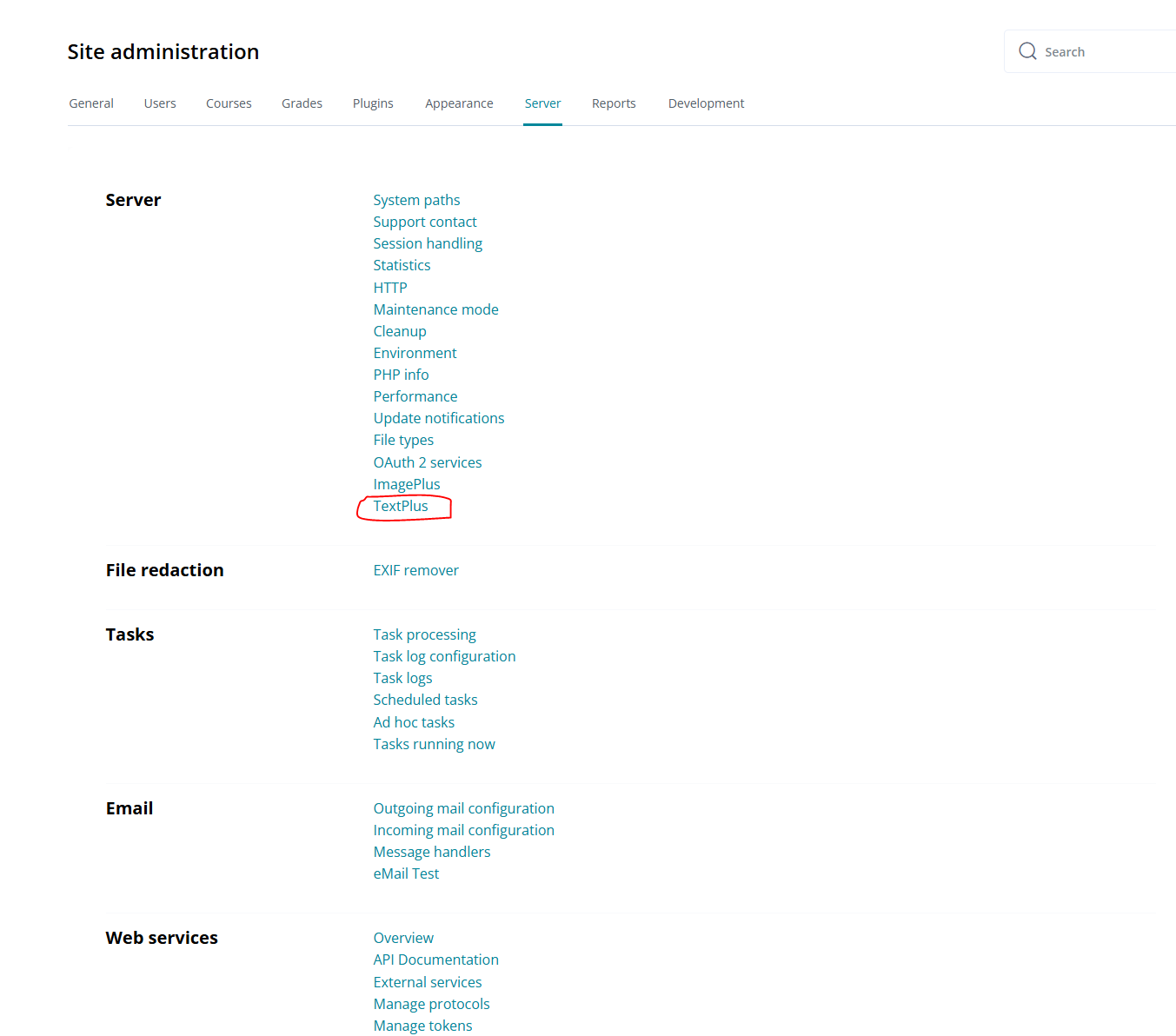
- Go to Site administration ' Server ' TextPlus
Note: Non-administrators will see an access denied error. This is intentional for security.
Using the Multi-Step Wizard
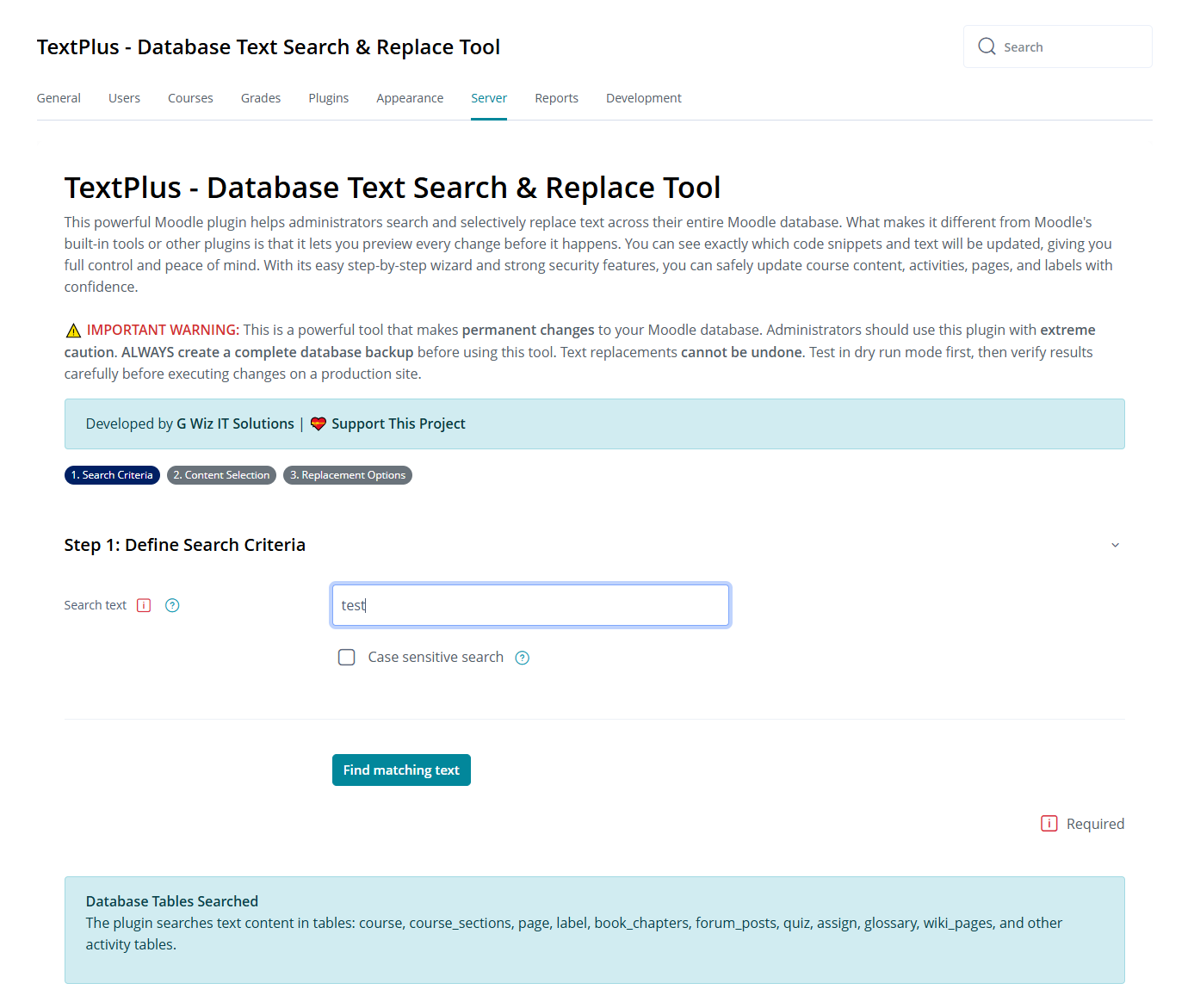
Step 1: Define Search Criteria
Enter Search Text: Type the exact text string to search for
- Simple text:
old company name, deprecated link, outdated information
- Case sensitive search option available
Search Options: Configure search parameters
- Enable/disable case-sensitive search
- Select which database tables to search
- Documents (DOC, DOCX, ODT, TXT)
- Videos (MP4, AVI, MOV, WebM)
Click Find matching text to proceed to Step 2
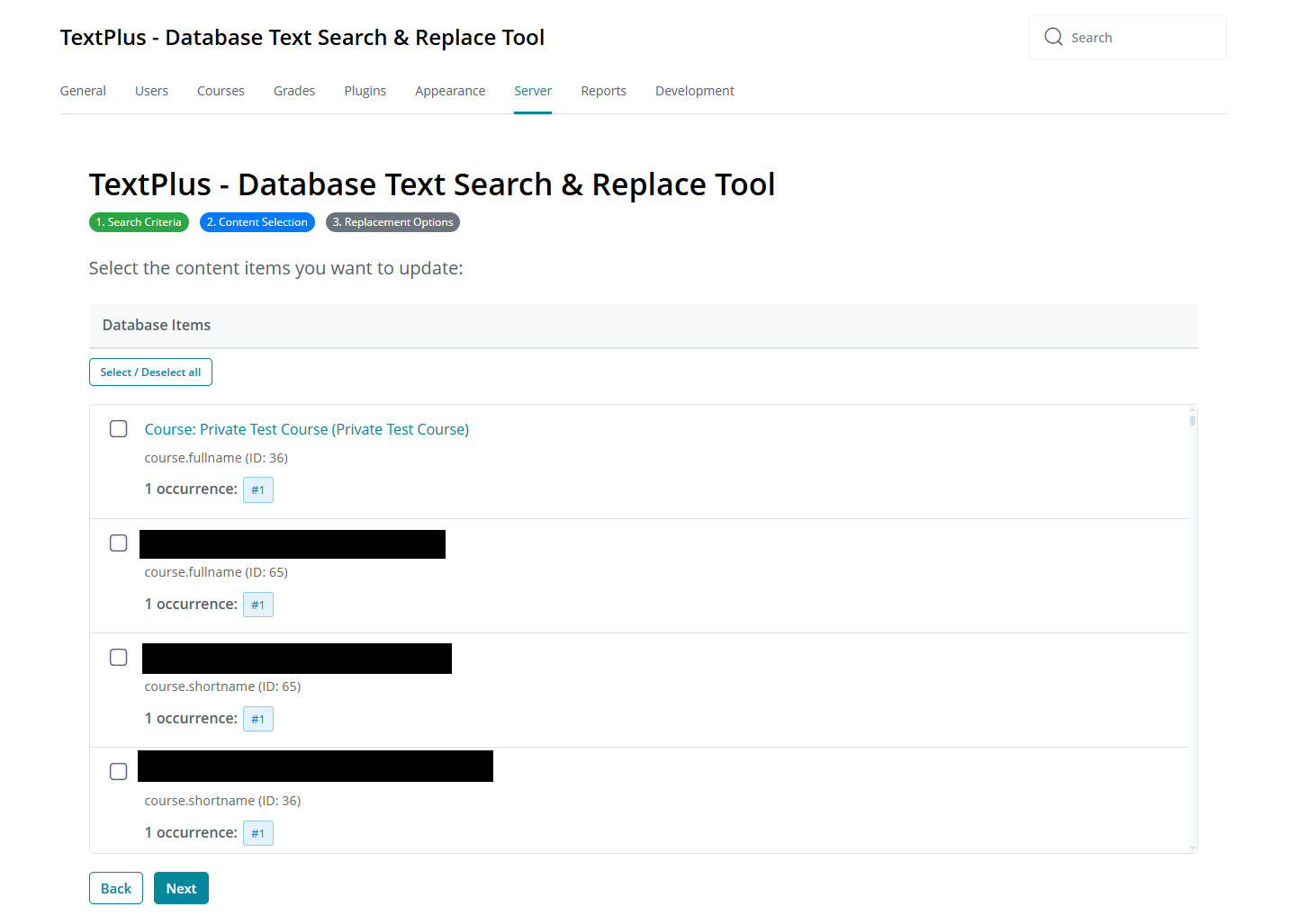
Step 2: Select Content to Replace
Review Found Items: See all database records containing your search text
- Shows table name, field, record ID, and context
- Preview of the text content with search term highlighted
- Information about where the content appears (course, activity, etc.)
Select Items:
- Use checkboxes to select specific items to update
- Use Select All/Deselect All buttons for bulk selection
- Review each item carefully before selection
Navigation:
- Click Back to modify search criteria
- Click Next to proceed to replacement options
Note: At least one item must be selected to proceed.
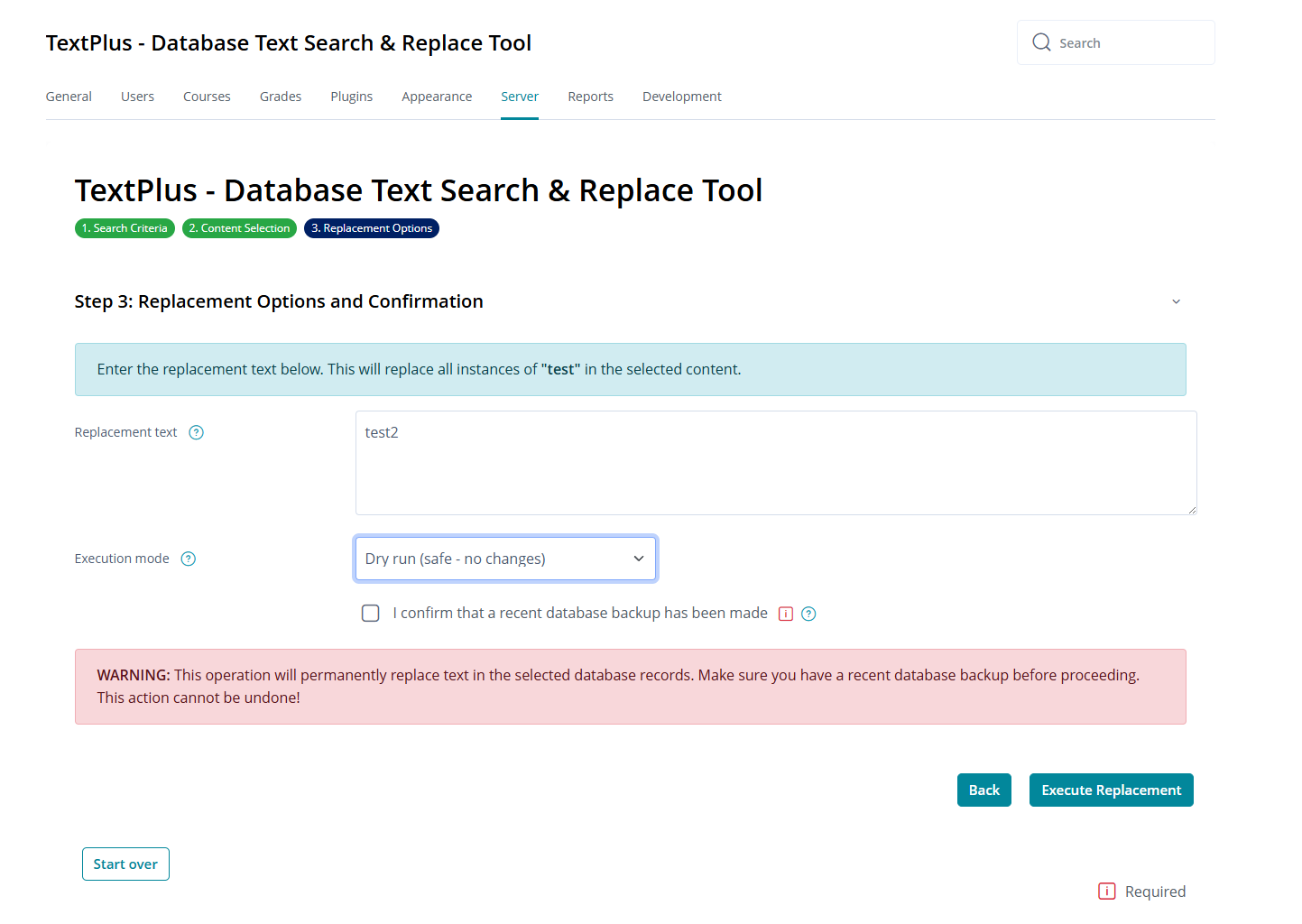
Step 3: Replacement Options and Confirmation
Enter Replacement Text:
- Type the new text that will replace the search term
- Leave empty to remove the search text completely
- The replacement will maintain HTML formatting where applicable
Configure Options:
- Execution mode:
- Dry run: See what would be changed without modifying the database (safe - recommended first)
- Execute changes: Actually perform the replacements
Database Backup Confirmation ⚠️:
- '️ I confirm that a recent database backup has been made (REQUIRED)
- This checkbox must be checked before proceeding
- Replacement operations cannot be undone
Final Warning: Read the warning about irreversible changes
Click Execute Replacement to complete the operation
After Execution
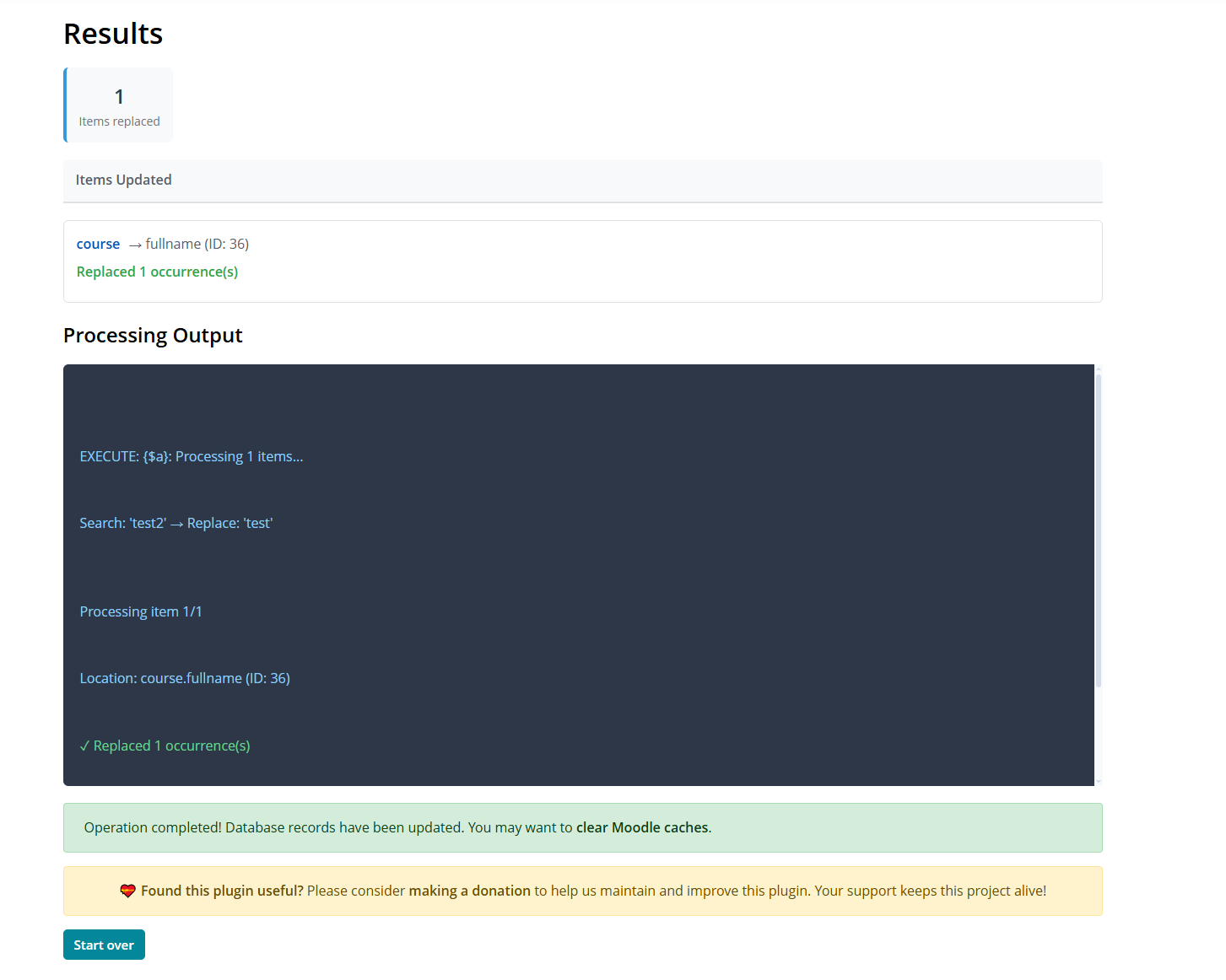
- View detailed results showing success/failure for each item
- Review replacement log with statistics
- Click Start Over to begin a new replacement operation
- Consider clearing Moodle caches after replacements
Database Tables Searched
The plugin searches text content in the following Moodle tables:
course - Course names, descriptions, summaries
course_sections - Course section summaries
page - Page content
label - Label text
book_chapters - Book chapter content
forum_posts - Forum post content
quiz - Quiz descriptions
assign - Assignment descriptions
- And other activity tables
Third-Party Plugin Support:
- Edwiser RemUI Page Builder - Automatically detected and included if installed
edwiser_remui_pages - Custom page titles and content
How It Works
- Search Phase: The plugin scans selected database tables for text content containing your search term
- Analysis: For each matching record, it determines:
- Table and field location
- Record context (course, activity, etc.)
- Content preview
- Replacement: The search text is:
- Replaced with the new text in selected records
- HTML formatting is preserved
- Character encoding is maintained
- Database Updates: For database records:
- Records are updated with new text content
- Timestamps are updated appropriately
- Data integrity is maintained
- Logging: All operations are logged for audit purposes
Permissions
The plugin defines two capabilities and requires site administrator access:
moodle/site:config: REQUIRED - Site administrator permission (checked before any access)
local/textplus:view: View the TextPlus tool
local/textplus:manage: Perform text replacement operations
Security Note: Only users with site administrator permissions can access this plugin. Non-administrators will see an error message directing them to contact their site administrator.
Security Features
Access Control
- Site administrator-only access (
moodle/site:config capability required)
- Multiple permission checks throughout the workflow
- Session key verification on all form submissions
- Confirm session key on destructive operations (Step 3)
Input Validation & Sanitization
- All user input validated and sanitized by Moodle form API
- Search text validated with
PARAM_TEXT to prevent SQL injection
- Database record IDs validated as integers with
PARAM_INT
- All text content escaped before database queries
- Text input sanitized before display
Output Protection
- All displayed content escaped with
s() function to prevent XSS
- JavaScript strings escaped with
addslashes_js()
- HTML output uses Moodle's
html_writer class
- Search terms and replacement text sanitized before display
Database Query Protection
- Parameterized queries prevent SQL injection
- All database operations use Moodle's DML API
- Record validation before updates
- Transaction support for data integrity
Mandatory Backup Confirmation
- Checkbox confirmation required before executing replacements
- Warning message displayed about irreversible operations
- User must acknowledge database backup has been made
Best Practices
Safety First
- " Always run in Dry Run mode first to see what will be changed
- " BACKUP YOUR DATABASE before running replacements
- " Use the backup confirmation checkbox consciously - it's there for a reason
- " Test with a specific search term on a small set of content first
- " Review the content selection list carefully in Step 2 before proceeding
- " Consider running a test on a staging/development environment first
Performance
- ⚡ For large sites, use specific search terms to limit matches
- ⚡ Run operations during low-traffic periods
- ⚡ Process content in smaller batches if you have many matches
- ⚡ Increase PHP memory limit for large batch operations
- ⚡ Consider database optimization after large replacements
Text Replacement
- " Use exact text strings for search terms
- " Double-check replacement text for typos before executing
- " Be aware of case sensitivity settings
- " Consider HTML formatting when replacing text in rich content
- " Test replacement on a few items before bulk operations
Workflow
- 📋 Step 1: Start with specific search terms, then broaden if needed
- 📋 Step 2: Carefull