AI Image Repository (AI Image Generation) plugin for Moodle
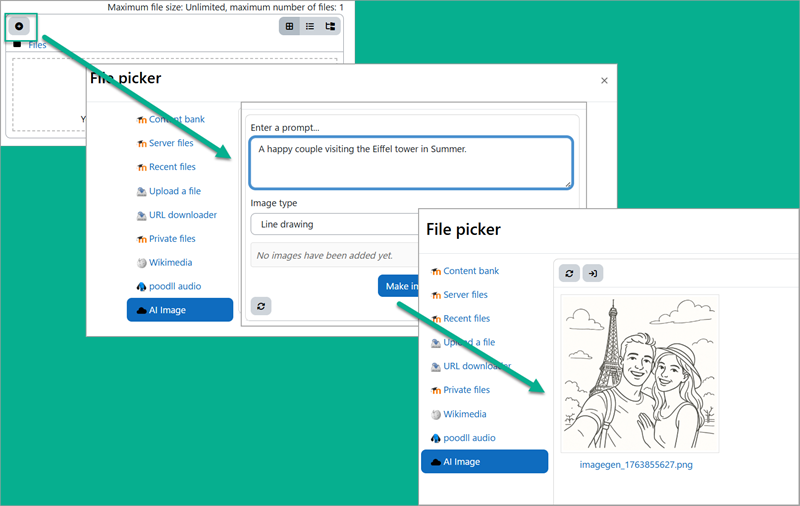
The AI Image repository plugin for Moodle adds an AI image generation and editing tool that is accessible from the HTML editor and file managers via the repository system.
It will work with the Moodle AI subsystem provider (OpenAI, Gemini etc) or with a Poodll subscription (Poodll Media, Poodll Languages, Poodll Essentials, or a Poodll free trial).
Features
- Image Generation: Generate images from text prompts.
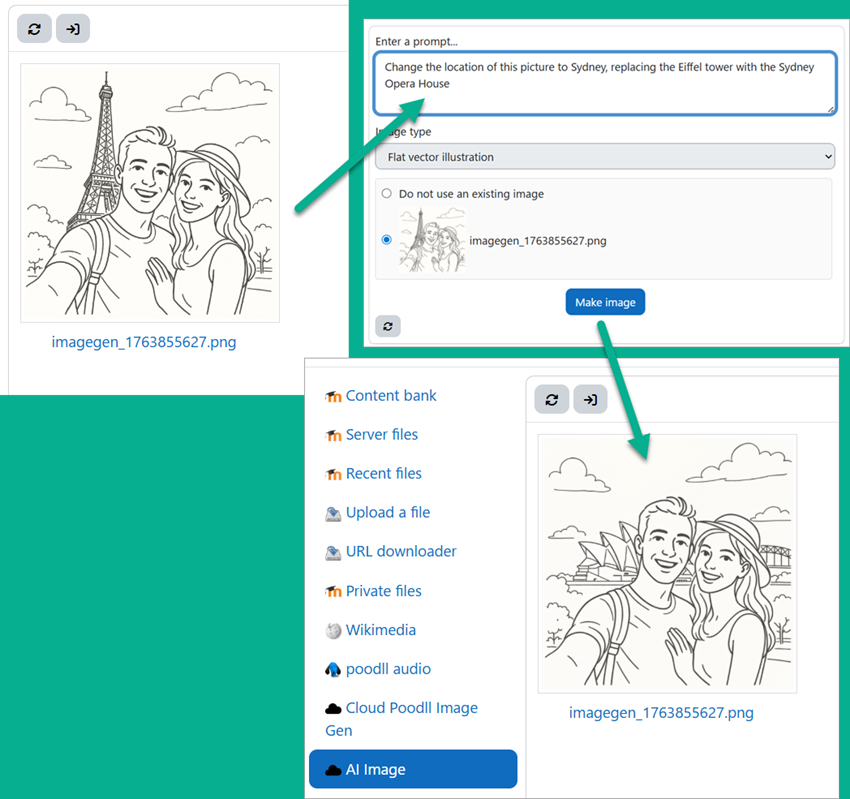
- Image Editing: Edit existing images from text prompts and an existing image.(Poodll or Gemini only)
Installation
- Clone the repository or download the plugin
- Place the
aiimage folder in the repository directory of your Moodle installation.
- Navigate to the Site administration > Notifications page in Moodle to complete the installation.
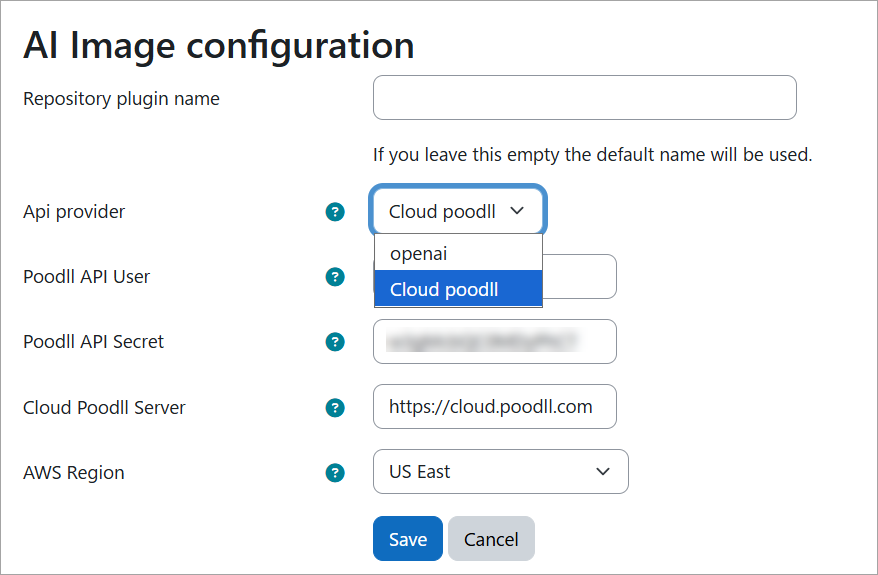
- Configure the plugin settings by going to Site administration > Plugins > Repositories > Manage Repositories. There set "AI Image" to "Enabled and Visible." This will take you to the settings page.
- On the settings page you will need choose your AI provider.
Usage
- In the HTML editor click the "Add media" button. Choose the "Browse repositories" option and choose "AI Image" from the list of repositories.
- OR in the File Manager click the add file icon (usually '+') to browse repositories and choose "AI Image" from the list.
Generating new images
- Enter a prompt
- Select the type of image from the image options.
- If there are other images already in the list, be sure to select "Do not use an existing image."
- Click "Make Image."
- It will take up to a minute and then the image will be presented.
- Click to confirm you want to use it and add it to your content.
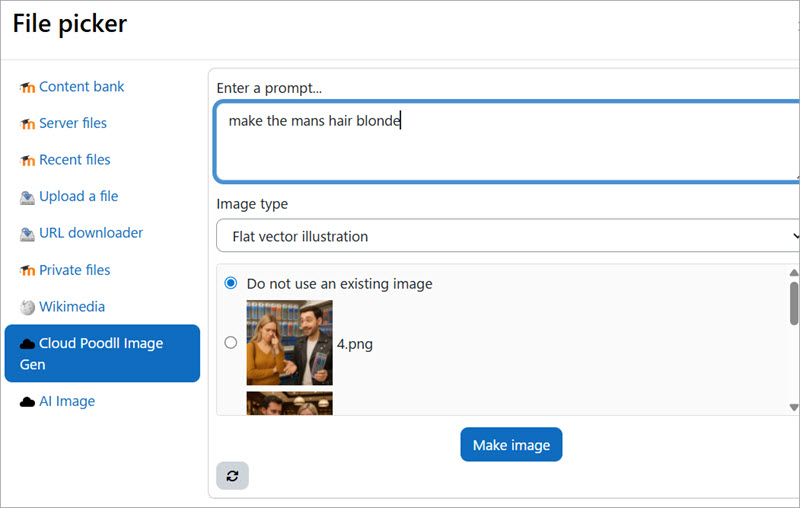
Editing existing images
- Select an existing image from the list of images.
- Enter a prompt for how you want to edit the image.
- Click "Make Image." (NB The type of image is ignored when editing images ).
- It will take up to a minute and then the edited image will be presented.
- Click to confirm you want to use it and add it to your content.
- Choose to "overwrite" the existing image or accept the renamed version to keep both images.
Support
At the time of writing (November 2025) the plugin is still early stage. More documentation is available here..
Contact us via https://support.poodll.com if you need help.