Global Embed Plugin for Moodle
Description
The Global Embed is a Moodle plugin that allows administrators to configure and display embedded content globally for authorized users. The plugin adds functionality to embed dashboards, reports, or any content via iframe/script within the Moodle environment.
Features
- " Global Embed Content: Configure an embed code that will be displayed to all authorized users
- " Permission Control: Uses Moodle's capability system to control who can view the content
- " Profile Integration: Option to add a link in the user profile
- " Flexible Configuration: Supports any type of embed code (iframe, script, etc.)
- " Multilingual: Support for Portuguese (Brazil) and English
- " Compatibility: Moodle 4.0+
Installation
Method 1: Upload via Web Interface
- Download the plugin or create a ZIP file with all files
- Go to Site Administration > Plugins > Install plugins
- Upload the ZIP file
- Follow the on-screen instructions to complete the installation
Method 2: Manual Installation
- Extract the files to the
/local/globalembed/ folder of your Moodle
- Go to Site Administration > Notifications
- Run the database upgrade process
Plugin Structure
local/globalembed/

"── db/

│   └── access.php          # Capability definitions

"── lang/

│   "── en/

│   │   └── local_globalembed.php    # English strings

│   └── pt_br/

│       └── local_globalembed.php    # Portuguese strings

"── lib.php                 # Main functions and hooks

"── settings.php           # Administrative settings

"── version.php           # Version information

"── view.php             # Embed viewing page

└── .gitignore          # Git ignored files
Configuration
1. Administrative Settings
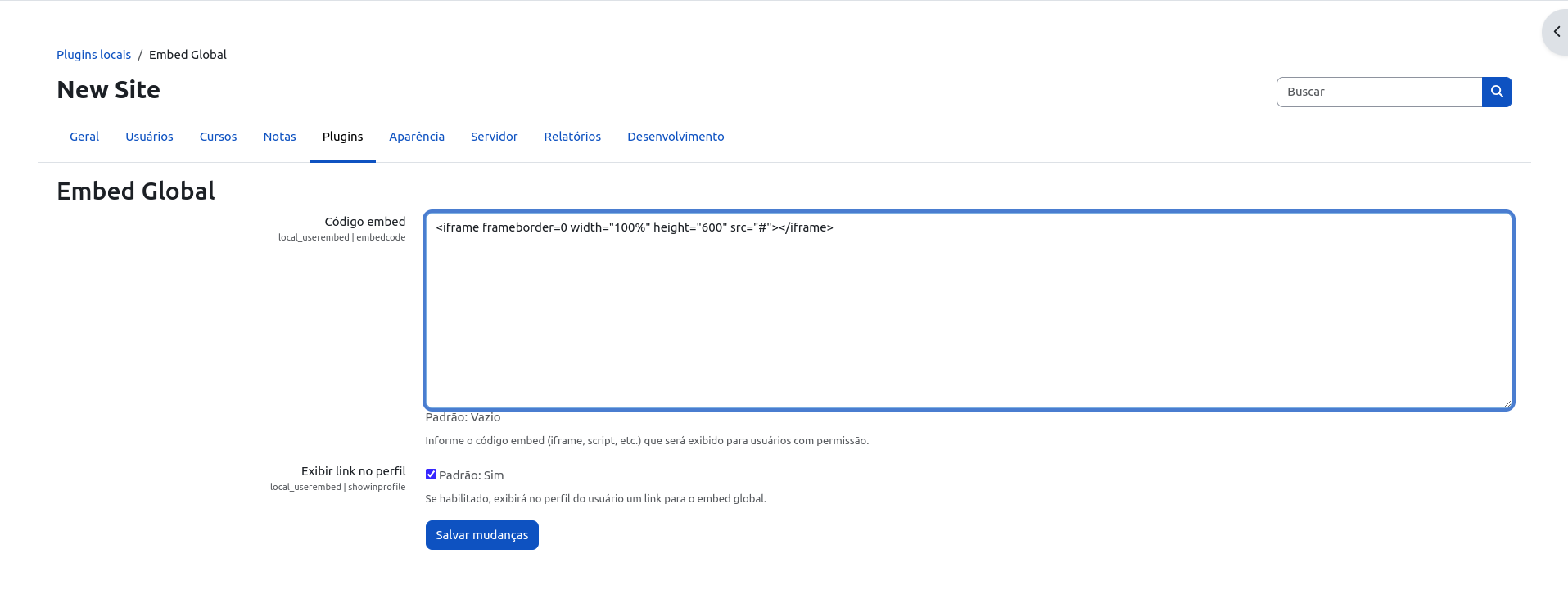
Go to Site Administration > Plugins > Local plugins > Global Embed
Embed Code
- Field: Large text area to insert the embed code
- Format: Accepts HTML, iframe, JavaScript, etc.
- Example:
<iframe

  src="https://example.com/dashboard"

  width="100%"

  height="600"

  frameborder="0"

>

</iframe>
Show Profile Link
- Option: Checkbox to enable/disable
- Function: Adds a "View Dashboard" link in authorized users' profiles
- Default: Enabled
2. Permissions
The plugin creates the local/globalembed:viewembed capability that controls who can view the embedded content.
Permission Configuration:
- Go to Site Administration > Users > Permissions > Define roles
- Select the desired role (e.g., Manager, Teacher, etc.)
- Search for "View embedded content"
- Configure as Allow
Roles with Default Access:
- Manager: Automatic access
- Other roles: Need to be configured manually
Usage
For Administrators
Configure Embed:
- Go to plugin settings
- Paste the desired embed code
- Save settings
Manage Permissions:
- Configure which roles can view the content
- Test with different users
For Users
Via Profile:
- Access your user profile
- Click "View Dashboard" (if enabled)
Via Direct URL:
- Access:
/local/globalembed/view.php?id=USER_ID
- Replace
USER_ID with the user ID
Usage Examples
Power BI Dashboard
<iframe

  width="100%"

  height="600"

  src="https://app.powerbi.com/view?r=YOUR_REPORT_ID"

  frameborder="0"

  allowfullscreen="true"

>

</iframe>
Troubleshooting
Common Issues
"No embed code configured"
- Cause: No embed code has been configured
- Solution: Go to settings and add the embed code
User cannot see the content
- Cause: User doesn't have the necessary permission
- Solution: Configure the
local/globalembed:viewembed capability for the user's role
Link doesn't appear in profile
- Cause: "Show profile link" option is disabled
- Solution: Enable the option in plugin settings
Iframe doesn't load
- Cause: Possible blocking by CORS or X-Frame-Options
- Solution: Check if the site allows iframe embedding
Logs and Debugging
To debug issues:
Enable Debug in Moodle:
// In config.php

$CFG->debug = DEBUG_DEVELOPER;

$CFG->debugdisplay = 1;
Check Logs:
- Go to Site Administration > Reports > Logs
- Filter by user and plugin-related activity
Security
Important Considerations
- Content Validation: The plugin accepts raw HTML - be careful with inserted content
- Permissions: Always configure permissions appropriately
- HTTPS: Always use secure connections for external content
- CSP (Content Security Policy): May need to adjust security policies
Recommendations
- Test all embed code before applying in production
- Regularly monitor who has access to content
- Keep the plugin updated
- Use trusted sources for embed content
Development
Requirements
- PHP 7.4+
- Moodle 4.0+
- Basic Moodle development knowledge
Support
For support and questions:
- Check the complete documentation
- Consult the troubleshooting section
- Check Moodle logs
- Contact the system administrator
License
This plugin follows the Moodle license (GPL v3).
Contributing
Contributions are welcome! To contribute:
- Fork the project
- Create a feature branch
- Commit your changes
- Push to the branch
- Open a Pull Request
Developed for Moodle 4.0+ | Stable Version